Rename Excel Worksheets and Set Tab Colors in React
When a workbook holds several worksheets, default names and look-alike tabs make it hard to tell one sheet from another. Renaming “Sheet1” to “Quarterly Sales” tells a colleague at a glance what the sheet contains; marking the sales, inventory and summary sheets with red, green and light blue tabs removes the need to open each one while switching. Both the name and the tab color live inside the workbook itself, so they survive distribution and archiving without any external notes. Spire.XLS for JavaScript performs these operations in the browser through WebAssembly, managing input and output files with a virtual file system (VFS) and requiring no backend service.
This article covers two core features:
For installation and project setup, see Integrating Spire.XLS for JavaScript in a React Project. The examples below assume Spire.XLS is installed and the WebAssembly module has been initialized.
Rename Excel Worksheets
A worksheet name is the first identifier a reader sees after opening the file. With default names such as “Sheet1” and “Sheet2”, even a well-filled workbook has to be opened sheet by sheet before the right table turns up; with a business name such as “Quarterly Sales”, the tab strip itself becomes a table of contents, and the label is preserved when the file is printed or exported. The sample workbook contains sales, inventory and summary data in that order. This section renames the first worksheet.
How to rename a worksheet and what it produces:
| Call | Result |
|---|---|
workbook.Worksheets.get(0) |
Takes the first worksheet by index |
sheet.Name |
Reads back the current worksheet name |
sheet.Name = 'Quarterly Sales' |
Assigns the new worksheet name |
workbook.SaveToFile |
Saves the renamed workbook to the VFS |
The steps are:
- Load the font file and the test data file into the VFS with
window.spire.FetchFileToVFS. - Create a workbook with
new Workbook()and load the input file withworkbook.LoadFromFile. - Take the first worksheet with
workbook.Worksheets.get(0). - Assign the new name to
sheet.Name. - Save the workbook with
workbook.SaveToFile, then release the workbook object withworkbook.Dispose.
The complete example below renames an Excel worksheet in React:
function App() {
  const renameWorksheet = async () => {
    // Get the Spire.XLS WASM module
    const xlsModule = window.wasmModule?.spirexls;

    // Check that the module is ready
    if (!xlsModule) {
      alert('Spire.Xls is not ready yet');
      return;
    }

    // Load the font and the test data file into the VFS
    await window.spire.FetchFileToVFS('ARIAL.TTF', '/Library/Fonts/', `${process.env.PUBLIC_URL}/font/`);
    const inputFileName = 'WorksheetNames.xlsx';
    await window.spire.FetchFileToVFS(inputFileName, '', `${process.env.PUBLIC_URL}data/`);

    // Load the workbook and take the first worksheet
    const workbook = new xlsModule.Workbook();
    workbook.LoadFromFile({ fileName: inputFileName });
    const sheet = workbook.Worksheets.get(0);

    // Assign the new worksheet name
    sheet.Name = 'Quarterly Sales';

    // Save the workbook
    const outputFileName = 'RenameWorksheet.xlsx';
    workbook.SaveToFile({ fileName: outputFileName });

    // Dispose of the workbook to release its resources
    workbook.Dispose();

    // Read the result back out of the VFS and trigger the download
    const fileArray = window.dotnetRuntime.Module.FS.readFile(outputFileName);
    const blob = new Blob([fileArray], { type: 'application/vnd.openxmlformats-officedocument.spreadsheetml.sheet' });
    const url = URL.createObjectURL(blob);
    const a = document.createElement('a');
    a.href = url;
    a.download = outputFileName;
    a.click();
    URL.revokeObjectURL(url);
  };

  return (
    <div style={{ textAlign: 'center', height: '300px' }}>
      <h1>Rename Excel Worksheets</h1>
      <button id="rename-worksheet" onClick={renameWorksheet}>Rename Worksheet</button>
    </div>
  );
}

export default App;
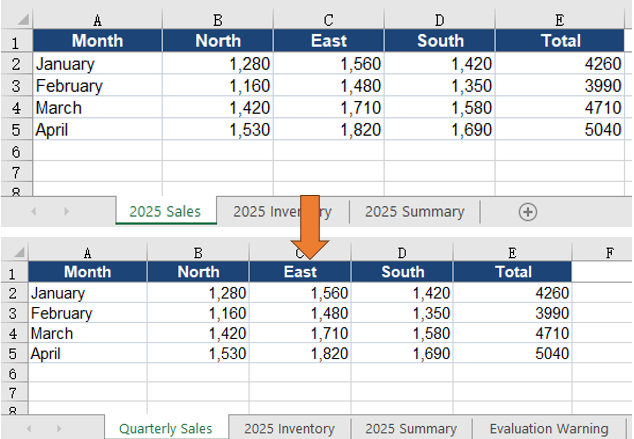
The workbook after renaming the first worksheet:
Set Excel Worksheet Tab Colors
Even with descriptive names, the tab strip remains a row of similarly sized text, which has to be scanned sheet by sheet. Tab colors add a second identifier: red for sales, green for inventory and light blue for summary. Color is perceived before the text is read, so a reader can locate a group directly, and both the color and the name stay in the workbook when the file is shared. The three worksheets in the sample correspond to the three groups, so this section assigns each one a different tab color.
How to set worksheet tab colors and what it produces:
| Call | Result |
|---|---|
workbook.Worksheets.get(0) |
Takes the worksheet whose tab will be colored |
sheet.TabColor = xlsModule.Color.get_Red() |
Turns the worksheet tab red |
sheet.TabColor = xlsModule.Color.get_Green() |
Turns the worksheet tab green |
sheet.TabColor = xlsModule.Color.get_LightBlue() |
Turns the worksheet tab light blue |
xlsModule.Color.FromArgb(255, 255, 193, 7) |
Builds a custom RGB color for TabColor |
The steps are:
- Load the font file and the test data file into the VFS with
window.spire.FetchFileToVFS. - Create a workbook with
new Workbook()and load the input file withworkbook.LoadFromFile. - Take the three worksheets in order with
workbook.Worksheets.get(0),get(1)andget(2). - Assign
xlsModule.Color.get_Red(),get_Green()andget_LightBlue()to each worksheet'sTabColor. - Save the workbook with
workbook.SaveToFile, then release the workbook object withworkbook.Dispose.
The complete example below sets worksheet tab colors in React:
function App() {
  const setTabColor = async () => {
    // Get the Spire.XLS WASM module
    const xlsModule = window.wasmModule?.spirexls;

    // Check that the module is ready
    if (!xlsModule) {
      alert('Spire.Xls is not ready yet');
      return;
    }

    // Load the font and the test data file into the VFS
    await window.spire.FetchFileToVFS('ARIAL.TTF', '/Library/Fonts/', `${process.env.PUBLIC_URL}/font/`);
    const inputFileName = 'WorksheetNames.xlsx';
    await window.spire.FetchFileToVFS(inputFileName, '', `${process.env.PUBLIC_URL}data/`);

    // Load the workbook
    const workbook = new xlsModule.Workbook();
    workbook.LoadFromFile({ fileName: inputFileName });

    // Set the tab colours to red, green and light blue in worksheet order
    workbook.Worksheets.get(0).TabColor = xlsModule.Color.get_Red();
    workbook.Worksheets.get(1).TabColor = xlsModule.Color.get_Green();
    workbook.Worksheets.get(2).TabColor = xlsModule.Color.get_LightBlue();

    // Save the workbook
    const outputFileName = 'SetTabColor.xlsx';
    workbook.SaveToFile({ fileName: outputFileName });

    // Dispose of the workbook to release its resources
    workbook.Dispose();

    // Read the result back out of the VFS and trigger the download
    const fileArray = window.dotnetRuntime.Module.FS.readFile(outputFileName);
    const blob = new Blob([fileArray], { type: 'application/vnd.openxmlformats-officedocument.spreadsheetml.sheet' });
    const url = URL.createObjectURL(blob);
    const a = document.createElement('a');
    a.href = url;
    a.download = outputFileName;
    a.click();
    URL.revokeObjectURL(url);
  };

  return (
    <div style={{ textAlign: 'center', height: '300px' }}>
      <h1>Set Excel Worksheet Tab Colors</h1>
      <button id="set-tab-color" onClick={setTabColor}>Set Tab Colors</button>
    </div>
  );
}

export default App;
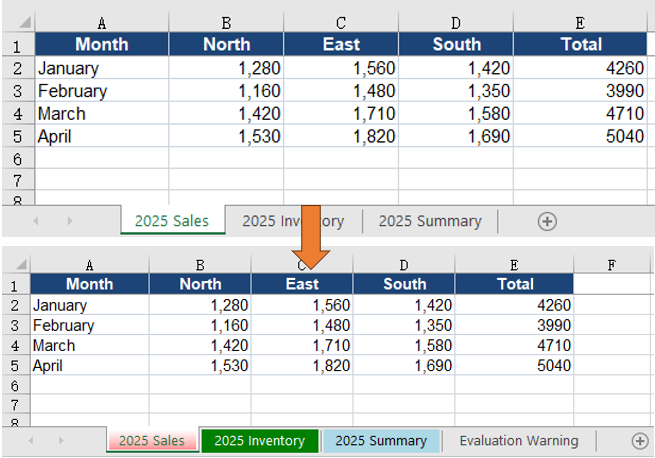
The workbook after setting tab colors for the three worksheets:
Set a Custom Tab Color
When the built-in colors do not fit a report's palette, Color.FromArgb builds a custom color. Its four arguments are the alpha, red, green and blue channels, each from 0 to 255:
// Set the first worksheet tab to amber
workbook.Worksheets.get(0).TabColor = xlsModule.Color.FromArgb(255, 255, 193, 7);
FAQ
Worksheet rename reports a duplicate name
Cause: Worksheet names in a workbook must be unique, and the comparison ignores case. Assigning a name already used by another worksheet, such as “Sales” and “sales”, triggers the limit.
Solution: Before renaming, iterate over workbook.Worksheets, read each Name, and confirm the target name is free before assigning it to sheet.Name.
A sheet name containing a slash throws an error
Cause: Excel does not allow worksheet names to contain :, \, /, ?, *, [ or ]; Spire.XLS throws when such a name is assigned.
Solution: Replace the illegal characters with a hyphen or underscore before assigning the value to sheet.Name.
What happens when a worksheet name exceeds 31 characters
Cause: Excel limits worksheet names to 31 characters. Spire.XLS does not report an error; it truncates the name to 31 characters before writing it.
Solution: Check name.length before assigning and shorten the name when it is longer than 31 characters. The truncation happens during assignment, so comparing the saved name with the intended one will reveal the difference.
Getting a worksheet by name throws Arg_NullReferenceException
Cause: workbook.Worksheets.get('name') returns a worksheet only when the name matches exactly. A missing name, a trailing space, or a worksheet that has already been renamed all throw this exception.
Solution: Iterate over workbook.Worksheets and print each Name to confirm the current name before calling get. When the name comes from external input, trim leading and trailing spaces first.
Get a Free License
Spire.XLS for JavaScript offers a 30-day full-featured free trial license with no functional limitations. Apply here to evaluate before purchasing.
Hide, Unhide, and Control the Conversion of Excel Worksheets with JavaScript in React
In daily work, we often need to hide some worksheets to simplify the interface display or protect sensitive data, and we can unhide them when necessary. In addition, when converting a workbook to HTML, you may also need to control whether hidden worksheets appear in the conversion result. Spire.XLS for JavaScript performs these operations directly in the browser based on WebAssembly, managing input and output files through the virtual file system (VFS), without any backend service support.
This article covers three core feature points:
- Hide a Worksheet
- Show a Hidden Worksheet
- Control Whether to Include Hidden Worksheets When Converting to HTML
For installation and project configuration, please refer to How to Integrate Spire.XLS for JavaScript in a React Project. The following examples assume that Spire.XLS is installed and the WebAssembly module has been initialized.
Hide a Worksheet
Hiding a worksheet is often used to simplify the display of a workbook or protect internal data. With Spire.XLS for JavaScript, you can hide a specified worksheet by setting the Visibility property of the worksheet object to WorksheetVisibility.Hidden.
function App() {
  const hideSheet = async () => {
    // Get the Spire.XLS WASM module
    const xlsModule = window.wasmModule?.spirexls;

    // Check if the module is ready
    if (!xlsModule) {
      alert('Spire.Xls is not ready yet');
      return;
    }

    // Load the font and Excel file into VFS
    await window.spire.FetchFileToVFS('ARIAL.TTF', '/Library/Fonts/', `${process.env.PUBLIC_URL}/font/`);
    const inputFileName = 'HideOrShowWorksheet.xlsx';
    await window.spire.FetchFileToVFS(inputFileName, '', `${process.env.PUBLIC_URL}data/`);

    // Load the workbook
    const workbook = new xlsModule.Workbook();
    workbook.LoadFromFile({ fileName: inputFileName });

    // Get the worksheet named "Sheet1" and hide it
    let sheet1 = workbook.Worksheets.get("Sheet1");
    sheet1.Visibility = xlsModule.WorksheetVisibility.Hidden;

    // Save the workbook
    const outputFileName = "HideWorksheet_output.xlsx";
    workbook.SaveToFile({ fileName: outputFileName });

    // Dispose of the workbook object to release resources
    workbook.Dispose();

    // Read the converted file from VFS and trigger the download
    const fileArray = window.dotnetRuntime.Module.FS.readFile(outputFileName);
    const blob = new Blob([fileArray], { type: "application/vnd.openxmlformats-officedocument.spreadsheetml.sheet" });
    const url = URL.createObjectURL(blob);
    const a = document.createElement('a');
    a.href = url;
    a.download = outputFileName;
    a.click();
    URL.revokeObjectURL(url);
  };

  return (
    <div style={{ textAlign: 'center', height: '300px' }}>
      <h1>Hide Worksheet</h1>
      <button onClick={hideSheet}>
        Start
      </button>
    </div>
  );
}

export default App;
Original document (Sheet2 is already hidden) 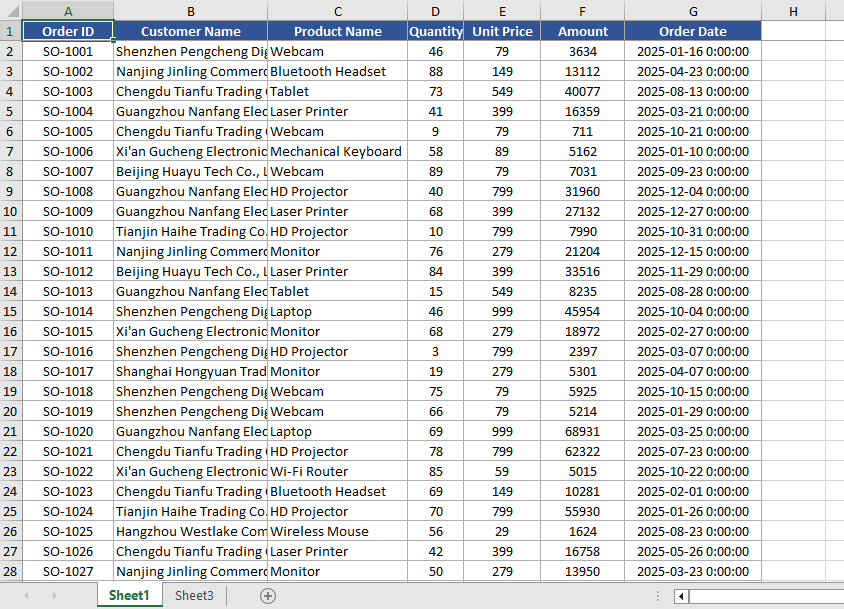 Hide Sheet1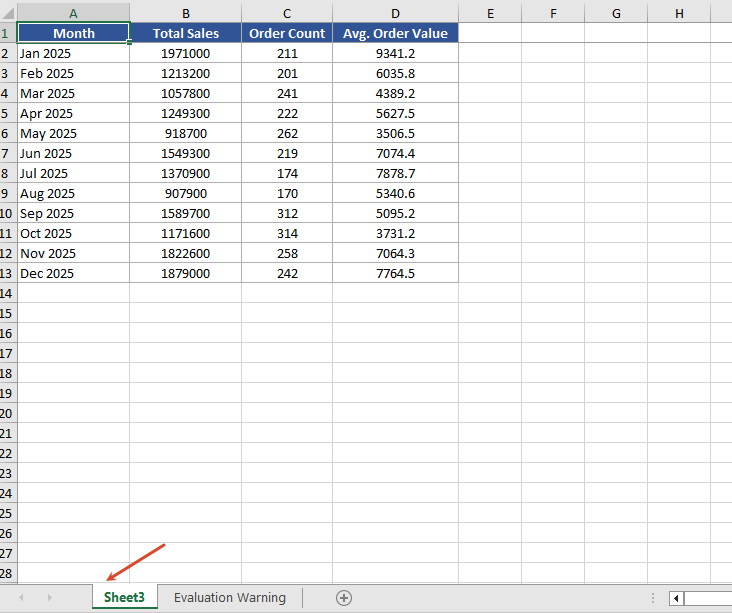
Show a Hidden Worksheet
When you need to view or edit a hidden worksheet again, you can show it again by setting the Visibility property to WorksheetVisibility.Visible.
function App() {
  const showSheet = async () => {
    // Get the Spire.XLS WASM module
    const xlsModule = window.wasmModule?.spirexls;

    // Check if the module is ready
    if (!xlsModule) {
      alert('Spire.Xls is not ready yet');
      return;
    }

    // Load the font and Excel file into VFS
    await window.spire.FetchFileToVFS('ARIAL.TTF', '/Library/Fonts/', `${process.env.PUBLIC_URL}/font/`);
    const inputFileName = 'HideOrShowWorksheet.xlsx';
    await window.spire.FetchFileToVFS(inputFileName, '', `${process.env.PUBLIC_URL}data/`);

    // Load the workbook
    const workbook = new xlsModule.Workbook();
    workbook.LoadFromFile({ fileName: inputFileName });

    // Get the second worksheet and set it as visible
    let sheet2 = workbook.Worksheets.get(1);
    sheet2.Visibility = xlsModule.WorksheetVisibility.Visible;

    // Save the workbook
    const outputFileName = "ShowWorksheet_output.xlsx";
    workbook.SaveToFile({ fileName: outputFileName });

    // Dispose of the workbook object to release resources
    workbook.Dispose();

    // Read the converted file from VFS and trigger the download
    const fileArray = window.dotnetRuntime.Module.FS.readFile(outputFileName);
    const blob = new Blob([fileArray], { type: "application/vnd.openxmlformats-officedocument.spreadsheetml.sheet" });
    const url = URL.createObjectURL(blob);
    const a = document.createElement('a');
    a.href = url;
    a.download = outputFileName;
    a.click();
    URL.revokeObjectURL(url);
  };

  return (
    <div style={{ textAlign: 'center', height: '300px' }}>
      <h1>Show Worksheet</h1>
      <button onClick={showSheet}>
        Start
      </button>
    </div>
  );
}

export default App;
Unhide Sheet2 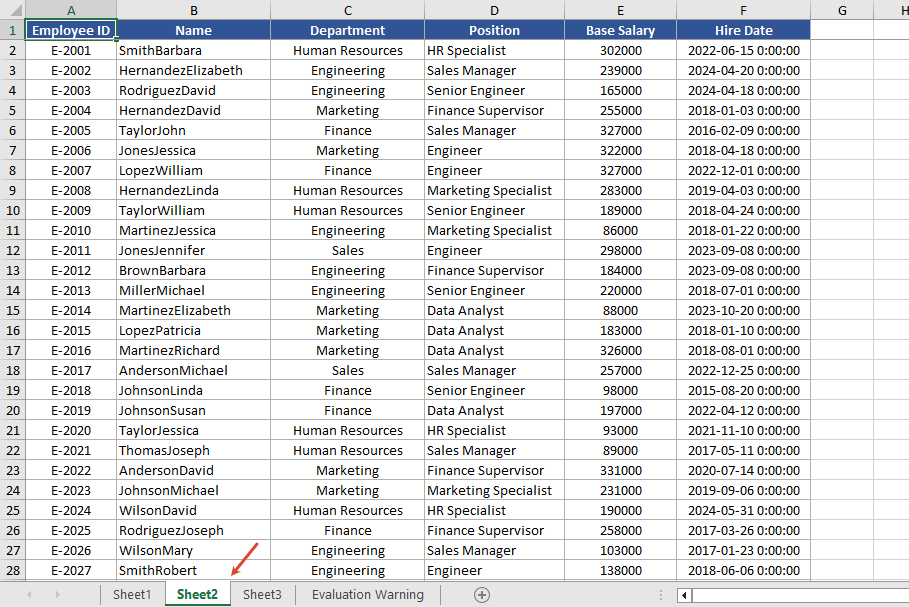
Control Whether to Include Hidden Worksheets When Converting to HTML
When converting to HTML, you can use the skipHideSheet parameter of the SaveToHtml method to control whether hidden worksheets are included in the conversion result. When set to false, the generated HTML includes hidden worksheets; when set to true, hidden worksheets are skipped and only visible worksheets remain in the HTML.
function App() {
  const saveToHtml = async () => {
    // Get the Spire.XLS WASM module
    const xlsModule = window.wasmModule?.spirexls;

    // Check if the module is ready
    if (!xlsModule) {
      alert('Spire.Xls is not ready yet');
      return;
    }

    // Load the font and Excel file into VFS
    await window.spire.FetchFileToVFS('ARIAL.TTF', '/Library/Fonts/', `${process.env.PUBLIC_URL}/font/`);
    const inputFileName = 'HideOrShowWorksheet.xlsx';
    await window.spire.FetchFileToVFS(inputFileName, '', `${process.env.PUBLIC_URL}data/`);

    // Load the workbook
    const workbook = new xlsModule.Workbook();
    workbook.LoadFromFile({ fileName: inputFileName });

    // Hide the worksheet named "Sheet1"
    let sheet1 = workbook.Worksheets.get("Sheet1");
    sheet1.Visibility = xlsModule.WorksheetVisibility.Hidden;

    // Set the output HTML file name
    const result = "result.html";

    // false --- Save HTML with hidden worksheets
    // true --- Save HTML without hidden worksheets
    workbook.SaveToHtml({
      fileName: result,
      skipHideSheet: false
    });

    // Dispose of the workbook object to release resources
    workbook.Dispose();

    // Read the converted file from VFS and trigger the download
    const fileArray = window.dotnetRuntime.Module.FS.readFile(result);
    const blob = new Blob([fileArray], { type: 'text/html' });
    const url = URL.createObjectURL(blob);
    const a = document.createElement('a');
    a.href = url;
    a.download = result;
    a.click();
    URL.revokeObjectURL(url);
  };

  return (
    <div style={{ textAlign: 'center', height: '300px' }}>
      <h1>Convert Workbook to HTML</h1>
      <button onClick={saveToHtml}>
        Start
      </button>
    </div>
  );
}

export default App;
After conversion 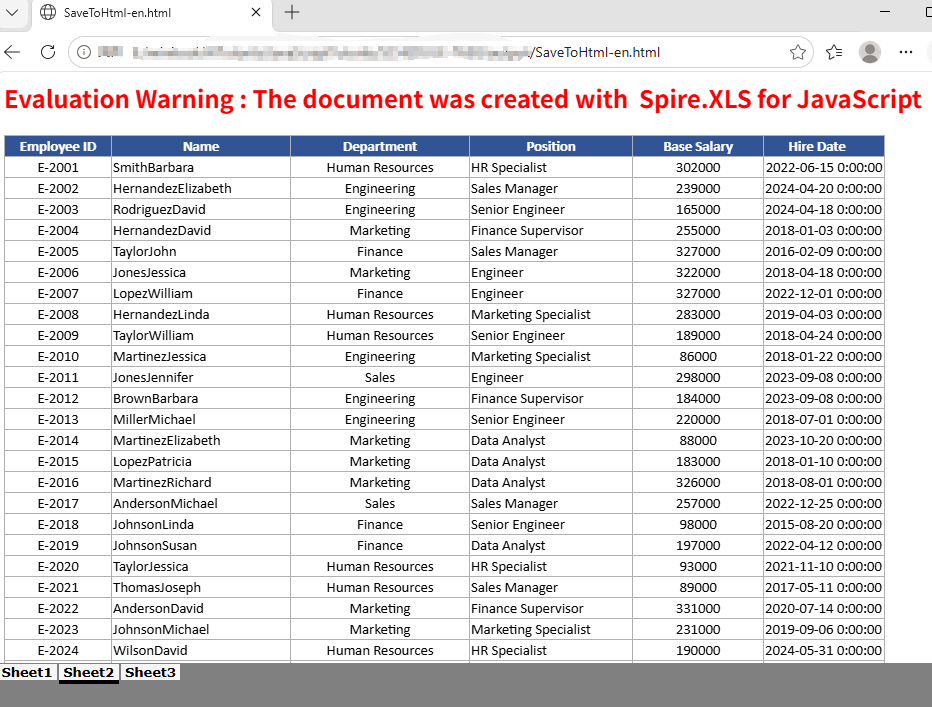
FAQ
The HTML conversion result contains extra worksheets
Cause: The original Excel document has multiple hidden worksheets. When the skipHideSheet parameter of SaveToHtml is set to false, all hidden worksheets appear in the conversion result.
Solution: You can use the following code to iterate through and check the hidden state of all sheets in the Excel file.
    const sheetCount = workbook.Worksheets.Count;
    for (let i = 0; i < sheetCount; i++) {
        let sheet = workbook.Worksheets.get(i);
        const visibility = sheet.Visibility;
    }
Get a Free License
If you want to remove the evaluation message in the generated documents or get rid of functional limitations, please contact us to get a temporary license valid for 30 days.
Freeze, Query, and Unfreeze Excel Worksheet Panes with JavaScript in React
When browsing an Excel worksheet that contains a large amount of data, pinning the header or key columns can significantly improve the efficiency of data viewing. The freeze panes feature keeps the specified rows or columns visible while scrolling. Querying the frozen pane range confirms which areas of the current worksheet are frozen. Unfreezing panes restores the normal browsing mode when the fixed display is no longer needed. Spire.XLS for JavaScript completes these operations directly in the browser based on WebAssembly, and manages input and output files through the virtual file system (VFS), without requiring backend service support.
This article introduces three core feature points:
For installation and project configuration, refer to Integrate Spire.XLS for JavaScript in a React Project. The following examples assume that Spire.XLS is installed and the WebAssembly module has been initialized.
Freeze Panes
When a worksheet contains a large amount of data, freezing panes can pin the header or a specific area so that you can always see the key rows or columns while scrolling through the data. Spire.XLS for JavaScript freezes the panes above and to the left of the specified position through the FreezePanes method. For example, FreezePanes(2, 1) freezes the first row, keeping it visible when scrolling vertically.
function App() {
  const sheetToSVG = async () => {
    // Get the Spire.XLS WASM module
    const xlsModule = window.wasmModule?.spirexls;

    // Check whether the module is ready
    if (!xlsModule) {
      alert('Spire.Xls is not ready yet');
      return;
    }

    // Load the font and the Excel file into the VFS
    await window.spire.FetchFileToVFS('ARIAL.TTF', '/Library/Fonts/', `${process.env.PUBLIC_URL}/font/`);
    const inputFileName = 'FreezePanes.xlsx';
    await window.spire.FetchFileToVFS(inputFileName, '', `${process.env.PUBLIC_URL}/static/data/`);

    // Load the workbook
    const workbook = new xlsModule.Workbook();
    workbook.LoadFromFile({ fileName: inputFileName });

    // Get the first worksheet
    const sheet = workbook.Worksheets.get(0);

    // Freeze the first row
    sheet.FreezePanes(2, 1);

    // Set the width of the second column
    sheet.SetColumnWidth(2, 10);

    const outputFileName = "FreezePanes_output.xlsx";
    workbook.SaveToFile({ fileName: outputFileName });

    // Dispose of the workbook object to release resources
    workbook.Dispose();

    // Read the converted file from the VFS and trigger the download
    const fileArray = window.dotnetRuntime.Module.FS.readFile(outputFileName);
    const blob = new Blob([fileArray], { type: "application/vnd.openxmlformats-officedocument.spreadsheetml.sheet" });
    const url = URL.createObjectURL(blob);
    const a = document.createElement('a');
    a.href = url;
    a.download = outputFileName;
    a.click();
    URL.revokeObjectURL(url);
  };

  return (
    <div style={{ textAlign: 'center', height: '300px' }}>
      <h1>Freeze Panes</h1>
      <button onClick={sheetToSVG}>
        Start
      </button>
    </div>
  );
}

export default App;
Original document 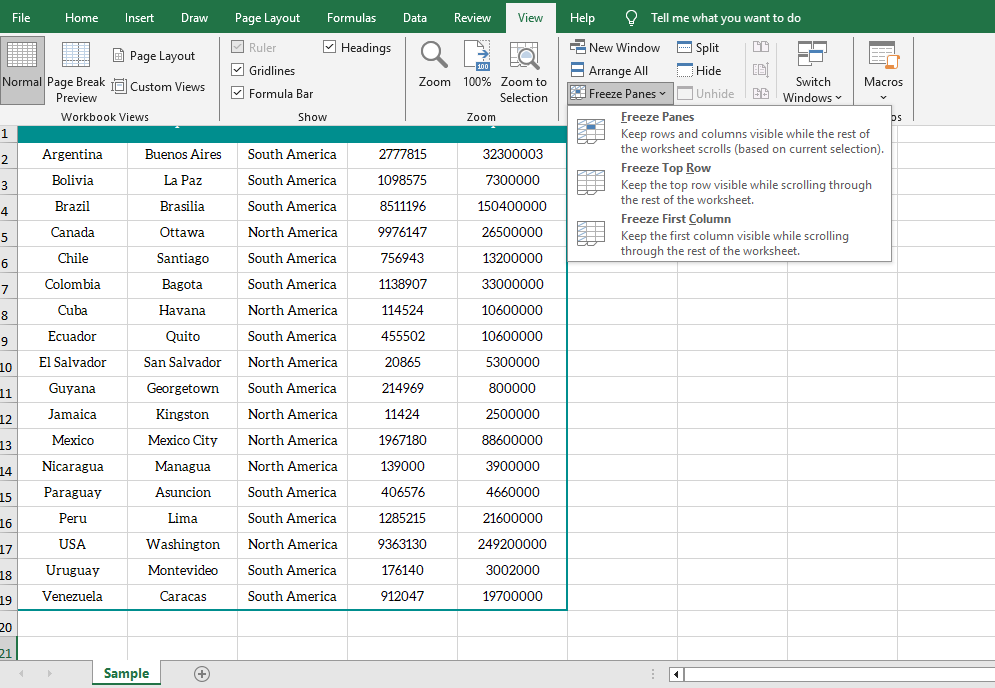 After freezing the first row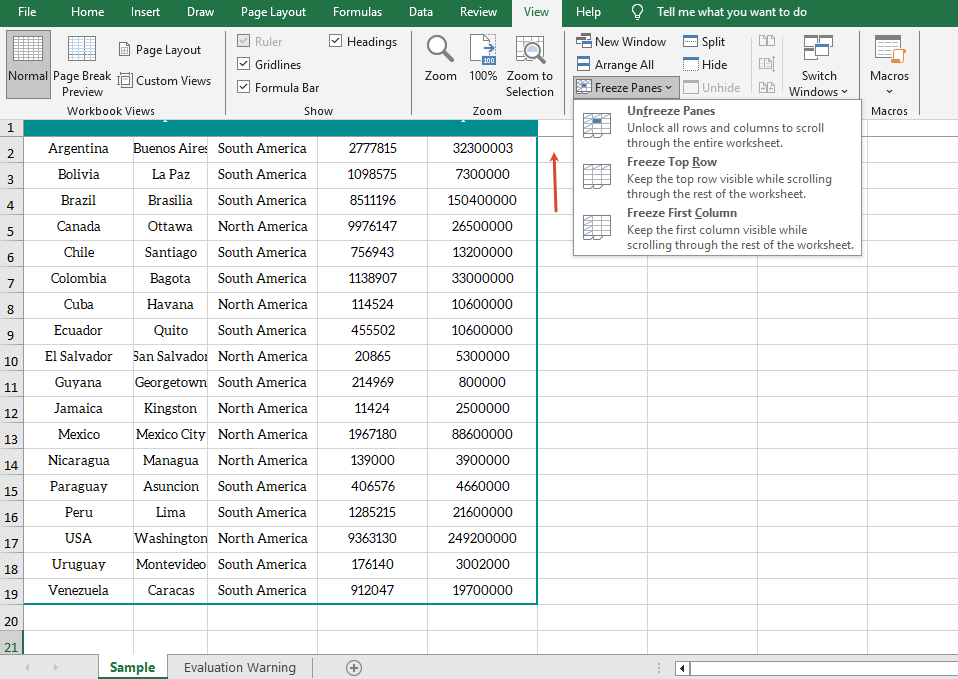
Get the Freeze Pane Range
When working with frozen panes, sometimes you need to confirm the position of the frozen panes in the current worksheet. Spire.XLS for JavaScript obtains the row index and column index of the frozen panes through the GetFreezePanes method, and a return value of 0 indicates that the corresponding direction is not frozen.
function App() {
  const sheetToSVG = async () => {
    // Get the Spire.XLS WASM module
    const xlsModule = window.wasmModule?.spirexls;

    // Check whether the module is ready
    if (!xlsModule) {
      alert('Spire.Xls is not ready yet');
      return;
    }

    // Load the font and the Excel file into the VFS
    await window.spire.FetchFileToVFS('ARIAL.TTF', '/Library/Fonts/', `${process.env.PUBLIC_URL}/font/`);
    const inputFileName = 'GetFreezePaneRange.xlsx';
    await window.spire.FetchFileToVFS(inputFileName, '', `${process.env.PUBLIC_URL}/static/data/`);

    // Load the workbook
    const workbook = new xlsModule.Workbook();
    workbook.LoadFromFile({ fileName: inputFileName });

    // Get the first worksheet
    const sheet = workbook.Worksheets.get(0);

    // Get the row index and column index of the frozen panes
    const indexs = sheet.GetFreezePanes();
    const rowIndex = indexs[0];
    const colIndex = indexs[1];

    // Write the query result to a text file
    const outputFileName = "GetFreezePaneRange_output.txt";
    window.dotnetRuntime.Module.FS.writeFile(outputFileName, `Row index: ${rowIndex}, column index: ${colIndex}`);

    // Dispose of the workbook object to release resources
    workbook.Dispose();

    // Read the converted file from the VFS and trigger the download
    const fileArray = window.dotnetRuntime.Module.FS.readFile(outputFileName);
    const blob = new Blob([fileArray], { type: "text/plain" });
    const url = URL.createObjectURL(blob);
    const a = document.createElement('a');
    a.href = url;
    a.download = outputFileName;
    a.click();
    URL.revokeObjectURL(url);
  };

  return (
    <div style={{ textAlign: 'center', height: '300px' }}>
      <h1>Get Freeze Pane Range</h1>
      <button onClick={sheetToSVG}>
        Start
      </button>
    </div>
  );
}

export default App;
Original document with frozen panes 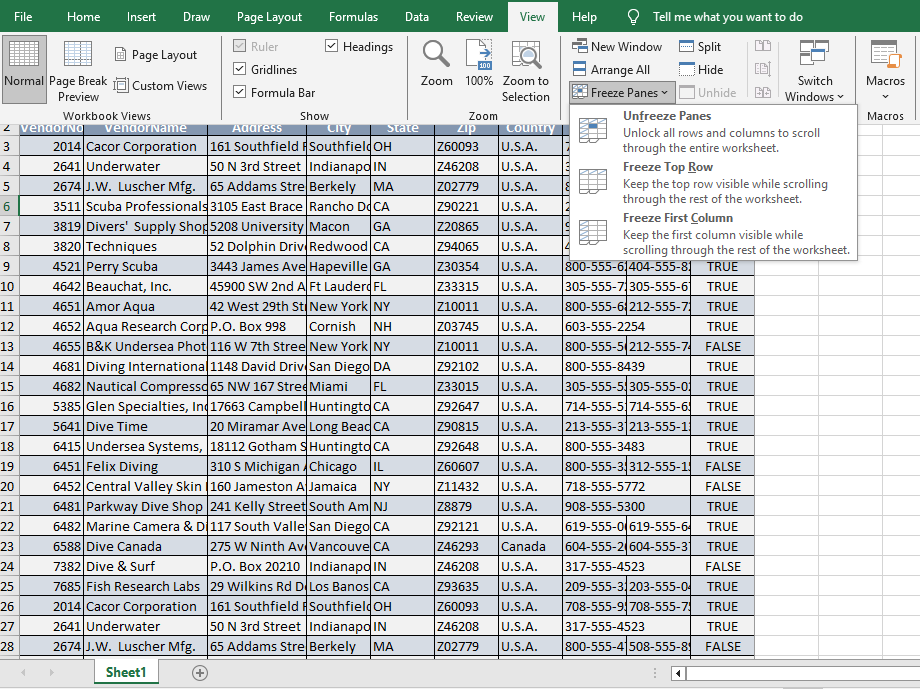 Query result
Unfreeze Panes
When the fixed display is no longer needed, you can cancel the frozen panes that have been set in the worksheet through the RemovePanes method and restore normal scrolling.
function App() {
  const sheetToSVG = async () => {
    // Get the Spire.XLS WASM module
    const xlsModule = window.wasmModule?.spirexls;

    // Check whether the module is ready
    if (!xlsModule) {
      alert('Spire.Xls is not ready yet');
      return;
    }

    // Load the font and the Excel file into the VFS
    await window.spire.FetchFileToVFS('ARIAL.TTF', '/Library/Fonts/', `${process.env.PUBLIC_URL}/font/`);
    const inputFileName = 'Template_Xls_2.xlsx';
    await window.spire.FetchFileToVFS(inputFileName, '', `${process.env.PUBLIC_URL}/static/data/`);

    // Load the workbook
    const workbook = new xlsModule.Workbook();
    workbook.LoadFromFile({ fileName: inputFileName });

    // Get the first worksheet
    const sheet = workbook.Worksheets.get(0);

    // Unfreeze the panes
    sheet.RemovePanes();

    const outputFileName = "UnfreezeExcelPanes_output.xlsx";
    workbook.SaveToFile({ fileName: outputFileName });

    // Dispose of the workbook object to release resources
    workbook.Dispose();

    // Read the converted file from the VFS and trigger the download
    const fileArray = window.dotnetRuntime.Module.FS.readFile(outputFileName);
    const blob = new Blob([fileArray], { type: "application/vnd.openxmlformats-officedocument.spreadsheetml.sheet" });
    const url = URL.createObjectURL(blob);
    const a = document.createElement('a');
    a.href = url;
    a.download = outputFileName;
    a.click();
    URL.revokeObjectURL(url);
  };

  return (
    <div style={{ textAlign: 'center', height: '300px' }}>
      <h1>Unfreeze Panes</h1>
      <button onClick={sheetToSVG}>
        Start
      </button>
    </div>
  );
}

export default App;
Before unfreezing 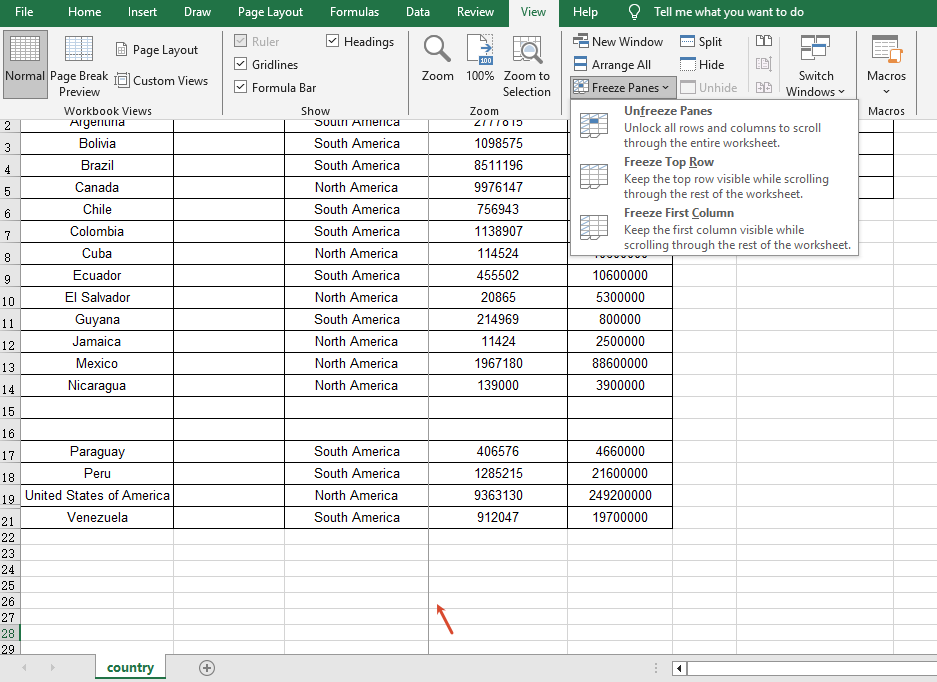 After unfreezing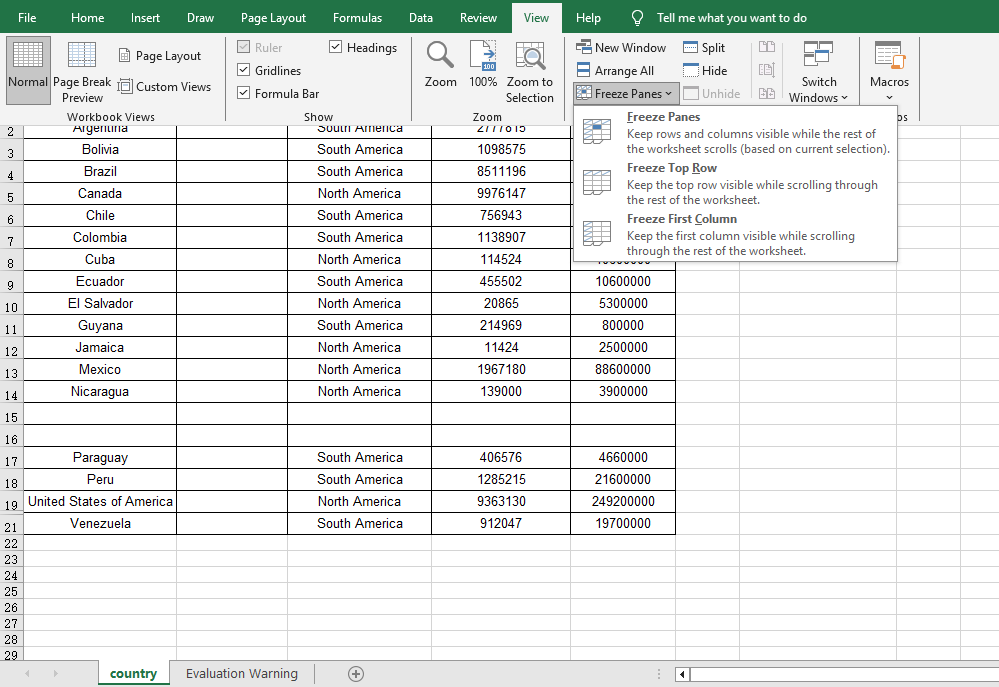
FAQ
The first row still scrolls after freezing panes
Reason: The parameters of the FreezePanes method are set incorrectly, so the frozen area is not the expected row or column.
Solution: The FreezePanes method uses the specified position as the boundary and freezes the panes above and to the left of that position. For example, use FreezePanes(2, 1) to freeze the first row, FreezePanes(3, 1) to freeze the first two rows, and FreezePanes(2, 2) to freeze both the first row and the first column.
Querying the freeze pane range returns 0
Reason: The worksheet has not set any frozen panes, so the queried row and column indexes are 0.
Solution: Call the FreezePanes method to set frozen panes first, and then call GetFreezePanes to query the frozen range.
The freeze effect still shows after unfreezing panes
Reason: The workbook was not saved correctly after unfreezing, or the file opened is the one before the modification.
Solution: After calling the RemovePanes method, be sure to save the workbook with SaveToFile and open the output file to confirm the unfreeze effect.
Get a Free License
If you want to remove the evaluation message in the result documents or get rid of the feature limitations, please contact sales to obtain a 30-day temporary license.
Add, Preview, and Remove Excel Page Breaks with JavaScript in React
Page breaks are an important tool for controlling the print layout of Excel. They determine where data is divided across printed pages. Setting page breaks properly prevents data from being broken apart pointlessly when printing, resulting in clean, readable paper or PDF reports. Spire.XLS for JavaScript uses WebAssembly to add, preview, and remove page breaks directly in the browser, managing input and output files through a virtual file system (VFS) — no backend server required.
This article covers three core features:
For installation and project configuration, refer to Integrating Spire.XLS for JavaScript in a React Project. The examples below assume Spire.XLS is installed and the WebAssembly module is initialized.
Add Page Breaks
When printing reports, we often want to split data by a fixed number of rows and columns, for example printing a fixed number of data rows per page. Spire.XLS for JavaScript adds horizontal page breaks using the HPageBreaks.Add method and vertical page breaks using the VPageBreaks.Add method, enabling precise page break control.
function App() {
  const sheetToSVG = async () => {
    // Get the Spire.XLS WASM module
    const xlsModule = window.wasmModule?.spirexls;

    // Check if the module is ready
    if (!xlsModule) {
      alert('Spire.Xls is not ready yet');
      return;
    }

    // Load fonts and the Excel file into VFS
    await window.spire.FetchFileToVFS('ARIAL.TTF', '/Library/Fonts/', `${process.env.PUBLIC_URL}/font/`);
    const inputFileName = 'Template_Xls_4.xlsx';
    await window.spire.FetchFileToVFS(inputFileName, '', `${process.env.PUBLIC_URL}/static/data/`);

    // Load the workbook
    const workbook = new xlsModule.Workbook();
    workbook.LoadFromFile({ fileName: inputFileName });

    // Get the first worksheet
    const sheet = workbook.Worksheets.get(0);

    // Add a horizontal page break at row E4
    sheet.HPageBreaks.Add(sheet.Range.get("E4"));
    // Add a vertical page break at column C4
    sheet.VPageBreaks.Add(sheet.Range.get("C4"));

    const outputFileName = "AddPageBreakInXlsFile.xlsx";
    workbook.SaveToFile({ fileName: outputFileName });

    // Release the workbook object to free resources
    workbook.Dispose();

    // Read the converted file from VFS and trigger download
    const fileArray = window.dotnetRuntime.Module.FS.readFile(outputFileName);
    const blob = new Blob([fileArray], { type: "application/vnd.openxmlformats-officedocument.spreadsheetml.sheet" });
    const url = URL.createObjectURL(blob);
    const a = document.createElement('a');
    a.href = url;
    a.download = outputFileName;
    a.click();
    URL.revokeObjectURL(url);
  };

  return (
    <div style={{ textAlign: 'center', height: '300px' }}>
      <h1>Add Page Break</h1>
      <button onClick={sheetToSVG}>
        Start
      </button>
    </div>
  );
}

export default App;
Original document 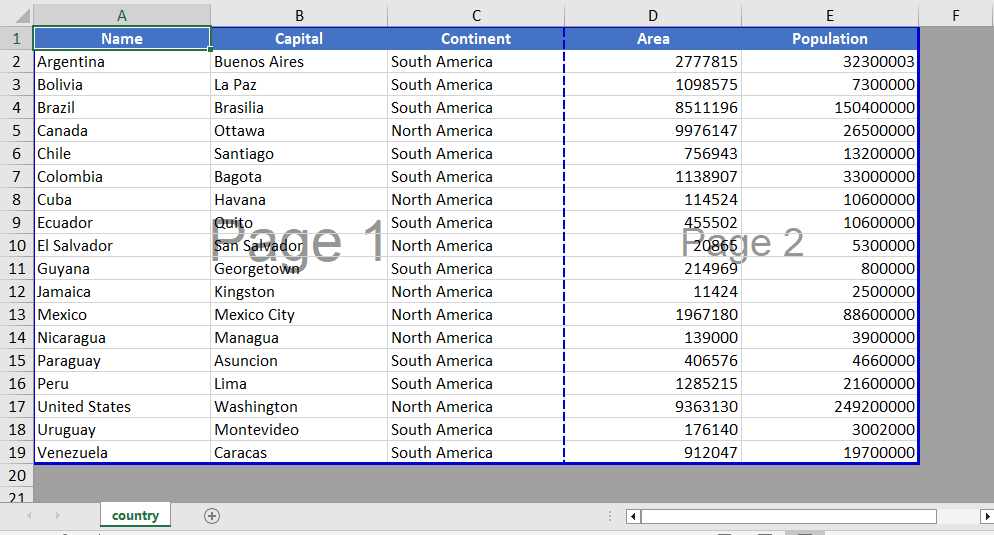 Add page break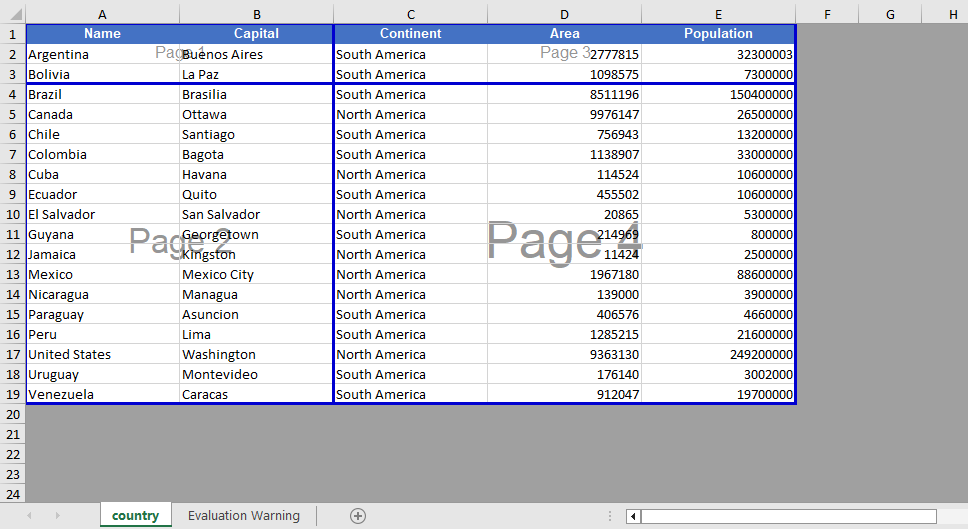
Page Break View Zoom Scale Setting
When viewing page break positions in the view mode, Spire.XLS for JavaScript supports setting the zoom scale of the page break preview view through the ZoomScalePageBreakView property.
function App() {
  const sheetToSVG = async () => {
    // Get the Spire.XLS WASM module
    const xlsModule = window.wasmModule?.spirexls;

    // Check if the module is ready
    if (!xlsModule) {
      alert('Spire.Xls is not ready yet');
      return;
    }

    // Load fonts and the Excel file into VFS
    await window.spire.FetchFileToVFS('ARIAL.TTF', '/Library/Fonts/', `${process.env.PUBLIC_URL}/font/`);
    const inputFileName = 'Template_Xls_4.xlsx';
    await window.spire.FetchFileToVFS(inputFileName, '', `${process.env.PUBLIC_URL}/static/data/`);

    // Load the workbook
    const workbook = new xlsModule.Workbook();
    workbook.LoadFromFile({ fileName: inputFileName });

    // Get the first worksheet
    const sheet = workbook.Worksheets.get(0);

    // Set the zoom scale of the page break preview view
    sheet.ZoomScalePageBreakView = 80;

    const outputFileName = "PageBreakPreview.xlsx";
    workbook.SaveToFile({ fileName: outputFileName });

    // Release the workbook object to free resources
    workbook.Dispose();

    // Read the converted file from VFS and trigger download
    const fileArray = window.dotnetRuntime.Module.FS.readFile(outputFileName);
    const blob = new Blob([fileArray], { type: "application/vnd.openxmlformats-officedocument.spreadsheetml.sheet" });
    const url = URL.createObjectURL(blob);
    const a = document.createElement('a');
    a.href = url;
    a.download = outputFileName;
    a.click();
    URL.revokeObjectURL(url);
  };

  return (
    <div style={{ textAlign: 'center', height: '300px' }}>
      <h1>Page Break Preview</h1>
      <button onClick={sheetToSVG}>
        Start
      </button>
    </div>
  );
}

export default App;
Before setting the zoom scale 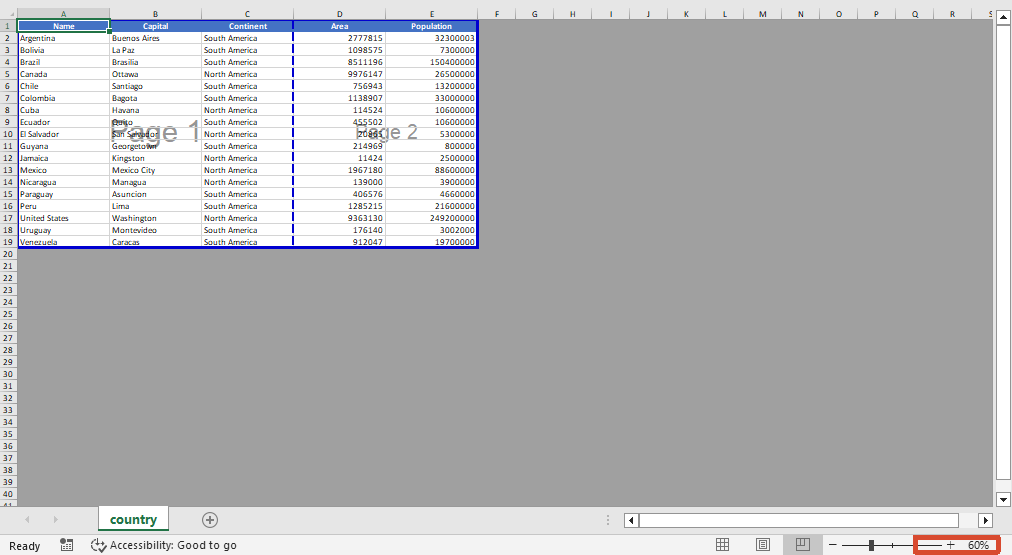 After setting the zoom scale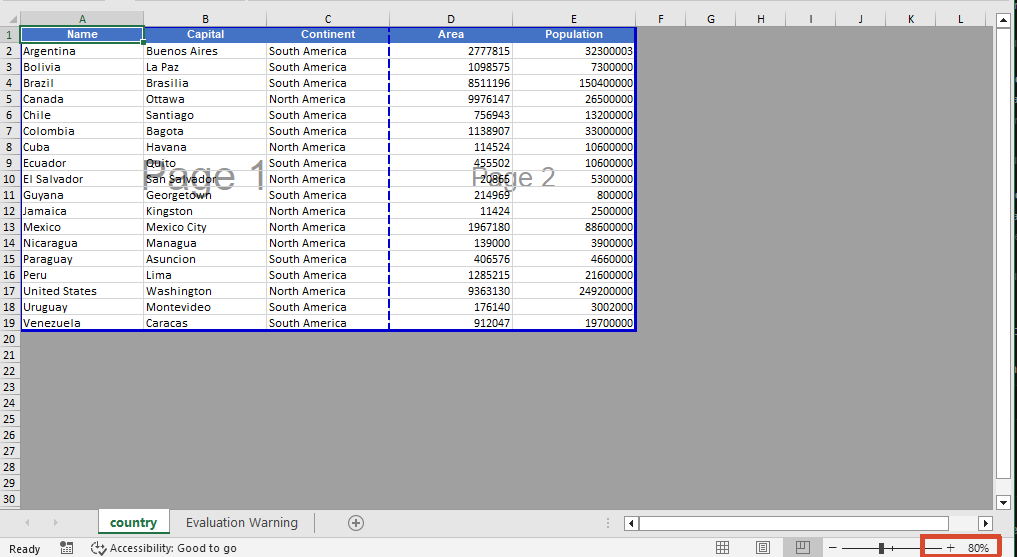
Remove Page Breaks
When page breaks are no longer needed, you can clear all page breaks in a specific direction using the Clear method, or delete the page break at a specific position by index using the RemoveAt method. After removal, you can also switch the worksheet to the page break preview view via the ViewMode property to visually confirm the page break effect.
function App() {
  const sheetToSVG = async () => {
    // Get the Spire.XLS WASM module
    const xlsModule = window.wasmModule?.spirexls;

    // Check if the module is ready
    if (!xlsModule) {
      alert('Spire.Xls is not ready yet');
      return;
    }

    // Load fonts and the Excel file into VFS
    await window.spire.FetchFileToVFS('ARIAL.TTF', '/Library/Fonts/', `${process.env.PUBLIC_URL}/font/`);
    const inputFileName = 'PageBreak.xlsx';
    await window.spire.FetchFileToVFS(inputFileName, '', `${process.env.PUBLIC_URL}/static/data/`);

    // Load the workbook
    const workbook = new xlsModule.Workbook();
    workbook.LoadFromFile({ fileName: inputFileName });

    // Get the first worksheet
    const sheet = workbook.Worksheets.get(0);

    // Clear all vertical page breaks
    sheet.VPageBreaks.Clear();

    // Remove the first horizontal page break
    sheet.HPageBreaks.RemoveAt(0);

    // Set the view mode to page break preview to check the page break effect
    sheet.ViewMode = xlsModule.ViewMode.Preview;

    const outputFileName = "RemovePageBreak_output.xlsx";
    workbook.SaveToFile({ fileName: outputFileName });

    // Release the workbook object to free resources
    workbook.Dispose();

    // Read the converted file from VFS and trigger download
    const fileArray = window.dotnetRuntime.Module.FS.readFile(outputFileName);
    const blob = new Blob([fileArray], { type: "application/vnd.openxmlformats-officedocument.spreadsheetml.sheet" });
    const url = URL.createObjectURL(blob);
    const a = document.createElement('a');
    a.href = url;
    a.download = outputFileName;
    a.click();
    URL.revokeObjectURL(url);
  };

  return (
    <div style={{ textAlign: 'center', height: '300px' }}>
      <h1>Remove Page Break</h1>
      <button onClick={sheetToSVG}>
        Start
      </button>
    </div>
  );
}

export default App;
Before removing the page break 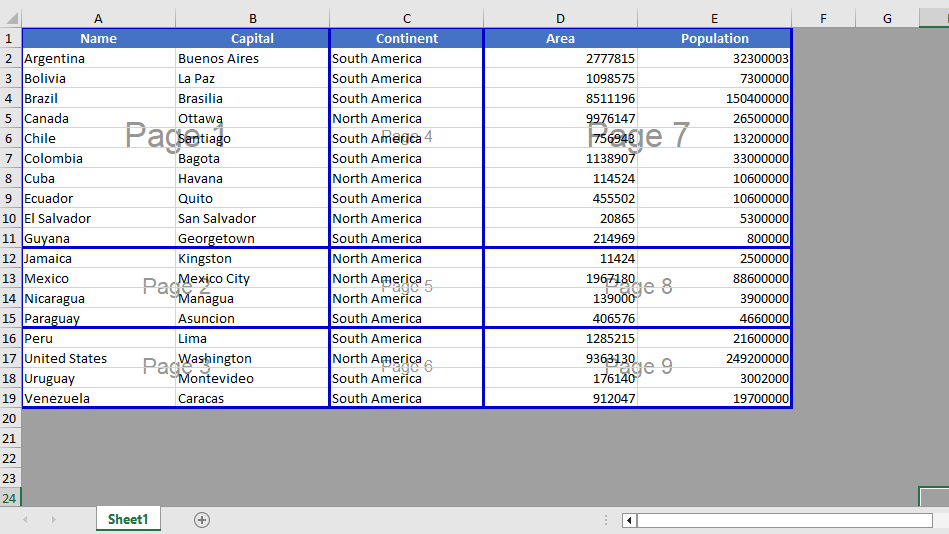 After removing the page break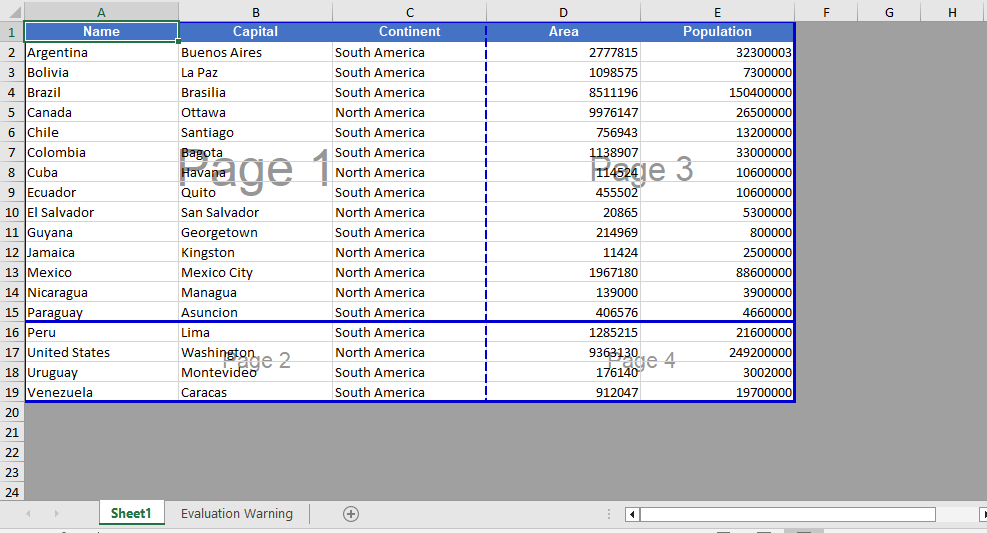
FAQ
Page breaks do not take effect when printing after being added
Cause: The page break was added to a blank area, or the worksheet has a fixed print zoom scale set, causing the actual page break positions during printing to differ from what was expected.
Solution: Confirm that the page break is added on the row or column of a cell containing data, and check the worksheet's print zoom settings. If necessary, adjust the zoom scale through properties such as ZoomScalePageBreakView so the page breaks take effect as expected.
Page break lines still display after removal
Cause: The worksheet is still in page break preview view mode, or there are automatic page breaks that are generated automatically based on the amount of data.
Solution: Automatic page breaks cannot be removed directly by programming; automatic page breaks are determined by the number of data rows, columns, and the page size. They can be eliminated by adjusting row heights, column widths, or the print zoom scale.
Get a Free License
If you want to remove the evaluation messages in the resulting documents, or get rid of functional limitations, please contact sales to obtain a temporary license valid for 30 days.
Copy Excel Worksheets with JavaScript in React
Copying worksheets is one of the most common and efficient operations in everyday Excel document processing — whether you are quickly creating similar reports from a template or consolidating data across multiple documents. Spire.XLS for JavaScript handles this entirely in the browser via WebAssembly, using a virtual file system (VFS) to manage input and output files — no backend server required.
This article covers three core features:
- Copy a worksheet within the same workbook
- Copy a worksheet across workbooks
- Copy a selected cell range
For installation and project setup, refer to Integrating Spire.XLS for JavaScript in a React Project. The examples below assume Spire.XLS is installed and the WebAssembly module is initialized.
Copy a Worksheet Within the Same Workbook
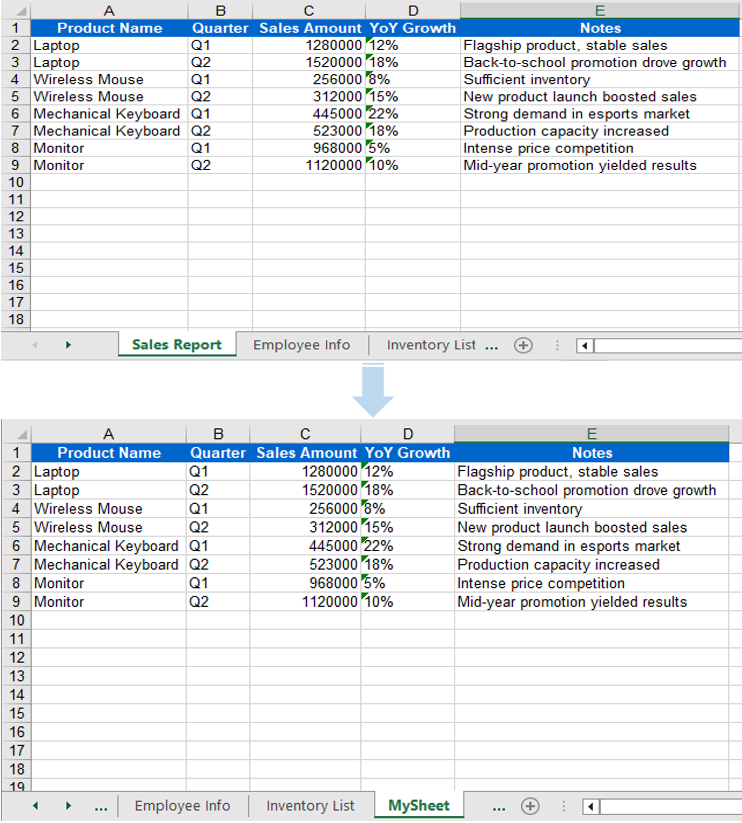
Duplicating a worksheet within the same workbook is a frequent development task — for example, quickly creating next month's report copy from a monthly template. Spire.XLS for JavaScript provides the CopyFrom method to duplicate a worksheet. The copied sheet retains all content from the source worksheet, including data, styles, fonts, colors, borders, column widths, and row heights.
function App() {
  const sheetToSVG = async () => {
    // Get the Spire.XLS WASM module
    const xlsModule = window.wasmModule?.spirexls;

    // Check if the module is ready
    if (!xlsModule) {
      alert('Spire.Xls is not ready yet');
      return;
    }

    // Load fonts and the Excel file into VFS
    await window.spire.FetchFileToVFS('ARIAL.TTF', '/Library/Fonts/', `${process.env.PUBLIC_URL}/font/`);
    const inputFileName = 'Sample.xlsx';
    await window.spire.FetchFileToVFS(inputFileName, '', `${process.env.PUBLIC_URL}data/`);

    // Load the workbook
    const workbook = new xlsModule.Workbook();
    workbook.LoadFromFile({ fileName: inputFileName });

    // Get the first worksheet
    let sheet = workbook.Worksheets.get(0);

    // Add a new worksheet
    let sheet1 = workbook.Worksheets.Add("MySheet");

    // Copy the first worksheet into the newly added sheet
    sheet1.CopyFrom(sheet);

    const outputFileName = "CopySheetWithinWorkbook_output.xlsx";
    workbook.SaveToFile({ fileName: outputFileName });

    // Release the workbook object to free resources
    workbook.Dispose();

    // Read the converted file from VFS and trigger download
    const fileArray = window.dotnetRuntime.Module.FS.readFile(outputFileName);
    const blob = new Blob([fileArray], { type: "application/vnd.openxmlformats-officedocument.spreadsheetml.sheet" });
    const url = URL.createObjectURL(blob);
    const a = document.createElement('a');
    a.href = url;
    a.download = outputFileName;
    a.click();
    URL.revokeObjectURL(url);
  };

  return (
    <div style={{ textAlign: 'center', height: '300px' }}>
      <h1>Copy Worksheet Within Workbook</h1>
      <button onClick={sheetToSVG}>
        Start
      </button>
    </div>
  );
}

export default App;
When using CopyFrom, data, styles, fonts, colors, borders, and column widths from the source worksheet are fully preserved in the new sheet.
Copy a Worksheet Across Workbooks
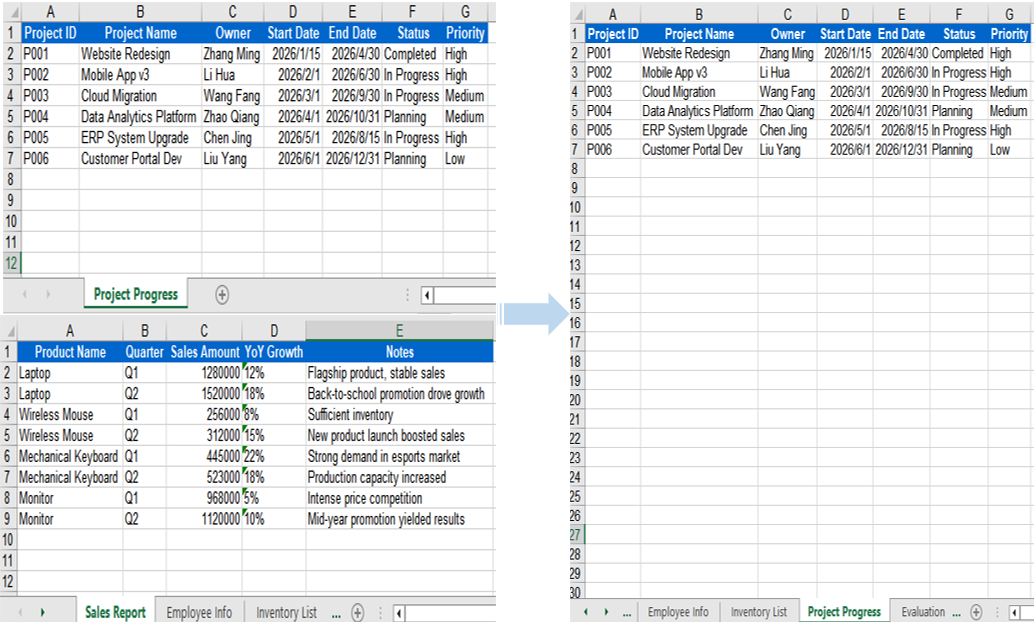
In real-world scenarios, data from multiple Excel files often needs to be consolidated into a single workbook — for example, extracting specific sheets from departmental reports and merging them into a master sheet. The AddCopy method lets you copy a worksheet from the source workbook into the target workbook with all its content intact.
function App() {
  const sheetToSVG = async () => {
    // Get the Spire.XLS WASM module
    const xlsModule = window.wasmModule?.spirexls;

    // Check if the module is ready
    if (!xlsModule) {
      alert('Spire.Xls is not ready yet');
      return;
    }

    // Load fonts and the Excel files into VFS
    await window.spire.FetchFileToVFS('arial.ttf', '/Library/Fonts/', `${process.env.PUBLIC_URL}/font/`);
    const sourceFileName = 'ReadImages.xlsx';
    const targetFileName = 'Sample.xlsx';
    await window.spire.FetchFileToVFS(sourceFileName, '', `${process.env.PUBLIC_URL}data/`);
    await window.spire.FetchFileToVFS(targetFileName, '', `${process.env.PUBLIC_URL}data/`);

    // Load the source workbook
    const sourceWorkbook = new xlsModule.Workbook();
    sourceWorkbook.LoadFromFile({ fileName: sourceFileName });

    // Get the first worksheet of the source workbook
    const srcWorksheet = sourceWorkbook.Worksheets.get(0);

    // Load the target workbook
    const targetWorkbook = new xlsModule.Workbook();
    targetWorkbook.LoadFromFile({ fileName: targetFileName });

    // Add a new worksheet in the target workbook and copy the source sheet into it
    targetWorkbook.Worksheets.AddCopy({ sheet: srcWorksheet });

    // Save the target workbook
    const outputFileName = "CopyAcrossWorkbooks_output.xlsx";
    targetWorkbook.SaveToFile({ fileName: outputFileName });

    // Release resources
    sourceWorkbook.Dispose();
    targetWorkbook.Dispose();

    // Read the converted file from VFS and trigger download
    const fileArray = window.dotnetRuntime.Module.FS.readFile(outputFileName);
    const blob = new Blob([fileArray], { type: "application/vnd.openxmlformats-officedocument.spreadsheetml.sheet"});
    const url = URL.createObjectURL(blob);
    const a = document.createElement('a');
    a.href = url;
    a.download = outputFileName;
    a.click();
    URL.revokeObjectURL(url);
  };

  return (
    <div style={{ textAlign: 'center', height: '300px' }}>
      <h1>Copy Worksheet Across Workbooks</h1>
      <button onClick={sheetToSVG}>
        Start
      </button>
    </div>
  );
}

export default App;
When copying across workbooks, all data and styles from the source worksheet are preserved — AddCopy copies the complete worksheet content into the target workbook.
Copy a Selected Cell Range
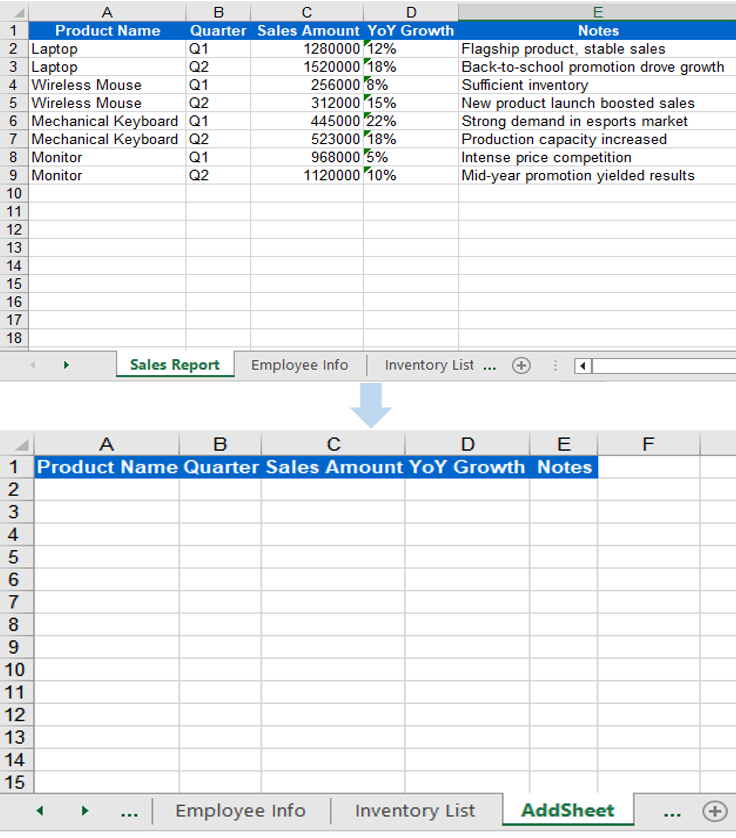
Sometimes you do not need to copy an entire worksheet — you only need to copy a specific cell range (such as a particular data table or summary result) to a target location. Spire.XLS for JavaScript provides the Copy method, which copies data, styles, and formatting from the source range to the starting position of the target range.
function App() {
  const sheetToSVG = async () => {
    // Get the Spire.XLS WASM module
    const xlsModule = window.wasmModule?.spirexls;

    // Check if the module is ready
    if (!xlsModule) {
      alert('Spire.Xls is not ready yet');
      return;
    }

    // Load the source Excel file into VFS
    await window.spire.FetchFileToVFS('ARIAL.TTF', '/Library/Fonts/', `${process.env.PUBLIC_URL}/font/`);
    const inputFileName = 'Sample.xlsx';
    await window.spire.FetchFileToVFS(inputFileName, '', `${process.env.PUBLIC_URL}data/`);

    // Load the workbook
    const workbook = new xlsModule.Workbook();
    workbook.LoadFromFile({ fileName: inputFileName });

    // Get the first row of the first worksheet as the source range
    const sheet = workbook.Worksheets.get(0);
    const sourceRange = sheet.Range.get("A1:E1");

    // Add a new worksheet
    let sheet1 = workbook.Worksheets.Add("AddSheet");

    // Copy the source range to the starting position of the target worksheet
    sheet.Copy(sourceRange, sheet1, sheet.FirstRow, sheet.FirstColumn, true);

    // Save the workbook
    const outputFileName = "CopyRange_output22.xlsx";
    workbook.SaveToFile({ fileName: outputFileName });

    // Release resources
    workbook.Dispose();

    // Read the converted file from VFS and trigger download
    const fileArray = window.dotnetRuntime.Module.FS.readFile(outputFileName);
    const blob = new Blob([fileArray], { type: "application/vnd.openxmlformats-officedocument.spreadsheetml.sheet" });
    const url = URL.createObjectURL(blob);
    const a = document.createElement('a');
    a.href = url;
    a.download = outputFileName;
    a.click();
    URL.revokeObjectURL(url);
  };

  return (
    <div style={{ textAlign: 'center', height: '300px' }}>
      <h1>Copy Range</h1>
      <button onClick={sheetToSVG}>
        Start
      </button>
    </div>
  );
}

export default App;
The Copy method transfers data, styles, and formatting from the source range to the target range — ideal for lightweight scenarios where only partial data extraction is needed.
FAQ
Column width differs after copying
Cause: Font mismatch between the source and target workbooks.
Solution: Ensure all required font files are loaded into the VFS environment of the target workbook before copying across workbooks:
await window.spire.FetchFileToVFS(
  'arial.ttf', '/Library/Fonts/', '/'
);
Range content is pasted at the wrong position
Cause: Incorrect destRow and destColumn parameters in the Copy method, causing data to be pasted at an unexpected location.
Solution: Confirm that the destination row and column indices start from 1 (not 0), and verify the row and column range of the target worksheet before copying.
Get a Free License
Spire.XLS for JavaScript offers a 30-day full-featured free trial license with no functional limitations. Apply here to evaluate before purchasing.
Add, Remove, and Move Excel Worksheets with JavaScript in React
Managing worksheets — adding, removing, and reordering them — is one of the most fundamental and frequently used operations in Excel document processing. Spire.XLS for JavaScript handles these operations entirely in the browser via WebAssembly, using a virtual file system (VFS) to manage input and output files — no backend server required.
This article covers three core features:
For installation and project setup, refer to Integrating Spire.XLS for JavaScript in a React Project. The examples below assume Spire.XLS is installed and the WebAssembly module is initialized.
Add Worksheet
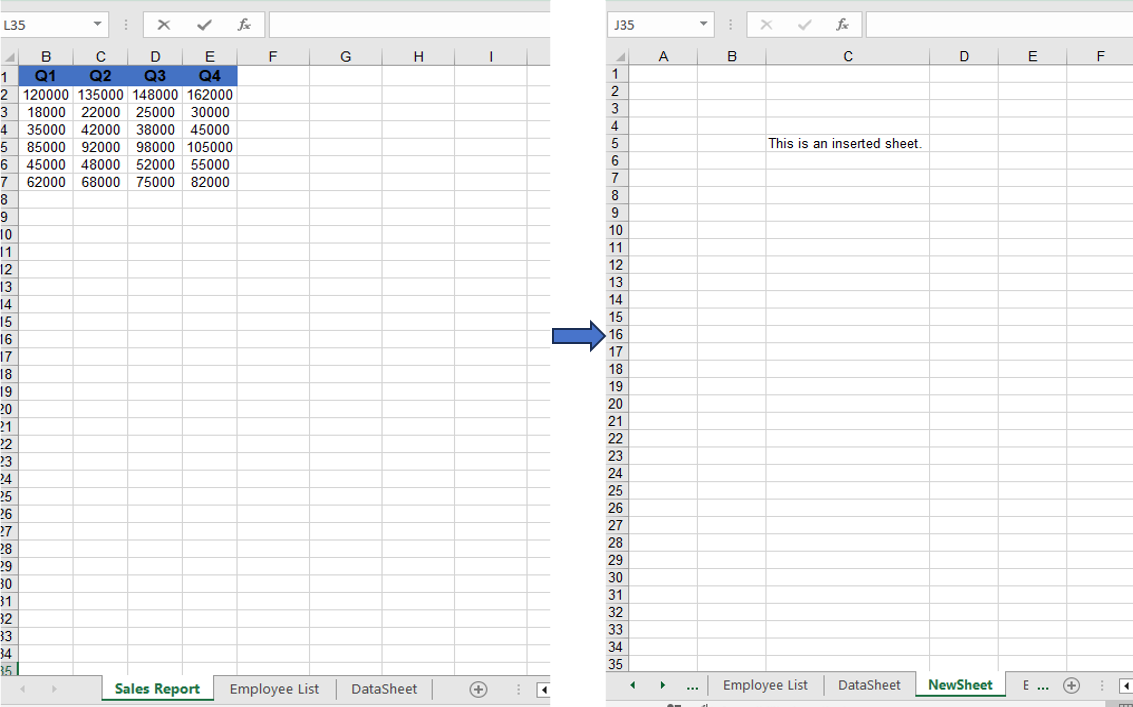
Adding new worksheets to a workbook is a common requirement in daily development. Spire.XLS for JavaScript provides the Add method to create a new worksheet and give it a name. After adding, you can write data to the new sheet's cells and save the workbook.
function App() {
  const startProcessing = async () => {
    // Get the Spire.XLS WASM module
    const xlsModule = window.wasmModule?.spirexls;
    if (!xlsModule) {
      alert('Spire.Xls is not ready yet');
      return;
    }

    // Load fonts and the Excel file into VFS
    await window.spire.FetchFileToVFS('ARIAL.TTF', '/Library/Fonts/', `${process.env.PUBLIC_URL}/font/`);
    const inputFileName = 'AddWorksheet.xlsx';
    await window.spire.FetchFileToVFS(inputFileName, '', `${process.env.PUBLIC_URL}/data/`);

    // Create a workbook instance and load the file
    const workbook = new xlsModule.Workbook();
    workbook.LoadFromFile({ fileName: inputFileName });

    // Add a new worksheet named "NewSheet"
    const sheet = workbook.Worksheets.Add("NewSheet");
    sheet.Range.get("C5").Text = "This is an inserted sheet.";

    // Auto-fit columns
    sheet.AllocatedRange.AutoFitColumns();

    // Save the workbook
    const outputFileName = "AddWorksheet_output.xlsx";
    workbook.SaveToFile({ fileName: outputFileName });

    // Release resources
    workbook.Dispose();

    // Read the output file from VFS, wrap it as a Blob, and trigger download
    const modifiedFileArray = window.dotnetRuntime.Module.FS.readFile(outputFileName);
    const blob = new Blob([modifiedFileArray], { type: "application/vnd.openxmlformats-officedocument.spreadsheetml.sheet" });
    const url = URL.createObjectURL(blob);
    const a = document.createElement('a');
    a.href = url;
    a.download = outputFileName;
    a.click();
    URL.revokeObjectURL(url);
  };

  return (
    <div style={{ textAlign: 'center', height: '300px' }}>
      <h1>Add Worksheet</h1>
      <button onClick={startProcessing}>
        Start
      </button>
    </div>
  );
}

export default App;
Adding a new worksheet after the existing ones via the Add method.
Remove Worksheet
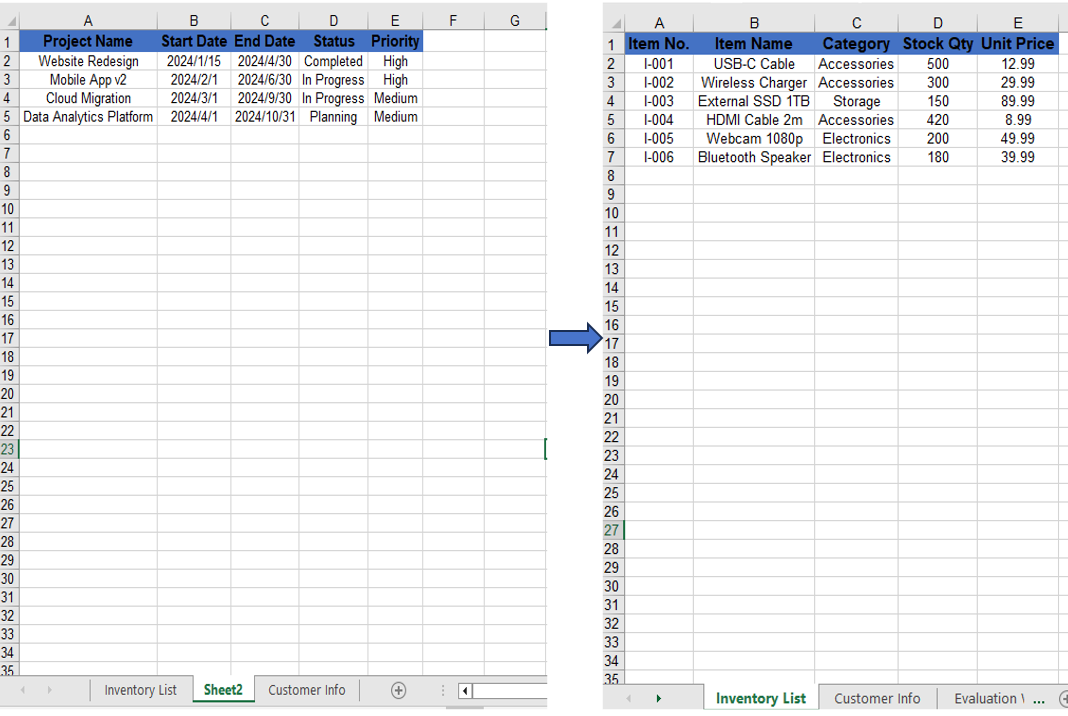
When you need to clean up unwanted worksheets from a workbook, you can remove them directly by name. Spire.XLS for JavaScript's Remove method precisely locates and removes the target worksheet.
function App() {
  const startProcessing = async () => {
    // Get the Spire.XLS WASM module
    const xlsModule = window.wasmModule?.spirexls;
    if (!xlsModule) {
      alert('Spire.Xls is not ready yet');
      return;
    }

    // Load fonts and the Excel file into VFS
    await window.spire.FetchFileToVFS('ARIAL.TTF', '/Library/Fonts/', `${process.env.PUBLIC_URL}/font/`);
    const inputFileName = 'RemoveWorksheet.xlsx';
    await window.spire.FetchFileToVFS(inputFileName, '', `${process.env.PUBLIC_URL}/data/`);

    // Create a workbook instance and load the file
    const workbook = new xlsModule.Workbook();
    workbook.LoadFromFile({ fileName: inputFileName });

    // Remove a worksheet by name
    const sheet = workbook.Worksheets.get("Sheet2");
    workbook.Worksheets.Remove(sheet);
    // Remove by index
    //workbook.Worksheets.RemoveAt(1);

    // Save the workbook
    const outputFileName = "RemoveWorksheet_output.xlsx";
    workbook.SaveToFile({ fileName: outputFileName });

    // Release resources
    workbook.Dispose();

    // Read the output file from VFS, wrap it as a Blob, and trigger download
    const modifiedFileArray = window.dotnetRuntime.Module.FS.readFile(outputFileName);
    const blob = new Blob([modifiedFileArray], { type: "application/vnd.openxmlformats-officedocument.spreadsheetml.sheet" });
    const url = URL.createObjectURL(blob);
    const a = document.createElement('a');
    a.href = url;
    a.download = outputFileName;
    a.click();
    URL.revokeObjectURL(url);
  };

  return (
    <div style={{ textAlign: 'center', height: '300px' }}>
      <h1>Remove Worksheet</h1>
      <button onClick={startProcessing}>
        Start
      </button>
    </div>
  );
}

export default App;
Using Remove to delete a worksheet by name.
Move and Reorder Worksheets
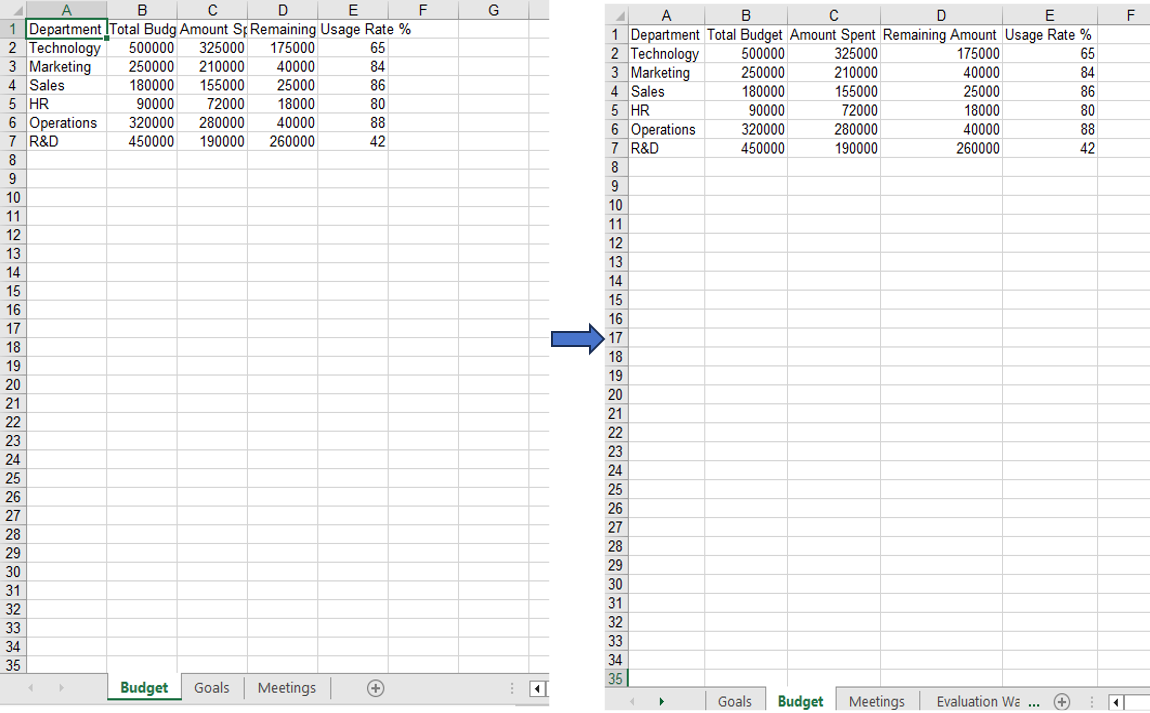
Reordering worksheets is a common task when organizing an Excel document. With Spire.XLS for JavaScript's MoveWorksheet method, you can move a worksheet to a target index position, effectively reordering the sheets within the workbook.
function App() {
  const startProcessing = async () => {
    // Get the Spire.XLS WASM module
    const xlsModule = window.wasmModule?.spirexls;
    if (!xlsModule) {
      alert('Spire.Xls is not ready yet');
      return;
    }

    // Load fonts and the Excel file into VFS
    await window.spire.FetchFileToVFS('ARIAL.TTF', '/Library/Fonts/', `${process.env.PUBLIC_URL}/font/`);
    const inputFileName = 'Sample.xlsx';
    await window.spire.FetchFileToVFS(inputFileName, '', `${process.env.PUBLIC_URL}/data/`);

    // Create a workbook instance and load the file
    const workbook = new xlsModule.Workbook();
    workbook.LoadFromFile({ fileName: inputFileName });

    // Get the first worksheet and move it to index 1
    const sheet = workbook.Worksheets.get(0);
    sheet.MoveWorksheet(1);

    // Save the workbook
    const outputFileName = "MoveWorksheet_output.xlsx";
    workbook.SaveToFile({ fileName: outputFileName });

    // Release resources
    workbook.Dispose();

    // Read the output file from VFS, wrap it as a Blob, and trigger download
    const modifiedFileArray = window.dotnetRuntime.Module.FS.readFile(outputFileName);
    const blob = new Blob([modifiedFileArray], { type: "application/vnd.openxmlformats-officedocument.spreadsheetml.sheet" });
    const url = URL.createObjectURL(blob);
    const a = document.createElement('a');
    a.href = url;
    a.download = outputFileName;
    a.click();
    URL.revokeObjectURL(url);
  };

  return (
    <div style={{ textAlign: 'center', height: '300px' }}>
      <h1>Move Worksheet</h1>
      <button onClick={startProcessing}>
        Start
      </button>
    </div>
  );
}

export default App;
Moving the first worksheet to the second sheet position via the MoveWorksheet method.
FAQ
Index out of range when operating on worksheets
Cause: The index parameter is outside the range of the current worksheet collection in the workbook.
Solution: Verify the total number of worksheets before performing the operation, ensuring the index is within 0 to worksheets.Count-1. Use workbook.Worksheets.Count to get the current total:
const count = workbook.Worksheets.Count;
Worksheet not found when removing by name
Cause: The specified worksheet name does not exactly match the actual name in the workbook.
Solution: Iterate through the worksheet names to confirm before removal:
for (let i = 0; i < workbook.Worksheets.Count; i++) {
  let name = workbook.Worksheets.get(i).Name;
  console.log(name);
}
Get a Free License
Spire.XLS for JavaScript offers a 30-day full-featured free trial license with no functional limitations. Apply here to evaluate before purchasing.