
When a workbook holds several worksheets, default names and look-alike tabs make it hard to tell one sheet from another. Renaming “Sheet1” to “Quarterly Sales” tells a colleague at a glance what the sheet contains; marking the sales, inventory and summary sheets with red, green and light blue tabs removes the need to open each one while switching. Both the name and the tab color live inside the workbook itself, so they survive distribution and archiving without any external notes. Spire.XLS for JavaScript performs these operations in the browser through WebAssembly, managing input and output files with a virtual file system (VFS) and requiring no backend service.
This article covers two core features:
For installation and project setup, see Integrating Spire.XLS for JavaScript in a React Project. The examples below assume Spire.XLS is installed and the WebAssembly module has been initialized.
Rename Excel Worksheets
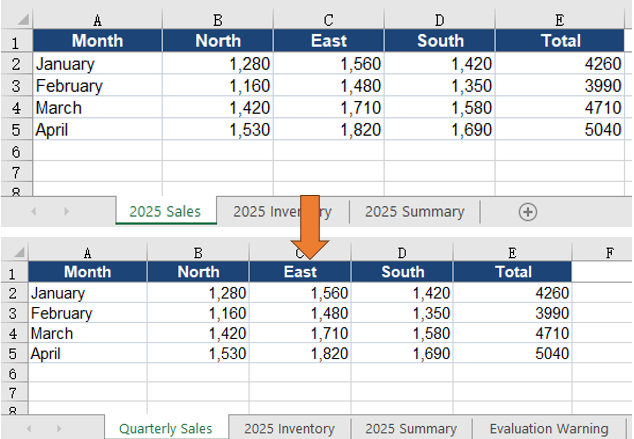
A worksheet name is the first identifier a reader sees after opening the file. With default names such as “Sheet1” and “Sheet2”, even a well-filled workbook has to be opened sheet by sheet before the right table turns up; with a business name such as “Quarterly Sales”, the tab strip itself becomes a table of contents, and the label is preserved when the file is printed or exported. The sample workbook contains sales, inventory and summary data in that order. This section renames the first worksheet.
How to rename a worksheet and what it produces:
| Call | Result |
|---|---|
workbook.Worksheets.get(0) |
Takes the first worksheet by index |
sheet.Name |
Reads back the current worksheet name |
sheet.Name = 'Quarterly Sales' |
Assigns the new worksheet name |
workbook.SaveToFile |
Saves the renamed workbook to the VFS |
The steps are:
- Load the font file and the test data file into the VFS with
window.spire.FetchFileToVFS. - Create a workbook with
new Workbook()and load the input file withworkbook.LoadFromFile. - Take the first worksheet with
workbook.Worksheets.get(0). - Assign the new name to
sheet.Name. - Save the workbook with
workbook.SaveToFile, then release the workbook object withworkbook.Dispose.
The complete example below renames an Excel worksheet in React:
function App() {
  const renameWorksheet = async () => {
    // Get the Spire.XLS WASM module
    const xlsModule = window.wasmModule?.spirexls;

    // Check that the module is ready
    if (!xlsModule) {
      alert('Spire.Xls is not ready yet');
      return;
    }

    // Load the font and the test data file into the VFS
    await window.spire.FetchFileToVFS('ARIAL.TTF', '/Library/Fonts/', `${process.env.PUBLIC_URL}/font/`);
    const inputFileName = 'WorksheetNames.xlsx';
    await window.spire.FetchFileToVFS(inputFileName, '', `${process.env.PUBLIC_URL}data/`);

    // Load the workbook and take the first worksheet
    const workbook = new xlsModule.Workbook();
    workbook.LoadFromFile({ fileName: inputFileName });
    const sheet = workbook.Worksheets.get(0);

    // Assign the new worksheet name
    sheet.Name = 'Quarterly Sales';

    // Save the workbook
    const outputFileName = 'RenameWorksheet.xlsx';
    workbook.SaveToFile({ fileName: outputFileName });

    // Dispose of the workbook to release its resources
    workbook.Dispose();

    // Read the result back out of the VFS and trigger the download
    const fileArray = window.dotnetRuntime.Module.FS.readFile(outputFileName);
    const blob = new Blob([fileArray], { type: 'application/vnd.openxmlformats-officedocument.spreadsheetml.sheet' });
    const url = URL.createObjectURL(blob);
    const a = document.createElement('a');
    a.href = url;
    a.download = outputFileName;
    a.click();
    URL.revokeObjectURL(url);
  };

  return (
    <div style={{ textAlign: 'center', height: '300px' }}>
      <h1>Rename Excel Worksheets</h1>
      <button id="rename-worksheet" onClick={renameWorksheet}>Rename Worksheet</button>
    </div>
  );
}

export default App;
The workbook after renaming the first worksheet:
Set Excel Worksheet Tab Colors
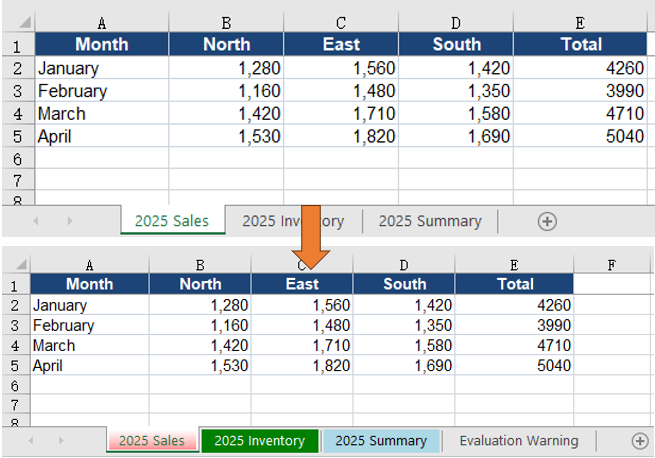
Even with descriptive names, the tab strip remains a row of similarly sized text, which has to be scanned sheet by sheet. Tab colors add a second identifier: red for sales, green for inventory and light blue for summary. Color is perceived before the text is read, so a reader can locate a group directly, and both the color and the name stay in the workbook when the file is shared. The three worksheets in the sample correspond to the three groups, so this section assigns each one a different tab color.
How to set worksheet tab colors and what it produces:
| Call | Result |
|---|---|
workbook.Worksheets.get(0) |
Takes the worksheet whose tab will be colored |
sheet.TabColor = xlsModule.Color.get_Red() |
Turns the worksheet tab red |
sheet.TabColor = xlsModule.Color.get_Green() |
Turns the worksheet tab green |
sheet.TabColor = xlsModule.Color.get_LightBlue() |
Turns the worksheet tab light blue |
xlsModule.Color.FromArgb(255, 255, 193, 7) |
Builds a custom RGB color for TabColor |
The steps are:
- Load the font file and the test data file into the VFS with
window.spire.FetchFileToVFS. - Create a workbook with
new Workbook()and load the input file withworkbook.LoadFromFile. - Take the three worksheets in order with
workbook.Worksheets.get(0),get(1)andget(2). - Assign
xlsModule.Color.get_Red(),get_Green()andget_LightBlue()to each worksheet'sTabColor. - Save the workbook with
workbook.SaveToFile, then release the workbook object withworkbook.Dispose.
The complete example below sets worksheet tab colors in React:
function App() {
  const setTabColor = async () => {
    // Get the Spire.XLS WASM module
    const xlsModule = window.wasmModule?.spirexls;

    // Check that the module is ready
    if (!xlsModule) {
      alert('Spire.Xls is not ready yet');
      return;
    }

    // Load the font and the test data file into the VFS
    await window.spire.FetchFileToVFS('ARIAL.TTF', '/Library/Fonts/', `${process.env.PUBLIC_URL}/font/`);
    const inputFileName = 'WorksheetNames.xlsx';
    await window.spire.FetchFileToVFS(inputFileName, '', `${process.env.PUBLIC_URL}data/`);

    // Load the workbook
    const workbook = new xlsModule.Workbook();
    workbook.LoadFromFile({ fileName: inputFileName });

    // Set the tab colours to red, green and light blue in worksheet order
    workbook.Worksheets.get(0).TabColor = xlsModule.Color.get_Red();
    workbook.Worksheets.get(1).TabColor = xlsModule.Color.get_Green();
    workbook.Worksheets.get(2).TabColor = xlsModule.Color.get_LightBlue();

    // Save the workbook
    const outputFileName = 'SetTabColor.xlsx';
    workbook.SaveToFile({ fileName: outputFileName });

    // Dispose of the workbook to release its resources
    workbook.Dispose();

    // Read the result back out of the VFS and trigger the download
    const fileArray = window.dotnetRuntime.Module.FS.readFile(outputFileName);
    const blob = new Blob([fileArray], { type: 'application/vnd.openxmlformats-officedocument.spreadsheetml.sheet' });
    const url = URL.createObjectURL(blob);
    const a = document.createElement('a');
    a.href = url;
    a.download = outputFileName;
    a.click();
    URL.revokeObjectURL(url);
  };

  return (
    <div style={{ textAlign: 'center', height: '300px' }}>
      <h1>Set Excel Worksheet Tab Colors</h1>
      <button id="set-tab-color" onClick={setTabColor}>Set Tab Colors</button>
    </div>
  );
}

export default App;
The workbook after setting tab colors for the three worksheets:
Set a Custom Tab Color
When the built-in colors do not fit a report's palette, Color.FromArgb builds a custom color. Its four arguments are the alpha, red, green and blue channels, each from 0 to 255:
// Set the first worksheet tab to amber
workbook.Worksheets.get(0).TabColor = xlsModule.Color.FromArgb(255, 255, 193, 7);
FAQ
Worksheet rename reports a duplicate name
Cause: Worksheet names in a workbook must be unique, and the comparison ignores case. Assigning a name already used by another worksheet, such as “Sales” and “sales”, triggers the limit.
Solution: Before renaming, iterate over workbook.Worksheets, read each Name, and confirm the target name is free before assigning it to sheet.Name.
A sheet name containing a slash throws an error
Cause: Excel does not allow worksheet names to contain :, \, /, ?, *, [ or ]; Spire.XLS throws when such a name is assigned.
Solution: Replace the illegal characters with a hyphen or underscore before assigning the value to sheet.Name.
What happens when a worksheet name exceeds 31 characters
Cause: Excel limits worksheet names to 31 characters. Spire.XLS does not report an error; it truncates the name to 31 characters before writing it.
Solution: Check name.length before assigning and shorten the name when it is longer than 31 characters. The truncation happens during assignment, so comparing the saved name with the intended one will reveal the difference.
Getting a worksheet by name throws Arg_NullReferenceException
Cause: workbook.Worksheets.get('name') returns a worksheet only when the name matches exactly. A missing name, a trailing space, or a worksheet that has already been renamed all throw this exception.
Solution: Iterate over workbook.Worksheets and print each Name to confirm the current name before calling get. When the name comes from external input, trim leading and trailing spaces first.
Get a Free License
Spire.XLS for JavaScript offers a 30-day full-featured free trial license with no functional limitations. Apply here to evaluate before purchasing.

