
Java (485)
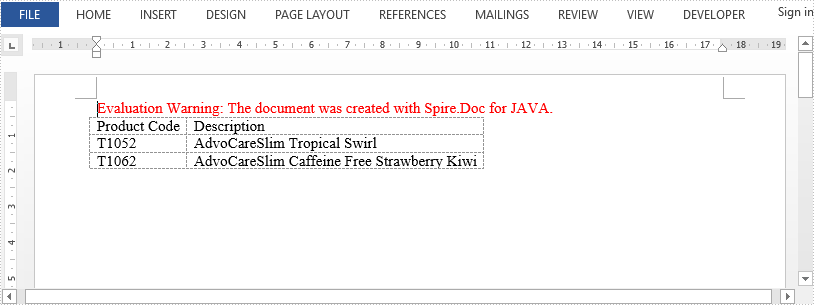
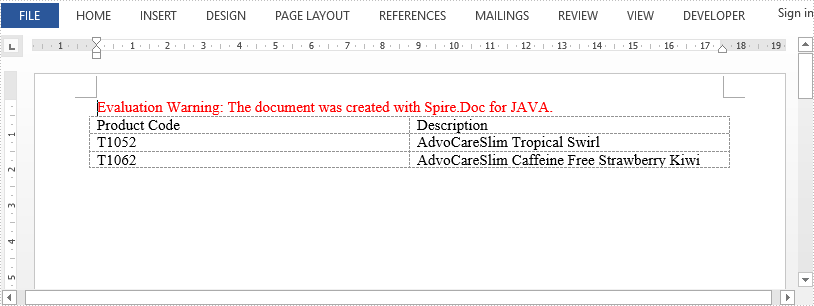
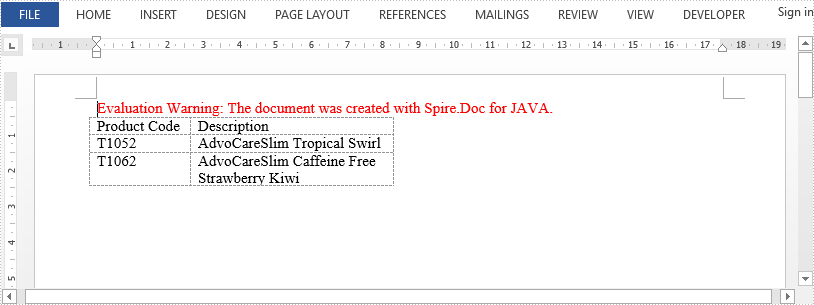
This article demonstrates how to auto fit a Word table to content or to window, as well as how to fix the cloumn widths, by using Spire.Doc for Java.
Autofit to content
import com.spire.doc.*;

public class AutofitToContent {
    public static void main(String[] args) {

        //Create a Document object
        Document document = new Document();

        //Add a section
        Section section = document.addSection();

        //Add a table
        Table table = section.addTable();
        table.resetCells(3, 2);

        //Add content to the cells
        table.get(0,0).addParagraph().appendText("Product Code");
        table.get(0,1).addParagraph().appendText("Description");
        table.get(1,0).addParagraph().appendText("T1052");
        table.get(1,1).addParagraph().appendText("AdvoCareSlim Tropical Swirl");
        table.get(2,0).addParagraph().appendText("T1062");
        table.get(2,1).addParagraph().appendText("AdvoCareSlim Caffeine Free Strawberry Kiwi");

        //Autofit column widths to contents
        table.autoFit(AutoFitBehaviorType.Auto_Fit_To_Contents);

        //Save the document
        document.saveToFile("AutofitToContent.docx", FileFormat.Docx);
    }
}
Autofit to window
import com.spire.doc.*;

public class AutofitToWindow {

    public static void main(String[] args) {

        //Create a Document object
        Document document = new Document();

        //Add a section
        Section section = document.addSection();

        //Add a table
        Table table = section.addTable();
        table.resetCells(3, 2);

        //Add content to the cells
        table.get(0,0).addParagraph().appendText("Product Code");
        table.get(0,1).addParagraph().appendText("Description");
        table.get(1,0).addParagraph().appendText("T1052");
        table.get(1,1).addParagraph().appendText("AdvoCareSlim Tropical Swirl");
        table.get(2,0).addParagraph().appendText("T1062");
        table.get(2,1).addParagraph().appendText("AdvoCareSlim Caffeine Free Strawberry Kiwi");

        //Autofit column widths to window
        table.autoFit(AutoFitBehaviorType.Auto_Fit_To_Window);

        //Save the document
        document.saveToFile("AutofitToWindow.docx", FileFormat.Docx);
    }
}
Fix column width
import com.spire.doc.*;

public class FixColumnWidths {
    public static void main(String[] args) {

        //Create a Document object
        Document document = new Document();

        //Add a section
        Section section = document.addSection();

        //Add a table
        Table table = section.addTable();
        table.resetCells(3, 2);

        //Add content to the cells
        table.get(0, 0).addParagraph().appendText("Product Code");
        table.get(0, 1).addParagraph().appendText("Description");
        table.get(1, 0).addParagraph().appendText("T1052");
        table.get(1, 1).addParagraph().appendText("AdvoCareSlim Tropical Swirl");
        table.get(2, 0).addParagraph().appendText("T1062");
        table.get(2, 1).addParagraph().appendText("AdvoCareSlim Caffeine Free Strawberry Kiwi");

        //Set the column widths
        for (int i = 0; i < table.getRows().getCount(); i++) {

            table.get(i,0).setCellWidth(80f,CellWidthType.Point);
            table.get(i,1).setCellWidth(160f,CellWidthType.Point);
        }

        //Fix the column widths so that the column width does not increases when the content exceeds the width
        table.autoFit(AutoFitBehaviorType.Fixed_Column_Widths);

        //Save the document
        document.saveToFile("FixColumnWidths.docx", FileFormat.Docx);
    }
}
Published in
Table
Tagged under
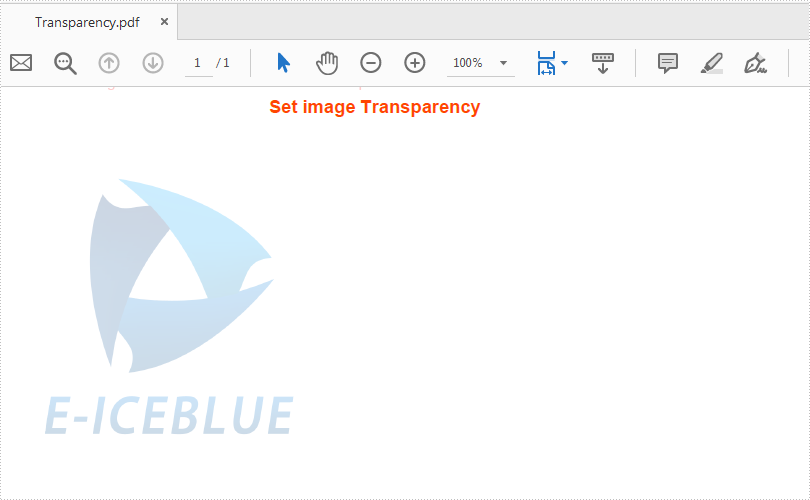
This article demonstrates how to set the transparency of image on a PDF file using Spire.PDF for Java.
import com.spire.pdf.*;
import com.spire.pdf.graphics.*;
import java.awt.geom.*;
import java.awt.*;

public class ImageTransparency {
    public static void main(String[] args) {

        //Create a PDFDocument
        PdfDocument doc = new PdfDocument();
        //Add a section
        PdfSection section = doc.getSections().add();

        // Load image and set its width and height
        PdfImage image = PdfImage.fromFile("logo.png");
        double imageWidth = image.getPhysicalDimension().getWidth() / 3;
        double imageHeight = image.getPhysicalDimension().getHeight() / 3;

        //Add a page
        PdfPageBase page = section.getPages().add();
        float pageWidth = (float) page.getCanvas().getClientSize().getWidth();
        float y = 10;

        //Draw Title and set the font and format
        y = y + 5;
        PdfBrush brush = new PdfSolidBrush(new PdfRGBColor(new Color(255,69,0)));
        PdfTrueTypeFont font = new PdfTrueTypeFont(new Font("Arial", Font.BOLD,12));
        PdfStringFormat format = new PdfStringFormat(PdfTextAlignment.Center);
        String text = String.format(" Set image Transparency ");
        page.getCanvas().drawString(text, font, brush, pageWidth / 2, y, format);
        Dimension2D size = font.measureString(text, format);
        y = y + (float) size.getHeight() + 6;

        //Set image transparency
        page.getCanvas().setTransparency(0.2f, 0.2f, PdfBlendMode.Normal);

        //Add image to the page
        page.getCanvas().drawImage(image, 0, y, imageWidth, imageHeight);
        page.getCanvas().save();

        // Save pdf file.
        doc.saveToFile("output/Transparency.pdf");
        // Close pdf file
        doc.close();
    }
}
Effective screenshot after adding the image to PDF and set the image transparency:
Published in
Image
Tagged under
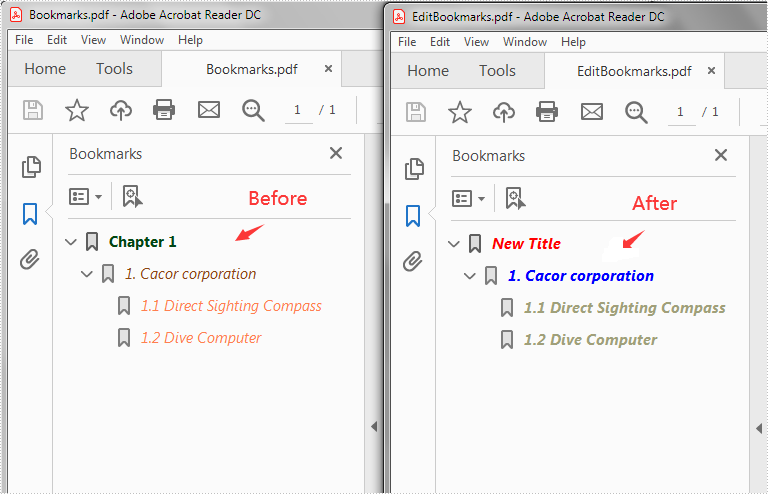
This article demonstrates how to edit the existing bookmarks in a PDF file, for example, change the bookmark title, font color and text style using Spire.PDF for Java.
import com.spire.pdf.PdfDocument;
import com.spire.pdf.bookmarks.PdfBookmark;
import com.spire.pdf.bookmarks.PdfTextStyle;
import com.spire.pdf.graphics.PdfRGBColor;
import java.awt.*;
public class EditBookmarks {
public static void main(String[] args) {
//Create a PdfDocument instance
PdfDocument doc = new PdfDocument();
//Load the PDF file
doc.loadFromFile("Bookmarks.pdf");
//Get the first bookmark
PdfBookmark bookmark = doc.getBookmarks().get(0);
//Change the title of the bookmark
bookmark.setTitle("New Title");
//Change the font color of the bookmark
bookmark.setColor(new PdfRGBColor(new Color(255,0,0)));
//Change the outline text style of the bookmark
bookmark.setDisplayStyle(PdfTextStyle.Italic);
//Edit child bookmarks of the first bookmark
for (Object Bookmark : (Iterable) bookmark) {
PdfBookmark childBookmark=(PdfBookmark)Bookmark;
childBookmark.setColor(new PdfRGBColor(new Color(0,0,255)));
childBookmark.setDisplayStyle(PdfTextStyle.Bold);
for (PdfBookmark Bookmark2 : (IterablePdfBookmark>) bookmark){
PdfBookmark childBookmark2=(PdfBookmark)Bookmark2;
childBookmark2.setColor(new PdfRGBColor(new Color(160,160,122)) );
childBookmark2.setDisplayStyle(PdfTextStyle.Bold);
}
}
//Save the result file
doc.saveToFile("EditBookmarks.pdf");
doc.close();
}
}
Output:
Published in
Bookmark
Tagged under
