
Java (485)
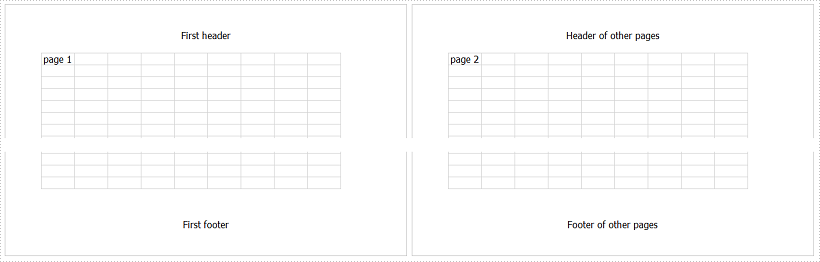
This article demonstrates how to set different header and footer for the fisrt page using Spire.XLS for Java.
import com.spire.xls.FileFormat;
import com.spire.xls.Workbook;
import com.spire.xls.Worksheet;

public class SetDifferentHeaderFooter {

    public static void main(String[] args) {

        //Create a Workbook instance
        Workbook workbook = new Workbook();

        //Get the first worksheet
        Worksheet sheet = workbook.getWorksheets().get(0);

        //Insert text in A1 and J1
        sheet.getCellRange("A1").setText("page 1");
        sheet.getCellRange("J1").setText("page 2");

        //Set different first page
        sheet.getPageSetup().setDifferentFirst((byte)1);

        //Set header string and footer string for the first page
        sheet.getPageSetup().setFirstHeaderString("First header");
        sheet.getPageSetup().setFirstFooterString("First footer");

        //Set header string and footer string for other pages
        sheet.getPageSetup().setCenterHeader("Header of other pages");
        sheet.getPageSetup().setCenterFooter("Footer of other pages");

        //Save the document
        workbook.saveToFile("DifferentFirstPage.xlsx", FileFormat.Version2016);
    }
}
Published in
Header and Footer
Tagged under
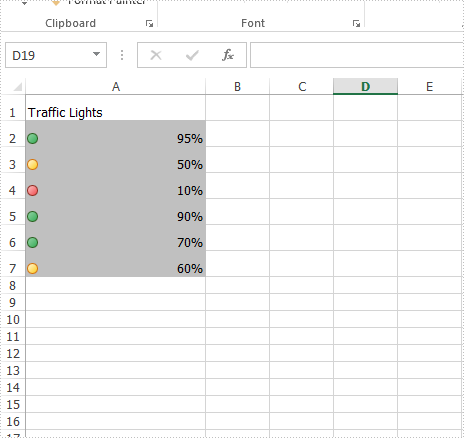
This article will demonstrate how to add the traffic lights icons in Java applications by using Spire.XLS for Java.
import com.spire.xls.*;
import com.spire.xls.core.IConditionalFormat;
import com.spire.xls.core.spreadsheet.collections.XlsConditionalFormats;

import java.awt.*;

public class setTrafficLightsIcons {
    public static void main(String[] args) {
        //Create a workbook
        Workbook workbook = new Workbook();

        //Add a worksheet
        Worksheet sheet = workbook.getWorksheets().get(0);

        //Add some data to the cell range and set the format for them
        sheet.getCellRange("A1").setText("Traffic Lights");
        sheet.getCellRange("A2").setNumberValue(0.95);
        sheet.getCellRange("A2").setNumberFormat("0%");
        sheet.getCellRange("A3").setNumberValue(0.5);
        sheet.getCellRange("A3").setNumberFormat("0%");
        sheet.getCellRange("A4").setNumberValue(0.1);
        sheet.getCellRange("A4").setNumberFormat("0%");
        sheet.getCellRange("A5").setNumberValue(0.9);
        sheet.getCellRange("A5").setNumberFormat("0%");
        sheet.getCellRange("A6").setNumberValue(0.7);
        sheet.getCellRange("A6").setNumberFormat("0%");
        sheet.getCellRange("A7").setNumberValue(0.6);
        sheet.getCellRange("A7").setNumberFormat("0%");

        //Set the height of row and width of column for Excel cell range
        sheet.getAllocatedRange().setRowHeight(20);
        sheet.getAllocatedRange().setColumnWidth(25);

        //Add a conditional formatting
        XlsConditionalFormats conditional = sheet.getConditionalFormats().add();
        conditional.addRange(sheet.getAllocatedRange());
        IConditionalFormat format1 = conditional.addCondition();

        //Add a conditional formatting of cell range and set its type to CellValue
        format1.setFormatType(ConditionalFormatType.CellValue);
        format1.setFirstFormula("300");
        format1.setOperator(ComparisonOperatorType.Less);
        format1.setFontColor(Color.black);
        format1.setBackColor(Color.lightGray);

        //Add a conditional formatting of cell range and set its type to IconSet
        conditional.addRange(sheet.getAllocatedRange());
        IConditionalFormat format = conditional.addCondition();
        format.setFormatType(ConditionalFormatType.IconSet);
        format.getIconSet().setIconSetType(IconSetType.ThreeTrafficLights1);

        //Save to file
        String result = "output/setTrafficLightsIcons_result.xlsx";
        workbook.saveToFile(result, ExcelVersion.Version2013);
    }
}
Effective screenshot of traffic lights icons on Excel worksheet:
Published in
Conditional Formatting
Tagged under
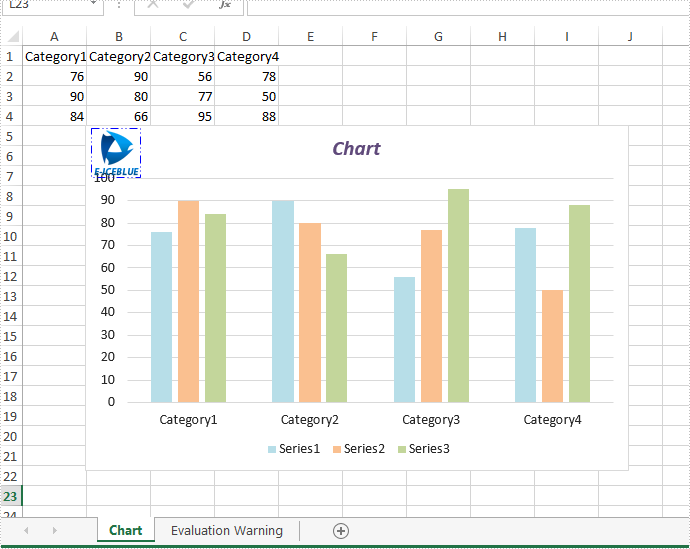
This article will introduce how to add a picture to Excel chart in java applications by using Spire.XLS for java.
import com.spire.xls.*;
import com.spire.xls.core.IPictureShape;
import com.spire.xls.core.IShape;
import java.awt.*;

public class addPictureToChart {
    public static void main(String[] args) {

        //Load the document from disk
        Workbook workbook = new Workbook();
        workbook.loadFromFile("Sample.xlsx");

        //get the first worksheet
        Worksheet sheet = workbook.getWorksheets().get(0);

        //get the first chart
        Chart chart = sheet.getCharts().get(0);

        //add the picture to chart and set its format
        IShape picture = chart.getShapes().addPicture("48.png");
        ((IPictureShape) picture).getLine().setDashStyle(ShapeDashLineStyleType.DashDotDot);
        ((IPictureShape) picture).getLine().setForeColor(Color.blue);

         //save the document
        String result = "output/AddPictureToChart.xlsx";
        workbook.saveToFile(result, ExcelVersion.Version2010);

    }
}
Effective screenshot after adding picture to Excel Chart:
Published in
Chart
Tagged under
