
Java (485)
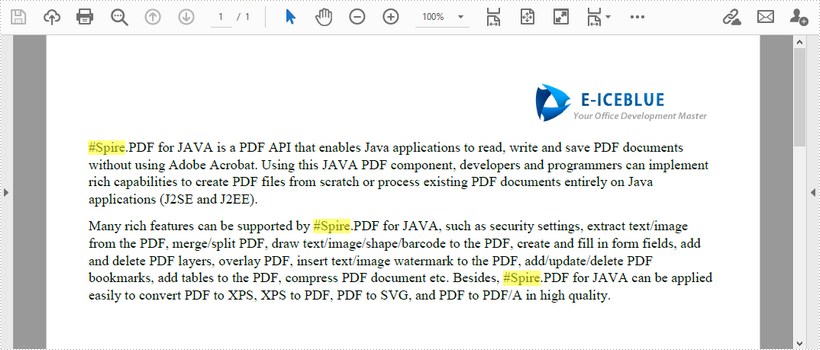
This article demonstrates how to find the text that matches a specific regular expression in a PDF document using Spire.PDF for Java.
import com.spire.pdf.*;
import com.spire.pdf.texts.*;
import java.awt.*;
import java.util.*;
import java.util.List;

public class FindText {
    public static void main(String[] args) {
        //Load a PDF document
        PdfDocument pdf = new PdfDocument();
        pdf.loadFromFile("C:\\Users\\Administrator\\Desktop\\test.pdf");

        //Create a object of PdfTextFind collection
        PdfTextFindOptions findOptions = new PdfTextFindOptions();

        //Loop through the pages
        for (Object page : (Iterable) pdf.getPages()) {
            PdfPageBase pageBase = (PdfPageBase) page;

            //Define a regular expression
            String pattern = "\\#\\w+\\b";
            // Set search parameter to use regular expression
            findOptions.setTextFindParameter(EnumSet.of(TextFindParameter.Regex));

            // Create a text finder object for the page
            PdfTextFinder textFinder = new PdfTextFinder(pageBase);

            // Find text fragments that match the pattern
            List<PdfTextFragment> finds = textFinder.find(pattern, findOptions);

            //Highlight the search results with yellow
            for (PdfTextFragment find : finds) {
                find.highLight(Color.yellow);
            }
        }

        //Save to file
        pdf.saveToFile("FindByPattern.pdf");
    }
}
This article demonstrates how to remove a specific image or all images from an Excel worksheet using Spire.XLS for Java.
Delete specific image
import com.spire.xls.ExcelVersion;
import com.spire.xls.Workbook;
import com.spire.xls.Worksheet;

public class DeleteSpecificImage {

    public static void main(String[] args) {

        //Create a Workbook object
        Workbook workbook = new Workbook();

        //Load an Excel file
        workbook.loadFromFile("Input.xlsx");

        //Get the first worksheet
        Worksheet sheet = workbook.getWorksheets().get(0);

        //Delete a specific image by its index
        sheet.getPictures().get(1).remove();

        //Save the document
        workbook.saveToFile("DeleteSpecificImage.xlsx", ExcelVersion.Version2013);
    }
Delete all images
import com.spire.xls.ExcelVersion;
import com.spire.xls.Workbook;
import com.spire.xls.Worksheet;

public class DeleteAllImages {

    public static void main(String[] args) {

        //Create a Workbook object
        Workbook workbook = new Workbook();

        //Load an Excel file
        workbook.loadFromFile("Input.xlsx");

        //Get the first worksheet
        Worksheet sheet = workbook.getWorksheets().get(0);

        //Loop through the images inside the worksheet
        for (int i = sheet.getPictures().getCount() - 1; i >= 0; i--) {

            //Delete an image by its index
            sheet.getPictures().get(i).remove();
        }

        //Save the document
        workbook.saveToFile("DeleteAllImages.xlsx", ExcelVersion.Version2013);
    }
}
Images play a vital role in various documents. They are helpful in conveying complex information that is difficult to present in plain text and making documents more visually appealing. In this article, we will focus on how to insert, replace or delete images in PDF documents in Java using Spire.PDF for Java.
- Insert an Image into a PDF Document
- Replace an Image with Another Image in a PDF Document
- Delete a Specific Image in a PDF Document
Install Spire.PDF for Java
First of all, you're required to add the Spire.Pdf.jar file as a dependency in your Java program. The JAR file can be downloaded from this link. If you use Maven, you can easily import the JAR file in your application by adding the following code to your project's pom.xml file.
<repositories>
    <repository>
        <id>com.e-iceblue</id>
        <name>e-iceblue</name>
        <url>https://repo.e-iceblue.com/nexus/content/groups/public/</url>
    </repository>
</repositories>
<dependencies>
    <dependency>
        <groupId>e-iceblue</groupId>
        <artifactId>spire.pdf</artifactId>
        <version>12.9.0</version>
    </dependency>
</dependencies>
Insert an Image into a PDF Document in Java
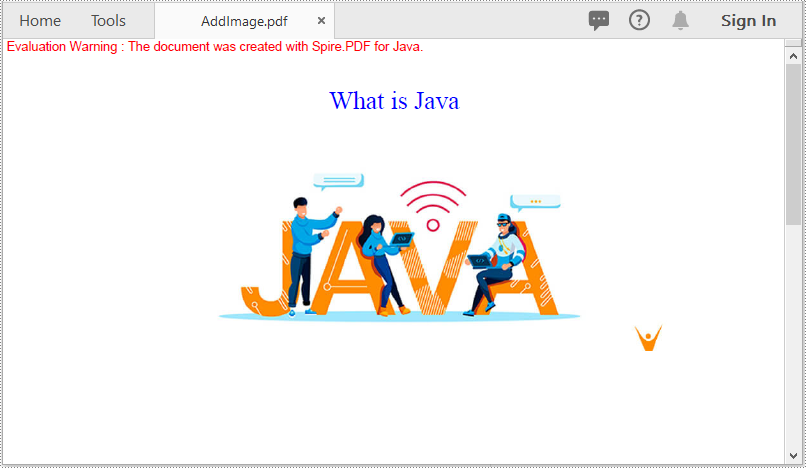
The following steps demonstrate how to insert an image into an existing PDF document:
- Initialize an instance of the PdfDocument class.
- Load a PDF document using PdfDocument.loadFromFile() method.
- Get the desired page in the PDF document using PdfDocument.getPages().get() method.
- Load an image using PdfImage.fromFile() method.
- Specify the width and height of the image area on the page.
- Specify the X and Y coordinates to start drawing the image.
- Draw the image on the page using PdfPageBase.getCanvas().drawImage() method.
- Save the result document using PdfDocument.saveToFile() method.
- Java
import com.spire.pdf.FileFormat;
import com.spire.pdf.PdfDocument;
import com.spire.pdf.PdfPageBase;
import com.spire.pdf.graphics.*;

public class AddImage {
    public static void main(String []args){
        //Create a PdfDocument instance
        PdfDocument pdf = new PdfDocument();
        pdf.loadFromFile("Input.pdf");

        //Get the first page in the PDF document
        PdfPageBase page = pdf.getPages().get(0);

        //Load an image
        PdfImage image = PdfImage.fromFile("image.jpg");

        //Specify the width and height of the image area on the page
        float width = image.getWidth() * 0.50f;
        float height = image.getHeight() * 0.50f;

        //Specify the X and Y coordinates to start drawing the image
        float x = 100f;
        float y = 60f;

        //Draw the image at a specified location on the page
        page.getCanvas().drawImage(image, x, y, width, height);

        //Save the result document
        pdf.saveToFile("AddImage.pdf", FileFormat.PDF);
    }
}
Replace an Image with Another Image in a PDF Document in Java
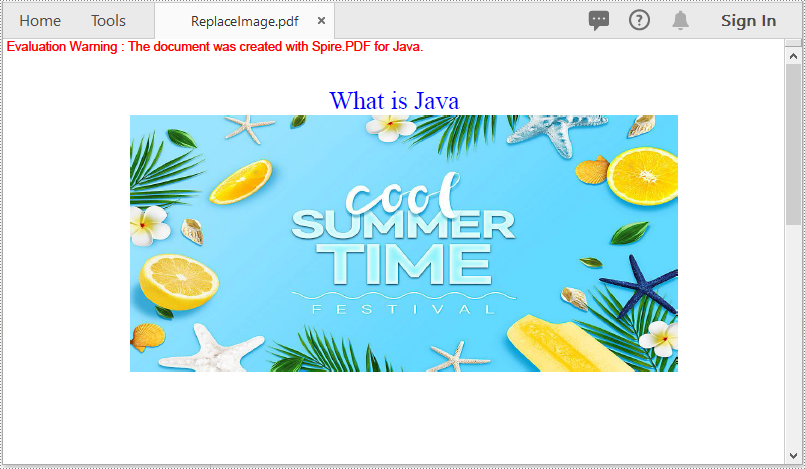
The following steps demonstrate how to replace an image with another image in a PDF document:
- Initialize an instance of the PdfDocument class.
- Load a PDF document using PdfDocument.loadFromFile() method.
- Get the desired page in the PDF document using PdfDocument.getPages().get() method.
- Load an image using PdfImage.fromFile() method.
- Create the PdfImageHelper class.
- Use the PdfImageHelper. getImagesInfo() method to obtain a collection of all images on the page.
- Use the PdfImageHelper. replaceImage() method to replace the specified index of images in the collection.
- Save the result document using PdfDocument.saveToFile() method.
- Java
import com.spire.pdf.*;
import com.spire.pdf.graphics.PdfImage;
import com.spire.pdf.utilities.PdfImageHelper;
import com.spire.pdf.utilities.PdfImageInfo;

public class ReplaceImage
{
    public static void main(String []args)
    {
        //Create a PdfDocument instance
        PdfDocument doc = new PdfDocument();
        //Load a PDF document
        doc.loadFromFile("AddImage.pdf");

        //Get the first page
        PdfPageBase page = doc.getPages().get(0);

        //Load an image
        PdfImage image = PdfImage.fromFile("image1.jpg");

        // Get the image information from the page
        PdfImageHelper imageHelper = new PdfImageHelper();
        PdfImageInfo[] imageInfos = imageHelper.getImagesInfo(page);

        // Replace Image
        imageHelper.replaceImage(imageInfos[0], image);

        //Save the result document
        doc.saveToFile("ReplaceImage.pdf", FileFormat.PDF);

        //Dispose the document
        doc.dispose();
    }
}
Delete a Specific Image in a PDF Document in Java
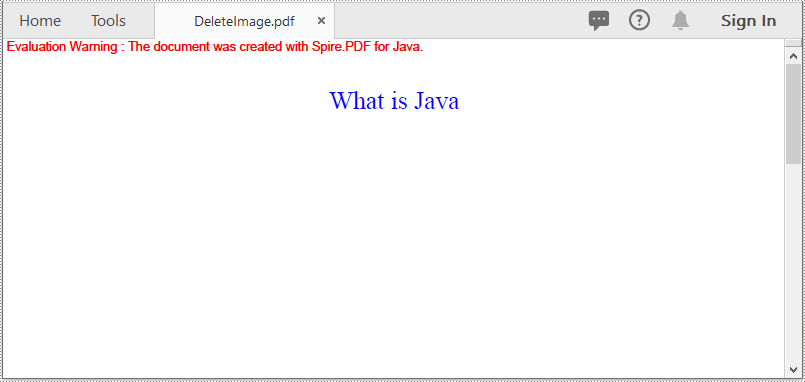
The following steps demonstrate how to delete an image from a PDF document:
- Initialize an instance of the PdfDocument class.
- Load a PDF document using PdfDocument.loadFromFile() method.
- Get the desired page in the PDF document using PdfDocument.getPages().get() method.
- Create the PdfImageHelper class.
- Use the PdfImageHelper. getImagesInfo() method to obtain a collection of all images on the page.
- Use the PdfImageHelper. deleteImage() method to delete specific images on the page.
- Save the result document using PdfDocument.saveToFile() method.
- Java
import com.spire.pdf.*;
import com.spire.pdf.utilities.PdfImageHelper;
import com.spire.pdf.utilities.PdfImageInfo;

public class DeleteImage
{
    public static void main(String []args)
    {
        //Create a PdfDocument instance
        PdfDocument pdf = new PdfDocument();
        //Load a PDF document
        pdf.loadFromFile("AddImage.pdf");

        //Get the first page
        PdfPageBase page = pdf.getPages().get(0);

        // Get the image information from the page
        PdfImageHelper imageHelper = new PdfImageHelper();
        PdfImageInfo[] imageInfos = imageHelper.getImagesInfo(page);

        //Delete the first image on the page
        imageHelper.deleteImage(imageInfos[0]);

        //Save the result document
        pdf.saveToFile("DeleteImage.pdf", FileFormat.PDF);

        //Dispose the document
        pdf.dispose();
    }
}
Apply for a Temporary License
If you'd like to remove the evaluation message from the generated documents, or to get rid of the function limitations, please request a 30-day trial license for yourself.
