
Java (485)
Java convert PDF to HTML with embedded SVG/Image and save HTML to stream
2020-04-15 08:12:08 Written by KoohjiSpire.PDF supports to convert PDF to HTML and save the resulted HTML file to stream by calling the method PdfDocument.saveToStream(). When converting PDF to HTML, it also supports to set the convert options with embedded SVG/Image on the resulted HTML file. This article will demonstrate how to convert the PDF pages to HTML with embedded SVG and embedded image.
import com.spire.pdf.*;
import java.io.*;

public class PDFtoHTML {
    public static void main(String[] args) throws FileNotFoundException {

        String inputFile = "Sample.pdf";
        String outputFile = "output/toHTML_out.html";

        //Load the sample document file
        PdfDocument pdf = new PdfDocument();

        pdf .loadFromFile(inputFile);

        //Set the bool useEmbeddedSvg and useEmbeddedImg as true
        pdf .getConvertOptions().setPdfToHtmlOptions(true,true);

        //Save to stream
        File outFile = new File(outputFile);
        OutputStream outputStream = new FileOutputStream(outFile);
        pdf.saveToStream(outputStream, FileFormat.HTML);
        pdf.close();

    }
}
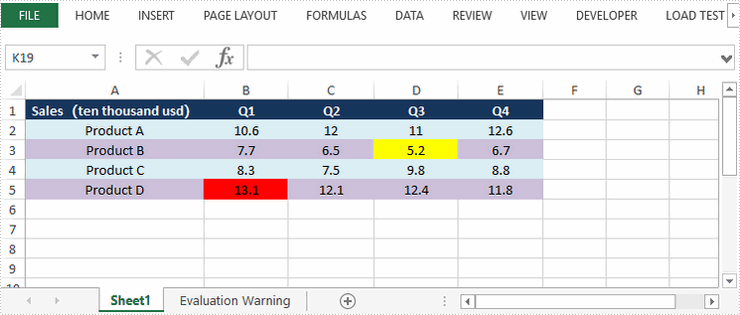
This article demonstrates how to highlight the highest and lowest value in a cell rang through conditional formatting. You can also highlight the top 5 or bottom 5 values by passing 5 to setRank() method in the code snippet below.
import com.spire.xls.*;
import com.spire.xls.core.IConditionalFormat;
import com.spire.xls.core.spreadsheet.collections.XlsConditionalFormats;

import java.awt.*;

public class HighlightTopBottom {
    public static void main(String[] args) {

        //Create a Workbook object
        Workbook workbook = new Workbook();

        //Load the sample Excel file
        workbook.loadFromFile("G:\\360MoveData\\Users\\Administrator\\Desktop\\sales report.xlsx");

        //Get the first worksheet
        Worksheet sheet = workbook.getWorksheets().get(0);

        //Add a conditional formatting and specify ranges
        XlsConditionalFormats conditional = sheet.getConditionalFormats().add();
        conditional.addRange(sheet.getCellRange("B2:E5"));

        //Apply conditional formatting to highlight the highest value
        IConditionalFormat format1 = conditional.addTopBottomCondition(TopBottomType.Top,1);
        format1.setBackColor(Color.red);

        //Apply conditional formatting to highlight the lowest value
        IConditionalFormat format2 = conditional.addTopBottomCondition(TopBottomType.Bottom,1)
        format2.setBackColor(Color.yellow);

        //Save the document
        workbook.saveToFile("output/HighestLowestValue.xlsx", ExcelVersion.Version2016);


    }
}
Adding annotations to PDFs enhances document collaboration and comprehension. Whether highlighting key points, adding comments, or drawing shapes, annotations help convey thoughts and ideas clearly. By utilizing annotations, users can streamline feedback processes and ensure that important information stands out.
In this article, you will learn how to add a variety of annotations to a PDF document using Spire.PDF for Java.
- Annotation Types Supported by Spire.PDF
- Add a Text Markup Annotation to PDF
- Add a Free Text Annotation to PDF
- Add a Popup Annotation to PDF
- Add a Shape Annotation to PDF
- Add a Web Link Annotation to PDF
- Add a File Link Annotation to PDF
- Add a Document Link Annotation to PDF
Install Spire.PDF for Java
First of all, you're required to add the Spire.Pdf.jar file as a dependency in your Java program. The JAR file can be downloaded from this link. If you use Maven, you can easily import the JAR file in your application by adding the following code to your project's pom.xml file.
<repositories>
    <repository>
        <id>com.e-iceblue</id>
        <name>e-iceblue</name>
        <url>https://repo.e-iceblue.com/nexus/content/groups/public/</url>
    </repository>
</repositories>
<dependencies>
    <dependency>
        <groupId>e-iceblue</groupId>
        <artifactId>spire.pdf</artifactId>
        <version>12.9.0</version>
    </dependency>
</dependencies>
Annotations Types Supported by Spire.PDF
PDF documents provide extensive support for various annotation types, which empower users to enhance their documents with comments, markups, interactive features, and additional supplementary content. The table below outlines some of the most commonly used annotation types supported by Spire.PDF.
| Annotation type | Definition | Represented by |
| Text markup annotation | An annotation that is used to highlight or markup a specific chunk of text of a document. | PdfTextMarkupAnnotation class |
| Free text annotation | An annotation that allows the user to add freeform text directly onto the PDF page. | PdfFreeTextAnnotation class |
| Popup annotation | An annotation that appears as a pop-up window when clicked on, providing additional information or context related to the content of the document. | PdfPopupAnnotation class |
| Stamp annotation | An annotation that adds a pre-defined stamp or image onto the document, often used for indicating approval, review status, or other relevant information. | PdfRubberStampAnnotation class |
| Shape annotation | An annotation that allows users to draw shapes or lines on the document, which can be used for highlighting specific areas or adding visual cues. | PdfLineAnnotation class PdfPolygonAnnotation class |
| Web link annotation | An annotation that creates a clickable link to a webpage, allowing users to easily access additional resources or related information online. | PdfUriAnnotation class |
| File link annotation | An annotation that creates a clickable link to a file, allowing users to open external documents or files related to the content of the PDF. | PdfFileLinkAnnotation class |
| Document link annotation | An annotation that creates a clickable link to another section or page within the same document. | PdfDocumentLinkAnnotation class |
Add a Text Markup Annotation to PDF in Java
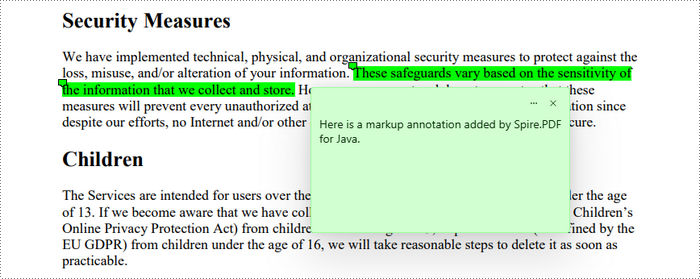
A text markup annotation is designed to highlight specific portions of text in a PDF document. To locate the text for markup, you can utilize the PdfTextFinder class, which offers methods that simplify the process of finding the desired text on a page.
After identifying the text, you can create a PdfTextMarkupAnnotation object based on the text's bounding information. You can then set various attributes for the annotation, such as the annotation text and the markup color.
The steps to add a text markup annotation to PDF in Java are as follows:
- Create a PdfDocument object.
- Load a PDF file from a given file path using the PdfDocument.loadFromFile() method.
- Get a page from the document using the PdfDocument.getPages().get() method.
- Create a PdfTextFinder object to find a specific piece of text within the page.
- Get the bounding information of the desired text.
- Create an object of the PdfTextMarkupAnnotation class based on the text’s bounds.
- Set the annotation text and markup color using the methods under the PdfTextMarkupAnnotation object.
- Add the annotation to the page using the PdfPageBase.getAnnotations().add() method.
- Save the modified document to a different PDF file.
- Java
import com.spire.pdf.PdfDocument;
import com.spire.pdf.PdfPageBase;
import com.spire.pdf.annotations.PdfTextMarkupAnnotation;
import com.spire.pdf.graphics.PdfRGBColor;
import com.spire.pdf.texts.PdfTextFinder;
import com.spire.pdf.texts.PdfTextFragment;
import com.spire.pdf.texts.TextFindParameter;

import java.awt.*;
import java.awt.geom.Rectangle2D;
import java.util.EnumSet;
import java.util.List;

public class AddMarkupAnnotation {

    public static void main(String[] args) {

        // Create a PdfDocument object
        PdfDocument doc = new PdfDocument();

        // Load a PDF file
        doc.loadFromFile("C:\\Users\\Administrator\\Desktop\\Input.pdf");

        // Get a specific page
        PdfPageBase page = doc.getPages().get(0);

        // Create a PdfTextFinder object based on the page
        PdfTextFinder finder = new PdfTextFinder(page);

        // Set the find options
        EnumSet<TextFindParameter> parameterSet = EnumSet.of(TextFindParameter.IgnoreCase);
        finder.getOptions().setTextFindParameter(parameterSet);

        // Find the instances of the specified text
        List<PdfTextFragment> fragments = finder.find("These safeguards vary based on the sensitivity of \n" +
                "the information that we collect and store.");

        // Get the first instance
        PdfTextFragment textFragment = fragments.get(0);

        // Specify annotation text
        String text = "This is a markup annotation.";

        // Iterate through the text bounds
        for (int i = 0; i < textFragment.getBounds().length; i++) {

            // Get a specific bound
            Rectangle2D rect = textFragment.getBounds()[i];

            // Create a text markup annotation
            PdfTextMarkupAnnotation annotation = new PdfTextMarkupAnnotation(rect);

            // Set the annotation text
            annotation.setText(text);

            // Set the markup color
            annotation.setTextMarkupColor(new PdfRGBColor(Color.green));

            // Add the annotation to the collection of the annotations
            page.getAnnotations().add(annotation);
        }

        // Save result to file
        doc.saveToFile("output/MarkupAnnotation.pdf");

        // Dispose resources
        doc.dispose();
    }
}
Add a Free Text Annotation to PDF in Java
To add a free text annotation in the appropriate location, such as at the end of a sentence, you can continue to use the PdfTextFinder class. This class assists in locating the desired text within a document, along with its coordinates.
Once you have the coordinate information, you can create an instance of PdfFreeTextAnnotation. After that, you can set the annotation text and customize its appearance.
The steps to add a free text annotation to PDF in Java are as follows:
- Create a PdfDocument object.
- Load a PDF file from a given file path using the PdfDocument.loadFromFile() method.
- Get a page from the document using the PdfDocument.getPages().get() method.
- Create a PdfTextFinder object to find a specific piece of text within the page.
- Get the bounding information of the desired text.
- Create a PdfFreeTextAnnotation object, specifying its location and size.
- Set the annotation text and customize its appearance using the methods under the PdfFreeTextAnnotation object.
- Add the annotation to the page using the PdfPageBase.getAnnotations().add() method.
- Save the modified document to a different PDF file.
- Java
import com.spire.pdf.PdfDocument;
import com.spire.pdf.PdfPageBase;
import com.spire.pdf.annotations.PdfAnnotationBorder;
import com.spire.pdf.annotations.PdfFreeTextAnnotation;
import com.spire.pdf.annotations.PdfTextMarkupAnnotation;
import com.spire.pdf.graphics.PdfFont;
import com.spire.pdf.graphics.PdfFontFamily;
import com.spire.pdf.graphics.PdfFontStyle;
import com.spire.pdf.graphics.PdfRGBColor;
import com.spire.pdf.texts.PdfTextFinder;
import com.spire.pdf.texts.PdfTextFragment;
import com.spire.pdf.texts.TextFindParameter;

import java.awt.*;
import java.awt.geom.Rectangle2D;
import java.util.EnumSet;
import java.util.List;

public class AddFreeTextAnnotation {

    public static void main(String[] args) {

        // Create a PdfDocument object
        PdfDocument doc = new PdfDocument();

        // Load a PDF file
        doc.loadFromFile("C:\\Users\\Administrator\\Desktop\\Input.pdf");

        // Get a specific page
        PdfPageBase page = doc.getPages().get(0);

        // Create a PdfTextFinder object based on the page
        PdfTextFinder finder = new PdfTextFinder(page);

        // Set the find options
        EnumSet<TextFindParameter> parameterSet = EnumSet.of(TextFindParameter.WholeWord, TextFindParameter.IgnoreCase);
        finder.getOptions().setTextFindParameter(parameterSet);

        // Find the instances of the specified text
        List<PdfTextFragment> fragments = finder.find("collect and store");

        // Get the first instance
        PdfTextFragment textFragment = fragments.get(0);

        // Get the text bound
        Rectangle2D rect = textFragment.getBounds()[0];

        // Specify the x and y coordinates to add annotation
        double x = rect.getMaxX() + 3;
        double y = rect.getMaxY();

        // Create a free text annotation
        Rectangle2D rectangle = new Rectangle2D.Double(x, y, 170, 40);
        PdfFreeTextAnnotation textAnnotation = new PdfFreeTextAnnotation(rectangle);

        // Set the content of the annotation
        textAnnotation.setText("Here is a free text annotation\radded by Spire.PDF for Java.");

        // Set other properties of annotation
        PdfFont font = new PdfFont(PdfFontFamily.Times_Roman, 12f, PdfFontStyle.Bold);
        PdfAnnotationBorder border = new PdfAnnotationBorder(1f);
        textAnnotation.setFont(font);
        textAnnotation.setBorder(border);
        textAnnotation.setBorderColor(new PdfRGBColor(Color.blue));
        textAnnotation.setColor(new PdfRGBColor(Color.green));
        textAnnotation.setOpacity(1.0f);

        // Add the annotation to the collection of the annotations
        page.getAnnotations().add(textAnnotation);

        // Save result to file
        doc.saveToFile("output/FreeTextAnnotation.pdf");

        // Dispose resources
        doc.dispose();
    }
}

Add a Popup Annotation to PDF in Java
Still, you can begin by using the PdfTextFinder class to identify the optimal position for adding annotations. Next, create a PdfPopupAnnotation object and customize its attributes, such as the text, color, and icon.
The steps to add a popup annotation to PDF in Java are as follows:
- Create a PdfDocument object.
- Load a PDF file from a given file path using the PdfDocument.loadFromFile() method.
- Get a page from the document using the PdfDocument.getPages().get() method.
- Create a PdfTextFinder object to find a specific piece of text within the page.
- Get the bounding information of the desired text.
- Create a PdfPopupAnnotation object, specifying its location and size.
- Set the annotation text, color and icon using the methods under the PdfPopupAnnotation object.
- Add the annotation to the page using the PdfPageBase.getAnnotations().add() method.
- Save the modified document to a different PDF file.
- Java
import com.spire.pdf.PdfDocument;
import com.spire.pdf.PdfPageBase;
import com.spire.pdf.annotations.PdfPopupAnnotation;
import com.spire.pdf.annotations.PdfPopupIcon;
import com.spire.pdf.graphics.PdfRGBColor;
import com.spire.pdf.texts.PdfTextFinder;
import com.spire.pdf.texts.PdfTextFragment;
import com.spire.pdf.texts.TextFindParameter;

import java.awt.*;
import java.awt.geom.Rectangle2D;
import java.util.EnumSet;
import java.util.List;

public class AddPopupAnnotation {

    public static void main(String[] args) {

        // Create a PdfDocument object
        PdfDocument doc = new PdfDocument();

        // Load a PDF file
        doc.loadFromFile("C:\\Users\\Administrator\\Desktop\\Input.pdf");

        // Get a specific page
        PdfPageBase page = doc.getPages().get(0);

        // Create a PdfTextFinder object based on the page
        PdfTextFinder finder = new PdfTextFinder(page);

        // Set the find options
        EnumSet<TextFindParameter> parameterSet = EnumSet.of(TextFindParameter.WholeWord, TextFindParameter.IgnoreCase);
        finder.getOptions().setTextFindParameter(parameterSet);

        // Find the instances of the specified text
        List<PdfTextFragment> fragments = finder.find("collect and store");

        // Get the first instance
        PdfTextFragment textFragment = fragments.get(0);

        // Get the text bound
        Rectangle2D rect = textFragment.getBounds()[0];

        // Specify the x and y coordinates to add annotation
        double x = rect.getMaxX();
        double y = rect.getMaxY();

        // Create a free text annotation
        Rectangle2D rectangle = new Rectangle2D.Double(x, y, 30, 30);
        PdfPopupAnnotation popupAnnotation = new PdfPopupAnnotation(rectangle);

        // Set the content of the annotation
        popupAnnotation.setText("Here is a popup annotation\radded by Spire.PDF for Java.");

        // Set the icon and color of the annotation
        popupAnnotation.setIcon(PdfPopupIcon.Comment);
        popupAnnotation.setColor(new PdfRGBColor(Color.red));

        // Add the annotation to the collection of the annotations
        page.getAnnotations().add(popupAnnotation);

        // Save result to file
        doc.saveToFile("output/PopupAnnotation.pdf");

        // Dispose resources
        doc.dispose();
    }
}

Add a Shape Annotation to PDF in Java
A shape annotation typically refers to a graphical element that represents a specific geometric shape, such as a rectangle, ellipse, polygon, or line. When adding a shape annotation to a PDF, multiple coordinate points are usually required to define the shape's location and size.
You can use the PdfTextFinder class to obtain the coordinates of the specified text. Based on these coordinates, you can calculate the necessary points for the shape annotation. After adding the shape annotation, you can then set the text for it.
The following are the steps to add a polygon annotation to PDF using Java:
- Create a PdfDocument object.
- Load a PDF file from a given file path using the PdfDocument.loadFromFile() method.
- Get a page from the document using the PdfDocument.getPages().get() method.
- Create a PdfTextFinder object to find a specific piece of text within the page.
- Get the bounding information of the desired text.
- Create a PdfPolygonAnnotation object, specifying its location.
- Set the annotation text using the PdfPolygonAnnotation.setText() method.
- Add the annotation to the page using the PdfPageBase.getAnnotations().add() method.
- Save the modified document to a different PDF file.
- Java
import com.spire.pdf.PdfDocument;
import com.spire.pdf.PdfPageBase;
import com.spire.pdf.annotations.*;
import com.spire.pdf.texts.PdfTextFinder;
import com.spire.pdf.texts.PdfTextFragment;
import com.spire.pdf.texts.TextFindParameter;

import java.awt.geom.Point2D;
import java.awt.geom.Rectangle2D;
import java.util.EnumSet;
import java.util.List;

public class AddShapeAnnotation {

    public static void main(String[] args) {

        // Create a PdfDocument object
        PdfDocument doc = new PdfDocument();

        // Load a PDF file
        doc.loadFromFile("C:\\Users\\Administrator\\Desktop\\Input.pdf");

        // Get a specific page
        PdfPageBase page = doc.getPages().get(0);

        // Create a PdfTextFinder object based on the page
        PdfTextFinder finder = new PdfTextFinder(page);

        // Set the find options
        EnumSet<TextFindParameter> parameterSet = EnumSet.of(TextFindParameter.WholeWord, TextFindParameter.IgnoreCase);
        finder.getOptions().setTextFindParameter(parameterSet);

        // Find the instances of the specified text
        List<PdfTextFragment> fragments = finder.find("collect and store");

        // Get the first instance
        PdfTextFragment textFragment = fragments.get(0);

        // Get the text bound
        Rectangle2D rect = textFragment.getBounds()[0];

        // Get the coordinates to add annotation
        double left = rect.getMinX();
        double top = rect.getMinY();
        double right = rect.getMaxX();
        double bottom = rect.getMaxY();

        // Create a shape annotation
        PdfPolygonAnnotation polygonAnnotation = new PdfPolygonAnnotation(page, new Point2D[]{new Point2D.Double(left, top),
                new Point2D.Double(right, top), new Point2D.Double(right + 5, bottom), new Point2D.Double(left - 5, bottom),
                new Point2D.Double(left, top)});

        // Set the annotation border
        PdfAnnotationBorder border = new PdfAnnotationBorder(1f);
        polygonAnnotation.setBorder(border);
        polygonAnnotation.setBorderEffect(PdfBorderEffect.Small_Cloud);
        polygonAnnotation.setColor(new PdfRGBColor(Color.green));

        // Set the annotation text
        polygonAnnotation.setText("Here is a shape annotation\radded by Spire.PDF for Java.");

        // Add the annotation to the collection of the annotations
        page.getAnnotations().add(polygonAnnotation);

        // Save result to file
        doc.saveToFile("output/ShapeAnnotation.pdf");

        // Dispose resources
        doc.dispose();
    }
}

Add a Web Link Annotation to PDF in Java
A web link annotation is typically added to specific text within a PDF. You can use the PdfTextFinder class to locate the desired text and retrieve its bounding information on the page. Afterward, you can create a PdfUriAnnotation object in that area and specify an external web link.
The following are the steps to add a web link annotation to PDF using Java:
- Create a PdfDocument object.
- Load a PDF file from a given file path using the PdfDocument.loadFromFile() method.
- Get a page from the document using the PdfDocument.getPages().get() method.
- Create a PdfTextFinder object to find a specific piece of text within the page.
- Get the bounding information of the desired text.
- Create a PdfWebLinkAnnotation object based on the text's bound, specifying a web link for the annotation.
- Add the annotation to the page using the PdfPageBase.getAnnotations().add() method.
- Save the modified document to a different PDF file.
- Java
import com.spire.pdf.PdfDocument;
import com.spire.pdf.PdfPageBase;
import com.spire.pdf.annotations.PdfUriAnnotation;
import com.spire.pdf.texts.PdfTextFinder;
import com.spire.pdf.texts.PdfTextFragment;
import com.spire.pdf.texts.TextFindParameter;

import java.awt.geom.Rectangle2D;
import java.util.EnumSet;
import java.util.List;

public class AddWebLinkAnnotation {

    public static void main(String[] args) {

        // Create a PdfDocument object
        PdfDocument doc = new PdfDocument();

        // Load a PDF file
        doc.loadFromFile("C:\\Users\\Administrator\\Desktop\\Input.pdf");

        // Get a specific page
        PdfPageBase page = doc.getPages().get(0);

        // Create a PdfTextFinder object based on the page
        PdfTextFinder finder = new PdfTextFinder(page);

        // Set the find options
        EnumSet<TextFindParameter> parameterSet = EnumSet.of(TextFindParameter.WholeWord, TextFindParameter.IgnoreCase);
        finder.getOptions().setTextFindParameter(parameterSet);

        // Find the instances of the specified text
        List<PdfTextFragment> fragments = finder.find("collect and store");

        // Get the first instance
        PdfTextFragment textFragment = fragments.get(0);

        // Get the text bound
        Rectangle2D rect = textFragment.getBounds()[0];

        // Create an Url annotation
        PdfUriAnnotation urlAnnotation = new PdfUriAnnotation(rect, "https:\\\\www.e-iceblue.com\\");

        // Add the annotation to the collection of the annotations
        page.getAnnotations().add(urlAnnotation);

        // Save result to file
        doc.saveToFile("output/WebLinkAnnotation.pdf");

        // Dispose resources
        doc.dispose();
    }
}

Add a File Link Annotation to PDF in Java
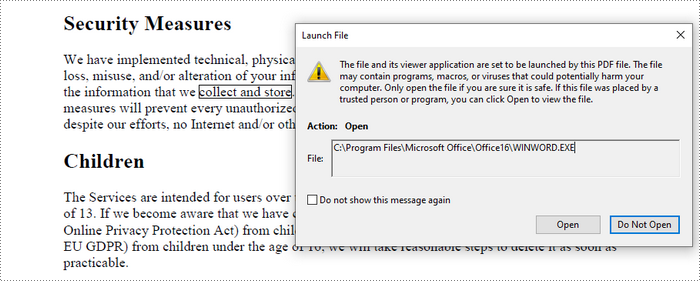
A file link annotation is also typically created based on a specific piece of text. You can use the PdfTextFinder class to locate the specified text and obtain its bounding information on the page. Then, you can create a PdfFileLinkAnnotation object using that information and specify a link that redirects to an external file.
The steps to add a file link annotation to PDF using Java are as follows:
- Create a PdfDocument object.
- Load a PDF file from a given file path using the PdfDocument.loadFromFile() method.
- Get a page from the document using the PdfDocument.getPages().get() method.
- Create a PdfTextFinder object to find a specific piece of text within the page.
- Get the bounding information of the desired text.
- Create a PdfFileLinkAnnotation object based on the text's bound, specifying a file link for the annotation.
- Add the annotation to the page using the PdfPageBase.getAnnotations().add() method.
- Save the modified document to a different PDF file.
- Java
import com.spire.pdf.PdfDocument;
import com.spire.pdf.PdfPageBase;
import com.spire.pdf.annotations.PdfFileLinkAnnotation;
import com.spire.pdf.texts.PdfTextFinder;
import com.spire.pdf.texts.PdfTextFragment;
import com.spire.pdf.texts.TextFindParameter;

import java.awt.geom.Rectangle2D;
import java.util.EnumSet;
import java.util.List;

public class AddFileLinkAnnotation {

    public static void main(String[] args) {

        // Create a PdfDocument object
        PdfDocument doc = new PdfDocument();

        // Load a PDF file
        doc.loadFromFile("C:\\Users\\Administrator\\Desktop\\Input.pdf");

        // Get a specific page
        PdfPageBase page = doc.getPages().get(0);

        // Create a PdfTextFinder object based on the page
        PdfTextFinder finder = new PdfTextFinder(page);

        // Set the find options
        EnumSet<TextFindParameter> parameterSet = EnumSet.of(TextFindParameter.WholeWord, TextFindParameter.IgnoreCase);
        finder.getOptions().setTextFindParameter(parameterSet);

        // Find the instances of the specified text
        List<PdfTextFragment> fragments = finder.find("collect and store");

        // Get the first instance
        PdfTextFragment textFragment = fragments.get(0);

        // Get the text bound
        Rectangle2D rect = textFragment.getBounds()[0];

        // Create a file link annotation
        PdfFileLinkAnnotation fileLinkAnnotation = new PdfFileLinkAnnotation(rect, "C:\\Users\\Administrator\\Desktop\\Report.docx");

        // Add the annotation to the collection of the annotations
        page.getAnnotations().add(fileLinkAnnotation);

        // Save result to file
        doc.saveToFile("output/FileLinkAnnotation.pdf");

        // Dispose resources
        doc.dispose();
    }
}
Add a Document Link Annotation to PDF in Java
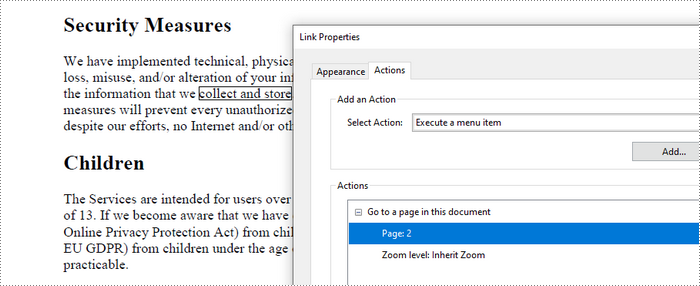
To locate a piece of text on a page for adding a document link annotation, you can utilize the PdfTextFinder class. After finding the text, create a PdfDocumentLinkAnnotation object based on its bounding area. Finally, you'll need to set a destination for the annotation, typically pointing to a different page.
The steps to add a document link annotation to PDF using Java are as follows:
- Create a PdfDocument object.
- Load a PDF file from a given file path using the PdfDocument.loadFromFile() method.
- Get a page from the document using the PdfDocument.getPages().get() method.
- Create a PdfTextFinder object to find a specific piece of text within the page.
- Get the bounding information of the desired text.
- Create a PdfDocumentLinkAnnotation object based on the text's bound.
- Set the destination for the annotation using the PdfDocumentLinkAnnotation.setDestination() method.
- Add the annotation to the page using the PdfPageBase.getAnnotations().add() method.
- Save the modified document to a different PDF file.
- Java
import com.spire.pdf.PdfDocument;
import com.spire.pdf.PdfPageBase;
import com.spire.pdf.annotations.PdfDocumentLinkAnnotation;
import com.spire.pdf.general.PdfDestination;
import com.spire.pdf.texts.PdfTextFinder;
import com.spire.pdf.texts.PdfTextFragment;
import com.spire.pdf.texts.TextFindParameter;

import java.awt.geom.Rectangle2D;
import java.util.EnumSet;
import java.util.List;

public class AddDocumentLinkAnnotation {

    public static void main(String[] args) {

        // Create a PdfDocument object
        PdfDocument doc = new PdfDocument();

        // Load a PDF file
        doc.loadFromFile("C:\\Users\\Administrator\\Desktop\\Input.pdf");

        // Get a specific page
        PdfPageBase page = doc.getPages().get(0);

        // Create a PdfTextFinder object based on the page
        PdfTextFinder finder = new PdfTextFinder(page);

        // Set the find options
        EnumSet<TextFindParameter> parameterSet = EnumSet.of(TextFindParameter.WholeWord, TextFindParameter.IgnoreCase);
        finder.getOptions().setTextFindParameter(parameterSet);

        // Find the instances of the specified text
        List<PdfTextFragment> fragments = finder.find("collect and store");

        // Get the first instance
        PdfTextFragment textFragment = fragments.get(0);

        // Get the text bound
        Rectangle2D rect = textFragment.getBounds()[0];

        // Create a document link annotation
        PdfDocumentLinkAnnotation documentLinkAnnotation = new PdfDocumentLinkAnnotation(rect);

        // Set the destination of the annotation
        documentLinkAnnotation.setDestination(new PdfDestination(doc.getPages().get(1)));

        // Add the annotation to the collection of the annotations
        page.getAnnotations().add(documentLinkAnnotation);

        // Save result to file
        doc.saveToFile("output/DocumentLinkAnnotation.pdf");

        // Dispose resources
        doc.dispose();
    }
}
Apply for a Temporary License
If you'd like to remove the evaluation message from the generated documents, or to get rid of the function limitations, please request a 30-day trial license for yourself.
