CSV remains a ubiquitous, lightweight data format in Java development, powering report exports, data migration, and cross-platform data interchange. But despite its apparent simplicity, building production-grade CSV files requires handling special characters, encodings, and strict formatting rules – all of which add unnecessary development and testing overhead.
Spire.XLS for Java streamlines this workflow with a clean, robust API that automatically handles all low-level formatting and encoding details. This guide shows you how to use Java to create CSV files – covering basic CSV generation, structured batch exports, Excel-to-CSV conversion, special character support, and advanced delimiter configuration.
- Why Choose Spire.XLS for Java to Create CSV Files
- Creating CSV Files from Scratch with Java
- Create Structured CSV from Arrays in Java
- Create CSV from Excel in Java
- Advanced CSV Generation Techniques
- Frequently Asked Questions
Why Choose Spire.XLS for Java to Create CSV Files
Compared to native Java IO, Apache POI, or any other CSV Java library, Spire.XLS for Java offers distinct advantages:
- Simplified API: Create and write CSV files in just a few lines of code, with no manual stream operations or low-level formatting work.
- Automatic Format Handling: Automatically escapes special characters (commas, double quotes, line breaks) that break standard CSV syntax.
- Full Encoding Support: Natively supports UTF-8, UTF-16, GB2312, and other encodings to avoid Chinese and special text garbling.
- Dual Format Compatibility: Supports both Excel (XLS/XLSX) and CSV formats, enabling bidirectional conversion between spreadsheets and delimited text.
- No Dependencies Bloat: Lightweight library with no third-party dependency conflicts, suitable for Java web, desktop, and microservice projects.
Prerequisites: Install Spire.XLS for Java
To start using Java to write CSV files, you first need to integrate the library into your project. We provide Maven and manual JAR installation methods.
1. Maven Dependency Configuration (Recommended)
Add the following repository and dependency to your project’s pom.xml file:
<repositories>
    <repository>
        <id>com.e-iceblue</id>
        <name>e-iceblue</name>
        <url>https://repo.e-iceblue.com/nexus/content/groups/public/</url>
    </repository>
</repositories>
<dependency>
    <groupId>e-iceblue</groupId>
    <artifactId>spire.xls</artifactId>
    <version>16.4.1</version>
</dependency>
2. Manual JAR Installation
For non-Maven projects, download the Spire.XLS for Java JAR file from the official website and add it to your project’s build path.
Create CSV Files from Scratch with Java
This example demonstrates how to create a blank CSV file from scratch, write custom row and column data, and save the file with standard comma delimiters and UTF-8 encoding. This is the most common basic scenario to generate CSV in Java.
import com.spire.xls.*;
import java.nio.charset.Charset;

public class CreateBasicCSV {
    public static void main(String[] args) {
        // Create Workbook instance
        Workbook workbook = new Workbook();

        // Get the first worksheet (index 0)
        Worksheet sheet = workbook.getWorksheets().get(0);

        // Write header row
        sheet.getCellRange("A1").setValue("ID");
        sheet.getCellRange("B1").setValue("Product Name");
        sheet.getCellRange("C1").setValue("Price");
        sheet.getCellRange("D1").setValue("Quantity");
        sheet.getCellRange("E1").setValue("Category");

        // Write data rows
        sheet.getCellRange("A2").setNumberValue(1001);
        sheet.getCellRange("B2").setValue("Wireless Mouse");
        sheet.getCellRange("C2").setNumberValue(29.99);
        sheet.getCellRange("D2").setNumberValue(150);
        sheet.getCellRange("E2").setValue("Electronics");

        sheet.getCellRange("A3").setNumberValue(1002);
        sheet.getCellRange("B3").setValue("Mechanical Keyboard");
        sheet.getCellRange("C3").setNumberValue(89.99);
        sheet.getCellRange("D3").setNumberValue(75);
        sheet.getCellRange("E3").setValue("Electronics");

        sheet.getCellRange("A4").setNumberValue(1003);
        sheet.getCellRange("B4").setValue("Desk Chair");
        sheet.getCellRange("C4").setNumberValue(199.99);
        sheet.getCellRange("D4").setNumberValue(30);
        sheet.getCellRange("E4").setValue("Furniture");

        // Save worksheet as CSV file (comma delimiter + UTF-8 encoding)
        sheet.saveToFile("products.csv", ",", Charset.forName("UTF-8"));

        // Release resources
        workbook.dispose();
    }
}
Key API Methods Explained
- setValue(): Writes text or string values into a cell.
- setNumberValue(): Writes numeric values (integers and decimals) into a cell.
- saveToFile(filename, separator, charset): Exports the worksheet to CSV with specified delimiter and encoding.
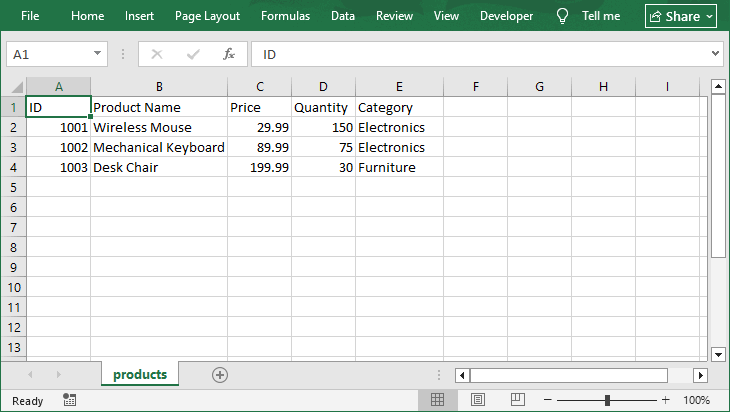
Open the generated CSV in Excel:
Bonus Tip: Beyond generating CSV files from scratch, Spire.XLS also allows you to read a CSV file in Java, enabling full bidirectional data processing within a single library.
Create Structured CSV from Arrays in Java
For practical development, you usually need to batch write business data (e.g., user lists, order records) to CSV files. This example shows how to create a standardized CSV file with fixed headers and batch structured data from 1D & 2D arrays.
import com.spire.xls.*;
import java.nio.charset.Charset;

public class CreateStructuredCSV {
    public static void main(String[] args) {
        Workbook workbook = new Workbook();
        Worksheet sheet = workbook.getWorksheets().get(0);

        // Define CSV header row
        String[] headers = {"Order ID", "Customer Name", "Order Amount", "Order Date", "Order Status"};
        for (int i = 0; i < headers.length; i++) {
            sheet.getCellRange(1, i + 1).setValue(headers[i]);
        }

        // Batch write order data
        String[][] orderData = {
                {"ORD001", "Tom Brown", "299.99", "2026-06-01", "Completed"},
                {"ORD002", "Lucy Green", "599.50", "2026-06-05", "Pending"},
                {"ORD003", "Mike Wilson", "129.00", "2026-06-08", "Shipped"}
        };

        // Traverse and write batch data
        int rowNum = 2;
        for (String[] rowData : orderData) {
            for (int col = 0; col < rowData.length; col++) {
                sheet.getCellRange(rowNum, col + 1).setValue(rowData[col]);
            }
            rowNum++;
        }

        // Save structured CSV file
        sheet.saveToFile("Record.csv", ",", Charset.forName("UTF-8"));
        workbook.dispose();
    }
}
Unlike the previous example where we populated each cell individually, this approach loops through arrays or collections. And the same pattern can be easily adapted to List<List<String>> or other dynamic data sources.
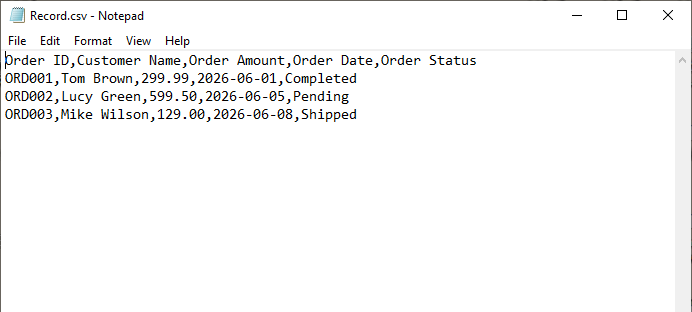
Output:
Create CSV from Excel in Java
When you need to convert Excel to CSV in Java, Spire.XLS makes this process incredibly simple with only a few lines of code.
import com.spire.xls.*;
import java.nio.charset.Charset;

public class ExcelToCSV {
    public static void main(String[] args) {
        // Load Excel file
        Workbook workbook = new Workbook();
        workbook.loadFromFile("sample.xlsx");

        // Get the first worksheet
        Worksheet sheet = workbook.getWorksheets().get(0);

        // Save worksheet as CSV
        sheet.saveToFile("converted.csv", ",", Charset.forName("UTF-8"));

        workbook.dispose();
    }
}
The core logic is straightforward: load the Excel file → target the specific worksheet → call the conversion API to save as CSV.
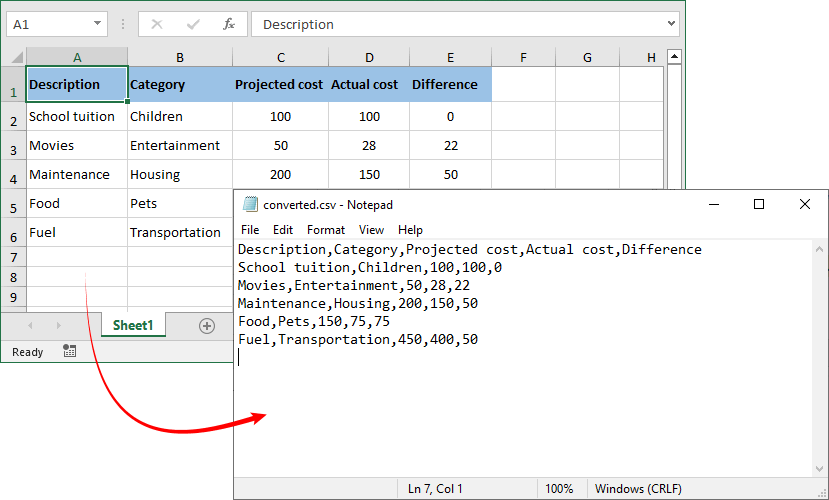
Excel to CSV Result:
The reverse operation – turning a CSV file into an Excel workbook – is equally valuable when you need to apply styles, formulas, or multiple worksheets to raw exported data.
Advanced CSV Generation Techniques
1. Handle Special Characters
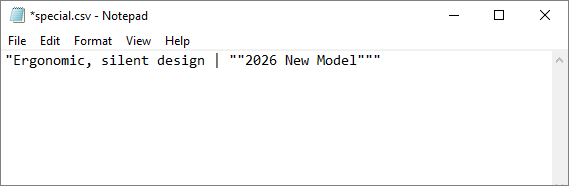
When your data contains commas or double quotes, proper escaping is critical. Spire.XLS automatically wraps affected fields in double quotes per RFC 4180 standards, ensuring compatibility with Excel, WPS, and all standard text editors.
Example:
sheet.getCellRange("A1").setValue("Ergonomic, silent design | \"2026 New Model\"");
2. Custom Delimiters and Encoding
Spire.XLS for Java supports custom delimiters beyond the standard comma, accommodating regional and format-specific requirements.
// Using semicolon as delimiter and UTF-16 as encoding
sheet.saveToFile("european_data.csv", ";", Charset.forName("UTF-16"));

// Using tab as delimiter for TSV files
sheet.saveToFile("tab_separated.txt", "\t", Charset.forName("UTF-8"));
Frequently Asked Questions
Q1. Does Spire.XLS for Java require Microsoft Excel?
No. The library works completely independently without any Office dependencies.
Q2. Can I append data to the end of an existing CSV file?
Spire.XLS loads full CSV content into a worksheet for editing. To append data, load the existing file, locate the last used row, write new records starting from the next row index, then save the file back.
Q3. Can multiple worksheets be exported to a single CSV file?
No. CSV is a plain-text, single-sheet format by definition. Each saveToFile() call exports exactly one worksheet to one CSV file. To export multiple sheets, call the save method separately for each worksheet to output individual CSV files.
Q4. What about licensing?
Spire.XLS for Java offers both commercial and free versions. While the free version carries certain usage limitations, it fully supports fundamental CSV operations and lightweight spreadsheet processing tasks.
Conclusion
Generating CSV files is a routine yet critical task in Java development. The quality and reliability of your CSV output directly impact downstream processes such as reporting, system migration, and data analysis. To ensure error‑free CSV generation, you need a library that handles formatting, encoding, and special characters automatically.
Spire.XLS for Java provides exactly that. By following the step‑by‑step code examples in this article, you can quickly integrate robust CSV generation into your Java projects, improving development efficiency while eliminating common formatting flaws and encoding errors.
For more advanced features (e.g., converting CSV to PDF), explore the Spire.XLS for Java Documentation.