Anyone who works with digital documents has likely encountered this common scenario: a finalized PDF turns out to be missing just one critical page. Because PDFs are engineered to preserve formatting across every device and platform, they do not support the quick, casual edits native to word processors — which is precisely why knowing how to add a page to PDF is such an essential practical skill.
In the sections that follow, we’ll cover practical, step‑by‑step methods to insert pages into PDF, from quick browser-based tools and offline desktop apps to a developer-friendly library for automated batch processing.
Content Overview:
- Why You Might Need to Add Pages to PDF
- Method 1: Add PDF Pages Using Adobe Acrobat Pro
- Method 2: Desktop Alternative - PDF24 Creator
- Method 3: Free Tools to Add Pages to PDF Online
- Method 4: Programming Solutions via C#
- Comparison Table: Which Method Should You Choose?
- Frequently Asked Questions (FAQs)
Why You Might Need to Add Pages to PDF
PDFs are everywhere in business, education, and personal admin. Common scenarios where you'll need to add pages to a PDF include:
- Adding signatures or handwritten notes – Insert a blank page into PDF for digital signatures
- Including forgotten attachments – Add receipts, forms, or images you missed
- Creating section dividers – Use blank pages to separate chapters or sections
- Merging multiple PDFs – Combine several documents into one complete file
- Inserting updated content – Replace or add corrected pages without recreating the entire document
Method 1: Add PDF Pages Using Adobe Acrobat Pro
Adobe Acrobat Pro is the industry standard for PDF editing. It offers precise control over page insertion, including the ability to pull pages from other files, insert blank pages, and even import content from scanners or web pages.
Step-by-step: Add Page in Adobe Acrobat
Step 1: Open your PDF in Adobe Acrobat.
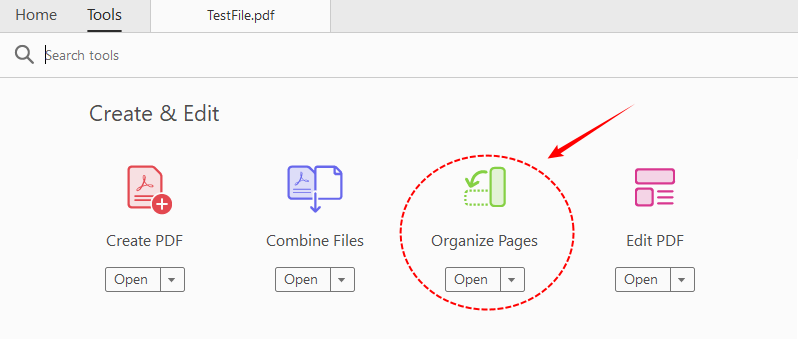
Step 2: Click "All tools" and select "Organize Pages”. This will display all pages as thumbnails for visual editing.
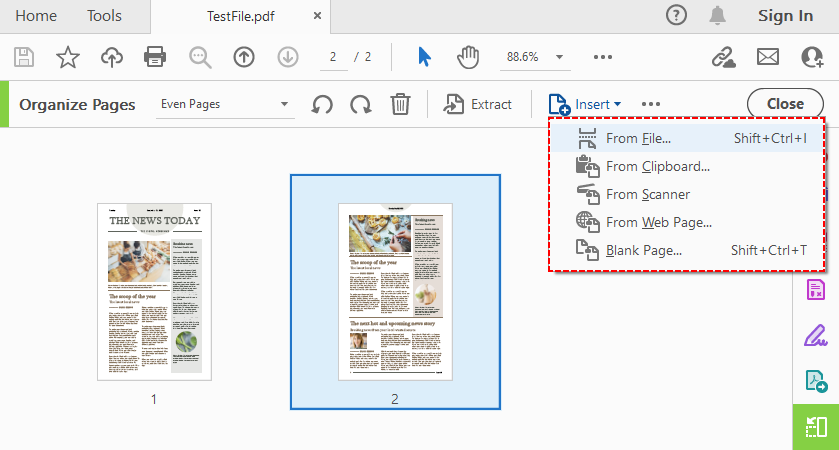
Step 3: Click the "Insert" button to view your insertion options:
- From file: Insert pages from another PDF or document
- From clipboard: Paste copied content as a new page
- From scanner: Add scanned pages directly
- From web page: Insert a webpage as a PDF page
- Blank page: Add a blank page to PDF
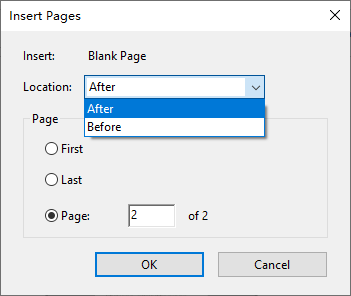
Step 4: In the “Insert Pages” dialog, choose the location: Before or After the first page, last page, or a specific page number.
Step 5: Click “OK”, and the pages will be inserted.
Quick tip: You can also hover between page thumbnails until a blue bar appears, then click it to insert pages directly.
Once you've added pages, you can easily rearrange PDF pages to refine your document structure until every section flows logically.
Method 2: Desktop Alternative - PDF24 Creator
If you're looking for a powerful desktop application that's completely free and works offline, PDF24 Creator is an excellent option. It's a Windows-based application that functions as a virtual PDF printer, a file converter, and a full-featured PDF editor.
Add Pages to PDF for Free Using PDF24 Creator:
- Open PDF24 Tool Box and click “Organize PDFs” .
- Load your PDF file by dragging and dropping or using the file browser.
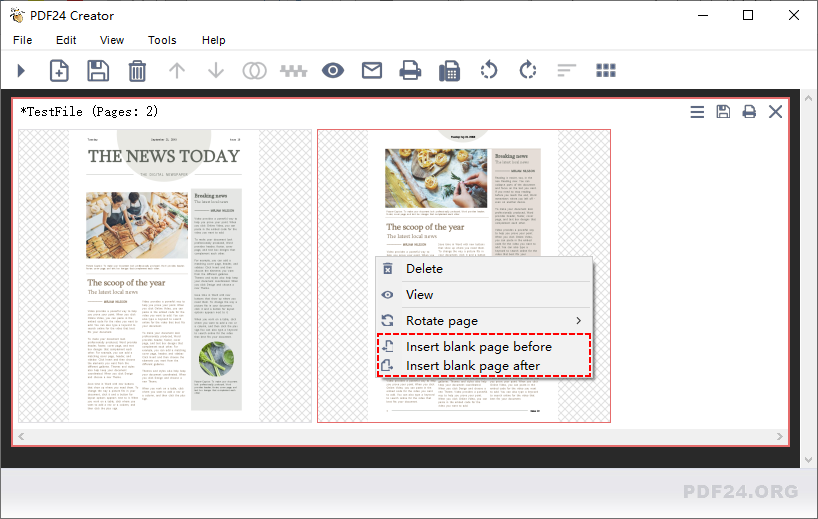
- In the page preview, right-click on the page thumbnail where you want to add new page in PDF.
- From the context menu, select “Insert blank page before” or “Insert blank page after” to add an empty page at that position.
- Once you're done, save your edited PDF.
To insert pages from another PDF file, open both documents in the toolbox, select the pages you want from the source file, and drag and drop them into the exact position in your target document.
Method 3: Free Tools to Add Pages to PDF Online
Online PDF editors are the easiest way to insert pages to PDF. They require no software installation, work on any device with a web browser, and most basic features are available for free.
Example of adding pages to PDF via iLovePDF:
- Go to the Organize PDF tool on the iLovePDF website.
- Upload your main PDF from your computer, Google Drive, or Dropbox.
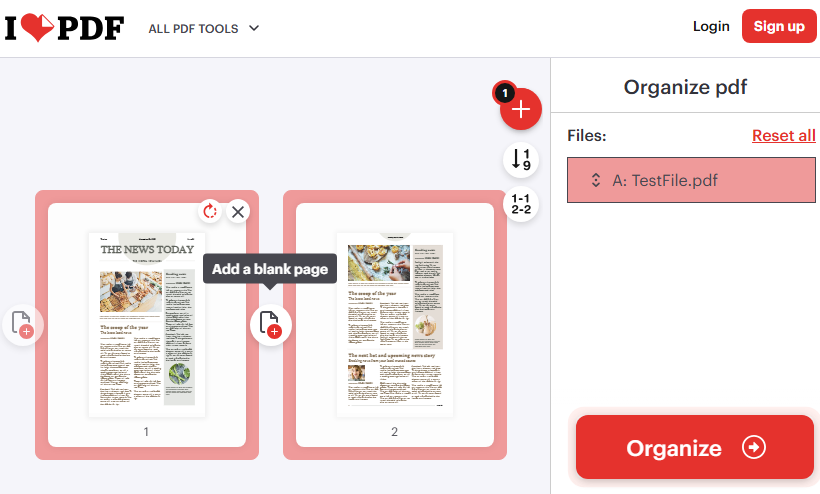
- To insert a blank page: Hover over a page and click the "+" icon to add a blank page after it.
- To add pages from another file: Click the red "+" button at the top right and upload the second PDF file.
- Click "Organize", then download file to save your updated PDF.
Privacy note: Always read a tool's data policy before uploading confidential documents. Most reputable services delete files within 1–2 hours. For sensitive work, prefer offline desktop software.
Method 4: Programming Solutions via C#
For developers who need to automate PDF manipulation in bulk or integrate it into enterprise workflows, using a dedicated library is the most efficient route. Free Spire.PDF for .NET is a powerful library that enables you to add and remove pages from PDF in C# without needing Adobe Acrobat installed.
Insert Blank Pages into PDF with C# Code
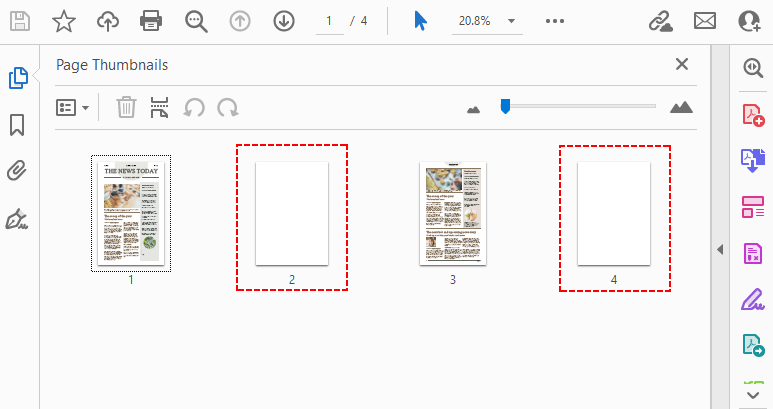
The following C# code loads an existing PDF, inserts a blank page at a specific index, and adds a second blank page to the end of the document:
using Spire.Pdf;

namespace InsertPage
{
    class Program
    {
        static void Main(string[] args)
        {
            // Create a PdfDocument instance and load the existing file
            PdfDocument pdf = new PdfDocument();
            pdf.LoadFromFile("TestFile.pdf");

            // Insert a blank page as the second page
            // Index 1 means the page will become the new second page.
            pdf.Pages.Insert(1);

            // Add a blank page to the end of the document
            pdf.Pages.Add();

            // Save the modified document to a new file
            pdf.SaveToFile("AddPages.pdf");
            pdf.Close();
        }
    }
}
Key Methods Explained
- pdf.Pages.Add(): Adds a blank page at the end of your PDF.
- pdf.Pages.Insert(1): Inserts a blank page at index 1 (which is the second page, since indexes are zero-based). All subsequent pages are shifted right.
Output:
Comparison Table: Which Method Should You Choose?
| Method | Best For | Cost | Platform | Privacy | Ease of Use |
|---|---|---|---|---|---|
| Adobe Acrobat Desktop | Professional, complex edits | Paid | Win/Mac | High | Moderate |
| PDF24 Creator | Free, offline Windows tool | Free | Windows | High | Easy |
| iLovePDF | Multiple tools, cloud integration | Free | Browser | Medium | Very Easy |
| Free Spire.PDF | Automation, .NET developers | Free (10-page limit) | .NET (Cross-platform) | High | Advanced |
Final Thoughts
Adding a page to a PDF doesn’t require specialized expertise. For occasional, quick edits with non-sensitive files, a free online tool will get the job done in seconds. For regular professional work, especially with confidential documents, a desktop editor like Adobe Acrobat Pro or PDF24 Creator offers stronger privacy and more robust features.
For developers and operations teams managing documents at scale, a programmatic library like Free Spire.PDF for .NET eliminates manual work entirely. The best solution is always the one that fits your workflow, your privacy needs, and your budget. Start with the method that feels most natural, and keep the alternatives on hand for when your requirements change.
Frequently Asked Questions (FAQs)
Q: Can I add pages to a PDF without Adobe?
Yes. Free online PDF editors like iLovePDF let you upload your PDF and insert blank pages or add pages from another file without any software installation. Desktop alternatives like PDF24 Creator and programming methods with Free Spire.PDF also offer full functionality for free.
Q: Can I insert a blank page in the middle of a document?
Absolutely. All the tools mentioned in this guide allow you to choose the exact insertion point—before or after any specific page in your document. In most tools, you simply click between page thumbnails or specify the page number.
Q: Can I add pages to a PDF on Mac for free?
Yes. Mac users can use the built-in Preview app to insert pages via the View > Thumbnails menu, or use any browser-based online PDF tool without installing additional software.
Q: Can I add an image as a new page to a PDF?
Yes. Most desktop editors and online tools let you convert an image to a PDF page and insert it. In Adobe Acrobat, use*Insert > From file and select your image. With programming libraries like Spire.PDF, you can draw images onto a blank page programmatically.