
Textbox (2)
Insert Images and Tables into a Word Textbox with JavaScript in React
2026-07-08 06:32:11 Written by Amy ZhaoIn practical document layout, a textbox is an ideal container for standalone content — it can be positioned freely without being constrained by the page flow, making it perfect for sidebars, pull quotes, product diagrams, and more. Inserting images or tables into a textbox is a common requirement for achieving rich layouts. Spire.Doc for JavaScript processes Word documents directly in the browser via WebAssembly, using a virtual file system (VFS) to manage fonts and file resources — no backend server required.
This article covers two core features:
For installation and project setup, refer to Integrating Spire.Doc for JavaScript in a React Project. The examples below assume Spire.Doc is installed and the WebAssembly module is initialized.
Insert Image into Textbox
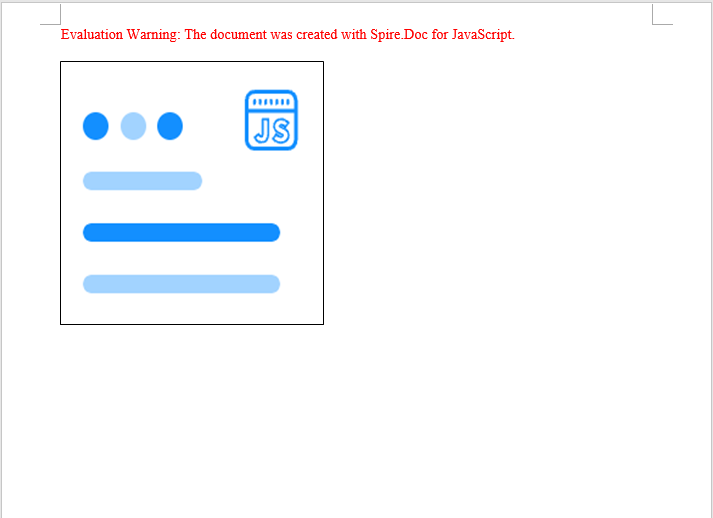
Filling a textbox with a picture is a common technique for creating product labels, business cards, or promotional materials. Spire.Doc creates a textbox via the AppendTextBox method, then fills its background with a picture using FillEfects.SetPicture. The core process involves three steps: first, load font files and the target image into the WASM virtual file system via FetchFileToVFS; then create a document, add a textbox with position properties, and apply the picture to the textbox through fill effects; finally, save the document, read the generated file from VFS, wrap it as a Blob, and trigger a browser download.
function App() {
  const InsertImageIntoTextBox = async () => {
    // Get the Spire.Doc WASM module
    const docModule = window.wasmModule?.spiredoc;

    // Check if the module is ready
    if (!docModule) {
      alert('Spire.Doc is not ready yet');
      return;
    }

    // Load fonts and the image file into VFS
    const imageFileName = 'Spire.Doc.png';
    await window.spire.FetchFileToVFS(imageFileName, '', `${process.env.PUBLIC_URL}/data/`);

    // Create a document
    const doc = new docModule.Document();

    // Add a section
    let section = doc.AddSection();

    // Add a paragraph
    let paragraph = section.AddParagraph();

    // Append a 220x220 textbox to the paragraph
    let tb = paragraph.AppendTextBox(220, 220);

    // Set textbox position
    tb.Format.HorizontalOrigin = docModule.HorizontalOrigin.Page;
    tb.Format.HorizontalPosition = 50;
    tb.Format.VerticalOrigin = docModule.VerticalOrigin.Page;
    tb.Format.VerticalPosition = 50;

    // Set the textbox fill type to Picture
    tb.Format.FillEfects.Type = docModule.BackgroundType.Picture;

    // Fill the textbox with the image
    tb.Format.FillEfects.SetPicture(imageFileName);

    // Define output file name and save
    const outputFileName = "InsertImageIntoTextBox_output.docx";
    doc.SaveToFile({ fileName: outputFileName, fileFormat: docModule.FileFormat.Docx2013 });

    // Release resources
    doc.Close();
    doc.Dispose();

    // Read the generated file from VFS and trigger download
    const modifiedFileArray = window.dotnetRuntime.Module.FS.readFile(outputFileName);
    const blob = new Blob([modifiedFileArray], { type: 'application/vnd.openxmlformats-officedocument.wordprocessingml.document'});
    const url = URL.createObjectURL(blob);
    const a = document.createElement('a');
    a.href = url;
    a.download = outputFileName;
    a.click();
    URL.revokeObjectURL(url);
  };

  return (
    <div style={{ textAlign: 'center', height: '300px' }}>
      <h1>Insert Image into a Word Textbox</h1>
      <button onClick={InsertImageIntoTextBox}>
        Generate
      </button>
    </div>
  );
}

export default App;
Image filled into the textbox, automatically scaled to fit
Insert Table into Textbox
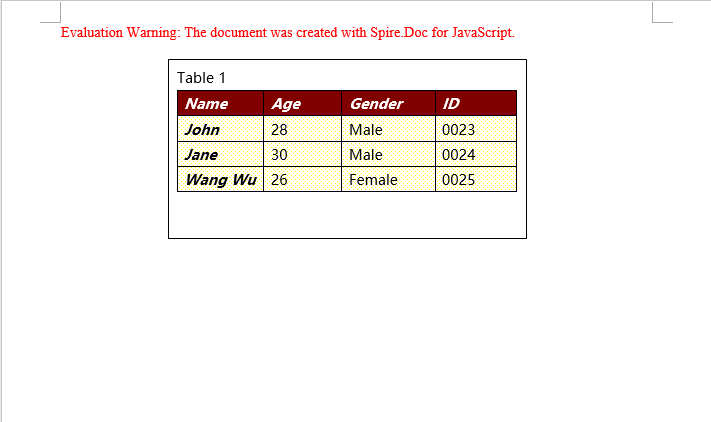
Embedding structured table data in sidebars or reference areas is a common requirement in technical documents and reports. Spire.Doc supports creating tables within a textbox and adding them directly to the textbox body via the textbox.Body.AddTable method. Compared to creating tables in the main document body, tables inside a textbox can be positioned independently without being affected by page layout. The core process involves three steps: first, load font files into the WASM virtual file system via FetchFileToVFS; then create a document and a textbox, add a table via textbox.Body.AddTable with specified row and column counts, fill data row by row, and apply styles; finally, save the document, read the generated file from VFS, wrap it as a Blob, and trigger a browser download.
function App() {
  const InsertTableIntoTextBox = async () => {
    // Get the Spire.Doc WASM module
    const docModule = window.wasmModule?.spiredoc;

    // Check if the module is ready
    if (!docModule) {
      alert('Spire.Doc is not ready yet');
      return;
    }

    // Load font files into VFS
    await window.spire.FetchFileToVFS('msyh.ttc', '/Library/Fonts/', `${process.env.PUBLIC_URL}/font/`);

    // Create a document
    const doc = new docModule.Document();

    // Add a section
    let section = doc.AddSection();

    // Add a paragraph
    let paragraph = section.AddParagraph();

    // Add a 300x150 textbox
    let textbox = paragraph.AppendTextBox(300, 150);

    // Set textbox position
    textbox.Format.HorizontalOrigin = docModule.HorizontalOrigin.Page;
    textbox.Format.HorizontalPosition = 140;
    textbox.Format.VerticalOrigin = docModule.VerticalOrigin.Page;
    textbox.Format.VerticalPosition = 50;

    // Add a title paragraph in the textbox
    let textboxParagraph = textbox.Body.AddParagraph();
    let textboxRange = textboxParagraph.AppendText("Table 1");
    textboxRange.CharacterFormat.FontName = "Microsoft YaHei";

    // Insert a table into the textbox
    let table = textbox.Body.AddTable({ showBorder: true });

    // Specify the number of rows and columns
    table.ResetCells(4, 4);

    let data = [
      ["Name", "Age", "Gender", "ID"],
      ["John", "28", "Male", "0023"],
      ["Jane", "30", "Male", "0024"],
      ["Wang Wu", "26", "Female", "0025"]
    ];
    // Populate data into the table
    for (let i = 0; i < 4; i++) {
      for (let j = 0; j < 4; j++) {
        let tableRange = table.Rows.get_Item(i).Cells.get_Item(j).AddParagraph().AppendText(data[i][j]);
        tableRange.CharacterFormat.FontName = "Microsoft YaHei";
      }
    }

    // Apply table style
    table.ApplyStyle({ builtinTableStyle: docModule.DefaultTableStyle.TableColorful2 });

    // Define output file name and save
    const outputFileName = "InsertTableIntoTextBox_output.docx";
    doc.SaveToFile({ fileName: outputFileName, fileFormat: docModule.FileFormat.Docx2013 });

    // Release resources
    doc.Close();
    doc.Dispose();

    // Read the generated file from VFS and trigger download
    const modifiedFileArray = window.dotnetRuntime.Module.FS.readFile(outputFileName);
    const blob = new Blob([modifiedFileArray], { type: 'application/vnd.openxmlformats-officedocument.wordprocessingml.document'});
    const url = URL.createObjectURL(blob);
    const a = document.createElement('a');
    a.href = url;
    a.download = outputFileName;
    a.click();
    URL.revokeObjectURL(url);
  };

  return (
    <div style={{ textAlign: 'center', height: '300px' }}>
      <h1>Insert Table into a Word Textbox</h1>
      <button onClick={InsertTableIntoTextBox}>
        Generate
      </button>
    </div>
  );
}

export default App;
Table created inside the textbox, contained within the textbox and freely positionable
FAQ
Image in the textbox is truncated or not fully displayed
Cause: The textbox size does not match the image aspect ratio, so the dimensions specified when creating the textbox cannot fully accommodate the image.
Solution: Adjust the textbox size to match the image proportions, or choose an image that fits the textbox dimensions:
let tb = paragraph.AppendTextBox(400, 300);
Table in the textbox has no visible borders
Cause: The showBorder parameter was not set or was set to false when creating the table, resulting in a borderless table.
Solution: Confirm the showBorder parameter is set to true when creating the table:
let table = textbox.Body.AddTable({ showBorder: true });
Textbox position is not as expected after saving
Cause: The HorizontalOrigin or VerticalOrigin values were configured incorrectly, causing the positioning reference point to differ from what was expected.
Solution: Choose the appropriate origin type based on your requirements, and fine-tune the position using HorizontalPosition / VerticalPosition:
tb.Format.HorizontalOrigin = docModule.HorizontalOrigin.Page;
tb.Format.HorizontalPosition = 50;
tb.Format.VerticalOrigin = docModule.VerticalOrigin.Page;
tb.Format.VerticalPosition = 50;
Get a Free License
Spire.Doc for JavaScript offers a 30-day full-featured free trial license with no functional limitations. Apply here to evaluate before purchasing.
Add or Remove Text Boxes in Word with JavaScript in React
2025-02-28 06:09:58 Written by AdministratorAdding or removing text boxes in Word is a valuable skill that enhances document layout and visual appeal. Text boxes provide a flexible way to highlight important information, create side notes, or organize content more effectively. They allow for creative formatting options, enabling you to draw attention to specific areas of your document.
In this article, you will learn how to add or move text boxes in a Word document in React using Spire.Doc for JavaScript.
Install Spire.Doc for JavaScript
To get started wtih manipulating text boxes in Word in a React applicaiton, you can either download Spire.Doc for JavaScript from our website or install it via npm with the following command:
npm i spire.officeThe downloaded product package integrates Spire.Doc for JavaScript, Spire.XLS for JavaScript, Spire.PDF for JavaScript, and Spire.Presentation for JavaScript. To use the features of Spire.Doc for JavaScript, you need to copy the corresponding files (spire.doc.js, Spire.Doc.Wasm.zip, spire.common.js, Spire.Common.Wasm.zip, and the _framework folder) to the public folder of your project. To ensure proper text rendering, you can add relevant font files with a custom path. In the following example, the font is added to the path: public\static\font.
For more details, refer to the documentation: How to Integrate Spire.Doc for JavaScript in a React Project
Add a Text Box to a Word Document in React
Spire.Doc for JavaScript offers the Paragraph.AppendTextBox() method to seamlessly insert a text box into a specified paragraph. Once inserted, you can customize the text box by adding content and applying formatting using properties like TextBox.Body and TextBox.Format.
The following are the steps to add a text box to a Word document in React:
- Load required font and input file into the virtual file system (VFS).
- Create a Document object using the new wasmModule.Document() method.
- Load the Word file using the Document.LoadFromFile() method.
- Access the first section and paragraph.
- Insert a text box to the paragraph using the Paragraph.AppendTextBox() method.
- Add a paragraph to the text box and append text to it through the TextBox.Body property.
- Customize the appearance of the text box through the TextBox.Format property.
- Save the document and trigger a download.
- JavaScript
import React, { useState, useEffect } from 'react';

function App() {
  const [wasmModule, setWasmModule] = useState(null);
  // Load Spire.Doc
  useEffect(() => {
    (async () => {
      try {
        const publicUrl = process.env.PUBLIC_URL || '';
        const spireModule = await import(/* webpackIgnore: true */ `${publicUrl}/spire.doc.js`);
        const rawModule = spireModule.default || spireModule;
        window.wasmModule = typeof rawModule === 'function'
          ? await rawModule({ locateFile: p => p.endsWith('.wasm') ? `${publicUrl}/${p}` : p })
          : rawModule;
        setWasmModule(window.wasmModule);
      } catch (error) {
        console.error('Failed to load spire.doc.js WASM module:', error);
      }
    })();
  }, []);

  // Function to add text box
  const AddTextBox = async () => {
    const wasmModule = window.wasmModule.spiredoc;

    if (wasmModule) {
      // Load the font files into the virtual file system (VFS)
      await window.spire.FetchFileToVFS('Arial.ttf', '/Library/Fonts/', `${process.env.PUBLIC_URL}/static/font/`);

      // Specify the input file name and the output file name
      const outputFileName = "Textbox.docx";
      const inputFileName = 'input.docx';

      // Fetch the input file and add it to the VFS
      await window.spire.FetchFileToVFS(inputFileName, '', `${process.env.PUBLIC_URL}/static/data/`);

      // Create an instance of the Document class
      const doc = new wasmModule.Document();

      // Load the Word document
      doc.LoadFromFile(inputFileName);

      // Get a specific section
      let section = doc.Sections.get_Item(0)

      // Get a specific paragraph
      let paragraph = section.Paragraphs.get_Item(0)

      // Insert a textbox and set its wrapping style
      let textBox = paragraph.AppendTextBox(150, 100);
      textBox.Format.TextWrappingStyle = wasmModule.TextWrappingStyle.Square;

      // Set the position of the textbox
      textBox.Format.HorizontalPosition = 0;
      textBox.Format.VerticalPosition = 50;

      // Set the line style and fill color
      textBox.Format.LineColor = wasmModule.Color.get_DarkBlue();
      textBox.Format.LineStyle = wasmModule.TextBoxLineStyle.Simple;
      textBox.Format.FillColor = wasmModule.Color.get_LightGray();

      // Add a paragraph to the textbox
      let para = textBox.Body.AddParagraph();
      let textRange = para.AppendText("This is a sample text box created by Spire.Doc for JavaScript.");

      // Format the text
      textRange.CharacterFormat.FontName = "Arial";
      textRange.CharacterFormat.FontSize = 15;
      textRange.CharacterFormat.TextColor = wasmModule.Color.get_Blue();

      // Set the horizontal alignment of the paragraph
      para.Format.HorizontalAlignment = wasmModule.HorizontalAlignment.Center;

      // Save the document to the specified path
      doc.SaveToFile({ fileName: outputFileName, fileFormat: wasmModule.FileFormat.Docx2013 });

      // Read the generated file from VFS
      const fileArray = window.dotnetRuntime.Module.FS.readFile(outputFileName);

      // Create a Blob object from the file
      const blob = new Blob([fileArray], { type: "application/vnd.openxmlformats-officedocument.wordprocessingml.document" });

      // Create a URL for the Blob
      const url = URL.createObjectURL(blob);

      // Create an anchor element to trigger the download
      const a = document.createElement('a');
      a.href = url;
      a.download = outputFileName;
      document.body.appendChild(a);
      a.click();
      document.body.removeChild(a);
      URL.revokeObjectURL(url);

      // Clean up resources
      doc.Dispose();
    }
  };

  return (
    <adiv style={{ textAlign: 'center', height: '300px' }}>
      <ah1>Add a text box to Word in React<a/h1>
      <abutton onClick={AddTextBox} disabled={!wasmModule}>
        Generate
      <a/button>
    <a/div>
  );
}

export default App;
Run the code to launch the React app at localhost:3000. Click "Generate", and a "Save As" window will appear, prompting you to save the output file in your chosen folder.

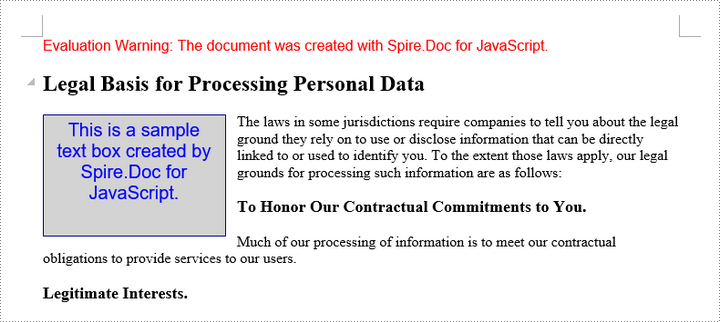
Here is a screenshot of the generated Word file that includes a text box:
Remove a Text Box from a Word Document in React
Spire.Doc for JavaScript includes the Document.TextBoxes.RemoveAt() method, which allows you to delete a specific text box by its index. If you need to remove all text boxes from a Word document, you can use the Document.TextBoxes.Clear() method for a quick and efficient solution.
The following are the steps to remove a text box from a Word document in React:
- Load the input file into the virtual file system (VFS).
- Create a Document object using the new wasmModule.Document() method.
- Load the Word file using the Document.LoadFromFile() method.
- Remove a specific text box using the Document.TextBoxes.RemoveAt() method.
- Save the document and trigger a download.
- JavaScript
import React, { useState, useEffect } from 'react';

function App() {
  const [wasmModule, setWasmModule] = useState(null);
  // Load Spire.Doc
  useEffect(() => {
    (async () => {
      try {
        const publicUrl = process.env.PUBLIC_URL || '';
        const spireModule = await import(/* webpackIgnore: true */ `${publicUrl}/spire.doc.js`);
        const rawModule = spireModule.default || spireModule;
        window.wasmModule = typeof rawModule === 'function'
          ? await rawModule({ locateFile: p => p.endsWith('.wasm') ? `${publicUrl}/${p}` : p })
          : rawModule;
        setWasmModule(window.wasmModule);
      } catch (error) {
        console.error('Failed to load spire.doc.js WASM module:', error);
      }
    })();
  }, []);

  // Function to remove text box
  const RemoveTextBox = async () => {
    const wasmModule = window.wasmModule.spiredoc;

    if (wasmModule) {
      // Load the font files into the virtual file system (VFS)
      await window.spire.FetchFileToVFS('Arial.ttf', '/Library/Fonts/', `${process.env.PUBLIC_URL}/static/font/`);

      // Specify the input file name and the output file name
      const outputFileName = "RemoveTextBox.docx";
      const inputFileName = 'Textbox.docx';

      // Fetch the input file and add it to the VFS
      await window.spire.FetchFileToVFS(inputFileName, '', `${process.env.PUBLIC_URL}/static/data/`);

      // Create an instance of the Document class
      const doc = new wasmModule.Document();


      // Load the Word document
      doc.LoadFromFile(inputFileName);

      // Remove the text box at index 0
      doc.TextBoxes.RemoveAt(0);

      // Remove all text boxes
      // doc.TextBoxes.Clear();

      // Save the document to the specified path
      doc.SaveToFile({ fileName: outputFileName, fileFormat: wasmModule.FileFormat.Docx2013 });

      // Read the generated file from VFS
      const fileArray = window.dotnetRuntime.Module.FS.readFile(outputFileName);

      // Create a Blob object from the file
      const blob = new Blob([fileArray], { type: "application/vnd.openxmlformats-officedocument.wordprocessingml.document" });

      // Create a URL for the Blob
      const url = URL.createObjectURL(blob);

      // Create an anchor element to trigger the download
      const a = document.createElement('a');
      a.href = url;
      a.download = outputFileName;
      document.body.appendChild(a);
      a.click();
      document.body.removeChild(a);
      URL.revokeObjectURL(url);

      // Clean up resources
      doc.Dispose();
    }
  };

  return (
    <div style={{ textAlign: 'center', height: '300px' }}>
      <h1>Remove a text box from Word in React</h1>
      <button onClick={RemoveTextBox} disabled={!wasmModule}>
        Generate
      </button>
    </div>
  );
}

export default App;
Get a Free License
To fully experience the capabilities of Spire.Doc for JavaScript without any evaluation limitations, you can request a free 30-day trial license.
