The charts, flow diagrams, and logos exported on the web are mostly SVG, yet printing, archiving, or an approval workflow usually asks for PDF. Saving them one by one in office software takes a person sitting through it, and batch-converting on a server means uploading the files first.
This article uses Spire.PDF for JavaScript to bridge SVG and PDF. It is built on WebAssembly, loading and saving documents in the browser, and it reads and writes files through a virtual file system (VFS), with no backend involved. There are two paths: turn an SVG into a PDF file on its own, or draw the SVG as vector graphics onto a chosen page of an existing PDF.
This article covers two core features:
For installation and project configuration, refer to Integrate Spire.PDF for JavaScript in a React Project. The examples below assume Spire.PDF is already installed and the WebAssembly module is initialized.
Convert an SVG to PDF
Spire.PDF for JavaScript provides the PdfDocument.LoadFromSvg method, which loads an SVG as a PDF document. The loaded document has a single page, and the page size is taken from the width/height on the SVG root element.
The steps are as follows:
- Get the Spire.PDF WASM module and make sure it is ready.
- Read the SVG file into the virtual file system (VFS).
- Create a
PdfDocumentobject and load the SVG with theLoadFromSvg()method. - Use the
PdfDocument.SaveToFile()method to save the result file. - Read the result file from the VFS and trigger a browser download.
The code to convert an SVG to PDF is as follows:
function App() {
  const convertSvgToPdf = async () => {
    // Get the Spire.PDF WASM module
    const pdfModule = window.wasmModule?.spirepdf;

    // Check if the module is ready
    if (!pdfModule) {
      alert('Spire.PDF is not ready yet');
      return;
    }

    // Load the SVG to convert into the VFS
    const inputFileName = 'VectorChart.svg';
    await window.spire.FetchFileToVFS(inputFileName, '', `${process.env.PUBLIC_URL}/data/`);

    // Load the SVG: the document has a single page, the size of the SVG
    let doc = new pdfModule.PdfDocument();
    doc.LoadFromSvg({ fileName: inputFileName });

    // Save the result file
    const outputFileName = 'VectorChart.pdf';
    doc.SaveToFile(outputFileName);
    doc.Close();

    // Read the generated file from the VFS and trigger the download
    const fileArray = window.dotnetRuntime.Module.FS.readFile(outputFileName);
    const blob = new Blob([fileArray], { type: 'application/pdf' });
    const url = URL.createObjectURL(blob);
    const a = document.createElement('a');
    a.href = url;
    a.download = outputFileName;
    a.click();
    URL.revokeObjectURL(url);
  };

  return (
    <div style={{ textAlign: 'center', height: '300px' }}>
      <h1>Convert SVG to PDF</h1>
      <button onClick={convertSvgToPdf}>
        Convert to PDF
      </button>
    </div>
  );
}

export default App;
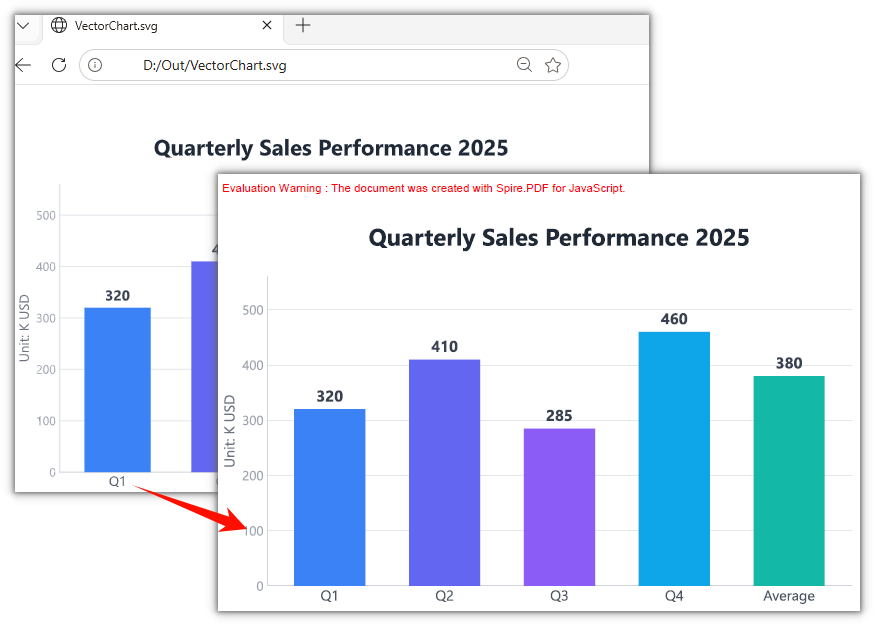
The result is a single-page PDF whose page size matches the SVG:
Draw an SVG onto an Existing PDF
Spire.PDF for JavaScript also provides the PdfPageBase.CreateTemplate method and the PdfCanvas.DrawTemplate method, which overlay an SVG onto an already laid-out PDF. Load the SVG, turn its single page into a template, then draw it onto the target page at a chosen position and size — the original document's page count, page size, and existing content are untouched.
The steps are as follows:
- Get the Spire.PDF WASM module and make sure it is ready.
- Read the existing PDF and the SVG logo into the virtual file system (VFS).
- Create a
PdfDocumentobject for each and load the existing PDF and the SVG. - Use the
CreateTemplate()method to turn the SVG's first page into a template, then draw it onto the target page with theCanvas.DrawTemplate()method, at a given position and size. - Use the
SaveToFile()method to save the PDF that was drawn on, then read the result file from the VFS and trigger a browser download.
The code to draw an SVG onto an existing PDF is as follows:
function App() {
  const drawSvgOnPdf = async () => {
    // Get the Spire.PDF WASM module
    const pdfModule = window.wasmModule?.spirepdf;

    // Check if the module is ready
    if (!pdfModule) {
      alert('Spire.PDF is not ready yet');
      return;
    }

    // Load both the existing PDF and the SVG logo into the VFS
    const pdfFileName = 'ProductManual.pdf';
    const svgFileName = 'VectorLogo.svg';
    await window.spire.FetchFileToVFS(pdfFileName, '', `${process.env.PUBLIC_URL}/data/`);
    await window.spire.FetchFileToVFS(svgFileName, '', `${process.env.PUBLIC_URL}/data/`);

    // Load the existing PDF
    let existingPdf = new pdfModule.PdfDocument();
    existingPdf.LoadFromFile(pdfFileName);

    // Load the SVG and turn its single page into a template
    let svgDoc = new pdfModule.PdfDocument();
    svgDoc.LoadFromSvg({ fileName: svgFileName });
    const template = svgDoc.Pages.get_Item(0).CreateTemplate();

    // Draw the template on page 1: position and size are in points, origin at the top-left of the page
    const location = new pdfModule.PointF(390, 50);
    const size = new pdfModule.SizeF(130, 60);
    existingPdf.Pages.get_Item(0).Canvas.DrawTemplate({ template, location, size });

    // Save the PDF that was drawn on
    const outputFileName = 'ProductManual_WithLogo.pdf';
    existingPdf.SaveToFile(outputFileName);
    svgDoc.Close();
    existingPdf.Close();

    // Read the generated file from the VFS and trigger the download
    const fileArray = window.dotnetRuntime.Module.FS.readFile(outputFileName);
    const blob = new Blob([fileArray], { type: 'application/pdf' });
    const url = URL.createObjectURL(blob);
    const a = document.createElement('a');
    a.href = url;
    a.download = outputFileName;
    a.click();
    URL.revokeObjectURL(url);
  };

  return (
    <div style={{ textAlign: 'center', height: '300px' }}>
      <h1>Draw SVG on Existing PDF</h1>
      <button onClick={drawSvgOnPdf}>
        Insert SVG
      </button>
    </div>
  );
}

export default App;
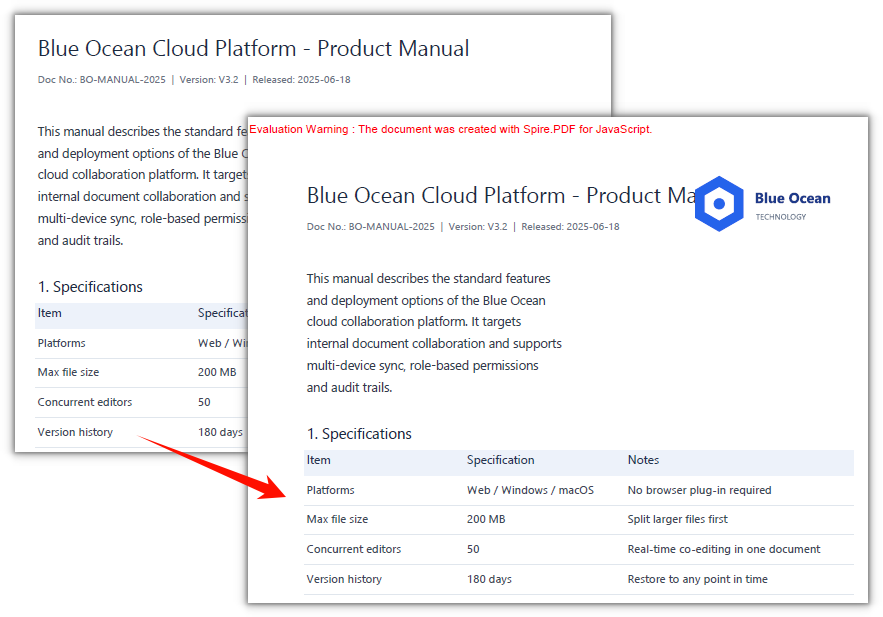
The original manual content is unchanged, with a vector logo added at the top right:
Frequently Asked Questions
Why isn't the output PDF A4-sized
Cause: When LoadFromSvg creates the page it takes the width/height from the SVG root element, converting pixels to points at 75%. In the example, a 760 × 520 SVG becomes a single page of 570 × 390 points — nothing to do with A4.
Solution: To use another size, change the width, height, or viewBox on the SVG root element and convert again.
How do I draw the SVG on another page or at another position
Cause: Which page DrawTemplate draws on is decided by how the page is fetched, and which corner it lands in is decided by location; both are passed in explicitly by the caller.
Solution: Switch pages with Pages.get_Item(index) (0-based), change the position via PointF, and the size via SizeF — all in points, with the origin at the top-left of the page:
// Draw on page 2, bottom left, at a size of 100 × 46 points
existingPdf.Pages.get_Item(1).Canvas.DrawTemplate({
  template: template,
  location: new pdfModule.PointF(40, 760),
  size: new pdfModule.SizeF(100, 46),
});
Is the inserted SVG vector or a bitmap
Cause: What CreateTemplate returns is a PDF template corresponding to the SVG content, and DrawTemplate draws it into the page as vectors, without going through a bitmap.
Solution: Nothing extra to set. Zoom in on the page afterwards and the logo's edges stay crisp; it prints without blurring either.
Get a Free License
If you would like to remove the evaluation message from the result document or lift feature restrictions, please contact sales for a 30-day temporary license.