
Comments (2)
An Excel comment usually carries a paragraph of text, explaining a number or adding a note. When the thing to be explained is itself a picture -- a supplier mark, a product photo, a sketch of a part -- text alone will not do. Spire.XLS for JavaScript can fill a comment's background with a picture, so the image appears beside the cell without a separate floating picture object being placed on the sheet. A comment's background is controlled by its fill object, and switching to a solid colour likewise changes only that one object. Spire.XLS for JavaScript performs these operations in the browser through WebAssembly; input and output files are managed by a virtual file system (VFS), with no backend service required.
This article covers two feature points:
For installation and project setup, see Integrating Spire.XLS for JavaScript in a React Project. The examples below assume Spire.XLS is installed and the WebAssembly module has been initialized.
Insert a picture comment into a cell
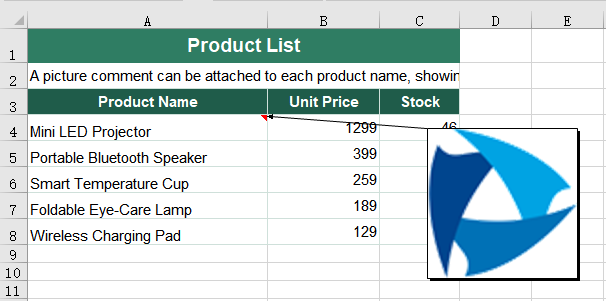
A comment is attached to a cell; giving one a picture means first obtaining the comment object on the target cell and then filling it. The picture becomes the comment box's background, replacing the default pale-yellow shading, and it is this picture that appears when the mouse moves over the cell or the file is opened. The picture is scaled to the size of the comment box, and the default box is a flat rectangle, so a square picture is stretched out of shape; after filling, the width and height must therefore be set so that the box matches the picture's proportions. Where the box sits on the sheet is decided by a separate pair of position properties, so it does not have to follow the cell border. The steps are:
- Load the font, the picture and the test data file into the VFS.
- Load the workbook with
workbook.LoadFromFile. - Take the cell the comment will be attached to with
sheet.Range.get('A4'). - Create a comment object on the cell with
range.AddComment(). - Fill the comment background with the picture using
comment.Fill.CustomPicture, passing the picture as a stream built bynew xlsModule.Stream('logo.png')and'None'for thenameargument. - Set
comment.Widthandcomment.Heightso the comment box is square, matching the square picture, which keeps the picture from being stretched. - Place the comment box relative to the top-left corner of the worksheet with
comment.Topandcomment.Left, so that it covers the content below without obscuring its own row. - Set
comment.Visibleto show the comment as soon as the file is opened. - Save the workbook with
workbook.SaveToFile. - Dispose of the workbook with
workbook.Disposeto free resources.
The complete code example below shows how to insert a picture comment into an Excel cell in React:
function App() {
  const addPictureComment = async () => {
    // get the Spire.XLS WASM module
    const xlsModule = window.wasmModule?.spirexls;

    // check that the module is ready
    if (!xlsModule) {
      alert('Spire.Xls is not ready yet');
      return;
    }

    // load the font, the picture and the test data file into the VFS
    await window.spire.FetchFileToVFS('ARIAL.TTF', '/Library/Fonts/', `${process.env.PUBLIC_URL}/font/`);
    await window.spire.FetchFileToVFS('logo.png', '', `${process.env.PUBLIC_URL}data/`);
    const inputFileName = 'ProductList.xlsx';
    await window.spire.FetchFileToVFS(inputFileName, '', `${process.env.PUBLIC_URL}data/`);

    // load the workbook
    const workbook = new xlsModule.Workbook();
    workbook.LoadFromFile({ fileName: inputFileName });

    // take the first worksheet and add a comment to cell A4, filled with the picture
    const sheet = workbook.Worksheets.get(0);
    const range = sheet.Range.get('A4');
    const comment = range.AddComment();
    comment.Fill.CustomPicture({ im: new xlsModule.Stream('logo.png'), name: 'None' });

    // set the width and height of the comment box
    comment.Width = 150;
    comment.Height = 150;

    // place the comment box relative to the top-left corner of the worksheet
    comment.Top = 100;
    comment.Left = 400;

    // make the comment show as soon as the file is opened
    comment.Visible = true;

    // save the workbook
    const outputFileName = 'PictureComment.xlsx';
    workbook.SaveToFile({ fileName: outputFileName, version: xlsModule.ExcelVersion.Version2010 });

    // dispose of the workbook to free resources
    workbook.Dispose();

    // read the result file from the VFS and start the download
    const fileArray = window.dotnetRuntime.Module.FS.readFile(outputFileName);
    const blob = new Blob([fileArray], { type: 'application/vnd.openxmlformats-officedocument.spreadsheetml.sheet' });
    const url = URL.createObjectURL(blob);
    const a = document.createElement('a');
    a.href = url;
    a.download = outputFileName;
    a.click();
    URL.revokeObjectURL(url);
  };

  return (
    <div style={{ textAlign: 'center', height: '300px' }}>
      <h1>Insert Comments with Pictures</h1>
      <button id="picture-comment" onClick={addPictureComment}>Insert a picture comment into a cell</button>
    </div>
  );
}

export default App;
After running, the effect of inserting a picture comment into a cell:
Fill a comment with a solid colour
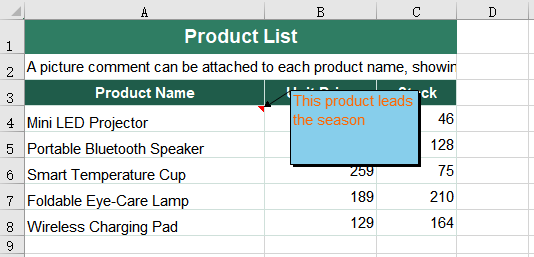
A comment background need not be a picture. When all that is needed is for one comment to stand out from the pale-yellow shading around it, specifying a solid colour is more straightforward than preparing an image. Filling with a picture and filling with a solid colour use the same comment.Fill object; only the fill type changes from picture to solid. The steps are:
- Load the font and the test data file into the VFS.
- Load the workbook with
workbook.LoadFromFile. - Take the cell the comment will be attached to with
sheet.Range.get('A4')and create the comment withrange.AddComment(). - Write the comment text with
comment.Text. - Create a font with
workbook.CreateFont()and set the whole text to it withcomment.RichText.SetFont. - Set
comment.Fill.FillTypeto the solid fill type,xlsModule.ShapeFillType.SolidColor. - Pick the colour with
comment.Fill.ForeColor. - Set
comment.Visibleto show the comment as soon as the file is opened. - Save the workbook with
workbook.SaveToFile. - Dispose of the workbook with
workbook.Disposeto free resources.
The complete code example below shows how to fill an Excel comment with a solid colour in React:
function App() {
  const fillCommentColor = async () => {
    // get the Spire.XLS WASM module
    const xlsModule = window.wasmModule?.spirexls;

    // check that the module is ready
    if (!xlsModule) {
      alert('Spire.Xls is not ready yet');
      return;
    }

    // load the font and the test data file into the VFS
    await window.spire.FetchFileToVFS('ARIAL.TTF', '/Library/Fonts/', `${process.env.PUBLIC_URL}/font/`);
    const inputFileName = 'ProductList.xlsx';
    await window.spire.FetchFileToVFS(inputFileName, '', `${process.env.PUBLIC_URL}data/`);

    // load the workbook
    const workbook = new xlsModule.Workbook();
    workbook.LoadFromFile({ fileName: inputFileName });

    // take the first worksheet and add a comment to cell A4
    const sheet = workbook.Worksheets.get(0);
    const range = sheet.Range.get('A4');

    // create the font the comment text will use
    const font = workbook.CreateFont();
    font.FontName = 'Arial';
    font.Size = 11;
    font.KnownColor = xlsModule.ExcelColors.Orange;

    // write the comment text and set the whole text to that font
    const commentText = 'This product leads the season';
    range.Comment.Text = commentText;
    range.Comment.RichText.SetFont(0, commentText.length - 1, font);

    // set the comment fill to a solid colour and pick the colour
    range.Comment.Fill.FillType = xlsModule.ShapeFillType.SolidColor;
    range.Comment.Fill.ForeColor = xlsModule.Color.get_SkyBlue();
    range.Comment.Visible = true;

    // save the workbook
    const outputFileName = 'CommentFillColor.xlsx';
    workbook.SaveToFile({ fileName: outputFileName, version: xlsModule.ExcelVersion.Version2010 });

    // dispose of the workbook to free resources
    workbook.Dispose();

    // read the result file from the VFS and start the download
    const fileArray = window.dotnetRuntime.Module.FS.readFile(outputFileName);
    const blob = new Blob([fileArray], { type: 'application/vnd.openxmlformats-officedocument.spreadsheetml.sheet' });
    const url = URL.createObjectURL(blob);
    const a = document.createElement('a');
    a.href = url;
    a.download = outputFileName;
    a.click();
    URL.revokeObjectURL(url);
  };

  return (
    <div style={{ textAlign: 'center', height: '300px' }}>
      <h1>Insert Comments with Pictures</h1>
      <button id="comment-fill-color" onClick={fillCommentColor}>Fill a comment with a solid colour</button>
    </div>
  );
}

export default App;
After running, the effect of filling a comment with a solid colour:
FAQ
Why does the picture comment not appear when the result file is opened
Reason: Comments are hidden by default and appear only when the mouse moves over the cell. If the comment was not set to visible before saving, reopening the file shows an ordinary worksheet, and the picture comment does not appear on its own.
Solution: Set comment.Visible to true, and the comment appears as soon as the file is opened:
comment.Visible = true;
Get a Free License
Spire.XLS for JavaScript offers a 30-day full-featured free trial license with no functional limitations. Apply here to evaluate before purchasing.
Add, Read, Edit, and Delete Excel Comments with JavaScript in React
2026-09-04 03:58:32 Written by Lisa LiComments are an important tool in Excel for providing supplementary explanations of cell contents, and are commonly used in scenarios such as data review and collaborative notes. Spire.XLS for JavaScript uses WebAssembly to add, read, edit, and delete comments directly in the browser, managing input and output files through a virtual file system (VFS) — no backend server required.
This article covers several commonly used features:
For installation and project configuration, refer to Integrating Spire.XLS for JavaScript in a React Project. The examples below assume Spire.XLS is installed and the WebAssembly module is initialized.
Add a Comment
A comment can also carry author information, making it easy to identify where the comment comes from.
function App() {
  const addCommentWithAuthor = async () => {
    // Get the Spire.XLS WASM module
    const xlsModule = window.wasmModule?.spirexls;

    // Check if the module is ready
    if (!xlsModule) {
      alert('Spire.Xls is not ready yet');
      return;
    }

    // Load the font and the Excel file into VFS
    await window.spire.FetchFileToVFS('ARIAL.TTF', '/Library/Fonts/', `${process.env.PUBLIC_URL}/font/`);
    const inputFileName = 'CommentsSample.xlsx';
    await window.spire.FetchFileToVFS(inputFileName, '', `${process.env.PUBLIC_URL}data/`);

    // Load the workbook
    const workbook = new xlsModule.Workbook();
    workbook.LoadFromFile({ fileName: inputFileName });

    // Get the first worksheet
    const sheet = workbook.Worksheets.get(0);

    // Get the cell where the comment will be added
    const range = sheet.Range.get('C1');

    // Set the author and comment content
    const author = 'E-iceblue:';
    const text = 'This is an example showing how to add a comment with an editable author property.';

    // Add a comment to the cell and set its properties
    const comment = range.AddComment();
    comment.Width = 200;
    comment.IsVisible = true;
    comment.Text = author + ':\n' + text;

    // Set the font style of the author name in the comment
    const font = workbook.CreateFont();
    font.FontName = 'Arial';
    font.KnownColor = xlsModule.ExcelColors.Black;
    font.IsBold = true;
    comment.RichText.SetFont(0, author.length, font);

    // Save the workbook
    const outputFileName = 'AddCommentWithAuthor_output.xlsx';
    workbook.SaveToFile({ fileName: outputFileName, version: xlsModule.ExcelVersion.Version2010 });

    // Release resources
    workbook.Dispose();

    // Read the generated file from VFS and trigger the download
    const fileArray = window.dotnetRuntime.Module.FS.readFile(outputFileName);
    const blob = new Blob([fileArray], { type: 'application/vnd.openxmlformats-officedocument.spreadsheetml.sheet' });
    const url = URL.createObjectURL(blob);
    const a = document.createElement('a');
    a.href = url;
    a.download = outputFileName;
    a.click();
    URL.revokeObjectURL(url);
  };

  return (
    <div style={{ textAlign: 'center', height: '300px' }}>
      <h1>Add Comment With Author</h1>
      <button onClick={addCommentWithAuthor}>Start</button>
    </div>
  );
}

export default App;
After running, a comment containing the author name and the comment text will appear on cell C1. 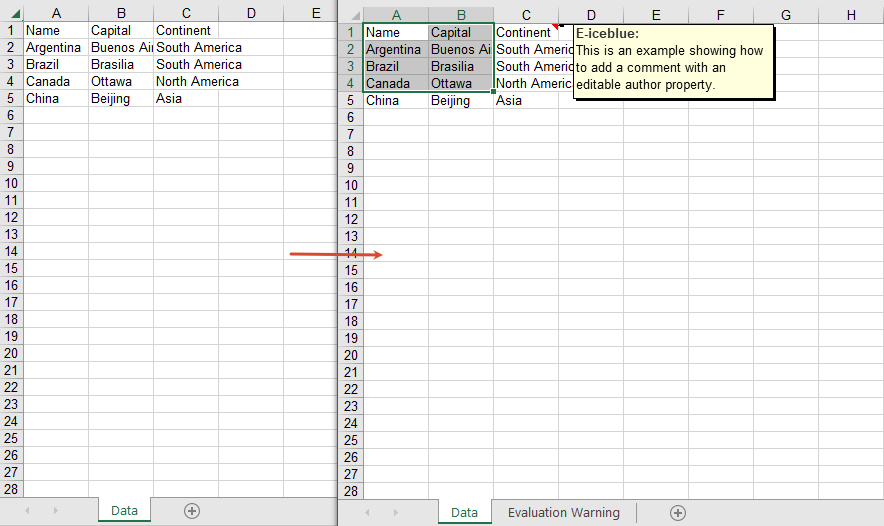
Read Comment Content
You can read the comment on a cell through the CellRange.Comment property.
function App() {
  const readComment = async () => {
    // Get the Spire.XLS WASM module
    const xlsModule = window.wasmModule?.spirexls;

    // Check if the module is ready
    if (!xlsModule) {
      alert('Spire.Xls is not ready yet');
      return;
    }

    // Load the Excel file into VFS
    const inputFileName = 'CommentsSample.xlsx';
    await window.spire.FetchFileToVFS(inputFileName, '', `${process.env.PUBLIC_URL}data/`);

    // Load the workbook
    const workbook = new xlsModule.Workbook();
    workbook.LoadFromFile({ fileName: inputFileName });

    // Get the first worksheet
    const sheet = workbook.Worksheets.get(0);

    // Get the comment text
    const builder = [];
    builder.push(sheet.Range.get('A1').Comment.Text + '\n\t');
    builder.push(sheet.Range.get('A2').Comment.Text);

    // Save the comment content to a txt file
    const outputFileName = 'ReadComment_output.txt';
    window.dotnetRuntime.Module.FS.writeFile(outputFileName, builder.join('\n'));
    workbook.Dispose();

    // Read the generated file from VFS and trigger the download
    const fileArray = window.dotnetRuntime.Module.FS.readFile(outputFileName);
    const blob = new Blob([fileArray], { type: 'text/plain' });
    const url = URL.createObjectURL(blob);
    const a = document.createElement('a');
    a.href = url;
    a.download = outputFileName;
    a.click();
    URL.revokeObjectURL(url);
  };

  return (
    <div style={{ textAlign: 'center', height: '300px' }}>
      <h1>Read Comment</h1>
      <button onClick={readComment}>Start</button>
    </div>
  );
}

export default App;
The read comment content 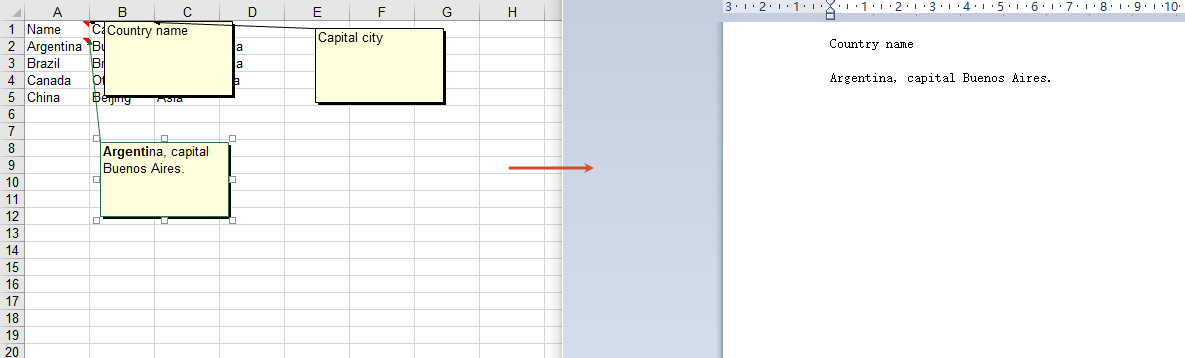
Edit Comment Content
Get a comment by index through Comments.get(0), and then modify its text content.
function App() {
  const editComment = async () => {
    // Get the Spire.XLS WASM module
    const xlsModule = window.wasmModule?.spirexls;

    // Check if the module is ready
    if (!xlsModule) {
      alert('Spire.Xls is not ready yet');
      return;
    }

    // Load the font and the Excel file into VFS
    await window.spire.FetchFileToVFS('ARIAL.TTF', '/Library/Fonts/', `${process.env.PUBLIC_URL}/font/`);
    const inputFileName = 'CommentsSample.xlsx';
    await window.spire.FetchFileToVFS(inputFileName, '', `${process.env.PUBLIC_URL}data/`);

    // Load the workbook
    const workbook = new xlsModule.Workbook();
    workbook.LoadFromFile({ fileName: inputFileName });

    // Get the first worksheet
    const sheet = workbook.Worksheets.get(0);

    // Get the first comment
    const comment = sheet.Comments.get(0);

    // Edit the comment content
    comment.Text = 'This comment has been edited by Spire.XLS.';

    // Save the workbook
    const outputFileName = 'EditExcelComment_output.xlsx';
    workbook.SaveToFile({ fileName: outputFileName, version: xlsModule.ExcelVersion.Version2010 });

    // Release resources
    workbook.Dispose();

    // Read the generated file from VFS and trigger the download
    const fileArray = window.dotnetRuntime.Module.FS.readFile(outputFileName);
    const blob = new Blob([fileArray], { type: 'application/vnd.openxmlformats-officedocument.spreadsheetml.sheet' });
    const url = URL.createObjectURL(blob);
    const a = document.createElement('a');
    a.href = url;
    a.download = outputFileName;
    a.click();
    URL.revokeObjectURL(url);
  };

  return (
    <div style={{ textAlign: 'center', height: '300px' }}>
      <h1>Edit Excel Comment</h1>
      <button onClick={editComment}>Start</button>
    </div>
  );
}

export default App;
The edited comment content 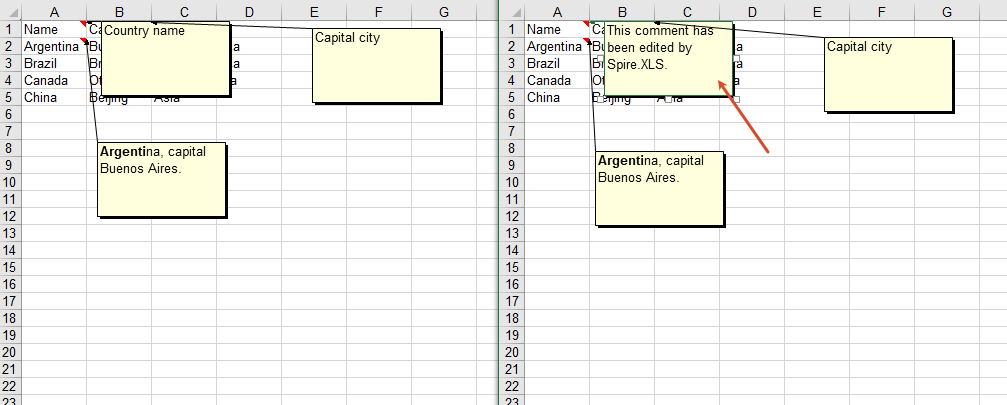
Delete Comments
You can delete all comments in a worksheet through the Comments.Clear method.
function App() {
  const removeComment = async () => {
    // Get the Spire.XLS WASM module
    const xlsModule = window.wasmModule?.spirexls;

    // Check if the module is ready
    if (!xlsModule) {
      alert('Spire.Xls is not ready yet');
      return;
    }

    // Load the font and the Excel file into VFS
    await window.spire.FetchFileToVFS('ARIAL.TTF', '/Library/Fonts/', `${process.env.PUBLIC_URL}/font/`);
    const inputFileName = 'CommentsSample.xlsx';
    await window.spire.FetchFileToVFS(inputFileName, '', `${process.env.PUBLIC_URL}data/`);

    // Load the workbook
    const workbook = new xlsModule.Workbook();
    workbook.LoadFromFile({ fileName: inputFileName });

    // Get all comments of the first worksheet
    const comments = workbook.Worksheets.get(0).Comments;

    // Clear all comments; alternatively, use comments.RemoveAt(0) to delete a comment by index
    comments.Clear();

    // Save the workbook
    const outputFileName = 'RemoveComment_output.xlsx';
    workbook.SaveToFile({ fileName: outputFileName, version: xlsModule.ExcelVersion.Version2010 });

    // Release resources
    workbook.Dispose();

    // Read the generated file from VFS and trigger the download
    const fileArray = window.dotnetRuntime.Module.FS.readFile(outputFileName);
    const blob = new Blob([fileArray], { type: 'application/vnd.openxmlformats-officedocument.spreadsheetml.sheet' });
    const url = URL.createObjectURL(blob);
    const a = document.createElement('a');
    a.href = url;
    a.download = outputFileName;
    a.click();
    URL.revokeObjectURL(url);
  };

  return (
    <div style={{ textAlign: 'center', height: '300px' }}>
      <h1>Remove Comment</h1>
      <button onClick={removeComment}>Start</button>
    </div>
  );
}

export default App;
After deleting comments 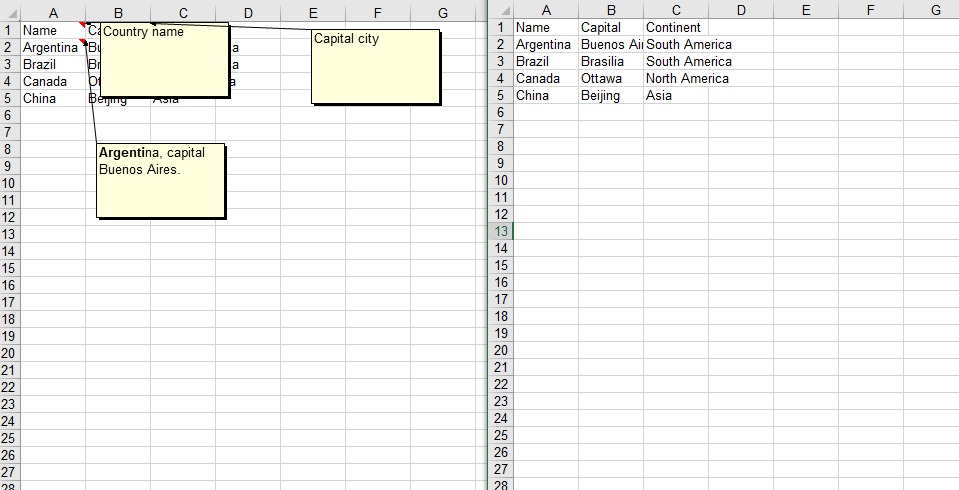
FAQ
Comment is not visible after being added
Cause: The IsVisible property was not set to true after adding the comment, so the comment remains hidden by default.
Solution: Set comment.IsVisible = true after adding the comment to make it visible in the worksheet.
Empty content is returned when reading a comment
Cause: There is no comment on the target cell, or an incorrect cell reference was used.
Solution: Confirm that the target cell has a comment, and access the comment content through methods such as sheet.Range.get('A1').Comment.
Get a Free License
If you want to remove the evaluation messages in the resulting documents, or get rid of functional limitations, please contact sales to obtain a temporary license valid for 30 days.
