
Comments are an important tool in Excel for providing supplementary explanations of cell contents, and are commonly used in scenarios such as data review and collaborative notes. Spire.XLS for JavaScript uses WebAssembly to add, read, edit, and delete comments directly in the browser, managing input and output files through a virtual file system (VFS) — no backend server required.
This article covers several commonly used features:
For installation and project configuration, refer to Integrating Spire.XLS for JavaScript in a React Project. The examples below assume Spire.XLS is installed and the WebAssembly module is initialized.
Add a Comment
A comment can also carry author information, making it easy to identify where the comment comes from.
function App() {
  const addCommentWithAuthor = async () => {
    // Get the Spire.XLS WASM module
    const xlsModule = window.wasmModule?.spirexls;

    // Check if the module is ready
    if (!xlsModule) {
      alert('Spire.Xls is not ready yet');
      return;
    }

    // Load the font and the Excel file into VFS
    await window.spire.FetchFileToVFS('ARIAL.TTF', '/Library/Fonts/', `${process.env.PUBLIC_URL}/font/`);
    const inputFileName = 'CommentsSample.xlsx';
    await window.spire.FetchFileToVFS(inputFileName, '', `${process.env.PUBLIC_URL}data/`);

    // Load the workbook
    const workbook = new xlsModule.Workbook();
    workbook.LoadFromFile({ fileName: inputFileName });

    // Get the first worksheet
    const sheet = workbook.Worksheets.get(0);

    // Get the cell where the comment will be added
    const range = sheet.Range.get('C1');

    // Set the author and comment content
    const author = 'E-iceblue:';
    const text = 'This is an example showing how to add a comment with an editable author property.';

    // Add a comment to the cell and set its properties
    const comment = range.AddComment();
    comment.Width = 200;
    comment.IsVisible = true;
    comment.Text = author + ':\n' + text;

    // Set the font style of the author name in the comment
    const font = workbook.CreateFont();
    font.FontName = 'Arial';
    font.KnownColor = xlsModule.ExcelColors.Black;
    font.IsBold = true;
    comment.RichText.SetFont(0, author.length, font);

    // Save the workbook
    const outputFileName = 'AddCommentWithAuthor_output.xlsx';
    workbook.SaveToFile({ fileName: outputFileName, version: xlsModule.ExcelVersion.Version2010 });

    // Release resources
    workbook.Dispose();

    // Read the generated file from VFS and trigger the download
    const fileArray = window.dotnetRuntime.Module.FS.readFile(outputFileName);
    const blob = new Blob([fileArray], { type: 'application/vnd.openxmlformats-officedocument.spreadsheetml.sheet' });
    const url = URL.createObjectURL(blob);
    const a = document.createElement('a');
    a.href = url;
    a.download = outputFileName;
    a.click();
    URL.revokeObjectURL(url);
  };

  return (
    <div style={{ textAlign: 'center', height: '300px' }}>
      <h1>Add Comment With Author</h1>
      <button onClick={addCommentWithAuthor}>Start</button>
    </div>
  );
}

export default App;
After running, a comment containing the author name and the comment text will appear on cell C1. 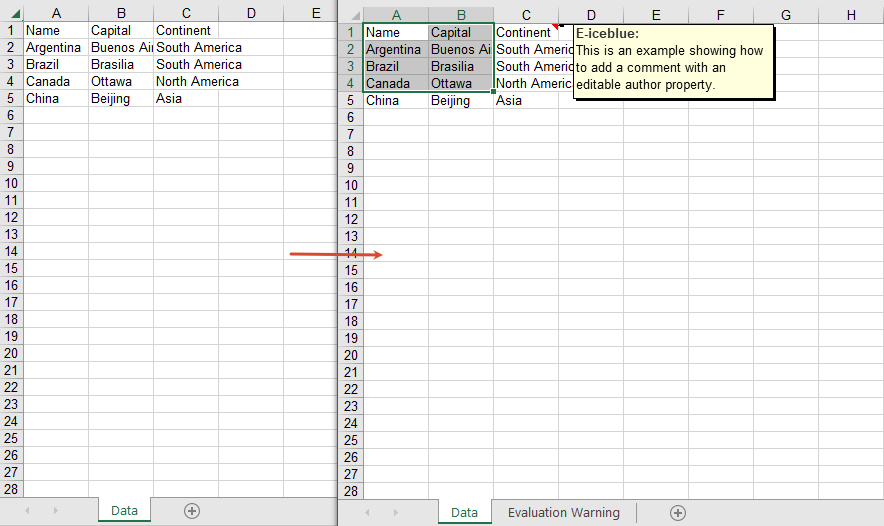
Read Comment Content
You can read the comment on a cell through the CellRange.Comment property.
function App() {
  const readComment = async () => {
    // Get the Spire.XLS WASM module
    const xlsModule = window.wasmModule?.spirexls;

    // Check if the module is ready
    if (!xlsModule) {
      alert('Spire.Xls is not ready yet');
      return;
    }

    // Load the Excel file into VFS
    const inputFileName = 'CommentsSample.xlsx';
    await window.spire.FetchFileToVFS(inputFileName, '', `${process.env.PUBLIC_URL}data/`);

    // Load the workbook
    const workbook = new xlsModule.Workbook();
    workbook.LoadFromFile({ fileName: inputFileName });

    // Get the first worksheet
    const sheet = workbook.Worksheets.get(0);

    // Get the comment text
    const builder = [];
    builder.push(sheet.Range.get('A1').Comment.Text + '\n\t');
    builder.push(sheet.Range.get('A2').Comment.Text);

    // Save the comment content to a txt file
    const outputFileName = 'ReadComment_output.txt';
    window.dotnetRuntime.Module.FS.writeFile(outputFileName, builder.join('\n'));
    workbook.Dispose();

    // Read the generated file from VFS and trigger the download
    const fileArray = window.dotnetRuntime.Module.FS.readFile(outputFileName);
    const blob = new Blob([fileArray], { type: 'text/plain' });
    const url = URL.createObjectURL(blob);
    const a = document.createElement('a');
    a.href = url;
    a.download = outputFileName;
    a.click();
    URL.revokeObjectURL(url);
  };

  return (
    <div style={{ textAlign: 'center', height: '300px' }}>
      <h1>Read Comment</h1>
      <button onClick={readComment}>Start</button>
    </div>
  );
}

export default App;
The read comment content 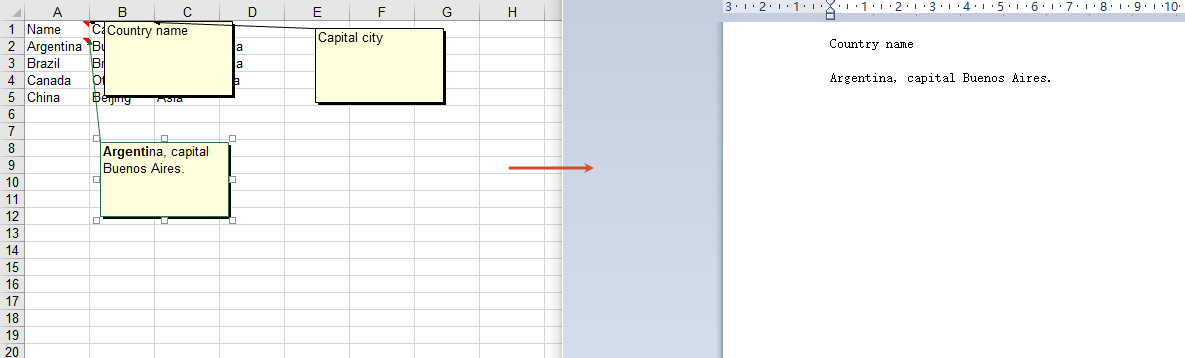
Edit Comment Content
Get a comment by index through Comments.get(0), and then modify its text content.
function App() {
  const editComment = async () => {
    // Get the Spire.XLS WASM module
    const xlsModule = window.wasmModule?.spirexls;

    // Check if the module is ready
    if (!xlsModule) {
      alert('Spire.Xls is not ready yet');
      return;
    }

    // Load the font and the Excel file into VFS
    await window.spire.FetchFileToVFS('ARIAL.TTF', '/Library/Fonts/', `${process.env.PUBLIC_URL}/font/`);
    const inputFileName = 'CommentsSample.xlsx';
    await window.spire.FetchFileToVFS(inputFileName, '', `${process.env.PUBLIC_URL}data/`);

    // Load the workbook
    const workbook = new xlsModule.Workbook();
    workbook.LoadFromFile({ fileName: inputFileName });

    // Get the first worksheet
    const sheet = workbook.Worksheets.get(0);

    // Get the first comment
    const comment = sheet.Comments.get(0);

    // Edit the comment content
    comment.Text = 'This comment has been edited by Spire.XLS.';

    // Save the workbook
    const outputFileName = 'EditExcelComment_output.xlsx';
    workbook.SaveToFile({ fileName: outputFileName, version: xlsModule.ExcelVersion.Version2010 });

    // Release resources
    workbook.Dispose();

    // Read the generated file from VFS and trigger the download
    const fileArray = window.dotnetRuntime.Module.FS.readFile(outputFileName);
    const blob = new Blob([fileArray], { type: 'application/vnd.openxmlformats-officedocument.spreadsheetml.sheet' });
    const url = URL.createObjectURL(blob);
    const a = document.createElement('a');
    a.href = url;
    a.download = outputFileName;
    a.click();
    URL.revokeObjectURL(url);
  };

  return (
    <div style={{ textAlign: 'center', height: '300px' }}>
      <h1>Edit Excel Comment</h1>
      <button onClick={editComment}>Start</button>
    </div>
  );
}

export default App;
The edited comment content 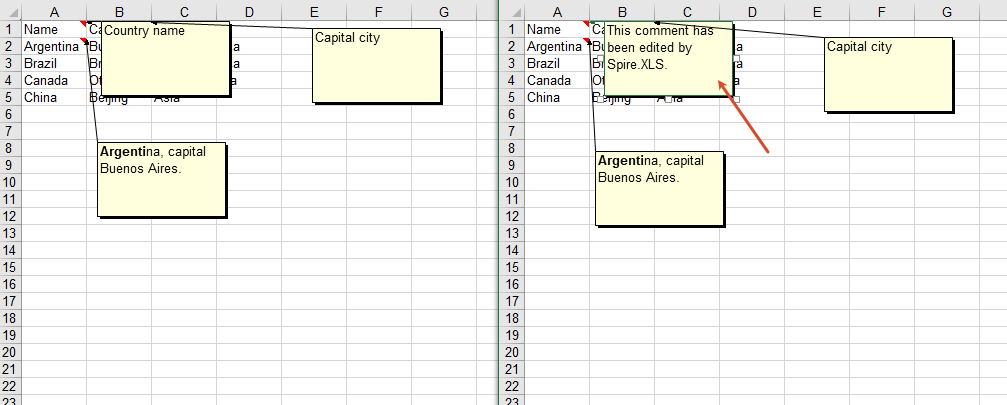
Delete Comments
You can delete all comments in a worksheet through the Comments.Clear method.
function App() {
  const removeComment = async () => {
    // Get the Spire.XLS WASM module
    const xlsModule = window.wasmModule?.spirexls;

    // Check if the module is ready
    if (!xlsModule) {
      alert('Spire.Xls is not ready yet');
      return;
    }

    // Load the font and the Excel file into VFS
    await window.spire.FetchFileToVFS('ARIAL.TTF', '/Library/Fonts/', `${process.env.PUBLIC_URL}/font/`);
    const inputFileName = 'CommentsSample.xlsx';
    await window.spire.FetchFileToVFS(inputFileName, '', `${process.env.PUBLIC_URL}data/`);

    // Load the workbook
    const workbook = new xlsModule.Workbook();
    workbook.LoadFromFile({ fileName: inputFileName });

    // Get all comments of the first worksheet
    const comments = workbook.Worksheets.get(0).Comments;

    // Clear all comments; alternatively, use comments.RemoveAt(0) to delete a comment by index
    comments.Clear();

    // Save the workbook
    const outputFileName = 'RemoveComment_output.xlsx';
    workbook.SaveToFile({ fileName: outputFileName, version: xlsModule.ExcelVersion.Version2010 });

    // Release resources
    workbook.Dispose();

    // Read the generated file from VFS and trigger the download
    const fileArray = window.dotnetRuntime.Module.FS.readFile(outputFileName);
    const blob = new Blob([fileArray], { type: 'application/vnd.openxmlformats-officedocument.spreadsheetml.sheet' });
    const url = URL.createObjectURL(blob);
    const a = document.createElement('a');
    a.href = url;
    a.download = outputFileName;
    a.click();
    URL.revokeObjectURL(url);
  };

  return (
    <div style={{ textAlign: 'center', height: '300px' }}>
      <h1>Remove Comment</h1>
      <button onClick={removeComment}>Start</button>
    </div>
  );
}

export default App;
After deleting comments 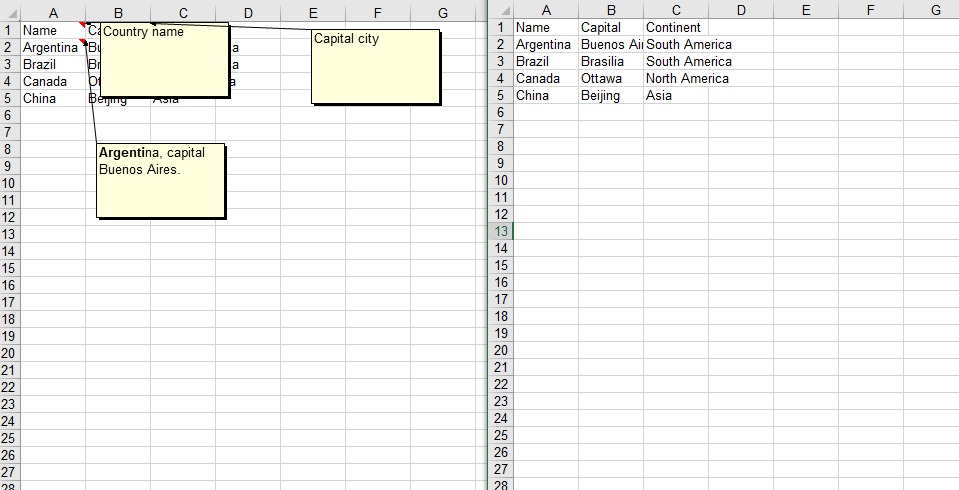
FAQ
Comment is not visible after being added
Cause: The IsVisible property was not set to true after adding the comment, so the comment remains hidden by default.
Solution: Set comment.IsVisible = true after adding the comment to make it visible in the worksheet.
Empty content is returned when reading a comment
Cause: There is no comment on the target cell, or an incorrect cell reference was used.
Solution: Confirm that the target cell has a comment, and access the comment content through methods such as sheet.Range.get('A1').Comment.
Get a Free License
If you want to remove the evaluation messages in the resulting documents, or get rid of functional limitations, please contact sales to obtain a temporary license valid for 30 days.

