UOS is the spreadsheet format of the UOF specification, saved with the .uos extension, and office suites that implement the specification can open it directly. When an Excel report is handed to such an environment and .xlsx is not supported, the workbook has to be converted to UOS first; a UOS file received in return has to be converted back to Excel before it can be edited in the usual tools. Conversion only changes the saved format: formulas, merged areas, number formats and text formatting travel with the file. Spire.XLS for JavaScript performs the conversion in the browser through WebAssembly, and the input and output files are managed by a virtual file system (VFS), with no backend service required.
This article covers two feature points:
For installation and project setup, see Integrating Spire.XLS for JavaScript in a React Project. The examples below assume Spire.XLS is installed and the WebAssembly module has been initialized.
Convert Excel to UOS
Saving an Excel workbook as UOS lets an office suite that only recognizes the UOF format open the report directly. Only the saved format changes; worksheet names, merged areas and number formats stay as they are. Formula cells need one extra step: they have to be calculated before saving so that both the formula and its result are written.
How to convert Excel to UOS and what it produces:
| Call | Result |
|---|---|
window.spire.FetchFileToVFS |
Loads the font file and the Excel file into the virtual file system |
workbook.LoadFromFile({ fileName }) |
Loads the Excel workbook |
workbook.CalculateAllValue() |
Calculates every formula in the workbook |
xlsModule.FileFormat.UOS |
Sets the target format to UOS |
workbook.SaveToFile({ fileName, fileFormat }) |
Writes the workbook to the virtual file system in UOS format |
The steps are:
- Load the font file and the Excel test file into the VFS with
window.spire.FetchFileToVFS. - Create a workbook with
new Workbook()and load the test file withworkbook.LoadFromFile. - Calculate the formulas with
workbook.CalculateAllValue(). - Call
workbook.SaveToFilewithfileFormatset toxlsModule.FileFormat.UOS, writingExcelToUos.uos. - Release the workbook with
workbook.Dispose, then read the result out of the VFS and trigger the download.
The following is a complete code example that shows how to convert an Excel workbook to UOS in React:
function App() {
  const excelToUos = async () => {
    // Get the Spire.XLS WASM module
    const xlsModule = window.wasmModule?.spirexls;

    // Check that the module is ready
    if (!xlsModule) {
      alert('Spire.Xls is not ready yet');
      return;
    }

    // Load the font and the test data file into the VFS
    await window.spire.FetchFileToVFS('ARIAL.TTF', '/Library/Fonts/', `${process.env.PUBLIC_URL}/font/`);
    const inputFileName = 'SalesReport.xlsx';
    await window.spire.FetchFileToVFS(inputFileName, '', `${process.env.PUBLIC_URL}data/`);

    // Load the workbook
    const workbook = new xlsModule.Workbook();
    workbook.LoadFromFile({ fileName: inputFileName });

    // Calculate the formulas so the formula cells carry their results
    workbook.CalculateAllValue();

    // Save as UOS, with the format given by fileFormat
    const outputFileName = 'ExcelToUos.uos';
    workbook.SaveToFile({ fileName: outputFileName, fileFormat: xlsModule.FileFormat.UOS });

    // Dispose of the workbook to release its resources
    workbook.Dispose();

    // Read the result back out of the VFS and trigger the download
    const fileArray = window.dotnetRuntime.Module.FS.readFile(outputFileName);
    const blob = new Blob([fileArray], { type: 'application/octet-stream' });
    const url = URL.createObjectURL(blob);
    const a = document.createElement('a');
    a.href = url;
    a.download = outputFileName;
    a.click();
    URL.revokeObjectURL(url);
  };

  return (
    <div style={{ textAlign: 'center', height: '300px' }}>
      <h1>Convert Between Excel and UOS in React</h1>
      <button id="excel-to-uos" onClick={excelToUos}>Convert Excel to UOS</button>
    </div>
  );
}

export default App;
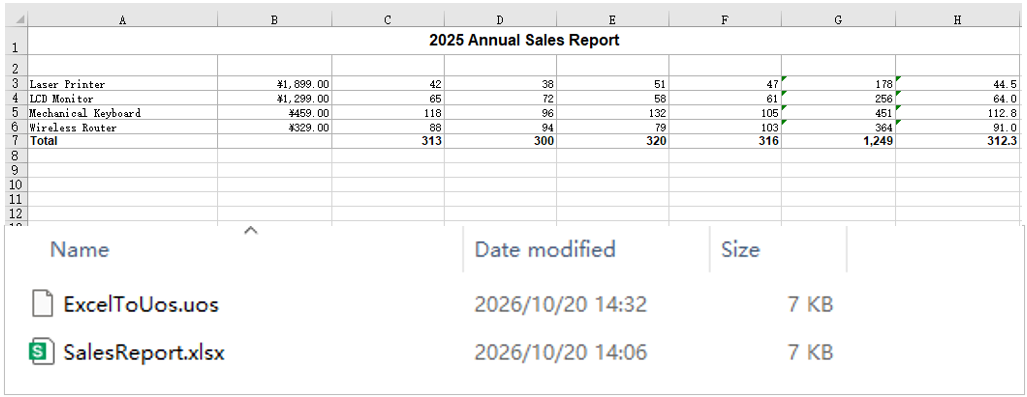
The UOS file produced from the Excel workbook:
Convert UOS to Excel
Converting a received UOS file back to Excel is the reverse of the same process. UOS and Excel store the same workbook content; loading restores worksheet names, cell data and styles, and formulas come back together with their cached results, so nothing has to be recalculated before saving. The converted file can then be opened in Excel or an online spreadsheet tool for further editing, summarizing or printing.
How to convert a UOS file to Excel and what it produces:
| Call | Result |
|---|---|
window.spire.FetchFileToVFS |
Loads the font file and the UOS file into the virtual file system |
workbook.LoadFromFile({ fileName }) |
Reads the UOS file and recognizes it as a workbook |
xlsModule.FileFormat.Version2010 |
Sets the target format to Excel 2010 or later |
workbook.SaveToFile({ fileName, fileFormat }) |
Writes the workbook to the virtual file system in Excel format |
window.dotnetRuntime.Module.FS.readFile |
Reads the result out of the VFS and triggers the download |
The steps are:
- Load the font file and the UOS test file into the VFS with
window.spire.FetchFileToVFS. - Create a workbook with
new Workbook()and load the UOS file withworkbook.LoadFromFile. - Call
workbook.SaveToFilewithfileFormatset toxlsModule.FileFormat.Version2010, writingUosToExcel.xlsx. - Release the workbook with
workbook.Dispose, then read the result out of the VFS and trigger the download.
The following is a complete code example that shows how to convert a UOS file back to Excel in React:
function App() {
  const uosToExcel = async () => {
    // Get the Spire.XLS WASM module
    const xlsModule = window.wasmModule?.spirexls;

    // Check that the module is ready
    if (!xlsModule) {
      alert('Spire.Xls is not ready yet');
      return;
    }

    // Load the font and the test data file into the VFS
    await window.spire.FetchFileToVFS('ARIAL.TTF', '/Library/Fonts/', `${process.env.PUBLIC_URL}/font/`);
    const inputFileName = 'SalesReport.uos';
    await window.spire.FetchFileToVFS(inputFileName, '', `${process.env.PUBLIC_URL}data/`);

    // Load the UOS file
    const workbook = new xlsModule.Workbook();
    workbook.LoadFromFile({ fileName: inputFileName });

    // Save as Excel, with the version given by fileFormat
    const outputFileName = 'UosToExcel.xlsx';
    workbook.SaveToFile({ fileName: outputFileName, fileFormat: xlsModule.FileFormat.Version2010 });

    // Dispose of the workbook to release its resources
    workbook.Dispose();

    // Read the result back out of the VFS and trigger the download
    const fileArray = window.dotnetRuntime.Module.FS.readFile(outputFileName);
    const blob = new Blob([fileArray], { type: 'application/vnd.openxmlformats-officedocument.spreadsheetml.sheet' });
    const url = URL.createObjectURL(blob);
    const a = document.createElement('a');
    a.href = url;
    a.download = outputFileName;
    a.click();
    URL.revokeObjectURL(url);
  };

  return (
    <div style={{ textAlign: 'center', height: '300px' }}>
      <h1>Convert Between Excel and UOS in React</h1>
      <button id="uos-to-excel" onClick={uosToExcel}>Convert UOS to Excel</button>
    </div>
  );
}

export default App;
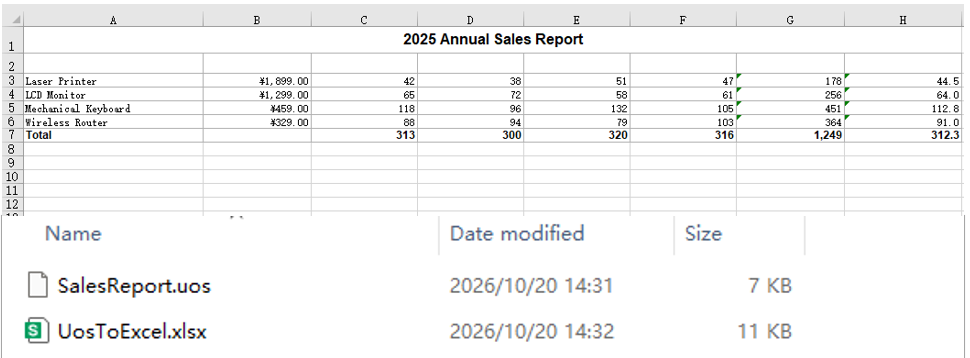
The workbook produced from the UOS file:
FAQ
Why are the formula cells empty in the UOS file after conversion
Cause: During export, the formula and the value of each cell are taken from the workbook's current calculation results. If CalculateAllValue has not been called after loading, the formula cells are still uncalculated and are written as empty cells, so neither the formula nor the value survives.
Solution: Call workbook.CalculateAllValue() after workbook.LoadFromFile and before workbook.SaveToFile, then save with FileFormat.UOS; the formula cells will carry both the formula and the calculated result.
Can I save as UOS by using only the .uos extension without fileFormat
Cause: fileFormat is an optional parameter of SaveToFile. When it is omitted, the save format is inferred from the extension of the output file name, and a recognizable extension selects that format.
Solution: Yes. Name the output file ExcelToUos.uos and call workbook.SaveToFile({ fileName: outputFileName }); the file is still written as UOS. Setting fileFormat explicitly is safer, because a missing or misspelled extension will not silently produce another format.
Get a Free License
Spire.XLS for JavaScript offers a 30-day full-featured free trial license with no functional limitations. Apply here to evaluate before purchasing.