
React (37)
In document management systems, splitting Word documents is a common requirement — separating merged multi-chapter documents into independent files by section breaks, or dividing long documents into shorter ones by page breaks. Spire.Doc for JavaScript performs document splitting directly in the browser via WebAssembly, using a virtual file system (VFS) to manage input and output files — no backend server required.
This article covers two core features:
For installation and project setup, refer to Integrating Spire.Doc for JavaScript in a React Project. The examples below assume Spire.Doc is installed and the WebAssembly module is initialized.
Split by Section Break
Section breaks in a Word document separate different chapters or page layouts. Each section can have its own headers, footers, page numbering, and page setup. Splitting by section breaks is the most common and stable approach, ideal for restoring merged multi-chapter documents back into independent files.
The core workflow consists of three stages: first, load the font files and the target Word file into the WASM virtual file system; then instantiate a Document, load the file, iterate through all sections, and clone each section into a new Document object via Section.Clone(); finally, package the split files into a ZIP archive and trigger a browser download.
function App() {
  const splitBySectionBreak = async () => {
    // Get the Spire.Doc WASM module
    const docModule = window.wasmModule?.spiredoc;

    // Check if the module is ready
    if (!docModule) {
      alert('Spire.Doc is not ready yet');
      return;
    }

    const inputFileName = 'Template_Docx_4.docx';
    await window.spire.FetchFileToVFS(inputFileName, '', `${process.env.PUBLIC_URL}data/`);

    // Create output directory
    let outputDir = 'output/';
    window.dotnetRuntime.Module.FS.mkdirTree(outputDir);

    // Load the document
    const doc = new docModule.Document();
    doc.LoadFromFile(inputFileName);

    // Iterate through each section and clone into independent documents
    for (let i = 0; i < doc.Sections.Count; i++) {
      const newWord = new docModule.Document();
      newWord.Sections.Add(doc.Sections.get_Item(i).Clone());
      newWord.SaveToFile({
        fileName: outputDir + `Section-${i}.docx`,
        fileFormat: docModule.FileFormat.Docx2013
      });
      newWord.Dispose();
    }
    doc.Dispose();

    // Read output files from VFS and package into ZIP for download
    const JSZip = require('jszip');
    const zip = new JSZip();
    let items = window.dotnetRuntime.Module.FS.readdir(outputDir);
    items = items.filter(item => item !== '.' && item !== '..');
    for (const item of items) {
      const fileData = window.dotnetRuntime.Module.FS.readFile(outputDir + item);
      zip.file(item, fileData);
    }
    const zipBlob = await zip.generateAsync({ type: 'blob' });
    const url = URL.createObjectURL(zipBlob);
    const a = document.createElement('a');
    a.href = url;
    a.download = 'SplitBySectionBreak.zip';
    a.click();
    URL.revokeObjectURL(url);
  };

  return (
    <div style={{ textAlign: 'center', height: '300px' }}>
      <h1>Split Word Document By Section Break</h1>
      <button onClick={splitBySectionBreak}>Generate</button>
    </div>
  );
}

export default App;
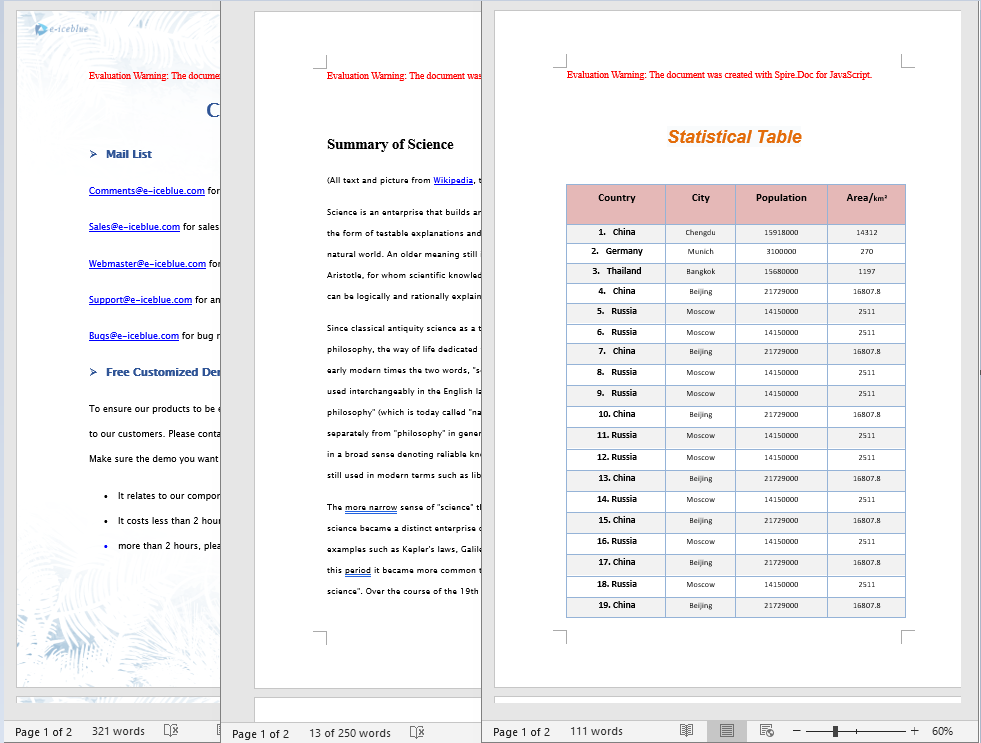
Independent Word documents generated after splitting by section break
Split by Page Break
Page breaks are manual or automatic pagination markers inserted within a document. Splitting by page breaks is suitable for dividing long documents by page, saving each page's content as an independent document — commonly used for report pagination, contract clause splitting, and similar scenarios.
Unlike splitting by section breaks, page breaks reside at the child-object level within paragraphs. This requires traversing the document's sections, paragraphs, and paragraph child objects layer by layer to detect Break elements with the PageBreak type. When splitting, you also need to clone the original document's styles and themes using methods such as CloneDefaultStyleTo, CloneThemesTo, and CloneCompatibilityTo to ensure the split documents retain full formatting.
function App() {
  const splitByPageBreak = async () => {
    // Get the Spire.Doc WASM module
    const docModule = window.wasmModule?.spiredoc;

    // Check if the module is ready
    if (!docModule) {
      alert('Spire.Doc is not ready yet');
      return;
    }

    const inputFileName = 'SplitWordFileByPageBreak.docx';
    await window.spire.FetchFileToVFS(inputFileName, '', `${process.env.PUBLIC_URL}data/`);

    // Create output directory
    let outputDir = 'output/';
    window.dotnetRuntime.Module.FS.mkdirTree(outputDir);

    // Load the original document
    const original = new docModule.Document();
    original.LoadFromFile(inputFileName);

    // Create a new document and clone styles and themes
    let newWord = new docModule.Document();
    let section = newWord.AddSection();
    original.CloneDefaultStyleTo(newWord);
    original.CloneThemesTo(newWord);
    original.CloneCompatibilityTo(newWord);

    let index = 0;

    // Iterate through all sections
    for (let i = 0; i < original.Sections.Count; i++) {
      let sec = original.Sections.get_Item(i);

      // Iterate through all child objects in the section (paragraphs, tables, etc.)
      for (let j = 0; j < sec.Body.ChildObjects.Count; j++) {
        let obj = sec.Body.ChildObjects.get_Item(j);

        if (obj instanceof docModule.Paragraph) {
          let para = obj;
          sec.CloneSectionPropertiesTo(section);
          section.Body.ChildObjects.Add(para.Clone());

          // Detect page breaks within paragraph child objects
          for (let k = 0; k < para.ChildObjects.Count; k++) {
            let parobj = para.ChildObjects.get_Item(k);
            if (parobj instanceof docModule.Break &&
                parobj.BreakType === docModule.BreakType.PageBreak) {

              let breakIndex = para.ChildObjects.IndexOf(parobj);

              // Remove the page break from the paragraph
              section.Body.LastParagraph.ChildObjects.RemoveAt(breakIndex);

              // Save the current document
              newWord.SaveToFile({
                fileName: outputDir + `Page-${index}.docx`,
                fileFormat: docModule.FileFormat.Docx2013
              });
              index++;

              // Create a new document to continue
              newWord = new docModule.Document();
              section = newWord.AddSection();
              original.CloneDefaultStyleTo(newWord);
              original.CloneThemesTo(newWord);
              original.CloneCompatibilityTo(newWord);
              sec.CloneSectionPropertiesTo(section);

              // Handle remaining content after the page break
              section.Body.ChildObjects.Add(para.Clone());
              if (section.Paragraphs.get_Item(0).ChildObjects.Count === 0) {
                section.Body.ChildObjects.RemoveAt(0);
              } else {
                while (breakIndex >= 0) {
                  section.Paragraphs.get_Item(0).ChildObjects.RemoveAt(breakIndex);
                  breakIndex--;
                }
              }
            }
          }
        }

        if (obj instanceof docModule.Table) {
          section.Body.ChildObjects.Add(obj.Clone());
        }
      }
    }

    // Save the last document
    newWord.SaveToFile({
      fileName: outputDir + `Page-${index}.docx`,
      fileFormat: docModule.FileFormat.Docx2013
    });

    original.Dispose();
    newWord.Dispose();

    // Package into ZIP for download
    const JSZip = require('jszip');
    const zip = new JSZip();
    let items = window.dotnetRuntime.Module.FS.readdir(outputDir);
    items = items.filter(item => item !== '.' && item !== '..');
    for (const item of items) {
      const fileData = window.dotnetRuntime.Module.FS.readFile(outputDir + item);
      zip.file(item, fileData);
    }
    const zipBlob = await zip.generateAsync({ type: 'blob' });
    const url = URL.createObjectURL(zipBlob);
    const a = document.createElement('a');
    a.href = url;
    a.download = 'SplitByPageBreak.zip';
    a.click();
    URL.revokeObjectURL(url);
  };

  return (
    <div style={{ textAlign: 'center', height: '300px' }}>
      <h1>Split Word Document By Page Break</h1>
      <button onClick={splitByPageBreak}>Generate</button>
    </div>
  );
}

export default App;
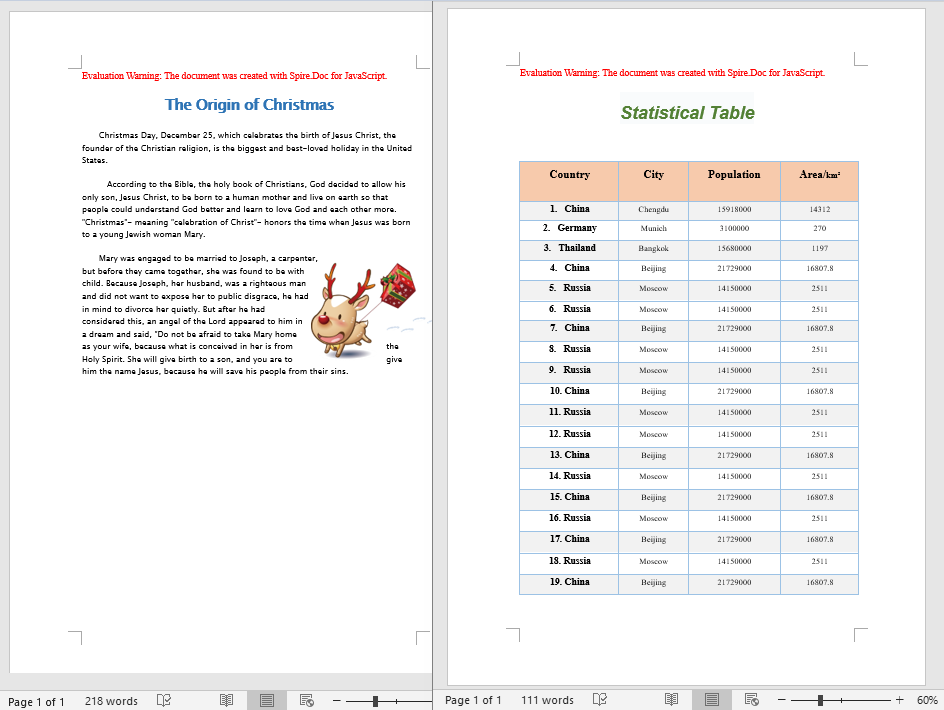
Word documents generated after splitting by page break
FAQ
Split document formatting differs from the original
Cause: When splitting by page break, only the paragraph content is cloned without also cloning the original document's styles, themes, and section properties. This causes the split documents to lose formatting information such as fonts, colors, and page setup.
Solution: After creating a new document, clone the original document's styles and themes using the following methods:
original.CloneDefaultStyleTo(newWord);
original.CloneThemesTo(newWord);
original.CloneCompatibilityTo(newWord);
sec.CloneSectionPropertiesTo(section);
Page break cannot be detected
Cause: Page breaks reside within paragraph child objects and are identified via the BreakType enumeration. If the traversal hierarchy is incorrect, or the instanceof check is not used to determine the object type, the page break may not be properly recognized.
Solution: Ensure detection follows the order: Paragraph.ChildObjects → instanceof Break → BreakType == BreakType.PageBreak:
for (let k = 0; k < para.ChildObjects.Count; k++) {
  let parobj = para.ChildObjects.get_Item(k);
  if (parobj instanceof docModule.Break &&
      parobj.BreakType === docModule.BreakType.PageBreak) {
    // Page break found
  }
}
Get a Free License
Spire.Doc for JavaScript offers a 30-day full-featured free trial license with no functional limitations. Apply here to evaluate before purchasing.
Comments are an indispensable feature in Word document collaboration, widely used for review, proofreading, and team discussion scenarios. Spire.Doc for JavaScript runs entirely in the browser via WebAssembly, using a virtual file system (VFS) to manage document files — no backend server or Microsoft Word installation required.
This article covers three core features:
For installation and project setup, refer to Integrating Spire.Doc for JavaScript in a React Project. The examples below assume Spire.Doc is installed and the WebAssembly module is initialized.
Add a Comment to Specific Text
In real-world document review scenarios, we often need to add comments to a specific piece of text. The approach is: first, use the FindString method to locate the target text; then insert CommentMarkStart and CommentMarkEnd markers before and after the text; finally, add the Comment object to the paragraph, associating the comment with the specified text.
function App() {
  const AddCommentForSpecificText = async () => {
    // Get the Spire.Doc WASM module
    const docModule = window.wasmModule?.spiredoc;

    // Check if the module is ready
    if (!docModule) {
      alert('Spire.Doc is not ready yet');
      return;
    }

    // Load the target Word document into VFS
    const inputFileName = "CommentTemplate.docx";
    await window.spire.FetchFileToVFS(inputFileName, '', `${process.env.PUBLIC_URL}/data/`);

    // Create a Document instance and load the file
    let doc = new docModule.Document();
    doc.LoadFromFile(inputFileName);

    // Call the custom function to add a comment to the specified text
    InsertComments(doc, "Development", docModule);

    // Save the document
    const outputFileName = "AddCommentForSpecificText.docx";
    doc.SaveToFile({ fileName: outputFileName, fileFormat: docModule.FileFormat.Docx2013 });

    const modifiedFileArray = window.dotnetRuntime.Module.FS.readFile(outputFileName);
    const blob = new Blob([modifiedFileArray], { type: 'application/vnd.openxmlformats-officedocument.wordprocessingml.document' });

    // Release resources
    doc.Dispose();

    const url = URL.createObjectURL(blob);
    const a = document.createElement('a');
    a.href = url;
    a.download = outputFileName;
    a.click();
    URL.revokeObjectURL(url);
  };

  // Custom function: add a comment for the specified keyword
  function InsertComments(doc, keystring, wasmModule) {
      // Find the target string in the document
      let find = doc.FindString(keystring, false, true);

      // Create comment start and end markers
      let commentMarkStart = new wasmModule.CommentMark(doc, 1, wasmModule.CommentMarkType.CommentStart);
      let commentMarkEnd = new wasmModule.CommentMark(doc, 1, wasmModule.CommentMarkType.CommentEnd);

      // Create a comment object, set content and author
      let comment = new wasmModule.Comment(doc);
      comment.Body.AddParagraph().Text = "Test comments";
      comment.Format.Author = "Administrator";

      // Get the found text range and its containing paragraph
      let range = find.GetAsOneRange();
      let para = range.OwnerParagraph;

      // Get the index of the text range within the paragraph
      let index = para.ChildObjects.IndexOf(range);

      // Add the comment to the paragraph
      para.ChildObjects.Add(comment);

      // Insert comment start and end markers before and after the target text
      para.ChildObjects.Insert(index, commentMarkStart);
      para.ChildObjects.Insert(index + 2, commentMarkEnd);
  }

  return (
      <div style={{ textAlign: 'center', height: '300px' }}>
        <h1>Add Comment for Specific Text</h1>
        <button onClick={AddCommentForSpecificText}>
          Generate
        </button>
      </div>
    );
};

export default App;
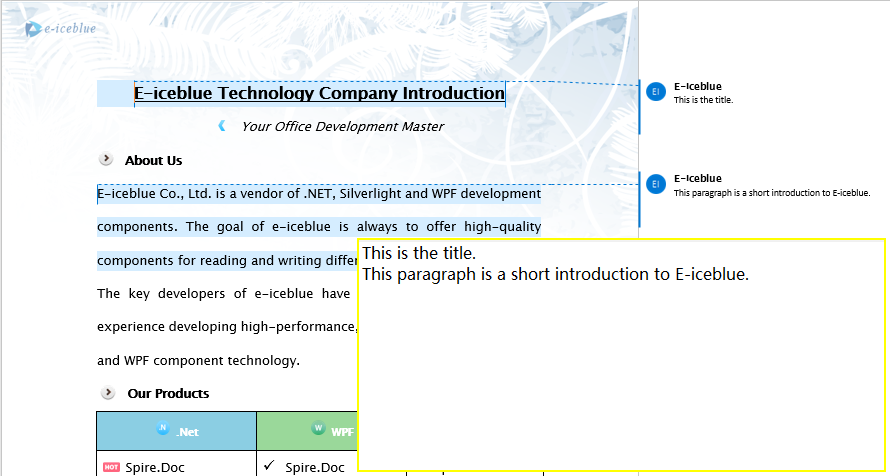
With the code above, you can search for a specific keyword in the document, insert comment markers at its position, and accurately associate the comment with the target text.

Extract Comments from a Document
After a document has been reviewed by multiple people, it often contains numerous comments. Extracting these comments in bulk makes it easy to consolidate review feedback or perform further processing. Spire.Doc provides the Comments collection, which we can iterate through to read the text content of each comment and then export it as a text file.
function App() {
  const ExtractComment = async () => {
    // Get the Spire.Doc WASM module
    const docModule = window.wasmModule?.spiredoc;

    // Check if the module is ready
    if (!docModule) {
      alert('Spire.Doc is not ready yet');
      return;
    }

    // Load the target Word document into VFS
    const inputFileName = "CommentSample.docx";
    await window.spire.FetchFileToVFS(inputFileName, '', `${process.env.PUBLIC_URL}/data/`);

    // Create a Document instance and load the file
    let doc = new docModule.Document();
    doc.LoadFromFile(inputFileName);

    // Iterate through all comments and extract text content
    let stringB = [];
    for (let i = 0; i < doc.Comments.Count; i++) {
        let comment = doc.Comments.get_Item(i);
        for (let j = 0; j < comment.Body.Paragraphs.Count; j++) {
            let p = comment.Body.Paragraphs.get_Item(j);
            stringB.push(p.Text + "\n");
        }
    }

    // Save the extracted comment content as a text file
    const outputFileName = 'ExtractComment.txt';

    const blob = new Blob([stringB.toString()], { type: "text/plain;charset=utf-8" });

    // Release resources
    doc.Dispose();

    const url = URL.createObjectURL(blob);
    const a = document.createElement('a');
    a.href = url;
    a.download = outputFileName;
    a.click();
    URL.revokeObjectURL(url);
  };
  return (
      <div style={{ textAlign: 'center', height: '300px' }}>
        <h1>Extract Comments from Document</h1>
        <button onClick={ExtractComment}>
          Generate
        </button>
      </div>
    );
};

export default App;
The doc.Comments collection provides access to all comments in the document, and the text content of each comment is retrieved via comment.Body.Paragraphs. The extracted content can be saved as a plain text file for easy review or import into other systems.
Reply to and Modify Comments
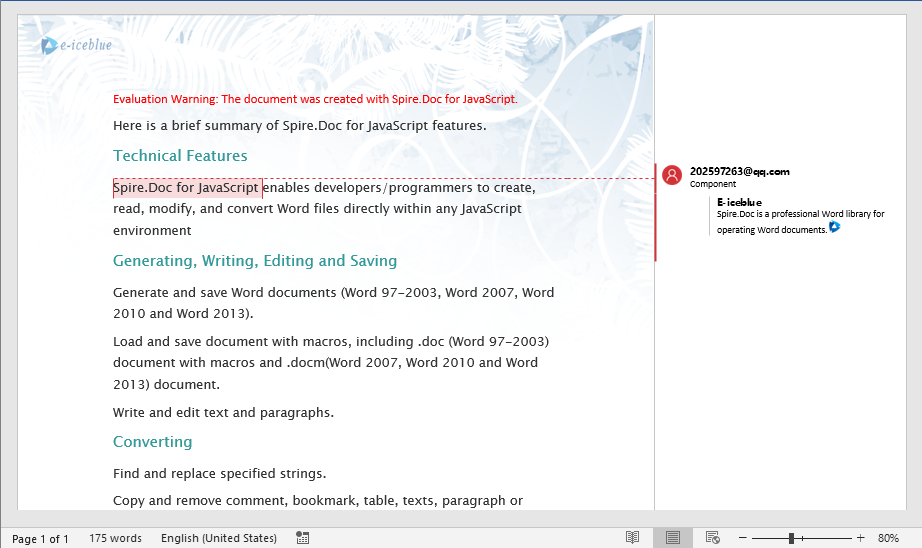
In team collaboration scenarios, replying to existing comments and modifying their content are common needs. Spire.Doc supports adding replies to comments via the ReplyToComment method, as well as modifying comment content or deleting unwanted comments. The following example demonstrates how to get the first comment in a document and add a reply containing an image.
function App() {
  const ReplyToComment = async () => {
    // Get the Spire.Doc WASM module
    const docModule = window.wasmModule?.spiredoc;

    // Check if the module is ready
    if (!docModule) {
      alert('Spire.Doc is not ready yet');
      return;
    }

    // Load the target document and image into VFS
    const inputFileName = "Comment.docx";
    await window.spire.FetchFileToVFS(inputFileName, '', `${process.env.PUBLIC_URL}/data/`);

    const imageFile = "logo.png";
    await window.spire.FetchFileToVFS(imageFile, '', `${process.env.PUBLIC_URL}/data/`);

    // Create a Document instance and load the file
    let doc = new docModule.Document();
    doc.LoadFromFile(inputFileName);

    // Get the first comment in the document
    let comment1 = doc.Comments.get_Item(0);

    // Create a reply comment, set author and content
    let replyComment1 = new docModule.Comment(doc);
    replyComment1.Format.Author = "E-iceblue";
    replyComment1.Body.AddParagraph().AppendText("Spire.Doc is a professional Word library for operating Word documents.");

    // Add the reply comment to the original comment
    comment1.ReplyToComment(replyComment1);

    // Load the image and insert it into the reply comment
    let docPicture = new docModule.DocPicture(doc);
    docPicture.LoadImage(imageFile);
    replyComment1.Body.Paragraphs.get_Item(0).ChildObjects.Add(docPicture);

    // Save the document
    const outputFileName = "ReplyToComment.docx";
    doc.SaveToFile({ fileName: outputFileName, fileFormat: docModule.FileFormat.Docx });

    const modifiedFileArray = window.dotnetRuntime.Module.FS.readFile(outputFileName);
    const blob = new Blob([modifiedFileArray], { type: 'application/vnd.openxmlformats-officedocument.wordprocessingml.document' });

    // Release resources
    doc.Dispose();

    const url = URL.createObjectURL(blob);
    const a = document.createElement('a');
    a.href = url;
    a.download = outputFileName;
    a.click();
    URL.revokeObjectURL(url);
  };
  return (
      <div style={{ textAlign: 'center', height: '300px' }}>
        <h1>Reply to Comment</h1>
        <button onClick={ReplyToComment}>
          Generate
        </button>
      </div>
    );
};

export default App;
In addition to replying to comments, you can delete a specific comment using the Comments.RemoveAt(index) method, or modify the text content of a comment using Body.Paragraphs.get_Item(0).Replace(...):
// Modify the content of the first comment
doc.Comments.get_Item(0).Body.Paragraphs.get_Item(0).Replace({ given: "original text", replace: "modified text", caseSensitive: false, wholeWord: false });

// Delete the second comment
doc.Comments.RemoveAt(1);
FAQ
Comments not displaying correctly in Word
Cause: The CommentMarkStart and CommentMarkEnd markers are inserted at incorrect positions, or the Comment object is not properly added to the paragraph. The start marker must be placed before the commented text, the end marker after it, and the Comment object itself must also be added to the same paragraph.
Solution: Ensure the correct sequence — first get the index of the target text, then insert CommentMarkStart, add the Comment to the paragraph, and finally insert CommentMarkEnd after the text.
Empty output when extracting comments
Cause: The document may contain no comments, or the comment content is stored in a nested structure. Additionally, if the document is loaded from an incorrect path or the file is not successfully loaded into VFS, comments cannot be read.
Solution: Check doc.Comments.Count before extraction to confirm it is greater than 0. Also ensure the document file is properly loaded via FetchFileToVFS:
await window.spire.FetchFileToVFS(
  'CommentSample.docx', '', `${process.env.PUBLIC_URL}/static/data/`
);
Original comment lost after replying
Cause: The ReplyToComment method should be called on the original comment. If the reply comment is mistakenly used as the caller, or the method is called multiple times causing reference confusion, the comment structure may become corrupted.
Solution: Always call ReplyToComment on the existing original comment object in the document, passing the newly created Comment object as the parameter:
// Correct: original comment calls ReplyToComment, new comment as parameter
existingComment.ReplyToComment(replyComment);
Get a Free License
If you want to remove the evaluation message from the result documents or eliminate functional limitations, please contact sales to obtain a 30-day temporary license.
Word document variables (DocVariable) provide a lightweight field mechanism that lets you define placeholders in a document and dynamically populate or update their content through code. This approach is especially useful for template-based document generation, batch mail merges, and automated report output. Spire.Doc for JavaScript runs entirely in the browser via WebAssembly, using a virtual file system (VFS) to manage input and output files — no backend server required.
This article covers three core features:
For installation and project setup, refer to Integrating Spire.Doc for JavaScript in a React Project. The examples below assume Spire.Doc is installed and the WebAssembly module is initialized.
Add Document Variables
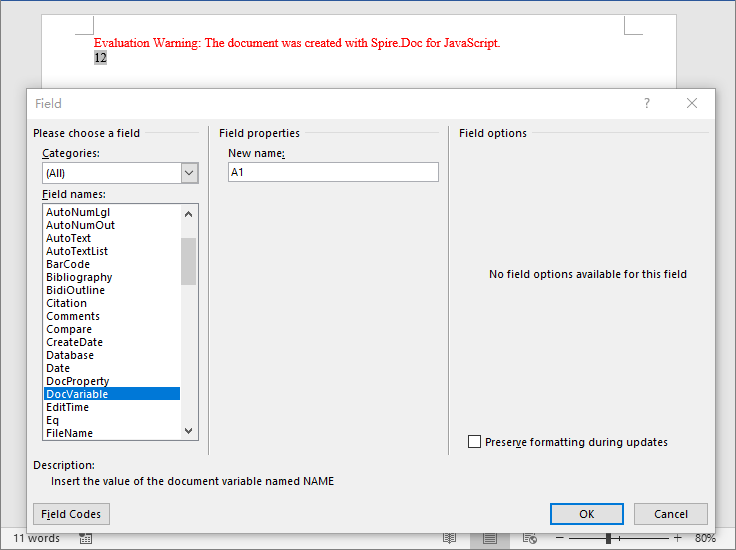
Adding document variables follows three main steps: first, load font files into the WASM virtual file system via FetchFileToVFS; then instantiate a Document, insert a DocVariable field in a paragraph, and assign a value to the variable using Variables.Add; finally, save the document, read the generated file from VFS, wrap it as a Blob, and trigger a browser download.
import React from 'react';

function App() {
  const addVariables = async () => {
    // Get the Spire.Doc WASM module
    const docModule = window.wasmModule?.spiredoc;

    // Check if the module is ready
    if (!docModule) {
      alert('Spire.Doc is not ready yet');
      return;
    }

    // Create a document object
    const doc = new docModule.Document();

    // Add a section
    const section = doc.AddSection();

    // Add a paragraph
    const paragraph = section.AddParagraph();

    // Insert a DocVariable field into the paragraph
    paragraph.AppendField("A1", docModule.FieldType.FieldDocVariable);

    // Assign a value to the variable
    doc.Variables.Add("A1", "12");

    // Update fields to display variable values
    doc.IsUpdateFields = true;

    // Define the output file name
    const outputFileName = "AddVariables_out.docx";

    // Save the document
    doc.SaveToFile({ fileName: outputFileName, fileFormat: docModule.FileFormat.Docx2013 });

    // Release resources
    doc.Dispose();

    const modifiedFileArray = window.dotnetRuntime.Module.FS.readFile(outputFileName);
    const blob = new Blob([modifiedFileArray], { type: 'application/vnd.openxmlformats-officedocument.wordprocessingml.document' });

    const url = URL.createObjectURL(blob);
    const a = document.createElement('a');
    a.href = url;
    a.download = outputFileName;
    a.click();
    URL.revokeObjectURL(url);
  };
  return (
      <div style={{ textAlign: 'center', height: '300px' }}>
        <h1>Add Document Variables</h1>
        <button onClick={addVariables}>
          Generate
        </button>
      </div>
    );
};

export default App;
After adding variables via the Variables.Add method, the DocVariable fields in the document are replaced with the corresponding variable values.
Retrieve Document Variables
For Word template documents that already contain variables, you can retrieve variable information by index or by variable name. Spire.Doc provides multiple retrieval methods: getting the variable name and value by index, or getting the value directly by variable name.
import React from 'react';

function App() {
  const retrieveVariables = async () => {
    // Get the Spire.Doc WASM module
    const docModule = window.wasmModule?.spiredoc;

    // Check if the module is ready
    if (!docModule) {
      alert('Spire.Doc is not ready yet');
      return;
    }

    const inputFileName = 'Template_Docx_6.docx';
    await window.spire.FetchFileToVFS(inputFileName, '', `${process.env.PUBLIC_URL}/data/`);

    // Load the document
    const doc = new docModule.Document();
    doc.LoadFromFile(inputFileName);

    // Get variable name and value by index
    const nameByIndex = doc.Variables.GetNameByIndex(0);
    const valueByIndex = doc.Variables.GetValueByIndex(0);

    // Get value directly by variable name
    const valueByName = doc.Variables.get_Item("A1");

    // Iterate through all variables
    let stringBuilder = [];
    stringBuilder.push("This document has following variables:\n");
    for (let i = 0; i < doc.Variables.Count; i++) {
        let name = doc.Variables.GetNameByIndex(i);
        let value = doc.Variables.GetValueByIndex(i);
        stringBuilder.push("Name: " + name + ", " + "Value: " + value + "\n");
    }

    // Write the result to a text file
    const outputFileName = "RetrieveVariables_out.txt";
    window.dotnetRuntime.Module.FS.writeFile(outputFileName, stringBuilder.join(""));

    // Read the file from VFS and trigger download
    const modifiedFileArray = window.dotnetRuntime.Module.FS.readFile(outputFileName);
    const blob = new Blob([modifiedFileArray], { type: 'text/plain' });
    const url = URL.createObjectURL(blob);
    const a = document.createElement('a');
    a.href = url;
    a.download = outputFileName;
    a.click();
    URL.revokeObjectURL(url);
  };

  return (
    <div style={{ textAlign: 'center', height: '300px' }}>
      <h1>Retrieve Document Variables</h1>
      <button onClick={retrieveVariables}>
        Generate
      </button>
    </div>
  );
}

export default App;
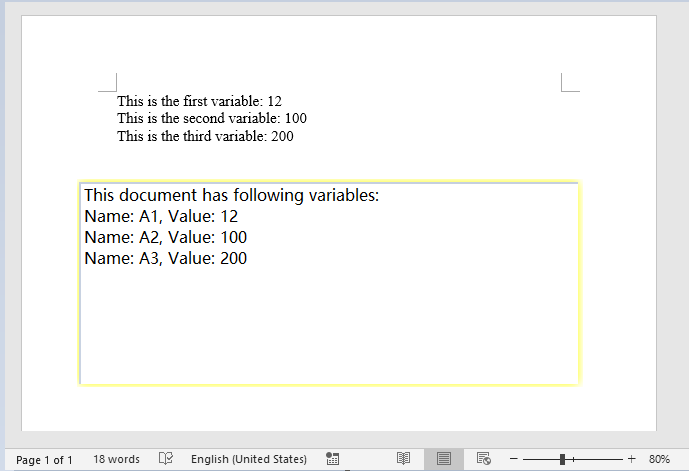
The retrieval result is output as a text file, clearly listing all variable names and their corresponding values in the document.
Remove Document Variables
When a template document contains variables that are no longer needed, you can remove them by name using the Variables.Remove method. After removal, set the IsUpdateFields property to update the fields, ensuring the generated document is clean and free of redundant data.
function App() {
  const removeVariables = async () => {
    // Get the Spire.Doc WASM module
    const docModule = window.wasmModule?.spiredoc;

    // Check if the module is ready
    if (!docModule) {
      alert('Spire.Doc is not ready yet');
      return;
    }
    const inputFileName = 'Template_Docx_6.docx';
    await window.spire.FetchFileToVFS(inputFileName, '', `${process.env.PUBLIC_URL}/data/`);

    // Load the document
    const doc = new docModule.Document();
    doc.LoadFromFile(inputFileName);

    // Remove variable by name
    doc.Variables.Remove("A1");

    let name = doc.Variables.GetNameByIndex(0);
    doc.Variables.Remove(name);

    doc.Variables.Remove(doc.Variables.GetNameByIndex(0));

    doc.IsUpdateFields = true;

    // Define the output file name
    const outputFileName = "RemoveVariables_out.docx";

    // Save the document
    doc.SaveToFile({ fileName: outputFileName, fileFormat: docModule.FileFormat.Docx2013 });

    // Read the file from VFS and trigger download
    const modifiedFileArray = window.dotnetRuntime.Module.FS.readFile(outputFileName);
    const blob = new Blob([modifiedFileArray], { type: 'application/vnd.openxmlformats-officedocument.wordprocessingml.document' });
    const url = URL.createObjectURL(blob);
    const a = document.createElement('a');
    a.href = url;
    a.download = outputFileName;
    a.click();
    URL.revokeObjectURL(url);
  };

  return (
    <div style={{ textAlign: 'center', height: '300px' }}>
      <h1>Remove Document Variables</h1>
      <button onClick={removeVariables}>
        Generate
      </button>
    </div>
  );
}

export default App;
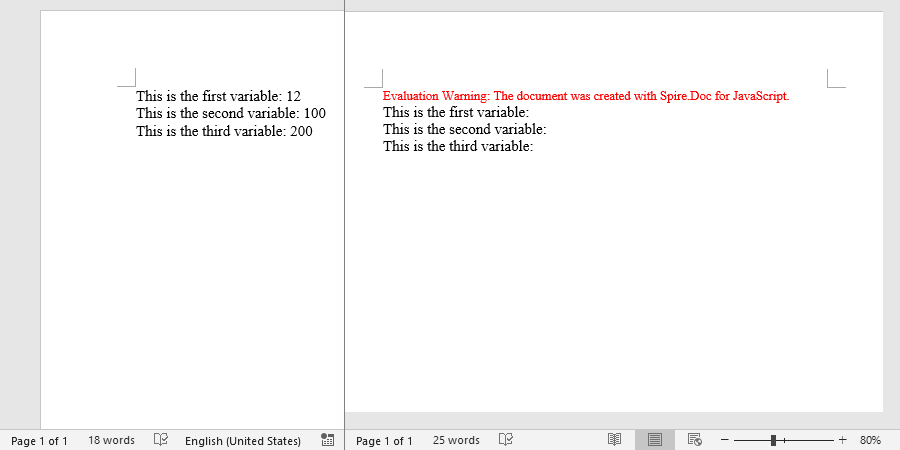
After removing variables, the target variables and their corresponding DocVariable fields are cleared from the generated document, resulting in cleaner content.
FAQ
Field codes still display instead of actual values after adding variables
Cause: After creating a DocVariable field, the document does not automatically update to show the variable value. If the IsUpdateFields property is not set, the field code text remains in the document.
Solution: Set IsUpdateFields to true before saving the document:
document.IsUpdateFields = true;
Getting a variable value by name returns empty
Cause: The variable name passed in does not match the actual variable name in the document (case or spelling mismatch), causing the lookup to fail.
Solution: First iterate through the document.Variables collection using GetNameByIndex to confirm the actual variable names in the document, then retrieve the value by the exact name:
for (let i = 0; i < document.Variables.Count; i++) {
    let name = document.Variables.GetNameByIndex(i);
    let value = document.Variables.GetValueByIndex(i);
    console.log("Name: " + name + ", Value: " + value);
}
Get a Free License
Spire.Doc for JavaScript offers a 30-day full-featured free trial license with no functional limitations. Apply here to evaluate before purchasing.
Footnotes are a commonly used annotation tool in Word documents, allowing you to add supplementary explanations or citation references at the bottom of each page. Spire.Doc for JavaScript runs entirely in the browser via WebAssembly, enabling you to insert, format, and remove footnotes directly using a virtual file system (VFS) to manage fonts and files — no backend server required.
This article covers three core features:
For installation and project setup, refer to Integrating Spire.Doc for JavaScript in a React Project. The examples below assume Spire.Doc is installed and the WebAssembly module is initialized.
1. Insert Footnotes
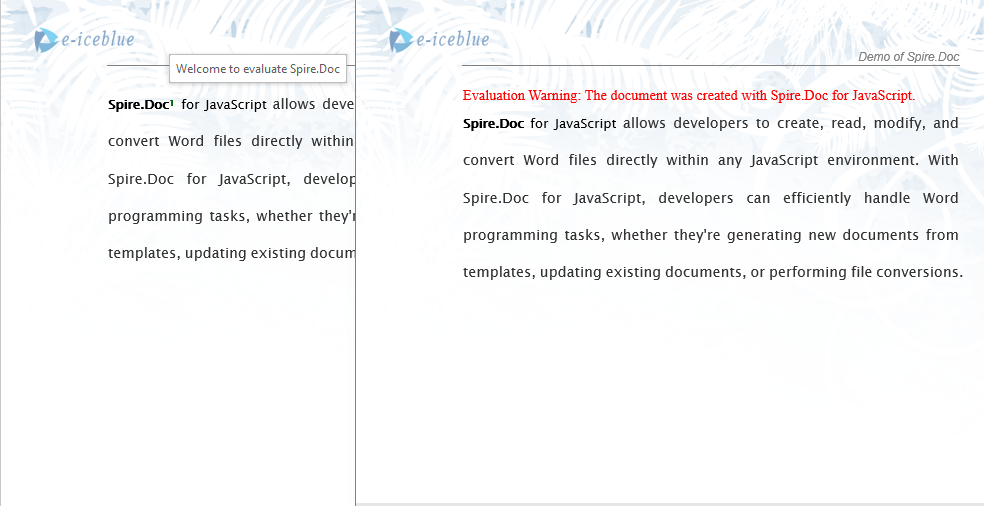
Inserting footnotes is a fundamental operation for adding annotations to a document — ideal for defining specific terms, citing sources, or providing supplementary explanations. Spire.Doc for JavaScript uses the AppendFootnote method to create footnotes and gives developers precise control over three aspects: where the footnote is inserted relative to the target text, the textual content displayed in the footnote body at the bottom of the page, and the visual style of the superscript footnote marker.
function App() {
  const insertFootnote = async () => {
    // Get the Spire.Doc WASM module
    const wasmModule = window.wasmModule?.spiredoc;

    // Check if the module is ready
    if (!wasmModule) {
      alert('Spire.Doc is not ready yet');
      return;
    }

    const inputFileName = 'SampleB_2.docx';
    await window.spire.FetchFileToVFS(inputFileName, '', `${process.env.PUBLIC_URL}/data/`);

    // Load the document
    const doc = new wasmModule.Document();
    doc.LoadFromFile(inputFileName);

    // Find the first matching string in the document
    let selection = doc.FindString("Spire.Doc", false, true);

    // Get the TextRange of the matched text
    let textRange = selection.GetAsOneRange();

    // Get the paragraph that contains the matched text
    let paragraph = textRange.OwnerParagraph;

    // Get the index position of the TextRange in the paragraph
    let index = paragraph.ChildObjects.IndexOf(textRange);

    // Append a footnote to the paragraph
    let footnote = paragraph.AppendFootnote({ type: wasmModule.FootnoteType.Footnote });

    // Insert the footnote after the matched text
    paragraph.ChildObjects.Insert(index + 1, footnote);

    // Add content to the footnote text body
    textRange = footnote.TextBody.AddParagraph().AppendText("Welcome to evaluate Spire.Doc");

    // Set the font format of the footnote content
    textRange.CharacterFormat.FontName = "Arial Black";
    textRange.CharacterFormat.FontSize = 10;
    textRange.CharacterFormat.TextColor = wasmModule.Color.get_DarkGray();

    // Set the format of the footnote marker (superscript number)
    footnote.MarkerCharacterFormat.FontName = "Calibri";
    footnote.MarkerCharacterFormat.FontSize = 12;
    footnote.MarkerCharacterFormat.Bold = true;
    footnote.MarkerCharacterFormat.TextColor = wasmModule.Color.get_DarkGreen();

    // Define the output file name
    const outputFileName = "InsertFootnote.docx";

    // Save the document
    doc.SaveToFile({ fileName: outputFileName, fileFormat: wasmModule.FileFormat.Docx2013 });

    // Release resources
    doc.Dispose();

    // Read the generated file from VFS and trigger download
    const modifiedFileArray = window.dotnetRuntime.Module.FS.readFile(outputFileName);
    const blob = new Blob([modifiedFileArray], { type: 'application/vnd.openxmlformats-officedocument.wordprocessingml.document' });
    const url = URL.createObjectURL(blob);
    const a = document.createElement('a');
    a.href = url;
    a.download = outputFileName;
    a.click();
    URL.revokeObjectURL(url);
  };

  return (
    <div style={{ textAlign: 'center', height: '300px' }}>
      <h1>Insert Footnotes</h1>
      <button onClick={insertFootnote}>
        Generate
      </button>
    </div>
  );
}

export default App;
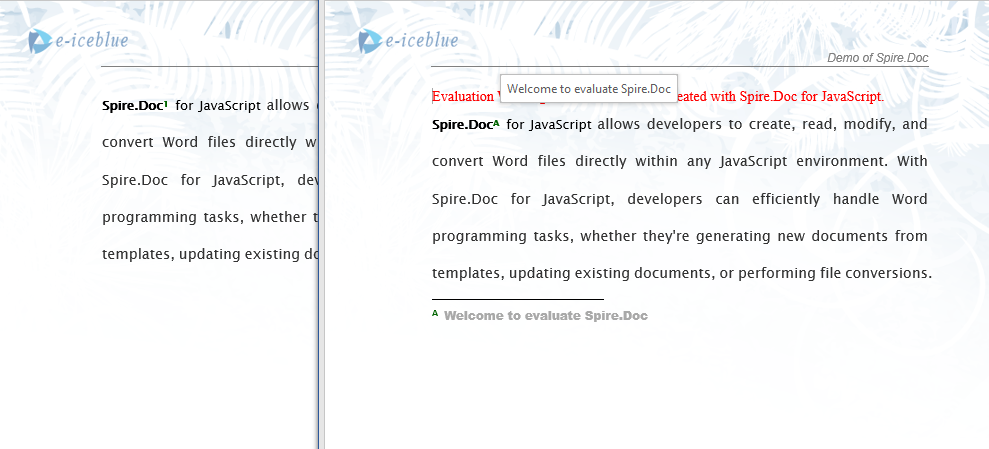
After inserting a footnote via the AppendFootnote method, the annotation content appears at the bottom of the page, and a superscript footnote marker appears next to the corresponding text in the body.

2. Set Footnote Position and Number Format
By default, Word footnotes use Arabic numerals (1, 2, 3...) and restart at the beginning of each page's bottom area. However, academic papers, technical manuals, and publications with strict formatting guidelines often require different numbering schemes — such as letters or Roman numerals — and may need footnotes to be grouped at the end of each section rather than at the page bottom. Spire.Doc for JavaScript provides the FootnoteOptions object to give developers per-section control over the number format, restart rule, and display position, making it easy to comply with a wide range of typographic standards.
function App() {
  const setFootnoteFormat = async () => {
    // Get the Spire.Doc WASM module
    const wasmModule = window.wasmModule?.spiredoc;

    // Check if the module is ready
    if (!wasmModule) {
      alert('Spire.Doc is not ready yet');
      return;
    }

    // Load fonts and the document file into VFS
    await window.spire.FetchFileToVFS('ARIALUNI.TTF', '/Library/Fonts/', `${process.env.PUBLIC_URL}/font/`);
    const inputFileName = 'Footnote.docx';
    await window.spire.FetchFileToVFS(inputFileName, '', `${process.env.PUBLIC_URL}/data/`);

    // Load the document
    const doc = new wasmModule.Document();
    doc.LoadFromFile(inputFileName);

    // Get the first section
    let sec = doc.Sections.get_Item(0);

    // Set footnote number format to uppercase letters
    sec.FootnoteOptions.NumberFormat = wasmModule.FootnoteNumberFormat.UpperCaseLetter;

    // Set footnote restart rule to restart per page
    sec.FootnoteOptions.RestartRule = wasmModule.FootnoteRestartRule.RestartPage;

    // Set footnote position to the end of the section
    sec.FootnoteOptions.Position = wasmModule.FootnotePosition.PrintAsEndOfSection;

    // Define the output file name
    const outputFileName = "SetPositionAndNumberFormat.docx";

    // Save the document
    doc.SaveToFile({ fileName: outputFileName, fileFormat: wasmModule.FileFormat.Docx2013 });

    // Release resources
    doc.Dispose();

    // Read the generated file from VFS and trigger download
    const modifiedFileArray = window.dotnetRuntime.Module.FS.readFile(outputFileName);
    const blob = new Blob([modifiedFileArray], { type: 'application/vnd.openxmlformats-officedocument.wordprocessingml.document' });
    const url = URL.createObjectURL(blob);
    const a = document.createElement('a');
    a.href = url;
    a.download = outputFileName;
    a.click();
    URL.revokeObjectURL(url);
  };

  return (
    <div style={{ textAlign: 'center', height: '300px' }}>
      <h1>Set Footnote Format</h1>
      <button onClick={setFootnoteFormat}>
        Generate
      </button>
    </div>
  );
}

export default App;
After modifying the number format and position through the FootnoteOptions object, the footnotes in the document are reorganized according to the specified style. For example, setting NumberFormat to UpperCaseLetter (A, B, C...) and Position to PrintAsEndOfSection is well suited for appendices or chapter-based documents where footnotes should appear collectively at each section's end. Setting RestartRule to RestartPage ensures that footnote numbering resets on every page, preventing the counter from growing too large across long documents. Since these settings apply per section, different chapters or sections within the same document can each have their own footnote rules — a valuable feature for multi-chapter or collaborative authoring workflows.
3. Remove Footnotes
After multiple rounds of review or content updates, some footnotes may become obsolete or need to be removed. Spire.Doc for JavaScript handles this by iterating through all paragraphs in each section, checking every child object with instanceof to detect Footnote instances, and calling RemoveAt to delete them from the paragraph's child object collection. This paragraph-by-paragraph traversal approach reliably locates footnotes anywhere in the document without requiring prior knowledge of specific page numbers or index offsets.
function App() {
  const removeFootnote = async () => {
    // Get the Spire.Doc WASM module
    const wasmModule = window.wasmModule?.spiredoc;

    // Check if the module is ready
    if (!wasmModule) {
      alert('Spire.Doc is not ready yet');
      return;
    }

    // Load fonts and the document file into VFS
    await window.spire.FetchFileToVFS('ARIALUNI.TTF', '/Library/Fonts/', `${process.env.PUBLIC_URL}/font/`);
    const inputFileName = 'Footnote.docx';
    await window.spire.FetchFileToVFS(inputFileName, '', `${process.env.PUBLIC_URL}/data/`);

    // Load the document
    const doc = new wasmModule.Document();
    doc.LoadFromFile(inputFileName);

    // Get the first section
    let section = doc.Sections.get_Item(0);

    // Traverse all paragraphs in the section to find and remove footnotes
    for (let p = 0; p < section.Paragraphs.Count; p++) {
      let para = section.Paragraphs.get_Item(p);
      let index = -1;

      // Check if each child object in the paragraph is a footnote
      for (let i = 0, cnt = para.ChildObjects.Count; i < cnt; i++) {
        let pBase = para.ChildObjects.get_Item(i);
        if (pBase instanceof wasmModule.Footnote) {
          index = i;
          break;
        }
      }

      // If a footnote is found, remove it from the paragraph
      if (index > -1) {
        para.ChildObjects.RemoveAt(index);
      }
    }

    // Define the output file name
    const outputFileName = "RemoveFootnote.docx";

    // Save the document
    doc.SaveToFile({ fileName: outputFileName, fileFormat: wasmModule.FileFormat.Docx2013 });

    // Release resources
    doc.Dispose();

    // Read the generated file from VFS and trigger download
    const modifiedFileArray = window.dotnetRuntime.Module.FS.readFile(outputFileName);
    const blob = new Blob([modifiedFileArray], { type: 'application/vnd.openxmlformats-officedocument.wordprocessingml.document' });
    const url = URL.createObjectURL(blob);
    const a = document.createElement('a');
    a.href = url;
    a.download = outputFileName;
    a.click();
    URL.revokeObjectURL(url);
  };

  return (
    <div style={{ textAlign: 'center', height: '300px' }}>
      <h1>Remove Footnotes</h1>
      <button onClick={removeFootnote}>
        Generate
      </button>
    </div>
  );
}

export default App;
After removing footnotes, both the superscript markers in the body text and the annotation content at the page bottom are cleared, while the main text remains unaffected.
FAQ
Inserted footnote does not appear at the expected position
Cause: The footnote was appended to the paragraph but was not inserted into the correct child object order via the Insert method, causing the footnote marker to appear at the end of the paragraph instead of after the target text.
Solution: Use ChildObjects.IndexOf to get the index position of the target text, then use the Insert method to place the footnote after that position:
let index = paragraph.ChildObjects.IndexOf(textRange);
paragraph.ChildObjects.Insert(index + 1, footnote);
Footnote number format changes do not take effect
Cause: The footnote number format was set on the wrong section, or the document contains multiple sections but only the first section was modified.
Solution: Identify the section that contains the target footnotes and set the number format for each section that has footnotes:
for (let i = 0; i < document.Sections.Count; i++) {
  let sec = document.Sections.get_Item(i);
  sec.FootnoteOptions.NumberFormat = wasmModule.FootnoteNumberFormat.UpperCaseLetter;
}
Get a Free License
Spire.Doc for JavaScript offers a 30-day full-featured free trial license with no functional limitations. Apply here to evaluate before purchasing.
Hyperlinks are essential interactive elements in Word documents, widely used to link to web pages, email addresses, internal document locations, or external files. Spire.Doc for JavaScript runs entirely in the browser via WebAssembly, enabling you to insert, find, modify, and remove hyperlinks directly using a virtual file system (VFS) to manage fonts and files — no backend server required.
This article covers three core features:
For installation and project setup, refer to Integrating Spire.Doc for JavaScript in a React Project. The examples below assume Spire.Doc is installed and the WebAssembly module is initialized.
1. Insert Hyperlinks
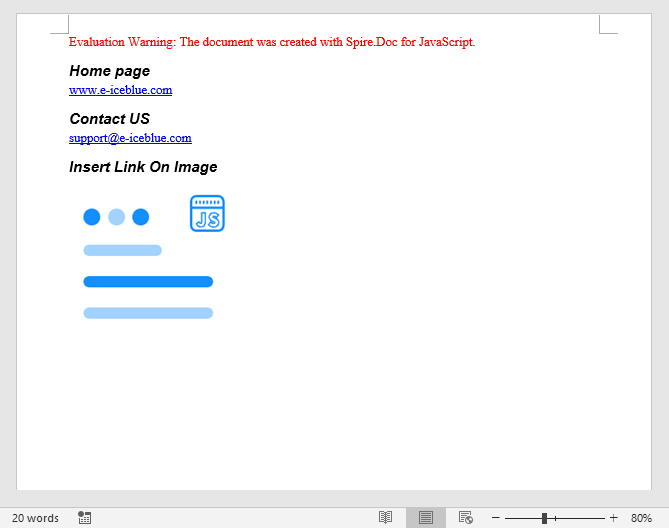
Inserting hyperlinks involves three steps: first, load image files into the WASM virtual file system via FetchFileToVFS; then instantiate a Document, add paragraphs, and call AppendHyperlink to insert web links, email links, or image links; finally, save the document, read the generated file from VFS, wrap it as a Blob, and trigger a browser download.
function App() {
  const insertHyperlinks = async () => {
    // Get the Spire.Doc WASM module
    const docModule = window.wasmModule?.spiredoc;

    // Check if the module is ready
    if (!docModule) {
      alert('Spire.Doc is not ready yet');
      return;
    }

    const imageFileName = 'Spire.Doc.png';
    await window.spire.FetchFileToVFS(imageFileName, '', `${process.env.PUBLIC_URL}/data/`);

    // Create a document
    const doc = new docModule.Document();
    const section = doc.AddSection();

    // Insert a web link
    let paragraph = section.AddParagraph();
    paragraph.AppendText("Home page");
    paragraph.ApplyStyle({ builtinStyle: docModule.BuiltinStyle.Heading2 });
    paragraph = section.AddParagraph();
    paragraph.AppendHyperlink("www.e-iceblue.com", "www.e-iceblue.com", docModule.HyperlinkType.WebLink);

    // Insert an email link
    paragraph = section.AddParagraph();
    paragraph.AppendText("Contact US");
    paragraph.ApplyStyle({ builtinStyle: docModule.BuiltinStyle.Heading2 });
    paragraph = section.AddParagraph();
    paragraph.AppendHyperlink("mailto:support@e-iceblue.com", "support@e-iceblue.com", docModule.HyperlinkType.EMailLink);

    // Insert a link on an image
    paragraph = section.AddParagraph();
    paragraph.AppendText("Insert Link On Image");
    paragraph.ApplyStyle({ builtinStyle: docModule.BuiltinStyle.Heading2 });
    paragraph = section.AddParagraph();
    const picture = paragraph.AppendPicture({ imgFile: imageFileName });
    paragraph.AppendHyperlink("www.e-iceblue.com", picture, docModule.HyperlinkType.WebLink);

    // Define the output file name
    const outputFileName = "Hyperlink_output.docx";

    // Save the document
    doc.SaveToFile({ fileName: outputFileName, fileFormat: docModule.FileFormat.Docx2013 });

    // Read the generated file from VFS and trigger download
    const modifiedFileArray = window.dotnetRuntime.Module.FS.readFile(outputFileName);
    const blob = new Blob([modifiedFileArray], { type: 'application/vnd.openxmlformats-officedocument.wordprocessingml.document' });
    const url = URL.createObjectURL(blob);
    const a = document.createElement('a');
    a.href = url;
    a.download = outputFileName;
    a.click();
    URL.revokeObjectURL(url);
  };

  return (
    <div style={{ textAlign: 'center', height: '300px' }}>
      <h1>Insert Hyperlinks</h1>
      <button onClick={insertHyperlinks}>
        Generate
      </button>
    </div>
  );
}

export default App;
The resulting Word document contains clickable hyperlinks, including a text-based web link, an email link, and an image with an embedded hyperlink.
2. Find and Modify Hyperlinks
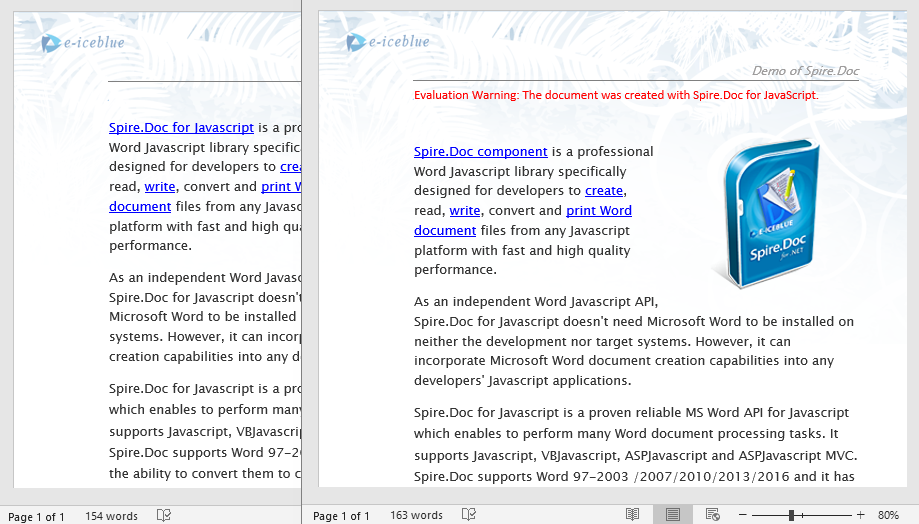
For existing Word documents that already contain hyperlinks, you can traverse the document object model to locate all hyperlink fields and read or modify their display text.
function App() {
  const findAndModifyHyperlinks = async () => {
    // Get the Spire.Doc WASM module
    const docModule = window.wasmModule?.spiredoc;

    // Check if the module is ready
    if (!docModule) {
      alert('Spire.Doc is not ready yet');
      return;
    }

    const inputFileName = 'Hyperlinks.docx';
    await window.spire.FetchFileToVFS(inputFileName, '', `${process.env.PUBLIC_URL}/data/`);

    // Load the document
    const doc = new docModule.Document();
    doc.LoadFromFile(inputFileName);

    // Traverse all hyperlinks in the document
    let hyperlinks = [];
    for (let i = 0; i < doc.Sections.Count; i++) {
      let section = doc.Sections.get_Item(i);
      for (let j = 0; j < section.Body.ChildObjects.Count; j++) {
        let sec = section.Body.ChildObjects.get_Item(j);
        if (sec.DocumentObjectType == docModule.DocumentObjectType.Paragraph) {
          for (let k = 0; k < sec.ChildObjects.Count; k++) {
            let para = sec.ChildObjects.get_Item(k);
            if (para.DocumentObjectType == docModule.DocumentObjectType.Field) {
              let field = para;
              if (field.Type == docModule.FieldType.FieldHyperlink) {
                hyperlinks.push(field);
              }
            }
          }
        }
      }
    }

    // Modify the display text of the first hyperlink
    hyperlinks[0].FieldText = "Spire.Doc component";

    // Define the output file name
    const outputFileName = "ModifyHyperlinkText_output.docx";

    // Save the document
    doc.SaveToFile({ fileName: outputFileName, fileFormat: docModule.FileFormat.Docx2013 });

    // Read the generated file from VFS and trigger download
    const modifiedFileArray = window.dotnetRuntime.Module.FS.readFile(outputFileName);
    const blob = new Blob([modifiedFileArray], { type: 'application/vnd.openxmlformats-officedocument.wordprocessingml.document' });
    const url = URL.createObjectURL(blob);
    const a = document.createElement('a');
    a.href = url;
    a.download = outputFileName;
    a.click();
    URL.revokeObjectURL(url);

    // Release resources
    doc.Dispose();
  };

  return (
    <div style={{ textAlign: 'center', height: '300px' }}>
      <h1>Find & Modify Hyperlinks</h1>
      <button onClick={findAndModifyHyperlinks}>
        Generate
      </button>
    </div>
  );
}

export default App;
After traversing the document object model, you can read or modify the display text and target address of each hyperlink, making it easy to batch-update links.
3. Remove Hyperlinks
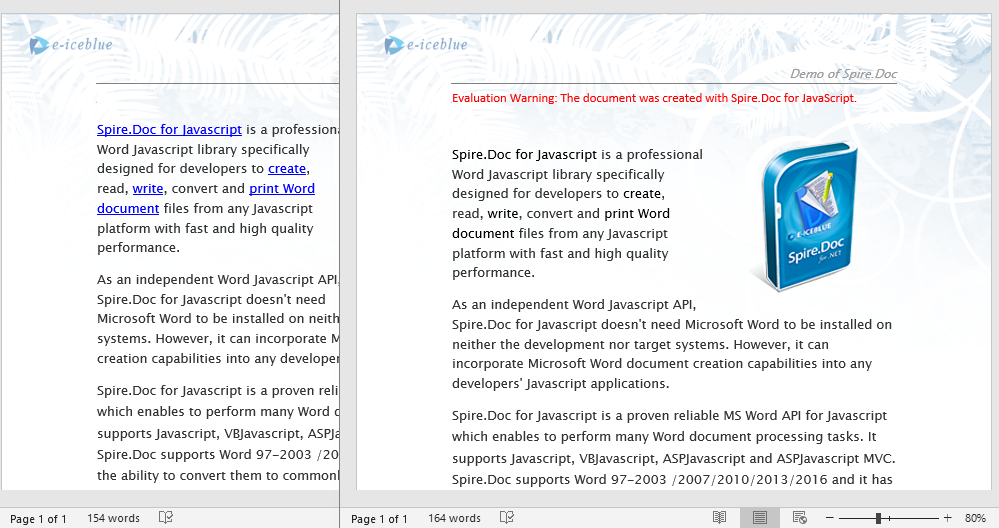
When hyperlinks in a document are no longer needed, you can remove them while keeping the associated text content. The key approach is to locate all hyperlink fields, then flatten the field structure so that only plain text remains without the hyperlink formatting.
// Find all hyperlinks in the document
function FindAllHyperlinks(document) {
  let docModule = window.wasmModule.spiredoc;
  let hyperlinks = [];
  for (let i = 0; i < document.Sections.Count; i++) {
    let section = document.Sections.get_Item(i);
    for (let j = 0; j < section.Body.ChildObjects.Count; j++) {
      let sec = section.Body.ChildObjects.get_Item(j);
      if (sec.DocumentObjectType == docModule.DocumentObjectType.Paragraph) {
        for (let k = 0; k < sec.ChildObjects.Count; k++) {
          let para = sec.ChildObjects.get_Item(k);
          if (para.DocumentObjectType == docModule.DocumentObjectType.Field) {
            let field = para;
            if (field.Type == docModule.FieldType.FieldHyperlink) {
              hyperlinks.push(field);
            }
          }
        }
      }
    }
  }
  return hyperlinks;
}

// Remove hyperlink formatting, keep only the text
function FormatFieldResultText(ownerBody, sepOwnerParaIndex, endOwnerParaIndex, sepIndex, endIndex) {
  let docModule = window.wasmModule.spiredoc;
  for (let i = sepOwnerParaIndex; i <= endOwnerParaIndex; i++) {
    let para = ownerBody.ChildObjects.get_Item(i);
    if (i == sepOwnerParaIndex && i == endOwnerParaIndex) {
      for (let j = sepIndex + 1; j < endIndex; j++) {
        let tr = para.ChildObjects.get_Item(j);
        tr.CharacterFormat.TextColor = docModule.Color.get_Black();
        tr.CharacterFormat.UnderlineStyle = docModule.UnderlineStyle.None;
      }
    } else if (i == sepOwnerParaIndex) {
      for (let j = sepIndex + 1; j < para.ChildObjects.Count; j++) {
        let tr = para.ChildObjects.get_Item(j);
        tr.CharacterFormat.TextColor = docModule.Color.get_Black();
        tr.CharacterFormat.UnderlineStyle = docModule.UnderlineStyle.None;
      }
    } else if (i == endOwnerParaIndex) {
      for (let j = 0; j < endIndex; j++) {
        let tr = para.ChildObjects.get_Item(j);
        tr.CharacterFormat.TextColor = docModule.Color.get_Black();
        tr.CharacterFormat.UnderlineStyle = docModule.UnderlineStyle.None;
      }
    } else {
      for (let j = 0; j < para.ChildObjects.Count; j++) {
        let tr = para.ChildObjects.get_Item(j);
        tr.CharacterFormat.TextColor = docModule.Color.get_Black();
        tr.CharacterFormat.UnderlineStyle = docModule.UnderlineStyle.None;
      }
    }
  }
}

function FlattenHyperlinks(field) {
  // Get the position indices of each hyperlink field component
  let ownerParaIndex = field.OwnerParagraph.OwnerTextBody.ChildObjects.IndexOf(field.OwnerParagraph);
  let fieldIndex = field.OwnerParagraph.ChildObjects.IndexOf(field);
  let sepOwnerPara = field.Separator.OwnerParagraph;
  let sepOwnerParaIndex = field.Separator.OwnerParagraph.OwnerTextBody.ChildObjects.IndexOf(field.Separator.OwnerParagraph);
  let sepIndex = field.Separator.OwnerParagraph.ChildObjects.IndexOf(field.Separator);
  let endIndex = field.End.OwnerParagraph.ChildObjects.IndexOf(field.End);
  let endOwnerParaIndex = field.End.OwnerParagraph.OwnerTextBody.ChildObjects.IndexOf(field.End.OwnerParagraph);

  // Remove hyperlink formatting (blue underlined text)
  FormatFieldResultText(field.Separator.OwnerParagraph.OwnerTextBody, sepOwnerParaIndex, endOwnerParaIndex, sepIndex, endIndex);

  // Remove the hyperlink field structure
  field.End.OwnerParagraph.ChildObjects.RemoveAt(endIndex);
  for (let i = sepOwnerParaIndex; i >= ownerParaIndex; i--) {
    if (i == sepOwnerParaIndex && i == ownerParaIndex) {
      for (let j = sepIndex; j >= fieldIndex; j--) {
        field.OwnerParagraph.ChildObjects.RemoveAt(j);
      }
    } else if (i == ownerParaIndex) {
      for (let j = field.OwnerParagraph.ChildObjects.Count - 1; j >= fieldIndex; j--) {
        field.OwnerParagraph.ChildObjects.RemoveAt(j);
      }
    } else if (i == sepOwnerParaIndex) {
      for (let j = sepIndex; j >= 0; j--) {
        sepOwnerPara.ChildObjects.RemoveAt(j);
      }
    } else {
      field.OwnerParagraph.OwnerTextBody.ChildObjects.RemoveAt(i);
    }
  }
}

function App() {
  const removeHyperlinks = async () => {
    // Get the Spire.Doc WASM module
    const docModule = window.wasmModule?.spiredoc;

    // Check if the module is ready
    if (!docModule) {
      alert('Spire.Doc is not ready yet');
      return;
    }

    const inputFileName = 'Hyperlinks.docx';
    await window.spire.FetchFileToVFS(inputFileName, '', `${process.env.PUBLIC_URL}/data/`);

    // Load the document
    const doc = new docModule.Document();
    doc.LoadFromFile(inputFileName);

    // Find all hyperlinks
    let hyperlinks = FindAllHyperlinks(doc);

    // Flatten all hyperlinks (remove hyperlink formatting, keep text)
    for (let i = hyperlinks.length - 1; i >= 0; i--) {
      FlattenHyperlinks(hyperlinks[i]);
    }

    // Define the output file name
    const outputFileName = "RemoveHyperlinks_output.docx";

    // Save the document
    doc.SaveToFile({ fileName: outputFileName, fileFormat: docModule.FileFormat.Docx2013 });

    // Read the generated file from VFS and trigger download
    const modifiedFileArray = window.dotnetRuntime.Module.FS.readFile(outputFileName);
    const blob = new Blob([modifiedFileArray], { type: 'application/vnd.openxmlformats-officedocument.wordprocessingml.document' });
    const url = URL.createObjectURL(blob);
    const a = document.createElement('a');
    a.href = url;
    a.download = outputFileName;
    a.click();
    URL.revokeObjectURL(url);

    // Release resources
    doc.Dispose();
  };

  return (
    <div style={{ textAlign: 'center', height: '300px' }}>
      <h1>Remove Hyperlinks</h1>
      <button onClick={removeHyperlinks}>
        Generate
      </button>
    </div>
  );
}

export default App;
After removing the hyperlinks, the original link text remains as plain text, with the blue underline style cleared while the content stays unchanged.
FAQ
Inserted hyperlinks are not clickable in the document
Cause: The target URL format is incorrect, e.g., missing the protocol prefix (such as http:// or mailto:) so Word cannot recognize it as a valid clickable link.
Solution: Ensure web links use a complete URL and email links include the mailto: prefix:
// Correct web link
paragraph.AppendHyperlink("https://www.e-iceblue.com", "e-iceblue", wasmModule.HyperlinkType.WebLink);

// Correct email link
paragraph.AppendHyperlink("mailto:support@e-iceblue.com", "support@e-iceblue.com", wasmModule.HyperlinkType.EMailLink);
Text style is abnormal after removing hyperlinks
Cause: Only the hyperlink field structure was removed, but the text color and underline style were not reset to normal text formatting.
Solution: When flattening hyperlinks, also set the text color to black and the underline style to none:
tr.CharacterFormat.TextColor = wasmModule.Color.get_Black();
tr.CharacterFormat.UnderlineStyle = wasmModule.UnderlineStyle.None;
Get a Free License
Spire.Doc for JavaScript offers a 30-day full-featured free trial license with no functional limitations. Apply here to evaluate before purchasing.
Creating dynamic documents is essential for many applications. This guide will explore how to generate a Word document using Spire.Doc for JavaScript within a React environment. We will cover the essential features needed for effective document creation, including adding titles, headings, and paragraphs to structure your content effectively.
You'll also learn how to enhance your documents by incorporating images, creating lists for organized information, and adding tables to present data clearly. By the end of this tutorial, you'll be equipped with the skills to produce professional documents directly from your React applications.
- Add Titles, Headings, and Paragraphs to Word
- Add an Image to Word
- Add a List to Word
- Add a Table to Word
Install Spire.Doc for JavaScript
To get started with creating Word documents in a React application, you can either download Spire.Doc for JavaScript from our website or install it via npm with the following command:
npm i spire.officeThe downloaded product package integrates Spire.Doc for JavaScript, Spire.XLS for JavaScript, Spire.PDF for JavaScript, and Spire.Presentation for JavaScript. To use the features of Spire.Doc for JavaScript, you need to copy the corresponding files (spire.doc.js, Spire.Doc.Wasm.zip, spire.common.js, Spire.Common.Wasm.zip, and the _framework folder) to the public folder of your project. To ensure proper text rendering, you can add relevant font files with a custom path. In the following example, the font is added to the path: public\static\font.
For more details, refer to the documentation: How to Integrate Spire.Doc for JavaScript in a React Project
Add Titles, Headings, and Paragraphs to Word in React
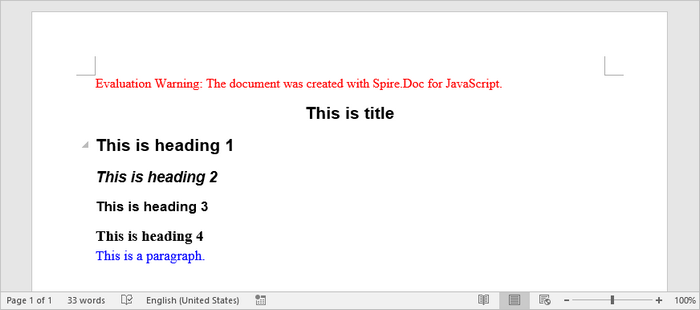
To add a title, headings, and paragraphs to a Word document, you primarily utilize the Document and Section classes provided by Spire.Doc for JavaScript. The AddParagraph() method creates new paragraphs, while AppendText() allows you to insert text into those paragraphs.
Paragraphs can be formatted using built-in styles (e.g., Title, Heading 1-4) for consistent structure, or customized with specific fonts, sizes, and colors through user-defined styles for tailored document design.
Steps for adding titles, headings, and parargraphs to a Word documents in React:
- Import the necessary font files into the virtual file system (VFS).
- Create a Document object using new wasmModule.Document().
- Include a new section in the document with Document.AddSection().
- Add paragraphs to the document using Section.AddParagraph().
- Use Paragraph.ApplyStyle() to apply built-in styles (Title, Heading1, Heading2, Heading3) to specific paragraphs.
- Define a custom paragraph style with new wasmModule.ParagraphStyle() and apply it to a designated paragraph.
- Save the document as a DOCX file and initiate the download.
- JavaScript
import React, { useState, useEffect } from 'react';

function App() {
  const [wasmModule, setWasmModule] = useState(null);
  // Load Spire.Doc
  useEffect(() => {
    (async () => {
      try {
        const publicUrl = process.env.PUBLIC_URL || '';
        const spireModule = await import(/* webpackIgnore: true */ `${publicUrl}/spire.doc.js`);
        const rawModule = spireModule.default || spireModule;
        window.wasmModule = typeof rawModule === 'function'
          ? await rawModule({ locateFile: p => p.endsWith('.wasm') ? `${publicUrl}/${p}` : p })
          : rawModule;
        setWasmModule(window.wasmModule);
      } catch (error) {
        console.error('Failed to load spire.doc.js WASM module:', error);
      }
    })();
  }, []);

  // Function to add text to word
  const AddText = async () => {
    const wasmModule = window.wasmModule.spiredoc;

    if (wasmModule) {
      // Load the font files into the virtual file system (VFS)
      await window.spire.FetchFileToVFS('times.ttf', '/Library/Fonts/', `${process.env.PUBLIC_URL}/static/font/`);
      await window.spire.FetchFileToVFS('timesbd.ttf', '/Library/Fonts/', `${process.env.PUBLIC_URL}/static/font/`);
      await window.spire.FetchFileToVFS('timesbi.ttf', '/Library/Fonts/', `${process.env.PUBLIC_URL}/static/font/`);
      await window.spire.FetchFileToVFS('timesi.ttf', '/Library/Fonts/', `${process.env.PUBLIC_URL}/static/font/`);

      // Create an instance of the Document class
      const doc = new wasmModule.Document();

      // Add a section
      let section = doc.AddSection();

      // Set page margins
      section.PageSetup.Margins.All = 60;

      // Add a title paragraph
      let title_para = section.AddParagraph();
      title_para.AppendText('This is title');
      title_para.ApplyStyle({ builtinStyle: wasmModule.BuiltinStyle.Title });

      // Add heading paragraphs
      let heading_one = section.AddParagraph();
      heading_one.AppendText('This is heading 1');
      heading_one.ApplyStyle({ builtinStyle: wasmModule.BuiltinStyle.Heading1 });

      let heading_two = section.AddParagraph();
      heading_two.AppendText('This is heading 2');
      heading_two.ApplyStyle({ builtinStyle: wasmModule.BuiltinStyle.Heading2 });

      let heading_three = section.AddParagraph();
      heading_three.AppendText('This is heading 3');
      heading_three.ApplyStyle({ builtinStyle: wasmModule.BuiltinStyle.Heading3 });

      let heading_four = section.AddParagraph();
      heading_four.AppendText('This is heading 4');
      heading_four.ApplyStyle({ builtinStyle: wasmModule.BuiltinStyle.Heading4 });

      // Add a normal paragraph
      let normal_para = section.AddParagraph();
      normal_para.AppendText('This is a paragraph.');

      // Create a paragraph style,specifying font name, font size, and text color
      let paragraph_style =new wasmModule.ParagraphStyle(doc);
      paragraph_style.Name = 'newStyle';
      paragraph_style.CharacterFormat.FontName = 'Times New Roman'
      paragraph_style.CharacterFormat.FontSize = 13;
      paragraph_style.CharacterFormat.TextColor = wasmModule.Color.get_Blue();

      // Add the style to the document
      doc.Styles.Add(paragraph_style);

      // Apply the style to the paragraph
      normal_para.ApplyStyle(paragraph_style.Name);

      // Save the document
      const outputFileName = 'output.docx';
      doc.SaveToFile({ fileName: outputFileName, fileFormat: wasmModule.FileFormat.Docx2013 });

      // Create a Blob for the downloaded file
      const modifiedFileArray =window.dotnetRuntime.Module.FS.readFile(outputFileName);
      const modifiedFile = new Blob([modifiedFileArray], { type: 'application/vnd.openxmlformats-officedocument.wordprocessingml.document' });
      const url = URL.createObjectURL(modifiedFile);

      // Trigger file download
      const a = document.createElement('a');
      a.href = url;
      a.download = outputFileName;
      document.body.appendChild(a);
      a.click();
      document.body.removeChild(a);
      URL.revokeObjectURL(url);

      // Clean up resources
      doc.Dispose();
    }
  };

  return (
    <div style={{ textAlign: 'center', height: '300px' }}>
      <h1>Add Text to a Word Document in React</h1>
      <button onClick={AddText} disabled={!wasmModule}>
        Generate
      </button>
    </div>
  );
}

export default App;
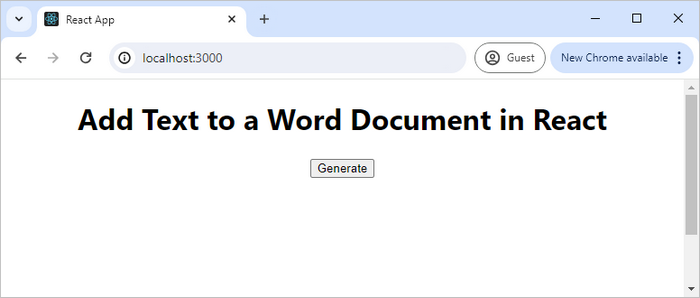
Run the code to launch the React app at localhost:3000. Click "Generate", and a "Save As" window will appear, prompting you to save the output file in your chosen folder.
Below is a screenshot of the generated Word file that includes a title, several headings, and a normal paragraph:
Add an Image to Word in React
Inserting images into a Word document involves using the AppendPicture() method, which allows you to add a picture to a specific paragraph. The process begins by loading the image file into the virtual file system (VFS), ensuring that the image is accessible for insertion.
Steps for adding an image to a Word doucment in React:
- Load an image file into the virtual file system (VFS).
- Create a Document object using new wasmModule.Document().
- Add a new section to the document with Document.AddSection().
- Insert a new paragraph in the section using Section.AddParagraph().
- Use the Paragraph.AppendPicture() method to add the loaded image to the paragraph.
- Save the document as a DOCX file and trigger the download.
- JavaScript
import React, { useState, useEffect } from 'react';

function App() {
  const [wasmModule, setWasmModule] = useState(null);
  // Load Spire.Doc
  useEffect(() => {
    (async () => {
      try {
        const publicUrl = process.env.PUBLIC_URL || '';
        const spireModule = await import(/* webpackIgnore: true */ `${publicUrl}/spire.doc.js`);
        const rawModule = spireModule.default || spireModule;
        window.wasmModule = typeof rawModule === 'function'
          ? await rawModule({ locateFile: p => p.endsWith('.wasm') ? `${publicUrl}/${p}` : p })
          : rawModule;
        setWasmModule(window.wasmModule);
      } catch (error) {
        console.error('Failed to load spire.doc.js WASM module:', error);
      }
    })();
  }, []);

  // Function to add image to word
  const AddImage = async () => {
    const wasmModule = window.wasmModule.spiredoc;

    if (wasmModule) {
      // Load the font files into the virtual file system (VFS)
      await window.spire.FetchFileToVFS('times.ttf', '/Library/Fonts/', `${process.env.PUBLIC_URL}/static/font/`);

      // Specify the input file name and the output file name
      const inputImageFile = 'logo.png';
      const outputFileName = 'output.docx';

      // Fetch the input file and add it to the VFS
      await window.spire.FetchFileToVFS(inputImageFile, '', `${process.env.PUBLIC_URL}/static/data/`);

      // Create an instance of the Document class
      const doc = new wasmModule.Document();

      // Add a section
      let section = doc.AddSection();

      // Set page margins
      section.PageSetup.Margins.All = 60;

      // Add a paragraph
      let image_para = section.AddParagraph();

      // Add an image to the paragraph
      image_para.AppendPicture({ imgFile: inputImageFile });

      // Save the document
      doc.SaveToFile({ fileName: outputFileName, fileFormat: wasmModule.FileFormat.Docx2013 });

      // Create a Blob for the downloaded file
      const modifiedFileArray = window.dotnetRuntime.Module.FS.readFile(outputFileName);
      const modifiedFile = new Blob([modifiedFileArray], { type: 'application/vnd.openxmlformats-officedocument.wordprocessingml.document' });
      const url = URL.createObjectURL(modifiedFile);

      // Trigger the download
      const a = document.createElement('a');
      a.href = url;
      a.download = outputFileName;
      document.body.appendChild(a);
      a.click();
      document.body.removeChild(a);
      URL.revokeObjectURL(url);

      // Clean up resources
      doc.Dispose();
    }
  };

  return (
    <div style={{ textAlign: 'center', height: '300px' }}>
      <h1>Add image to a Word Document in React</h1>
      <button onClick={AddImage} disabled={!wasmModule}>
        Generate
      </button>
    </div>
  );
}

export default App;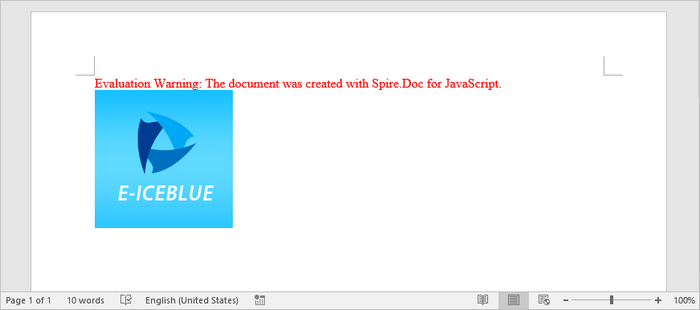
Add a List to Word in React
To create lists in your Word document, utilize the ListStyle class to define the appearance of your lists, such as bulleted or numbered formats. The ApplyStyle() method associates paragraphs with the defined list style, enabling consistent formatting across multiple items.
Steps for adding a list to a Word document in React:
- Load the required font files into the virtual file system (VFS).
- Create a Document object using new wasmModule.Document().
- Add a section to the document with Document.AddSection().
- Define a list style using doc.Styles.Add({ listType: wasmModule.ListType.Bulleted, name: "bulletedList" }).
- Insert several paragraphs in the section using Section.AddParagraph().
- Apply the defined list style to the paragraphs using Paragraph.ListFormat.ApplyStyle().
- Save the document as a DOCX file and trigger the download.
- JavaScript
import React, { useState, useEffect } from 'react';

function App() {
  const [wasmModule, setWasmModule] = useState(null);
  // Load Spire.Doc
  useEffect(() => {
    (async () => {
      try {
        const publicUrl = process.env.PUBLIC_URL || '';
        const spireModule = await import(/* webpackIgnore: true */ `${publicUrl}/spire.doc.js`);
        const rawModule = spireModule.default || spireModule;
        window.wasmModule = typeof rawModule === 'function'
          ? await rawModule({ locateFile: p => p.endsWith('.wasm') ? `${publicUrl}/${p}` : p })
          : rawModule;
        setWasmModule(window.wasmModule);
      } catch (error) {
        console.error('Failed to load spire.doc.js WASM module:', error);
      }
    })();
  }, []);

  // Function to add list to word
  const AddList = async () => {
    const wasmModule = window.wasmModule.spiredoc;

    if (wasmModule) {
      // Load the font files into the virtual file system (VFS)
      await window.spire.FetchFileToVFS('times.ttf', '/Library/Fonts/', `${process.env.PUBLIC_URL}/static/font/`);

      // Create an instance of the Document class
      const doc = new wasmModule.Document();

      // Add a section
      let section = doc.AddSection();

      // Set page margins
      section.PageSetup.Margins.All = 60;

      // Define a bullet list style
      let list_style = doc.Styles.Add({ listType: wasmModule.ListType.Bulleted, name: "bulletedList" });
      list_style.ListRef.Levels.get_Item(0).BulletCharacter = '\u00B7';
      list_style.ListRef.Levels.get_Item(0).CharacterFormat.FontName = 'Symbol';
      list_style.ListRef.Levels.get_Item(0).CharacterFormat.FontSize = 14;
      list_style.ListRef.Levels.get_Item(0).TextPosition = 20;


      // Add title paragraph
      let paragraph = section.AddParagraph();
      let text_range = paragraph.AppendText('Fruits:');
      paragraph.Format.AfterSpacing = 5;
      text_range.CharacterFormat.FontName = 'Times New Roman'
      text_range.CharacterFormat.FontSize = 14;

      // Add items to the bullet list
      const fruits = ['Apple', 'Banana', 'Watermelon', 'Mango'];
      fruits.forEach(fruit => {
        paragraph = section.AddParagraph();
        let text_range = paragraph.AppendText(fruit);
        paragraph.ListFormat.ApplyStyle(list_style.Name);
        paragraph.ListFormat.ListLevelNumber = 0;
        text_range.CharacterFormat.FontName = 'Times New Roman'
        text_range.CharacterFormat.FontSize = 14;
      });

      // Save the document
      const outputFileName = 'output.docx';
      doc.SaveToFile({ fileName: outputFileName, fileFormat: wasmModule.FileFormat.Docx2013 });

      // Create a Blob for the downloaded file
      const modifiedFileArray = window.dotnetRuntime.Module.FS.readFile(outputFileName);
      const modifiedFile = new Blob([modifiedFileArray], { type: 'application/vnd.openxmlformats-officedocument.wordprocessingml.document' });
      const url = URL.createObjectURL(modifiedFile);

      // Trigger file download
      const a = document.createElement('a');
      a.href = url;
      a.download = outputFileName;
      document.body.appendChild(a);
      a.click();
      document.body.removeChild(a);
      URL.revokeObjectURL(url);

      // Clean up resources
      doc.Dispose();
    }
  };

  return (
    <div style={{ textAlign: 'center', height: '300px' }}>
      <h1>Add Lists to a Word Document in React</h1>
      <button onClick={AddList} disabled={!wasmModule}>
        Generate
      </button>
    </div>
  );
}

export default App;
Add a Table to Word in React
To create tables, use the AddTable() method where you can specify the number of rows and columns with ResetCells(). Once the table is created, you can populate individual cells by using the AddParagraph() and AppendText() methods to insert text content. Additionally, the AutoFit() method can be employed to automatically adjust the table layout based on its contents, ensuring a clean and organized presentation of your data.
Steps for adding a table to a Word document in React:
- Load the required font files into the virtual file system (VFS).
- Create a Document object using new wasmModule.Document().
- Add a section to the document with Document.AddSection().
- Create a two-dimensional array to hold the table data, including headers and values.
- Use Section.AddTable() to create a table, specifying visibility options like borders.
- Call Table.ResetCells() to define the number of rows and columns in the table based on your data.
- Iterate through the data array, adding text to each cell using the TableCell.AddParagraph() and Paragraph.AppendText() methods.
- Use the Table.AutoFit() method to adjust the table size according to the content.
- Save the document as a DOCX file and trigger the download.
- JavaScript
import React, { useState, useEffect } from 'react';

function App() {
  const [wasmModule, setWasmModule] = useState(null);
  // Load Spire.Doc
  useEffect(() => {
    (async () => {
      try {
        const publicUrl = process.env.PUBLIC_URL || '';
        const spireModule = await import(/* webpackIgnore: true */ `${publicUrl}/spire.doc.js`);
        const rawModule = spireModule.default || spireModule;
        window.wasmModule = typeof rawModule === 'function'
          ? await rawModule({ locateFile: p => p.endsWith('.wasm') ? `${publicUrl}/${p}` : p })
          : rawModule;
        setWasmModule(window.wasmModule);
      } catch (error) {
        console.error('Failed to load spire.doc.js WASM module:', error);
      }
    })();
  }, []);

  // Function to add table to word
  const AddTable = async () => {
    const wasmModule = window.wasmModule.spiredoc;

    if (wasmModule) {
      // Load the font files into the virtual file system (VFS)
      await window.spire.FetchFileToVFS('times.ttf', '/Library/Fonts/', `${process.env.PUBLIC_URL}/static/font/`);

      // Create an instance of the Document class
      const doc = new wasmModule.Document();

      // Add a section
      let section = doc.AddSection();

      // Set page margins
      section.PageSetup.Margins.All = 60;

      // Define table data
      let data =
        [
          ['Product', 'Unit Price', 'Quantity', 'Sub Total'],
          ['A', '$29', '120', '$3,480'],
          ['B', '$35', '110', '$3,850'],
          ['C', '$68', '140', '$9,520'],
        ];

      // Add a table
      let table = section.AddTable({ showBorder: true });

      // Set row number and column number
      table.ResetCells(data.length, data[0].length);

      // Write data to cells
      for (let r = 0; r < data.length; r++) {
        let data_row = table.Rows.get_Item(r);
        data_row.Height = 20;
        data_row.HeightType = wasmModule.TableRowHeightType.Exactly;
        data_row.RowFormat.BackColor = wasmModule.Color.Empty();
        for (let c = 0; c < data[r].length; c++) {

          let cell = data_row.Cells.get_Item(c);
          cell.CellFormat.VerticalAlignment = wasmModule.VerticalAlignment.Middle;
          let text_range = cell.AddParagraph().AppendText(data[r][c]);
          text_range.CharacterFormat.FontName = 'Times New Roman'
          text_range.CharacterFormat.FontSize = 14;
        }
      }

      // Automatically fit the table to the cell content
      table.AutoFit(wasmModule.AutoFitBehaviorType.AutoFitToContents);

      // Save the document
      const outputFileName = 'output.docx';
      doc.SaveToFile({ fileName: outputFileName, fileFormat: wasmModule.FileFormat.Docx2013 });

      // Create a Blob for the downloaded file
      const modifiedFileArray = window.dotnetRuntime.Module.FS.readFile(outputFileName);
      const modifiedFile = new Blob([modifiedFileArray], { type: 'application/vnd.openxmlformats-officedocument.wordprocessingml.document' });
      const url = URL.createObjectURL(modifiedFile);

      // Trigger file download
      const a = document.createElement('a');
      a.href = url;
      a.download = outputFileName;
      document.body.appendChild(a);
      a.click();
      document.body.removeChild(a);
      URL.revokeObjectURL(url);

      // Clean up resources
      doc.Dispose();
    }
  };

  return (
    <div style={{ textAlign: 'center', height: '300px' }}>
      <h1>Add Tables to a Word Document in React</h1>
      <button onClick={AddTable} disabled={!wasmModule}>
        Generate
      </button>
    </div>
  );
}

export default App;
Get a Free License
To fully experience the capabilities of Spire.Doc for JavaScript without any evaluation limitations, you can request a free 30-day trial license.
Find and Highlight Text in Word with JavaScript in React
2025-03-12 00:53:31 Written by AdministratorWhen reviewing a long document, the find and highlight feature allows users to quickly locate specific information. For example, if there are multiple people working on a research paper, the find and highlight feature can be used to flag important points or areas that need attention, making it easier for others to focus on those specific parts. This article will demonstrate how to find and highlight text in a Word document in React using Spire.Doc for JavaScript.
- Find and Highlight the First Instance of Specified Text in Word
- Find and Highlight All Instances of Specified Text in Word
Install the JavaScript Library
To get started with inserting images in Word in a React application, you can either download Spire.Doc for JavaScript from our website or install it via npm with the following command:
npm i spire.officeThe downloaded product package integrates Spire.Doc for JavaScript, Spire.XLS for JavaScript, Spire.PDF for JavaScript, and Spire.Presentation for JavaScript. To use the features of Spire.Doc for JavaScript, you need to copy the corresponding files (spire.doc.js, Spire.Doc.Wasm.zip, spire.common.js, Spire.Common.Wasm.zip, and the _framework folder) to the public folder of your project. To ensure proper text rendering, you can add relevant font files with a custom path. In the following example, the font is added to the path: public\static\font.
For more details, refer to the documentation: How to Integrate Spire.Doc for JavaScript in a React Project
Find and Highlight the First Instance of Specified Text in Word in JavaScript
The Document.FindString() method allows to find the first instance of a specified text and then you can set a highlight color for it through the TextRange.CharacterFormat.HighlightColor property. The following are the main steps:
- Create a new document using the new wasmModule.Document() method.
- Load a Word document using the Document.LoadFromFile() method.
- Find the first instance of a specific text using the Document.FindString() method.
- Get the instance as a single text range using the TextSelection.GetAsOneRange() method, and then highlight the text range with a background color using the TextRange.CharacterFormat.HighlightColor property.
- Save the result document using Document.SaveToFile() method.
- JavaScript
import React, { useState, useEffect } from 'react';

function App() {
  const [wasmModule, setWasmModule] = useState(null);
  // Load Spire.Doc
  useEffect(() => {
    (async () => {
      try {
        const publicUrl = process.env.PUBLIC_URL || '';
        const spireModule = await import(/* webpackIgnore: true */ `${publicUrl}/spire.doc.js`);
        const rawModule = spireModule.default || spireModule;
        window.wasmModule = typeof rawModule === 'function'
          ? await rawModule({ locateFile: p => p.endsWith('.wasm') ? `${publicUrl}/${p}` : p })
          : rawModule;
        setWasmModule(window.wasmModule);
      } catch (error) {
        console.error('Failed to load spire.doc.js WASM module:', error);
      }
    })();
  }, []);

  // Function to find and higlight a specified text in Word
  const FindHighlightFirst  = async () => {
    const wasmModule = window.wasmModule.spiredoc;

    if (wasmModule) {
      // Load the font files into the virtual file system (VFS)
      await window.spire.FetchFileToVFS('Arial.ttf', '/Library/Fonts/', `${process.env.PUBLIC_URL}/static/font/`);

      // Specify the input file name and the output file name
      const inputFileName = 'input.docx';
      const outputFileName = 'FindHighlightFirst.docx';

      // Fetch the input file and add it to the VFS
      await window.spire.FetchFileToVFS(inputFileName, '', `${process.env.PUBLIC_URL}/static/data/`);

      // Create an instance of the Document class
      const doc = new wasmModule.Document();

      // Load the Word document
      doc.LoadFromFile(inputFileName);

      // Find the first instance of a specific text
      let textSelection = doc.FindString('Spire.Doc for JavaScript', false, true);

      // Get the instance as a single text range
      let textRange = textSelection.GetAsOneRange();

      // Set highlight color
      textRange.CharacterFormat.HighlightColor = wasmModule.Color.get_Yellow();

      // Save the result document
      doc.SaveToFile({ fileName: outputFileName, fileFormat: wasmModule.FileFormat.Docx2013 });

      // Release resources
      doc.Dispose();

      // Read the generated Word file from VFS
      const modifiedFileArray = window.dotnetRuntime.Module.FS.readFile(outputFileName);

      // Create a Blob object from the Word file
      const modifiedFile = new Blob([modifiedFileArray], { type: "application/vnd.openxmlformats-officedocument.wordprocessingml.document" });

      // Create a URL for the Blob
      const url = URL.createObjectURL(modifiedFile);

      // Create an anchor element to trigger the download
      const a = document.createElement("a");
      a.href = url;
      a.download = outputFileName;
      document.body.appendChild(a);
      a.click();
      document.body.removeChild(a);
      URL.revokeObjectURL(url);
    }
  };

  return (
    <div style={{ textAlign: 'center', height: '300px' }}>
      <h1>Find and Highlight Specified Text in Word Using JavaScript in React</h1>
      <button onClick={FindHighlightFirst} disabled={!wasmModule}>
      Execute
      </button>
    </div>
 );
}

export default App;
Run the code to launch the React app at localhost:3000. Once it's running, click on the "Execute" button to download the result file:
The result file:
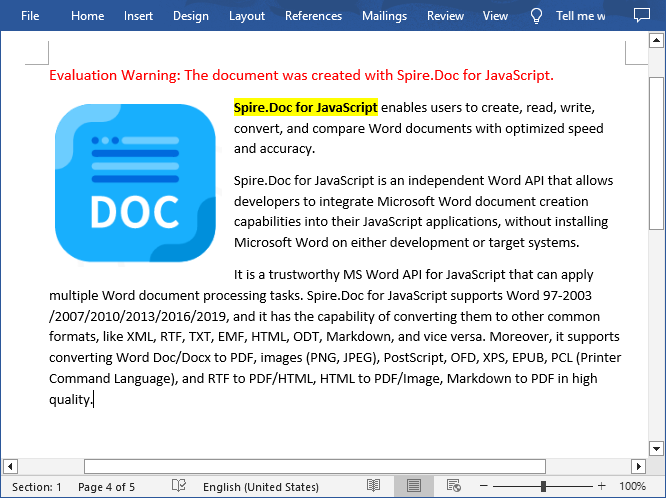
Find and Highlight All Instances of Specified Text in Word in JavaScript
Spire.Doc for JavaScript also provides the Document.FindAllString() method to find all instances of a specified text in a Word document. Then you can iterate through these instances and highlight each one with a background color. The following are the main steps:
- Create a new document using the new wasmModule.Document() method.
- Load a Word document using the Document.LoadFromFile() method.
- Find all instances of a specific text in the document using the Document.FindAllString() method.
- Iterate through each found instance and get it as a single text range using the TextSelection.GetAsOneRange() method, then highlight each text range with a bright color using the TextRange.CharacterFormat.HighlightColor property.
- Save the result document using Document.SaveToFile() method.
- JavaScript
import React, { useState, useEffect } from 'react';

function App() {
  const [wasmModule, setWasmModule] = useState(null);
  // Load Spire.Doc
  useEffect(() => {
    (async () => {
      try {
        const publicUrl = process.env.PUBLIC_URL || '';
        const spireModule = await import(/* webpackIgnore: true */ `${publicUrl}/spire.doc.js`);
        const rawModule = spireModule.default || spireModule;
        window.wasmModule = typeof rawModule === 'function'
          ? await rawModule({ locateFile: p => p.endsWith('.wasm') ? `${publicUrl}/${p}` : p })
          : rawModule;
        setWasmModule(window.wasmModule);
      } catch (error) {
        console.error('Failed to load spire.doc.js WASM module:', error);
      }
    })();
  }, []);

  // Function to find and higlight a specified text in Word
  const FindAndHighlightAll   = async () => {
    const wasmModule = window.wasmModule.spiredoc;

    if (wasmModule) {
      // Load the font files into the virtual file system (VFS)
      await window.spire.FetchFileToVFS('Arial.ttf', '/Library/Fonts/', `${process.env.PUBLIC_URL}/static/font/`);

      // Specify the input file name and the output file name
      const inputFileName = 'input.docx';
      const outputFileName = 'FindAndHighlight.docx';

      // Fetch the input file and add it to the VFS
      await window.spire.FetchFileToVFS(inputFileName, '', `${process.env.PUBLIC_URL}/static/data/`);

      // Create an instance of the Document class
      const doc = new wasmModule.Document();

      // Load the Word document
      doc.LoadFromFile(inputFileName);

      // Find all occurrences of the specified text in the document
      let textSelections = doc.FindAllString('Spire.Doc for JavaScript', false, true);

      // Iterate through all found text selections
      for (let i = 0; i < textSelections.length; i++) {
        let selection = textSelections[i];

        // Set highlight color
        selection.GetAsOneRange().CharacterFormat.HighlightColor = wasmModule.Color.get_Yellow();
      }

      // Save the result document
      doc.SaveToFile({ fileName: outputFileName, fileFormat: wasmModule.FileFormat.Docx2013 });

      // Release resources
      doc.Dispose();

      // Read the generated Word file from VFS
      const modifiedFileArray = window.dotnetRuntime.Module.FS.readFile(outputFileName);

      // Create a Blob object from the Word file
      const modifiedFile = new Blob([modifiedFileArray], { type: "application/vnd.openxmlformats-officedocument.wordprocessingml.document" });

      // Create a URL for the Blob
      const url = URL.createObjectURL(modifiedFile);

      // Create an anchor element to trigger the download
      const a = document.createElement("a");
      a.href = url;
      a.download = outputFileName;
      document.body.appendChild(a);
      a.click();
      document.body.removeChild(a);
      URL.revokeObjectURL(url);
    }
  };

  return (
    <<div style={{ textAlign: 'center', height: '300px' }}>
      <<h1>Find and Highlight Specified Text in Word Using JavaScript in React<</h1>
      <<button onClick={FindAndHighlightAll} disabled={!wasmModule}>
      Execute
      <</button>
    </div>
 );
}

export default App;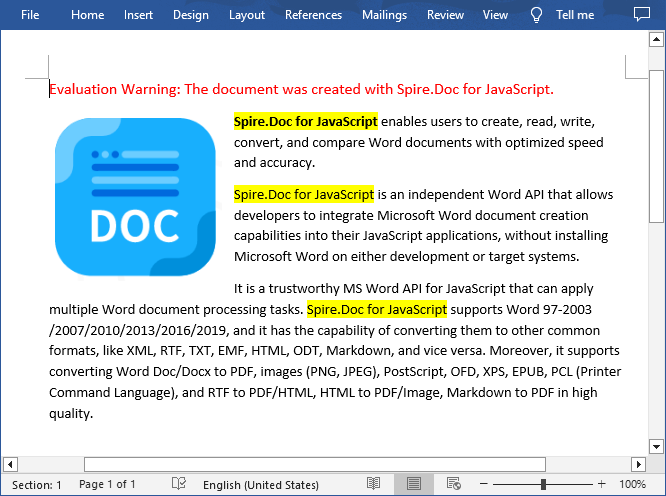
Get a Free License
To fully experience the capabilities of Spire.Doc for JavaScript without any evaluation limitations, you can request a free 30-day trial license.
Add a Watermark to Word Documents with JavaScript in React
2025-03-07 01:03:22 Written by AdministratorIncorporating a watermark to Word documents is a simple yet impactful way to protect your content and assert ownership. Whether you're marking a draft as confidential or branding a business document, watermarks can convey essential information without distracting from your text.
In this article, you will learn how to add and customize watermarks in Word documents in a React application using Spire.Doc for JavaScript.
Install Spire.Doc for JavaScript
To get started with adding watermarks to Word in a React application, you can either download Spire.Doc for JavaScript from our website or install it via npm with the following command:
npm i spire.officeThe downloaded product package integrates Spire.Doc for JavaScript, Spire.XLS for JavaScript, Spire.PDF for JavaScript, and Spire.Presentation for JavaScript. To use the features of Spire.Doc for JavaScript, you need to copy the corresponding files (spire.doc.js, Spire.Doc.Wasm.zip, spire.common.js, Spire.Common.Wasm.zip, and the _framework folder) to the public folder of your project. To ensure proper text rendering, you can add relevant font files with a custom path. In the following example, the font is added to the path: public\static\font.
For more details, refer to the documentation: How to Integrate Spire.Doc for JavaScript in a React Project
Add a Text Watermark to Word in React
Spire.Doc for JavaScript provides the TextWatermark class, enabling users to create customizable text watermarks with their preferred text and font effects. Once the TextWatermark object is created, it can be applied to the entire document using the Document.Watermark property.
The steps to add a text watermark to Word in React are as follows:
- Load the necessary font file and input Word document into the virtual file system (VFS).
- Create a Document object using the new wasmModule.Document() method.
- Load the Word file using the Document.LoadFromFile() method.
- Create a TextWatermark object using the new wasmModule.TextWatermark() method.
- Customize the watermark's text, font size, font name, and color using the properties under the TextWatermark object.
- Apply the text watermark to the document using the Document.Watermark property.
- Save the document and trigger a download.
- JavaScript
import React, { useState, useEffect } from 'react';

function App() {
  const [wasmModule, setWasmModule] = useState(null);
  // Load Spire.Doc
  useEffect(() => {
    (async () => {
      try {
        const publicUrl = process.env.PUBLIC_URL || '';
        const spireModule = await import(/* webpackIgnore: true */ `${publicUrl}/spire.doc.js`);
        const rawModule = spireModule.default || spireModule;
        window.wasmModule = typeof rawModule === 'function'
          ? await rawModule({ locateFile: p => p.endsWith('.wasm') ? `${publicUrl}/${p}` : p })
          : rawModule;
        setWasmModule(window.wasmModule);
      } catch (error) {
        console.error('Failed to load spire.doc.js WASM module:', error);
      }
    })();
  }, []);

  // Function add a text watermark
  const AddWatermark = async () => {
    const wasmModule = window.wasmModule.spiredoc;

    if (wasmModule) {
      // Load the font files into the virtual file system (VFS)
      await window.spire.FetchFileToVFS('Arial.ttf', '/Library/Fonts/', `${process.env.PUBLIC_URL}/static/font/`);

      // Specify the input file name and the output file name
      const outputFileName = "TextWatermark.docx";
      const inputFileName = 'input.docx';

      // Fetch the input file and add it to the VFS
      await window.spire.FetchFileToVFS(inputFileName, '', `${process.env.PUBLIC_URL}/static/data/`);

      // Create an instance of the Document class
      const doc = new wasmModule.Document();

      // Load the Word document
      doc.LoadFromFile(inputFileName);

      // Create a TextWatermark instance
      let txtWatermark =new wasmModule.TextWatermark();

      // Set the text for the watermark
      txtWatermark.Text = "Do Not Copy";

      // Set the font size and name for the text
      txtWatermark.FontSize = 58;
      txtWatermark.FontName = "Arial"

      // Set the color of the text
      txtWatermark.Color = wasmModule.Color.get_Blue();

      // Set the layout of the watermark to diagonal
      txtWatermark.Layout = wasmModule.WatermarkLayout.Diagonal;

      // Apply the text watermark to the document
      doc.Watermark = txtWatermark;

      // Save the document to the specified path
      doc.SaveToFile({ fileName: outputFileName, fileFormat: wasmModule.FileFormat.Docx2013 });

      // Read the generated file from VFS
      const fileArray = window.dotnetRuntime.Module.FS.readFile(outputFileName);

      // Create a Blob object from the file
      const blob = new Blob([fileArray], { type: "application/vnd.openxmlformats-officedocument.wordprocessingml.document" });

      // Create a URL for the Blob
      const url = URL.createObjectURL(blob);

      // Create an anchor element to trigger the download
      const a = document.createElement('a');
      a.href = url;
      a.download = outputFileName;
      document.body.appendChild(a);
      a.click();
      document.body.removeChild(a);
      URL.revokeObjectURL(url);

      // Clean up resources
      doc.Dispose();
    }
  };

  return (
    <div style={{ textAlign: 'center', height: '300px' }}>
      <h1>Add a Text Watermark to Word in React</h1>
      <button onClick={AddWatermark} disabled={!wasmModule}>
        Generate
      </button>
    </div>
  );
}

export default App;
Run the code to launch the React app at localhost:3000. Click "Convert", and a "Save As" window will appear, prompting you to save the output file in your chosen folder.
Here is a screenshot of the generated Word file that includes a text watermark:
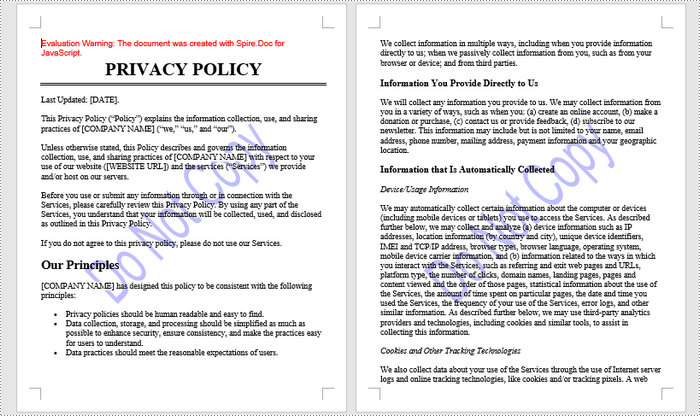
Add an Image Watermark to Word in React
Spire.Doc for JavaScript provides the PictrueWatermark to help configure the image resource, scaling, washout effect for image watermarks in Word. Once a PictureWatermak object is created, you can apply it to an entire document using the Document.Watermark property.
Steps to add an image watermark to a Word document in React:
- Load the image file and input Word document into the virtual file system (VFS).
- Create a Document object using the new wasmModule.Document() method.
- Load the Word file using the Document.LoadFromFile() method.
- Create a PictureWatermark object using the new wasmModule.PictureWatermark() method.
- Set the image resource, scaling, and washout effect for the watermark using the methods and properties under the PictureWatermark object.
- Apply the image watermark to the document using the Document.Watermark property.
- Save the document and trigger a download.
- JavaScript
import React, { useState, useEffect } from 'react';

function App() {
  const [wasmModule, setWasmModule] = useState(null);
  // Load Spire.Doc
  useEffect(() => {
    (async () => {
      try {
        const publicUrl = process.env.PUBLIC_URL || '';
        const spireModule = await import(/* webpackIgnore: true */ `${publicUrl}/spire.doc.js`);
        const rawModule = spireModule.default || spireModule;
        window.wasmModule = typeof rawModule === 'function'
          ? await rawModule({ locateFile: p => p.endsWith('.wasm') ? `${publicUrl}/${p}` : p })
          : rawModule;
        setWasmModule(window.wasmModule);
      } catch (error) {
        console.error('Failed to load spire.doc.js WASM module:', error);
      }
    })();
  }, []);

  // Function add an image watermark
  const AddWatermark = async () => {
    const wasmModule = window.wasmModule.spiredoc;

    if (wasmModule) {
      // Load the font files into the virtual file system (VFS)
      await window.spire.FetchFileToVFS('Arial.ttf', '/Library/Fonts/', `${process.env.PUBLIC_URL}/static/font/`);

      // Specify the input file name and the output file name
      const outputFileName = 'ImageWatermark.docx';
      const inputFileName = 'input.docx';
      const imageFileName = 'logo.png';

      // Fetch the input file and add it to the VFS
      await window.spire.FetchFileToVFS(inputFileName, '', `${process.env.PUBLIC_URL}/static/data/`);
      await window.spire.FetchFileToVFS(imageFileName, '', `${process.env.PUBLIC_URL}/static/data/`);

      // Create an instance of the Document class
      const doc = new wasmModule.Document();

      // Load the Word document
      doc.LoadFromFile(inputFileName);

      // Create a new PictureWatermark instance
      const pictureWatermark = new wasmModule.PictureWatermark();

      // Set the picture
      pictureWatermark.SetPicture(imageFileName);

      // Set the scaling factor of the image
      pictureWatermark.Scaling = 150;

      // Disable washout effect
      pictureWatermark.IsWashout = false;

      // Apply the image watermark to the document
      doc.Watermark = pictureWatermark;

      // Save the document to the specified path
      doc.SaveToFile({ fileName: outputFileName, fileFormat: wasmModule.FileFormat.Docx2013 });

      // Read the generated file from VFS
      const fileArray = window.dotnetRuntime.Module.FS.readFile(outputFileName);

      // Create a Blob object from the file
      const blob = new Blob([fileArray], { type: "application/vnd.openxmlformats-officedocument.wordprocessingml.document" });

      // Create a URL for the Blob
      const url = URL.createObjectURL(blob);

      // Create an anchor element to trigger the download
      const a = document.createElement('a');
      a.href = url;
      a.download = outputFileName;
      document.body.appendChild(a);
      a.click();
      document.body.removeChild(a);
      URL.revokeObjectURL(url);

      // Clean up resources
      doc.Dispose();
    }
  };

  return (
    <div style={{ textAlign: 'center', height: '300px' }}>
      <h1>Add an Image Watermark to Word in React</h1>
      <button onClick={AddWatermark} disabled={!wasmModule}>
        Generate
      </button>
    </div>
  );
}

export default App;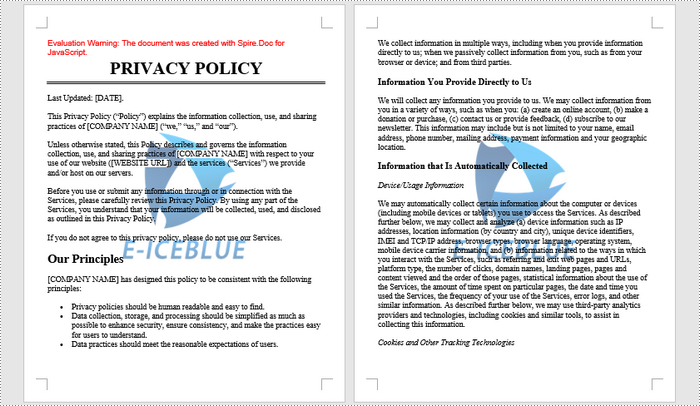
Get a Free License
To fully experience the capabilities of Spire.Doc for JavaScript without any evaluation limitations, you can request a free 30-day trial license.
In MS word, images can quickly and easily convey complex information that may be difficult to explain in words alone. Whether you're creating a report, a presentation, a newsletter, or a simple document, adding images can make your content more engaging, informative, and visually appealing. In this article, you will learn how to add images to a Word document in React using Spire.Doc for JavaScript.
- Insert an Image in a Word Document in JavaScript
- Insert an Image at a Specified Location in Word in JavaScript
Install the JavaScript Library
To get started with inserting images in Word in a React application, you can either download Spire.Doc for JavaScript from our website or install it via npm with the following command:
npm i spire.officeThe downloaded product package integrates Spire.Doc for JavaScript, Spire.XLS for JavaScript, Spire.PDF for JavaScript, and Spire.Presentation for JavaScript. To use the features of Spire.Doc for JavaScript, you need to copy the corresponding files (spire.doc.js, Spire.Doc.Wasm.zip, spire.common.js, Spire.Common.Wasm.zip, and the _framework folder) to the public folder of your project. To ensure proper text rendering, you can add relevant font files with a custom path. In the following example, the font is added to the path: public\static\font.
For more details, refer to the documentation: How to Integrate Spire.Doc for JavaScript in a React Project
Insert an Image in a Word Document in JavaScript
The Paragraph.AppendPicture() method offered by Spire.Doc for JavaScript allows to insert an image into a Word document. The following are the main steps to insert an image in Word and set its size, text wrapping style using JavaScript.
- Create a new document using the new wasmModule.Document() method.
- Load a Word document using the Document.LoadFromFile() method.
- Get a specified section in the document using the Document.Sections.get_Item() method.
- Get a specified paragraph in the section using the Section.Paragraphs.get_Item() method.
- Add an image to the specified paragraph using the Paragraph.AppendPicture() method.
- Set width, height and text wrapping style for the image.
- Save the result document using Document.SaveToFile() method.
- JavaScript
import React, { useState, useEffect } from 'react';

function App() {
  const [wasmModule, setWasmModule] = useState(null);
  // Load Spire.Doc
  useEffect(() => {
    (async () => {
      try {
        const publicUrl = process.env.PUBLIC_URL || '';
        const spireModule = await import(/* webpackIgnore: true */ `${publicUrl}/spire.doc.js`);
        const rawModule = spireModule.default || spireModule;
        window.wasmModule = typeof rawModule === 'function'
          ? await rawModule({ locateFile: p => p.endsWith('.wasm') ? `${publicUrl}/${p}` : p })
          : rawModule;
        setWasmModule(window.wasmModule);
      } catch (error) {
        console.error('Failed to load spire.doc.js WASM module:', error);
      }
    })();
  }, []);

  // Function to insert an image in Word
  const InsertWordImage = async () => {
    const wasmModule = window.wasmModule.spiredoc;

    if (wasmModule) {
      // Load the font files into the virtual file system (VFS)
      await window.spire.FetchFileToVFS('Arial.ttf', '/Library/Fonts/', `${process.env.PUBLIC_URL}/static/font/`);

      // Specify the input file name and the output file name
      const inputFileName = 'input.docx';
      const outputFileName = "InsertImage.docx";
      const imageFile = "logo.png";

      // Fetch the input file and add it to the VFS
      await window.spire.FetchFileToVFS(inputFileName, '', `${process.env.PUBLIC_URL}/static/data/`);
      await window.spire.FetchFileToVFS(imageFile, '', `${process.env.PUBLIC_URL}/static/data/`);

      // Create an instance of the Document class
      const doc = new wasmModule.Document();

      // Load the Word document
      doc.LoadFromFile({ fileName: inputFileName });

      // Get the first section
      const section = doc.Sections.get_Item(0);

      // Get the first paragraph
      const paragraph = section.Paragraphs.get_Item(0);

      // Add the image to the first paragraph
      let picture = paragraph.AppendPicture({ imgFile: imageFile });

      // Set image width and height
      picture.Width = 100;
      picture.Height = 100;

      // Set text wrapping style for the image
      picture.TextWrappingStyle = wasmModule.TextWrappingStyle.Square;

      // Save the result document
      doc.SaveToFile({ fileName: outputFileName, fileFormat: wasmModule.FileFormat.Docx });

      // Release resources
      doc.Dispose();

      // Read the generated Word file from VFS
      const modifiedFileArray = window.dotnetRuntime.Module.FS.readFile(outputFileName);

      // Create a Blob object from the Word file
      const modifiedFile = new Blob([modifiedFileArray], { type: "application/vnd.openxmlformats-officedocument.wordprocessingml.document" });

      // Create a URL for the Blob
      const url = URL.createObjectURL(modifiedFile);

      // Create an anchor element to trigger the download
      const a = document.createElement("a");
      a.href = url;
      a.download = outputFileName;
      document.body.appendChild(a);
      a.click();
      document.body.removeChild(a);
      URL.revokeObjectURL(url);
    }
  };

  return (
    <div style={{ textAlign: 'center', height: '300px' }}>
      <h1>Insert an Image in a Word Document Using JavaScript in React</h1>
      <button onClick={InsertWordImage} disabled={!wasmModule}>
        Execute
      </button>
    </div>
  );
}

export default App;
Run the code to launch the React app at localhost:3000. Once it's running, click on the "Execute" button to download the result file:
The input file and the result file:
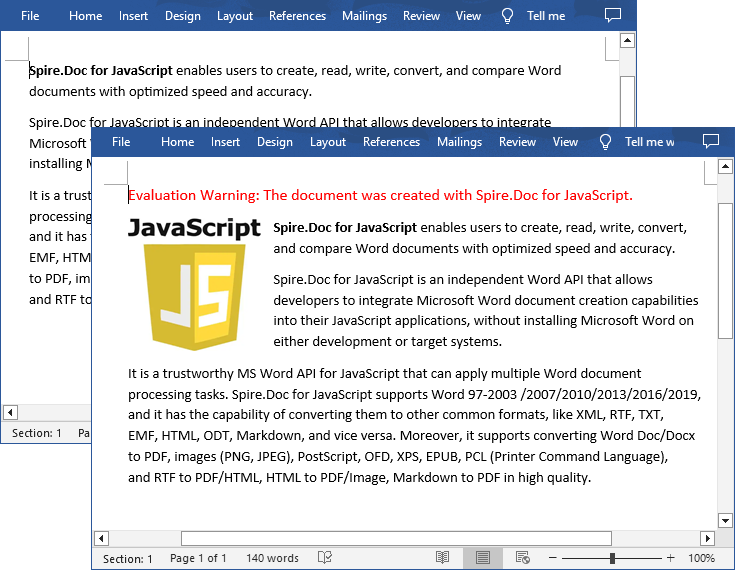
Insert an Image at a Specified Location in Word in JavaScript
You can also place the image at any specified location in the Word document through the DocPicture.HorizontalPosition and DocPicture.VerticalPosition properties. The following are the main steps:
- Create a new document using the new wasmModule.Document() method.
- Add a section to the document using the Document.AddSection() method.
- Add a paragraph to the section using the Section.AddParagraph() method.
- Add text to the paragraph and set paragraph style.
- Add an image to the paragraph using the Paragraph.AppendPicture() method.
- Set the horizontal position and vertical position for the image through the DocPicture.HorizontalPosition and DocPicture.VerticalPosition properties.
- Set width, height and text wrapping style for the image.
- Save the result document using Document.SaveToFile() method.
- JavaScript
import React, { useState, useEffect } from 'react';

function App() {
  const [wasmModule, setWasmModule] = useState(null);
  // Load Spire.Doc
  useEffect(() => {
    (async () => {
      try {
        const publicUrl = process.env.PUBLIC_URL || '';
        const spireModule = await import(/* webpackIgnore: true */ `${publicUrl}/spire.doc.js`);
        const rawModule = spireModule.default || spireModule;
        window.wasmModule = typeof rawModule === 'function'
          ? await rawModule({ locateFile: p => p.endsWith('.wasm') ? `${publicUrl}/${p}` : p })
          : rawModule;
        setWasmModule(window.wasmModule);
      } catch (error) {
        console.error('Failed to load spire.doc.js WASM module:', error);
      }
    })();
  }, []);

  // Function to insert an image at a specified location in Word
  const InsertImage = async () => {
    const wasmModule = window.wasmModule.spiredoc;

    if (wasmModule) {
      // Load the font files into the virtual file system (VFS)
      await window.spire.FetchFileToVFS('Arial.ttf', '/Library/Fonts/', `${process.env.PUBLIC_URL}/static/font/`);

      // Specify the input file name and the output file name
      const outputFileName = "WordImage.docx";
      const imageFile = "logo.png";

      // Fetch the input file and add it to the VFS
      await window.spire.FetchFileToVFS(imageFile, '', `${process.env.PUBLIC_URL}/static/data/`);

      // Create an instance of the Document class
      const doc = new wasmModule.Document();

      // Add a section in the document
      let section = doc.AddSection();

      // Add a paragraph to the section
      let paragraph = section.AddParagraph();

      // Add text to the paragraph and set paragraph style
      paragraph.AppendText("The sample demonstrates how to insert an image at a specified location in a Word document.");
      paragraph.ApplyStyle({ builtinStyle: wasmModule.BuiltinStyle.Heading2 });

      //Add an image to the paragraph
      let picture = paragraph.AppendPicture({ imgFile: imageFile });

      // Set image position
      picture.HorizontalPosition = 150.0;
      picture.VerticalPosition = 70.0;

      // Set image width and height
      picture.Width = 100;
      picture.Height = 100;

      // Set text wrapping style for the image
      picture.TextWrappingStyle = wasmModule.TextWrappingStyle.Through;

      // Save the result document
      doc.SaveToFile({ fileName: outputFileName, fileFormat: wasmModule.FileFormat.Docx });

      // Release resources
      doc.Dispose();

      // Read the generated Word file from VFS
      const modifiedFileArray = window.dotnetRuntime.Module.FS.readFile(outputFileName);

      // Create a Blob object from the Word file
      const modifiedFile = new Blob([modifiedFileArray], { type: "application/vnd.openxmlformats-officedocument.wordprocessingml.document" });

      // Create a URL for the Blob
      const url = URL.createObjectURL(modifiedFile);

      // Create an anchor element to trigger the download
      const a = document.createElement("a");
      a.href = url;
      a.download = outputFileName;
      document.body.appendChild(a);
      a.click();
      document.body.removeChild(a);
      URL.revokeObjectURL(url);
    }
  };

  return (
    <div style={{ textAlign: 'center', height: '300px' }}>
      <h1>Insert an Image at a Specified Location in Word Using JavaScript in React</h1>
      <<button onClick={InsertImage} disabled={!wasmModule}>
      Execute
      </button>
    </div>
 );
}

export default App;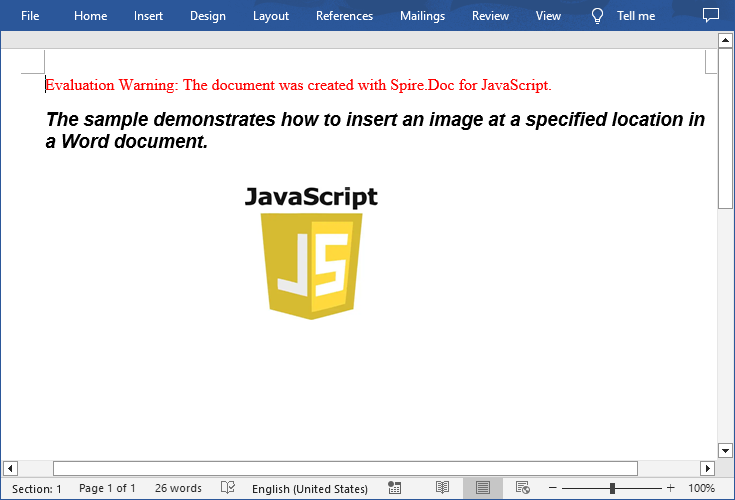
Get a Free License
To fully experience the capabilities of Spire.Doc for JavaScript without any evaluation limitations, you can request a free 30-day trial license.
Add or Remove Text Boxes in Word with JavaScript in React
2025-02-28 06:09:58 Written by AdministratorAdding or removing text boxes in Word is a valuable skill that enhances document layout and visual appeal. Text boxes provide a flexible way to highlight important information, create side notes, or organize content more effectively. They allow for creative formatting options, enabling you to draw attention to specific areas of your document.
In this article, you will learn how to add or move text boxes in a Word document in React using Spire.Doc for JavaScript.
Install Spire.Doc for JavaScript
To get started wtih manipulating text boxes in Word in a React applicaiton, you can either download Spire.Doc for JavaScript from our website or install it via npm with the following command:
npm i spire.officeThe downloaded product package integrates Spire.Doc for JavaScript, Spire.XLS for JavaScript, Spire.PDF for JavaScript, and Spire.Presentation for JavaScript. To use the features of Spire.Doc for JavaScript, you need to copy the corresponding files (spire.doc.js, Spire.Doc.Wasm.zip, spire.common.js, Spire.Common.Wasm.zip, and the _framework folder) to the public folder of your project. To ensure proper text rendering, you can add relevant font files with a custom path. In the following example, the font is added to the path: public\static\font.
For more details, refer to the documentation: How to Integrate Spire.Doc for JavaScript in a React Project
Add a Text Box to a Word Document in React
Spire.Doc for JavaScript offers the Paragraph.AppendTextBox() method to seamlessly insert a text box into a specified paragraph. Once inserted, you can customize the text box by adding content and applying formatting using properties like TextBox.Body and TextBox.Format.
The following are the steps to add a text box to a Word document in React:
- Load required font and input file into the virtual file system (VFS).
- Create a Document object using the new wasmModule.Document() method.
- Load the Word file using the Document.LoadFromFile() method.
- Access the first section and paragraph.
- Insert a text box to the paragraph using the Paragraph.AppendTextBox() method.
- Add a paragraph to the text box and append text to it through the TextBox.Body property.
- Customize the appearance of the text box through the TextBox.Format property.
- Save the document and trigger a download.
- JavaScript
import React, { useState, useEffect } from 'react';

function App() {
  const [wasmModule, setWasmModule] = useState(null);
  // Load Spire.Doc
  useEffect(() => {
    (async () => {
      try {
        const publicUrl = process.env.PUBLIC_URL || '';
        const spireModule = await import(/* webpackIgnore: true */ `${publicUrl}/spire.doc.js`);
        const rawModule = spireModule.default || spireModule;
        window.wasmModule = typeof rawModule === 'function'
          ? await rawModule({ locateFile: p => p.endsWith('.wasm') ? `${publicUrl}/${p}` : p })
          : rawModule;
        setWasmModule(window.wasmModule);
      } catch (error) {
        console.error('Failed to load spire.doc.js WASM module:', error);
      }
    })();
  }, []);

  // Function to add text box
  const AddTextBox = async () => {
    const wasmModule = window.wasmModule.spiredoc;

    if (wasmModule) {
      // Load the font files into the virtual file system (VFS)
      await window.spire.FetchFileToVFS('Arial.ttf', '/Library/Fonts/', `${process.env.PUBLIC_URL}/static/font/`);

      // Specify the input file name and the output file name
      const outputFileName = "Textbox.docx";
      const inputFileName = 'input.docx';

      // Fetch the input file and add it to the VFS
      await window.spire.FetchFileToVFS(inputFileName, '', `${process.env.PUBLIC_URL}/static/data/`);

      // Create an instance of the Document class
      const doc = new wasmModule.Document();

      // Load the Word document
      doc.LoadFromFile(inputFileName);

      // Get a specific section
      let section = doc.Sections.get_Item(0)

      // Get a specific paragraph
      let paragraph = section.Paragraphs.get_Item(0)

      // Insert a textbox and set its wrapping style
      let textBox = paragraph.AppendTextBox(150, 100);
      textBox.Format.TextWrappingStyle = wasmModule.TextWrappingStyle.Square;

      // Set the position of the textbox
      textBox.Format.HorizontalPosition = 0;
      textBox.Format.VerticalPosition = 50;

      // Set the line style and fill color
      textBox.Format.LineColor = wasmModule.Color.get_DarkBlue();
      textBox.Format.LineStyle = wasmModule.TextBoxLineStyle.Simple;
      textBox.Format.FillColor = wasmModule.Color.get_LightGray();

      // Add a paragraph to the textbox
      let para = textBox.Body.AddParagraph();
      let textRange = para.AppendText("This is a sample text box created by Spire.Doc for JavaScript.");

      // Format the text
      textRange.CharacterFormat.FontName = "Arial";
      textRange.CharacterFormat.FontSize = 15;
      textRange.CharacterFormat.TextColor = wasmModule.Color.get_Blue();

      // Set the horizontal alignment of the paragraph
      para.Format.HorizontalAlignment = wasmModule.HorizontalAlignment.Center;

      // Save the document to the specified path
      doc.SaveToFile({ fileName: outputFileName, fileFormat: wasmModule.FileFormat.Docx2013 });

      // Read the generated file from VFS
      const fileArray = window.dotnetRuntime.Module.FS.readFile(outputFileName);

      // Create a Blob object from the file
      const blob = new Blob([fileArray], { type: "application/vnd.openxmlformats-officedocument.wordprocessingml.document" });

      // Create a URL for the Blob
      const url = URL.createObjectURL(blob);

      // Create an anchor element to trigger the download
      const a = document.createElement('a');
      a.href = url;
      a.download = outputFileName;
      document.body.appendChild(a);
      a.click();
      document.body.removeChild(a);
      URL.revokeObjectURL(url);

      // Clean up resources
      doc.Dispose();
    }
  };

  return (
    <adiv style={{ textAlign: 'center', height: '300px' }}>
      <ah1>Add a text box to Word in React<a/h1>
      <abutton onClick={AddTextBox} disabled={!wasmModule}>
        Generate
      <a/button>
    <a/div>
  );
}

export default App;
Run the code to launch the React app at localhost:3000. Click "Generate", and a "Save As" window will appear, prompting you to save the output file in your chosen folder.

Here is a screenshot of the generated Word file that includes a text box:
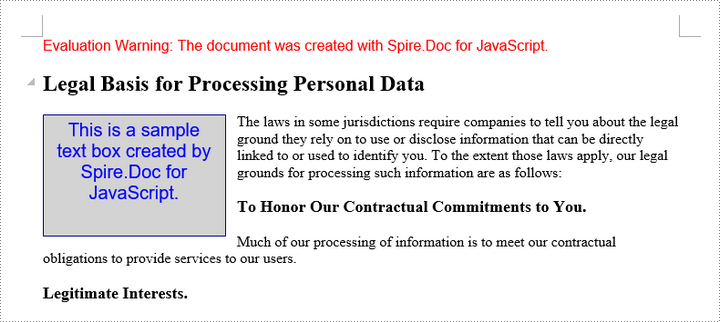
Remove a Text Box from a Word Document in React
Spire.Doc for JavaScript includes the Document.TextBoxes.RemoveAt() method, which allows you to delete a specific text box by its index. If you need to remove all text boxes from a Word document, you can use the Document.TextBoxes.Clear() method for a quick and efficient solution.
The following are the steps to remove a text box from a Word document in React:
- Load the input file into the virtual file system (VFS).
- Create a Document object using the new wasmModule.Document() method.
- Load the Word file using the Document.LoadFromFile() method.
- Remove a specific text box using the Document.TextBoxes.RemoveAt() method.
- Save the document and trigger a download.
- JavaScript
import React, { useState, useEffect } from 'react';

function App() {
  const [wasmModule, setWasmModule] = useState(null);
  // Load Spire.Doc
  useEffect(() => {
    (async () => {
      try {
        const publicUrl = process.env.PUBLIC_URL || '';
        const spireModule = await import(/* webpackIgnore: true */ `${publicUrl}/spire.doc.js`);
        const rawModule = spireModule.default || spireModule;
        window.wasmModule = typeof rawModule === 'function'
          ? await rawModule({ locateFile: p => p.endsWith('.wasm') ? `${publicUrl}/${p}` : p })
          : rawModule;
        setWasmModule(window.wasmModule);
      } catch (error) {
        console.error('Failed to load spire.doc.js WASM module:', error);
      }
    })();
  }, []);

  // Function to remove text box
  const RemoveTextBox = async () => {
    const wasmModule = window.wasmModule.spiredoc;

    if (wasmModule) {
      // Load the font files into the virtual file system (VFS)
      await window.spire.FetchFileToVFS('Arial.ttf', '/Library/Fonts/', `${process.env.PUBLIC_URL}/static/font/`);

      // Specify the input file name and the output file name
      const outputFileName = "RemoveTextBox.docx";
      const inputFileName = 'Textbox.docx';

      // Fetch the input file and add it to the VFS
      await window.spire.FetchFileToVFS(inputFileName, '', `${process.env.PUBLIC_URL}/static/data/`);

      // Create an instance of the Document class
      const doc = new wasmModule.Document();


      // Load the Word document
      doc.LoadFromFile(inputFileName);

      // Remove the text box at index 0
      doc.TextBoxes.RemoveAt(0);

      // Remove all text boxes
      // doc.TextBoxes.Clear();

      // Save the document to the specified path
      doc.SaveToFile({ fileName: outputFileName, fileFormat: wasmModule.FileFormat.Docx2013 });

      // Read the generated file from VFS
      const fileArray = window.dotnetRuntime.Module.FS.readFile(outputFileName);

      // Create a Blob object from the file
      const blob = new Blob([fileArray], { type: "application/vnd.openxmlformats-officedocument.wordprocessingml.document" });

      // Create a URL for the Blob
      const url = URL.createObjectURL(blob);

      // Create an anchor element to trigger the download
      const a = document.createElement('a');
      a.href = url;
      a.download = outputFileName;
      document.body.appendChild(a);
      a.click();
      document.body.removeChild(a);
      URL.revokeObjectURL(url);

      // Clean up resources
      doc.Dispose();
    }
  };

  return (
    <div style={{ textAlign: 'center', height: '300px' }}>
      <h1>Remove a text box from Word in React</h1>
      <button onClick={RemoveTextBox} disabled={!wasmModule}>
        Generate
      </button>
    </div>
  );
}

export default App;
Get a Free License
To fully experience the capabilities of Spire.Doc for JavaScript without any evaluation limitations, you can request a free 30-day trial license.
