
Spire.Doc for .NET (338)
Children categories
When working with Word documents, batch extraction of hyperlinks has significant practical applications. Manually extracting URLs from technical documents or product manuals is not only inefficient but also prone to omissions and errors. To address this, this article presents an automated solution using C# to accurately extract hyperlink anchor text, corresponding URLs, and screen tips by parsing document elements. The extracted hyperlink data can support data analysis, SEO optimization, and other applications. The following sections demonstrate how to use Spire.Doc for .NET to extract hyperlinks from a Word document with C# code in .NET programs.
Install Spire.Doc for .NET
To begin with, you need to add the DLL files included in the Spire.Doc for .NET package as references in your .NET project. The DLL files can be either downloaded from this link or installed via NuGet.
PM> Install-Package Spire.Doc
Extracting All Hyperlinks from a Word Document Using C#
In a Word document, hyperlinks are stored as fields. To extract them, the first step is to identify all field objects by checking whether each document object is an instance of the Field class. Then, by checking whether the field object's Type property equals FieldType.FieldHyperlink, we can extract all hyperlink fields.
Once the hyperlinks are identified, we can use the Field.FieldText property to retrieve the hyperlink anchor text and the Field.GetFieldCode() method to obtain the full field code in the following format:
| Hyperlink Type | Field Code Example |
| Standard Hyperlink | HYPERLINK "https://www.example.com/example" |
| Hyperlink with ScreenTip | HYPERLINK "https://www.example.com/example" \o "ScreenTip" |
By parsing the field code, we can extract both the hyperlink URL and the screen tip text, enabling complete retrieval of hyperlink information.
- Create a Document object and use the Document.LoadFromFile() method to load the target Word document.
- Iterate through all sections in the document using foreach (Section section in doc.Sections) to retrieve each section object.
- For each section, iterate through its child objects using foreach (DocumentObject secObj in section.Body.ChildObjects) to access individual elements.
- If a child object is of type Paragraph:
- Iterate through the child objects within the paragraph using foreach (DocumentObject paraObj in paragraph.ChildObjects).
- If a paragraph child object is of type Field and its Field.Type property value equals FieldType.FieldHyperlink, process the Field object.
- For each Field object:
- Extract the anchor text using the Field.FieldText property.
- Retrieve the field code string using the Field.GetFieldCode() method.
- Process the field code string:
- Extract the URL enclosed in quotation marks after "HYPERLINK".
- Check if the field code contains the \o parameter; if present, extract the screen tip text enclosed in double quotes.
- Store the extracted hyperlinks and write them to an output file.
- C#
using Spire.Doc;
using Spire.Doc.Documents;
using Spire.Doc.Fields;

namespace ExtractWordHyperlink
{
    class Program
    {
        static void Main(string[] args)
        {
            // Create an instance of Document
            Document doc = new Document();
            // Load a Word document
            doc.LoadFromFile("Sample.docx");

            // Create a string list to store the hyperlink information
            List<string> hyperlinkInfoList = new List<string>();

            // Iterate through the sections in the document
            foreach (Section section in doc.Sections)
            {
                // Iterate through the child objects in the section
                foreach (DocumentObject secObj in section.Body.ChildObjects)
                {
                    // Check if the current document object is a Paragraph instance
                    if (secObj is Paragraph paragraph )
                    {
                        // Iterate through the child objects in the paragraph
                        foreach (DocumentObject paraObj in paragraph.ChildObjects)
                        {
                            // Check if the current child object is a field
                            if (paraObj is Field field && field.Type == FieldType.FieldHyperlink)
                            {
                                string hyperlinkInfo = "";
                                // Get the anchor text
                                string anchorText = field.FieldText;

                                // Get the field code
                                string fieldCode = field.GetFieldCode();
                                // Get the URL from the field code
                                string url = fieldCode.Split('"')[1];
                                // Check if there is a ScreenTip
                                if (fieldCode.Contains("\\o"))
                                {
                                    // Get the ScreenTip text
                                    string screenTip = fieldCode.Split("\"")[3].Trim();
                                    // Consolidate the information
                                    hyperlinkInfo += $"Anchor Text: {anchorText}\nURL: {url}\nScreenTip: {screenTip}";
                                }
                                else
                                {
                                    hyperlinkInfo += $"Anchor Text: {anchorText}\nURL: {url}";
                                }
                                hyperlinkInfo += "\n";
                                // Append the hyperlink information to the list
                                hyperlinkInfoList.Add(hyperlinkInfo);

                            }
                        }
                    }
                }
            }

            // Write the extracted hyperlink information to a text file
            File.WriteAllLines("output/ExtractedHyperlinks.txt", hyperlinkInfoList);

            doc.Close();
        }
    }
}

Apply for a Temporary License
If you'd like to remove the evaluation message from the generated documents, or to get rid of the function limitations, please request a 30-day trial license for yourself.
Fonts play a crucial role in defining the visual appeal and readability of Word documents, influencing everything from professional reports to creative projects. Whether you're looking to refresh the design of your document by replacing outdated fonts or troubleshooting missing fonts that disrupt formatting, understanding how to retrieve and replace fonts in Microsoft Word is an essential skill.
In this article, you will learn how to get and replace fonts in a Word document using C# and Spire.Doc for .NET.
Install Spire.Doc for .NET
To begin with, you need to add the DLL files included in the Spire.Doc for .NET package as references in your .NET project. The DLL files can be either downloaded from this link or installed via NuGet.
PM> Install-Package Spire.Doc
Get Fonts Used in a Word Document in C#
To extract font information from a Word document, you must traverse its sections and paragraphs, examining each child object within the paragraphs. If a child object is identified as a TextRange, you can retrieve the font details—such as the font name, size, and color—using the properties of the TextRange class.
The following are the steps to get fonts used in a Word document in C#:
- Create a Document object.
- Load a Word document using the Document.LoadFromFile() method.
- Iterate through each section, paragraph, and child object.
- For each child object, check if it is an instance of TextRange class.
- If it is, retrieve the font name and size using the TextRange.CharacterFormat.FontName and TextRange.CharacterFormat.FontSize properties.
- Write the font information in a text file.
- C#
using Spire.Doc;
using Spire.Doc.Documents;
using Spire.Doc.Fields;

namespace RetrieveFonts
{
    // Customize a FontInfo class to help store font information
    class FontInfo
    {
        public string Name { get; set; }
        public float? Size { get; set; }

        public FontInfo()
        {
            Name = "";
            Size = null;
        }

        public override bool Equals(object obj)
        {
            if (this == obj) return true;
            if (!(obj is FontInfo other)) return false;
            return Name.Equals(other.Name) && Size.Equals(other.Size);
        }

        public override int GetHashCode()
        {
            return HashCode.Combine(Name, Size);
        }
    }
    class Program
    {
        // Function to write string to a txt file
        static void WriteAllText(string filename, List<string> text)
        {
            try
            {
                using (StreamWriter writer = new StreamWriter(filename))
                {
                    foreach (var line in text)
                    {
                        writer.WriteLine(line);
                    }
                }
            }
            catch (Exception e)
            {
                Console.WriteLine(e.Message);
            }
        }
        static void Main(string[] args)
        {
            List<FontInfo> fontInfos = new List<FontInfo>();
            List<string> fontInformations = new List<string>();

            // Create a Document instance
            Document document = new Document();

            // Load a Word document
            document.LoadFromFile("C:\\Users\\Administrator\\Desktop\\input.docx");

            // Iterate through the sections
            foreach (Section section in document.Sections)
            {
                // Iterate through the paragraphs
                foreach (Paragraph paragraph in section.Body.Paragraphs)
                {
                    // Iterate through the child objects
                    foreach (DocumentObject obj in paragraph.ChildObjects)
                    {
                        if (obj is TextRange txtRange)
                        {
                            // Get the font name, size and text color
                            string fontName = txtRange.CharacterFormat.FontName;
                            float fontSize = txtRange.CharacterFormat.FontSize;
                            string textColor = txtRange.CharacterFormat.TextColor.ToString();

                            // Store the font information
                            FontInfo fontInfo = new FontInfo { Name = fontName, Size = fontSize };

                            if (!fontInfos.Contains(fontInfo))
                            {
                                fontInfos.Add(fontInfo);
                                string str = $"Font Name: {fontInfo.Name}, Size: {fontInfo.Size:F2}, Color: {textColor}";
                                fontInformations.Add(str);
                            }
                        }
                    }
                }
            }

            // Write font information to a txt file
            WriteAllText("GetFonts.txt", fontInformations);

            // Dispose resources
            document.Dispose();
        }
    }
}
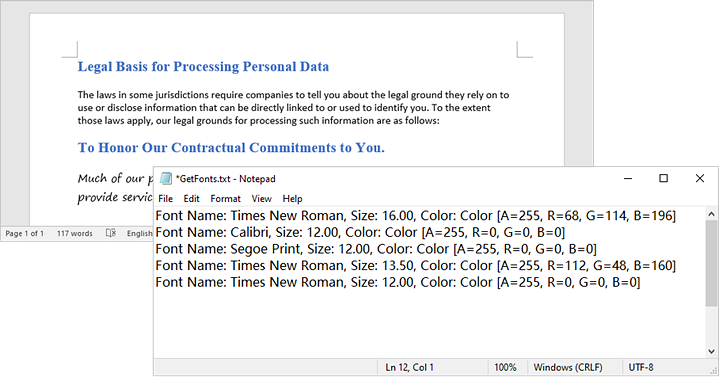
Replace a Specific Font in a Word Document in C#
After retrieving the font name from a specific TextRange, you can easily replace it with a new font using the TextRange.CharacterFormat.FontName property. Additionally, you can modify the font size and text color by accessing the corresponding properties in the TextRange class. This allows for comprehensive customization of the text formatting within the document.
The following are the steps to replace a specific font in a Word document in C#:
- Create a Document object.
- Load a Word document using the Document.LoadFromFile() method.
- Iterate through each section and its paragraphs.
- For each paragraph, check each child object to see if it is an instance of the TextRange class.
- If it is a TextRange, retrieve the font name using the TextRange.CharacterFormat.FontName property.
- Compare the font name to the specified font.
- If they match, set a new font name using the TextRange.CharacterFormat.FontName property.
- Save the modified document to a new Word file using the Document.SaveToFile() method.
- C#
using Spire.Doc;
using Spire.Doc.Documents;
using Spire.Doc.Fields;

namespace ReplaceFont
{
    class Program
    {
        static void Main(string[] args)
        {
            // Create a Document instance
            Document document = new Document();

            // Load a Word document
            document.LoadFromFile("C:\\Users\\Administrator\\Desktop\\input.docx");

            // Iterate through the sections
            foreach (Section section in document.Sections)
            {
                // Iterate through the paragraphs
                foreach (Paragraph paragraph in section.Body.Paragraphs)
                {
                    // Iterate through the child objects
                    foreach (DocumentObject obj in paragraph.ChildObjects)
                    {
                        // Determine if a child object is a TextRange
                        if (obj is TextRange txtRange)
                        {
                            // Get the font name
                            string fontName = txtRange.CharacterFormat.FontName;

                            // Determine if the font name is Calibri
                            if (fontName.Equals("Calibri", StringComparison.OrdinalIgnoreCase))
                            {
                                // Replace the font with another font
                                txtRange.CharacterFormat.FontName = "Segoe Print";
                            }
                        }
                    }
                }
            }

            // Save the document to a different file
            document.SaveToFile("ReplaceFont.docx", FileFormat.Docx);

            // Dispose resources
            document.Dispose();
        }
    }
}
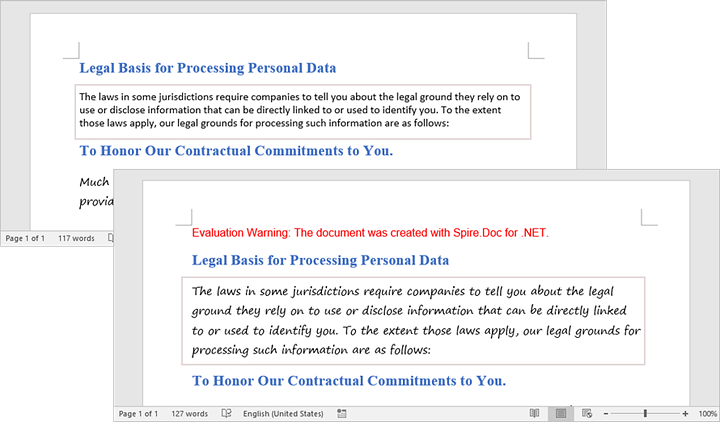
Apply for a Temporary License
If you'd like to remove the evaluation message from the generated documents, or to get rid of the function limitations, please request a 30-day trial license for yourself.
In Word documents, hyperlinks can be added to images and shapes to link to external websites, files, or specific sections within the document. However, over time, the destination URLs or file paths may change due to updates in external resources or reorganization of the document. When this happens, it’s important to update the hyperlinks to ensure they continue to point to the correct locations. For example, if a website's URL changes, an image is moved to a new folder or a linked shape needs to connect to a different page, updating the hyperlinks is crucial to keep the document functional and user-friendly.
In this article, we will introduce how to programmatically update hyperlinks for images and shapes in Word documents in C# using Spire.Doc for .NET.
Install Spire.Doc for .NET
To begin with, you need to add the DLL files included in the Spire.Doc for .NET package as references in your .NET project. The DLL files can be either downloaded from this link or installed via NuGet.
PM> Install-Package Spire.Doc
Update Hyperlinks for Images in Word in C#
Spire.Doc for .NET offers the DocPicture.HasHyperlink property which allows you to identify if an image contains a hyperlink. Once identified, you can use the DocPicture.HRef property to seamlessly update or modify the hyperlink as needed. The detailed steps are as follows.
- Create an instance of the Document class.
- Load a Word document using the Document.LoadFromFile() method.
- Iterate through all sections in the document, all paragraphs in each section, and all objects in each paragraph.
- Check if the object is a DocPicture.
- Check if the DocPicture object has a hyperlink using the DocPicture.HasHyperlink property.
- Modify the hyperlink of the DocPicture object using the DocPicture.HRef property.
- Save the modified document using the Document.SaveToFile() method.
- C#
using Spire.Doc;
using Spire.Doc.Documents;
using Spire.Doc.Fields;

namespace UpdateHyperlinkForImage
{
    internal class Program
    {
        static void Main(string[] args)
        {
            // Create a Document instance
            Document doc = new Document();
            // Load a Word document
            doc.LoadFromFile("Sample1.docx");

            // Iterate through all sections in the document
            foreach (Section section in doc.Sections)
            {
                // Iterate through all paragraphs in the section
                foreach (Paragraph paragraph in section.Paragraphs)
                {
                    // Iterate through all objects in the paragraph
                    foreach (DocumentObject documentObject in paragraph.ChildObjects)
                    {
                        // Check if the object is a DocPicture (image)
                        if (documentObject is DocPicture)
                        {
                            DocPicture pic = documentObject as DocPicture;
                            // Check if the DocPicture object has a hyperlink
                            if (pic.HasHyperlink)
                            {
                                // Update the hyperlink (if you want to remove the hyperlink, set the value to null)
                                pic.HRef = "https://www.e-iceblue.com/";

                            }
                        }
                    }
                }
            }

            // Save the modified document
            doc.SaveToFile("UpdateImageHyperlink.docx", FileFormat.Docx2016);
            doc.Close();
        }
    }
}
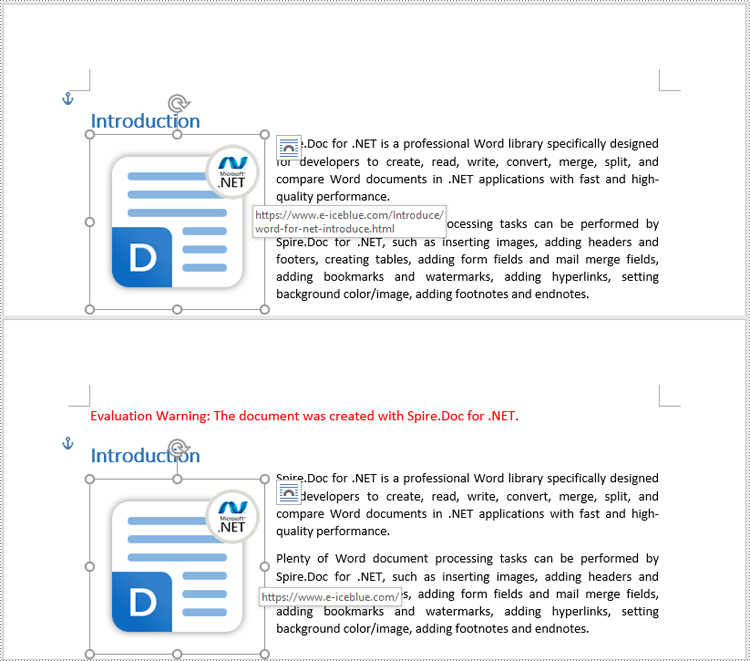
Update Hyperlinks for Shapes in Word in C#
Similarly, you can check if a shape has a hyperlink using the ShapeObject.HasHyperlink property, and update or modify the hyperlink with the ShapeObject.HRef property. The detailed steps are as follows.
- Create an instance of the Document class.
- Load a Word document using the Document.LoadFromFile() method.
- Iterate through all sections in the document, all paragraphs in each section, and all objects in each paragraph.
- Check if the object is a ShapeObject.
- Check if the ShapeObject object has a hyperlink using the ShapeObject.HasHyperlink property.
- Modify the hyperlink of the ShapeObject object using the ShapeObject.HRef property.
- Save the modified document using the Document.SaveToFile() method.
- C#
using Spire.Doc;
using Spire.Doc.Documents;
using Spire.Doc.Fields;

namespace UpdateHyperlinkForShape
{
    internal class Program
    {
        static void Main(string[] args)
        {
            // Create a Document instance
            Document doc = new Document();
            // Load a Word document
            doc.LoadFromFile("Sample2.docx");

            // Iterate through all sections in the document
            foreach (Section section in doc.Sections)
            {
                // Iterate through all paragraphs in the section
                foreach (Paragraph paragraph in section.Paragraphs)
                {
                    // Iterate through all objects in the paragraph
                    foreach (DocumentObject documentObject in paragraph.ChildObjects)
                    {
                        // Check if the object is a ShapeObject
                        if (documentObject is ShapeObject)
                        {
                            ShapeObject shape = documentObject as ShapeObject;
                            // Check if the shape has a hyperlink
                            if (shape.HasHyperlink)
                            {
                                // Update the hyperlink (if you want to remove the hyperlink, set the value to null)
                                shape.HRef = "https://www.e-iceblue.com/";
                            }
                        }
                    }
                }
            }

            // Save the modified document
            doc.SaveToFile("UpdateShapeHyperlink.docx", FileFormat.Docx2016);
            doc.Close();
        }
    }
}
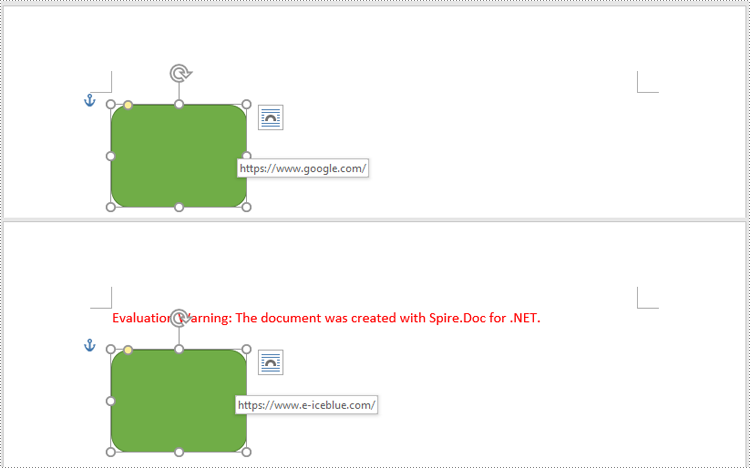
Apply for a Temporary License
If you'd like to remove the evaluation message from the generated documents, or to get rid of the function limitations, please request a 30-day trial license for yourself.
