
Spire.Doc for .NET (338)
Children categories
Read Word Document in C# .NET: Extract Text, Tables, Images
2024-02-29 01:18:43 Written by hayes Liu
Word documents (.doc and .docx) are widely used in business, education, and professional workflows for reports, contracts, manuals, and other essential content. As a C# developer, you may find the need to programmatically read these files to extract information, analyze content, and integrate document data into applications.
In this complete guide, we will delve into the process of reading Word documents in C#. We will explore various scenarios, including:
- Extracting text, paragraphs, and formatting details
- Retrieving images and structured table data
- Accessing comments and document metadata
- Reading headers and footers for comprehensive document analysis
By the end of this guide, you will have a solid understanding of how to efficiently parse Word documents in C#, allowing your applications to access and utilize document content with accuracy and ease.
Table of Contents
- Set Up Your Development Environment for Reading Word Documents in C#
- Load Word Document (.doc/.docx) in C#
- Read and Extract Content from Word Document in C#
- Advanced Tips and Best Practices for Reading Word Documents in C#
- Conclusion
- FAQs
Set Up Your Development Environment for Reading Word Documents in C#
Before you can read Word documents in C#, it’s crucial to ensure that your development environment is properly set up. This section outlines the necessary prerequisites and step-by-step installation instructions to get you ready for seamless Word document handling.
Prerequisites
- Development Environment: Ensure you have Visual Studio or another compatible C# IDE installed.
- .NET Requirement: Ensure you have .NET Framework or .NET Core installed.
- Library Requirement: Spire.Doc for .NET, a versatile library that allows developers to:
- Create Word documents from scratch
- Edit and format existing Word documents
- Read and extract text, tables, images, and other content programmatically
- Convert Word documents to PDF, HTML, and other formats
- Work independently without requiring Microsoft Word installation
Install Spire.Doc
To incorporate Spire.Doc into your C# project, follow these steps to install it via NuGet:
- Open your project in Visual Studio.
- Right-click on your project in the Solution Explorer and select Manage NuGet Packages.
- In the Browse tab, search for "Spire.Doc" and click Install.
Alternatively, you can use the Package Manager Console with the following command:
PM> Install-Package Spire.Doc
This installation adds the necessary references, enabling you to programmatically work with Word documents.
Load Word Document (.doc/.docx) in C#
To begin, you need to load a Word document into your project. The following example demonstrates how to load a .docx or .doc file in C#:
using Spire.Doc;
using Spire.Doc.Documents;
using System;

namespace LoadWordExample
{
    class Program
    {
        static void Main(string[] args)
        {
            // Specify the path of the Word document
            string filePath = @"C:\Documents\Sample.docx";

            // Create a Document object
            using (Document document = new Document())
            {
                // Load the Word .docx or .doc document
                document.LoadFromFile(filePath);
            }
        }
    }
}
This code loads a Word file from the specified path into a Document object, which is the entry point for accessing all document elements.
Read and Extract Content from Word Document in C#
After loading the Word document into a Document object, you can access its contents programmatically. This section covers various methods for extracting different types of content effectively.
Extract Text
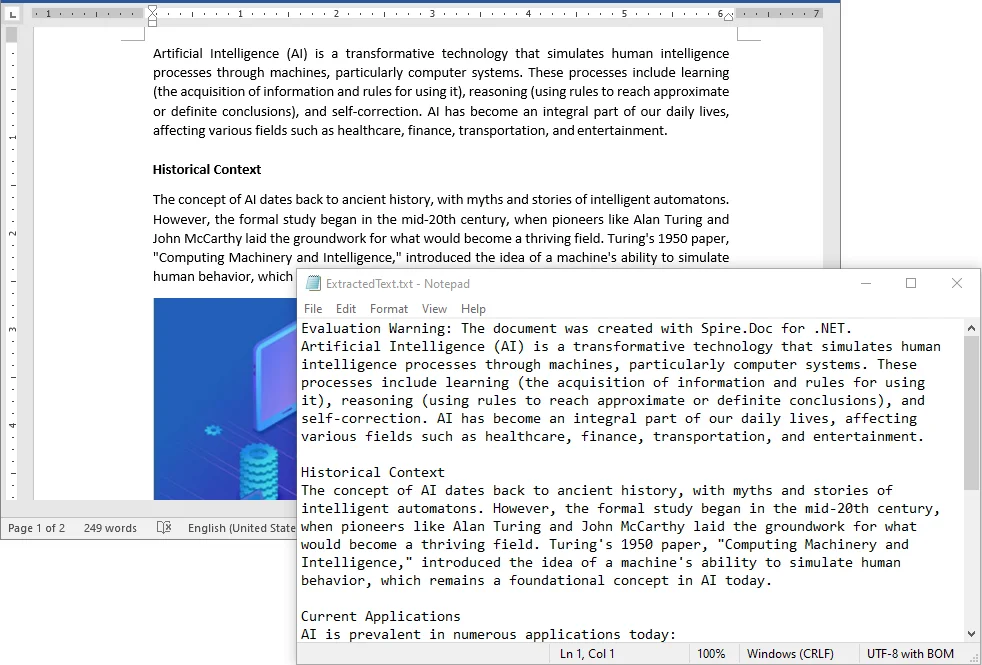
Extracting text is often the first step in reading Word documents. You can retrieve all text content using the built-in GetText() method:
using (StreamWriter writer = new StreamWriter("ExtractedText.txt", false, Encoding.UTF8))
{
    // Get all text from the document
    string allText = document.GetText();

    // Write the entire text to a file
    writer.Write(allText);
}
This method extracts all text, disregarding formatting and non-text elements like images.
Read Paragraphs and Formatting Information
When working with Word documents, it is often useful not only to access the text content of paragraphs but also to understand how each paragraph is formatted. This includes details such as alignment and spacing after the paragraph, which can affect layout and readability.
The following example demonstrates how to iterate through all paragraphs in a Word document and retrieve their text content and paragraph-level formatting in C#:
using (StreamWriter writer = new StreamWriter("Paragraphs.txt", false, Encoding.UTF8))
{
    // Loop through all sections
    foreach (Section section in document.Sections)
    {
        // Loop through all paragraphs in the section
        foreach (Paragraph paragraph in section.Paragraphs)
        {
            // Get paragraph alignment
            HorizontalAlignment alignment = paragraph.Format.HorizontalAlignment;

            // Get spacing after paragraph
            float afterSpacing = paragraph.Format.AfterSpacing;

            // Write paragraph formatting and text to the file
            writer.WriteLine($"[Alignment: {alignment}, AfterSpacing: {afterSpacing}]");
            writer.WriteLine(paragraph.Text);
            writer.WriteLine(); // Add empty line between paragraphs
        }
    }
}
This approach allows you to extract both the text and key paragraph formatting attributes, which can be useful for tasks such as document analysis, conditional processing, or preserving layout when exporting content.
Extract Images
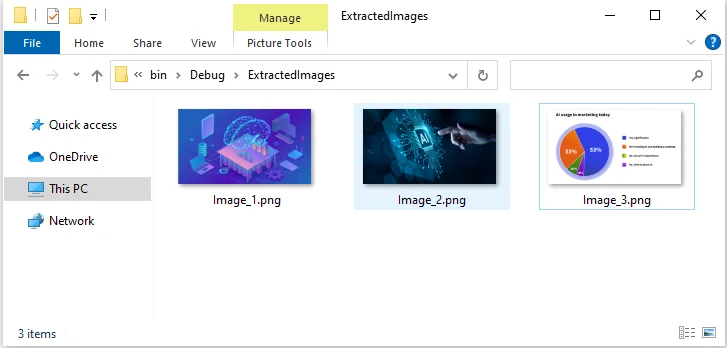
Images embedded within Word documents play a vital role in conveying information. To extract these images, you will examine each paragraph's content, identify images (typically represented as DocPicture objects), and save them for further use:
// Create the folder if it does not exist
string imageFolder = "ExtractedImages";
if (!Directory.Exists(imageFolder))
    Directory.CreateDirectory(imageFolder);

int imageIndex = 1;

// Loop through sections and paragraphs to find images
foreach (Section section in document.Sections)
{
    foreach (Paragraph paragraph in section.Paragraphs)
    {
        foreach (DocumentObject obj in paragraph.ChildObjects)
        {
            if (obj is DocPicture picture)
            {
                // Save each image as a separate PNG file
                string fileName = Path.Combine(imageFolder, $"Image_{imageIndex}.png");
                picture.Image.Save(fileName, System.Drawing.Imaging.ImageFormat.Png);
                imageIndex++;
            }
        }
    }
}
This code saves all images in the document as separate PNG files, with options to choose other formats like JPEG or BMP.
Extract Table Data
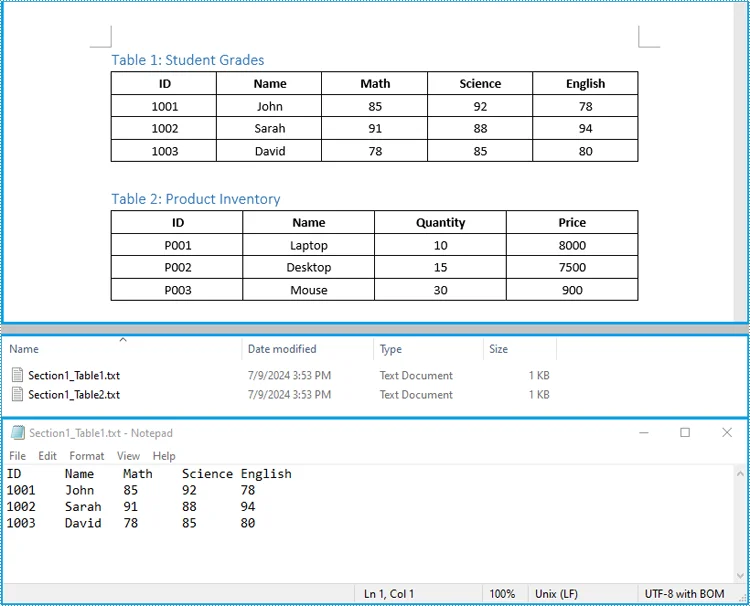
Tables are commonly used to organize structured data, such as financial reports or survey results. To access this data, iterate through the tables in each section and retrieve the content of individual cells:
// Create a folder to store tables
string tableDir = "Tables";
if (!Directory.Exists(tableDir))
    Directory.CreateDirectory(tableDir);

// Loop through each section
for (int sectionIndex = 0; sectionIndex < document.Sections.Count; sectionIndex++)
{
    Section section = document.Sections[sectionIndex];
    TableCollection tables = section.Tables;

    // Loop through all tables in the section
    for (int tableIndex = 0; tableIndex < tables.Count; tableIndex++)
    {
        ITable table = tables[tableIndex];
        string fileName = Path.Combine(tableDir, $"Section{sectionIndex + 1}_Table{tableIndex + 1}.txt");

        using (StreamWriter writer = new StreamWriter(fileName, false, Encoding.UTF8))
        {
            // Loop through each row
            for (int rowIndex = 0; rowIndex < table.Rows.Count; rowIndex++)
            {
                TableRow row = table.Rows[rowIndex];

                // Loop through each cell
                for (int cellIndex = 0; cellIndex < row.Cells.Count; cellIndex++)
                {
                    TableCell cell = row.Cells[cellIndex];

                    // Loop through each paragraph in the cell
                    for (int paraIndex = 0; paraIndex < cell.Paragraphs.Count; paraIndex++)
                    {
                        writer.Write(cell.Paragraphs[paraIndex].Text.Trim() + " ");
                    }

                    // Add tab between cells
                    if (cellIndex < row.Cells.Count - 1) writer.Write("\t");
                }

                // Add newline after each row
                writer.WriteLine();
            }
        }
    }
}
This method allows efficient extraction of structured data, making it ideal for generating reports or integrating content into databases.
Read Comments
Comments are valuable for collaboration and feedback within documents. Extracting them is crucial for auditing and understanding the document's revision history.
The Document object provides a Comments collection, which allows you to access all comments in a Word document. Each comment contains one or more paragraphs, and you can extract their text for further processing or save them into a file.
using (StreamWriter writer = new StreamWriter("Comments.txt", false, Encoding.UTF8))
{
    // Loop through all comments in the document
    foreach (Comment comment in document.Comments)
    {
        // Loop through each paragraph in the comment
        foreach (Paragraph p in comment.Body.Paragraphs)
        {
            writer.WriteLine(p.Text);
        }
        // Add empty line to separate different comments
        writer.WriteLine();
    }
}
This code retrieves the content of all comments and outputs it into a single text file.
Retrieve Document Metadata
Word documents contain metadata such as the title, author, and subject. These metadata items are stored as document properties, which can be accessed through the BuiltinDocumentProperties property of the Document object:
using (StreamWriter writer = new StreamWriter("Metadata.txt", false, Encoding.UTF8))
{
    // Write built-in document properties to file
    writer.WriteLine("Title: " + document.BuiltinDocumentProperties.Title);
    writer.WriteLine("Author: " + document.BuiltinDocumentProperties.Author);
    writer.WriteLine("Subject: " + document.BuiltinDocumentProperties.Subject);
}
Read Headers and Footers
Headers and footers frequently contain essential content like page numbers and titles. To programmatically access this information, iterate through each section's header and footer paragraphs and retrieve the text of each paragraph:
using (StreamWriter writer = new StreamWriter("HeadersFooters.txt", false, Encoding.UTF8))
{
    // Loop through all sections
    foreach (Section section in document.Sections)
    {
        // Write header paragraphs
        foreach (Paragraph headerParagraph in section.HeadersFooters.Header.Paragraphs)
        {
            writer.WriteLine("Header: " + headerParagraph.Text);
        }

        // Write footer paragraphs
        foreach (Paragraph footerParagraph in section.HeadersFooters.Footer.Paragraphs)
        {
            writer.WriteLine("Footer: " + footerParagraph.Text);
        }
    }
}
This method ensures that all recurring content is accurately captured during document processing.
Advanced Tips and Best Practices for Reading Word Documents in C#
To get the most out of programmatically reading Word documents, following these tips can help improve efficiency, reliability, and code maintainability:
- Use using Statements: Always wrap Document objects in using to ensure proper memory management.
- Check for Null or Empty Sections: Prevent errors by verifying sections, paragraphs, tables, or images exist before accessing them.
- Batch Reading Multiple Documents: Loop through a folder of Word files and apply the same extraction logic to each file. This helps automate workflows and consolidate extracted content efficiently.
Conclusion
Efficiently reading Word documents programmatically in C# involves handling various content types. With the techniques outlined in this guide, developers can:
- Load Word documents (.doc and .docx) with ease.
- Extract text, paragraphs, and formatting details for thorough analysis.
- Retrieve images, structured table data, and comments.
- Access headers, footers, and document metadata for complete insights.
FAQs
Q1: Can I read Word documents without installing Microsoft Word?
A1: Yes, libraries like Spire.Doc enable you to read and process Word files without requiring Microsoft Word installation.
Q2: Does this support both .doc and .docx formats?
A2: Absolutely, all methods discussed in this guide work seamlessly with both legacy (.doc) and modern (.docx) Word files.
Q3: Can I extract only specific sections of a document?
A3: Yes, by iterating through sections and paragraphs, you can selectively filter and extract the desired content.
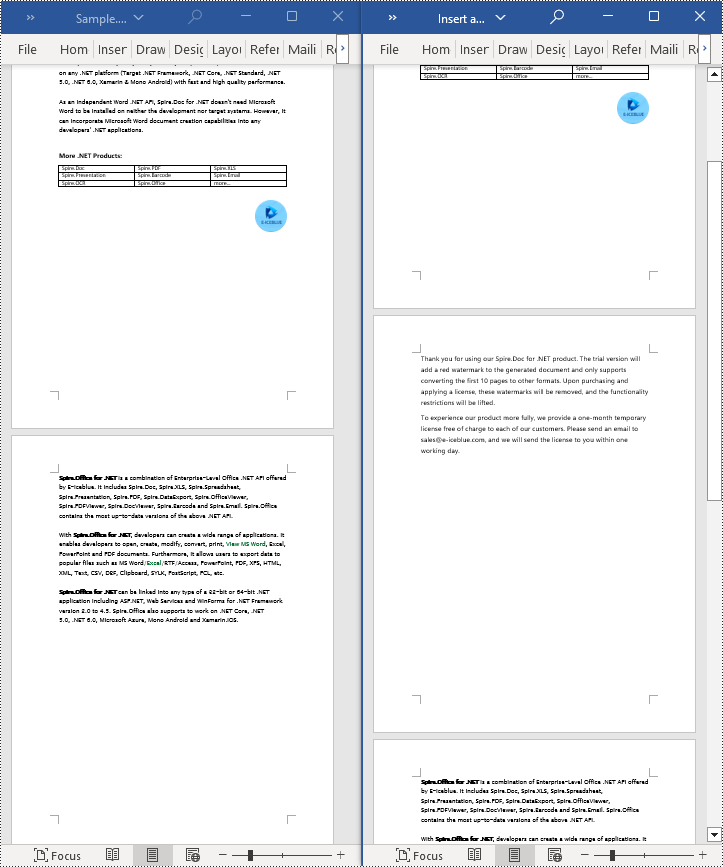
Adding, inserting, and deleting pages in a Word document is crucial for managing and presenting content. By adding or inserting a new page in Word, you can expand the document to accommodate more content, making it more structured and readable. Deleting pages can help streamline the document by removing unnecessary information or erroneous content. This article will explain how to use Spire.Doc for .NET to add, insert, or delete a page in a Word document within a C# project.
- Add a Page in a Word Document using C#
- Insert a Page in a Word Document using C#
- Delete a Page from a Word Document using C#
Install Spire.Doc for .NET
To begin with, you need to add the DLL files included in the Spire.Doc for .NET package as references in your .NET project. The DLL files can be either downloaded from this link or installed via NuGet.
PM> Install-Package Spire.Doc
Add a Page in a Word Document using C#
The steps to add a new page at the end of a Word document involve first obtaining the last section, then inserting a page break at the end of the last paragraph of that section to ensure that subsequently added content appears on a new page. Here are the detailed steps:
- Create a Document object.
- Load a Word document using the Document.LoadFromFile() method.
- Get the body of the last section of the document using Document.LastSection.Body.
- Add a page break by calling Paragraph.AppendBreak(BreakType.PageBreak) method.
- Create a new ParagraphStyle object.
- Add the new paragraph style to the document's style collection using Document.Styles.Add() method.
- Create a new Paragraph object and set the text content.
- Apply the previously created paragraph style to the new paragraph using Paragraph.ApplyStyle(ParagraphStyle.Name) method.
- Add the new paragraph to the document using Body.ChildObjects.Add(Paragraph) method.
- Save the resulting document using the Document.SaveToFile() method.
- C#
// Create a new document object
Document document = new Document();

// Load a document
document.LoadFromFile("Sample.docx");

// Get the body of the last section of the document
Body body = document.LastSection.Body;

// Insert a page break after the last paragraph in the body
body.LastParagraph.AppendBreak(BreakType.PageBreak);

// Create a new paragraph style
ParagraphStyle paragraphStyle = new ParagraphStyle(document);
paragraphStyle.Name = "CustomParagraphStyle1";
paragraphStyle.ParagraphFormat.LineSpacing = 12;
paragraphStyle.ParagraphFormat.AfterSpacing = 8;
paragraphStyle.CharacterFormat.FontName = "Microsoft YaHei";
paragraphStyle.CharacterFormat.FontSize = 12;

// Add the paragraph style to the document's style collection
document.Styles.Add(paragraphStyle);

// Create a new paragraph and set the text content
Paragraph paragraph = new Paragraph(document);
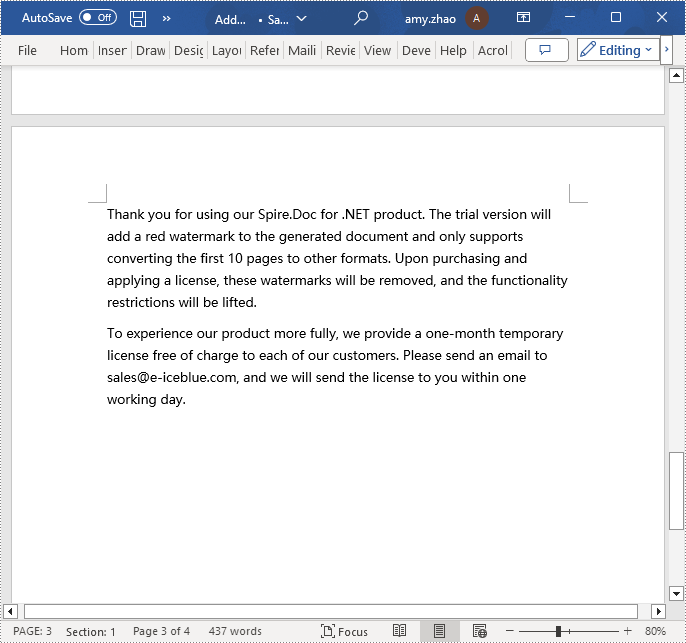
paragraph.AppendText("Thank you for using our Spire.Doc for .NET product. The trial version will add a red watermark to the generated document and only supports converting the first 10 pages to other formats. Upon purchasing and applying a license, these watermarks will be removed, and the functionality restrictions will be lifted.");

// Apply the paragraph style
paragraph.ApplyStyle(paragraphStyle.Name);

// Add the paragraph to the body's content collection
body.ChildObjects.Add(paragraph);

// Create another new paragraph and set the text content
paragraph = new Paragraph(document);
paragraph.AppendText("To experience our product more fully, we provide a one-month temporary license free of charge to each of our customers. Please send an email to sales@e-iceblue.com, and we will send the license to you within one working day.");

// Apply the paragraph style
paragraph.ApplyStyle(paragraphStyle.Name);

// Add the paragraph to the body's content collection
body.ChildObjects.Add(paragraph);

// Save the document to the specified path
document.SaveToFile("Add a Page.docx", FileFormat.Docx);

// Close the document
document.Close();

// Release the resources of the document object
document.Dispose();
Insert a Page in a Word Document using C#
Before inserting a new page, it is necessary to determine the ending position index of the specified page content within the section. Subsequently, add the content of the new page to the document one by one after this position. Finally, to separate the content from the following pages, adding a page break is essential. The detailed steps are as follows:
- Create a Document object.
- Load a Word document using the Document.LoadFromFile() method.
- Create a FixedLayoutDocument object.
- Obtain the FixedLayoutPage object of a page in the document.
- Determine the index position of the last paragraph on the page within the section.
- Create a new ParagraphStyle object.
- Add the new paragraph style to the document's style collection using Document.Styles.Add() method.
- Create a new Paragraph object and set the text content.
- Apply the previously created paragraph style to the new paragraph using the Paragraph.ApplyStyle(ParagraphStyle.Name) method.
- Insert the new paragraph at the specified using the Body.ChildObjects.Insert(index, Paragraph) method.
- Create another new paragraph object, set its text content, add a page break by calling the Paragraph.AppendBreak(BreakType.PageBreak) method, apply the previously created paragraph style, and then insert this paragraph into the document.
- Save the resulting document using the Document.SaveToFile() method.
- C#
using Spire.Doc;
using Spire.Doc.Pages;
using Spire.Doc.Documents;

namespace SpireDocDemo
{
    internal class Program
    {
        static void Main(string[] args)
        {
           // Create a new document object
            Document document = new Document();

            // Load the sample document from a file
            document.LoadFromFile("Sample.docx");

            // Create a fixed layout document object
            FixedLayoutDocument layoutDoc = new FixedLayoutDocument(document);

            // Get the first page
            FixedLayoutPage page = layoutDoc.Pages[0];

            // Get the body of the document
            Body body = page.Section.Body;

            // Get the last paragraph of the current page
            Paragraph paragraphEnd = page.Columns[0].Lines[page.Columns[0].Lines.Count - 1].Paragraph;

            // Initialize the end index
            int endIndex = 0;
            if (paragraphEnd != null)
            {
                // Get the index of the last paragraph
                endIndex = body.ChildObjects.IndexOf(paragraphEnd);
            }

            // Create a new paragraph style
            ParagraphStyle paragraphStyle = new ParagraphStyle(document);
            paragraphStyle.Name = "CustomParagraphStyle1";
            paragraphStyle.ParagraphFormat.LineSpacing = 12;
            paragraphStyle.ParagraphFormat.AfterSpacing = 8;
            paragraphStyle.CharacterFormat.FontName = "Microsoft YaHei";
            paragraphStyle.CharacterFormat.FontSize = 12;

            // Add the paragraph style to the document's style collection
            document.Styles.Add(paragraphStyle);

            // Create a new paragraph and set the text content
            Paragraph paragraph = new Paragraph(document);
            paragraph.AppendText("Thank you for using our Spire.Doc for .NET product. The trial version will add a red watermark to the generated document and only supports converting the first 10 pages to other formats. Upon purchasing and applying a license, these watermarks will be removed, and the functionality restrictions will be lifted.");

            // Apply the paragraph style
            paragraph.ApplyStyle(paragraphStyle.Name);

            // Insert the paragraph at the specified position
            body.ChildObjects.Insert(endIndex + 1, paragraph);

            // Create another new paragraph
            paragraph = new Paragraph(document);
            paragraph.AppendText("To experience our product more fully, we provide a one-month temporary license free of charge to each of our customers. Please send an email to sales@e-iceblue.com, and we will send the license to you within one working day.");

            // Apply the paragraph style
            paragraph.ApplyStyle(paragraphStyle.Name);

            // Add a page break
            paragraph.AppendBreak(BreakType.PageBreak);

            // Insert the paragraph at the specified position
            body.ChildObjects.Insert(endIndex + 2, paragraph);

            // Save the document to the specified path
            document.SaveToFile("Insert a Page.docx", Spire.Doc.FileFormat.Docx);

            // Close and release the original document
            document.Close();
            document.Dispose();
        }
    }
}
Delete a Page from a Word Document using C#
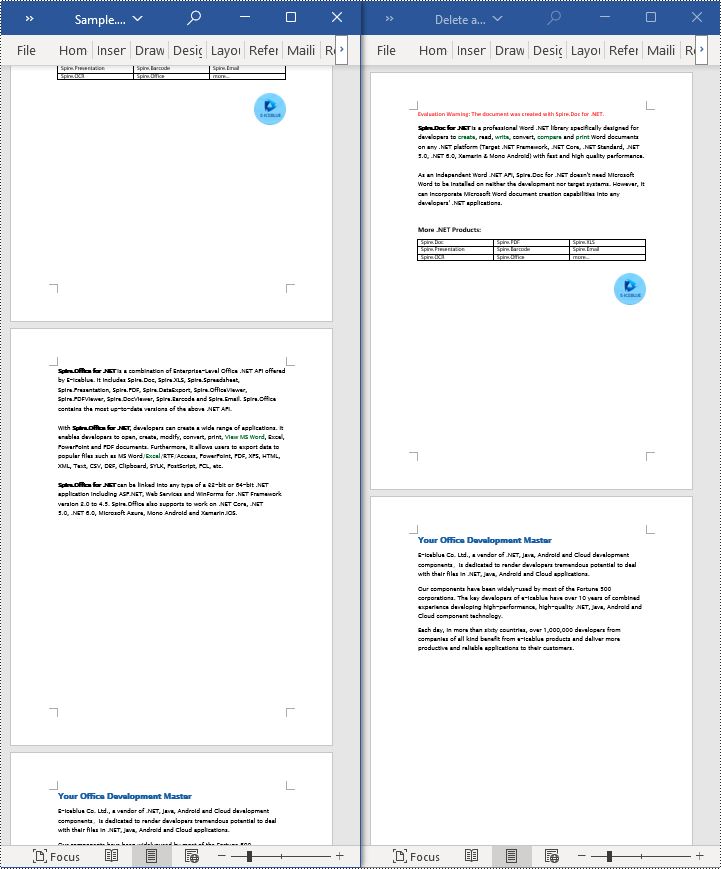
To delete the content of a page, first determine the index positions of the starting and ending elements of that page in the document. Then, you can utilize a loop to systematically remove these elements one by one. The detailed steps are as follows:
- Create a Document object.
- Load a Word document using the Document.LoadFromFile() method.
- Create a FixedLayoutDocument object.
- Obtain the FixedLayoutPage object of the first page in the document.
- Use the FixedLayoutPage.Section property to get the section where the page is located.
- Determine the index position of the first paragraph on the page within the section.
- Determine the index position of the last paragraph on the page within the section.
- Use a for loop to remove the content of the page one by one.
- Save the resulting document using the Document.SaveToFile() method.
- C#
using Spire.Doc;
using Spire.Doc.Pages;
using Spire.Doc.Documents;

namespace SpireDocDemo
{
    internal class Program
    {
        static void Main(string[] args)
        {
           // Create a new document object
            Document document = new Document();

            // Load the sample document from a file
            document.LoadFromFile("Sample.docx");

            // Create a fixed layout document object
            FixedLayoutDocument layoutDoc = new FixedLayoutDocument(document);

            // Get the second page
            FixedLayoutPage page = layoutDoc.Pages[1];

            // Get the section of the page
            Section section = page.Section;

            // Get the first paragraph on the first page
            Paragraph paragraphStart = page.Columns[0].Lines[0].Paragraph;
            int startIndex = 0;
            if (paragraphStart != null)
            {
                // Get the index of the starting paragraph
                startIndex = section.Body.ChildObjects.IndexOf(paragraphStart);
            }

            // Get the last paragraph on the last page
            Paragraph paragraphEnd = page.Columns[0].Lines[page.Columns[0].Lines.Count - 1].Paragraph;

            int endIndex = 0;
            if (paragraphEnd != null)
            {
                // Get the index of the ending paragraph
                endIndex = section.Body.ChildObjects.IndexOf(paragraphEnd);
            }

            // Delete all content within the specified range
            for (int i = 0; i <= (endIndex - startIndex); i++)
            {
                section.Body.ChildObjects.RemoveAt(startIndex);
            }

            // Save the document to the specified path
            document.SaveToFile("Delete a Page.docx", Spire.Doc.FileFormat.Docx);

            // Close and release the original document
            document.Close();
            document.Dispose();
        }
    }
}
Apply for a Temporary License
If you'd like to remove the evaluation message from the generated documents, or to get rid of the function limitations, please request a 30-day trial license for yourself.
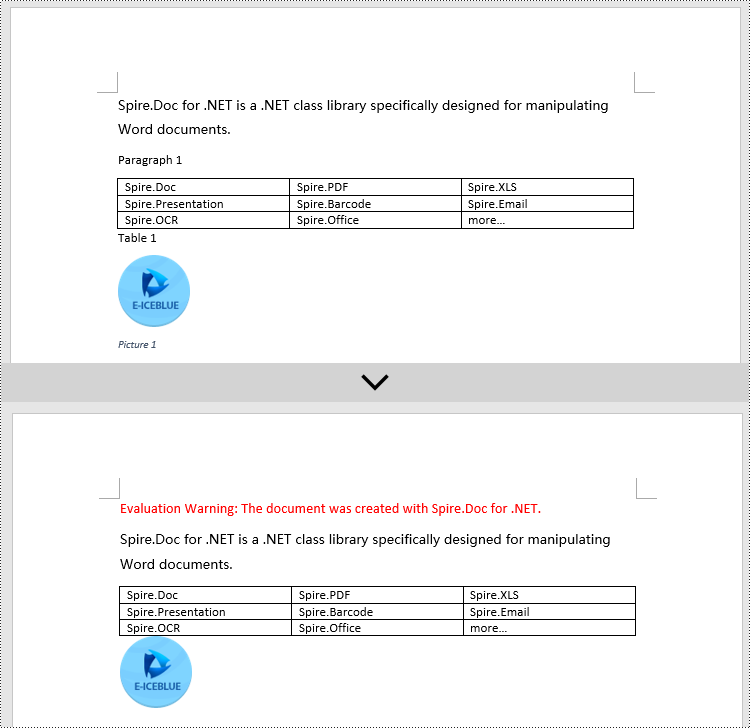
Captions are important elements in a Word document that enhance readability and organizational structure. They provide explanations and supplementary information for images, tables, and other content, improving the clarity and comprehensibility of the document. Captions are also used to emphasize key points and essential information, facilitating referencing and indexing of specific content. By using captions effectively, readers can better understand and interpret data and images within the document while quickly locating the desired information. This article will demonstrate how to use Spire.Doc for .NET to add or remove captions in a Word document within a C# project.
- Add Image Captions to a Word document in C#
- Add Table Captions to a Word document in C#
- Remove Captions from a Word document in C#
Install Spire.Doc for .NET
To begin with, you need to add the DLL files included in the Spire.Doc for .NET package as references in your .NET project. The DLL files can be either downloaded from this link or installed via NuGet.
PM> Install-Package Spire.Doc
Add Image Captions to a Word document in C#
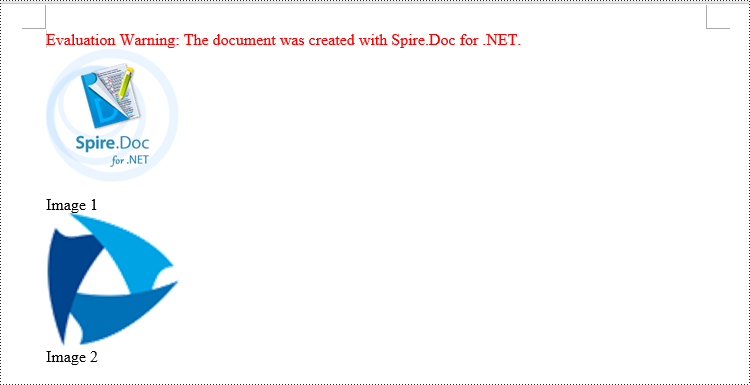
To add captions to images in a Word document, you can achieve it by creating a paragraph, adding an image, and calling the method DocPicture.AddCaption(string name, CaptionNumberingFormat format, CaptionPosition captionPosition) to generate the caption with a specified name, numbering format, and caption position. The following are the detailed steps:
- Create an object of the Document class.
- Use the Document.AddSection() method to add a section.
- Add a paragraph using Section.AddParagraph() method.
- Use the Paragraph.AppendPicture(Image image) method to add a DocPicture image object to the paragraph.
- Use the DocPicture.AddCaption(string name, CaptionNumberingFormat format, CaptionPosition captionPosition) method to add a caption with numbering format as CaptionNumberingFormat.Number.
- Set the Document.IsUpdateFields property to true to update all fields.
- Use the Document.SaveToFile() method to save the resulting document.
- C#
using Spire.Doc;
using Spire.Doc.Documents;
using Spire.Doc.Fields;
using System.Drawing;
namespace AddPictureCaption
{
    internal class Program
    {
        static void Main(string[] args)
        {
            // Create a Word document object
            Document document = new Document();

            // Add a section
            Section section = document.AddSection();

            // Add a new paragraph and insert an image
            Paragraph pictureParagraphCaption = section.AddParagraph();
            pictureParagraphCaption.Format.AfterSpacing = 10;
            DocPicture pic1 = pictureParagraphCaption.AppendPicture(Image.FromFile("Data\\1.png"));
            pic1.Height = 100;
            pic1.Width = 100;

            // Add a caption to the image
            CaptionNumberingFormat format = CaptionNumberingFormat.Number;
            pic1.AddCaption("Image", format, CaptionPosition.BelowItem);

            // Add another paragraph and insert another image
            pictureParagraphCaption = section.AddParagraph();
            DocPicture pic2 = pictureParagraphCaption.AppendPicture(Image.FromFile("Data\\2.png"));
            pic2.Height = 100;
            pic2.Width = 100;

            // Add a caption to the second image
            pic2.AddCaption("Image", format, CaptionPosition.BelowItem);

            // Update all fields in the document
            document.IsUpdateFields = true;

            // Save to a docx document
            string result = "AddImageCaption.docx";
            document.SaveToFile(result, Spire.Doc.FileFormat.Docx2016);

            // Close and dispose of the document object to release resources
            document.Close();
            document.Dispose();
        }
    }
}
Add Table Captions to a Word document in C#
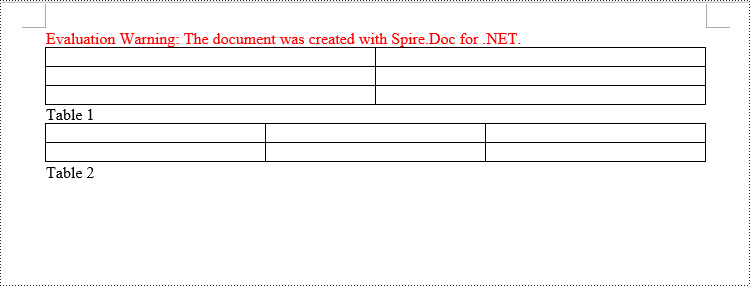
To add captions to a table in a Word document, you can achieve this by creating the table and using the Table.AddCaption(string name, CaptionNumberingFormat format, CaptionPosition captionPosition) method to generate a numbered caption. The steps involved are as follows:
- Create an object of the Document class.
- Use the Document.AddSection() method to add a section.
- Create a Table object and add it to the specified section in the document.
- Use the Table.ResetCells(int rowsNum, int columnsNum) method to set the number of rows and columns in the table.
- Add a caption to the table using the Table.AddCaption(string name, CaptionNumberingFormat format, CaptionPosition captionPosition) method, specifying the caption numbering format as CaptionNumberingFormat.Number.
- Set the Document.IsUpdateFields property to true to update all fields.
- Use the Document.SaveToFile() method to save the resulting document.
- C#
using Spire.Doc;
namespace AddTableCation
{
    internal class Program
    {
        static void Main(string[] args)
        {
            // Create a Word document object
            Document document = new Document();

            // Add a section
            Section section = document.AddSection();

            // Add a table
            Table tableCaption = section.AddTable(true);
            tableCaption.ResetCells(3, 2);

            // Add a caption to the table
            tableCaption.AddCaption("Table", CaptionNumberingFormat.Number, CaptionPosition.BelowItem);

            // Add another table and caption
            tableCaption = section.AddTable(true);
            tableCaption.ResetCells(2, 3);
            tableCaption.AddCaption("Table", CaptionNumberingFormat.Number, CaptionPosition.BelowItem);

            // Update all fields in the document
            document.IsUpdateFields = true;

            // Save to a docx document
            string result = "AddTableCaption.docx";
            document.SaveToFile(result, Spire.Doc.FileFormat.Docx2016);

            // Close and dispose of the document object to release resources
            document.Close();
            document.Dispose();
        }
    }
}
Remove Captions from a Word document in C#
Spire.Doc for .NET can also facilitate the removal of captions from an existing Word document. Here are the detailed steps:
- Create an object of the Document class.
- Use the Document.LoadFromFile() method to load a Word document.
- Create a custom method, named DetectCaptionParagraph(Paragraph paragraph), to determine if a paragraph contains a caption.
- Iterate through all the Paragraph objects in the document using a loop and utilize the custom method, DetectCaptionParagraph(Paragraph paragraph), to identify and delete paragraphs that contain captions.
- Use the Document.SaveToFile() method to save the resulting document.
- C#
using Spire.Doc;
using Spire.Doc.Documents;
using Spire.Doc.Fields;
namespace DeleteCaptions
{
    internal class Program
    {
        static void Main(string[] args)
        {
            // Create a Word document object
            Document document = new Document();

            // Load the example.docx file
            document.LoadFromFile("Data/Sample.docx");
            Section section;

            // Iterate through all sections
            for (int i = 0; i < document.Sections.Count; i++)
            {
                section = document.Sections[i];

                // Iterate through paragraphs in reverse order
                for (int j = section.Body.Paragraphs.Count - 1; j >= 0; j--)
                {
                    // Check if the paragraph is a caption paragraph
                    if (DetectCaptionParagraph(section.Body.Paragraphs[j]))
                    {
                        // If it's a caption paragraph, remove it
                        section.Body.Paragraphs.RemoveAt(j);
                    }
                }
            }

            // Save the document after removing captions
            string result = "RemoveCaptions.docx";
            document.SaveToFile(result, Spire.Doc.FileFormat.Docx2016);

            // Close and dispose of the document object to release resources
            document.Close();
            document.Dispose();
        }
        // Method to detect if a paragraph is a caption paragraph
        static bool DetectCaptionParagraph(Paragraph paragraph)
        {
            bool tag = false;
            Field field;

            // Iterate through the child objects in the paragraph
            for (int i = 0; i < paragraph.ChildObjects.Count; i++)
            {
                if (paragraph.ChildObjects[i].DocumentObjectType == DocumentObjectType.Field)
                {
                    // Check if the child object is of Field type
                    field = (Field)paragraph.ChildObjects[i];
                    if (field.Type == FieldType.FieldSequence)
                    {
                        // Check if the Field type is FieldSequence, indicating a caption field type
                        return true;
                    }
                }
            }
            return tag;
        }
    }
}
Apply for a Temporary License
If you'd like to remove the evaluation message from the generated documents, or to get rid of the function limitations, please request a 30-day trial license for yourself.
