
Spire.Doc for .NET (338)
Children categories
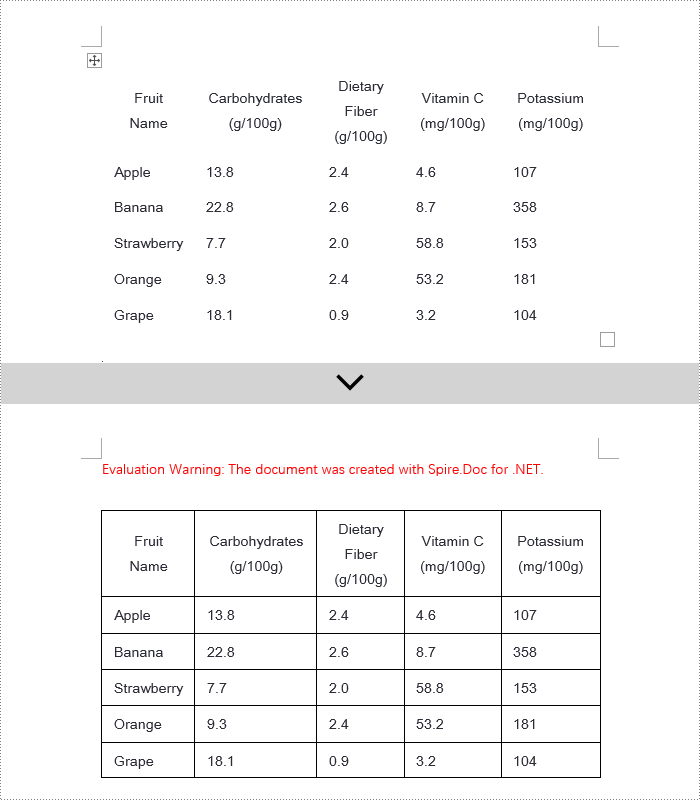
Adding, modifying, and removing Word table borders can enhance the readability, aesthetics, and organization of data. Adding borders makes the content of the table clearer, distinguishing between different cells, which helps readers quickly identify information. Modifying border styles (such as line thickness, color, or pattern) can emphasize key data, guide visual flow, or conform to specific document styles and design requirements. Removing borders, in some cases, reduces visual clutter, making the content more compact and minimalist, especially suitable for data presentation where strict divisions are not needed or when you wish to downplay structural visibility. This article will introduce how to add, modify, or remove Word table borders in C# projects using Spire.Doc for .NET.
Install Spire.Doc for .NET
To begin with, you need to add the DLL files included in the Spire.Doc for .NET package as references in your .NET project. The DLL files can be either downloaded from this link or installed via NuGet.
PM> Install-Package Spire.Doc
C# Add Word Table Borders
To set borders for all cells in an entire Word table, you need to iterate over each cell and set its visual border properties. Here are the detailed steps:
- Create a Document object.
- Use the Document.LoadFromFile() method to load a document.
- Retrieve the first section of the document using Document.Sections[0].
- Get the first table in that section by using Section.Tables[0].
- Use a for loop to iterate through all the cells in the table.
- Set TableCell.CellFormat.Borders.BorderType to BorderStyle.Single, which sets the cell border to a single line style.
- Set TableCell.CellFormat.Borders.LineWidth to 1.5, defining the border width to be 1.5 points.
- Set TableCell.CellFormat.Borders.Color to Color.Black, setting the border color to black.
- Save the changes to the Word document using the Document.SaveToFile() method.
- C#
using Spire.Doc;

namespace SpireDocDemo
{
    internal class Program
    {
        static void Main(string[] args)
        {
            // Create a new Document object
            Document doc = new Document();

            // Load the document from a file
            doc.LoadFromFile("TableExample1.docx");

            // Get the first section of the document
            Section section = doc.Sections[0];

            // Get the first table in that section
            Table table = (Table)section.Tables[0];

            // Declare TableRow and TableCell variables for use within loops
            TableRow tableRow;
            TableCell tableCell;

            // Iterate through all rows in the table
            for (int i = 0; i < table.Rows.Count; i++)
            {
                // Get the current row
                tableRow = table.Rows[i];

                // Iterate through all cells in the current row
                for (int j = 0; j < tableRow.Cells.Count; j++)
                {
                    // Get the current cell
                    tableCell = tableRow.Cells[j];

                    // Set the border style of the current cell to single line
                    tableCell.CellFormat.Borders.BorderType = Spire.Doc.Documents.BorderStyle.Single;
                }
            }

            // Save the modified document as a new file
            doc.SaveToFile("AddBorders.docx", FileFormat.Docx2016);

            // Close the document to release resources
            doc.Close();
        }
    }
}
C# Modify Word Table Borders
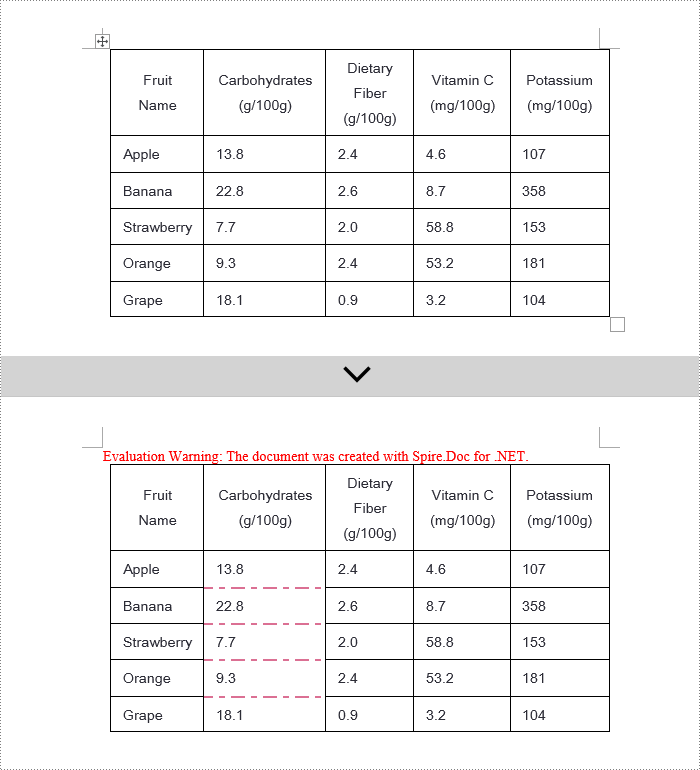
Spire.Doc offers a range of border properties such as the border style TableCell.CellFormat.Borders.BorderType, border width TableCell.CellFormat.Borders.LineWidth, and border color TableCell.CellFormat.Borders.Color, among others. You can customize these properties to achieve the desired effects. Below are the detailed steps:
- Create a Document object.
- Load a document using the Document.LoadFromFile() method.
- Retrieve the first section of the document using Document.Sections[0].
- Get the first table in the section using Section.Tables[0].
- Use a for loop to iterate over the cells in the table whose border styles you wish to change.
- Change the bottom border color of the cell by setting TableCell.CellFormat.Borders.Bottom.Color to Color.PaleVioletRed.
- Change the bottom border style of the cell by setting TableCell.CellFormat.Borders.Bottom.BorderType to BorderStyle.DotDash.
- Change the bottom border width of the cell by setting TableCell.CellFormat.Borders.Bottom.LineWidth to 2 points.
- Save the changes to the document using the Document.SaveToFile() method.
- C#
using Spire.Doc;
using Spire.Doc.Documents;
using System.Drawing;

namespace SpireDocDemo
{
    internal class Program
    {
        static void Main(string[] args)
        {
            // Create a new Document object
            Document doc = new Document();

            // Load the document from a file
            doc.LoadFromFile("TableExample2.docx");

            // Get the first section of the document
            Section section = doc.Sections[0];

            // Get the first table in that section
            Table table = (Table)section.Tables[0];

            // Declare a TableRow to use within the loop
            TableRow tableRow;

            // Iterate through all rows of the table
            for (int i = 1; i < table.Rows.Count - 1; i++)
            {
                tableRow = table.Rows[i];

                // Set the border color of the current cell
                tableRow.Cells[1].CellFormat.Borders.Bottom.Color = Color.PaleVioletRed;

                // Set the border style of the current cell to DotDash
                tableRow.Cells[1].CellFormat.Borders.Bottom.BorderType = Spire.Doc.Documents.BorderStyle.DotDash;

                // Set the width of the border
                tableRow.Cells[1].CellFormat.Borders.Bottom.LineWidth = 2;
            }

            // Save the modified document as a new file
            doc.SaveToFile("ModifiedBorders.docx", FileFormat.Docx2016);

            // Close the document and release resources
            doc.Close();
        }
    }
}
C# Remove Word Table Borders
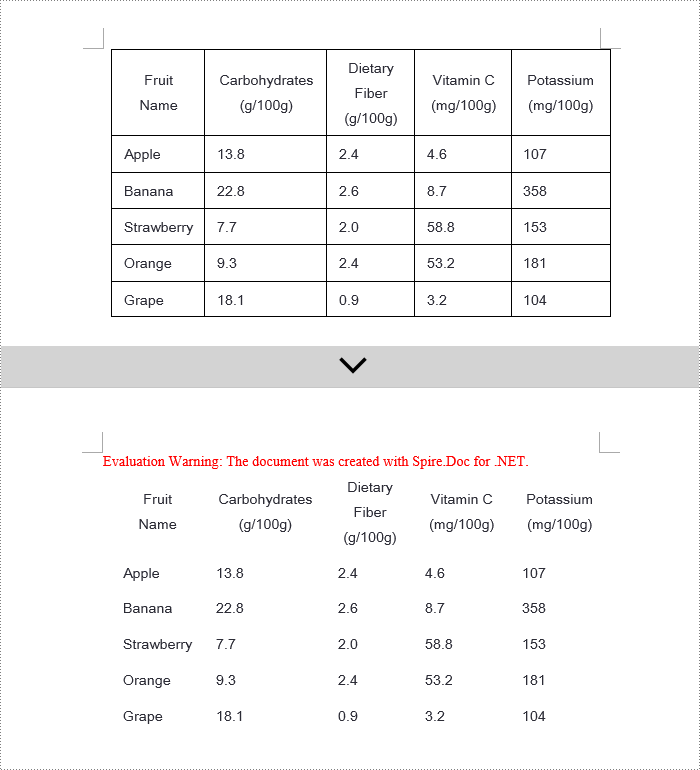
During the process of handling Word documents, not only can border styles be applied to entire tables, but customization can also be extended to individual cells. To completely remove all borders from a table, it is recommended to follow a two-step strategy: First, apply border removal settings to the table itself; second, visit each cell within the table individually to clear their border styles. Here are the detailed steps:
- Create a Document object.
- Load a document using the Document.LoadFromFile() method.
- Retrieve the first table in the section using Section.Tables[0].
- Use a for loop to iterate over all cells in the table.
- Set Table.TableFormat.Borders.BorderType = BorderStyle.None to remove borders from the table.
- Set TableCell.CellFormat.Borders.BorderType = BorderStyle.None to remove borders from each cell.
- Save the changes to the Word document using the Document.SaveToFile() method.
- C#
using Spire.Doc;
using Spire.Doc.Documents;
using System.Drawing;

namespace SpireDocDemo
{
    internal class Program
    {
        static void Main(string[] args)
        {
            // Create a new Document object
            Document doc = new Document();

            // Load the document from file
            doc.LoadFromFile("TableExample2.docx");

            // Get the first section of the document
            Section section = doc.Sections[0];

            // Get the first table in that section
            Table table = (Table)section.Tables[0];

            // Remove the borders set on the table
            table.Format.Borders.BorderType = BorderStyle.None;

            // Declare a TableRow to use in the loop
            TableRow tableRow;

            // Iterate through all rows in the table
            for (int i = 0; i < table.Rows.Count; i++)
            {
                tableRow = table.Rows[i];
                for (int j = 0; j < tableRow.Cells.Count; j++)
                {
                    // Remove all borders set on the cell
                    tableRow.Cells[j].CellFormat.Borders.BorderType = BorderStyle.None;
                }
            }

            // Save the modified document as a new file
            doc.SaveToFile("RemoveBorders.docx", FileFormat.Docx2016);

            // Close the document to release resources
            doc.Close();
        }
    }
}
Apply for a Temporary License
If you'd like to remove the evaluation message from the generated documents, or to get rid of the function limitations, please request a 30-day trial license for yourself.
C#: Count Words, Characters, Paragraphs, Lines, and Pages in Word Documents
2024-04-30 07:38:58 Written by KoohjiAccurate counting of words, characters, paragraphs, lines, and pages is essential in achieving precise document analysis. By meticulously tracking these metrics, writers can gain valuable insights into the length, structure, and overall composition of their work. In this article, we will explain how to count words, characters, paragraphs, lines, and pages in Word documents in C# using Spire.Doc for .NET.
- Count Words, Characters, Paragraphs, Lines, and Pages in a Word Document in C#
- Count Words and Characters in a Specific Paragraph of a Word Document in C#
Install Spire.Doc for .NET
To begin with, you need to add the DLL files included in the Spire.Doc for .NET package as references in your .NET project. The DLL files can be either downloaded from this link or installed via NuGet.
PM> Install-Package Spire.Doc
Count Words, Characters, Paragraphs, Lines, and Pages in a Word Document in C#
Spire.Doc for .NET provides the BuiltinDocumentProperties class that enables you to retrieve crucial information from your Word documents. By using this class, you can access a wealth of details, including both the built-in and custom properties, as well as the precise counts of words, characters, paragraphs, lines, and pages contained within the document. The detailed steps are as follows.
- Initialize an object of the Document class.
- Load a sample Word document using the Document.LoadFromFile() method.
- Get the BuiltinDocumentProperties object using the Document.BuiltinDocumentProperties property.
- Get the numbers of words, characters, paragraphs, lines, and pages in the document using the WordCount, CharCount, ParagraphCount, LinesCount and PageCount properties of the BuiltinDocumentProperties class.
- Initialize an object of the StringBuilder class and append the results to it using the StringBuilder.AppendLine() method.
- Write the content in the StringBuilder to a text file using the File.WriteAllText() method.
- C#
using Spire.Doc;
using System.IO;
using System.Text;

namespace CountWordsCharactersEtcInWord
{
    internal class Program
    {
        static void Main(string[] args)
        {
            //Initialize an object of the Document class
            Document document = new Document();
            //Load a sample Word document
            document.LoadFromFile("Input.docx");

            //Get the BuiltinDocumentProperties object
            BuiltinDocumentProperties properties = document.BuiltinDocumentProperties;

            //Get the numbers of words, characters, paragraphs, lines, and pages in the document
            int wordCount = properties.WordCount;
            int charCount = properties.CharCount;
            int paraCount = properties.ParagraphCount;
            int lineCount = properties.LinesCount;
            int pageCount = properties.PageCount;

            //Initialize an object of the StringBuilder class
            StringBuilder sb = new StringBuilder();
            //Append the results to the StringBuilder
            sb.AppendLine("The number of words: " + wordCount);
            sb.AppendLine("The number of characters: " + charCount);
            sb.AppendLine("The number of paragraphs: " + paraCount);
            sb.AppendLine("The number of lines: " + lineCount);
            sb.AppendLine("The number of pages: " + pageCount);

            //Write the content of the StringBuilder to a text file
            File.WriteAllText("result.txt", sb.ToString());
            document.Close();
        }
    }
}

Count Words and Characters in a Specific Paragraph of a Word Document in C#
In addition to counting the words and characters in an entire Word document, Spire.Doc for .NET enables you to count the words and characters of a specific paragraph by using the Paragraph.WordCount and Paragraph.CharCount properties. The detailed steps are as follows.
- Initialize an object of the Document class.
- Load a sample Word document using the Document.LoadFromFile() method.
- Get a specific paragraph using the Document.Sections[sectionindex].Paragraphs[paragraphIndex] property.
- Get the numbers of words and characters in the paragraph using the Paragraph.WordCount and Paragraph.CharCount properties.
- Initialize an object of the StringBuilder class and append the results to it using the StringBuilder.AppendLine() method.
- Write the content in the StringBuilder to a text file using the File.WriteAllText() method.
- C#
using Spire.Doc;
using Spire.Doc.Documents;
using System.IO;
using System.Text;

namespace CountWordsAndCharactersForParagraph
{
    internal class Program
    {
        static void Main(string[] args)
        {
            //Initialize an object of the Document class
            Document document = new Document();
            //Load a sample Word document
            document.LoadFromFile("Input.docx");

            //Get a specific paragraph
            Paragraph paragraph = document.Sections[0].Paragraphs[0];

            //Get the numbers of words and characters in the paragraph
            int wordCount = paragraph.WordCount;
            int charCount = paragraph.CharCount;


            //Initialize an object of the StringBuilder class
            StringBuilder sb = new StringBuilder();
            //Append the results to the StringBuilder
            sb.AppendLine("The number of words: " + wordCount);
            sb.AppendLine("The number of characters: " + charCount);

            //Write the content of the StringBuilder to a text file
            File.WriteAllText("result.txt", sb.ToString());
            document.Close();
        }
    }
}

Apply for a Temporary License
If you'd like to remove the evaluation message from the generated documents, or to get rid of the function limitations, please request a 30-day trial license for yourself.
In a Word document, content controls allow the content of the document to be dynamically updated and modified, providing users with more flexible editing and management options. Through content controls, users can easily insert, delete, or modify content in specific sections without altering the overall structure of the document. This article will explain how to use Spire.Doc for .NET to modify content controls in a Word document within a C# project.
- Modify Content Controls in the Body using C#
- Modify Content Controls within Paragraphs using C#
- Modify Content Controls Wrapping Table Rows using C#
- Modify Content Controls Wrapping Table Cells using C#
- Modify Content Controls within Table Cells using C#
Install Spire.Doc for .NET
To begin with, you need to add the DLL files included in the Spire.Doc for .NET package as references in your .NET project. The DLL files can be either downloaded from this link or installed via NuGet.
PM> Install-Package Spire.Doc
Modify Content Controls in the Body using C#
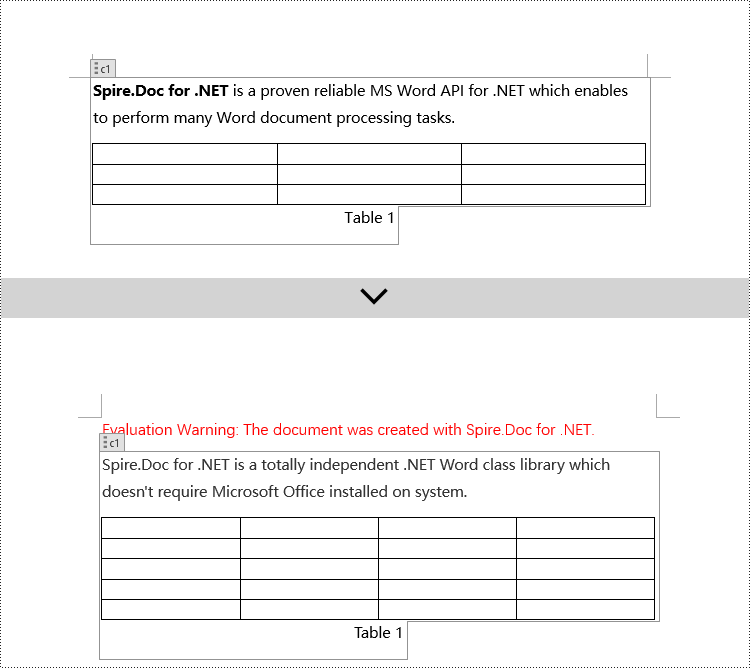
In Spire.Doc, the object type for content controls in the body is StructureDocumentTag. You can iterate through the collection of child objects in Section.Body to find objects of type StructureDocumentTag and then modify them. Here are the detailed steps:
- Create a Document object.
- Load a document using the Document.LoadFromFile() method.
- Access the body of a section in the document using Section.Body.
- Iterate through the collection of child objects in the body, Body.ChildObjects, to find objects of type StructureDocumentTag.
- Access the StructureDocumentTag.ChildObjects collection and perform the necessary modification operations based on the type of child objects.
- Save the document using the Document.SaveToFile() method.
- C#
using Spire.Doc;
using Spire.Doc.Documents;
using System.Collections.Generic;

namespace SpireDocDemo
{
    internal class Program
    {
        static void Main(string[] args)
        {
            // Create a new document object
            Document doc = new Document();

            // Load document content from a file
            doc.LoadFromFile("Sample1.docx");

            // Get the body of the document
            Body body = doc.Sections[0].Body;

            // Create lists for paragraphs and tables
            List<Paragraph> paragraphs = new List<Paragraph>();
            List<Table> tables = new List<Table>();
            for (int i = 0; i < body.ChildObjects.Count; i++)
            {
                // Get the document object
                DocumentObject documentObject = body.ChildObjects[i];

                // If it is a StructureDocumentTag object
                if (documentObject.DocumentObjectType == DocumentObjectType.StructureDocumentTag)
                {
                    StructureDocumentTag structureDocumentTag = (StructureDocumentTag)documentObject;

                    // If the tag is "c1" or the alias is "c1"
                    if (structureDocumentTag.SDTProperties.Tag == "c1" || structureDocumentTag.SDTProperties.Alias == "c1")
                    {
                        for (int j = 0; j < structureDocumentTag.ChildObjects.Count; j++)
                        {
                            // If it is a paragraph object
                            if (structureDocumentTag.ChildObjects[j].DocumentObjectType == DocumentObjectType.Paragraph)
                            {
                                Paragraph paragraph = (Paragraph)structureDocumentTag.ChildObjects[j];
                                paragraphs.Add(paragraph);
                            }

                            // If it is a table object
                            if (structureDocumentTag.ChildObjects[j].DocumentObjectType == DocumentObjectType.Table)
                            {
                                Table table = (Table)structureDocumentTag.ChildObjects[j];
                                tables.Add(table);
                            }
                        }
                    }
                }
            }

            // Modify the text content of the first paragraph
            paragraphs[0].Text = "Spire.Doc for .NET is a totally independent .NET Word class library which doesn't require Microsoft Office installed on system.";

            // Reset the cells of the first table
            tables[0].ResetCells(5, 4);

            // Save the modified document to a file
            doc.SaveToFile("ModifyBodyContentControls.docx", FileFormat.Docx2016);

            // Release document resources
            doc.Dispose();
        }
    }
}
Modify Content Controls within Paragraphs using C#
In Spire.Doc, the object type for content controls within paragraphs is StructureDocumentTagInline. To modify them, you need to iterate through the collection of child objects of Paragraph.ChildObjects, find objects of type StructureDocumentTagInline, and then make the necessary modifications. Here are the detailed steps:
- Create a Document object.
- Load a document using the Document.LoadFromFile() method.
- Access the body of a section in the document using Section.Body.
- Get the first paragraph of the body using Body.Paragraphs[0].
- Iterate through the collection of child objects of the paragraph, Paragraph.ChildObjects, to find objects of type StructureDocumentTagInline.
- Access the collection of child objects of StructureDocumentTagInline, StructureDocumentTagInline.ChildObjects, and perform the required modifications based on the type of the child objects.
- Save the document using the Document.SaveToFile() method.
- C#
using Spire.Doc;
using Spire.Doc.Documents;
using Spire.Doc.Fields;
using System.Collections.Generic;

namespace SpireDocDemo
{
    internal class Program
    {
        static void Main(string[] args)
        {
            // Create a new Document object
            Document doc = new Document();

            // Load document content from a file
            doc.LoadFromFile("Sample2.docx");

            // Get the body of the document
            Body body = doc.Sections[0].Body;

            // Get the first paragraph in the body
            Paragraph paragraph = body.Paragraphs[0];

            // Iterate through child objects in the paragraph
            for (int i = 0; i < paragraph.ChildObjects.Count; i++)
            {
                // Check if the child object is StructureDocumentTagInline
                if (paragraph.ChildObjects[i].DocumentObjectType == DocumentObjectType.StructureDocumentTagInline)
                {
                    // Convert the child object to StructureDocumentTagInline type
                    StructureDocumentTagInline structureDocumentTagInline = (StructureDocumentTagInline)paragraph.ChildObjects[i];

                    // Check if the Tag or Alias property is "text1"
                    if (structureDocumentTagInline.SDTProperties.Tag == "text1" || structureDocumentTagInline.SDTProperties.Alias == "text1")
                    {
                        // Iterate through child objects in the StructureDocumentTagInline object
                        for (int j = 0; j < structureDocumentTagInline.ChildObjects.Count; j++)
                        {
                            // Check if the child object is a TextRange object
                            if (structureDocumentTagInline.ChildObjects[j].DocumentObjectType == DocumentObjectType.TextRange)
                            {
                                // Convert the child object to TextRange type
                                TextRange range = (TextRange)structureDocumentTagInline.ChildObjects[j];

                                // Set the text content to a specified content
                                range.Text = "97-2003/2007/2010/2013/2016/2019";
                            }
                        }
                    }

                    // Check if the Tag or Alias property is "logo1"
                    if (structureDocumentTagInline.SDTProperties.Tag == "logo1" || structureDocumentTagInline.SDTProperties.Alias == "logo1")
                    {
                        // Iterate through child objects in the StructureDocumentTagInline object
                        for (int j = 0; j < structureDocumentTagInline.ChildObjects.Count; j++)
                        {
                            // Check if the child object is an image
                            if (structureDocumentTagInline.ChildObjects[j].DocumentObjectType == DocumentObjectType.Picture)
                            {
                                // Convert the child object to DocPicture type
                                DocPicture docPicture = (DocPicture)structureDocumentTagInline.ChildObjects[j];

                                // Load a specified image
                                docPicture.LoadImage("Doc-NET.png");

                                // Set the width and height of the image
                                docPicture.Width = 100;
                                docPicture.Height = 100;
                            }
                        }
                    }
                }
            }

            // Save the modified document to a new file
            doc.SaveToFile("ModifiedContentControlsInParagraph.docx", FileFormat.Docx2016);

            // Release resources of the Document object
            doc.Dispose();
        }
    }
}

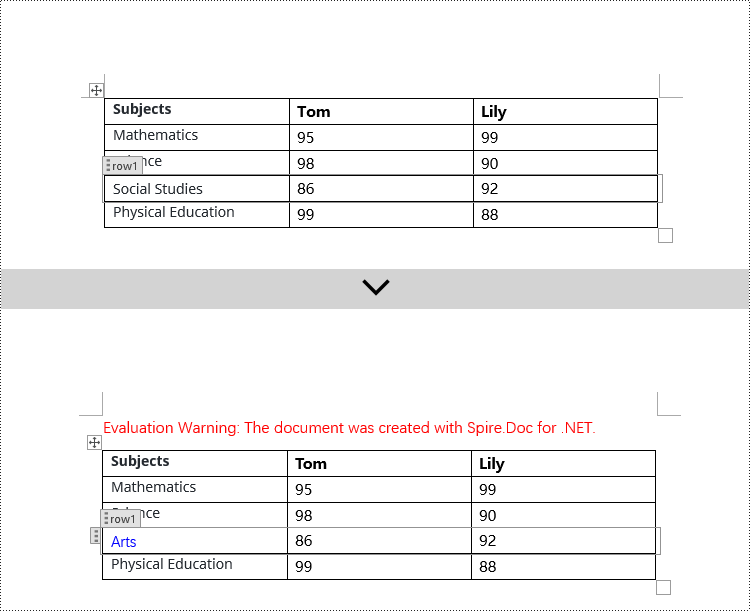
Modify Content Controls Wrapping Table Rows using C#
In Spire.Doc, the object type for a table row content control is StructureDocumentTagRow. To modify it, you need to iterate through the child objects collection of Table.ChildObjects, find objects of type StructureDocumentTagRow, and then make the necessary modifications. Here are the detailed steps:
- Create a Document object.
- Load a document using the Document.LoadFromFile() method.
- Access the body of a section using Section.Body.
- Get the first table in the body using Body.Tables[0].
- Iterate through the child objects collection of the table, Table.ChildObjects, to find objects of type StructureDocumentTagRow.
- Access the collection of cells in the StructureDocumentTagRow.Cells table row content control and make the required modifications to the cell contents.
- Save the document using the Document.SaveToFile() method.
- C#
using Spire.Doc;
using Spire.Doc.Documents;
using Spire.Doc.Fields;

namespace SpireDocDemo
{
    internal class Program
    {
        static void Main(string[] args)
        {
            // Create a new document object
            Document doc = new Document();

            // Load the document from a file
            doc.LoadFromFile("Sample3.docx");

            // Get the body of the document
            Body body = doc.Sections[0].Body;

            // Get the first table
            Table table = (Table)body.Tables[0];

            // Iterate through the child objects in the table
            for (int i = 0; i < table.ChildObjects.Count; i++)
            {
                // Check if the child object is of type StructureDocumentTagRow
                if (table.ChildObjects[i].DocumentObjectType == DocumentObjectType.StructureDocumentTagRow)
                {
                    // Convert the child object to a StructureDocumentTagRow object
                    StructureDocumentTagRow structureDocumentTagRow = (StructureDocumentTagRow)table.ChildObjects[i];

                    // Check if the Tag or Alias property of the StructureDocumentTagRow is "row1"
                    if (structureDocumentTagRow.SDTProperties.Tag == "row1" || structureDocumentTagRow.SDTProperties.Alias == "row1")
                    {
                        // Clear the paragraphs in the cell
                        structureDocumentTagRow.Cells[0].Paragraphs.Clear();

                        // Add a paragraph in the cell and set the text
                        TextRange textRange = structureDocumentTagRow.Cells[0].AddParagraph().AppendText("Arts");
                        textRange.CharacterFormat.TextColor = System.Drawing.Color.Blue;
                    }
                }
            }

            // Save the modified document to a file
            doc.SaveToFile("ModifiedTableRowContentControl.docx", FileFormat.Docx2016);

            // Release document resources
            doc.Dispose();
        }
    }
}
Modify Content Controls Wrapping Table Cells using C#
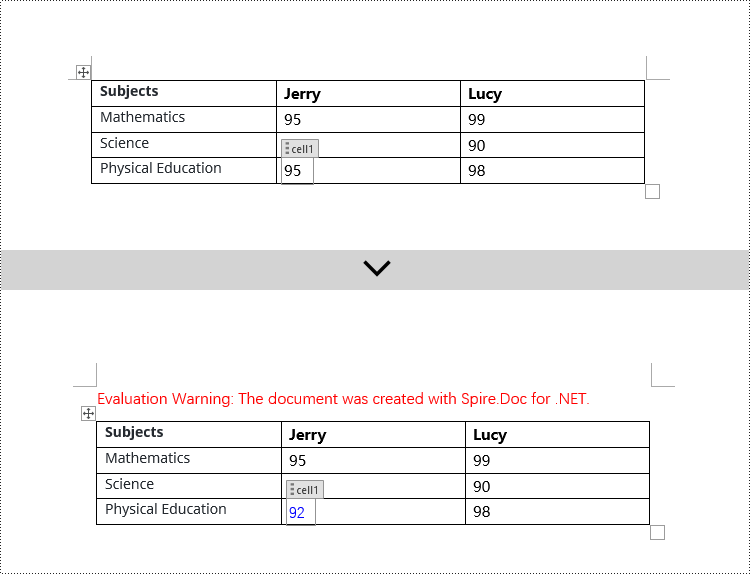
In Spire.Doc, the object type for the content control in a table cell is StructureDocumentTagCell. You need to iterate through the collection of child objects in TableRow.ChildObjects, find objects of type StructureDocumentTagCell, and then perform operations on them. Here are the detailed steps:
- Create a Document object.
- Load a document using the Document.LoadFromFile() method.
- Get the body of a section using Section.Body.
- Get the first table in the body using Body.Tables[0].
- Iterate through the collection of table rows Table.Rows, accessing each TableRow object.
- Iterate through the collection of child objects in the table row TableRow.ChildObjects, finding objects of type StructureDocumentTagCell.
- Access the collection of paragraphs in the StructureDocumentTagCell content control cell, and perform the necessary modifications to the content.
- Save the document using the Document.SaveToFile() method.
- C#
using Spire.Doc;
using Spire.Doc.Documents;
using Spire.Doc.Fields;

namespace SpireDocDemo
{
    internal class Program
    {
        static void Main(string[] args)
        {
             // Create a new document object
            Document doc = new Document();

            // Load the document from a file
            doc.LoadFromFile("Sample4.docx");

            // Get the body of the document
            Body body = doc.Sections[0].Body;

            // Get the first table in the document
            Table table = (Table)body.Tables[0];

            // Iterate through the rows of the table
            for (int i = 0; i < table.Rows.Count; i++)
            {
                // Iterate through the child objects in each row
                for (int j = 0; j < table.Rows[i].ChildObjects.Count; j++)
                {
                    // Check if the child object is a StructureDocumentTagCell
                    if (table.Rows[i].ChildObjects[j].DocumentObjectType == DocumentObjectType.StructureDocumentTagCell)
                    {
                        // Convert the child object to StructureDocumentTagCell type
                        StructureDocumentTagCell structureDocumentTagCell = (StructureDocumentTagCell)table.Rows[i].ChildObjects[j];

                        // Check if the Tag or Alias property of structureDocumentTagCell is "cell1"
                        if (structureDocumentTagCell.SDTProperties.Tag == "cell1" || structureDocumentTagCell.SDTProperties.Alias == "cell1")
                        {
                            // Clear the paragraphs in the cell
                            structureDocumentTagCell.Paragraphs.Clear();

                            // Add a new paragraph and add text to it
                            TextRange textRange = structureDocumentTagCell.AddParagraph().AppendText("92");
                            textRange.CharacterFormat.TextColor = System.Drawing.Color.Blue;
                        }
                    }
                }
            }

            // Save the modified document to a new file
            doc.SaveToFile("ModifiedTableCellContentControl.docx", FileFormat.Docx2016);

            // Dispose of the document object
            doc.Dispose();
        }
    }
}
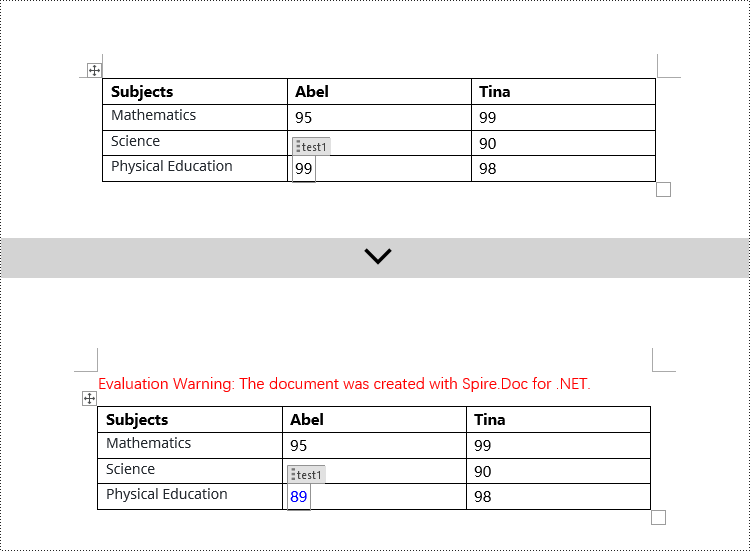
Modify Content Controls within Table Cells using C#
This case demonstrates modifying content controls within paragraphs in table cells. You need to first access the collection of paragraphs in the cell TableCell.Paragraphs, then iterate through the collection of child objects in each paragraph Paragraph.ChildObjects, find objects of type StructureDocumentTagInline, and make modifications to them. Here are the detailed steps:
- Create a Document object.
- Load a document using the Document.LoadFromFile() method.
- Get the body of a section using Section.Body.
- Get the first table in the body using Body.Tables[0].
- Iterate through the collection of table rows Table.Rows, accessing each TableRow object.
- Iterate through the collection of cells in the table row TableRow.Cells, accessing each TableCell object.
- Iterate through the collection of paragraphs in the cell TableCell.Paragraphs, accessing each Paragraph object.
- Iterate through the collection of child objects in the paragraph Paragraph.ChildObjects, finding objects of type StructureDocumentTagInline.
- Access the ChildObjects collection of the StructureDocumentTagInline object, and perform the necessary modifications based on the type of the child objects.
- Save the document using the Document.SaveToFile() method.
- C#
using Spire.Doc;
using Spire.Doc.Documents;
using Spire.Doc.Fields;

namespace SpireDocDemo
{
    internal class Program
    {
        static void Main(string[] args)
        {
            // Create a new Document object
            Document doc = new Document();

            // Load document content from file
            doc.LoadFromFile("Sample5.docx");

            // Get the body of the document
            Body body = doc.Sections[0].Body;

            // Get the first table
            Table table = (Table)body.Tables[0];

            // Iterate through the rows of the table
            for (int r = 0; r < table.Rows.Count; r++)
            {
                // Iterate through the cells in the table row
                for (int c = 0; c < table.Rows[r].Cells.Count; c++)
                {
                    // Iterate through the paragraphs in the cell
                    for (int p = 0; p < table.Rows[r].Cells[c].Paragraphs.Count; p++)
                    {
                        // Get the paragraph object
                        Paragraph paragraph = table.Rows[r].Cells[c].Paragraphs[p];

                        // Iterate through the child objects in the paragraph
                        for (int i = 0; i < paragraph.ChildObjects.Count; i++)
                        {
                            // Check if the child object is of type StructureDocumentTagInline
                            if (paragraph.ChildObjects[i].DocumentObjectType == DocumentObjectType.StructureDocumentTagInline)
                            {
                                // Convert to StructureDocumentTagInline object
                                StructureDocumentTagInline structureDocumentTagInline = (StructureDocumentTagInline)paragraph.ChildObjects[i];

                                // Check if the Tag or Alias property of StructureDocumentTagInline is "test1"
                                if (structureDocumentTagInline.SDTProperties.Tag == "test1" || structureDocumentTagInline.SDTProperties.Alias == "test1")
                                {
                                    // Iterate through the child objects of StructureDocumentTagInline
                                    for (int j = 0; j < structureDocumentTagInline.ChildObjects.Count; j++)
                                    {
                                        // Check if the child object is of type TextRange
                                        if (structureDocumentTagInline.ChildObjects[j].DocumentObjectType == DocumentObjectType.TextRange)
                                        {
                                            // Convert to TextRange object
                                            TextRange textRange = (TextRange)structureDocumentTagInline.ChildObjects[j];

                                            // Set the text content
                                            textRange.Text = "89";

                                            // Set text color
                                            textRange.CharacterFormat.TextColor = System.Drawing.Color.Blue;
                                        }
                                    }
                                }
                            }
                        }
                    }
                }
            }

            // Save the modified document to a new file
            doc.SaveToFile("ModifiedContentControlInParagraphOfTableCell.docx", FileFormat.Docx2016);

            // Dispose of the Document object resources
            doc.Dispose();
        }
    }
}
Apply for a Temporary License
If you'd like to remove the evaluation message from the generated documents, or to get rid of the function limitations, please request a 30-day trial license for yourself.
