
Spire.Doc for .NET (338)
Children categories
This tutorial is going to show you how to make a color of a image transparent using Spire.Doc.
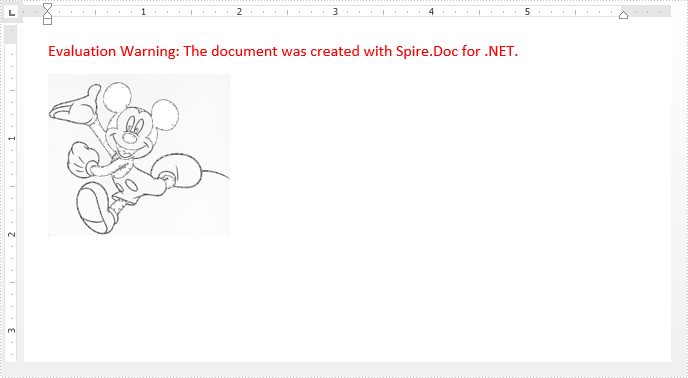
Below screenshot shows an example image with black and white colors:

Detail steps:
Step 1: Instantiate a Document object and Load the Word file.
Document doc = new Document();
doc.LoadFromFile("Input.docx");
Step 2: Get the first Paragraph in the first section.
Paragraph paragraph = doc.Sections[0].Paragraphs[0];
Step 3: Set the black color of the image(s) in the paragraph to transperant.
foreach (DocumentObject obj in paragraph.ChildObjects)
{
    if (obj is DocPicture)
    {
        (obj as DocPicture).TransparentColor = Color.Black;
    }
}
Step 4: Save the file.
doc.SaveToFile("Result.docx", FileFormat.Docx2013);
Screenshot:
Full code:
using Spire.Doc;
using Spire.Doc.Documents;
using Spire.Doc.Fields;
using System.Drawing;
namespace Transeperant
{
    class Program
    {
        static void Main(string[] args)
        {
            //Instantiate a Document object
            Document doc = new Document();
            //Load the Word file
            doc.LoadFromFile("Input.docx");

            //Get the first paragraph in the first section
            Paragraph paragraph = doc.Sections[0].Paragraphs[0];

            //Set the black color of the image(s) in the paragraph to transperant
            foreach (DocumentObject obj in paragraph.ChildObjects)
            {
                if (obj is DocPicture)
                {
                    (obj as DocPicture).TransparentColor = Color.Black;
                }
            }

            //Save the file
            doc.SaveToFile("Result.docx", FileFormat.Docx2013);
        }
    }
}
Replace Bookmark with a Table in Word Documents in C#, VB.NET
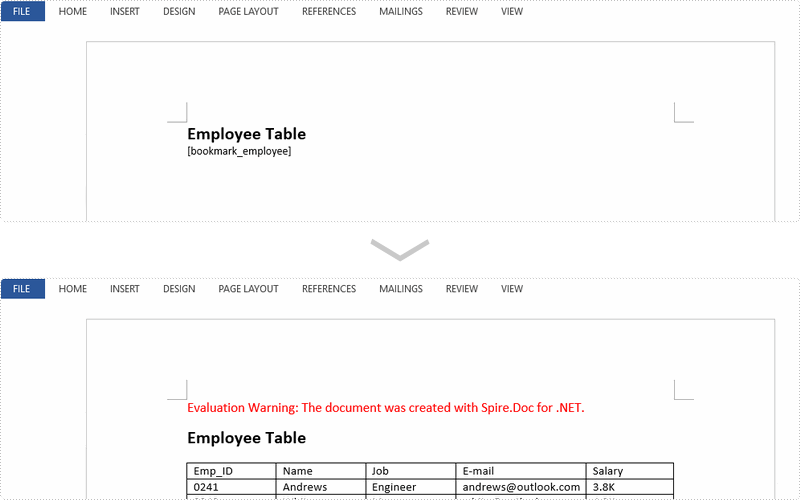
2018-04-20 07:35:06 Written by AdministratorBookmarks are a great way to specify important locations on a Word document. Spire.Doc supports to access the bookmarks within the document and insert objects such as text, image and table at the bookmark location. This article will show you how to access a specific bookmark and replace the current bookmark content with a table.
Step 1: Load a template Word document.
Document doc = new Document();
doc.LoadFromFile(@"C:\Users\Administrator\Desktop\employee.docx");
Step 2: Create a Table object.
Table table = new Table(doc,true);
Step 3: Fill the table with sample data.
DataTable dt = new DataTable();
dt.Columns.Add("id", typeof(string));
dt.Columns.Add("name", typeof(string));
dt.Columns.Add("job", typeof(string));
dt.Columns.Add("email", typeof(string));
dt.Columns.Add("salary", typeof(string));
dt.Rows.Add(new string[] { "Emp_ID", "Name", "Job", "E-mail", "Salary" });
dt.Rows.Add(new string[] { "0241","Andrews", "Engineer", "andrews@outlook.com" ,"3.8K"});
dt.Rows.Add(new string[] { "0242","White", "Manager", "white@outlook.com","4.2K" });
dt.Rows.Add(new string[] { "0243","Martin", "Secretary", "martin@gmail.com", "3.5K" });
table.ResetCells(dt.Rows.Count, dt.Columns.Count);
for (int i = 0; i < dt.Rows.Count; i++)
{
    for (int j = 0; j < dt.Columns.Count; j++)
    {
        table.Rows[i].Cells[j].AddParagraph().AppendText(dt.Rows[i][j].ToString());
    }
}
Step 4: Get the specific bookmark by its name.
BookmarksNavigator navigator = new BookmarksNavigator(doc);
navigator.MoveToBookmark("bookmark_employee");
Step 5: Create a TextBodyPart instance and add the table to it.
TextBodyPart part = new TextBodyPart(doc);
part.BodyItems.Add(table);
Step 6: Replace the current bookmark content with the TextBodyPart object.
navigator.ReplaceBookmarkContent(part);
Step 7: Save the file.
doc.SaveToFile("output.docx", FileFormat.Docx2013);
Result:
Full Code:
using Spire.Doc;
using Spire.Doc.Documents;
using System.Data;
namespace ReplaceBookmark
{
    class Program
    {

        static void Main(string[] args)
        {

            Document doc = new Document();
            doc.LoadFromFile(@"C:\Users\Administrator\Desktop\employee.docx");

            Table table = new Table(doc, true);
            DataTable dt = new DataTable();
            dt.Columns.Add("id", typeof(string));
            dt.Columns.Add("name", typeof(string));
            dt.Columns.Add("job", typeof(string));
            dt.Columns.Add("email", typeof(string));
            dt.Columns.Add("salary", typeof(string));
            dt.Rows.Add(new string[] { "Emp_ID", "Name", "Job", "E-mail", "Salary" });
            dt.Rows.Add(new string[] { "0241", "Andrews", "Engineer", "andrews@outlook.com", "3.8K" });
            dt.Rows.Add(new string[] { "0242", "White", "Manager", "white@outlook.com", "4.2K" });
            dt.Rows.Add(new string[] { "0243", "Martin", "Secretary", "martin@gmail.com", "3.5K" });
            table.ResetCells(dt.Rows.Count, dt.Columns.Count);
            for (int i = 0; i < dt.Rows.Count; i++)
            {
                for (int j = 0; j < dt.Columns.Count; j++)
                {
                    table.Rows[i].Cells[j].AddParagraph().AppendText(dt.Rows[i][j].ToString());
                }
            }

            BookmarksNavigator navigator = new BookmarksNavigator(doc);
            navigator.MoveToBookmark("bookmark_employee");
            TextBodyPart part = new TextBodyPart(doc);
            part.BodyItems.Add(table);
            navigator.ReplaceBookmarkContent(part);
            doc.SaveToFile("output.docx", FileFormat.Docx2013);
            System.Diagnostics.Process.Start("output.docx");

        }
    }
}
Imports Spire.Doc
Imports Spire.Doc.Documents
Imports System.Data
Namespace ReplaceBookmark
	Class Program

		Private Shared Sub Main(args As String())

			Dim doc As New Document()
			doc.LoadFromFile("C:\Users\Administrator\Desktop\employee.docx")

			Dim table As New Table(doc, True)
			Dim dt As New DataTable()
			dt.Columns.Add("id", GetType(String))
			dt.Columns.Add("name", GetType(String))
			dt.Columns.Add("job", GetType(String))
			dt.Columns.Add("email", GetType(String))
			dt.Columns.Add("salary", GetType(String))
			dt.Rows.Add(New String() {"Emp_ID", "Name", "Job", "E-mail", "Salary"})
			dt.Rows.Add(New String() {"0241", "Andrews", "Engineer", "andrews@outlook.com", "3.8K"})
			dt.Rows.Add(New String() {"0242", "White", "Manager", "white@outlook.com", "4.2K"})
			dt.Rows.Add(New String() {"0243", "Martin", "Secretary", "martin@gmail.com", "3.5K"})
			table.ResetCells(dt.Rows.Count, dt.Columns.Count)
			For i As Integer = 0 To dt.Rows.Count - 1
				For j As Integer = 0 To dt.Columns.Count - 1
					table.Rows(i).Cells(j).AddParagraph().AppendText(dt.Rows(i)(j).ToString())
				Next
			Next

			Dim navigator As New BookmarksNavigator(doc)
			navigator.MoveToBookmark("bookmark_employee")
			Dim part As New TextBodyPart(doc)
			part.BodyItems.Add(table)
			navigator.ReplaceBookmarkContent(part)
			doc.SaveToFile("output.docx", FileFormat.Docx2013)
			System.Diagnostics.Process.Start("output.docx")

		End Sub
	End Class
End Namespace
C#/VB.NET: Remove Text or Image Watermarks from Word Documents
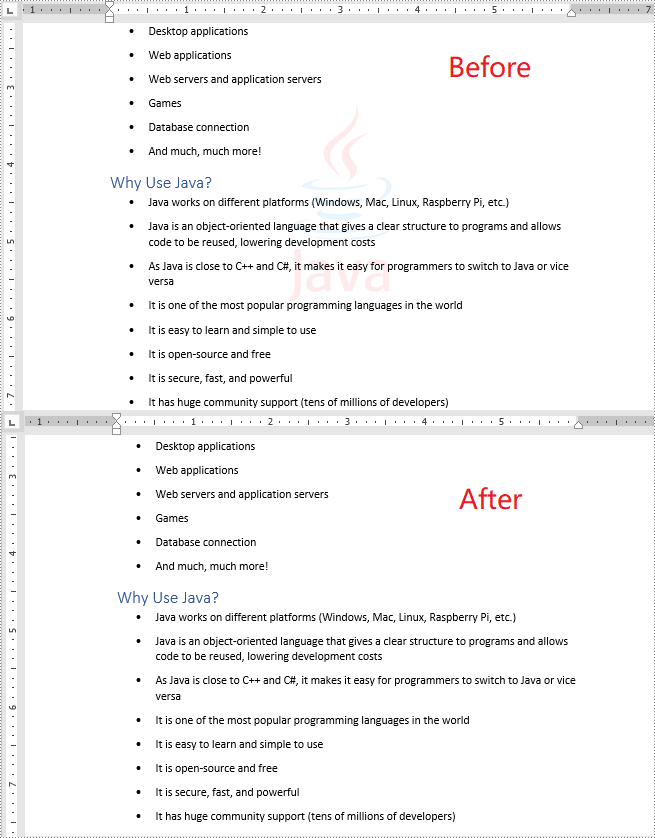
2022-06-24 08:50:00 Written by KoohjiWatermarks can be added to Word documents to inform other people about the documents' ownership or status. Sometimes, you may want to get rid of an existing watermark in a Word document. This article will demonstrate how to remove watermarks from Word documents in C# and VB.NET using Spire.Doc for .NET.
Install Spire.Doc for .NET
To begin with, you need to add the DLL files included in the Spire.Doc for .NET package as references in your .NET project. The DLL files can be either downloaded from this link or installed via NuGet.
PM> Install-Package Spire.Doc
Remove Text or Image Watermarks from Word Documents in C# and VB.NET
You can remove the watermark of a Word document by setting the Document.Watermark property as null.
The following steps show you how to remove the watermark from a Word document:
- Initialize an instance of Document class.
- Load a Word document using Document.LoadFromFile() method.
- Remove the watermark from the document by setting the Document.Watermark property as null.
- Save the result document using Document.SaveToFile() method.
- C#
- VB.NET
using Spire.Doc;

namespace RemoveWatermark
{
    class Program
    {
        static void Main(string[] args)
        {
            //Create a Document instance
            Document doc = new Document();
            //Load a Word document
            doc.LoadFromFile("Sample.docx");

            //Remove the watermark from the document
            doc.Watermark = null;

            //Save the result document
            doc.SaveToFile("RemoveWatermark.docx", FileFormat.Docx2013);
        }
    }
}
Apply for a Temporary License
If you'd like to remove the evaluation message from the generated documents, or to get rid of the function limitations, please request a 30-day trial license for yourself.
