
Spire.Doc for .NET (338)
Children categories
Whatever solution you use to convert RTF to PDF before, the solution that will be introduced is the easiest method to clearly realize your RTF to PDF conversion task. The whole process can be accomplished through three lines of key code in your WPF application via a Word component Spire.Doc for WPF.
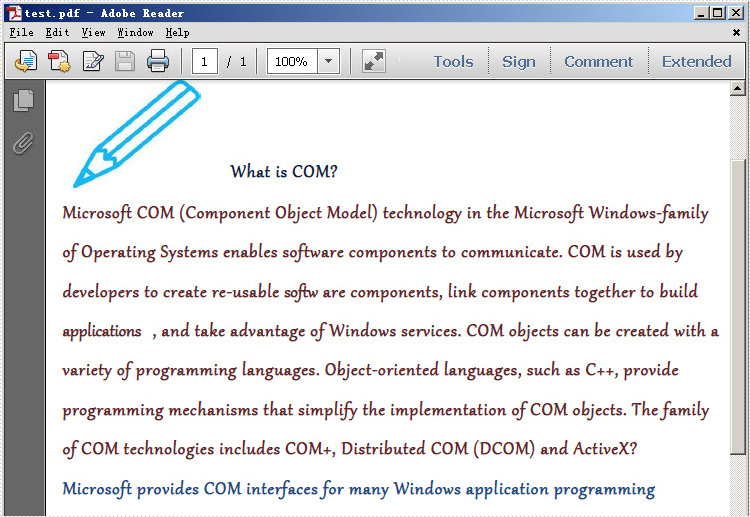
Now, please download Spire.Doc for WPF and convert your RTF to PDF by the code below:
using Spire.Doc;
namespace WPFRTFtoPDF
{
      public partial class MainWindow : Window
    {
        public MainWindow()
        {
            InitializeComponent();
        }

        private void button1_Click(object sender, RoutedEventArgs e)
        {
            Document doc = new Document();
            doc.LoadFromFile(@"..\WPFRTFtoPDF.rtf", FileFormat.Rtf);
            doc.SaveToFile("test.pdf", FileFormat.PDF);
        }
    }
}
Imports Spire.Doc
Namespace WPFRTFtoPDF

	Public Partial Class MainWindow
		Inherits Window
		Public Sub New()
			InitializeComponent()
		End Sub

		Private Sub button1_Click(sender As Object, e As RoutedEventArgs)
			Dim doc As New Document()
			doc.LoadFromFile("..\WPFRTFtoPDF.rtf", FileFormat.Rtf)
			doc.SaveToFile("test.pdf", FileFormat.PDF)
		End Sub
	End Class
End Namespace
For comparison, I put the original RTF file below:
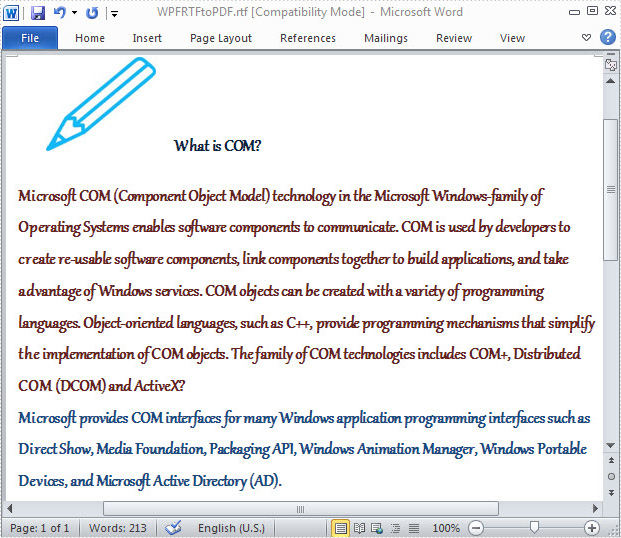
Spire.Doc is a standalone word component, which enables users to perform a wide range of word document processing tasks in WPF, .NET and Silverlight without installing MS Word on system.
Word Find function can enable users to search for specific text or phrase quickly. Generally speaking, the found text will be highlighted automatically in order to distinguish from other contents. Also, users can format found text, such as set it as italic, bold etc.
Spire.Doc for WPF, a professional WPF component on manipulating Word, enables users to find and highlight text in Word with WPF. With this Word WPF component, developers can invoke doc.FindAllString(text string, bool caseSensitive, bool wholeWord) method directly to find text in Word. And for highlighting found text, developers need Firstly, use TextSelection, the class Spire.Doc for WPF provides, to save found string. Then, use foreach sentence to get each selection in this TextSelection. Finally, set HighlightColor, one properties of TextRange.CharacterFormat, for text in selection.
Below, the screenshot shows a Word document whose specified text has be found and highlighted.

Download and install Spire.Doc for WPF and then use the codes below to Find and Highlight Text in Word
Code Sample:
using Spire.Doc;
using Spire.Doc.Documents;
using System.Drawing;
using System.Windows;

namespace WpfApplication1
{
    public partial class MainWindow : Window
    {
        public MainWindow()
        {
            InitializeComponent();
        }
        private void button1_Click(object sender, RoutedEventArgs e)
        {

            //Load Document
            Document doc = new Document();
            doc.LoadFromFile(@"E:\work\Documents\A GOOD MAN IS HARD TO FIND.docx");

            //Find Text
            TextSelection[] textSelections = doc.FindAllString("Bailey", true, true);

            //Highlight Text
            foreach (TextSelection selection in textSelections)
            {
                selection.GetAsOneRange().CharacterFormat.HighlightColor = Color.Green;
            }

            //Save Document
            doc.SaveToFile("FindText.docx", FileFormat.Docx2010);
            System.Diagnostics.Process.Start("FindText.docx");
        }


    }
}
Imports Spire.Doc
Imports Spire.Doc.Documents
Imports System.Drawing
Imports System.Windows

Namespace WpfApplication1
	Public Partial Class MainWindow
		Inherits Window
		Public Sub New()
			InitializeComponent()
		End Sub
		Private Sub button1_Click(sender As Object, e As RoutedEventArgs)

			'Load Document
			Dim doc As New Document()
			doc.LoadFromFile("E:\work\Documents\A GOOD MAN IS HARD TO FIND.docx")

			'Find Text
			Dim textSelections As TextSelection() = doc.FindAllString("Bailey", True, True)

			'Highlight Text
			For Each selection As TextSelection In textSelections
				selection.GetAsOneRange().CharacterFormat.HighlightColor = Color.Green
			Next

			'Save Document
			doc.SaveToFile("FindText.docx", FileFormat.Docx2010)
			System.Diagnostics.Process.Start("FindText.docx")
		End Sub


	End Class
End Namespace
Spire.Doc is a Microsoft Word component, which enables users to perform a wide range of Word document processing tasks directly, such as generate, read, write and modify Word document in WPF, .NET and Silverlight.
OLE, short for Object Linking and Embedding, is a powerful technology integrated into Microsoft Word and other Microsoft Office applications. Its primary purpose is to seamlessly integrate objects from external programs directly into your documents. These objects can range from simple images or charts to more complex items like spreadsheets, presentations, multimedia files and more. In this article, we will demonstrate how to insert OLE objects as well as extract OLE objects in Word documents in C# using Spire.Doc for .NET.
Install Spire.Doc for .NET
To begin with, you need to add the DLL files included in the Spire.Doc for .NET package as references in your .NET project. The DLL files can be either downloaded from this link or installed via NuGet.
PM> Install-Package Spire.Doc
Insert OLE Objects in Word in C#
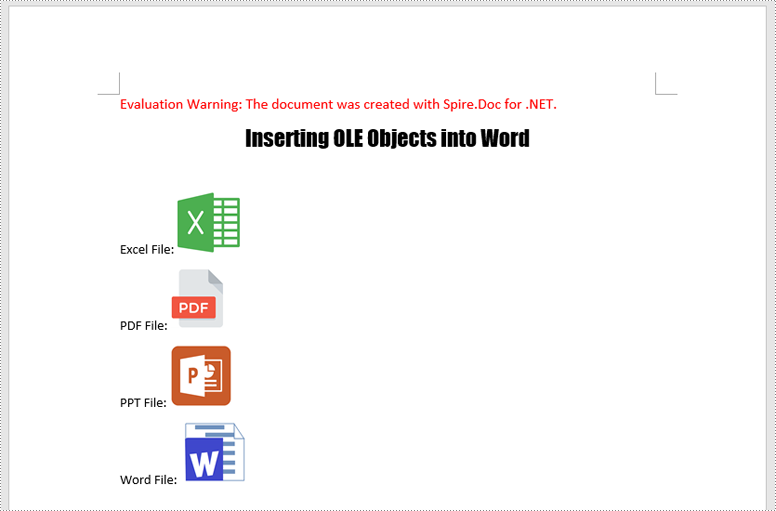
Spire.Doc for .NET offers the Paragraph.AppendOleObject(string pathToFile, DocPicture olePicture), OleObjectType type) method, which allows you to insert various types of documents (including Excel spreadsheets, PDF files, Word documents, PowerPoint presentations, and more) as OLE objects into a Word document.
The detailed steps are as follows:
- Create an instance of the Document class.
- Load a Word document using the Document.LoadFromFile() method.
- Get a specific section using the Document.Sections[index] property.
- Add a paragraph to the section using the Section.AddParagraph() method.
- Create an instance of the DocPicture class.
- Load an image that will be used as the icon of the embedded object using the DocPicture.LoadImage() method, and then set image width and height.
- Append an Excel spreadsheet as an OLE object to the paragraph using the Paragraph.AppendOleObject(string pathToFile, DocPicture olePicture, OleObjectType type) method.
- Repeat the above 4-7 steps to add more paragraphs and append more types of documents, like a PDF file, a PowerPoint presentation, and a Word document as OLE objects.
- Save the result file using the Document.SaveToFile() method.
- C#
using Spire.Doc;
using Spire.Doc.Documents;
using Spire.Doc.Fields;

namespace InsertOleObjects
{
    internal class Program
    {
        static void Main(string[] args)
        {
            // Create an instance of the Document class
            Document doc = new Document();
            // Load a Word document
            doc.LoadFromFile("Example.docx");

            // Get the first section
            Section section = doc.Sections[0];

            // Add a paragraph to the section
            Paragraph para1 = section.AddParagraph();
            para1.AppendText("Excel File: ");
            // Load an image that will be used as the icon of the OLE object
            DocPicture picture1 = new DocPicture(doc);
            picture1.LoadImage("Excel-Icon.png");
            picture1.Width = 50;
            picture1.Height = 50;
            // Append an Excel spreadsheet to the paragraph as an OLE object
            para1.AppendOleObject("Budget.xlsx", picture1, OleObjectType.ExcelWorksheet);

            // Add a paragraph to the section
            Paragraph para2 = section.AddParagraph();
            para2.AppendText("PDF File: ");
            // Load an image that will be used as the icon of the OLE object
            DocPicture picture2 = new DocPicture(doc);
            picture2.LoadImage("PDF-Icon.png");
            picture2.Width = 50;
            picture2.Height = 50;
            // Append a PDF file to the paragraph as an OLE object
            para2.AppendOleObject("Report.pdf", picture2, OleObjectType.AdobeAcrobatDocument);

            // Add a paragraph to the section
            Paragraph para3 = section.AddParagraph();
            para3.AppendText("PPT File: ");
            // Load an image that will be used as the icon of the OLE object
            DocPicture picture3 = new DocPicture(doc);
            picture3.LoadImage("PPT-Icon.png");
            picture3.Width = 50;
            picture3.Height = 50;
            // Append a PowerPoint presentation to the paragraph as an OLE object
            para3.AppendOleObject("Plan.pptx", picture3, OleObjectType.PowerPointPresentation);

            // Add a paragraph to the section
            Paragraph para4 = section.AddParagraph();
            para4.AppendText("Word File: ");
            // Load an image that will be used as the icon of the OLE object
            DocPicture picture4 = new DocPicture(doc);
            picture4.LoadImage("Word-Icon.png");
            picture4.Width = 50;
            picture4.Height = 50;
            // Append a Word document to the paragraph as an OLE object
            para4.AppendOleObject("Introduction.docx", picture4, OleObjectType.WordDocument);

            doc.SaveToFile("InsertOLE.docx", FileFormat.Docx2013);
            doc.Close();
        }
    }
}
Extract OLE Objects from Word in C#
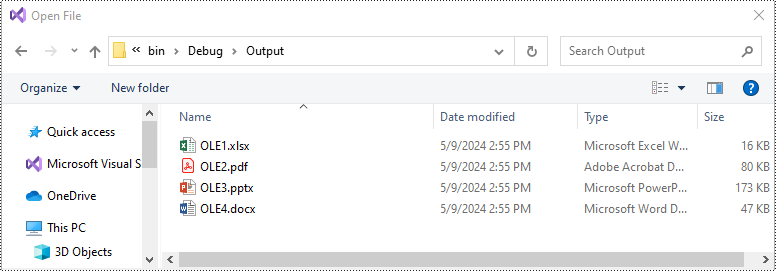
To extract OLE objects from a Word document, you need to locate the OLE objects within the document first. Once located, identify the file format of each OLE object. Finally, save the data of each OLE object to a file in its original format.
The detailed steps are as follows:
- Create an instance of the Document class.
- Load a Word document using the Document.LoadFromFile() method.
- Iterate through all sections of the document.
- Iterate through all child objects in the body of each section.
- Identify the paragraphs within each section.
- Iterate through the child objects in each paragraph.
- Locate the OLE object within the paragraph.
- Determine the file format of the OLE object.
- Save the data of the OLE object to a file in its native file format.
- C#
using Spire.Doc;
using Spire.Doc.Documents;
using Spire.Doc.Fields;
using System;

namespace InsertOrExtractOleObjects
{
    internal class Program
    {
        static void Main(string[] args)
        {
            // Create an instance of the Document class
            Document doc = new Document();
            // Load a Word document
            doc.LoadFromFile("InsertOLE.docx");

            int i = 1;
            // Iterate through all sections of the Word document
            foreach (Section sec in doc.Sections)
            {
                // Iterate through all child objects in the body of each section
                foreach (DocumentObject obj in sec.Body.ChildObjects)
                {
                    // Check if the child object is a paragraph
                    if (obj is Paragraph par)
                    {
                        // Iterate through the child objects in the paragraph
                        foreach (DocumentObject o in par.ChildObjects)
                        {
                            // Check if the child object is an OLE object
                            if (o is DocOleObject ole)
                            {
                                string s = ole.ObjectType;
                                string ext = "";

                                // Check if the OLE object is a PDF file
                                if (s.StartsWith("AcroExch.Document"))
                                {
                                    ext = ".pdf";
                                }
                                // Check if the OLE object is an Excel spreadsheet
                                else if (s.StartsWith("Excel.Sheet"))
                                {
                                    ext = ".xlsx";
                                }
                                // Check if the OLE object is a PowerPoint presentation
                                else if (s.StartsWith("PowerPoint.Show"))
                                {
                                    ext = ".pptx";
                                }
                                // Check if the OLE object is a Word document
                                else if (s.StartsWith("Word.Document"))
                                {
                                    ext = ".docx";
                                }
                                else
                                {
                                    continue;
                                }

                                // Write the data of OLE into a file in its native format
                                using (var file = System.IO.File.OpenWrite($"Output/OLE{i}{ext}"))
                                {
                                    file.Write(ole.NativeData, 0, ole.NativeData.Length);
                                }

                                i++;
                            }
                        }
                    }
                }
            }

            doc.Close();
        }
    }
}
Apply for a Temporary License
If you'd like to remove the evaluation message from the generated documents, or to get rid of the function limitations, please request a 30-day trial license for yourself.
