Spire.Doc for .NET (338)
Children categories
When receiving or downloading a Word document from the Internet, you may sometimes need to extract content from the document for other purposes. In this article, you will learn how to programmatically extract text and images from a Word document using Spire.Doc for .NET.
Install Spire.Doc for .NET
To begin with, you need to add the DLL files included in the Spire.Doc for.NET package as references in your .NET project. The DLL files can be either downloaded from this link or installed via NuGet.
PM> Install-Package Spire.Doc
Extract Text from a Word Document
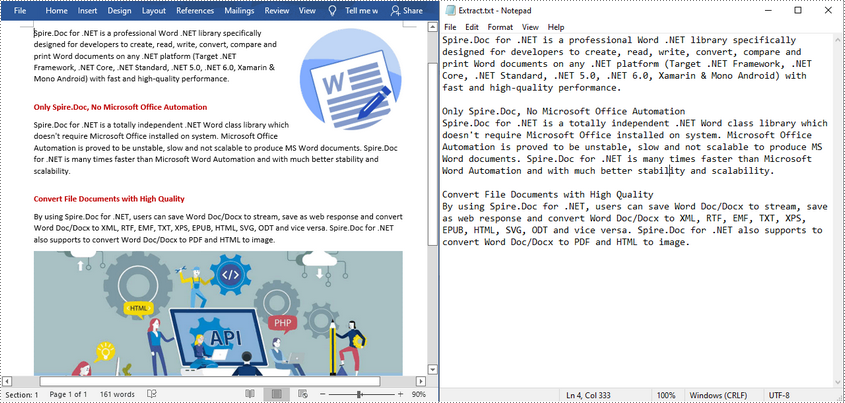
Below are detailed steps on how to extract text from a Word document and save in a TXT file.
- Create a Document instance.
- Load a sample Word document using Document.LoadFromFile() method.
- Create a StringBuilder instance.
- Get each paragraph of each section in the document.
- Get the text of a specified paragraph using Paragraph.Text property, and then append the extracted text to the StringBuilder instance using StringBuilder.AppendLine() method.
- Create a new txt file and write the extracted text to the file using File.WriteAllText() method.
- C#
- VB.NET
using Spire.Doc;
using Spire.Doc.Documents;
using System.Text;
using System.IO;

namespace ExtractTextfromWord
{
    class ExtractText
    {
        static void Main(string[] args)
        {
            //Create a Document instance
            Document document = new Document();

            //Load a sample Word document
            document.LoadFromFile("input.docx");

            //Create a StringBuilder instance
            StringBuilder sb = new StringBuilder();

            //Extract text from Word and save to StringBuilder instance
            foreach (Section section in document.Sections)
            {
                foreach (Paragraph paragraph in section.Paragraphs)
                {
                    sb.AppendLine(paragraph.Text);
                }
            }

            //Create a new txt file to save the extracted text
            File.WriteAllText("Extract.txt", sb.ToString());
        }
    }
}
Extract Images from a Word Document
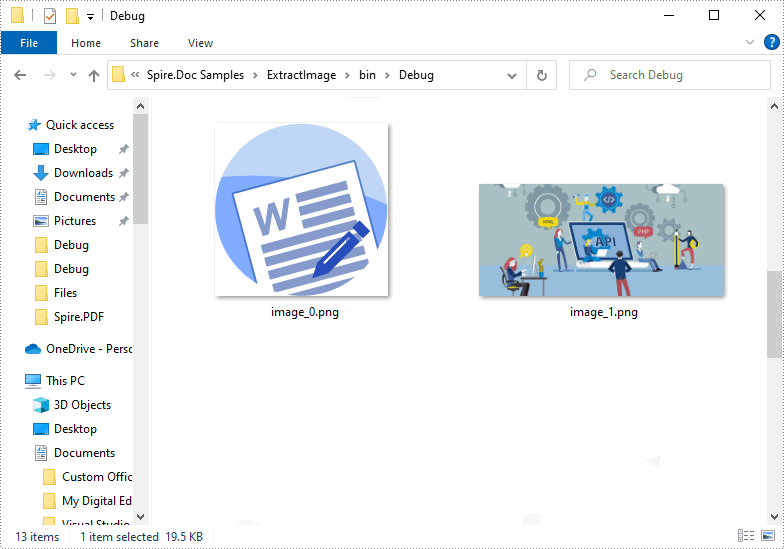
Below are detailed steps on how to extract all images from a Word document.
- Create a Document instance and load a sample Word document.
- Get each paragraph of each section in the document.
- Get each document object of a specific paragraph.
- Determine whether the document object type is picture. If yes, save the image out of the document using DocPicture.Image.Save(String, ImageFormat) method.
- C#
- VB.NET
using Spire.Doc;
using Spire.Doc.Documents;
using Spire.Doc.Fields;
using System;

namespace ExtractImage
{
    class Program
    {
        static void Main(string[] args)
        {
            //Load a Word document
            Document document = new Document("input.docx");
            int index = 0;

            //Get each section of document
            foreach (Section section in document.Sections)
            {
                //Get each paragraph of section
                foreach (Paragraph paragraph in section.Paragraphs)
                {
                    //Get each document object of a specific paragraph
                    foreach (DocumentObject docObject in paragraph.ChildObjects)
                    {
                        //If the DocumentObjectType is picture, save it out of the document
                        if (docObject.DocumentObjectType == DocumentObjectType.Picture)
                        {
                            DocPicture picture = docObject as DocPicture;
                            picture.Image.Save(string.Format("image_{0}.png", index), System.Drawing.Imaging.ImageFormat.Png);
                            index++;
                        }
                    }
                }
            }
        }
    }
}
Apply for a Temporary License
If you'd like to remove the evaluation message from the generated documents, or to get rid of the function limitations, please request a 30-day trial license for yourself.
Converting HTML to images enables the transformation of dynamic web content-such as text, graphics, and layouts-into static formats like PNG or JPEG. This process is ideal for capturing web pages for documentation, generating thumbnails, or ensuring visually consistent content across platforms, providing both accuracy and versatility.
In this article, you'll learn how to convert HTML files and strings to images using C# with Spire.Doc for .NET.
Install Spire.Doc for .NET
To begin with, you need to add the DLL files included in the Spire.Doc for .NET package as references in your .NET project. The DLL files can be either downloaded from this link or installed via NuGet.
PM> Install-Package Spire.Doc
Convert an HTML File to Image in C#
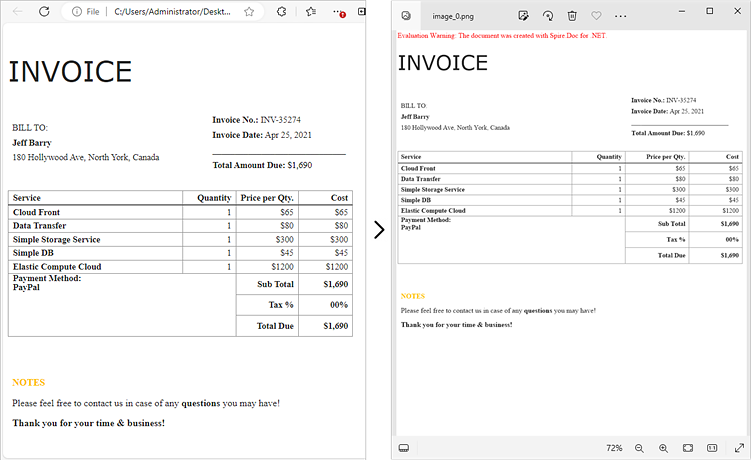
Using Spire.Doc for .NET, you can directly load an HTML file by utilizing the Document.LoadFromFile() method. Once loaded, you can convert the document into Bitmap images with the Document.SaveToImages() method. Afterward, you can loop through the generated images and save each one in widely-used image formats such as PNG, JPG, or BMP.
The following are the steps to convert an HTML file to images using Spire.Doc in C#:
- Create a Document object.
- Load an HTML file using the Document.LoadFromFile() method.
- Adjust properties such as margins, which will affect the output image's layout.
- Call the Document.SaveToImages() method to convert the loaded document into an array of Bitmap images.
- Iterate through the images and save each one to your desired output format.
- C#
using Spire.Doc;
using Spire.Doc.Documents;
using System.Drawing;
using System.Drawing.Imaging;

namespace ConvertHtmlFileToPng
{
    class Program
    {
        static void Main(string[] args)
        {
            // Create a Document object
            Document document = new Document();

            // Load an HTML file
            document.LoadFromFile(@"C:\Users\Administrator\Desktop\MyHtml.html", FileFormat.Html, XHTMLValidationType.None);

            // Get the first section
            Section section = document.Sections[0];

            // Set the page margins
            section.PageSetup.Margins.All = 2;

            // Convert the document to an array of bitmap images
            Image[] images = document.SaveToImages(ImageType.Bitmap);

            // Iterate through the images
            for (int index = 0; index < images.Length; index++)
            {
                // Specify the output file name
                string fileName = string.Format(@"C:\Users\Administrator\Desktop\Output\image_{0}.png", index);

                // Save each image as a PNG file
                images[index].Save(fileName, ImageFormat.Png);

            }

            // Dispose resources
            document.Dispose();
        }
    }
}
Convert an HTML String to Image in C#
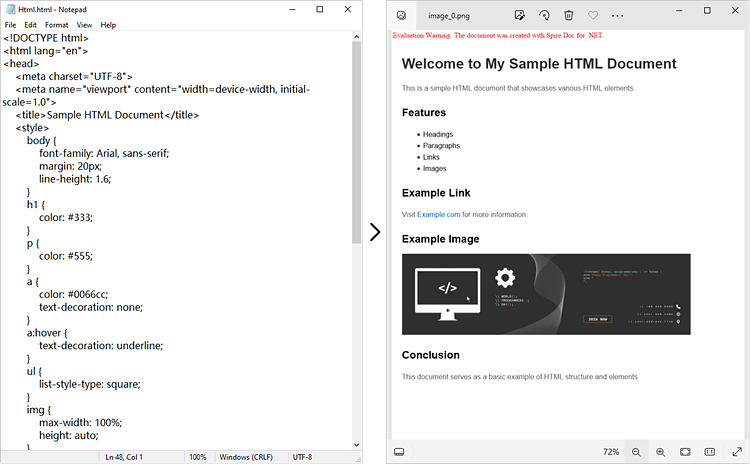
In certain scenarios, you might need to convert an HTML string directly into an image. This approach is especially beneficial for handling dynamically generated content or when you prefer not to depend on external HTML files.
Here is how you can convert an HTML string to images using Spire.Doc in C#:
- Create a Document object.
- Add a section and a paragraph to the document.
- Adjust properties such as margins, which will affect the output image's layout.
- Read the HTML string from a file or define it directly in the script.
- Use the Paragraph.AppendHTML() method to render the HTML content in the document.
- Call the Document.SaveToImages() method to convert the document into an array of Bitmap images.
- Iterate through the images and save each one to your desired output format.
- C#
using Spire.Doc;
using Spire.Doc.Documents;
using System.Drawing;
using System.Drawing.Imaging;

namespace ConvertHtmlStringToPng
{
    class Program
    {
        static void Main(string[] args)
        {
            // Create a Document object
            Document document = new Document();

            // Add a section to the document
            Section section = document.AddSection();

            // Set the page margins
            section.PageSetup.Margins.All = 2;

            // Add a paragraph to the section
            Paragraph paragraph = section.AddParagraph();

            // Read HTML string from a file
            string htmlFilePath = @"C:\Users\Administrator\Desktop\Html.html";
            string htmlString = File.ReadAllText(htmlFilePath, System.Text.Encoding.UTF8);

            // Append the HTML string to the paragraph
            paragraph.AppendHTML(htmlString);

            // Convert the document to an array of bitmap images
            Image[] images = document.SaveToImages(ImageType.Bitmap);

            // Iterate through the images
            for (int index = 0; index < images.Length; index++)
            {
                // Specify the output file name
                string fileName = string.Format(@"C:\Users\Administrator\Desktop\Output\image_{0}.png", index);

                // Save each image as a PNG file
                images[index].Save(fileName, ImageFormat.Png);

            }

            // Dispose resources
            document.Dispose();
        }
    }
}
Apply for a Temporary License
If you'd like to remove the evaluation message from the generated documents, or to get rid of the function limitations, please request a 30-day trial license for yourself.
The sample demonstrates how to Create Table in Word for Silverlight via Spire.Doc.