
Spire.Doc for .NET (338)
Children categories
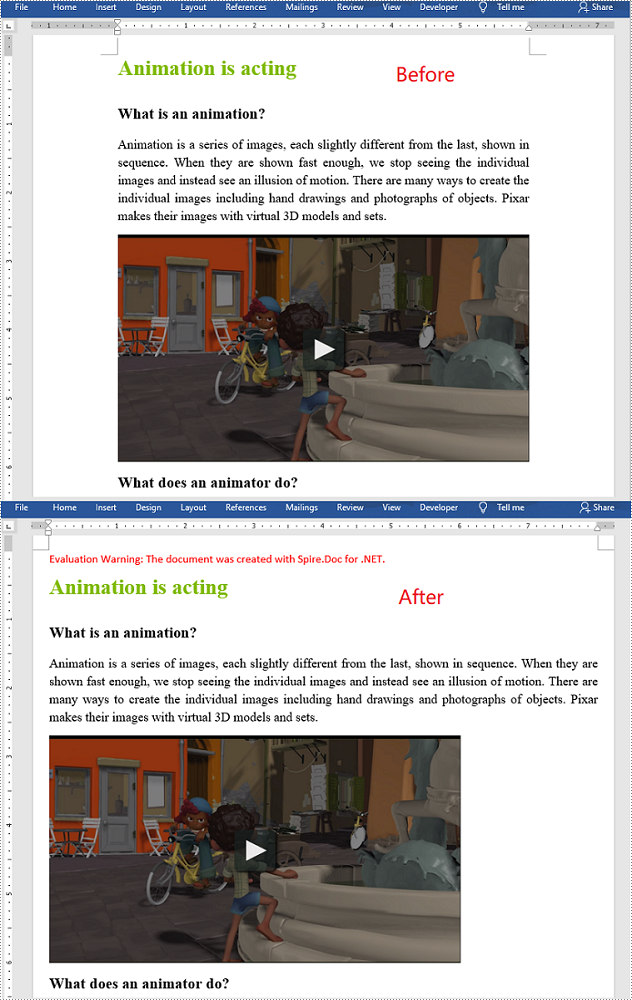
Page margins are the distance from the page edges to the content area. They are helpful in making a document look neat and professional. When generating a document in Microsoft Word, you may need to set page margins to make the document look better. In this article, we will demonstrate how to set page margins for Word documents in C# and VB.NET using Spire.Doc for .NET.
Install Spire.Doc for .NET
To begin with, you need to add the DLL files included in the Spire.Doc for .NET package as references in your .NET project. The DLL files can be either downloaded from this link or installed via NuGet.
PM> Install-Package Spire.Doc
Set Page Margins in Word in C# and VB.NET
The following are the steps to set page margins in Word:
- Initialize an instance of Document class.
- Load a Word document using Document.LoadFromFile() method.
- Get the desired section through Document.Sections[sectionIndex] property.
- Set the top, bottom, left and right margins for the pages in the section through Section.PageSetup.Margins.Top, Section.PageSetup.Margins.Bottom, Section.PageSetup.Margins.Left, Section.PageSetup.Margins.Right properties.
- Save the result document using Document.SaveToFile() method.
- C#
- VB.NET
using Spire.Doc;

namespace PageMargins
{
    class Program
    {
        static void Main(string[] args)
        {
            //Create a Document instance
            Document document = new Document();
            //Load a Word document
            document.LoadFromFile(@"Sample.docx");

            //Get the first section
            Section section = document.Sections[0];

            //Set top, bottom, left and right page margins for the section
            section.PageSetup.Margins.Top = 17.9f;
            section.PageSetup.Margins.Bottom = 17.9f;
            section.PageSetup.Margins.Left = 17.9f;
            section.PageSetup.Margins.Right = 17.9f;

            //Save the result document
            document.SaveToFile("SetMargins.docx", FileFormat.Docx2013);
        }
    }
}
Apply for a Temporary License
If you'd like to remove the evaluation message from the generated documents, or to get rid of the function limitations, please request a 30-day trial license for yourself.
Comments in Word are author reviews about specified contents. It can be removed and replaced with other comments for showing different reviews. Spire.Doc for .NET provides several methods with users to remove and replace comments in different situations. The following screenshot is a document with comments without removing and replacing.

Remove
There are three possibilities to remove comments.
- Remove One Comment: Method Document.Comments.RemoveAt enables users to remove one specified comment item. The index number is passed to this method to confirm which comment will be removed.
- Remove All Comments: Method Document.Comments.Clear() enables users to remove all comments in loaded Word document.
- Remove Part of One Comment (Body Paragraph): Firstly, get the specified comment item in document. Secondly, get paragraph collection in comments body. Thirdly, use method ParagraphCollection.RemoveAt method to remove body paragraph. The index number is passed to this method to confirm which paragraph will be removed.
Replace
It means to replace contents of body paragraphs in one specified comments. So at the beginning, the comment item and paragraph item in comment body should be gotten. Method Paragraph.Replace method can be used to replace comments. There are six possibilities this method provides.
- Replace regular expression pattern with replace string (the new comment).
- Replace regular expression pattern with text selection.
- Replace regular expression pattern with text selection taking into consideration of preserving comment formatting.
- Replace given string (original comment contents) with replace string, taking into consideration of case-sensitive and whole word option.
- Replace given string with text selection, taking into consideration of case-sensitive and whole word option.
- Replace give string with text selection, taking into consideration of case-sensitive, whole word options and formatting preservation.
The following example shows how to replace body paragraph of the first comment and remove the whole second comment in the loaded document. Download and install Spire.Doc for .NET and use the following code.
using Spire.Doc;

namespace RemoveandReplace
{
    class Program
    {
        static void Main(string[] args)
        {
            //Load Document
            Document document = new Document();
            document.LoadFromFile(@"E:\work\Documents\WordDocuments\A GOOD MAN IS HARD TO FIND.docx");

            //Replace Contents of The First Comment
            document.Comments[0].Body.Paragraphs[0].Replace("It’s a title with Mistral font style.", "This comment is changed.", false, false);

            //Remove The Second Comment
            document.Comments.RemoveAt(1);

            //Save and Launch
            document.SaveToFile("RemoveandReplace.docx", FileFormat.Docx);
            System.Diagnostics.Process.Start("RemoveandReplace.docx");
        }
    }
}
Imports Spire.Doc

Namespace RemoveandReplace
    Friend Class Program
        Shared Sub Main(ByVal args() As String)
            'Load Document
            Dim document As New Document()
            document.LoadFromFile("E:\work\Documents\WordDocuments\A GOOD MAN IS HARD TO FIND.docx")

            'Replace Contents of The First Comment
            document.Comments(0).Body.Paragraphs(0).Replace("It’s a title with Mistral font style.", "This comment is changed.", False, False)

            'Remove The Second Comment
            document.Comments.RemoveAt(1)

            'Save and Launch
            document.SaveToFile("RemoveandReplace.docx", FileFormat.Docx)
            System.Diagnostics.Process.Start("RemoveandReplace.docx")
        End Sub
    End Class
End Namespace
After running, you can get result below:

Spire.Doc, a professional Word component, enables developers/programmers perform a wide range of processing tasks, such as generate, write, modify and save for their customize .NET, Silverlight and WPF applications.
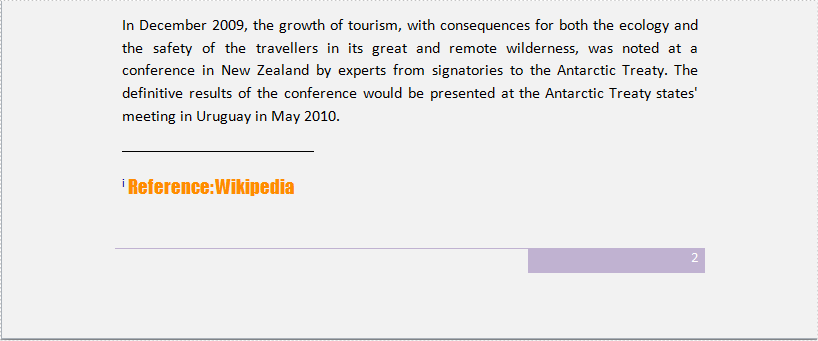
Word endnote is often put in the end of the document, which presents references of referred words/sentences/paragraphs. It includes two parts, marker and text. Marker can be customized or ordered automatically (i, ii, iii…). When one endnote is added, deleted or moved, the marker will be reordered automatically.
Spire.Doc for .NET, a stand-alone component used to manipulate Word document for .NET applications, enables users to insert endnote in Word by using C#, VB.NET. This guide introduces a method about how to realize this function via Spire.Doc for .NET.
Because endnote is included in footnote class, so invoke p.AppendFootnote(FootnoteType.Endnote) method to insert endnote. Then, use endnote.TextBody.AddParagraph().AppendText(string) method to add text and set CharacterFormat and MarkerCharacterFormat properties for endnote text and marker format. Download and install Spire.Doc for .NET and use the following code to insert endnote in Word.
using System.Drawing;
using Spire.Doc;
using Spire.Doc.Documents;
using Spire.Doc.Fields;

namespace WordEndnote
{
    class InsertEndnote
    {
        static void Main(string[] args)
        {
            //Load Document
            Document doc = new Document();
            doc.LoadFromFile(@"E:\Work\Documents\WordDocuments\Antarctic.docx", FileFormat.Docx);
            Section s = doc.Sections[0];
            Paragraph p = s.Paragraphs[3];

            //Add Footnote
            Footnote endnote = p.AppendFootnote(FootnoteType.Endnote);

            //Append Text
            TextRange text = endnote.TextBody.AddParagraph().AppendText("Reference: Wikipedia");

            //Text Format
            text.CharacterFormat.FontName = "Impact";
            text.CharacterFormat.FontSize = 14;
            text.CharacterFormat.TextColor = Color.DarkOrange;

            //Marker Format
            endnote.MarkerCharacterFormat.FontName = "Calibri";
            endnote.MarkerCharacterFormat.FontSize = 14;
            endnote.MarkerCharacterFormat.TextColor = Color.DarkBlue;

            //Save and Launch
            doc.SaveToFile("Endnote.docx", FileFormat.Docx);
            System.Diagnostics.Process.Start("Endnote.docx");
        }
    }
}
Imports System.Drawing
Imports Spire.Doc
Imports Spire.Doc.Documents
Imports Spire.Doc.Fields

Namespace WordEndnote
    Friend Class InsertEndnote
        Shared Sub Main(ByVal args() As String)
            'Load Document
            Dim doc As New Document()
            doc.LoadFromFile("E:\Work\Documents\WordDocuments\Antarctic.docx", FileFormat.Docx)
            Dim s As Section = doc.Sections(0)
            Dim p As Paragraph = s.Paragraphs(3)

            'Add Footnote
            Dim endnote As Footnote = p.AppendFootnote(FootnoteType.Endnote)

            'Append Text
            Dim text As TextRange = endnote.TextBody.AddParagraph().AppendText("Reference: Wikipedia")

            'Text Format
            text.CharacterFormat.FontName = "Impact"
            text.CharacterFormat.FontSize = 14
            text.CharacterFormat.TextColor = Color.DarkOrange

            'Marker Format
            endnote.MarkerCharacterFormat.FontName = "Calibri"
            endnote.MarkerCharacterFormat.FontSize = 14
            endnote.MarkerCharacterFormat.TextColor = Color.DarkBlue

            'Save and Launch
            doc.SaveToFile("Endnote.docx", FileFormat.Docx)
            System.Diagnostics.Process.Start("Endnote.docx")
        End Sub
    End Class
End Namespace
Spire.Doc is a Microsoft Word component, which enables users to perform a wide range of Word document processing tasks directly, such as generate, read, write and modify Word document in WPF, .NET and Silverlight.
