
Spire.Doc for .NET (338)
Children categories
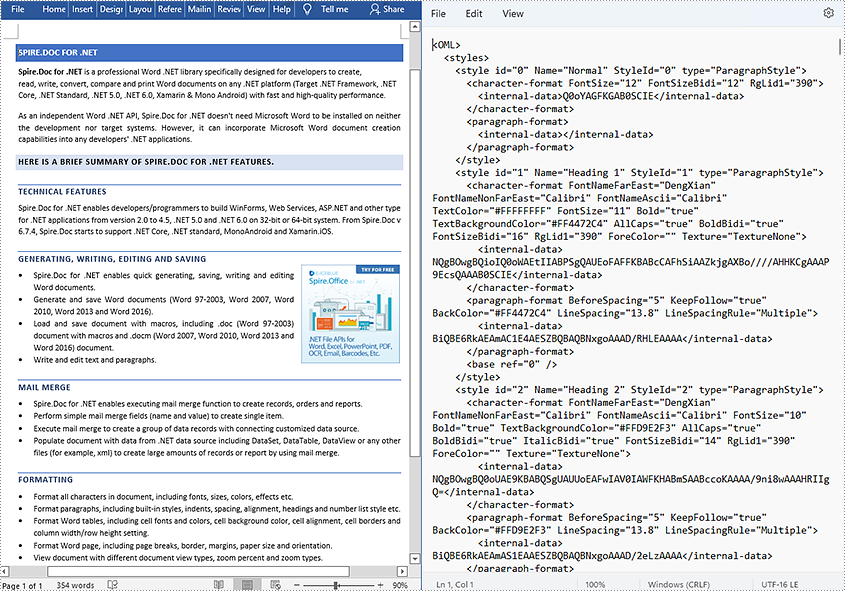
XML is a markup language and file format designed mainly to store and transmit arbitrary content. XML files have the feature of simplicity, generality, and usability, making them popular, especially among web servers. XML and HTML are two important markup languages on the web, but XML focuses on storing and transmitting data while HTML focuses on displaying webpages. This article demonstrates how to convert Word documents to XML files with the help of Spire.Doc for .NET.
Install Spire.Doc for .NET
To begin with, you need to add the DLL files included in the Spire.Doc for .NET package as references in your .NET project. The DLL files can be either downloaded from this link or installed via NuGet.
PM> Install-Package Spire.Doc
Convert a Word Document to an XML File
The detailed steps are as follows:
- Create an object of Document class.
- Load the Word document from disk using Document.LoadFromFile().
- Save the Word document as an XML file using Document.SaveToFile().
- C#
- VB.NET
using System;
using Spire.Doc;

namespace WordtoXML
{
    internal class Program
    {
        static void Main(string[] args)
        {
            //Create an object of Document class
            Document document = new Document();

            //Load a Word document from disk
            document.LoadFromFile(@"D:\testp\test.docx");

            //Save the Word document as an XML file
            document.SaveToFile("Sample.xml", FileFormat.Xml);
        }
    }
}
Apply for a Temporary License
If you'd like to remove the evaluation message from the generated documents, or to get rid of the function limitations, please request a 30-day trial license for yourself.
A hyperlink within a Word document enables readers to jump from its location to a different place within the document, or to a different file or website, or to a new email message. Hyperlinks make it quick and easy for readers to navigate to related information. This article demonstrates how to add hyperlinks to text or images in C# and VB.NET using Spire.Doc for .NET.
Install Spire.Doc for .NET
To begin with, you need to add the DLL files included in the Spire.Doc for.NET package as references in your .NET project. The DLL files can be either downloaded from this link or installed via NuGet.
PM> Install-Package Spire.Doc
Insert Hyperlinks When Adding Paragraphs to Word
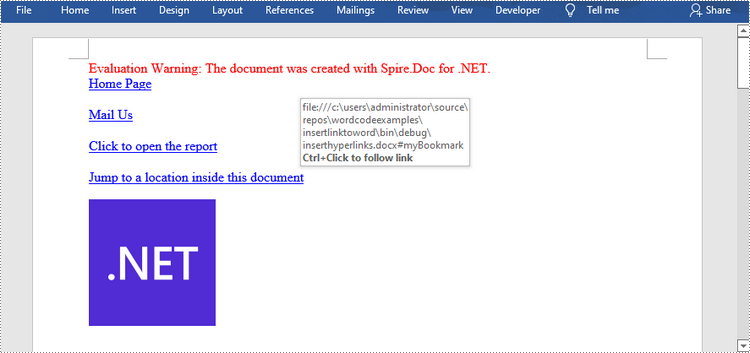
Spire.Doc offers the Paragraph.AppendHyperlink() method to add a web link, an email link, a file link, or a bookmark link to a piece of text or an image inside a paragraph. The following are the detailed steps.
- Create a Document object.
- Add a section and a paragraph to it.
- Insert a hyperlink based on text using Paragraph.AppendHyerplink(string link, string text, HyperlinkType type) method.
- Add an image to the paragraph using Paragraph.AppendPicture() method.
- Insert a hyperlink based on the image using Paragraph.AppendHyerplink(string link, Spire.Doc.Fields.DocPicture picture, HyperlinkType type) method.
- Save the document using Document.SaveToFile() method.
- C#
- VB.NET
using Spire.Doc;
using Spire.Doc.Documents;
using System.Drawing;

namespace InsertHyperlinks
{
    class Program
    {
        static void Main(string[] args)
        {
            //Create a Word document
            Document doc = new Document();

            //Add a section
            Section section = doc.AddSection();

            //Add a paragraph
            Paragraph paragraph = section.AddParagraph();
            paragraph.AppendHyperlink("https://www-iceblue.com/", "Home Page", HyperlinkType.WebLink);

            //Append line breaks
            paragraph.AppendBreak(BreakType.LineBreak);
            paragraph.AppendBreak(BreakType.LineBreak);

            //Add an email link
            paragraph.AppendHyperlink("mailto:support@e-iceblue.com", "Mail Us", HyperlinkType.EMailLink);

            //Append line breaks
            paragraph.AppendBreak(BreakType.LineBreak);
            paragraph.AppendBreak(BreakType.LineBreak);

            //Add a file link
            string filePath = @"C:\Users\Administrator\Desktop\report.xlsx";
            paragraph.AppendHyperlink(filePath, "Click to open the report", HyperlinkType.FileLink);

            //Append line breaks
            paragraph.AppendBreak(BreakType.LineBreak);
            paragraph.AppendBreak(BreakType.LineBreak);

            //Add another section and create a bookmark
            Section section2 = doc.AddSection();
            Paragraph bookmarkParagrapg = section2.AddParagraph();
            bookmarkParagrapg.AppendText("Here is a bookmark");
            BookmarkStart start = bookmarkParagrapg.AppendBookmarkStart("myBookmark");
            bookmarkParagrapg.Items.Insert(0, start);
            bookmarkParagrapg.AppendBookmarkEnd("myBookmark");

            //Link to the bookmark
            paragraph.AppendHyperlink("myBookmark", "Jump to a location inside this document", HyperlinkType.Bookmark);

            //Append line breaks
            paragraph.AppendBreak(BreakType.LineBreak);
            paragraph.AppendBreak(BreakType.LineBreak);

            //Add an image link
            Image image = Image.FromFile(@"C:\Users\Administrator\Desktop\logo.png");
            Spire.Doc.Fields.DocPicture picture = paragraph.AppendPicture(image);
            paragraph.AppendHyperlink("https://docs.microsoft.com/en-us/dotnet/", picture, HyperlinkType.WebLink);

            //Save to file
            doc.SaveToFile("InsertHyperlinks.docx", FileFormat.Docx2013);
        }
    }
}
Add Hyperlinks to Existing Text in Word
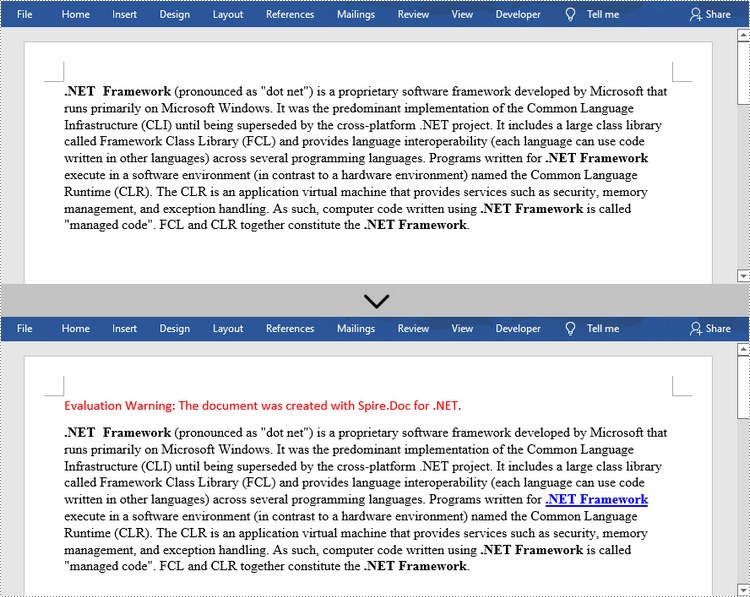
Adding hyperlinks to existing text in a document is a bit more complicated. You’ll need to find the target string first, and then replace it in the paragraph with a hyperlink field. The following are the steps.
- Create a Document object.
- Load a Word file using Document.LoadFromFile() method.
- Find all the occurrences of the target string in the document using Document.FindAllString() method, and get the specific one by its index from the collection.
- Get the string’s own paragraph and its position in it.
- Remove the string from the paragraph.
- Create a hyperlink field and insert it to position where the string is located.
- Save the document to another file using Document.SaveToFle() method.
- C#
- VB.NET
using Spire.Doc;
using Spire.Doc.Documents;
using Spire.Doc.Fields;
using Spire.Doc.Interface;

namespace AddHyperlinksToExistingText
{
    class Program
    {
        static void Main(string[] args)
        {
            //Create a Document object
            Document document = new Document();

            //Load a Word file
            document.LoadFromFile(@"C:\Users\Administrator\Desktop\sample.docx");

            //Find all the occurrences of the string ".NET Framework" in the document
            TextSelection[] selections = document.FindAllString(".NET Framework", true, true);

            //Get the second occurrence
            TextRange range = selections[1].GetAsOneRange();

            //Get its owner paragraph
            Paragraph parapgraph = range.OwnerParagraph;

            //Get its position in the paragraph
            int index = parapgraph.Items.IndexOf(range);

            //Remove it from the paragraph
            parapgraph.Items.Remove(range);

            //Create a hyperlink field
            Spire.Doc.Fields.Field field = new Spire.Doc.Fields.Field(document);
            field.Type = Spire.Doc.FieldType.FieldHyperlink;
            Hyperlink hyperlink = new Hyperlink(field);
            hyperlink.Type = HyperlinkType.WebLink;
            hyperlink.Uri = "https://en.wikipedia.org/wiki/.NET_Framework";
            parapgraph.Items.Insert(index, field);

            //Insert a field mark "start" to the paragraph
            IParagraphBase start = document.CreateParagraphItem(ParagraphItemType.FieldMark);
            (start as FieldMark).Type = FieldMarkType.FieldSeparator;
            parapgraph.Items.Insert(index + 1, start);

            //Insert a text range between two field marks
            ITextRange textRange = new Spire.Doc.Fields.TextRange(document);
            textRange.Text = ".NET Framework";
            textRange.CharacterFormat.Font = range.CharacterFormat.Font;
            textRange.CharacterFormat.TextColor = System.Drawing.Color.Blue;
            textRange.CharacterFormat.UnderlineStyle = UnderlineStyle.Single;
            parapgraph.Items.Insert(index + 2, textRange);

            //Insert a field mark "end" to the paragraph
            IParagraphBase end = document.CreateParagraphItem(ParagraphItemType.FieldMark);
            (end as FieldMark).Type = FieldMarkType.FieldEnd;
            parapgraph.Items.Insert(index + 3, end);

            //Save to file
            document.SaveToFile("AddHyperlink.docx", Spire.Doc.FileFormat.Docx);
        }
    }
}
Apply for a Temporary License
If you'd like to remove the evaluation message from the generated documents, or to get rid of the function limitations, please request a 30-day trial license for yourself.

