
Spire.Doc for .NET (338)
Children categories
Footnotes and endnotes are short notes that can be used to provide explanations, comments or references to certain words or sentences in a document. Footnotes usually appear at the bottom of the page containing their reference numbers, while endnotes appear at the end of the document or section. If you are writing an academic paper in Word, inserting footnotes or endnotes may be essential. This article will demonstrate how to insert footnotes and endnotes in Word documents in C# and VB.NET using Spire.Doc for .NET.
Install Spire.Doc for .NET
To begin with, you need to add the DLL files included in the Spire.Doc for .NET package as references in your .NET project. The DLLs files can be either downloaded from this link or installed via NuGet.
PM> Install-Package Spire.Doc
Insert a Footnote in Word in C# and VB.NET
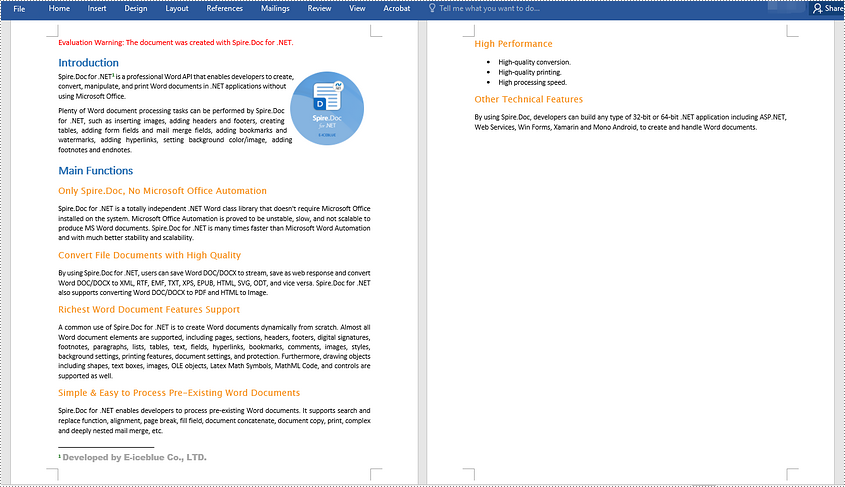
A footnote consists of two parts - a footnote reference mark and the corresponding footnote text. To insert a footnote for a specific text, you need to search for the text and get the paragraph where the text is located, after that add a footnote to the paragraph, then insert the footnote reference mark after the found text and set the footnote text. The detailed steps are as follows:
- Initialize an instance of the Document class.
- Load a Word document using Document.LoadFromFile() method.
- Search for a specific text in the document using Document.FindString() method and get the found text as a single text range using TextSelection.GetAsOneRange() method.
- Access the owner paragraph of the text range through TextRange.OwnerParagraph property and get the index of the text range in the paragraph using Paragraph.ChildObjects.IndexOf() method.
- Add a footnote to the paragraph using Paragraph.AppendFootnote(FootnoteType.Footnote) method.
- Insert the footnote reference mark after the text range using Paragraph.ChildObjects.Insert() method.
- Set the footnote text using Footnote.TextBody.AddParagraph().AppendText() method.
- Set formatting such as font name, font size and text color for the footnote text and reference mark.
- Save the result document using Document.SaveToFile() method.
- C#
- VB.NET
using Spire.Doc;
using Spire.Doc.Documents;
using Spire.Doc.Fields;
using System.Drawing;

namespace InsertFootnote
{
    internal class Program
    {
        static void Main(string[] args)
        {
            //Initialize an instance of the Document class
            Document document = new Document();
            //Load a Word document
            document.LoadFromFile(@"Sample.docx");

            //Find a specific text in the document
            TextSelection selection = document.FindString("Spire.Doc for .NET", false, true);
            //Get the found text as a single text range
            TextRange textRange = selection.GetAsOneRange();
            //Get the owner paragraph of the text range
            Paragraph paragraph = textRange.OwnerParagraph;
            //Get the index of the text range in the paragraph
            int index = paragraph.ChildObjects.IndexOf(textRange);

            //Add a footnote to the paragraph
            Footnote footnote = paragraph.AppendFootnote(FootnoteType.Footnote);
            //Insert the footnote reference mark after the text range
            paragraph.ChildObjects.Insert(index + 1, footnote);
            //Set the footnote text
            textRange = footnote.TextBody.AddParagraph().AppendText("Developed by E-iceblue Co., LTD.");

            //Set format for the footnote text
            textRange.CharacterFormat.FontName = "Arial Black";
            textRange.CharacterFormat.FontSize = 12;
            textRange.CharacterFormat.TextColor = Color.DarkGray;

            //Set format for the footnote reference mark
            footnote.MarkerCharacterFormat.FontName = "Calibri";
            footnote.MarkerCharacterFormat.FontSize = 12;
            footnote.MarkerCharacterFormat.Bold = true;
            footnote.MarkerCharacterFormat.TextColor = Color.DarkGreen;

            //Save the result document
            document.SaveToFile("InsertFootnote.docx", FileFormat.Docx2013);
            document.Close();
        }
    }
}
Insert an Endnote in Word in C# and VB.NET
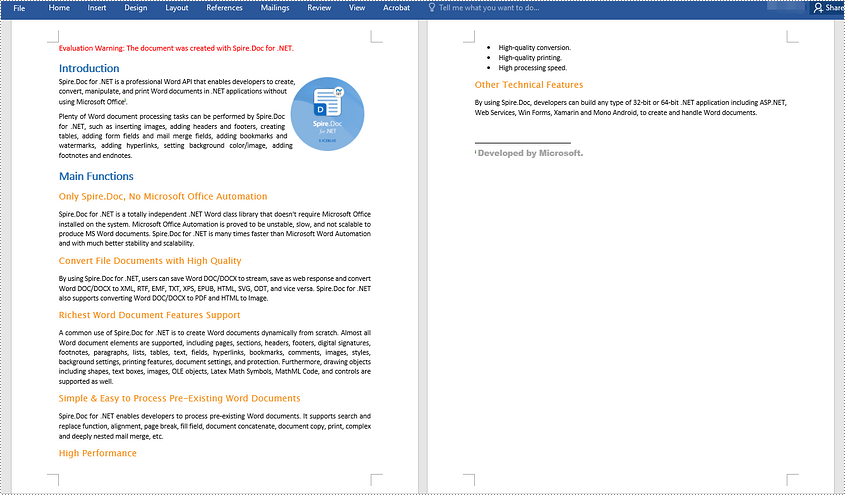
An endnote also consists of two parts - an endnote reference mark and the corresponding endnote text. The steps to insert an endnote for a specific text are very similar to that of the above example:
- Initialize an instance of the Document class.
- Load a Word document using Document.LoadFromFile() method.
- Search for a specific text in the document using Document.FindString() method and get the found text as a single text range using TextSelection.GetAsOneRange() method.
- Access the owner paragraph of the text range through TextRange.OwnerParagraph property and get the index of the text range in the paragraph using Paragraph.ChildObjects.IndexOf() method.
- Add an endnote to the paragraph using Paragraph.AppendFootnote(FootnoteType.Endnote) method.
- Insert the endnote reference mark after the text range using Paragraph.ChildObjects.Insert() method.
- Set the endnote text using Footnote.TextBody.AddParagraph().AppendText() method.
- Set formatting such as font name, font size and text color for the endnote text and reference mark.
- Save the result document using Document.SaveToFile() method.
- C#
- VB.NET
using Spire.Doc;
using Spire.Doc.Documents;
using Spire.Doc.Fields;
using System.Drawing;

namespace InsertEndnote
{
    internal class Program
    {
        static void Main(string[] args)
        {
            //Initialize an instance of the Document class
            Document document = new Document();
            //Load a Word document
            document.LoadFromFile(@"Sample.docx");

            //Find a specific text in the document
            TextSelection selection = document.FindString("Microsoft Office", false, true);
            //Get the found text as a single text range
            TextRange textRange = selection.GetAsOneRange();
            //Get the owner paragraph of the text range
            Paragraph paragraph = textRange.OwnerParagraph;
            //Get the index of the text range in the paragraph
            int index = paragraph.ChildObjects.IndexOf(textRange);

            //Add an endnote to the paragraph
            Footnote endnote = paragraph.AppendFootnote(FootnoteType.Endnote);
            //Insert the endnote reference mark after the text range
            paragraph.ChildObjects.Insert(index + 1, endnote);
            //Set the endnote text
            textRange = endnote.TextBody.AddParagraph().AppendText("Developed by Microsoft.");

            //Set format for the endnote text
            textRange.CharacterFormat.FontName = "Arial Black";
            textRange.CharacterFormat.FontSize = 12;
            textRange.CharacterFormat.TextColor = Color.DarkGray;

            //Set format for the endnote reference mark
            endnote.MarkerCharacterFormat.FontName = "Calibri";
            endnote.MarkerCharacterFormat.FontSize = 12;
            endnote.MarkerCharacterFormat.Bold = true;
            endnote.MarkerCharacterFormat.TextColor = Color.DarkGreen;

            //Save the result document
            document.SaveToFile("InsertEndnote.docx", FileFormat.Docx2013);
            document.Close();
        }
    }
}
Apply for a Temporary License
If you'd like to remove the evaluation message from the generated documents, or to get rid of the function limitations, please request a 30-day trial license for yourself.
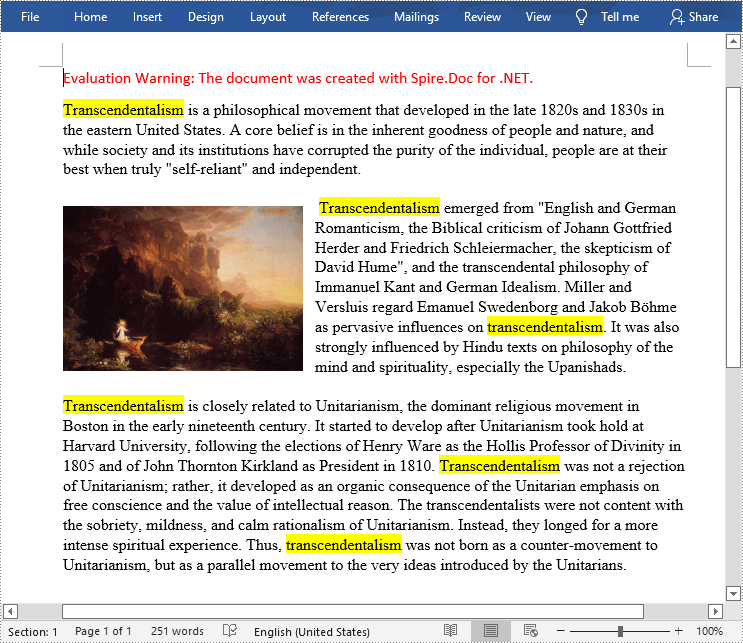
Finding specific text or phrases in a long Word document can be a bit of a hassle. Fortunately, MS Word provides the "Find" function to locate specific content in a document quickly. You can also highlight the found content with a background color to ensure that they won't be overlooked by the readers. This article will demonstrate how to programmatically find and highlight text in a Word document using Spire.Doc for .NET.
Install Spire.Doc for .NET
To begin with, you need to add the DLL files included in the Spire.Doc for .NET package as references in your .NET project. The DLLs files can be either downloaded from this link or installed via NuGet.
PM> Install-Package Spire.Doc
Find and Highlight Text in a Word Document
The detailed steps are as follows.
- Create a Document instance
- Load a sample Word document using Document.LoadFromFile() method.
- Find all matching text in the document using Document.FindAllString(string matchString, bool caseSensitive, bool wholeWord) method.
- Loop through all matching text in the document.
- Get the text range of a specific matching text using TextSelection.GetAsOneRange() method, and then set its highlight color using TextRange.CharacterFormat.HighlightColor property.
- Save the result file using Document.SaveToFile() method.
- C#
- VB.NET
using System.Drawing;
using Spire.Doc;
using Spire.Doc.Documents;

namespace FindHighlight
{
    class Program
    {
        static void Main(string[] args)
        {
            //Create a Document instance
            Document document = new Document();

            //Load a sample Word document
            document.LoadFromFile("input.docx");

            //Find all matching text in the document
            TextSelection[] text = document.FindAllString("transcendentalism", false, true);

            //Loop through all matching text and set highlight color for them
            foreach (TextSelection seletion in text)
            {
                seletion.GetAsOneRange().CharacterFormat.HighlightColor = Color.Yellow;
            }

            //Save the result file
            document.SaveToFile("FindHighlight.docx", FileFormat.Docx);
        }
    }
}
Apply for a Temporary License
If you'd like to remove the evaluation message from the generated documents, or to get rid of the function limitations, please request a 30-day trial license for yourself.
Word Heading can be taken as title of each part in Word document. This guide demonstrates solution to manage these Word headings and form them as a catalogue in C# and VB.NET.
In Word document, users can set some contents, for example, phrases of summary of the following paragraphs, as headings. These Word headings can be displayed in the first page of whole document and form as catalogue after arrangement so that readers can get outline of whole document. Solution in this guide presents how to manage Word headings with numbered style in a new created document in C# and VB.NET via Spire.Doc for .NET and screenshot below shows results of managing Word headings.
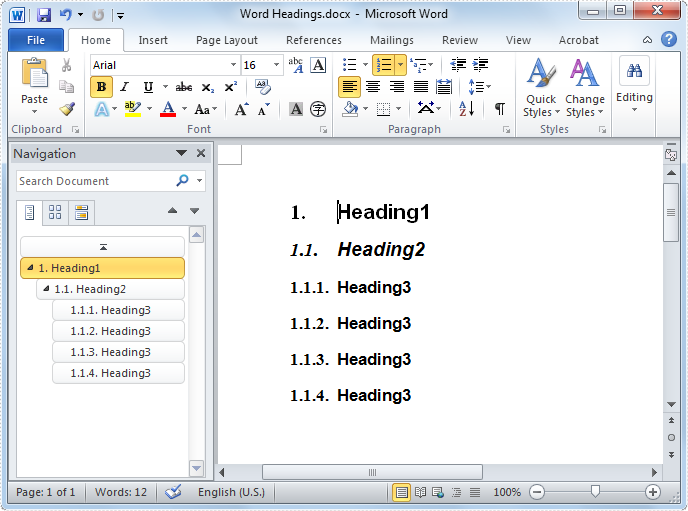
Heading is one of kind of styles for paragraphs and Spire.Doc for .NET provides several BuiltinStyle types for paragraphs. In this example, three BuiltinStyle types will be applied: Heading1, Heading2 and Heading3. Following, details will be presented step by step.
Firstly, initialize a Document instance and add section, paragraph for this instance. Secondly, invoke AppendText method with parameter string text and ApplyStyle(BuiltinStyle.Heading1) method of Paragraph class to add text and set heading style for new added paragraph. Then, invoke ListFromat.ApplyNumberedStyle() method of Paragraph class to set number list for it. Thirdly, add new paragraph and set Heading2 style for it as the previous step. Initialize a ListStyle instance for document with Numbered ListType. Then, initialize a ListLevel instance from ListStyle and set UsePrevLevelPattern and NumberPrefix properties for this instance. After that, invoke ListStyleCollection.Add(ListStyle) method of Document class and ListFormat.ApplyStyle method of Paragraph class with parameter string styleName to add ListStyle for Heading2. Fourthly, add a new paragraph and set BuiltinStyle as Heading3 and apply ListStyle for this paragraph as the previous step. Finally, invoke SaveToFile method of Document class with parameter string fileName and FileFormat to save this document. Refer the code:
using Spire.Doc;
using Spire.Doc.Documents;

namespace WordHeading
{
    class Heading
    {
        static void Main(string[] args)
        {
             //Create Document
             Document document = new Document();
             Section section = document.AddSection();
             Paragraph paragraph = section.Paragraphs.Count > 0 ? section.Paragraphs[0] : section.AddParagraph();

             //Add Heading 1
             paragraph = section.AddParagraph();
             paragraph.AppendText(BuiltinStyle.Heading1.ToString());
             paragraph.ApplyStyle(BuiltinStyle.Heading1);
             paragraph.ListFormat.ApplyNumberedStyle();

             //Add Heading 2
             paragraph = section.AddParagraph();
             paragraph.AppendText(BuiltinStyle.Heading2.ToString());
             paragraph.ApplyStyle(BuiltinStyle.Heading2);

             //List Style for Headings 2
             ListStyle listSty2 = document.Styles.Add(ListType.Numbered, "MyStyle2");

             foreach (ListLevel listLev in listSty2.ListRef.Levels)
             {
                 listLev.UsePrevLevelPattern = true;
                 listLev.NumberPrefix = "1.";
             }

             paragraph.ListFormat.ApplyStyle(listSty2.Name);

             //Add List Style 3
             ListStyle listSty3 = document.Styles.Add(ListType.Numbered, "MyStyle3");
             foreach (ListLevel listLev in listSty3.ListRef.Levels)
             {
                 listLev.UsePrevLevelPattern = true;
                 listLev.NumberPrefix = "1.1.";
             }

             //Add Heading 3
             for (int i = 0; i < 4; i++)
             {
                 paragraph = section.AddParagraph();

                 //Append Text
                 paragraph.AppendText(BuiltinStyle.Heading3.ToString());

                 //Apply List Style 3 for Heading 3
                 paragraph.ApplyStyle(BuiltinStyle.Heading3);
                 paragraph.ListFormat.ApplyStyle(listSty3.Name);
             }

             //Save and Launch
             document.SaveToFile("Word Headings.docx", FileFormat.Docx);
        }
    }
}
Imports Spire.Doc
Imports Spire.Doc.Documents

Namespace WordHeading
    Friend Class Heading
        Shared Sub Main(ByVal args() As String)
         'Create Document
         Dim document As New Document()
         Dim section As Section = document.AddSection()
         Dim paragraph As Paragraph = If(section.Paragraphs.Count > 0, section.Paragraphs(0), section.AddParagraph())

         'Add Heading 1
         paragraph = section.AddParagraph()
         paragraph.AppendText(BuiltinStyle.Heading1.ToString())
         paragraph.ApplyStyle(BuiltinStyle.Heading1)
         paragraph.ListFormat.ApplyNumberedStyle()

         'Add Heading 2
         paragraph = section.AddParagraph()
         paragraph.AppendText(BuiltinStyle.Heading2.ToString())
         paragraph.ApplyStyle(BuiltinStyle.Heading2)

         ' List Style for Headings 2
         Dim listSty2 As ListStyle = document.Styles.Add(ListType.Numbered, "MyStyle2")

         For Each listLev As ListLevel In listSty2.ListRef.Levels
             listLev.UsePrevLevelPattern = True
             listLev.NumberPrefix = "1."
         Next

         paragraph.ListFormat.ApplyStyle(listSty2.Name)

         ' Add List Style 3
         Dim listSty3 As ListStyle = document.Styles.Add(ListType.Numbered, "MyStyle3")

         For Each listLev As ListLevel In listSty3.ListRef.Levels
             listLev.UsePrevLevelPattern = True
             listLev.NumberPrefix = "1.1."
         Next

         'Add Heading 3
         For i As Integer = 0 To 3
             paragraph = section.AddParagraph()

             'Append Text
             paragraph.AppendText(BuiltinStyle.Heading3.ToString())

             'Apply List Style 3 for Heading 3
             paragraph.ApplyStyle(BuiltinStyle.Heading3)
             paragraph.ListFormat.ApplyStyle(listSty3.Name)
         Next i

         'Save and Launch
         document.SaveToFile("Word Headings.docx", FileFormat.Docx)
        End Sub
    End Class
End Namespace
Spire.Doc, as professional Word component, is very powerful on fast generating, loading, writing, modifying and saving Word documents in .NET, WPF, Silverlight without Word automation and any third party tools.
