
Feature Guide (5)
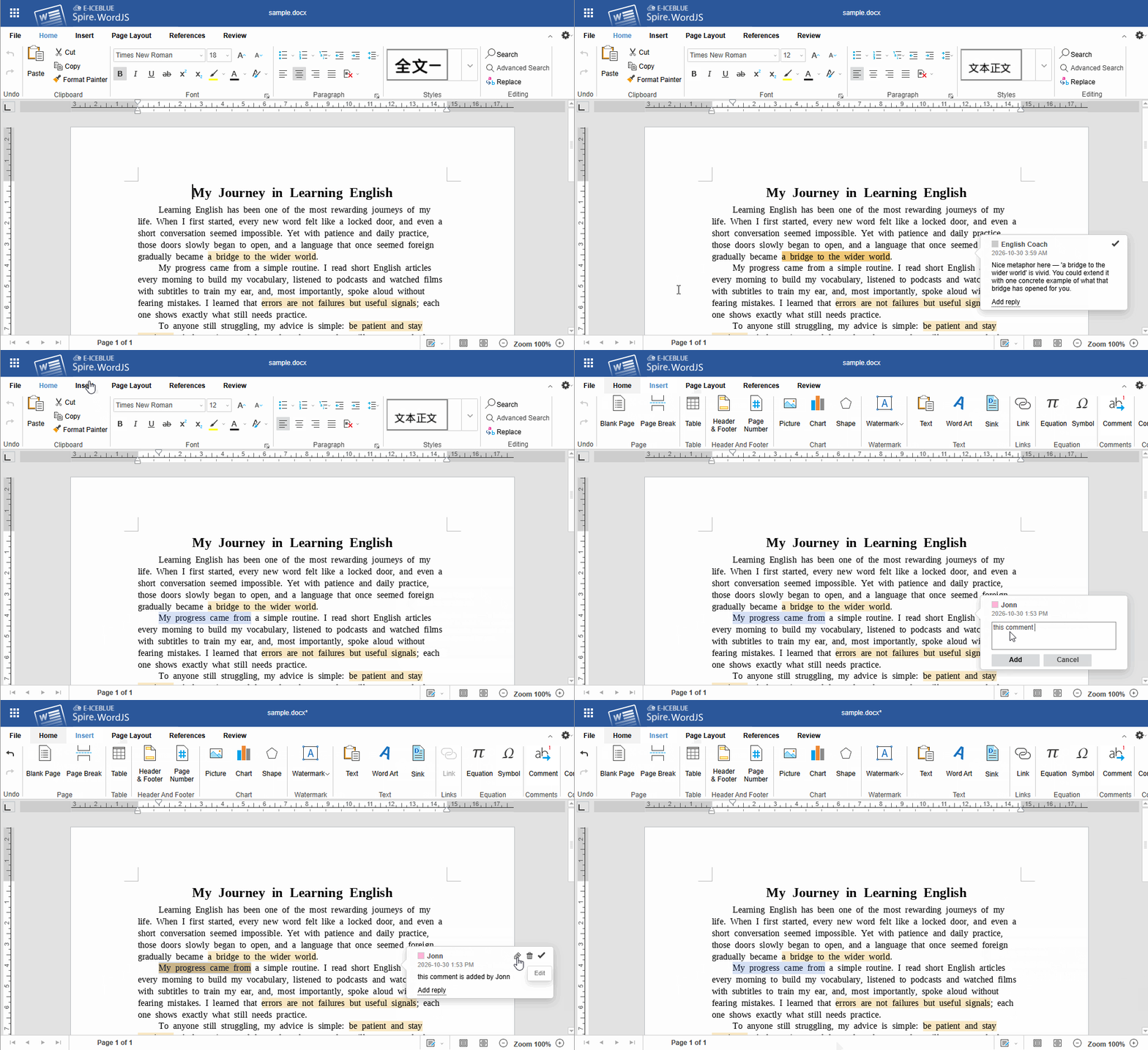
The comments feature in Spire.OfficeJS lets readers leave feedback on a specific passage without changing the body text. Comments are independent of revisions: they can be replied to, resolved, or removed without accepting or rejecting a revision. Using Word as an example, this article describes the comment operations that Spire.OfficeJS provides, and explains how to enable, restrict, or hide them as needed.
Comment Capabilities at a Glance
Comment entry points are available on the Insert and Review tabs, and in the floating button that appears after you select text. The comments pane lists every comment in the document in one place and provides centralized management.
| Capability | UI Location | Description |
|---|---|---|
| Add comment | Insert → Comment; floating button after selecting text | Adds a comment to the selected text |
| Reply to comment | Comment bubble or comments pane | Appends a reply under an existing comment, forming a thread |
| Resolve comment | Comment bubble or comments pane | Marks a handled comment as "Resolved"; the comment stays in the document |
| Reopen comment | Comment bubble | Restores a resolved comment to the unresolved state |
| Edit comment | Comment bubble | Changes the comment text; with commentAuthorOnly enabled, users can only edit their own comments |
| Remove comments | Review → Remove Comments | Removes the current, all, "my" comments |
| Show all comments | Review → Show All Comments | Opens the comments pane to review and manage comments in one place |
| Restrict Editing → Comment | Review → Restrict Editing | Protects the document and allows only comments to be inserted |
The "Remove Comments" drop-down menu provides four options: Remove Current Comments, Remove All Comments (regardless of author), Remove My Comments (only those created by the current user), and Remove My Current Comments. Removing a comment deletes only the comment itself. It does not modify the body text or affect other comments anchored at the same location.
Configure Comment Capabilities
Commenting is switched on or off by canComment in editorAttrs. The pane state on open and the author's editing scope are controlled by the switches under user.customization.public.common.
Expand the Comments Pane on Open
openAllComments controls whether the comments pane expands automatically when a document opens; the default is false. Setting it to true is equivalent to clicking "Show All Comments" right after the document opens, which suits review workflows centered on comments.
user: {
  customization: {
    public: {
      common: {
        openAllComments: true // expands the comments pane when the document opens
      }
    }
  }
}

Only Authors Can Edit Their Comments
With commentAuthorOnly enabled, users can edit or delete only the comments and replies they created themselves. Comments from other authors can still be viewed, replied to, or resolved, which suits scenarios that need to preserve the original comment record.
user: {
  customization: {
    public: {
      common: {
        commentAuthorOnly: true // only the author can edit their own comments
      }
    }
  }
}
Disable Comments
canComment controls whether commenting is allowed; the default is true. When set to false, the comment button group on the Review tab is hidden. Existing comments in the document remain visible but are read-only. Body editing is unaffected.
editorAttrs: {
  canComment: false
}
Note
canComment affects comments only; it does not change body editing or track changes. If the entire document must be read-only, use editorMode: 'view'.

Control Comment-Related Buttons
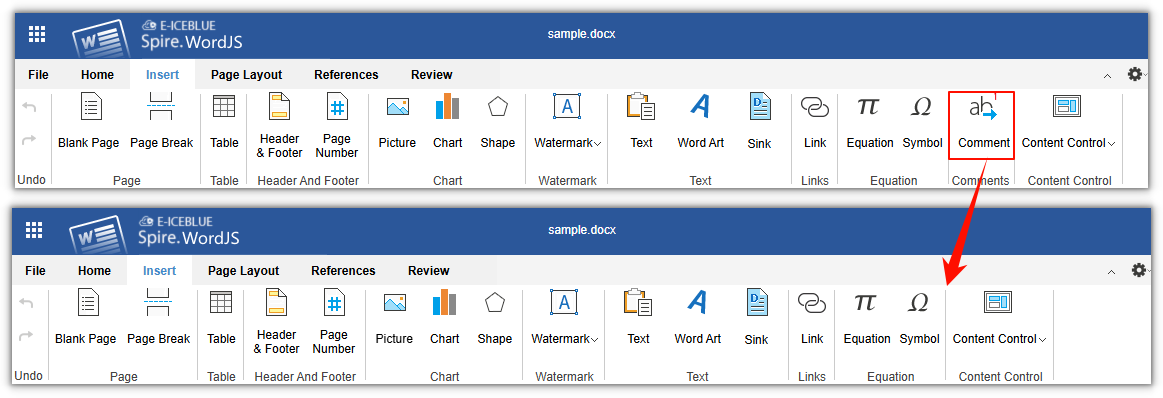
canComment only switches the commenting capability as a whole. If you want to hide only some buttons (for example, remove the "New Comment" entry while keeping viewing and navigation), configure user.customization.public.common.btnPermissions.docBtnPermissions. Removed buttons and their corresponding shortcuts are disabled as well:
user: {
  customization: {
    public: {
      common: {
        btnPermissions: {
          docBtnPermissions: [
            { modular: 'Toolbar', subModule: ['btnInsertComments'] }
          ]
        }
      }
    }
  }
}
For more about button permission configuration, see the documentation on customizing the toolbar menu.
FAQ
The New Comment button is unavailable or grayed out
Common causes:
- No text is selected. A comment must be anchored to selected content.
- The cursor is inside a chart, shape, or a content control that does not support comments (such as a check box, picture, or drop-down list).
Comment authors appear as "Guest" or are all identical
Comment authors come from user.name in the current session, and the user identity comes from user.id. Pass a unique, stable id and the correct display name for each user. If no display name is provided, the author appears as "Guest"; if several users share a fixed account, all their comments show the same author.
When a user finishes editing, where the document goes and how it is stored is usually up to the business system. Saving in Spire.OfficeJS leaves that control with you: the editor only generates the current document in the browser, and you can either send it to a backend endpoint or handle it in the page. Whether it overwrites the original document, creates a new version, or saves a copy can follow your own rules. The examples below use Word to show how to save documents with Spire.OfficeJS:
Document saving process
The save takes five steps. "Business page" in the figure refers to the page that hosts the editor; the term is used throughout below.
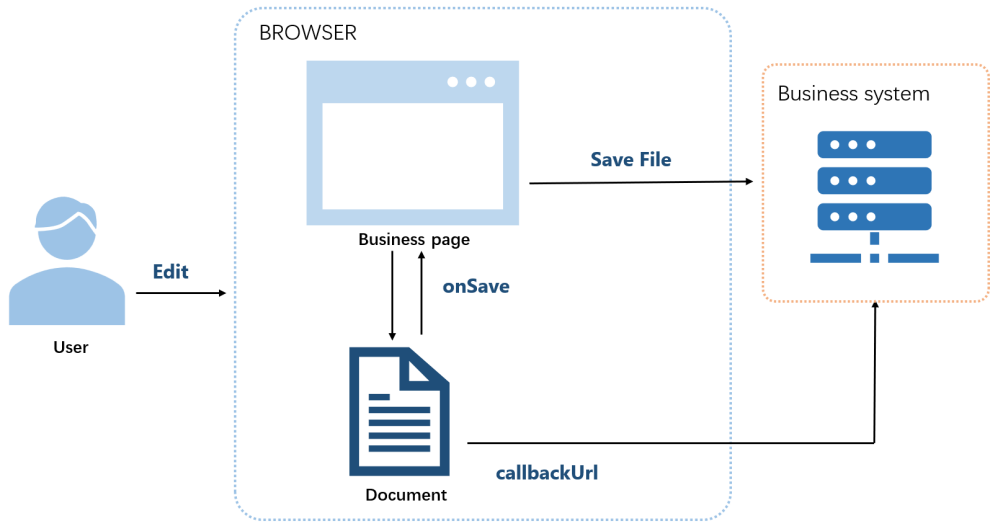
- The user edits the document.
- The user saves.
- The editor generates the current document.
- With
callbackUrl, the document is sent to that address; withonSave, the business page receives it. - The editor shows "Saved successfully".
Before you save
Saving requires the following configuration:
user.canSaveset totrue(the default).editorAttrs.editorModeset toedit.
Both examples below include these settings. Replace LocalExample with the actual deployment address.
Ways to save a document
Spire.OfficeJS supports two ways to save a document: use callbackUrl when the document should be saved by your backend, and use onSave when the page should handle the save result itself. The steps for each option are described below.
Save a document with callbackUrl
Use this when your backend saves the document. With callbackUrl configured, the editor sends the current document to that address on save, and the endpoint receives and stores it.
- Create an
.htmlpage to open the document. - Configure the save endpoint in
config.fileAttrs.callbackUrl. - Open the page, edit the document, and save. The editor shows "Saved successfully" once the endpoint returns success.
Example configuration:
var config = {
  fileAttrs: {
    fileInfo:
    { name: 'sample.docx',
      ext: 'docx',
      primary: '001'
    },
    sourceUrl: 'http://LocalExample:3000/samples/sample.docx',
    callbackUrl: 'http://LocalExample:3001/saveWebAssembly'
  },
  user:
  { id: 'uid-1',
    name: 'Jonn',
    canSave: true
  },
  editorAttrs: {
    editorMode: 'edit',
    editorType: 'document',
    viewLanguage: 'en',
    useWebAssemblyDoc: true,
    canForcesave: true,
    serverless: {
      useServerless: true,
      baseUrl: 'http://LocalExample:3000'
    },
  }
};

new SpireCloudEditor.OpenApi('editor', config);
Save a document with onSave
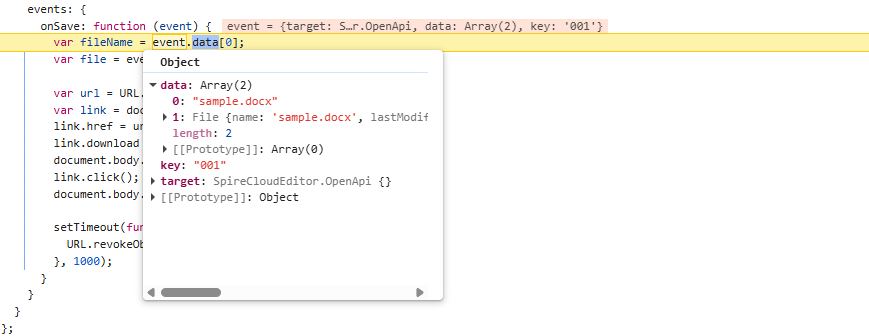
Use this when you have no save endpoint, or you want the page to handle the save result itself. On save, the editor calls onSave and passes the result in event.data:
event.data[0]is the file name, a string such assample.docx.event.data[1]is the current document content, a standard browserFileobject you can download or upload directly.
What you do with these two items is up to the page: download locally, upload to a backend, rename the document, or just show a message. The editor only generates the save result and calls the callback.
Example configuration (do not set callbackUrl in fileAttrs, or set it to empty):
var config = {
  fileAttrs: {
    fileInfo:
    { name: 'sample.docx',
      ext: 'docx',
      primary: '001' },
    sourceUrl: 'http://LocalExample:3000/samples/sample.docx'
  },
  user:
  { id: 'uid-1',
    name: 'Jonn',
    canSave: true
  },
  editorAttrs: {
    editorMode: 'edit',
    editorType: 'document',
    viewLanguage: 'en',
    useWebAssemblyDoc: true,
    serverless: {
      useServerless: true,
      baseUrl: 'http://LocalExample:3000'
    },
    events: {
      onSave: function (event) {
        var fileName = event.data[0]; // file name (FileName), e.g. sample.docx
        var file = event.data[1];     // file object (File), the current document
        var key = event.key;          // document key, equal to fileInfo.primary, e.g. 001

        // The handling below is entirely up to the page.
        // Example: download locally
        var url = URL.createObjectURL(file);
        var link = document.createElement('a');
        link.href = url;
        link.download = fileName;
        document.body.appendChild(link);
        link.click();
        document.body.removeChild(link);
        setTimeout(function () {
          URL.revokeObjectURL(url);
        }, 1000);
      },
      onDocumentStateChange: function (event) {
        console.log(event.data ? 'Unsaved' : 'Saved');
      }
    }
  }
};

new SpireCloudEditor.OpenApi('editor', config);
This is what event.data looks like at an onSave :
FAQ
Will saving overwrite the original document automatically
Cause: Spire.OfficeJS does not write the edits back to sourceUrl automatically. Saving only generates the current document and hands it to your business system.
Solution: Handle it in the callbackUrl endpoint or the onSave callback: whether to overwrite the original document, create a new version, or save a copy is up to your business system.
Both callbackUrl and onSave are configured, but onSave does not run
Cause: When both are configured, callbackUrl takes precedence and onSave does not run; with neither, the editor offers no save function.
Solution: Keep only one save outlet. If the page should handle the document itself, remove fileAttrs.callbackUrl or set it to empty.
For many business systems, previewing a document means asking the user to download it and open it locally, or relying on a browser plug-in. Spire.OfficeJS supports opening documents directly in the page, and users do not need to install Office. The document can come from an address the business system can already access or from the user's local selection. This article uses Word as an example to explain how to open documents with Spire.OfficeJS:
Document opening process
The figure and steps below describe the process of opening a document. "Business page" refers to the page in your own business system that hosts the editor.
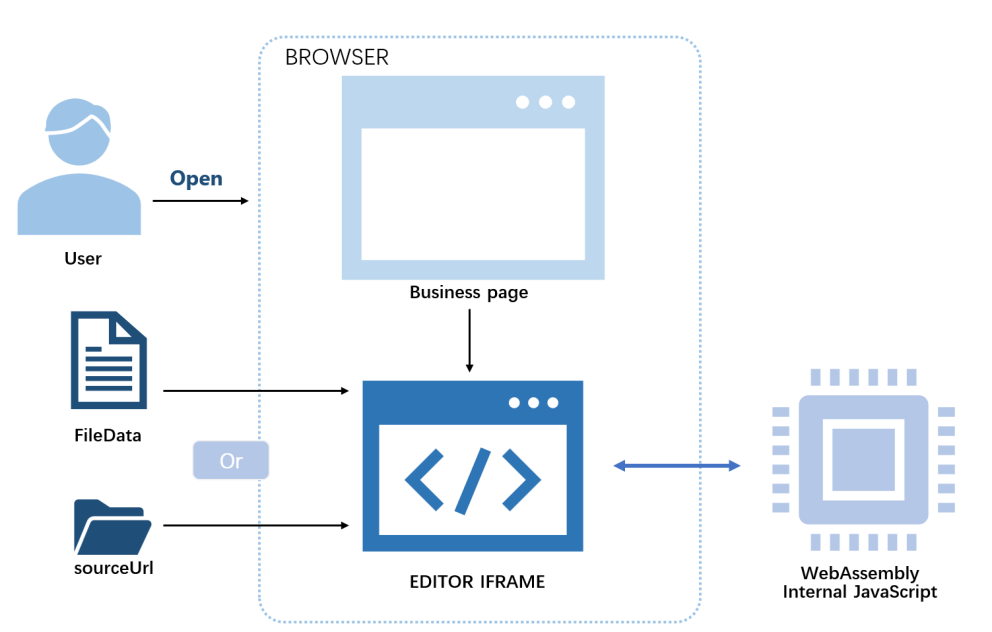
- The user opens the document through the business page to view or edit it.
- The business page prepares the
config:sourceUrl(orserverless.fileData),fileInfo,user, andeditorAttrs. SpireCloudEditor.OpenApicreates the editor iframe.- In
sourceUrlmode, the browser reads the document from your business storage; infileDatamode, the bytes passed in by the page are used directly. - WebAssembly converts the Office document into the editor's internal format, and the internal JavaScript renders the content on the page.
Ways to open a document
Spire.OfficeJS supports two ways to open a document: use sourceUrl when the document already has an accessible URL, and use fileData when the document comes from the user's local selection and has not been uploaded yet. The steps for each option are described below.
Open a document with sourceUrl
Use this option when the document already has an accessible URL. Create an empty .html file and add the key content following the steps below; replace LocalExample with the actual deployment address.
Add the editor container:
<div id="editor"></div>Include the editor script:
<script src="http://LocalExample:3000/web/editors/spireapi/SpireCloudEditor.js"></script>Prepare the
config. The important parts are the document URL and thewebresource URL:var config = { fileAttrs: { fileInfo: { name: 'sample.docx', ext: 'docx' }, sourceUrl: 'http://LocalExample:3000/samples/sample.docx' }, user: { id: 'uid-1', name: 'Jonn' }, editorAttrs: { editorMode: 'edit', editorType: 'document', viewLanguage: 'en', useWebAssemblyDoc: true, serverless: { useServerless: true, baseUrl: 'http://LocalExample:3000' } } };Initialize the editor:
new SpireCloudEditor.OpenApi('editor', config);
Open a document with fileData
Use this option when the document comes from the user's local selection and has not been uploaded yet. The page structure is the same as in the sourceUrl option (container + editor script); the difference is that you add a file selector and put the document bytes into serverless.fileData.
Add the file selector and the editor container:
<input type="file" id="fileInput" accept=".doc,.docx">
<div id="editor"></div>
Read the file, build the
config, and initialize:var opened = false; document.getElementById('fileInput').addEventListener('change', function (e) { var file = e.target.files[0]; if (!file) return; var ext = file.name.split('.').pop().toLowerCase(); var reader = new FileReader(); reader.onload = function (event) { var config = { fileAttrs: { fileInfo: { name: file.name, ext: ext }, sourceUrl: 'offline' // placeholder; it is not requested in fileData mode }, user: { id: 'uid-1', name: 'Jonn' }, editorAttrs: { editorMode: 'edit', editorType: 'document', viewLanguage: 'zh', useWebAssemblyDoc: true, serverless: { useServerless: true, baseUrl: 'http://LocalExample:3000', fileData: event.target.result } } }; var targetId = opened ? 'SpireCloudEditor' : 'editor'; opened = true; new SpireCloudEditor.OpenApi(targetId, config); }; reader.readAsArrayBuffer(file); });
FAQ
sourceUrl is configured but the document fails to load
Cause: The document is read directly by the browser. If sourceUrl cannot be reached, the editor cannot get the document and it will not open.
Solution: Set sourceUrl to an address the browser can open directly, and make sure the document can be accessed in the browser.
Do I need sourceUrl when using the fileData option
Cause: In fileData mode, the editor uses the bytes passed in by the page directly and does not request sourceUrl; however, sourceUrl must not be empty.
Solution: Set sourceUrl to a placeholder value such as offline.
The document content is incomplete and a watermark is shown
Cause: A valid license is not configured, or the license does not match the product that opens the document. Without a license, the editor shows red watermark text in the document and limits the document length, so the content is displayed incompletely.
Solution: Fill in the license field for the corresponding product in editorAttrs; for example, fill in spireDocJsLicense for WordJS. If you use the bundled example system, configure the License Key under server.customization in example/config/default.json.
Contract delivery usually calls for PDF, archiving may call for DOCX, and some pages also need to export HTML or TXT. Spire.OfficeJS converts the document currently in the editor into these formats and hands it to the browser for download. This article uses Word as an example to explain how to convert and download documents with Spire.OfficeJS:
Document conversion and download process
The download takes four steps:
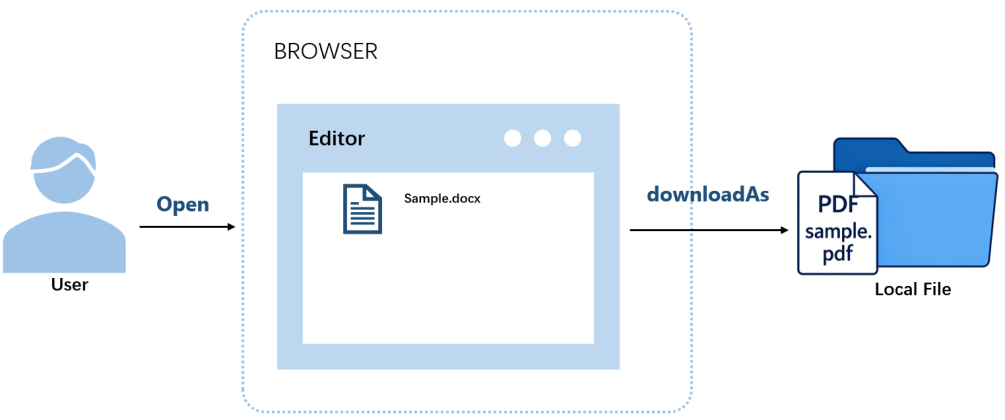
- The user opens a document in the editor.
- The user clicks the convert-and-download button on the page, which calls
docEditor.downloadAs()with the target format. - The editor converts the current document to the target format.
- The browser downloads the document locally.
Using downloadAs
The editor provides the downloadAs() method to convert the current document to a specified format and hand it to the browser for download. You can call it once the editor is initialized; the conversion runs in the browser, and the result is a local copy.
Example configuration (converting to PDF):
var onDownloadAs = function () {
  docEditor.downloadAs({ format: 'pdf'});
};
format takes the target format's file extension and is case-insensitive.
Complete code:
<!DOCTYPE html>
<html lang="en">
<head>
  <meta charset="UTF-8">
  <title>Spire.OfficeJS Convert File - downloadAs</title>
  <style>
    html, body { height: 100%; margin: 0; }
    body { display: flex; flex-direction: column; }
    #editor { flex: 1; min-height: 0; }
    #editor iframe { width: 100%; height: 100%; border: 0; }
  </style>
</head>
<body>
  <button type="button" id="download" onclick="onDownloadAs()" disabled>Download PDF</button>
  <div id="editor"></div>
  <script src="http://LocalExample:3000/web/editors/spireapi/SpireCloudEditor.js"></script>
  <script>
    var SERVER = 'http://LocalExample:3000';
    var downloadButton = document.getElementById('download');

    var config = {
      fileAttrs: {
        fileInfo: { name: 'sample.docx', ext: 'docx' },
        sourceUrl: SERVER + '/samples/sample.docx'
      },
      user: { id: 'uid-1', name: 'Jonn' },
      editorAttrs: {
        editorMode: 'edit',
        editorType: 'document',
        viewLanguage: 'en',
        canDownload: true,
        useWebAssemblyDoc: true,
        serverless: { useServerless: true, baseUrl: SERVER },
        events: {
          onStart: function () {
            downloadButton.disabled = false;
          }
        }
      }
    };

    var docEditor = new SpireCloudEditor.OpenApi('editor', config);

    function onDownloadAs() {
      docEditor.downloadAs({ format: 'pdf' });
    }
  </script>
</body>
</html>
After selecting a document and clicking the download button, the editor converts it and the browser downloads the resulting PDF:
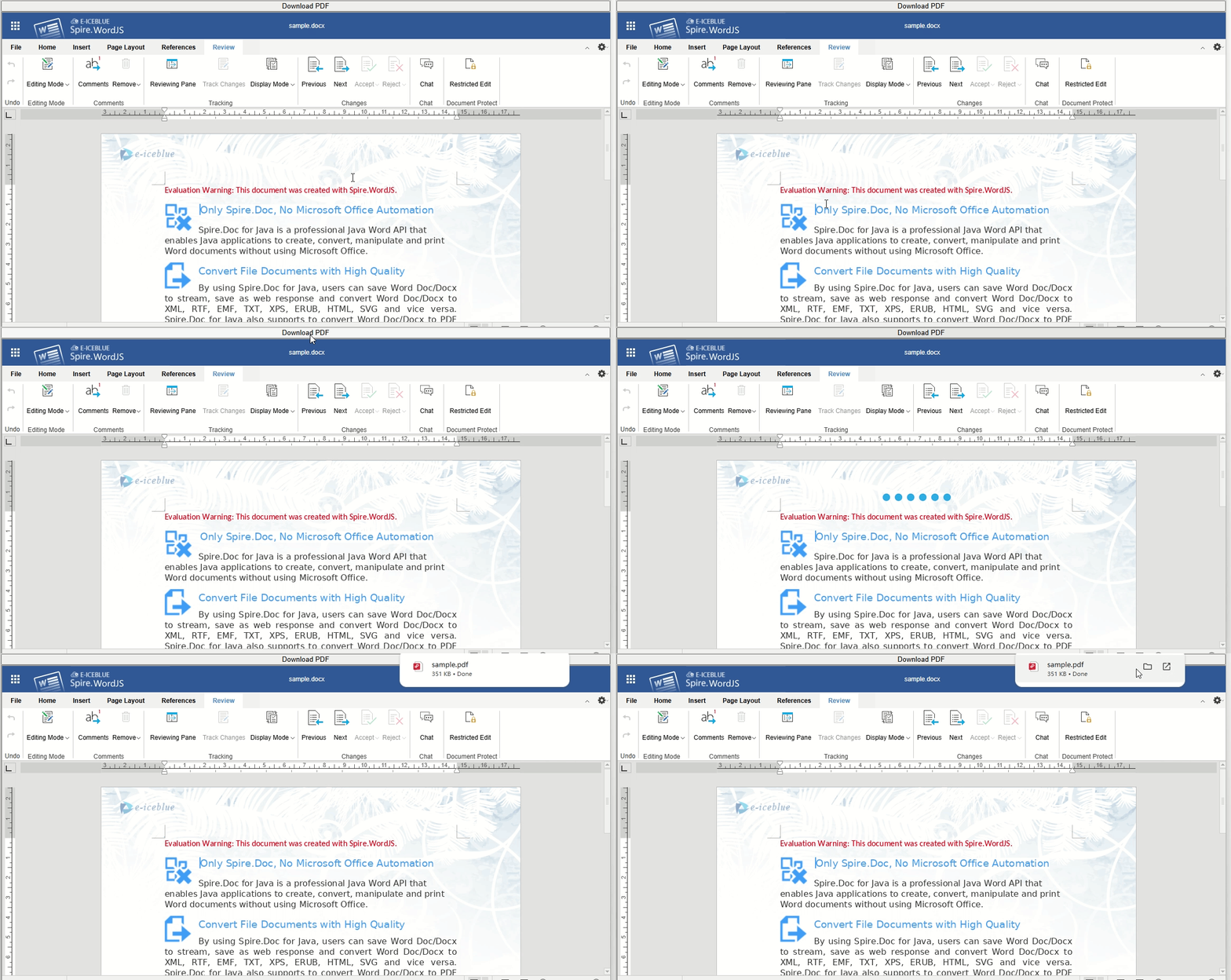
Supported formats
The formats you can convert to depend on the editor that opened the document. Word, Excel, and Presentation load on different pages and support different target formats, so pick the format for the editor that matches the document. The target formats supported by each editor are listed below:
| Editor | Supported formats |
|---|---|
| Spire.WordJS | DOCX, PDF, PDFA, ODT, DOTX, OTT, RTF, HTML, TXT |
| Spire.ExcelJS | XLSX, XLTX, PDF, PDFA, CSV, ODS, OTS |
| Spire.PresentationJS | PPTX, PDF, ODP, POTX, OTP |
FAQ
Does downloading modify the original document or trigger save callbacks
Cause: Downloading does not call callbackUrl or onSave, and it does not write back to sourceUrl; it only generates the document in the browser and downloads it.
Solution: No extra handling is needed. The download is a local copy; neither the original document nor the one in your business system is modified.
format is set, but the downloaded document's format does not change
Cause: If format is unrecognized, the document editor falls back to the document's original format.
Solution: Use the target formats listed for the matching editor in the supported formats table. For example, with sample.docx as the original and format: 'bogus', the downloaded document is still sample.docx.
Can multiple documents be converted at once
Cause: downloadAs() converts only the document currently open in the editor, and one call produces one document in the target format.
Solution: To convert multiple documents, open each document in turn and call downloadAs() for each one, for example by opening the next document after each conversion on the business page.
The Spire.OfficeJS review feature records modifications as revision marks instead of overwriting the original text. This state is often called review mode (also known as track-changes mode), where all changes are kept as suggestions layered over the original text, waiting for a reviewer to handle them. Once Track Changes is on, insertions, deletions, and formatting adjustments are recorded with their author, and other people can inspect, accept, or reject them one by one. This article uses Word as an example to explain the operations and permission configuration. In this article, "review" refers to the revision-related features on the Review tab.
Review Tab Capabilities
The Review tab in the Word editor provides the following revision-related capabilities:
| Capability | UI Location | Description |
|---|---|---|
| Track Changes toggle | Review → Track Changes | When on, new edits are recorded as revisions instead of changing the body text directly |
| Display mode | Review → Display Mode | Switches the view between "All Markup", "No Markup", and "Original" |
| Reviewing pane | Review → Reviewing Pane | Lists the revisions in the document in one place, click a revision to jump to its location |
| Previous / Next | Review | Browses revisions one by one |
| Accept / Reject | Review | Accepts or rejects the current revision, or processes all revisions at once |
| Restrict Editing | Review → Restrict Editing | Protects the document, can be set to read-only, or to allow changes only as tracked changes |
The following sections explain display modes and the accept and reject operations. The other capabilities can be used directly from the locations listed in the table.
Display Modes
| Option | UI Description | Actual Meaning |
|---|---|---|
| All Markup | All changes (edits) | Shows all revision marks, suitable for editing and reviewing one by one |
| No Markup | Accepted all changes (preview) | Previews the result after "Accept All", without actually accepting revisions |
| Original | Rejected all changes (preview) | Previews the result after "Reject All", without actually rejecting revisions |
Note
"No Markup" and "Original" are previews only. To truly remove revisions, you must use "Accept" or "Reject". If you switch the display mode and then save, the revisions remain in the document.
Accept and Reject Revisions
"Accept" and "Reject" process one revision at a time by default and then jump to the next one. The drop-down menu can process all revisions at once, or you can click a revision mark in the body text to choose directly. Accepting or rejecting changes the body text directly, and you can undo before saving.
Configure Review Capabilities
Revision capabilities are controlled by editorAttrs: canReview determines whether review is enabled, and canEdit determines whether editing is allowed.
editorAttrs: {
  editorMode: 'edit',
  canEdit: true,
  canReview: true
}
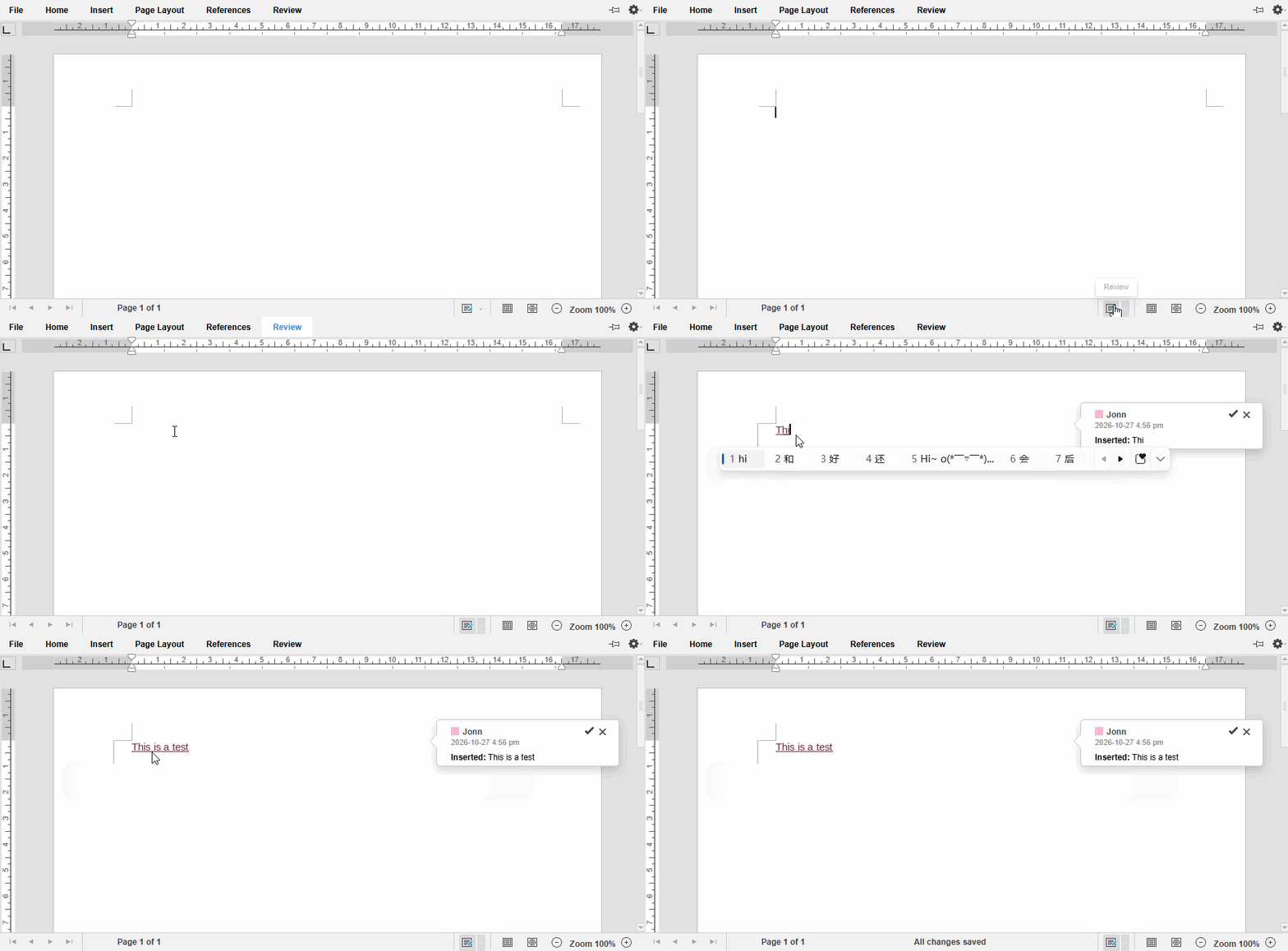
Review State on Open
The review state when a document opens is controlled by two switches under user.customization.public.common. Both are false by default, and you can turn them on individually as needed:
openReviewChanges: true: enters the track-changes state immediately after the document opens, so you do not need to click "Track Changes" manually.openReviewPanel: true: expands the reviewing pane when the document opens, suitable for handling revisions in one place, and requirescanReviewto betrue.
user: {
  customization: {
    public: {
      common: {
        openReviewChanges: true, // enters the track-changes state immediately after the document opens
        openReviewPanel: true    // expands the reviewing pane when the document opens
      }
    }
  }
}
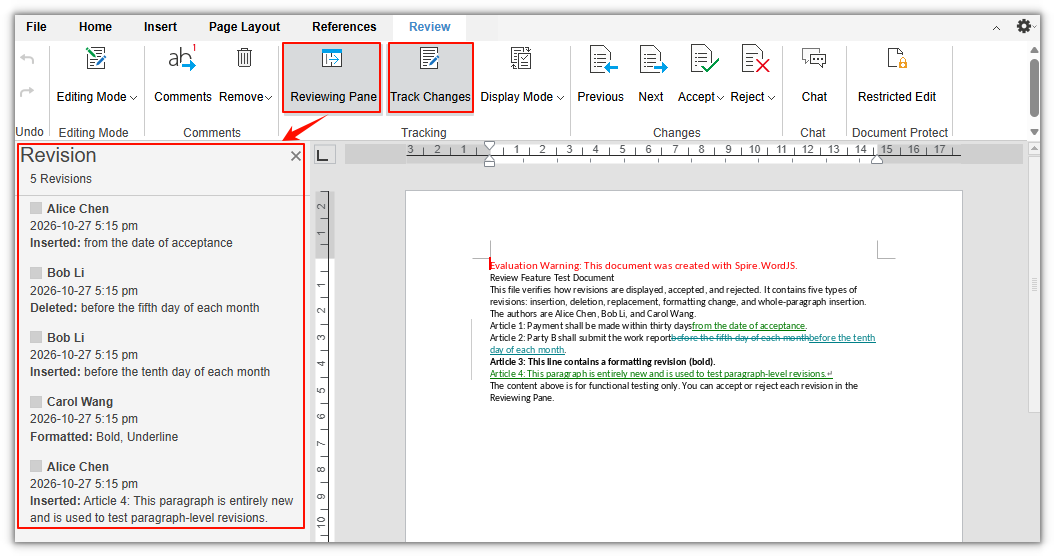
Read-Only Review
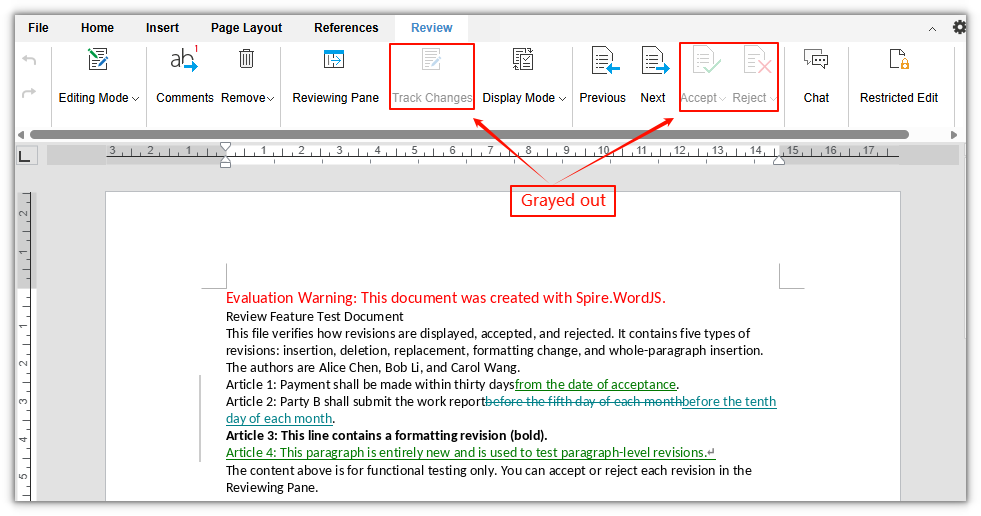
External reviewers can only view revisions and the reviewing pane. They cannot change the body text, and they cannot accept or reject revisions:
editorAttrs: {
  editorMode: 'edit',
  canEdit: false,
  canReview: true
}
Disable Review
editorAttrs: {
  canReview: false
}
Users can still edit normally, but the Review tab no longer provides revision-related capabilities. 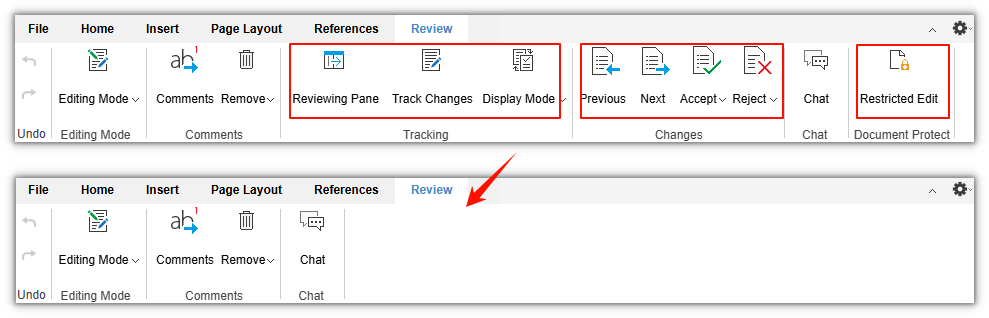
Control Review-Related Buttons
canReview only toggles the review capability as a whole. If you want to hide only some buttons (for example, keep viewing and navigation but remove "Accept" and "Reject"), configure user.customization.public.common.btnPermissions.docBtnPermissions. Removed buttons and their corresponding shortcuts are disabled as well:
user: {
  customization: {
    public: {
      common: {
        btnPermissions: {
          docBtnPermissions: [
            { modular: 'Toolbar', subModule: ['btnTurnOn', 'Accept', 'Reject'] }
          ]
        }
      }
    }
  }
}
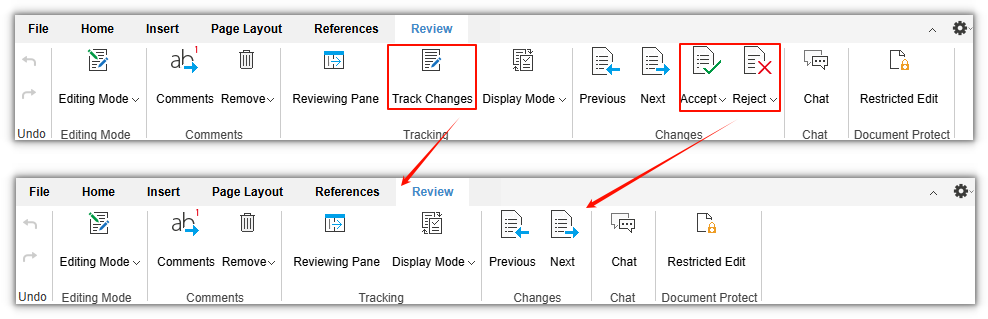
For more about button permission configuration, see the documentation on customizing the toolbar menu.
FAQ
The Track Changes toggle or Accept/Reject buttons are unavailable
Common causes are that the current session is in read-only review (canEdit: false, canReview: true), the document is protected, or the user does not have edit permission. Read-only review can view revisions but cannot toggle Track Changes or accept or reject revisions. If a reviewer needs to handle revisions, they must be given edit permission. If they need to handle revisions but should not change the body text freely, enable "Restrict Editing → Tracked Changes", so that all modifications can only be produced as tracked changes.
The Review tab is not visible after opening a document
Check the following in order:
- Whether
editorAttrs.editorModeisedit.viewmode does not provide editing or review. - Whether
editorAttrs.canReviewistrue, and whether bothcanEdit: trueand a valid license are available. - Whether
btnReviewwas removed throughbtnPermissions, or the document is protected as read-only.
Revision authors are wrong or all the same
Revision authors come from user.name in the current session, and the user identity comes from user.id. Make sure each user uses a unique, stable id, pass the correct display name when opening the document, and do not let multiple users share a fixed account.
