The Spire.OfficeJS editor supports custom watermarks. You only need to provide an external JS script; the editor loads and executes it while rendering the document, drawing a tiled watermark on the canvas of the editing area. The watermark is drawn on an overlay above the editing area and is not written into the document, so exported or downloaded files do not contain it. The text, density, and color of the watermark are all determined by the script: it can display fixed text or combine dynamic content such as user information and dates. The following sections describe the implementation; the same configuration works for Word, PowerPoint, and Excel.
- How It Works
- Configure the Watermark Script
- Write the Watermark Script
- Set the Watermark Prefix
- Watermark Effect
- FAQ
How It Works
A custom watermark involves the following configuration:
| Component | Purpose |
|---|---|
cusWaterMarkJs |
Initialization option that specifies the URL of the custom watermark script; the editor loads it. |
waterMark.js |
The watermark script; locates the editor container and calls canvasWM() to draw the watermark. |
iframe.name |
(Optional) The name of the editor iframe; used when the prefix must be set dynamically per user or deployment. |
The watermark script runs inside the editor iframe, so it can read window.name directly and access the editing area container. The following sections describe these settings in order.
Configure the Watermark Script
Add cusWaterMarkJs to user.customization.public.common, with the accessible URL of the watermark script as its value. This configuration is the same for all three editors:
<div id="editor"></div>
<script src="http://LocalExample:3000/web/editors/spireapi/SpireCloudEditor.js"></script>
<script>
var SERVER = 'http://LocalExample:3000';

var config = {
  fileAttrs: {
    fileInfo: { name: 'sample.docx', ext: 'docx' },
    sourceUrl: SERVER + '/samples/sample.docx'
  },
  user: {
    id: 'uid-1',
    name: 'Andy',
    customization: {
      public: {
        common: {
          cusWaterMarkJs: SERVER + '/files/waterMark.js' // custom watermark script
        }
      }
    }
  },
  editorAttrs: {
    editorMode: 'edit',
    editorType: 'document',
    editorWidth: '100%',
    editorHeight: '600px',
    viewLanguage: 'zh',
    useWebAssemblyDoc: true,
    serverless: {
      useServerless: true,
      baseUrl: SERVER
    }
  }
};

new SpireCloudEditor.OpenApi('editor', config);
</script>
cusWaterMarkJs is a string containing the script URL and is written the same way for all three editors. To switch document types, replace the corresponding options in the table below (set the WebAssembly switch to true in each case):
| Editor | editorType |
fileInfo.ext |
WebAssembly switch |
|---|---|---|---|
| Word | document |
docx |
useWebAssemblyDoc |
| Excel | spreadsheet |
xlsx |
useWebAssemblyExcel |
| PowerPoint | presentation |
pptx |
useWebAssemblyPpt |
Write the Watermark Script
Create a script named waterMark.js. Once loaded, it performs the following steps:
- Find the container: Word and PowerPoint use
id_main_view; Excel useseditor_sdk. - Build the text: Set the watermark prefix (the example reads
window.name; you can also use fixed text), and combine it with the current year, month, and day. - Draw the watermark: Pass the text to
canvasWM()to draw it tiled on the canvas. - Run automatically: The editor usually only loads the script and does not call it, so the script ends with a self-executing block to trigger drawing.
function insertWaterMark() {
  // find the container
  var container =
    document.getElementById('id_main_view') || // Word / PowerPoint
    document.getElementById('editor_sdk');      // Excel

  if (!container) return false;

  // build the text
  var prefix = window.name || 'SpireCloudEditor';
  var today = new Date();
  var content = prefix + today.getFullYear() + '-' + (today.getMonth() + 1) + '-' + today.getDate();

  canvasWM({ container: container, content: content });
  return true;
}

function canvasWM(options) {
  var container = options.container;
  var content = options.content;

  if (getComputedStyle(container).position === 'static') {
    container.style.position = 'relative';
  }

  var canvas = document.createElement('canvas');
  canvas.style.cssText =
    'position:absolute;left:0;top:0;width:100%;height:100%;pointer-events:none;z-index:9999;';
  container.appendChild(canvas);

  function draw() {
    var width = container.clientWidth;
    var height = container.clientHeight;
    canvas.width = width;
    canvas.height = height;

    var ctx = canvas.getContext('2d');
    ctx.clearRect(0, 0, width, height);
    ctx.fillStyle = 'rgba(220, 53, 69, 0.25)';
    ctx.font = '16px "Microsoft YaHei", Arial, sans-serif';
    ctx.textAlign = 'center';
    ctx.textBaseline = 'middle';

    for (var y = -150; y < height + 150; y += 150) {
      for (var x = -240; x < width + 240; x += 240) {
        ctx.save();
        ctx.translate(x, y);
        ctx.rotate(-Math.PI / 6);
        ctx.fillText(content, 0, 0);
        ctx.restore();
      }
    }
  }

  draw();
  window.addEventListener('resize', draw);
}

(function () {
  var tries = 0;
  (function run() {
    if (insertWaterMark() || ++tries > 20) return;
    setTimeout(run, 300);
  })();
})();
Set the Watermark Prefix
The window.name in the script is the name of the editor iframe. Its default value is SpireCloudEditor, which is also the default watermark prefix.
- Fixed prefix: Edit
waterMark.jsdirectly, for examplevar prefix = 'E-ICEBLUE';. - Per logged-in user: Keep
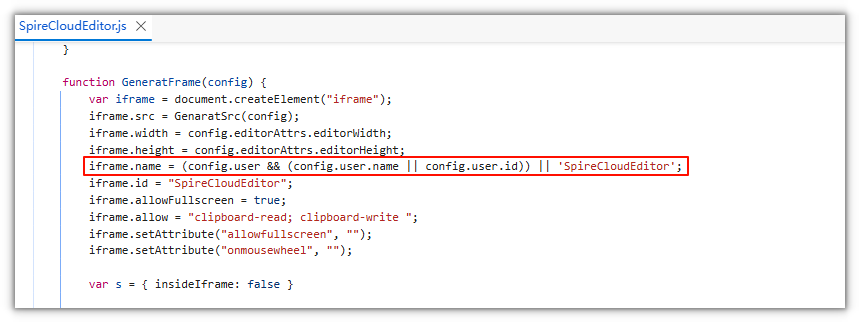
window.nameunchanged and write the current user into the iframe name inGeneratFrame(config)inweb/editors/spireapi/SpireCloudEditor.js:
iframe.name = (config.user && (config.user.name || config.user.id)) || 'SpireCloudEditor';
This way each user's window.name is their own user name or ID, and the prefix changes with the user.
Watermark Effect
After completing the configuration above, open a document and the editing area displays a tiled, diagonal light-red watermark. The watermark in the example below is "user name + current date".

FAQ
Watermark does not appear
Check the following in order:
- Whether the
cusWaterMarkJsURL can be accessed directly in the browser and whether the script loads successfully. - Whether the container ID found by
insertWaterMark()matches the current editor (Word/PowerPoint:id_main_view; Excel:editor_sdk). - Whether the script executes on load: the editor usually only loads the script and does not call
insertWaterMark(); the self-executing code at the end of the example triggers drawing. If you changed or removed it, call the function yourself. - Whether
canvasWM()is implemented: the example includes a complete implementation. If you replace it with another drawing method, make sure the script still provides that function.
Changes to the script do not take effect
The URL referenced by cusWaterMarkJs should preferably be same-origin with the site. For cross-origin requests, configure CORS and return the script with a correct MIME type such as text/javascript. After modifying SpireCloudEditor.js or waterMark.js, clear the browser cache or force a refresh to avoid loading an old version.