A bookmark is like an invisible "anchor" in a Word document, able to accurately locate a specific position or selected text. Whether it's a fill-in area in a contract template, a key section to jump to in a long document, or a data insertion point when generating reports in batch, bookmarks are the critical anchor behind these operations. Developers can use bookmarks for dynamic content filling, navigation, content extraction, and other advanced features, making bookmark management one of the most commonly used capabilities in Word automation.
Spire.Doc for JavaScript runs entirely in the browser via WebAssembly, handling bookmark creation, navigation, and deletion directly — all managed through a virtual file system (VFS) with no backend server required.
This article covers three core features:
For installation and project setup, refer to Integrating Spire.Doc for JavaScript in a React Project. The examples below assume Spire.Doc is installed and the WebAssembly module is initialized.
Add a Bookmark to a Paragraph
To add a bookmark in an existing document, use AppendBookmarkStart and AppendBookmarkEnd to mark the bookmark region on a paragraph. You can add bookmark markers to existing paragraphs or append a new paragraph with a bookmark. Spire.Doc also supports nested bookmarks for building hierarchical structures.
function App() {
  const createBookmarkInWord = async () => {
    // Get the Spire.Doc WASM module
    const docModule = window.wasmModule?.spiredoc;

    // Check if the module is ready
    if (!docModule) {
      alert('Spire.Doc is not ready yet');
      return;
    }

    // Load the Word file into VFS
    const inputFileName = 'ChinaTravelGuide.docx';
    await window.spire.FetchFileToVFS(inputFileName, '', `${process.env.PUBLIC_URL}/data/`);

    // Load the document
    const doc = new docModule.Document();
    doc.LoadFromFile(inputFileName);

    // Get the first section and add bookmarks
    let section = doc.Sections.get_Item(0);

    AddBookmark(section);

    // Save as a .docx file
    const outputFileName = "AddBookmark.docx";

    doc.SaveToFile({ fileName: outputFileName, fileFormat: docModule.FileFormat.Docx2013 });

    // Read the file from VFS and trigger download
    const fileArray = window.dotnetRuntime.Module.FS.readFile(outputFileName);
    const blob = new Blob([fileArray], { type: 'application/vnd.openxmlformats-officedocument.wordprocessingml.document' });
    const url = URL.createObjectURL(blob);
    const a = document.createElement('a');
    a.href = url;
    a.download = outputFileName;
    a.click();
    URL.revokeObjectURL(url);

    // Release resources
    doc.Dispose();
  };

  function AddBookmark(section) {
    // Bookmark 1: add bookmark markers around existing paragraphs
    let paraStart = section.Paragraphs.get_Item(1);
    let paraEnd = section.Paragraphs.get_Item(3);

    paraStart.AppendBookmarkStart("Bookmark1");
    paraEnd.AppendBookmarkEnd("Bookmark1");

    // Bookmark 2: add a new paragraph with a bookmark
    let paragraph = section.AddParagraph();
    paragraph.AppendBookmarkStart("Bookmark2");
    paragraph.AppendText("This is a new paragraph");
    paragraph.AppendBookmarkEnd("Bookmark2");
  }

  return (
    <div style={{ textAlign: 'center', height: '300px' }}>
      <h1>Add Bookmark in Word</h1>
      <button onClick={createBookmarkInWord}>
        Generate
      </button>
    </div>
  );
}

export default App;
Bookmarks added to the generated Word document

Add a Bookmark to Selected Text
To add a bookmark to specific text within an existing paragraph, first locate the text with FindAllString, create bookmark objects using the BookmarkStart and BookmarkEnd constructors, then insert the start marker before and the end marker after the matched TextRange via ChildObjects.Insert.
function App() {
  const addBookmarkForMatchedText = async () => {
    // Get the Spire.Doc WASM module
    const docModule = window.wasmModule?.spiredoc;

    // Check if the WASM module is ready
    if (!docModule) {
      alert('Spire.Doc is not ready yet');
      return;
    }

    // Load the Word file into VFS
    const inputFileName = 'ChinaTravelGuide.docx';
    await window.spire.FetchFileToVFS(inputFileName, '', `${process.env.PUBLIC_URL}/data/`);

    // Load the Word document
    const doc = new docModule.Document();
    doc.LoadFromFile(inputFileName);

    // Find all occurrences of "Street" in the document
    let textSelections = doc.FindAllString('Street', false, true);

    // Iterate over each match and insert bookmark start/end markers
    for (let i = 0; i < textSelections.length; i++) {

      // Create bookmark start and end objects (named "Bookmark_0", "Bookmark_1", ...)
      let start = new docModule.BookmarkStart(doc, "Bookmark_" + i);
      let end = new docModule.BookmarkEnd(doc, "Bookmark_" + i);

      let selection = textSelections[i];

      // Get the TextRange of the matched text
      let textRange = selection.GetAsOneRange();

      // Get the paragraph containing the matched text
      let para = textRange.OwnerParagraph;

      // Get the index of the TextRange within the paragraph's child objects
      let index = para.ChildObjects.IndexOf(textRange);

      // Insert the bookmark start before the TextRange and the bookmark end after it
      para.ChildObjects.Insert(index, start);
      para.ChildObjects.Insert(index + 2, end);
    }

    // Save as a new .docx file
    const outputFileName = "AddBookmark.docx";

    doc.SaveToFile({ fileName: outputFileName, fileFormat: docModule.FileFormat.Docx2013 });

    // Read the generated file from VFS and trigger download
    const fileArray = window.dotnetRuntime.Module.FS.readFile(outputFileName);
    const blob = new Blob([fileArray], { type: 'application/vnd.openxmlformats-officedocument.wordprocessingml.document' });
    const url = URL.createObjectURL(blob);
    const a = document.createElement('a');
    a.href = url;
    a.download = outputFileName;
    a.click();
    URL.revokeObjectURL(url);

    // Release document resources
    doc.Dispose();
  };

  return (
    <div style={{ textAlign: 'center', height: '300px' }}>
      <h1>Add Bookmarks for Specific Text in Word Documents</h1>
      <button onClick={addBookmarkForMatchedText}>
        Generate
      </button>
    </div>
  );
}

export default App;
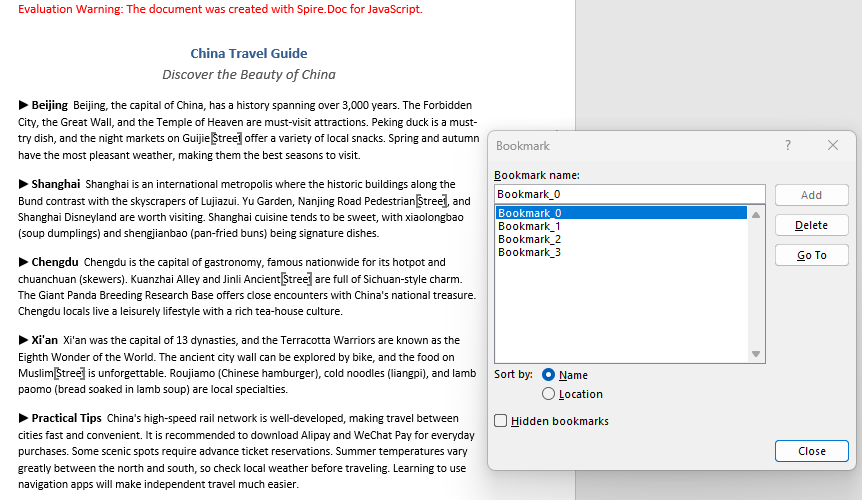
This approach is ideal for scenarios where you need to add positioning markers on top of an existing document, such as marking fill-in areas in a completed contract. The figure below shows the result after execution:
Remove a Bookmark
Removing a bookmark only removes the bookmark markers themselves — the text content within the bookmark range is preserved. Retrieve the bookmark object from the document.Bookmarks collection, then call the Remove method to delete it.
function App() {
  const deleteBookmark = async () => {
    // Get the Spire.Doc WASM module
    const docModule = window.wasmModule?.spiredoc;

    // Check if the WASM module is ready
    if (!docModule) {
      alert('Spire.Doc is not ready yet');
      return;
    }

    // Load the Word file into VFS
    const inputFileName = 'AddBookmark.docx';
    await window.spire.FetchFileToVFS(inputFileName, '', `${process.env.PUBLIC_URL}/data/`);

    // Load the Word document
    const doc = new docModule.Document();
    doc.LoadFromFile(inputFileName);

    // Get the bookmark by name
    let bookmark = doc.Bookmarks.get_Item("Bookmark_1");

    // // Get the bookmark by index
    // let bookmark = doc.Bookmarks.get_Item(0);

    // Remove the bookmark (keep its content)
    doc.Bookmarks.Remove(bookmark);

    // Save as a new .docx file
    const outputFileName = "DeleteBookmark.docx";

    doc.SaveToFile({ fileName: outputFileName, fileFormat: docModule.FileFormat.Docx2013 });

    // Read the generated file from VFS and trigger download
    const fileArray = window.dotnetRuntime.Module.FS.readFile(outputFileName);
    const blob = new Blob([fileArray], { type: 'application/vnd.openxmlformats-officedocument.wordprocessingml.document' });
    const url = URL.createObjectURL(blob);
    const a = document.createElement('a');
    a.href = url;
    a.download = outputFileName;
    a.click();
    URL.revokeObjectURL(url);

    // Release document resources
    doc.Dispose();
  };

  return (
    <div style={{ textAlign: 'center', height: '300px' }}>
      <h1>Delete Bookmark in Word Document</h1>
      <button onClick={deleteBookmark}>
        Generate
      </button>
    </div>
  );
}

export default App;
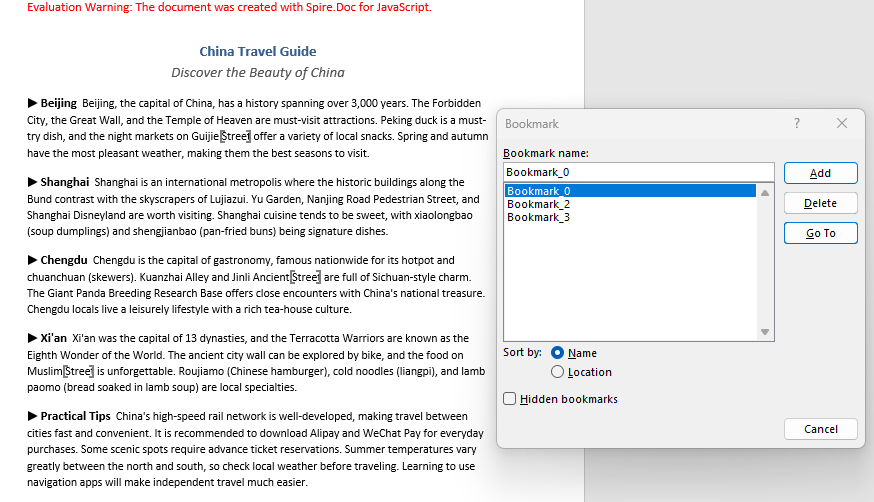
After the bookmark is removed, its markers disappear from the document, but the text within the bookmark range is preserved.
FAQ
Duplicate bookmark name error
Cause: Bookmark names must be unique within a Word document. Adding a bookmark with a duplicate name causes an error.
Solution: Check whether the name already exists before adding the bookmark:
if (document.Bookmarks.FindByName("MyBookmark") === null) {
    paragraph.AppendBookmarkStart("MyBookmark");
    paragraph.AppendText("Content");
    paragraph.AppendBookmarkEnd("MyBookmark");
}
What is the difference between removing a bookmark and deleting its content?
Cause: Spire.Doc's Bookmarks.Remove only removes the bookmark markers (start and end), leaving the text content between them untouched.
Solution: Choose the appropriate operation based on your needs:
// Remove only the bookmark markers, keep the text
document.Bookmarks.Remove(bookmark);

// Remove the bookmark and its content (via BookmarksNavigator)
let navigator = new docModule.BookmarksNavigator(doc);
navigator.MoveToBookmark("MyBookmark");
navigator.DeleteBookmarkContent();
Do AppendBookmarkStart and AppendBookmarkEnd have to be on the same paragraph?
Cause: The start and end markers can be on different paragraphs — the "Bookmark1" example in the code above demonstrates cross-paragraph usage. The key constraint is that the document object structure within the bookmark range must remain intact. Bookmarks cannot span across table cells, since cells are independent containers and doing so may cause the bookmark to be unrecognized.
Solution: If the bookmark range crosses a table cell boundary, adjust the start or end position so that the bookmark closes within the same cell.
Get a Free License
Spire.Doc for JavaScript offers a 30-day full-featured free trial license with no functional limitations. Apply here to evaluate before purchasing.
