A bookmark is a named anchor that marks a specific position or a range of content in a Word document. Writing content into a bookmark lets business data land at the designated place in a template automatically, without the caller having to know how the document is actually laid out. Spire.Doc for JavaScript performs this entirely in the browser via WebAssembly, using a virtual file system (VFS) to manage fonts, documents and image resources — no backend server required.
This article covers two core features:
For installation and project setup, refer to Integrating Spire.Doc for JavaScript in a React Project. The examples below assume Spire.Doc is installed and the WebAssembly module is initialized.
Insert Document Content at a Bookmark
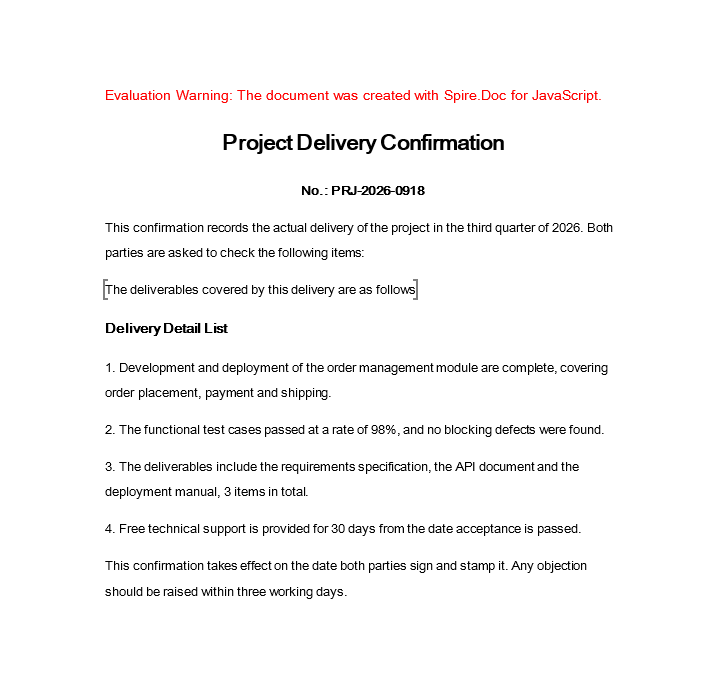
Inserting document content into a bookmark runs in three stages: first, instantiate two Document objects and load a file into each, one for the document to be filled and one that provides the content; then locate the bookmark by name with BookmarksNavigator.MoveToBookmark, take the bookmark's start marker through CurrentBookmark.BookmarkStart, work out the index of the paragraph holding that bookmark within the section through its OwnerParagraph and the section's IndexOf, and insert every paragraph of the source document after that index (each one Clone()d first); last, save the document, read the generated file from VFS, wrap it as a Blob and trigger a browser download.
function App() {
  const InsertDocAtBookmark = async () => {
    const docModule = window.wasmModule?.spiredoc;
    if (!docModule) {
      alert('Spire.Doc is not ready yet');
      return;
    }
    // Load the target document to be filled into VFS
    let inputFileName_1 = "InsertDocAtBookmark1.docx";
    await window.spire.FetchFileToVFS(inputFileName_1, "", `${process.env.PUBLIC_URL}/static/data/`);

    // Load the source document that provides the content into VFS
    let inputFileName_2 = "InsertDocAtBookmark2.docx";
    await window.spire.FetchFileToVFS(inputFileName_2, "", `${process.env.PUBLIC_URL}/static/data/`);

    // Load the target document
    let document1 = new docModule.Document();
    document1.LoadFromFile(inputFileName_1);

    // Load the source document
    let document2 = new docModule.Document();
    document2.LoadFromFile(inputFileName_2);

    // Get the first section of the target document
    let section1 = document1.Sections.get_Item();

    // Create a bookmark navigator to locate the bookmark
    let bn = new docModule.BookmarksNavigator(document1);

    // Find the bookmark by name
    bn.MoveToBookmark("Test", true, true);

    // Get the bookmark's start marker
    let start = bn.CurrentBookmark.BookmarkStart;

    // Get the paragraph that holds the start marker
    let para = start.OwnerParagraph;

    // Get the index of that paragraph in the section
    let index = section1.Body.ChildObjects.IndexOf(para);

    // Insert the paragraphs of the source document one by one after the paragraph holding the bookmark
    for (let i = 0; i < document2.Sections.Count; i++) {
      let section2 = document2.Sections.get_Item(i);
      for (let j = section2.Paragraphs.Count-1; j >=0; j--) {
        let paragraph = section2.Paragraphs.get_Item(j);
        section1.Body.ChildObjects.Insert(index + 1, paragraph.Clone());
      }
    }

    // Define the output file name
    const outputFileName = "InsertDocAtBookmark-result.docx";

    // Save the document
    document1.SaveToFile({ fileName: outputFileName, fileFormat: docModule.FileFormat.Docx2013 });

    document1.Dispose();
    document2.Dispose();

    // Read the saved file and convert it to a Blob
    const modifiedFileArray = window.dotnetRuntime.Module.FS.readFile(outputFileName);
    const blob = new Blob([modifiedFileArray], {type: "application/vnd.openxmlformats-officedocument.wordprocessingml.document"});
    const url = URL.createObjectURL(blob);
    const a = document.createElement('a');
    a.href = url;
    a.download = outputFileName;
    a.click();
    URL.revokeObjectURL(url);
  };

  return (
    <div style={{ textAlign: 'center', height: '300px' }}>
      <h1>Insert a document at a Word bookmark</h1>
      <button onClick={InsertDocAtBookmark}>Generate</button>
    </div>
  );
}
export default App;
Word output after the paragraphs of the source document have been inserted at the bookmark
Insert an Image at a Bookmark
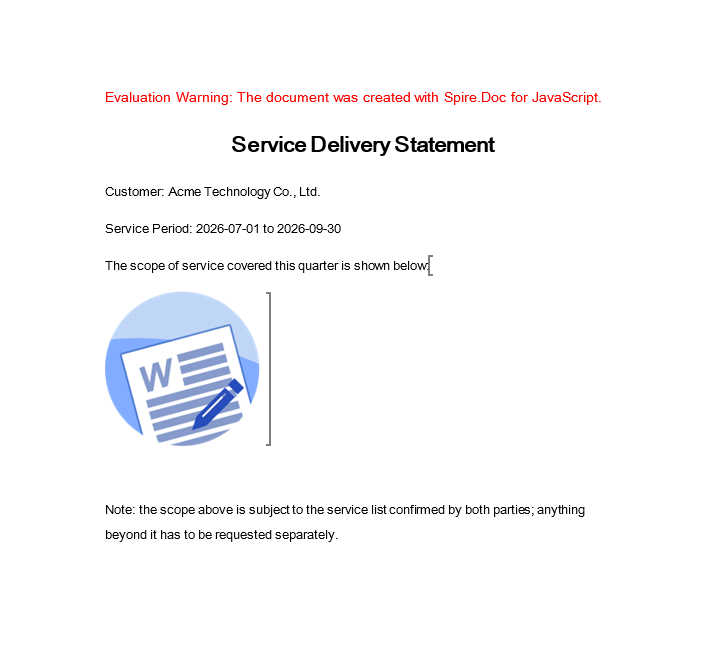
A bookmark marks a position in the document, so it can carry non-text content just as well — inserting a seal image at a signature bookmark in a contract template, for example. The core process runs in three stages: first, instantiate a Document and load the file; then locate the bookmark with a BookmarksNavigator, create a temporary section with AddSection, add a paragraph inside that temporary section and append the image to it with AppendPicture, insert the whole paragraph at the bookmark with InsertParagraph, and finally remove the temporary section; last, save the document, read the generated file from VFS, wrap it as a Blob and trigger a browser download.
function App() {
  const InsertImageAtBookmark = async () => {
    const docModule = window.wasmModule?.spiredoc;
    if (!docModule) {
      alert('Spire.Doc is not ready yet');
      return;
    }
    // Load the target document into VFS
    let inputFileName = "InsertImageAtBookmark.docx";
    await window.spire.FetchFileToVFS(inputFileName, "", `${process.env.PUBLIC_URL}/static/data/`);

    // Load the image to be inserted into VFS
    let imageFileName = "Word.png";
    await window.spire.FetchFileToVFS(imageFileName, "", `${process.env.PUBLIC_URL}/static/data/`);

    // Load the document
    let doc = new docModule.Document();
    doc.LoadFromFile(inputFileName);

    // Create a bookmark navigator to locate the bookmark
    let bn = new docModule.BookmarksNavigator(doc);

    // Find the bookmark by name
    bn.MoveToBookmark("Test", true, true);

    // Add a temporary section to hold the image paragraph
    let section0 = doc.AddSection();

    // Add a paragraph in the temporary section
    let paragraph = section0.AddParagraph();

    // Append the image to the paragraph
    paragraph.AppendPicture({ imgFile: imageFileName });

    // Insert that paragraph at the bookmark
    bn.InsertParagraph(paragraph);

    // Remove the temporary section
    doc.Sections.Remove(section0);

    // Define the output file name
    const outputFileName = "InsertImageAtBookmark-result.docx";

    // Save the document
    doc.SaveToFile({ fileName: outputFileName, fileFormat: docModule.FileFormat.Docx2013 });
    doc.Dispose();

    // Read the saved file and convert it to a Blob
    const modifiedFileArray = window.dotnetRuntime.Module.FS.readFile(outputFileName);
    const blob = new Blob([modifiedFileArray], {type: "application/vnd.openxmlformats-officedocument.wordprocessingml.document"});
    const url = URL.createObjectURL(blob);
    const a = document.createElement('a');
    a.href = url;
    a.download = outputFileName;
    a.click();
    URL.revokeObjectURL(url);
  };

  return (
    <div style={{ textAlign: 'center', height: '300px' }}>
      <h1>Insert an image at a Word bookmark</h1>
      <button onClick={InsertImageAtBookmark}>Generate</button>
    </div>
  );
}
export default App;
Word output after the image has been inserted at the bookmark
FAQ
The bookmark cannot be found and MoveToBookmark fails to locate it
Cause: MoveToBookmark locates a bookmark by its name. The name is case-sensitive and has to match the bookmark name in the document exactly. If the spelling does not match, or the target document has no bookmark with that name at all, the lookup fails.
Solution: Before locating, walk the Bookmarks collection to confirm the bookmark names the document actually carries, then pass the exact name:
// Walk all the bookmarks in the document to check whether the name matches
for (let i = 0; i < doc.Bookmarks.Count; i++) {
  console.log(doc.Bookmarks.get_Item(i).Name);
}

// Once the bookmark is confirmed to exist, locate it by its exact name
let bn = new wasmModule.BookmarksNavigator(doc);
bn.MoveToBookmark("Test", true, true);
The inserted image is larger than the page
Cause: AppendPicture inserts the image at its original pixel size and does not fit it to the page width. If the image resolution is far above the available page width, it overflows the page or stretches the original layout once inserted.
Solution: AppendPicture returns the picture object, so it can be scaled proportionally to a maximum width before it is inserted at the bookmark (Width and Height are measured in points):
// Append the image and keep the returned picture object
let paragraph = section0.AddParagraph();
let picture = paragraph.AppendPicture({ imgFile: imageFileName });

// Scale proportionally to the maximum width
let maxWidth = 400;
if (picture.Width > maxWidth) {
  picture.Height = picture.Height * (maxWidth / picture.Width);
  picture.Width = maxWidth;
}
Get a Free License
Spire.Doc for JavaScript offers a 30-day full-featured free trial license with no functional limitations. Apply here to evaluate before purchasing.
