Converting a Word document to HTML preserves the original paragraph structure, styles, and images while rendering directly in the browser, which makes it widely useful for online preview, content publishing, and full-text search. Spire.Doc for JavaScript performs this conversion entirely in the browser via WebAssembly, using a virtual file system (VFS) to manage input and output files — no backend server required.
This article covers two core features:
For installation and project setup, refer to Integrating Spire.Doc for JavaScript in a React Project. The examples below assume Spire.Doc is installed and the WebAssembly module is initialized.
Convert Word to HTML
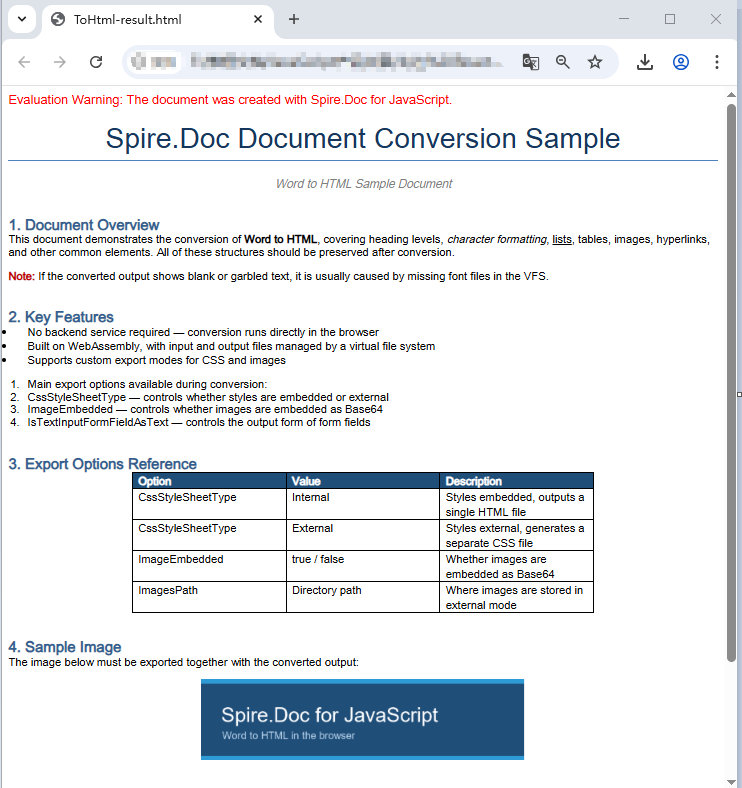
Converting Word to HTML involves three stages: first, load the font file and the target Word file into the WASM virtual file system via FetchFileToVFS; then instantiate a Document, load the file, use HtmlExportOptions to specify that both CSS and images are output in embedded form, and call SaveToFile to save the document as HTML; finally, read the generated HTML file from VFS, wrap it as a Blob, and trigger a browser download.
function App() {
  const wordToHtml = async () => {
    // Get the Spire.Doc WASM module
    const docModule = window.wasmModule?.spiredoc;

    // Check if the module is ready
    if (!docModule) {
      alert('Spire.Doc is not ready yet');
      return;
    }

    // Load fonts and the Word file into VFS
    await window.spire.FetchFileToVFS('ARIALUNI.TTF', '/Library/Fonts/', `${process.env.PUBLIC_URL}/static/font/`);
    const inputFileName = 'ToHtml.docx';
    await window.spire.FetchFileToVFS(inputFileName, '', `${process.env.PUBLIC_URL}/static/data/`);

    // Load the Word document
    const wordDocument = new docModule.Document();
    wordDocument.LoadFromFile(inputFileName);

    // Embed the CSS styles into the HTML and embed images as Base64
    wordDocument.HtmlExportOptions.CssStyleSheetType = docModule.CssStyleSheetType.Internal;
    wordDocument.HtmlExportOptions.ImageEmbedded = true;

    // Convert the document to HTML
    const outputFileName = 'ToHtml-result.html';
    wordDocument.SaveToFile({ fileName: outputFileName, fileFormat: docModule.FileFormat.Html });

    // Read the converted file from VFS and trigger download
    const fileArray = window.dotnetRuntime.Module.FS.readFile(outputFileName);
    const blob = new Blob([fileArray], { type: 'text/html;charset=utf-8' });
    const url = URL.createObjectURL(blob);
    const a = window.document.createElement('a');
    a.href = url;
    a.download = outputFileName;
    a.click();
    URL.revokeObjectURL(url);

    // Release resources
    wordDocument.Dispose();
  };

  return (
    <div style={{ textAlign: 'center', height: '300px' }}>
      <h1>Convert Word To HTML</h1>
      <button onClick={wordToHtml}>
        Generate
      </button>
    </div>
  );
}

export default App;
HTML page generated from a Word document via SaveToFile
Convert Word to HTML with export options
The output in the previous section is a single HTML file with CSS and images embedded in it. When a document is large, or when you want to maintain styles centrally and reuse image resources, you usually need to export CSS and images as separate files. HtmlExportOptions provides the corresponding settings, allowing HTML, style sheets, and images to be output separately.
The conversion flow is similar to the previous section, except that the result is a directory: you need to create the directory in VFS first, then use properties such as CssStyleSheetFileName and ImagesPath to specify where each type of resource is stored. Once conversion is complete, read that directory recursively, package everything into a zip, and download it in one go.
import JSZip from 'jszip';

function App() {
  const wordToHtmlWithOptions = async () => {
    // Get the Spire.Doc WASM module
    const docModule = window.wasmModule?.spiredoc;

    // Check if the module is ready
    if (!docModule) {
      alert('Spire.Doc is not ready yet');
      return;
    }

    // Load fonts and the Word file into VFS
    await window.spire.FetchFileToVFS('ARIALUNI.TTF', '/Library/Fonts/', `${process.env.PUBLIC_URL}/static/font/`);
    const inputFileName = 'ToHtml.docx';
    await window.spire.FetchFileToVFS(inputFileName, '', `${process.env.PUBLIC_URL}/static/data/`);

    // Create the output directory in VFS
    const outputDirectoryName = 'ToHTMLFolder/';
    window.dotnetRuntime.Module.FS.mkdirTree(outputDirectoryName);

    // Load the Word document
    const wordDocument = new docModule.Document();
    wordDocument.LoadFromFile(inputFileName);

    // Export the CSS styles to a separate file
    wordDocument.HtmlExportOptions.CssStyleSheetFileName = outputDirectoryName + 'sample.css';
    wordDocument.HtmlExportOptions.CssStyleSheetType = docModule.CssStyleSheetType.External;

    // Export images to a separate directory
    wordDocument.HtmlExportOptions.ImageEmbedded = false;
    wordDocument.HtmlExportOptions.ImagesPath = outputDirectoryName + 'Demo/';

    // Export form fields as plain text
    wordDocument.HtmlExportOptions.IsTextInputFormFieldAsText = true;

    // Convert the document to HTML
    const outputFileName = 'ToHtmlExportOption-out.html';
    wordDocument.SaveToFile({ fileName: outputFileName, fileFormat: docModule.FileFormat.Html });

    // Release resources
    wordDocument.Dispose();

    // Read the output directory recursively and write each level of files into the zip
    const zip = new JSZip();
    const addFilesToZip = async (folderPath, zipFolder) => {
      let items = await window.dotnetRuntime.Module.FS.readdir(folderPath);
      items = items.filter((item) => item !== '.' && item !== '..');
      for (const item of items) {
        const itemPath = `${folderPath}/${item}`;
        try {
          const fileData = await window.dotnetRuntime.Module.FS.readFile(itemPath);
          zipFolder.file(item, fileData);
        } catch (error) {
          const zipSubFolder = zipFolder.folder(item);
          await addFilesToZip(itemPath, zipSubFolder);
        }
      }
    };

    // Package the HTML file together with the resource directory
    zip.file(outputFileName, window.dotnetRuntime.Module.FS.readFile(outputFileName));
    await addFilesToZip(outputDirectoryName, zip);
    const zipBlob = await zip.generateAsync({ type: 'blob' });
    const url = URL.createObjectURL(zipBlob);

    // Trigger download
    const a = window.document.createElement('a');
    a.href = url;
    a.download = 'ToHTMLFolder.zip';
    a.click();
    URL.revokeObjectURL(url);
  };

  return (
    <div style={{ textAlign: 'center', height: '300px' }}>
      <h1>Convert Word To HTML With Export Options</h1>
      <button onClick={wordToHtmlWithOptions}>
        Generate
      </button>
    </div>
  );
}

export default App;
HTML, CSS, and image files generated after configuring the export options
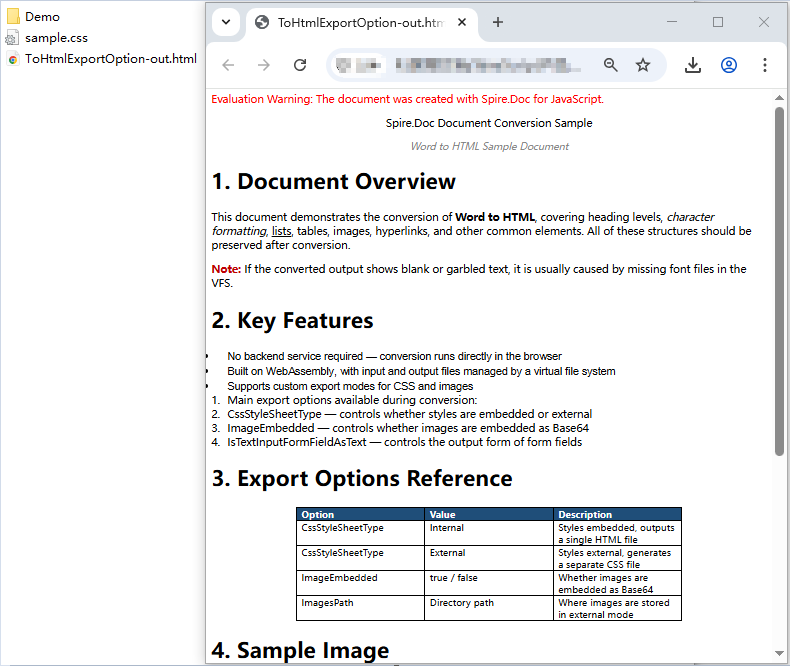
Note that Spire.Doc does not write images directly into the directory pointed to by ImagesPath. Instead, it creates an external_images subdirectory underneath it to hold the images. As a result, the output directory typically forms a hierarchy such as Demo/external_images/*.png, which must be read level by level — this is why addFilesToZip is implemented recursively in the example above.
FAQ
Fonts in the exported HTML do not match the original document
Cause: The font files are missing from the WASM virtual file system. Spire.Doc reads fonts from VFS during conversion to perform layout calculations and font name resolution. If the fonts are not preloaded, the fonts used in the original document are replaced with substitute fonts, and the font-family in the exported CSS will not match the original. If the original document uses a symbol font such as Wingdings, the corresponding characters will also appear garbled.
Solution: Load the font files into VFS via FetchFileToVFS before conversion. For Chinese, Japanese, and Korean documents, use a font with broad coverage such as ARIALUNI.TTF:
await window.spire.FetchFileToVFS(
  'ARIALUNI.TTF', '/Library/Fonts/', '/'
);
Exported HTML loses its styles and images when opened
Cause: In external mode (CssStyleSheetType.External combined with ImageEmbedded = false), CSS and images are output as separate files to the specified directory, and the HTML keeps only relative path references. If you download the HTML file on its own, the browser cannot find the corresponding style sheet and images, and the page degrades into unstyled plain text.
Solution: Package the HTML file together with the resource directory and download them as a whole, so that the relative path references remain valid (see the addFilesToZip example above). If you do not need separate resource files, you can switch to embedded mode instead:
wordDocument.HtmlExportOptions.CssStyleSheetType = docModule.CssStyleSheetType.Internal;
wordDocument.HtmlExportOptions.ImageEmbedded = true;
Get a Free License
Spire.Doc for JavaScript offers a 30-day full-featured free trial license with no functional limitations. Apply here to evaluate before purchasing.
