Converting between Word documents and OpenXML is one of the most frequent needs in document processing: exporting a Word document to XML lifts the body content out of the binary package structure, which makes cross-system exchange, bulk extraction and archiving much easier, while turning XML back into a Word document lets you generate a standard document directly from structured data you already have. Spire.Doc for JavaScript performs the conversion in both directions in the browser via WebAssembly, using a virtual file system (VFS) to manage fonts and files — no backend server required. OpenXML flat files come in two formats: WordML for Word 2003 and WordXml (Flat OPC) for Word 2007 and later, so the one you save as depends on the target Word version.
This article covers three core features:
For installation and project setup, refer to Integrating Spire.Doc for JavaScript in a React Project. The examples below assume Spire.Doc is installed and the WebAssembly module is initialized.
Word to OpenXML (WordML)
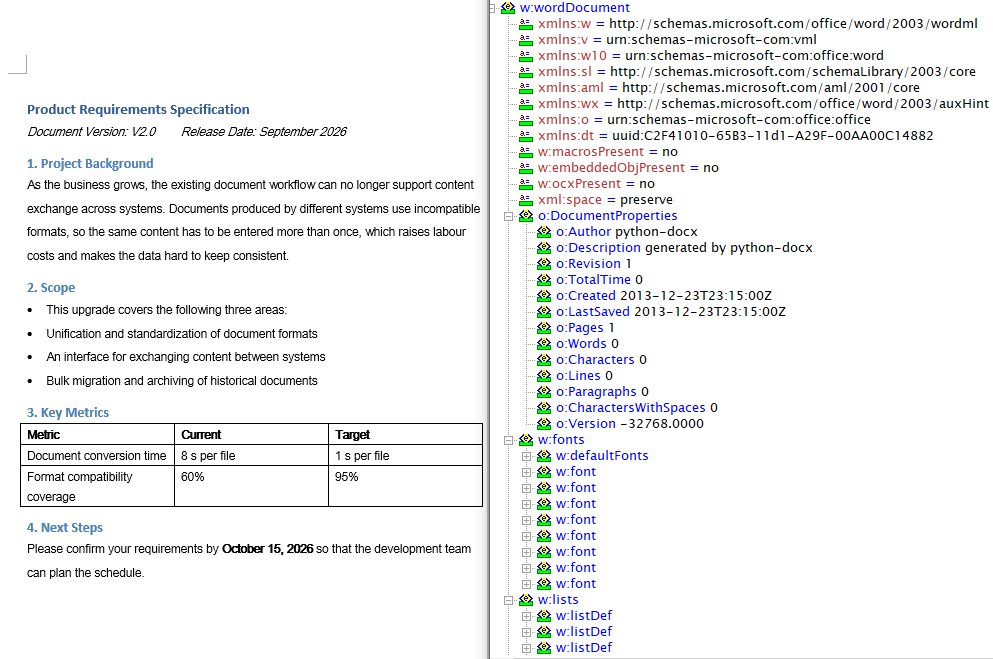
Converting a Word document to OpenXML involves three steps: first, load the font files and the target Word document into the WASM virtual file system via FetchFileToVFS; then instantiate a Document, load the file and call SaveToFile with FileFormat.WordML to save the document as a Word 2003 XML flat file; finally, read the generated XML file from VFS, wrap it as a Blob and trigger a browser download.
function App() {
  const WordToWordML = async () => {
    const docModule = window.wasmModule?.spiredoc;
    if (!docModule) {
      alert('Spire.Doc is not ready yet');
      return;
    }

    // Load the sample file into VFS
    let inputFileName = 'WordToWordXML.docx';
    await window.spire.FetchFileToVFS(inputFileName, '', `${process.env.PUBLIC_URL}/static/data/`);

    // Create a document instance
    const doc = new docModule.Document();

    // Load the document from the virtual file system
    doc.LoadFromFile(inputFileName);

    // Define the output file name and save it as a Word 2003 OpenXML file
    const outputFileName = 'WordToWordXML-result.xml';
    doc.SaveToFile({ fileName: outputFileName, fileFormat: docModule.FileFormat.WordML });

    // Release resources
    doc.Dispose();

    const modifiedFileArray = window.dotnetRuntime.Module.FS.readFile(outputFileName);
    const blob = new Blob([modifiedFileArray], { type: 'application/vnd.openxmlformats-officedocument.wordprocessingml.document' });
    const url = URL.createObjectURL(blob);
    const a = document.createElement('a');
    a.href = url;
    a.download = outputFileName;
    a.click();
    URL.revokeObjectURL(url);
  };

 return (
    <div style={{ textAlign: 'center', height: '300px' }}>
      <h1>Convert Word To WordML</h1>
      <button onClick={WordToWordML}>Generate</button>
    </div>
  );
}
export default App;
With FileFormat.WordML passed to SaveToFile, the Word document is converted into a Word 2003 XML flat file
Word to OpenXML (WordXml)
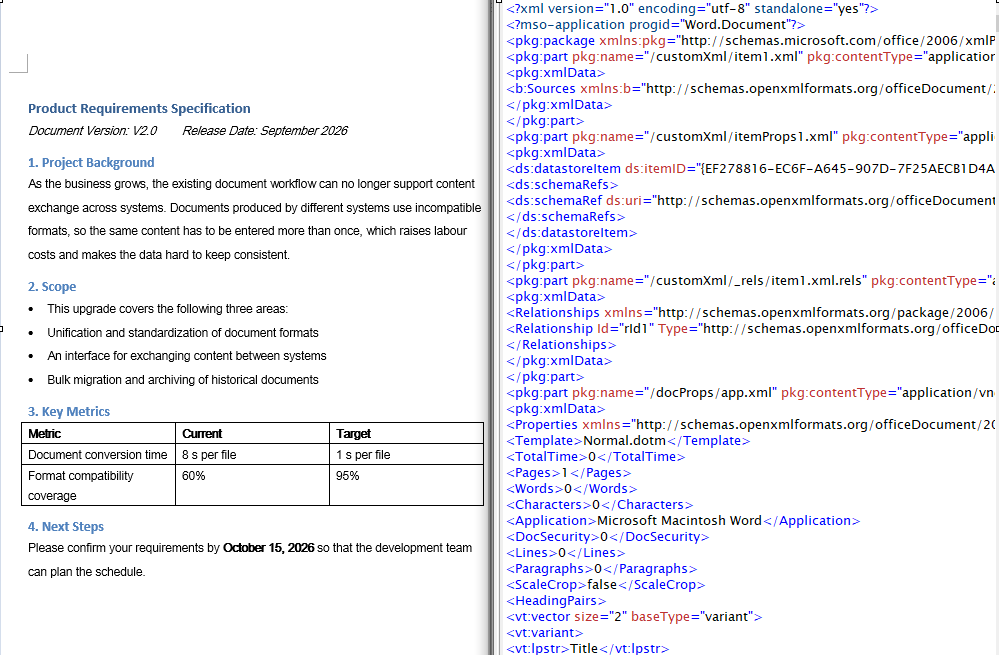
The flat file format of Word 2007 and later is called WordXml (Flat OPC): it packs the individual parts of the docx package — body, styles, relationships and so on — into a single XML file whose root element is <pkg:package>, and Word can open it directly just the same. The conversion flow is identical to WordML; only the save format differs. It again involves three steps: first, load the font files and the target Word document into the WASM virtual file system via FetchFileToVFS; then instantiate a Document, load the file and call SaveToFile with FileFormat.WordXml to save the document as a Word 2007 XML file; finally, read the generated XML file from VFS, wrap it as a Blob and trigger a browser download.
function App() {
  const WordToWordXml = async () => {
    const docModule = window.wasmModule?.spiredoc;
    if (!docModule) {
      alert('Spire.Doc is not ready yet');
      return;
    }

    // Load the sample file into VFS
    let inputFileName = 'WordToWordXML.docx';
    await window.spire.FetchFileToVFS(inputFileName, '', `${process.env.PUBLIC_URL}/static/data/`);

    // Create a document instance
    const doc = new docModule.Document();

    // Load the document from the virtual file system
    doc.LoadFromFile(inputFileName);

    // Define the output file name and save it as a Word 2007 OpenXML file
    const outputFileName = 'WordToWordXML-result-2007.xml';
    doc.SaveToFile({ fileName: outputFileName, fileFormat: docModule.FileFormat.WordXml });

    // Release resources
    doc.Dispose();

    const modifiedFileArray = window.dotnetRuntime.Module.FS.readFile(outputFileName);
    const blob = new Blob([modifiedFileArray], { type: 'application/vnd.openxmlformats-officedocument.wordprocessingml.document' });
    const url = URL.createObjectURL(blob);
    const a = document.createElement('a');
    a.href = url;
    a.download = outputFileName;
    a.click();
    URL.revokeObjectURL(url);
  };

 return (
    <div style={{ textAlign: 'center', height: '300px' }}>
      <h1>Convert Word To WordXml</h1>
      <button onClick={WordToWordXml}>Generate</button>
    </div>
  );
}
export default App;
With FileFormat.WordXml passed to SaveToFile, the parts of the Word document are merged into a single Word 2007 Flat OPC XML file
OpenXML to Word
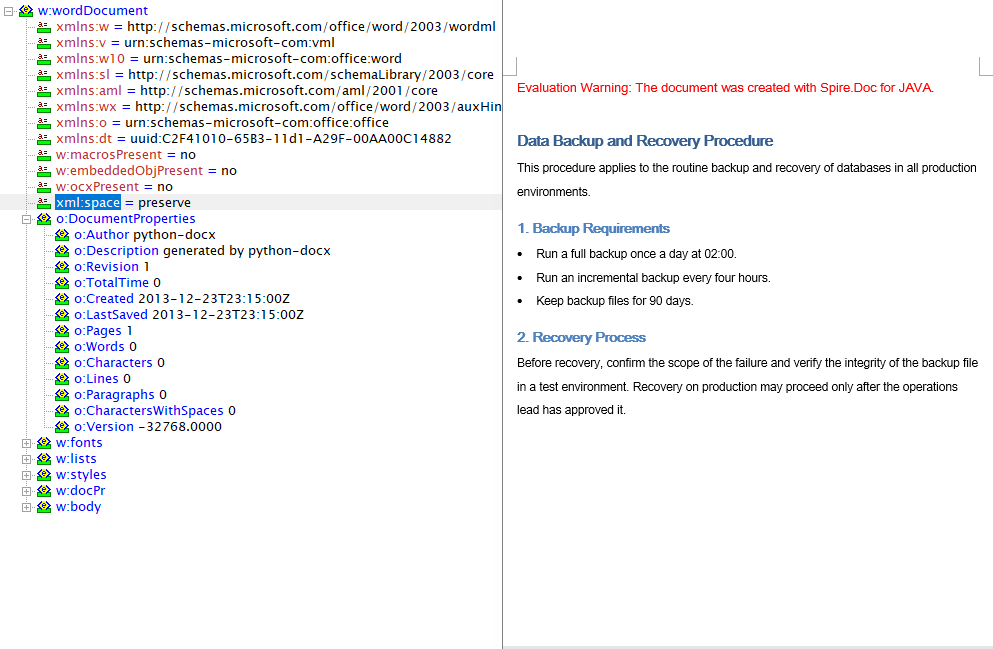
Converting OpenXML to Word involves three steps: first, load the font files and the target XML file into the WASM virtual file system via FetchFileToVFS; then instantiate a Document and load the XML file directly with LoadFromFile — Spire.Doc recognizes the WordML and WordXml formats from the file contents automatically — and call SaveToFile to save it as a Docx2013 Word document; finally, read the generated .docx file from VFS, wrap it as a Blob and trigger a browser download.
function App() {
  const XMLToWord = async () => {
    const docModule = window.wasmModule?.spiredoc;
    if (!docModule) {
      alert('Spire.Doc is not ready yet');
      return;
    }

    // Load the sample file into VFS
    let inputFileName = 'XMLToWord.xml';
    await window.spire.FetchFileToVFS(inputFileName, '', `${process.env.PUBLIC_URL}/static/data/`);

    // Create a document instance
    const doc = new docModule.Document();

    // Load the OpenXML file from the virtual file system
    doc.LoadFromFile(inputFileName);

    // Define the output file name and save it as a Word document
    const outputFileName = 'XMLToWord-result.docx';
    doc.SaveToFile({ fileName: outputFileName, fileFormat: docModule.FileFormat.Docx2013 });

    // Release resources
    doc.Dispose();

    const modifiedFileArray = window.dotnetRuntime.Module.FS.readFile(outputFileName);
    const blob = new Blob([modifiedFileArray], { type: 'application/vnd.openxmlformats-officedocument.wordprocessingml.document' });
    const url = URL.createObjectURL(blob);
    const a = document.createElement('a');
    a.href = url;
    a.download = outputFileName;
    a.click();
    URL.revokeObjectURL(url);
  };

 return (
    <div style={{ textAlign: 'center', height: '300px' }}>
      <h1>Convert XML To Word</h1>
      <button onClick={XMLToWord}>Generate</button>
    </div>
  );
}
export default App;
After the OpenXML file is loaded with LoadFromFile and saved as a Word document, the paragraphs, lists and tables it contains are restored in full
FAQ
The generated XML reports a format error when opened in Word
Cause: The save format does not match the target Word version. FileFormat.WordML maps to the Word 2003 XML format and FileFormat.WordXml to the Word 2007 and later Flat OPC format; the two have different structures, so opening a file saved in the newer format with an older version of Word fails.
Solution: Pick the enum value that matches the target Word version, and name the output file .xml:
// Word 2003 and earlier
doc.SaveToFile({ fileName: 'out.xml', fileFormat: wasmModule.FileFormat.WordML });

// Word 2007 and later
doc.SaveToFile({ fileName: 'out.xml', fileFormat: wasmModule.FileFormat.WordXml });
Loading the XML fails, or the converted document comes out empty
Cause: OpenXML to Word requires the input to be a complete WordprocessingML flat file; an ordinary custom data XML cannot be recognized by LoadFromFile.
Solution: Make sure the input XML was exported by Word or Spire.Doc — the root element of the WordML format is <w:wordDocument> and that of the WordXml format is <pkg:package>:
const doc = new wasmModule.Document();
doc.LoadFromFile('XMLToWord.xml');
Get a Free License
Spire.Doc for JavaScript offers a 30-day full-featured free trial license with no functional limitations. Apply here to evaluate before purchasing.
