After a template has been distributed, there are usually two opposite requirements. One is protection: a table, a roster or a set of clauses has been finalized, and the people filling in the template should not be able to modify or delete it by mistake, while the control structure is kept for later consolidation. The other is cleanup: the document has been finalized and archived, the content controls are no longer needed, and their tags and borders get in the way of reading, so the control shell should be removed and only the content kept.
Locking is done through SDTProperties.LockSettings; removal takes the control out of its parent object and puts its child content back in the original order. The two operations go in opposite directions, and both require distinguishing inline controls from block-level controls.
This article uses Spire.Doc for JavaScript to demonstrate both operations. Everything runs in the browser, and documents never leave the user's device.
This article covers two features:
Both features work with StructureDocumentTag (block-level) and StructureDocumentTagInline (inline):
| Object type | DocumentObjectType value |
Parent object during removal |
|---|---|---|
| Inline content control | StructureDocumentTagInline |
The paragraph that contains it |
| Block-level content control | StructureDocumentTag |
The section body or a table cell |
For installation and project setup, refer to Integrating Spire.Doc for JavaScript in a React Project. The examples below assume that Spire.Doc is installed and the WebAssembly module is initialized.
Lock a Content Control
Locking constrains what the person filling in the form can do in Word. LockSettings is an enumeration, and different values protect different objects: some protect only the control content, some protect only the control itself, and some protect both.
The available lock modes are as follows:
LockSettingsType value |
OOXML written | Protection effect |
|---|---|---|
UnLocked |
No w:lock written |
Not locked; the content can be edited and the control can be deleted |
ContentLocked |
w:lock w:val="contentLocked" |
The content cannot be edited; the control itself can be deleted |
SDTLocked |
w:lock w:val="sdtLocked" |
The control cannot be deleted; the content can still be edited |
SDTContentLocked |
w:lock w:val="sdtContentLocked" |
The content cannot be edited and the control cannot be deleted |
The specific steps are as follows:
- Get the Spire.Doc WASM module and confirm that it is ready.
- Load the font, create a document with one section, and write a member roster table with
AppendHTML(). - Add another section, write the title and the explanation, and create a block-level
StructureDocumentTagcontrol. - Clone the table into the control's
SDTContent, setLockSettingstoContentLocked, and remove the temporary section that built the table. - Save the result file with
SaveToFile(), read it from the VFS and trigger a browser download.
The code for locking a content control is as follows:
const FONT_FOLDER = '/Library/Fonts/';

const loadFontToVfs = async (fileName) => {
  const url = `${process.env.PUBLIC_URL || ''}/static/font/${fileName}`;
  const res = await fetch(url);
  if (!res.ok) {
    throw new Error(`Failed to load the font: ${url} returned HTTP ${res.status}`);
  }
  const bytes = new Uint8Array(await res.arrayBuffer());
  const tag = bytes.length >= 4 ? String.fromCharCode(bytes[0], bytes[1], bytes[2], bytes[3]) : '';
  const isFont = tag === 'ttcf' || tag === 'true' || tag === 'OTTO' || tag === 'wOFF' || tag === 'wOF2'
    || (bytes.length >= 4 && bytes[0] === 0x00 && bytes[1] === 0x01 && bytes[2] === 0x00 && bytes[3] === 0x00);
  if (!isFont) {
    throw new Error(`Invalid font file: ${url} did not return a font (usually a 404 or a single-page app falling back to index.html)`);
  }
  const FS = window.dotnetRuntime.Module.FS;
  FS.mkdirTree(FONT_FOLDER);
  FS.writeFile(FONT_FOLDER + fileName, bytes, { flags: 'w+' });
};

function App() {
  const lockContentControl = async () => {
    // Wait for the WASM runtime and Spire.Doc to finish loading
    if (window.spireReady) await window.spireReady;
    const wasmModule = window.wasmModule?.spiredoc;

    if (!wasmModule) {
      alert('Spire.Doc is not ready yet');
      return;
    }

    // Load the fonts (AppendHTML depends on fonts for layout, so at least one valid font must be written to the VFS)
    const fontErrors = [];
    let loadedFonts = 0;
    for (const fileName of ['arial.ttf', 'arialbd.ttf']) {
      try {
        await loadFontToVfs(fileName);
        loadedFonts += 1;
      } catch (e) {
        fontErrors.push(e.message || String(e));
      }
    }
    if (loadedFonts === 0) {
      alert(`Failed to load the fonts, so AppendHTML cannot lay out the table:\n${fontErrors.join('\n')}`);
      return;
    }

    // Create the document and build the table in the first section
    const doc = new wasmModule.Document();
    const tableSection = doc.AddSection();
    const tableParagraph = tableSection.AddParagraph();
    tableParagraph.AppendHTML(
      '<table border="1" cellspacing="0" cellpadding="4" style="border-collapse:collapse;width:100%">'
      + '<tr><th>  No.</th><th>Name</th><th>Role  </th></tr>'
      + '<tr><td>01</td><td>Emily Carter</td><td>Procurement Manager</td></tr>'
      + '<tr><td>02</td><td>Daniel Reed</td><td>Technical Director</td></tr>'
      + '</table>');

    // Add a new section with the title and the explanation
    const section = doc.AddSection();
    const titleParagraph = section.AddParagraph();
    const titleRange = titleParagraph.AppendText('Project Team Member List');
    titleRange.CharacterFormat.FontName = 'Arial';
    titleRange.CharacterFormat.FontSize = 19;
    titleRange.CharacterFormat.Bold = true;
    titleRange.CharacterFormat.TextColor = wasmModule.Color.FromArgb(255, 15, 110, 90);
    titleParagraph.Format.AfterSpacing = 14;

    const hintParagraph = section.AddParagraph();
    const hintRange = hintParagraph.AppendText('The table below is locked, so the list content cannot be modified directly.');
    hintRange.CharacterFormat.FontName = 'Arial';
    hintRange.CharacterFormat.FontSize = 9;
    hintRange.CharacterFormat.TextColor = wasmModule.Color.FromArgb(255, 89, 89, 89);
    hintParagraph.Format.AfterSpacing = 8;

    // Create the block-level content control
    const sdt = new wasmModule.StructureDocumentTag(doc);
    section.Body.ChildObjects.Add(sdt);
    sdt.SDTProperties.SDTType = wasmModule.SdtType.RichText;
    sdt.SDTProperties.Alias = 'Member List';
    sdt.SDTProperties.Tag = 'member-list';
    sdt.SDTProperties.Appearance = wasmModule.SdtAppearance.Tags;

    // Clone the table from the first section into the control content
    for (let i = 0; i < tableSection.Body.ChildObjects.Count; i++) {
      const obj = tableSection.Body.ChildObjects.get_Item(i);
      if (obj.DocumentObjectType === wasmModule.DocumentObjectType.Table) {
        sdt.SDTContent.ChildObjects.Add(obj.Clone());
      }
    }

    // Lock the control content
    sdt.SDTProperties.LockSettings = wasmModule.LockSettingsType.ContentLocked;

    // Remove the temporary section that built the table
    doc.Sections.Remove(tableSection);

    // Save the result file
    const outputFileName = 'LockContentControlContent.docx';
    doc.SaveToFile({ fileName: outputFileName, fileFormat: wasmModule.FileFormat.Docx2013 });
    doc.Dispose();

    // Read the generated file from the VFS and trigger the download
    const fileArray = window.dotnetRuntime.Module.FS.readFile(outputFileName);
    const blob = new Blob([fileArray], { type: 'application/vnd.openxmlformats-officedocument.wordprocessingml.document' });
    const url = URL.createObjectURL(blob);
    const a = document.createElement('a');
    a.href = url;
    a.download = outputFileName;
    a.click();
    URL.revokeObjectURL(url);
  };

  return (
    <div style={{ textAlign: 'center', height: '300px' }}>
      <h1>Lock Content Control</h1>
      <button onClick={lockContentControl}>Generate Document</button>
    </div>
  );
}

export default App;
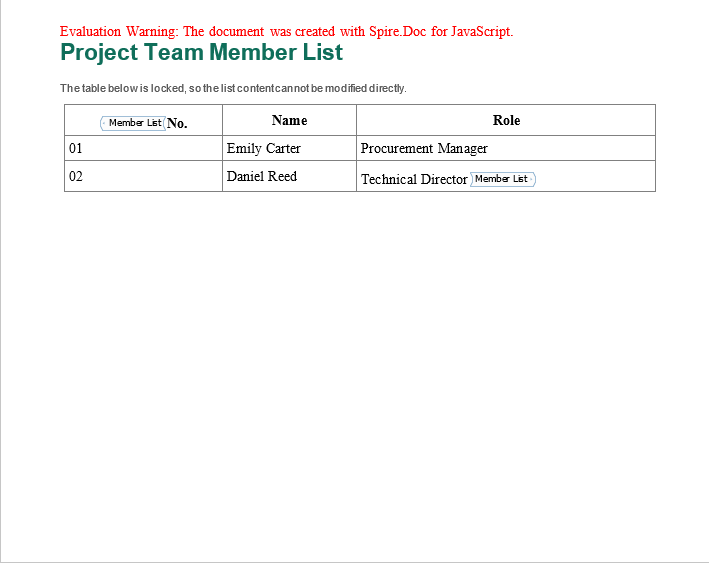
The locked member roster is shown below; the tag of the block-level control appears at the start and end of the table content:
Differences Between the Four Lock Modes
The four modes can be understood along two dimensions, "protect the content" and "protect the control":
UnLockedis the default state. Word writes no lock mark, and both the content and the control can be edited or deleted.ContentLockedprotects only the content: the person filling in the form cannot modify or delete the text and tables inside the control, but can still select the control and delete it as a whole.SDTLockedprotects only the control: the content can be modified, but the control itself cannot be deleted. It suits scenarios where the field structure has to be kept while the value may change.SDTContentLockedprotects both: neither the content nor the control can be deleted, which suits clauses and rosters that are only meant to be read after finalization.
Which mode to choose depends on the role of the field in the process. A structured field that still needs to be filled in uses SDTLocked; a passage that is finalized and only meant for reference uses SDTContentLocked; an attachment slot that is read-only but may be replaced as a whole uses ContentLocked.
Remove Content Controls and Keep the Content
When a document is archived, the tags and borders of content controls become a reading distraction; and if the document is handed to a colleague who is not familiar with controls, that person may also assume that the field has to be filled in. Removing a control has two meanings: one is to delete the content together with the control, and the other is to remove only the control shell and keep the text and tables inside. The latter is more common, and it requires more care about the order of operations.
Inline controls and block-level controls have different parent objects: an inline control sits in the ChildObjects of a paragraph, while a block-level control sits in the ChildObjects of the section body. The example reads RemoveContentControls.docx from public/data, so place that file in the project's public/data directory before running it. Before removal, the child objects inside the control are saved temporarily; after the control is removed, they are inserted back into the parent object in the original order, so that the content is neither lost nor misplaced.
The removal process involves the following members:
| Member | Purpose |
|---|---|
SDTContent.ChildObjects |
The content objects inside the control |
ChildObjects.Remove(child) |
Removes the control from its parent object |
ChildObjects.Insert(index, obj) |
Inserts the content back at the specified position |
Body.ChildObjects |
The object collection of the section body, which is the parent of a block-level control |
The specific steps are as follows:
- Get the Spire.Doc WASM module and confirm that it is ready.
- Load the font, read the
RemoveContentControls.docxto be processed into the VFS and load it as aDocument. - Iterate over the body objects: for an inline control in a paragraph, save its content, remove the control and insert the content back into the paragraph.
- For a block-level control, save its content, remove the control and insert the content back into the section body.
- Save the result file with
SaveToFile(), read it from the VFS and trigger a browser download.
The code for removing content controls while keeping the content is as follows:
function App() {
  const removeContentControls = async () => {
    // Get the Spire.Doc WASM module
    const wasmModule = window.wasmModule?.spiredoc;

    if (!wasmModule) {
      alert('Spire.Doc is not ready yet');
      return;
    }

    // Load the document to be processed
    await window.spire.FetchFileToVFS('RemoveContentControls.docx', '', `${process.env.PUBLIC_URL}/data/`);

    const doc = new wasmModule.Document();
    doc.LoadFromFile('RemoveContentControls.docx');

    // Iterate over the sections
    for (let s = 0; s < doc.Sections.Count; s++) {
      const section = doc.Sections.get_Item(s);
      for (let i = 0; i < section.Body.ChildObjects.Count; i++) {
        const obj = section.Body.ChildObjects.get_Item(i);

        // Handle the inline controls inside paragraphs
        if (obj.DocumentObjectType === wasmModule.DocumentObjectType.Paragraph) {
          for (let j = 0; j < obj.ChildObjects.Count; j++) {
            const child = obj.ChildObjects.get_Item(j);
            if (child.DocumentObjectType !== wasmModule.DocumentObjectType.StructureDocumentTagInline) continue;

            // Save the control content
            const inner = [];
            for (let k = 0; k < child.SDTContent.ChildObjects.Count; k++) {
              inner.push(child.SDTContent.ChildObjects.get_Item(k));
            }

            // Remove the control and insert the content back into the paragraph at the original position
            obj.ChildObjects.Remove(child);
            for (let n = 0; n < inner.length; n++) {
              obj.ChildObjects.Insert(j + n, inner[n]);
            }
            j += inner.length;
          }
        }

        // Handle the block-level controls
        if (obj.DocumentObjectType === wasmModule.DocumentObjectType.StructureDocumentTag) {
          // Save the control content
          const inner = [];
          for (let k = 0; k < obj.SDTContent.ChildObjects.Count; k++) {
            inner.push(obj.SDTContent.ChildObjects.get_Item(k));
          }

          // Remove the control and insert the content back into the section body at the original position
          for (let n = 0; n < inner.length; n++) {
            section.Body.ChildObjects.Insert(i + n, inner[n]);
          }
          section.Body.ChildObjects.Remove(obj);
          i += inner.length;
        }
      }
    }

    // Save the result file
    const outputFileName = 'RemoveContentControls_out.docx';
    doc.SaveToFile({ fileName: outputFileName, fileFormat: wasmModule.FileFormat.Docx2013 });
    doc.Dispose();

    // Read the generated file from the VFS and trigger the download
    const fileArray = window.dotnetRuntime.Module.FS.readFile(outputFileName);
    const blob = new Blob([fileArray], { type: 'application/vnd.openxmlformats-officedocument.wordprocessingml.document' });
    const url = URL.createObjectURL(blob);
    const a = document.createElement('a');
    a.href = url;
    a.download = outputFileName;
    a.click();
    URL.revokeObjectURL(url);
  };

  return (
    <div style={{ textAlign: 'center', height: '300px' }}>
      <h1>Remove Content Controls and Keep the Content</h1>
      <button onClick={removeContentControls}>Generate Document</button>
    </div>
  );
}

export default App;
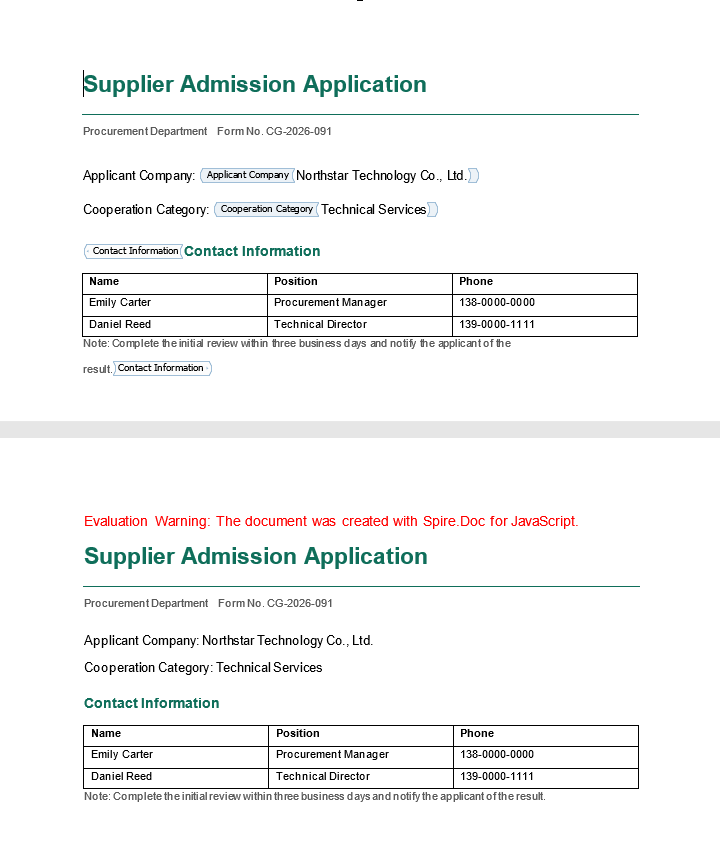
The comparison before and after processing is shown below; the left figure is the original document with content controls, and the right figure is the document after the controls are removed:
Removal Differences Between Inline and Block-Level Controls
An inline control is only a child object of a paragraph, so removing it does not affect the paragraph structure, and the content can simply be inserted back into the paragraph; a block-level control occupies an entire position in the body, so after removal its content has to be inserted directly into Body.ChildObjects. The example uses j += inner.length and i += inner.length to skip the content that has just been inserted back, so that it is not processed twice.
If the control is empty, inner has a length of 0, the loop does not run, and the control is removed directly without leaving an empty paragraph. If the content should be deleted together with the control, simply omit the loop that inserts the content back; note, however, that when a block-level control is removed, the paragraph spacing it used to provide disappears as well.
FAQ
Can the content still be modified by code after a content control is locked
The lock setting is enforced by Word in the editing UI, and it constrains manual operations; reading and modifying the document through the object model is not restricted by these marks. If the business rules require strict prevention of modification, combine the control lock with document protection or read-only mode rather than relying on the content-control lock alone.
Will removing a content control lose the text and tables inside it
Whether the content is lost depends on how the control is removed. The example first saves the objects in SDTContent.ChildObjects to an array, removes the control and then inserts them back into the parent object, so the text, tables and formatting are all kept, only without the control shell. If the control is removed without inserting the content back, the content inside is lost with it.
Why does the content end up in the wrong position after removing a block-level control
The parent object of a block-level control is the section body, and the insertion position has to be calculated against the index in Body.ChildObjects. If the control is removed first and the content is then inserted at the original index, the indexes of the following objects have already shifted, and the content ends up in the wrong place. The example inserts the content at the original position first, then removes the control and skips the objects that have already been processed, so the order stays consistent.
What is the difference between content-control locking and document protection
Content-control locking applies only to a single control, is fine-grained, and does not affect other parts of the document; document protection applies to the whole document and usually restricts the editable regions or enforces read-only mode. The former suits protecting individual finalized fields in a fillable form, while the latter suits archiving a whole contract after signing. The two can be used at the same time.
Get a Free License
Spire.Doc for JavaScript offers a 30-day full-featured free trial license with no functional limitations. Apply here to evaluate before purchasing.
