Once a PDF reaches the review stage it becomes a file that gets passed back and forth: one page needs its key points marked, another needs a note on what to change, and the final copy needs an "Approved" stamp. Adding these marks by hand in a reader one at a time does not scale once there are many documents, and the next revision means doing it all over again. Build the marks into the generation flow and annotations come out together with the document.
Spire.PDF for JavaScript loads, modifies, and saves PDF documents in the browser with WebAssembly. Annotations are generated locally and files are read and written through a virtual file system (VFS), with no backend involved. This article uses PdfPage.Annotations to carry eight kinds of annotations: text markup, free text, popup, stamps, lines and polygons, plus web links, file links, and in-document jump links.
This article covers eight core features:
- Add a Text Markup Annotation
- Add a Free Text Annotation
- Add a Popup Annotation
- Add a Stamp Annotation
- Add a Shape Annotation
- Add a Web Link Annotation
- Add a File Link Annotation
- Add a Document Link Annotation
For installation and project setup, see How to Integrate Spire.PDF for JavaScript in a React Project. The examples below assume Spire.PDF is installed and the WebAssembly module is initialized.
Add a Text Markup Annotation
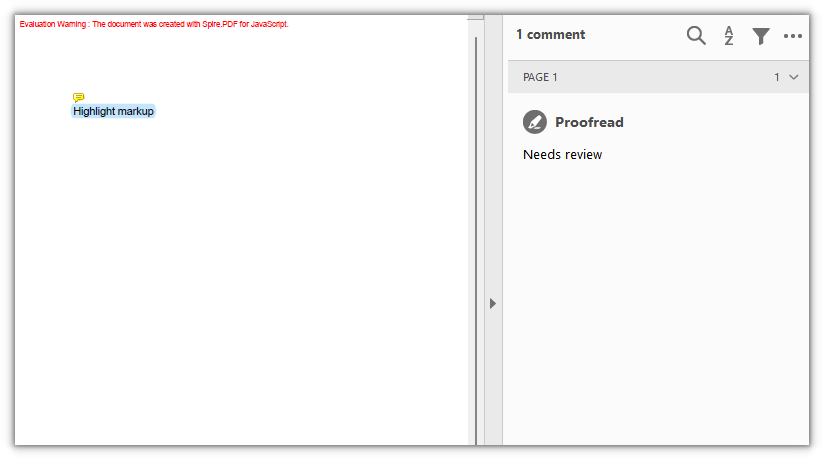
PdfTextMarkupAnnotation overlays a mark on existing text without changing the text itself. Set TextMarkupAnnotationType to Highlight and pick a color with TextMarkupColor to get the most common effect, a highlight that leaves the body text color untouched. The marked area is bounded by four corner points (QuadPoints) in absolute page coordinates, so clear the page margins first to make the canvas and the corner points line up. title and text are written into the annotation as its author and note; they are not drawn on the page and show up in the reader's comment panel.
function App() {
  const addTextMarkupAnnotation = async () => {
    // Get the Spire.PDF WASM module
    const pdfModule = window.wasmModule?.spirepdf;

    // Check that the module is ready
    if (!pdfModule) {
      alert('Spire.PDF is not ready yet');
      return;
    }

    // The sample text on the page needs a font; load it into the VFS first
    await window.spire.FetchFileToVFS('ARIALUNI.TTF', '/Library/Fonts/', `${process.env.PUBLIC_URL}/font/`);

    const doc = new pdfModule.PdfDocument();

    // Zero the page margins so the canvas coordinates line up with the annotation's corner points
    const margins = new pdfModule.PdfMargins();
    margins.Top = 0;
    margins.Bottom = 0;
    margins.Left = 0;
    margins.Right = 0;
    doc.PageSettings.Margins = margins;

    const page = doc.Pages.Add();

    const font = new pdfModule.PdfTrueTypeFont({
      fontFamily: 'Arial Unicode MS',
      size: 14,
      style: pdfModule.PdfFontStyle.Regular,
      unicode: true,
    });
    const brush = pdfModule.PdfBrushes.get_Black();

    const text = 'Highlight markup';

    // Draw the target text on the page first
    page.Canvas.DrawString({ s: text, font, brush, x: 80, y: 120 });

    // Measure the text so the markup covers it exactly
    const size = font.MeasureString({ text });
    const rect = new pdfModule.RectangleF({ x: 80, y: 120, width: size.Width, height: size.Height });

    const annotation = new pdfModule.PdfTextMarkupAnnotation({ title: 'Proofread', text: 'Needs review', rect, font });

    // Marked area: the four corner points of the text rectangle
    annotation.QuadPoints = [
      new pdfModule.PointF(rect.Left, rect.Top),
      new pdfModule.PointF(rect.Right, rect.Top),
      new pdfModule.PointF(rect.Left, rect.Bottom),
      new pdfModule.PointF(rect.Right, rect.Bottom),
    ];
    annotation.TextMarkupAnnotationType = pdfModule.PdfTextMarkupAnnotationType.Highlight;
    annotation.TextMarkupColor = new pdfModule.PdfRGBColor({ color: pdfModule.Color.get_LightSkyBlue() });

    page.Annotations.Add(annotation);

    const outputFileName = 'TextMarkupAnnotation.pdf';
    doc.SaveToFile(outputFileName);
    doc.Close();

    // Read the generated file from the VFS and trigger the download
    const fileArray = window.dotnetRuntime.Module.FS.readFile(outputFileName);
    const blob = new Blob([fileArray], { type: 'application/pdf' });
    const url = URL.createObjectURL(blob);
    const a = document.createElement('a');
    a.href = url;
    a.download = outputFileName;
    a.click();
    URL.revokeObjectURL(url);
  };

  return (
    <div style={{ textAlign: 'center', height: '300px' }}>
      <h1>Add a Text Markup Annotation</h1>
      <button onClick={addTextMarkupAnnotation}>Add Annotation</button>
    </div>
  );
}

export default App;
A piece of text on the page covered by a highlight markup:
Add a Free Text Annotation
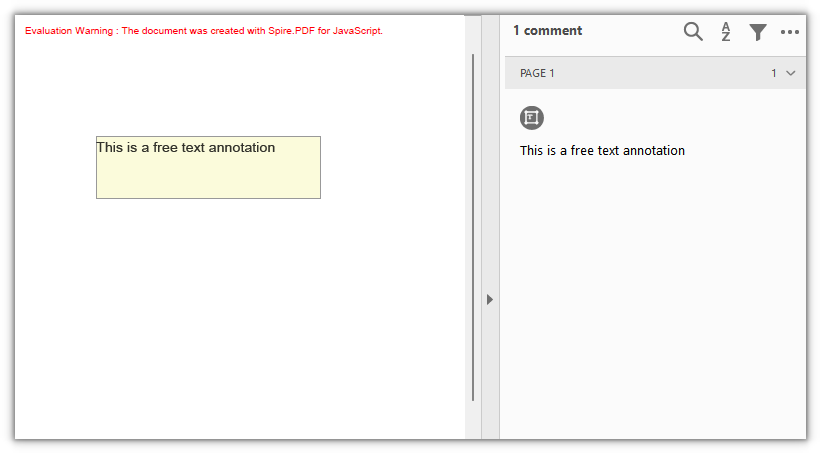
PdfFreeTextAnnotation draws a block of text directly on the page as a text box, which is common for notes, comments, or fill-in fields. The box position and size come from the rectangle passed to the constructor, and the font, border, background, and opacity can all be set afterward.
function App() {
  const addFreeTextAnnotation = async () => {
    // Get the Spire.PDF WASM module
    const pdfModule = window.wasmModule?.spirepdf;

    // Check that the module is ready
    if (!pdfModule) {
      alert('Spire.PDF is not ready yet');
      return;
    }

    // The text box needs a font; load it into the VFS first
    await window.spire.FetchFileToVFS('ARIALUNI.TTF', '/Library/Fonts/', `${process.env.PUBLIC_URL}/font/`);

    const doc = new pdfModule.PdfDocument();
    const page = doc.Pages.Add();

    const rect = new pdfModule.RectangleF({ x: 80, y: 120, width: 220, height: 60 });

    // The rectangle is passed to the constructor, so it decides the annotation's position and size
    const annotation = new pdfModule.PdfFreeTextAnnotation(rect);
    annotation.Text = 'This is a free text annotation';
    annotation.Font = new pdfModule.PdfTrueTypeFont({
      fontFamily: 'Arial Unicode MS',
      size: 14,
      style: pdfModule.PdfFontStyle.Regular,
      unicode: true,
    });
    annotation.Border = new pdfModule.PdfAnnotationBorder({ borderWidth: 1 });
    annotation.BorderColor = new pdfModule.PdfRGBColor({ color: pdfModule.Color.get_Gray() });
    annotation.Color = new pdfModule.PdfRGBColor({ color: pdfModule.Color.get_LightGoldenrodYellow() });
    annotation.Opacity = 0.8;

    page.Annotations.Add(annotation);

    const outputFileName = 'FreeTextAnnotation.pdf';
    doc.SaveToFile(outputFileName);
    doc.Close();

    // Read the generated file from the VFS and trigger the download
    const fileArray = window.dotnetRuntime.Module.FS.readFile(outputFileName);
    const blob = new Blob([fileArray], { type: 'application/pdf' });
    const url = URL.createObjectURL(blob);
    const a = document.createElement('a');
    a.href = url;
    a.download = outputFileName;
    a.click();
    URL.revokeObjectURL(url);
  };

  return (
    <div style={{ textAlign: 'center', height: '300px' }}>
      <h1>Add a Free Text Annotation</h1>
      <button onClick={addFreeTextAnnotation}>Add Annotation</button>
    </div>
  );
}

export default App;
A block of free text with a border and a background on the page:
Add a Popup Annotation
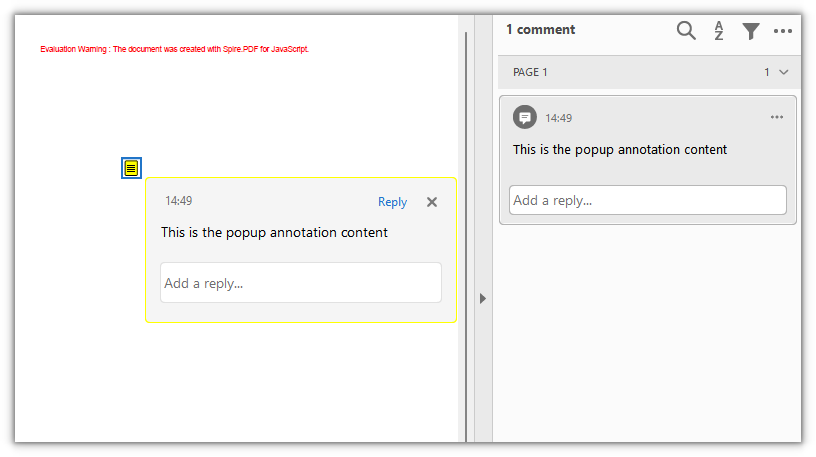
PdfPopupAnnotation places an expandable popup window that leaves only an icon when collapsed, which suits a longer note that should not take up page space. The icon style is set with Icon, whose values include Note, Comment, Help, Insert, Key, NewParagraph, and Paragraph.
function App() {
  const addPopupAnnotation = async () => {
    // Get the Spire.PDF WASM module
    const pdfModule = window.wasmModule?.spirepdf;

    // Check that the module is ready
    if (!pdfModule) {
      alert('Spire.PDF is not ready yet');
      return;
    }

    const doc = new pdfModule.PdfDocument();
    const page = doc.Pages.Add();

    // A collapsed popup annotation is just an icon, so a zero-size rectangle marks its spot
    const rect = new pdfModule.RectangleF({ x: 120, y: 160, width: 0, height: 0 });

    const annotation = new pdfModule.PdfPopupAnnotation({ rectangle: rect, text: 'This is the popup annotation content' });
    annotation.Icon = pdfModule.PdfPopupIcon.Note;
    annotation.Open = true;
    annotation.Color = new pdfModule.PdfRGBColor({ color: pdfModule.Color.get_Yellow() });

    page.Annotations.Add(annotation);

    const outputFileName = 'PopupAnnotation.pdf';
    doc.SaveToFile(outputFileName);
    doc.Close();

    // Read the generated file from the VFS and trigger the download
    const fileArray = window.dotnetRuntime.Module.FS.readFile(outputFileName);
    const blob = new Blob([fileArray], { type: 'application/pdf' });
    const url = URL.createObjectURL(blob);
    const a = document.createElement('a');
    a.href = url;
    a.download = outputFileName;
    a.click();
    URL.revokeObjectURL(url);
  };

  return (
    <div style={{ textAlign: 'center', height: '300px' }}>
      <h1>Add a Popup Annotation</h1>
      <button onClick={addPopupAnnotation}>Add Annotation</button>
    </div>
  );
}

export default App;
A popup annotation on the page, with its content expanded next to the icon:
Add a Stamp Annotation
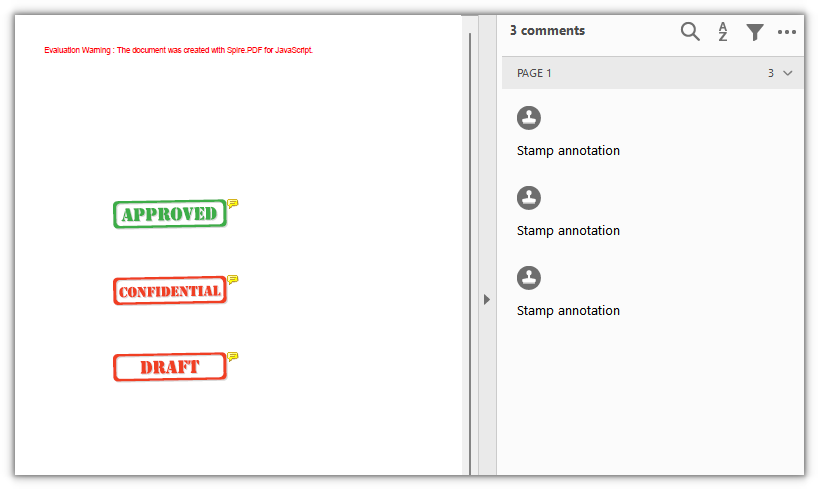
PdfRubberStampAnnotation is used to place a stamp. It ships with a set of ready-made icons, so setting Icon produces a stamped frame with text and no need to draw the appearance yourself. The available icons include Approved, Confidential, Draft, Final, Expired, Sold, TopSecret, NotForPublicRelease, and a dozen or so more.
function App() {
  const addStampAnnotations = async () => {
    // Get the Spire.PDF WASM module
    const pdfModule = window.wasmModule?.spirepdf;

    // Check that the module is ready
    if (!pdfModule) {
      alert('Spire.PDF is not ready yet');
      return;
    }

    const doc = new pdfModule.PdfDocument();
    const page = doc.Pages.Add();

    // Place three common stamps with built-in icons
    const stamps = [
      { icon: pdfModule.PdfRubberStampAnnotationIcon.Approved, y: 200, color: pdfModule.Color.get_LightGreen() },
      { icon: pdfModule.PdfRubberStampAnnotationIcon.Confidential, y: 300, color: pdfModule.Color.get_LightPink() },
      { icon: pdfModule.PdfRubberStampAnnotationIcon.Draft, y: 400, color: pdfModule.Color.get_LightBlue() },
    ];

    for (const stamp of stamps) {
      const rect = new pdfModule.RectangleF({ x: 100, y: stamp.y, width: 150, height: 60 });

      const annotation = new pdfModule.PdfRubberStampAnnotation({ rectangle: rect, text: 'Stamp annotation' });
      annotation.Icon = stamp.icon;
      annotation.Color = new pdfModule.PdfRGBColor({ color: stamp.color });

      page.Annotations.Add(annotation);
    }

    const outputFileName = 'StampAnnotation.pdf';
    doc.SaveToFile(outputFileName);
    doc.Close();

    // Read the generated file from the VFS and trigger the download
    const fileArray = window.dotnetRuntime.Module.FS.readFile(outputFileName);
    const blob = new Blob([fileArray], { type: 'application/pdf' });
    const url = URL.createObjectURL(blob);
    const a = document.createElement('a');
    a.href = url;
    a.download = outputFileName;
    a.click();
    URL.revokeObjectURL(url);
  };

  return (
    <div style={{ textAlign: 'center', height: '300px' }}>
      <h1>Add a Stamp Annotation</h1>
      <button onClick={addStampAnnotations}>Add Stamp</button>
    </div>
  );
}

export default App;
Three built-in icon stamps:
Add a Shape Annotation
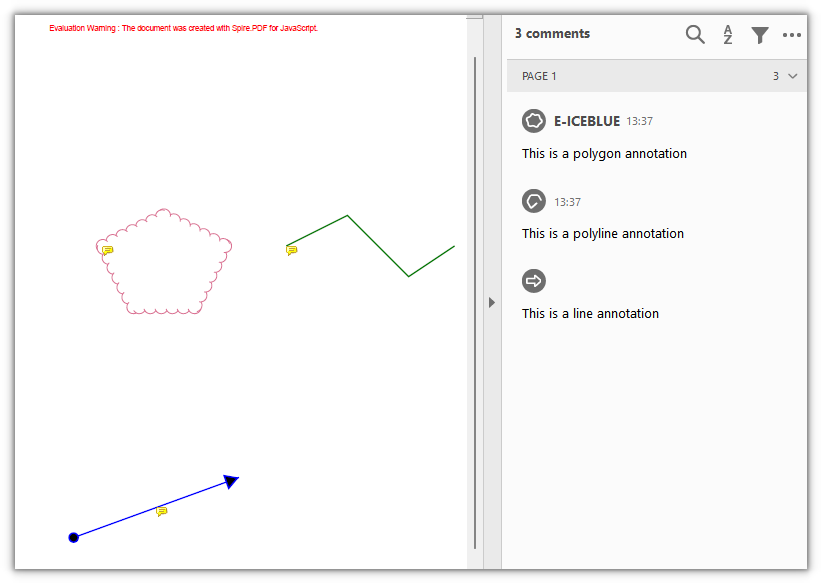
Shape annotations attach geometric figures to the page as independent objects, unlike drawing directly on the canvas: they carry their own properties and notes, and readers can recognize and select them individually. The three classes cover lines, polygons, and polylines:
| Class | Description |
|---|---|
PdfLineAnnotation |
A straight line, with configurable line endings and arrows |
PdfPolygonAnnotation |
A closed polygon bounded by several vertices |
PdfPolyLineAnnotation |
An open polyline connected by several vertices |
A polygon regenerates its appearance before it is added to the page, so set Author and Subject first; otherwise Add fails on a null reference.
function App() {
  const addShapeAnnotations = async () => {
    // Get the Spire.PDF WASM module
    const pdfModule = window.wasmModule?.spirepdf;

    // Check that the module is ready
    if (!pdfModule) {
      alert('Spire.PDF is not ready yet');
      return;
    }

    const doc = new pdfModule.PdfDocument();
    const page = doc.Pages.Add();

    // Line: given a start and an end point, with arrows at both ends
    const line = new pdfModule.PdfLineAnnotation({ linePoints: [80, 120, 300, 200], text: 'This is a line annotation' });
    line.lineBorder.BorderStyle = pdfModule.PdfLineBorderStyle.Solid;
    line.lineBorder.BorderWidth = 2;
    line.BeginLineStyle = pdfModule.PdfLineEndingStyle.Circle;
    line.EndLineStyle = pdfModule.PdfLineEndingStyle.ClosedArrow;
    line.BackColor = new pdfModule.PdfRGBColor({ color: pdfModule.Color.get_Blue() });
    page.Annotations.Add(line);

    // Polygon: vertices joined head to tail into a closed region
    const polygonPoints = [
      new pdfModule.PointF(80, 300),
      new pdfModule.PointF(160, 260),
      new pdfModule.PointF(240, 300),
      new pdfModule.PointF(200, 380),
      new pdfModule.PointF(120, 380),
      new pdfModule.PointF(80, 300),
    ];
    const polygon = new pdfModule.PdfPolygonAnnotation(page, polygonPoints);
    polygon.Color = new pdfModule.PdfRGBColor({ color: pdfModule.Color.get_PaleVioletRed() });
    polygon.Text = 'This is a polygon annotation';
    polygon.Author = 'E-ICEBLUE';
    polygon.Subject = 'polygon annotation demo';
    polygon.BorderEffect = pdfModule.PdfBorderEffect.BigCloud;
    polygon.ModifiedDate = new Date();
    page.Annotations.Add(polygon);

    // Polyline: vertices connected in order, not closed
    const polylinePoints = [
      new pdfModule.PointF(320, 300),
      new pdfModule.PointF(400, 260),
      new pdfModule.PointF(480, 340),
      new pdfModule.PointF(540, 300),
    ];
    const polyline = new pdfModule.PdfPolyLineAnnotation(page, polylinePoints);
    polyline.Color = new pdfModule.PdfRGBColor({ color: pdfModule.Color.get_Green() });
    polyline.Text = 'This is a polyline annotation';
    polyline.Border = new pdfModule.PdfAnnotationBorder({ borderWidth: 2 });
    page.Annotations.Add(polyline);

    const outputFileName = 'ShapeAnnotation.pdf';
    doc.SaveToFile(outputFileName);
    doc.Close();

    // Read the generated file from the VFS and trigger the download
    const fileArray = window.dotnetRuntime.Module.FS.readFile(outputFileName);
    const blob = new Blob([fileArray], { type: 'application/pdf' });
    const url = URL.createObjectURL(blob);
    const a = document.createElement('a');
    a.href = url;
    a.download = outputFileName;
    a.click();
    URL.revokeObjectURL(url);
  };

  return (
    <div style={{ textAlign: 'center', height: '300px' }}>
      <h1>Add a Shape Annotation</h1>
      <button onClick={addShapeAnnotations}>Add Shape</button>
    </div>
  );
}

export default App;
Line, polygon, and polyline annotations on the same page:
Add a Web Link Annotation
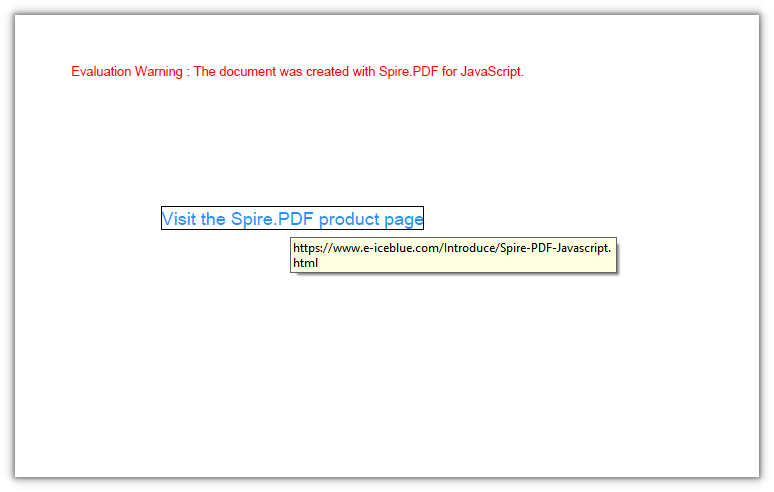
PdfUriAnnotation turns a rectangular area into a link to a URL; when clicked, the reader hands it to the browser to open.
function App() {
  const addWebLinkAnnotation = async () => {
    // Get the Spire.PDF WASM module
    const pdfModule = window.wasmModule?.spirepdf;

    // Check that the module is ready
    if (!pdfModule) {
      alert('Spire.PDF is not ready yet');
      return;
    }

    // The page needs a font; load it into the VFS first
    await window.spire.FetchFileToVFS('ARIALUNI.TTF', '/Library/Fonts/', `${process.env.PUBLIC_URL}/font/`);

    const doc = new pdfModule.PdfDocument();
    const page = doc.Pages.Add();

    const font = new pdfModule.PdfTrueTypeFont({ fontFamily: 'Arial Unicode MS', size: 14, style: pdfModule.PdfFontStyle.Regular, unicode: true });
    const text = 'Visit the Spire.PDF product page';

    // A link area is invisible, so draw some text first as the clickable entry
    page.Canvas.DrawString({ s: text, font, brush: pdfModule.PdfBrushes.get_DodgerBlue(), x: 80, y: 120 });
    const size = font.MeasureString({ text });

    const rect = new pdfModule.RectangleF({ x: 80, y: 120, width: size.Width, height: size.Height });
    const link = new pdfModule.PdfUriAnnotation({ rectangle: rect });
    link.Uri = 'https://www.e-iceblue.com/Introduce/Spire-PDF-Javascript.html';

    page.Annotations.Add(link);

    const outputFileName = 'WebLinkAnnotation.pdf';
    doc.SaveToFile(outputFileName);
    doc.Close();

    // Read the generated file from the VFS and trigger the download
    const fileArray = window.dotnetRuntime.Module.FS.readFile(outputFileName);
    const blob = new Blob([fileArray], { type: 'application/pdf' });
    const url = URL.createObjectURL(blob);
    const a = document.createElement('a');
    a.href = url;
    a.download = outputFileName;
    a.click();
    URL.revokeObjectURL(url);
  };

  return (
    <div style={{ textAlign: 'center', height: '300px' }}>
      <h1>Add a Web Link Annotation</h1>
      <button onClick={addWebLinkAnnotation}>Add Link</button>
    </div>
  );
}

export default App;
A web link annotation pointing to the product page, with the link area covering the text:
Add a File Link Annotation
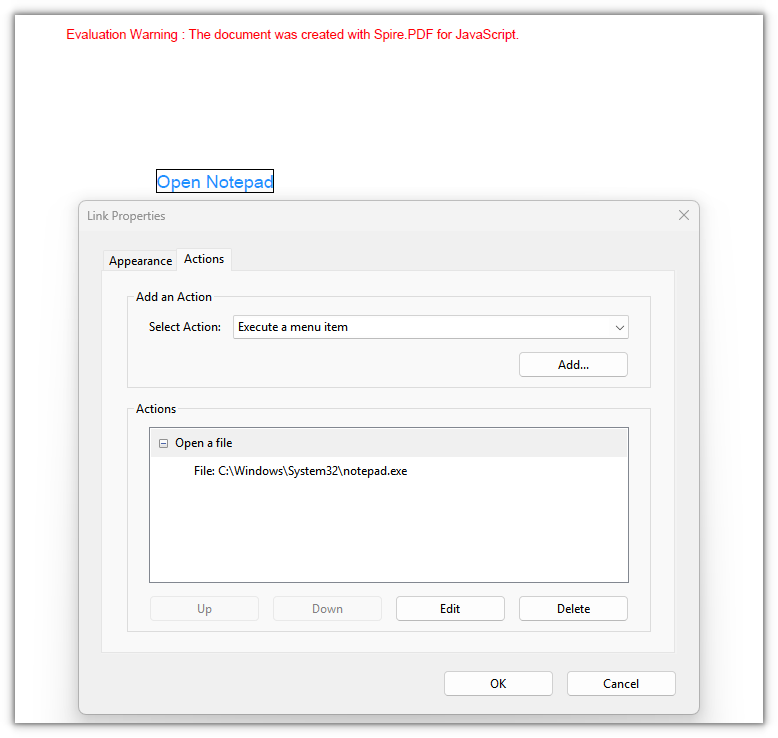
PdfFileLinkAnnotation turns an area into a file link; when clicked, the reader opens the specified file through its system association.
function App() {
  const addFileLinkAnnotation = async () => {
    // Get the Spire.PDF WASM module
    const pdfModule = window.wasmModule?.spirepdf;

    // Check that the module is ready
    if (!pdfModule) {
      alert('Spire.PDF is not ready yet');
      return;
    }

    // The page needs a font; load it into the VFS first
    await window.spire.FetchFileToVFS('ARIALUNI.TTF', '/Library/Fonts/', `${process.env.PUBLIC_URL}/font/`);

    const doc = new pdfModule.PdfDocument();
    const page = doc.Pages.Add();

    const font = new pdfModule.PdfTrueTypeFont({ fontFamily: 'Arial Unicode MS', size: 14, style: pdfModule.PdfFontStyle.Regular, unicode: true });
    const text = 'Open Notepad';

    // Draw some text first as the clickable entry for the file link
    page.Canvas.DrawString({ s: text, font, brush: pdfModule.PdfBrushes.get_DodgerBlue(), x: 80, y: 120 });
    const size = font.MeasureString({ text });

    const rect = new pdfModule.RectangleF({ x: 80, y: 120, width: size.Width, height: size.Height });
    const link = new pdfModule.PdfFileLinkAnnotation(rect, 'C:\\Windows\\System32\\notepad.exe');

    page.Annotations.Add(link);

    const outputFileName = 'FileLinkAnnotation.pdf';
    doc.SaveToFile(outputFileName);
    doc.Close();

    // Read the generated file from the VFS and trigger the download
    const fileArray = window.dotnetRuntime.Module.FS.readFile(outputFileName);
    const blob = new Blob([fileArray], { type: 'application/pdf' });
    const url = URL.createObjectURL(blob);
    const a = document.createElement('a');
    a.href = url;
    a.download = outputFileName;
    a.click();
    URL.revokeObjectURL(url);
  };

  return (
    <div style={{ textAlign: 'center', height: '300px' }}>
      <h1>Add a File Link Annotation</h1>
      <button onClick={addFileLinkAnnotation}>Add Link</button>
    </div>
  );
}

export default App;
A file link annotation that opens the specified file through its system association when clicked:
Add a Document Link Annotation
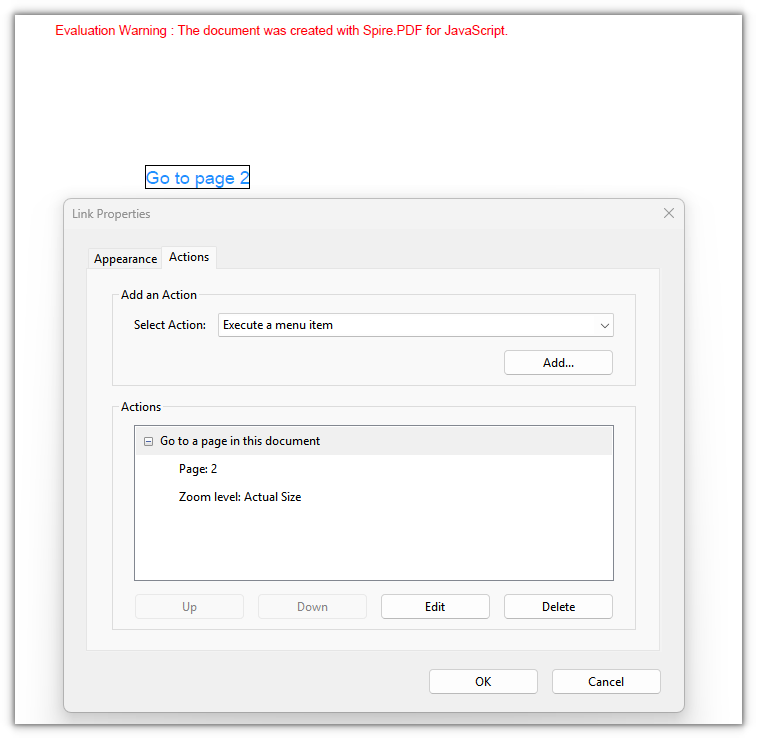
PdfDocumentLinkAnnotation handles in-document jumps: when clicked, it moves to the page and position given by a PdfDestination.
function App() {
  const addDocumentLinkAnnotation = async () => {
    // Get the Spire.PDF WASM module
    const pdfModule = window.wasmModule?.spirepdf;

    // Check that the module is ready
    if (!pdfModule) {
      alert('Spire.PDF is not ready yet');
      return;
    }

    // The page needs a font; load it into the VFS first
    await window.spire.FetchFileToVFS('ARIALUNI.TTF', '/Library/Fonts/', `${process.env.PUBLIC_URL}/font/`);

    const doc = new pdfModule.PdfDocument();
    const page = doc.Pages.Add();

    // Append a second page as the jump target
    const target = doc.Pages.Add();

    const font = new pdfModule.PdfTrueTypeFont({ fontFamily: 'Arial Unicode MS', size: 14, style: pdfModule.PdfFontStyle.Regular, unicode: true });
    target.Canvas.DrawString({ s: 'This is the destination page', font, brush: pdfModule.PdfBrushes.get_Black(), x: 80, y: 120 });

    const text = 'Go to page 2';
    page.Canvas.DrawString({ s: text, font, brush: pdfModule.PdfBrushes.get_DodgerBlue(), x: 80, y: 120 });
    const size = font.MeasureString({ text });

    // Destination: 80 points down from the top of page 2, at 100% zoom
    const destination = new pdfModule.PdfDestination({ page: target });
    destination.Mode = pdfModule.PdfDestinationMode.Location;
    destination.Location = new pdfModule.PointF(0, 80);
    destination.Zoom = 1;

    const rect = new pdfModule.RectangleF({ x: 80, y: 120, width: size.Width, height: size.Height });
    const link = new pdfModule.PdfDocumentLinkAnnotation({ rectangle: rect, destination });

    page.Annotations.Add(link);

    const outputFileName = 'DocumentLinkAnnotation.pdf';
    doc.SaveToFile(outputFileName);
    doc.Close();

    // Read the generated file from the VFS and trigger the download
    const fileArray = window.dotnetRuntime.Module.FS.readFile(outputFileName);
    const blob = new Blob([fileArray], { type: 'application/pdf' });
    const url = URL.createObjectURL(blob);
    const a = document.createElement('a');
    a.href = url;
    a.download = outputFileName;
    a.click();
    URL.revokeObjectURL(url);
  };

  return (
    <div style={{ textAlign: 'center', height: '300px' }}>
      <h1>Add a Document Link Annotation</h1>
      <button onClick={addDocumentLinkAnnotation}>Add Link</button>
    </div>
  );
}

export default App;
A link on page 1 pointing to a position on page 2:
FAQ
Text on the page renders as boxes or blank
Cause: The body text and the annotation text both need a Unicode TrueType font. If the font is not loaded into the VFS, or PdfTrueTypeFont is used without unicode: true, the glyphs cannot be resolved and the saved file shows boxes or nothing at all.
Solution: Load the font file into /Library/Fonts/ in the VFS first, then reference the same font name with unicode enabled:
// Load the font into the VFS
await window.spire.FetchFileToVFS('ARIALUNI.TTF', '/Library/Fonts/', `${process.env.PUBLIC_URL}/font/`);

// Use the same font name and enable unicode
const font = new pdfModule.PdfTrueTypeFont({ fontFamily: 'Arial Unicode MS', size: 14, style: pdfModule.PdfFontStyle.Regular, unicode: true });
Link annotations leave no visible trace on the page
Cause: Link annotations only define a clickable area and an action; they draw no appearance of their own. Most readers do not draw a border around links, so the page looks unchanged after saving — which does not mean the annotation was not written.
Solution: To make it visible, draw text or a shape at the same rectangle and lay the link on top:
// Draw visible text first, then build the link from a rectangle of the same size
page.Canvas.DrawString({ s: text, font, brush: pdfModule.PdfBrushes.get_DodgerBlue(), x: 80, y: 120 });
const size = font.MeasureString({ text });
const rect = new pdfModule.RectangleF({ x: 80, y: 120, width: size.Width, height: size.Height });
const link = new pdfModule.PdfUriAnnotation({ rectangle: rect });
link.Uri = 'https://www.e-iceblue.com/';
The text markup annotation does not cover the text
Cause: The marked area is decided by QuadPoints, which uses absolute page coordinates and does not follow the text and align itself, while the canvas origin is pushed aside by the page margins. When the two are out of step, the mark lands beside the text or over empty space.
Solution: Zero the page margins first so the canvas and the corner points share one coordinate system, then measure the text with MeasureString and derive the four corner points from it:
const margins = new pdfModule.PdfMargins();
margins.Top = 0; margins.Bottom = 0; margins.Left = 0; margins.Right = 0;
doc.PageSettings.Margins = margins;

const size = font.MeasureString({ text: 'Highlight markup' });
const rect = new pdfModule.RectangleF({ x: 80, y: 120, width: size.Width, height: size.Height });
annotation.QuadPoints = [
  new pdfModule.PointF(rect.Left, rect.Top),
  new pdfModule.PointF(rect.Right, rect.Top),
  new pdfModule.PointF(rect.Left, rect.Bottom),
  new pdfModule.PointF(rect.Right, rect.Bottom),
];
Get a Free License
If you want to remove the evaluation message from the resulting documents, or to get rid of the functional limitations, please contact sales for a temporary license valid for 30 days.
