Registration forms, sign-up sheets, and questionnaires go out as blank PDFs and come back needing to be filled in by hand, one file at a time. The forms themselves change too — a missing text box, an extra checkbox nobody uses anymore — and every change means opening desktop software like Acrobat. That is endurable for one or two files; in bulk it is nothing but manual clicking.
This article shows how to add, fill, and delete PDF form fields with Spire.PDF for JavaScript. It is built on WebAssembly and loads, modifies, and saves PDF documents directly in the browser. The whole process runs locally and reads and writes files through a virtual file system (VFS), with no backend involved.
This article covers three core features:
For installation and project configuration, see Integrate Spire.PDF for JavaScript into a React Project. The examples below assume Spire.PDF is installed and the WebAssembly module is initialized.
Add Form Fields
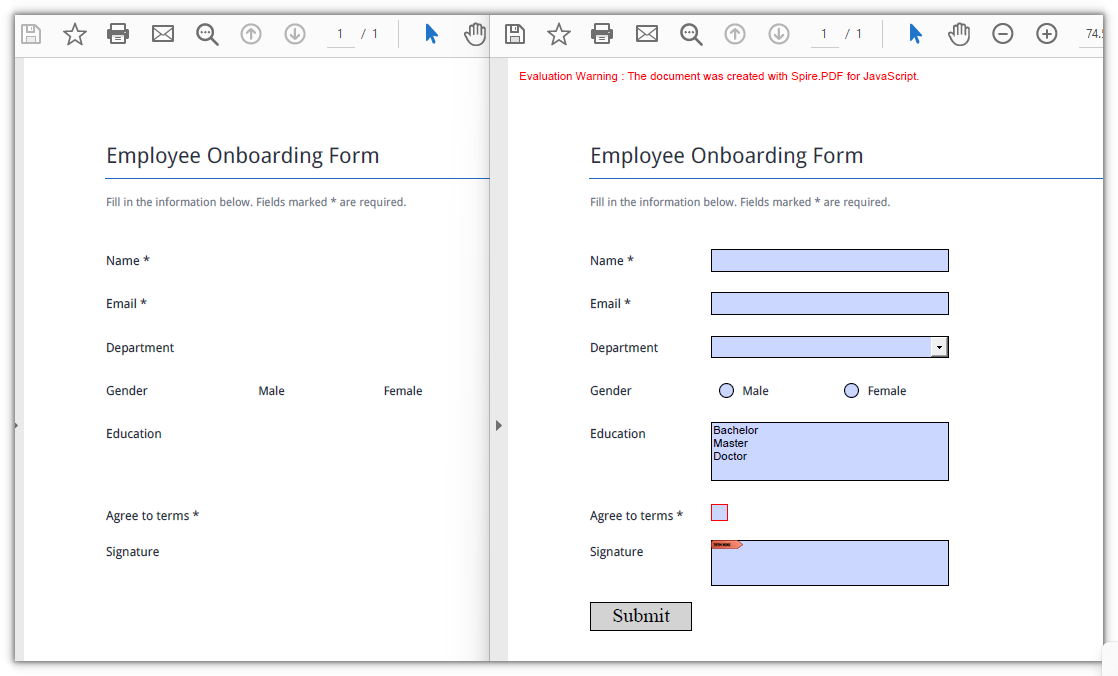
Spire.PDF for JavaScript provides a complete set of form field classes covering text boxes, check boxes, radio buttons, combo boxes, list boxes, buttons, and signature fields. They all work the same way: create an instance on the page, position it with Bounds, and hand it to doc.Form.Fields.Add(). When you load an existing document, set doc.AllowCreateForm to true first.
| Class | Description |
|---|---|
PdfTextBoxField |
Text box field |
PdfCheckBoxField |
Check box field |
PdfRadioButtonListField |
Radio button field |
PdfComboBoxField |
Combo box field |
PdfListBoxField |
List box field |
PdfButtonField |
Button field |
PdfSignatureField |
Signature field |
Bounds, BorderWidth, BorderStyle, Required, ReadOnly, Visible, and ToolTip are shared by every field type.
function App() {
  const addFormFields = async () => {
    // Get the Spire.PDF WASM module
    const pdfModule = window.wasmModule?.spirepdf;

    // Check that the module is ready
    if (!pdfModule) {
      alert('Spire.PDF is not ready yet');
      return;
    }

    // Load the PDF file into the VFS
    const inputFileName = 'BlankRegistrationForm.pdf';
    await window.spire.FetchFileToVFS(inputFileName, "", `${process.env.PUBLIC_URL}/data/`);

    // Create a PdfDocument object and load the PDF
    let doc = new pdfModule.PdfDocument();
    doc.LoadFromFile(inputFileName);

    // Form creation must be enabled explicitly for an existing document
    doc.AllowCreateForm = true;

    let page = doc.Pages.get_Item(0);
    let uiFont = new pdfModule.PdfFont({
      fontFamily: pdfModule.PdfFontFamily.Helvetica,
      size: 10
    });
    const box = (x, y, width, height) => new pdfModule.RectangleF({ x, y, width, height });
    const border = 0.75;

    // 1. Text box: name
    let nameBox = new pdfModule.PdfTextBoxField(page, 'name');
    nameBox.Bounds = box(178, 168, 210, 20);
    nameBox.BorderWidth = border;
    nameBox.BorderStyle = pdfModule.PdfBorderStyle.Solid;
    nameBox.Font = uiFont;
    doc.Form.Fields.Add(nameBox);

    // 2. Text box: email
    let emailBox = new pdfModule.PdfTextBoxField(page, 'email');
    emailBox.Bounds = box(178, 206, 210, 20);
    emailBox.BorderWidth = border;
    emailBox.BorderStyle = pdfModule.PdfBorderStyle.Solid;
    emailBox.Font = uiFont;
    doc.Form.Fields.Add(emailBox);

    // 3. Combo box: department
    let departmentBox = new pdfModule.PdfComboBoxField(page, 'department');
    departmentBox.Bounds = box(178, 244, 210, 20);
    departmentBox.BorderWidth = border;
    departmentBox.Font = uiFont;
    ['Engineering', 'Marketing', 'Sales', 'Support'].forEach(function (item) {
      departmentBox.Items.Add(new pdfModule.PdfListFieldItem({ text: item, value: item.toLowerCase() }));
    });
    doc.Form.Fields.Add(departmentBox);

    // 4. Radio buttons: gender, each option is a PdfRadioButtonListItem
    let genderBox = new pdfModule.PdfRadioButtonListField(page, 'gender');
    ['male', 'female'].forEach(function (value, index) {
      let item = new pdfModule.PdfRadioButtonListItem();
      item.Bounds = box(185.5 + index * 110, 285.5, 13, 13);
      item.BorderWidth = border;
      item.Value = value;
      genderBox.Items.Add(item);
    });
    doc.Form.Fields.Add(genderBox);

    // 5. List box: education
    let educationBox = new pdfModule.PdfListBoxField(page, 'education');
    educationBox.Bounds = box(178, 320, 210, 52);
    educationBox.BorderWidth = border;
    educationBox.Font = uiFont;
    ['Bachelor', 'Master', 'Doctor'].forEach(function (item) {
      educationBox.Items.Add(new pdfModule.PdfListFieldItem({ text: item, value: item.toLowerCase() }));
    });
    doc.Form.Fields.Add(educationBox);

    // 6. Check box: agree to terms
    let agreeBox = new pdfModule.PdfCheckBoxField(page, 'agree_terms');
    agreeBox.Bounds = box(178, 392, 15, 15);
    agreeBox.BorderWidth = border;
    agreeBox.Style = pdfModule.PdfCheckBoxStyle.Check;
    agreeBox.Required = true;
    doc.Form.Fields.Add(agreeBox);

    // 7. Signature field: reserve a place to sign
    let signatureBox = new pdfModule.PdfSignatureField(page, 'signature');
    signatureBox.Bounds = box(178, 424, 210, 40);
    doc.Form.Fields.Add(signatureBox);

    // 8. Button: submit
    let submitButton = new pdfModule.PdfButtonField(page, 'submit');
    submitButton.Bounds = box(72, 478, 90, 26);
    submitButton.Text = 'Submit';
    submitButton.HighlightMode = pdfModule.PdfHighlightMode.Push;
    doc.Form.Fields.Add(submitButton);

    const outputFileName = 'AddFormFields.pdf';
    doc.SaveToFile(outputFileName);
    doc.Close();

    // Read the generated file from the VFS and trigger the download
    const fileArray = window.dotnetRuntime.Module.FS.readFile(outputFileName);
    const blob = new Blob([fileArray], { type: 'application/pdf' });
    const url = URL.createObjectURL(blob);
    const a = document.createElement('a');
    a.href = url;
    a.download = outputFileName;
    a.click();
    URL.revokeObjectURL(url);
  };

  return (
    <div style={{ textAlign: 'center', height: '300px' }}>
      <h1>Add Form Fields</h1>
      <button onClick={addFormFields}>
        Add fields
      </button>
    </div>
  );
}

export default App;
The blank registration form now carries a text box, check box, radio buttons, combo box, list box, button, and signature field:
Fill Form Fields
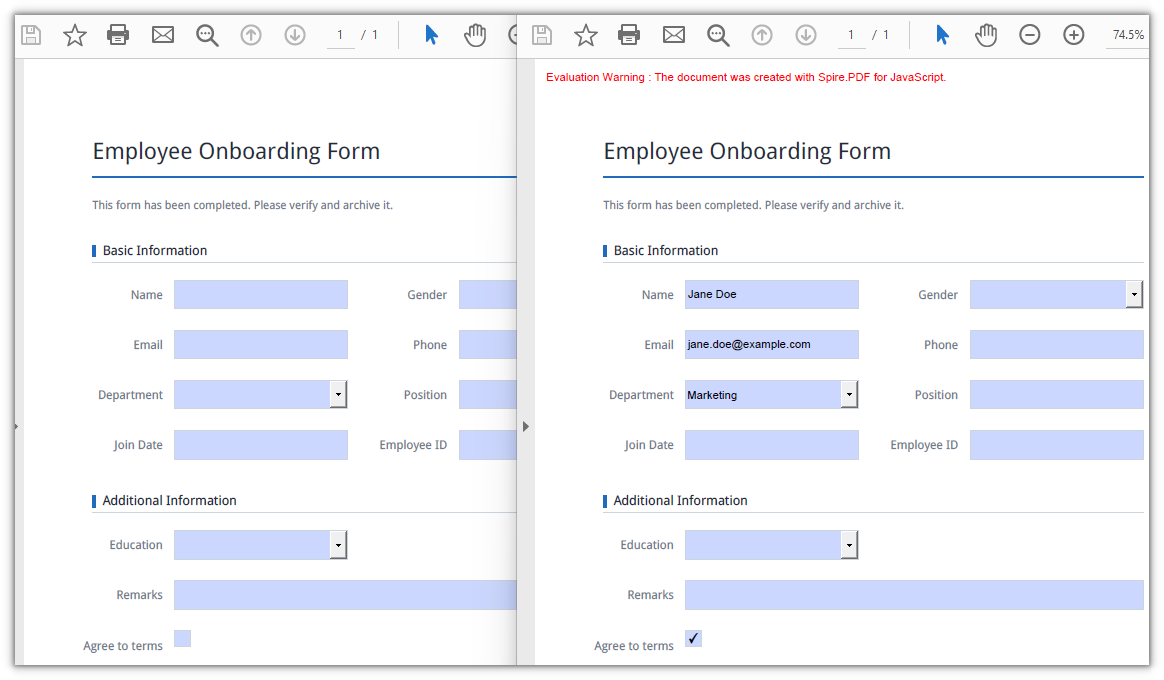
Filling an existing form means working from the widget side: PdfFormWidget wraps the document's form, FieldsWidget hands out the field instances one by one, and after checking the type you cast to the matching subclass to write a value — Text for text boxes, Checked for check boxes, SelectedIndex for combo boxes. Fields are told apart by Name, so a single pass fills the whole form.
function App() {
  const fillFormFields = async () => {
    // Get the Spire.PDF WASM module
    const pdfModule = window.wasmModule?.spirepdf;

    // Check that the module is ready
    if (!pdfModule) {
      alert('Spire.PDF is not ready yet');
      return;
    }

    // Load the PDF file to be filled into the VFS
    const inputFileName = 'EmployeeRegistrationForm.pdf';
    await window.spire.FetchFileToVFS(inputFileName, "", `${process.env.PUBLIC_URL}/data/`);

    // Create a PdfDocument object and load the PDF
    let doc = new pdfModule.PdfDocument();
    doc.LoadFromFile(inputFileName);

    // Get the widget collection from the form
    let formWidget = new pdfModule.PdfFormWidget(doc.Form.H);

    for (let i = 0; i < formWidget.FieldsWidget.Count; i++) {
      let field = formWidget.FieldsWidget.get_Item({ index: i });

      // Text box: assign Text directly
      if (field instanceof pdfModule.PdfTextBoxFieldWidget) {
        switch (field.Name) {
          case 'name':
            field.Text = 'Jane Doe';
            break;
          case 'email':
            field.Text = 'jane.doe@example.com';
            break;
        }
      }

      // Combo box: SelectedIndex takes an array of indices
      if (field instanceof pdfModule.PdfComboBoxWidgetFieldWidget) {
        if (field.Name === 'department') {
          field.SelectedIndex = [1];
        }
      }

      // Check box: set Checked to true to tick it
      if (field instanceof pdfModule.PdfCheckBoxWidgetFieldWidget) {
        if (field.Name === 'agree_terms') {
          field.Checked = true;
        }
      }
    }

    const outputFileName = 'FillFormFields.pdf';
    doc.SaveToFile(outputFileName);
    doc.Close();

    // Read the generated file from the VFS and trigger the download
    const fileArray = window.dotnetRuntime.Module.FS.readFile(outputFileName);
    const blob = new Blob([fileArray], { type: 'application/pdf' });
    const url = URL.createObjectURL(blob);
    const a = document.createElement('a');
    a.href = url;
    a.download = outputFileName;
    a.click();
    URL.revokeObjectURL(url);
  };

  return (
    <div style={{ textAlign: 'center', height: '300px' }}>
      <h1>Fill Form Fields</h1>
      <button onClick={fillFormFields}>
        Fill form
      </button>
    </div>
  );
}

export default App;
The text box, combo box, and check box have each been given their values:
Delete Form Fields
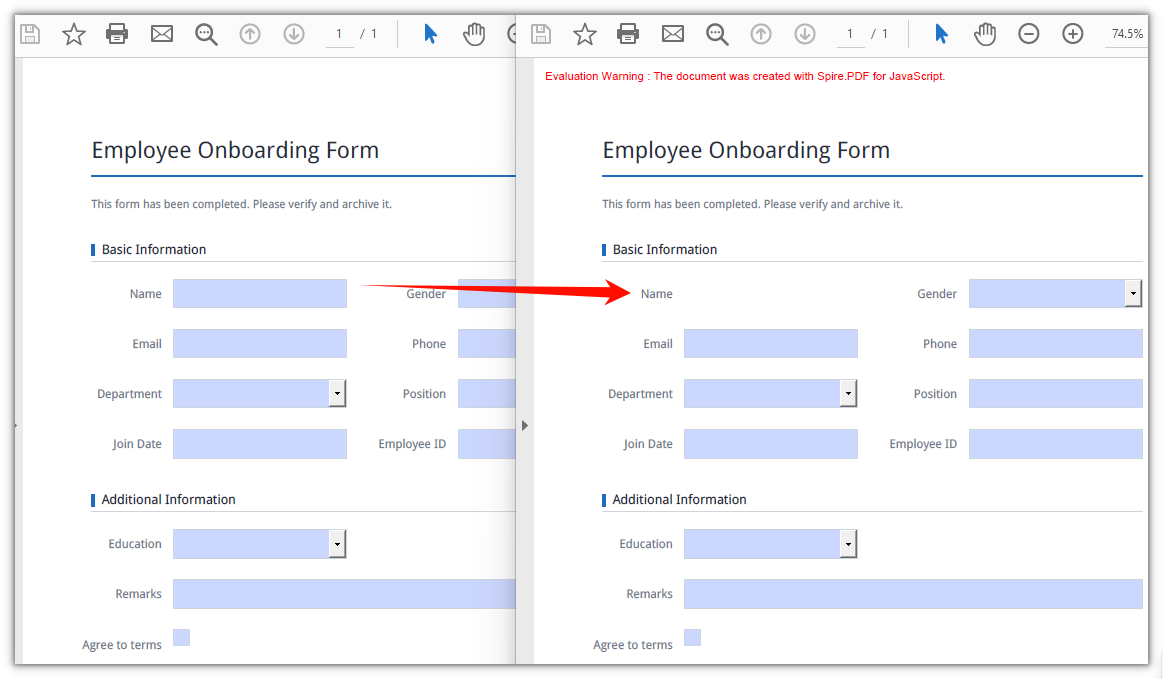
Deleting also starts from FieldsWidget: locate the target instance by Name, then call Remove() to take it out of the field collection. Locating by field name is safer than by index — a document whose layout has changed will not lose the wrong field.
function App() {
  const deleteFormField = async () => {
    // Get the Spire.PDF WASM module
    const pdfModule = window.wasmModule?.spirepdf;

    // Check that the module is ready
    if (!pdfModule) {
      alert('Spire.PDF is not ready yet');
      return;
    }

    // Load the PDF file into the VFS
    const inputFileName = 'EmployeeRegistrationForm.pdf';
    await window.spire.FetchFileToVFS(inputFileName, "", `${process.env.PUBLIC_URL}/data/`);

    // Create a PdfDocument object and load the PDF
    let doc = new pdfModule.PdfDocument();
    doc.LoadFromFile(inputFileName);

    let form = doc.Form;
    if (form != null) {
      let formWidget = new pdfModule.PdfFormWidget(form.H);

      // Locate the target field by name and remove it
      for (let i = 0; i < formWidget.FieldsWidget.Count; i++) {
        let field = formWidget.FieldsWidget.get_Item({ index: i });
        if (field.Name === 'name') {
          formWidget.FieldsWidget.Remove(field);
          break;
        }
      }
    }

    const outputFileName = 'DeleteFormField.pdf';
    doc.SaveToFile(outputFileName);
    doc.Close();

    // Read the generated file from the VFS and trigger the download
    const fileArray = window.dotnetRuntime.Module.FS.readFile(outputFileName);
    const blob = new Blob([fileArray], { type: 'application/pdf' });
    const url = URL.createObjectURL(blob);
    const a = document.createElement('a');
    a.href = url;
    a.download = outputFileName;
    a.click();
    URL.revokeObjectURL(url);
  };

  return (
    <div style={{ textAlign: 'center', height: '300px' }}>
      <h1>Delete Form Fields</h1>
      <button onClick={deleteFormField}>
        Delete field
      </button>
    </div>
  );
}

export default App;
The Name text box has been removed from the form:
FAQ
New form fields cannot be clicked in the reader
Cause: AllowCreateForm defaults to false. When you open an existing document with LoadFromFile, Spire.PDF keeps the document's original form structure and does not allow fields to be appended, so doc.Form.Fields.Add() throws no error but the saved document has no new fields.
Fix: Turn the property on after loading the document and before adding fields:
doc.LoadFromFile(inputFileName);
doc.AllowCreateForm = true;
Fields are still empty after filling
Cause: The field name in the case branch is not character-for-character identical to the real name in the document. PDF field names are case-sensitive and keep leading and trailing spaces, so a name such as company_name (with a trailing space) never matches company_name written in code. Another common mistake is assigning values to objects taken from doc.Form.Fields — those fields have no widget properties such as Text.
Fix: Print every field name before filling and copy from the output. Assignments must land on the *FieldWidget instances that PdfFormWidget returns:
let formWidget = new pdfModule.PdfFormWidget(doc.Form.H);
for (let i = 0; i < formWidget.FieldsWidget.Count; i++) {
  console.log(formWidget.FieldsWidget.get_Item({ index: i }).Name);
}
Deleting one field makes the fields after it disappear too
Cause: Remove() changes FieldsWidget.Count immediately, and every field after the removed element shifts up by one position. If you iterate forward and remove inside the loop, the next iteration has already skipped past the element that moved into that slot.
Fix: break after a single removal; to delete several, collect the targets by name and process them one by one, or iterate backwards from the end:
// Iterate backwards and remove every field whose name starts with temp_
for (let i = formWidget.FieldsWidget.Count - 1; i >= 0; i--) {
  let field = formWidget.FieldsWidget.get_Item({ index: i });
  if (field.Name.startsWith('temp_')) {
    formWidget.FieldsWidget.Remove(field);
  }
}
Get a Free License
If you want to remove the evaluation message from the result documents, or to get rid of the feature limitations, contact sales for a temporary license valid for 30 days.
