Archiving is usually the next step after a form is filled in. PDF form fields are exactly where that falls apart: the file looks complete, but the controls are still live, so the recipient can edit an amount, a date or a signature box, and some viewers re-validate the form as it opens. Turning that file into something nobody can change means pressing the controls and their values into the page content.
This article uses Spire.PDF for JavaScript to flatten PDF form fields. It runs on WebAssembly, loading, modifying and saving documents in the browser, and reads and writes files through a virtual file system (VFS) with no backend involved.
This article covers two core features:
For installation and project configuration, see Integrate Spire.PDF for JavaScript into a React Project. The examples below assume Spire.PDF is installed and the WebAssembly module has been initialized.
Flatten the Whole Form
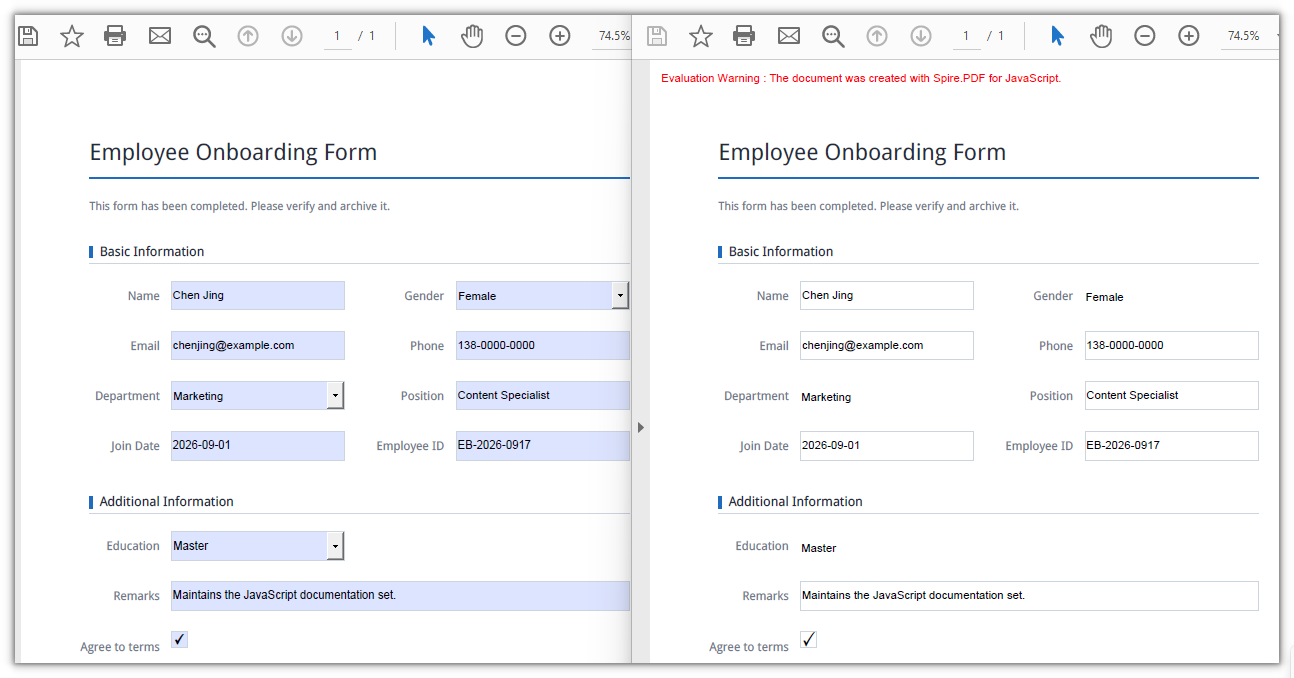
Spire.PDF for JavaScript provides the PdfForm.IsFlatten property to flatten an entire form in one pass. After it is set to true, every field in the document is converted into static page content together with its current value, and the saved PDF has no interactive controls left. The text stays in the text layer, so it can still be selected, copied and searched.
function App() {
  const flattenWholeForm = async () => {
    // Get the Spire.PDF WASM module
    const pdfModule = window.wasmModule?.spirepdf;

    // Check that the module is ready
    if (!pdfModule) {
      alert('Spire.PDF is not ready yet');
      return;
    }

    // Load the PDF file to be processed into the VFS
    const inputFileName = 'EmployeeRegistrationForm.pdf';
    await window.spire.FetchFileToVFS(inputFileName, "", `${process.env.PUBLIC_URL}/data/`);

    // Create a PdfDocument object and load the PDF document
    let doc = new pdfModule.PdfDocument();
    doc.LoadFromFile(inputFileName);

    // Flatten the entire form in one pass
    doc.Form.IsFlatten = true;

    const outputFileName = 'FlattenWholeForm.pdf';
    doc.SaveToFile(outputFileName);
    doc.Close();

    // Read the generated file from the VFS and trigger the download
    const fileArray = window.dotnetRuntime.Module.FS.readFile(outputFileName);
    const blob = new Blob([fileArray], { type: 'application/pdf' });
    const url = URL.createObjectURL(blob);
    const a = document.createElement('a');
    a.href = url;
    a.download = outputFileName;
    a.click();
    URL.revokeObjectURL(url);
  };

  return (
    <div style={{ textAlign: 'center', height: '300px' }}>
      <h1>Flatten the whole form</h1>
      <button onClick={flattenWholeForm}>
        Flatten now
      </button>
    </div>
  );
}

export default App;
Every input box disappears and the values remain on the page as plain text:
Flatten a Selected Field
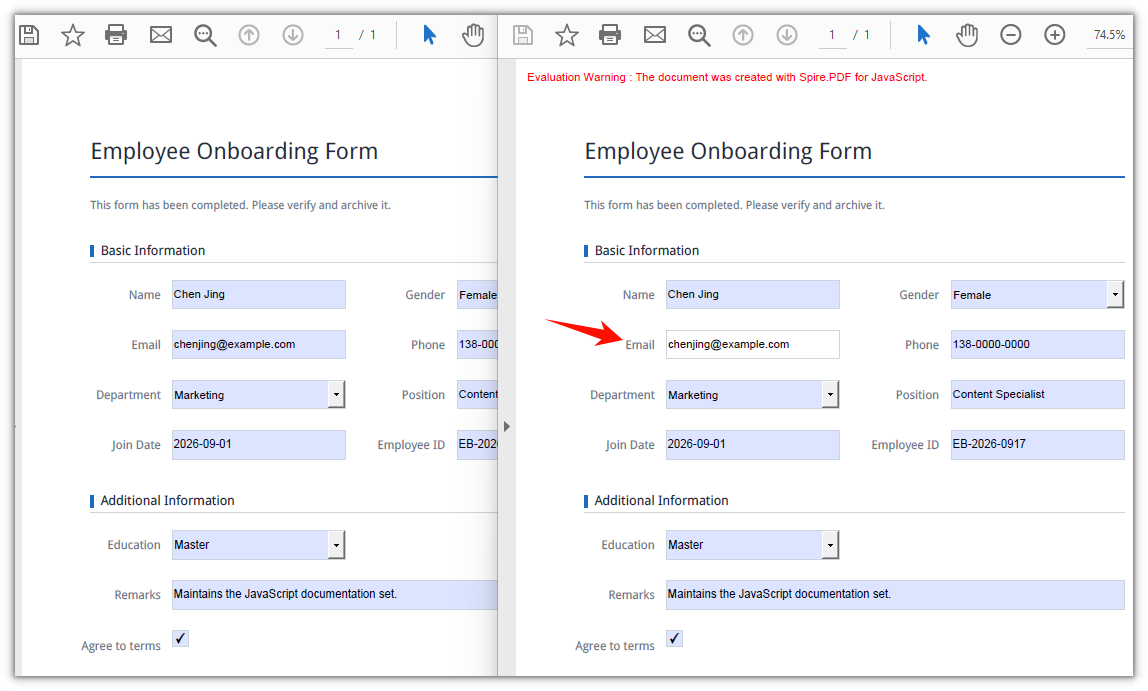
Spire.PDF for JavaScript also provides the PdfField.Flatten property for field-level flattening. Take the field instance by Name from the FieldsWidget collection of a PdfFormWidget; only the field you pick is fixed and the rest stay editable — freezing an email address that has already been verified, for example, while leaving the date column for the recipient to fill in.
function App() {
  const flattenSelectedField = async () => {
    // Get the Spire.PDF WASM module
    const pdfModule = window.wasmModule?.spirepdf;

    // Check that the module is ready
    if (!pdfModule) {
      alert('Spire.PDF is not ready yet');
      return;
    }

    // Load the PDF file to be processed into the VFS
    const inputFileName = 'EmployeeRegistrationForm.pdf';
    await window.spire.FetchFileToVFS(inputFileName, "", `${process.env.PUBLIC_URL}/data/`);

    // Create a PdfDocument object and load the PDF document
    let doc = new pdfModule.PdfDocument();
    doc.LoadFromFile(inputFileName);

    // Get the widget collection from the form
    let formWidget = new pdfModule.PdfFormWidget(doc.Form.H);

    // Pick the target field by name and flatten only that one
    for (let i = 0; i < formWidget.FieldsWidget.Count; i++) {
      let field = formWidget.FieldsWidget.get_Item({ index: i });
      if (field.Name === 'email') {
        field.Flatten = true;
      }
    }

    const outputFileName = 'FlattenSelectedField.pdf';
    doc.SaveToFile(outputFileName);
    doc.Close();

    // Read the generated file from the VFS and trigger the download
    const fileArray = window.dotnetRuntime.Module.FS.readFile(outputFileName);
    const blob = new Blob([fileArray], { type: 'application/pdf' });
    const url = URL.createObjectURL(blob);
    const a = document.createElement('a');
    a.href = url;
    a.download = outputFileName;
    a.click();
    URL.revokeObjectURL(url);
  };

  return (
    <div style={{ textAlign: 'center', height: '300px' }}>
      <h1>Flatten a selected field</h1>
      <button onClick={flattenSelectedField}>
        Flatten now
      </button>
    </div>
  );
}

export default App;
Only the email input box disappears; the remaining fields are still editable controls:
Frequently Asked Questions
The fields are still clickable in the viewer after setting IsFlatten
Reason: The code mixes up two field collections. For an AcroForm produced by another tool, doc.Form.Fields frequently reads back no fields at all — in this article's sample document Count reads 0, and calling get_Item() on it throws ArgumentOutOfRange_IndexMustBeLess. Even when it does return entries, those PdfField objects have no control properties such as Text or Checked, so changing them leaves the page untouched.
Solution: Use doc.Form.IsFlatten alone to flatten the whole form; it does not depend on any collection. As soon as you work field by field — selecting by name, writing a value, flattening one field — go through PdfFormWidget:
let formWidget = new pdfModule.PdfFormWidget(doc.Form.H);
for (let i = 0; i < formWidget.FieldsWidget.Count; i++) {
  console.log(formWidget.FieldsWidget.get_Item({ index: i }).Name);
}
How do I tell whether a PDF has already been flattened
Reason: PdfForm.IsFlatten is a write instruction, not a state flag. Reload the flattened output and doc.Form.IsFlatten still reads false — in testing the document already had 0 fields at that point.
Solution: Check the field count instead; a FieldsWidget.Count of 0 means no interactive controls are left:
let formWidget = new pdfModule.PdfFormWidget(doc.Form.H);
const hasFormFields = formWidget.FieldsWidget.Count > 0;
Only the selected field was flattened, but its value was not baked in
Reason: Name is compared character by character, so it is case-sensitive and keeps leading and trailing spaces. Write company_name when the document actually has company_name (with a trailing space) and the loop never matches — and it raises no error, it just saves the file unchanged.
Solution: Print every field name first and copy from that output. Both the comparison and the assignment have to run on the *FieldWidget instance that FieldsWidget returns:
for (let i = 0; i < formWidget.FieldsWidget.Count; i++) {
  console.log(formWidget.FieldsWidget.get_Item({ index: i }).Name);
}
Get a Free License
If you want to remove the evaluation message from the result document or lift the feature limits, contact our sales team for a temporary license valid for 30 days.
