Text boxes in a worksheet carry notices, reminders or a single conclusion, yet their default look is plain: small black text on white, framed by a thin border that blends into the grid. Enlarging and bolding the font and laying down a light fill make the text rise above the table; inner margins and text wrapping keep long sentences off the border and inside the box; removing the border lets a text box read as a quiet annotation. These changes can be applied in code in one pass instead of one box at a time. Spire.XLS for JavaScript runs in the browser on WebAssembly and handles the input and output files through a virtual file system (VFS), with no backend service required.
This article covers two core feature points:
- Adjust the Font, Background and Border of Text Boxes
- Set the Inner Margins and Text Wrapping of Text Boxes
For installation and project setup, see Integrating Spire.XLS for JavaScript in a React Project. The examples below assume Spire.XLS is installed and the WebAssembly module has been initialised.
Adjust the Font, Background and Border of Text Boxes
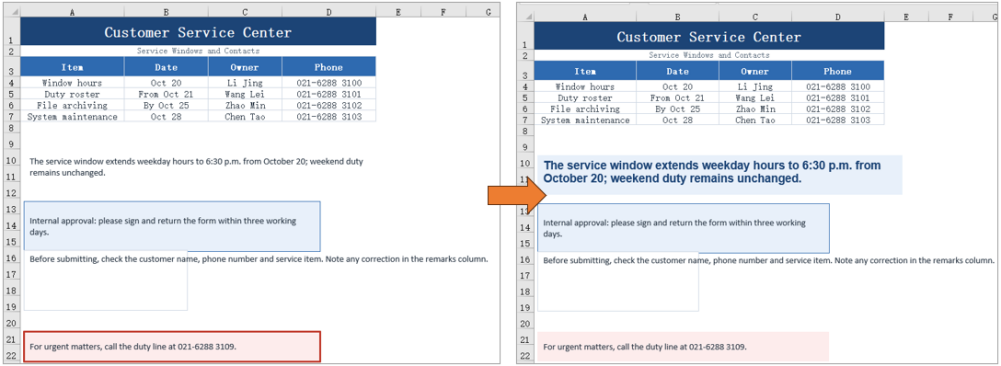
The default 11-point black text on a white background lacks contrast against the sheet. A larger size, a bold weight, another color and a pale fill lift a notice above the grid; clearing a border that competes with the cell lines makes the text read as if written straight on the page, which suits footnotes and corner notes. The same two kinds of change can be applied to one text box or split across different boxes, and this feature point adjusts the font, background and border of text boxes.
| Syntax | Result |
|---|---|
workbook.CreateFont() |
Creates a font object for the text of a text box |
font.FontName, font.Size, font.IsBold, font.Color |
Set the font name, size, bold weight and text color |
xlsModule.RichTextShape.Convert(textBox.RichText) |
Returns the rich text object of the text box |
richText.SetFont(0, textBox.Text.length - 1, font) |
Applies the font to the whole text of the text box |
textBox.Fill.FillType = xlsModule.ShapeFillType.SolidColor |
Switches the text box background to a solid fill |
textBox.Fill.ForeColor |
Sets the color of the solid fill |
textBox.Line.Weight = 0 |
Sets the border weight to zero, so no outline is drawn |
The steps are:
- Take the first text box with
sheet.TextBoxes.get(0). - Create a font object with
workbook.CreateFont()and set its name, size, bold weight and color throughFontName,Size,IsBoldandColor. - Get the rich text object with
xlsModule.RichTextShape.Convert(textBox.RichText), then callSetFont(0, textBox.Text.length - 1, font)to apply the font to the whole text. - Set
textBox.Fill.FillTypetoxlsModule.ShapeFillType.SolidColor, then name the fill color withtextBox.Fill.ForeColor. - Take the fourth text box with
sheet.TextBoxes.get(3)and settextBox.Line.Weightto0to remove its border. - Save the workbook with
workbook.SaveToFile.
The code below is the complete example of adjusting the font, background and border of a text box:
function App() {
  const adjustTextAppearance = async () => {
    // get the Spire.XLS WASM module
    const xlsModule = window.wasmModule?.spirexls;

    // check that the module is ready
    if (!xlsModule) {
      alert('Spire.Xls is not ready yet');
      return;
    }

    // load the font and the test data file into the VFS
    await window.spire.FetchFileToVFS('ARIAL.TTF', '/Library/Fonts/', `${process.env.PUBLIC_URL}/font/`);
    const inputFileName = 'TextBoxSample.xlsx';
    await window.spire.FetchFileToVFS(inputFileName, '', `${process.env.PUBLIC_URL}data/`);

    // load the workbook and take the first worksheet
    const workbook = new xlsModule.Workbook();
    workbook.LoadFromFile({ fileName: inputFileName });
    const sheet = workbook.Worksheets.get(0);

    // take the first text box and create a font with its name, size, bold weight and color
    const textBox = sheet.TextBoxes.get(0);
    const font = workbook.CreateFont();
    font.FontName = 'Arial';
    font.Size = 14;
    font.IsBold = true;
    font.Color = xlsModule.Color.FromArgb(255, 28, 68, 118);

    // apply the font to all the text in the text box
    const richText = xlsModule.RichTextShape.Convert(textBox.RichText);
    richText.SetFont(0, textBox.Text.length - 1, font);

    // fill the text box background with a solid color
    textBox.Fill.FillType = xlsModule.ShapeFillType.SolidColor;
    textBox.Fill.ForeColor = xlsModule.Color.FromArgb(255, 232, 240, 250);

    // take the fourth text box and set the border weight to 0, which removes the border
    const borderBox = sheet.TextBoxes.get(3);
    borderBox.Line.Weight = 0;

    // save the workbook
    const outputFileName = 'TextAppearance.xlsx';
    workbook.SaveToFile({ fileName: outputFileName });

    // dispose of the workbook to release its resources
    workbook.Dispose();

    // read the result back out of the VFS and trigger the download
    const fileArray = window.dotnetRuntime.Module.FS.readFile(outputFileName);
    const blob = new Blob([fileArray], { type: 'application/vnd.openxmlformats-officedocument.spreadsheetml.sheet' });
    const url = URL.createObjectURL(blob);
    const a = document.createElement('a');
    a.href = url;
    a.download = outputFileName;
    a.click();
    URL.revokeObjectURL(url);
  };

  return (
    <div style={{ textAlign: 'center', height: '300px' }}>
      <h1>Format Excel Text Boxes</h1>
      <button onClick={adjustTextAppearance}>Adjust the Font, Background and Border of a Text Box</button>
    </div>
  );
}

export default App;
The notice board after adjusting the font, background and border:
Set the Inner Margins and Text Wrapping of Text Boxes
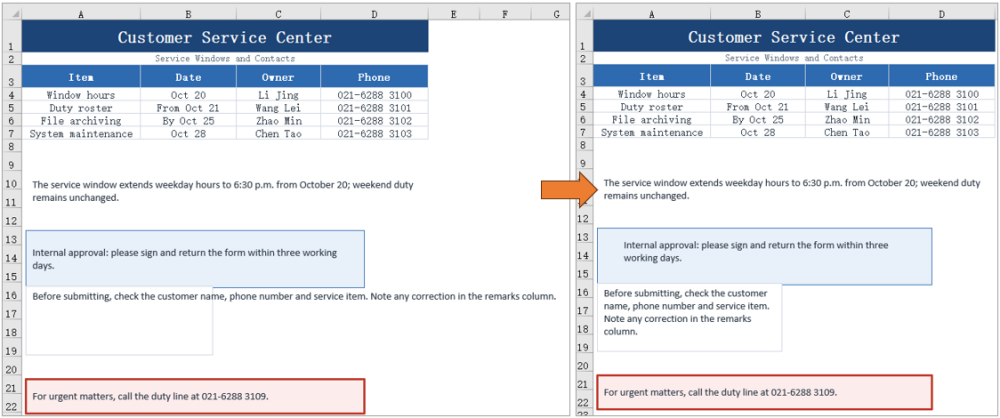
Text pressed against the border is hard to read, especially on a dark fill. Inner margins hold the text away from each edge and can be set separately for the four sides. A long sentence in a narrow box stays on one line by default and runs past the border, while text wrapping folds it onto the next line. The sample leaves about 1 cm on the left and right and 0.4 cm at the top and bottom, and aligns the text to the top left so the shift caused by the margins is visible. This feature point sets the inner margins and text wrapping of text boxes.
| Syntax | Result |
|---|---|
textBox.InnerLeftMargin, InnerRightMargin, InnerTopMargin, InnerBottomMargin |
Set the distance between the text and the left, right, top and bottom border |
xlsModule.CommentHAlignType.Left |
Aligns the text to the left inside the box |
xlsModule.CommentVAlignType.Top |
Aligns the text to the top inside the box |
textBox.IsWrapText = true |
Folds the text onto the next line when it reaches the box width |
The steps are:
- Take the second text box with
sheet.TextBoxes.get(1). - Set
InnerLeftMargin,InnerRightMargin,InnerTopMarginandInnerBottomMarginin turn to leave room on all four sides. - Set
HAlignmenttoxlsModule.CommentHAlignType.LeftandVAlignmenttoxlsModule.CommentVAlignType.Top, so the text starts from the top-left corner. - Take the third text box with
sheet.TextBoxes.get(2)and setIsWrapTexttotrueto turn on text wrapping. - Save the workbook with
workbook.SaveToFile.
The code below is the complete example of setting the inner margins and text wrapping of a text box:
function App() {
  const setTextLayout = async () => {
    // get the Spire.XLS WASM module
    const xlsModule = window.wasmModule?.spirexls;

    // check that the module is ready
    if (!xlsModule) {
      alert('Spire.Xls is not ready yet');
      return;
    }

    // load the font and the test data file into the VFS
    await window.spire.FetchFileToVFS('ARIAL.TTF', '/Library/Fonts/', `${process.env.PUBLIC_URL}/font/`);
    const inputFileName = 'TextBoxSample.xlsx';
    await window.spire.FetchFileToVFS(inputFileName, '', `${process.env.PUBLIC_URL}data/`);

    // load the workbook and take the first worksheet
    const workbook = new xlsModule.Workbook();
    workbook.LoadFromFile({ fileName: inputFileName });
    const sheet = workbook.Worksheets.get(0);

    // take the second text box and set the space between the text and its four borders
    const textBox = sheet.TextBoxes.get(1);
    textBox.InnerLeftMargin = 1;
    textBox.InnerRightMargin = 1;
    textBox.InnerTopMargin = 0.4;
    textBox.InnerBottomMargin = 0.4;

    // align the text to the top left so the effect of the margins is visible
    textBox.HAlignment = xlsModule.CommentHAlignType.Left;
    textBox.VAlignment = xlsModule.CommentVAlignType.Top;

    // take the third text box and turn on wrapping, so text folds at the box width
    const wrapBox = sheet.TextBoxes.get(2);
    wrapBox.IsWrapText = true;

    // save the workbook
    const outputFileName = 'TextLayout.xlsx';
    workbook.SaveToFile({ fileName: outputFileName });

    // dispose of the workbook to release its resources
    workbook.Dispose();

    // read the result back out of the VFS and trigger the download
    const fileArray = window.dotnetRuntime.Module.FS.readFile(outputFileName);
    const blob = new Blob([fileArray], { type: 'application/vnd.openxmlformats-officedocument.spreadsheetml.sheet' });
    const url = URL.createObjectURL(blob);
    const a = document.createElement('a');
    a.href = url;
    a.download = outputFileName;
    a.click();
    URL.revokeObjectURL(url);
  };

  return (
    <div style={{ textAlign: 'center', height: '300px' }}>
      <h1>Format Excel Text Boxes</h1>
      <button onClick={setTextLayout}>Set the Inner Margins and Text Wrapping of a Text Box</button>
    </div>
  );
}

export default App;
The notice board after setting the inner margins and text wrapping:
FAQ
How do I get a text box by name?
Cause: Getting text boxes by index means remembering their order in the collection, and inserting or removing a text box changes that order.
Solution: Use sheet.TextBoxes.get("TextBox 2") to get a text box by name.
How do I format only part of the text in a text box?
Cause: The text of a text box is stored as rich text, and SetFont applies to a character range; anything outside the range keeps its original format.
Solution: Get the rich text object with xlsModule.RichTextShape.Convert(textBox.RichText), then call richText.SetFont(startIndex, endIndex, font) with the range you want. For example, SetFont(0, 3, font) applies to the first four characters only.
Can the border of a text box have another color or a dashed style?
Cause: Besides its weight, the Line object also provides color and dash style settings.
Solution: Set the border color with textBox.Line.ForeColor, the weight with textBox.Line.Weight, and the dash style with textBox.Line.DashStyle, whose value is a member of xlsModule.ShapeDashLineStyleType, such as Dashed for a dashed line.
What if the text does not wrap as expected?
Cause: Text only wraps when IsWrapText is true, and when the text box is wide enough for the whole sentence no line break appears either.
Solution: Confirm that textBox.IsWrapText = true has been set, and check that the width of the text box is smaller than the length of the sentence. When several lines are needed, leave enough height in the text box as well.
Get a Free License
Spire.XLS for JavaScript offers a 30-day full-featured free trial license with no functional limitations. Apply here to evaluate before purchasing.
