When a report is generated in the browser, an order detail sheet often runs to several printed pages. With the default print settings, the header and the key columns disappear from the second page onwards, which makes the columns hard to identify and leaves the page numbers out of step with the rest of the report. Spire.XLS for JavaScript handles the page setup directly in the browser through WebAssembly, managing input and output files in a virtual file system (VFS) with no backend service required.
Using an order detail sheet of 18 columns by 60 rows as the sample, this article covers two core feature points:
For installation and project setup, see Integrating Spire.XLS for JavaScript in a React Project. The examples below assume Spire.XLS is installed and the WebAssembly module has been initialized.
Set the print title rows and columns
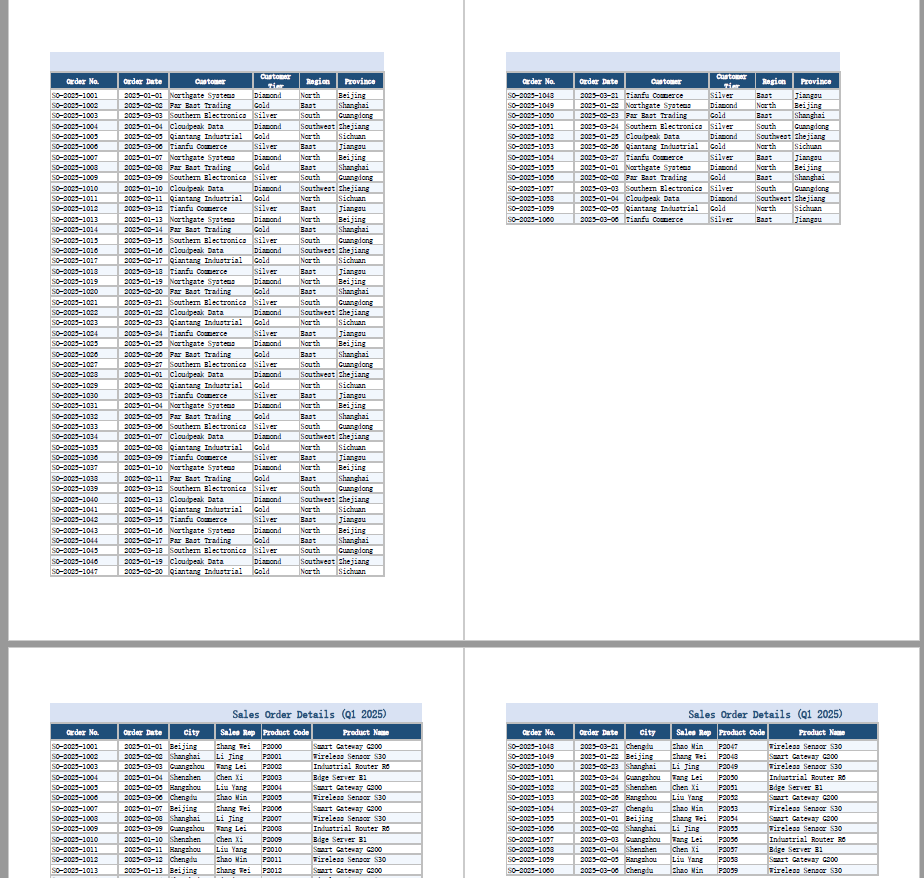
Print titles are what Excel calls the "Rows to repeat at top" and "Columns to repeat at left" options in the Page Setup dialog. Once set, the chosen rows or columns are repeated in the same position on every printed page, so the header is still visible once the table runs onto the second page. Spire.XLS for JavaScript sets them through the PrintTitleRows and PrintTitleColumns properties of PageSetup, which take a row or column reference string. Here is a complete code example showing how to set the print title rows and columns in React:
function App() {
  const setPrintTitles = async () => {
    // Get the Spire.XLS WASM module
    const xlsModule = window.wasmModule?.spirexls;

    // Check if the module is ready
    if (!xlsModule) {
      alert('Spire.Xls is not ready yet');
      return;
    }

    // Load the font and the input file into the VFS
    await window.spire.FetchFileToVFS('ARIAL.TTF', '/Library/Fonts/', `${process.env.PUBLIC_URL}/font/`);
    const inputFileName = 'OrderDetails.xlsx';
    await window.spire.FetchFileToVFS(inputFileName, '', `${process.env.PUBLIC_URL}data/`);

    // Load the workbook and get the first worksheet
    const workbook = new xlsModule.Workbook();
    workbook.LoadFromFile({ fileName: inputFileName });
    const sheet = workbook.Worksheets.get(0);

    // Get the page setup of the worksheet
    const pageSetup = sheet.PageSetup;

    // Use rows 1 and 2 as the print title rows, so they repeat at the top of every page
    pageSetup.PrintTitleRows = '$1:$2';

    // Use columns A and B as the print title columns, so they repeat at the left of every page
    pageSetup.PrintTitleColumns = '$A:$B';

    // Save the workbook
    const outputFileName = 'SetPrintTitles.xlsx';
    workbook.SaveToFile({ fileName: outputFileName, version: xlsModule.ExcelVersion.Version2010 });

    // Dispose of the workbook object to free resources
    workbook.Dispose();

    // Read the result file from the VFS and trigger the download
    const fileArray = window.dotnetRuntime.Module.FS.readFile(outputFileName);
    const blob = new Blob([fileArray], { type: 'application/vnd.openxmlformats-officedocument.spreadsheetml.sheet' });
    const url = URL.createObjectURL(blob);
    const a = document.createElement('a');
    a.href = url;
    a.download = outputFileName;
    a.click();
    URL.revokeObjectURL(url);
  };

  return (
    <div style={{ textAlign: 'center', height: '300px' }}>
      <h1>Set Print Title Rows and Columns</h1>
      <button onClick={setPrintTitles}>Set Print Title Rows and Columns</button>
    </div>
  );
}

export default App;
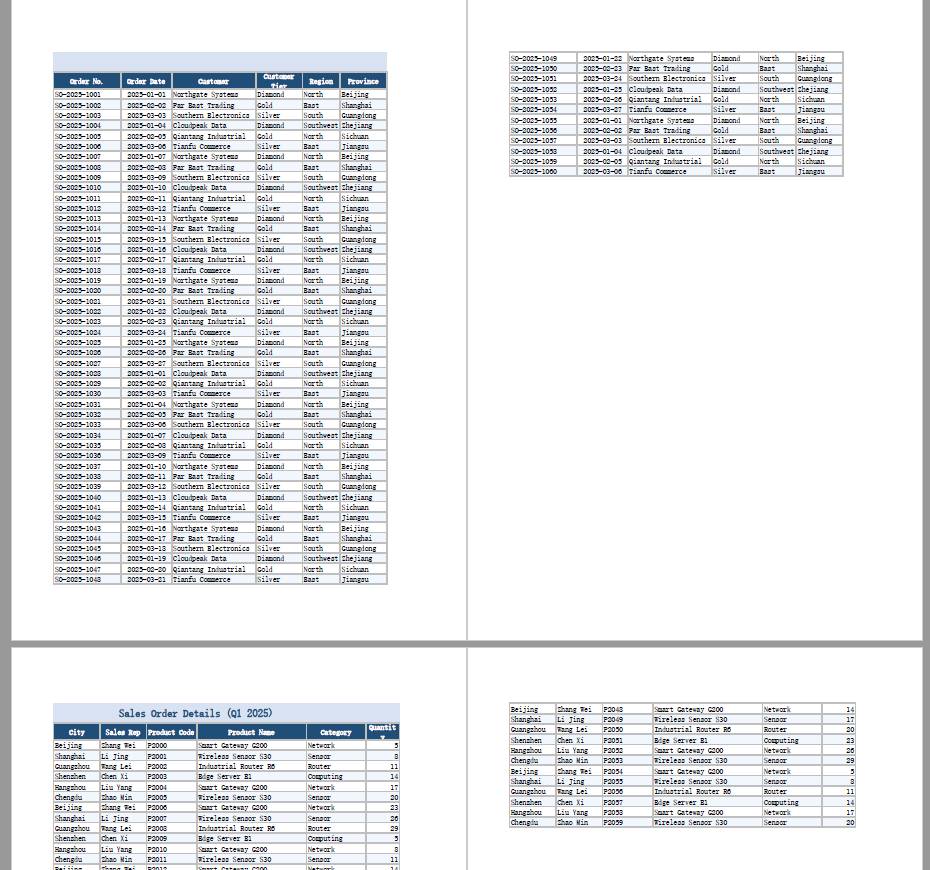
Print result of the original file
After running, the effect of setting the print title rows and columns:
Set the print order
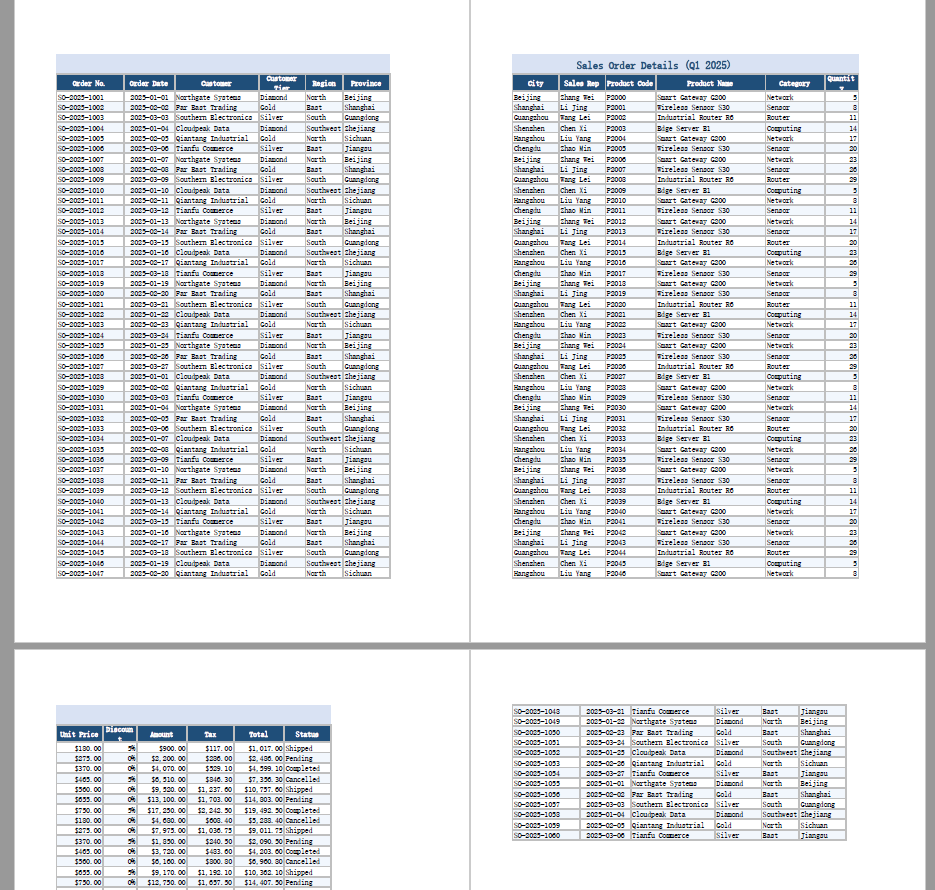
When a worksheet is wider than one page and longer than one page at the same time, Excel has to decide which direction the pages advance in. The default, "down, then over", fills a page vertically before moving to the next block of columns on the right; "over, then down" fills a page horizontally first and then moves down. Spire.XLS for JavaScript switches between the two with the Order property of PageSetup. Here is a complete code example showing how to set the print order of a worksheet in React:
function App() {
  const setPrintOrder = async () => {
    // Get the Spire.XLS WASM module
    const xlsModule = window.wasmModule?.spirexls;

    // Check if the module is ready
    if (!xlsModule) {
      alert('Spire.Xls is not ready yet');
      return;
    }

    // Load the font and the input file into the VFS
    await window.spire.FetchFileToVFS('ARIAL.TTF', '/Library/Fonts/', `${process.env.PUBLIC_URL}/font/`);
    const inputFileName = 'OrderDetails.xlsx';
    await window.spire.FetchFileToVFS(inputFileName, '', `${process.env.PUBLIC_URL}data/`);

    // Load the workbook and get the first worksheet
    const workbook = new xlsModule.Workbook();
    workbook.LoadFromFile({ fileName: inputFileName });
    const sheet = workbook.Worksheets.get(0);

    // Get the page setup of the worksheet
    const pageSetup = sheet.PageSetup;

    // Set the page order to over-then-down: print a column top to bottom, then move right
    pageSetup.Order = xlsModule.OrderType.OverThenDown;

    // Save the workbook
    const outputFileName = 'SetPrintOrder.xlsx';
    workbook.SaveToFile({ fileName: outputFileName, version: xlsModule.ExcelVersion.Version2010 });

    // Dispose of the workbook object to free resources
    workbook.Dispose();

    // Read the result file from the VFS and trigger the download
    const fileArray = window.dotnetRuntime.Module.FS.readFile(outputFileName);
    const blob = new Blob([fileArray], { type: 'application/vnd.openxmlformats-officedocument.spreadsheetml.sheet' });
    const url = URL.createObjectURL(blob);
    const a = document.createElement('a');
    a.href = url;
    a.download = outputFileName;
    a.click();
    URL.revokeObjectURL(url);
  };

  return (
    <div style={{ textAlign: 'center', height: '300px' }}>
      <h1>Set Print Order</h1>
      <button onClick={setPrintOrder}>Set Print Order</button>
    </div>
  );
}

export default App;
After running, the effect of setting the print order to over-then-down:
FAQ
Can I set only the print title rows and not the title columns
Cause: PrintTitleRows and PrintTitleColumns are two independent properties — one controls the rows repeated at the top of each page, the other the columns repeated at the left. Setting only one leaves the other unset: the call is not rejected for the missing half, and no default is filled in.
Solution: Set whichever one you need. To repeat the header rows only, use pageSetup.PrintTitleRows = '$1:$2'.
Does setting the print titles change the data in the worksheet
Cause: Print titles are part of the page setup. They only decide which rows and columns are repeated in the printout; they do not touch cell contents, and they add or remove no rows and columns.
Solution: The data is unaffected. The file measures 62 rows by 18 columns both before and after the setting, with cell-by-cell identical text — the only difference is the print title definition added to the page setup. The worksheet looks exactly the same on screen.
Get a Free License
Spire.XLS for JavaScript offers a 30-day full-featured free trial license with no functional limitations. Apply here to evaluate before purchasing.
