A PDF that runs to dozens or hundreds of pages — a product manual, a technical handbook, a project report, a conference proceedings — loses most of its usability when it has no bookmarks and no table of contents. To get from "Chapter 3" to "5.2 Interface Description", a reader has to scroll page by page or guess the page number from memory. Reviewers and archivists cannot jump to a chapter either.
Bookmarks and a table of contents exist to solve exactly this problem of navigation: bookmarks are the hierarchical structure in the PDF reader's side panel, where one click jumps to the matching chapter; a table of contents page is a single page of text placed before the body, listing chapter titles and page numbers so readers can grasp the structure at a glance or look things up in print. Yet these two things are usually the first to be lost: bookmarks generated when converting Word to PDF can drop out, scanned or reassembled documents have none at all, and adding them by hand means cross-checking titles against page numbers until a long document inevitably goes out of sync.
The PDF AI capability of Spire.Agent.Office lets you describe the bookmark hierarchy and the table of contents requirements in natural language. The AI agent understands the request and completes two kinds of work automatically: generating hierarchical bookmarks for a PDF, and generating a front-of-document contents page whose page numbers match the body and whose entries jump when clicked.
Comparison with Traditional SDK API
| Traditional Spire.Office for .NET API | Spire.Agent.Office | |
|---|---|---|
| Driving style | Write code that walks every page, matches headings by font size or numbering patterns, builds the bookmark tree and assigns each entry a page, controlling every step | Describe the bookmark hierarchy and TOC requirements in natural language; the AI understands them and orchestrates the execution path |
| Code size | Bookmark and TOC generation usually needs 150-300 lines of C# (page iteration, heading detection, hierarchy decisions, bookmark tree construction, page number calculation, TOC page layout and formatting, etc.) | About 10 lines of calling code + 1 natural-language instruction |
| Heading detection | You must define what text counts as a heading, and any change to font size or numbering format means changing the rules | The AI judges heading levels from numbering, font size and layout context; the rules are stated in one sentence in the instruction |
| Page number mapping | TOC page numbers are counted by hand and must be recounted whenever the body changes | The AI reads the actual page numbers from the body and fills them into the TOC |
| Requirement change | Change the bookmark hierarchy / TOC style → change code → compile → redeploy | Modify the instruction and it takes effect immediately |
This article shows how to use the Spire.Agent.Office PDF AI capability to generate bookmarks and a table of contents for PDF documents. Two cases demonstrate the two typical uses — "generating hierarchical bookmarks" and "generating a table of contents page":
- Case 1: Generate hierarchical bookmarks for a PDF
- Case 2: Generate a table of contents page for a PDF
For product installation and SpireToken configuration, please refer to Integrating Spire.Agent.Office in a .NET Project. The examples below assume that Spire.Agent.Office has been installed and SpireToken has been configured.
Case 1: Generate hierarchical bookmarks for a PDF
Documents such as product manuals and technical handbooks usually follow a fixed structure: the body is divided into large parts labelled "Chapter 1", "Chapter 2", and each chapter is broken down further into sections such as "1.1" and "1.2". The layout makes the hierarchy obvious at a glance through numbering and font size, but the PDF reader's navigation panel stays empty — jumping to one specific section means paging through the document yourself.
For that panel to be genuinely useful, the bookmarks must mirror the heading hierarchy exactly: top-level headings become top-level bookmarks, second-level headings become child bookmarks nested under their chapter, and clicking a bookmark jumps straight to the page where the heading appears. Adding them by hand means finding each heading page by page, creating an entry in the bookmark panel, then pointing that entry at the right destination — hundreds of headings in, mistakes are close to inevitable.
The example below uses the Spire.Agent.Office agent to read the chapter structure from the PDF body through a natural-language instruction and generate multi-level bookmarks by heading hierarchy:
using Spire.Agent.Office.AI;
using Spire.Agent.Office.Extensions;
using Spire.Pdf;

// PDF-related configuration
string inputPath = @"E:\manual.pdf";  // path to the PDF that needs bookmarks
string savePath = @"E:\output\manual-with-bookmarks.pdf";  // path of the result file
string key = "**************************";  // SpireToken key
string instruction =
    "Read the body of this PDF product manual and generate hierarchical bookmarks for it:" +
    "1. Detect the chapter headings in the body; headings starting with 'Chapter X' become top-level bookmarks, and headings starting with 'X.Y' become child bookmarks under the matching chapter;" +
    "2. List the bookmarks in the order they appear in the body, keep the hierarchy consistent with the heading structure, and keep each bookmark title identical to the heading text;" +
    "3. Each bookmark jumps to the page where its heading appears, so one click locates that chapter;" +
    "4. Ignore figure captions and headers/footers and do not create bookmarks for them;" +
    "5. Keep the original layout, fonts and page setup of the body unchanged;" +
    "Save the final result as a PDF file";

// Call the PDF document processing function
AIResult result = ExecuteDemoPDF(instruction, inputPath, savePath, key);


// Execute PDF AI processing
static AIResult ExecuteDemoPDF(string instruction, string inputPath, string savePath, string key)
{
    // Create the AIOptions configuration object
    AIOptions options = new AIOptions();
    options.SpireToken = key;  // set the SpireToken key

    // Process the PDF document using a PdfDocument object
    using (PdfDocument pdf = new PdfDocument())
    {
        // Load the PDF document from file
        if (!string.IsNullOrEmpty(inputPath) && File.Exists(inputPath))
        {
            pdf.LoadFromFile(inputPath);
        }
        // Create the AI document processor
        AIDocumentProcessor processor = pdf.AI(options);

        // Execute the AI instruction
        return processor.ExecuteInstruction(pdf, instruction, savePath);
    }
}
The PDF after hierarchical bookmarks were generated
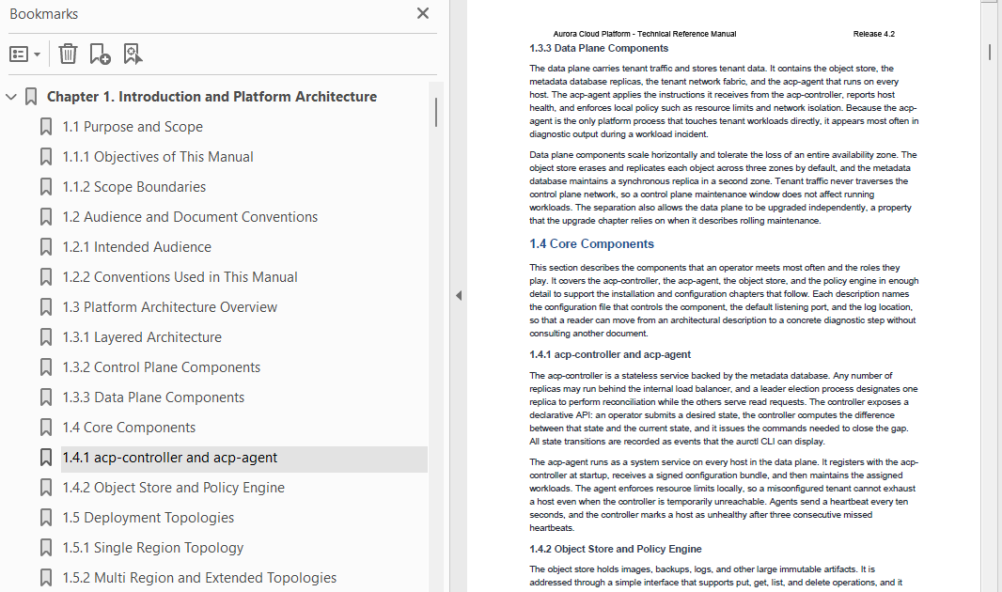
The generated bookmarks reproduce the chapter structure of the body completely: top-level chapters sit at the top of the panel, each section is nested beneath its chapter, and clicking any bookmark jumps to the page where that heading appears. The body layout, fonts and page setup stay exactly as they were — the navigation structure is simply added on top.
Case 2: Generate a table of contents page for a PDF
When a technical proposal, project report or collection of papers is delivered to reviewers or readers, it usually needs a table of contents on the very first page: chapter titles listed line by line, each with the page number where the chapter begins, so readers can see the whole structure before deciding where to start. A contents page is also part of the required style of a formal document, and documents of this kind normally carry a cover page, with the contents sitting after the cover and before the body.
Two things make a contents page awkward to build. The first is the page numbers: they must match the body exactly, and any added or removed chapter, or any change in pagination, means every number has to be recounted. The second is the jumping: a line reading "Section 5.2, page 27" still leaves the reader to find page 27 by hand; only when the entry itself is clickable does the contents page become genuinely useful.
The example below uses the Spire.Agent.Office agent to extract each chapter title with its page number through a natural-language instruction and insert a laid-out, clickable contents page after the cover page:
using Spire.Agent.Office.AI;
using Spire.Agent.Office.Extensions;
using Spire.Pdf;

// PDF-related configuration
string inputPath = @"E:\report.pdf";  // path to the PDF that needs a contents page
string savePath = @"E:\output\report-with-toc.pdf";  // path of the result file
string key = "**************************";  // SpireToken key
string instruction =
    "Read the body of this PDF and generate a table of contents page after the cover page:" +
    "1. Extract the title and page number of every chapter in the body, including both top-level and second-level headings;" +
    "2. Insert a 'Contents' page after the cover page and before the body, listing chapter titles with their page numbers line by line, titles left-aligned and page numbers right-aligned with dot leaders in between;" +
    "3. Make every entry in the contents a clickable link that jumps straight to the page where that chapter begins;" +
    "4. The page numbers shown in the contents must match the actual body pages after the contents page has been inserted; no number may be off by a page;" +
    "5. Centre the word 'Contents' as the title of the page, using the same font size as the top-level headings in the body;" +
    "6. Keep the original layout, fonts and page setup of the body unchanged;" +
    "Save the final result as a PDF file";

// Call the PDF document processing function
AIResult result = ExecuteDemoPDF(instruction, inputPath, savePath, key);


// Execute PDF AI processing
static AIResult ExecuteDemoPDF(string instruction, string inputPath, string savePath, string key)
{
    // Create the AIOptions configuration object
    AIOptions options = new AIOptions();
    options.SpireToken = key;  // set the SpireToken key

    // Process the PDF document using a PdfDocument object
    using (PdfDocument pdf = new PdfDocument())
    {
        // Load the PDF document from file
        if (!string.IsNullOrEmpty(inputPath) && File.Exists(inputPath))
        {
            pdf.LoadFromFile(inputPath);
        }
        // Create the AI document processor
        AIDocumentProcessor processor = pdf.AI(options);

        // Execute the AI instruction
        return processor.ExecuteInstruction(pdf, instruction, savePath);
    }
}
The PDF with a contents page generated after the cover
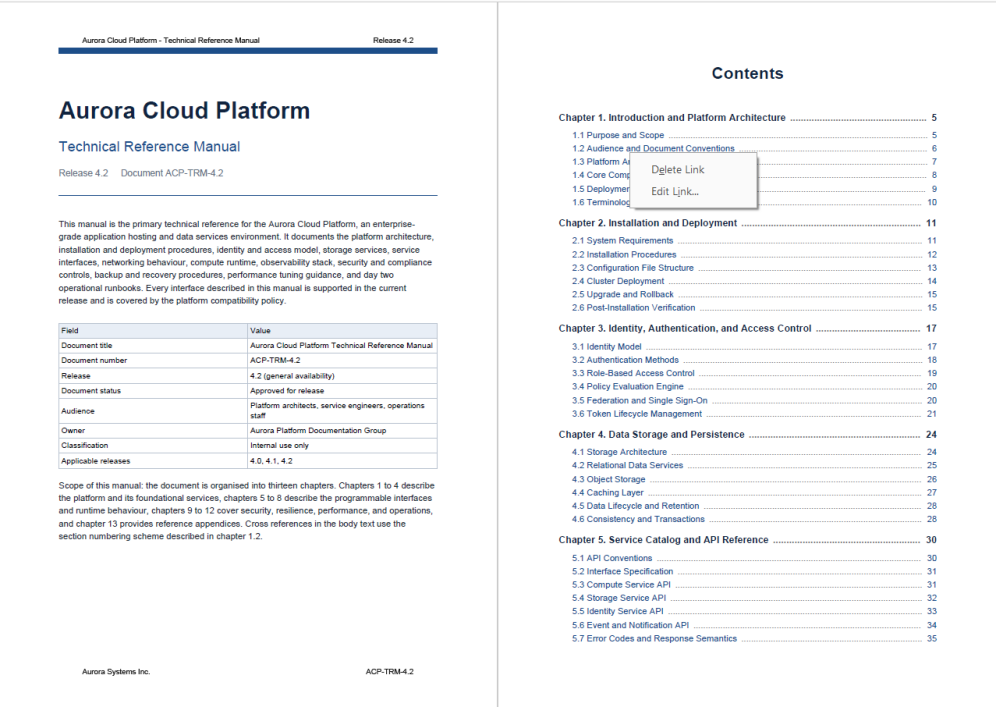
The contents page lists chapters by level, with dot leaders running from each title to its page number, matching the format of a published book. Every entry carries a jump link, so one click lands on the matching chapter — the page works as a reading aid and as a navigation tool at the same time. The body content and its original layout are untouched; the contents page is inserted as a page of its own after the cover.
FAQ
The generated bookmarks have no hierarchy and all headings sit on one level
Cause: The hierarchy in the body is conveyed by numbering format ("Chapter 1" versus "1.1") and font size. If the instruction does not state the rule, the AI may treat every heading it detects as a top-level bookmark.
Solution: State the hierarchy rule in the instruction, for example "headings starting with 'Chapter X' become top-level bookmarks and headings starting with 'X.Y' become child bookmarks under the matching chapter". When the numbering is unusual (such as "Part I" or "Appendix A"), include that rule in the instruction as well.
The page numbers in the contents do not match the actual body pages
Cause: Inserting the contents page in front of the body shifts every following page by one. If the page numbers are collected before the contents page is inserted, every number in the contents comes out one page too low.
Solution: State which numbering basis to use, for example "the page numbers in the contents must match the actual body pages after the contents page has been inserted". If the body already has its own numbering scheme (for instance a cover page and preface that are not numbered), describe that rule in the instruction so the AI counts by the same convention.
Getting a SpireToken Key
- Contact sales@e-iceblue.com or visit https://www.e-iceblue.com/TemLicense.html to obtain a trial/commercial API key
Configure it in your code:
AIOptions options = new AIOptions();
options.SpireToken = key;
