C#/VB.NET: Convert PDF to XPS or XPS to PDF
XPS is a format similar to PDF but uses XML in layout, appearance and printing information of a file. XPS format was developed by Microsoft and it is natively supported by the Windows operating systems. If you want to work with your PDF files on a Windows computer without installing other software, you can convert it to XPS format. Likewise, if you need to share a XPS file with a Mac user or use it on various devices, it is more recommended to convert it to PDF. This article will demonstrate how to programmatically convert PDF to XPS or XPS to PDF using Spire.PDF for .NET.
Install Spire.PDF for .NET
To begin with, you need to add the DLL files included in the Spire.PDF for.NET package as references in your .NET project. The DLL files can be either downloaded from this link or installed via NuGet.
PM> Install-Package Spire.PDF
Convert PDF to XPS in C# and VB.NET
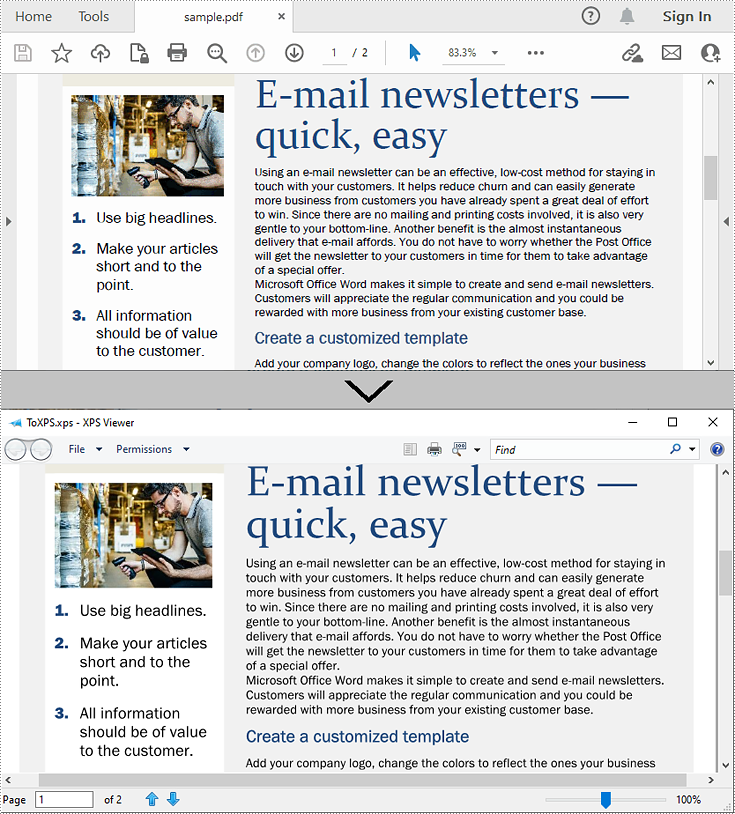
Spire.PDF for .NET supports converting PDF to various file formats, and to achieve the PDF to XPS conversion, you just need three lines of core code. The following are the detailed steps.
- Create a PdfDocument instance.
- Load a sample PDF document using PdfDocument.LoadFromFile() method.
- Convert the PDF document to an XPS file using PdfDocument.SaveToFile (string filename, FileFormat.XPS) method.
- C#
- VB.NET
using Spire.Pdf;

namespace ConvertPdfToXps
{
    class Program
    {
        static void Main(string[] args)
        {
            //Create a PdfDocument instance
            PdfDocument pdf = new PdfDocument();

            //Load sample PDF document
            pdf.LoadFromFile("sample.pdf");

            //Save it to XPS format
            pdf.SaveToFile("ToXPS.xps", FileFormat.XPS);
            pdf.Close();
        }
    }
}
Convert XPS to PDF in C# and VB.NET
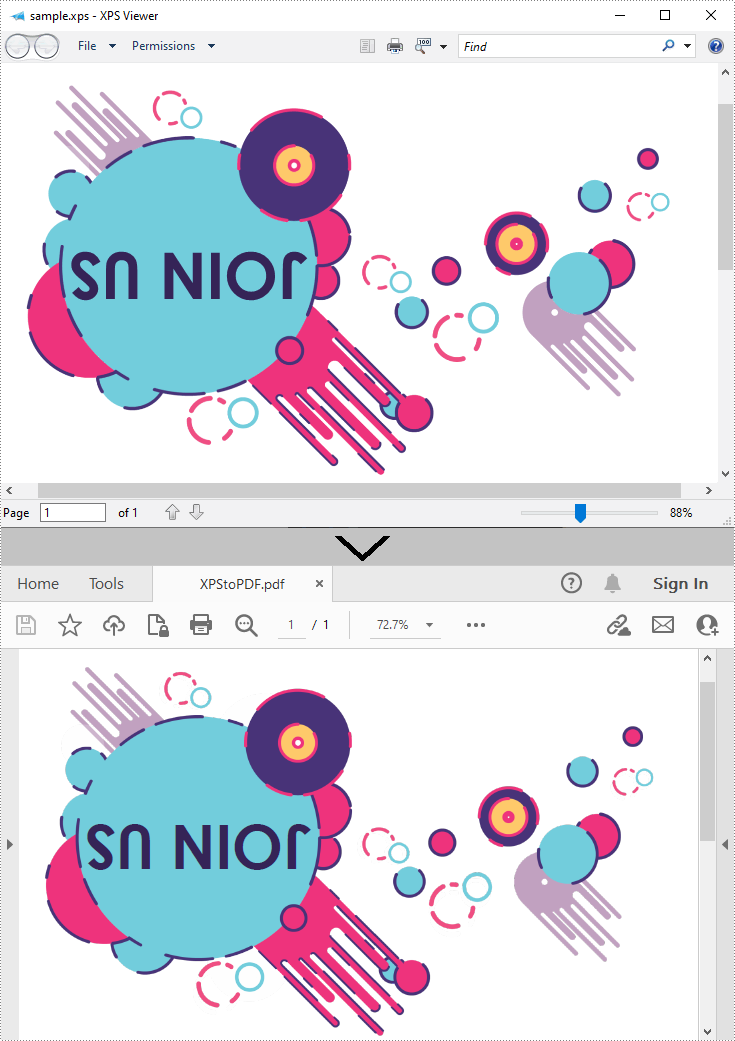
Conversion from XPS to PDF can also be achieved with Spire.PDF for .NET. While converting, you can set to keep high quality image on the generated PDF file by using the PdfDocument.ConvertOptions.SetXpsToPdfOptions() method. The following are the detailed steps.
- Create a PdfDocument instance.
- Load an XPS file using PdfDocument.LoadFromFile(string filename, FileFormat.XPS) method or PdfDocument.LoadFromXPS() method.
- While conversion, set the XPS to PDF convert options to keep high quality images using PdfDocument.ConvertOptions.SetXpsToPdfOptions() method.
- Save the XPS file to a PDF file using PdfDocument.SaveToFile(string filename, FileFormat.PDF) method.
- C#
- VB.NET
using Spire.Pdf;

namespace ConvertXPStoPDF
{
    class Program
    {
        static void Main(string[] args)
        {
            //Create a PdfDocument instance
            PdfDocument pdf = new PdfDocument();

            //Load a sample XPS file
            pdf.LoadFromFile("Sample.xps", FileFormat.XPS);
            //pdf.LoadFromXPS("Sample.xps");

            //Keep high quality images when converting XPS to PDF
            pdf.ConvertOptions.SetXpsToPdfOptions(true);

            //Save the XPS file to PDF
            pdf.SaveToFile("XPStoPDF.pdf", FileFormat.PDF);
        }
    }
}
Apply for a Temporary License
If you'd like to remove the evaluation message from the generated documents, or to get rid of the function limitations, please request a 30-day trial license for yourself.
How to Calculate Formulas in XLS Document in C#
Background
Excel is widely used to organize data manipulations like arithmetic operations. Excel provides many built-in functions which automate a number of types of calculation. Functions are pre-programmed formulate for example, the square-root function, trigonometric functions, logarithms etc. Excel has more than 300 functions covering a range of statistical, mathematical, financial and logical operations. There is no doubt that using a function offers a shortcut method.
Calculate Formulas in XLS Document
Microsoft Excel is a powerful tool which has many uses, the most basic feature of which is performing functions. The aim of this article is to help you perform simple arithmetic operations on values in programming by using excel functions. Spire.Xls for .NET can help you easily create a new excel document or load an existing excel document into program, and calculate data of designated cell by function. Applied in Console platform, WinForm and Asp.net, It provide different types of mathematical functions, statistical functions , logic functions ,and string functions to calculate data with C# codes.
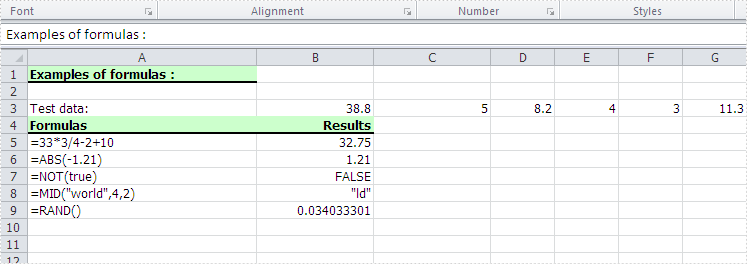
The following is the method example of using Console application to show how Spire.XLS for .NET realizes the calculation formula:
Step 1: Build a console application, and add spire.XLS.dll, Spire.Common.dll assembly.
Step 2: Instantiate an object of Spire.Xls.WorkBook, and add a “WorkSheet” in WorkBook object.
Workbook workbook = new Workbook();
Worksheet sheet = workbook. Worksheets[0];
Step 3: Set the value and format in Cell A1 and Cell A3.veiwing the C# Code.
//set Column A, B, C width
sheet.SetColumnWidth(1, 32);
sheet.SetColumnWidth(2, 16);
sheet.SetColumnWidth(3, 16);

// Set value of Cell A1
sheet.Range[currentRow++, 1].Value = "Examples of formulas :";
// Set value of Cell A2.
sheet.Range[++currentRow, 1].Value = "Test data:";

// Set text format Of Cell A1
CellRange range = sheet.Range["A1"];
range.Style.Font.IsBold = true;
range.Style.FillPattern = ExcelPatternType.Solid;
range.Style.KnownColor = ExcelColors.LightGreen1;
range.Style.Borders[BordersLineType.EdgeBottom].LineStyle = LineStyleType.Medium;
Step 4: Set some cells value and then to sum up some cells data and the results will be displayed in one of the cells.
sheet.Range[currentRow, 2].NumberValue = 7.3;
sheet.Range[currentRow, 3].NumberValue = 5;
sheet.Range[currentRow, 4].NumberValue = 8.2;
sheet.Range[currentRow, 5].NumberValue = 4;
sheet.Range[currentRow, 6].NumberValue = 3;
sheet.Range[currentRow, 7].NumberValue = 11.3;
//Create arithmetic expression string about cells

currentFormula = "=Sheet1!$B$3 + Sheet1!$C$3+Sheet1!$D$3+Sheet1!$E$3+Sheet1!$F$3+Sheet1!$G$3";
//Caculate arithmetic expression about cells
formulaResult = workbook.CaculateFormulaValue(currentFormula);
value = formulaResult.ToString();
sheet.Range[currentRow, 2].Value = value;
Step 5: Respectively set value and text format of Cell A4, B4.
sheet.Range[++currentRow, 1].Value = "Formulas"; ;
sheet.Range[currentRow, 2].Value = "Results";
range = sheet.Range[currentRow, 1, currentRow, 2];
range.Style.Font.IsBold = true;
range.Style.KnownColor = ExcelColors.LightGreen1;
range.Style.FillPattern = ExcelPatternType.Solid;
range.Style.Borders[BordersLineType.EdgeBottom].LineStyle = LineStyleType.Medium;
Step 6: Realize calculation simple expression.
// Create arithmetic tables enclosed type string
currentFormula = "=33*3/4-2+10";
sheet.Range[++currentRow, 1].Text = currentFormula;
// Caculate arithmetic expression
formulaResult = workbook.CaculateFormulaValue(currentFormula);
value = formulaResult.ToString();
sheet.Range[currentRow, 2].Value = value;
Step 7: Realize some mathematic functions.
//absolute value function .
currentFormula = "=ABS(-1.21)";
sheet.Range[currentRow, 1].Text = currentFormula;
sheet.Range[currentRow++, 2].Formula = currentFormula;
Step 8: Realize some logic function.
//NOT function
//Create NOT function string
currentFormula = "=NOT(true)";
sheet.Range[currentRow, 1].Text = currentFormula;
//Caculate NOT function
formulaResult = workbook.CaculateFormulaValue(currentFormula);
value = formulaResult.ToString();
sheet.Range[currentRow, 2].Value = value;
sheet.Range[currentRow, 2].HorizontalAlignment = HorizontalAlignType.Right;
Step 9: Realize some string handling functions.
//Get the substring
// Build substring function
currentFormula = "=MID(\"world\",4,2)";
sheet.Range[++currentRow, 1].Text = currentFormula;
//Caculate substring function
formulaResult = workbook.CaculateFormulaValue(currentFormula);
value = formulaResult.ToString();
sheet.Range[currentRow, 2].Value = value;
sheet.Range[currentRow, 2].HorizontalAlignment = HorizontalAlignType.Right;
Step 10: Realize a random function.
// Random function
// Create random function string.
currentFormula = "=RAND()";
sheet.Range[++currentRow, 1].Text = currentFormula;
//Caculate random function
formulaResult = workbook.CaculateFormulaValue(currentFormula);
value = formulaResult.ToString();
sheet.Range[currentRow, 2].Value = value;
Step 11: Save workbook object as file.
workbook.SaveToFile("formulaTest.xls",ExcelVersion.Version97to2003);
Viewing the full c# code
using Spire.Xls;

namespace XlsCalculateFormula
{
    class Program
    {
        static void Main(string[] args)
        {
            // Instantiate a new Workbook object
            Workbook workbook = new Workbook();

            // Access the first worksheet in the workbook
            Worksheet sheet = workbook.Worksheets[0];

            int currentRow = 1;
            string currentFormula = string.Empty;
            object formulaResult = null;
            string value = string.Empty;

            // Set column widths for columns A, B, and C (1-based index)
            sheet.SetColumnWidth(1, 32);
            sheet.SetColumnWidth(2, 16);
            sheet.SetColumnWidth(3, 16);

            // Set the value of Cell A1
            sheet.Range[currentRow++, 1].Value = "Examples of formulas :";
            // Set the value of Cell A2
            sheet.Range[++currentRow, 1].Value = "Test data:";
            // Set the style of Cell A1
            CellRange range = sheet.Range["A1"];
            range.Style.Font.IsBold = true;
            range.Style.FillPattern = ExcelPatternType.Solid;
            range.Style.KnownColor = ExcelColors.LightGreen1;
            range.Style.Borders[BordersLineType.EdgeBottom].LineStyle = LineStyleType.Medium;

            // Populate test data in row 3 (columns B to G)
            sheet.Range[currentRow, 2].NumberValue = 7.3;
            sheet.Range[currentRow, 3].NumberValue = 5; ;
            sheet.Range[currentRow, 4].NumberValue = 8.2;
            sheet.Range[currentRow, 5].NumberValue = 4;
            sheet.Range[currentRow, 6].NumberValue = 3;
            sheet.Range[currentRow, 7].NumberValue = 11.3;
            // Define a formula that sums the values in cells B3 through G3
            currentFormula = "=Sheet1!$B$3 + Sheet1!$C$3+Sheet1!$D$3+Sheet1!$E$3+Sheet1!$F$3+Sheet1!$G$3";
            // Calculate the result of the formula
            formulaResult = workbook.CalculateFormulaValue(currentFormula);
            value = formulaResult.ToString();
            sheet.Range[currentRow, 2].Value = value;


            // Set the value and format of two head cell
            sheet.Range[++currentRow, 1].Value = "Formulas"; ;
            sheet.Range[currentRow, 2].Value = "Results";
            sheet.Range[currentRow, 2].HorizontalAlignment = HorizontalAlignType.Right;
            range = sheet.Range[currentRow, 1, currentRow, 2];
            range.Style.Font.IsBold = true;
            range.Style.KnownColor = ExcelColors.LightGreen1;
            range.Style.FillPattern = ExcelPatternType.Solid;
            range.Style.Borders[BordersLineType.EdgeBottom].LineStyle = LineStyleType.Medium;

            // --- Arithmetic Expression Example ---

            // Define a basic arithmetic formula
            currentFormula = "=33*3/4-2+10";
            sheet.Range[++currentRow, 1].Text = currentFormula;
            // Calculate and display the result
            formulaResult = workbook.CalculateFormulaValue(currentFormula);
            value = formulaResult.ToString();
            sheet.Range[currentRow, 2].Value = value;

            // --- Mathematical Function: ABS (Absolute Value) ---

            // Define an ABS function formula
            currentFormula = "=ABS(-1.21)";
            sheet.Range[++currentRow, 1].Text = currentFormula;
            // Calculate and display the absolute value
            formulaResult = workbook.CalculateFormulaValue(currentFormula);
            value = formulaResult.ToString();
            sheet.Range[currentRow, 2].Value = value;


            // --- Statistical Function: SUM ---

            // Define a SUM function formula
            currentFormula = "=SUM(18,29)";
            sheet.Range[++currentRow, 1].Text = currentFormula;
            // Calculate and display the sum
            formulaResult = workbook.CalculateFormulaValue(currentFormula);
            value = formulaResult.ToString();
            sheet.Range[currentRow, 2].Value = value;

            // --- Logical Function: NOT ---
            // Define a NOT function formula
            currentFormula = "=NOT(true)";
            sheet.Range[currentRow, 1].Text = currentFormula;
            // Calculate and display the logical result
            formulaResult = workbook.CalculateFormulaValue(currentFormula);
            value = formulaResult.ToString();
            sheet.Range[currentRow, 2].Value = value;
            sheet.Range[currentRow, 2].HorizontalAlignment = HorizontalAlignType.Right;

            // --- Text Function: MID (Substring Extraction) ---
            // Define a MID function to extract characters from a string
            currentFormula = "=MID(\"world\",4,2)";
            sheet.Range[++currentRow, 1].Text = currentFormula;
            // Calculate and display the substring result
            formulaResult = workbook.CalculateFormulaValue(currentFormula);
            value = formulaResult.ToString();
            sheet.Range[currentRow, 2].Value = value;
            sheet.Range[currentRow, 2].HorizontalAlignment = HorizontalAlignType.Right;

            // --- Random Number Function: RAND() ---
            // Define a RAND function to generate a random number between 0 and 1
            currentFormula = "=RAND()";
            sheet.Range[++currentRow, 1].Text = currentFormula;
            // Calculate and display the random value
            formulaResult = workbook.CalculateFormulaValue(currentFormula);
            value = formulaResult.ToString();
            sheet.Range[currentRow, 2].Value = value;

            // Save the workbook to a file
            workbook.SaveToFile("formulaTest2.xls", ExcelVersion.Version97to2003);
            System.Diagnostics.Process.Start("formulaTest2.xls");
        }
    }
}
Screenshot:
C#/VB.NET: Merge Word Documents
Watch this quick demo video to see how multiple Word documents can be merged into one file using C# and VB.NET.
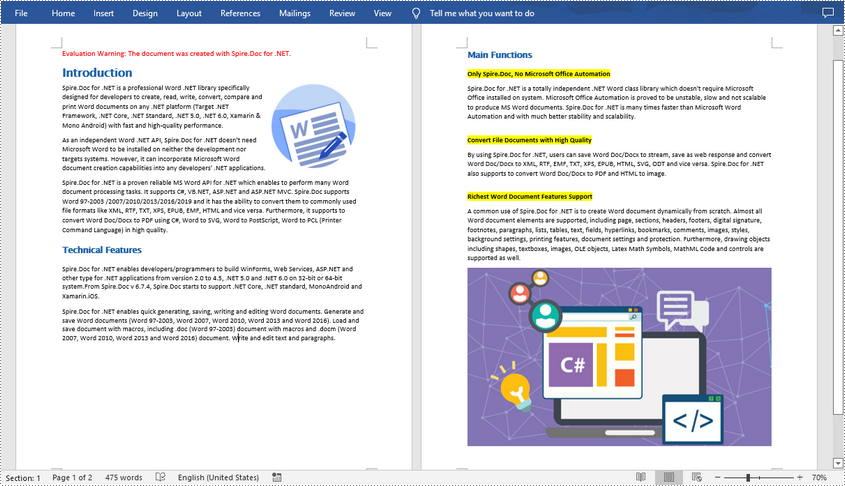
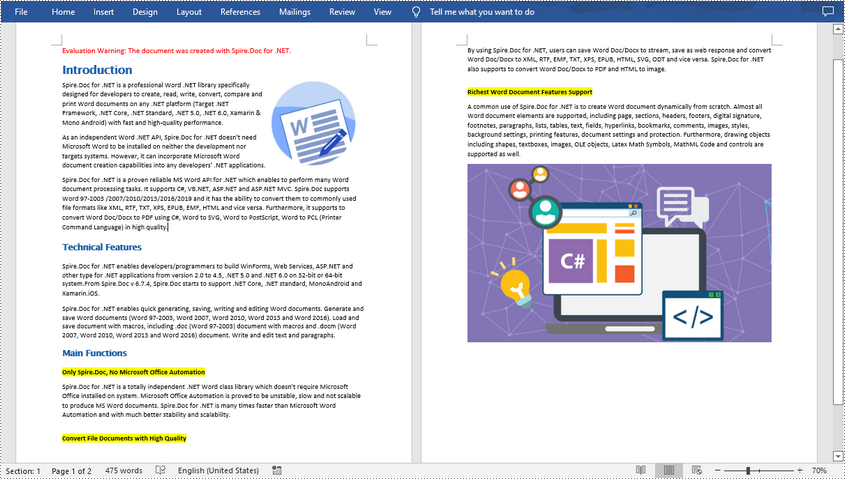
Long papers or research reports are often completed collaboratively by multiple people. To save time, each person can work on their assigned parts in separate documents and then merge these documents into one after finish editing. Apart from manually copying and pasting content from one Word document to another, this article will demonstrate the following two ways to merge Word documents programmatically using Spire.Doc for .NET .
Install Spire.Doc for .NET
To begin with, you need to add the DLL files included in the Spire.Doc for.NET package as references in your .NET project. The DLL files can be either downloaded from this link or installed via NuGet.
PM> Install-Package Spire.Doc
Merge Documents by Inserting the Entire File
The Document.InsertTextFromFile() method provided by Spire.Doc for .NET allows merging Word documents by inserting other documents entirely into a document. Using this method, the contents of the inserted document will start from a new page. The detailed steps are as follows:
- Create a Document instance.
- Load the original Word document using Document.LoadFromFile() method.
- Insert another Word document entirely to the original document using Document.InsertTextFromFile() method.
- Save the result document using Document.SaveToFile() method.
- C#
- VB.NET
using Spire.Doc;

namespace MergeWord
{
    class Program
    {
        static void Main(string[] args)
        {
            //Create a Document instance
            Document document = new Document();

            //Load the original Word document
            document.LoadFromFile("Doc1.docx", FileFormat.Docx);

            //Insert another Word document entirely to the original document
            document.InsertTextFromFile("Doc2.docx", FileFormat.Docx);

            //Save the result document
            document.SaveToFile("MergedWord.docx", FileFormat.Docx);
        }
    }
}
Merge Documents by Cloning Contents
If you want to merge documents without starting a new page, you can clone the contents of other documents to add to the end of the original document. The detailed steps are as follows:
- Load two Word documents.
- Loop through the second document to get all the sections using Document.Sections property, and then loop through all the sections to get their child objects using Section.Body.ChildObjects property.
- Get the last section of the first document using Document.LastSection property, and then add the child objects to the last section of the first document using LastSection.Body.ChildObjects.Add() method.
- Save the result document using Document.SaveToFile() method.
- C#
- VB.NET
using Spire.Doc;

namespace MergeWord
{
    class Program
    {
        static void Main(string[] args)
        {
            //Load two Word documents
            Document doc1 = new Document("Doc1.docx");
            Document doc2 = new Document("Doc2.docx");

            //Loop through the second document to get all the sections
            foreach (Section section in doc2.Sections)
            {

                //Loop through the sections of the second document to get their child objects
                foreach (DocumentObject obj in section.Body.ChildObjects)
                {

                    // Get the last section of the first document
                     Section lastSection = doc1.LastSection;

                    //Add all child objects to the last section of the first document
                    lastSection.Body.ChildObjects.Add(obj.Clone());
                }
            }

            // Save the result document
            doc1.SaveToFile("MergeDocuments.docx", FileFormat.Docx);
        }
    }
}
Apply for a Temporary License
If you'd like to remove the evaluation message from the generated documents, or to get rid of the function limitations, please request a 30-day trial license for yourself.
Modify Passwords of Encrypted PDF in C#/VB.NET
Modifying passwords of PDF file is really a rational choice especially when the passwords are known by someone and your PDF file is no longer safe. Spire.PDF for .NET enables you to modify passwords of your encrypted PDF file in C#, VB.NET. You can modify your owner password as well as user password and set user restrictions when access the PDF file. Now please see the process of modifying encrypted PDF passwords as below picture:
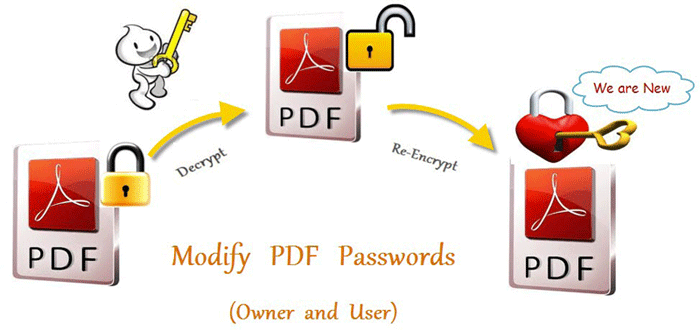
From above picture, you can easily find that the first step is to decrypt PDF file by owner password. So the original owner password is necessary. You can decrypt it by this method: Spire.Pdf.PdfDocument(string filename, string password)
Then, modify passwords by resetting owner password and user password. PDFSecurity class which is in the namespace Spire.PDFDocument.Security can help you not only to set owner password and user password, but also can set user permissions to restrict user access.
Below shows the whole code of modifying passwords of encrypted PDF file, please download Spire.PDF for .NET and install it on system before following the code:
using Spire.Pdf;
using Spire.Pdf.Security;

namespace modify_PDF_passwords
{
    class Program
    {
        static void Main(string[] args)
        {

            //load a encrypted file and decrypt it
            String encryptedPdf = @""..\Encrypt.pdf"";
            PdfDocument doc = new PdfDocument(encryptedPdf, ""e-iceblue"");

            // Define user and owner passwords
            string userPassword = ""user"";
            string ownerPassword = ""owner"";

            // Create a security policy with the specified passwords
            PdfSecurityPolicy securityPolicy = new PdfPasswordSecurityPolicy(userPassword, ownerPassword);

            // Set the encryption algorithm to AES 128-bit
            securityPolicy.EncryptionAlgorithm = PdfEncryptionAlgorithm.AES_128;

            // Allow printing of the document
            securityPolicy.DocumentPrivilege.AllowPrint = true;

            // Allow filling form fields in the document
            securityPolicy.DocumentPrivilege.AllowFillFormFields = true;

            // Allow copying content from the document
            securityPolicy.DocumentPrivilege.AllowContentCopying = true;

            // Encrypt the PDF document using the specified security policy
            doc.Encrypt(securityPolicy);

            // Save the encrypted PDF document to a file named ""SecurityPermission.pdf""
           doc.SaveToFile(""Encryption-result.pdf"");

        }
    }
}
Imports Spire.Pdf
Imports Spire.Pdf.Security

Namespace modify_PDF_passwords
	Class Program
		Private Shared Sub Main(args As String())

		  load a encrypted file and decrypt it
		  Dim encryptedPdf As String = ""..\Encrypt.pdf""
		  Dim doc As New PdfDocument(encryptedPdf, ""e-iceblue"")

		  ' Define user and owner passwords
		  Dim userPassword As String = ""user""
		  Dim ownerPassword As String = ""owner""

		  ' Create a security policy with the specified passwords
		  Dim securityPolicy As PdfSecurityPolicy = New PdfPasswordSecurityPolicy(userPassword, ownerPassword)

		  ' Set the encryption algorithm to AES 128-bit
		  securityPolicy.EncryptionAlgorithm = PdfEncryptionAlgorithm.AES_128

		  ' Allow printing of the document
		  securityPolicy.DocumentPrivilege.AllowPrint = True

		  ' Allow filling form fields in the document
		  securityPolicy.DocumentPrivilege.AllowFillFormFields = True

		  ' Allow copying content from the document
		  securityPolicy.DocumentPrivilege.AllowContentCopying = True

		  ' Encrypt the PDF document using the specified security policy
		  doc.Encrypt(securityPolicy)

		  ' Save the encrypted PDF document to a file named ""SecurityPermission.pdf""
		  doc.SaveToFile(""Encryption-result.pdf"")

		End Sub
	End Class
End Namespace
Spire.PDF for .NET is a .NET PDF component that enables you to generate, read, edit and manipulate PDF files in C#, VB.NET.
License Agreement
BY INSTALLING, DOWNLOADING, COPYING OR OTHERWISE USING THE PRODUCT, YOU AGREE TO BE BOUND BY THE TERMS OF THIS EULA. IF YOU DO NOT AGREE TO THE TERMS OF THIS EULA, DO NOT INSTALL, DOWNLOAD, COPY OR USE THE PRODUCT.
1. IMPORTANT NOTICE.
YOU SHOULD READ THE FOLLOWING TERMS AND CONDITIONS CAREFULLY BEFORE YOU DOWNLOAD, INSTALL OR USE E-ICEBLUE'S LIBRARY AND RELATED DOCUMENTATION (THE "LICENSED SOFTWARE") DISTRIBUTED UNDER THE TRADEMARK OF LIBRARY AND/OR E-ICEBLUE. BY INSTALLING OR USING THE LICENSED SOFTWARE, YOU AGREE TO BE BOUND BY THIS LICENSE AGREEMENT, AND ITS TERMS SHALL BE BINDING WITH RESPECT TO YOUR USE OF THE LICENSED SOFTWARE. IF YOU DO NOT AGREE TO THE FOLLOWING TERMS AND CONDITIONS, DO NOT INSTALL OR USE THE SOFTWARE.
2. DEFINITIONS.
A. "e-iceblue" means e-iceblue Corporation
B. "You" and "Your" mean the party purchasing a license to use the Licensed Software under the terms of this agreement.
C. "Application Programming Interface or API" means a publicly accessible interface defining the ways by which an application program may request services from libraries and/or software.
D. "Licensed Software" means compiled Objects, Modules, License Key and any and all updates thereto, together with all associated documentation provided by e-iceblue or its authorized resellers.
E. "License Key" means a unique code provided by e-iceblue or its authorized resellers which identifies You, as well as the license type, and which unlocks or enables certain features of the Licensed Software.
F. "Application" or "Your Application" means a software application that You develop which incorporates all or parts of the Licensed Software.
G. "Evaluation Trial Period" means a specified period of time during which You may temporarily use the Licensed Software for evaluation purposes only.
3. LICENSE GRANT.
The Cumulative License granted to You by e-iceblue is a combination of the Base License Grant, described in section (3A) below, which is common to every Licensed Software title covered by this agreement, and one or more supplemental License Grant which covers the specific product obtained by You from e-iceblue or its authorized resellers.
Four basic types of supplemental License Grants are described in sections (3B): Evaluation License, Developer License, Developer OEM License, Site Enterprise License, Site OEM License.
These five basic types are hereby further defined and/or restricted as to the number of developers, servers, geography locations and distribution method(s), depending on the specific product(s) being licensed by You.
The precise combination of the Base License Grant and one or more supplemental License Grant(s) obtained by You is identified by e-iceblue at the time of purchase or most recent upgrade.
3A. BASE LICENSE GRANT.
In consideration of Your payment of applicable license fees and/or Your acceptance of the terms of this Agreement, e-iceblue hereby grants to You certain nonexclusive and nontransferable rights limited by the terms of this Agreement.
The Licensed Software is licensed (not sold) to You, for use strictly under the terms of this Agreement, and e-iceblue reserves all rights not expressly granted to You herein. If You upgrade the Licensed Software to a higher-numbered version thereof or to a comparable E-iceblue product, this license is terminated and Your rights shall be limited to the license associated with the upgraded product or version.
In addition, You acknowledge that the Licensed Software may contain certain third party software components which are distributed under the terms of their own licenses.
3B. EVALUATION LICENSE.
In order to facilitate an efficient evaluation process of the Licensed Software by developers, e-iceblue may, at its discretion, provide specially designed, temporary License Key(s) that are encoded with an embedded expiration date.
The License granted in conjunction with such License Key(s) is considered temporary, and multiple developers may use it for the sole purpose of evaluating the Licensed Software during a specific Evaluation Trial Period. Licensed Evaluation Trial Software contains mechanisms that inhibit its ability to function at a later date.
It is Your responsibility to ensure that the Applications You create do not contain Licensed Evaluation Trial Software and that their ability to function at a later date is not inhibited or diminished.
3C. DEVELOPER LICENSE.
The following terms and conditions contained in this section (3C) apply to You ONLY if at the time of original purchase or most recent upgrade, the License granted to You by E-iceblue was defined as "Developer License".
The specific license level selected by you at the time of purchase or most recent upgrade determines whether the license applies to (1) a single named developer, or (2) a team of named developers, for example a Developer Team, or (3) a single site (facility or campus) whereby an unlimited number of developers located within said site (facility or campus) may be allowed access to the Licensed Software.
You are hereby granted a nonexclusive, royalty-free license to integrate the Licensed Software into Your Applications and to distribute such Licensed Software in connection with said Applications, provided that
(a) said Applications do not in any way compete with the Licensed Software, or provide substantially the same functionality as the Licensed Software, or expose the functionality of the Licensed Software through a programmable interface;
(b) each of Your Applications developed using Licensed Software is substantially larger, more complex, and contains a significantly wider range of functions as compared to the Licensed Software;
(c) each of Your Applications developed using Licensed Software is designed for end users, rather than for developers who would be able to build other software that would compete with the Licensed Software, and
(d) You do not permit further distribution of the Licensed Software by Your end users.
You may embed the License Keys in the Applications You distribute, provided that the following conditions are met:
(a) each such Application must be marked with a prominent copyright notice bearing Your name as declared by You during purchase of the License;
(b) the License Key may not be embedded in any such Application or distributed in any other manner that makes the License Key visible to the end user, and
(c) each such Application must include the following comment in its source code within close proximity to each copy of an embedded License Key: "This application utilizes a licensed copy of e-iceblue software, copyright (c) 2004-2026, which is the property of e-iceblue Corporation, www.e-iceblue.com. All rights are reserved by e-iceblue.
Use of any objects outside of the context of this application is a violation of United States and international copyright laws and other applicable laws."
For each License Key provided to You by e-iceblue, depending on the specific license level selected by you at the time of purchase or most recent upgrade, You are granted a nonexclusive License to make the Licensed Software and/or the License Key(s) available either to the specified number of Your named developers or to an unlimited number of Your developers located at a single site (facility or campus) as indicated by e-iceblue and further explained below.
Should either the number of named developers or the number of sites with access to the Licensed Software and/or the License Key(s) ever exceed the number indicated at the time of original purchase or most recent upgrade, You agree to inform E-iceblue of such change and to upgrade Your License accordingly by paying an upgrade fee to e-iceblue in a timely manner.
- One Developer Small Business authorizes One developer to utilize our product to create an unlimited number of applications which can be deployed at One geographic location in your organization (internal use only). It does not allow distribution of your custom applications to public-facing websites, docker or SaaS/PaaS/IaaS projects.
- One Developer OEM authorizes One developer to create an unlimited of custom applications using our product, and the applications are allowed to be distributed in any form to any number of geographic locations.
- One Site Small Business authorizes up to 10 developers to create an unlimited number of applications which can be deployed at up to 10 geographic locations. It does not allow distribution of your custom applications to public-facing websites, docker or SaaS/PaaS/IaaS projects.
- One Site OEM authorizes up to 10 developers to create an unlimited number of custom applications using our product, and the applications are allowed to be distributed in any form to any number of geographic locations.
Notes:
- A developer is defined as a software developer, a tester or other person who uses the product for programming, compiling and debugging. Each developer must have their own license.
- A geographic location is defined as a unique Mac Address/Machine ID.
4. RESTRICTIONS ON USE AND TRANSFER.
You may not sublicense, rent, lease, assign or otherwise transfer the Licensed Software or any of Your rights thereto, either in whole or in part, to anyone else, except that You may, after obtaining written permission from e-iceblue, permanently transfer the Licensed Software in its entirety, provided You retain no copies of the Licensed Software and the transferee agrees to the terms and conditions of this Agreement.
Use of the Licensed Software with a License Key obtained from a source other than e-iceblue or its authorized resellers is expressly and strictly forbidden. e-iceblue reserves the right to take any and all actions that e-iceblue, in its sole discretion, deems necessary to protect against, monitor and control the use of the Licensed Software with illegal License Keys.
You agree to ensure that anyone who uses any portion of the Licensed Software provided to You complies with the terms and conditions of this Agreement.
5. INTELLECTUAL PROPERTY RIGHTS.
You acknowledge that the Licensed Software contains copyrighted material, trade secrets, trademarks and other proprietary material of e-iceblue ("Confidential Information"), and is protected under United States and international copyright law and other applicable laws.
You may not engage in any unauthorized use or disclosure of any Confidential Information. You agree that the source code of the Licensed Software is confidential and proprietary to e-iceblue. Accordingly, You may not copy the Licensed Software, or decompile, disassemble, reverse engineer or create a derivative work based upon the Licensed Software, or authorize anyone else to do so.
You must reproduce and maintain all copyright notices that are contained in the Licensed Software on any copy thereof that You make or use.
6. TERM AND TERMINATION.
Except as otherwise provided in this Agreement, depending on the specific license level selected by you at the time of purchase or most recent upgrade, the term of the license granted herein is either perpetual, or alternatively the license is periodic, valid for a specific period of time, such as a month or a year.
The license becomes effective when You install or use the Licensed Software. You may terminate this license at any time by destroying any and all copies of the Licensed Software or by returning all such copies to e-iceblue.
This Agreement and the associated license for the Licensed Software will terminate automatically and without provision of notice by e-iceblue if You fail to comply with any of the terms or conditions of this Agreement or if You cease permanent use of the Licensed Software, for whatever reason.
Upon termination of this Agreement for any reason, You agree that You will destroy all copies of the Licensed Software or return all such copies to e-iceblue. In addition to this sentence and the previous sentence, Sections 4, 5 and 7-13 shall survive any termination of this Agreement.
7. LIMITED WARRANTY.
e-iceblue warrants that the Licensed Software will perform substantially in accordance with its accompanying documentation, when operated in the execution environment specified in such documentation, for the warranty period ending thirty (30) days following the date on which You first install or first use the Licensed Software.
This limited warranty is void if failure of the Licensed Software to conform to such warranty is caused in whole or in part by
(a) any defect in any hardware or other equipment used with the Licensed Software;
(b) any failure of any hardware or any other equipment used with the Licensed Software to function in accordance with applicable manufacturer's specifications for such items;
(c) any alteration, modification or enhancement of the Licensed Software by You or anyone other than e-iceblue;
(d) any failure by You or anyone else to follow e-iceblue's instructions with respect to proper use of the Licensed Software; or
(e) improper use, abuse, accident, neglect or negligence on the part of You or anyone other than e-iceblue.
e-iceblue will not be obligated to honor the limited warranty or provide any remedy thereunder unless the Licensed Software is returned to e-iceblue along with the original dated receipt.
Any replacement Licensed Software will be warranted for thirty (30) days following the date on which e-iceblue provides it to You.
EXCEPT AS OTHERWISE SET FORTH IN THIS AGREEMENT, THE LICENSED SOFTWARE IS PROVIDED TO YOU "AS IS", AND E-ICEBLUE MAKES NO EXPRESS OR IMPLIED WARRANTIES WHATSOEVER WITH RESPECT TO ITS FUNCTIONALITY, CONDITION, PERFORMANCE, OPERABILITY OR USE.
WITHOUT LIMITING THE FOREGOING, E-ICEBLUE DISCLAIMS ALL IMPLIED WARRANTIES INCLUDING, WITHOUT LIMITATION, ANY IMPLIED WARRANTIES OF MERCHANTABILITY, FITNESS FOR A PARTICULAR PURPOSE OR FREEDOM FROM INFRINGEMENT.
SOME JURISDICTIONS DO NOT ALLOW THE EXCLUSION OF IMPLIED WARRANTIES, SO THE ABOVE EXCLUSIONS MAY NOT APPLY TO YOU.
THIS LIMITED WARRANTY GIVES YOU SPECIFIC LEGAL RIGHTS, AND YOU MAY ALSO HAVE OTHER RIGHTS THAT VARY FROM ONE JURISDICTION TO ANOTHER.
8. LIMITATIONS OF LIABILITY.
YOUR SOLE AND EXCLUSIVE REMEDY FOR ANY BREACH OF THE FOREGOING LIMITED WARRANTY SHALL BE, AT E-ICEBLUE'S OPTION, EITHER (A) REPAIR OR REPLACEMENT OF THE LICENSED SOFTWARE SO THAT IT CONFORMS TO THE FOREGOING LIMITED WARRANTY, OR (B) REFUND OF THE FEE THAT YOU PAID TO LICENSE THE LICENSED SOFTWARE.
IN NO EVENT SHALL E-ICEBLUE BE LIABLE FOR ANY DAMAGES OF ANY TYPE, WHETHER DIRECT OR INDIRECT, CONSEQUENTIAL, INCIDENTAL OR SPECIAL DAMAGES, INCLUDING WITHOUT LIMITATION, LOST REVENUES, LOST PROFITS, LOSSES RESULTING FROM BUSINESS INTERRUPTION OR LOSS OF DATA, REGARDLESS OF THE FORM OF ACTION OR LEGAL THEORY UNDER WHICH SUCH LIABILITY MAY BE ASSERTED, EVEN IF E-ICEBLUE HAS BEEN ADVISED OF THE POSSIBILITY OR LIKELIHOOD OF SUCH DAMAGES.
E-ICEBLUE SHALL HAVE NO LIABILITY WITH RESPECT TO ANY DATA THAT IS READ, ACCESSED, STORED OR PROCESSED WITH THE LICENSED SOFTWARE, OR FOR THE COSTS OF RECOVERING ANY SUCH DATA.
IN NO EVENT SHALL E-ICEBLUE'S MAXIMUM AGGREGATE LIABILITY UNDER THIS AGREEMENT EXCEED THE TOTAL FEES PAID OR PAYABLE BY YOU TO LICENSE THE LICENSED SOFTWARE.
SOME JURISDICTIONS DO NOT ALLOW THE LIMITATION OR EXCLUSION OF LIABILITY FOR INCIDENTAL OR CONSEQUENTIAL DAMAGES, SO THE ABOVE LIMITATION OR EXCLUSION MAY NOT APPLY TO YOU.
9. INDEMNIFICATION.
You agree to defend, indemnify, and hold E-iceblue and all of its employees, agents, representatives, directors, officers, partners, shareholders, attorneys, predecessors, successors, and assigns harmless from and against any and all claims, proceedings, damages, injuries, liabilities, losses, costs, and expenses (including reasonable attorneys' fees and litigation expenses), relating to or arising from Your use of the Licensed Software, or any breach of this Agreement, except to the extent such claim relates to or arises from a violation by e-iceblue of any third party copyright, trademark, trade secret or other intellectual property right.
10. EXPORT.
You agree that You will not export or transmit the Licensed Software or any Applications, directly or indirectly, to any restricted countries or in any manner that would violate United States laws and regulations as shall from time to time govern the license and delivery of technology abroad by persons subject to the jurisdiction of the United States government, including the Export Administration Act of 1979, as amended, and any applicable laws or regulations issued thereafter.
11. U.S. GOVERNMENT RESTRICTED RIGHTS.
If You are licensing the Licensed Software on behalf of the U.S. Government or any of its agencies ("Government"), the use, duplication, reproduction, release, modification, disclosure or transfer of the Licensed Software by the Government is subject to restricted rights in accordance with Federal Acquisition Regulation ("FAR") 12.212 for civilian agencies and Defense Federal Acquisition Regulation Supplement ("DFARS") 227.7202 for military agencies.
The Licensed Software is commercial. Use of the Licensed Software by the Government is further restricted in accordance with the terms and conditions of this Agreement.
12. MISCELLANEOUS.
If any provision of this Agreement is held to be invalid or unenforceable under any circumstances, its application in any other circumstances and the remaining provisions of this Agreement shall not be affected.
No waiver of any right under this Agreement shall be effective unless given in writing by an authorized representative of e-iceblue.
No waiver by e-iceblue of any right shall be deemed to be a waiver of any other right of e-iceblue arising under this Agreement.
This Agreement is solely between You and e-iceblue and shall not be construed to create any third party beneficiary rights in any other individual, partnership, corporation or other entity.
This Agreement shall be governed by and interpreted in accordance with the laws of the State of New York, without regard to its provisions governing conflicts of law.
Any and all disputes between You and e-iceblue pertaining to this Agreement shall be submitted to one arbitrator in binding arbitration within ten miles of New York City, New York in accordance with the Commercial Rules of the American Arbitration Association ("AAA").
The arbitrator shall be experienced in computer consulting, the development of custom software, the sale of packaged software, or related services.
If You and e-iceblue do not agree on an arbitrator within sixty (60) days of the institution of the arbitration, the arbitrator shall be chose by AAA.
Evidence and argument may be presented in person or by telephone, fax, postal mail, electronic mail, and other methods of communication approved by the arbitrator.
The prevailing party in such proceeding shall be entitled to recover its actually incurred costs, including reasonable attorney's fees, arbitration and court costs.
All hearings shall be held and a written arbitration award issued within one-hundred eighty (180) days of the date on which the arbitrator is appointed.
Judgment on the award shall be final and binding and may be entered in any court of competent jurisdiction.
13. ENTIRE AGREEMENT.
YOU AGREE THAT THIS AGREEMENT IS THE COMPLETE AND EXCLUSIVE STATEMENT OF THE AGREEMENT BETWEEN YOU AND E-ICEBLUE, AND THAT IT SUPERSEDES ANY PROPOSALS OR PRIOR AGREEMENTS, ORAL OR WRITTEN, AND ANY OTHER COMMUNICATIONS RELATING TO THE LICENSED SOFTWARE AND THE SUBJECT MATTER HEREOF.
E-ICEBLUE SHALL NOT BE BOUND BY ANY PROVISION OF ANY PURCHASE ORDER, RECEIPT, ACCEPTANCE, CONFIRMATION, CORRESPONDENCE OR OTHERWISE, OR BY ANY AGREEMENT BETWEEN YOU AND ANY OTHER PARTY, UNLESS E-ICEBLUE SPECIFICALLY AGREES TO SUCH PROVISION IN WRITING IN A FORM OF A LEGAL CONTRACT, DATED AND SIGNED BY YOU AND BY E-ICEBLUE'S OFFICER OR AUTHORIZED EMPLOYEE.
NO VENDOR, DISTRIBUTOR, PROVIDER, RESELLER, OEM, SALES REPRESENTATIVE, OR OTHER PERSON IS AUTHORIZED TO MODIFY THIS AGREEMENT OR TO MAKE ANY WARRANTY, REPRESENTATION OR PROMISE REGARDING THE LICENSED SOFTWARE WHICH IS DIFFERENT FROM THOSE SET FORTH IN THIS AGREEMENT.
C#/VB.NET: Add or Remove Attachments in PDF
Besides text and graphics, PDF files can contain entire files inside them as attachments. This makes the exchange of sets of documents much easier and more reliable. Spire.PDF allows you to attach files in two ways:
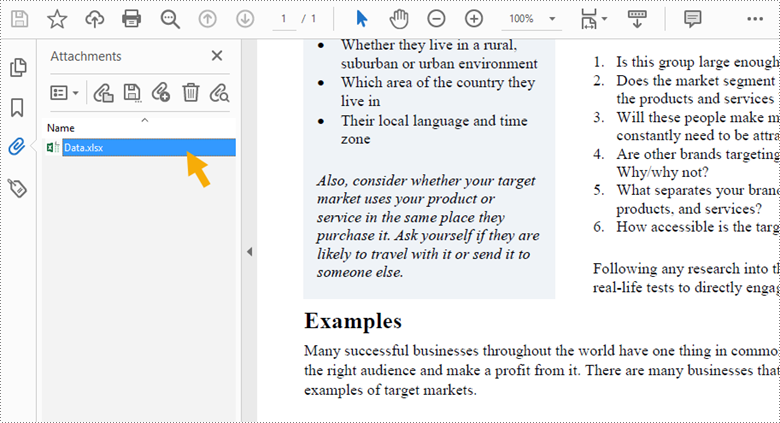
- Document Level Attachment: A file attached to a PDF at the document level won't appear on a page, but can only be viewed in the "Attachments" panel of a PDF reader.
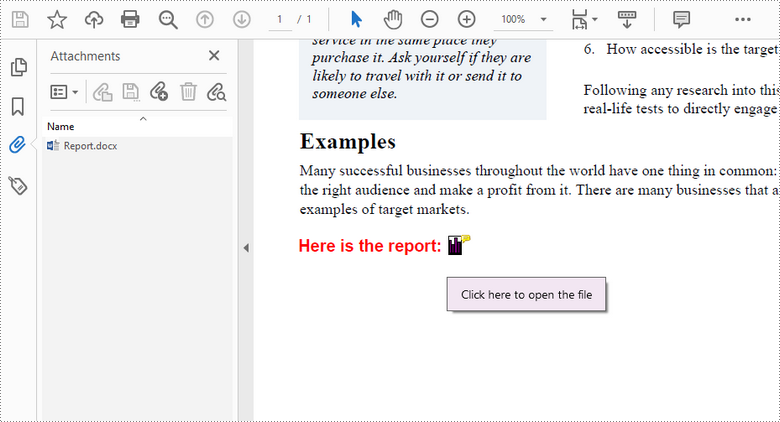
- Annotation Attachment: A file will be added to a specific position of a page. Annotation attachments are shown as a paper clip icon on the page; reviewers can double-click the icon to open the file.
This article demonstrates how to add or remove these two types of attachments in a PDF document in C# and VB.NET using Spire.PDF for .NET.
- Add an Attachment to PDF in C# and VB.NET
- Add an Annotation Attachment to PDF in C# and VB.NET
- Remove Attachments from PDF in C# and VB.NET
- Remove Annotation Attachments from PDF in C# and VB.NET
Install Spire.PDF for .NET
To begin with, you need to add the DLL files included in the Spire.PDF for.NET package as references in your .NET project. The DLLs files can be either downloaded from this link or installed via NuGet.
PM> Install-Package Spire.PDF
Add an Attachment to PDF in C# and VB.NET
Adding an attachment to the "Attachments" panel can be easily done by using PdfDocument.Attachments.Add() method. The following are the detailed steps.
- Create a PdfDocument object.
- Load a PDF document using PdfDocument.LoadFromFile() method.
- Create a PdfAttachment object based on an external file.
- Add the attachment to PDF using PdfDocument.Attachments.Add() method.
- Save the document to another PDF file using PdfDocument.SaveToFile() method.
- C#
- VB.NET
using Spire.Pdf;
using Spire.Pdf.Attachments;

namespace AttachFilesToPDF
{
    class Program
    {
        static void Main(string[] args)
        {
            //Create a PdfDocument object
            PdfDocument doc = new PdfDocument();

            //Load a sample PDF file
            doc.LoadFromFile("C:\\Users\\Administrator\\Desktop\\Sample.pdf");

            //Create a PdfAttachment object based on an external file
            PdfAttachment attachment = new PdfAttachment("C:\\Users\\Administrator\\Desktop\\Data.xlsx");

            //Add the attachment to PDF
            doc.Attachments.Add(attachment);

            //Save to file
            doc.SaveToFile("Attachment.pdf");
        }
    }
}
Add an Annotation Attachment to PDF in C# and VB.NET
An annotation attachment can be found in the "Attachments" panel as well as on a specific page. Below are the steps to add an annotation attachment to PDF using Spire.PDF for .NET.
- Create a PdfDocument object.
- Load a PDF document using PdfDocument.LoadFromFile() method.
- Get a specific page to add annotation through PdfDocument.Pages[] property.
- Create a PdfFileSpecification object based on an external file, and then create a PdfFileAttachmentAnnotation object based on the file specification.
- Add the annotation attachment to the page using PdfAnnotationCollection.Create(page) method and its Add() method.
- Save the document to another PDF file using PdfDocument.SaveToFile() method.
- C#
- VB.NET
//Add a file (paperclip) attachment annotation to a PDF
using Spire.Pdf;
using Spire.Pdf.Interactive.Annotations;
using Spire.Pdf.Graphics;
using System;
using System.Drawing;
using System.IO;

namespace AnnotationAttachment
{
    class Program
    {
        static void Main(string[] args)
        {
            //Create a PdfDocument object
            PdfDocument doc = new PdfDocument();

            //Load a sample PDF file
            doc.LoadFromFile("C:\\Users\\Administrator\\Desktop\\Sample.pdf");

            //Get a specific page
            PdfPageBase page = doc.Pages[0];

            //Draw a label on PDF
            String label = "Here is the report:";
            PdfTrueTypeFont font = new PdfTrueTypeFont(new Font("Arial", 13f, FontStyle.Bold), true);
            float x = 35;
            float y = doc.Pages[0].ActualSize.Height - 220;
            page.Canvas.DrawString(label, font, PdfBrushes.Red, x, y);

            //Create a PdfFileSpecification object based on an external file
            String filePath = "C:\\Users\\Administrator\\Desktop\\Report.pptx";
            byte[] data = File.ReadAllBytes(filePath);
            SizeF size = font.MeasureString(label);
            RectangleF bounds = new RectangleF((float)(x + size.Width + 5), (float)y, 10, 15);
            PdfFileSpecification fileSpecification = new PdfFileSpecification("Report.docx", data);

            //Create a PdfFileAttachmentAnnotation object based on the file specification
            PdfFileAttachmentAnnotation annotation = new PdfFileAttachmentAnnotation(page, bounds, fileSpecification);
            annotation.Color = Color.Purple;
            annotation.Flags = PdfAnnotationFlags.None;
            annotation.Icon = PdfFileIcon.Graph;
            annotation.Contents = "Click here to open the file";

            //Add the attachment annotation to the page
            PdfAnnotationCollection.Create(page).Add(annotation);

            //Save to file
            doc.SaveToFile("Annotation.pdf");
        }
    }
}
Remove Attachments from PDF in C# and VB.NET
The attachments of a PDF document can be accessed by the PdfDocument.Attachments property, and can be removed by using RemoveAt() method or Clear() method of the PdfAttachmentCollection object. The detailed steps are as follows.
- Create a PdfDocument object.
- Load a PDF document using PdfDocument.LoadFromFile() method.
- Get the attachment collection from the document through PdfDocument.Attachments property.
- Remove a specific attachment using PdfAttachmentCollection.RemoveAt() method. To remove all attachments at once, use PdfAttachmentCollection.Clear() method.
- Save the document to another PDF file using PdfDocument.SaveToFile() method.
- C#
- VB.NET
using Spire.Pdf;
using Spire.Pdf.Attachments;

namespace RemoveAttachments
{
    class Program
    {
        static void Main(string[] args)
        {
            //Create a PdfDocument object
            PdfDocument doc = new PdfDocument();

            //Load a PDF file
            doc.LoadFromFile("C:\\Users\\Administrator\\Desktop\\Attachment.pdf");

            //Get attachment collection
            PdfAttachmentCollection attachments = doc.Attachments;

            //Remove a specific attachment
            attachments.RemoveAt(0);

            //Remove all attachments
            //attachments.Clear();

            //save to file
            doc.SaveToFile("DeleteAttachments.pdf");
        }
    }
}
Remove Annotation Attachments from PDF in C# and VB.NET
Annotation is a page-based element. To get all annotations from a document, we must traverse through the pages and get the annotations from each page. Then determine if a certain annotation is an annotation attachment. Lastly, remove the annotation attachment from the annotation collection using Remove() method. The following are the detailed steps.
- Create a PdfDocument object.
- Load a PDF document using PdfDocument.LoadFromFile() method.
- Loop through the pages in the document, and get the annotation collection from a specific page through the PdfAnnotationCollection.Create(page) method.
- Determine if an annotation is an instance of PdfFileAttachmentAnnotation. If yes, remove the annotation attachment using PdfAnnotationCollection.Remove() method.
- Save the document to another PDF file using PdfDocument.SaveToFile() method.
- C#
- VB.NET
//Remove annotation attachments from a PDF
using Spire.Pdf;
using Spire.Pdf.Interactive.Annotations;

namespace RemoveAnnotationAttachments
{
    class Program
    {
        static void Main(string[] args)
        {
            //Create a PdfDocument object
            PdfDocument doc = new PdfDocument();

            //Load a PDF file
            doc.LoadFromFile("C:\\Users\\Administrator\\Desktop\\Annotation.pdf");

            //Loop through the pages
            for (int i = 0; i < doc.Pages.Count; i++)
            {
                //Get the annotation collection
                PdfAnnotationCollection annotationCollection = PdfAnnotationCollection.Create(doc.Pages[i]);

                //Loop through the annotations
                for (int j = annotationCollection.Count - 1; j >= 0; j--)
                {
                    //Determine if an annotation is an instance of PdfFileAttachmentAnnotation
                    if (annotationCollection[j] is PdfFileAttachmentAnnotation)
                    {
                        //Remove the annotation attachment
                        annotationCollection.RemoveAt(j);
                    }
                }
            }

            //Save to file
            doc.SaveToFile("DeleteAnnotationAttachments.pdf");
        }
    }
}
Apply for a Temporary License
If you'd like to remove the evaluation message from the generated documents, or to get rid of the function limitations, please request a 30-day trial license for yourself.
C#/VB.NET: Create Lists in PDF Documents
A list is a collection of related values written one after another. Lists are the best tool to make important information stand out on the page, show the steps in a process, or present an overview to the readers. In this article, you will learn how to create ordered or unordered lists in a PDF document in C# and VB.NET using Spire.PDF for .NET.
- Create an Ordered List in PDF
- Create an Unordered List with Symbol Bullets in PDF
- Create an Unordered List with Image Bullets in PDF
- Create a Nested Numbered List in PDF
Spire.PDF provides the PdfSortedList class and the PdfList class to represent the ordered lists and unordered lists, respectively. To set the list's content, indent, font, marker style and other attributes, use the methods, properties, or events under these two classes. The following table lists some of the core items involved in this tutorial.
| Member | Description |
| PdfSortedList class | Represents an ordered list in a PDF document. |
| PdfList class | Represents an unordered list in a PDF document. |
| Brush property | Gets or sets a list's brush. |
| Font property | Gets or sets a list's font. |
| Indent property | Gets or sets a list's indent. |
| TextIndent property | Gets or sets the indent from the marker to the list item text. |
| Items property | Gets items of a list. |
| Marker property | Gets or sets the marker of a list. |
| Draw() method | Draw list on the canvas of a page at the specified location. |
| PdfOrderedMarker class | Represents the marker style of an ordered list, such as numbers, letters, and roman numerals. |
| PdfMarker class | Represents bullet style for an unordered list. |
Install Spire.PDF for .NET
To begin with, you need to add the DLL files included in the Spire.PDF for.NET package as references in your .NET project. The DLL files can be either downloaded from this link or installed via NuGet.
PM> Install-Package Spire.PDF
Create an Ordered List in PDF
An ordered list is a container which holds a sequence of objects. Each item in the list is marked with a number, a letter, or a roman numeral. The following are the step to create an ordered list in PDF using Spire.PDF for .NET.
- Create a PdfDocument object.
- Add a page to it using PdfDocument.Pages.Add() method.
- Create PdfBrush and PdfFont objects for the list.
- Create a PdfOrderedMarker object, specifying the marker style.
- Specify the list content with a string, and create an object of PdfSortedList class based on the string.
- Set the font, indent, brush and marker of the list though the properties under the PdfSortedList object.
- Draw the list on the page at the specified location using PdfSortedList.Draw() method.
- Save the document to another file using PdfDocument.SaveToFile() method.
- C#
- VB.NET
using System;
using Spire.Pdf;
using Spire.Pdf.Graphics;
using Spire.Pdf.Lists;

namespace CreateOrderedList
{
    class Program
    {
        static void Main(string[] args)
        {
            //Create a PdfDocument object
            PdfDocument doc = new PdfDocument();

            //Set the margins
            PdfMargins margins = new PdfMargins(30);

            //Add a page
            PdfPageBase page = doc.Pages.Add(PdfPageSize.A4, margins);

            //Create a brush
            PdfBrush brush = PdfBrushes.Black;

            //Create fonts
            PdfFont titleFont = new PdfFont(PdfFontFamily.TimesRoman, 12f, PdfFontStyle.Bold);
            PdfFont listFont = new PdfFont(PdfFontFamily.TimesRoman, 12f, PdfFontStyle.Regular);

            //Create a maker for ordered list
            PdfOrderedMarker marker = new PdfOrderedMarker(PdfNumberStyle.LowerLatin, listFont);

            //Specify the initial coordinate
            float x = 10;
            float y = 20;

            //Draw title
            String title = "Required Web Development Skills:";
            page.Canvas.DrawString(title, titleFont, brush, x, y);
            y = y + (float)titleFont.MeasureString(title).Height;
            y = y + 5;


            //Create a numbered list
            String listContent = "Command-line Unix\n"
                + "Vim\n"
                + "HTML\n"
                + "CSS\n"
                + "Python\n"
                + "JavaScript\n"
                + "SQL";
            PdfSortedList list = new PdfSortedList(listContent);

            //Set the font, indent, text indent, brush of the list
            list.Font = listFont;
            list.Indent = 2;
            list.TextIndent = 4;
            list.Brush = brush;
            list.Marker = marker;

            //Draw list on the page at the specified location
            list.Draw(page, x, y);

            //Save to file
            doc.SaveToFile("OrderedList.pdf");
        }
    }
}
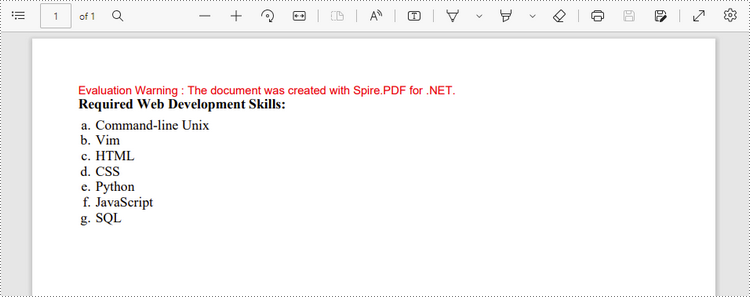
Create an Unordered List with Symbol Bullets in PDF
An unordered list, also named bulleted list, is a collection of related items that have no special order or sequence. Each item in the list is marked with a bullet. The following are the step to create an unordered list in PDF using Spire.PDF for .NET.
- Create a PdfDocument object.
- Add a page to it using PdfDocument.Pages.Add() method.
- Create PdfBrush and PdfFont objects for the list.
- Create a PdfMarker object, specifying the marker style.
- Specify the list content with a string, and create an object of PdfList class based on the string.
- Set the font, indent, brush and marker of the list though the properties under the PdfList object.
- Draw the list on the page at the specified location using PdfList.Draw() method.
- Save the document to another file using PdfDocument.SaveToFile() method.
- C#
- VB.NET
using Spire.Pdf;
using Spire.Pdf.Graphics;
using Spire.Pdf.Lists;
using System;

namespace CreateBulletedList
{
    class Program
    {
        static void Main(string[] args)
        {
            //Create a PdfDocument object
            PdfDocument doc = new PdfDocument();

            //Set the margin
            PdfMargins margin = new PdfMargins(30);

            //Add a page
            PdfPageBase page = doc.Pages.Add(PdfPageSize.A4, margin);

            //Create fonts
            PdfFont titleFont = new PdfFont(PdfFontFamily.TimesRoman, 12f, PdfFontStyle.Bold);
            PdfFont listFont = new PdfFont(PdfFontFamily.TimesRoman, 12f, PdfFontStyle.Regular);
            PdfFont markerFont = new PdfFont(PdfFontFamily.TimesRoman, 6f, PdfFontStyle.Regular);

            //Create a brush
            PdfBrush brush = PdfBrushes.Black;

            //Specify the initial coordinate
            float x = 10;
            float y = 20;

            //Draw title
            String title = "Computer Science Subjects:";
            page.Canvas.DrawString(title, titleFont, brush, x, y);
            y = y + (float)titleFont.MeasureString(title).Height;
            y = y + 5;

            //Specify the marker style
            PdfMarker marker = new PdfMarker(PdfUnorderedMarkerStyle.Asterisk);
            marker.Font = markerFont;

            //Create an unordered list
            String listContent = "Data Structure\n"
                    + "Algorithm\n"
                    + "Computer Networks\n"
                    + "Operating System\n"
                    + "Theory of Computations\n"
                    + "C Programming\n"
                    +"Computer Organization and Architecture";

            PdfList list = new PdfList(listContent);

            //Set the font, indent, text indent, brush, maker of the list
            list.Font = listFont;
            list.Indent = 2;
            list.TextIndent = 4;
            list.Brush = brush;
            list.Marker = marker;

            //Draw list on a page at the specified location
            list.Draw(page, x, y);

            //Save to file
            doc.SaveToFile("UnorderedList.pdf");
        }
    }
}
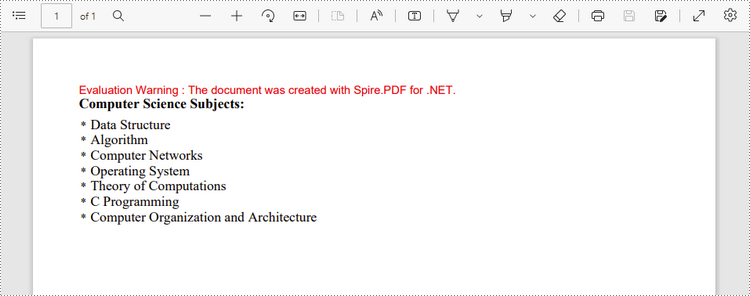
Create an Unordered List with Image Bullets in PDF
In addition to symbols, the bullet points of an unordered list can be also a picture. The steps to create an unordered list with images bullets are as follows.
- Create a PdfDocument object.
- Add a page to it using PdfDocument.Pages.Add() method.
- Create PdfBrush and PdfFont objects for the list.
- Create a PdfMarker object, setting the marker style as CustomImage.
- Set an image as the mark through PdfMarker.Image property.
- Specify the list content with a string, and create an object of PdfList class based on the string.
- Set the font, indent, brush and marker of the list though the properties under the PdfList object.
- Draw the list on the page at the specified location using PdfList.Draw() method.
- Save the document to another file using PdfDocument.SaveToFile() method.
- C#
- VB.NET
using System;
using Spire.Pdf;
using Spire.Pdf.Graphics;
using Spire.Pdf.Lists;

namespace CustomizeBulletPointsWithImage
{
    class Program
    {
        static void Main(string[] args)
        {
            //Create a PdfDocument object
            PdfDocument doc = new PdfDocument();

            //Set the margin
            PdfMargins margin = new PdfMargins(30);

            //Add a page
            PdfPageBase page = doc.Pages.Add(PdfPageSize.A4, margin);

            //Create fonts
            PdfFont titleFont = new PdfFont(PdfFontFamily.TimesRoman, 12f, PdfFontStyle.Bold);
            PdfFont listFont = new PdfFont(PdfFontFamily.TimesRoman, 12f, PdfFontStyle.Regular);

            //Create a brush
            PdfBrush brush = PdfBrushes.Black;

            //Specify the initial coordinate
            float x = 10;
            float y = 20;

            //Draw title
            String title = "Project Task To-Do List:";
            page.Canvas.DrawString(title, titleFont, brush, x, y);
            y = y + (float)titleFont.MeasureString(title).Height;
            y = y + 5;

            //Specify the marker style to image
            PdfMarker marker = new PdfMarker(PdfUnorderedMarkerStyle.CustomImage);

            //Set the image for the marker
            marker.Image = PdfImage.FromFile(@"C:\Users\Administrator\Desktop\checkmark.jpg");

            //Create an unordered list
            String listContent = "Define projects and tasks you're working on\n"
                    + "Assign people to tasks\n"
                    + "Define the priority levels of your tasks\n"
                    + "Keep track of the progress status of your tasks\n"
                    + "Mark tasks as done when completed";
            PdfList list = new PdfList(listContent);

            //Set the font, indent, text indent, brush, maker of the list
            list.Font = listFont;
            list.Indent = 2;
            list.TextIndent = 4;
            list.Brush = brush;
            list.Marker = marker;

            //Draw list on a page at the specified location
            list.Draw(page, x, y);

            //Save to file
            doc.SaveToFile("ImageBullets.pdf");
        }
    }
}
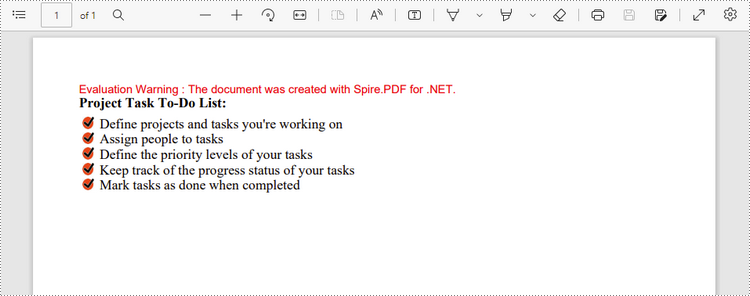
Create a Nested Numbered List in PDF
A nested list is a list that contains at least one sub list. Nested lists are used to present data in hierarchical structures. The following are the steps to create a nested numbered list in PDF using Spire.PDF for .NET.
- Create a PdfDocument object.
- Add a page to it using PdfDocument.Pages.Add() method.
- Create a PdfOrderedMarker object, specifying the marker style as Numeric.
- Specify the list content with a string, and create a parent list based on the string. And then set the font, indent, brush and marker of the list though the properties under the PdfSortedList object.
- Repeat the above step to create sub lists and sub-sub lists.
- Get the specific item of the parent list through PdfSortedList.Items[] property, and add a list to it as its sub list through PdfListItem.Sublist property.
- Draw the list on the page at the specified location using PdfSortedList.Draw() method.
- Save the document to another file using PdfDocument.SaveToFile() method.
- C#
- VB.NET
using System;
using Spire.Pdf;
using Spire.Pdf.Graphics;
using Spire.Pdf.Lists;

namespace CreateMultiLevelLists
{
    class Program
    {
        static void Main(string[] args)
        {
            //Create a PdfDocument object
            PdfDocument doc = new PdfDocument();

            //Set the margin
            PdfMargins margin = new PdfMargins(30);

            //Add a page
            PdfPageBase page = doc.Pages.Add(PdfPageSize.A4, margin);

            //Specify the initial coordinate
            float x = 10;
            float y = 20;

            //Create two brushes
            PdfBrush blackBrush = PdfBrushes.Black;
            PdfBrush purpleBrush = PdfBrushes.Purple;

            //Create two fonts
            PdfFont titleFont = new PdfFont(PdfFontFamily.TimesRoman, 12f, PdfFontStyle.Bold);
            PdfFont listFont = new PdfFont(PdfFontFamily.TimesRoman, 12f, PdfFontStyle.Regular);

            //Create a maker for ordered list
            PdfOrderedMarker marker = new PdfOrderedMarker(PdfNumberStyle.Numeric, listFont);

            //Draw title
            String title = "Below is a Nested Numbered List:";
            page.Canvas.DrawString(title, titleFont, blackBrush, x, y);
            y = y + (float)titleFont.MeasureString(title).Height;
            y = y + 5;

            //Create a parent list
            String parentListContent = "Parent Item 1\n"
                    + "Parent Item 2";
            PdfSortedList parentList = new PdfSortedList(parentListContent);
            parentList.Font = listFont;
            parentList.Indent = 2;
            parentList.Brush = purpleBrush;
            parentList.Marker = marker;

            //Create a sub list - "subList_1"
            String subListContent_1 = "Sub Item 1\n"
                    + "Sub Item 2\n"
                    + "Sub Item 3\n"
                    + "Sub Item 4";
            PdfSortedList subList_1 = new PdfSortedList(subListContent_1);
            subList_1.Indent = 12;
            subList_1.Font = listFont;
            subList_1.Brush = blackBrush;
            subList_1.Marker = marker;
            subList_1.MarkerHierarchy = true;

            //Create another sub list -"subList_2"
            String subListContent_2 = "Sub Item 1\n"
                    + "Sub Item 2\n"
                    + "Sub Item 3";
            PdfSortedList subList_2 = new PdfSortedList(subListContent_2);
            subList_2.Indent = 12;
            subList_2.Font = listFont;
            subList_2.Brush = blackBrush;
            subList_2.Marker = marker;
            subList_2.MarkerHierarchy = true;

            //Create a sub-sub list - "subList_1"
            String subSubListContent_1 = "Sub Sub Item 1\n"
                    + "Sub Sub Item 2";
            PdfSortedList subSubList = new PdfSortedList(subSubListContent_1);
            subSubList.Indent = 20;
            subSubList.Font = listFont;
            subSubList.Brush = blackBrush;
            subSubList.Marker = marker;
            subSubList.MarkerHierarchy = true;

            //Set subList_1 as sub list of the first item of parent list
            PdfListItem item_1 = parentList.Items[0];
            item_1.SubList = subList_1;

            //Set subList_2 as sub list of the second item of parent list
            PdfListItem item_2 = parentList.Items[1];
            item_2.SubList = subList_2;

            //Set subSubList as sub list of the first item of subList_1
            PdfListItem item_1_1 = subList_1.Items[0];
            item_1_1.SubList = subSubList;

            //Draw parent list
            parentList.Draw(page, x, y);

            //Save to file
            doc.SaveToFile("MultiLevelList.pdf");
        }
    }
}
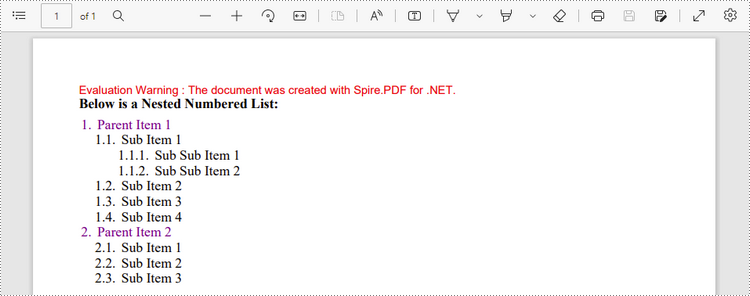
Apply for a Temporary License
If you'd like to remove the evaluation message from the generated documents, or to get rid of the function limitations, please request a 30-day trial license for yourself.
C#/VB.NET: Insert Hyperlinks into Existing Text in PDF
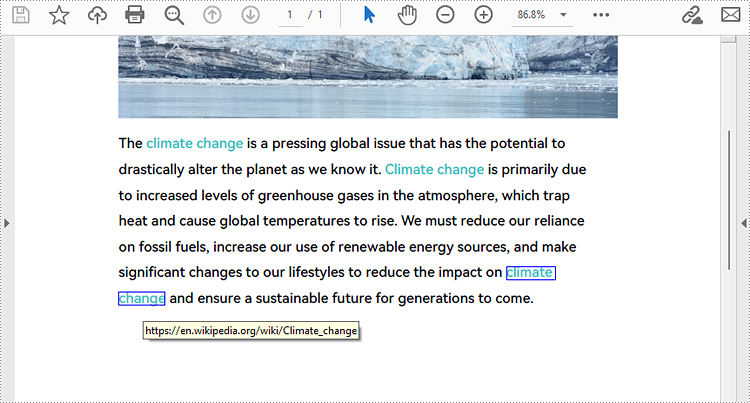
Hyperlinks in PDF are a valuable feature that enables readers to effortlessly access a given webpage. By including hyperlinks in a PDF, it becomes easier to offer readers supplementary information about the document or direct them to relevant resources. When a reader clicks on a hyperlink, the corresponding page opens immediately in the browser. In this article, we will demonstrate how to add hyperlinks to existing text in a PDF document through .NET programs using Spire.PDF for .NET.
Install Spire.PDF for .NET
To begin with, you need to add the DLL files included in the Spire.PDF for.NET package as references in your .NET project. The DLL files can be either downloaded from this link or installed via NuGet.
PM> Install-Package Spire.PDF
Insert a Hyperlink to Existing Text in PDF with C#/VB.NET
Hyperlinks in PDF documents are inserted to the page as annotation elements. Adding a hyperlink to existing text in a PDF document requires locating the text first. Once the location has been obtained, a PdfLinkAnnotation object with a specified URL action can be created and added to the position. The detailed steps are as follows:
- Create an object of PdfDocument class and load a PDF file using PdfDocument.LoadFromFile() method.
- Get the first page using PdfDocument.Pages property.
- Create an object of PdfTextFinder class and set the finder options using PdfTextFinder.Options.Parameter property.
- Find the specified text in the page using PdfTextFinder.Find() method and get the third occurrence.
- Loop through the text bounds of the specified occurrence (because the text being searched may span multiple lines and have more than one bound, the retrieved text bounds are stored in a list to accommodate this variability).
- Create a PdfURIAction object to specify the URL to link to, and then create a PdfLinkAnnotation object within the text bound. Set the border width and border color using properties under PdfLinkAnnotation class.
- Get the page's annotation collection using PdfAnnotationCollection.Create(page) method and insert the hyperlink using its Add(PdfLinkAnnotation) method.
- Save the PDF file using PdfDocument.SaveToFile() method.
- C#
- VB.NET
using Spire.Pdf;
using Spire.Pdf.Actions;
using Spire.Pdf.Interactive.Annotations;
using Spire.Pdf.Texts;
using System;
using System.Collections.Generic;
using System.Drawing;
using TextFindParameter = Spire.Pdf.Texts.TextFindParameter;

namespace ChangeHyperlink
{
    internal class Program
    {
        static void Main(string[] args)
        {
            //Create an object of PdfDocument class
            PdfDocument pdf = new PdfDocument();

            //Load a PDF file
            pdf.LoadFromFile("Sample.pdf");

            //Get the first page
            PdfPageBase page = pdf.Pages[0];

            //Create an object of PdfTextFinder and set the finder options
            PdfTextFinder finder = new PdfTextFinder(page);
            finder.Options.Parameter = TextFindParameter.IgnoreCase;

            //Find the specified text in the page and get the third occurrence
            List collection = finder.Find("climate change");
            PdfTextFragment fragment = collection[2];

            //Loop through the text bounds of the specified occurrence
            foreach (RectangleF bounds in fragment.Bounds)
            {
                //Create a hyperlink annotation
                PdfURIAction action = new PdfURIAction("https://en.wikipedia.org/wiki/Climate_change");
                PdfLinkAnnotation url = new PdfLinkAnnotation(page, bounds, action);
                //Set the border width of the hyperlink annotation
                url.Border.Width = 1f;
                //Set the color of the border
                url.Color = Color.Blue;
                //Add the hyperlink annotation to the page
                PdfAnnotationCollection.Create(page).Add(url);
            }

            //Save the PDF file
            pdf.SaveToFile("AddHyperlinks.pdf");
            pdf.Dispose();
        }
    }
}
Apply for a Temporary License
If you'd like to remove the evaluation message from the generated documents, or to get rid of the function limitations, please request a 30-day trial license for yourself.
Manage Word Headings to Form a Catalogue in C#, VB.NET
Word Heading can be taken as title of each part in Word document. This guide demonstrates solution to manage these Word headings and form them as a catalogue in C# and VB.NET.
In Word document, users can set some contents, for example, phrases of summary of the following paragraphs, as headings. These Word headings can be displayed in the first page of whole document and form as catalogue after arrangement so that readers can get outline of whole document. Solution in this guide presents how to manage Word headings with numbered style in a new created document in C# and VB.NET via Spire.Doc for .NET and screenshot below shows results of managing Word headings.
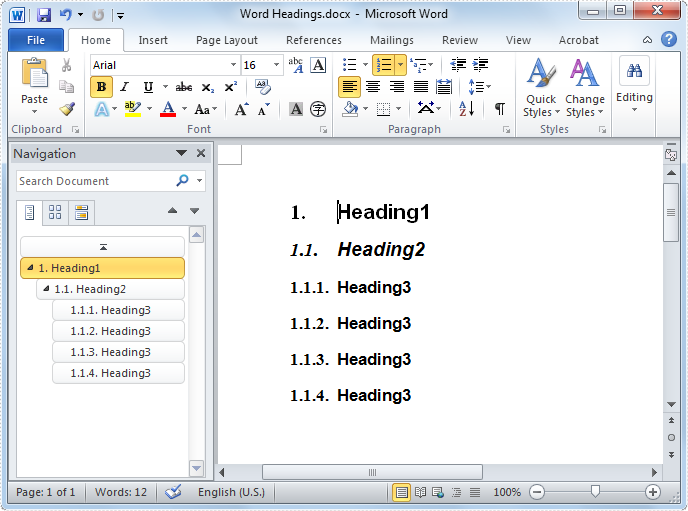
Heading is one of kind of styles for paragraphs and Spire.Doc for .NET provides several BuiltinStyle types for paragraphs. In this example, three BuiltinStyle types will be applied: Heading1, Heading2 and Heading3. Following, details will be presented step by step.
Firstly, initialize a Document instance and add section, paragraph for this instance. Secondly, invoke AppendText method with parameter string text and ApplyStyle(BuiltinStyle.Heading1) method of Paragraph class to add text and set heading style for new added paragraph. Then, invoke ListFromat.ApplyNumberedStyle() method of Paragraph class to set number list for it. Thirdly, add new paragraph and set Heading2 style for it as the previous step. Initialize a ListStyle instance for document with Numbered ListType. Then, initialize a ListLevel instance from ListStyle and set UsePrevLevelPattern and NumberPrefix properties for this instance. After that, invoke ListStyleCollection.Add(ListStyle) method of Document class and ListFormat.ApplyStyle method of Paragraph class with parameter string styleName to add ListStyle for Heading2. Fourthly, add a new paragraph and set BuiltinStyle as Heading3 and apply ListStyle for this paragraph as the previous step. Finally, invoke SaveToFile method of Document class with parameter string fileName and FileFormat to save this document. Refer the code:
using Spire.Doc;
using Spire.Doc.Documents;

namespace WordHeading
{
    class Heading
    {
        static void Main(string[] args)
        {
             //Create Document
             Document document = new Document();
             Section section = document.AddSection();
             Paragraph paragraph = section.Paragraphs.Count > 0 ? section.Paragraphs[0] : section.AddParagraph();

             //Add Heading 1
             paragraph = section.AddParagraph();
             paragraph.AppendText(BuiltinStyle.Heading1.ToString());
             paragraph.ApplyStyle(BuiltinStyle.Heading1);
             paragraph.ListFormat.ApplyNumberedStyle();

             //Add Heading 2
             paragraph = section.AddParagraph();
             paragraph.AppendText(BuiltinStyle.Heading2.ToString());
             paragraph.ApplyStyle(BuiltinStyle.Heading2);

             //List Style for Headings 2
             ListStyle listSty2 = document.Styles.Add(ListType.Numbered, "MyStyle2");

             foreach (ListLevel listLev in listSty2.ListRef.Levels)
             {
                 listLev.UsePrevLevelPattern = true;
                 listLev.NumberPrefix = "1.";
             }

             paragraph.ListFormat.ApplyStyle(listSty2.Name);

             //Add List Style 3
             ListStyle listSty3 = document.Styles.Add(ListType.Numbered, "MyStyle3");
             foreach (ListLevel listLev in listSty3.ListRef.Levels)
             {
                 listLev.UsePrevLevelPattern = true;
                 listLev.NumberPrefix = "1.1.";
             }

             //Add Heading 3
             for (int i = 0; i < 4; i++)
             {
                 paragraph = section.AddParagraph();

                 //Append Text
                 paragraph.AppendText(BuiltinStyle.Heading3.ToString());

                 //Apply List Style 3 for Heading 3
                 paragraph.ApplyStyle(BuiltinStyle.Heading3);
                 paragraph.ListFormat.ApplyStyle(listSty3.Name);
             }

             //Save and Launch
             document.SaveToFile("Word Headings.docx", FileFormat.Docx);
        }
    }
}
Imports Spire.Doc
Imports Spire.Doc.Documents

Namespace WordHeading
    Friend Class Heading
        Shared Sub Main(ByVal args() As String)
         'Create Document
         Dim document As New Document()
         Dim section As Section = document.AddSection()
         Dim paragraph As Paragraph = If(section.Paragraphs.Count > 0, section.Paragraphs(0), section.AddParagraph())

         'Add Heading 1
         paragraph = section.AddParagraph()
         paragraph.AppendText(BuiltinStyle.Heading1.ToString())
         paragraph.ApplyStyle(BuiltinStyle.Heading1)
         paragraph.ListFormat.ApplyNumberedStyle()

         'Add Heading 2
         paragraph = section.AddParagraph()
         paragraph.AppendText(BuiltinStyle.Heading2.ToString())
         paragraph.ApplyStyle(BuiltinStyle.Heading2)

         ' List Style for Headings 2
         Dim listSty2 As ListStyle = document.Styles.Add(ListType.Numbered, "MyStyle2")

         For Each listLev As ListLevel In listSty2.ListRef.Levels
             listLev.UsePrevLevelPattern = True
             listLev.NumberPrefix = "1."
         Next

         paragraph.ListFormat.ApplyStyle(listSty2.Name)

         ' Add List Style 3
         Dim listSty3 As ListStyle = document.Styles.Add(ListType.Numbered, "MyStyle3")

         For Each listLev As ListLevel In listSty3.ListRef.Levels
             listLev.UsePrevLevelPattern = True
             listLev.NumberPrefix = "1.1."
         Next

         'Add Heading 3
         For i As Integer = 0 To 3
             paragraph = section.AddParagraph()

             'Append Text
             paragraph.AppendText(BuiltinStyle.Heading3.ToString())

             'Apply List Style 3 for Heading 3
             paragraph.ApplyStyle(BuiltinStyle.Heading3)
             paragraph.ListFormat.ApplyStyle(listSty3.Name)
         Next i

         'Save and Launch
         document.SaveToFile("Word Headings.docx", FileFormat.Docx)
        End Sub
    End Class
End Namespace
Spire.Doc, as professional Word component, is very powerful on fast generating, loading, writing, modifying and saving Word documents in .NET, WPF, Silverlight without Word automation and any third party tools.
Merge PDF Files and Add Page Number in C#/VB.NET
After searching so much information about PDF merge, it is easy to find that whether you merge PDF files online or use C#/VB.NET to realize this task, you never escape worrying some important points such as the safety of your PDF file, so much time it costs or whether the merged file supports to print page number and so on. However, as long as you come here, these troubles will not appear. This section will specifically introduce you a secure solution to merge PDF files into one with C#, VB.NET via a .NET PDF component Spire.PDF for .NET.
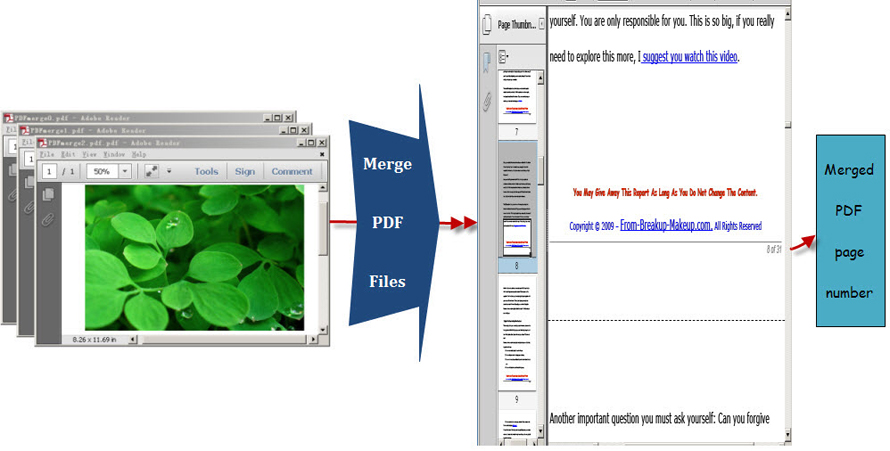
Spire.PDF for .NET, built from scratch in C#, enables programmers and developers to create, read, write and manipulate PDF documents in .NET applications without using Adobe Acrobat or any external libraries. Using Spire.PDF for .NET, you not only can quickly merge PDF files but also enables you to print PDF page with page number. Now please preview the effective screenshot below:
Before following below procedure, please download Spire.PDF for .NET and install it on system.
Step1: You can use the String array to save the names of the three PDF files which will be merged into one PDF and demonstrate Spire.Pdf.PdfDocument array. Then, load three PDF files and select the first PdfDocument for the purpose of merging the second and third PDF file to it. In order to import all pages from the second PDF file to the first PDF file, you need to call the method public void AppendPage(PdfDocument doc). Also by calling another method public PdfPageBase InsertPage(PdfDocument doc, int pageIndex),every page of the third PDF file can be imported to the first PDF file.
private void button1_Click(object sender, EventArgs e)
        {
            //pdf document list
            String[] files = new String[]
            {
                @"..\PDFmerge0.pdf",
                @"..\ PDFmerge1.pdf",
                @"..\ PDFmerge2.pdf"
            };
            //open pdf documents
            PdfDocument[] docs = new PdfDocument[files.Length];
            for (int i = 0; i < files.Length; i++)
            {
                docs[i] = new PdfDocument(files[i]);
            }
            //append document
            docs[0].AppendPage(docs[1]);

            //import PDF pages
            for (int i = 0; i < docs[2].Pages.Count; i = i + 2)
            {
                docs[0].InsertPage(docs[2], i);
            }
 Private Sub button1_Click(sender As Object, e As EventArgs)
	'pdf document list
	Dim files As [String]() = New [String]() {"..\PDFmerge0.pdf", "..\ PDFmerge1.pdf", "..\ PDFmerge2.pdf"}
	'open pdf documents
	Dim docs As PdfDocument() = New PdfDocument(files.Length - 1) {}
	For i As Integer = 0 To files.Length - 1
		docs(i) = New PdfDocument(files(i))
	Next

	'append document
	docs(0).AppendPage(docs(1))

	'import PDF pages
	Dim j As Integer = 0
	While j < docs(2).Pages.Count
		docs(0).InsertPage(docs(2), j)
		j = j + 2
	End While"
Step2: Draw page number in the first PDF file. In this step, you can set PDF page number margin by invoking the class Spire.Pdf.Graphics. PdfMargins. Then, Call the custom method DrawPageNumber(PdfPageCollection pages, PdfMargins margin, int startNumber, int pageCount) to add page number in the bottom of every page in the first PDF. Please see the detail code below:
//set PDF margin
            PdfUnitConvertor unitCvtr = new PdfUnitConvertor();
            PdfMargins margin = new PdfMargins();
            margin.Top = unitCvtr.ConvertUnits(2.54f, PdfGraphicsUnit.Centimeter, PdfGraphicsUnit.Point);
            margin.Bottom = margin.Top;
            margin.Left = unitCvtr.ConvertUnits(3.17f, PdfGraphicsUnit.Centimeter, PdfGraphicsUnit.Point);
            margin.Right = margin.Left;
            this.DrawPageNumber(docs[0].Pages, margin, 1, docs[0].Pages.Count);

          private void DrawPageNumber(PdfPageCollection pages, PdfMargins margin, int startNumber, int pageCount)
          {
            foreach (PdfPageBase page in pages)
            {
                page.Canvas.SetTransparency(0.5f);
                PdfBrush brush = PdfBrushes.Black;
                PdfPen pen = new PdfPen(brush, 0.75f);
                PdfTrueTypeFont font = new PdfTrueTypeFont(new Font("Arial", 9f, System.Drawing.FontStyle.Italic), true);
                PdfStringFormat format = new PdfStringFormat(PdfTextAlignment.Right);
                format.MeasureTrailingSpaces = true;
                float space = font.Height * 0.75f;
                float x = margin.Left;
                float width = page.Canvas.ClientSize.Width - margin.Left - margin.Right;
                float y = page.Canvas.ClientSize.Height - margin.Bottom + space;
                page.Canvas.DrawLine(pen, x, y, x + width, y);
                y = y + 1;
                String numberLabel
                    = String.Format("{0} of {1}", startNumber++, pageCount);
                page.Canvas.DrawString(numberLabel, font, brush, x + width, y, format);
                page.Canvas.SetTransparency(1);
            }
        }
       'set PDF margin
	Dim unitCvtr As New PdfUnitConvertor()
	Dim margin As New PdfMargins()
	margin.Top = unitCvtr.ConvertUnits(2.54F, PdfGraphicsUnit.Centimeter, PdfGraphicsUnit.Point)
	margin.Bottom = margin.Top
	 margin.Left = unitCvtr.ConvertUnits(3.17F, PdfGraphicsUnit.Centimeter, PdfGraphicsUnit.Point)
	margin.Right = margin.Left
	Me.DrawPageNumber(docs(0).Pages, margin, 1, docs(0).Pages.Count)

       Private Sub DrawPageNumber(pages As PdfPageCollection, margin As PdfMargins, startNumber As Integer, pageCount As Integer)
	For Each page As PdfPageBase In pages
		page.Canvas.SetTransparency(0.5F)
		Dim brush As PdfBrush = PdfBrushes.Black
		Dim pen As New PdfPen(brush, 0.75F)
		Dim font As New PdfTrueTypeFont(New Font("Arial", 9F, System.Drawing.FontStyle.Italic), True)
		Dim format As New PdfStringFormat(PdfTextAlignment.Right)
		format.MeasureTrailingSpaces = True
		Dim space As Single = font.Height * 0.75F
		Dim x As Single = margin.Left
		Dim width As Single = page.Canvas.ClientSize.Width - margin.Left - margin.Right
		Dim y As Single = page.Canvas.ClientSize.Height - margin.Bottom + space
		page.Canvas.DrawLine(pen, x, y, x + width, y)
		y = y + 1
		Dim numberLabel As [String] = [String].Format("{0} of {1}", System.Math.Max(System.Threading.Interlocked.Increment(startNumber),startNumber - 1), pageCount)
		page.Canvas.DrawString(numberLabel, font, brush, x + width, y, format)
		page.Canvas.SetTransparency(1)
	Next
End Sub
The PDF merge code can be very long when you view it at first sight, actually, if you do not need to add page number in your merged PDF, steps two should be avoided. However, in many cases, page number brings great convenience for users to read PDF as well as print it. Spire.PDF for .NET can satisfy both your requirements of merging PDF files and adding page numbers in the merged PDF file.