Wednesday, 06 April 2011 08:17
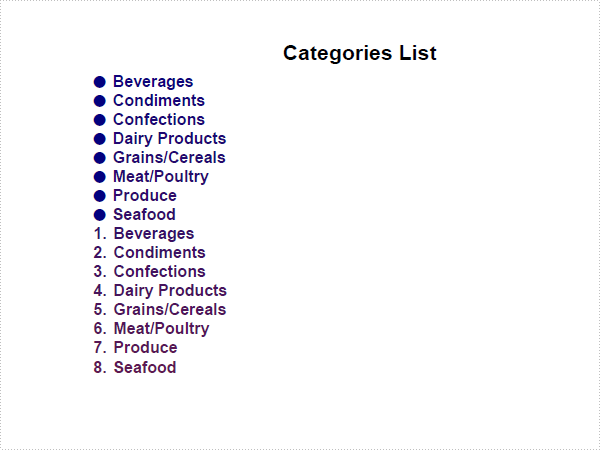
PDF SimpleList in C#, VB.NET
using System;
using System.Drawing;
using Spire.Pdf;
using Spire.Pdf.Graphics;
using Spire.Pdf.Lists;

namespace SimpleList
{
    class Program
    {
        static void Main(string[] args)
        {
            //Create a pdf document.
            PdfDocument doc = new PdfDocument();

            //margin
            PdfUnitConvertor unitCvtr = new PdfUnitConvertor();
            PdfMargins margin = new PdfMargins();
            margin.Top = unitCvtr.ConvertUnits(2.54f, PdfGraphicsUnit.Centimeter, PdfGraphicsUnit.Point);
            margin.Bottom = margin.Top;
            margin.Left = unitCvtr.ConvertUnits(3.17f, PdfGraphicsUnit.Centimeter, PdfGraphicsUnit.Point);
            margin.Right = margin.Left;

            // Create one page
            PdfPageBase page = doc.Pages.Add(PdfPageSize.A4, margin);

            float y = 10;

            //title
            PdfBrush brush1 = PdfBrushes.Black;
            PdfTrueTypeFont font1 = new PdfTrueTypeFont(new Font("Arial", 16f, FontStyle.Bold), true);
            PdfStringFormat format1 = new PdfStringFormat(PdfTextAlignment.Center);
            page.Canvas.DrawString("Categories List", font1, brush1, page.Canvas.ClientSize.Width / 2, y, format1);
            y = y + font1.MeasureString("Categories List", format1).Height;
            y = y + 5;

            RectangleF rctg = new RectangleF(new PointF(0, 0), page.Canvas.ClientSize);
            PdfLinearGradientBrush brush
                = new PdfLinearGradientBrush(rctg, Color.Navy, Color.OrangeRed, PdfLinearGradientMode.Vertical);
            PdfFont font = new PdfFont(PdfFontFamily.Helvetica, 12f, PdfFontStyle.Bold);
            String formatted
                = "Beverages\nCondiments\nConfections\nDairy Products\nGrains/Cereals\nMeat/Poultry\nProduce\nSeafood";

            PdfList list = new PdfList(formatted);
            list.Font = font;
            list.Indent = 8;
            list.TextIndent = 5;
            list.Brush = brush;
            PdfLayoutResult result = list.Draw(page, 0, y);
            y = result.Bounds.Bottom;

            PdfSortedList sortedList = new PdfSortedList(formatted);
            sortedList.Font = font;
            sortedList.Indent = 8;
            sortedList.TextIndent = 5;
            sortedList.Brush = brush;
            sortedList.Draw(page, 0, y);

            //Save pdf file.
            doc.SaveToFile("SimpleList.pdf");
            doc.Close();

            //Launching the Pdf file.
            System.Diagnostics.Process.Start("SimpleList.pdf");
        }
    }
}
Imports System.Drawing
Imports Spire.Pdf
Imports Spire.Pdf.Graphics
Imports Spire.Pdf.Lists

Namespace SimpleList
    Friend Class Program
        Shared Sub Main(ByVal args() As String)
            'Create a pdf document.
            Dim doc As New PdfDocument()

            'margin
            Dim unitCvtr As New PdfUnitConvertor()
            Dim margin As New PdfMargins()
            margin.Top = unitCvtr.ConvertUnits(2.54F, PdfGraphicsUnit.Centimeter, PdfGraphicsUnit.Point)
            margin.Bottom = margin.Top
            margin.Left = unitCvtr.ConvertUnits(3.17F, PdfGraphicsUnit.Centimeter, PdfGraphicsUnit.Point)
            margin.Right = margin.Left

            ' Create one page
            Dim page As PdfPageBase = doc.Pages.Add(PdfPageSize.A4, margin)

            Dim y As Single = 10

            'title
            Dim brush1 As PdfBrush = PdfBrushes.Black
            Dim font1 As New PdfTrueTypeFont(New Font("Arial", 16.0F, FontStyle.Bold), True)
            Dim format1 As New PdfStringFormat(PdfTextAlignment.Center)
            page.Canvas.DrawString("Categories List", font1, brush1, page.Canvas.ClientSize.Width \ 2, y, format1)
            y = y + font1.MeasureString("Categories List", format1).Height
            y = y + 5

            Dim rctg As New RectangleF(New PointF(0, 0), page.Canvas.ClientSize)
            Dim brush As New PdfLinearGradientBrush(rctg, Color.Navy, Color.OrangeRed, PdfLinearGradientMode.Vertical)
            Dim font As New PdfFont(PdfFontFamily.Helvetica, 12.0F, PdfFontStyle.Bold)
            Dim formatted As String = "Beverages" & vbLf & "Condiments" & vbLf & "Confections" _
                & vbLf & "Dairy Products" & vbLf & "Grains/Cereals" & vbLf & "Meat/Poultry" & _
                vbLf & "Produce" & vbLf & "Seafood"

            Dim list As New PdfList(formatted)
            list.Font = font
            list.Indent = 8
            list.TextIndent = 5
            list.Brush = brush
            Dim result As PdfLayoutResult = list.Draw(page, 0, y)
            y = result.Bounds.Bottom

            Dim sortedList As New PdfSortedList(formatted)
            sortedList.Font = font
            sortedList.Indent = 8
            sortedList.TextIndent = 5
            sortedList.Brush = brush
            sortedList.Draw(page, 0, y)

            'Save pdf file.
            doc.SaveToFile("SimpleList.pdf")
            doc.Close()

            'Launching the Pdf file.
            Process.Start("SimpleList.pdf")
        End Sub
    End Class
End Namespace
Wednesday, 06 April 2011 06:56
PDF ImageWaterMark in C#, VB.NET
The sample demonstrates how to draw an image as watermark in PDF document.

using System;
using System.Drawing;
using Spire.Pdf;
using Spire.Pdf.Graphics;

namespace ImageWaterMark
{
    class Program
    {
        static void Main(string[] args)
        {
            //Create a pdf document.
            PdfDocument doc = new PdfDocument();

            //margin
            PdfUnitConvertor unitCvtr = new PdfUnitConvertor();
            PdfMargins margin = new PdfMargins();
            margin.Top = unitCvtr.ConvertUnits(2.54f, PdfGraphicsUnit.Centimeter, PdfGraphicsUnit.Point);
            margin.Bottom = margin.Top;
            margin.Left = unitCvtr.ConvertUnits(3.17f, PdfGraphicsUnit.Centimeter, PdfGraphicsUnit.Point);
            margin.Right = margin.Left;

            // Create one page
            PdfPageBase page = doc.Pages.Add(PdfPageSize.A4, margin);
            Image img = Image.FromFile(@"Background.png");
            page.BackgroundImage = img;

            //Draw page
            DrawPage(page);

            //Save pdf file.
            doc.SaveToFile("ImageWaterMark.pdf");
            doc.Close();

            //Launching the Pdf file.
            System.Diagnostics.Process.Start("ImageWaterMark.pdf");
        }

        private static void DrawPage(PdfPageBase page)
        {
            float pageWidth = page.Canvas.ClientSize.Width;
            float y = 0;

            //page header
            PdfPen pen1 = new PdfPen(Color.LightGray, 1f);
            PdfBrush brush1 = new PdfSolidBrush(Color.LightGray);
            PdfTrueTypeFont font1 = new PdfTrueTypeFont(new Font("Arial", 8f, FontStyle.Italic));
            PdfStringFormat format1 = new PdfStringFormat(PdfTextAlignment.Right);
            String text = "Demo of Spire.Pdf";
            page.Canvas.DrawString(text, font1, brush1, pageWidth, y, format1);
            SizeF size = font1.MeasureString(text, format1);
            y = y + size.Height + 1;
            page.Canvas.DrawLine(pen1, 0, y, pageWidth, y);

            //title
            y = y + 5;
            PdfBrush brush2 = new PdfSolidBrush(Color.Black);
            PdfTrueTypeFont font2 = new PdfTrueTypeFont(new Font("Arial", 16f, FontStyle.Bold));
            PdfStringFormat format2 = new PdfStringFormat(PdfTextAlignment.Center);
            format2.CharacterSpacing = 1f;
            text = "Summary of Science";
            page.Canvas.DrawString(text, font2, brush2, pageWidth / 2, y, format2);
            size = font2.MeasureString(text, format2);
            y = y + size.Height + 6;

            //icon
            PdfImage image = PdfImage.FromFile(@"Wikipedia_Science.png");
            page.Canvas.DrawImage(image, new PointF(pageWidth - image.PhysicalDimension.Width, y));
            float imageLeftSpace = pageWidth - image.PhysicalDimension.Width - 2;
            float imageBottom = image.PhysicalDimension.Height + y;

            //refenrence content
            PdfTrueTypeFont font3 = new PdfTrueTypeFont(new Font("Arial", 9f));
            PdfStringFormat format3 = new PdfStringFormat();
            format3.ParagraphIndent = font3.Size * 2;
            format3.MeasureTrailingSpaces = true;
            format3.LineSpacing = font3.Size * 1.5f;
            String text1 = "(All text and picture from ";
            String text2 = "Wikipedia";
            String text3 = ", the free encyclopedia)";
            page.Canvas.DrawString(text1, font3, brush2, 0, y, format3);

            size = font3.MeasureString(text1, format3);
            float x1 = size.Width;
            format3.ParagraphIndent = 0;
            PdfTrueTypeFont font4 = new PdfTrueTypeFont(new Font("Arial", 9f, FontStyle.Underline));
            PdfBrush brush3 = PdfBrushes.Blue;
            page.Canvas.DrawString(text2, font4, brush3, x1, y, format3);
            size = font4.MeasureString(text2, format3);
            x1 = x1 + size.Width;

            page.Canvas.DrawString(text3, font3, brush2, x1, y, format3);
            y = y + size.Height;

            //content
            PdfStringFormat format4 = new PdfStringFormat();
            text = System.IO.File.ReadAllText(@"Summary_of_Science.txt");
            PdfTrueTypeFont font5 = new PdfTrueTypeFont(new Font("Arial", 10f));
            format4.LineSpacing = font5.Size * 1.5f;
            PdfStringLayouter textLayouter = new PdfStringLayouter();
            float imageLeftBlockHeight = imageBottom - y;
            PdfStringLayoutResult result
                = textLayouter.Layout(text, font5, format4, new SizeF(imageLeftSpace, imageLeftBlockHeight));
            if (result.ActualSize.Height < imageBottom - y)
            {
                imageLeftBlockHeight = imageLeftBlockHeight + result.LineHeight;
                result = textLayouter.Layout(text, font5, format4, new SizeF(imageLeftSpace, imageLeftBlockHeight));
            }
            foreach (LineInfo line in result.Lines)
            {
                page.Canvas.DrawString(line.Text, font5, brush2, 0, y, format4);
                y = y + result.LineHeight;
            }
            PdfTextWidget textWidget = new PdfTextWidget(result.Remainder, font5, brush2);
            PdfTextLayout textLayout = new PdfTextLayout();
            textLayout.Break = PdfLayoutBreakType.FitPage;
            textLayout.Layout = PdfLayoutType.Paginate;
            RectangleF bounds = new RectangleF(new PointF(0, y), page.Canvas.ClientSize);
            textWidget.StringFormat = format4;
            textWidget.Draw(page, bounds, textLayout);
        }
    }
}
Imports System.Drawing
Imports Spire.Pdf
Imports Spire.Pdf.Graphics

Namespace ImageWaterMark
    Friend Class Program
        Shared Sub Main(ByVal args() As String)
            'Create a pdf document.
            Dim doc As New PdfDocument()

            'margin
            Dim unitCvtr As New PdfUnitConvertor()
            Dim margin As New PdfMargins()
            margin.Top = unitCvtr.ConvertUnits(2.54F, PdfGraphicsUnit.Centimeter, PdfGraphicsUnit.Point)
            margin.Bottom = margin.Top
            margin.Left = unitCvtr.ConvertUnits(3.17F, PdfGraphicsUnit.Centimeter, PdfGraphicsUnit.Point)
            margin.Right = margin.Left

            ' Create one page
            Dim page As PdfPageBase = doc.Pages.Add(PdfPageSize.A4, margin)
            Dim img As Image = Image.FromFile("Background.png")
            page.BackgroundImage = img

            'Draw table
            DrawPage(page)

            'Save pdf file.
            doc.SaveToFile("ImageWaterMark.pdf")
            doc.Close()

            'Launching the Pdf file.
            Process.Start("ImageWaterMark.pdf")
        End Sub

        Private Shared Sub DrawPage(ByVal page As PdfPageBase)
            Dim pageWidth As Single = page.Canvas.ClientSize.Width
            Dim y As Single = 0

            'page header
            Dim pen1 As New PdfPen(Color.LightGray, 1.0F)
            Dim brush1 As PdfBrush = New PdfSolidBrush(Color.LightGray)
            Dim font1 As New PdfTrueTypeFont(New Font("Arial", 8.0F, FontStyle.Italic))
            Dim format1 As New PdfStringFormat(PdfTextAlignment.Right)
            Dim text As String = "Demo of Spire.Pdf"
            page.Canvas.DrawString(text, font1, brush1, pageWidth, y, format1)
            Dim size As SizeF = font1.MeasureString(text, format1)
            y = y + size.Height + 1
            page.Canvas.DrawLine(pen1, 0, y, pageWidth, y)

            'title
            y = y + 5
            Dim brush2 As PdfBrush = New PdfSolidBrush(Color.Black)
            Dim font2 As New PdfTrueTypeFont(New Font("Arial", 16.0F, FontStyle.Bold))
            Dim format2 As New PdfStringFormat(PdfTextAlignment.Center)
            format2.CharacterSpacing = 1.0F
            text = "Summary of Science"
            page.Canvas.DrawString(text, font2, brush2, pageWidth / 2, y, format2)
            size = font2.MeasureString(text, format2)
            y = y + size.Height + 6

            'icon
            Dim image As PdfImage = PdfImage.FromFile("Wikipedia_Science.png")
            page.Canvas.DrawImage(image, New PointF(pageWidth - image.PhysicalDimension.Width, y))
            Dim imageLeftSpace As Single = pageWidth - image.PhysicalDimension.Width - 2
            Dim imageBottom As Single = image.PhysicalDimension.Height + y

            'refenrence content
            Dim font3 As New PdfTrueTypeFont(New Font("Arial", 9.0F))
            Dim format3 As New PdfStringFormat()
            format3.ParagraphIndent = font3.Size * 2
            format3.MeasureTrailingSpaces = True
            format3.LineSpacing = font3.Size * 1.5F
            Dim text1 As String = "(All text and picture from "
            Dim text2 As String = "Wikipedia"
            Dim text3 As String = ", the free encyclopedia)"
            page.Canvas.DrawString(text1, font3, brush2, 0, y, format3)

            size = font3.MeasureString(text1, format3)
            Dim x1 As Single = size.Width
            format3.ParagraphIndent = 0
            Dim font4 As New PdfTrueTypeFont(New Font("Arial", 9.0F, FontStyle.Underline))
            Dim brush3 As PdfBrush = PdfBrushes.Blue
            page.Canvas.DrawString(text2, font4, brush3, x1, y, format3)
            size = font4.MeasureString(text2, format3)
            x1 = x1 + size.Width

            page.Canvas.DrawString(text3, font3, brush2, x1, y, format3)
            y = y + size.Height

            'content
            Dim format4 As New PdfStringFormat()
            text = System.IO.File.ReadAllText("Summary_of_Science.txt")
            Dim font5 As New PdfTrueTypeFont(New Font("Arial", 10.0F))
            format4.LineSpacing = font5.Size * 1.5F
            Dim textLayouter As New PdfStringLayouter()
            Dim imageLeftBlockHeight As Single = imageBottom - y
            Dim result As PdfStringLayoutResult _
                = textLayouter.Layout(text, font5, format4, New SizeF(imageLeftSpace, imageLeftBlockHeight))
            If result.ActualSize.Height < imageBottom - y Then
                imageLeftBlockHeight = imageLeftBlockHeight + result.LineHeight
                result = textLayouter.Layout(text, font5, format4, New SizeF(imageLeftSpace, imageLeftBlockHeight))
            End If
            For Each line As LineInfo In result.Lines
                page.Canvas.DrawString(line.Text, font5, brush2, 0, y, format4)
                y = y + result.LineHeight
            Next line
            Dim textWidget As New PdfTextWidget(result.Remainder, font5, brush2)
            Dim textLayout As New PdfTextLayout()
            textLayout.Break = PdfLayoutBreakType.FitPage
            textLayout.Layout = PdfLayoutType.Paginate
            Dim bounds As New RectangleF(New PointF(0, y), page.Canvas.ClientSize)
            textWidget.StringFormat = format4
            textWidget.Draw(page, bounds, textLayout)
        End Sub
    End Class
End Namespace
Wednesday, 06 April 2011 05:52
PDF TextWaterMark in C#, VB.NET

using System;
using System.Drawing;
using Spire.Pdf;
using Spire.Pdf.Graphics;
using Spire.Pdf.Tables;

namespace TextWaterMark
{
    class Program
    {
        static void Main(string[] args)
        {
            //Create a pdf document.
            PdfDocument doc = new PdfDocument();

            //margin
            PdfUnitConvertor unitCvtr = new PdfUnitConvertor();
            PdfMargins margin = new PdfMargins();
            margin.Top = unitCvtr.ConvertUnits(2.54f, PdfGraphicsUnit.Centimeter, PdfGraphicsUnit.Point);
            margin.Bottom = margin.Top;
            margin.Left = unitCvtr.ConvertUnits(3.17f, PdfGraphicsUnit.Centimeter, PdfGraphicsUnit.Point);
            margin.Right = margin.Left;

            // Create one page
            PdfPageBase page = doc.Pages.Add(PdfPageSize.A4, margin);

            PdfTilingBrush brush
                = new PdfTilingBrush(new SizeF(page.Canvas.ClientSize.Width / 2, page.Canvas.ClientSize.Height / 3));
            brush.Graphics.SetTransparency(0.3f);
            brush.Graphics.Save();
            brush.Graphics.TranslateTransform(brush.Size.Width / 2, brush.Size.Height / 2);
            brush.Graphics.RotateTransform(-45);
            brush.Graphics.DrawString("Spire.Pdf Demo",
                new PdfFont(PdfFontFamily.Helvetica, 24), PdfBrushes.Violet, 0, 0,
                new PdfStringFormat(PdfTextAlignment.Center));
            brush.Graphics.Restore();
            brush.Graphics.SetTransparency(1);
            page.Canvas.DrawRectangle(brush, new RectangleF(new PointF(0, 0), page.Canvas.ClientSize));

            //Draw the page
            DrawPage(page);

            //Save pdf file.
            doc.SaveToFile("TextWaterMark.pdf");
            doc.Close();

            //Launching the Pdf file.
            System.Diagnostics.Process.Start("TextWaterMark.pdf");
        }

        private static void DrawPage(PdfPageBase page)
        {
            float y = 10;

            //title
            PdfBrush brush1 = PdfBrushes.Black;
            PdfTrueTypeFont font1 = new PdfTrueTypeFont(new Font("Arial", 16f, FontStyle.Bold));
            PdfStringFormat format1 = new PdfStringFormat(PdfTextAlignment.Center);
            page.Canvas.DrawString("Category Sales by Year", font1, brush1, page.Canvas.ClientSize.Width / 2, y, format1);
            y = y + font1.MeasureString("Category Sales by Year", format1).Height;
            y = y + 5;

            String[][] data
                = {
                    new String[]{"Category Name", "1994 Sale Amount", "1995 Sale Amount", "1996 Sale Amount"},
                    new String[]{"Beverages", "38,487.20", "102,479.46", "126,901.53"},
                    new String[]{"Condiments", "16,402.95", "51,041.83", "38,602.31"},
                    new String[]{"Confections", "23,812.90", "79,752.25", "63,792.07"},
                    new String[]{"Dairy Products", "30,027.79", "116,495.45", "87,984.05"},
                    new String[]{"Grains/Cereals", "7,313.92", "53,823.48", "34,607.19"},
                    new String[]{"Meat/Poultry", "19,856.86", "77,164.75", "66,000.75"},
                    new String[]{"Produce", "10,694.96", "45,973.69", "43,315.93"},
                    new String[]{"Seafood", "16,247.77", "64,195.51", "50,818.46"}
                };

            PdfTable table = new PdfTable();
            table.Style.CellPadding = 2;
            table.Style.BorderPen = new PdfPen(brush1, 0.75f);
            table.Style.DefaultStyle.BackgroundBrush = PdfBrushes.SkyBlue;
            table.Style.DefaultStyle.Font = new PdfTrueTypeFont(new Font("Arial", 10f));
            table.Style.HeaderSource = PdfHeaderSource.Rows;
            table.Style.HeaderRowCount = 1;
            table.Style.HeaderStyle.BackgroundBrush = PdfBrushes.CadetBlue;
            table.Style.HeaderStyle.Font = new PdfTrueTypeFont(new Font("Arial", 11f, FontStyle.Bold));
            table.Style.HeaderStyle.StringFormat = new PdfStringFormat(PdfTextAlignment.Center);
            table.Style.ShowHeader = true;
            table.DataSource = data;

            PdfLayoutResult result = table.Draw(page, new PointF(0, y));
            y = y + result.Bounds.Height + 5;

            PdfBrush brush2 = PdfBrushes.LightGray;
            PdfTrueTypeFont font2 = new PdfTrueTypeFont(new Font("Arial", 9f));
            page.Canvas.DrawString("* All data from NorthWind", font2, brush2, 5, y);
        }
    }
}
Imports System.Drawing
Imports Spire.Pdf
Imports Spire.Pdf.Graphics
Imports Spire.Pdf.Tables

Namespace TextWaterMark
    Friend Class Program
        Shared Sub Main(ByVal args() As String)
            'Create a pdf document.
            Dim doc As New PdfDocument()

            'margin
            Dim unitCvtr As New PdfUnitConvertor()
            Dim margin As New PdfMargins()
            margin.Top = unitCvtr.ConvertUnits(2.54F, PdfGraphicsUnit.Centimeter, PdfGraphicsUnit.Point)
            margin.Bottom = margin.Top
            margin.Left = unitCvtr.ConvertUnits(3.17F, PdfGraphicsUnit.Centimeter, PdfGraphicsUnit.Point)
            margin.Right = margin.Left

            ' Create one page
            Dim page As PdfPageBase = doc.Pages.Add(PdfPageSize.A4, margin)

            Dim brush As New PdfTilingBrush(New SizeF(page.Canvas.ClientSize.Width \ 2, page.Canvas.ClientSize.Height \ 3))
            brush.Graphics.SetTransparency(0.3F)
            brush.Graphics.Save()
            brush.Graphics.TranslateTransform(brush.Size.Width \ 2, brush.Size.Height \ 2)
            brush.Graphics.RotateTransform(-45)
            brush.Graphics.DrawString("Spire.Pdf Demo", New PdfFont(PdfFontFamily.Helvetica, 24), _
                                      PdfBrushes.Violet, 0, 0, New PdfStringFormat(PdfTextAlignment.Center))
            brush.Graphics.Restore()
            brush.Graphics.SetTransparency(1)
            page.Canvas.DrawRectangle(brush, New RectangleF(New PointF(0, 0), page.Canvas.ClientSize))

            'Draw the page
            DrawPage(page)

            'Save pdf file.
            doc.SaveToFile("TextWaterMark.pdf")
            doc.Close()

            'Launching the Pdf file.
            Process.Start("TextWaterMark.pdf")
        End Sub

        Private Shared Sub DrawPage(ByVal page As PdfPageBase)
            Dim y As Single = 10

            'title
            Dim brush1 As PdfBrush = PdfBrushes.Black
            Dim font1 As New PdfTrueTypeFont(New Font("Arial", 16.0F, FontStyle.Bold))
            Dim format1 As New PdfStringFormat(PdfTextAlignment.Center)
            page.Canvas.DrawString("Category Sales by Year", font1, brush1, _
                                   page.Canvas.ClientSize.Width \ 2, y, format1)
            y = y + font1.MeasureString("Category Sales by Year", format1).Height
            y = y + 5

            Dim data()() As String _
                = {New String() {"Category Name", "1994 Sale Amount", "1995 Sale Amount", "1996 Sale Amount"}, _
                   New String() {"Beverages", "38,487.20", "102,479.46", "126,901.53"}, _
                   New String() {"Condiments", "16,402.95", "51,041.83", "38,602.31"}, _
                   New String() {"Confections", "23,812.90", "79,752.25", "63,792.07"}, _
                   New String() {"Dairy Products", "30,027.79", "116,495.45", "87,984.05"}, _
                   New String() {"Grains/Cereals", "7,313.92", "53,823.48", "34,607.19"}, _
                   New String() {"Meat/Poultry", "19,856.86", "77,164.75", "66,000.75"}, _
                   New String() {"Produce", "10,694.96", "45,973.69", "43,315.93"}, _
                   New String() {"Seafood", "16,247.77", "64,195.51", "50,818.46"}}

            Dim table As New PdfTable()
            table.Style.CellPadding = 2
            table.Style.BorderPen = New PdfPen(brush1, 0.75F)
            table.Style.DefaultStyle.BackgroundBrush = PdfBrushes.SkyBlue
            table.Style.DefaultStyle.Font = New PdfTrueTypeFont(New Font("Arial", 10.0F))
            table.Style.HeaderSource = PdfHeaderSource.Rows
            table.Style.HeaderRowCount = 1
            table.Style.HeaderStyle.BackgroundBrush = PdfBrushes.CadetBlue
            table.Style.HeaderStyle.Font = New PdfTrueTypeFont(New Font("Arial", 11.0F, FontStyle.Bold))
            table.Style.HeaderStyle.StringFormat = New PdfStringFormat(PdfTextAlignment.Center)
            table.Style.ShowHeader = True
            table.DataSource = data

            Dim result As PdfLayoutResult = table.Draw(page, New PointF(0, y))
            y = y + result.Bounds.Height + 5

            Dim brush2 As PdfBrush = PdfBrushes.LightGray
            Dim font2 As New PdfTrueTypeFont(New Font("Arial", 9.0F))
            page.Canvas.DrawString("* All data from NorthWind", font2, brush2, 5, y)
        End Sub
    End Class
End Namespace
Wednesday, 06 April 2011 05:33
PDF Grid in C#, VB.NET
The sample demonstrates how to draw nested table in PDF document and set table row&cell format.

using System;
using System.Collections.Generic;
using System.Data;
using System.Data.OleDb;
using System.Drawing;
using System.Text;
using System.Windows.Forms;
using Spire.Pdf;
using Spire.Pdf.Graphics;
using Spire.Pdf.Grid;

namespace Grid
{
    public partial class Form1 : Form
    {
        public Form1()
        {
            InitializeComponent();
        }

        private void button1_Click(object sender, EventArgs e)
        {
            //Create a pdf document.
            PdfDocument doc = new PdfDocument();

            //margin
            PdfUnitConvertor unitCvtr = new PdfUnitConvertor();
            PdfMargins margin = new PdfMargins();
            margin.Top = unitCvtr.ConvertUnits(2.54f, PdfGraphicsUnit.Centimeter, PdfGraphicsUnit.Point);
            margin.Bottom = margin.Top;
            margin.Left = unitCvtr.ConvertUnits(3.17f, PdfGraphicsUnit.Centimeter, PdfGraphicsUnit.Point);
            margin.Right = margin.Left;

            // Create one page
            PdfPageBase page = doc.Pages.Add(PdfPageSize.A4, margin, PdfPageRotateAngle.RotateAngle0, PdfPageOrientation.Landscape);

            float y = 10;
            float x1 = page.Canvas.ClientSize.Width;

            //title
            PdfBrush brush1 = PdfBrushes.Black;
            PdfTrueTypeFont font1 = new PdfTrueTypeFont(new Font("Arial", 16f, FontStyle.Bold), true);
            PdfStringFormat format1 = new PdfStringFormat(PdfTextAlignment.Center);
            page.Canvas.DrawString("Vendor List", font1, brush1, page.Canvas.ClientSize.Width / 2, y, format1);
            y = y + font1.MeasureString("Vendor List", format1).Height;
            y = y + 5;

            String[] data
                = {
                    "VendorName;Address1;City;State;Country",
                    "Cacor Corporation;161 Southfield Rd;Southfield;OH;U.S.A.",
                    "Underwater;50 N 3rd Street;Indianapolis;IN;U.S.A.",
                    "J.W.  Luscher Mfg.;65 Addams Street;Berkely;MA;U.S.A.",
                    "Scuba Professionals;3105 East Brace;Rancho Dominguez;CA;U.S.A.",
                    "Divers'  Supply Shop;5208 University Dr;Macon;GA;U.S.A.",
                    "Techniques;52 Dolphin Drive;Redwood City;CA;U.S.A.",
                    "Perry Scuba;3443 James Ave;Hapeville;GA;U.S.A.",
                    "Beauchat, Inc.;45900 SW 2nd Ave;Ft Lauderdale;FL;U.S.A.",
                    "Amor Aqua;42 West 29th Street;New York;NY;U.S.A.",
                    "Aqua Research Corp.;P.O. Box 998;Cornish;NH;U.S.A.",
                    "B&K Undersea Photo;116 W 7th Street;New York;NY;U.S.A.",
                    "Diving International Unlimited;1148 David Drive;San Diego;DA;U.S.A.",
                    "Nautical Compressors;65 NW 167 Street;Miami;FL;U.S.A.",
                    "Glen Specialties, Inc.;17663 Campbell Lane;Huntington Beach;CA;U.S.A.",
                    "Dive Time;20 Miramar Ave;Long Beach;CA;U.S.A.",
                    "Undersea Systems, Inc.;18112 Gotham Street;Huntington Beach;CA;U.S.A.",
                    "Felix Diving;310 S Michigan Ave;Chicago;IL;U.S.A.",
                    "Central Valley Skin Divers;160 Jameston Ave;Jamaica;NY;U.S.A.",
                    "Parkway Dive Shop;241 Kelly Street;South Amboy;NJ;U.S.A.",
                    "Marine Camera & Dive;117 South Valley Rd;San Diego;CA;U.S.A.",
                    "Dive Canada;275 W Ninth Ave;Vancouver;British Columbia;Canada",
                    "Dive & Surf;P.O. Box 20210;Indianapolis;IN;U.S.A.",
                    "Fish Research Labs;29 Wilkins Rd Dept. SD;Los Banos;CA;U.S.A."
                };
            PdfGrid grid = new PdfGrid();
            grid.Style.CellPadding = new PdfPaddings(1, 1, 1, 1);

            String[] header = data[0].Split(';');
            grid.Columns.Add(header.Length);
            float width
                = page.Canvas.ClientSize.Width - (grid.Columns.Count + 1);
            grid.Columns[0].Width = width * 0.25f;
            grid.Columns[1].Width = width * 0.25f;
            grid.Columns[2].Width = width * 0.25f;
            grid.Columns[3].Width = width * 0.15f;
            grid.Columns[4].Width = width * 0.10f;
            PdfGridRow headerRow = grid.Headers.Add(1)[0];
            headerRow.Style.Font = new PdfTrueTypeFont(new Font("Arial", 11f, FontStyle.Bold), true);
            headerRow.Style.BackgroundBrush
                = new PdfLinearGradientBrush(new PointF(0, 0), new PointF(x1, 0), Color.Red, Color.Blue);
            for (int i = 0; i < header.Length; i++)
            {
                headerRow.Cells[i].Value = header[i];
                headerRow.Cells[i].StringFormat
                    = new PdfStringFormat(PdfTextAlignment.Center, PdfVerticalAlignment.Middle);
                if (i == 0)
                {
                    headerRow.Cells[i].Style.BackgroundBrush = PdfBrushes.Gray;
                }
            }

            Random random = new Random();
            Dictionary groupByCountry = new Dictionary();
            for (int r = 1; r < data.Length; r++)
            {
                PdfGridRow row = grid.Rows.Add();
                row.Style.Font = new PdfTrueTypeFont(new Font("Arial", 10f), true);
                byte[] buffer = new byte[6];
                random.NextBytes(buffer);
                PdfRGBColor color1 = new PdfRGBColor(buffer[0], buffer[1], buffer[2]);
                PdfRGBColor color2 = new PdfRGBColor(buffer[3], buffer[4], buffer[5]);
                row.Style.BackgroundBrush
                    = new PdfLinearGradientBrush(new PointF(0, 0), new PointF(x1, 0), color1, color2);
                String[] rowData = data[r].Split(';');
                for (int c = 0; c < rowData.Length; c++)
                {
                    row.Cells[c].Value = rowData[c];
                    if (c == 0)
                    {
                        row.Cells[c].Style.BackgroundBrush = PdfBrushes.Gray;
                    }
                    if(c < 3)
                    {
                        row.Cells[c].StringFormat = new PdfStringFormat(PdfTextAlignment.Left, PdfVerticalAlignment.Middle);
                    }
                    else
                    {
                        row.Cells[c].StringFormat = new PdfStringFormat(PdfTextAlignment.Center, PdfVerticalAlignment.Middle);
                    }
                    if (c == 4)
                    {
                        if (groupByCountry.ContainsKey(rowData[c]))
                        {
                            groupByCountry[rowData[c]] = groupByCountry[rowData[c]] + 1;
                        }
                        else
                        {
                            groupByCountry[rowData[c]] = 1;
                        }
                    }
                }
            }
            StringBuilder totalAmount = new StringBuilder();
            foreach (KeyValuePair country in groupByCountry)
            {
                totalAmount.AppendFormat("{0}:\t{1}", country.Key, country.Value);
                totalAmount.AppendLine();
            }

            PdfGridRow totalAmountRow = grid.Rows.Add();
            totalAmountRow.Style.BackgroundBrush = PdfBrushes.Plum;
            totalAmountRow.Cells[0].Value = "Total Amount";
            totalAmountRow.Cells[0].Style.Font = new PdfTrueTypeFont(new Font("Arial", 10f, FontStyle.Bold), true);
            totalAmountRow.Cells[0].StringFormat = new PdfStringFormat(PdfTextAlignment.Left, PdfVerticalAlignment.Middle);
            totalAmountRow.Cells[1].ColumnSpan = 4;
            totalAmountRow.Cells[1].Value = totalAmount.ToString();
            totalAmountRow.Cells[1].Style.Font = new PdfTrueTypeFont(new Font("Arial", 10f, FontStyle.Bold | FontStyle.Italic), true);
            totalAmountRow.Cells[1].StringFormat = new PdfStringFormat(PdfTextAlignment.Right, PdfVerticalAlignment.Middle);

            //append product list
            PdfGrid productList = new PdfGrid();
            productList.Style.Font = new PdfTrueTypeFont(new Font("Arial", 8f), true);
            using (OleDbConnection conn = new OleDbConnection())
            {
                conn.ConnectionString = @"Provider=Microsoft.Jet.OLEDB.4.0;Data Source=..\..\..\..\..\..\Data\demo.mdb";
                OleDbCommand command = new OleDbCommand();
                command.CommandText
                    = " select p.Description "
                    + " from vendors v "
                    + "     inner join parts p "
                    + "     on v.VendorNo = p.VendorNo "
                    + " where v.VendorName = 'Cacor Corporation'";
                command.Connection = conn;
                using (OleDbDataAdapter dataAdapter = new OleDbDataAdapter(command))
                {
                    DataTable dataTable = new DataTable();
                    dataAdapter.Fill(dataTable);
                    productList.DataSource = dataTable;
                }
            }
            productList.Headers[0].Cells[0].Value = "Cacor Corporation";
            productList.Headers[0].Cells[0].Style.Font = new PdfTrueTypeFont(new Font("Arial", 8f, FontStyle.Bold), true);
            productList.Headers[0].Cells[0].Style.Borders.All = new PdfPen(new PdfTilingBrush(new SizeF(1, 1)), 0);
            grid.Rows[0].Cells[0].Value = productList;
            grid.Rows[0].Cells[0].StringFormat.Alignment = PdfTextAlignment.Left;

            PdfLayoutResult result = grid.Draw(page, new PointF(0, y));
            y = y + result.Bounds.Height + 5;

            PdfBrush brush2 = PdfBrushes.Gray;
            PdfTrueTypeFont font2 = new PdfTrueTypeFont(new Font("Arial", 9f));
            result.Page.Canvas.DrawString(String.Format("* All {0} vendors in the list", grid.Rows.Count - 1),
                font2, brush2, 5, y);

            //Save pdf file.
            doc.SaveToFile("Grid.pdf");
            doc.Close();

            //Launching the Pdf file.
            PDFDocumentViewer("Grid.pdf");
        }

        private void PDFDocumentViewer(string fileName)
        {
            try
            {
                System.Diagnostics.Process.Start(fileName);
            }
            catch { }
        }

    }
}
Imports System.Collections.Generic
Imports System.Data
Imports System.Data.OleDb
Imports System.Drawing
Imports System.Text
Imports System.Windows.Forms
Imports Spire.Pdf
Imports Spire.Pdf.Graphics
Imports Spire.Pdf.Grid

Namespace Grid
	Public Partial Class Form1
		Inherits Form
		Public Sub New()
			InitializeComponent()
		End Sub

		Private Sub button1_Click(sender As Object, e As EventArgs)
			'Create a pdf document.
			Dim doc As New PdfDocument()

			'margin
			Dim unitCvtr As New PdfUnitConvertor()
			Dim margin As New PdfMargins()
			margin.Top = unitCvtr.ConvertUnits(2.54F, PdfGraphicsUnit.Centimeter, PdfGraphicsUnit.Point)
			margin.Bottom = margin.Top
			margin.Left = unitCvtr.ConvertUnits(3.17F, PdfGraphicsUnit.Centimeter, PdfGraphicsUnit.Point)
			margin.Right = margin.Left

			' Create one page
			Dim page As PdfPageBase = doc.Pages.Add(PdfPageSize.A4, margin, PdfPageRotateAngle.RotateAngle0, PdfPageOrientation.Landscape)

			Dim y As Single = 10
			Dim x1 As Single = page.Canvas.ClientSize.Width

			'title
			Dim brush1 As PdfBrush = PdfBrushes.Black
			Dim font1 As New PdfTrueTypeFont(New Font("Arial", 16F, FontStyle.Bold), True)
			Dim format1 As New PdfStringFormat(PdfTextAlignment.Center)
			page.Canvas.DrawString("Vendor List", font1, brush1, page.Canvas.ClientSize.Width / 2, y, format1)
			y = y + font1.MeasureString("Vendor List", format1).Height
			y = y + 5

			Dim data As [String]() = {"VendorName;Address1;City;State;Country", "Cacor Corporation;161 Southfield Rd;Southfield;OH;U.S.A.", "Underwater;50 N 3rd Street;Indianapolis;IN;U.S.A.", "J.W.  Luscher Mfg.;65 Addams Street;Berkely;MA;U.S.A.", "Scuba Professionals;3105 East Brace;Rancho Dominguez;CA;U.S.A.", "Divers'  Supply Shop;5208 University Dr;Macon;GA;U.S.A.", _
				"Techniques;52 Dolphin Drive;Redwood City;CA;U.S.A.", "Perry Scuba;3443 James Ave;Hapeville;GA;U.S.A.", "Beauchat, Inc.;45900 SW 2nd Ave;Ft Lauderdale;FL;U.S.A.", "Amor Aqua;42 West 29th Street;New York;NY;U.S.A.", "Aqua Research Corp.;P.O. Box 998;Cornish;NH;U.S.A.", "B&K Undersea Photo;116 W 7th Street;New York;NY;U.S.A.", _
				"Diving International Unlimited;1148 David Drive;San Diego;DA;U.S.A.", "Nautical Compressors;65 NW 167 Street;Miami;FL;U.S.A.", "Glen Specialties, Inc.;17663 Campbell Lane;Huntington Beach;CA;U.S.A.", "Dive Time;20 Miramar Ave;Long Beach;CA;U.S.A.", "Undersea Systems, Inc.;18112 Gotham Street;Huntington Beach;CA;U.S.A.", "Felix Diving;310 S Michigan Ave;Chicago;IL;U.S.A.", _
				"Central Valley Skin Divers;160 Jameston Ave;Jamaica;NY;U.S.A.", "Parkway Dive Shop;241 Kelly Street;South Amboy;NJ;U.S.A.", "Marine Camera & Dive;117 South Valley Rd;San Diego;CA;U.S.A.", "Dive Canada;275 W Ninth Ave;Vancouver;British Columbia;Canada", "Dive & Surf;P.O. Box 20210;Indianapolis;IN;U.S.A.", "Fish Research Labs;29 Wilkins Rd Dept. SD;Los Banos;CA;U.S.A."}
			Dim grid As New PdfGrid()
			grid.Style.CellPadding = New PdfPaddings(1, 1, 1, 1)

			Dim header As [String]() = data(0).Split(";"C)
			grid.Columns.Add(header.Length)
			Dim width As Single = page.Canvas.ClientSize.Width - (grid.Columns.Count + 1)
			grid.Columns(0).Width = width * 0.25F
			grid.Columns(1).Width = width * 0.25F
			grid.Columns(2).Width = width * 0.25F
			grid.Columns(3).Width = width * 0.15F
			grid.Columns(4).Width = width * 0.1F
			Dim headerRow As PdfGridRow = grid.Headers.Add(1)(0)
			headerRow.Style.Font = New PdfTrueTypeFont(New Font("Arial", 11F, FontStyle.Bold), True)
			headerRow.Style.BackgroundBrush = New PdfLinearGradientBrush(New PointF(0, 0), New PointF(x1, 0), Color.Red, Color.Blue)
			For i As Integer = 0 To header.Length - 1
				headerRow.Cells(i).Value = header(i)
				headerRow.Cells(i).StringFormat = New PdfStringFormat(PdfTextAlignment.Center, PdfVerticalAlignment.Middle)
				If i = 0 Then
					headerRow.Cells(i).Style.BackgroundBrush = PdfBrushes.Gray
				End If
			Next

			Dim random As New Random()
			Dim groupByCountry As New Dictionary(Of [String], Integer)()
			For r As Integer = 1 To data.Length - 1
				Dim row As PdfGridRow = grid.Rows.Add()
				row.Style.Font = New PdfTrueTypeFont(New Font("Arial", 10F), True)
				Dim buffer As Byte() = New Byte(5) {}
				random.NextBytes(buffer)
				Dim color1 As New PdfRGBColor(buffer(0), buffer(1), buffer(2))
				Dim color2 As New PdfRGBColor(buffer(3), buffer(4), buffer(5))
				row.Style.BackgroundBrush = New PdfLinearGradientBrush(New PointF(0, 0), New PointF(x1, 0), color1, color2)
				Dim rowData As [String]() = data(r).Split(";"C)
				For c As Integer = 0 To rowData.Length - 1
					row.Cells(c).Value = rowData(c)
					If c = 0 Then
						row.Cells(c).Style.BackgroundBrush = PdfBrushes.Gray
					End If
					If c < 3 Then
						row.Cells(c).StringFormat = New PdfStringFormat(PdfTextAlignment.Left, PdfVerticalAlignment.Middle)
					Else
						row.Cells(c).StringFormat = New PdfStringFormat(PdfTextAlignment.Center, PdfVerticalAlignment.Middle)
					End If
					If c = 4 Then
						If groupByCountry.ContainsKey(rowData(c)) Then
							groupByCountry(rowData(c)) = groupByCountry(rowData(c)) + 1
						Else
							groupByCountry(rowData(c)) = 1
						End If
					End If
				Next
			Next
			Dim totalAmount As New StringBuilder()
			For Each country As KeyValuePair(Of [String], Integer) In groupByCountry
				totalAmount.AppendFormat("{0}:" & vbTab & "{1}", country.Key, country.Value)
				totalAmount.AppendLine()
			Next

			Dim totalAmountRow As PdfGridRow = grid.Rows.Add()
			totalAmountRow.Style.BackgroundBrush = PdfBrushes.Plum
			totalAmountRow.Cells(0).Value = "Total Amount"
			totalAmountRow.Cells(0).Style.Font = New PdfTrueTypeFont(New Font("Arial", 10F, FontStyle.Bold), True)
			totalAmountRow.Cells(0).StringFormat = New PdfStringFormat(PdfTextAlignment.Left, PdfVerticalAlignment.Middle)
			totalAmountRow.Cells(1).ColumnSpan = 4
			totalAmountRow.Cells(1).Value = totalAmount.ToString()
			totalAmountRow.Cells(1).Style.Font = New PdfTrueTypeFont(New Font("Arial", 10F, FontStyle.Bold Or FontStyle.Italic), True)
			totalAmountRow.Cells(1).StringFormat = New PdfStringFormat(PdfTextAlignment.Right, PdfVerticalAlignment.Middle)

			'append product list
			Dim productList As New PdfGrid()
			productList.Style.Font = New PdfTrueTypeFont(New Font("Arial", 8F), True)
			Using conn As New OleDbConnection()
				conn.ConnectionString = "Provider=Microsoft.Jet.OLEDB.4.0;Data Source=..\..\..\..\..\..\Data\demo.mdb"
				Dim command As New OleDbCommand()
				command.CommandText = " select p.Description " & " from vendors v " & "     inner join parts p " & "     on v.VendorNo = p.VendorNo " & " where v.VendorName = 'Cacor Corporation'"
				command.Connection = conn
				Using dataAdapter As New OleDbDataAdapter(command)
					Dim dataTable As New DataTable()
					dataAdapter.Fill(dataTable)
					productList.DataSource = dataTable
				End Using
			End Using
			productList.Headers(0).Cells(0).Value = "Cacor Corporation"
			productList.Headers(0).Cells(0).Style.Font = New PdfTrueTypeFont(New Font("Arial", 8F, FontStyle.Bold), True)
			productList.Headers(0).Cells(0).Style.Borders.All = New PdfPen(New PdfTilingBrush(New SizeF(1, 1)), 0)
			grid.Rows(0).Cells(0).Value = productList
			grid.Rows(0).Cells(0).StringFormat.Alignment = PdfTextAlignment.Left

			Dim result As PdfLayoutResult = grid.Draw(page, New PointF(0, y))
			y = y + result.Bounds.Height + 5

			Dim brush2 As PdfBrush = PdfBrushes.Gray
			Dim font2 As New PdfTrueTypeFont(New Font("Arial", 9F))
			result.Page.Canvas.DrawString([String].Format("* All {0} vendors in the list", grid.Rows.Count - 1), font2, brush2, 5, y)

			'Save pdf file.
			doc.SaveToFile("Grid.pdf")
			doc.Close()

			'Launching the Pdf file.
			PDFDocumentViewer("Grid.pdf")
		End Sub

		Private Sub PDFDocumentViewer(fileName As String)
			Try
				System.Diagnostics.Process.Start(fileName)
			Catch
			End Try
		End Sub

	End Class
End Namespace
Wednesday, 06 April 2011 05:30
PDF TableLayout in C#, VB.NET

using System;
using System.Data;
using System.Data.OleDb;
using System.Drawing;
using Spire.Pdf;
using Spire.Pdf.Graphics;
using Spire.Pdf.Tables;

namespace TableLayout
{
    class Program
    {
        static void Main(string[] args)
        {
            //Create a pdf document.
            PdfDocument doc = new PdfDocument();

            //margin
            PdfUnitConvertor unitCvtr = new PdfUnitConvertor();
            PdfMargins margin = new PdfMargins();
            margin.Top = unitCvtr.ConvertUnits(2.54f, PdfGraphicsUnit.Centimeter, PdfGraphicsUnit.Point);
            margin.Bottom = margin.Top;
            margin.Left = unitCvtr.ConvertUnits(3.17f, PdfGraphicsUnit.Centimeter, PdfGraphicsUnit.Point);
            margin.Right = margin.Left;

            // Create one page
            PdfPageBase page = doc.Pages.Add(PdfPageSize.A4, margin);

            float y = 10;

            //title
            PdfBrush brush1 = PdfBrushes.Black;
            PdfTrueTypeFont font1 = new PdfTrueTypeFont(new Font("Arial", 16f, FontStyle.Bold));
            PdfStringFormat format1 = new PdfStringFormat(PdfTextAlignment.Center);
            page.Canvas.DrawString("Part List", font1, brush1, page.Canvas.ClientSize.Width / 2, y, format1);
            y = y + font1.MeasureString("Part List", format1).Height;
            y = y + 5;

            //create data table
            PdfTable table = new PdfTable();
            table.Style.CellPadding = 1;
            table.Style.BorderPen = new PdfPen(brush1, 0.75f);
            table.Style.DefaultStyle.BackgroundBrush = PdfBrushes.SkyBlue;
            table.Style.DefaultStyle.Font = new PdfTrueTypeFont(new Font("Arial", 10f), true);
            table.Style.HeaderSource = PdfHeaderSource.ColumnCaptions;
            table.Style.HeaderStyle.BackgroundBrush = PdfBrushes.CadetBlue;
            table.Style.HeaderStyle.Font = new PdfTrueTypeFont(new Font("Arial", 11f, FontStyle.Bold), true);
            table.Style.HeaderStyle.StringFormat = new PdfStringFormat(PdfTextAlignment.Center);
            table.Style.ShowHeader = true;
            table.Style.RepeatHeader = true;
            using (OleDbConnection conn = new OleDbConnection())
            {
                conn.ConnectionString = @"Provider=Microsoft.Jet.OLEDB.4.0;Data Source=demo.mdb";
                OleDbCommand command = new OleDbCommand();
                command.CommandText
                    = " select * from parts ";
                command.Connection = conn;
                using (OleDbDataAdapter dataAdapter = new OleDbDataAdapter(command))
                {
                    DataTable dataTable = new DataTable();
                    dataAdapter.Fill(dataTable);
                    dataTable.Columns.RemoveAt(1);
                    table.DataSourceType = PdfTableDataSourceType.TableDirect;
                    table.DataSource = dataTable;
                }
            }
            float width
                = page.Canvas.ClientSize.Width
                    - (table.Columns.Count + 1) * table.Style.BorderPen.Width;
            for (int i = 0; i < table.Columns.Count; i++)
            {
                if (i == 1)
                {
                    table.Columns[i].Width = width * 0.4f * width;
                    table.Columns[i].StringFormat
                        = new PdfStringFormat(PdfTextAlignment.Left, PdfVerticalAlignment.Middle);
                }
                else
                {
                    table.Columns[i].Width = width * 0.12f * width;
                    table.Columns[i].StringFormat
                        = new PdfStringFormat(PdfTextAlignment.Right, PdfVerticalAlignment.Middle);
                }
            }
            table.BeginRowLayout += new BeginRowLayoutEventHandler(table_BeginRowLayout);

            PdfTableLayoutFormat tableLayout = new PdfTableLayoutFormat();
            tableLayout.Break = PdfLayoutBreakType.FitElement;
            tableLayout.Layout = PdfLayoutType.Paginate;
            PdfLayoutResult result = table.Draw(page, new PointF(0, y), tableLayout);
            y = result.Bounds.Bottom + 5;

            PdfBrush brush2 = PdfBrushes.Gray;
            PdfTrueTypeFont font2 = new PdfTrueTypeFont(new Font("Arial", 9f));
            result.Page.Canvas.DrawString(String.Format("* All {0} parts in the list", table.Rows.Count),
                font2, brush2, 5, y);

            //Save pdf file.
            doc.SaveToFile("TableLayout.pdf");
            doc.Close();

            //Launching the Pdf file.
            System.Diagnostics.Process.Start("TableLayout.pdf");
        }

        static void table_BeginRowLayout(object sender, BeginRowLayoutEventArgs args)
        {
            if (args.RowIndex < 0)
            {
                //header
                return;
            }
            if (args.RowIndex % 3 == 0)
            {
                args.CellStyle.BackgroundBrush = PdfBrushes.LightYellow;
            }
            else
            {
                args.CellStyle.BackgroundBrush = PdfBrushes.SkyBlue;
            }
        }
    }
}
Imports Spire.Pdf
Imports Spire.Pdf.Graphics
Imports Spire.Pdf.Tables
Imports System.Data.OleDb

Imports System.Data
Imports System.Data.OleDb
Imports System.Drawing
Imports Spire.Pdf
Imports Spire.Pdf.Graphics
Imports Spire.Pdf.Tables

Namespace SimpleTable
    Friend Class Program
        Shared Sub Main(ByVal args() As String)
            'Create a pdf document.
            Dim doc As New PdfDocument()

            'margin
            Dim unitCvtr As New PdfUnitConvertor()
            Dim margin As New PdfMargins()
            margin.Top = unitCvtr.ConvertUnits(2.54F, PdfGraphicsUnit.Centimeter, PdfGraphicsUnit.Point)
            margin.Bottom = margin.Top
            margin.Left = unitCvtr.ConvertUnits(3.17F, PdfGraphicsUnit.Centimeter, PdfGraphicsUnit.Point)
            margin.Right = margin.Left

            ' Create one page
            Dim page As PdfPageBase = doc.Pages.Add(PdfPageSize.A4, margin)

            Dim y As Single = 10

            'title
            Dim brush1 As PdfBrush = PdfBrushes.Black
            Dim font1 As New PdfTrueTypeFont(New Font("Arial", 16.0F, FontStyle.Bold))
            Dim format1 As New PdfStringFormat(PdfTextAlignment.Center)
            page.Canvas.DrawString("Part List", font1, brush1, page.Canvas.ClientSize.Width \ 2, y, format1)
            y = y + font1.MeasureString("Part List", format1).Height
            y = y + 5

            'create data table
            Dim table As New PdfTable()
            table.Style.CellPadding = 1
            table.Style.BorderPen = New PdfPen(brush1, 0.75F)
            table.Style.DefaultStyle.BackgroundBrush = PdfBrushes.SkyBlue
            table.Style.DefaultStyle.Font = New PdfTrueTypeFont(New Font("Arial", 10.0F), True)
            table.Style.HeaderSource = PdfHeaderSource.ColumnCaptions
            table.Style.HeaderStyle.BackgroundBrush = PdfBrushes.CadetBlue
            table.Style.HeaderStyle.Font = New PdfTrueTypeFont(New Font("Arial", 11.0F, FontStyle.Bold), True)
            table.Style.HeaderStyle.StringFormat = New PdfStringFormat(PdfTextAlignment.Center)
            table.Style.ShowHeader = True
            table.Style.RepeatHeader = True
            Using conn As New OleDbConnection()
                conn.ConnectionString = "Provider=Microsoft.Jet.OLEDB.4.0;Data Source=demo.mdb"
                Dim command As New OleDbCommand()
                command.CommandText = " select * from parts "
                command.Connection = conn
                Using dataAdapter As New OleDbDataAdapter(command)
                    Dim dataTable As New DataTable()
                    dataAdapter.Fill(dataTable)
                    dataTable.Columns.RemoveAt(1)
                    table.DataSourceType = PdfTableDataSourceType.TableDirect
                    table.DataSource = dataTable
                End Using
            End Using
            Dim width As Single = page.Canvas.ClientSize.Width - (table.Columns.Count + 1) * table.Style.BorderPen.Width
            For i As Integer = 0 To table.Columns.Count - 1
                If i = 1 Then
                    table.Columns(i).Width = width * 0.4F * width
                    table.Columns(i).StringFormat = New PdfStringFormat(PdfTextAlignment.Left, PdfVerticalAlignment.Middle)
                Else
                    table.Columns(i).Width = width * 0.12F * width
                    table.Columns(i).StringFormat = New PdfStringFormat(PdfTextAlignment.Right, PdfVerticalAlignment.Middle)
                End If
            Next i
            AddHandler table.BeginRowLayout, AddressOf table_BeginRowLayout

            Dim tableLayout As New PdfTableLayoutFormat()
            tableLayout.Break = PdfLayoutBreakType.FitElement
            tableLayout.Layout = PdfLayoutType.Paginate
            Dim result As PdfLayoutResult = table.Draw(page, New PointF(0, y), tableLayout)
            y = result.Bounds.Bottom + 5

            Dim brush2 As PdfBrush = PdfBrushes.Gray
            Dim font2 As New PdfTrueTypeFont(New Font("Arial", 9.0F))
            result.Page.Canvas.DrawString(String.Format("* All {0} parts in the list", table.Rows.Count), font2, brush2, 5, y)

            'Save pdf file.
            doc.SaveToFile("TableLayout.pdf")
            doc.Close()

            'Launching the Pdf file.
            Process.Start("TableLayout.pdf")
        End Sub

        Private Shared Sub table_BeginRowLayout(ByVal sender As Object, ByVal args As BeginRowLayoutEventArgs)
            If args.RowIndex < 0 Then
                'header
                Return
            End If
            If args.RowIndex Mod 3 = 0 Then
                args.CellStyle.BackgroundBrush = PdfBrushes.LightYellow
            Else
                args.CellStyle.BackgroundBrush = PdfBrushes.SkyBlue
            End If
        End Sub
    End Class
End Namespace
Wednesday, 06 April 2011 05:25
PDF ImageTable in C#, VB.NET
The sample demonstrates how to export data and pictures from database into a table in PDF document and set table format.

using System;
using System.Data;
using System.Data.OleDb;
using System.Drawing;
using System.IO;
using Spire.Pdf;
using Spire.Pdf.Graphics;
using Spire.Pdf.Tables;

namespace ImageTable
{
    class Program
    {
        static void Main(string[] args)
        {
            //Create a pdf document.
            PdfDocument doc = new PdfDocument();

            //margin
            PdfUnitConvertor unitCvtr = new PdfUnitConvertor();
            PdfMargins margin = new PdfMargins();
            margin.Top = unitCvtr.ConvertUnits(2.54f, PdfGraphicsUnit.Centimeter, PdfGraphicsUnit.Point);
            margin.Bottom = margin.Top;
            margin.Left = unitCvtr.ConvertUnits(3.17f, PdfGraphicsUnit.Centimeter, PdfGraphicsUnit.Point);
            margin.Right = margin.Left;

            // Create one page
            PdfPageBase page = doc.Pages.Add(PdfPageSize.A4, margin);

            float y = 10;

            //title
            PdfBrush brush1 = PdfBrushes.Black;
            PdfTrueTypeFont font1 = new PdfTrueTypeFont(new Font("Arial", 16f, FontStyle.Bold));
            PdfStringFormat format1 = new PdfStringFormat(PdfTextAlignment.Center);
            page.Canvas.DrawString("Country List", font1, brush1, page.Canvas.ClientSize.Width / 2, y, format1);
            y = y + font1.MeasureString("Country List", format1).Height;
            y = y + 5;

            //create data table
            PdfTable table = new PdfTable();
            table.Style.CellPadding = 2;
            table.Style.BorderPen = new PdfPen(brush1, 0.75f);
            table.Style.DefaultStyle.BackgroundBrush = PdfBrushes.SkyBlue;
            table.Style.DefaultStyle.Font = new PdfTrueTypeFont(new Font("Arial", 10f));
            table.Style.AlternateStyle = new PdfCellStyle();
            table.Style.AlternateStyle.BackgroundBrush = PdfBrushes.LightYellow;
            table.Style.AlternateStyle.Font = new PdfTrueTypeFont(new Font("Arial", 10f));
            table.Style.HeaderSource = PdfHeaderSource.ColumnCaptions;
            table.Style.HeaderStyle.BackgroundBrush = PdfBrushes.CadetBlue;
            table.Style.HeaderStyle.Font = new PdfTrueTypeFont(new Font("Arial", 11f, FontStyle.Bold));
            table.Style.HeaderStyle.StringFormat = new PdfStringFormat(PdfTextAlignment.Center);
            table.Style.ShowHeader = true;

            using (OleDbConnection conn = new OleDbConnection())
            {
                conn.ConnectionString = @"Provider=Microsoft.Jet.OLEDB.4.0;Data Source=demo.mdb";
                OleDbCommand command = new OleDbCommand();
                command.CommandText
                    = " select Name, '' as Flag, Capital, Continent, Area, Population, Flag as FlagData from country ";
                command.Connection = conn;
                using (OleDbDataAdapter dataAdapter = new OleDbDataAdapter(command))
                {
                    DataTable dataTable = new DataTable();
                    dataAdapter.Fill(dataTable);
                    dataTable.Columns.Add(new DataColumn("FlagImage", typeof(PdfImage)));
                    table.DataSourceType = PdfTableDataSourceType.TableDirect;
                    table.DataSource = dataTable;
                }
            }
            float width
                = page.Canvas.ClientSize.Width
                    - (table.Columns.Count + 1) * table.Style.BorderPen.Width;
            table.Columns[0].Width = width * 0.21f;
            table.Columns[0].StringFormat
                = new PdfStringFormat(PdfTextAlignment.Left, PdfVerticalAlignment.Middle);
            table.Columns[1].Width = width * 0.10f;
            table.Columns[1].StringFormat
                = new PdfStringFormat(PdfTextAlignment.Left, PdfVerticalAlignment.Middle);
            table.Columns[2].Width = width * 0.19f;
            table.Columns[2].StringFormat
                = new PdfStringFormat(PdfTextAlignment.Left, PdfVerticalAlignment.Middle);
            table.Columns[3].Width = width * 0.21f;
            table.Columns[3].StringFormat
                = new PdfStringFormat(PdfTextAlignment.Left, PdfVerticalAlignment.Middle);
            table.Columns[4].Width = width * 0.12f;
            table.Columns[4].StringFormat
                = new PdfStringFormat(PdfTextAlignment.Right, PdfVerticalAlignment.Middle);
            table.Columns[5].Width = width * 0.17f;
            table.Columns[5].StringFormat
                = new PdfStringFormat(PdfTextAlignment.Right, PdfVerticalAlignment.Middle);

            table.BeginRowLayout += new BeginRowLayoutEventHandler(table_BeginRowLayout);
            table.EndCellLayout += new EndCellLayoutEventHandler(table_EndCellLayout);

            PdfTableLayoutFormat tableLayout = new PdfTableLayoutFormat();
            tableLayout.Break = PdfLayoutBreakType.FitElement;
            tableLayout.Layout = PdfLayoutType.Paginate;
            tableLayout.EndColumnIndex = table.Columns.Count - 2 - 1;

            PdfLayoutResult result = table.Draw(page, new PointF(0, y), tableLayout);
            y = y + result.Bounds.Height + 5;

            PdfBrush brush2 = PdfBrushes.Gray;
            PdfTrueTypeFont font2 = new PdfTrueTypeFont(new Font("Arial", 9f));
            page.Canvas.DrawString(String.Format("* {0} countries in the list.", table.Rows.Count),
                font2, brush2, 5, y);

            //Save pdf file.
            doc.SaveToFile("ImageTable.pdf");
            doc.Close();

            //Launching the Pdf file.
            System.Diagnostics.Process.Start("ImageTable.pdf");
        }

        static void table_EndCellLayout(object sender, EndCellLayoutEventArgs args)
        {
            if (args.RowIndex < 0)
            {
                //header
                return;
            }
            if (args.CellIndex == 1)
            {
                DataTable dataTable = (sender as PdfTable).DataSource as DataTable;
                PdfImage image = dataTable.Rows[args.RowIndex][7] as PdfImage;
                float x = (args.Bounds.Width - image.PhysicalDimension.Width) / 2 + args.Bounds.X;
                float y = (args.Bounds.Height - image.PhysicalDimension.Height) / 2 + args.Bounds.Y;
                args.Graphics.DrawImage(image, x, y);
            }
        }

        static void table_BeginRowLayout(object sender, BeginRowLayoutEventArgs args)
        {
            if (args.RowIndex < 0)
            {
                //header
                return;
            }
            DataTable dataTable = (sender as PdfTable).DataSource as DataTable;
            byte[] imageData = dataTable.Rows[args.RowIndex][6] as byte[];
            using (MemoryStream stream = new MemoryStream(imageData))
            {
                PdfImage image = PdfImage.FromStream(stream);
                args.MinimalHeight = 4 + image.PhysicalDimension.Height;
                dataTable.Rows[args.RowIndex][7] = image;
            }
        }
    }
}
Imports System.Data
Imports System.Data.OleDb
Imports System.Drawing
Imports System.IO
Imports Spire.Pdf
Imports Spire.Pdf.Graphics
Imports Spire.Pdf.Tables

Namespace ImageTable
    Friend Class Program
        Shared Sub Main(ByVal args() As String)
            'Create a pdf document.
            Dim doc As New PdfDocument()

            'margin
            Dim unitCvtr As New PdfUnitConvertor()
            Dim margin As New PdfMargins()
            margin.Top = unitCvtr.ConvertUnits(2.54F, PdfGraphicsUnit.Centimeter, PdfGraphicsUnit.Point)
            margin.Bottom = margin.Top
            margin.Left = unitCvtr.ConvertUnits(3.17F, PdfGraphicsUnit.Centimeter, PdfGraphicsUnit.Point)
            margin.Right = margin.Left

            ' Create one page
            Dim page As PdfPageBase = doc.Pages.Add(PdfPageSize.A4, margin)

            Dim y As Single = 10

            'title
            Dim brush1 As PdfBrush = PdfBrushes.Black
            Dim font1 As New PdfTrueTypeFont(New Font("Arial", 16.0F, FontStyle.Bold))
            Dim format1 As New PdfStringFormat(PdfTextAlignment.Center)
            page.Canvas.DrawString("Country List", font1, brush1, page.Canvas.ClientSize.Width \ 2, y, format1)
            y = y + font1.MeasureString("Country List", format1).Height
            y = y + 5

            'create data table
            Dim table As New PdfTable()
            table.Style.CellPadding = 2
            table.Style.BorderPen = New PdfPen(brush1, 0.75F)
            table.Style.DefaultStyle.BackgroundBrush = PdfBrushes.SkyBlue
            table.Style.DefaultStyle.Font = New PdfTrueTypeFont(New Font("Arial", 10.0F))
            table.Style.AlternateStyle = New PdfCellStyle()
            table.Style.AlternateStyle.BackgroundBrush = PdfBrushes.LightYellow
            table.Style.AlternateStyle.Font = New PdfTrueTypeFont(New Font("Arial", 10.0F))
            table.Style.HeaderSource = PdfHeaderSource.ColumnCaptions
            table.Style.HeaderStyle.BackgroundBrush = PdfBrushes.CadetBlue
            table.Style.HeaderStyle.Font = New PdfTrueTypeFont(New Font("Arial", 11.0F, FontStyle.Bold))
            table.Style.HeaderStyle.StringFormat = New PdfStringFormat(PdfTextAlignment.Center)
            table.Style.ShowHeader = True

            Using conn As New OleDbConnection()
                conn.ConnectionString = "Provider=Microsoft.Jet.OLEDB.4.0;Data Source=demo.mdb"
                Dim command As New OleDbCommand()
                command.CommandText _
                    = " select Name, '' as Flag, Capital, Continent, Area, Population, Flag as FlagData from country "
                command.Connection = conn
                Using dataAdapter As New OleDbDataAdapter(command)
                    Dim dataTable As New DataTable()
                    dataAdapter.Fill(dataTable)
                    dataTable.Columns.Add(New DataColumn("FlagImage", GetType(PdfImage)))
                    table.DataSourceType = PdfTableDataSourceType.TableDirect
                    table.DataSource = dataTable
                End Using
            End Using
            Dim width As Single = page.Canvas.ClientSize.Width - (table.Columns.Count + 1) * table.Style.BorderPen.Width
            table.Columns(0).Width = width * 0.21F
            table.Columns(0).StringFormat = New PdfStringFormat(PdfTextAlignment.Left, PdfVerticalAlignment.Middle)
            table.Columns(1).Width = width * 0.1F
            table.Columns(1).StringFormat = New PdfStringFormat(PdfTextAlignment.Left, PdfVerticalAlignment.Middle)
            table.Columns(2).Width = width * 0.19F
            table.Columns(2).StringFormat = New PdfStringFormat(PdfTextAlignment.Left, PdfVerticalAlignment.Middle)
            table.Columns(3).Width = width * 0.21F
            table.Columns(3).StringFormat = New PdfStringFormat(PdfTextAlignment.Left, PdfVerticalAlignment.Middle)
            table.Columns(4).Width = width * 0.12F
            table.Columns(4).StringFormat = New PdfStringFormat(PdfTextAlignment.Right, PdfVerticalAlignment.Middle)
            table.Columns(5).Width = width * 0.17F
            table.Columns(5).StringFormat = New PdfStringFormat(PdfTextAlignment.Right, PdfVerticalAlignment.Middle)

            AddHandler table.BeginRowLayout, AddressOf table_BeginRowLayout
            AddHandler table.EndCellLayout, AddressOf table_EndCellLayout

            Dim tableLayout As New PdfTableLayoutFormat()
            tableLayout.Break = PdfLayoutBreakType.FitElement
            tableLayout.Layout = PdfLayoutType.Paginate
            tableLayout.EndColumnIndex = table.Columns.Count - 2 - 1

            Dim result As PdfLayoutResult = table.Draw(page, New PointF(0, y), tableLayout)
            y = y + result.Bounds.Height + 5

            Dim brush2 As PdfBrush = PdfBrushes.Gray
            Dim font2 As New PdfTrueTypeFont(New Font("Arial", 9.0F))
            page.Canvas.DrawString(String.Format("* {0} countries in the list.", table.Rows.Count), font2, brush2, 5, y)

            'Save pdf file.
            doc.SaveToFile("ImageTable.pdf")
            doc.Close()

            'Launching the Pdf file.
            Process.Start("ImageTable.pdf")
        End Sub

        Private Shared Sub table_EndCellLayout(ByVal sender As Object, ByVal args As EndCellLayoutEventArgs)
            If args.RowIndex < 0 Then
                'header
                Return
            End If
            If args.CellIndex = 1 Then
                Dim dataTable As DataTable = TryCast((TryCast(sender, PdfTable)).DataSource, DataTable)
                Dim image As PdfImage = TryCast(dataTable.Rows(args.RowIndex)(7), PdfImage)
                Dim x As Single = (args.Bounds.Width - image.PhysicalDimension.Width) / 2 + args.Bounds.X
                Dim y As Single = (args.Bounds.Height - image.PhysicalDimension.Height) / 2 + args.Bounds.Y
                args.Graphics.DrawImage(image, x, y)
            End If
        End Sub

        Private Shared Sub table_BeginRowLayout(ByVal sender As Object, ByVal args As BeginRowLayoutEventArgs)
            If args.RowIndex < 0 Then
                'header
                Return
            End If
            Dim dataTable As DataTable = TryCast((TryCast(sender, PdfTable)).DataSource, DataTable)
            Dim imageData() As Byte = TryCast(dataTable.Rows(args.RowIndex)(6), Byte())
            Using stream As New MemoryStream(imageData)
                Dim image As PdfImage = PdfImage.FromStream(stream)
                args.MinimalHeight = 4 + image.PhysicalDimension.Height
                dataTable.Rows(args.RowIndex)(7) = image
            End Using
        End Sub
    End Class
End Namespace
Wednesday, 06 April 2011 02:05
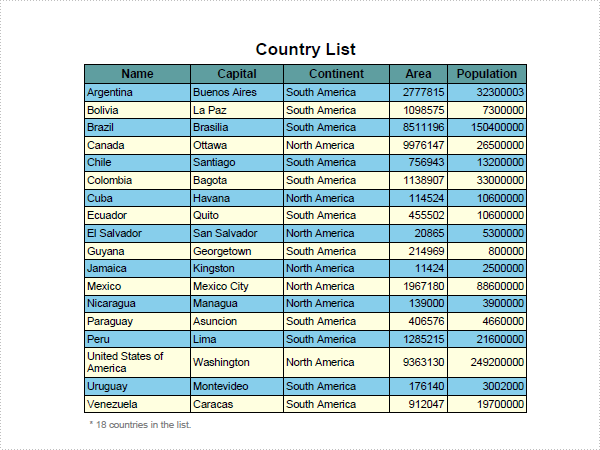
PDF DataSource to Table in C#, VB.NET
The sample demonstrates how to export data from database into a table in PDF document and set table format.
using System;
using System.Data;
using System.Data.OleDb;
using System.Drawing;
using Spire.Pdf;
using Spire.Pdf.Graphics;
using Spire.Pdf.Tables;

namespace DataSource
{
    class Program
    {
        static void Main(string[] args)
        {
            //Create a pdf document.
            PdfDocument doc = new PdfDocument();

            //margin
            PdfUnitConvertor unitCvtr = new PdfUnitConvertor();
            PdfMargins margin = new PdfMargins();
            margin.Top = unitCvtr.ConvertUnits(2.54f, PdfGraphicsUnit.Centimeter, PdfGraphicsUnit.Point);
            margin.Bottom = margin.Top;
            margin.Left = unitCvtr.ConvertUnits(3.17f, PdfGraphicsUnit.Centimeter, PdfGraphicsUnit.Point);
            margin.Right = margin.Left;

            // Create one page
            PdfPageBase page = doc.Pages.Add(PdfPageSize.A4, margin);

            float y = 10;

            //title
            PdfBrush brush1 = PdfBrushes.Black;
            PdfTrueTypeFont font1 = new PdfTrueTypeFont(new Font("Arial", 16f, FontStyle.Bold));
            PdfStringFormat format1 = new PdfStringFormat(PdfTextAlignment.Center);
            page.Canvas.DrawString("Country List", font1, brush1, page.Canvas.ClientSize.Width / 2, y, format1);
            y = y + font1.MeasureString("Country List", format1).Height;
            y = y + 5;

            //create data table
            PdfTable table = new PdfTable();
            table.Style.CellPadding = 2;
            table.Style.BorderPen = new PdfPen(brush1, 0.75f);
            table.Style.DefaultStyle.BackgroundBrush = PdfBrushes.SkyBlue;
            table.Style.DefaultStyle.Font = new PdfTrueTypeFont(new Font("Arial", 10f));
            table.Style.AlternateStyle = new PdfCellStyle();
            table.Style.AlternateStyle.BackgroundBrush = PdfBrushes.LightYellow;
            table.Style.AlternateStyle.Font = new PdfTrueTypeFont(new Font("Arial", 10f));
            table.Style.HeaderSource = PdfHeaderSource.ColumnCaptions;
            table.Style.HeaderStyle.BackgroundBrush = PdfBrushes.CadetBlue;
            table.Style.HeaderStyle.Font = new PdfTrueTypeFont(new Font("Arial", 11f, FontStyle.Bold));
            table.Style.HeaderStyle.StringFormat = new PdfStringFormat(PdfTextAlignment.Center);
            table.Style.ShowHeader = true;

            using (OleDbConnection conn = new OleDbConnection())
            {
                conn.ConnectionString = @"Provider=Microsoft.Jet.OLEDB.4.0;Data Source=demo.mdb";
                OleDbCommand command = new OleDbCommand();
                command.CommandText
                    = " select Name,Capital,Continent,Area,Population from country ";
                command.Connection = conn;
                using (OleDbDataAdapter dataAdapter = new OleDbDataAdapter(command))
                {
                    DataTable dataTable = new DataTable();
                    dataAdapter.Fill(dataTable);
                    table.DataSourceType = PdfTableDataSourceType.TableDirect;
                    table.DataSource = dataTable;
                }
            }
            float width
                = page.Canvas.ClientSize.Width
                    - (table.Columns.Count + 1) * table.Style.BorderPen.Width;
            table.Columns[0].Width = width * 0.24f * width;
            table.Columns[0].StringFormat
                = new PdfStringFormat(PdfTextAlignment.Left, PdfVerticalAlignment.Middle);
            table.Columns[1].Width = width * 0.21f * width;
            table.Columns[1].StringFormat
                = new PdfStringFormat(PdfTextAlignment.Left, PdfVerticalAlignment.Middle);
            table.Columns[2].Width = width * 0.24f * width;
            table.Columns[2].StringFormat
                = new PdfStringFormat(PdfTextAlignment.Left, PdfVerticalAlignment.Middle);
            table.Columns[3].Width = width * 0.13f * width;
            table.Columns[3].StringFormat
                = new PdfStringFormat(PdfTextAlignment.Right, PdfVerticalAlignment.Middle);
            table.Columns[4].Width = width * 0.18f * width;
            table.Columns[4].StringFormat
                = new PdfStringFormat(PdfTextAlignment.Right, PdfVerticalAlignment.Middle);

            PdfLayoutResult result = table.Draw(page, new PointF(0, y));
            y = y + result.Bounds.Height + 5;

            PdfBrush brush2 = PdfBrushes.Gray;
            PdfTrueTypeFont font2 = new PdfTrueTypeFont(new Font("Arial", 9f));
            page.Canvas.DrawString(String.Format("* {0} countries in the list.", table.Rows.Count),
                font2, brush2, 5, y);

            //Save pdf file.
            doc.SaveToFile("DataSource.pdf");
            doc.Close();

            //Launching the Pdf file.
            System.Diagnostics.Process.Start("DataSource.pdf");
        }

    }
}
Imports System.Data
Imports System.Data.OleDb
Imports System.Drawing
Imports Spire.Pdf
Imports Spire.Pdf.Graphics
Imports Spire.Pdf.Tables

Namespace DataSource
    Friend Class Program
        Shared Sub Main(ByVal args() As String)
            'Create a pdf document.
            Dim doc As New PdfDocument()

            'margin
            Dim unitCvtr As New PdfUnitConvertor()
            Dim margin As New PdfMargins()
            margin.Top = unitCvtr.ConvertUnits(2.54F, PdfGraphicsUnit.Centimeter, PdfGraphicsUnit.Point)
            margin.Bottom = margin.Top
            margin.Left = unitCvtr.ConvertUnits(3.17F, PdfGraphicsUnit.Centimeter, PdfGraphicsUnit.Point)
            margin.Right = margin.Left

            ' Create one page
            Dim page As PdfPageBase = doc.Pages.Add(PdfPageSize.A4, margin)

            Dim y As Single = 10

            'title
            Dim brush1 As PdfBrush = PdfBrushes.Black
            Dim font1 As New PdfTrueTypeFont(New Font("Arial", 16.0F, FontStyle.Bold))
            Dim format1 As New PdfStringFormat(PdfTextAlignment.Center)
            page.Canvas.DrawString("Country List", font1, brush1, page.Canvas.ClientSize.Width \ 2, y, format1)
            y = y + font1.MeasureString("Country List", format1).Height
            y = y + 5

            'create data table
            Dim table As New PdfTable()
            table.Style.CellPadding = 2
            table.Style.BorderPen = New PdfPen(brush1, 0.75F)
            table.Style.DefaultStyle.BackgroundBrush = PdfBrushes.SkyBlue
            table.Style.DefaultStyle.Font = New PdfTrueTypeFont(New Font("Arial", 10.0F))
            table.Style.AlternateStyle = New PdfCellStyle()
            table.Style.AlternateStyle.BackgroundBrush = PdfBrushes.LightYellow
            table.Style.AlternateStyle.Font = New PdfTrueTypeFont(New Font("Arial", 10.0F))
            table.Style.HeaderSource = PdfHeaderSource.ColumnCaptions
            table.Style.HeaderStyle.BackgroundBrush = PdfBrushes.CadetBlue
            table.Style.HeaderStyle.Font = New PdfTrueTypeFont(New Font("Arial", 11.0F, FontStyle.Bold))
            table.Style.HeaderStyle.StringFormat = New PdfStringFormat(PdfTextAlignment.Center)
            table.Style.ShowHeader = True

            Using conn As New OleDbConnection()
                conn.ConnectionString = "Provider=Microsoft.Jet.OLEDB.4.0;Data Source=demo.mdb"
                Dim command As New OleDbCommand()
                command.CommandText = " select Name,Capital,Continent,Area,Population from country "
                command.Connection = conn
                Using dataAdapter As New OleDbDataAdapter(command)
                    Dim dataTable As New DataTable()
                    dataAdapter.Fill(dataTable)
                    table.DataSourceType = PdfTableDataSourceType.TableDirect
                    table.DataSource = dataTable
                End Using
            End Using
            Dim width As Single = page.Canvas.ClientSize.Width - (table.Columns.Count + 1) * table.Style.BorderPen.Width
            table.Columns(0).Width = width * 0.24F * width
            table.Columns(0).StringFormat = New PdfStringFormat(PdfTextAlignment.Left, PdfVerticalAlignment.Middle)
            table.Columns(1).Width = width * 0.21F * width
            table.Columns(1).StringFormat = New PdfStringFormat(PdfTextAlignment.Left, PdfVerticalAlignment.Middle)
            table.Columns(2).Width = width * 0.24F * width
            table.Columns(2).StringFormat = New PdfStringFormat(PdfTextAlignment.Left, PdfVerticalAlignment.Middle)
            table.Columns(3).Width = width * 0.13F * width
            table.Columns(3).StringFormat = New PdfStringFormat(PdfTextAlignment.Right, PdfVerticalAlignment.Middle)
            table.Columns(4).Width = width * 0.18F * width
            table.Columns(4).StringFormat = New PdfStringFormat(PdfTextAlignment.Right, PdfVerticalAlignment.Middle)

            Dim result As PdfLayoutResult = table.Draw(page, New PointF(0, y))
            y = y + result.Bounds.Height + 5

            Dim brush2 As PdfBrush = PdfBrushes.Gray
            Dim font2 As New PdfTrueTypeFont(New Font("Arial", 9.0F))
            page.Canvas.DrawString(String.Format("* {0} countries in the list.", table.Rows.Count), font2, brush2, 5, y)

            'Save pdf file.
            doc.SaveToFile("DataSource.pdf")
            doc.Close()

            'Launching the Pdf file.
            Process.Start("DataSource.pdf")
        End Sub
    End Class
End Namespace
Published in
Table
Tagged under
Wednesday, 06 April 2011 01:56
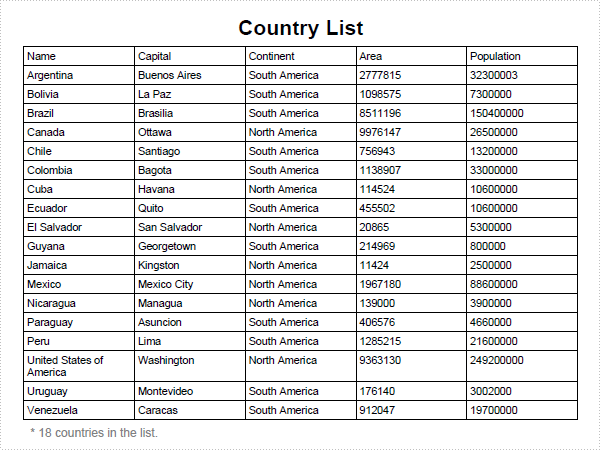
PDF SimpleTable in C#, VB.NET
using System;
using System.Drawing;
using Spire.Pdf;
using Spire.Pdf.Graphics;
using Spire.Pdf.Tables;

namespace SimpleTable
{
    class Program
    {
        static void Main(string[] args)
        {
            //Create a pdf document.
            PdfDocument doc = new PdfDocument();

            //margin
            PdfUnitConvertor unitCvtr = new PdfUnitConvertor();
            PdfMargins margin = new PdfMargins();
            margin.Top = unitCvtr.ConvertUnits(2.54f, PdfGraphicsUnit.Centimeter, PdfGraphicsUnit.Point);
            margin.Bottom = margin.Top;
            margin.Left = unitCvtr.ConvertUnits(3.17f, PdfGraphicsUnit.Centimeter, PdfGraphicsUnit.Point);
            margin.Right = margin.Left;

            // Create one page
            PdfPageBase page = doc.Pages.Add(PdfPageSize.A4, margin);

            float y = 10;

            //title
            PdfBrush brush1 = PdfBrushes.Black;
            PdfTrueTypeFont font1 = new PdfTrueTypeFont(new Font("Arial", 16f, FontStyle.Bold));
            PdfStringFormat format1 = new PdfStringFormat(PdfTextAlignment.Center);
            page.Canvas.DrawString("Country List", font1, brush1, page.Canvas.ClientSize.Width / 2, y, format1);
            y = y + font1.MeasureString("Country List", format1).Height;
            y = y + 5;

            String[] data
                = {
                    "Name;Capital;Continent;Area;Population",
                    "Argentina;Buenos Aires;South America;2777815;32300003",
                    "Bolivia;La Paz;South America;1098575;7300000",
                    "Brazil;Brasilia;South America;8511196;150400000",
                    "Canada;Ottawa;North America;9976147;26500000",
                    "Chile;Santiago;South America;756943;13200000",
                    "Colombia;Bagota;South America;1138907;33000000",
                    "Cuba;Havana;North America;114524;10600000",
                    "Ecuador;Quito;South America;455502;10600000",
                    "El Salvador;San Salvador;North America;20865;5300000",
                    "Guyana;Georgetown;South America;214969;800000",
                    "Jamaica;Kingston;North America;11424;2500000",
                    "Mexico;Mexico City;North America;1967180;88600000",
                    "Nicaragua;Managua;North America;139000;3900000",
                    "Paraguay;Asuncion;South America;406576;4660000",
                    "Peru;Lima;South America;1285215;21600000",
                    "United States of America;Washington;North America;9363130;249200000",
                    "Uruguay;Montevideo;South America;176140;3002000",
                    "Venezuela;Caracas;South America;912047;19700000"
                };

            String[][] dataSource
                = new String[data.Length][];
            for (int i = 0; i < data.Length; i++)
            {
                dataSource[i] = data[i].Split(';');
            }

            PdfTable table = new PdfTable();
            table.Style.CellPadding = 2;
            table.Style.HeaderSource = PdfHeaderSource.Rows;
            table.Style.HeaderRowCount = 1;
            table.Style.ShowHeader = true;
            table.DataSource = dataSource;

            PdfLayoutResult result = table.Draw(page, new PointF(0, y));
            y = y + result.Bounds.Height + 5;

            PdfBrush brush2 = PdfBrushes.Gray;
            PdfTrueTypeFont font2 = new PdfTrueTypeFont(new Font("Arial", 9f));
            page.Canvas.DrawString(String.Format("* {0} countries in the list.", data.Length - 1),
                font2, brush2, 5, y);

            //Save pdf file.
            doc.SaveToFile("SimpleTable.pdf");
            doc.Close();

            //Launching the Pdf file.
            System.Diagnostics.Process.Start("SimpleTable.pdf");
        }
    }
}
Imports System.Drawing
Imports Spire.Pdf
Imports Spire.Pdf.Graphics
Imports Spire.Pdf.Tables

Namespace SimpleTable
    Friend Class Program
        Shared Sub Main(ByVal args() As String)
            'Create a pdf document.
            Dim doc As New PdfDocument()

            'margin
            Dim unitCvtr As New PdfUnitConvertor()
            Dim margin As New PdfMargins()
            margin.Top = unitCvtr.ConvertUnits(2.54F, PdfGraphicsUnit.Centimeter, PdfGraphicsUnit.Point)
            margin.Bottom = margin.Top
            margin.Left = unitCvtr.ConvertUnits(3.17F, PdfGraphicsUnit.Centimeter, PdfGraphicsUnit.Point)
            margin.Right = margin.Left

            ' Create one page
            Dim page As PdfPageBase = doc.Pages.Add(PdfPageSize.A4, margin)

            Dim y As Single = 10

            'title
            Dim brush1 As PdfBrush = PdfBrushes.Black
            Dim font1 As New PdfTrueTypeFont(New Font("Arial", 16.0F, FontStyle.Bold))
            Dim format1 As New PdfStringFormat(PdfTextAlignment.Center)
            page.Canvas.DrawString("Country List", font1, brush1, page.Canvas.ClientSize.Width \ 2, y, format1)
            y = y + font1.MeasureString("Country List", format1).Height
            y = y + 5

            Dim data() As String _
                = {"Name;Capital;Continent;Area;Population", _
                   "Argentina;Buenos Aires;South America;2777815;32300003", _
                   "Bolivia;La Paz;South America;1098575;7300000", _
                   "Brazil;Brasilia;South America;8511196;150400000", _
                   "Canada;Ottawa;North America;9976147;26500000", _
                   "Chile;Santiago;South America;756943;13200000", _
                   "Colombia;Bagota;South America;1138907;33000000", _
                   "Cuba;Havana;North America;114524;10600000", _
                   "Ecuador;Quito;South America;455502;10600000", _
                   "El Salvador;San Salvador;North America;20865;5300000", _
                   "Guyana;Georgetown;South America;214969;800000", _
                   "Jamaica;Kingston;North America;11424;2500000", _
                   "Mexico;Mexico City;North America;1967180;88600000", _
                   "Nicaragua;Managua;North America;139000;3900000", _
                   "Paraguay;Asuncion;South America;406576;4660000", _
                   "Peru;Lima;South America;1285215;21600000", _
                   "United States of America;Washington;North America;9363130;249200000", _
                   "Uruguay;Montevideo;South America;176140;3002000", _
                   "Venezuela;Caracas;South America;912047;19700000"}

            Dim dataSource(data.Length - 1)() As String
            For i As Integer = 0 To data.Length - 1
                dataSource(i) = data(i).Split(";"c)
            Next i

            Dim table As New PdfTable()
            table.Style.CellPadding = 2
            table.Style.HeaderSource = PdfHeaderSource.Rows
            table.Style.HeaderRowCount = 1
            table.Style.ShowHeader = True
            table.DataSource = dataSource

            Dim result As PdfLayoutResult = table.Draw(page, New PointF(0, y))
            y = y + result.Bounds.Height + 5

            Dim brush2 As PdfBrush = PdfBrushes.Gray
            Dim font2 As New PdfTrueTypeFont(New Font("Arial", 9.0F))
            page.Canvas.DrawString(String.Format("* {0} countries in the list.", data.Length - 1), _
                                   font2, brush2, 5, y)

            'Save pdf file.
            doc.SaveToFile("SimpleTable.pdf")
            doc.Close()

            'Launching the Pdf file.
            Process.Start("SimpleTable.pdf")
        End Sub
    End Class
End Namespace
Wednesday, 06 April 2011 01:50
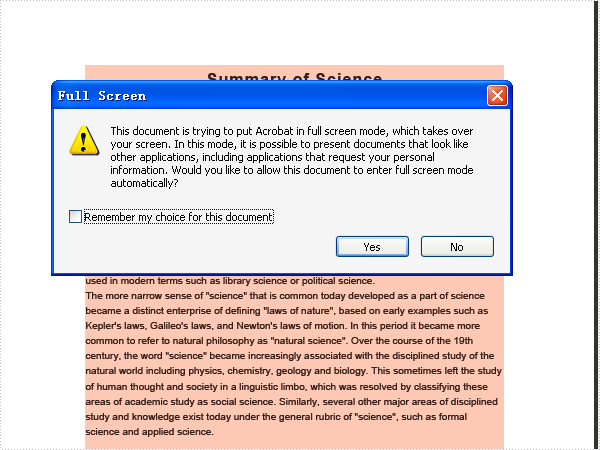
PDF Transition in C#, VB.NET
The sample demonstrates how to work with pages transition, document section setting and set full screen view in PDF document.
using System;
using System.Drawing;
using Spire.Pdf;
using Spire.Pdf.Graphics;

namespace Transition
{
    class Program
    {
        static void Main(string[] args)
        {
            //Create a pdf document.
            PdfDocument doc = new PdfDocument();
            doc.ViewerPreferences.PageMode = PdfPageMode.FullScreen;

            //margin
            PdfUnitConvertor unitCvtr = new PdfUnitConvertor();
            PdfMargins margin = new PdfMargins();
            margin.Top = unitCvtr.ConvertUnits(2.54f, PdfGraphicsUnit.Centimeter, PdfGraphicsUnit.Point);
            margin.Bottom = margin.Top;
            margin.Left = unitCvtr.ConvertUnits(3.17f, PdfGraphicsUnit.Centimeter, PdfGraphicsUnit.Point);
            margin.Right = margin.Left;

            //create section
            PdfSection section = doc.Sections.Add();
            section.PageSettings.Size = PdfPageSize.A4;
            section.PageSettings.Margins = margin;
            section.PageSettings.Transition = new PdfPageTransition();
            section.PageSettings.Transition.Duration = 2;
            section.PageSettings.Transition.Style = PdfTransitionStyle.Fly;
            section.PageSettings.Transition.PageDuration = 1;

            PdfNewPage page = section.Pages.Add();
            page.BackgroundColor = Color.Red;
            DrawPage(page);

            page = section.Pages.Add();
            page.BackgroundColor = Color.Green;
            DrawPage(page);

            page = section.Pages.Add();
            page.BackgroundColor = Color.Blue;
            DrawPage(page);

            section = doc.Sections.Add();
            section.PageSettings.Size = PdfPageSize.A4;
            section.PageSettings.Margins = margin;
            section.PageSettings.Transition = new PdfPageTransition();
            section.PageSettings.Transition.Duration = 2;
            section.PageSettings.Transition.Style = PdfTransitionStyle.Box;
            section.PageSettings.Transition.PageDuration = 1;

            page = section.Pages.Add();
            page.BackgroundColor = Color.Orange;
            DrawPage(page);

            page = section.Pages.Add();
            page.BackgroundColor = Color.Brown;
            DrawPage(page);

            page = section.Pages.Add();
            page.BackgroundColor = Color.Navy;
            DrawPage(page);

            section = doc.Sections.Add();
            section.PageSettings.Size = PdfPageSize.A4;
            section.PageSettings.Margins = margin;
            section.PageSettings.Transition = new PdfPageTransition();
            section.PageSettings.Transition.Duration = 2;
            section.PageSettings.Transition.Style = PdfTransitionStyle.Split;
            section.PageSettings.Transition.Dimension = PdfTransitionDimension.Vertical;
            section.PageSettings.Transition.Motion = PdfTransitionMotion.Inward;
            section.PageSettings.Transition.PageDuration = 1;

            page = section.Pages.Add();
            page.BackgroundColor = Color.Orange;
            DrawPage(page);

            page = section.Pages.Add();
            page.BackgroundColor = Color.Brown;
            DrawPage(page);

            page = section.Pages.Add();
            page.BackgroundColor = Color.Navy;
            DrawPage(page);

            //Save pdf file.
            doc.SaveToFile("Transition.pdf");
            doc.Close();

            //Launching the Pdf file.
            System.Diagnostics.Process.Start("Transition.pdf");
        }

        private static void DrawPage(PdfPageBase page)
        {
            float pageWidth = page.Canvas.ClientSize.Width;
            float y = 0;

            //title
            y = y + 5;
            PdfBrush brush2 = new PdfSolidBrush(Color.Black);
            PdfTrueTypeFont font2 = new PdfTrueTypeFont(new Font("Arial", 16f, FontStyle.Bold));
            PdfStringFormat format2 = new PdfStringFormat(PdfTextAlignment.Center);
            format2.CharacterSpacing = 1f;
            String text = "Summary of Science";
            page.Canvas.DrawString(text, font2, brush2, pageWidth / 2, y, format2);
            SizeF size = font2.MeasureString(text, format2);
            y = y + size.Height + 6;

            //icon
            PdfImage image = PdfImage.FromFile(@"Wikipedia_Science.png");
            page.Canvas.DrawImage(image, new PointF(pageWidth - image.PhysicalDimension.Width, y));
            float imageLeftSpace = pageWidth - image.PhysicalDimension.Width - 2;
            float imageBottom = image.PhysicalDimension.Height + y;

            //refenrence content
            PdfTrueTypeFont font3 = new PdfTrueTypeFont(new Font("Arial", 9f));
            PdfStringFormat format3 = new PdfStringFormat();
            format3.ParagraphIndent = font3.Size * 2;
            format3.MeasureTrailingSpaces = true;
            format3.LineSpacing = font3.Size * 1.5f;
            String text1 = "(All text and picture from ";
            String text2 = "Wikipedia";
            String text3 = ", the free encyclopedia)";
            page.Canvas.DrawString(text1, font3, brush2, 0, y, format3);

            size = font3.MeasureString(text1, format3);
            float x1 = size.Width;
            format3.ParagraphIndent = 0;
            PdfTrueTypeFont font4 = new PdfTrueTypeFont(new Font("Arial", 9f, FontStyle.Underline));
            PdfBrush brush3 = PdfBrushes.Blue;
            page.Canvas.DrawString(text2, font4, brush3, x1, y, format3);
            size = font4.MeasureString(text2, format3);
            x1 = x1 + size.Width;

            page.Canvas.DrawString(text3, font3, brush2, x1, y, format3);
            y = y + size.Height;

            //content
            PdfStringFormat format4 = new PdfStringFormat();
            text = System.IO.File.ReadAllText(@"Summary_of_Science.txt");
            PdfTrueTypeFont font5 = new PdfTrueTypeFont(new Font("Arial", 10f));
            format4.LineSpacing = font5.Size * 1.5f;
            PdfStringLayouter textLayouter = new PdfStringLayouter();
            float imageLeftBlockHeight = imageBottom - y;
            PdfStringLayoutResult result
                = textLayouter.Layout(text, font5, format4, new SizeF(imageLeftSpace, imageLeftBlockHeight));
            if (result.ActualSize.Height < imageBottom - y)
            {
                imageLeftBlockHeight = imageLeftBlockHeight + result.LineHeight;
                result = textLayouter.Layout(text, font5, format4, new SizeF(imageLeftSpace, imageLeftBlockHeight));
            }
            foreach (LineInfo line in result.Lines)
            {
                page.Canvas.DrawString(line.Text, font5, brush2, 0, y, format4);
                y = y + result.LineHeight;
            }
            PdfTextWidget textWidget = new PdfTextWidget(result.Remainder, font5, brush2);
            PdfTextLayout textLayout = new PdfTextLayout();
            textLayout.Break = PdfLayoutBreakType.FitPage;
            textLayout.Layout = PdfLayoutType.Paginate;
            RectangleF bounds = new RectangleF(new PointF(0, y), page.Canvas.ClientSize);
            textWidget.StringFormat = format4;
            textWidget.Draw(page, bounds, textLayout);
        }
    }
}
Imports System.Drawing
Imports Spire.Pdf
Imports Spire.Pdf.Graphics

Namespace Transition
    Friend Class Program
        Shared Sub Main(ByVal args() As String)
            'Create a pdf document.
            Dim doc As New PdfDocument()
            doc.ViewerPreferences.PageMode = PdfPageMode.FullScreen

            'margin
            Dim unitCvtr As New PdfUnitConvertor()
            Dim margin As New PdfMargins()
            margin.Top = unitCvtr.ConvertUnits(2.54F, PdfGraphicsUnit.Centimeter, PdfGraphicsUnit.Point)
            margin.Bottom = margin.Top
            margin.Left = unitCvtr.ConvertUnits(3.17F, PdfGraphicsUnit.Centimeter, PdfGraphicsUnit.Point)
            margin.Right = margin.Left

            'create section
            Dim section As PdfSection = doc.Sections.Add()
            section.PageSettings.Size = PdfPageSize.A4
            section.PageSettings.Margins = margin
            section.PageSettings.Transition = New PdfPageTransition()
            section.PageSettings.Transition.Duration = 2
            section.PageSettings.Transition.Style = PdfTransitionStyle.Fly
            section.PageSettings.Transition.PageDuration = 1

            Dim page As PdfNewPage = section.Pages.Add()
            page.BackgroundColor = Color.Red
            DrawPage(page)

            page = section.Pages.Add()
            page.BackgroundColor = Color.Green
            DrawPage(page)

            page = section.Pages.Add()
            page.BackgroundColor = Color.Blue
            DrawPage(page)

            section = doc.Sections.Add()
            section.PageSettings.Size = PdfPageSize.A4
            section.PageSettings.Margins = margin
            section.PageSettings.Transition = New PdfPageTransition()
            section.PageSettings.Transition.Duration = 2
            section.PageSettings.Transition.Style = PdfTransitionStyle.Box
            section.PageSettings.Transition.PageDuration = 1

            page = section.Pages.Add()
            page.BackgroundColor = Color.Orange
            DrawPage(page)

            page = section.Pages.Add()
            page.BackgroundColor = Color.Brown
            DrawPage(page)

            page = section.Pages.Add()
            page.BackgroundColor = Color.Navy
            DrawPage(page)

            section = doc.Sections.Add()
            section.PageSettings.Size = PdfPageSize.A4
            section.PageSettings.Margins = margin
            section.PageSettings.Transition = New PdfPageTransition()
            section.PageSettings.Transition.Duration = 2
            section.PageSettings.Transition.Style = PdfTransitionStyle.Split
            section.PageSettings.Transition.Dimension = PdfTransitionDimension.Vertical
            section.PageSettings.Transition.Motion = PdfTransitionMotion.Inward
            section.PageSettings.Transition.PageDuration = 1

            page = section.Pages.Add()
            page.BackgroundColor = Color.Orange
            DrawPage(page)

            page = section.Pages.Add()
            page.BackgroundColor = Color.Brown
            DrawPage(page)

            page = section.Pages.Add()
            page.BackgroundColor = Color.Navy
            DrawPage(page)

            'Save pdf file.
            doc.SaveToFile("Transition.pdf")
            doc.Close()

            'Launching the Pdf file.
            Process.Start("Transition.pdf")
        End Sub

        Private Shared Sub DrawPage(ByVal page As PdfPageBase)
            Dim pageWidth As Single = page.Canvas.ClientSize.Width
            Dim y As Single = 0

            'title
            y = y + 5
            Dim brush2 As PdfBrush = New PdfSolidBrush(Color.Black)
            Dim font2 As New PdfTrueTypeFont(New Font("Arial", 16.0F, FontStyle.Bold))
            Dim format2 As New PdfStringFormat(PdfTextAlignment.Center)
            format2.CharacterSpacing = 1.0F
            Dim text As String = "Summary of Science"
            page.Canvas.DrawString(text, font2, brush2, pageWidth / 2, y, format2)
            Dim size As SizeF = font2.MeasureString(text, format2)
            y = y + size.Height + 6

            'icon
            Dim image As PdfImage = PdfImage.FromFile("Wikipedia_Science.png")
            page.Canvas.DrawImage(image, New PointF(pageWidth - image.PhysicalDimension.Width, y))
            Dim imageLeftSpace As Single = pageWidth - image.PhysicalDimension.Width - 2
            Dim imageBottom As Single = image.PhysicalDimension.Height + y

            'refenrence content
            Dim font3 As New PdfTrueTypeFont(New Font("Arial", 9.0F))
            Dim format3 As New PdfStringFormat()
            format3.ParagraphIndent = font3.Size * 2
            format3.MeasureTrailingSpaces = True
            format3.LineSpacing = font3.Size * 1.5F
            Dim text1 As String = "(All text and picture from "
            Dim text2 As String = "Wikipedia"
            Dim text3 As String = ", the free encyclopedia)"
            page.Canvas.DrawString(text1, font3, brush2, 0, y, format3)

            size = font3.MeasureString(text1, format3)
            Dim x1 As Single = size.Width
            format3.ParagraphIndent = 0
            Dim font4 As New PdfTrueTypeFont(New Font("Arial", 9.0F, FontStyle.Underline))
            Dim brush3 As PdfBrush = PdfBrushes.Blue
            page.Canvas.DrawString(text2, font4, brush3, x1, y, format3)
            size = font4.MeasureString(text2, format3)
            x1 = x1 + size.Width

            page.Canvas.DrawString(text3, font3, brush2, x1, y, format3)
            y = y + size.Height

            'content
            Dim format4 As New PdfStringFormat()
            text = System.IO.File.ReadAllText("Summary_of_Science.txt")
            Dim font5 As New PdfTrueTypeFont(New Font("Arial", 10.0F))
            format4.LineSpacing = font5.Size * 1.5F
            Dim textLayouter As New PdfStringLayouter()
            Dim imageLeftBlockHeight As Single = imageBottom - y
            Dim result As PdfStringLayoutResult _
                = textLayouter.Layout(text, font5, format4, New SizeF(imageLeftSpace, imageLeftBlockHeight))
            If result.ActualSize.Height < imageBottom - y Then
                imageLeftBlockHeight = imageLeftBlockHeight + result.LineHeight
                result = textLayouter.Layout(text, font5, format4, New SizeF(imageLeftSpace, imageLeftBlockHeight))
            End If
            For Each line As LineInfo In result.Lines
                page.Canvas.DrawString(line.Text, font5, brush2, 0, y, format4)
                y = y + result.LineHeight
            Next line
            Dim textWidget As New PdfTextWidget(result.Remainder, font5, brush2)
            Dim textLayout As New PdfTextLayout()
            textLayout.Break = PdfLayoutBreakType.FitPage
            textLayout.Layout = PdfLayoutType.Paginate
            Dim bounds As New RectangleF(New PointF(0, y), page.Canvas.ClientSize)
            textWidget.StringFormat = format4
            textWidget.Draw(page, bounds, textLayout)
        End Sub
    End Class
End Namespace
Published in
Page
Tagged under
Wednesday, 06 April 2011 01:41
PDF Template in C#, VB.NET
The sample demonstrates how to set PDF documentaion template, page header&footer, page number and automatic page number count.
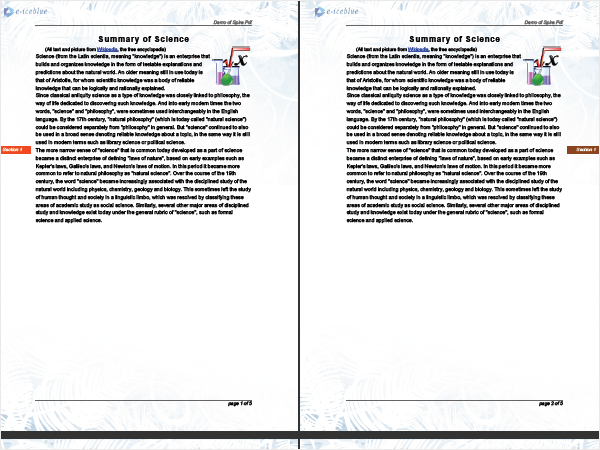
using System;
using System.Drawing;
using Spire.Pdf;
using Spire.Pdf.AutomaticFields;
using Spire.Pdf.Graphics;

namespace Template
{
    class Program
    {
        static void Main(string[] args)
        {
            //Create a pdf document.
            PdfDocument doc = new PdfDocument();
            doc.ViewerPreferences.PageLayout = PdfPageLayout.TwoColumnLeft;

            //margin
            PdfUnitConvertor unitCvtr = new PdfUnitConvertor();
            PdfMargins margin = new PdfMargins();
            margin.Top = unitCvtr.ConvertUnits(2.54f, PdfGraphicsUnit.Centimeter, PdfGraphicsUnit.Point);
            margin.Bottom = margin.Top;
            margin.Left = unitCvtr.ConvertUnits(3.17f, PdfGraphicsUnit.Centimeter, PdfGraphicsUnit.Point);
            margin.Right = margin.Left;

            SetDocumentTemplate(doc, PdfPageSize.A4, margin);

            //create section
            PdfSection section = doc.Sections.Add();
            section.PageSettings.Size = PdfPageSize.A4;
            section.PageSettings.Margins = new PdfMargins(0);
            SetSectionTemplate(section, PdfPageSize.A4, margin, "Section 1");

            // Create one page
            PdfNewPage page = section.Pages.Add();

            //Draw page
            DrawPage(page);

            page = section.Pages.Add();
            DrawPage(page);

            page = section.Pages.Add();
            DrawPage(page);

            page = section.Pages.Add();
            DrawPage(page);

            page = section.Pages.Add();
            DrawPage(page);

            //Save pdf file.
            doc.SaveToFile("Template.pdf");
            doc.Close();

            //Launching the Pdf file.
            System.Diagnostics.Process.Start("Template.pdf");
        }

        private static void DrawPage(PdfNewPage page)
        {
            float pageWidth = page.Canvas.ClientSize.Width;
            float y = 0;

            //title
            y = y + 5;
            PdfBrush brush2 = new PdfSolidBrush(Color.Black);
            PdfTrueTypeFont font2 = new PdfTrueTypeFont(new Font("Arial", 16f, FontStyle.Bold));
            PdfStringFormat format2 = new PdfStringFormat(PdfTextAlignment.Center);
            format2.CharacterSpacing = 1f;
            String text = "Summary of Science";
            page.Canvas.DrawString(text, font2, brush2, pageWidth / 2, y, format2);
            SizeF size = font2.MeasureString(text, format2);
            y = y + size.Height + 6;

            //icon
            PdfImage image = PdfImage.FromFile(@"Wikipedia_Science.png");
            page.Canvas.DrawImage(image, new PointF(pageWidth - image.PhysicalDimension.Width, y));
            float imageLeftSpace = pageWidth - image.PhysicalDimension.Width - 2;
            float imageBottom = image.PhysicalDimension.Height + y;

            //refenrence content
            PdfTrueTypeFont font3 = new PdfTrueTypeFont(new Font("Arial", 9f));
            PdfStringFormat format3 = new PdfStringFormat();
            format3.ParagraphIndent = font3.Size * 2;
            format3.MeasureTrailingSpaces = true;
            format3.LineSpacing = font3.Size * 1.5f;
            String text1 = "(All text and picture from ";
            String text2 = "Wikipedia";
            String text3 = ", the free encyclopedia)";
            page.Canvas.DrawString(text1, font3, brush2, 0, y, format3);

            size = font3.MeasureString(text1, format3);
            float x1 = size.Width;
            format3.ParagraphIndent = 0;
            PdfTrueTypeFont font4 = new PdfTrueTypeFont(new Font("Arial", 9f, FontStyle.Underline));
            PdfBrush brush3 = PdfBrushes.Blue;
            page.Canvas.DrawString(text2, font4, brush3, x1, y, format3);
            size = font4.MeasureString(text2, format3);
            x1 = x1 + size.Width;

            page.Canvas.DrawString(text3, font3, brush2, x1, y, format3);
            y = y + size.Height;

            //content
            PdfStringFormat format4 = new PdfStringFormat();
            text = System.IO.File.ReadAllText(@"Summary_of_Science.txt");
            PdfTrueTypeFont font5 = new PdfTrueTypeFont(new Font("Arial", 10f));
            format4.LineSpacing = font5.Size * 1.5f;
            PdfStringLayouter textLayouter = new PdfStringLayouter();
            float imageLeftBlockHeight = imageBottom - y;
            PdfStringLayoutResult result
                = textLayouter.Layout(text, font5, format4, new SizeF(imageLeftSpace, imageLeftBlockHeight));
            if (result.ActualSize.Height < imageBottom - y)
            {
                imageLeftBlockHeight = imageLeftBlockHeight + result.LineHeight;
                result = textLayouter.Layout(text, font5, format4, new SizeF(imageLeftSpace, imageLeftBlockHeight));
            }
            foreach (LineInfo line in result.Lines)
            {
                page.Canvas.DrawString(line.Text, font5, brush2, 0, y, format4);
                y = y + result.LineHeight;
            }
            PdfTextWidget textWidget = new PdfTextWidget(result.Remainder, font5, brush2);
            PdfTextLayout textLayout = new PdfTextLayout();
            textLayout.Break = PdfLayoutBreakType.FitPage;
            textLayout.Layout = PdfLayoutType.Paginate;
            RectangleF bounds = new RectangleF(new PointF(0, y), page.Canvas.ClientSize);
            textWidget.StringFormat = format4;
            textWidget.Draw(page, bounds, textLayout);
        }

        private static void SetSectionTemplate(PdfSection section, SizeF pageSize, PdfMargins margin, string label)
        {
            PdfPageTemplateElement leftSpace
                = new PdfPageTemplateElement(margin.Left, pageSize.Height);
            leftSpace.Foreground = true;
            section.Template.OddLeft = leftSpace;

            PdfTrueTypeFont font = new PdfTrueTypeFont(new Font("Arial", 9f, FontStyle.Italic));
            PdfStringFormat format = new PdfStringFormat(PdfTextAlignment.Center, PdfVerticalAlignment.Middle);
            float y = (pageSize.Height - margin.Top - margin.Bottom) * (1 - 0.618f);
            RectangleF bounds
                = new RectangleF(10, y, margin.Left - 20, font.Height + 6);
            leftSpace.Graphics.DrawRectangle(PdfBrushes.OrangeRed, bounds);
            leftSpace.Graphics.DrawString(label, font, PdfBrushes.White, bounds, format);

            PdfPageTemplateElement rightSpace
                = new PdfPageTemplateElement(margin.Right, pageSize.Height);
            rightSpace.Foreground = true;
            section.Template.EvenRight = rightSpace;
            bounds
                = new RectangleF(10, y, margin.Right - 20, font.Height + 6);
            rightSpace.Graphics.DrawRectangle(PdfBrushes.SaddleBrown, bounds);
            rightSpace.Graphics.DrawString(label, font, PdfBrushes.White, bounds, format);
        }

        private static void SetDocumentTemplate(PdfDocument doc, SizeF pageSize, PdfMargins margin)
        {
            PdfPageTemplateElement leftSpace
                = new PdfPageTemplateElement(margin.Left, pageSize.Height);
            doc.Template.Left = leftSpace;

            PdfPageTemplateElement topSpace
                = new PdfPageTemplateElement(pageSize.Width, margin.Top);
            topSpace.Foreground = true;
            doc.Template.Top = topSpace;

            //draw header label
            PdfTrueTypeFont font = new PdfTrueTypeFont(new Font("Arial", 9f, FontStyle.Italic));
            PdfStringFormat format = new PdfStringFormat(PdfTextAlignment.Right);
            String label = "Demo of Spire.Pdf";
            SizeF size = font.MeasureString(label, format);
            float y = topSpace.Height - font.Height - 1;
            PdfPen pen = new PdfPen(Color.Black, 0.75f);
            topSpace.Graphics.SetTransparency(0.5f);
            topSpace.Graphics.DrawLine(pen, margin.Left, y, pageSize.Width - margin.Right, y);
            y = y - 1 - size.Height;
            topSpace.Graphics.DrawString(label, font, PdfBrushes.Black, pageSize.Width - margin.Right, y, format);

            PdfPageTemplateElement rightSpace
                = new PdfPageTemplateElement(margin.Right, pageSize.Height);
            doc.Template.Right = rightSpace;

            PdfPageTemplateElement bottomSpace
                = new PdfPageTemplateElement(pageSize.Width, margin.Bottom);
            bottomSpace.Foreground = true;
            doc.Template.Bottom = bottomSpace;

            //draw footer label
            y = font.Height + 1;
            bottomSpace.Graphics.SetTransparency(0.5f);
            bottomSpace.Graphics.DrawLine(pen, margin.Left, y, pageSize.Width - margin.Right, y);
            y = y + 1;
            PdfPageNumberField pageNumber = new PdfPageNumberField();
            PdfPageCountField pageCount = new PdfPageCountField();
            PdfCompositeField pageNumberLabel = new PdfCompositeField();
            pageNumberLabel.AutomaticFields
                = new PdfAutomaticField[] { pageNumber, pageCount };
            pageNumberLabel.Brush = PdfBrushes.Black;
            pageNumberLabel.Font = font;
            pageNumberLabel.StringFormat = format;
            pageNumberLabel.Text = "page {0} of {1}";
            pageNumberLabel.Draw(bottomSpace.Graphics, pageSize.Width - margin.Right, y);

            PdfImage headerImage
                = PdfImage.FromFile(@"Header.png");
            PointF pageLeftTop = new PointF(-margin.Left, -margin.Top);
            PdfPageTemplateElement header
                = new PdfPageTemplateElement(pageLeftTop, headerImage.PhysicalDimension);
            header.Foreground = false;
            header.Graphics.SetTransparency(0.5f);
            header.Graphics.DrawImage(headerImage, 0, 0);
            doc.Template.Stamps.Add(header);

            PdfImage footerImage
                = PdfImage.FromFile(@"Footer.png");
            y = pageSize.Height - footerImage.PhysicalDimension.Height;
            PointF footerLocation = new PointF(-margin.Left, y);
            PdfPageTemplateElement footer
                = new PdfPageTemplateElement(footerLocation, footerImage.PhysicalDimension);
            footer.Foreground = false;
            footer.Graphics.SetTransparency(0.5f);
            footer.Graphics.DrawImage(footerImage, 0, 0);
            doc.Template.Stamps.Add(footer);
        }
    }
}
Imports System.Drawing
Imports Spire.Pdf
Imports Spire.Pdf.Graphics
Imports System.Text
Imports Spire.Pdf.AutomaticFields

Namespace Template
    Friend Class Program
        Shared Sub Main(ByVal args() As String)
            'Create a pdf document.
            Dim doc As New PdfDocument()
            doc.ViewerPreferences.PageLayout = PdfPageLayout.TwoColumnLeft

            'margin
            Dim unitCvtr As New PdfUnitConvertor()
            Dim margin As New PdfMargins()
            margin.Top = unitCvtr.ConvertUnits(2.54F, PdfGraphicsUnit.Centimeter, PdfGraphicsUnit.Point)
            margin.Bottom = margin.Top
            margin.Left = unitCvtr.ConvertUnits(3.17F, PdfGraphicsUnit.Centimeter, PdfGraphicsUnit.Point)
            margin.Right = margin.Left

            SetDocumentTemplate(doc, PdfPageSize.A4, margin)

            'create section
            Dim section As PdfSection = doc.Sections.Add()
            section.PageSettings.Size = PdfPageSize.A4
            section.PageSettings.Margins = New PdfMargins(0)
            SetSectionTemplate(section, PdfPageSize.A4, margin, "Section 1")

            ' Create one page
            Dim page As PdfNewPage = section.Pages.Add()

            'Draw page
            DrawPage(page)

            page = section.Pages.Add()
            DrawPage(page)

            page = section.Pages.Add()
            DrawPage(page)

            page = section.Pages.Add()
            DrawPage(page)

            page = section.Pages.Add()
            DrawPage(page)

            'Save pdf file.
            doc.SaveToFile("Template.pdf")
            doc.Close()

            'Launching the Pdf file.
            Process.Start("Template.pdf")
        End Sub

        Private Shared Sub DrawPage(ByVal page As PdfNewPage)
            Dim pageWidth As Single = page.Canvas.ClientSize.Width
            Dim y As Single = 0

            'title
            y = y + 5
            Dim brush2 As PdfBrush = New PdfSolidBrush(Color.Black)
            Dim font2 As New PdfTrueTypeFont(New Font("Arial", 16.0F, FontStyle.Bold))
            Dim format2 As New PdfStringFormat(PdfTextAlignment.Center)
            format2.CharacterSpacing = 1.0F
            Dim text As String = "Summary of Science"
            page.Canvas.DrawString(text, font2, brush2, pageWidth / 2, y, format2)
            Dim size As SizeF = font2.MeasureString(text, format2)
            y = y + size.Height + 6

            'icon
            Dim image As PdfImage = PdfImage.FromFile("Wikipedia_Science.png")
            page.Canvas.DrawImage(image, New PointF(pageWidth - image.PhysicalDimension.Width, y))
            Dim imageLeftSpace As Single = pageWidth - image.PhysicalDimension.Width - 2
            Dim imageBottom As Single = image.PhysicalDimension.Height + y

            'refenrence content
            Dim font3 As New PdfTrueTypeFont(New Font("Arial", 9.0F))
            Dim format3 As New PdfStringFormat()
            format3.ParagraphIndent = font3.Size * 2
            format3.MeasureTrailingSpaces = True
            format3.LineSpacing = font3.Size * 1.5F
            Dim text1 As String = "(All text and picture from "
            Dim text2 As String = "Wikipedia"
            Dim text3 As String = ", the free encyclopedia)"
            page.Canvas.DrawString(text1, font3, brush2, 0, y, format3)

            size = font3.MeasureString(text1, format3)
            Dim x1 As Single = size.Width
            format3.ParagraphIndent = 0
            Dim font4 As New PdfTrueTypeFont(New Font("Arial", 9.0F, FontStyle.Underline))
            Dim brush3 As PdfBrush = PdfBrushes.Blue
            page.Canvas.DrawString(text2, font4, brush3, x1, y, format3)
            size = font4.MeasureString(text2, format3)
            x1 = x1 + size.Width

            page.Canvas.DrawString(text3, font3, brush2, x1, y, format3)
            y = y + size.Height

            'content
            Dim format4 As New PdfStringFormat()
            text = System.IO.File.ReadAllText("Summary_of_Science.txt")
            Dim font5 As New PdfTrueTypeFont(New Font("Arial", 10.0F))
            format4.LineSpacing = font5.Size * 1.5F
            Dim textLayouter As New PdfStringLayouter()
            Dim imageLeftBlockHeight As Single = imageBottom - y
            Dim result As PdfStringLayoutResult _
                = textLayouter.Layout(text, font5, format4, New SizeF(imageLeftSpace, imageLeftBlockHeight))
            If result.ActualSize.Height < imageBottom - y Then
                imageLeftBlockHeight = imageLeftBlockHeight + result.LineHeight
                result = textLayouter.Layout(text, font5, format4, New SizeF(imageLeftSpace, imageLeftBlockHeight))
            End If
            For Each line As LineInfo In result.Lines
                page.Canvas.DrawString(line.Text, font5, brush2, 0, y, format4)
                y = y + result.LineHeight
            Next line
            Dim textWidget As New PdfTextWidget(result.Remainder, font5, brush2)
            Dim textLayout As New PdfTextLayout()
            textLayout.Break = PdfLayoutBreakType.FitPage
            textLayout.Layout = PdfLayoutType.Paginate
            Dim bounds As New RectangleF(New PointF(0, y), page.Canvas.ClientSize)
            textWidget.StringFormat = format4
            textWidget.Draw(page, bounds, textLayout)
        End Sub

        Private Shared Sub SetSectionTemplate(ByVal section As PdfSection, ByVal pageSize As SizeF, _
                                              ByVal margin As PdfMargins, ByVal label As String)
            Dim leftSpace As New PdfPageTemplateElement(margin.Left, pageSize.Height)
            leftSpace.Foreground = True
            section.Template.OddLeft = leftSpace

            Dim font As New PdfTrueTypeFont(New Font("Arial", 9.0F, FontStyle.Italic))
            Dim format As New PdfStringFormat(PdfTextAlignment.Center, PdfVerticalAlignment.Middle)
            Dim y As Single = (pageSize.Height - margin.Top - margin.Bottom) * (1 - 0.618F)
            Dim bounds As New RectangleF(10, y, margin.Left - 20, font.Height + 6)
            leftSpace.Graphics.DrawRectangle(PdfBrushes.OrangeRed, bounds)
            leftSpace.Graphics.DrawString(label, font, PdfBrushes.White, bounds, format)

            Dim rightSpace As New PdfPageTemplateElement(margin.Right, pageSize.Height)
            rightSpace.Foreground = True
            section.Template.EvenRight = rightSpace
            bounds = New RectangleF(10, y, margin.Right - 20, font.Height + 6)
            rightSpace.Graphics.DrawRectangle(PdfBrushes.SaddleBrown, bounds)
            rightSpace.Graphics.DrawString(label, font, PdfBrushes.White, bounds, format)
        End Sub

        Private Shared Sub SetDocumentTemplate(ByVal doc As PdfDocument, ByVal pageSize As SizeF, _
                                               ByVal margin As PdfMargins)
            Dim leftSpace As New PdfPageTemplateElement(margin.Left, pageSize.Height)
            doc.Template.Left = leftSpace

            Dim topSpace As New PdfPageTemplateElement(pageSize.Width, margin.Top)
            topSpace.Foreground = True
            doc.Template.Top = topSpace

            'draw header label
            Dim font As New PdfTrueTypeFont(New Font("Arial", 9.0F, FontStyle.Italic))
            Dim format As New PdfStringFormat(PdfTextAlignment.Right)
            Dim label As String = "Demo of Spire.Pdf"
            Dim size As SizeF = font.MeasureString(label, format)
            Dim y As Single = topSpace.Height - font.Height - 1
            Dim pen As New PdfPen(Color.Black, 0.75F)
            topSpace.Graphics.SetTransparency(0.5F)
            topSpace.Graphics.DrawLine(pen, margin.Left, y, pageSize.Width - margin.Right, y)
            y = y - 1 - size.Height
            topSpace.Graphics.DrawString(label, font, PdfBrushes.Black, pageSize.Width - margin.Right, y, format)

            Dim rightSpace As New PdfPageTemplateElement(margin.Right, pageSize.Height)
            doc.Template.Right = rightSpace

            Dim bottomSpace As New PdfPageTemplateElement(pageSize.Width, margin.Bottom)
            bottomSpace.Foreground = True
            doc.Template.Bottom = bottomSpace

            'draw footer label
            y = font.Height + 1
            bottomSpace.Graphics.SetTransparency(0.5F)
            bottomSpace.Graphics.DrawLine(pen, margin.Left, y, pageSize.Width - margin.Right, y)
            y = y + 1
            Dim pageNumber As New PdfPageNumberField()
            Dim pageCount As New PdfPageCountField()
            Dim pageNumberLabel As New PdfCompositeField()
            pageNumberLabel.AutomaticFields = New PdfAutomaticField() {pageNumber, pageCount}
            pageNumberLabel.Brush = PdfBrushes.Black
            pageNumberLabel.Font = font
            pageNumberLabel.StringFormat = format
            pageNumberLabel.Text = "page {0} of {1}"
            pageNumberLabel.Draw(bottomSpace.Graphics, pageSize.Width - margin.Right, y)

            Dim headerImage As PdfImage = PdfImage.FromFile("Header.png")
            Dim pageLeftTop As New PointF(-margin.Left, -margin.Top)
            Dim header As New PdfPageTemplateElement(pageLeftTop, headerImage.PhysicalDimension)
            header.Foreground = False
            header.Graphics.SetTransparency(0.5F)
            header.Graphics.DrawImage(headerImage, 0, 0)
            doc.Template.Stamps.Add(header)

            Dim footerImage As PdfImage = PdfImage.FromFile("Footer.png")
            y = pageSize.Height - footerImage.PhysicalDimension.Height
            Dim footerLocation As New PointF(-margin.Left, y)
            Dim footer As New PdfPageTemplateElement(footerLocation, footerImage.PhysicalDimension)
            footer.Foreground = False
            footer.Graphics.SetTransparency(0.5F)
            footer.Graphics.DrawImage(footerImage, 0, 0)
            doc.Template.Stamps.Add(footer)
        End Sub
    End Class
End Namespace