Mail Merge Word Documents and Format Values by Culture with JavaScript in React
Whenever the same content has to go out to different recipients, Word's mail merge is the least painful way to do it: the parts that vary (the recipient, the fax number, the date) stay in the template as merge fields, the rest of the layout is fixed, and one set of data is filled in at run time. Doing this in the browser is worth the trouble because the template stays on the server, the data never has to be handed to Office, and the user gets the filled-in document with a single click.
Spire.Doc for JavaScript parses merge fields as a class of document element of their own, and the merge entry point is MailMerge.Execute(fieldNameArray, fieldValueArray): the two arrays correspond by index, and a field that exists in the template but is not supplied in the arrays is merged as empty.
This article covers two core features:
For installation and project setup, refer to Integrating Spire.Doc for JavaScript in a React Project. The examples below assume Spire.Doc is installed and the WebAssembly module is initialized.
Execute a Mail Merge
Prepare the Template
The template is an ordinary customer contact letter, with the four places that change with the data turned into merge fields:
To: «Contact Name»
From: Customer Service
Subject: Requirement Confirmation
Fax.: «Fax»          Date: «Date»

Message:
Dear «Contact Name»,
Thank you for getting back to us. We will contact you within two working days to confirm the exact delivery arrangements.
Sincerely,
Customer Service
The «Contact Name», «Fax» and «Date» in the template are how a merge field's placeholder is written in Word (press Ctrl + F9 at the field position, then type MERGEFIELD <name>). Note that Contact Name contains a space, so Word writes it in quoted form in the field code, MERGEFIELD "Contact Name"; when the name is passed to Execute in the code below the quotes are dropped, and only the name itself, "Contact Name", is written.
Code
function App() {
  const MailMerge = async () => {
    // Get the Spire.Doc WASM module
    const docModule = window.wasmModule?.spiredoc;

    // Check if the module is ready
    if (!docModule) {
      alert('Spire.Doc is not ready yet');
      return;
    }
    // Load the sample template into the virtual file system (VFS)
    let inputFileName = "MailMerge.docx";
    await window.spire.FetchFileToVFS(inputFileName, "", `${process.env.PUBLIC_URL}static/data/`);

    // Create a document and load the template
    const doc = new docModule.Document();
    doc.LoadFromFile(inputFileName);

    // Field names and field values correspond by index
    let fieldNames = ["Contact Name", "Fax", "Date"];
    let fieldValues = ["John Smith", "+1 (69) 123456", docModule.DateTime.get_Now().Date.ToString()];

    // Execute the mail merge
    doc.MailMerge.Execute(fieldNames, fieldValues);

    // Define the output file name
    const outputFileName = "MailMerge-result.docx";

    // Save the document
    doc.SaveToFile({ fileName: outputFileName, fileFormat: docModule.FileFormat.Docx2013 });
    doc.Dispose()

    // Read the saved file and convert it to a Blob
    const modifiedFileArray = window.dotnetRuntime.Module.FS.readFile(outputFileName);
    const blob = new Blob([modifiedFileArray], {type: "application/vnd.openxmlformats-officedocument.wordprocessingml.document"});
    const url = URL.createObjectURL(blob);
    const a = document.createElement('a');
    a.href = url;
    a.download = outputFileName;
    a.click();
    URL.revokeObjectURL(url);
  };

  return (
    <div style={{ textAlign: 'center', height: '300px' }}>
      <h1>Merge data into a Word document</h1>
      <button onClick={MailMerge}>Generate</button>
    </div>
  );
}
export default App;
Only one call here is the merge logic itself:
document.MailMerge.Execute(fieldNames, fieldValues);
DateTime.get_Now().Date.ToString() takes the current date and returns a string, which can be passed straight in as a field value — the run of blank space between the Fax value and the Date: label afterwards is decided by the template, and the merge does not touch it.
Result
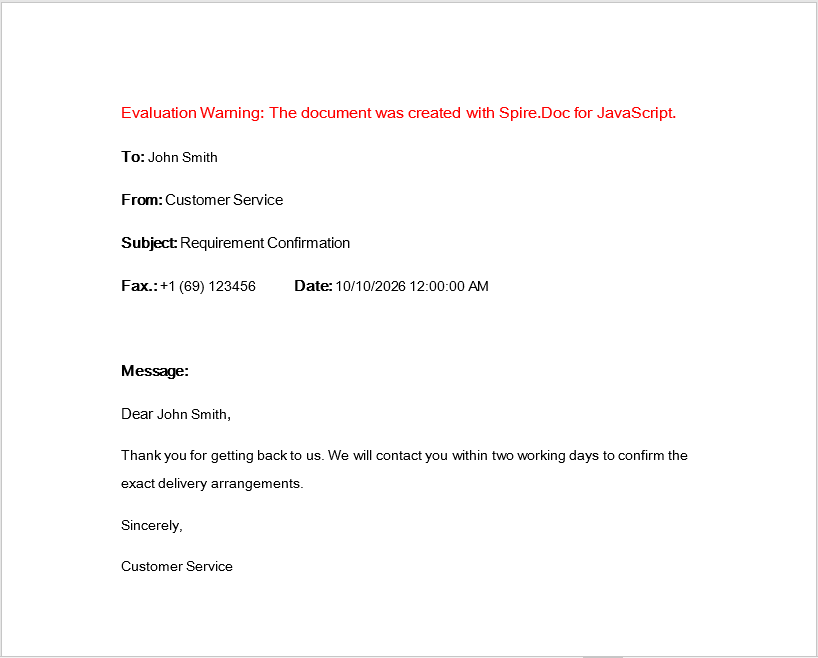
All four fields are replaced and the rest of the template is kept exactly as it was:
To: John Smith
From: Customer Service
Subject: Requirement Confirmation
Fax.: +1 (69) 123456          Date: 10/10/2026 12:00:00 AM

Message:
Dear John Smith,
Thank you for getting back to us. We will contact you within two working days to confirm the exact delivery arrangements.
Sincerely,
Customer Service
Contact Name appears twice and both occurrences take the same value — fields with the same name share one value, so it does not have to be listed twice in the arrays.
Word output after the contact letter has been merged with the data
Format Values by Culture
The output format of that Date.ToString() call is decided by the culture settings of the runtime environment. The same code gives 10/10/2026 12:00:00 AM in an English environment and 2026/10/10 上午12:00:00 on a Chinese Windows machine. If the recipient is in Germany, the correct spelling is 10.10.2026, 10:50:45 — day first, month in the middle, separated by dots.
The most direct way to control that format is to format the value before it ever reaches Execute: the merge itself only puts a string of text where the field is, and how the date is laid out is a matter for the data preparation stage.
Code
This shares the same MailMerge.docx template as the previous example and only swaps the date for a string formatted for the de-DE culture:
function App() {
  const ChangeLocale = async () => {
    // Get the Spire.Doc WASM module
    const docModule = window.wasmModule?.spiredoc;

    // Check if the module is ready
    if (!docModule) {
      alert('Spire.Doc is not ready yet');
      return;
    }
    // Load the sample template into the virtual file system (VFS)
    let inputFileName = "MailMerge.docx";
    await window.spire.FetchFileToVFS(inputFileName, "", `${process.env.PUBLIC_URL}static/data/`);

    // Create a document and load the template
    const doc = new docModule.Document();
    doc.LoadFromFile(inputFileName);

    // Prepare the date string in the German format (day.month.year)
    const now = new Date();
    const datestr = new Intl.DateTimeFormat("de-DE",
      {
        year: 'numeric', month: '2-digit', day: '2-digit',
        hour: "2-digit", minute: '2-digit', second: "2-digit"
      }).format(now);

    // Field names and field values correspond by index
    let fieldNames = ["Contact Name", "Fax", "Date"];
    let fieldValues = ["John Smith", "+1 (69) 123456", datestr];

    // Execute the mail merge
    doc.MailMerge.Execute(fieldNames, fieldValues);

    // Define the output file name
    const outputFileName = "ChangeLocale-result.docx";

    // Save the document
    doc.SaveToFile({ fileName: outputFileName, fileFormat: docModule.FileFormat.Docx2013 });
    doc.Dispose()

    // Read the saved file and convert it to a Blob
    const modifiedFileArray = window.dotnetRuntime.Module.FS.readFile(outputFileName);
    const blob = new Blob([modifiedFileArray], {type: "application/vnd.openxmlformats-officedocument.wordprocessingml.document"});
    const url = URL.createObjectURL(blob);
    const a = document.createElement('a');
    a.href = url;
    a.download = outputFileName;
    a.click();
    URL.revokeObjectURL(url);
  };

  return (
    <div style={{ textAlign: 'center', height: '300px' }}>
      <h1>Merge a de-DE formatted date into a Word document</h1>
      <button onClick={ChangeLocale}>Generate</button>
    </div>
  );
}
export default App;
The template is exactly the same and the merge call is exactly the same; the only thing that changes is where the date string in fieldValues comes from:
const datestr = new Intl.DateTimeFormat("de-DE", { /* … */ }).format(now);
Intl.DateTimeFormat is the browser's built-in formatting tool: the first argument is the locale code, the second the format options. Besides de-DE, the usual ones include en-US (10/10/2026, 10:50:45 AM), fr-FR, ja-JP and so on — switching the locale code switches the whole date convention.
Result
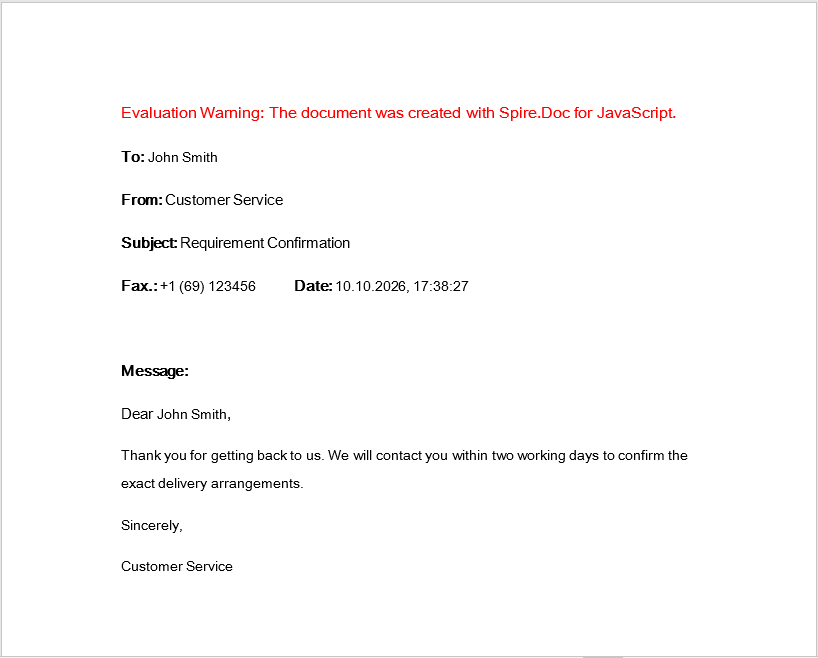
Same template, same set of data, only the way the Date field is written changes:
| Source of the date field | Output |
|---|---|
DateTime.get_Now().Date.ToString() |
Date: 10/10/2026 12:00:00 AM |
Intl.DateTimeFormat("de-DE", …).format(now) |
Date: 10.10.2026, 10:50:45 |
The merged document:
To: John Smith
From: Customer Service
Subject: Requirement Confirmation
Fax.: +1 (69) 123456          Date: 10.10.2026, 10:50:45

Message:
Dear John Smith,
…
Word output after the date has been formatted for the de-DE culture
FAQ
The merged document still contains the «Contact Name» angle brackets
Cause: A merge field's «name» placeholder is the field's result text (what sits between the MERGEFIELD field code and the end marker). A merge only replaces the field's result area — if the « and » in the template were typed as separate text outside the field, they are not part of that field and are naturally left untouched.
Solution: When editing the template in Word, press Ctrl + F9 at the field position to create the field, fill in the field code, and then press F9 to let Word generate the result text; do not type the angle brackets by hand outside the field. When the template is generated from code, the « and » have to be written between the field's separate and end markers, not as a separate run outside the field.
A field name in the array does not match the template and that position is left unfilled
Execute pairs its two arrays by index, and field names are matched case-sensitively. "Contact Name" and "contact name" are treated as two different fields.
A field that appears in the template but is not listed in fieldNames is merged as empty (its result area becomes an empty string rather than keeping the original placeholder). That is exactly how "leave it blank when there is no data" is implemented, but if the intent is to keep the original text, the field name has to be added to the array.
The field name contains a space — how should the field code in the template be written
In a Word field code, a field name containing a space or any other special character has to be wrapped in double quotes:
{ MERGEFIELD "Contact Name" \* MERGEFORMAT }
In JavaScript, what is passed to Execute is the name itself, without quotes:
let fieldNames = ["Contact Name"];
The date format comes out differently on different machines
DateTime.get_Now().Date.ToString() uses the current culture of the runtime environment, so systems with different regional settings and different browsers produce different date strings. For stable output, do what the second feature in this article does: pin the locale code with Intl.DateTimeFormat and pass the result into Execute. Alternatively, take the Date object from Spire's DateTime API and build the string yourself from the standard year, month, day, hour, minute and second properties.
The downloaded docx will not open and is reported as corrupted
Cause: The Blob's MIME type is wrong, or the file is downloaded without being read back from the VFS after it is saved.
Solution: A docx needs the full MIME type declared, and the bytes that are downloaded have to be the ones read from the VFS after SaveToFile:
const modifiedFileArray = window.dotnetRuntime.Module.FS.readFile(outputFileName);
const modifiedFile = new Blob([modifiedFileArray], {
  type: "application/vnd.openxmlformats-officedocument.wordprocessingml.document"
});
Get a Free License
Spire.Doc for JavaScript offers a 30-day full-featured free trial license with no functional limitations. Apply here to evaluate before purchasing.
Set Word Merge Field Switches and Conditional Fields with JavaScript in React
Merge fields have two ways of changing the output without changing the replacement step, and both are easy to overlook.
One is the field switch: codes such as \b, \f and \* Upper that follow the field name inside the field code, and make the same value land in the document in a different shape — with a prefix, a suffix, or converted to upper case. A switch is part of the template, so editing the template edits the behaviour.
The other is the conditional field: the document hard-codes no sentence at all, but carries an IF field that lets Word decide, when the document is saved, which sentence the current data calls for. It is assembled by code on the spot.
Spire.Doc for JavaScript builds both entirely in the browser via WebAssembly, using a virtual file system (VFS) to manage the template document — no backend server required.
This article covers two core features:
For installation and project setup, refer to Integrating Spire.Doc for JavaScript in a React Project. The examples below assume Spire.Doc is installed and the WebAssembly module is initialized.
Use Field Switches in a Merge Field
Prepare the Template
To lay the output of every switch out side by side for comparison, the template makes the same field, XX_Name, appear nine times, each occurrence carrying a different switch:
Contact

Default: «XX_Name»
\b "Mr ": «XX_Name»
\b Mr: «XX_Name»
\f " (Author)": «XX_Name»
\* Upper: «XX_Name»
\* Lower: «XX_Name»
\* FirstCap: «XX_Name»
\* Caps: «XX_Name»
\* MERGEFORMAT: «XX_Name»
With the field codes shown, each line in Word looks roughly like this ({ } are Word's field braces, which you type with Ctrl + F9):
{ MERGEFIELD  XX_Name  \b "Mr "  \* MERGEFORMAT }
{ MERGEFIELD  XX_Name  \b Mr  \* MERGEFORMAT }
{ MERGEFIELD  XX_Name  \f " (Author)"  \* MERGEFORMAT }
{ MERGEFIELD  XX_Name  \* Upper  \* MERGEFORMAT }
…
Spaces separate the field name from the switch and the switches from one another. If the text argument of a switch itself contains a space, wrap it in double quotes (\b "Mr ") — in that case the space inside the quotes is part of the argument.
The Code
function App() {
  const MailMergeSwitches = async () => {
    const docModule = window.wasmModule?.spiredoc;
    if (!docModule) {
      alert('Spire.Doc is not ready yet');
      return;
    }
    // Load the sample template into the virtual file system (VFS)
    let inputFileName = "MailMergeSwitches.docx";
    await window.spire.FetchFileToVFS(inputFileName, "", `${process.env.PUBLIC_URL}static/data/`);

    // Create a document and load the template
    const doc = new docModule.Document();
    doc.LoadFromFile(inputFileName);

    // Provide a value for a single field; all nine occurrences use it
    let fieldNames = ["XX_Name"];
    let fieldValues = ["jack tang"];

    // Execute the mail merge
    doc.MailMerge.Execute(fieldNames, fieldValues);

    // Define the output file name
    const outputFileName = "MailMergeSwitches-result.docx";

    // Save the document
    doc.SaveToFile({ fileName: outputFileName, fileFormat: docModule.FileFormat.Docx2013 });

    doc.Dispose()

    // Read the saved file and convert it to a Blob
    const modifiedFileArray = window.dotnetRuntime.Module.FS.readFile(outputFileName);
    const blob = new Blob([modifiedFileArray], {type: "application/vnd.openxmlformats-officedocument.wordprocessingml.document"});
    const url = URL.createObjectURL(blob);
    const a = document.createElement('a');
    a.href = url;
    a.download = outputFileName;
    a.click();
    URL.revokeObjectURL(url);
  };

  return (
    <div style={{ textAlign: 'center', height: '300px' }}>
      <h1>Merge data into a Word template that carries field switches</h1>
      <button onClick={MailMergeSwitches}>Generate</button>
    </div>
  );
}
export default App;
There is no switch-related API on the code side — every switch lives in the template's field codes, and Execute only has to hand XX_Name a value. That is exactly what a field switch is for: the data stays the same and the template decides the shape.
The value here is deliberately written in lower case, as "jack tang". Passing "Jack Tang" would make the output of the case-related switches look exactly like the default line, so the difference would not be visible.
The Result
| What the template says | Output |
|---|---|
«XX_Name» |
jack tang |
«XX_Name \b "Mr "» |
Mr jack tang |
«XX_Name \b Mr» |
Mrjack tang |
«XX_Name \f " (Author)"» |
jack tang (Author) |
«XX_Name \* Upper» |
JACK TANG |
«XX_Name \* Lower» |
jack tang |
«XX_Name \* FirstCap» |
Jack tang |
«XX_Name \* Caps» |
Jack Tang |
«XX_Name \* MERGEFORMAT» |
jack tang |
A few points worth noting:
- The difference between
\b "Mr "and\b Mris that pair of quotes. The argument of the first one isMrwith a trailing space, which outputsMr jack tang; the argument of the second isMrwith no space, so it sits flush against the value and becomesMrjack tang. To leave a gap between the added text and the working text, either put the space inside the quotes or write the argument as\b "Mr ". \fis a suffix and\bis a prefix, and both can appear in the same field.\* FirstCapcapitalises only the first character (Jack tang), while\* Capscapitalises the first letter of every word (Jack Tang). The two switches have very similar names but different effects.\* MERGEFORMATdoes not affect the text. It preserves the field's formatting, Word adds it by default when it creates a merge field, and leaving it in does no harm.
Build and Execute a Conditional Field
The Approach
The structure of a conditional field (an IF field) is "one field, holding a nested merge field as the test, followed by two result texts":
{ IF { MERGEFIELD Count } > "1" "Greater than one" "Less than one" }
Taken apart, this stretch contains four kinds of element:
- an
IfField, whose field type is set toFieldType.FieldIf; - a merge field node (
FieldType.FieldMergeField) — the value being compared in the condition; - the operator and the two branch texts, appended as ordinary text fragments;
- a
FieldMarkof typeFieldMarkType.FieldEnd, which closes the field off — it also has to be assigned back toIfField.Endfor the field to be complete.
The Code
This document has no input template at all; both IF fields are built from scratch:
function App() {
  const ExecuteConditionalField = async () => {
    const docModule = window.wasmModule?.spiredoc;
    if (!docModule) {
      alert('Spire.Doc is not ready yet');
      return;
    }

    // Load the ARIALUNI.TTF font into the virtual file system (VFS)
    await window.spire.FetchFileToVFS('ARIALUNI.TTF','/Library/Fonts/',`${process.env.PUBLIC_URL}/static/font/`);

    // Create a document and add one section with two paragraphs
    let doc = new docModule.Document();
    let section = doc.AddSection();

    let paragraph = section.AddParagraph();
    let ifField1 = new docModule.IfField(doc);
    ifField1.Type = docModule.FieldType.FieldIf;
    ifField1.Code = "IF ";
    paragraph.Items.Add(ifField1);
    paragraph.AppendField("Count", docModule.FieldType.FieldMergeField);
    paragraph.AppendText(" > ");
    paragraph.AppendText("\"1\" ");
    paragraph.AppendText("\"Greater than one\" ");
    paragraph.AppendText("\"Less than one\"");
    let end1 = doc.CreateParagraphItem(docModule.ParagraphItemType.FieldMark);
    end1.Type = docModule.FieldMarkType.FieldEnd;
    paragraph.Items.Add(end1);
    ifField1.End = end1;

    paragraph = section.AddParagraph();
    let ifField2 = new docModule.IfField(doc);
    ifField2.Type = docModule.FieldType.FieldIf;
    ifField2.Code = "IF ";
    paragraph.Items.Add(ifField2);
    paragraph.AppendField("Age", docModule.FieldType.FieldMergeField);
    paragraph.AppendText(" > ");
    paragraph.AppendText("\"50\" ");
    paragraph.AppendText("\"The old man\" ");
    paragraph.AppendText("\"The young man\"");
    let end2 = doc.CreateParagraphItem(docModule.ParagraphItemType.FieldMark);
    end2.Type = docModule.FieldMarkType.FieldEnd;
    paragraph.Items.Add(end2);
    ifField2.End = end2;

    // Provide values for the merge fields inside the conditional fields
    let fieldNames = ["Count", "Age"];
    let fieldValues = ["2", "30"];
    doc.MailMerge.Execute(fieldNames, fieldValues);

    // Make the fields evaluate when the document is saved
    doc.IsUpdateFields = true;

    // Define the output file name
    const outputFileName = "ExecuteConditionalField-result.docx";

    // Save the document
    doc.SaveToFile({ fileName: outputFileName, fileFormat: docModule.FileFormat.Docx2013 });

    doc.Dispose()

    // Read the saved file and convert it to a Blob
    const modifiedFileArray = window.dotnetRuntime.Module.FS.readFile(outputFileName);
    const blob = new Blob([modifiedFileArray], {type: "application/vnd.openxmlformats-officedocument.wordprocessingml.document"});
    const url = URL.createObjectURL(blob);
    const a = document.createElement('a');
    a.href = url;
    a.download = outputFileName;
    a.click();
    URL.revokeObjectURL(url);
  };

  return (
    <div style={{ textAlign: 'center', height: '300px' }}>
      <h1>Create and execute a conditional field</h1>
      <button onClick={ExecuteConditionalField}>Generate</button>
    </div>
  );
}
export default App;
A few details that have to happen in this order:
ifField.Code = "IF "only marks the field type. What actually assembles the body of the field is theAppendFieldand theAppendTextcalls that follow — they are laid out into this field one after another.- The operator and the two branch texts are all appended with
AppendText, and the quotes among them have to be written into the string itself ("\"1\" "). An IF field requires both result texts to be quoted, and these quote characters are what does it. - The order is fixed: compared value → operator → comparison basis → true branch → false branch. The false branch needs no extra space after its closing quote.
FieldEndis the field's closing mark. It has to be created withdocument.CreateParagraphItem(wasmModule.ParagraphItemType.FieldMark), assigned toend.Type, appended to the paragraph, and then given toifField.End. Skip any one of those steps and the field is incomplete.document.IsUpdateFields = truedecides whether the field is evaluated when the document is saved — see below.
The Result
With Count = "2" and Age = "30", the two conditional fields take the true branch and the false branch respectively:
Greater than one
The young man
Swapping the values flips the result, without touching either the template or the code:
| Field values | First paragraph (IF Count > "1") |
Second paragraph (IF Age > "50") |
|---|---|---|
Count = "2", Age = "30" |
Greater than one |
The young man |
Count = "0", Age = "70" |
Less than one |
The old man |
FAQ
The conditional field saves as two blank paragraphs
Cause: document.IsUpdateFields = true was not set. A field in the document is only an instruction waiting to be evaluated; without that switch turned on it is not executed when the document is saved, and neither branch's text is output — even the text of the false branch disappears along with it, which is why the result looks empty.
Solution: Between Execute and SaveToFile, add:
document.MailMerge.Execute(fieldNames, fieldValues);
document.IsUpdateFields = true;   // Make the fields evaluate when the document is saved
document.SaveToFile({ fileName: outputFileName, fileFormat: wasmModule.FileFormat.Docx2013 });
The prefix added by \b is stuck to the name
Cause: the text argument of a switch carries no space of its own. The argument of \b Mr is the three characters Mr, and the spacing around it in the output is decided entirely by the argument itself.
Solution: to leave a gap between the name and the prefix, write the space into the argument and wrap it in quotes:
{ MERGEFIELD XX_Name \b "Mr " \* MERGEFORMAT }
\f works the same way. The reverse also works — leave the space outside the field by having it followed by a space in Word — but that is paragraph text, a different thing from a switch.
What is the difference between \* FirstCap and \* Caps
\* FirstCap converts only the first character to upper case and leaves the rest alone: jack tang → Jack tang.
\* Caps converts the first letter of every word to upper case: jack tang → Jack Tang.
To see the difference between these two switches, the value behind the field name has to be lower case or mixed case; if the value is already Jack Tang, both lines come out exactly like the default line.
Some switches have no effect at all
Not every Word field switch takes part in the text replacement of a mail merge. \* MERGEFORMAT preserves the field's formatting and never changes the text to begin with; switches such as \m, \v and \# 0.00 (a number format) have no visible effect either when used on a merge field with a plain text value like the one here. In practice, it is best to stick to the ones verified in this article: \b, \f, \* Upper, \* Lower, \* FirstCap and \* Caps.
How are the spaces between the field name, switches and arguments counted
- Between the field name and the first switch: at least one space;
- Between switches: at least one space;
- For a switch's text argument: a space is needed between it and the switch letter too (
\bandMr), and once the argument itself contains a space or a special character, wrap it in double quotes.
Extra spaces do not affect parsing, but leaving one out lets the argument be swallowed by the previous token — write \* Upper as \*Upper, for example, and on some parsing paths the switch stops working.
Changing the values of Count and Age does not change the output
Cause: the result text of a conditional field is cached in the document and is only evaluated again while IsUpdateFields is on. At the same time, check that the field names handed to Execute match the names written in AppendField (the comparison is case-sensitive).
Solution: confirm that fieldNames matches the first argument of AppendField exactly, and keep IsUpdateFields = true.
Get a Free License
Spire.Doc for JavaScript offers a 30-day full-featured free trial license with no functional limitations. Apply here to evaluate before purchasing.
Hide Empty Word Regions and Identify Merge Fields with JavaScript in React
Templates usually carry a few lines that only make sense when there is data behind them — a supplementary note, a remark, an optional cc. With no data, the result you want is for that line and the space it takes up to disappear, rather than leaving a blank stretch that pushes the layout apart.
The related question is: when someone hands you a template, how do you find out which fields it holds and how they are grouped into regions? Expanding the field codes one by one to count them is not an option.
Spire.Doc for JavaScript does both — it hides what the merge has emptied and reports the structure — entirely in the browser via WebAssembly, using a virtual file system (VFS) to manage the template document, with no backend server required.
This article covers two core features:
- Hide empty paragraphs and regions after the merge
- Read the region names and the merge field name list
For installation and project setup, refer to Integrating Spire.Doc for JavaScript in a React Project. The examples below assume Spire.Doc is installed and the WebAssembly module is initialized.
Hide Empty Paragraphs and Regions After the Merge
Prepare the Template
On top of an ordinary contact letter, the template adds three constructs that may come out empty:
To: «Contact Name»
From: Customer Service
Subject: Requirement Confirmation
Fax.: «Fax»          Date: «Date»

«Optional Note»

«GroupStart:OptionalBlock»
«Optional Line 1»
«Optional Line 2»
«GroupEnd:OptionalBlock»

Note: «Optional Remark»

Message:
Dear «Contact Name»,
Thank you for getting back to us. We will contact you within two working days to confirm the exact delivery arrangements.
Sincerely,
Customer Service
The three are written differently, and between them they cover three cases:
«Optional Note»occupies a paragraph of its own — after the merge not a single character is left inside it;- the region
OptionalBlock— fenced by the two fields«GroupStart:OptionalBlock»and«GroupEnd:OptionalBlock», with both paragraphs in between holding nothing but a single field. A region marker is aMERGEFIELDfield in Word just like any other; only the field name is written asGroupStart:region name/GroupEnd:region name, and without quotation marks; Note: «Optional Remark»— the field and the label share one paragraph, so the line still holds the labelNote:after the merge.
The Code
function App() {
  const HideEmptyRegions = async () => {
    const docModule = window.wasmModule?.spiredoc;
    if (!docModule) {
      alert('Spire.Doc is not ready yet');
      return;
    }
    // Load the sample template into the virtual file system (VFS)
    let inputFileName = "HideEmptyRegions.docx";
    await window.spire.FetchFileToVFS(inputFileName, "", `${process.env.PUBLIC_URL}static/data/`);

    // Create a document and load the template
    let doc = new docModule.Document();
    doc.LoadFromFile(inputFileName);

    // Provide values for three fields only; the optional fields in the
    // template are left empty
    let fieldNames = ["Contact Name", "Fax", "Date"];
    let fieldValues = ["John Smith", "+1 (69) 123456", docModule.DateTime.get_Now().Date.ToString()];

    // Hide the paragraphs and the region that come out empty
    doc.MailMerge.HideEmptyParagraphs = true;
    doc.MailMerge.HideEmptyGroup = true;

    // Execute the mail merge
    doc.MailMerge.Execute(fieldNames, fieldValues);

    // Define the output file name
    const outputFileName = "HideEmptyRegions-result.docx";

    // Save the document
    doc.SaveToFile({ fileName: outputFileName, fileFormat: docModule.FileFormat.Docx2013 });

    doc.Dispose()

    // Read the saved file and convert it to a Blob
    const modifiedFileArray = window.dotnetRuntime.Module.FS.readFile(outputFileName);
    const blob = new Blob([modifiedFileArray], {type: "application/vnd.openxmlformats-officedocument.wordprocessingml.document"});
    const url = URL.createObjectURL(blob);
    const a = document.createElement('a');
    a.href = url;
    a.download = outputFileName;
    a.click();
    URL.revokeObjectURL(url);
  };

  return (
    <div style={{ textAlign: 'center', height: '300px' }}>
      <h1>Merge data and hide empty regions</h1>
      <button onClick={HideEmptyRegions}>Generate</button>
    </div>
  );
}
export default App;
Everything hangs on the two lines before Execute:
document.MailMerge.HideEmptyParagraphs = true;
document.MailMerge.HideEmptyGroup = true;
Both are boolean properties on MailMerge, both default to false, and both have to be turned on explicitly. Note that they must be set before Execute — the hiding happens during the merge, so changing them afterwards makes no difference.
fieldNames lists only three "main" fields; Optional Note, Optional Line 1/2 and Optional Remark are given no values at all, and therefore all come out empty after the merge.
The Result
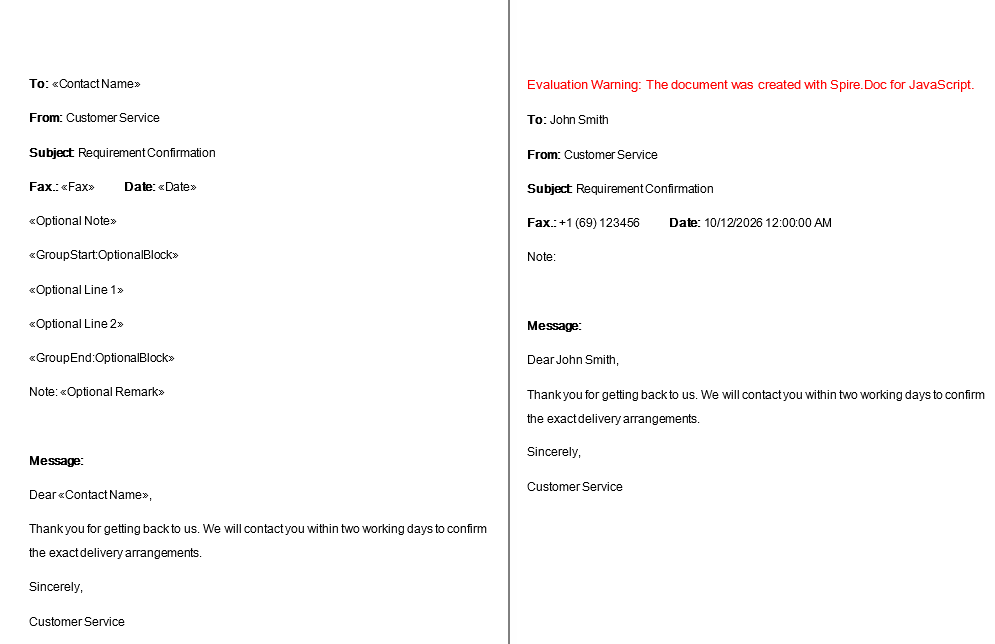
The output with both switches off (the control) set against the output with both on, compared paragraph by paragraph:
| What the template says | Both switches off | Both switches on |
|---|---|---|
«Optional Note» (a paragraph of its own) |
kept as a blank line | the whole paragraph disappears |
the region OptionalBlock (marker + two field paragraphs + closing marker) |
kept as 4 blank lines | all four paragraphs disappear |
Note: «Optional Remark» |
Note: |
Note: (kept) |
With the switches on, only these paragraphs are left in the body:
To: John Smith
From: Customer Service
Subject: Requirement Confirmation
Fax.: +1 (69) 123456          Date: 10/12/2026 12:00:00 AM
Note:
Message:
Dear John Smith,
Thank you for getting back to us. We will contact you within two working days to confirm the exact delivery arrangements.
Sincerely,
Customer Service
Two rules worth remembering:
- The test is whether the paragraph still holds text after the merge, not whether the field received a value. In the third construct
Optional Remarkis just as empty, but because the same paragraph still holds the labelNote:, the line is kept — only the field's position is left blank. To keep the label itself conditionally, the label has to be turned into a field value of its own. HideEmptyParagraphsis the property that actually deletes. SettingHideEmptyGrouptotrueon its own while leavingHideEmptyParagraphs = falseproduces output identical to leaving both switches off — the region still leaves its four blank lines behind. Only with both turned on does the region vanish together with the paragraphs inside it. So if all you want is for the blank lines to go away and you are not using regions, turning onHideEmptyParagraphsis enough.
Word output after the paragraphs and the region that merged to nothing have been hidden
Read the Region Names and the Merge Field Name List
The Approach
MailMerge has three methods for reading, each at a different granularity:
| Method | What it returns |
|---|---|
GetMergeGroupNames() |
every region name in the document |
GetMergeFieldNames({ groupName: "…" }) |
the merge field names inside the named region |
GetMergeFieldNames() |
every merge field name in the document |
The second method takes the region name inside an object, as a named argument. That is how the WebAssembly build handles an overloaded method — methods sharing a name are dispatched by argument count and argument name, so the call has to be written as { groupName: "Products" } rather than by passing a plain string.
Prepare the Template
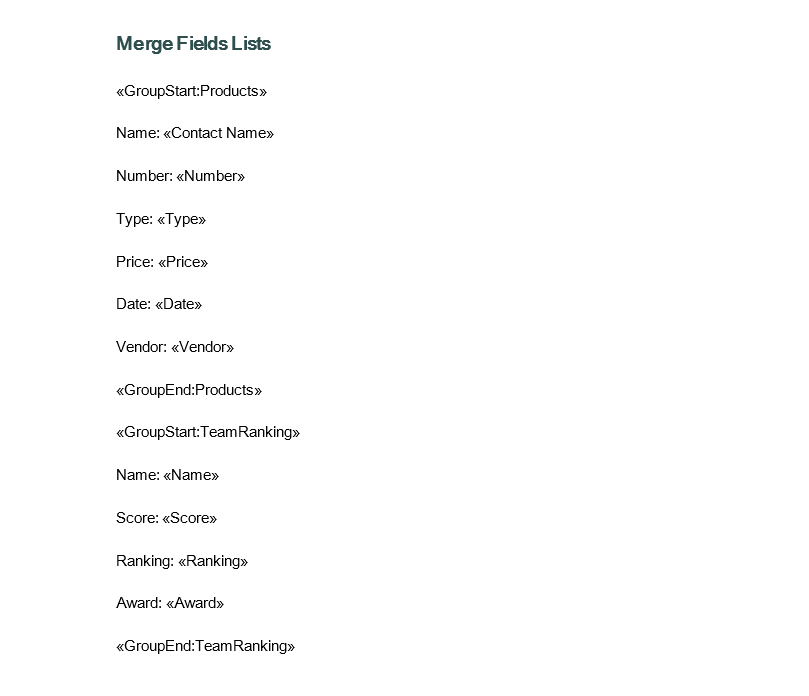
The template defines two regions, each holding several fields:
«GroupStart:Products»
Name: «Contact Name»
Number: «Number»
Type: «Type»
Price: «Price»
Date: «Date»
Vendor: «Vendor»
«GroupEnd:Products»

«GroupStart:TeamRanking»
Name: «Name»
Score: «Score»
Ranking: «Ranking»
Award: «Award»
«GroupEnd:TeamRanking»
Every field gets a paragraph of its own, and the region markers are paragraphs of their own too.
The Code
This sample reads the structure of a document and produces text, so the result goes into a TXT file:
function App() {
  const IdentifyMergeFieldName = async () => {
    const docModule = window.wasmModule?.spiredoc;
    if (!docModule) {
      alert('Spire.Doc is not ready yet');
      return;
    }
    // Load the sample template into the virtual file system (VFS)
    let inputFileName = "IdentifyMergeFieldNames.docx";
    await window.spire.FetchFileToVFS(inputFileName, "", `${process.env.PUBLIC_URL}static/data/`);

    // Create a document and load the template
    let doc = new docModule.Document();
    doc.LoadFromFile(inputFileName);

    // Read all region names
    let GroupNames = doc.MailMerge.GetMergeGroupNames();

    // Read the merge field names inside one region
    let MergeFieldNamesWithinRegion = doc.MailMerge.GetMergeFieldNames({ groupName: "Products" });

    // Read every merge field name in the document
    let MergeFieldNames = doc.MailMerge.GetMergeFieldNames();

    // Concatenate the results into text
    let content = [];
    content.push("----------------Group Names-----------------------------------------\n");
    for (let i = 0; i < GroupNames.length; i++) {
      content.push(GroupNames[i] + "\n");
    }
    content.push("----------------Merge field names within a specific group-----------\n");
    for (let j = 0; j < MergeFieldNamesWithinRegion.length; j++) {
      content.push(MergeFieldNamesWithinRegion[j] + "\n");
    }
    content.push("----------------All of the merge field names------------------------\n");
    for (let k = 0; k < MergeFieldNames.length; k++) {
      content.push(MergeFieldNames[k] + "\n");
    }

    // Write the TXT file
    const outputFileName = "IdentifyMergeFieldName-result.txt";
    window.dotnetRuntime.Module.FS.writeFile(outputFileName, content.join("\n"));

    // Close the document
    doc.Close();

    doc.Dispose()

    // Read the saved file and convert it to a Blob
    const modifiedFileArray = window.dotnetRuntime.Module.FS.readFile(outputFileName);
    const blob = new Blob([modifiedFileArray], {type: "text/plain"});
    const url = URL.createObjectURL(blob);
    const a = document.createElement('a');
    a.href = url;
    a.download = outputFileName;
    a.click();
    URL.revokeObjectURL(url);
  };

  return (
    <div style={{ textAlign: 'center', height: '300px' }}>
      <h1>Read the region and merge field names from a template</h1>
      <button onClick={IdentifyMergeFieldName}>Generate</button>
    </div>
  );
}
export default App;
Two things differ from the earlier samples:
- There is no call to
Execute. This only reads the template's structure without merging any data, so the three lists can be read straight after loading. - The output goes through
window.dotnetRuntime.Module.FS.writeFile(fileName, text), writing the string directly into the virtual file system before atext/plainBlob triggers the download. The sample finishes withdocument.Close(), because it never changes the document's content.
All three methods return a collection (GroupNames.length, indexed access), walked in the same way as Sections and Paragraphs.
The Result
The output file is laid out like this (the ---…--- lines are separators):
----------------Group Names-----------------------------------------

Products

TeamRanking

----------------Merge field names within a specific group-----------

Contact Name

Number

Type

Price

Date

Vendor

----------------All of the merge field names------------------------

Products

Contact Name

Number

Type

Price

Date

Vendor

Products

TeamRanking

Name

Score

Ranking

Award

TeamRanking
The three lists come out as:
Region names (2)
  Products, TeamRanking

Field names inside the Products region (6)
  Contact Name, Number, Type, Price, Date, Vendor

All field names (14 entries)
  Products, Contact Name, Number, Type, Price, Date, Vendor, Products,
  TeamRanking, Name, Score, Ranking, Award, TeamRanking
Two points are worth noting:
GetMergeFieldNames()with no argument counts the region markers themselves as field names.GroupStart:Productsis aMERGEFIELDfield in the document, so every region name turns up twice — once for the opening marker and once for the closing one. Among the 14 entries above,ProductsandTeamRankingeach appear twice. To get the real field names, either read region by region with thegroupNameversion, or filter the region names out of the full list.- The
groupNameversion returns only the real field names inside that region — none of the six results forProductscontains aGroupStart:orGroupEnd:marker.
Why is there an extra blank line between the entries? While the string is being assembled,
content.push(name + "\n")already puts a newline at the end of every entry, andcontent.join("\n")adds another one between the elements, so two newlines end up in a row. For a compact list, drop the"\n"from thepushcall:
content.push(GroupNames[i]);
Word output after the region and the merge field names have been read from the template
FAQ
The hiding switches are on and a blank line is still there
Cause: most likely that line still holds other text. The test for hiding is whether the paragraph is empty after the merge — as long as a single character is left in it (a fixed label such as Note:, for example), the whole paragraph is kept.
Solution: Check that the line you want hidden holds nothing but the field. If the label really does have to disappear together with the field, turn the label into a field value and pass it in as well:
let fieldNames = ["Contact Name", "Remark Label", "Remark"];
let fieldValues = ["John Smith", "Note: ", ""];
Setting HideEmptyGroup = true on its own has no effect
Cause: HideEmptyParagraphs is what actually deletes paragraphs. A region disappears as a whole because the paragraphs inside it are deleted one by one; the markers themselves trigger no extra deletion.
Solution: Turn both properties on. That is exactly why the sample writes both lines:
document.MailMerge.HideEmptyParagraphs = true;
document.MailMerge.HideEmptyGroup = true;
Should the hiding switches be set before or after Execute
Before Execute. The hiding of empty paragraphs and regions happens during the merge, so changing the properties once it has finished has no effect on the result that has already been produced.
GetMergeFieldNames errors out or returns nothing when a string is passed
Cause: It is an overloaded method. The WebAssembly build dispatches by argument name, so the region name has to be passed in an object with a key.
Solution: Write it as an object:
let fields = document.MailMerge.GetMergeFieldNames({ groupName: "Products" });
The region name must match the name after GroupStart: in the template exactly, case included.
Region names turn up in the result of GetMergeFieldNames()
Cause: Both the opening and the closing marker of a region are merge fields themselves, so they are counted into the full list and every region name appears twice.
Solution: To filter them out, collect the result of GetMergeGroupNames() into a set and drop those names:
let groups = document.MailMerge.GetMergeGroupNames();
let groupSet = {};
for (let i = 0; i < groups.length; i++) groupSet[groups[i]] = true;

let names = document.MailMerge.GetMergeFieldNames();
let realFields = [];
for (let i = 0; i < names.length; i++) {
  if (!groupSet[names[i]]) realFields.push(names[i]);
}
If you only need the fields of one particular region, the groupName version is less trouble — its result never contains markers.
The document defines regions but GetMergeGroupNames() returns 0
Cause: A region marker has to be written as MERGEFIELD GroupStart:region name, with the field name left unquoted. Written as MERGEFIELD "GroupStart:Products" (with quotes) it is treated as an ordinary merge field name and does not form a region.
Solution: Check the field codes of the two markers in the template:
{ MERGEFIELD  GroupStart:Products  \* MERGEFORMAT }
{ MERGEFIELD  GroupEnd:Products  \* MERGEFORMAT }
Also, GroupStart and GroupEnd have to come as a pair, with the region name written out in full and in matching case; a marker without its counterpart is not recognised as a region.
The TXT output opens as a single line in some editors
Cause: This sample writes plain text, and the line separator matters if the file is later saved as .txt and opened in Windows Notepad; the text Spire writes uses \n.
Solution: Open it in an editor such as VS Code or Notepad++, or replace "\n" with "\r\n" while the string is being assembled.
Get a Free License
Spire.Doc for JavaScript offers a 30-day full-featured free trial license with no functional limitations. Apply here to evaluate before purchasing.
Set Character Formatting in Word with JavaScript in React
Character formatting decides what text looks like on the page — which font it uses, how large it is, what color it is, and whether it is bold, slanted, underlined or struck through. In Word's Open XML structure these properties hang off the run, not the paragraph: every run in a sentence can carry a set of its own. Spire.Doc for JavaScript maps that structure onto the TextRange.CharacterFormat object and reads and writes it directly in the browser via WebAssembly, with no backend server required.
This article covers two core features:
For installation and project setup, refer to Integrating Spire.Doc for JavaScript in a React Project. The examples below assume Spire.Doc is installed and the WebAssembly module is initialized.
Set Character Formatting
After Document.AddSection() creates a section, section.AddParagraph() gives you a paragraph and paragraph.AppendText() appends text to it — the return value of AppendText is a TextRange object, and once you hold it you can set CharacterFormat on it directly. To break the line without starting a new paragraph, call paragraph.AppendBreak(wasmModule.BreakType.LineBreak).
The sample below walks through the common character formats one by one. Each line of text changes exactly one property, so the effect can be read straight off the result. One line is the exception: the font-name example deliberately mixes a Chinese word into its text, because only East Asian characters are read from the Far-East font slot that the line sets.
function App() {
  const CharacterFormatting = async () => {
    const docModule = window.wasmModule?.spiredoc;
    if (!docModule) {
      alert('Spire.Doc is not ready yet');
      return;
    }

    // Create the document and the section
    let doc = new docModule.Document();
    let sec = doc.AddSection();

    // The title paragraph takes the built-in "Title" style
    let titleParagraph = sec.AddParagraph();
    titleParagraph.AppendText("Character Formatting Overview");
    titleParagraph.ApplyStyle({ builtinStyle: docModule.BuiltinStyle.Title });

    let paragraph = sec.AddParagraph();

    // Strikeout
    let tr = paragraph.AppendText("Strikethough Text");
    tr.CharacterFormat.IsStrikeout = true;

    // Shadow
    paragraph.AppendBreak(docModule.BreakType.LineBreak);
    tr = paragraph.AppendText("Shadow Text");
    tr.CharacterFormat.IsShadow = true;

    // Small caps
    paragraph.AppendBreak(docModule.BreakType.LineBreak);
    tr = paragraph.AppendText("Small caps Text");
    tr.CharacterFormat.IsSmallCaps = true;

    // Double strikeout
    paragraph.AppendBreak(docModule.BreakType.LineBreak);
    tr = paragraph.AppendText("Double Strikethough Text");
    tr.CharacterFormat.DoubleStrike = true;

    // Outline
    paragraph.AppendBreak(docModule.BreakType.LineBreak);
    tr = paragraph.AppendText("Outline Text");
    tr.CharacterFormat.IsOutLine = true;

    // All caps
    paragraph.AppendBreak(docModule.BreakType.LineBreak);
    tr = paragraph.AppendText("AllCaps Text");
    tr.CharacterFormat.AllCaps = true;

    // Subscript and superscript
    paragraph.AppendBreak(docModule.BreakType.LineBreak);
    tr = paragraph.AppendText("Text");
    tr = paragraph.AppendText("SubScript");
    tr.CharacterFormat.SubSuperScript = docModule.SubSuperScript.SubScript;
    tr = paragraph.AppendText("And");
    tr = paragraph.AppendText("SuperScript");
    tr.CharacterFormat.SubSuperScript = docModule.SubSuperScript.SuperScript;

    // Emboss, with a white text color so the effect shows up better
    paragraph.AppendBreak(docModule.BreakType.LineBreak);
    tr = paragraph.AppendText("Emboss Text");
    tr.CharacterFormat.Emboss = true;
    tr.CharacterFormat.TextColor = docModule.Color.get_White();

    // Hidden text
    paragraph.AppendBreak(docModule.BreakType.LineBreak);
    tr = paragraph.AppendText("Hidden:");
    tr = paragraph.AppendText("Hidden Text");
    tr.CharacterFormat.Hidden = true;

    // Engrave
    paragraph.AppendBreak(docModule.BreakType.LineBreak);
    tr = paragraph.AppendText("Engrave Text");
    tr.CharacterFormat.Engrave = true;
    tr.CharacterFormat.TextColor = docModule.Color.get_White();

    // The Western, non-Far-East and Far-East font names are set separately
    paragraph.AppendBreak(docModule.BreakType.LineBreak);
    tr = paragraph.AppendText("WesternFonts中文字体");
    tr.CharacterFormat.FontNameAscii = "Calibri";
    tr.CharacterFormat.FontNameNonFarEast = "Calibri";
    tr.CharacterFormat.FontNameFarEast = "Simsun";

    // Font size
    paragraph.AppendBreak(docModule.BreakType.LineBreak);
    tr = paragraph.AppendText("Font Size");
    tr.CharacterFormat.FontSize = 20;

    // Font color
    paragraph.AppendBreak(docModule.BreakType.LineBreak);
    tr = paragraph.AppendText("Font Color");
    tr.CharacterFormat.TextColor = docModule.Color.get_Red();

    // Bold + italic
    paragraph.AppendBreak(docModule.BreakType.LineBreak);
    tr = paragraph.AppendText("Bold Italic Text");
    tr.CharacterFormat.Bold = true;
    tr.CharacterFormat.Italic = true;

    // Underline
    paragraph.AppendBreak(docModule.BreakType.LineBreak);
    tr = paragraph.AppendText("Underline Style");
    tr.CharacterFormat.UnderlineStyle = docModule.UnderlineStyle.Single;

    // Highlight (background)
    paragraph.AppendBreak(docModule.BreakType.LineBreak);
    tr = paragraph.AppendText("Highlight Text");
    tr.CharacterFormat.HighlightColor = docModule.Color.get_Yellow();

    // Character shading
    paragraph.AppendBreak(docModule.BreakType.LineBreak);
    tr = paragraph.AppendText("Text has shading");
    tr.CharacterFormat.TextBackgroundColor = docModule.Color.get_Green();

    // Border around the characters
    paragraph.AppendBreak(docModule.BreakType.LineBreak);
    tr = paragraph.AppendText("Border Around Text");
    tr.CharacterFormat.Border.BorderType = docModule.BorderStyle.Single;

    // Character scaling at 150%
    paragraph.AppendBreak(docModule.BreakType.LineBreak);
    tr = paragraph.AppendText("Text Scale");
    tr.CharacterFormat.TextScale = 150;

    // Character spacing of 2 points
    paragraph.AppendBreak(docModule.BreakType.LineBreak);
    tr = paragraph.AppendText("Character Spacing is 2 point");
    tr.CharacterFormat.CharacterSpacing = 2;

    // Define the output file name
    const outputFileName = "CharacterFormatting-result.docx";

    // Save the document to the given path
    doc.SaveToFile({ fileName: outputFileName, fileFormat: docModule.FileFormat.Docx2013 });
    // Release resources
    doc.Dispose();

    // Read the saved file back and wrap it as a Blob
    const modifiedFileArray = window.dotnetRuntime.Module.FS.readFile(outputFileName);
    const blob = new Blob([modifiedFileArray], {type: "application/vnd.openxmlformats-officedocument.wordprocessingml.document"});
    const url = URL.createObjectURL(blob);
    const a = document.createElement('a');
    a.href = url;
    a.download = outputFileName;
    a.click();
    URL.revokeObjectURL(url);
  };

  return (
    <div style={{ textAlign: 'center', height: '300px' }}>
      <h1>Set Various Character Formats</h1>
      <button onClick={CharacterFormatting}>Generate</button>
    </div>
  );
}
export default App;
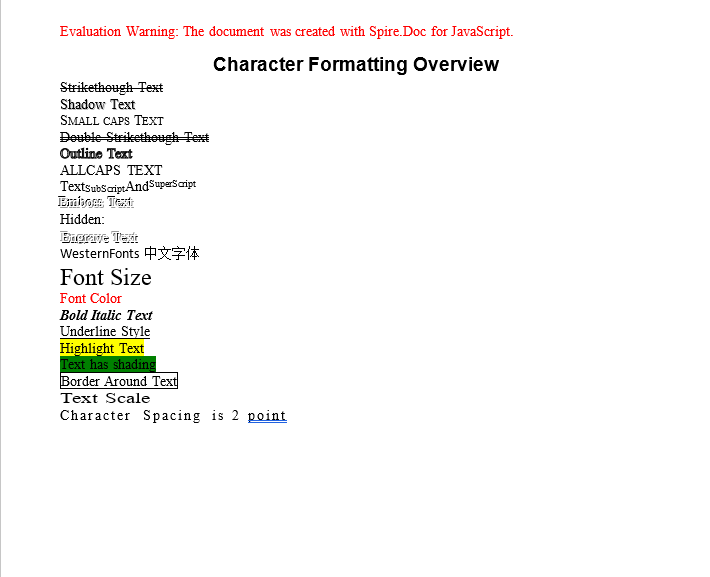
Every line of the generated document shows the matching character effect, and can be compared with the code line by line
Apply Several Character Formats in One Paragraph
One paragraph can hold several TextRange objects, and each of them has its own CharacterFormat. That means layouts such as "the first half in bold blue, the second half back at a regular size" do not need to be split into two paragraphs — just call AppendText again; the format only applies to the text appended by that one call.
function App() {
  const MultiStylesInAParagraph = async () => {
    const docModule = window.wasmModule?.spiredoc;
    if (!docModule) {
      alert('Spire.Doc is not ready yet');
      return;
    }

    // Create the document and the section
    let doc = new docModule.Document();
    let section = doc.AddSection();

    // Add a new paragraph
    let para = section.AddParagraph();

    // The first TextRange: Calibri 16 pt, blue, bold, single underline
    let range = para.AppendText("Quarterly Delivery Note ");
    range.CharacterFormat.FontName = "Calibri";
    range.CharacterFormat.FontSize = 16;
    range.CharacterFormat.TextColor = docModule.Color.get_Blue();
    range.CharacterFormat.Bold = true;
    range.CharacterFormat.UnderlineStyle = docModule.UnderlineStyle.Single;

    // The second TextRange: still the same paragraph, now Calibri 15 pt regular
    range = para.AppendText("This delivery covers three business areas, and acceptance is based on the result of the online trial run");
    range.CharacterFormat.FontName = "Calibri";
    range.CharacterFormat.FontSize = 15;

    // Define the output file name
    const outputFileName = "MultiStylesInAParagraph-result.docx";

    // Save the document to the given path
    doc.SaveToFile({ fileName: outputFileName, fileFormat: docModule.FileFormat.Docx2013 });
    // Release resources
    doc.Dispose();

    // Read the saved file back and wrap it as a Blob
    const modifiedFileArray = window.dotnetRuntime.Module.FS.readFile(outputFileName);
    const blob = new Blob([modifiedFileArray], {type: "application/vnd.openxmlformats-officedocument.wordprocessingml.document"});
    const url = URL.createObjectURL(blob);
    const a = document.createElement('a');
    a.href = url;
    a.download = outputFileName;
    a.click();
    URL.revokeObjectURL(url);
  };

  return (
    <div style={{ textAlign: 'center', height: '300px' }}>
      <h1>Apply Multiple Character Formats in One Paragraph</h1>
      <button onClick={MultiStylesInAParagraph}>Generate</button>
    </div>
  );
}
export default App;
The first half of the paragraph is bold, blue and underlined; the second half is back to a regular weight

FAQ
FontName is set, but the Chinese text does not change
Cause: CharacterFormat.FontName only writes to the Western (ascii/hAnsi) font slots, while Chinese characters are taken from the separate "East Asian" slot. The two are stored independently, so setting one leaves the other exactly as it was.
Solution: Set the font used by each script separately — FontNameAscii / FontNameNonFarEast for the Western text, FontNameFarEast for the Chinese:
tr.CharacterFormat.FontNameAscii = "Calibri";
tr.CharacterFormat.FontNameNonFarEast = "Calibri";
tr.CharacterFormat.FontNameFarEast = "Simsun";
Emboss and Engrave show no visible effect
Cause: Both effects rely on a light-and-shadow contrast, and the default black text on a white background has almost no visual difference to work with.
Solution: Set the text color to white, so that the characters are shaped by their highlight and shadow alone:
tr.CharacterFormat.Emboss = true;
tr.CharacterFormat.TextColor = wasmModule.Color.get_White();
The downloaded Word document cannot be opened, or is reported as corrupted
Cause: The MIME type was wrong when the Blob was created, so the browser cannot identify the file format correctly.
Solution: Make sure the exact docx MIME type is used:
const modifiedFile = new Blob([modifiedFileArray], {
  type: "application/vnd.openxmlformats-officedocument.wordprocessingml.document"
});
Get a Free License
Spire.Doc for JavaScript offers a 30-day full-featured free trial license with no functional limitations. Apply here to evaluate before purchasing.
Set Paragraph and List Formatting in Word with JavaScript in React
The paragraph is the basic unit of layout in Word, and every paragraph in a document carries two formatting objects. Paragraph.Format controls how the paragraph itself is laid out — its border, alignment, shading, indentation, spacing before and after, and line spacing — while Paragraph.ListFormat controls the numbering or bullet it shows as a list item. The two are independent, so a single paragraph can be centred and indented and still be the third level of a numbered list. Spire.Doc for JavaScript reads and writes both objects directly in the browser via WebAssembly, with no backend server required.
This article covers two core features:
For installation and project setup, refer to Integrating Spire.Doc for JavaScript in a React Project. The examples below assume Spire.Doc is installed and the WebAssembly module is initialized.
Set Paragraph Formatting
Paragraph formatting is set through paragraph.Format. The sample below walks through a paragraph border, the five horizontal alignments, shading, three kinds of indentation and the spacing rules, one at a time:
function App() {
  const ParagraphFormatting = async () => {
    const docModule = window.wasmModule?.spiredoc;
    if (!docModule) {
      alert('Spire.Doc is not ready yet');
      return;
    }

    // Create the document and the section
    let doc = new docModule.Document();
    let sec = doc.AddSection();

    // Title
    let para = sec.AddParagraph();
    para.AppendText("Paragraph Formatting Overview");
    para.ApplyStyle({ builtinStyle: docModule.BuiltinStyle.Title });

    // Paragraph border
    para = sec.AddParagraph();
    para.AppendText("This paragraph has a red border.");
    para.Format.Borders.BorderType = docModule.BorderStyle.Single;
    para.Format.Borders.Color = docModule.Color.get_Red();

    // The five horizontal alignments: left, center, right, justify, distribute
    para = sec.AddParagraph();
    para.AppendText("This paragraph is left-aligned.");
    para.Format.HorizontalAlignment = docModule.HorizontalAlignment.Left;

    para = sec.AddParagraph();
    para.AppendText("This paragraph is center-aligned.");
    para.Format.HorizontalAlignment = docModule.HorizontalAlignment.Center;

    para = sec.AddParagraph();
    para.AppendText("This paragraph is right-aligned.");
    para.Format.HorizontalAlignment = docModule.HorizontalAlignment.Right;

    para = sec.AddParagraph();
    para.AppendText("This paragraph is justified.");
    para.Format.HorizontalAlignment = docModule.HorizontalAlignment.Justify;

    para = sec.AddParagraph();
    para.AppendText("This paragraph is distributed.");
    para.Format.HorizontalAlignment = docModule.HorizontalAlignment.Distribute;

    // Paragraph shading
    para = sec.AddParagraph();
    para.AppendText("This paragraph has gray shading.");
    para.Format.BackColor = docModule.Color.get_Gray();

    // 10 pt left indent, 10 pt right indent, 15 pt first-line indent
    para = sec.AddParagraph();
    para.AppendText("This paragraph has a 10 pt left indent, a 10 pt right indent and a 15 pt first-line indent.");
    para.Format.SetLeftIndent(10);
    para.Format.SetRightIndent(10);
    para.Format.SetFirstLineIndent(15);

    // A negative value passed to the first-line indent is a hanging indent
    para = sec.AddParagraph();
    para.AppendText("This paragraph has a hanging indent of 15 pt.");
    para.Format.SetFirstLineIndent(-15);

    // 10 pt before, 20 pt after, line spacing of at least 10 pt
    para = sec.AddParagraph();
    para.AppendText("This paragraph has 10 pt before, 20 pt after and a line spacing of at least 10 pt.");
    para.Format.AfterSpacing = 20;
    para.Format.BeforeSpacing = 10;
    para.Format.LineSpacingRule = docModule.LineSpacingRule.AtLeast;
    para.Format.LineSpacing = 10;

    // Define the output file name
    const outputFileName = "ParagraphFormatting-result.docx";

    // Save the document to the given path
    doc.SaveToFile({ fileName: outputFileName, fileFormat: docModule.FileFormat.Docx2013 });
    // Release resources
    doc.Dispose();

    // Read the saved file back and wrap it as a Blob
    const modifiedFileArray = window.dotnetRuntime.Module.FS.readFile(outputFileName);
    const blob = new Blob([modifiedFileArray], {type: "application/vnd.openxmlformats-officedocument.wordprocessingml.document"});
    const url = URL.createObjectURL(blob);
    const a = document.createElement('a');
    a.href = url;
    a.download = outputFileName;
    a.click();
    URL.revokeObjectURL(url);
  };

  return (
    <div style={{ textAlign: 'center', height: '300px' }}>
      <h1>Set Various Paragraph Formats</h1>
      <button onClick={ParagraphFormatting}>Generate</button>
    </div>
  );
}
export default App;
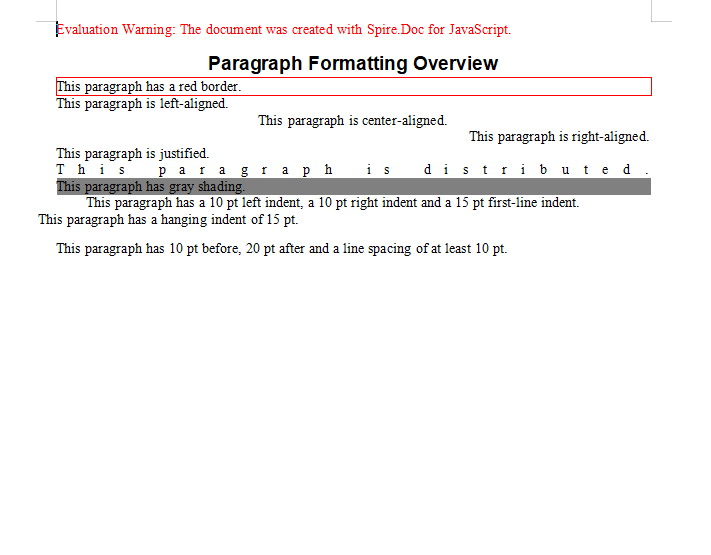
Each paragraph in the generated document shows its border, alignment, indentation and spacing in turn
Create and Apply List Styles
A list style is one kind of document style, created with document.Styles.Add({ listType, name }). listType is ListType.Numbered or ListType.Bulleted, and name is the custom style name you choose.
A new style also needs the numbering rule for each level. Those settings live in ListRef.Levels and are indexed from 0:
NumberPrefix— the prefix template for the number, where%1stands for the first level's counter,%2for the second, and so on;PatternType— how the number is rendered, e.g.ListPatternType.Arabicfor Arabic numerals;- on the paragraph side,
ListFormat.ApplyStyle(styleName)attaches the list style, andListFormat.ListLevelNumbersets which level the paragraph sits at (0 is the first level).
function App() {
  const Lists = async () => {
    const docModule = window.wasmModule?.spiredoc;
    if (!docModule) {
      alert('Spire.Doc is not ready yet');
      return;
    }

    // Create the document and the section
    const doc = new docModule.Document();
    let sec = doc.AddSection();

    // The title and the group headings
    let paragraph = sec.AddParagraph();
    paragraph.AppendText("List Styles Overview");
    paragraph.ApplyStyle({ builtinStyle: docModule.BuiltinStyle.Title });

    paragraph = sec.AddParagraph();
    paragraph.AppendText("Numbered list:").CharacterFormat.Bold = true;

    // Create the numbered list style and configure the numbering for levels 1 and 2
    let numberList = doc.Styles.Add({ listType: docModule.ListType.Numbered, name: "numberList" });
    numberList.ListRef.Levels.get_Item(1).NumberPrefix = "%1.";
    numberList.ListRef.Levels.get_Item(1).PatternType = docModule.ListPatternType.Arabic;
    numberList.ListRef.Levels.get_Item(2).NumberPrefix = "%1.%2.";
    numberList.ListRef.Levels.get_Item(2).PatternType = docModule.ListPatternType.Arabic;

    // Create the bulleted list style
    let bulletList = doc.Styles.Add({ listType: docModule.ListType.Bulleted, name: "bulletList" });

    // Add both list styles to the document's style collection
    doc.Styles.Add(numberList);
    doc.Styles.Add(bulletList);

    // Apply the numbered list style paragraph by paragraph, setting the level with ListLevelNumber
    paragraph = sec.AddParagraph();
    paragraph.AppendText("Overview");
    paragraph.ListFormat.ApplyStyle(numberList.Name);

    paragraph = sec.AddParagraph();
    paragraph.AppendText("Delivery Scope");
    paragraph.ListFormat.ApplyStyle(numberList.Name);

    paragraph = sec.AddParagraph();
    paragraph.AppendText("Three Business Areas");
    paragraph.ListFormat.ApplyStyle(numberList.Name);
    paragraph.ListFormat.ListLevelNumber = 1;

    paragraph = sec.AddParagraph();
    paragraph.AppendText("Data Ingestion");
    paragraph.ListFormat.ApplyStyle(numberList.Name);
    paragraph.ListFormat.ListLevelNumber = 1;

    paragraph = sec.AddParagraph();
    paragraph.AppendText("API Integration");
    paragraph.ListFormat.ApplyStyle(numberList.Name);
    paragraph.ListFormat.ListLevelNumber = 2;

    paragraph = sec.AddParagraph();
    paragraph.AppendText("Field Verification");
    paragraph.ListFormat.ApplyStyle(numberList.Name);
    paragraph.ListFormat.ListLevelNumber = 2;

    paragraph = sec.AddParagraph();
    paragraph.AppendText("Canary Release");
    paragraph.ListFormat.ApplyStyle(numberList.Name);
    paragraph.ListFormat.ListLevelNumber = 2;

    paragraph = sec.AddParagraph();
    paragraph.AppendText("Acceptance Criteria");
    paragraph.ListFormat.ApplyStyle(numberList.Name);
    paragraph.ListFormat.ListLevelNumber = 1;

    paragraph = sec.AddParagraph();
    paragraph.AppendText("Follow-up Plan");
    paragraph.ListFormat.ApplyStyle(numberList.Name);

    // The bulleted list
    paragraph = sec.AddParagraph();
    paragraph.AppendText("Bulleted list:").CharacterFormat.Bold = true;

    paragraph = sec.AddParagraph();
    paragraph.AppendText("Clause One");
    paragraph.ListFormat.ApplyStyle(bulletList.Name);

    paragraph = sec.AddParagraph();
    paragraph.AppendText("Clause Two");
    paragraph.ListFormat.ApplyStyle(bulletList.Name);

    paragraph = sec.AddParagraph();
    paragraph.AppendText("Supplementary Notes");
    paragraph.ListFormat.ApplyStyle(bulletList.Name);
    paragraph.ListFormat.ListLevelNumber = 1;

    paragraph = sec.AddParagraph();
    paragraph.AppendText("Exceptions");
    paragraph.ListFormat.ApplyStyle(bulletList.Name);
    paragraph.ListFormat.ListLevelNumber = 1;

    paragraph = sec.AddParagraph();
    paragraph.AppendText("Clause Three");
    paragraph.ListFormat.ApplyStyle(bulletList.Name);

    // Define the output file name
    const outputFileName = "Lists-result.docx";

    // Save the document to the given path
    doc.SaveToFile({ fileName: outputFileName, fileFormat: docModule.FileFormat.Docx2013 });
    doc.Dispose();

    // Read the saved file back and wrap it as a Blob
    const modifiedFileArray = window.dotnetRuntime.Module.FS.readFile(outputFileName);
    const blob = new Blob([modifiedFileArray], {type: "application/vnd.openxmlformats-officedocument.wordprocessingml.document"});
    const url = URL.createObjectURL(blob);
    const a = document.createElement('a');
    a.href = url;
    a.download = outputFileName;
    a.click();
    URL.revokeObjectURL(url);
  };

  return (
    <div style={{ textAlign: 'center', height: '300px' }}>
      <h1>Create and Apply List Styles</h1>
      <button onClick={Lists}>Generate</button>
    </div>
  );
}
export default App;
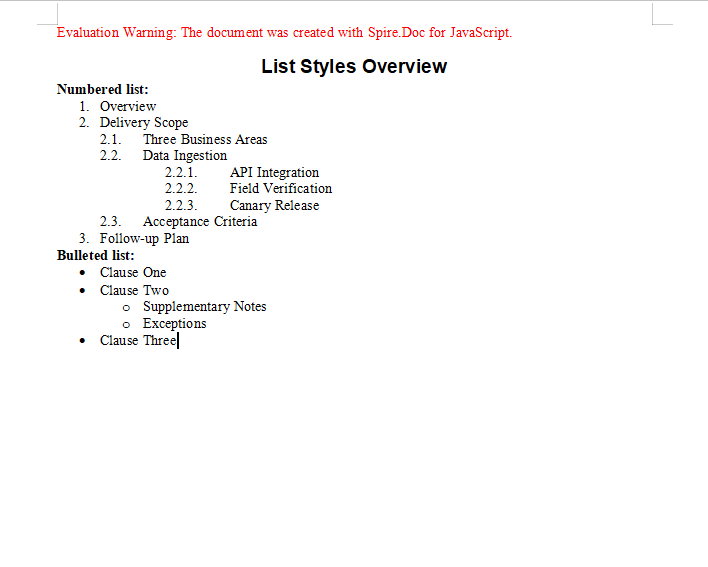
The numbered list generates 1. / 1.1. style counters automatically, while the bulleted list indents by level
FAQ
The hanging indent does not take effect
Cause: A negative value passed to SetFirstLineIndent means a hanging indent, but if the paragraph has no left indent of its own there is no room for the hanging part to pull back into, so the effect is almost invisible.
Solution: Give the paragraph a left indent first, then use a negative first-line indent for the hanging effect:
para.Format.SetLeftIndent(20);
para.Format.SetFirstLineIndent(-15);
The list numbers do not appear at the expected level
Cause: ListLevelNumber defaults to 0 (the first level) when it is not set, so a child paragraph that does not set its level explicitly is numbered alongside its parent.
Solution: Set the level explicitly on every paragraph that needs one, keeping in mind that it is also counted from 0:
paragraph.ListFormat.ApplyStyle(numberList.Name);
paragraph.ListFormat.ListLevelNumber = 1;   // Second level, numbered 1.1.
A paragraph has both shading and a border, but only one of them shows
Cause: Format.BackColor is paragraph shading and Format.Borders is the paragraph border. Both are written under the same paragraph property node, so a misspelled property name is silently ignored.
Solution: Check which property belongs where — shading goes on BackColor, the border on Borders.BorderType:
para.Format.BackColor = docModule.Color.get_Gray();
para.Format.Borders.BorderType = docModule.BorderStyle.Single;
para.Format.Borders.Color = docModule.Color.get_Red();
Get a Free License
Spire.Doc for JavaScript offers a 30-day full-featured free trial license with no functional limitations. Apply here to evaluate before purchasing.
Insert Content based on Word Bookmarks with JavaScript in React
A bookmark is a named anchor that marks a specific position or a range of content in a Word document. Writing content into a bookmark lets business data land at the designated place in a template automatically, without the caller having to know how the document is actually laid out. Spire.Doc for JavaScript performs this entirely in the browser via WebAssembly, using a virtual file system (VFS) to manage fonts, documents and image resources — no backend server required.
This article covers two core features:
For installation and project setup, refer to Integrating Spire.Doc for JavaScript in a React Project. The examples below assume Spire.Doc is installed and the WebAssembly module is initialized.
Insert Document Content at a Bookmark
Inserting document content into a bookmark runs in three stages: first, instantiate two Document objects and load a file into each, one for the document to be filled and one that provides the content; then locate the bookmark by name with BookmarksNavigator.MoveToBookmark, take the bookmark's start marker through CurrentBookmark.BookmarkStart, work out the index of the paragraph holding that bookmark within the section through its OwnerParagraph and the section's IndexOf, and insert every paragraph of the source document after that index (each one Clone()d first); last, save the document, read the generated file from VFS, wrap it as a Blob and trigger a browser download.
function App() {
  const InsertDocAtBookmark = async () => {
    const docModule = window.wasmModule?.spiredoc;
    if (!docModule) {
      alert('Spire.Doc is not ready yet');
      return;
    }
    // Load the target document to be filled into VFS
    let inputFileName_1 = "InsertDocAtBookmark1.docx";
    await window.spire.FetchFileToVFS(inputFileName_1, "", `${process.env.PUBLIC_URL}/static/data/`);

    // Load the source document that provides the content into VFS
    let inputFileName_2 = "InsertDocAtBookmark2.docx";
    await window.spire.FetchFileToVFS(inputFileName_2, "", `${process.env.PUBLIC_URL}/static/data/`);

    // Load the target document
    let document1 = new docModule.Document();
    document1.LoadFromFile(inputFileName_1);

    // Load the source document
    let document2 = new docModule.Document();
    document2.LoadFromFile(inputFileName_2);

    // Get the first section of the target document
    let section1 = document1.Sections.get_Item();

    // Create a bookmark navigator to locate the bookmark
    let bn = new docModule.BookmarksNavigator(document1);

    // Find the bookmark by name
    bn.MoveToBookmark("Test", true, true);

    // Get the bookmark's start marker
    let start = bn.CurrentBookmark.BookmarkStart;

    // Get the paragraph that holds the start marker
    let para = start.OwnerParagraph;

    // Get the index of that paragraph in the section
    let index = section1.Body.ChildObjects.IndexOf(para);

    // Insert the paragraphs of the source document one by one after the paragraph holding the bookmark
    for (let i = 0; i < document2.Sections.Count; i++) {
      let section2 = document2.Sections.get_Item(i);
      for (let j = section2.Paragraphs.Count-1; j >=0; j--) {
        let paragraph = section2.Paragraphs.get_Item(j);
        section1.Body.ChildObjects.Insert(index + 1, paragraph.Clone());
      }
    }

    // Define the output file name
    const outputFileName = "InsertDocAtBookmark-result.docx";

    // Save the document
    document1.SaveToFile({ fileName: outputFileName, fileFormat: docModule.FileFormat.Docx2013 });

    document1.Dispose();
    document2.Dispose();

    // Read the saved file and convert it to a Blob
    const modifiedFileArray = window.dotnetRuntime.Module.FS.readFile(outputFileName);
    const blob = new Blob([modifiedFileArray], {type: "application/vnd.openxmlformats-officedocument.wordprocessingml.document"});
    const url = URL.createObjectURL(blob);
    const a = document.createElement('a');
    a.href = url;
    a.download = outputFileName;
    a.click();
    URL.revokeObjectURL(url);
  };

  return (
    <div style={{ textAlign: 'center', height: '300px' }}>
      <h1>Insert a document at a Word bookmark</h1>
      <button onClick={InsertDocAtBookmark}>Generate</button>
    </div>
  );
}
export default App;
Word output after the paragraphs of the source document have been inserted at the bookmark

Insert an Image at a Bookmark
A bookmark marks a position in the document, so it can carry non-text content just as well — inserting a seal image at a signature bookmark in a contract template, for example. The core process runs in three stages: first, instantiate a Document and load the file; then locate the bookmark with a BookmarksNavigator, create a temporary section with AddSection, add a paragraph inside that temporary section and append the image to it with AppendPicture, insert the whole paragraph at the bookmark with InsertParagraph, and finally remove the temporary section; last, save the document, read the generated file from VFS, wrap it as a Blob and trigger a browser download.
function App() {
  const InsertImageAtBookmark = async () => {
    const docModule = window.wasmModule?.spiredoc;
    if (!docModule) {
      alert('Spire.Doc is not ready yet');
      return;
    }
    // Load the target document into VFS
    let inputFileName = "InsertImageAtBookmark.docx";
    await window.spire.FetchFileToVFS(inputFileName, "", `${process.env.PUBLIC_URL}/static/data/`);

    // Load the image to be inserted into VFS
    let imageFileName = "Word.png";
    await window.spire.FetchFileToVFS(imageFileName, "", `${process.env.PUBLIC_URL}/static/data/`);

    // Load the document
    let doc = new docModule.Document();
    doc.LoadFromFile(inputFileName);

    // Create a bookmark navigator to locate the bookmark
    let bn = new docModule.BookmarksNavigator(doc);

    // Find the bookmark by name
    bn.MoveToBookmark("Test", true, true);

    // Add a temporary section to hold the image paragraph
    let section0 = doc.AddSection();

    // Add a paragraph in the temporary section
    let paragraph = section0.AddParagraph();

    // Append the image to the paragraph
    paragraph.AppendPicture({ imgFile: imageFileName });

    // Insert that paragraph at the bookmark
    bn.InsertParagraph(paragraph);

    // Remove the temporary section
    doc.Sections.Remove(section0);

    // Define the output file name
    const outputFileName = "InsertImageAtBookmark-result.docx";

    // Save the document
    doc.SaveToFile({ fileName: outputFileName, fileFormat: docModule.FileFormat.Docx2013 });
    doc.Dispose();

    // Read the saved file and convert it to a Blob
    const modifiedFileArray = window.dotnetRuntime.Module.FS.readFile(outputFileName);
    const blob = new Blob([modifiedFileArray], {type: "application/vnd.openxmlformats-officedocument.wordprocessingml.document"});
    const url = URL.createObjectURL(blob);
    const a = document.createElement('a');
    a.href = url;
    a.download = outputFileName;
    a.click();
    URL.revokeObjectURL(url);
  };

  return (
    <div style={{ textAlign: 'center', height: '300px' }}>
      <h1>Insert an image at a Word bookmark</h1>
      <button onClick={InsertImageAtBookmark}>Generate</button>
    </div>
  );
}
export default App;
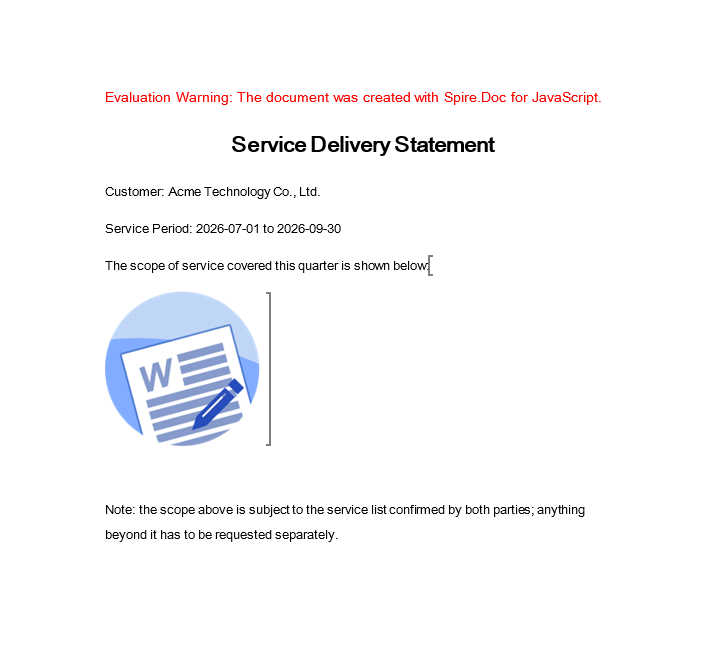
Word output after the image has been inserted at the bookmark
FAQ
The bookmark cannot be found and MoveToBookmark fails to locate it
Cause: MoveToBookmark locates a bookmark by its name. The name is case-sensitive and has to match the bookmark name in the document exactly. If the spelling does not match, or the target document has no bookmark with that name at all, the lookup fails.
Solution: Before locating, walk the Bookmarks collection to confirm the bookmark names the document actually carries, then pass the exact name:
// Walk all the bookmarks in the document to check whether the name matches
for (let i = 0; i < doc.Bookmarks.Count; i++) {
  console.log(doc.Bookmarks.get_Item(i).Name);
}

// Once the bookmark is confirmed to exist, locate it by its exact name
let bn = new wasmModule.BookmarksNavigator(doc);
bn.MoveToBookmark("Test", true, true);
The inserted image is larger than the page
Cause: AppendPicture inserts the image at its original pixel size and does not fit it to the page width. If the image resolution is far above the available page width, it overflows the page or stretches the original layout once inserted.
Solution: AppendPicture returns the picture object, so it can be scaled proportionally to a maximum width before it is inserted at the bookmark (Width and Height are measured in points):
// Append the image and keep the returned picture object
let paragraph = section0.AddParagraph();
let picture = paragraph.AppendPicture({ imgFile: imageFileName });

// Scale proportionally to the maximum width
let maxWidth = 400;
if (picture.Width > maxWidth) {
  picture.Height = picture.Height * (maxWidth / picture.Width);
  picture.Width = maxWidth;
}
Get a Free License
Spire.Doc for JavaScript offers a 30-day full-featured free trial license with no functional limitations. Apply here to evaluate before purchasing.
Retrieve Style Information from a Word Document with JavaScript in React
A well-formatted document is worth more than its looks: the style a paragraph carries is structured information in its own right. Whether a heading paragraph is on Heading 1 or Heading 2, and which style the body copy uses, both say something about how the document is organised. The same works in reverse — when the headings of a document have to be pulled out to build a table of contents or a summary, the reliable way is to select them by style name rather than to guess which line looks bigger.
In Spire.Doc for JavaScript every paragraph carries a StyleName property, and reading it returns the style that paragraph is currently using. Both examples in this article write their output to a TXT file.
This article covers two core features:
For installation and project setup, refer to Integrating Spire.Doc for JavaScript in a React Project. The examples below assume Spire.Doc is installed and the WebAssembly module is initialized.
Export the Style Names of a Document
The paragraphs of a document are organised in two levels, section then paragraph: doc.Sections is the collection of sections, and each section's Paragraphs is the collection of paragraphs. Walk both with Count + get_Item(index), read the StyleName of each paragraph and join the results up.
function App() {
  const RetrieveStyle = async () => {
    const docModule = window.wasmModule?.spiredoc;
    if (!docModule) {
      alert('Spire.Doc is not ready yet');
      return;
    }

    // Load the sample file into the virtual file system (VFS)
    let inputFileName = "RetrieveStyle.docx";
    await window.spire.FetchFileToVFS(inputFileName, "", `${process.env.PUBLIC_URL}static/data/`);

    // Load the document
    let doc = new docModule.Document();
    doc.LoadFromFile(inputFileName);

    // Walk every section -> paragraph and read each paragraph's StyleName
    let styleName = "";
    for (let i = 0; i < doc.Sections.Count; i++) {
      let section = doc.Sections.get_Item(i);
      for (let j = 0; j < section.Paragraphs.Count; j++) {
        let paragraph = section.Paragraphs.get_Item(j);
        styleName += paragraph.StyleName + "\r\n";
      }
    }

    // Define the output file name
    const outputFileName = "RetrieveStyle-result.txt";

    // Write the content to the TXT file (straight into the VFS, not through SaveToFile)
    window.dotnetRuntime.Module.FS.writeFile(outputFileName, styleName);
    doc.Close();

    // Read the written file and wrap it in a Blob
    const modifiedFileArray = window.dotnetRuntime.Module.FS.readFile(outputFileName);
    const blob = new Blob([modifiedFileArray], { type: "text/plain" });
    const url = URL.createObjectURL(blob);
    const a = document.createElement('a');
    a.href = url;
    a.download = outputFileName;
    a.click();
    URL.revokeObjectURL(url);
  };

  return (
    <div style={{ textAlign: 'center', height: '300px' }}>
      <h1>Read the Style Name of Every Paragraph</h1>
      <button onClick={RetrieveStyle}>Generate</button>
    </div>
  );
}
export default App;
The sample document holds 14 paragraphs, and the exported TXT lists one style name per line, in paragraph order:
Title
Heading1
Normal
Heading2
Normal
Heading1
Normal
Heading2
Normal
Heading1
Normal
ListBullet
ListBullet
ListBullet
Note that the built-in style names come back without the space — Heading1 rather than Heading 1, ListBullet rather than List Bullet. That matters a great deal once a style name is used in a comparison.
The style name list exported for each paragraph of the sample document
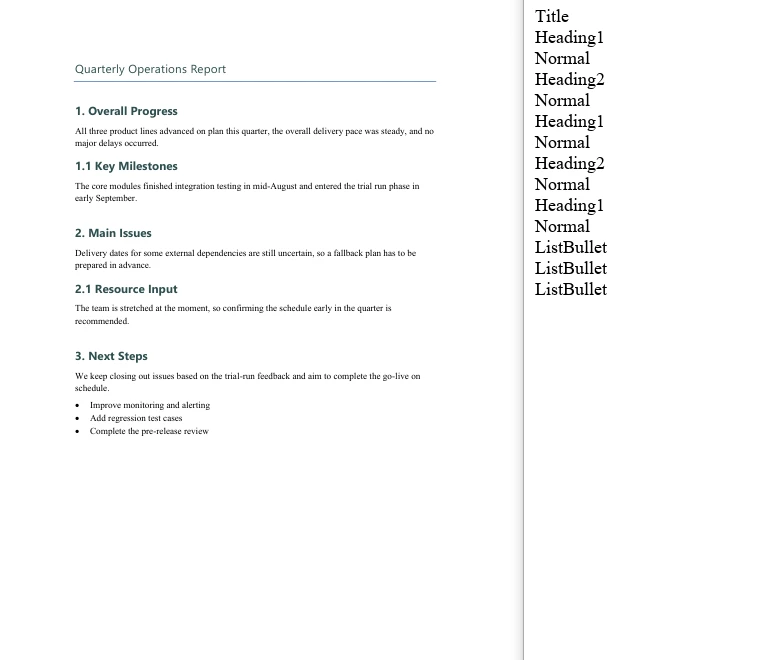
Extract Paragraph Text by Style Name
The same two-level walk applies; all it takes is one extra test per paragraph — only when StyleName equals the target style name does paragraph.Text go into the result. The sample document holds 3 Heading1 paragraphs, with a Title, Heading 2 and body paragraphs around them, which shows that the filter really does pick out the target style alone.
function App() {
  const GetTextByStyleName = async () => {
    const docModule = window.wasmModule?.spiredoc;
    if (!docModule) {
      alert('Spire.Doc is not ready yet');
      return;
    }

    // Load the sample file into the virtual file system (VFS)
    let inputFileName = "GetTextByStyleName.docx";
    await window.spire.FetchFileToVFS(inputFileName, "", `${process.env.PUBLIC_URL}static/data/`);

    // Load the document
    let doc = new docModule.Document();
    doc.LoadFromFile(inputFileName);

    // Collect the text of the paragraphs that match
    let builder = [];

    // Walk every section -> paragraph
    for (let i = 0; i < doc.Sections.Count; i++) {
      let section = doc.Sections.get_Item(i);
      for (let j = 0; j < section.Paragraphs.Count; j++) {
        let para = section.Paragraphs.get_Item(j);

        // Take only the paragraphs whose style name is Heading1
        if (para.StyleName == "Heading1") {
          builder.push(para.Text);
        }
      }
    }

    // Define the output file name
    const outputFileName = "GetTextByStyleName-result.txt";

    // Write the content to the TXT file
    window.dotnetRuntime.Module.FS.writeFile(outputFileName, builder.join("\n"));
    doc.Close();

    // Read the written file and wrap it in a Blob
    const modifiedFileArray = window.dotnetRuntime.Module.FS.readFile(outputFileName);
    const blob = new Blob([modifiedFileArray], { type: "text/plain" });
    const url = URL.createObjectURL(blob);
    const a = document.createElement('a');
    a.href = url;
    a.download = outputFileName;
    a.click();
    URL.revokeObjectURL(url);
  };

  return (
    <div style={{ textAlign: 'center', height: '300px' }}>
      <h1>Extract Paragraph Text by Style Name</h1>
      <button onClick={GetTextByStyleName}>Generate</button>
    </div>
  );
}
export default App;
The exported TXT holds just 3 lines, which are exactly the Heading1 paragraphs of the document:
1. Review of Last Week
2. This Week’s Priorities
3. Items Awaiting Confirmation
Only the paragraphs on the target style reached the exported TXT
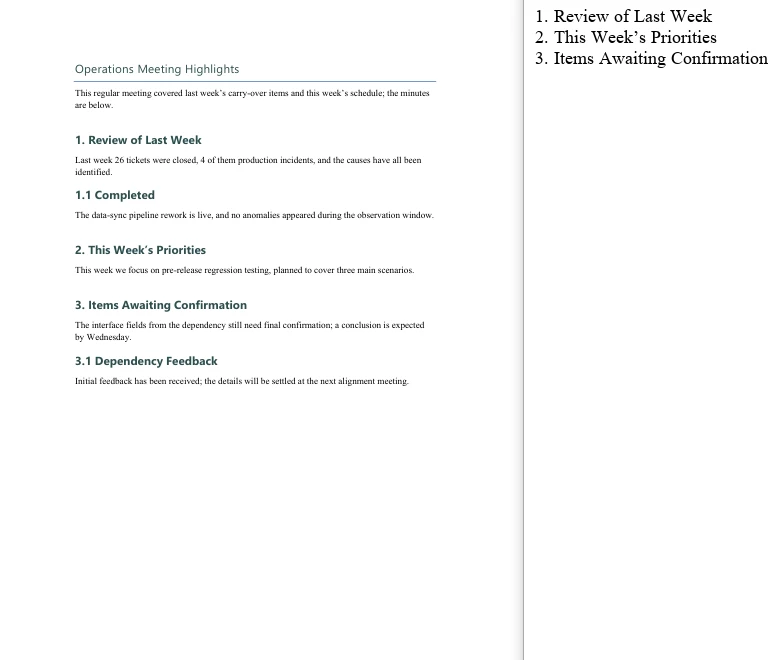
FAQ
Filtering by style name matches no paragraph at all
Cause: The StyleName of a built-in style is the space-free form, so writing "Heading 1" matches nothing.
Solution: Use the name without the space. In the sample, "Heading1" matches 3 paragraphs while "Heading 1" matches 0:
// Right
if (para.StyleName == "Heading1") { ... }

// Matches nothing
if (para.StyleName == "Heading 1") { ... }
Names are case-sensitive as well, so run the style-name export first to confirm the names the document actually uses before writing the condition.
The exported TXT has a blank line between every line
Cause: The text is joined both ways at once — push(text + "\n") and then join("\n"). Every element already carries a newline and join adds another one, so a blank line appears between every pair.
Solution: Keep only one of the two — either leave the newline off the elements and let join add it, or keep it on the elements and join with join(""):
// Let join supply the line breaks
builder.push(para.Text);
window.dotnetRuntime.Module.FS.writeFile(outputFileName, builder.join("\n"));
The downloaded file opens as garbled text
Cause: The MIME type of the Blob is set to docx, or the text is treated as a binary document when it is read back, so opening it in Word naturally shows nonsense.
Solution: A TXT output has to declare text/plain, and it should be opened in a text editor such as Notepad:
const modifiedFile = new Blob([modifiedFileArray], { type: "text/plain" });
Paragraphs inside tables are missed when walking Sections and Paragraphs
Cause: section.Paragraphs holds the body paragraphs only — paragraphs inside table cells are not in it. Table content hangs off section.Tables, and the Paragraphs of every cell has to be walked separately.
Solution: If the document contains tables and they need to be processed too, walk them outside the body loop:
for (let t = 0; t < section.Tables.Count; t++) {
  let table = section.Tables.get_Item(t);
  for (let r = 0; r < table.Rows.Count; r++) {
    for (let c = 0; c < table.Rows.get_Item(r).Cells.Count; c++) {
      let cell = table.Rows.get_Item(r).Cells.get_Item(c);
      // cell.Paragraphs holds the paragraphs inside the cell
    }
  }
}
Get a Free License
Spire.Doc for JavaScript offers a 30-day full-featured free trial license with no functional limitations. Apply here to evaluate before purchasing.
Restart List Numbering and Customize Bullets in Word with JavaScript in React
A consecutive sequence is often all a list needs — but real documents regularly ask for a new group that starts at a chosen number, or for a more distinctive glyph than the default dot. Neither change touches the paragraphs: both are level parameters of the list style itself, and both hang off ListRef.Levels — StartAt for the starting number, BulletCharacter for the glyph. Spire.Doc for JavaScript reads and writes these parameters directly in the browser via WebAssembly, with no backend server required.
This article covers two core features:
For installation and project setup, refer to Integrating Spire.Doc for JavaScript in a React Project. The examples below assume Spire.Doc is installed and the WebAssembly module is initialized.
Restart a List at a Specific Number
When two lists share one style object, Word treats them as a single numbering sequence and the second group simply carries on from the first. To make the second group count again, the most direct approach is to create a separate list style for it and set the StartAt property of level 0 on that style — it decides which number the level starts at.
StartAt follows the same indexing as ListLevelNumber: get_Item(0) is the first level. The sample sets the second list to 10, so its first entry renders as 10.:
function App() {
  const RestartList = async () => {
    const docModule = window.wasmModule?.spiredoc;
    if (!docModule) {
      alert('Spire.Doc is not ready yet');
      return;
    }

    // Create the document and the section
    let doc = new docModule.Document();
    let section = doc.AddSection();

    // Group heading
    let paragraph = section.AddParagraph();
    paragraph.AppendText("Group One");

    // The first list style: starts at 1 by default
    let numberList = doc.Styles.Add({ listType: docModule.ListType.Numbered, name: "Numbered1" });
    doc.Styles.Add(numberList);

    // Apply the style paragraph by paragraph
    paragraph = section.AddParagraph();
    paragraph.AppendText("Item One");
    paragraph.ListFormat.ApplyStyle(numberList.Name);

    paragraph = section.AddParagraph();
    paragraph.AppendText("Item Two");
    paragraph.ListFormat.ApplyStyle(numberList.Name);

    paragraph = section.AddParagraph();
    paragraph.AppendText("Item Three");
    paragraph.ListFormat.ApplyStyle(numberList.Name);

    paragraph = section.AddParagraph();
    paragraph.AppendText("Item Four");
    paragraph.ListFormat.ApplyStyle(numberList.Name);

    // Group heading
    paragraph = section.AddParagraph();
    paragraph.AppendText("Group Two");

    // The second list style: set the starting number of level 0 to 10
    let numberList2 = doc.Styles.Add({ listType: docModule.ListType.Numbered, name: "Numbered2" });
    numberList2.ListRef.Levels.get_Item(0).StartAt = 10;
    doc.Styles.Add(numberList2);

    // Apply the second style paragraph by paragraph; the numbering starts at 10
    paragraph = section.AddParagraph();
    paragraph.AppendText("Item Five");
    paragraph.ListFormat.ApplyStyle(numberList2.Name);

    paragraph = section.AddParagraph();
    paragraph.AppendText("Item Six");
    paragraph.ListFormat.ApplyStyle(numberList2.Name);

    paragraph = section.AddParagraph();
    paragraph.AppendText("Item Seven");
    paragraph.ListFormat.ApplyStyle(numberList2.Name);

    paragraph = section.AddParagraph();
    paragraph.AppendText("Item Eight");
    paragraph.ListFormat.ApplyStyle(numberList2.Name);

    // Define the output file name
    const outputFileName = "RestartList-result.docx";

    // Save the document to the given path
    doc.SaveToFile({ fileName: outputFileName, fileFormat: docModule.FileFormat.Docx2013 });
    doc.Dispose();

    const modifiedFileArray = window.dotnetRuntime.Module.FS.readFile(outputFileName);
    const blob = new Blob([modifiedFileArray], { type: 'application/vnd.openxmlformats-officedocument.wordprocessingml.document' });
    const url = URL.createObjectURL(blob);
    const a = document.createElement('a');
    a.href = url;
    a.download = outputFileName;
    a.click();
    URL.revokeObjectURL(url);
  };

  return (
    <div style={{ textAlign: 'center', height: '300px' }}>
      <h1>Restart the Second List at a Given Number</h1>
      <button onClick={RestartList}>Generate</button>
    </div>
  );
}
export default App;
The first list is numbered 1 to 4, the second starts at 10 and runs 10 to 13
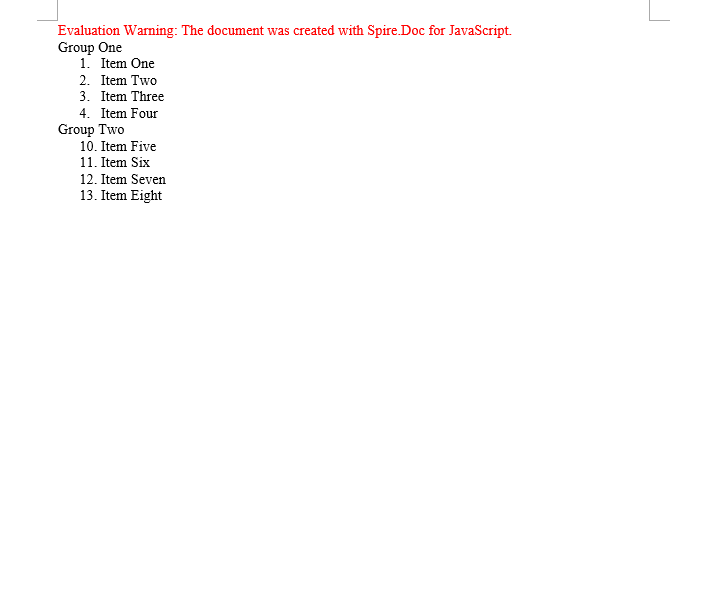
Customize the Glyph a Bullet Displays
A bulleted list uses a dot such as · by default. Switching it to another shape takes two properties:
BulletCharacter— the character itself. It is a single character and can be produced from an ASCII/Unicode code point withString.fromCharCode();CharacterFormat.FontName— the font that carries the character. The shape of a bullet is really decided by the font: one code point draws a different figure under different fonts.
The second point is the one that matters. Symbol fonts such as Wingdings map ordinary letters onto geometric shapes, so a single character code comes out completely different under Wingdings than under a regular font. The sample below builds four list styles from four code points and applies each of them to the same sentence, so that the differences can be compared side by side:
function App() {
  const ASCIICharactersBulletStyle = async () => {
    const docModule = window.wasmModule?.spiredoc;
    if (!docModule) {
      alert('Spire.Doc is not ready yet');
      return;
    }

    // Create the document and the section
    let doc = new docModule.Document();
    let section = doc.AddSection();

    // Spell the glyph out as a character code and set the font that carries it to Wingdings
    let listStyle1 = doc.Styles.Add({ listType: docModule.ListType.Bulleted, name: "liststyle" });
    listStyle1.ListRef.Levels.get_Item(0).BulletCharacter = String.fromCharCode(0x006e);
    listStyle1.ListRef.Levels.get_Item(0).CharacterFormat.FontName = "Wingdings";

    let listStyle2 = doc.Styles.Add({ listType: docModule.ListType.Bulleted, name: "liststyle2" });
    listStyle2.ListRef.Levels.get_Item(0).BulletCharacter = String.fromCharCode(0x0075);
    listStyle2.ListRef.Levels.get_Item(0).CharacterFormat.FontName = "Wingdings";

    let listStyle3 = doc.Styles.Add({ listType: docModule.ListType.Bulleted, name: "liststyle3" });
    listStyle3.ListRef.Levels.get_Item(0).BulletCharacter = String.fromCharCode(0x00b2);
    listStyle3.ListRef.Levels.get_Item(0).CharacterFormat.FontName = "Wingdings";

    let listStyle4 = doc.Styles.Add({ listType: docModule.ListType.Bulleted, name: "liststyle4" });
    listStyle4.ListRef.Levels.get_Item(0).BulletCharacter = String.fromCharCode(0x00d8);
    listStyle4.ListRef.Levels.get_Item(0).CharacterFormat.FontName = "Wingdings";

    // Four paragraphs share one sentence, each with one of the four list styles
    let p1 = section.Body.AddParagraph();
    p1.AppendText("Same text, four different bullet characters");
    p1.ListFormat.ApplyStyle(listStyle1.Name);

    let p2 = section.Body.AddParagraph();
    p2.AppendText("Same text, four different bullet characters");
    p2.ListFormat.ApplyStyle(listStyle2.Name);

    let p3 = section.Body.AddParagraph();
    p3.AppendText("Same text, four different bullet characters");
    p3.ListFormat.ApplyStyle(listStyle3.Name);

    let p4 = section.Body.AddParagraph();
    p4.AppendText("Same text, four different bullet characters");
    p4.ListFormat.ApplyStyle(listStyle4.Name);

    // Define the output file name
    const outputFileName = "ASCIICharactersBulletStyle-result.docx";

    // Save the document to the given path
    doc.SaveToFile({ fileName: outputFileName, fileFormat: docModule.FileFormat.Docx2013 });
    doc.Dispose();

    const modifiedFileArray = window.dotnetRuntime.Module.FS.readFile(outputFileName);
    const blob = new Blob([modifiedFileArray], { type: 'application/vnd.openxmlformats-officedocument.wordprocessingml.document' });
    const url = URL.createObjectURL(blob);
    const a = document.createElement('a');
    a.href = url;
    a.download = outputFileName;
    a.click();
    URL.revokeObjectURL(url);
  };

  return (
    <div style={{ textAlign: 'center', height: '300px' }}>
      <h1>Create a Bullet Style from ASCII Characters</h1>
      <button onClick={ASCIICharactersBulletStyle}>Generate</button>
    </div>
  );
}
export default App;
Four identical lines, each with a different bullet; the difference comes from the BulletCharacter code point
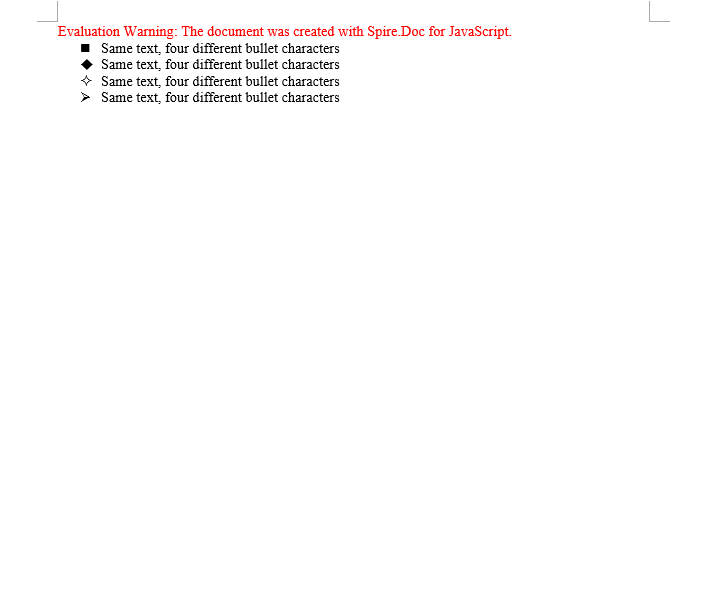
FAQ
StartAt is set, but the list still continues from the previous group
Cause: The new list and the old one reuse the same style object. Every reference to one style shares a single numbering sequence, so changing StartAt moves the starting point of the whole sequence.
Solution: Add a separate style for the group that has to count again, and set StartAt on that new style:
let numberList2 = document.Styles.Add({ listType: wasmModule.ListType.Numbered, name: "Numbered2" });
numberList2.ListRef.Levels.get_Item(0).StartAt = 10;
The custom bullet shows up as a box or as garbled text
Cause: Only BulletCharacter was set and the font was left alone — or a regular font that does not contain the glyph was used. The system cannot render the code point and falls back to the missing-glyph box.
Solution: Set the symbol font to one that really contains the glyph (Wingdings, for example):
listStyle1.ListRef.Levels.get_Item(0).BulletCharacter = String.fromCharCode(0x006e);
listStyle1.ListRef.Levels.get_Item(0).CharacterFormat.FontName = "Wingdings";
The list level parameter was changed but nothing happens
Cause: ListRef.Levels is indexed from 0. Writing 1 out of habit changes the second level instead, and the first level stays exactly as it was.
Solution: Check the index — get_Item(0) is the first level:
// First level
numberList.ListRef.Levels.get_Item(0).StartAt = 10;
// Second level
numberList.ListRef.Levels.get_Item(1).NumberPrefix = "%1.";
Get a Free License
Spire.Doc for JavaScript offers a 30-day full-featured free trial license with no functional limitations. Apply here to evaluate before purchasing.
Set Font and Font Color in Word with JavaScript in React
The font name, the font size and the text color are the most basic character-level formatting properties a Word document has, and also the ones you reach for most often: normalizing the font across a whole document, giving the headings a more striking face, or marking a key conclusion in a color that stands out. Spire.Doc for JavaScript performs all of this in the browser via WebAssembly, using a virtual file system (VFS) to manage input and output files — no backend server required.
This article covers two core features:
For installation and project setup, refer to Integrating Spire.Doc for JavaScript in a React Project. The examples below assume Spire.Doc is installed and the WebAssembly module is initialized.
Set the Font
Setting the font involves three steps: first, load the font file and the target Word document into the WASM virtual file system via FetchFileToVFS; then instantiate a Document, load the document, create a CharacterFormat object and set its FontName and FontSize, walk through the child objects of the target paragraph and call ApplyCharacterFormat on every object whose type is TextRange; finally, read the saved file back from VFS, wrap it as a Blob and trigger a browser download.
One detail deserves attention: the CharacterFormat constructor must be passed the Document instance the format belongs to. That is the convention shared by every standalone format object in Spire.Doc.
function App() {
  const SetFont = async () => {
    const docModule = window.wasmModule?.spiredoc;
    if (!docModule) {
      alert('Spire.Doc is not ready yet');
      return;
    }

    // Load the font file into VFS
    await window.spire.FetchFileToVFS("ARIALUNI.TTF", "/Library/Fonts/", `${process.env.PUBLIC_URL}static/font/`);

    // Load the target Word document into VFS
    const inputFileName = "SetFont.docx";
    await window.spire.FetchFileToVFS(inputFileName, "", `${process.env.PUBLIC_URL}static/data/`);

    // Create a Document instance and load the document
    const doc = new docModule.Document();
    doc.LoadFromFile(inputFileName);

    // Get the second paragraph of the first section
    const p = doc.Sections.get_Item(0).Paragraphs.get_Item(1);

    // Create a CharacterFormat and set the font name and the font size
    const format = new docModule.CharacterFormat(doc);
    format.FontName = "Arial Unicode MS";
    format.FontSize = 16;

    // Walk through the child objects of the paragraph and apply the character format to the text ranges
    for (let i = 0; i < p.ChildObjects.Count; i++) {
      const childObj = p.ChildObjects.get_Item(i);
      if (childObj instanceof docModule.TextRange) {
        childObj.ApplyCharacterFormat(format);
      }
    }

    // Define the output file name
    const outputFileName = "SetFont_out.docx";

    // Save the document to VFS
    doc.SaveToFile({ fileName: outputFileName, fileFormat: docModule.FileFormat.Docx2013 });
    doc.Dispose();

    const modifiedFileArray = window.dotnetRuntime.Module.FS.readFile(outputFileName);
    const blob = new Blob([modifiedFileArray], { type: 'application/vnd.openxmlformats-officedocument.wordprocessingml.document' });
    const url = URL.createObjectURL(blob);
    const a = document.createElement('a');
    a.href = url;
    a.download = outputFileName;
    a.click();
    URL.revokeObjectURL(url);
  };

  return (
    <div style={{ textAlign: 'center', height: '300px' }}>
      <h1>Set the Font of a Word Document</h1>
      <button onClick={SetFont}>Generate</button>
    </div>
  );
}
export default App;
The document produced after the font has been set
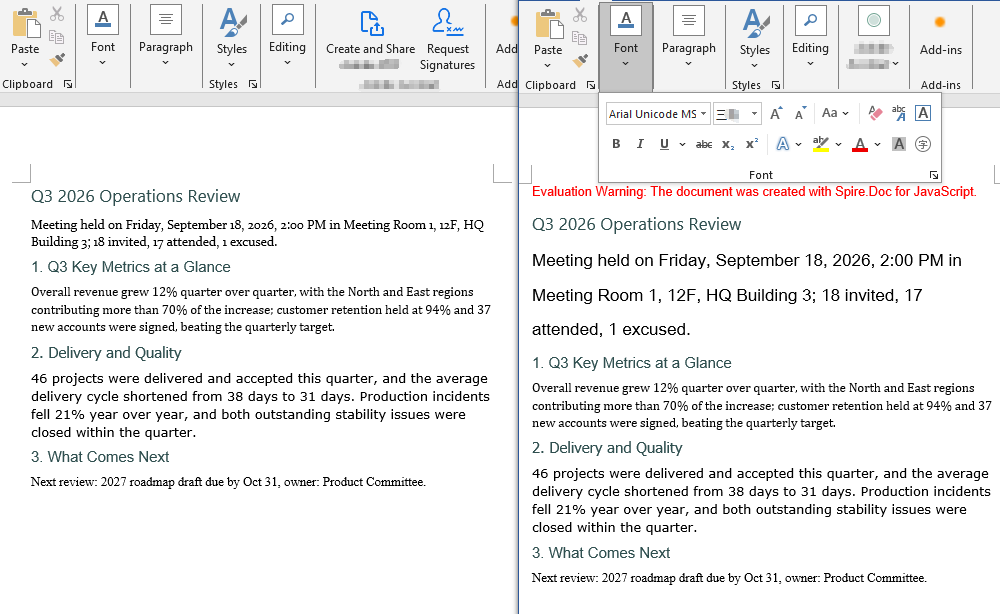
Change the Font Color
Changing the font color follows the same three steps as setting the font. The difference is that there is no need to create a separate CharacterFormat object: the color is a single property, so you assign to CharacterFormat.TextColor of the TextRange itself. The color values come from the predefined properties of Color, whose names match .NET's KnownColor — get_RosyBrown() and get_DarkGreen(), for example; when you need an exact color value, use Color.FromArgb(r, g, b) instead.
function App() {
  const ChangeFontColor = async () => {
    const docModule = window.wasmModule?.spiredoc;
    if (!docModule) {
      alert('Spire.Doc is not ready yet');
      return;
    }

    // Load the target Word document into VFS
    const inputFileName = "ChangeFontColor.docx";
    await window.spire.FetchFileToVFS(inputFileName, "", `${process.env.PUBLIC_URL}static/data/`);

    // Create a Document instance and load the document
    const doc = new docModule.Document();
    doc.LoadFromFile(inputFileName);

    // Get the first section
    const section = doc.Sections.get_Item(0);

    // Turn the text of the first paragraph rosy brown
    const p1 = section.Paragraphs.get_Item(0);
    for (let i = 0; i < p1.ChildObjects.Count; i++) {
      const childObj = p1.ChildObjects.get_Item(i);
      if (childObj instanceof docModule.TextRange) {
        childObj.CharacterFormat.TextColor = docModule.Color.get_RosyBrown();
      }
    }

    // Turn the text of the second paragraph dark green
    const p2 = section.Paragraphs.get_Item(1);
    for (let i = 0; i < p2.ChildObjects.Count; i++) {
      const childObj = p2.ChildObjects.get_Item(i);
      if (childObj instanceof docModule.TextRange) {
        childObj.CharacterFormat.TextColor = docModule.Color.get_DarkGreen();
      }
    }

    // Define the output file name
    const outputFileName = "ChangeFontColor_out.docx";

    // Save the document to VFS
    doc.SaveToFile({ fileName: outputFileName, fileFormat: docModule.FileFormat.Docx2013 });
    doc.Dispose();

    const modifiedFileArray = window.dotnetRuntime.Module.FS.readFile(outputFileName);
    const blob = new Blob([modifiedFileArray], { type: 'application/vnd.openxmlformats-officedocument.wordprocessingml.document' });
    const url = URL.createObjectURL(blob);
    const a = document.createElement('a');
    a.href = url;
    a.download = outputFileName;
    a.click();
    URL.revokeObjectURL(url);
  };

  return (
    <div style={{ textAlign: 'center', height: '300px' }}>
      <h1>Change the Font Color of a Word Document</h1>
      <button onClick={ChangeFontColor}>Generate</button>
    </div>
  );
}
export default App;
The document produced after the font color has been changed
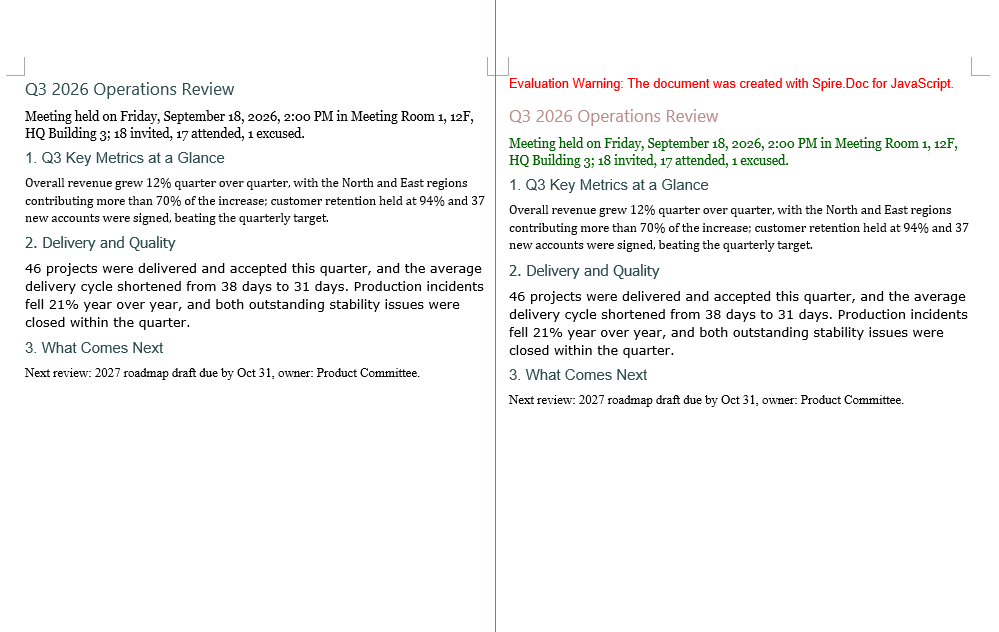
FAQ
Only a few words in a paragraph need to change, not the whole paragraph
Cause: The examples above treat a paragraph as the smallest unit — they walk through every child object of the paragraph and assign unconditionally to anything that is a TextRange, so once a paragraph has been processed the whole paragraph ends up in the same color or the same font. To work at word level you first have to locate the TextRange that holds the target text, and then set its character format on its own.
Solution: Use FindAllString to find the text in the document. Every TextSelection it returns gives you the matching TextRange through GetAsOneRange(), so you can change just that one occurrence:
// Find every occurrence of "key conclusion"; the arguments are: search text, case sensitivity, whole-word matching
const selections = doc.FindAllString("key conclusion", false, true);

for (let i = 0; i < selections.length; i++) {
  // Only this short run of text gets the new color; the rest of the paragraph is untouched
  selections[i].GetAsOneRange().CharacterFormat.TextColor = docModule.Color.get_Red();
}
If only the first occurrence matters, replace FindAllString with FindString, which returns a single TextSelection object.
The font is set, but the document shows a different font on another computer
Cause: FontName only writes the font name into the character properties of the document; it does not bring the font file itself along with it. The font loaded by FetchFileToVFS only serves the rendering and the text measurement of this browser session. When the document is opened in Word on another machine and that font is not installed there, Word falls back to another font according to its own font substitution table, and the font size and the line spacing can change with it.
Solution: If the target font is a common one (Arial or Times New Roman, for example), there is usually nothing to do. If a particular font has to be used, embed the font file into the document together with the content, so that the document still renders correctly on machines where the font is not installed. See "Embed a Private Font" in the next article for the details.
Get a Free License
Spire.Doc for JavaScript offers a 30-day full-featured free trial license with no functional limitations. Apply here to evaluate before purchasing.
Get Used Fonts and Embed Private Fonts in Word with JavaScript in React
When a Word document has to travel between machines and environments, fonts are the part most likely to break: open a carefully laid out document on another computer and the glyph shapes, the font sizes and even the pagination can change. The safe approach is to first take stock of the fonts the document actually uses, then embed the fonts that must be preserved together with the document itself. Spire.Doc for JavaScript performs all of this in the browser via WebAssembly, using a virtual file system (VFS) to manage input and output files — no backend server required.
This article covers two core features:
For installation and project setup, refer to Integrating Spire.Doc for JavaScript in a React Project. The examples below assume Spire.Doc is installed and the WebAssembly module is initialized.
Get the List of Fonts Used in the Document
Listing the fonts involves three steps: first, load the target Word document into the WASM virtual file system via FetchFileToVFS; then instantiate a Document, load the document, walk down through section → paragraph → child object and read the font name, the font size and the text color from the CharacterFormat of every TextRange, de-duplicating on the combination of the three; finally, join the results into text and write it to VFS, read it back and wrap it as a Blob to trigger a browser download.
The de-duplication step deserves attention: a Map key has to be a primitive type that can be compared by value. Use an object such as { size, name } as the key and every iteration creates a brand-new reference, so Map never finds an existing entry and the de-duplication silently does nothing. The key here is therefore a string built from the font name, the font size and the color.
function App() {
  const GetListOfUsingFonts = async () => {
    const docModule = window.wasmModule?.spiredoc;
    if (!docModule) {
      alert('Spire.Doc is not ready yet');
      return;
    }

    // Load the target Word document into VFS
    const inputFileName = "GetListOfUsingFonts.docx";
    await window.spire.FetchFileToVFS(inputFileName, "", `${process.env.PUBLIC_URL}static/data/`);

    // Create a Document instance and load the document
    const doc = new docModule.Document();
    doc.LoadFromFile(inputFileName);

    // De-duplicate on "font name|size|color"
    const fontMap = new Map();

    // Walk through every section
    for (let i = 0; i < doc.Sections.Count; i++) {
      const section = doc.Sections.get_Item(i);

      // Walk through every paragraph in the section
      for (let j = 0; j < section.Body.Paragraphs.Count; j++) {
        const paragraph = section.Body.Paragraphs.get_Item(j);

        // Walk through every child object in the paragraph
        for (let k = 0; k < paragraph.ChildObjects.Count; k++) {
          const obj = paragraph.ChildObjects.get_Item(k);
          if (!(obj instanceof docModule.TextRange)) continue;

          const format = obj.CharacterFormat;
          const key = `${format.FontName}|${format.FontSize}|${format.TextColor.Name}`;

          fontMap.set(key, {
            name: format.FontName,
            size: format.FontSize,
            color: format.TextColor.Name
          });
        }
      }
    }

    // Build the output content
    const lines = [];
    for (const font of fontMap.values()) {
      lines.push(`Font Name: ${font.name}, Size: ${font.size}, Color: ${font.color}`);
    }

    // Define the output file name and write it to VFS
    const outputFileName = "GetListOfUsingFonts_out.txt";
    window.dotnetRuntime.Module.FS.writeFile(outputFileName, lines.join("\n"));

    const modifiedFileArray = window.dotnetRuntime.Module.FS.readFile(outputFileName);
    const blob = new Blob([modifiedFileArray], { type: 'text/plain' });
    const url = URL.createObjectURL(blob);
    const a = document.createElement('a');
    a.href = url;
    a.download = outputFileName;
    a.click();
    URL.revokeObjectURL(url);

    doc.Dispose();
  };

  return (
    <div style={{ textAlign: 'center', height: '300px' }}>
      <h1>Get the Fonts Used in a Word Document</h1>
      <button onClick={GetListOfUsingFonts}>Generate</button>
    </div>
  );
}
export default App;
The text file produced by the font list sample
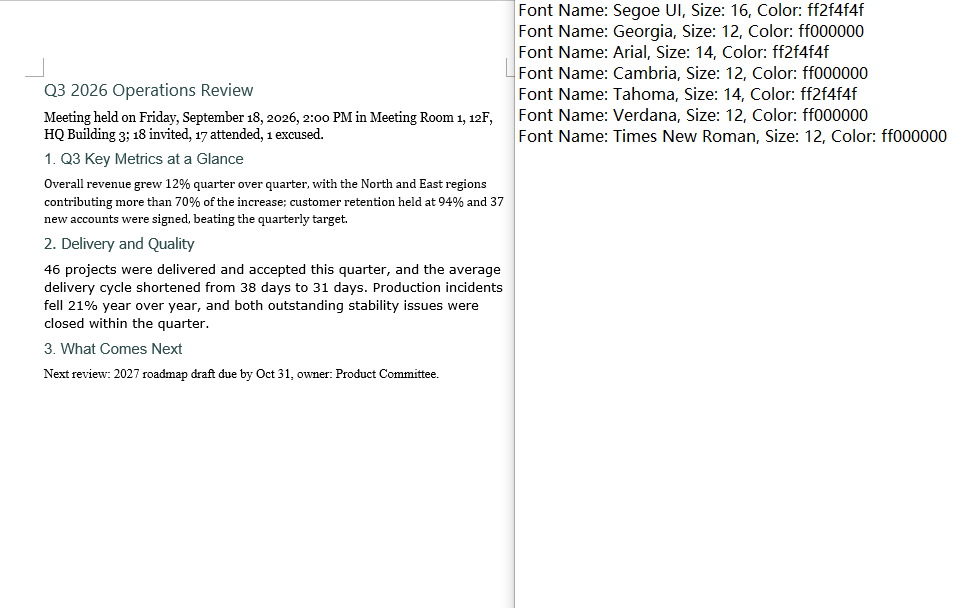
Embed a Private Font
Embedding a private font also involves three steps: first, load the font file to embed together with the document into the WASM virtual file system via FetchFileToVFS; then instantiate a Document, load the document, write a run that uses the font, set EmbedFontsInFile to true and call AddPrivateFont to register the path and the registration name of the font file; finally, save the document, read it back from VFS and wrap it as a Blob to trigger a browser download.
EmbedFontsInFile and AddPrivateFont only take effect at save time and must both be called before SaveToFile. The first argument of PrivateFontPath is the name the font is registered under inside the document, and it has to match the value assigned to CharacterFormat.FontName exactly, or Word will not find a match.
function App() {
  const EmbedPrivateFont = async () => {
    const docModule = window.wasmModule?.spiredoc;
    if (!docModule) {
      alert('Spire.Doc is not ready yet');
      return;
    }

    // Load the private font file to embed into VFS
    await window.spire.FetchFileToVFS("PT Serif Caption.ttf", "/Library/Fonts/", `${process.env.PUBLIC_URL}static/font/`);

    // Load the target Word document into VFS
    const inputFileName = "EmbedPrivateFont.docx";
    await window.spire.FetchFileToVFS(inputFileName, "", `${process.env.PUBLIC_URL}static/data/`);

    // Create a Document instance and load the document
    const doc = new docModule.Document();
    doc.LoadFromFile(inputFileName);

    // Append a paragraph at the end of the first section and apply the private font
    const p = doc.Sections.get_Item(0).AddParagraph();
    const range = p.AppendText("Quarterly Operations Review");
    range.CharacterFormat.FontName = "PT Serif Caption";
    range.CharacterFormat.FontSize = 20;

    // Turn on font embedding and register the private font file with the document
    doc.EmbedFontsInFile = true;
    doc.AddPrivateFont(new docModule.PrivateFontPath("PT Serif Caption", "PT Serif Caption.ttf"));

    // Define the output file name
    const outputFileName = "EmbedPrivateFont_out.docx";

    // Save the document to VFS
    doc.SaveToFile({ fileName: outputFileName, fileFormat: docModule.FileFormat.Docx2013 });
    doc.Dispose();

    const modifiedFileArray = window.dotnetRuntime.Module.FS.readFile(outputFileName);
    const blob = new Blob([modifiedFileArray], { type: 'application/vnd.openxmlformats-officedocument.wordprocessingml.document' });
    const url = URL.createObjectURL(blob);
    const a = document.createElement('a');
    a.href = url;
    a.download = outputFileName;
    a.click();
    URL.revokeObjectURL(url);
  };

  return (
    <div style={{ textAlign: 'center', height: '300px' }}>
      <h1>Embed a Private Font in a Word Document</h1>
      <button onClick={EmbedPrivateFont}>Generate</button>
    </div>
  );
}
export default App;
The document produced after the private font has been embedded
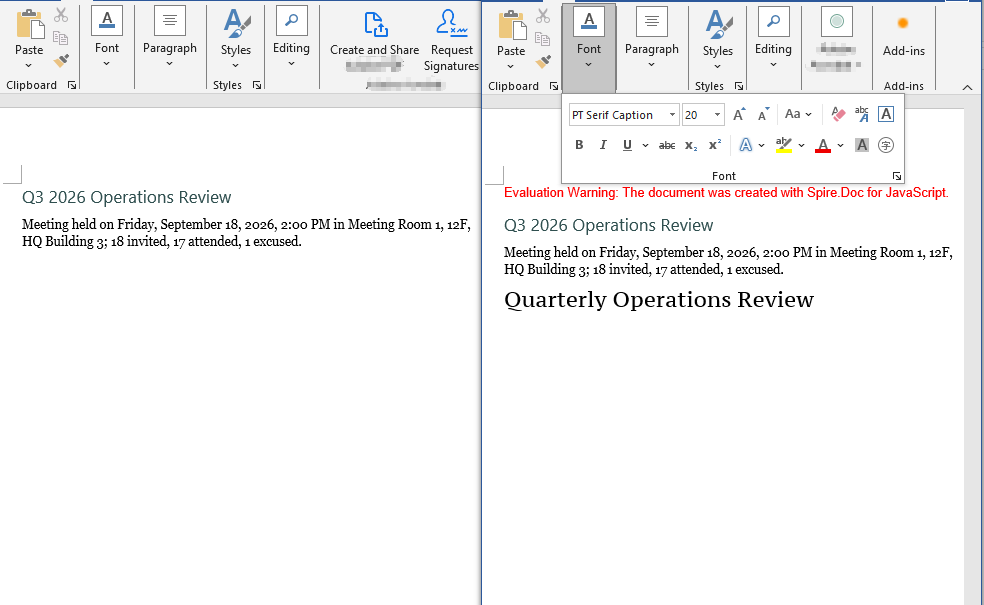
FAQ
The same font appears many times in the output font list
Cause: If the code follows the pattern "store the font name and the font size in an object, then use that object as the Map key", the de-duplication never works. Objects are reference types in JavaScript and Map compares keys by reference rather than by value; every object created inside the loop is a fresh reference, so fontMap.has(font) always returns false. The list then ends up with one line for every TextRange in the document, and the same font repeats over and over.
Solution: Use a primitive type as the key instead — join the fields that take part in the de-duplication into a string (such as font name|size|color), so that fonts with identical content get the same key:
const format = obj.CharacterFormat;

// Use a string as the key: identical content means the same entry, so de-duplication works
const key = `${format.FontName}|${format.FontSize}|${format.TextColor.Name}`;
fontMap.set(key, {
  name: format.FontName,
  size: format.FontSize,
  color: format.TextColor.Name
});
If all you need is de-duplication at the level of font names, collect format.FontName in a Set instead.
The font is embedded, but another computer still shows a substitute
Cause: There are three common cases. The first is the timing of the call — AddPrivateFont only registers the font file with the in-memory document object, while the font table and the font parts are actually written into the docx during the save, so EmbedFontsInFile = true and AddPrivateFont(...) both have to come before SaveToFile; leave out EmbedFontsInFile and the font file is not written at all. The second is a font name mismatch — the first argument of PrivateFontPath is the registration name used inside the document and must match the value of CharacterFormat.FontName exactly, spaces and letter case included, or the match fails over a single character. The third is the embedding permission of the font file itself — the fsType bits in the OS/2 table of some commercial fonts forbid embedding, and Word simply ignores those fonts, in which case the only options are to use another font or a licensed version that permits embedding.
Solution: Keep every font embedding setting together before the save, and make sure the registration name matches the font name character for character:
// Keep the font name and the registration name exactly the same
const FONT_NAME = "PT Serif Caption";

const range = p.AppendText("Quarterly Operations Review");
range.CharacterFormat.FontName = FONT_NAME;
range.CharacterFormat.FontSize = 20;

// Turn on embedding and register the font file; both must come before SaveToFile
doc.EmbedFontsInFile = true;
doc.AddPrivateFont(new docModule.PrivateFontPath(FONT_NAME, "PT Serif Caption.ttf"));

doc.SaveToFile({ fileName: outputFileName, fileFormat: docModule.FileFormat.Docx2013 });
Get a Free License
Spire.Doc for JavaScript offers a 30-day full-featured free trial license with no functional limitations. Apply here to evaluate before purchasing.