Add, Delete, and Modify Shapes in Word with JavaScript in React
Working with shapes in Word documents is one of the most common requirements in day-to-day office development. Whether you are stamping a rounded-rectangle signature box onto a contract template, annotating approval steps with a group of flowchart shapes, cleaning up leftover decorative shapes in a document, or restyling the shapes in an old template to match a new brand palette, manipulating shapes dynamically keeps document content in sync with your business data. Spire.Doc for JavaScript handles Word shapes entirely in the browser via WebAssembly, using a virtual file system (VFS) to manage fonts, documents, and image resources — no backend server required.
This article covers three core features:
For installation and project setup, refer to Integrating Spire.Doc for JavaScript in a React Project. The examples below assume Spire.Doc is installed and the WebAssembly module is initialized.
Add Shapes to a Word Document
Adding shapes involves three phases: first, load the font files into the WASM virtual file system via FetchFileToVFS; then instantiate a Document, add a section and a paragraph in turn, and call Paragraph.AppendShape to insert a shape of the specified type and size into the paragraph, anchoring it to the page with HorizontalOrigin/VerticalOrigin while setting its absolute coordinates through HorizontalPosition/VerticalPosition; finally, save the document, read the generated file from VFS, wrap it as a Blob, and trigger a browser download.
function App() {
  const appendShape = async () => {

    const docModule = window.wasmModule?.spiredoc;

    if (!docModule) {
      alert('Spire.Doc is not ready yet');
      return;
    }

      // Create a new document
    const doc = new docModule.Document();

      // Add a section
    let sec = doc.AddSection();

      // Add a paragraph to hold the shapes
    let paragraph = sec.AddParagraph();

    let x = 60, y = 40, lineCount = 0;
    for (let i = 1; i < 20; i++) {
      if (lineCount > 0 && lineCount % 8 == 0) {
        // Start a new page once 8 rows are filled, and reset the starting coordinates
        paragraph.AppendBreak(docModule.BreakType.PageBreak);
        x = 60;
        y = 40;
        lineCount = 0;
      }

        // Add a shape and set its size
      let shape = paragraph.AppendShape(50, 50, docModule.ShapeType.fromValue(i));

      // Position the shape in absolute coordinates relative to the page
      shape.HorizontalOrigin = docModule.HorizontalOrigin.Page;
      shape.HorizontalPosition = x;
      shape.VerticalOrigin = docModule.VerticalOrigin.Page;
      shape.VerticalPosition = y + 50;

      // Calculate the coordinates of the next shape
      x = x + shape.Width + 50;
      if (i > 0 && i % 5 == 0) {
        y = y + shape.Height + 120;
        lineCount++;
        x = 60;
        }
    }

    // Save the document
    const outputFileName = "Add Shapes.docx";
    doc.SaveToFile({ fileName: outputFileName, fileFormat: docModule.FileFormat.Docx });
    // Release resources
    doc.Dispose();

    const modifiedFileArray = window.dotnetRuntime.Module.FS.readFile(outputFileName);
    const blob = new Blob([modifiedFileArray], { type: 'application/vnd.openxmlformats-officedocument.wordprocessingml.document' });
    const url = URL.createObjectURL(blob);
    const a = document.createElement('a');
    a.href = url;
    a.download = outputFileName;
    a.click();
    URL.revokeObjectURL(url);
  };

 return (
    <div style={{ textAlign: 'center', height: '300px' }}>
      <h1>Add Shapes to a Word Document</h1>
      <button onClick={appendShape}>
        Generate
      </button>
    </div>
  );
}
export default App;
The code above inserts 19 different preset shapes in a loop, each 50×50, retrieving the shape type one by one with ShapeType.fromValue(i) and laying them out in rows and columns from the page origin — 5 shapes per row, and an automatic page break via AppendBreak once 8 rows are filled
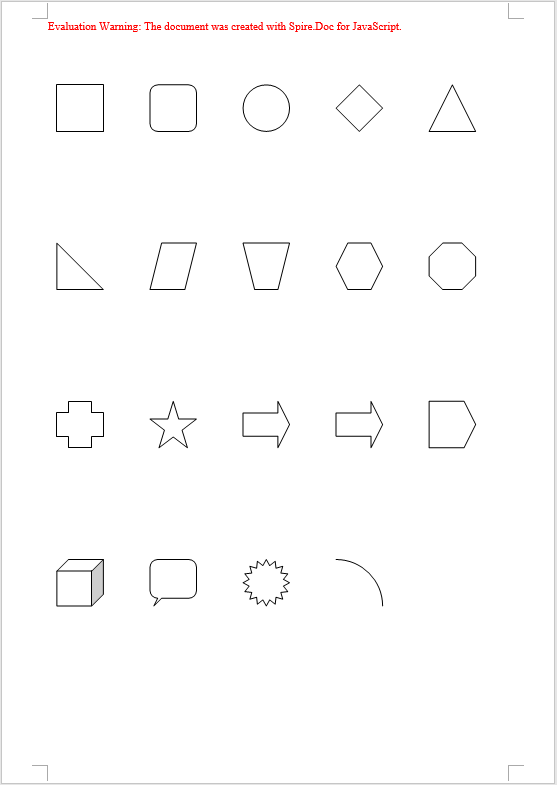
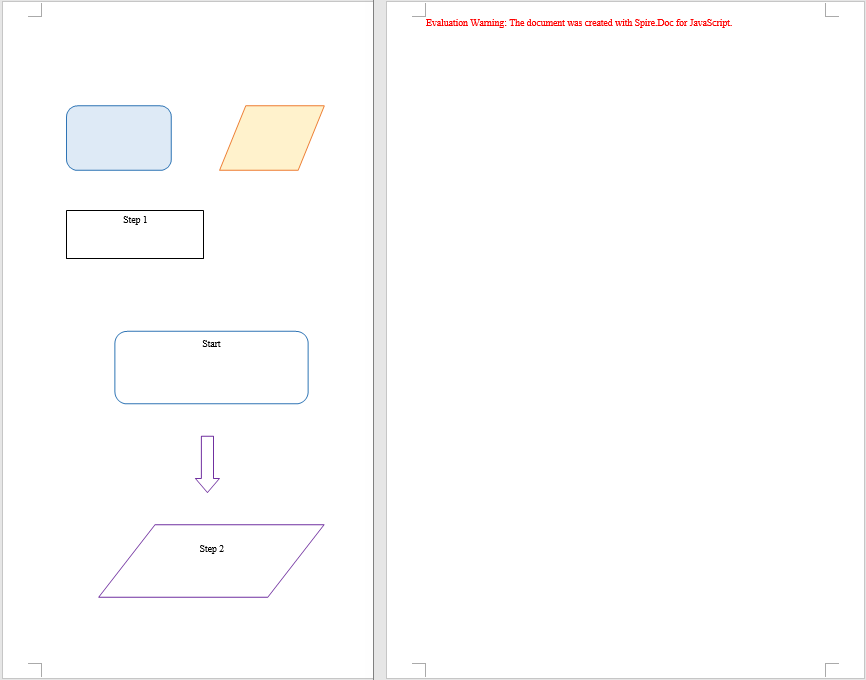
When you need to insert several related shapes at once — building a flowchart out of rectangles, parallelograms, and arrows, for example — you can instead call Paragraph.AppendShapeGroup to create a shape group first, then add text boxes, arrows, and other child shapes to it with ChildObjects.Add so they are laid out together. Coordinates inside a shape group are relative to the group itself, so you need to work out the scale factor with Width / 1000.0 and Height / 1000.0, then divide the target coordinates of each child shape by that factor before assigning them to HorizontalPosition/VerticalPosition. A text box is created with new wasmModule.TextBox(doc) and its outline specified through SetShapeType; its Format.LineColor sets the stroke color in exactly the same way as StrokeColor does for a regular shape.
Delete Shapes from a Word Document
Deleting shapes involves three phases: first, load the font files and the Word document to be processed into the WASM virtual file system via FetchFileToVFS; then instantiate a Document and load the file, walk the sections and paragraphs of the document level by level, and use DocumentObjectType to determine whether a child object in a paragraph is a shape — regular shapes and text boxes in a document both exist as type Shape, shape groups are ShapeGroup, while a text box created in memory with new wasmModule.TextBox(doc) and not yet saved is reported separately as TextBox, so all three types must be checked; once identified, collect the objects and remove them from the paragraph one by one with ChildObjects.Remove; finally, save the document, read the generated file from VFS, wrap it as a Blob, and trigger a browser download.
function App() {
  const removeShape = async () => {
    const docModule = window.wasmModule?.spiredoc;
    if (!docModule) {
      alert('Spire.Doc is not ready yet');
      return;
    }
    const inputFileName = 'ShapeTemplate.docx';
    await window.spire.FetchFileToVFS(inputFileName, '', `${process.env.PUBLIC_URL}static/data/`);

   // Load the document
    let doc = new docModule.Document();
    doc.LoadFromFile(inputFileName);

    let removedCount = 0;

    // Iterate over every section and paragraph and delete the shapes in each paragraph
    for (let i = 0; i < doc.Sections.Count; i++) {
      let sec = doc.Sections.get_Item(i);
      for (let j = 0; j < sec.Paragraphs.Count; j++) {
        let para = sec.Paragraphs.get_Item(j);

        // Collect the shapes in the paragraph in one pass: regular shapes and text boxes are Shape, shape groups are ShapeGroup
        let shapes = [];
        for (let k = 0; k < para.ChildObjects.Count; k++) {
          let docObj = para.ChildObjects.get_Item(k);
          let objType = docObj.DocumentObjectType;
          if (objType == docModule.DocumentObjectType.Shape
            || objType == docModule.DocumentObjectType.ShapeGroup
            || objType == docModule.DocumentObjectType.TextBox) {
              shapes.push(docObj);
    }
        }

        // Remove the shapes from the paragraph one by one
        for (let m = 0; m < shapes.length; m++) {
         para.ChildObjects.Remove(shapes[m]);
         removedCount++;
        }
      }
    }

    // Save the document
    const outputFileName = "Delete Shapes.docx";
    doc.SaveToFile({ fileName: outputFileName, fileFormat: docModule.FileFormat.Docx });

    // Release resources
    doc.Dispose();

    const modifiedFileArray = window.dotnetRuntime.Module.FS.readFile(outputFileName);
    const blob = new Blob([modifiedFileArray], { type: 'application/vnd.openxmlformats-officedocument.wordprocessingml.document' });
    const url = URL.createObjectURL(blob);
    const a = document.createElement('a');
    a.href = url;
    a.download = outputFileName;
    a.click();
    URL.revokeObjectURL(url);
  };

 return (
    <div style={{ textAlign: 'center', height: '300px' }}>
      <h1>Delete Shapes from a Word Document</h1>
      <button onClick={removeShape}>
        Generate
      </button>
    </div>
  );
}
export default App;
The code above walks the document structure and removes every shape on the page, while the text content and formatting in the paragraphs stay unchanged
Modify Shapes in a Word Document
Modifying shapes involves three phases: first, load the font files and the Word document to be processed into the WASM virtual file system via FetchFileToVFS; then instantiate a Document and load the file, walk the sections and paragraphs to locate the shape objects within them, and for regular shapes and text boxes set FillColor and StrokeColor directly to change the colors and set Rotation, Width, and Height to adjust the rotation angle and size, while for a shape group you drill down into its ChildObjects and modify each child shape in turn; finally, save the document, read the generated file from VFS, wrap it as a Blob, and trigger a browser download.
function App() {
  const modifyShape = async () => {
    const docModule = window.wasmModule?.spiredoc;
    if (!docModule) {
      alert('Spire.Doc is not ready yet');
      return;
    }
    const inputFileName = 'ShapeTemplate.docx';
    await window.spire.FetchFileToVFS(inputFileName, '', `${process.env.PUBLIC_URL}static/data/`);

    // Load the document
    let doc = new docModule.Document();
    doc.LoadFromFile(inputFileName);

    // Iterate over every section and paragraph and modify the shapes in each paragraph
    for (let i = 0; i < doc.Sections.Count; i++) {
      let sec = doc.Sections.get_Item(i);
      for (let j = 0; j < sec.Paragraphs.Count; j++) {
        let para = sec.Paragraphs.get_Item(j);
        for (let k = 0; k < para.ChildObjects.Count; k++) {
          let docObj = para.ChildObjects.get_Item(k);
          let objType = docObj.DocumentObjectType;

          // Modify the fill color, outline color, rotation, and size of regular shapes and text boxes
          if (objType == docModule.DocumentObjectType.Shape) {
            docObj.FillColor = docModule.Color.get_Orange();
            docObj.StrokeColor = docModule.Color.get_Red();
            docObj.Rotation = 15;
            docObj.Width = docObj.Width * 1.2;
            docObj.Height = docObj.Height * 1.2;
          }

          // Modify a shape group: drill into the group and change the outline color of each child shape
          if (objType == docModule.DocumentObjectType.ShapeGroup) {
            for (let n = 0; n < docObj.ChildObjects.Count; n++) {
              let child = docObj.ChildObjects.get_Item(n);
              child.StrokeColor = docModule.Color.get_Purple();
            }
          }
        }
      }
    }

    // Save the document
    const outputFileName = "Modify Shapes.docx";
    doc.SaveToFile({ fileName: outputFileName, fileFormat: docModule.FileFormat.Docx });

    // Release resources
    doc.Dispose();

    const modifiedFileArray = window.dotnetRuntime.Module.FS.readFile(outputFileName);
    const blob = new Blob([modifiedFileArray], { type: 'application/vnd.openxmlformats-officedocument.wordprocessingml.document' });
    const url = URL.createObjectURL(blob);
    const a = document.createElement('a');
    a.href = url;
    a.download = outputFileName;
    a.click();
    URL.revokeObjectURL(url);
  };

 return (
    <div style={{ textAlign: 'center', height: '300px' }}>
      <h1>Modify Existing Shapes in a Word Document</h1>
      <button onClick={modifyShape}>
        Generate
      </button>
    </div>
  );
}
export default App;
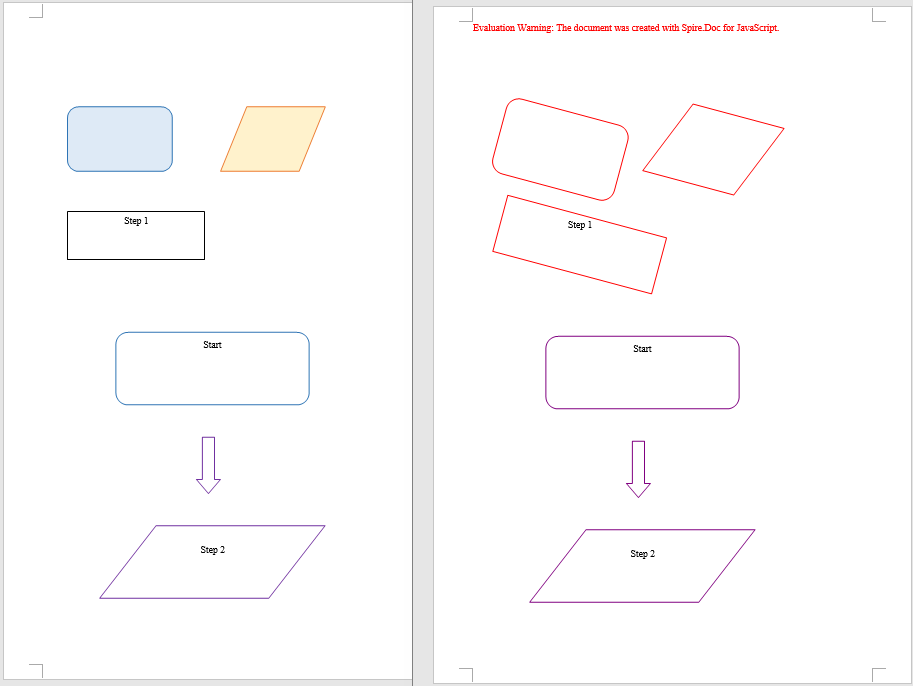
The code above keeps each shape's original position and text while restyling every shape in the document with an orange fill and a red outline, scaling it up to 120% and rotating it 15 degrees, and the child shapes inside shape groups get the new outline color as well
FAQ
Shapes end up misplaced or pushed off the page after being added
Cause: The meaning of the coordinates in HorizontalPosition/VerticalPosition depends on the frame of reference (the origin). If HorizontalOrigin/VerticalOrigin are not set explicitly, the coordinates default to the paragraph or the column, so they shift along with paragraph indentation and page margins, and the shape drifts away from the intended position.
Solution: Specify the frame of reference with HorizontalOrigin/VerticalOrigin first, and then set the coordinate values:
// Position the shape relative to the page
shape.HorizontalOrigin = wasmModule.HorizontalOrigin.Page;
shape.HorizontalPosition = x;
shape.VerticalOrigin = wasmModule.VerticalOrigin.Page;
shape.VerticalPosition = y + 50;
Some objects are missed when deleting shapes
Cause: In Spire.Doc a shape does not have just one DocumentObjectType: regular shapes and text boxes are uniformly Shape, shape groups are ShapeGroup, and a text box created in memory and not yet saved is TextBox. Checking only for Shape will miss shape groups and unsaved text boxes. On top of that, ChildObjects.Remove shifts the indexes of all subsequent child objects forward, so reading ChildObjects.Count while removing during the same loop will also skip some objects.
Solution: Collect all three types into an array in one pass first, then process the array one item at a time; when modifying the child shapes inside a shape group, drill down into its ChildObjects and iterate separately:
// Collect the shape objects of all three types first
if (objType == wasmModule.DocumentObjectType.Shape
  || objType == wasmModule.DocumentObjectType.ShapeGroup
  || objType == wasmModule.DocumentObjectType.TextBox) {
  shapes.push(docObj);
}

// Then remove them together
for (let m = 0; m < shapes.length; m++) {
  para.ChildObjects.Remove(shapes[m]);
}
Get a Free License
Spire.Doc for JavaScript offers a 30-day full-featured free trial license with no functional limitations. Apply here to evaluate before purchasing.
Convert Word to HTML with JavaScript in React
Converting a Word document to HTML preserves the original paragraph structure, styles, and images while rendering directly in the browser, which makes it widely useful for online preview, content publishing, and full-text search. Spire.Doc for JavaScript performs this conversion entirely in the browser via WebAssembly, using a virtual file system (VFS) to manage input and output files — no backend server required.
This article covers two core features:
For installation and project setup, refer to Integrating Spire.Doc for JavaScript in a React Project. The examples below assume Spire.Doc is installed and the WebAssembly module is initialized.
Convert Word to HTML
Converting Word to HTML involves three stages: first, load the font file and the target Word file into the WASM virtual file system via FetchFileToVFS; then instantiate a Document, load the file, use HtmlExportOptions to specify that both CSS and images are output in embedded form, and call SaveToFile to save the document as HTML; finally, read the generated HTML file from VFS, wrap it as a Blob, and trigger a browser download.
function App() {
  const wordToHtml = async () => {
    // Get the Spire.Doc WASM module
    const docModule = window.wasmModule?.spiredoc;

    // Check if the module is ready
    if (!docModule) {
      alert('Spire.Doc is not ready yet');
      return;
    }

    // Load fonts and the Word file into VFS
    await window.spire.FetchFileToVFS('ARIALUNI.TTF', '/Library/Fonts/', `${process.env.PUBLIC_URL}/static/font/`);
    const inputFileName = 'ToHtml.docx';
    await window.spire.FetchFileToVFS(inputFileName, '', `${process.env.PUBLIC_URL}/static/data/`);

    // Load the Word document
    const wordDocument = new docModule.Document();
    wordDocument.LoadFromFile(inputFileName);

    // Embed the CSS styles into the HTML and embed images as Base64
    wordDocument.HtmlExportOptions.CssStyleSheetType = docModule.CssStyleSheetType.Internal;
    wordDocument.HtmlExportOptions.ImageEmbedded = true;

    // Convert the document to HTML
    const outputFileName = 'ToHtml-result.html';
    wordDocument.SaveToFile({ fileName: outputFileName, fileFormat: docModule.FileFormat.Html });

    // Read the converted file from VFS and trigger download
    const fileArray = window.dotnetRuntime.Module.FS.readFile(outputFileName);
    const blob = new Blob([fileArray], { type: 'text/html;charset=utf-8' });
    const url = URL.createObjectURL(blob);
    const a = window.document.createElement('a');
    a.href = url;
    a.download = outputFileName;
    a.click();
    URL.revokeObjectURL(url);

    // Release resources
    wordDocument.Dispose();
  };

  return (
    <div style={{ textAlign: 'center', height: '300px' }}>
      <h1>Convert Word To HTML</h1>
      <button onClick={wordToHtml}>
        Generate
      </button>
    </div>
  );
}

export default App;
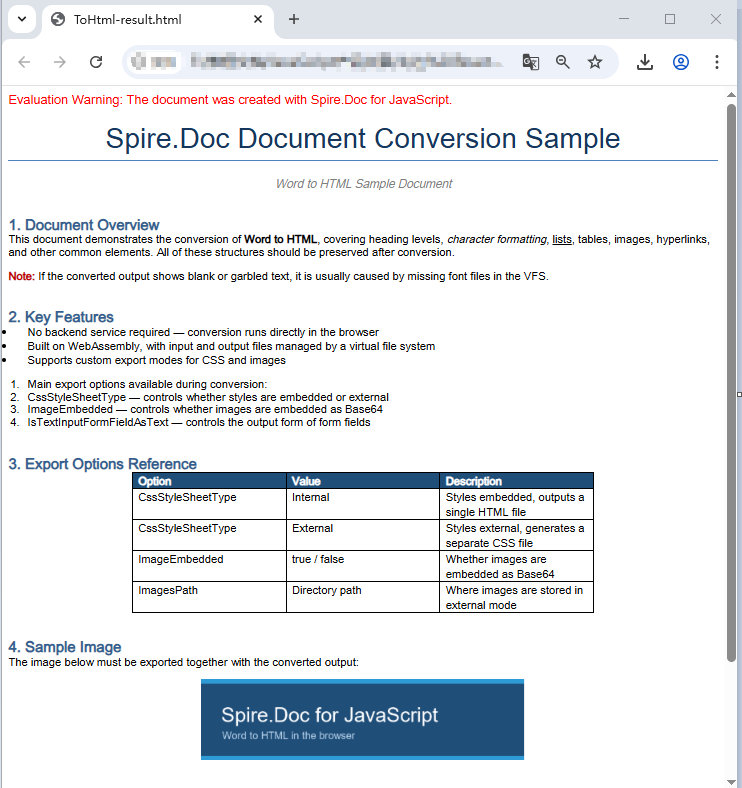
HTML page generated from a Word document via SaveToFile
Convert Word to HTML with export options
The output in the previous section is a single HTML file with CSS and images embedded in it. When a document is large, or when you want to maintain styles centrally and reuse image resources, you usually need to export CSS and images as separate files. HtmlExportOptions provides the corresponding settings, allowing HTML, style sheets, and images to be output separately.
The conversion flow is similar to the previous section, except that the result is a directory: you need to create the directory in VFS first, then use properties such as CssStyleSheetFileName and ImagesPath to specify where each type of resource is stored. Once conversion is complete, read that directory recursively, package everything into a zip, and download it in one go.
import JSZip from 'jszip';

function App() {
  const wordToHtmlWithOptions = async () => {
    // Get the Spire.Doc WASM module
    const docModule = window.wasmModule?.spiredoc;

    // Check if the module is ready
    if (!docModule) {
      alert('Spire.Doc is not ready yet');
      return;
    }

    // Load fonts and the Word file into VFS
    await window.spire.FetchFileToVFS('ARIALUNI.TTF', '/Library/Fonts/', `${process.env.PUBLIC_URL}/static/font/`);
    const inputFileName = 'ToHtml.docx';
    await window.spire.FetchFileToVFS(inputFileName, '', `${process.env.PUBLIC_URL}/static/data/`);

    // Create the output directory in VFS
    const outputDirectoryName = 'ToHTMLFolder/';
    window.dotnetRuntime.Module.FS.mkdirTree(outputDirectoryName);

    // Load the Word document
    const wordDocument = new docModule.Document();
    wordDocument.LoadFromFile(inputFileName);

    // Export the CSS styles to a separate file
    wordDocument.HtmlExportOptions.CssStyleSheetFileName = outputDirectoryName + 'sample.css';
    wordDocument.HtmlExportOptions.CssStyleSheetType = docModule.CssStyleSheetType.External;

    // Export images to a separate directory
    wordDocument.HtmlExportOptions.ImageEmbedded = false;
    wordDocument.HtmlExportOptions.ImagesPath = outputDirectoryName + 'Demo/';

    // Export form fields as plain text
    wordDocument.HtmlExportOptions.IsTextInputFormFieldAsText = true;

    // Convert the document to HTML
    const outputFileName = 'ToHtmlExportOption-out.html';
    wordDocument.SaveToFile({ fileName: outputFileName, fileFormat: docModule.FileFormat.Html });

    // Release resources
    wordDocument.Dispose();

    // Read the output directory recursively and write each level of files into the zip
    const zip = new JSZip();
    const addFilesToZip = async (folderPath, zipFolder) => {
      let items = await window.dotnetRuntime.Module.FS.readdir(folderPath);
      items = items.filter((item) => item !== '.' && item !== '..');
      for (const item of items) {
        const itemPath = `${folderPath}/${item}`;
        try {
          const fileData = await window.dotnetRuntime.Module.FS.readFile(itemPath);
          zipFolder.file(item, fileData);
        } catch (error) {
          const zipSubFolder = zipFolder.folder(item);
          await addFilesToZip(itemPath, zipSubFolder);
        }
      }
    };

    // Package the HTML file together with the resource directory
    zip.file(outputFileName, window.dotnetRuntime.Module.FS.readFile(outputFileName));
    await addFilesToZip(outputDirectoryName, zip);
    const zipBlob = await zip.generateAsync({ type: 'blob' });
    const url = URL.createObjectURL(zipBlob);

    // Trigger download
    const a = window.document.createElement('a');
    a.href = url;
    a.download = 'ToHTMLFolder.zip';
    a.click();
    URL.revokeObjectURL(url);
  };

  return (
    <div style={{ textAlign: 'center', height: '300px' }}>
      <h1>Convert Word To HTML With Export Options</h1>
      <button onClick={wordToHtmlWithOptions}>
        Generate
      </button>
    </div>
  );
}

export default App;
HTML, CSS, and image files generated after configuring the export options
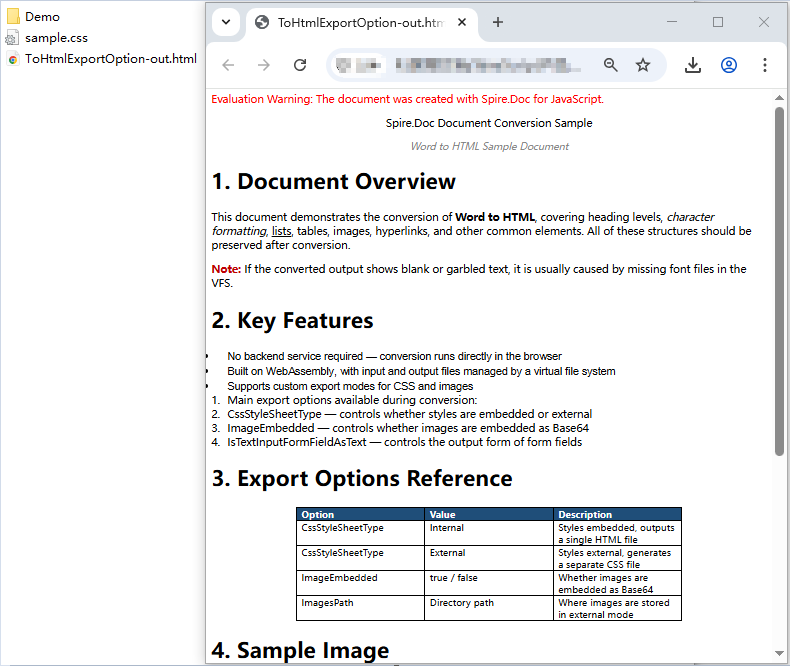
Note that Spire.Doc does not write images directly into the directory pointed to by ImagesPath. Instead, it creates an external_images subdirectory underneath it to hold the images. As a result, the output directory typically forms a hierarchy such as Demo/external_images/*.png, which must be read level by level — this is why addFilesToZip is implemented recursively in the example above.
FAQ
Fonts in the exported HTML do not match the original document
Cause: The font files are missing from the WASM virtual file system. Spire.Doc reads fonts from VFS during conversion to perform layout calculations and font name resolution. If the fonts are not preloaded, the fonts used in the original document are replaced with substitute fonts, and the font-family in the exported CSS will not match the original. If the original document uses a symbol font such as Wingdings, the corresponding characters will also appear garbled.
Solution: Load the font files into VFS via FetchFileToVFS before conversion. For Chinese, Japanese, and Korean documents, use a font with broad coverage such as ARIALUNI.TTF:
await window.spire.FetchFileToVFS(
  'ARIALUNI.TTF', '/Library/Fonts/', '/'
);
Exported HTML loses its styles and images when opened
Cause: In external mode (CssStyleSheetType.External combined with ImageEmbedded = false), CSS and images are output as separate files to the specified directory, and the HTML keeps only relative path references. If you download the HTML file on its own, the browser cannot find the corresponding style sheet and images, and the page degrades into unstyled plain text.
Solution: Package the HTML file together with the resource directory and download them as a whole, so that the relative path references remain valid (see the addFilesToZip example above). If you do not need separate resource files, you can switch to embedded mode instead:
wordDocument.HtmlExportOptions.CssStyleSheetType = docModule.CssStyleSheetType.Internal;
wordDocument.HtmlExportOptions.ImageEmbedded = true;
Get a Free License
Spire.Doc for JavaScript offers a 30-day full-featured free trial license with no functional limitations. Apply here to evaluate before purchasing.
Convert Word to Image with JavaScript in React
Converting a Word document to images is the most common approach for online preview, thumbnail generation, and preventing content from being copied at will — the resulting images keep a consistent layout on any device. Spire.Doc for JavaScript performs this conversion directly in the browser via WebAssembly, managing input and output files through a virtual file system (VFS) — no backend server required.
This article covers two core features:
For installation and project setup, refer to Integrating Spire.Doc for JavaScript in a React Project. The examples below assume Spire.Doc is installed and the WebAssembly module is initialized.
Page to Image
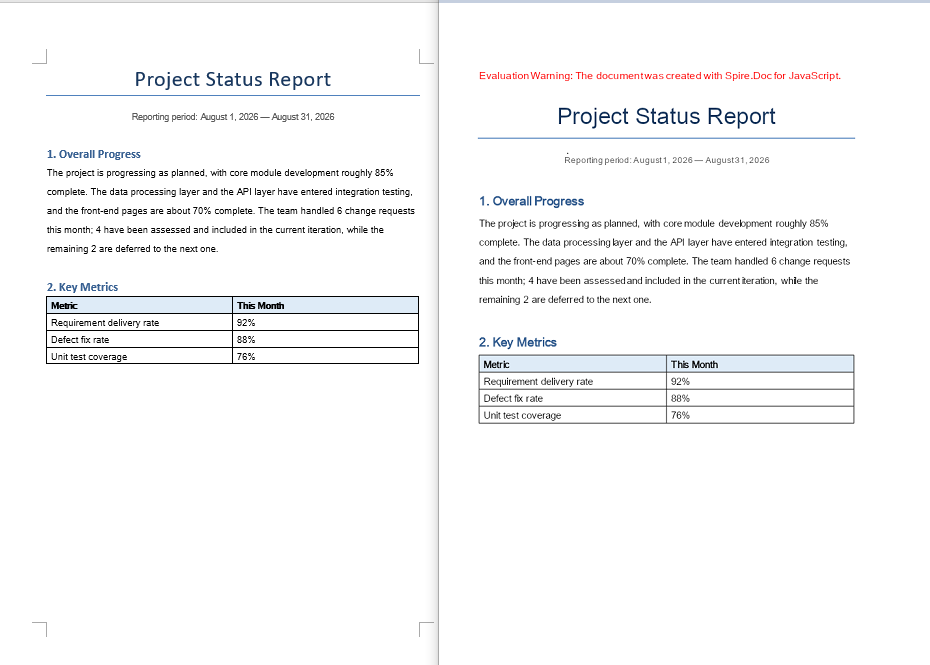
Converting a document page to an image involves three stages: first, load the font file and the target Word document into the WASM virtual file system via FetchFileToVFS; then instantiate a Document, load the document, call SaveImageToStreams with a pageIndex to render the specified page as an image, and save it to VFS; finally, read the generated image file from VFS, wrap it as a Blob, and create a download link.
import React from 'react';

function App() {
  const ToImage = async () => {
    // Get the Spire.Doc WASM module
    const docModule = window.wasmModule?.spiredoc;

    if (!docModule) {
      alert('Spire.Doc is not ready yet');
      return;
    }

    // Load the font file into the virtual file system (VFS)
    await window.spire.FetchFileToVFS('ARIALUNI.TTF', '/Library/Fonts/', `${process.env.PUBLIC_URL}/font/`);
    const inputFileName = 'ToImage.docx';
    // Load the target Word document into VFS
    await window.spire.FetchFileToVFS(inputFileName, '', `${process.env.PUBLIC_URL}data/`);

    // Create a Document instance and load the document
    const doc = new docModule.Document();
    doc.LoadFromFile(inputFileName);

    // Define the output file name
    const outputFileName = "ToImage-result.png";

    // Convert the first page to an image stream and save it to VFS
    let img = doc.SaveImageToStreams({ pageIndex: 0, type: docModule.ImageType.Bitmap });
    img.Save(outputFileName);

    // Release resources
    doc.Dispose();

    // Read the generated file from VFS and wrap it as a Blob
    const modifiedFileArray = window.dotnetRuntime.Module.FS.readFile(outputFileName);
    const blob = new Blob([modifiedFileArray], {  type: 'image/png'});
    const url = URL.createObjectURL(blob);
    const a = document.createElement('a');
    a.href = url;
    a.download = outputFileName;
    a.click();
    URL.revokeObjectURL(url);
  };

  return (
    <div style={{ textAlign: 'center', height: '300px' }}>
      <h1>Convert a Specified Page to an Image</h1>
      <button onClick={ToImage}>
        Generate
      </button>
    </div>
  );
}

export default App;
PNG image generated from a document page via SaveImageToStreams
Document Object to Image
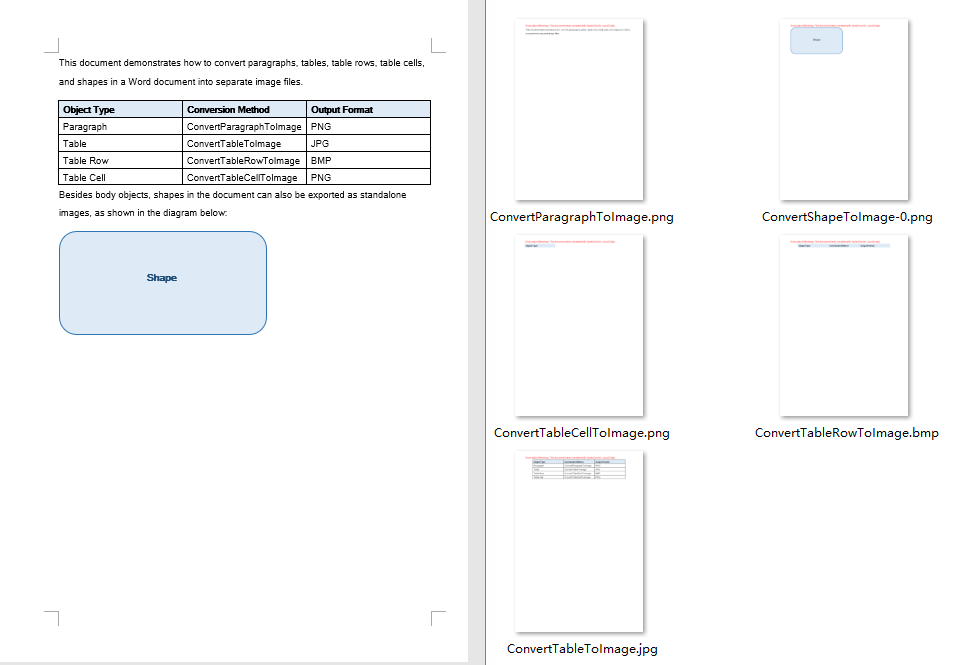
Besides whole-page conversion, real projects often need to export a single element of a document as an image — for example, generating a preview image for a table, or extracting a shape from a document as standalone material. Paragraphs, tables, table rows, table cells, and shapes can all be copied into a newly created Document via the Clone method, and then rendered into an image with SaveImageToStreams. The conversion results are written uniformly to an output directory in VFS, and finally packaged into a single ZIP file with JSZip for the user to download.
Note that a shape cannot be added directly to a paragraph of a newly created document. The example first saves the document to a memory stream and then reloads it, so that the shape obtains a complete layout context in the new document before being rendered.
import React from 'react';
import JSZip from "jszip";

function App() {
  const ToImage = async () => {
    // Get the Spire.Doc WASM module
    const docModule = window.wasmModule?.spiredoc;

    if (!docModule) {
      alert('Spire.Doc is not ready yet');
      return;
    }

    // Load the font file into the virtual file system (VFS)
    await window.spire.FetchFileToVFS('ARIALUNI.TTF', '/Library/Fonts/', `${process.env.PUBLIC_URL}/font/`);
    // Load the target Word document into VFS
    const inputFileName = "ConvertObjectToImage.docx";
    await window.spire.FetchFileToVFS(inputFileName, "", `${process.env.PUBLIC_URL}/data/`);

    // Define and create the output directory in VFS
    const outputDirectoryName = "outputFolder/";
    await window.dotnetRuntime.Module.FS.mkdirTree(outputDirectoryName);

    // Create a Document instance and load the document
    const doc = new docModule.Document();
    doc.LoadFromFile(inputFileName);

    // Get the first section and its body
    let section = doc.Sections.get_Item(0);
    let body = section.Body;

    // Get the first paragraph and convert it to an image
    let paragraph = body.Paragraphs.get_Item(0);
    let imageStream1 = ConvertParagraphToImage(paragraph, docModule);
    let imageFile1 = outputDirectoryName + "ConvertParagraphToImage.png";
    window.dotnetRuntime.Module.FS.writeFile(imageFile1, imageStream1.Save());

    // Get the first table and convert it to an image
    let table = body.Tables.get_Item(0);
    let imageStream2 = ConvertTableToImage(table, docModule);
    let imageFile2 = outputDirectoryName + "ConvertTableToImage.jpg";
    window.dotnetRuntime.Module.FS.writeFile(imageFile2, imageStream2.Save());

    // Get the first row of the first table and convert it to an image
    let row = table.Rows.get_Item(0);
    let imageStream3 = ConvertTableRowToImage(row, docModule);
    let imageFile3 = outputDirectoryName + "ConvertTableRowToImage.bmp";
    window.dotnetRuntime.Module.FS.writeFile(imageFile3, imageStream3.Save());

    // Get the first cell of the first row and convert it to an image
    let cell = row.Cells.get_Item(0);
    let imageStream4 = ConvertTableCellToImage(cell, docModule);
    let imageFile4 = outputDirectoryName + "ConvertTableCellToImage.png";
    window.dotnetRuntime.Module.FS.writeFile(imageFile4, imageStream4.Save());

    // Iterate over the paragraphs and convert the shapes in them to images
    for (let i = 0; i < section.Paragraphs.Count; i++) {
      let para = section.Body.Paragraphs.get_Item(i);
      for (let j = 0; j < para.ChildObjects.Count; j++) {
        let docObj = para.ChildObjects.get_Item(j);
        if (docObj.DocumentObjectType == docModule.DocumentObjectType.Shape) {
          let imageStream5 = ConvertShapeToImage(docObj, docModule);
          let imageFile5 = outputDirectoryName + "ConvertShapeToImage-" + j + ".png";

          window.dotnetRuntime.Module.FS.writeFile(imageFile5, imageStream5.Save());
          i++;
        }
      }
    }

    // Release resources
    doc.Dispose();

    // Package all images in the output directory into a ZIP file
    const zip = new JSZip();
    const addFilesToZip = async (folderPath, zipFolder) => {
      let items = await window.dotnetRuntime.Module.FS.readdir(folderPath);
      items = items.filter((item) => item !== "." && item !== "..");
      for (const item of items) {
        const itemPath = `${folderPath}/${item}`;
        try {
          const fileData = await window.dotnetRuntime.Module.FS.readFile(itemPath);
          zipFolder.file(item, fileData);
        } catch (error) {
          const zipSubFolder = zipFolder.folder(item);
          await addFilesToZip(itemPath, zipSubFolder);
        }
      }
    };

    await addFilesToZip(outputDirectoryName, zip);
    const zipBlob = await zip.generateAsync({ type: "blob" });
    // Read the generated file from VFS and wrap it as a Blob
    const url = URL.createObjectURL(zipBlob);
    const a = document.createElement('a');
    a.href = url;
    a.download = "ConvertObjectToImage_out.zip";
    a.click();
    URL.revokeObjectURL(url);
  };

  // Convert a paragraph to an image
  function ConvertParagraphToImage(paragraph, docModule) {
    let doc = new docModule.Document();
    let section = doc.AddSection();

    section.Body.ChildObjects.Add(paragraph.Clone());
    let imageStream = doc.SaveImageToStreams({ pageIndex: 0, type: docModule.ImageType.Bitmap });
    doc.Close();
    return imageStream;
  }

  // Convert a table to an image
  function ConvertTableToImage(table, docModule) {
    let doc = new docModule.Document();
    let section = doc.AddSection();

    section.Body.ChildObjects.Add(table.Clone());

    let imageStream = doc.SaveImageToStreams({ pageIndex: 0, type: docModule.ImageType.Bitmap });
    doc.Close();
    return imageStream;
  }

  // Convert a table row to an image
  function ConvertTableRowToImage(tableRow, docModule) {
    let doc = new docModule.Document();
    let section = doc.AddSection();
    let table = section.AddTable();
    table.Rows.Add(tableRow.Clone());
    let imageStream = doc.SaveImageToStreams({ pageIndex: 0, type: docModule.ImageType.Bitmap });
    doc.Close();
    return imageStream;
  }

  // Convert a table cell to an image
  function ConvertTableCellToImage(tableCell, docModule) {
    let doc = new docModule.Document();
    let section = doc.AddSection();
    let table = section.AddTable();
    table.AddRow().Cells.Add(tableCell.Clone());
    let imageStream = doc.SaveImageToStreams({ pageIndex: 0, type: docModule.ImageType.Bitmap });
    doc.Close();
    return imageStream;
  }

  // Convert a shape to an image
  function ConvertShapeToImage(shape, docModule) {
    let doc = new docModule.Document();
    let section = doc.AddSection();
    section.AddParagraph().ChildObjects.Add(shape.Clone());
    let memoryStream = new docModule.Stream();
    doc.SaveToStream({ stream: memoryStream, fileFormat: docModule.FileFormat.Docx });
    doc.LoadFromStream({ stream: memoryStream, fileFormat: docModule.FileFormat.Docx });
    let imageStream = doc.SaveImageToStreams({ pageIndex: 0, type: docModule.ImageType.Bitmap });
    memoryStream.Close();
    doc.Close();
    return imageStream;
  }

  return (
    <div style={{ textAlign: 'center', height: '300px' }}>
      <h1>Convert Elements to Images</h1>
      <button onClick={ToImage}>
        Generate
      </button>
    </div>
  );
}

export default App;
Images inside the ZIP file generated after converting the document objects
FAQ
Missing or garbled text in the generated image
Cause: The font files required for rendering are missing from the WASM virtual file system. SaveImageToStreams reads fonts from VFS when rendering text — if they are not preloaded, text areas will be left blank or appear garbled.
Solution: Load the font files into VFS via FetchFileToVFS before conversion:
await window.spire.FetchFileToVFS(
  'ARIALUNI.TTF', '/Library/Fonts/',
  `${process.env.PUBLIC_URL}/static/font/`
);
Only the first page is generated
Cause: Each call to SaveImageToStreams renders only the single page specified by pageIndex. The example always passes 0, so a multi-page document only outputs an image of the first page.
Solution: Get the total page count via PageCount and iterate page by page, generating a separate image file for each page:
for (let i = 0; i < doc.PageCount; i++) {
  let img = doc.SaveImageToStreams({
    pageIndex: i, type: wasmModule.ImageType.Bitmap
  });
  img.Save(`ToImage-page-${i + 1}.png`);
}
Get a Free License
If you wish to remove the evaluation message from the resulting document, or to eliminate functional limitations, please contact our sales team to request a 30-day temporary license.
Add a Table of Contents to an Existing Word Document with JavaScript in React
A more common situation in real-world work is a document that is already written and has a complete chapter structure, but no table of contents was generated at the time. There is no need to rearrange the content — adding a TOC field on top of the existing heading styles is enough to produce a complete table of contents with page numbers and hyperlinks. Spire.Doc for JavaScript opens and edits Word documents directly in the browser via WebAssembly, managing input and output files through a virtual file system (VFS) — no backend server required.
Compared with creating a new document, adding a table of contents to an existing document involves two extra key steps: loading the original document from VFS with LoadFromFile, and moving the table of contents paragraph to the very beginning of the document with Paragraphs.Insert, instead of appending it to the end by default.
This article covers two core features:
For installation and project setup, refer to Integrating Spire.Doc for JavaScript in a React Project. The examples below assume Spire.Doc is installed and the WebAssembly module is initialized.
Add a Default Table of Contents
Adding a default table of contents to an existing document has three phases: first, load the font file and the Word document to be processed into the WASM virtual file system via FetchFileToVFS; then instantiate a Document and load the document with LoadFromFile, create a new paragraph and insert the TOC field with AppendTOC, and move it to the very beginning of the document with Paragraphs.Insert(0, tocPara); finally, call UpdateTableOfContents to fill in the entries and page numbers, save the document, read the generated file from VFS, wrap it as a Blob, and trigger a browser download.
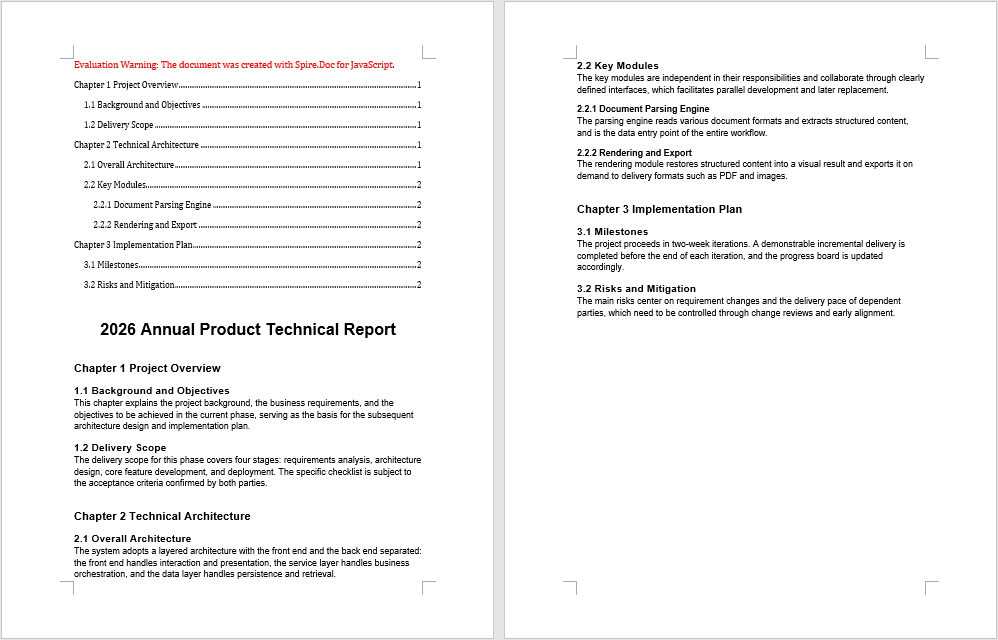
The input document used in the example, AddTocToExisting.docx, is a technical report with three chapters and eleven multi-level headings but no table of contents yet.
function App() {
  const AddTableOfContentsToExistingDocument = async () => {
    // Get the Spire.Doc WASM module
    const docModule = window.wasmModule?.spiredoc;

    // Make sure the WASM module has fully loaded
    if (!docModule) {
      alert('Spire.Doc is not ready yet');
      return;
    }

    // Load the font and the existing Word document into VFS
    await window.spire.FetchFileToVFS('ARIAL.TTF', '/Library/Fonts/', `${process.env.PUBLIC_URL}/font/`);
    const inputFileName = 'AddTocToExisting.docx';
    await window.spire.FetchFileToVFS(inputFileName, '', `${process.env.PUBLIC_URL}data/`);

    // Create a document instance and load the existing document
    const doc = new docModule.Document();
    doc.LoadFromFile({ fileName: inputFileName });

    // Get the first section of the document
    let section = doc.Sections.get_Item(0);

    // Create a new paragraph and insert the TOC field, collecting Heading 1 through Heading 3 entries
    let tocPara = section.AddParagraph();
    tocPara.AppendTOC(1, 3);

    // Move the table of contents paragraph to the very beginning of the document
    section.Paragraphs.Insert(0, tocPara);

    // Update the table of contents to fill in entries and page numbers
    doc.UpdateTableOfContents();

    // Define the output file name and save
    const outputFileName = "Add a Default TOC to an Existing Document.docx";
    doc.SaveToFile({ fileName: outputFileName, fileFormat: docModule.FileFormat.Docx2013 });

    // Release resources
    doc.Dispose();

    // Read the generated file from VFS and trigger the download
    const modifiedFileArray = window.dotnetRuntime.Module.FS.readFile(outputFileName);
    const blob = new Blob([modifiedFileArray], { type: 'application/vnd.openxmlformats-officedocument.wordprocessingml.document' });
    const url = URL.createObjectURL(blob);
    const a = document.createElement('a');
    a.href = url;
    a.download = outputFileName;
    a.click();
    URL.revokeObjectURL(url);
  };

  return (
    <div style={{ textAlign: 'center', height: '300px' }}>
      <h1>Click the button below to add a default table of contents to an existing document</h1>
      <button onClick={AddTableOfContentsToExistingDocument}>
        Generate
      </button>
    </div>
  );
}

export default App;
After the existing document is loaded with LoadFromFile and a TOC field is inserted, the table of contents is placed at the very beginning, while the original chapter content and layout remain unchanged
Add a Custom Table of Contents
The table of contents generated by AppendTOC uses Word's default field switches. When you need to control its exact behavior, you can construct a TableOfContent object directly and specify the switch string instead. The difference from the previous feature lies in how it is inserted: you must manually add the table of contents object to a paragraph, supply the field separator and field end marks, and assign the object to document.TOC. The commonly used field switches and their meanings are as follows:
| Switch | Description |
|---|---|
\o "1-3" |
Collects entries by built-in heading styles; here it means including Heading 1 through Heading 3 |
\h |
Turns table of contents entries into hyperlinks that jump to the corresponding chapter when clicked |
\z |
Hides page numbers and tab leaders in Web Layout view |
\u |
Collects entries by the outline level of the paragraphs |
If you want the table of contents to occupy its own page and be separated from the body, add a page break to the same section after inserting the table of contents paragraph:
tocPara.AppendBreak(docModule.BreakType.PageBreak);
function App() {
  const CustomizeTableOfContent = async () => {
    // Get the Spire.Doc WASM module
    const docModule = window.wasmModule?.spiredoc;

    // Make sure the WASM module has fully loaded
    if (!docModule) {
      alert('Spire.Doc is not ready yet');
      return;
    }

    // Load the font and the existing Word document into VFS
    await window.spire.FetchFileToVFS('ARIAL.TTF', '/Library/Fonts/', `${process.env.PUBLIC_URL}/font/`);
    const inputFileName = 'AddTocToExisting.docx';
    await window.spire.FetchFileToVFS(inputFileName, '', `${process.env.PUBLIC_URL}data/`);

    // Create a document instance and load the existing document
    const doc = new docModule.Document();
    doc.LoadFromFile({ fileName: inputFileName });

    // Get the first section of the document
    let section = doc.Sections.get_Item(0);

    // Construct a table of contents object with custom field switches
    let toc = new docModule.TableOfContent(doc, "{\\o \"1-3\" \\h \\z \\u}");

    // Add the table of contents object to a paragraph
    let tocPara = section.AddParagraph();
    tocPara.Items.Add(toc);

    // Supply the field separator and field end marks
    tocPara.AppendFieldMark(docModule.FieldMarkType.FieldSeparator);
    tocPara.AppendText("TOC");
    tocPara.AppendFieldMark(docModule.FieldMarkType.FieldEnd);

    // Bind this table of contents to the document
    doc.TOC = toc;

    // Move the table of contents paragraph to the very beginning of the document
    section.Paragraphs.Insert(0, tocPara);

    // Update the table of contents to fill in entries and page numbers
    doc.UpdateTableOfContents();

    // Define the output file name and save
    const outputFileName = "Add a Custom TOC to an Existing Document.docx";
    doc.SaveToFile({ fileName: outputFileName, fileFormat: docModule.FileFormat.Docx2013 });

    // Release resources
    doc.Dispose();

    // Read the generated file from VFS and trigger the download
    const modifiedFileArray = window.dotnetRuntime.Module.FS.readFile(outputFileName);
    const blob = new Blob([modifiedFileArray], { type: 'application/vnd.openxmlformats-officedocument.wordprocessingml.document' });
    const url = URL.createObjectURL(blob);
    const a = document.createElement('a');
    a.href = url;
    a.download = outputFileName;
    a.click();
    URL.revokeObjectURL(url);
  };

  return (
    <div style={{ textAlign: 'center', height: '300px' }}>
      <h1>Click the button below to add a custom table of contents to an existing document</h1>
      <button onClick={CustomizeTableOfContent}>
        Generate
      </button>
    </div>
  );
}

export default App;
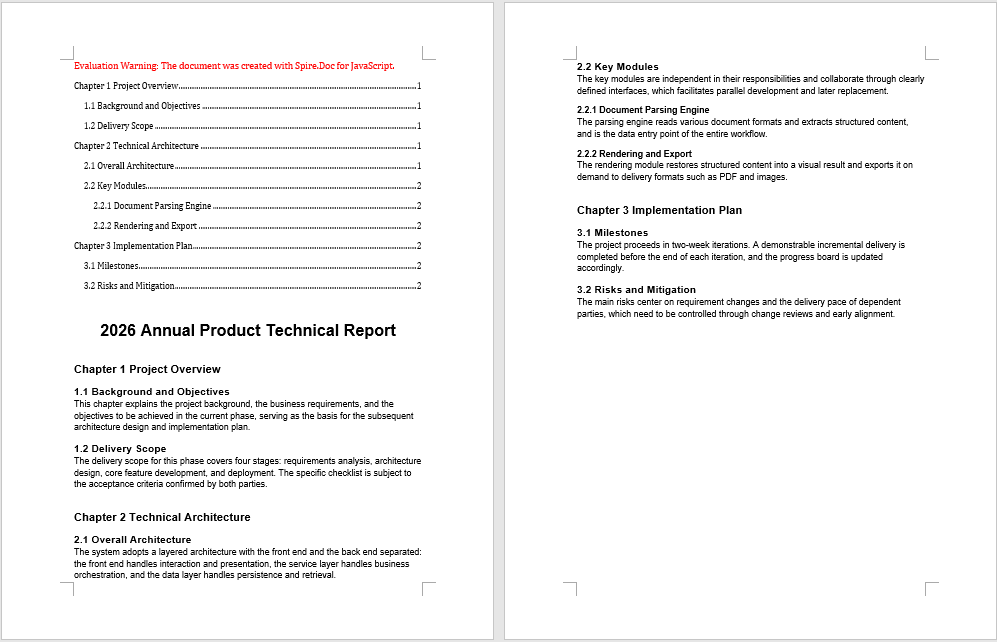
The table of contents generated with a TableOfContent object and custom field switches has its entry levels, hyperlinks, and page numbers all determined by the switch string
FAQ
The table of contents appears at the end of the document instead of the beginning
Cause: AddParagraph appends a new paragraph to the end of its section by default, so inserting the TOC field directly on it naturally places the table of contents at the end as well. The content of an existing document has already been laid out, so the insertion position must be specified explicitly.
Solution: Create the table of contents paragraph first, then move it to the very beginning of the document with Paragraphs.Insert:
let tocPara = section.AddParagraph();
tocPara.AppendTOC(1, 3);
section.Paragraphs.Insert(0, tocPara);
The table of contents is empty
Cause: A TOC field collects entries by heading style. If the chapter headings in the original document were only manually bolded and enlarged without built-in heading styles such as Heading1 to Heading3 applied, no entries will appear in the table of contents after updating.
Solution: First check whether the headings in the original document use built-in heading styles. If not, re-apply the style to those paragraphs after loading the document:
let heading = section.Paragraphs.get_Item(2);
heading.ApplyStyle({ builtinStyle: docModule.BuiltinStyle.Heading1 });
Page numbers in the table of contents are missing or incorrect
Cause: AppendTOC only inserts the TOC field itself; the field content must be updated explicitly. If UpdateTableOfContents is not called before saving, the generated table of contents contains only the field code, with no entries or page numbers.
Solution: Call the update method before SaveToFile:
doc.UpdateTableOfContents();
doc.SaveToFile({ fileName: outputFileName, fileFormat: docModule.FileFormat.Docx2013 });
Get a Free License
Spire.Doc for JavaScript offers a 30-day full-featured free trial license with no functional limitations. Apply here to evaluate before purchasing.
Add a Table of Contents to a New Word Document with JavaScript in React
Creating a table of contents for a long document lets readers locate chapters quickly, and makes it easy to re-sync entries and page numbers after the document structure changes. Using a "Spire.Doc Developer Guide" as an example, this article shows how to build a Word document with multi-level headings from scratch and add a table of contents to it. Spire.Doc for JavaScript builds and edits Word documents directly in the browser via WebAssembly, managing font resources through a virtual file system (VFS) — no backend server required.
This article covers two core features:
For installation and project setup, refer to Integrating Spire.Doc for JavaScript in a React Project. The examples below assume Spire.Doc is installed and the WebAssembly module is initialized.
Add a Default Table of Contents
In Word, a table of contents is essentially a TOC field whose entries come from the paragraphs in the document that have a heading style applied. Creating a default table of contents has three phases: first, load the font file into the WASM virtual file system via FetchFileToVFS; then instantiate a Document and build the content with AddSection and AddParagraph, calling ApplyStyle on the paragraphs that should appear in the table of contents to apply heading styles, and inserting the TOC field at the beginning of the document with AppendTOC; finally, call UpdateTableOfContents to fill in the entries and page numbers, save the document, read the generated file from VFS, wrap it as a Blob, and trigger a browser download.
The sample document contains three chapters and twelve multi-level headings in total, spanning Heading 1 through Heading 3, which makes it easy to observe how the table of contents collects multi-level headings.
function App() {
  const AddTableOfContentsToNewDocument = async () => {
    // Get the Spire.Doc WASM module
    const docModule = window.wasmModule?.spiredoc;

    // Make sure the WASM module has fully loaded
    if (!docModule) {
      alert('Spire.Doc is not ready yet');
      return;
    }

    // Load the font into VFS
    await window.spire.FetchFileToVFS('ARIAL.TTF', '/Library/Fonts/', `${process.env.PUBLIC_URL}/font/`);

    // Create a document instance and add a section
    const doc = new docModule.Document();
    let section = doc.AddSection();

    // Insert a TOC field at the beginning of the document, collecting Heading 1 through Heading 3 entries
    let tocPara = section.AddParagraph();
    tocPara.AppendTOC(1, 3);

    // Add the document title
    let characterFormat = new docModule.CharacterFormat(doc);
    characterFormat.FontName ="Arial";
    let title = section.AddParagraph();
    let titleRun = title.AppendText("Spire.Doc Developer Guide");
    titleRun.ApplyCharacterFormat(characterFormat);
    titleRun.CharacterFormat.FontSize = 24;
    title.Format.HorizontalAlignment = docModule.HorizontalAlignment.Center;

    // Chapter 1 Overview (Heading 1)
    let p = section.AddParagraph();
    p.AppendText("Chapter 1 Overview").ApplyCharacterFormat(characterFormat);;
    p.ApplyStyle({ builtinStyle: docModule.BuiltinStyle.Heading1 });
    section.AddParagraph().AppendText("Spire.Doc for JavaScript lets developers create, edit, and save Word documents directly in the browser, with no backend service involved at any point.").ApplyCharacterFormat(characterFormat);;

    // 1.1 What Is Spire.Doc for JavaScript (Heading 2)
    p = section.AddParagraph();
    p.AppendText("1.1 What Is Spire.Doc for JavaScript").ApplyCharacterFormat(characterFormat);;
    p.ApplyStyle({ builtinStyle: docModule.BuiltinStyle.Heading2 });
    section.AddParagraph().AppendText("It is a Word document processing library built on WebAssembly that manages fonts and document files through a virtual file system (VFS) and exposes an API shaped the same as the .NET version.").ApplyCharacterFormat(characterFormat);;

    // 1.2 Use Cases (Heading 2)
    p = section.AddParagraph();
    p.AppendText("1.2 Use Cases").ApplyCharacterFormat(characterFormat);;
    p.ApplyStyle({ builtinStyle: docModule.BuiltinStyle.Heading2 });
    section.AddParagraph().AppendText("It suits scenarios that require document processing on the client side, such as online contract signing, batch report generation, and resume template filling.").ApplyCharacterFormat(characterFormat);;

    // Chapter 2 Core Capabilities (Heading 1)
    p = section.AddParagraph();
    p.AppendText("Chapter 2 Core Capabilities").ApplyCharacterFormat(characterFormat);;
    p.ApplyStyle({ builtinStyle: docModule.BuiltinStyle.Heading1 });
    section.AddParagraph().AppendText("Spire.Doc for JavaScript covers the entire document processing chain, from content construction and layout adjustment to format export, all of which can be completed in the browser.").ApplyCharacterFormat(characterFormat);;

    // 2.1 Document Processing (Heading 2)
    p = section.AddParagraph();
    p.AppendText("2.1 Document Processing").ApplyCharacterFormat(characterFormat);;
    p.ApplyStyle({ builtinStyle: docModule.BuiltinStyle.Heading2 });
    section.AddParagraph().AppendText("It supports creating and modifying common document elements such as paragraphs, styles, tables, images, headers, and footers, while preserving the original layout information.").ApplyCharacterFormat(characterFormat);;

    // 2.1.1 Paragraphs and Styles (Heading 3)
    p = section.AddParagraph();
    p.AppendText("2.1.1 Paragraphs and Styles").ApplyCharacterFormat(characterFormat);;
    p.ApplyStyle({ builtinStyle: docModule.BuiltinStyle.Heading3 });
    section.AddParagraph().AppendText("Add a paragraph with AddParagraph and apply a built-in style with ApplyStyle to quickly build a clearly structured document skeleton.").ApplyCharacterFormat(characterFormat);;

    // 2.1.2 Tables and Images (Heading 3)
    p = section.AddParagraph();
    p.AppendText("2.1.2 Tables and Images").ApplyCharacterFormat(characterFormat);;
    p.ApplyStyle({ builtinStyle: docModule.BuiltinStyle.Heading3 });
    section.AddParagraph().AppendText("Tables and images can be written directly into a specified paragraph or nested inside a textbox, meeting the layout needs of complex documents.").ApplyCharacterFormat(characterFormat);;

    // 2.2 Format Conversion (Heading 2)
    p = section.AddParagraph();
    p.AppendText("2.2 Format Conversion").ApplyCharacterFormat(characterFormat);;
    p.ApplyStyle({ builtinStyle: docModule.BuiltinStyle.Heading2 });
    section.AddParagraph().AppendText("SaveToFile converts documents to PDF, HTML, Markdown, and other formats, with the whole conversion completed in the browser.").ApplyCharacterFormat(characterFormat);;

    // 2.3 Batch Processing (Heading 2)
    p = section.AddParagraph();
    p.AppendText("2.3 Batch Processing").ApplyCharacterFormat(characterFormat);;
    p.ApplyStyle({ builtinStyle: docModule.BuiltinStyle.Heading2 });
    section.AddParagraph().AppendText("Combined with the runtime efficiency of WebAssembly, multiple documents can be loaded at once and processed in sequence, avoiding frequent file uploads and downloads.").ApplyCharacterFormat(characterFormat);;

    // Chapter 3 Getting Started (Heading 1)
    p = section.AddParagraph();
    p.AppendText("Chapter 3 Getting Started").ApplyCharacterFormat(characterFormat);;
    p.ApplyStyle({ builtinStyle: docModule.BuiltinStyle.Heading1 });
    section.AddParagraph().AppendText("This chapter covers the preparation needed to integrate Spire.Doc for JavaScript into a React project and produce your first document.").ApplyCharacterFormat(characterFormat);;

    // 3.1 Environment Setup (Heading 2)
    p = section.AddParagraph();
    p.AppendText("3.1 Environment Setup").ApplyCharacterFormat(characterFormat);;
    p.ApplyStyle({ builtinStyle: docModule.BuiltinStyle.Heading2 });
    section.AddParagraph().AppendText("Install Spire.Doc for JavaScript in your React project and place the font files and WASM resources in the public directory to get started.").ApplyCharacterFormat(characterFormat);;

    // 3.2 The First Example (Heading 2)
    p = section.AddParagraph();
    p.AppendText("3.2 The First Example").ApplyCharacterFormat(characterFormat);;
    p.ApplyStyle({ builtinStyle: docModule.BuiltinStyle.Heading2 });
    section.AddParagraph().AppendText("After initializing the module, create a Document instance, add content, and save it; then read the resulting file from VFS to trigger a browser download.").ApplyCharacterFormat(characterFormat);;

    // Update the table of contents to fill in entries and page numbers
    doc.UpdateTableOfContents();

    // Define the output file name and save
    const outputFileName = "Create a Default TOC in Word Document.docx";
    doc.SaveToFile({ fileName: outputFileName, fileFormat: docModule.FileFormat.Docx2013 });

    // Release resources
    doc.Dispose();

    // Read the generated file from VFS and trigger the download
    const modifiedFileArray = window.dotnetRuntime.Module.FS.readFile(outputFileName);
    const blob = new Blob([modifiedFileArray], { type: 'application/vnd.openxmlformats-officedocument.wordprocessingml.document' });
    const url = URL.createObjectURL(blob);
    const a = document.createElement('a');
    a.href = url;
    a.download = outputFileName;
    a.click();
    URL.revokeObjectURL(url);
  };

  return (
    <div style={{ textAlign: 'center', height: '300px' }}>
      <h1>Click the button below to create a default table of contents in a Word document</h1>
      <button onClick={AddTableOfContentsToNewDocument}>
        Generate
      </button>
    </div>
  );
}

export default App;
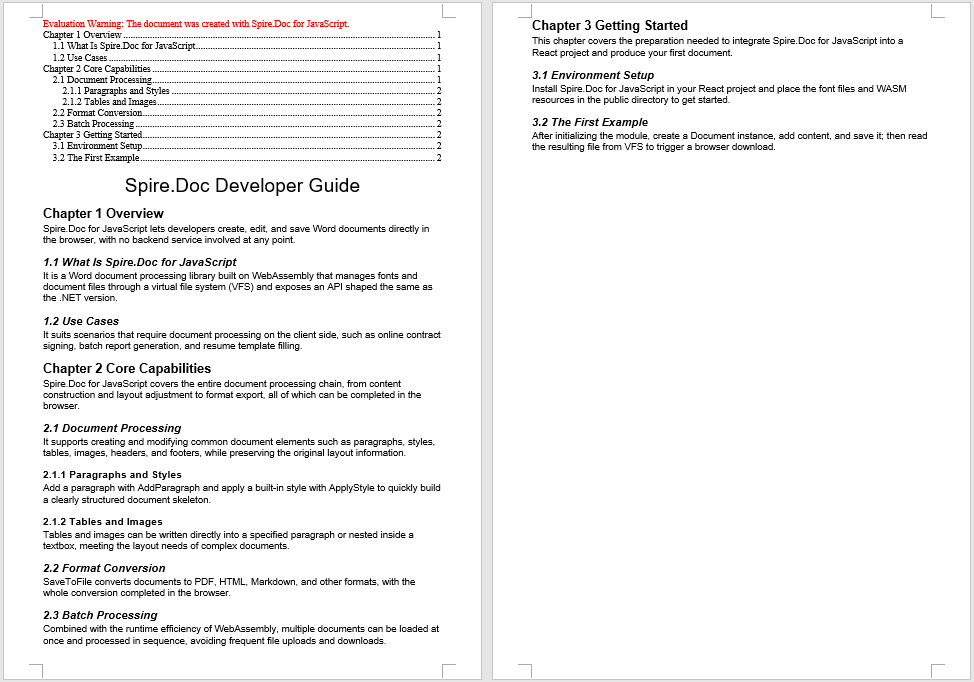
After a TOC field is inserted with AppendTOC and updated, the beginning of the document holds a default table of contents that collects three heading levels, complete with page numbers and hyperlinks.
Add a Custom Table of Contents
The table of contents generated by AppendTOC uses Word's default field switches. When you need to control its exact behavior, you can construct a TableOfContent object directly and specify the switch string instead. The difference from the previous feature lies in how it is inserted: you must manually add the table of contents object to a paragraph, supply the field separator and field end marks, and assign the object to document.TOC. The commonly used field switches and their meanings are as follows:
| Switch | Description |
|---|---|
\o "1-3" |
Collects entries by built-in heading styles; here it means including Heading 1 through Heading 3 |
\h |
Turns table of contents entries into hyperlinks that jump to the corresponding chapter when clicked |
\z |
Hides page numbers and tab leaders in Web Layout view |
\u |
Collects entries by the outline level of the paragraphs |
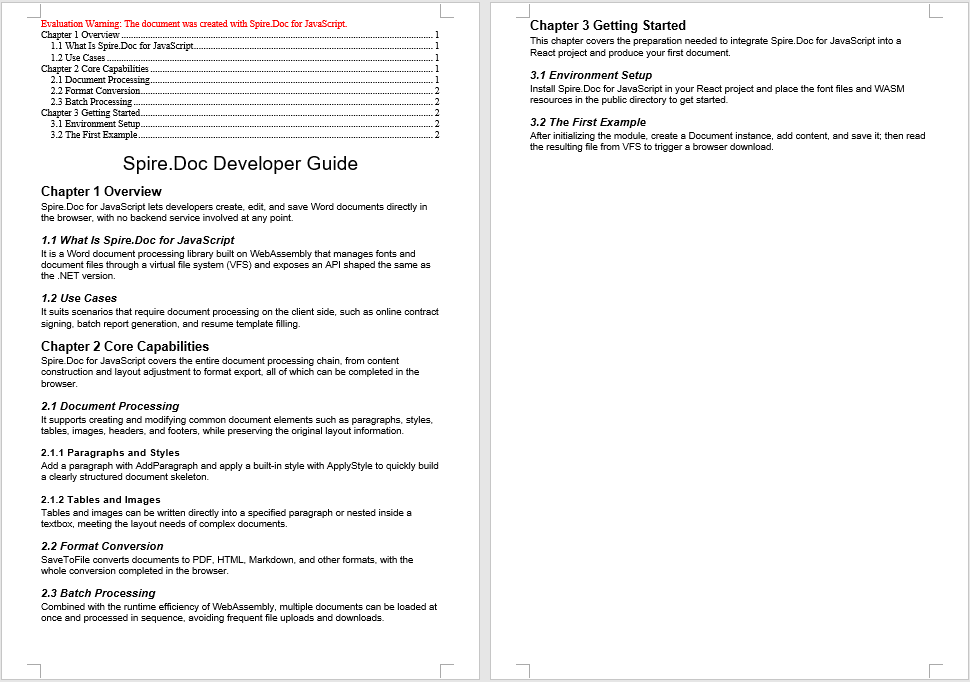
For example, changing the switch string to \o "1-2" means only Heading 1 and Heading 2 entries are collected, and Heading 3 no longer appears in the table of contents; removing \h means the entries no longer support jumping.
function App() {
  const CustomizeTableOfContent = async () => {
    // Get the Spire.Doc WASM module
    const docModule = window.wasmModule?.spiredoc;

    // Make sure the WASM module has fully loaded
    if (!docModule) {
      alert('Spire.Doc is not ready yet');
      return;
    }

    // Load the font into VFS
    await window.spire.FetchFileToVFS('ARIAL.TTF', '/Library/Fonts/', `${process.env.PUBLIC_URL}/font/`);

    // Create a document instance and add a section
    const doc = new docModule.Document();
    let section = doc.AddSection();

    // Construct a table of contents object with custom field switches
    let toc = new docModule.TableOfContent(doc, "{\\o \"1-2\" \\h \\z \\u}");

    // Add the table of contents object to a paragraph
    let tocPara = section.AddParagraph();
    tocPara.Items.Add(toc);

    // Supply the field separator and field end marks
    tocPara.AppendFieldMark(docModule.FieldMarkType.FieldSeparator);
    tocPara.AppendText("TOC");
    tocPara.AppendFieldMark(docModule.FieldMarkType.FieldEnd);

    // Bind this table of contents to the document
    doc.TOC = toc;

    // Add the document title
    let characterFormat = new docModule.CharacterFormat(doc);
    characterFormat.FontName ="Arial";
    let title = section.AddParagraph();
    let titleRun = title.AppendText("Spire.Doc Developer Guide");
    titleRun.ApplyCharacterFormat(characterFormat);
    titleRun.CharacterFormat.FontSize = 24;
    title.Format.HorizontalAlignment = docModule.HorizontalAlignment.Center;

    // Chapter 1 Overview (Heading 1)
    let p = section.AddParagraph();
    p.AppendText("Chapter 1 Overview").ApplyCharacterFormat(characterFormat);
    p.ApplyStyle({ builtinStyle: docModule.BuiltinStyle.Heading1 });
    section.AddParagraph().AppendText("Spire.Doc for JavaScript lets developers create, edit, and save Word documents directly in the browser, with no backend service involved at any point.").ApplyCharacterFormat(characterFormat);

    // 1.1 What Is Spire.Doc for JavaScript (Heading 2)
    p = section.AddParagraph();
    p.AppendText("1.1 What Is Spire.Doc for JavaScript").ApplyCharacterFormat(characterFormat);
    p.ApplyStyle({ builtinStyle: docModule.BuiltinStyle.Heading2 });
    section.AddParagraph().AppendText("It is a Word document processing library built on WebAssembly that manages fonts and document files through a virtual file system (VFS) and exposes an API shaped the same as the .NET version.").ApplyCharacterFormat(characterFormat);

    // 1.2 Use Cases (Heading 2)
    p = section.AddParagraph();
    p.AppendText("1.2 Use Cases").ApplyCharacterFormat(characterFormat);
    p.ApplyStyle({ builtinStyle: docModule.BuiltinStyle.Heading2 });
    section.AddParagraph().AppendText("It suits scenarios that require document processing on the client side, such as online contract signing, batch report generation, and resume template filling.").ApplyCharacterFormat(characterFormat);

    // Chapter 2 Core Capabilities (Heading 1)
    p = section.AddParagraph();
    p.AppendText("Chapter 2 Core Capabilities").ApplyCharacterFormat(characterFormat);
    p.ApplyStyle({ builtinStyle: docModule.BuiltinStyle.Heading1 });
    section.AddParagraph().AppendText("Spire.Doc for JavaScript covers the entire document processing chain, from content construction and layout adjustment to format export, all of which can be completed in the browser.").ApplyCharacterFormat(characterFormat);

    // 2.1 Document Processing (Heading 2)
    p = section.AddParagraph();
    p.AppendText("2.1 Document Processing").ApplyCharacterFormat(characterFormat);
    p.ApplyStyle({ builtinStyle: docModule.BuiltinStyle.Heading2 });
    section.AddParagraph().AppendText("It supports creating and modifying common document elements such as paragraphs, styles, tables, images, headers, and footers, while preserving the original layout information.").ApplyCharacterFormat(characterFormat);

    // 2.1.1 Paragraphs and Styles (Heading 3)
    p = section.AddParagraph();
    p.AppendText("2.1.1 Paragraphs and Styles").ApplyCharacterFormat(characterFormat);
    p.ApplyStyle({ builtinStyle: docModule.BuiltinStyle.Heading3 });
    section.AddParagraph().AppendText("Add a paragraph with AddParagraph and apply a built-in style with ApplyStyle to quickly build a clearly structured document skeleton.").ApplyCharacterFormat(characterFormat);

    // 2.1.2 Tables and Images (Heading 3)
    p = section.AddParagraph();
    p.AppendText("2.1.2 Tables and Images").ApplyCharacterFormat(characterFormat);
    p.ApplyStyle({ builtinStyle: docModule.BuiltinStyle.Heading3 });
    section.AddParagraph().AppendText("Tables and images can be written directly into a specified paragraph or nested inside a textbox, meeting the layout needs of complex documents.").ApplyCharacterFormat(characterFormat);

    // 2.2 Format Conversion (Heading 2)
    p = section.AddParagraph();
    p.AppendText("2.2 Format Conversion").ApplyCharacterFormat(characterFormat);
    p.ApplyStyle({ builtinStyle: docModule.BuiltinStyle.Heading2 });
    section.AddParagraph().AppendText("SaveToFile converts documents to PDF, HTML, Markdown, and other formats, with the whole conversion completed in the browser.").ApplyCharacterFormat(characterFormat);

    // 2.3 Batch Processing (Heading 2)
    p = section.AddParagraph();
    p.AppendText("2.3 Batch Processing").ApplyCharacterFormat(characterFormat);
    p.ApplyStyle({ builtinStyle: docModule.BuiltinStyle.Heading2 });
    section.AddParagraph().AppendText("Combined with the runtime efficiency of WebAssembly, multiple documents can be loaded at once and processed in sequence, avoiding frequent file uploads and downloads.").ApplyCharacterFormat(characterFormat);

    // Chapter 3 Getting Started (Heading 1)
    p = section.AddParagraph();
    p.AppendText("Chapter 3 Getting Started").ApplyCharacterFormat(characterFormat);
    p.ApplyStyle({ builtinStyle: docModule.BuiltinStyle.Heading1 });
    section.AddParagraph().AppendText("This chapter covers the preparation needed to integrate Spire.Doc for JavaScript into a React project and produce your first document.").ApplyCharacterFormat(characterFormat);

    // 3.1 Environment Setup (Heading 2)
    p = section.AddParagraph();
    p.AppendText("3.1 Environment Setup").ApplyCharacterFormat(characterFormat);
    p.ApplyStyle({ builtinStyle: docModule.BuiltinStyle.Heading2 });
    section.AddParagraph().AppendText("Install Spire.Doc for JavaScript in your React project and place the font files and WASM resources in the public directory to get started.").ApplyCharacterFormat(characterFormat);

    // 3.2 The First Example (Heading 2)
    p = section.AddParagraph();
    p.AppendText("3.2 The First Example").ApplyCharacterFormat(characterFormat);
    p.ApplyStyle({ builtinStyle: docModule.BuiltinStyle.Heading2 });
    section.AddParagraph().AppendText("After initializing the module, create a Document instance, add content, and save it; then read the resulting file from VFS to trigger a browser download.").ApplyCharacterFormat(characterFormat);

    // Update the table of contents to fill in entries and page numbers
    doc.UpdateTableOfContents();

    // Define the output file name and save
    const outputFileName = "Create a Custom TOC in Word Document.docx";
    doc.SaveToFile({ fileName: outputFileName, fileFormat: docModule.FileFormat.Docx2013 });

    // Release resources
    doc.Dispose();

    // Read the generated file from VFS and trigger the download
    const modifiedFileArray = window.dotnetRuntime.Module.FS.readFile(outputFileName);
    const blob = new Blob([modifiedFileArray], { type: 'application/vnd.openxmlformats-officedocument.wordprocessingml.document' });
    const url = URL.createObjectURL(blob);
    const a = document.createElement('a');
    a.href = url;
    a.download = outputFileName;
    a.click();
    URL.revokeObjectURL(url);
  };

  return (
    <div style={{ textAlign: 'center', height: '300px' }}>
      <h1>Click the button below to create a custom table of contents in a Word document</h1>
      <button onClick={CustomizeTableOfContent}>
        Generate
      </button>
    </div>
  );
}

export default App;
The table of contents generated with a TableOfContent object and custom field switches has its entry levels, hyperlinks, and page numbers all determined by the switch string.
FAQ
The generated table of contents is empty
Cause: A TOC field collects entries by heading style. If the paragraphs do not have built-in heading styles such as Heading1 to Heading3 applied, no entries will appear in the table of contents after updating, even if the TOC field was inserted successfully.
Solution: Call ApplyStyle on the paragraphs that should appear in the table of contents to apply a heading style:
p.AppendText("Chapter 1 Overview");
p.ApplyStyle({ builtinStyle: docModule.BuiltinStyle.Heading1 });
The table of contents contains fewer heading levels than expected
Cause: The two parameters of AppendTOC correspond to the starting and ending heading levels collected by the table of contents. If you pass AppendTOC(1, 2), Heading 3 will not appear in the table of contents. With custom switches, \o "1-2" produces the same result.
Solution: Adjust the parameter range to the levels you need to collect — for example, to include Heading 1 through Heading 3:
tocPara.AppendTOC(1, 3);
Page numbers in the table of contents are missing or incorrect
Cause: AppendTOC only inserts the TOC field itself; the field content must be updated explicitly. If UpdateTableOfContents is not called before saving, the generated table of contents contains only the field code, with no entries or page numbers.
Solution: Call the update method before SaveToFile:
doc.UpdateTableOfContents();
doc.SaveToFile({ fileName: outputFileName, fileFormat: docModule.FileFormat.Docx2013 });
Get a Free License
If you wish to remove the evaluation message from the resulting document, or to eliminate functional limitations, please contact our sales team to request a 30-day temporary license.
Replace Placeholders in Word Documents with HTML or Paragraphs from Another Document Using JavaScript in React
Replacing placeholders in documents with HTML content or paragraphs from another document is a highly practical need in document automation — for example, inserting rich HTML content authored in a WYSIWYG editor into placeholder positions in a Word template, or extracting specific paragraphs from a standard clause library and replacing corresponding placeholders in a contract template. Spire.Doc for JavaScript handles such replacement operations entirely in the browser via WebAssembly, using a virtual file system (VFS) to manage fonts and document files — no backend server required.
This article covers two core features:
For installation and project setup, refer to Integrating Spire.Doc for JavaScript in a React Project. The examples below assume Spire.Doc is installed and the WebAssembly module is initialized.
Replace Placeholder with HTML
Replacing a placeholder with HTML involves three stages: first, load the font files, the HTML file, and the target Word document into the WASM virtual file system via FetchFileToVFS; then, create a temporary Section, render the HTML string into document objects using AppendHTML, collect them into a replacement list, find all [#placeholder] occurrences with FindAllString, sort the matched positions, and insert the replacement content one by one via ChildObjects.Insert while removing the original text; finally, remove the temporary Section, save the document, read the generated file from VFS, wrap it as a Blob, and trigger a browser download.
import React, { useState } from 'react';

function App() {
  // Define the placeholder replacement logic
  function ReplacedWithHTML(location, replacement) {
    let textRange = location.Text;
    let index = location.Index;
    let paragraph = location.Owner;
    let sectionBody = paragraph.OwnerTextBody;
    let paragraphIndex = sectionBody.ChildObjects.IndexOf(paragraph);

    let replacementIndex = -1;
    if (index === 0) {
      paragraph.ChildObjects.RemoveAt(0);
      replacementIndex = sectionBody.ChildObjects.IndexOf(paragraph);
    } else if (index === paragraph.ChildObjects.Count - 1) {
      paragraph.ChildObjects.RemoveAt(index);
      replacementIndex = paragraphIndex + 1;
    } else {
      let paragraph1 = paragraph.Clone();
      while (paragraph.ChildObjects.Count > index) {
        paragraph.ChildObjects.RemoveAt(index);
      }
      let i = 0;
      let count = index + 1;
      while (i < count) {
        paragraph1.ChildObjects.RemoveAt(0);
        i += 1;
      }
      sectionBody.ChildObjects.Insert(paragraphIndex + 1, paragraph1);
      replacementIndex = paragraphIndex + 1;
    }

    for (let i = 0; i <= replacement.length - 1; i++) {
      sectionBody.ChildObjects.Insert(replacementIndex + i, replacement[i].Clone());
    }
  }

  function TextRangeLocation(TextRange) {
    this.Text = TextRange;
    this.Owner = this.Text.OwnerParagraph;
    this.Index = this.Owner.ChildObjects.IndexOf(this.Text);
    this.CompareTo = function (other) {
      return -(this.Index - other.Index);
    };
  }

  const ReplaceWithHTML = async () => {
    // Get the Spire.Doc WASM module
    const docModule = window.wasmModule?.spiredoc;

    // Check if the module is ready
    if (!docModule) {
      alert('Spire.Doc is not ready yet');
      return;
    }

    // Load the font file into the virtual file system (VFS)
    await window.spire.FetchFileToVFS('arial.ttf', '/Library/Fonts/', `${process.env.PUBLIC_URL}/font/`);

    // Load the HTML file and Word document into VFS
    let HTMLName = 'InputHtml.txt';
    await window.spire.FetchFileToVFS(HTMLName, '', `${process.env.PUBLIC_URL}/data/`);
    const HTML = window.dotnetRuntime.Module.FS.readFile(HTMLName);

    let inputFileName = 'ReplaceWithHtml.docx';
    await window.spire.FetchFileToVFS(inputFileName, '', `${process.env.PUBLIC_URL}/data/`);

    // Load the document
    let doc = new docModule.Document();
    doc.LoadFromFile(inputFileName);

    // Create a temporary Section and render the HTML
    let replacement = [];
    let tempSection = doc.AddSection();
    let par = tempSection.AddParagraph();
    const decoder = new TextDecoder('utf-8');
    const HTMLString = decoder.decode(HTML);
    par.AppendHTML(HTMLString);

    // Collect the rendered document objects
    for (let i = 0; i < tempSection.Body.ChildObjects.Count; i++) {
      let docObj = tempSection.Body.ChildObjects.get_Item(i);
      replacement.push(docObj);
    }

    // Find all placeholders and sort
    let selections = doc.FindAllString('[#placeholder]', false, true);
    let locations = [];
    for (let selection of selections) {
      locations.push(new TextRangeLocation(selection.GetAsOneRange()));
    }
    locations.sort();

    // Replace one by one
    for (let location of locations) {
      ReplacedWithHTML(location, replacement);
    }

    // Remove the temporary Section
    doc.Sections.Remove(tempSection);

    // Define the output file name and save
    const outputFileName = 'ReplaceWithHtml_output.docx';
    doc.SaveToFile({ fileName: outputFileName, fileFormat: docModule.FileFormat.Docx2013 });

    // Release resources
    doc.Dispose();

    // Read the generated file from VFS and trigger download
    const modifiedFileArray = window.dotnetRuntime.Module.FS.readFile(outputFileName);
    const blob = new Blob([modifiedFileArray], { type: 'application/vnd.openxmlformats-officedocument.wordprocessingml.document' });
    const url = URL.createObjectURL(blob);
    const a = document.createElement('a');
    a.href = url;
    a.download = outputFileName;
    a.click();
    URL.revokeObjectURL(url);
  };

  return (
    <div style={{ textAlign: 'center', height: '300px' }}>
      <h1>Replace Placeholder with HTML in a Word Document</h1>
      <button onClick={ReplaceWithHTML}>
        Generate
      </button>
    </div>
  );
}

export default App;
The [#placeholder] placeholders in the document are replaced with rich text content rendered from HTML
![The [#placeholder] placeholders in the document are replaced with rich text content rendered from HTML](https://cdn.e-iceblue.com/images/art_images/replace-placeholder-with-html-or-paragraph-en-1.webp)
Replace Placeholder with Paragraphs from Another Document
Replacing a placeholder with paragraphs from another document involves three stages: first, load the font files and two Word documents into the WASM virtual file system via FetchFileToVFS; then, load the main document and the source document separately, use FindAllPattern with a regular expression to find placeholders (such as [MY_DOCUMENT]), iterate through all Sections and Paragraphs of the source document, insert each paragraph into the corresponding position in the main document using ChildObjects.Insert, and finally remove the original placeholder text; lastly, save the document, read the generated file from VFS, wrap it as a Blob, and trigger a browser download.
import React, { useState } from 'react';

function App() {
  const ReplaceContentWithDoc = async () => {
    // Get the Spire.Doc WASM module
    const docModule = window.wasmModule?.spiredoc;

    // Check if the module is ready
    if (!docModule) {
      alert('Spire.Doc is not ready yet');
      return;
    }

    // Load the two Word documents into VFS
    let inputFileName1 = 'ReplaceContentWithDoc.docx';
    await window.spire.FetchFileToVFS(inputFileName1, '', `${process.env.PUBLIC_URL}/data/`);

    let inputFileName2 = 'Insert.docx';
    await window.spire.FetchFileToVFS(inputFileName2, '', `${process.env.PUBLIC_URL}/data/`);

    // Load the main document
    let document1 = new docModule.Document();
    document1.LoadFromFile(inputFileName1);

    // Load the source document (contains paragraphs to insert)
    let document2 = new docModule.Document();
    document2.LoadFromFile(inputFileName2);

    // Get the first Section of the main document
    let section1 = document1.Sections.get_Item(0);

    // Create a regex to find the placeholder
    let regex = new docModule.Regex('\\[MY_DOCUMENT\\]', docModule.RegexOptions.None);

    // Find all matching placeholders
    let textSections = document1.FindAllPattern({ pattern: regex });

    // Iterate through each match
    for (let i = 0; i < textSections.length; i++) {
      let selection = textSections[i];
      let para = selection.GetAsOneRange().OwnerParagraph;
      let textRange = selection.GetAsOneRange();
      let index = section1.Body.ChildObjects.IndexOf(para);

      // Insert all paragraphs from the source document at the placeholder position
      for (let i = 0; i < document2.Sections.Count; i++) {
        let section2 = document2.Sections.get_Item(i);
        for (let j = 0; j < section2.Paragraphs.Count; j++) {
          let paragraph = section2.Paragraphs.get_Item(j);
          section1.Body.ChildObjects.Insert(index++, paragraph.Clone());
        }
      }

      // Remove the original placeholder text
      para.ChildObjects.Remove(textRange);
    }

    // Define the output file name and save
    const outputFileName = 'ReplaceContentWithDoc_output.docx';
    document1.SaveToFile({ fileName: outputFileName, fileFormat: docModule.FileFormat.Docx2013 });

    // Release resources
    document1.Dispose();

    // Read the generated file from VFS and trigger download
    const modifiedFileArray = window.dotnetRuntime.Module.FS.readFile(outputFileName);
    const blob = new Blob([modifiedFileArray], { type: 'application/vnd.openxmlformats-officedocument.wordprocessingml.document' });
    const url = URL.createObjectURL(blob);
    const a = document.createElement('a');
    a.href = url;
    a.download = outputFileName;
    a.click();
    URL.revokeObjectURL(url);
  };

  return (
    <div style={{ textAlign: 'center', height: '300px' }}>
      <h1>Replace Placeholder with Paragraphs from Another Document</h1>
      <button onClick={ReplaceContentWithDoc}>
        Generate
      </button>
    </div>
  );
}

export default App;
The [MY_DOCUMENT] placeholder in the main document is replaced with all paragraphs from the source document
![The [MY_DOCUMENT] placeholder in the main document is replaced with all paragraphs from the source document](https://cdn.e-iceblue.com/images/art_images/replace-placeholder-with-html-or-paragraph-en-2.webp)
FAQ
HTML content formatting is not displayed correctly
Cause: The AppendHTML method supports a limited range of HTML tags, only recognizing basic block-level and inline tags (such as <p>, <b>, <i>, <table>, etc.). Complex CSS styles, JavaScript code, or HTML5-specific tags are ignored.
Solution: Ensure the input HTML uses only basic tags and defines formatting through inline styles (such as style="color:red") rather than CSS class names:
<p style="font-size:14pt; color:#2E75B6;">This is blue heading text</p>
<ul><li>Item one</li><li>Item two</li></ul>
Inserted paragraph order does not match expectations
Cause: When replacing multiple placeholders, the matched positions are not sorted before processing. Replacing sequentially from beginning to end causes the indices of subsequent positions to shift, leading to paragraphs being inserted at incorrect locations.
Solution: Sort all matched positions in descending order by index (replacing from the end of the document backward), or track the original index offset for each position:
let locations = [];
for (let selection of selections) {
  locations.push(new TextRangeLocation(selection.GetAsOneRange()));
}
locations.sort(); // Descending order, replace from back to front
Get a Free License
Spire.Doc for JavaScript offers a 30-day full-featured free trial license with no functional limitations. Apply here to evaluate before purchasing.
Replace Text with Image or Table in Word with JavaScript in React
Replacing specific placeholder text with images or tables is a common requirement in real-world development — such as replacing a "(Seal)" marker at the end of a contract with a company stamp image, or swapping a data summary placeholder with a statistics table. Spire.Doc for JavaScript runs entirely in the browser via WebAssembly, using a virtual file system (VFS) to manage fonts, images, and document files — no backend server required.
This article covers two core features:
For installation and project setup, refer to Integrating Spire.Doc for JavaScript in a React Project. The examples below assume Spire.Doc is installed and the WebAssembly module is initialized.
Replace Text with Image
Replacing text with an image involves three steps: first, load the font files, the target image, and the Word document into the WASM virtual file system via FetchFileToVFS; then call FindAllString to locate all matching text, iterate through each match, load the image with DocPicture, insert it using ChildObjects.Insert, and remove the original text via ChildObjects.Remove; finally, save the document, read the generated file from VFS, wrap it as a Blob, and trigger a browser download.
import React, { useState } from 'react';

function App() {
  const ReplaceWithImage = async () => {
    // Get the Spire.Doc WASM module
    const docModule = window.wasmModule?.spiredoc;

    // Check if the module is ready
    if (!docModule) {
      alert('Spire.Doc is not ready yet');
      return;
    }

    // Load the image and Word document into VFS
    let pngName = 'E-iceblue.png';
    await window.spire.FetchFileToVFS(pngName, '', `${process.env.PUBLIC_URL}/data/`);

    let inputFileName = 'Template.docx';
    await window.spire.FetchFileToVFS(inputFileName, '', `${process.env.PUBLIC_URL}/data/`);

    // Load the document
    const doc = new docModule.Document();
    doc.LoadFromFile(inputFileName);

    // Find all matching text
    let selections = doc.FindAllString('E-iceblue', true, true);

    // Iterate through each match and replace text with the image
    for (let i = 0; i < selections.length; i++) {
      // Create a DocPicture object and load the image
      let pic = new docModule.DocPicture(doc);
      pic.LoadImage(pngName);
      let selection = selections[i];
      // Get the current text range
      let range = selection.GetAsOneRange();
      // Get the index of the TextRange in its owner paragraph's ChildObjects
      let index = range.OwnerParagraph.ChildObjects.IndexOf(range);
      // Insert the image at the TextRange position
      range.OwnerParagraph.ChildObjects.Insert(index, pic);
      // Remove the original TextRange
      range.OwnerParagraph.ChildObjects.Remove(range);
    }

    // Define the output file name and save
    const outputFileName = 'ReplaceWithImage_output.docx';
    doc.SaveToFile({ fileName: outputFileName, fileFormat: docModule.FileFormat.Docx2013 });

    // Release resources
    doc.Dispose();

    // Read the generated file from VFS and trigger download
    const modifiedFileArray = window.dotnetRuntime.Module.FS.readFile(outputFileName);
    const blob = new Blob([modifiedFileArray], { type: 'application/vnd.openxmlformats-officedocument.wordprocessingml.document' });
    const url = URL.createObjectURL(blob);
    const a = document.createElement('a');
    a.href = url;
    a.download = outputFileName;
    a.click();
    URL.revokeObjectURL(url);
  };

  return (
    <div style={{ textAlign: 'center', height: '300px' }}>
      <h1>Replace text with image in Word document</h1>
      <button onClick={ReplaceWithImage}>
        Generate
      </button>
    </div>
  );
}

export default App;
Target text in the document is found and replaced with the specified image
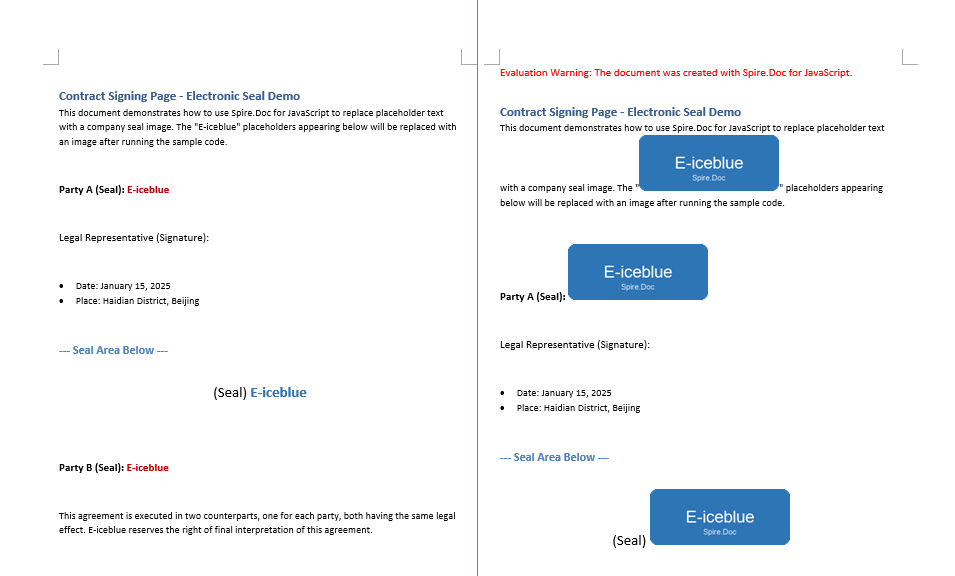
Replace Text with Table
Replacing text with a table involves three steps: first, load the font files and the target Word document into the WASM virtual file system via FetchFileToVFS; then call FindString to locate the target text, retrieve the text range with GetAsOneRange, get the paragraph index via OwnerTextBody.ChildObjects, create a new table, remove the original paragraph with ChildObjects.Remove, and insert the table at the same position with ChildObjects.Insert; finally, save the document, read the generated file from VFS, wrap it as a Blob, and trigger a browser download.
import React, { useState } from 'react';

function App() {
  const ReplaceTextWithTable = async () => {
    // Get the Spire.Doc WASM module
    const docModule = window.wasmModule?.spiredoc;

    // Check if the module is ready
    if (!docModule) {
      alert('Spire.Doc is not ready yet');
      return;
    }

    // Load the font file into VFS
    await window.spire.FetchFileToVFS('ARIALUNI.TTF', '/Library/Fonts/', `${process.env.PUBLIC_URL}/font/`);

    // Load the Word document into VFS
    let inputFileName = 'Template_Docx_1.docx';
    await window.spire.FetchFileToVFS(inputFileName, '', `${process.env.PUBLIC_URL}/data/`);

    // Load the document
    const doc = new docModule.Document();
    doc.LoadFromFile(inputFileName);

    // Get the first section
    let section = doc.Sections.get_Item(0);

    // Find the target text
    let selection = doc.FindString('Christmas Day, December 25', true, true);

    // Get the text range and its owner paragraph
    let range = selection.GetAsOneRange();
    let paragraph = range.OwnerParagraph;

    // Get the text body and calculate the paragraph index
    let body = paragraph.OwnerTextBody;
    let index = body.ChildObjects.IndexOf(paragraph);

    // Create a 3x3 table
    let table = section.AddTable(true);
    table.ResetCells(3, 3);

    // Remove the original paragraph and insert the table at the same position
    body.ChildObjects.Remove(paragraph);
    body.ChildObjects.Insert(index, table);

    // Define the output file name and save
    const outputFileName = 'ReplaceTextWithTable_output.docx';
    doc.SaveToFile({ fileName: outputFileName, fileFormat: docModule.FileFormat.Docx2013 });

    // Release resources
    doc.Dispose();

    // Read the generated file from VFS and trigger download
    const modifiedFileArray = window.dotnetRuntime.Module.FS.readFile(outputFileName);
    const blob = new Blob([modifiedFileArray], { type: 'application/vnd.openxmlformats-officedocument.wordprocessingml.document' });
    const url = URL.createObjectURL(blob);
    const a = document.createElement('a');
    a.href = url;
    a.download = outputFileName;
    a.click();
    URL.revokeObjectURL(url);
  };

  return (
    <div style={{ textAlign: 'center', height: '300px' }}>
      <h1>Replace text with table in Word document</h1>
      <button onClick={ReplaceTextWithTable}>
        Generate
      </button>
    </div>
  );
}

export default App;
The target paragraph is removed and a table is inserted at the same position
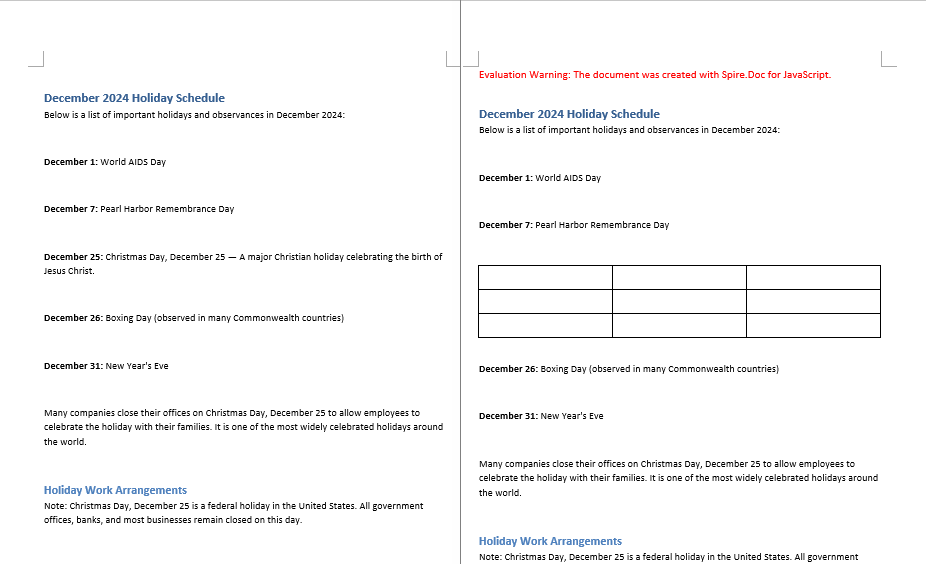
FAQ
Image does not appear in the document after insertion
Cause: The image file was not loaded into the WASM virtual file system, or the FetchFileToVFS path is incorrect, causing DocPicture.LoadImage to fail when reading the image data from VFS.
Solution: Ensure the image file is properly loaded into VFS via FetchFileToVFS before calling LoadImage, and verify the file name and path match:
await window.spire.FetchFileToVFS(
  'E-iceblue.png', '', `${process.env.PUBLIC_URL}/data/`
);
Table is inserted at the wrong position
Cause: The paragraph index obtained via OwnerTextBody.ChildObjects.IndexOf is inaccurate, or the selected text spans multiple paragraphs, causing an index offset that places the table in the wrong location.
Solution: Verify that the text searched by FindString resides within a single paragraph, then use GetAsOneRange to obtain the correct OwnerParagraph before retrieving its index in OwnerTextBody.ChildObjects:
let range = selection.GetAsOneRange();
let paragraph = range.OwnerParagraph;
let body = paragraph.OwnerTextBody;
let index = body.ChildObjects.IndexOf(paragraph);
Get a Free License
Spire.Doc for JavaScript offers a 30-day full-featured free trial license with no functional limitations. Apply here to evaluate before purchasing.
Find and Replace Text in Word Documents with JavaScript in React
Text replacement is one of the most common operations in Word document processing — whether it's batch-replacing placeholders in contracts, standardizing terminology, or normalizing text of a specific pattern, the find-and-replace feature handles it efficiently. Spire.Doc for JavaScript processes Word documents directly in the browser via WebAssembly, using a virtual file system (VFS) to manage fonts and file resources — no backend server required.
This article covers two core features:
For installation and project setup, refer to Integrating Spire.Doc for JavaScript in a React Project. The examples below assume Spire.Doc is installed and the WebAssembly module is initialized.
Replace Specific Text
Replacing specific text is the most basic text operation — it replaces a word or phrase in a document with another string, with options for case sensitivity and whole-word matching. The core process involves three steps: first, load font files and the target Word document into the WASM virtual file system via FetchFileToVFS; then instantiate a Document, load the file, and call the Replace method to match a specified string and replace it with new text, controlling the matching rules through caseSensitive and wholeWord parameters; finally, save the document, read the generated file from VFS, wrap it as a Blob, and trigger a browser download.
import React, { useState } from 'react';

function App() {

  const ReplaceWithText = async () => {
      // Get the Spire.Doc WASM module
      const docModule = window.wasmModule?.spiredoc;

       // Check if the module is ready
       if (!docModule) {
        alert('Spire.Doc is not ready yet');
        return;
       }
        // Load the sample file into VFS
        let inputFileName = 'Sample.docx';
        await window.spire.FetchFileToVFS(inputFileName, '', `${process.env.PUBLIC_URL}/data/`);

        // Create a new document
        const doc = new docModule.Document();

        // Load the document from the virtual file system
        doc.LoadFromFile(inputFileName);

        // Replace text: "word" → "ReplacedText", case-insensitive, whole-word match
        doc.Replace({ matchString: 'word', newValue: 'ReplacedText', caseSensitive: false, wholeWord: true });

        // Define the output file name and save
        const outputFileName = 'ReplaceWithText_output.docx';
        doc.SaveToFile({ fileName: outputFileName, fileFormat: docModule.FileFormat.Docx2013 });

        // Release resources
        doc.Dispose();

        // Read the generated file from VFS and trigger download
        const modifiedFileArray = window.dotnetRuntime.Module.FS.readFile(outputFileName);
        const blob = new Blob([modifiedFileArray], { type: 'application/vnd.openxmlformats-officedocument.wordprocessingml.document'});
        const url = URL.createObjectURL(blob);
        const a = document.createElement('a');
        a.href = url;
        a.download = outputFileName;
        a.click();
        URL.revokeObjectURL(url);
  };

  return (
    <div style={{ textAlign: 'center', height: '300px' }}>
      <h1>Replace text in a Word document.</h1>
      <button onClick={ReplaceWithText}>
        Generate
      </button>
    </div>
    );
  };

export default App;
Target strings in the document are uniformly replaced with the new content after using the Replace method
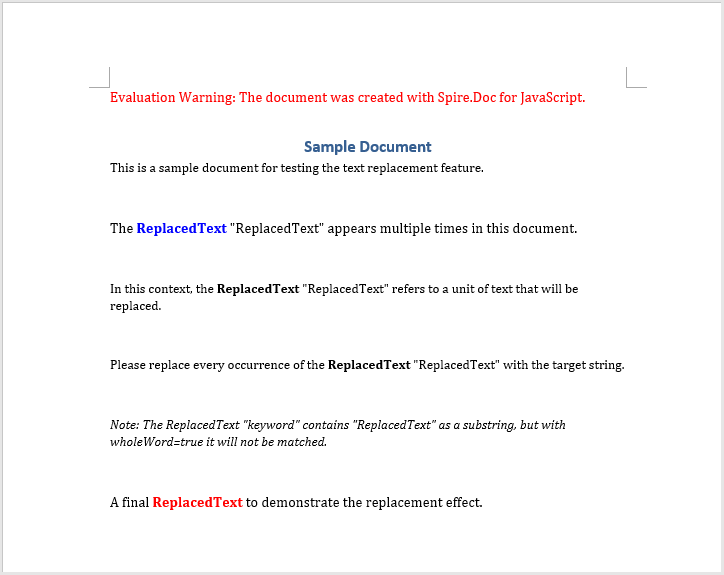
Replace Text Using Regex
When you need to match text with variable formatting, regex is the most powerful tool — for example, replacing all hashtag labels starting with # with a fixed string. The core process involves three steps: first, load font files and the target Word document into the WASM virtual file system via FetchFileToVFS; then create a Regex object to define the matching pattern, and call the Replace method to uniformly replace all matched text with the specified content; finally, save the document, read the generated file from VFS, wrap it as a Blob, and trigger a browser download.
import React, { useState } from 'react';

function App() {

  const ReplaceWithText = async () => {
      // Get the Spire.Doc WASM module
      const docModule = window.wasmModule?.spiredoc;

       // Check if the module is ready
       if (!docModule) {
        alert('Spire.Doc is not ready yet');
        return;
       }
       // Load the sample file into VFS
        let inputFileName = 'Sample.docx';
        await window.spire.FetchFileToVFS(inputFileName, '', `${process.env.PUBLIC_URL}/data/`);

        // Create a new document
        const doc = new docModule.Document();

        // Load the document from the virtual file system
        doc.LoadFromFile(inputFileName);

        // Create a regex pattern to match whole words
        let regex = new docModule.Regex('\\bword\\b', docModule.RegexOptions.None);

        // Replace text using the regex
        doc.Replace(regex, 'Spire.Doc');

        // Define the output file name and save
        const outputFileName = 'ReplaceTextByRegex_output.docx';
        doc.SaveToFile({fileName: outputFileName, fileFormat: docModule.FileFormat.Docx2013 });

        // Release resources
        doc.Dispose();

        // Read the generated file from VFS and trigger download
        const modifiedFileArray = window.dotnetRuntime.Module.FS.readFile(outputFileName);
        const blob = new Blob([modifiedFileArray], { type: 'application/vnd.openxmlformats-officedocument.wordprocessingml.document'});
        const url = URL.createObjectURL(blob);
        const a = document.createElement('a');
        a.href = url;
        a.download = outputFileName;
        a.click();
        URL.revokeObjectURL(url);
  };

  return (
    <div style={{ textAlign: 'center', height: '300px' }}>
      <h1>Replace text in a Word document.</h1>
      <button onClick={ReplaceWithText}>
        Generate
      </button>
    </div>
    );
  };

export default App;
All strings matching the pattern are uniformly replaced after regex-based text replacement
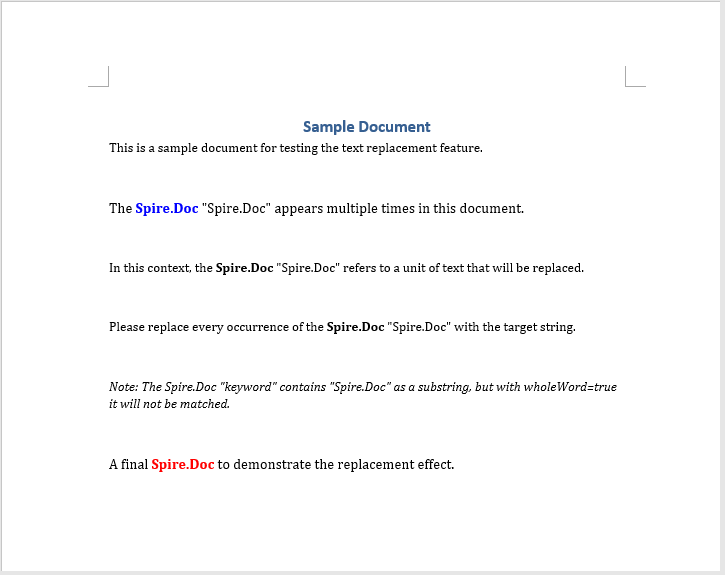
FAQ
Text replacement does not take effect (text is not replaced)
Cause: The caseSensitive or wholeWord parameters are set incorrectly, causing the match to fail — the actual text does not meet the matching criteria.
Solution: Check whether the case matches, or set caseSensitive to false to ignore case, and wholeWord to false to match partial words:
doc.Replace({ matchString: 'word', newValue: 'ReplacedText', caseSensitive: false, wholeWord: false });
Regex pattern does not match the target content
Cause: Special characters (such as #, \) in the regex pattern are not properly escaped, causing the match to fail.
Solution: Ensure that special characters in the regex pattern are correctly escaped. For example, when matching #tag-style text:
let regex = new wasmModule.Regex('#\\S+', wasmModule.RegexOptions.None);
Get a Free License
Spire.Doc for JavaScript offers a 30-day full-featured free trial license with no functional limitations. Apply here to evaluate before purchasing.
Replace Text with Field or Another Document in Word with JavaScript in React
Replacing specific text with field codes or another document's content is a highly practical need in document automation — such as replacing a "current date" placeholder with a DATE field that automatically updates to the system date each time the document is opened, or swapping a "terms" placeholder in a contract template with detailed clause content from another Word document for modular document assembly. Spire.Doc for JavaScript runs entirely in the browser via WebAssembly, using a virtual file system (VFS) to manage fonts and document files — no backend server required.
This article covers two core features:
For installation and project setup, refer to Integrating Spire.Doc for JavaScript in a React Project. The examples below assume Spire.Doc is installed and the WebAssembly module is initialized.
Replace Text with a Field
Replacing text with a field involves three steps: first, load the font files and the target Word document into the WASM virtual file system via FetchFileToVFS; then call FindString to locate the target text, retrieve its paragraph and position index, create a Field object with the desired field type (such as FieldDate), sequentially insert Field, FieldMark(FieldSeparator), and FieldMark(FieldEnd) into the paragraph to construct a complete field structure, and finally remove the original text; finally, save the document, read the generated file from VFS, wrap it as a Blob, and trigger a browser download.
import React, { useState } from 'react';

function App() {
  const ReplaceTextWithField = async () => {
    // Get the Spire.Doc WASM module
    const docModule = window.wasmModule?.spiredoc;

    // Check if the module is ready
    if (!docModule) {
      alert('Spire.Doc is not ready yet');
      return;
    }

    // Load the Word document into VFS
    let inputFileName = 'ReplaceTextWithField.docx';
    await window.spire.FetchFileToVFS(inputFileName, '', `${process.env.PUBLIC_URL}/data/`);

    // Load the document
    const doc = new docModule.Document();
    doc.LoadFromFile(inputFileName);

    // Find the target text
    let selection = doc.FindString({
      stringValue: 'summary',
      caseSensitive: false,
      wholeWord: true,
    });

    // Get the text range and its owner paragraph
    let textRange = selection.GetAsOneRange();
    let ownParagraph = textRange.OwnerParagraph;
    let rangeIndex = ownParagraph.ChildObjects.IndexOf(textRange);

    // Create a DATE field
    let eqField = new docModule.Field(doc);
    eqField.Type = docModule.FieldType.FieldDate;
    eqField.Code = 'DATE \\@ "yyyyMMdd "';

    // Insert Field, FieldSeparator, and FieldEnd in sequence
    ownParagraph.ChildObjects.Insert(rangeIndex, eqField);

    let mark = new docModule.FieldMark(doc, docModule.FieldMarkType.FieldSeparator);
    ownParagraph.ChildObjects.Insert(rangeIndex + 1, mark);

    let end = new docModule.FieldMark(doc, docModule.FieldMarkType.FieldEnd);
    ownParagraph.ChildObjects.Insert(rangeIndex + 2, end);

    // Remove the original text
    ownParagraph.ChildObjects.Remove(textRange);

    // Define the output file name and save
    const outputFileName = 'ReplaceTextWithField_output.docx';
    doc.SaveToFile({ fileName: outputFileName, fileFormat: docModule.FileFormat.Docx2013 });

    // Release resources
    doc.Dispose();

    // Read the generated file from VFS and trigger download
    const modifiedFileArray = window.dotnetRuntime.Module.FS.readFile(outputFileName);
    const blob = new Blob([modifiedFileArray], { type: 'application/vnd.openxmlformats-officedocument.wordprocessingml.document' });
    const url = URL.createObjectURL(blob);
    const a = document.createElement('a');
    a.href = url;
    a.download = outputFileName;
    a.click();
    URL.revokeObjectURL(url);
  };

  return (
    <div style={{ textAlign: 'center', height: '300px' }}>
      <h1>Replace text with field in Word document</h1>
      <button onClick={ReplaceTextWithField}>
        Generate
      </button>
    </div>
  );
}

export default App;
The target text is replaced with a DATE field that automatically displays the current system date when the document is opened

Replace Text with Another Document
Replacing text with another document involves three steps: first, load the font files and two Word documents (the main document and the replacement content document) into the WASM virtual file system via FetchFileToVFS; then instantiate two Document objects to load both documents, call the Replace method on the main document with the matchDoc parameter pointing to the replacement document object, substituting the matching text with the full content of that document; finally, save the document, read the generated file from VFS, wrap it as a Blob, and trigger a browser download.
import React, { useState } from 'react';

function App() {
  const ReplaceWithDocument = async () => {
    // Get the Spire.Doc WASM module
    const docModule = window.wasmModule?.spiredoc;

    // Check if the module is ready
    if (!docModule) {
      alert('Spire.Doc is not ready yet');
      return;
    }

    // Load the two Word documents into VFS
    let inputFileName1 = 'Text2.docx';
    await window.spire.FetchFileToVFS(inputFileName1, '', `${process.env.PUBLIC_URL}/data/`);

    let inputFileName2 = 'Text1.docx';
    await window.spire.FetchFileToVFS(inputFileName2, '', `${process.env.PUBLIC_URL}/data/`);

    // Load the main document
    let doc = new docModule.Document();
    doc.LoadFromFile(inputFileName1);

    // Load the replacement document
    let replaceDoc = new docModule.Document();
    replaceDoc.LoadFromFile(inputFileName2);

    // Replace the specified text with the content of another document
    doc.Replace({
      matchString: 'Document1',
      matchDoc: replaceDoc,
      caseSensitive: false,
      wholeWord: true,
    });

    // Define the output file name and save
    const outputFileName = 'ReplaceWithDocument_output.docx';
    doc.SaveToFile({ fileName: outputFileName, fileFormat: docModule.FileFormat.Docx2013 });

    // Release resources
    doc.Dispose();

    // Read the generated file from VFS and trigger download
    const modifiedFileArray = window.dotnetRuntime.Module.FS.readFile(outputFileName);
    const blob = new Blob([modifiedFileArray], { type: 'application/vnd.openxmlformats-officedocument.wordprocessingml.document' });
    const url = URL.createObjectURL(blob);
    const a = document.createElement('a');
    a.href = url;
    a.download = outputFileName;
    a.click();
    URL.revokeObjectURL(url);
  };

  return (
    <div style={{ textAlign: 'center', height: '300px' }}>
      <h1>Replace text with another document in Word</h1>
      <button onClick={ReplaceWithDocument}>
        Generate
      </button>
    </div>
  );
}

export default App;
The placeholder text in the main document is replaced with the full content of another document
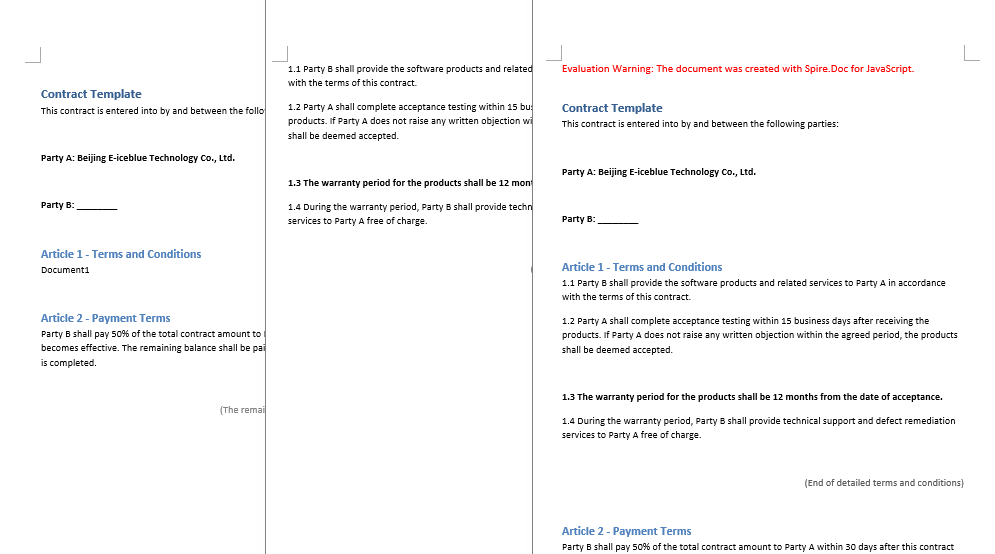
FAQ
Field value does not appear in the document after insertion
Cause: The Field, FieldMark(FieldSeparator), and FieldMark(FieldEnd) are not inserted in the correct order, breaking the integrity of the field structure and preventing Word from properly recognizing and evaluating the field value.
Solution: Ensure that Field, FieldSeparator, and FieldEnd are inserted sequentially with consecutive indices:
ownParagraph.ChildObjects.Insert(rangeIndex, eqField);
ownParagraph.ChildObjects.Insert(rangeIndex + 1, mark);
ownParagraph.ChildObjects.Insert(rangeIndex + 2, end);
Replacement with another document does not work
Cause: The document object passed via the matchDoc parameter in the Replace method was not properly loaded into VFS, or the file path/name does not match what was used in FetchFileToVFS, causing LoadFromFile to fail to locate the target file.
Solution: Ensure both documents are loaded into VFS via FetchFileToVFS, and create separate Document objects that successfully load before calling Replace:
let doc = new docModule.Document();
doc.LoadFromFile('Text2.docx');

let replaceDoc = new docModule.Document();
replaceDoc.LoadFromFile('Text1.docx');

doc.Replace({
  matchString: 'Document1',
  matchDoc: replaceDoc,
  caseSensitive: false,
  wholeWord: true,
});
Get a Free License
Spire.Doc for JavaScript offers a 30-day full-featured free trial license with no functional limitations. Apply here to evaluate before purchasing.
Insert Images and Tables into a Word Textbox with JavaScript in React
In practical document layout, a textbox is an ideal container for standalone content — it can be positioned freely without being constrained by the page flow, making it perfect for sidebars, pull quotes, product diagrams, and more. Inserting images or tables into a textbox is a common requirement for achieving rich layouts. Spire.Doc for JavaScript processes Word documents directly in the browser via WebAssembly, using a virtual file system (VFS) to manage fonts and file resources — no backend server required.
This article covers two core features:
For installation and project setup, refer to Integrating Spire.Doc for JavaScript in a React Project. The examples below assume Spire.Doc is installed and the WebAssembly module is initialized.
Insert Image into Textbox
Filling a textbox with a picture is a common technique for creating product labels, business cards, or promotional materials. Spire.Doc creates a textbox via the AppendTextBox method, then fills its background with a picture using FillEfects.SetPicture. The core process involves three steps: first, load font files and the target image into the WASM virtual file system via FetchFileToVFS; then create a document, add a textbox with position properties, and apply the picture to the textbox through fill effects; finally, save the document, read the generated file from VFS, wrap it as a Blob, and trigger a browser download.
function App() {
  const InsertImageIntoTextBox = async () => {
    // Get the Spire.Doc WASM module
    const docModule = window.wasmModule?.spiredoc;

    // Check if the module is ready
    if (!docModule) {
      alert('Spire.Doc is not ready yet');
      return;
    }

    // Load fonts and the image file into VFS
    const imageFileName = 'Spire.Doc.png';
    await window.spire.FetchFileToVFS(imageFileName, '', `${process.env.PUBLIC_URL}/data/`);

    // Create a document
    const doc = new docModule.Document();

    // Add a section
    let section = doc.AddSection();

    // Add a paragraph
    let paragraph = section.AddParagraph();

    // Append a 220x220 textbox to the paragraph
    let tb = paragraph.AppendTextBox(220, 220);

    // Set textbox position
    tb.Format.HorizontalOrigin = docModule.HorizontalOrigin.Page;
    tb.Format.HorizontalPosition = 50;
    tb.Format.VerticalOrigin = docModule.VerticalOrigin.Page;
    tb.Format.VerticalPosition = 50;

    // Set the textbox fill type to Picture
    tb.Format.FillEfects.Type = docModule.BackgroundType.Picture;

    // Fill the textbox with the image
    tb.Format.FillEfects.SetPicture(imageFileName);

    // Define output file name and save
    const outputFileName = "InsertImageIntoTextBox_output.docx";
    doc.SaveToFile({ fileName: outputFileName, fileFormat: docModule.FileFormat.Docx2013 });

    // Release resources
    doc.Close();
    doc.Dispose();

    // Read the generated file from VFS and trigger download
    const modifiedFileArray = window.dotnetRuntime.Module.FS.readFile(outputFileName);
    const blob = new Blob([modifiedFileArray], { type: 'application/vnd.openxmlformats-officedocument.wordprocessingml.document'});
    const url = URL.createObjectURL(blob);
    const a = document.createElement('a');
    a.href = url;
    a.download = outputFileName;
    a.click();
    URL.revokeObjectURL(url);
  };

  return (
    <div style={{ textAlign: 'center', height: '300px' }}>
      <h1>Insert Image into a Word Textbox</h1>
      <button onClick={InsertImageIntoTextBox}>
        Generate
      </button>
    </div>
  );
}

export default App;
Image filled into the textbox, automatically scaled to fit
Insert Table into Textbox
Embedding structured table data in sidebars or reference areas is a common requirement in technical documents and reports. Spire.Doc supports creating tables within a textbox and adding them directly to the textbox body via the textbox.Body.AddTable method. Compared to creating tables in the main document body, tables inside a textbox can be positioned independently without being affected by page layout. The core process involves three steps: first, load font files into the WASM virtual file system via FetchFileToVFS; then create a document and a textbox, add a table via textbox.Body.AddTable with specified row and column counts, fill data row by row, and apply styles; finally, save the document, read the generated file from VFS, wrap it as a Blob, and trigger a browser download.
function App() {
  const InsertTableIntoTextBox = async () => {
    // Get the Spire.Doc WASM module
    const docModule = window.wasmModule?.spiredoc;

    // Check if the module is ready
    if (!docModule) {
      alert('Spire.Doc is not ready yet');
      return;
    }

    // Load font files into VFS
    await window.spire.FetchFileToVFS('msyh.ttc', '/Library/Fonts/', `${process.env.PUBLIC_URL}/font/`);

    // Create a document
    const doc = new docModule.Document();

    // Add a section
    let section = doc.AddSection();

    // Add a paragraph
    let paragraph = section.AddParagraph();

    // Add a 300x150 textbox
    let textbox = paragraph.AppendTextBox(300, 150);

    // Set textbox position
    textbox.Format.HorizontalOrigin = docModule.HorizontalOrigin.Page;
    textbox.Format.HorizontalPosition = 140;
    textbox.Format.VerticalOrigin = docModule.VerticalOrigin.Page;
    textbox.Format.VerticalPosition = 50;

    // Add a title paragraph in the textbox
    let textboxParagraph = textbox.Body.AddParagraph();
    let textboxRange = textboxParagraph.AppendText("Table 1");
    textboxRange.CharacterFormat.FontName = "Microsoft YaHei";

    // Insert a table into the textbox
    let table = textbox.Body.AddTable({ showBorder: true });

    // Specify the number of rows and columns
    table.ResetCells(4, 4);

    let data = [
      ["Name", "Age", "Gender", "ID"],
      ["John", "28", "Male", "0023"],
      ["Jane", "30", "Male", "0024"],
      ["Wang Wu", "26", "Female", "0025"]
    ];
    // Populate data into the table
    for (let i = 0; i < 4; i++) {
      for (let j = 0; j < 4; j++) {
        let tableRange = table.Rows.get_Item(i).Cells.get_Item(j).AddParagraph().AppendText(data[i][j]);
        tableRange.CharacterFormat.FontName = "Microsoft YaHei";
      }
    }

    // Apply table style
    table.ApplyStyle({ builtinTableStyle: docModule.DefaultTableStyle.TableColorful2 });

    // Define output file name and save
    const outputFileName = "InsertTableIntoTextBox_output.docx";
    doc.SaveToFile({ fileName: outputFileName, fileFormat: docModule.FileFormat.Docx2013 });

    // Release resources
    doc.Close();
    doc.Dispose();

    // Read the generated file from VFS and trigger download
    const modifiedFileArray = window.dotnetRuntime.Module.FS.readFile(outputFileName);
    const blob = new Blob([modifiedFileArray], { type: 'application/vnd.openxmlformats-officedocument.wordprocessingml.document'});
    const url = URL.createObjectURL(blob);
    const a = document.createElement('a');
    a.href = url;
    a.download = outputFileName;
    a.click();
    URL.revokeObjectURL(url);
  };

  return (
    <div style={{ textAlign: 'center', height: '300px' }}>
      <h1>Insert Table into a Word Textbox</h1>
      <button onClick={InsertTableIntoTextBox}>
        Generate
      </button>
    </div>
  );
}

export default App;
Table created inside the textbox, contained within the textbox and freely positionable
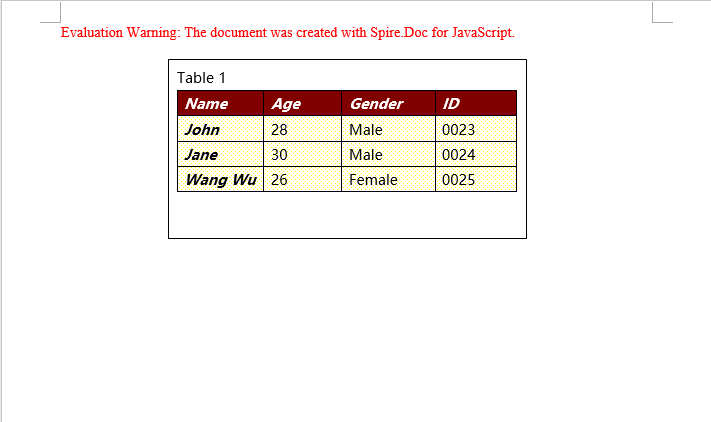
FAQ
Image in the textbox is truncated or not fully displayed
Cause: The textbox size does not match the image aspect ratio, so the dimensions specified when creating the textbox cannot fully accommodate the image.
Solution: Adjust the textbox size to match the image proportions, or choose an image that fits the textbox dimensions:
let tb = paragraph.AppendTextBox(400, 300);
Table in the textbox has no visible borders
Cause: The showBorder parameter was not set or was set to false when creating the table, resulting in a borderless table.
Solution: Confirm the showBorder parameter is set to true when creating the table:
let table = textbox.Body.AddTable({ showBorder: true });
Textbox position is not as expected after saving
Cause: The HorizontalOrigin or VerticalOrigin values were configured incorrectly, causing the positioning reference point to differ from what was expected.
Solution: Choose the appropriate origin type based on your requirements, and fine-tune the position using HorizontalPosition / VerticalPosition:
tb.Format.HorizontalOrigin = docModule.HorizontalOrigin.Page;
tb.Format.HorizontalPosition = 50;
tb.Format.VerticalOrigin = docModule.VerticalOrigin.Page;
tb.Format.VerticalPosition = 50;
Get a Free License
Spire.Doc for JavaScript offers a 30-day full-featured free trial license with no functional limitations. Apply here to evaluate before purchasing.