Wie man ein Kreisdiagramm in Word erstellt
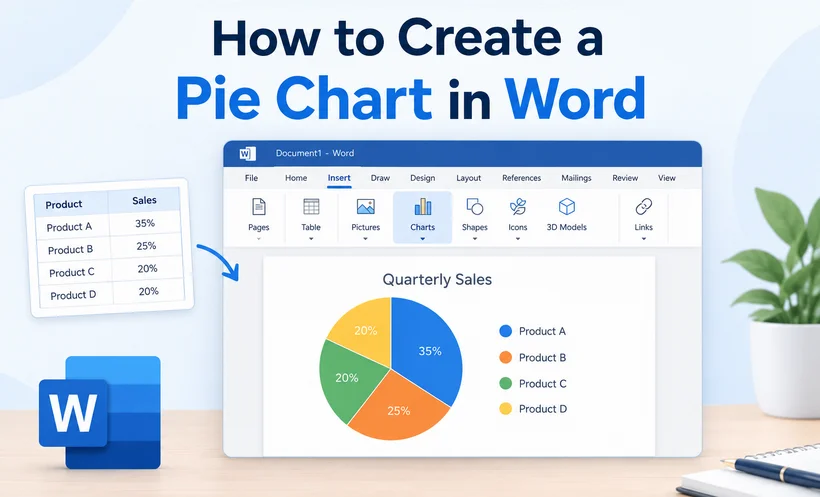
Ein Kreisdiagramm verwandelt Datenreihen in eine sofort verständliche Momentaufnahme und macht Anteile, Marktanteile und Umfrageergebnisse deutlich leichter nachvollziehbar. Microsoft Word ist in erster Linie als Textverarbeitungsprogramm bekannt, doch es enthält auch leistungsfähige Diagrammwerkzeuge, mit denen Sie ansprechende, professionelle Kreisdiagramme erstellen können, ohne Ihr Dokument zu verlassen.
Ob Sie als Student eine Präsentation vorbereiten, als Geschäftsmann einen Bericht verfassen oder als Entwickler die Dokumenterstellung automatisieren – wenn Sie wissen, wie man ein Kreisdiagramm in Word erstellt, spart das Zeit und macht Ihre Botschaft klarer.
Dieser Leitfaden behandelt drei praktische Methoden:
- Die integrierten Diagrammwerkzeuge von Word verwenden – für die schnelle, manuelle Erstellung
- Diagramme mit C# erstellen – für Automatisierung und Stapelverarbeitung
- Ein Kreisdiagramm aus Excel kopieren – zur Wiederverwendung vorhandener Arbeit
Warum ein Kreisdiagramm in Word verwenden?
Hier sind die wichtigsten Vorteile, Kreisdiagramme direkt in Word zu erstellen:
- Keine zusätzliche Software erforderlich: Gestalten Sie Diagramme vollständig innerhalb Ihres Word-Dokuments, ohne zu Drittanbieter-Tools wechseln zu müssen.
- Nahtlose Dokumentintegration: Diagramme fügen sich nahtlos in vorhandenen Text, Formatierungen und Seitenlayout ein und sorgen für eine konsistente, saubere Ausgabe.
- Vollständig anpassbar: Passen Sie Farben, Beschriftungen, Stile und Layout an Ihre Marke oder Ihr Dokumentdesign an.
- Einfache Datenaktualisierung: Bearbeiten Sie Ihre Diagrammdaten jederzeit, ohne die gesamte Grafik neu zu erstellen.
Profi-Tipp: Beschränken Sie Ihr Kreisdiagramm aus Gründen der Lesbarkeit auf 3–7 Datenkategorien. Zu viele Segmente machen das Diagramm unübersichtlich und schwer zu interpretieren.
Wie man ein Kreisdiagramm in Microsoft Word erstellt
Microsoft Word ist nach wie vor das beliebteste Textverarbeitungsprogramm. Hier ist der schnellste Weg, ein Kreisdiagramm in Word zu erstellen:
- Öffnen Sie Ihr Dokument und platzieren Sie den Cursor an der Stelle, an der das Diagramm erscheinen soll.
- Navigieren Sie zur Registerkarte Einfügen im oberen Menüband.
- Klicken Sie auf das Symbol Diagramm in der Gruppe „Illustrationen“.
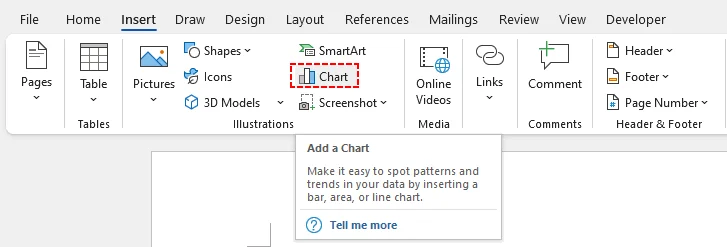
Ein Dialogfeld „Diagramm einfügen“ wird geöffnet. Wählen Sie Kreis aus der Liste im linken Bereich. Word bietet mehrere Kreisdiagramm-Varianten für verschiedene Anwendungsfälle:
- Kreis: Die standardmäßige 2D-Version.
- 3D-Kreis: Verleiht einen modernen Tiefeneffekt.
- Ring: Ein Kreisdiagramm mit einem Loch in der Mitte (ideal für eine „hohle“ Ästhetik).
- Kreis mit Balken: Kombiniert ein Kreisdiagramm mit einem Balkendiagramm für komplexe Daten.
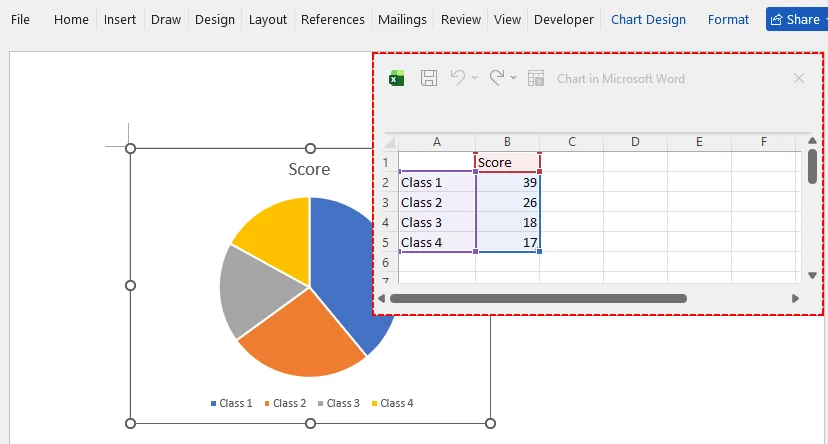
Doppelklicken Sie auf Ihren bevorzugten Kreisdiagrammstil oder wählen Sie ihn aus und klicken Sie auf OK. Ein standardmäßiges Beispiel-Kreisdiagramm wird in Ihr Dokument eingebettet.
Eine kleine Excel-Tabelle wird geöffnet. Ersetzen Sie die Platzhalter-Kategorienamen und Zahlenwerte durch Ihren eigenen Datensatz. Das Diagramm wird in Echtzeit aktualisiert.
Profi-Tipp für MS Word
Verwenden Sie die Registerkarte Diagrammentwurf, die nach dem Anklicken des Diagramms erscheint. Hier können Sie:
- Farben ändern, um sie an Ihre Marke oder Ihr Berichtsthema anzupassen.
- Datenbeschriftungen hinzufügen, um Prozentsätze oder Werte direkt auf den Segmenten anzuzeigen.
- Diagrammtyp wechseln zu einem „Kreis aus Kreis“-Diagramm für eine bessere Lesbarkeit kleiner Segmente.
Nachdem Sie Ihre Visualisierungen und Berichtsinhalte fertiggestellt haben, können Sie eine zusätzliche Schutzebene hinzufügen, indem Sie Ihr Word-Dokument auf schreibgeschützt setzen, bevor Sie es mit anderen teilen.
Wie man ein Kreisdiagramm in Word mit C#-Code einfügt
Für Softwareentwickler, die die Dokumenterstellung automatisieren, ist das manuelle Erstellen eines Kreisdiagramms in Word für Stapelabläufe unpraktisch. Sie können die Free Spire.Doc for .NET-Bibliothek verwenden, um Word-Dokumente mit Kreisdiagrammen dynamisch zu erstellen.
Diese Methode eignet sich perfekt für automatisierte Monatsberichte, die Massenerstellung von Dokumenten oder die Integration von Dokumentausgaben in Web- und Desktop-Anwendungen.
Voraussetzungen
Installieren Sie zunächst die Free Spire.Doc-Bibliothek über den NuGet-Paket-Manager:
Install-Package FreeSpire.Doc
Das vollständige C#-Codebeispiel
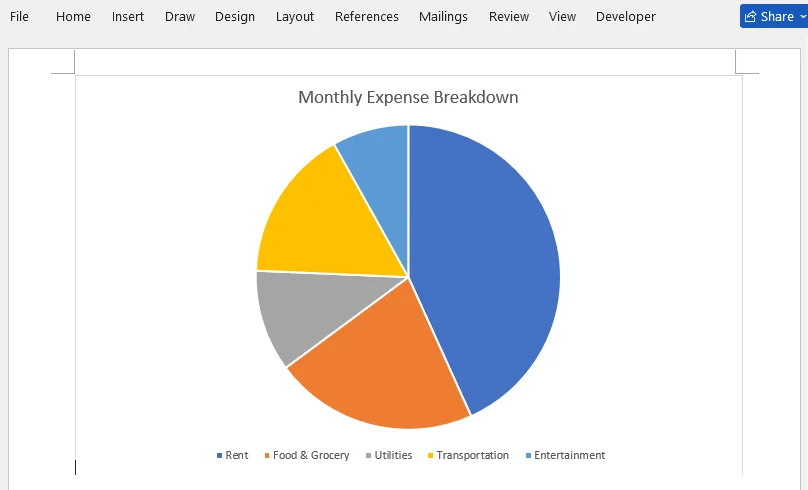
Das folgende Beispiel erstellt ein Word-Dokument mit einem Kreisdiagramm, das die monatliche Aufschlüsselung der Haushaltsausgaben zeigt.
using Spire.Doc;
using Spire.Doc.Documents;
using Spire.Doc.Fields.Shapes.Charts;
using Spire.Doc.Fields;

namespace CreatePieChart
{
    class Program
    {
        static void Main(string[] args)
        {
            // Create a new Word document
            Document document = new Document();

            // Add a section
            Section section = document.AddSection();

            // Add a paragraph to hold the chart
            Paragraph paragraph = section.AddParagraph();

            // Append a pie chart (single series)
            ShapeObject shape = paragraph.AppendChart(ChartType.Pie, 500, 300);

            // Get the chart object
            Chart chart = shape.Chart;

            // Clear any default sample data
            chart.Series.Clear();

            // Add the expense data as one series
            // Categories: Rent, Food & Grocery, Utilities, Transportation, Entertainment
            // Values: 1200, 600, 300, 450, 225
            chart.Series.Add("Monthly Expenses",
                new[] { "Rent", "Food & Grocery", "Utilities", "Transportation", "Entertainment" },
                new double[] { 1200, 600, 300, 450, 225 });

            // Set the chart title
            chart.Title.Text = "Monthly Expense Breakdown";

            // Place the legend at the bottom
            chart.Legend.Position = LegendPosition.Bottom;

            // Save the document
            document.SaveToFile("PieChart.docx", FileFormat.Docx2019);
        }
    }
}
So funktioniert dieser Code:
- Initialisierung: Er erstellt ein leeres Word-Dokument und fügt einen neuen Abschnitt/Absatz hinzu, um das visuelle Element aufzunehmen.
- Diagrammerstellung: AppendChart() erzeugt ein Kreisdiagramm mit definierten Abmessungen.
- Datenbindung: Die Methode Series.Add nimmt drei Parameter entgegen – den Anzeigenamen der Datenreihe, das Array der Kategoriebeschriftungen und das Array der numerischen Werte.
- Formatierung: Legt den Diagrammtitel fest und verschiebt die Legende nach unten, um den nutzbaren Diagrammraum zu maximieren.
- Export: Speichert die Ausgabe als moderne .docx-Datei.
Ergebnisvorschau:
Profi-Tipp für Entwickler
Sie können die Arrays problemlos ändern, um Daten aus einer Datenbank oder einer externen CSV-Datei zu beziehen. Free Spire.Doc unterstützt auch andere Diagrammtypen (wie Säulendiagramme), indem Sie den Parameter ChartType ändern und die entsprechenden Datenreihen bereitstellen.
Wie man ein vorhandenes Kreisdiagramm aus Excel nach Word kopiert
Wenn Sie bereits ein Kreisdiagramm in Excel erstellt und formatiert haben, müssen Sie es nicht in Word von Grund auf neu erstellen. Kopieren und Einfügen bewahrt Ihre vorhandene Arbeit.
- Öffnen Sie Ihre Excel-Datei und suchen Sie das Kreisdiagramm.
- Klicken Sie auf das Kreisdiagramm, um es auszuwählen.
- Drücken Sie Strg+C (oder klicken Sie mit der rechten Maustaste und wählen Sie Kopieren).
- Wechseln Sie zu Ihrem Word-Dokument und platzieren Sie den Cursor an der Stelle, an der das Diagramm erscheinen soll.
- Drücken Sie Strg+V (oder klicken Sie mit der rechten Maustaste und wählen Sie Einfügen).
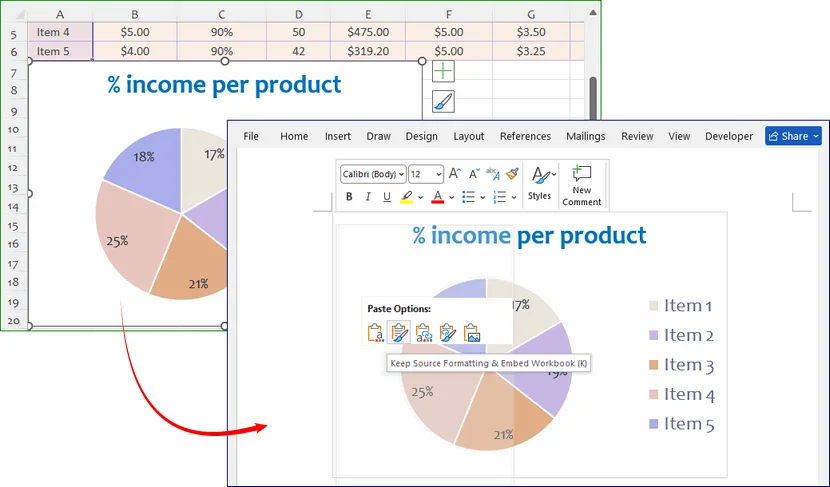
Ein kleines Zwischenablage-Symbol erscheint in der unteren Ecke des Diagramms. Sie können es einfügen als:
- Zieldesign: Das Diagramm entspricht Ihrem Word-Design.
- Quellformatierung beibehalten: Das Diagramm behält sein Excel-Aussehen.
- Bild: Das Diagramm wird zu einem statischen Bild (ideal, um sicherzustellen, dass es sich nicht versehentlich ändert).
Wie man Kreisdiagrammdaten später bearbeitet und aktualisiert
Eine der besten Eigenschaften von Word-Kreisdiagrammen ist, dass die Daten bearbeitbar bleiben. Sie müssen Ihr Diagramm nicht von Grund auf neu aufbauen, wenn sich die Quelldaten ändern. Befolgen Sie diese Schritte, um Ihr Diagramm zu aktualisieren:
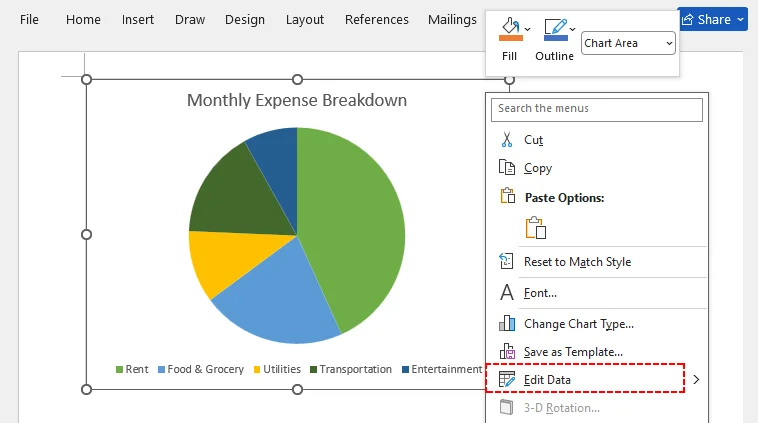
- Klicken Sie mit der rechten Maustaste an eine beliebige Stelle in Ihrem vorhandenen Kreisdiagramm.
- Wählen Sie Daten bearbeiten aus dem Dropdown-Menü.
- Die eingebettete Mini-Excel-Tabelle wird erneut geöffnet. Sie können vorhandene Beschriftungen und Werte bearbeiten oder völlig neue Kategorien hinzufügen.
- Schließen Sie das Tabellenfenster. Ihr Kreisdiagramm wird automatisch neu berechnet und aktualisiert.
Alle benutzerdefinierten Formatierungen (Farben, Beschriftungen, Layouteinstellungen) bleiben während der Datenaktualisierungen unverändert.
Hinweis: Bei Diagrammen, die über die Free Spire.Doc for .NET-Bibliothek generiert wurden, ändern Sie Ihre Quelldaten-Arrays und führen Sie Ihren Code erneut aus, um eine aktualisierte Word-Ausgabedatei zu erstellen.
Best Practices für Kreisdiagramme in Word-Dokumenten
Um sicherzustellen, dass Ihr Kreisdiagramm klar, korrekt und professionell ist, befolgen Sie diese Expertentipps:
- Nur proportionale Daten verwenden: Kreisdiagramme eignen sich nur für Teile eines Ganzen. Vermeiden Sie sie für den Vergleich unabhängiger Datensätze (verwenden Sie stattdessen Balkendiagramme).
- Zu viele Kategorien vermeiden: Mehr als 7 Segmente erzeugen winzige, unleserliche Abschnitte. Fassen Sie kleine Werte in einer Kategorie „Sonstige“ zusammen.
- Prozentbeschriftungen verwenden: Beschriften Sie Segmente stets mit Prozentsätzen oder Werten, um Ratespiele für Leser zu vermeiden.
- Auf übermäßig komplexe 3D-Stile verzichten: 3D-Effekte können visuelle Proportionen verzerren. Verwenden Sie 2D-Kreisdiagramme für formelle Berichte und offizielle Dokumente.
Fazit
Das Hinzufügen eines Kreisdiagramms zu einem Word-Dokument kann die Wirkung Ihrer Daten erheblich steigern. Ob Sie den manuellen, interaktiven Ansatz der integrierten Tools von Microsoft Word bevorzugen, die Kraft des Kopierens und Einfügens aus Excel oder die Automatisierungsmöglichkeiten von Programmbibliotheken wie Free Spire.Doc – Sie haben jetzt ein vollständiges Werkzeugset zur Verfügung.
Die beste Wahl hängt von Ihren Zielen ab: Interaktivität, Wiederverwendung oder Automatisierung. Welchen Weg Sie auch wählen, das Ergebnis ist dasselbe – ein ansprechendes Kreisdiagramm, das Ihre Daten leichter verständlich und Ihr Dokument überzeugender macht.
Häufig gestellte Fragen (FAQs)
F: Wie speichere ich ein Word-Kreisdiagramm als Bild?
Klicken Sie mit der rechten Maustaste auf Ihr Kreisdiagramm und wählen Sie Als Bild speichern. Sie können es als PNG-, JPG- oder SVG-Datei speichern, um es in Präsentationen, sozialen Medien oder anderen Dokumenten zu verwenden.
F: Kann ich Excel-Daten in ein Word-Kreisdiagramm importieren?
Ja! Wenn Sie die Diagrammdaten bearbeiten, kopieren Sie Ihre bereits erstellten Excel-Daten und fügen Sie sie direkt in die eingebettete Word-Tabelle ein. Das Diagramm wird sofort mit Ihren importierten Daten aktualisiert.
F: Mein Kreisdiagramm wird nach einer Zahlenänderung nicht aktualisiert. Was ist falsch?
Bestätigen Sie zunächst, dass Sie den Live-eingebetteten Datensatz über „Daten bearbeiten“ bearbeiten und nicht nur Textfelder über das Diagramm legen. Wenn Sie es als statisches Bild eingefügt haben, erfolgen keine Aktualisierungen. Schließen Sie bei eingebetteten Diagrammen das Fenster zur Datenbearbeitung und öffnen Sie es erneut, oder starten Sie Word neu, um seltene Aktualisierungsfehler zu beheben.
F: Kann Free Spire.Doc for .NET Kreis-aus-Kreis- und 3D-Kreisdiagramme programmgesteuert generieren?
Ja. Free Spire.Doc for .NET unterstützt sowohl Kreis aus Kreis- als auch 3D-Kreis-Diagramme über die Aufzählung ChartType. Sie können sie programmgesteuert generieren, indem Sie den entsprechenden Enum-Wert an die Methode AppendChart übergeben:
// Pie of Pie chart
ShapeObject shape = paragraph.AppendChart(ChartType.PieOfPie, 500, 300);

// 3D Pie chart
ShapeObject shape = paragraph.AppendChart(ChartType.Pie3D, 500, 300);
Siehe auch
- Wie man Gleichungen in Word einfügt: Ein Leitfaden für alle Kenntnisstufen
- Wie man DOCX in XLSX konvertiert: Word ganz einfach in Excel umwandeln
- 7 clevere Möglichkeiten, Codeblöcke in Word-Dokumente einzufügen
- C#/VB.NET: Ein Liniendiagramm in Word erstellen
- Java: Säulendiagramme in Word-Dokumenten erstellen
Как создать круговую диаграмму в Word
Круговая диаграмма превращает строки данных в мгновенный снимок, делая пропорции, доли рынка и результаты опросов гораздо более понятными. Microsoft Word известен в первую очередь как текстовый процессор, но он также включает мощные инструменты для построения диаграмм, которые позволяют создавать аккуратные профессиональные круговые диаграммы, не покидая документ.
Будь вы студентом, готовящим презентацию, специалистом, составляющим отчёт, или разработчиком, автоматизирующим создание документов, знание того, как создать круговую диаграмму в Word, поможет сэкономить время и сделать ваше сообщение более наглядным.
В этом руководстве рассмотрены три практических метода:
- Использование встроенных инструментов Word для создания диаграмм – для быстрого ручного создания
- Создание диаграмм с помощью C# – для автоматизации и пакетной обработки
- Копирование круговой диаграммы из Excel – для повторного использования уже готовой работы
Зачем использовать круговую диаграмму в Word?
Вот основные преимущества создания круговых диаграмм непосредственно в Word:
- Не требуется дополнительное программное обеспечение: создавайте диаграммы полностью в документе Word, не переключаясь на сторонние инструменты.
- Бесшовная интеграция с документом: диаграммы гармонично сочетаются с существующим текстом, форматированием и макетом страницы, обеспечивая единообразный и аккуратный результат.
- Полная настраиваемость: изменяйте цвета, подписи, стили и макет в соответствии с вашим брендом или темой документа.
- Простое обновление данных: редактируйте данные диаграммы в любое время, не создавая график заново.
Совет профессионала: для удобства чтения ограничьте круговую диаграмму 3–7 категориями данных. Слишком большое количество секторов сделает диаграмму перегруженной и трудной для восприятия.
Как создать круговую диаграмму в Microsoft Word
Microsoft Word остаётся самым популярным текстовым процессором. Вот самый быстрый способ создать круговую диаграмму в Word:
- Откройте документ и установите курсор в то место, где должна быть диаграмма.
- Перейдите на вкладку Вставка в верхней ленте.
- Нажмите на значок Диаграмма в группе «Иллюстрации».
Откроется всплывающее диалоговое окно «Вставка диаграммы». Выберите Круговая из списка на левой панели. Word предлагает несколько вариантов круговых диаграмм для разных задач:
- Круговая: стандартная двухмерная версия.
- Объёмная круговая: добавляет глубину для современного вида.
- Кольцевая: круговая диаграмма с отверстием в центре (отлично подходит для «полой» эстетики).
- Круговая с гистограммой: объединяет круговую диаграмму с гистограммой для сложных данных.
Дважды щёлкните предпочитаемый стиль круговой диаграммы или выберите его и нажмите ОК. В ваш документ будет встроена круговая диаграмма с образцом данных по умолчанию.
Откроется мини-таблица Excel. Замените названия категорий и числовые значения-заполнители на свой набор данных. Диаграмма обновляется в режиме реального времени.
Совет профессионала для MS Word
Используйте вкладку Конструктор диаграмм, которая появляется после щелчка по диаграмме. Здесь вы можете:
- Изменить цвета в соответствии с вашим брендом или темой отчёта.
- Добавить подписи данных, чтобы отображать проценты или значения непосредственно на секторах.
- Изменить тип диаграммы на «Вторичная круговая» для лучшей читаемости мелких секторов.
После завершения работы над визуальными элементами и содержимым отчёта вы можете добавить дополнительный уровень защиты, установив документ Word только для чтения перед тем, как поделиться им с другими.
Как вставить круговую диаграмму в Word с помощью кода C#
Для разработчиков программного обеспечения, автоматизирующих создание документов, ручное создание круговой диаграммы в Word нецелесообразно для пакетных рабочих процессов. Вы можете использовать библиотеку Free Spire.Doc for .NET для динамического создания документов Word с круговыми диаграммами.
Этот метод идеально подходит для автоматизированных ежемесячных отчётов, массового создания документов или интеграции вывода документов в веб- и настольные приложения.
Предварительные требования
Сначала установите библиотеку Free Spire.Doc через диспетчер пакетов NuGet:
Install-Package FreeSpire.Doc
Полный пример кода на C#
Пример ниже создаёт документ Word, содержащий круговую диаграмму с разбивкой ежемесячных расходов домохозяйства.
using Spire.Doc;
using Spire.Doc.Documents;
using Spire.Doc.Fields.Shapes.Charts;
using Spire.Doc.Fields;

namespace CreatePieChart
{
    class Program
    {
        static void Main(string[] args)
        {
            // Create a new Word document
            Document document = new Document();

            // Add a section
            Section section = document.AddSection();

            // Add a paragraph to hold the chart
            Paragraph paragraph = section.AddParagraph();

            // Append a pie chart (single series)
            ShapeObject shape = paragraph.AppendChart(ChartType.Pie, 500, 300);

            // Get the chart object
            Chart chart = shape.Chart;

            // Clear any default sample data
            chart.Series.Clear();

            // Add the expense data as one series
            // Categories: Rent, Food & Grocery, Utilities, Transportation, Entertainment
            // Values: 1200, 600, 300, 450, 225
            chart.Series.Add("Monthly Expenses",
                new[] { "Rent", "Food & Grocery", "Utilities", "Transportation", "Entertainment" },
                new double[] { 1200, 600, 300, 450, 225 });

            // Set the chart title
            chart.Title.Text = "Monthly Expense Breakdown";

            // Place the legend at the bottom
            chart.Legend.Position = LegendPosition.Bottom;

            // Save the document
            document.SaveToFile("PieChart.docx", FileFormat.Docx2019);
        }
    }
}
Как работает этот код:
- Инициализация: создаётся пустой документ Word и добавляется новый раздел/абзац для размещения визуального элемента.
- Создание диаграммы: AppendChart() создаёт круговую диаграмму с заданными размерами.
- Привязка данных: метод Series.Add принимает три параметра — отображаемое имя ряда, массив подписей категорий и массив числовых значений.
- Форматирование: задаётся заголовок диаграммы, а легенда перемещается вниз, чтобы максимально увеличить полезное пространство диаграммы.
- Экспорт: результат сохраняется в виде современного файла .docx.
Предварительный просмотр результата:
Совет профессионала для разработчиков
Вы можете легко изменить массивы, чтобы получать данные из базы данных или внешнего CSV-файла. Free Spire.Doc также поддерживает другие типы диаграмм (например, гистограммы), для чего достаточно изменить параметр ChartType и предоставить соответствующий ряд данных.
Как скопировать существующую круговую диаграмму из Excel в Word
Если вы уже создали и оформили круговую диаграмму в Excel, нет необходимости создавать её заново в Word. Копирование и вставка сохраняют вашу существующую работу.
- Откройте файл Excel и найдите круговую диаграмму.
- Щёлкните по круговой диаграмме, чтобы выделить её.
- Нажмите Ctrl+C (или щёлкните правой кнопкой мыши и выберите Копировать).
- Перейдите в документ Word и установите курсор в нужное место.
- Нажмите Ctrl+V (или щёлкните правой кнопкой мыши и выберите Вставить).
В нижнем углу диаграммы появится небольшой значок буфера обмена. Вы можете вставить её как:
- Тема конечного документа: диаграмма соответствует теме вашего документа Word.
- Сохранить исходное форматирование: диаграмма сохраняет свой внешний вид из Excel.
- Рисунок: диаграмма становится статичным изображением (отлично подходит, чтобы гарантировать, что она случайно не изменится).
Как позже редактировать и обновлять данные круговой диаграммы
Одно из лучших качеств круговых диаграмм Word — возможность редактировать данные. Вам не нужно строить диаграмму заново, когда исходные числа меняются. Выполните следующие шаги, чтобы обновить диаграмму:
- Щёлкните правой кнопкой мыши в любом месте существующей круговой диаграммы.
- Выберите Изменить данные в раскрывающемся меню.
- Встроенная мини-таблица Excel снова откроется. Вы можете изменить существующие подписи и значения или добавить совершенно новые категории.
- Закройте окно таблицы. Ваша круговая диаграмма автоматически пересчитается и обновится.
Всё пользовательское форматирование (цвета, подписи, параметры макета) останется неизменным при обновлении данных.
Примечание: для диаграмм, созданных с помощью библиотеки Free Spire.Doc for .NET, измените исходные массивы данных и повторно запустите код, чтобы получить обновлённый выходной файл Word.
Лучшие практики создания круговых диаграмм для документов Word
Чтобы ваша круговая диаграмма была понятной, точной и профессиональной, следуйте этим советам экспертов:
- Используйте только пропорциональные данные: круговые диаграммы подходят только для частей целого. Не используйте их для сравнения независимых наборов данных (вместо этого используйте гистограммы).
- Избегайте слишком большого количества категорий: более 7 секторов создают крошечные, нечитаемые сегменты. Объедините небольшие значения в категорию «Прочее».
- Используйте процентные подписи: всегда подписывайте секторы процентами или значениями, чтобы избавить читателей от догадок.
- Откажитесь от слишком сложных 3D-стилей: 3D-эффекты могут искажать визуальные пропорции. Используйте двухмерные круговые диаграммы для официальных отчётов и документов.
Заключение
Добавление круговой диаграммы в документ Word может значительно повысить наглядность ваших данных. Предпочитаете ли вы ручной интерактивный подход со встроенными инструментами Microsoft Word, возможности копирования из Excel или средства автоматизации программных библиотек, таких как Free Spire.Doc, — теперь в вашем распоряжении полный набор инструментов.
Лучший выбор зависит от ваших целей: интерактивность, повторное использование или автоматизация. Какой бы путь вы ни выбрали, результат один и тот же — аккуратная круговая диаграмма, которая делает ваши данные понятнее, а документ — убедительнее.
Часто задаваемые вопросы (FAQ)
Вопрос: Как сохранить круговую диаграмму Word как изображение?
Щёлкните правой кнопкой мыши по круговой диаграмме и выберите «Сохранить как рисунок». Вы можете сохранить её в формате PNG, JPG или SVG для использования в презентациях, социальных сетях или других документах.
Вопрос: Можно ли импортировать данные Excel в круговую диаграмму Word?
Да! При редактировании данных диаграммы скопируйте заранее подготовленные данные Excel и вставьте их непосредственно во встроенную таблицу Word. Диаграмма мгновенно обновится с импортированными данными.
Вопрос: Моя круговая диаграмма не обновляется после изменения чисел. В чём проблема?
Сначала убедитесь, что вы редактируете активный встроенный набор данных через «Изменить данные», а не просто текстовые поля, наложенные поверх диаграммы. Если вы вставили её как статичное изображение, обновления не произойдут. Для встроенных диаграмм закройте и снова откройте окно редактирования данных или перезапустите Word, чтобы устранить редкие сбои обновления.
Вопрос: Может ли Free Spire.Doc for .NET программно создавать вторичные круговые и объёмные круговые диаграммы?
Да. Free Spire.Doc for .NET поддерживает как вторичные круговые, так и объёмные круговые диаграммы через перечисление ChartType. Вы можете создавать их программно, передавая соответствующее значение перечисления в метод AppendChart:
// Pie of Pie chart
ShapeObject shape = paragraph.AppendChart(ChartType.PieOfPie, 500, 300);

// 3D Pie chart
ShapeObject shape = paragraph.AppendChart(ChartType.Pie3D, 500, 300);
Смотрите также
Exportar Imagens do Excel: Guia Manual, em Lote e com Python
Índice
- Por que a Exportação Adequada de Imagens é Importante
- Exportar Imagens/Gráficos Individuais Diretamente
- Exportar Intervalos de Células como Imagens
- Exportar Todas as Imagens via "Salvar como HTML"
- Extrair Imagens do Excel Usando Python
- Extratores de Imagens Online
- Melhores Formatos de Arquivo para Imagens Exportadas do Excel
- Perguntas Frequentes (FAQs)
Embora o Excel seja primariamente criado para números e tabelas, ele também é um contêiner surpreendentemente comum para imagens, gráficos, logotipos e fotos de produtos. Quer você tenha herdado uma pasta de trabalho repleta de gráficos incorporados ou construído um painel repleto de gráficos, saber como exportar imagens do Excel é uma habilidade essencial.
Neste guia, apresentamos maneiras práticas de extrair imagens do Excel. Você aprenderá truques manuais rápidos para exportações pontuais, fluxos de trabalho em lote sem código para extração em massa e soluções automatizadas em Python para processamento em larga escala. Quer você precise apenas de um snapshot de um único gráfico ou queira descompactar todos os gráficos de uma pasta de trabalho inteira, há uma solução para você.
- 1. Exportar Imagens/Gráficos Individuais Diretamente (Método Mais Rápido)
- 2. Exportar Intervalos de Células como Imagens (Copiar como Imagem)
- 3. Exportar Todas as Imagens via "Salvar como HTML" (Lote, Sem Código)
- 4. Extrair Imagens do Excel Usando Python (Totalmente Automatizado)
- 5. Extratores de Imagens Online (Sem Necessidade de Instalação)
Por que a Exportação Adequada de Imagens é Importante
Tirar capturas de tela é a maneira mais fácil de capturar uma imagem do Excel, mas frequentemente resulta em resolução embaçada, proporções distorcidas e elementos de fundo indesejados. A exportação adequada de imagens do Excel fornece imagens com qualidade original, dimensões corretas, bordas nítidas e formatos de arquivo padrão como PNG, JPG e EMF.
Cenários típicos do mundo real incluem:
- Salvar gráficos do Excel para apresentações, blogs ou postagens em redes sociais
- Extrair imagens de produtos de planilhas de inventário
- Exportar pré-visualizações de tabelas para relatórios de clientes
- Arquivar diagramas e logotipos incorporados de arquivos Excel antigos
- Criar visuais de alta resolução prontos para impressão
1. Exportar Imagens/Gráficos Individuais Diretamente (Método Mais Rápido)
Use este método se você precisar exportar apenas uma ou algumas imagens ou gráficos individuais da sua planilha do Excel. Funciona para todas as imagens, formas e gráficos incorporados e leva menos de 10 segundos por item.
Instruções passo a passo:
- Abra sua planilha do Excel e clique para selecionar a imagem, o gráfico ou a forma que deseja exportar.
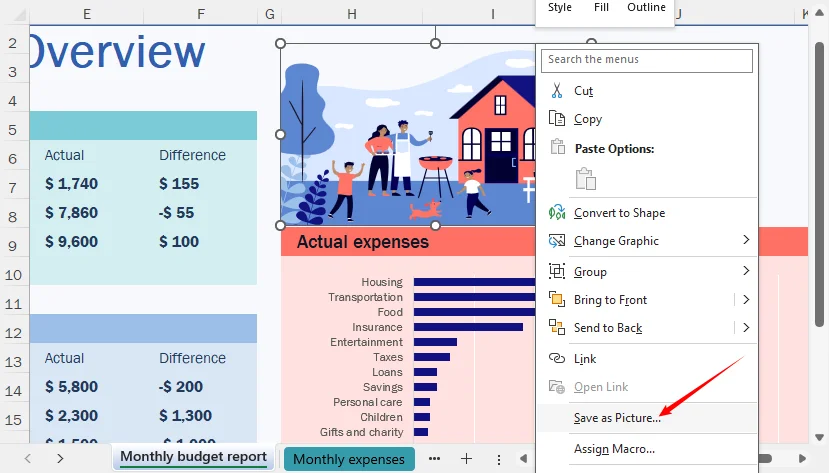
- Clique com o botão direito no objeto gráfico selecionado.
- Escolha Salvar como Imagem no menu suspenso.
- Na janela de salvamento, selecione o formato de arquivo desejado (PNG, JPEG, BMP, GIF).
- Nomeie o arquivo de imagem, escolha uma pasta de salvamento e clique em Salvar.
Limitação: Você só pode exportar um objeto por vez, e a imagem exportada captura apenas o objeto selecionado, não as células ao redor.
LEIA TAMBÉM: Converter Excel para PNG: 4 Métodos Fáceis (Soluções Gratuitas e em Lote)
2. Exportar Intervalos de Células como Imagens (Copiar como Imagem)
Muitos usuários desejam salvar uma tabela inteira, um intervalo de dados ou uma seleção personalizada de células como uma imagem, em vez de apenas imagens isoladas. A função integrada do Excel Copiar como Imagem atende exatamente a esse requisito.
Como usar Copiar como Imagem:
- Clique e arraste para selecionar o intervalo exato de células que deseja converter em imagem.
- Navegue até a guia Página Inicial na faixa de opções superior.
- Clique na pequena seta suspensa abaixo do botão Copiar.
- Selecione Copiar como Imagem.

- Uma janela pop-up de configuração aparecerá:
- Selecione Como mostrado na tela para pré-visualizações de uso digital
- Selecione Como mostrado quando impresso para renderização de layout otimizada para impressão
- Defina o formato como Imagem
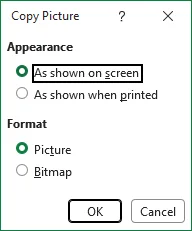
- Clique em OK e cole (Ctrl+V) a imagem no Paint, Word ou PowerPoint.
- Clique com o botão direito na imagem colada e selecione Salvar como Imagem para exportá-la como PNG, JPG ou outro formato.
Alternativa: Se você não vir “Copiar como Imagem”, copie o intervalo normalmente e use Colar Especial > Imagem/Imagem (Metarquivo Aprimorado) no Word ou PowerPoint.
3. Exportar Todas as Imagens via "Salvar como HTML" (Lote, Sem Código)
Quando você tem várias imagens incorporadas em um arquivo Excel, salvar cada uma manualmente é impraticável. Uma solução alternativa inteligente é salvar a pasta de trabalho como um arquivo HTML. O Excel extrai automaticamente todas as imagens incorporadas para uma pasta complementar.
Etapas:
- Abra seu arquivo Excel de origem e vá para Arquivo > Salvar Como.
- No menu suspenso "Salvar como tipo", selecione Página da Web (.htm; .html).
- Escolha um local e clique em Salvar.
- Navegue até a pasta salva. Você verá um arquivo HTML e uma pasta complementar chamada “
_[FileName]_files”. - Abra a pasta. Todas as imagens incorporadas do Excel serão exportadas como arquivos PNG/JPG individuais. Você também pode ver arquivos de suporte como “filelist.xml”, “stylesheet.css”, “tabstrip.htm” e “sheet001.htm”.
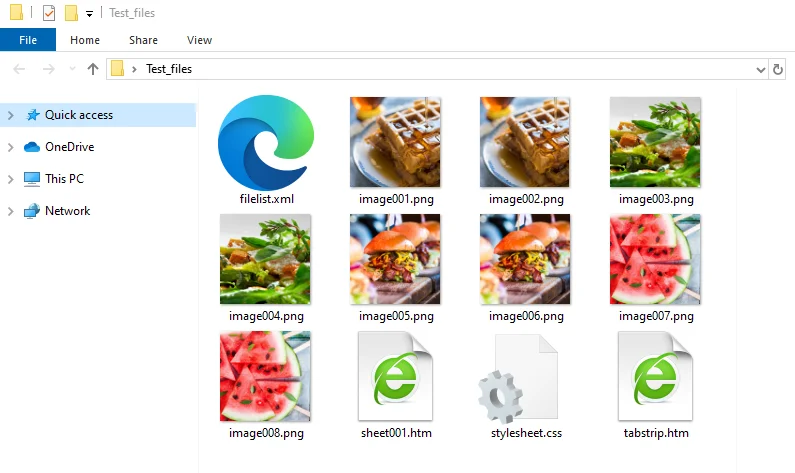
Advertências importantes: Imagens inseridas como objetos (por exemplo, objetos OLE incorporados ou certas imagens vinculadas) podem não ser extraídas dessa forma. Se algumas imagens estiverem faltando após a exportação para HTML, provavelmente foram incorporadas como objetos em vez de imagens.
4. Extrair Imagens do Excel Usando Python (Totalmente Automatizado)
Se você precisa extrair imagens sem abrir o Excel — por exemplo, em um pipeline de automação do lado do servidor — Python é uma excelente escolha. A biblioteca Free Spire.XLS for Python pode ler arquivos .xls/.xlsx e acessar imagens incorporadas.
Código Python para Extrair Todas as Imagens de uma Planilha
Este script percorre cada objeto de imagem e salva cada imagem como um arquivo PNG automaticamente.
from spire.xls import *
from spire.xls.common import *

# Create a Workbook instance
workbook = Workbook()

# Load an Excel file
workbook.LoadFromFile("Test.xlsx")

# Get the first worksheet
sheet = workbook.Worksheets[0]

os.makedirs("ExtractImages", exist_ok=True)

# Get all images in the worksheet
for i in range(sheet.Pictures.Count):
    pic = sheet.Pictures[i]
    pic.Picture.Save(os.path.join("ExtractImages", f"Image-{i}.png"))

workbook.Dispose()
Como funciona
sheet.Picturesobtém uma coleção de todas as imagens na planilha.pic.Picture.Save()grava a imagem no disco.- O formato de saída é determinado pela extensão do arquivo no caminho de salvamento. Para salvar em outro formato, altere a extensão para
.jpg,.bmp, etc.
Resultado:
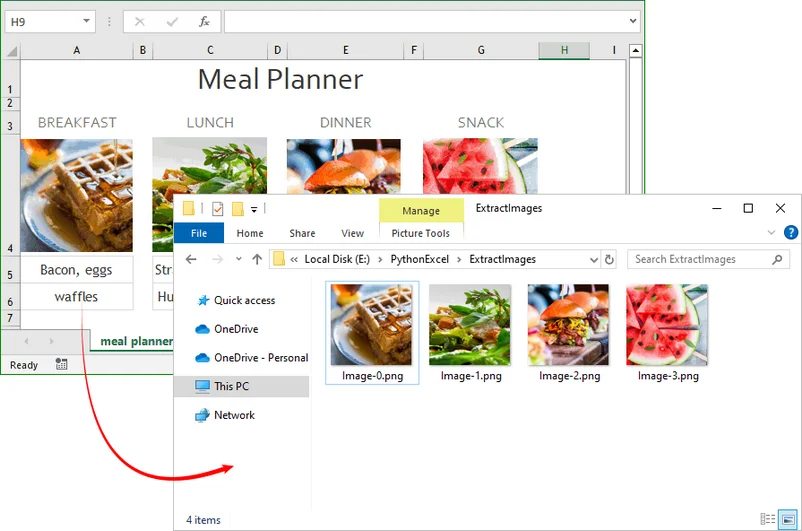
Principais benefícios desta abordagem em Python
- Totalmente automatizado, sem cliques manuais
- Funciona para processamento em lote de dezenas ou centenas de arquivos Excel
- Integra-se a scripts Python, pipelines de dados e fluxos de trabalho de backend
- Preserva a qualidade original da imagem ao exportar
Dica Profissional: Em vez de extrair imagens do Excel, o Free Spire.XLS também permite que você exporte um intervalo específico de células para uma imagem em Python.
5. Extratores de Imagens Online (Sem Necessidade de Instalação)
Se você prefere não instalar software ou escrever código, várias ferramentas online gratuitas podem extrair imagens de arquivos Excel. Elas não exigem configuração e funcionam em qualquer navegador.
Etapas gerais:
- Pesquise e selecione um extrator de imagens do Excel online confiável em seu navegador.
- Faça o upload do seu arquivo Excel (.xlsx, .xls, etc.).
- O serviço analisa a pasta de trabalho e extrai as imagens incorporadas.
- Baixe os resultados como um arquivo ZIP.
Um exemplo de uso do GroupDocs:
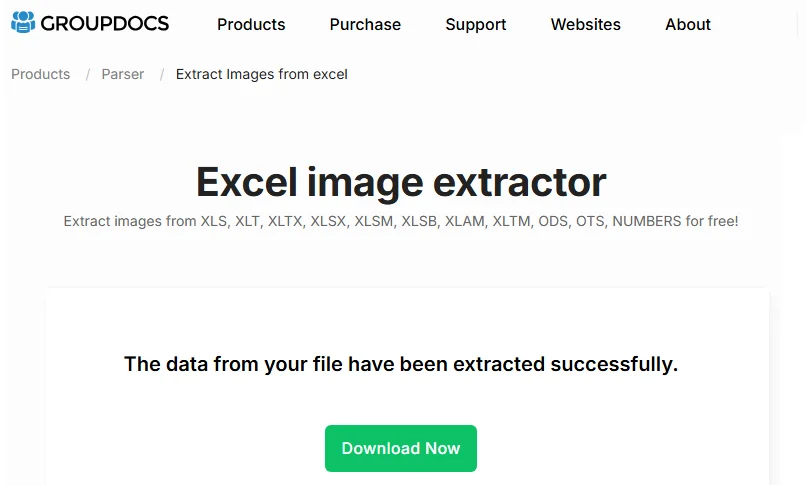
Consideração de Segurança: Você está enviando seu arquivo para um servidor de terceiros, o que pode ser uma preocupação para dados sensíveis ou proprietários.
Melhores Formatos de Arquivo para Imagens Exportadas do Excel
Escolher o formato certo garante qualidade ideal e tamanho de arquivo para seu caso de uso.
| Formato | Melhor Para | Principais Recursos | Quando Evitar |
|---|---|---|---|
| PNG | Gráficos, logotipos, diagramas | Suporta transparência, bordas nítidas, sem perda de qualidade | Fotos grandes onde o tamanho do arquivo importa |
| JPG | Fotos, grandes galerias de imagens | Tamanho de arquivo pequeno, perfeito para compartilhamento na web | Imagens que precisam de transparência ou texto nítido |
| EMF | Impressão profissional, redimensionamento | Formato vetorial, sem pixelização ao redimensionar | Uso na web onde a compatibilidade importa |
| BMP | Edição não compactada | Alta qualidade, sem artefatos de compressão | Compartilhamento na web devido ao tamanho grande do arquivo |
| GIF | Gráficos simples, animações | Tamanho pequeno, suporta transparência | Fotos ou gradientes |
Considerações Finais
Exportar imagens do Excel é mais sobre adequar o método à sua carga de trabalho. Para uma exportação rápida e pontual, Salvar como Imagem ou Copiar como Imagem é o mais rápido. Para extração em massa sem código, Salvar como HTML é uma solução alternativa confiável. Para automação, processamento do lado do servidor ou grandes lotes, Python com Free Spire.XLS oferece a solução mais escalável e repetível. Extratores online podem ser convenientes, mas só devem ser usados quando a privacidade dos dados não for uma preocupação.
Qualquer que seja a abordagem escolhida, evite capturas de tela se a qualidade for importante. Métodos de exportação nativos preservam a resolução original, as dimensões e a transparência dos visuais incorporados. Combine isso com o formato de arquivo certo — PNG para gráficos e logotipos, JPG para fotos, EMF para redimensionamento pronto para impressão — e você pode transformar qualquer pasta de trabalho do Excel em uma fonte limpa e reutilizável de imagens de alta qualidade.
Perguntas Frequentes (FAQs)
P: Posso exportar todas as imagens do Excel de uma só vez?
R: Sim. Use o método Salvar como Página da Web para exportação em massa manual rápida, ou use o script Python Spire.XLS se precisar automatizar a tarefa para muitos arquivos. Para uma opção sem instalação, experimente um extrator online confiável.
P: O Excel tem um botão integrado "Exportar Todas as Imagens"?
R: Não. O Excel não fornece um recurso de exportação em lote com um clique. A opção integrada mais próxima é salvar como HTML, que extrai as imagens incorporadas.
P: Como exporto uma imagem com fundo transparente?
R: Para gráficos, defina o preenchimento da área do gráfico como Sem Preenchimento. Para formas, remova o preenchimento. Em seguida, salve como PNG. Para imagens incorporadas, a transparência é preservada se a imagem original a possuía.
P: As imagens exportadas perderão qualidade quando eu as salvar do Excel?
R: Se você usar métodos de exportação nativos em vez de capturas de tela, a resolução original da imagem incorporada será preservada. Capturas de tela degradam a qualidade. Para redimensionar após a exportação, escolha o formato vetorial EMF para evitar pixelização.
Veja Também
- Salvar Gráficos do Excel como Imagens (JPG/PNG) – Manual, VBA e C#
- Como Salvar uma Tabela do Excel como Imagem: Guia Completo para Todo Usuário
- Como Ocultar Linhas de Grade no Excel (Visualizar, Imprimir e Exportar PDF)
- Python: Inserir ou Excluir Imagens no Excel
- Como Extrair Imagem de uma Planilha do Excel em C#, VB.NET
Excel에서 이미지 내보내기: 수동, 일괄 및 Python 가이드
Excel은 주로 숫자와 표를 위해 만들어진 프로그램이지만, 이미지, 차트, 로고, 제품 사진 등을 담는 놀랍도록 흔한 컨테이너이기도 합니다. 임베디드 그래픽으로 가득 찬 통합 문서를 물려받았든, 차트로 채워진 대시보드를 직접 만들었든, Excel에서 이미지를 내보내는 방법을 아는 것은 필수적인 기술입니다.
이 가이드에서는 Excel에서 이미지를 추출하는 실용적인 방법을 안내합니다. 일회성 내보내기를 위한 빠른 수동 요령, 대량 추출을 위한 코드 없는 배치 워크플로, 대규모 처리를 위한 자동화된 Python 솔루션을 배우게 됩니다. 단일 차트 스냅샷만 필요하든 전체 통합 문서의 모든 그래픽을 추출하고 싶든, 여러분에게 맞는 솔루션이 있습니다.
- 1. 단일 이미지/차트 직접 내보내기 (가장 빠른 방법)
- 2. 셀 범위를 이미지로 내보내기 (그림으로 복사)
- 3. "HTML로 저장"을 통해 모든 이미지 내보내기 (배치, 코드 없음)
- 4. Python을 사용하여 Excel에서 이미지 추출하기 (완전 자동화)
- 5. 온라인 이미지 추출기 (설치 필요 없음)
적절한 이미지 내보내기가 중요한 이유
스크린샷을 찍는 것은 Excel에서 이미지를 캡처하는 가장 쉬운 방법이지만, 흐릿한 해상도, 왜곡된 비율, 원치 않는 배경 요소 등이 발생하는 경우가 많습니다. 적절한 Excel 이미지 내보내기를 사용하면 올바른 크기, 선명한 가장자리, PNG, JPG, EMF와 같은 표준 파일 형식을 갖춘 원본 품질의 이미지를 얻을 수 있습니다.
일반적인 실제 사용 사례는 다음과 같습니다:
- 프레젠테이션, 블로그 또는 소셜 미디어 게시물을 위해 Excel 차트 저장하기
- 재고 스프레드시트에서 제품 이미지 추출하기
- 고객 보고서를 위한 표 미리보기 내보내기
- 레거시 Excel 파일에서 임베디드 다이어그램 및 로고 보관하기
- 고해상도 인쇄용 시각 자료 만들기
1. 단일 이미지/차트 직접 내보내기 (가장 빠른 방법)
Excel 워크시트에서 하나 또는 몇 개의 개별 이미지나 차트만 내보내면 되는 경우 이 방법을 사용하세요. 모든 임베디드 그림, 도형 및 차트에 사용할 수 있으며 개체당 10초도 걸리지 않습니다.
단계별 지침:
- Excel 스프레드시트를 열고 내보내려는 이미지, 차트 또는 도형을 클릭하여 선택합니다.
- 선택한 그래픽 개체를 마우스 오른쪽 버튼으로 클릭합니다.
- 드롭다운 메뉴에서 그림으로 저장을 선택합니다.
- 저장 창에서 원하는 파일 형식(PNG, JPEG, BMP, GIF)을 선택합니다.
- 이미지 파일의 이름을 지정하고 저장 폴더를 선택한 후 저장을 클릭합니다.
제한 사항: 한 번에 하나의 개체만 내보낼 수 있으며, 내보낸 이미지는 주변 셀이 아닌 선택한 개체만 캡처합니다.
함께 읽기: Excel을 PNG로 변환: 4가지 쉬운 방법 (무료 및 배치 솔루션)
2. 셀 범위를 이미지로 내보내기 (그림으로 복사)
많은 사용자는 독립적인 그림뿐만 아니라 전체 표, 데이터 범위 또는 사용자 지정 셀 선택 영역을 이미지로 저장하기를 원합니다. Excel에 내장된 그림으로 복사 기능은 바로 이 요구 사항을 해결합니다.
그림으로 복사 사용 방법:
- 이미지로 변환하려는 정확한 셀 범위를 클릭하고 드래그하여 선택합니다.
- 상단 리본의 홈 탭으로 이동합니다.
- 복사 버튼 아래의 작은 드롭다운 화살표를 클릭합니다.
- 그림으로 복사를 선택합니다.
- 구성 팝업 창이 나타납니다:
- 디지털용 미리보기에는 화면에 표시된 대로를 선택하세요
- 인쇄에 최적화된 레이아웃 렌더링에는 인쇄할 때 표시된 대로를 선택하세요
- 형식을 그림으로 설정합니다
- 확인을 클릭한 다음 이미지를 그림판, Word 또는 PowerPoint에 붙여넣습니다(Ctrl+V).
- 붙여넣은 이미지를 마우스 오른쪽 버튼으로 클릭하고 그림으로 저장을 선택하여 PNG, JPG 또는 다른 형식으로 내보냅니다.
대안: "그림으로 복사"가 표시되지 않으면 범위를 일반적으로 복사한 다음 Word 또는 PowerPoint에서 선택하여 붙여넣기 > 그림/그림(향상된 메타파일)을 사용하세요.
3. "HTML로 저장"을 통해 모든 이미지 내보내기 (배치, 코드 없음)
Excel 파일에 여러 이미지가 임베디드되어 있는 경우, 각각을 수동으로 저장하는 것은 비현실적입니다. 영리한 해결 방법은 통합 문서를 HTML 파일로 저장하는 것입니다. Excel은 자동으로 모든 임베디드 이미지를 동반 폴더로 추출합니다.
단계:
- 원본 Excel 파일을 열고 파일 > 다른 이름으로 저장으로 이동합니다.
- "파일 형식" 드롭다운에서 웹 페이지 (.htm; .html)를 선택합니다.
- 위치를 선택하고 저장을 클릭합니다.
- 저장된 폴더로 이동합니다. HTML 파일과 "
_[FileName]_files"라는 이름의 동반 폴더가 표시됩니다. - 폴더를 엽니다. 모든 임베디드 Excel 이미지가 개별 PNG/JPG 파일로 내보내집니다. "filelist.xml", "stylesheet.css", "tabstrip.htm", "sheet001.htm"과 같은 지원 파일도 볼 수 있습니다.
중요한 주의 사항: 개체로 삽입된 이미지(예: 임베디드 OLE 개체 또는 특정 연결된 이미지)는 이 방법으로 추출되지 않을 수 있습니다. HTML 내보내기 후 일부 이미지가 누락된 경우, 그림이 아닌 개체로 임베디드되었을 가능성이 높습니다.
4. Python을 사용하여 Excel에서 이미지 추출하기 (완전 자동화)
Excel을 열지 않고 이미지를 추출해야 하는 경우(예: 서버 측 자동화 파이프라인) Python이 탁월한 선택입니다. 무료 Spire.XLS for Python 라이브러리는 .xls/.xlsx 파일을 모두 읽고 임베디드 이미지에 액세스할 수 있습니다.
워크시트에서 모든 이미지를 추출하는 Python 코드
이 스크립트는 모든 그림 개체를 반복하면서 각 이미지를 PNG 파일로 자동 저장합니다.
from spire.xls import *
from spire.xls.common import *

# Create a Workbook instance
workbook = Workbook()

# Load an Excel file
workbook.LoadFromFile("Test.xlsx")

# Get the first worksheet
sheet = workbook.Worksheets[0]

os.makedirs("ExtractImages", exist_ok=True)

# Get all images in the worksheet
for i in range(sheet.Pictures.Count):
    pic = sheet.Pictures[i]
    pic.Picture.Save(os.path.join("ExtractImages", f"Image-{i}.png"))

workbook.Dispose()
작동 방식
sheet.Pictures는 워크시트의 모든 그림 컬렉션을 가져옵니다.pic.Picture.Save()는 이미지를 디스크에 씁니다.- 출력 형식은 저장 경로의 파일 확장자에 의해 결정됩니다. 다른 형식으로 저장하려면 확장자를
.jpg,.bmp등으로 변경하세요.
결과:
이 Python 접근 방식의 주요 이점
- 완전 자동화, 수동 클릭 불필요
- 수십 또는 수백 개의 Excel 파일을 대량 처리하는 데 적합
- Python 스크립트, 데이터 파이프라인 및 백엔드 워크플로에 통합 가능
- 내보낼 때 원본 이미지 품질 유지
프로 팁: Free Spire.XLS는 Excel에서 그림을 추출하는 대신 Python에서 특정 셀 범위를 이미지로 내보내는 것도 허용합니다.
5. 온라인 이미지 추출기 (설치 필요 없음)
소프트웨어를 설치하거나 코드를 작성하지 않으려면, 여러 무료 온라인 도구가 Excel 파일에서 이미지를 추출할 수 있습니다. 설정이 전혀 필요 없으며 모든 브라우저에서 작동합니다.
일반적인 단계:
- 브라우저에서 신뢰할 수 있는 온라인 Excel 이미지 추출기를 검색하여 선택합니다.
- Excel 파일(.xlsx, .xls 등)을 업로드합니다.
- 서비스가 통합 문서를 구문 분석하고 임베디드 이미지를 추출합니다.
- 결과를 ZIP 파일로 다운로드합니다.
GroupDocs 사용 예시:
보안 고려 사항: 파일을 타사 서버에 업로드하는 것이므로, 민감하거나 독점적인 데이터의 경우 문제가 될 수 있습니다.
내보낸 Excel 이미지에 가장 적합한 파일 형식
올바른 형식을 선택하면 사용 사례에 맞는 최적의 품질과 파일 크기를 보장할 수 있습니다.
| 형식 | 최적 용도 | 주요 기능 | 피해야 할 때 |
|---|---|---|---|
| PNG | 차트, 로고, 다이어그램 | 투명도 지원, 선명한 가장자리, 품질 손실 없음 | 파일 크기가 중요한 대형 사진 |
| JPG | 사진, 대형 이미지 갤러리 | 작은 파일 크기, 웹 공유에 완벽 | 투명도 또는 선명한 텍스트가 필요한 이미지 |
| EMF | 전문 인쇄, 크기 조정 | 벡터 형식, 확대해도 픽셀화 없음 | 호환성이 중요한 웹 사용 |
| BMP | 비압축 편집 | 고품질, 압축 아티팩트 없음 | 큰 파일 크기로 인한 웹 공유 |
| GIF | 단순 그래픽, 애니메이션 | 작은 크기, 투명도 지원 | 사진 또는 그라데이션 |
마무리 생각
Excel에서 이미지를 내보내는 것은 작업량에 맞게 방법을 선택하는 것이 중요합니다. 빠른 일회성 내보내기에는 그림으로 저장 또는 그림으로 복사가 가장 빠릅니다. 코드 없이 대량 추출하려면 HTML로 저장이 안정적인 해결 방법입니다. 자동화, 서버 측 처리 또는 대규모 배치에는 Free Spire.XLS가 포함된 Python이 가장 확장 가능하고 반복 가능한 솔루션을 제공합니다. 온라인 추출기는 편리할 수 있지만, 데이터 개인 정보 보호가 중요하지 않은 경우에만 사용해야 합니다.
어떤 접근 방식을 선택하든 품질이 중요하다면 스크린샷은 피하세요. 네이티브 내보내기 방법은 임베디드 시각 자료의 원본 해상도, 크기 및 투명도를 보존합니다. 여기에 올바른 파일 형식(차트와 로고에는 PNG, 사진에는 JPG, 인쇄용 크기 조정에는 EMF)을 결합하면 모든 Excel 통합 문서를 고품질 이미지의 깔끔하고 재사용 가능한 소스로 바꿀 수 있습니다.
자주 묻는 질문 (FAQs)
Q: Excel에서 모든 이미지를 한 번에 내보낼 수 있나요?
A: 네. 빠른 수동 대량 내보내기에는 웹 페이지로 저장 방법을 사용하거나, 여러 파일에 대해 작업을 자동화해야 하는 경우 Python Spire.XLS 스크립트를 사용하세요. 설치 없는 옵션을 원한다면 신뢰할 수 있는 온라인 추출기를 시도해 보세요.
Q: Excel에 내장된 "모든 이미지 내보내기" 버튼이 있나요?
A: 아니요. Excel은 원클릭 배치 내보내기 기능을 제공하지 않습니다. 가장 가까운 내장 옵션은 HTML로 저장하는 것으로, 임베디드 그림을 추출합니다.
Q: 투명한 배경의 이미지를 내보내려면 어떻게 해야 하나요?
A: 차트의 경우 차트 영역 채우기를 채우기 없음으로 설정하세요. 도형의 경우 채우기를 제거하세요. 그런 다음 PNG로 저장합니다. 임베디드 그림의 경우 원본 이미지에 투명도가 있었다면 그대로 유지됩니다.
Q: Excel에서 저장할 때 내보낸 이미지의 품질이 떨어지나요?
A: 스크린샷 대신 네이티브 내보내기 방법을 사용하면 원본 임베디드 이미지 해상도가 유지됩니다. 스크린샷은 품질을 저하시킵니다. 내보낸 후 크기를 조정하려면 픽셀화를 방지하기 위해 벡터 EMF 형식을 선택하세요.
함께 보기
Esportare immagini da Excel: guida manuale, in batch e con Python
Indice dei contenuti
- Perché una corretta esportazione delle immagini è importante
- Esportare singole immagini/grafici direttamente
- Esportare intervalli di celle come immagini
- Esportare tutte le immagini tramite "Salva come HTML"
- Estrarre immagini da Excel usando Python
- Estrattori di immagini online
- I migliori formati di file per le immagini esportate da Excel
- Domande frequenti (FAQ)
Sebbene Excel sia principalmente progettato per numeri e tabelle, è anche un contenitore sorprendentemente comune di immagini, grafici, loghi e foto di prodotti. Che tu abbia ereditato una cartella di lavoro piena di grafica incorporata o abbia creato una dashboard ricca di grafici, sapere come esportare immagini da Excel è una competenza essenziale.
In questa guida, ti illustriamo modi pratici per estrarre immagini da Excel. Imparerai trucchi manuali rapidi per esportazioni occasionali, flussi di lavoro batch senza codice per l'estrazione in blocco e soluzioni Python automatizzate per l'elaborazione su larga scala. Che tu abbia bisogno solo di un singolo snapshot di un grafico o voglia estrarre ogni elemento grafico da un'intera cartella di lavoro, esiste una soluzione per te.
- 1. Esportare singole immagini/grafici direttamente (metodo più rapido)
- 2. Esportare intervalli di celle come immagini (Copia come immagine)
- 3. Esportare tutte le immagini tramite "Salva come HTML" (in blocco, senza codice)
- 4. Estrarre immagini da Excel usando Python (completamente automatizzato)
- 5. Estrattori di immagini online (nessuna installazione richiesta)
Perché una corretta esportazione delle immagini è importante
Scattare screenshot è il modo più semplice per catturare un'immagine da Excel, ma spesso porta a risoluzioni sfocate, proporzioni distorte e elementi di sfondo indesiderati. Una corretta esportazione delle immagini da Excel ti offre immagini di qualità originale con dimensioni corrette, bordi nitidi e formati di file standard come PNG, JPG ed EMF.
Gli scenari tipici del mondo reale includono:
- Salvare grafici Excel per presentazioni, blog o post sui social media
- Estrarre immagini di prodotti da fogli di calcolo di inventario
- Esportare anteprime di tabelle per report destinati ai clienti
- Archiviare diagrammi e loghi incorporati da vecchi file Excel
- Creare elementi visivi ad alta risoluzione pronti per la stampa
1. Esportare singole immagini/grafici direttamente (metodo più rapido)
Usa questo metodo se devi esportare solo una o poche singole immagini o grafici dal tuo foglio di lavoro Excel. Funziona per tutte le immagini, forme e grafici incorporati e richiede meno di 10 secondi per elemento.
Istruzioni passo dopo passo:
- Apri il tuo foglio di calcolo Excel e fai clic per selezionare l'immagine, il grafico o la forma che desideri esportare.
- Fai clic con il pulsante destro del mouse sull'oggetto grafico selezionato.
- Scegli Salva come immagine dal menu a discesa.
- Nella finestra di salvataggio, seleziona il formato di file preferito (PNG, JPEG, BMP, GIF).
- Assegna un nome al file immagine, scegli una cartella di destinazione e fai clic su Salva.
Limitazione: puoi esportare solo un oggetto alla volta e l'immagine esportata cattura solo l'oggetto selezionato, non le celle circostanti.
LEGGI ANCHE: Convertire Excel in PNG: 4 metodi semplici (soluzioni gratuite e in blocco)
2. Esportare intervalli di celle come immagini (Copia come immagine)
Molti utenti vogliono salvare un'intera tabella, un intervallo di dati o una selezione personalizzata di celle come immagine, non solo immagini isolate. La funzione integrata di Excel Copia come immagine risponde proprio a questa esigenza.
Come usare Copia come immagine:
- Fai clic e trascina per selezionare l'intervallo di celle esatto che desideri convertire in un'immagine.
- Vai alla scheda Home nella barra multifunzione in alto.
- Fai clic sulla piccola freccia a discesa sotto il pulsante Copia.
- Seleziona Copia come immagine.
- Apparirà una finestra pop-up di configurazione:
- Seleziona Come mostrato sullo schermo per anteprime ad uso digitale
- Seleziona Come mostrato in fase di stampa per il rendering di un layout ottimizzato per la stampa
- Imposta il formato su Immagine
- Fai clic su OK, quindi incolla (Ctrl+V) l'immagine in Paint, Word o PowerPoint.
- Fai clic con il pulsante destro del mouse sull'immagine incollata e seleziona Salva come immagine per esportarla come PNG, JPG o un altro formato.
Alternativa: se non vedi "Copia come immagine", copia l'intervallo normalmente, quindi usa Incolla speciale > Immagine/Immagine (Metafile avanzato) in Word o PowerPoint.
3. Esportare tutte le immagini tramite "Salva come HTML" (in blocco, senza codice)
Quando hai più immagini incorporate in un file Excel, salvarle manualmente una per una non è pratico. Una soluzione ingegnosa è salvare la cartella di lavoro come file HTML. Excel estrae automaticamente tutte le immagini incorporate in una cartella di accompagnamento.
Passaggi:
- Apri il tuo file Excel di origine e vai su File > Salva con nome.
- Nel menu a discesa "Salva come tipo", seleziona Pagina Web (.htm; .html).
- Scegli una posizione e fai clic su Salva.
- Vai alla cartella salvata. Vedrai un file HTML e una cartella di accompagnamento denominata "
_[FileName]_files". - Apri la cartella. Tutte le immagini Excel incorporate saranno esportate come singoli file PNG/JPG. Potresti anche vedere file di supporto come "filelist.xml", "stylesheet.css", "tabstrip.htm" e "sheet001.htm".
Avvertenze importanti: le immagini inserite come oggetti (ad esempio, oggetti OLE incorporati o determinate immagini collegate) potrebbero non essere estratte in questo modo. Se alcune immagini mancano dopo l'esportazione HTML, probabilmente erano incorporate come oggetti anziché come immagini.
4. Estrarre immagini da Excel usando Python (completamente automatizzato)
Se devi estrarre immagini senza aprire Excel — ad esempio, in una pipeline di automazione lato server — Python è una scelta eccellente. La libreria Free Spire.XLS per Python può leggere sia file .xls/.xlsx sia accedere alle immagini incorporate.
Codice Python per estrarre tutte le immagini da un foglio di lavoro
Questo script scorre ogni oggetto immagine e salva automaticamente ciascuna immagine come file PNG.
from spire.xls import *
from spire.xls.common import *

# Create a Workbook instance
workbook = Workbook()

# Load an Excel file
workbook.LoadFromFile("Test.xlsx")

# Get the first worksheet
sheet = workbook.Worksheets[0]

os.makedirs("ExtractImages", exist_ok=True)

# Get all images in the worksheet
for i in range(sheet.Pictures.Count):
    pic = sheet.Pictures[i]
    pic.Picture.Save(os.path.join("ExtractImages", f"Image-{i}.png"))

workbook.Dispose()
Come funziona
sheet.Picturesottiene una raccolta di tutte le immagini nel foglio di lavoro.pic.Picture.Save()scrive l'immagine su disco.- Il formato di output è determinato dall'estensione del file nel percorso di salvataggio. Per salvare in un altro formato, cambia l'estensione in
.jpg,.bmp, ecc.
Risultato:
Vantaggi principali di questo approccio Python
- Completamente automatizzato, nessun clic manuale
- Funziona per l'elaborazione in blocco di decine o centinaia di file Excel
- Si integra in script Python, pipeline di dati e flussi di lavoro backend
- Preserva la qualità originale delle immagini durante l'esportazione
Suggerimento professionale: invece di estrarre immagini da Excel, Free Spire.XLS ti consente anche di esportare un intervallo di celle specifico come immagine in Python.
5. Estrattori di immagini online (nessuna installazione richiesta)
Se preferisci non installare software o scrivere codice, diversi strumenti online gratuiti possono estrarre immagini da file Excel. Non richiedono alcuna configurazione e funzionano in qualsiasi browser.
Passaggi generali:
- Cerca e seleziona nel tuo browser un estrattore di immagini Excel online affidabile.
- Carica il tuo file Excel (.xlsx, .xls, ecc.).
- Il servizio analizza la cartella di lavoro ed estrae le immagini incorporate.
- Scarica i risultati come file ZIP.
Un esempio di utilizzo di GroupDocs:
Considerazione sulla sicurezza: stai caricando il tuo file su un server di terze parti, il che potrebbe rappresentare un problema per dati sensibili o proprietari.
I migliori formati di file per le immagini esportate da Excel
Scegliere il formato giusto garantisce qualità e dimensioni del file ottimali per il tuo caso d'uso.
| Formato | Ideale per | Caratteristiche principali | Quando evitarlo |
|---|---|---|---|
| PNG | Grafici, loghi, diagrammi | Supporta la trasparenza, bordi nitidi, nessuna perdita di qualità | Foto di grandi dimensioni dove le dimensioni del file contano |
| JPG | Foto, grandi gallerie di immagini | Dimensioni file ridotte, perfetto per la condivisione sul web | Immagini che richiedono trasparenza o testo nitido |
| EMF | Stampa professionale, ridimensionamento | Formato vettoriale, nessuna pixelizzazione quando viene scalato | Uso sul web dove la compatibilità è importante |
| BMP | Modifica non compressa | Alta qualità, nessun artefatto di compressione | Condivisione sul web a causa delle dimensioni elevate del file |
| GIF | Grafica semplice, animazioni | Dimensioni ridotte, supporta la trasparenza | Foto o sfumature |
Considerazioni finali
Esportare immagini da Excel riguarda più che altro l'abbinare il metodo al proprio carico di lavoro. Per un'esportazione occasionale rapida, Salva come immagine o Copia come immagine sono i più veloci. Per l'estrazione in blocco senza codice, Salva come HTML è una soluzione affidabile. Per l'automazione, l'elaborazione lato server o grandi lotti, Python con Free Spire.XLS offre la soluzione più scalabile e ripetibile. Gli estrattori online possono essere comodi, ma dovrebbero essere usati solo quando la privacy dei dati non è una preoccupazione.
Qualunque approccio tu scelga, evita gli screenshot se la qualità è importante. I metodi di esportazione nativi preservano la risoluzione originale, le dimensioni e la trasparenza degli elementi visivi incorporati. Abbinali al formato di file giusto—PNG per grafici e loghi, JPG per foto, EMF per ridimensionamenti pronti per la stampa—e potrai trasformare qualsiasi cartella di lavoro Excel in una fonte pulita e riutilizzabile di immagini di alta qualità.
Domande frequenti (FAQ)
D: Posso esportare tutte le immagini da Excel contemporaneamente?
R: Sì. Usa il metodo Salva come pagina Web per un'esportazione manuale in blocco rapida, oppure usa lo script Python Spire.XLS se devi automatizzare l'attività per molti file. Per un'opzione senza installazione, prova un estrattore online affidabile.
D: Excel ha un pulsante integrato "Esporta tutte le immagini"?
R: No. Excel non fornisce una funzione di esportazione in blocco con un solo clic. L'opzione integrata più vicina è il salvataggio come HTML, che estrae le immagini incorporate.
D: Come faccio a esportare un'immagine con sfondo trasparente?
R: Per i grafici, imposta il riempimento dell'area del grafico su Nessun riempimento. Per le forme, rimuovi il riempimento. Poi salva come PNG. Per le immagini incorporate, la trasparenza viene preservata se l'immagine originale la possedeva.
D: Le immagini esportate perderanno qualità quando le salvo da Excel?
R: Se usi metodi di esportazione nativi invece degli screenshot, la risoluzione originale dell'immagine incorporata viene preservata. Gli screenshot degradano la qualità. Per il ridimensionamento dopo l'esportazione, scegli il formato vettoriale EMF per evitare la pixelizzazione.
Vedi anche
- Salvare grafici Excel come immagini (JPG/PNG) – Manuale, VBA e C#
- Come salvare una tabella Excel come immagine: guida completa per ogni utente
- Come nascondere le linee della griglia in Excel (Visualizzazione, Stampa ed Esportazione PDF)
- Python: Inserire o eliminare immagini in Excel
- Come estrarre un'immagine da un foglio di lavoro Excel in C#, VB.NET
Exporter des images depuis Excel : guide manuel, par lots et avec Python
Table des matières
- Pourquoi une exportation d'images correcte est importante
- Exporter directement des images/graphiques individuels
- Exporter des plages de cellules sous forme d'images
- Exporter toutes les images via « Enregistrer au format HTML »
- Extraire des images d'Excel avec Python
- Extracteurs d'images en ligne
- Meilleurs formats de fichier pour les images Excel exportées
- Foire aux questions (FAQ)
Bien qu'Excel soit principalement conçu pour les nombres et les tableaux, c'est aussi un conteneur étonnamment courant pour les images, les graphiques, les logos et les photos de produits. Que vous ayez hérité d'un classeur rempli de graphiques intégrés ou que vous ayez créé un tableau de bord rempli de graphiques, savoir comment exporter des images depuis Excel est une compétence essentielle.
Dans ce guide, nous vous présentons des méthodes pratiques pour extraire des images d'Excel. Vous apprendrez des astuces manuelles rapides pour des exportations ponctuelles, des flux de travail par lots sans code pour l'extraction en masse, et des solutions Python automatisées pour le traitement à grande échelle. Que vous ayez besoin d'un instantané d'un seul graphique ou que vous souhaitiez décompresser tous les graphiques d'un classeur entier, il existe une solution pour vous.
- 1. Exporter directement des images/graphiques individuels (méthode la plus rapide)
- 2. Exporter des plages de cellules sous forme d'images (Copier comme image)
- 3. Exporter toutes les images via « Enregistrer au format HTML » (par lots, sans code)
- 4. Extraire des images d'Excel avec Python (entièrement automatisé)
- 5. Extracteurs d'images en ligne (aucune installation requise)
Pourquoi une exportation d'images correcte est importante
La capture d'écran est le moyen le plus simple de capturer une image depuis Excel, mais elle conduit souvent à une résolution floue, des proportions déformées et des éléments d'arrière-plan indésirables. Une exportation d'images Excel correcte vous donne des images de qualité originale avec des dimensions correctes, des bords nets et des formats de fichier standard tels que PNG, JPG et EMF.
Les scénarios typiques du monde réel incluent :
- Enregistrer des graphiques Excel pour des présentations, des blogs ou des publications sur les réseaux sociaux
- Extraire des images de produits à partir de feuilles de calcul d'inventaire
- Exporter des aperçus de tableaux pour des rapports clients
- Archiver des diagrammes et des logos intégrés à partir d'anciens fichiers Excel
- Créer des visuels haute résolution prêts à imprimer
1. Exporter directement des images/graphiques individuels (méthode la plus rapide)
Utilisez cette méthode si vous devez exporter une ou quelques images ou graphiques individuels de votre feuille de calcul Excel. Elle fonctionne pour toutes les images, formes et graphiques intégrés et prend moins de 10 secondes par élément.
Instructions étape par étape :
- Ouvrez votre feuille de calcul Excel et cliquez pour sélectionner l'image, le graphique ou la forme que vous souhaitez exporter.
- Cliquez avec le bouton droit sur l'objet graphique sélectionné.
- Choisissez Enregistrer en tant qu'image dans le menu déroulant.
- Dans la fenêtre d'enregistrement, sélectionnez votre format de fichier préféré (PNG, JPEG, BMP, GIF).
- Nommez le fichier image, choisissez un dossier d'enregistrement et cliquez sur Enregistrer.
Limitation : Vous ne pouvez exporter qu'un seul objet à la fois, et l'image exportée ne capture que l'objet sélectionné, pas les cellules environnantes.
À LIRE AUSSI : Convertir Excel en PNG : 4 méthodes faciles (solutions gratuites et par lots)
2. Exporter des plages de cellules sous forme d'images (Copier comme image)
De nombreux utilisateurs souhaitent enregistrer un tableau entier, une plage de données ou une sélection de cellules personnalisée sous forme d'image plutôt que de simples images autonomes. La fonction intégrée Copier comme image d'Excel répond exactement à ce besoin.
Comment utiliser Copier comme image :
- Cliquez et faites glisser pour sélectionner la plage de cellules exacte que vous souhaitez convertir en image.
- Accédez à l'onglet Accueil du ruban supérieur.
- Cliquez sur la petite flèche déroulante sous le bouton Copier.
- Sélectionnez Copier comme image.
- Une fenêtre contextuelle de configuration apparaîtra :
- Sélectionnez Comme affiché à l'écran pour les aperçus à usage numérique
- Sélectionnez Comme affiché à l'impression pour un rendu de mise en page optimisé pour l'impression
- Définissez le format sur Image
- Cliquez sur OK, puis collez (Ctrl+V) l'image dans Paint, Word ou PowerPoint.
- Cliquez avec le bouton droit sur l'image collée et sélectionnez Enregistrer en tant qu'image pour l'exporter au format PNG, JPG ou un autre format.
Alternative : Si vous ne voyez pas « Copier comme image », copiez la plage normalement, puis utilisez Collage spécial > Image/Image (Métafichier amélioré) dans Word ou PowerPoint.
3. Exporter toutes les images via « Enregistrer au format HTML » (par lots, sans code)
Lorsque vous avez plusieurs images intégrées dans un fichier Excel, les enregistrer manuellement une par une n'est pas pratique. Une astuce ingénieuse consiste à enregistrer le classeur en tant que fichier HTML. Excel extrait automatiquement toutes les images intégrées dans un dossier d'accompagnement.
Étapes :
- Ouvrez votre fichier Excel source et accédez à Fichier > Enregistrer sous.
- Dans la liste déroulante « Enregistrer sous type », sélectionnez Page Web (.htm; .html).
- Choisissez un emplacement et cliquez sur Enregistrer.
- Accédez au dossier enregistré. Vous verrez un fichier HTML et un dossier d'accompagnement nommé «
_[FileName]_files». - Ouvrez le dossier. Toutes les images Excel intégrées seront exportées sous forme de fichiers PNG/JPG individuels. Vous pouvez également voir des fichiers de support tels que « filelist.xml », « stylesheet.css », « tabstrip.htm » et « sheet001.htm ».
Mises en garde importantes : Les images insérées en tant qu'objets (par exemple, des objets OLE intégrés ou certaines images liées) peuvent ne pas être extraites de cette façon. Si certaines images sont manquantes après l'exportation HTML, elles ont probablement été intégrées en tant qu'objets plutôt qu'en tant qu'images.
4. Extraire des images d'Excel avec Python (entièrement automatisé)
Si vous devez extraire des images sans ouvrir Excel — par exemple, dans un pipeline d'automatisation côté serveur — Python est un excellent choix. La bibliothèque Free Spire.XLS for Python peut lire les fichiers .xls/.xlsx et accéder aux images intégrées.
Code Python pour extraire toutes les images d'une feuille de calcul
Ce script parcourt chaque objet image et enregistre automatiquement chaque image dans un fichier PNG.
from spire.xls import *
from spire.xls.common import *

# Create a Workbook instance
workbook = Workbook()

# Load an Excel file
workbook.LoadFromFile("Test.xlsx")

# Get the first worksheet
sheet = workbook.Worksheets[0]

os.makedirs("ExtractImages", exist_ok=True)

# Get all images in the worksheet
for i in range(sheet.Pictures.Count):
    pic = sheet.Pictures[i]
    pic.Picture.Save(os.path.join("ExtractImages", f"Image-{i}.png"))

workbook.Dispose()
Comment cela fonctionne
sheet.Picturesobtient une collection de toutes les images de la feuille de calcul.pic.Picture.Save()écrit l'image sur le disque.- Le format de sortie est déterminé par l'extension de fichier dans le chemin d'enregistrement. Pour enregistrer dans un autre format, changez l'extension en
.jpg,.bmp, etc.
Résultat :
Principaux avantages de cette approche Python
- Entièrement automatisé, aucun clic manuel
- Fonctionne pour le traitement en masse de dizaines ou centaines de fichiers Excel
- S'intègre dans les scripts Python, les pipelines de données et les flux de travail backend
- Préserve la qualité d'image d'origine lors de l'exportation
Astuce pro : Au lieu d'extraire des images d'Excel, Free Spire.XLS vous permet également d'exporter une plage de cellules spécifique vers une image en Python.
5. Extracteurs d'images en ligne (aucune installation requise)
Si vous préférez ne pas installer de logiciel ni écrire de code, plusieurs outils en ligne gratuits peuvent extraire des images à partir de fichiers Excel. Ils ne nécessitent aucune configuration et fonctionnent dans n'importe quel navigateur.
Étapes générales :
- Recherchez et sélectionnez un extracteur d'images Excel en ligne réputé dans votre navigateur.
- Téléchargez votre fichier Excel (.xlsx, .xls, etc.).
- Le service analyse le classeur et extrait les images intégrées.
- Téléchargez les résultats sous forme de fichier ZIP.
Un exemple d'utilisation de GroupDocs :
Considération de sécurité : Vous téléchargez votre fichier sur un serveur tiers, ce qui peut être une préoccupation pour les données sensibles ou propriétaires.
Meilleurs formats de fichier pour les images Excel exportées
Choisir le bon format garantit une qualité et une taille de fichier optimales pour votre cas d'utilisation.
| Format | Idéal pour | Caractéristiques principales | Quand éviter |
|---|---|---|---|
| PNG | Graphiques, logos, diagrammes | Prend en charge la transparence, les bords nets, aucune perte de qualité | Grandes photos où la taille du fichier compte |
| JPG | Photos, grandes galeries d'images | Taille de fichier réduite, parfait pour le partage web | Images nécessitant de la transparence ou du texte net |
| EMF | Impression professionnelle, redimensionnement | Format vectoriel, aucune pixellisation lors de la mise à l'échelle | Utilisation web où la compatibilité compte |
| BMP | Édition non compressée | Haute qualité, aucun artefact de compression | Partage web en raison de la taille de fichier importante |
| GIF | Graphiques simples, animations | Petite taille, prend en charge la transparence | Photos ou dégradés |
Réflexions finales
L'exportation d'images depuis Excel consiste davantage à adapter la méthode à votre charge de travail. Pour une exportation ponctuelle rapide, Enregistrer en tant qu'image ou Copier comme image est le plus rapide. Pour une extraction en masse sans code, Enregistrer au format HTML est une solution de contournement fiable. Pour l'automatisation, le traitement côté serveur ou les grands lots, Python avec Free Spire.XLS offre la solution la plus évolutive et reproductible. Les extracteurs en ligne peuvent être pratiques, mais ils ne doivent être utilisés que lorsque la confidentialité des données n'est pas une préoccupation.
Quelle que soit l'approche que vous choisissez, évitez les captures d'écran si la qualité compte. Les méthodes d'exportation natives préservent la résolution, les dimensions et la transparence d'origine des visuels intégrés. Associez cela au bon format de fichier — PNG pour les graphiques et les logos, JPG pour les photos, EMF pour un redimensionnement prêt à imprimer — et vous pouvez transformer n'importe quel classeur Excel en une source propre et réutilisable d'images de haute qualité.
Foire aux questions (FAQ)
Q : Puis-je exporter toutes les images d'Excel en une seule fois ?
R : Oui. Utilisez la méthode Enregistrer en tant que page Web pour une exportation manuelle en masse rapide, ou utilisez le script Python Spire.XLS si vous devez automatiser la tâche pour de nombreux fichiers. Pour une option sans installation, essayez un extracteur en ligne réputé.
Q : Excel dispose-t-il d'un bouton intégré « Exporter toutes les images » ?
R : Non. Excel ne fournit pas de fonction d'exportation par lots en un clic. L'option intégrée la plus proche consiste à enregistrer au format HTML, ce qui extrait les images intégrées.
Q : Comment exporter une image avec un arrière-plan transparent ?
R : Pour les graphiques, définissez le remplissage de la zone de graphique sur Aucun remplissage. Pour les formes, supprimez le remplissage. Enregistrez ensuite au format PNG. Pour les images intégrées, la transparence est préservée si l'image d'origine en avait.
Q : Les images exportées perdront-elles en qualité lorsque je les enregistre depuis Excel ?
R : Si vous utilisez des méthodes d'exportation natives au lieu de captures d'écran, la résolution d'image intégrée d'origine est préservée. Les captures d'écran dégraderont la qualité. Pour un redimensionnement après exportation, choisissez le format vectoriel EMF pour éviter la pixellisation.
Voir aussi
- Enregistrer des graphiques Excel en tant qu'images (JPG/PNG) – Manuel, VBA et C#
- Comment enregistrer un tableau Excel en tant qu'image : guide complet pour chaque utilisateur
- Comment masquer les lignes de grille dans Excel (affichage, impression et export PDF)
- Python : Insérer ou supprimer des images dans Excel
- Comment extraire une image d'une feuille de calcul Excel en C#, VB.NET
Exportar imágenes desde Excel: Guía manual, por lotes y con Python
Tabla de contenido
- Por qué es importante exportar imágenes correctamente
- Exportar imágenes/gráficos individuales directamente
- Exportar rangos de celdas como imágenes
- Exportar todas las imágenes mediante "Guardar como HTML"
- Extraer imágenes de Excel con Python
- Extractores de imágenes en línea
- Mejores formatos de archivo para imágenes exportadas de Excel
- Preguntas frecuentes (FAQ)
Aunque Excel está diseñado principalmente para números y tablas, también es un contenedor sorprendentemente común para imágenes, gráficos, logotipos y fotos de productos. Ya sea que hayas heredado un libro de trabajo repleto de gráficos incrustados o hayas creado un panel lleno de gráficos, saber cómo exportar imágenes desde Excel es una habilidad esencial.
En esta guía, te mostramos formas prácticas de extraer imágenes de Excel. Aprenderás trucos manuales rápidos para exportaciones puntuales, flujos de trabajo por lotes sin código para extracción masiva y soluciones automatizadas con Python para procesamiento a gran escala. Ya sea que solo necesites una instantánea de un gráfico o quieras extraer todos los gráficos de un libro de trabajo completo, hay una solución para ti.
- 1. Exportar imágenes/gráficos individuales directamente (método más rápido)
- 2. Exportar rangos de celdas como imágenes (Copiar como imagen)
- 3. Exportar todas las imágenes mediante "Guardar como HTML" (por lotes, sin código)
- 4. Extraer imágenes de Excel con Python (totalmente automatizado)
- 5. Extractores de imágenes en línea (sin instalación)
Por qué es importante exportar imágenes correctamente
Tomar capturas de pantalla es la forma más sencilla de capturar una imagen de Excel, pero a menudo da como resultado una resolución borrosa, proporciones distorsionadas y elementos de fondo no deseados. Una exportación de imágenes de Excel adecuada te proporciona imágenes con la calidad original, dimensiones correctas, bordes nítidos y formatos de archivo estándar como PNG, JPG y EMF.
Los escenarios típicos del mundo real incluyen:
- Guardar gráficos de Excel para presentaciones, blogs o publicaciones en redes sociales
- Extraer imágenes de productos de hojas de cálculo de inventario
- Exportar vistas previas de tablas para informes de clientes
- Archivar diagramas y logotipos incrustados de archivos de Excel heredados
- Crear visuales de alta resolución listos para imprimir
1. Exportar imágenes/gráficos individuales directamente (método más rápido)
Usa este método si solo necesitas exportar una o unas pocas imágenes o gráficos individuales de tu hoja de cálculo de Excel. Funciona para todas las imágenes, formas y gráficos incrustados, y tarda menos de 10 segundos por elemento.
Instrucciones paso a paso:
- Abre tu hoja de cálculo de Excel y haz clic para seleccionar la imagen, el gráfico o la forma que quieres exportar.
- Haz clic derecho en el objeto gráfico seleccionado.
- Elige Guardar como imagen en el menú desplegable.
- En la ventana de guardado, selecciona tu formato de archivo preferido (PNG, JPEG, BMP, GIF).
- Asigna un nombre al archivo de imagen, elige una carpeta de guardado y haz clic en Guardar.
Limitación: Solo puedes exportar un objeto a la vez, y la imagen exportada captura únicamente el objeto seleccionado, no las celdas circundantes.
LECTURA ADICIONAL: Convertir Excel a PNG: 4 métodos sencillos (soluciones gratuitas y por lotes)
2. Exportar rangos de celdas como imágenes (Copiar como imagen)
Muchos usuarios quieren guardar una tabla completa, un rango de datos o una selección de celdas personalizada como imagen, en lugar de solo imágenes independientes. La función integrada Copiar como imagen de Excel cubre exactamente esta necesidad.
Cómo usar Copiar como imagen:
- Haz clic y arrastra para seleccionar el rango de celdas exacto que quieres convertir en imagen.
- Ve a la pestaña Inicio en la cinta de opciones superior.
- Haz clic en la pequeña flecha desplegable debajo del botón Copiar.
- Selecciona Copiar como imagen.
- Aparecerá una ventana emergente de configuración:
- Selecciona Como se muestra en pantalla para vistas previas de uso digital
- Selecciona Como se muestra al imprimir para una representación optimizada para impresión
- Establece el formato en Imagen
- Haz clic en Aceptar y luego pega (Ctrl+V) la imagen en Paint, Word o PowerPoint.
- Haz clic derecho en la imagen pegada y selecciona Guardar como imagen para exportarla como PNG, JPG u otro formato.
Alternativa: Si no ves «Copiar como imagen», copia el rango normalmente y luego usa Pegado especial > Imagen/Imagen (metarchivo mejorado) en Word o PowerPoint.
3. Exportar todas las imágenes mediante "Guardar como HTML" (por lotes, sin código)
Cuando tienes varias imágenes incrustadas en un archivo de Excel, guardar cada una manualmente no es práctico. Un truco ingenioso es guardar el libro de trabajo como un archivo HTML. Excel extrae automáticamente todas las imágenes incrustadas en una carpeta complementaria.
Pasos:
- Abre tu archivo de Excel de origen y ve a Archivo > Guardar como.
- En la lista desplegable "Guardar como tipo", selecciona Página web (.htm; .html).
- Elige una ubicación y haz clic en Guardar.
- Ve a la carpeta guardada. Verás un archivo HTML y una carpeta complementaria llamada «
_[FileName]_files». - Abre la carpeta. Todas las imágenes incrustadas de Excel se exportarán como archivos PNG/JPG individuales. También es posible que veas archivos auxiliares como «filelist.xml», «stylesheet.css», «tabstrip.htm» y «sheet001.htm».
Advertencias importantes: Es posible que las imágenes insertadas como objetos (por ejemplo, objetos OLE incrustados o ciertas imágenes vinculadas) no se extraigan de esta forma. Si faltan algunas imágenes después de la exportación a HTML, probablemente se incrustaron como objetos en lugar de como imágenes.
4. Extraer imágenes de Excel con Python (totalmente automatizado)
Si necesitas extraer imágenes sin abrir Excel —por ejemplo, en una canalización de automatización del lado del servidor—, Python es una excelente opción. La biblioteca Free Spire.XLS for Python puede leer archivos .xls/.xlsx y acceder a las imágenes incrustadas.
Código Python para extraer todas las imágenes de una hoja de cálculo
Este script recorre cada objeto de imagen y guarda automáticamente cada imagen como un archivo PNG.
from spire.xls import *
from spire.xls.common import *

# Create a Workbook instance
workbook = Workbook()

# Load an Excel file
workbook.LoadFromFile("Test.xlsx")

# Get the first worksheet
sheet = workbook.Worksheets[0]

os.makedirs("ExtractImages", exist_ok=True)

# Get all images in the worksheet
for i in range(sheet.Pictures.Count):
    pic = sheet.Pictures[i]
    pic.Picture.Save(os.path.join("ExtractImages", f"Image-{i}.png"))

workbook.Dispose()
Cómo funciona
sheet.Picturesobtiene una colección de todas las imágenes de la hoja de cálculo.pic.Picture.Save()escribe la imagen en el disco.- El formato de salida está determinado por la extensión del archivo en la ruta de guardado. Para guardar en otro formato, cambia la extensión a
.jpg,.bmp, etc.
Resultado:
Principales ventajas de este enfoque con Python
- Totalmente automatizado, sin clics manuales
- Funciona para procesar por lotes decenas o cientos de archivos de Excel
- Se integra en scripts de Python, canalizaciones de datos y flujos de trabajo de backend
- Conserva la calidad original de la imagen al exportar
Consejo profesional: En lugar de extraer imágenes de Excel, Free Spire.XLS también te permite exportar un rango de celdas específico a una imagen en Python.
5. Extractores de imágenes en línea (sin instalación)
Si prefieres no instalar software ni escribir código, varias herramientas gratuitas en línea pueden extraer imágenes de archivos de Excel. No requieren configuración y funcionan en cualquier navegador.
Pasos generales:
- Busca y selecciona un extractor de imágenes de Excel en línea de confianza en tu navegador.
- Sube tu archivo de Excel (.xlsx, .xls, etc.).
- El servicio analiza el libro de trabajo y extrae las imágenes incrustadas.
- Descarga los resultados como un archivo ZIP.
Un ejemplo del uso de GroupDocs:
Consideración de seguridad: Estás subiendo tu archivo a un servidor de terceros, lo que puede ser una preocupación para datos confidenciales o propietarios.
Mejores formatos de archivo para imágenes exportadas de Excel
Elegir el formato adecuado garantiza la calidad óptima y el tamaño de archivo para tu caso de uso.
| Formato | Ideal para | Características clave | Cuándo evitarlo |
|---|---|---|---|
| PNG | Gráficos, logotipos, diagramas | Admite transparencia, bordes nítidos, sin pérdida de calidad | Fotografías grandes donde importa el tamaño de archivo |
| JPG | Fotografías, galerías de imágenes grandes | Tamaño de archivo pequeño, perfecto para compartir en la web | Imágenes que necesitan transparencia o texto nítido |
| EMF | Impresión profesional, redimensionamiento | Formato vectorial, sin pixelación al escalar | Uso web donde importa la compatibilidad |
| BMP | Edición sin compresión | Alta calidad, sin artefactos de compresión | Compartir en la web debido al gran tamaño de archivo |
| GIF | Gráficos simples, animaciones | Tamaño pequeño, admite transparencia | Fotografías o degradados |
Reflexiones finales
Exportar imágenes desde Excel se trata más bien de elegir el método que se adapte a tu carga de trabajo. Para una exportación puntual rápida, Guardar como imagen o Copiar como imagen son las opciones más rápidas. Para extracción masiva sin código, Guardar como HTML es una alternativa fiable. Para automatización, procesamiento del lado del servidor o lotes grandes, Python con Free Spire.XLS ofrece la solución más escalable y repetible. Los extractores en línea pueden ser convenientes, pero solo deben usarse cuando la privacidad de los datos no sea una preocupación.
Cualquiera que sea el enfoque que elijas, evita las capturas de pantalla si la calidad importa. Los métodos de exportación nativos conservan la resolución, las dimensiones y la transparencia originales de los visuales incrustados. Combínalo con el formato de archivo adecuado —PNG para gráficos y logotipos, JPG para fotos, EMF para redimensionar listo para imprimir— y podrás convertir cualquier libro de trabajo de Excel en una fuente limpia y reutilizable de imágenes de alta calidad.
Preguntas frecuentes (FAQ)
P: ¿Puedo exportar todas las imágenes de Excel a la vez?
R: Sí. Usa el método Guardar como página web para una exportación masiva manual rápida, o usa el script de Python Spire.XLS si necesitas automatizar la tarea para muchos archivos. Para una opción sin instalación, prueba un extractor en línea de confianza.
P: ¿Excel tiene un botón integrado para "Exportar todas las imágenes"?
R: No. Excel no proporciona una función de exportación por lotes con un solo clic. La opción integrada más cercana es guardar como HTML, que extrae las imágenes incrustadas.
P: ¿Cómo exporto una imagen con fondo transparente?
R: Para gráficos, establece el relleno del área del gráfico en Sin relleno. Para formas, quita el relleno. Luego guarda como PNG. Para imágenes incrustadas, la transparencia se conserva si la imagen original la tenía.
P: ¿Las imágenes exportadas perderán calidad cuando las guarde desde Excel?
R: Si usas métodos de exportación nativos en lugar de capturas de pantalla, se conserva la resolución original de la imagen incrustada. Las capturas de pantalla degradarán la calidad. Para redimensionar después de la exportación, elige el formato vectorial EMF para evitar la pixelación.
Vea también
- Guardar gráficos de Excel como imágenes (JPG/PNG): manual, VBA y C#
- Cómo guardar una tabla de Excel como imagen: guía completa para todos los usuarios
- Cómo ocultar las líneas de cuadrícula en Excel (vista, impresión y exportación a PDF)
- Python: insertar o eliminar imágenes en Excel
- Cómo extraer una imagen de una hoja de cálculo de Excel en C#, VB.NET
Bilder aus Excel exportieren: Manuell, im Batch & mit Python
Inhaltsverzeichnis
- Warum ein korrekter Bildexport wichtig ist
- Einzelne Bilder/Diagramme direkt exportieren
- Zellbereiche als Bilder exportieren
- Alle Bilder über "Als HTML speichern" exportieren
- Bilder mit Python aus Excel extrahieren
- Online-Bildextraktoren
- Beste Dateiformate für exportierte Excel-Bilder
- Häufig gestellte Fragen (FAQs)
Obwohl Excel in erster Linie für Zahlen und Tabellen entwickelt wurde, ist es auch ein überraschend häufiger Container für Bilder, Diagramme, Logos und Produktfotos. Ob Sie eine Arbeitsmappe mit eingebetteten Grafiken geerbt haben oder ein Dashboard mit Diagrammen erstellt haben – zu wissen, wie man Bilder aus Excel exportiert, ist eine unverzichtbare Fähigkeit.
In diesem Leitfaden zeigen wir Ihnen praktische Möglichkeiten, um Bilder aus Excel zu extrahieren. Sie lernen schnelle manuelle Tricks für einmalige Exporte, No-Code-Batch-Workflows für die Massenextraktion und automatisierte Python-Lösungen für die Verarbeitung im großen Maßstab. Ob Sie nur einen einzelnen Diagramm-Schnappschuss benötigen oder jede Grafik aus einer ganzen Arbeitsmappe entpacken möchten – für Sie gibt es eine Lösung.
- 1. Einzelne Bilder/Diagramme direkt exportieren (schnellste Methode)
- 2. Zellbereiche als Bilder exportieren (Als Bild kopieren)
- 3. Alle Bilder über "Als HTML speichern" exportieren (Stapelverarbeitung, ohne Code)
- 4. Bilder mit Python aus Excel extrahieren (voll automatisiert)
- 5. Online-Bildextraktoren (keine Installation erforderlich)
Warum ein korrekter Bildexport wichtig ist
Screenshots sind die einfachste Möglichkeit, ein Bild aus Excel zu erfassen, führen jedoch oft zu unscharfer Auflösung, verzerrten Proportionen und unerwünschten Hintergrundelementen. Ein korrekter Excel-Bildexport liefert Ihnen Bilder in Originalqualität mit den richtigen Abmessungen, scharfen Kanten und Standard-Dateiformaten wie PNG, JPG und EMF.
Typische praxisnahe Szenarien sind:
- Excel-Diagramme für Präsentationen, Blogs oder Social-Media-Beiträge speichern
- Produktbilder aus Inventartabellen extrahieren
- Tabellenvorschauen für Kundenberichte exportieren
- Eingebettete Diagramme und Logos aus alten Excel-Dateien archivieren
- Hochauflösende, druckfertige Grafiken erstellen
1. Einzelne Bilder/Diagramme direkt exportieren (schnellste Methode)
Verwenden Sie diese Methode, wenn Sie nur ein oder wenige einzelne Bilder oder Diagramme aus Ihrem Excel-Arbeitsblatt exportieren möchten. Sie funktioniert für alle eingebetteten Bilder, Formen und Diagramme und dauert weniger als 10 Sekunden pro Objekt.
Schritt-für-Schritt-Anleitung:
- Öffnen Sie Ihre Excel-Tabelle und klicken Sie, um das Bild, Diagramm oder die Form auszuwählen, die Sie exportieren möchten.
- Klicken Sie mit der rechten Maustaste auf das ausgewählte Grafikobjekt.
- Wählen Sie Als Bild speichern aus dem Dropdown-Menü.
- Wählen Sie im Speicherfenster Ihr bevorzugtes Dateiformat (PNG, JPEG, BMP, GIF).
- Benennen Sie die Bilddatei, wählen Sie einen Speicherordner und klicken Sie auf Speichern.
Einschränkung: Sie können jeweils nur ein Objekt exportieren, und das exportierte Bild erfasst nur das ausgewählte Objekt, nicht die umgebenden Zellen.
AUCH LESEN: Convert Excel to PNG: 4 Easy Methods (Free & Batch Solutions)
2. Zellbereiche als Bilder exportieren (Als Bild kopieren)
Viele Benutzer möchten eine ganze Tabelle, einen Datenbereich oder eine benutzerdefinierte Zellauswahl als Bild speichern und nicht nur eigenständige Bilder. Excels integrierte Funktion Als Bild kopieren erfüllt genau diese Anforderung.
So verwenden Sie „Als Bild kopieren“:
- Klicken und ziehen Sie, um den genauen Zellbereich auszuwählen, den Sie in ein Bild umwandeln möchten.
- Navigieren Sie zur Registerkarte Start im oberen Menüband.
- Klicken Sie auf den kleinen Dropdown-Pfeil unter der Schaltfläche Kopieren.
- Wählen Sie Als Bild kopieren.
- Ein Konfigurations-Popup-Fenster wird angezeigt:
- Wählen Sie Wie auf dem Bildschirm angezeigt für Vorschauen zur digitalen Nutzung
- Wählen Sie Wie beim Drucken angezeigt für eine druckoptimierte Layout-Darstellung
- Legen Sie das Format auf Bild fest
- Klicken Sie auf OK und fügen Sie das Bild anschließend (Strg+V) in Paint, Word oder PowerPoint ein.
- Klicken Sie mit der rechten Maustaste auf das eingefügte Bild und wählen Sie Als Bild speichern, um es als PNG, JPG oder ein anderes Format zu exportieren.
Alternative: Wenn Sie „Als Bild kopieren“ nicht sehen, kopieren Sie den Bereich normal und verwenden Sie dann Inhalte einfügen > Bild/Bild (Erweiterte Metadatei) in Word oder PowerPoint.
3. Alle Bilder über "Als HTML speichern" exportieren (Stapelverarbeitung, ohne Code)
Wenn Sie mehrere Bilder in einer Excel-Datei eingebettet haben, ist das manuelle Speichern jedes einzelnen Bildes unpraktisch. Ein cleverer Workaround besteht darin, die Arbeitsmappe als HTML-Datei zu speichern. Excel extrahiert automatisch alle eingebetteten Bilder in einen Begleitordner.
Schritte:
- Öffnen Sie Ihre Excel-Quelldatei und gehen Sie zu Datei > Speichern unter.
- Wählen Sie im Dropdown-Menü „Dateityp“ die Option Webseite (.htm; .html).
- Wählen Sie einen Speicherort und klicken Sie auf Speichern.
- Navigieren Sie zum gespeicherten Ordner. Sie sehen eine HTML-Datei und einen Begleitordner mit dem Namen „
_[FileName]_files“. - Öffnen Sie den Ordner. Alle eingebetteten Excel-Bilder werden als einzelne PNG/JPG-Dateien exportiert. Möglicherweise sehen Sie auch unterstützende Dateien wie „filelist.xml“, „stylesheet.css“, „tabstrip.htm“ und „sheet001.htm“.
Wichtige Hinweise: Bilder, die als Objekte eingefügt wurden (z. B. eingebettete OLE-Objekte oder bestimmte verknüpfte Bilder), werden möglicherweise nicht auf diese Weise extrahiert. Wenn nach dem HTML-Export einige Bilder fehlen, wurden sie wahrscheinlich als Objekte und nicht als Bilder eingebettet.
4. Bilder mit Python aus Excel extrahieren (voll automatisiert)
Wenn Sie Bilder extrahieren müssen, ohne Excel zu öffnen – beispielsweise in einer serverseitigen Automatisierungspipeline –, ist Python eine ausgezeichnete Wahl. Die Bibliothek Free Spire.XLS for Python kann sowohl .xls-/.xlsx-Dateien lesen als auch auf eingebettete Bilder zugreifen.
Python-Code zum Extrahieren aller Bilder aus einem Arbeitsblatt
Dieses Skript durchläuft jedes Bildobjekt und speichert jedes Bild automatisch als PNG-Datei.
from spire.xls import *
from spire.xls.common import *

# Create a Workbook instance
workbook = Workbook()

# Load an Excel file
workbook.LoadFromFile("Test.xlsx")

# Get the first worksheet
sheet = workbook.Worksheets[0]

os.makedirs("ExtractImages", exist_ok=True)

# Get all images in the worksheet
for i in range(sheet.Pictures.Count):
    pic = sheet.Pictures[i]
    pic.Picture.Save(os.path.join("ExtractImages", f"Image-{i}.png"))

workbook.Dispose()
So funktioniert es
sheet.Picturesruft eine Sammlung aller Bilder im Arbeitsblatt ab.pic.Picture.Save()schreibt das Bild auf die Festplatte.- Das Ausgabeformat wird durch die Dateiendung im Speicherpfad bestimmt. Um in einem anderen Format zu speichern, ändern Sie die Endung in
.jpg,.bmpusw.
Ergebnis:
Wesentliche Vorteile dieses Python-Ansatzes
- Vollständig automatisiert, kein manuelles Klicken
- Geeignet für die Massenverarbeitung von Dutzenden oder Hunderten von Excel-Dateien
- Lässt sich in Python-Skripte, Datenpipelines und Backend-Workflows integrieren
- Bewahrt die ursprüngliche Bildqualität beim Export
Profi-Tipp: Anstatt Bilder aus Excel zu extrahieren, ermöglicht Ihnen Free Spire.XLS auch, einen bestimmten Zellbereich in Python als Bild zu exportieren.
5. Online-Bildextraktoren (keine Installation erforderlich)
Wenn Sie keine Software installieren oder Code schreiben möchten, können mehrere kostenlose Online-Tools Bilder aus Excel-Dateien extrahieren. Sie erfordern keinerlei Einrichtung und funktionieren in jedem Browser.
Allgemeine Schritte:
- Suchen Sie in Ihrem Browser nach einem seriösen Online-Excel-Bildextraktor und wählen Sie ihn aus.
- Laden Sie Ihre Excel-Datei hoch (.xlsx, .xls usw.).
- Der Dienst analysiert die Arbeitsmappe und extrahiert die eingebetteten Bilder.
- Laden Sie die Ergebnisse als ZIP-Datei herunter.
Ein Beispiel für die Verwendung von GroupDocs:
Sicherheitshinweis: Sie laden Ihre Datei auf einen Server eines Drittanbieters hoch, was bei sensiblen oder proprietären Daten bedenklich sein kann.
Beste Dateiformate für exportierte Excel-Bilder
Die Wahl des richtigen Formats sorgt für optimale Qualität und Dateigröße für Ihren Anwendungsfall.
| Format | Am besten geeignet für | Hauptmerkmale | Wann vermeiden |
|---|---|---|---|
| PNG | Diagramme, Logos, Schaubilder | Unterstützt Transparenz, scharfe Kanten, kein Qualitätsverlust | Große Fotos, bei denen die Dateigröße wichtig ist |
| JPG | Fotos, große Bildergalerien | Kleine Dateigröße, ideal zum Teilen im Web | Bilder, die Transparenz oder scharfen Text erfordern |
| EMF | Professioneller Druck, Größenänderung | Vektorformat, keine Verpixelung beim Skalieren | Webnutzung, bei der Kompatibilität wichtig ist |
| BMP | Unkomprimierte Bearbeitung | Hohe Qualität, keine Kompressionsartefakte | Teilen im Web aufgrund der großen Dateigröße |
| GIF | Einfache Grafiken, Animationen | Kleine Größe, unterstützt Transparenz | Fotos oder Farbverläufe |
Abschließende Gedanken
Beim Exportieren von Bildern aus Excel geht es vor allem darum, die Methode an Ihren Arbeitsaufwand anzupassen. Für einen schnellen einmaligen Export ist Als Bild speichern oder Als Bild kopieren am schnellsten. Für die Massenextraktion ohne Code ist Als HTML speichern ein zuverlässiger Workaround. Für Automatisierung, serverseitige Verarbeitung oder große Stapel bietet Python mit Free Spire.XLS die skalierbarste und am besten wiederholbare Lösung. Online-Extraktoren können praktisch sein, sollten aber nur verwendet werden, wenn der Datenschutz keine Rolle spielt.
Welchen Ansatz Sie auch wählen – vermeiden Sie Screenshots, wenn Qualität wichtig ist. Native Exportmethoden bewahren die ursprüngliche Auflösung, Abmessungen und Transparenz eingebetteter Grafiken. Kombinieren Sie dies mit dem richtigen Dateiformat – PNG für Diagramme und Logos, JPG für Fotos, EMF für druckfertige Größenänderungen – und Sie können jede Excel-Arbeitsmappe in eine saubere, wiederverwendbare Quelle hochwertiger Bilder verwandeln.
Häufig gestellte Fragen (FAQs)
F: Kann ich alle Bilder aus Excel auf einmal exportieren?
A: Ja. Verwenden Sie die Methode Als Webseite speichern für einen schnellen manuellen Stapelexport, oder verwenden Sie das Python-Skript von Spire.XLS, wenn Sie die Aufgabe für viele Dateien automatisieren möchten. Für eine Option ohne Installation probieren Sie einen seriösen Online-Extraktor aus.
F: Hat Excel eine integrierte Schaltfläche „Alle Bilder exportieren“?
A: Nein. Excel bietet keine Ein-Klick-Stapelexportfunktion. Die nächstliegende integrierte Option ist das Speichern als HTML, wodurch eingebettete Bilder extrahiert werden.
F: Wie exportiere ich ein Bild mit transparentem Hintergrund?
A: Legen Sie für Diagramme die Füllung des Diagrammbereichs auf Keine Füllung fest. Entfernen Sie bei Formen die Füllung. Speichern Sie dann als PNG. Bei eingebetteten Bildern bleibt die Transparenz erhalten, wenn das Originalbild sie hatte.
F: Verlieren exportierte Bilder an Qualität, wenn ich sie aus Excel speichere?
A: Wenn Sie native Exportmethoden anstelle von Screenshots verwenden, bleibt die ursprüngliche Auflösung des eingebetteten Bildes erhalten. Screenshots verschlechtern die Qualität. Für die Größenänderung nach dem Export wählen Sie das Vektorformat EMF, um Verpixelung zu vermeiden.
Siehe auch
Экспорт изображений из Excel: руководство по ручному и пакетному способу и Python
Содержание
- Почему правильный экспорт изображений важен
- Экспорт отдельных изображений/диаграмм напрямую
- Экспорт диапазонов ячеек как изображений
- Экспорт всех изображений через «Сохранить как HTML»
- Извлечение изображений из Excel с помощью Python
- Онлайн-инструменты для извлечения изображений
- Лучшие форматы файлов для экспортируемых изображений Excel
- Часто задаваемые вопросы (FAQ)
Хотя Excel в первую очередь создан для чисел и таблиц, он также на удивление часто используется как контейнер для изображений, диаграмм, логотипов и фотографий товаров. Независимо от того, получили ли вы книгу, заполненную встроенной графикой, или создали дашборд с диаграммами, умение экспортировать изображения из Excel — важный навык.
В этом руководстве мы рассмотрим практические способы извлечения изображений из Excel. Вы узнаете быстрые ручные приёмы для разового экспорта, пакетные процессы без кода для массового извлечения и автоматизированные решения на Python для обработки в больших масштабах. Нужен ли вам всего один снимок диаграммы или вы хотите распаковать всю графику из целой книги — для вас найдётся решение.
- 1. Экспорт отдельных изображений/диаграмм напрямую (самый быстрый способ)
- 2. Экспорт диапазонов ячеек как изображений (Копировать как рисунок)
- 3. Экспорт всех изображений через «Сохранить как HTML» (пакетно, без кода)
- 4. Извлечение изображений из Excel с помощью Python (полностью автоматизировано)
- 5. Онлайн-инструменты для извлечения изображений (без установки)
Почему правильный экспорт изображений важен
Создание скриншотов — самый простой способ захватить изображение из Excel, но он часто приводит к размытому разрешению, искажённым пропорциям и нежелательным фоновым элементам. Правильный экспорт изображений из Excel даёт изображения исходного качества с корректными размерами, чёткими краями и стандартными форматами файлов, такими как PNG, JPG и EMF.
Типичные реальные сценарии включают:
- Сохранение диаграмм Excel для презентаций, блогов или публикаций в социальных сетях
- Извлечение изображений товаров из таблиц инвентаризации
- Экспорт предпросмотров таблиц для отчётов клиентам
- Архивирование встроенных диаграмм и логотипов из старых файлов Excel
- Создание высококачественных визуальных материалов, готовых к печати
1. Экспорт отдельных изображений/диаграмм напрямую (самый быстрый способ)
Используйте этот метод, если вам нужно экспортировать одно или несколько отдельных изображений или диаграмм с листа Excel. Он работает для всех встроенных рисунков, фигур и диаграмм и занимает менее 10 секунд на объект.
Пошаговые инструкции:
- Откройте таблицу Excel и щёлкните, чтобы выбрать изображение, диаграмму или фигуру для экспорта.
- Щёлкните правой кнопкой мыши по выбранному графическому объекту.
- Выберите Сохранить как рисунок в раскрывающемся меню.
- В окне сохранения выберите предпочтительный формат файла (PNG, JPEG, BMP, GIF).
- Задайте имя файла изображения, выберите папку для сохранения и нажмите Сохранить.
Ограничение: за один раз можно экспортировать только один объект, и экспортируемое изображение захватывает только выбранный объект, а не окружающие ячейки.
ЧИТАЙТЕ ТАКЖЕ: Преобразование Excel в PNG: 4 простых способа (бесплатные и пакетные решения)
2. Экспорт диапазонов ячеек как изображений (Копировать как рисунок)
Многие пользователи хотят сохранить всю таблицу, диапазон данных или произвольный выделенный диапазон ячеек как изображение, а не просто отдельные рисунки. Встроенная функция Excel Копировать как рисунок решает именно эту задачу.
Как использовать «Копировать как рисунок»:
- Щёлкните и перетащите, чтобы выбрать точный диапазон ячеек, который нужно преобразовать в изображение.
- Перейдите на вкладку Главная на верхней ленте.
- Нажмите маленькую стрелку раскрывающегося списка под кнопкой Копировать.
- Выберите Копировать как рисунок.
- Появится всплывающее окно настройки:
- Выберите Как на экране для цифровых предпросмотров
- Выберите Как при печати для оптимизированной под печать отрисовки макета
- Установите формат Рисунок
- Нажмите ОК, затем вставьте (Ctrl+V) изображение в Paint, Word или PowerPoint.
- Щёлкните правой кнопкой мыши по вставленному изображению и выберите Сохранить как рисунок, чтобы экспортировать его в PNG, JPG или другом формате.
Альтернатива: если вы не видите «Копировать как рисунок», скопируйте диапазон обычным способом, затем используйте Специальная вставка > Рисунок/Рисунок (Расширенный метафайл) в Word или PowerPoint.
3. Экспорт всех изображений через «Сохранить как HTML» (пакетно, без кода)
Когда в файле Excel встроено несколько изображений, сохранять каждое вручную непрактично. Удачный обходной путь — сохранить книгу как HTML-файл. Excel автоматически извлекает все встроенные изображения в сопутствующую папку.
Шаги:
- Откройте исходный файл Excel и перейдите в Файл > Сохранить как.
- В раскрывающемся списке «Тип файла» выберите Веб-страница (.htm; .html).
- Выберите расположение и нажмите Сохранить.
- Перейдите в папку сохранения. Вы увидите HTML-файл и сопутствующую папку с именем «
_[FileName]_files». - Откройте папку. Все встроенные изображения Excel будут экспортированы как отдельные файлы PNG/JPG. Вы также можете увидеть вспомогательные файлы, такие как «filelist.xml», «stylesheet.css», «tabstrip.htm» и «sheet001.htm».
Важные оговорки: изображения, вставленные как объекты (например, встроенные OLE-объекты или некоторые связанные изображения), могут не извлекаться этим способом. Если после экспорта в HTML некоторые изображения отсутствуют, вероятно, они были встроены как объекты, а не как рисунки.
4. Извлечение изображений из Excel с помощью Python (полностью автоматизировано)
Если вам нужно извлекать изображения без открытия Excel — например, в серверном конвейере автоматизации — Python отлично подойдёт. Библиотека Free Spire.XLS for Python умеет читать файлы .xls/.xlsx и получать доступ к встроенным изображениям.
Код Python для извлечения всех изображений с листа
Этот скрипт перебирает все объекты рисунков и автоматически сохраняет каждое изображение как PNG-файл.
from spire.xls import *
from spire.xls.common import *

# Create a Workbook instance
workbook = Workbook()

# Load an Excel file
workbook.LoadFromFile("Test.xlsx")

# Get the first worksheet
sheet = workbook.Worksheets[0]

os.makedirs("ExtractImages", exist_ok=True)

# Get all images in the worksheet
for i in range(sheet.Pictures.Count):
    pic = sheet.Pictures[i]
    pic.Picture.Save(os.path.join("ExtractImages", f"Image-{i}.png"))

workbook.Dispose()
Как это работает
sheet.Picturesполучает коллекцию всех рисунков на листе.pic.Picture.Save()записывает изображение на диск.- Формат вывода определяется расширением файла в пути сохранения. Чтобы сохранить в другом формате, измените расширение на
.jpg,.bmpи т. д.
Результат:
Ключевые преимущества этого подхода на Python
- Полностью автоматизировано, без ручных щелчков
- Подходит для пакетной обработки десятков или сотен файлов Excel
- Интегрируется в скрипты Python, конвейеры данных и серверные рабочие процессы
- Сохраняет исходное качество изображений при экспорте
Совет: вместо извлечения рисунков из Excel Free Spire.XLS также позволяет экспортировать определённый диапазон ячеек в изображение с помощью Python.
5. Онлайн-инструменты для извлечения изображений (без установки)
Если вы предпочитаете не устанавливать программное обеспечение и не писать код, несколько бесплатных онлайн-инструментов могут извлекать изображения из файлов Excel. Они не требуют настройки и работают в любом браузере.
Общие шаги:
- Найдите и выберите в браузере надёжный онлайн-инструмент для извлечения изображений из Excel.
- Загрузите файл Excel (.xlsx, .xls и т. д.).
- Сервис анализирует книгу и извлекает встроенные изображения.
- Скачайте результаты в виде ZIP-файла.
Пример использования GroupDocs:
Соображение безопасности: вы загружаете файл на сторонний сервер, что может быть проблемой для конфиденциальных или закрытых данных.
Лучшие форматы файлов для экспортируемых изображений Excel
Выбор правильного формата обеспечивает оптимальное качество и размер файла для вашего сценария.
| Формат | Лучше всего подходит для | Ключевые особенности | Когда избегать |
|---|---|---|---|
| PNG | Диаграммы, логотипы, схемы | Поддерживает прозрачность, чёткие края, без потери качества | Большие фотографии, где важен размер файла |
| JPG | Фотографии, большие галереи изображений | Небольшой размер файла, идеален для публикации в интернете | Изображения, требующие прозрачности или чёткого текста |
| EMF | Профессиональная печать, изменение размера | Векторный формат, без пикселизации при масштабировании | Веб-использование, где важна совместимость |
| BMP | Редактирование без сжатия | Высокое качество, без артефактов сжатия | Публикация в интернете из-за большого размера файла |
| GIF | Простые графические элементы, анимации | Небольшой размер, поддерживает прозрачность | Фотографии или градиенты |
Заключение
Экспорт изображений из Excel — это в первую очередь вопрос выбора метода под вашу задачу. Для быстрого разового экспорта быстрее всего использовать Сохранить как рисунок или Копировать как рисунок. Для массового извлечения без кода надёжным обходным путём является Сохранить как HTML. Для автоматизации, серверной обработки или больших пакетов Python с Free Spire.XLS предлагает наиболее масштабируемое и воспроизводимое решение. Онлайн-инструменты могут быть удобны, но их следует использовать только тогда, когда конфиденциальность данных не вызывает опасений.
Какой бы подход вы ни выбрали, избегайте скриншотов, если качество имеет значение. Встроенные методы экспорта сохраняют исходное разрешение, размеры и прозрачность встроенных визуальных элементов. Сочетайте это с правильным форматом файла — PNG для диаграмм и логотипов, JPG для фотографий, EMF для изменения размера перед печатью — и вы сможете превратить любую книгу Excel в чистый, многоразовый источник высококачественных изображений.
Часто задаваемые вопросы (FAQ)
Вопрос: Можно ли экспортировать все изображения из Excel сразу?
Ответ: Да. Используйте метод Сохранить как веб-страницу для быстрого ручного массового экспорта или скрипт Python Spire.XLS, если нужно автоматизировать задачу для многих файлов. Для варианта без установки попробуйте надёжный онлайн-инструмент.
Вопрос: Есть ли в Excel встроенная кнопка «Экспортировать все изображения»?
Ответ: Нет. Excel не предоставляет функцию пакетного экспорта в один клик. Ближайший встроенный вариант — сохранение как HTML, при котором извлекаются встроенные рисунки.
Вопрос: Как экспортировать изображение с прозрачным фоном?
Ответ: Для диаграмм установите для заливки области диаграммы значение Нет заливки. Для фигур удалите заливку. Затем сохраните как PNG. Для встроенных рисунков прозрачность сохраняется, если она была у исходного изображения.
Вопрос: Потеряют ли экспортируемые изображения качество при сохранении из Excel?
Ответ: Если вы используете встроенные методы экспорта вместо скриншотов, исходное разрешение встроенного изображения сохраняется. Скриншоты ухудшают качество. Для изменения размера после экспорта выбирайте векторный формат EMF, чтобы избежать пикселизации.
См. также
- Сохранение диаграмм Excel как изображений (JPG/PNG) — вручную, VBA и C#
- Как сохранить таблицу Excel как изображение: полное руководство для любого пользователя
- Как скрыть линии сетки в Excel (просмотр, печать и экспорт в PDF)
- Python: вставка или удаление рисунков в Excel
- Как извлечь изображение из листа Excel в C#, VB.NET
How to Create a Pie Chart in Word
Table of Contents
A pie chart transforms rows of data into an instant snapshot, making proportions, market share, and survey results far easier to understand. Microsoft Word may be known primarily as a word processor, but it also includes capable charting tools that let you create polished, professional pie charts without leaving your document.
Whether you are a student preparing a presentation, a business professional writing a report, or a developer automating document generation, knowing how to create a pie chart in Word can save time and make your message clearer.
This guide covers three practical methods:
- Using Word's built-in chart tools – for quick, manual creation
- Generating charts with C# – for automation and batch processing
- Copying a pie chart from Excel – for reusing existing work
Why Use a Pie Chart in Word?
Here are the key benefits of creating pie charts directly in Word:
- No extra software needed: Design charts entirely within your Word document without switching to third-party tools.
- Seamless document integration: Charts align seamlessly with existing text, formatting, and page layout for consistent, clean output.
- Fully customizable: Adjust colors, labels, styles, and layout to match your brand or document theme.
- Easy data updates: Edit your chart data anytime without recreating the entire graphic.
Pro Tip: For readability, limit your pie chart to 3–7 data categories. Too many slices will make the chart cluttered and hard to interpret.
How to Create a Pie Chart in Microsoft Word
Microsoft Word remains the most popular word processor. Here is the quickest way to make a pie chart in Word:
- Open your document and place your cursor where you want the chart.
- Navigate to the Insert tab in the top ribbon.
- Click on the Chart icon located within the "Illustrations" group.
A pop‑up “Insert Chart” dialog box will open. Select Pie from the list on the left panel. Word provides multiple pie‑chart variants for different use cases:
- Pie: The standard 2D version.
- 3D Pie: Adds depth for a modern look.
- Doughnut: A pie chart with a hole in the middle (great for a "hollow" aesthetic).
- Bar of Pie: Combines a pie chart with a bar graph for complex data.
Double-click your preferred pie chart style or select it and click OK. A sample default pie chart will be embedded into your document.
A mini Excel spreadsheet will open. Replace the placeholder category names and numerical values with your own dataset. The chart updates in real-time.
Pro Tip for MS Word
Use the Chart Design tab that appears after clicking the chart. Here, you can:
- Change Colors to match your brand or report theme.
- Add Data Labels to show percentages or values directly on the slices.
- Switch Chart Type to a "Pie of Pie" chart for better readability of small slices.
After finalizing your visuals and report content, you can add an extra layer of protection by setting your Word document to read‑only before sharing it with others.
How to Insert a Pie Chart in Word Using C# Code
For software developers automating document generation, manually creating a pie graph in Word is impractical for batch workflows. You can use the Free Spire.Doc for .NET library to dynamically build Word documents with pie charts.
This method is perfect for automated monthly reports, bulk document generation, or integrating document output into web and desktop applications.
Prerequisites
First, install the Free Spire.Doc library via NuGet Package Manager:
Install-Package FreeSpire.Doc
The Complete C# Code Example
The sample below creates a Word document containing a pie chart showing monthly household expense breakdowns.
using Spire.Doc;
using Spire.Doc.Documents;
using Spire.Doc.Fields.Shapes.Charts;
using Spire.Doc.Fields;

namespace CreatePieChart
{
    class Program
    {
        static void Main(string[] args)
        {
            // Create a new Word document
            Document document = new Document();

            // Add a section
            Section section = document.AddSection();

            // Add a paragraph to hold the chart
            Paragraph paragraph = section.AddParagraph();

            // Append a pie chart (single series)
            ShapeObject shape = paragraph.AppendChart(ChartType.Pie, 500, 300);

            // Get the chart object
            Chart chart = shape.Chart;

            // Clear any default sample data
            chart.Series.Clear();

            // Add the expense data as one series
            // Categories: Rent, Food & Grocery, Utilities, Transportation, Entertainment
            // Values: 1200, 600, 300, 450, 225
            chart.Series.Add("Monthly Expenses",
                new[] { "Rent", "Food & Grocery", "Utilities", "Transportation", "Entertainment" },
                new double[] { 1200, 600, 300, 450, 225 });

            // Set the chart title
            chart.Title.Text = "Monthly Expense Breakdown";

            // Place the legend at the bottom
            chart.Legend.Position = LegendPosition.Bottom;

            // Save the document
            document.SaveToFile("PieChart.docx", FileFormat.Docx2019);
        }
    }
}
How This Code Works:
- Initialization: It creates a blank Word document and adds a new section/paragraph to host the visual element.
- Chart Creation: AppendChart() generates a pie chart with defined dimensions.
- Data Binding: The Series.Add method takes three parameters—the series display name, category label array, and numeric value array.
- Formatting: Sets the chart title and moves the legend to the bottom to maximize usable chart space.
- Export: Saves output as a modern .docx file.
Result preview:
Pro Tip for Developers
You can easily modify the arrays to pull data from a database or an external CSV file. Free Spire.Doc also supports other chart types (like column charts) by changing the ChartType parameter and providing the appropriate data series.
How to Copy an Existing Pie Chart from Excel to Word
If you have already built and formatted a pie chart within Excel, there is no need to recreate it from scratch in Word. Copy‑and‑paste preserves your existing work.
- Open your Excel file and locate the pie chart.
- Click on the pie chart to select it.
- Press Ctrl+C (or right-click and select Copy).
- Go to your Word document and place your cursor where you want the chart.
- Press Ctrl+V (or right-click and select Paste).
A small clipboard icon will appear at the bottom corner of the chart. You can choose to paste it as:
- Destination Theme: The chart matches your Word theme.
- Keep Source Formatting: The chart retains its Excel look.
- Picture: The chart becomes a static image (great for ensuring it doesn't change by accident).
How to Edit & Update Pie Chart Data Later
One of the best features of Word's pie charts is that the data remains editable. You do not need to rebuild your chart from scratch when source numbers change. Follow these steps to refresh your chart:
- Right-click anywhere on your existing pie chart.
- Select Edit Data from the drop-down menu.
- The embedded mini‑Excel spreadsheet will reopen. You can edit existing labels and values, or add brand‑new categories.
- Close the spreadsheet window. Your pie chart will automatically recalculate and refresh.
All custom formatting (colors, labels, layout settings) will remain unchanged during data updates.
Note: For charts generated via the Free Spire.Doc for .NET library, modify your source data arrays and re‑run your code to produce an updated Word output file.
Pie Chart Best Practices for Word Documents
To ensure your pie chart is clear, accurate, and professional, follow these expert tips:
- Stick to proportional data only: Pie charts only work for parts of a whole. Avoid using them for comparing independent data sets (use bar charts instead).
- Avoid too many categories: More than 7 slices create tiny, unreadable segments. Group small values into an “Other” category.
- Use percentage labels: Always label slices with percentages or values to eliminate guesswork for readers.
- Skip overly complex 3D styles: 3D effects can distort visual proportions. Use 2D pie charts for formal reports and official documents.
Conclusion
Adding a pie chart to a Word document can significantly enhance the impact of your data. Whether you prefer the manual, interactive approach of Microsoft Word's built-in tools, the power of copy-pasting from Excel, or the automation capabilities of programming libraries like Free Spire.Doc, you now have a complete toolkit at your disposal.
The best choice depends on your goals: interactivity, reuse, or automation. Whichever path you take, the result is the same—a polished pie chart that makes your data easier to understand and your document more persuasive.
Frequently Asked Questions (FAQs)
Q: How do I save a Word pie chart as an image?
Right-click your pie chart and select Save as Picture. You can save it as a PNG, JPG, or SVG file for use in presentations, social media, or other documents.
Q: Can I import Excel data into a Word pie chart?
Yes! When editing chart data, copy your pre-made Excel data and paste it directly into the Word embedded spreadsheet. The chart will update instantly with your imported data.
Q: My pie chart will not update after I change numbers. What is wrong?
First, confirm you are editing the live embedded dataset via Edit Data, not just text boxes overlaid on top of the chart. If you pasted it as a static picture, no updates will occur. For embedded charts, close and reopen the edit‑data window, or restart Word to resolve rare refresh glitches.
Q: Can Free Spire.Doc for .NET generate Pie of Pie and 3D Pie charts programmatically?
Yes. Free Spire.Doc for .NET supports both Pie of Pie and 3D Pie charts through the ChartType enumeration. You can generate them programmatically by passing the appropriate enum value to the AppendChart method:
// Pie of Pie chart
ShapeObject shape = paragraph.AppendChart(ChartType.PieOfPie, 500, 300);

// 3D Pie chart
ShapeObject shape = paragraph.AppendChart(ChartType.Pie3D, 500, 300);