Crear un gráfico de cascada en Excel (tutorial sencillo + ejemplos)
Tabla de contenidos

Los gráficos de cascada son una de las herramientas más poderosas de Excel para visualizar cómo un valor inicial se ve afectado por una serie de cambios positivos y negativos. Ya sea que estés haciendo seguimiento de un presupuesto, analizando pérdidas y ganancias, o explicando el rendimiento de ventas, un gráfico de cascada (también conocido como gráfico puente) convierte un mar de números en una historia clara y convincente.
En esta guía, aprenderás exactamente cómo crear un gráfico de cascada en Excel y personalizarlo para lograr el máximo impacto. También cubriremos un método de programación para desarrolladores que necesitan automatizar la creación de gráficos.
- ¿Qué es un gráfico de cascada?
- Crear un gráfico de cascada en Excel
- Crear un gráfico de cascada mediante programación con C#
- Consejos profesionales para personalizar un gráfico de cascada
- Preguntas frecuentes (FAQs)
¿Qué es un gráfico de cascada?
Un gráfico de cascada muestra un total acumulado a medida que se suman o restan valores. Las columnas "flotantes" parecen cerrar la brecha entre un punto inicial y uno final, mostrándote exactamente cómo pasaste de uno al otro.
Los gráficos de cascada son ideales para:
| Caso de uso | Ejemplo |
|---|---|
| Estados financieros | Desglose de pérdidas y ganancias desde los ingresos hasta el ingreso neto |
| Seguimiento presupuestario | Mostrar cómo los gastos y la financiación afectan tu presupuesto |
| Análisis de inventario | Seguimiento de cambios de existencias por nuevas entradas, ventas y devoluciones |
| Rendimiento de ventas | Mostrar cómo las líneas de productos o las regiones contribuyeron a los objetivos |
| Análisis de flujo de efectivo | Visualizar entradas y salidas de dinero |
Si necesitas explicar el recorrido del punto A al punto B, un gráfico de cascada es una de las herramientas más eficaces de tu conjunto de herramientas de visualización de datos.
Crear un gráfico de cascada en Excel
Las versiones modernas de Excel (2016, 2019 y Microsoft 365) incluyen una función nativa de gráfico de cascada que te permite crear un gráfico totalmente funcional rápidamente. Este es el método más rápido y confiable para la mayoría de los usuarios.
Paso 1: Prepara tus datos
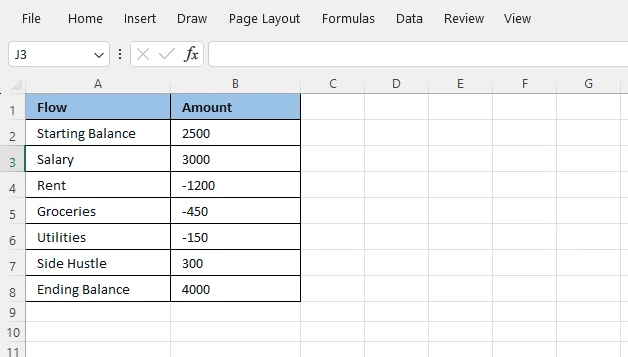
El secreto para un gran gráfico de Excel es una tabla de datos bien estructurada. Para un gráfico de cascada, necesitarás al menos dos columnas: una para etiquetas y otra para valores.
Puntos clave:
- Usa números positivos para los aumentos
- Usa números negativos (con signo menos) para las disminuciones
- La primera y la última fila suelen ser tus totales (no cambios que contribuyen)
Aquí tienes un ejemplo sencillo de presupuesto mensual:
Paso 2: Insertar el gráfico de cascada
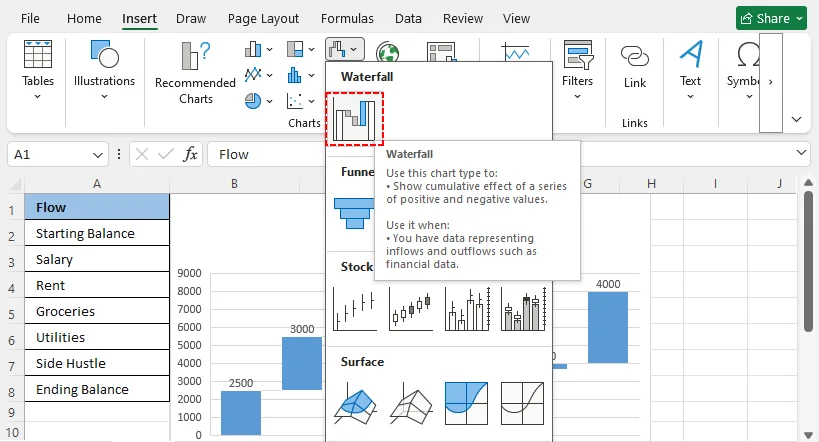
- Selecciona el rango de datos, incluyendo ambas columnas y los encabezados.
- Ve a la pestaña “Insertar” en la cinta de opciones de Excel.
- En el grupo “Gráficos”, haz clic en el icono "Insertar gráfico de cascada, embudo, cotizaciones, superficie o radar".
- Selecciona Cascada en el menú desplegable.
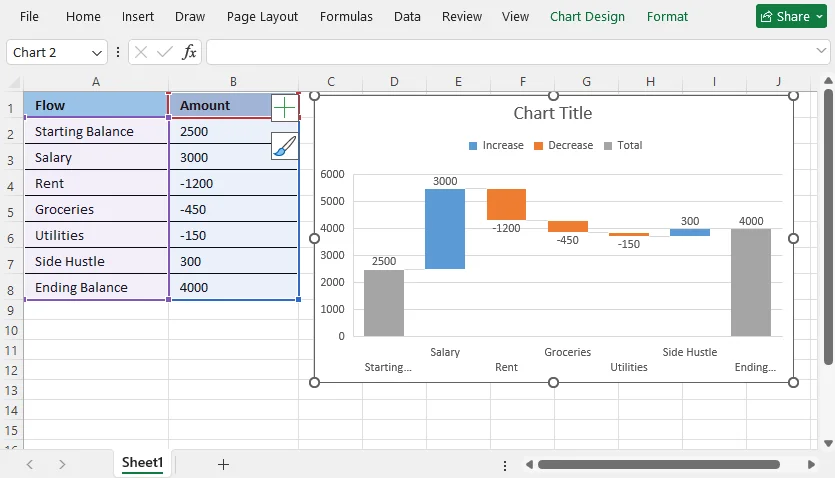
Excel generará instantáneamente un gráfico de cascada básico. Sin embargo, aún no se verá del todo bien porque trata cada valor como un paso. Los valores inicial y final deben establecerse como totales; este es el paso de edición más crítico.
Paso 3: Establecer columnas de total (crítico)
De forma predeterminada, Excel no sabe qué barras deben ser totales y cuáles son pasos que contribuyen.
Para establecer un total inicial o final:
- Haz doble clic en la barra que quieras establecer como total.
- En el panel “Formato de punto de datos” a la derecha, marca la casilla “Establecer como total”.
- Repite este proceso para tu barra de saldo final.
Estas columnas ahora se anclarán al eje horizontal, creando la estructura clásica del gráfico de cascada.
Si necesitas visualizar proporciones en lugar de un total acumulado, también puedes crear un gráfico circular en Excel para mostrar cómo cada categoría contribuye al total.
Crear un gráfico de cascada mediante programación con C#
Para desarrolladores y usuarios avanzados que necesitan crear un gráfico de cascada en Excel automáticamente, puedes crear el gráfico completamente con código usando la biblioteca Free Spire.XLS for .NET. Este enfoque es rápido, repetible y te brinda control programático total sobre totales, etiquetas y estilo.
Cuándo usar el método de programación
Usa Free Spire.XLS o una biblioteca similar de automatización de Excel cuando necesites:
- Generar el mismo gráfico de cascada en docenas de libros
- Extraer datos de una base de datos y crear informes automáticamente
- Programar paneles financieros mensuales o semanales
- Evitar errores manuales de formato de gráficos
Ejemplo completo de código C#
using Spire.Xls;

namespace WaterfallChart
{
    class Program
    {
        static void Main(string[] args)
        {
            //Create a Workbook instance
            Workbook workbook = new Workbook();

            //Load a sample Excel document
            workbook.LoadFromFile("Income.xlsx");

            //Get the first worksheet
            Worksheet sheet = workbook.Worksheets[0];

            //Add a waterfall chart to the worksheet
            Chart chart = sheet.Charts.Add(ExcelChartType.WaterFall);

            //Set data range for the chart
            chart.DataRange = sheet["A2:B11"];

            //Set position of the chart
            chart.LeftColumn = 4;
            chart.TopRow = 2;
            chart.RightColumn = 15;
            chart.BottomRow = 23;

            //Set the chart title
            chart.ChartTitle = "Income Statement";

            //Set specific data points in the chart as totals or subtotals
            chart.Series[0].DataPoints[2].SetAsTotal = true;
            chart.Series[0].DataPoints[7].SetAsTotal = true;
            chart.Series[0].DataPoints[9].SetAsTotal = true;

            //Show the connector lines between data points
            chart.Series[0].Format.ShowConnectorLines = true;

            //Show data labels for data points
            chart.Series[0].DataPoints.DefaultDataPoint.DataLabels.HasValue = true;
            chart.Series[0].DataPoints.DefaultDataPoint.DataLabels.Size = 8;

            //Set the legend position of the chart
            chart.Legend.Position = LegendPositionType.Top;

            //Save the result document
            workbook.SaveToFile("WaterfallChart.xlsx");
            workbook.Dispose();
        }
    }
}
Código principal:
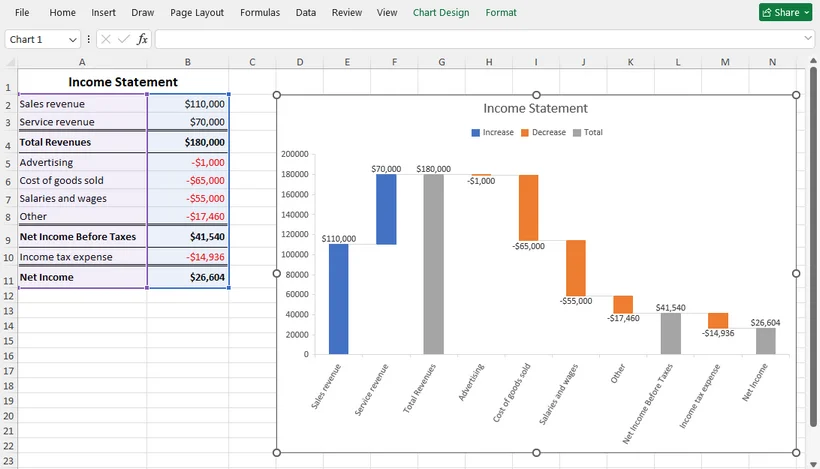
ExcelChartType.WaterFall: especifica el tipo de gráfico como gráfico de cascada.chart.DataRange: define los datos de origen (etiquetas y valores).chart.Series[].DataPoints[].SetAsTotal: marca puntos de datos específicos como totales. (Nota: los índices comienzan en cero).ShowConnectorLines: habilita las líneas conectoras entre barras flotantes.DataLabels.HasValue: activa las etiquetas de datos para que los espectadores puedan leer los valores exactos.
Resultado:
Consejo profesional: Free Spire.XLS también admite otros tipos de gráficos. Para comparaciones simples, puedes crear un gráfico de barras. Para tendencias a lo largo del tiempo, puedes usar un gráfico de líneas.
Consejos profesionales para personalizar un gráfico de cascada
Un gráfico de cascada básico sirve para un análisis rápido, pero personalizarlo hará que tus informes se vean pulidos y profesionales.
1. Ajustar los colores del gráfico
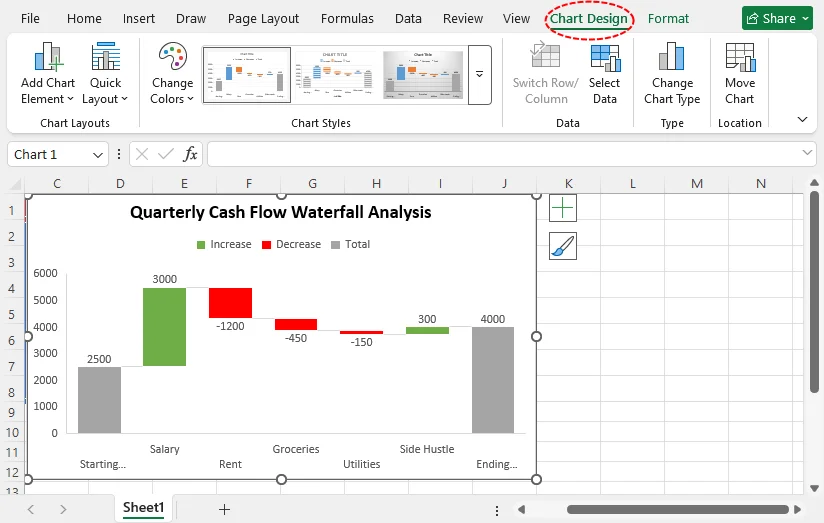
Haz clic en cualquier columna del gráfico para abrir la pestaña Diseño de gráfico. Usa esquemas de color predefinidos o establece manualmente colores únicos para valores positivos, valores negativos y columnas de total.
- Convención: el verde para los aumentos y el rojo para las disminuciones es un estándar común que hace que el gráfico sea legible al instante.
2. Agregar etiquetas de datos
Haz clic en el signo (+) junto al gráfico y marca Etiquetas de datos. Esto coloca las etiquetas encima de las columnas positivas y debajo de las columnas negativas para evitar superposiciones y mejorar la legibilidad.
3. Limpiar los elementos del gráfico
Elimina las líneas de cuadrícula innecesarias, edita el título del gráfico para que sea descriptivo (por ejemplo, "Análisis de cascada del flujo de efectivo trimestral") y ajusta las escalas de los ejes para eliminar el espacio en blanco desperdiciado.
4. Actualizar las fuentes y el tamaño del gráfico
Usa fuentes profesionales y coherentes, y cambia el tamaño del gráfico para que se ajuste a tu panel de Excel, presentación o diseño de informe sin cortar las etiquetas.
Reflexiones finales
Saber cómo crear un gráfico de cascada en Excel te ayuda a convertir una lista estática de números en una narrativa dinámica de causa y efecto. La función nativa de Excel (disponible en 2016 y versiones posteriores) hace que el proceso sea sorprendentemente accesible: prepara tus datos, inserta el gráfico y establece tus totales. Para quienes necesitan automatización, C# con Free Spire.XLS te ofrece una forma confiable de crear un gráfico de cascada en Excel mediante programación.
Ya sea que lo crees manualmente o mediante código, un gráfico de cascada bien diseñado te permite comunicar información financiera compleja de forma clara y segura.
Preguntas frecuentes (FAQs)
P: ¿Puedo crear un gráfico de cascada para datos de ventas mensuales?
R: ¡Por supuesto! Los gráficos de cascada son ideales para hacer seguimiento del crecimiento mensual de ventas, los gastos mensuales y los cambios incrementales en el rendimiento empresarial a lo largo del tiempo.
P: ¿Las versiones anteriores de Excel (2013 / 2010) admiten gráficos de cascada nativos?
R: No. La funcionalidad nativa de gráficos de cascada se introdujo en Excel 2016. Si usas una versión anterior, tendrás que crear una solución manual usando gráficos de columnas apiladas. Se recomienda actualizar tu versión de Excel para obtener visualizaciones de cascada nativas y de bajo mantenimiento.
P: ¿Puedo exportar un gráfico de cascada como imagen?
R: Sí. Haz clic derecho en el área del gráfico y selecciona Guardar como imagen. Puedes guardarlo como PNG, JPEG o GIF para usarlo en presentaciones o informes. Para una solución de programación con Free Spire.XLS, consulta esta guía: Convertir gráficos de Excel a imágenes en C#.
P: ¿Puedo crear un gráfico de cascada con varias series de datos?
R: No. El gráfico de cascada nativo de Excel solo admite una serie de datos. Si necesitas mostrar varias series (por ejemplo, comparar dos años en paralelo), debes usar una solución alternativa con gráfico de columnas apiladas con una serie base oculta, o crear dos gráficos de cascada separados.
Ver también
- Cómo agregar subtotales en Excel: fórmula, tabla dinámica y Python
- Convertir Excel a PNG: 4 métodos sencillos (soluciones gratuitas y por lotes)
- Cómo eliminar columnas duplicadas en Excel: 4 mejores formas
- C#: Crear un gráfico radar en Excel
- Python: Extraer, cambiar tamaño, mover o eliminar gráficos en Excel
Wasserfall-Diagramm in Excel erstellen (einfaches Tutorial + Beispiele)
Inhaltsverzeichnis
Wasserfalldiagramme gehören zu den leistungsstärksten Werkzeugen in Excel, um zu visualisieren, wie ein Ausgangswert durch eine Reihe positiver und negativer Veränderungen beeinflusst wird. Ob Sie ein Budget verfolgen, Gewinn und Verlust analysieren oder die Vertriebsleistung erläutern – ein Wasserfalldiagramm (auch bekannt als Brückendiagramm) verwandelt ein Meer von Zahlen in eine klare, überzeugende Geschichte.
In dieser Anleitung erfahren Sie genau, wie Sie ein Wasserfalldiagramm in Excel erstellen und es für maximale Wirkung anpassen. Außerdem behandeln wir eine Programmiermethode für Entwickler, die die Diagrammerstellung automatisieren müssen.
- Was ist ein Wasserfalldiagramm?
- Ein Wasserfalldiagramm in Excel erstellen
- Ein Wasserfalldiagramm programmatisch mit C# erstellen
- Professionelle Tipps zum Anpassen eines Wasserfalldiagramms
- Häufig gestellte Fragen (FAQs)
Was ist ein Wasserfalldiagramm?
Ein Wasserfalldiagramm zeigt eine laufende Summe, während Werte addiert oder subtrahiert werden. Die „schwebenden“ Säulen scheinen die Lücke zwischen einem Start- und einem Endpunkt zu überbrücken und zeigen Ihnen genau, wie Sie von einem zum anderen gelangt sind.
Wasserfalldiagramme eignen sich ideal für:
| Anwendungsfall | Beispiel |
|---|---|
| Finanzberichte | Aufschlüsselung von Gewinn & Verlust vom Umsatz zum Nettoergebnis |
| Budgetverfolgung | Darstellung, wie Ausgaben und Finanzierung Ihr Budget beeinflussen |
| Bestandsanalyse | Verfolgung von Bestandsänderungen durch Neubestand, Verkäufe und Rücksendungen |
| Vertriebsleistung | Darstellung, wie Produktlinien oder Regionen zu den Zielen beigetragen haben |
| Cashflow-Analyse | Visualisierung von Geldzuflüssen und Geldabflüssen |
Wenn Sie die Entwicklung von Punkt A zu Punkt B erklären müssen, ist ein Wasserfalldiagramm eines der effektivsten Werkzeuge in Ihrem Toolkit zur Datenvisualisierung.
Ein Wasserfalldiagramm in Excel erstellen
Moderne Excel-Versionen (2016, 2019 und Microsoft 365) enthalten eine native Wasserfalldiagramm-Funktion, mit der Sie schnell ein voll funktionsfähiges Diagramm erstellen können. Dies ist die schnellste und zuverlässigste Methode für die meisten Benutzer.
Schritt 1: Bereiten Sie Ihre Daten vor
Das Geheimnis eines großartigen Excel-Diagramms ist eine gut strukturierte Datentabelle. Für ein Wasserfalldiagramm benötigen Sie mindestens zwei Spalten: eine für Beschriftungen und eine für Werte.
Wichtige Punkte:
- Verwenden Sie positive Zahlen für Zunahmen
- Verwenden Sie negative Zahlen (mit Minuszeichen) für Abnahmen
- Die erste und letzte Zeile sind üblicherweise Ihre Summen (keine beitragenden Veränderungen)
Hier ist ein einfaches Beispiel für ein monatliches Budget:
Schritt 2: Fügen Sie das Wasserfalldiagramm ein
- Wählen Sie Ihren Datenbereich aus, einschließlich beider Spalten und Überschriften.
- Wechseln Sie zur Registerkarte „Einfügen“ im Menüband von Excel.
- Klicken Sie in der Gruppe „Diagramme“ auf das Symbol „Wasserfall, Trichter, Kurs, Oberfläche oder Radar einfügen“.
- Wählen Sie Wasserfall aus dem Dropdown-Menü.
Excel erstellt sofort ein einfaches Wasserfalldiagramm. Es sieht jedoch noch nicht ganz richtig aus, da jeder Wert als Schritt behandelt wird. Der Start- und der Endwert müssen als Summen festgelegt werden – dies ist der wichtigste Bearbeitungsschritt.
Schritt 3: Summenspalten festlegen (kritisch)
Standardmäßig weiß Excel nicht, welche Balken Summen sein sollen und welche beitragende Schritte sind.
So legen Sie eine Start- oder Endsumme fest:
- Doppelklicken Sie auf den Balken, den Sie als Summe festlegen möchten.
- Aktivieren Sie im Bereich „Datenpunkt formatieren“ auf der rechten Seite das Kontrollkästchen für „Als Summe festlegen“.
- Wiederholen Sie diesen Vorgang für Ihren Endsaldo-Balken.
Diese Spalten werden nun an der horizontalen Achse verankert und erzeugen die klassische Struktur eines Wasserfalldiagramms.
Wenn Sie Proportionen anstelle einer laufenden Summe visualisieren möchten, können Sie auch ein Kreisdiagramm in Excel erstellen , um zu zeigen, wie jede Kategorie zum Ganzen beiträgt.
Ein Wasserfalldiagramm programmatisch mit C# erstellen
Für Entwickler und fortgeschrittene Benutzer, die ein Wasserfalldiagramm in Excel automatisch erstellen müssen, können Sie das Diagramm vollständig mit Code unter Verwendung der Bibliothek Free Spire.XLS for .NET erstellen. Dieser Ansatz ist schnell, wiederholbar und gibt Ihnen volle programmatische Kontrolle über Summen, Beschriftungen und Formatierung.
Wann Sie die Programmiermethode verwenden sollten
Verwenden Sie Free Spire.XLS oder eine ähnliche Bibliothek zur Excel-Automatisierung, wenn Sie:
- dasselbe Wasserfalldiagramm in Dutzenden von Arbeitsmappen generieren möchten
- Daten aus einer Datenbank abrufen und Berichte automatisch erstellen möchten
- monatliche oder wöchentliche Finanz-Dashboards planen möchten
- manuelle Fehler bei der Diagrammformatierung vermeiden möchten
Vollständiges C#-Codebeispiel
using Spire.Xls;

namespace WaterfallChart
{
    class Program
    {
        static void Main(string[] args)
        {
            //Create a Workbook instance
            Workbook workbook = new Workbook();

            //Load a sample Excel document
            workbook.LoadFromFile("Income.xlsx");

            //Get the first worksheet
            Worksheet sheet = workbook.Worksheets[0];

            //Add a waterfall chart to the worksheet
            Chart chart = sheet.Charts.Add(ExcelChartType.WaterFall);

            //Set data range for the chart
            chart.DataRange = sheet["A2:B11"];

            //Set position of the chart
            chart.LeftColumn = 4;
            chart.TopRow = 2;
            chart.RightColumn = 15;
            chart.BottomRow = 23;

            //Set the chart title
            chart.ChartTitle = "Income Statement";

            //Set specific data points in the chart as totals or subtotals
            chart.Series[0].DataPoints[2].SetAsTotal = true;
            chart.Series[0].DataPoints[7].SetAsTotal = true;
            chart.Series[0].DataPoints[9].SetAsTotal = true;

            //Show the connector lines between data points
            chart.Series[0].Format.ShowConnectorLines = true;

            //Show data labels for data points
            chart.Series[0].DataPoints.DefaultDataPoint.DataLabels.HasValue = true;
            chart.Series[0].DataPoints.DefaultDataPoint.DataLabels.Size = 8;

            //Set the legend position of the chart
            chart.Legend.Position = LegendPositionType.Top;

            //Save the result document
            workbook.SaveToFile("WaterfallChart.xlsx");
            workbook.Dispose();
        }
    }
}
Kerncode:
ExcelChartType.WaterFall: Legt den Diagrammtyp als Wasserfalldiagramm fest.chart.DataRange: Definiert die Quelldaten (Beschriftungen und Werte).chart.Series[].DataPoints[].SetAsTotal: Markiert bestimmte Datenpunkte als Summen. (Hinweis: Die Indizes sind nullbasiert.)ShowConnectorLines: Aktiviert die Verbindungslinien zwischen den schwebenden Balken.DataLabels.HasValue: Aktiviert Datenbeschriftungen, damit Betrachter die genauen Werte ablesen können.
Ergebnis:
Profi-Tipp: Free Spire.XLS unterstützt auch andere Diagrammtypen. Für einfache Vergleiche können Sie ein Balkendiagramm erstellen. Für Trends im Zeitverlauf können Sie ein Liniendiagramm verwenden.
Professionelle Tipps zum Anpassen eines Wasserfalldiagramms
Ein einfaches Wasserfalldiagramm eignet sich für eine schnelle Analyse, aber durch Anpassung wirken Ihre Berichte ausgefeilt und professionell.
1. Diagrammfarben anpassen
Klicken Sie auf eine beliebige Diagrammsäule, um die Registerkarte Diagrammentwurf zu öffnen. Verwenden Sie vordefinierte Farbschemata oder legen Sie manuell individuelle Farben für positive Werte, negative Werte und Summenspalten fest.
- Konvention: Grün für Zunahmen und Rot für Abnahmen ist ein gängiger Standard, der das Diagramm sofort lesbar macht.
2. Datenbeschriftungen hinzufügen
Klicken Sie auf das (+)-Zeichen neben dem Diagramm und aktivieren Sie Datenbeschriftungen. Dadurch werden Beschriftungen über positiven Säulen und unter negativen Säulen positioniert, um Überlappungen zu vermeiden und die Lesbarkeit zu verbessern.
3. Diagrammelemente aufräumen
Entfernen Sie unnötige Gitterlinien, bearbeiten Sie den Diagrammtitel, damit er aussagekräftig ist (z. B. „Vierteljährliche Cashflow-Wasserfallanalyse“), und passen Sie die Achsenskalierungen an, um unnötigen Leerraum zu beseitigen.
4. Diagrammschriften und -größe aktualisieren
Verwenden Sie konsistente, professionelle Schriftarten und ändern Sie die Größe des Diagramms so, dass es in Ihr Excel-Dashboard, Ihre Präsentation oder Ihr Berichtslayout passt, ohne dass Beschriftungen abgeschnitten werden.
Abschließende Gedanken
Zu wissen, wie man ein Wasserfalldiagramm in Excel erstellt, hilft Ihnen, eine statische Liste von Zahlen in eine dynamische Erzählung von Ursache und Wirkung zu verwandeln. Die native Excel-Funktion (verfügbar ab 2016) macht den Prozess überraschend zugänglich: Bereiten Sie Ihre Daten vor, fügen Sie das Diagramm ein und legen Sie Ihre Summen fest. Für diejenigen, die Automatisierung benötigen, bietet C# mit Free Spire.XLS eine zuverlässige Möglichkeit, ein Wasserfalldiagramm in Excel programmatisch zu erstellen.
Ob Sie es manuell oder über Code erstellen – ein gut gestaltetes Wasserfalldiagramm befähigt Sie, komplexe finanzielle Erkenntnisse klar und sicher zu kommunizieren.
Häufig gestellte Fragen (FAQs)
F: Kann ich ein Wasserfalldiagramm für monatliche Verkaufsdaten erstellen?
A: Auf jeden Fall! Wasserfalldiagramme eignen sich ideal, um monatliches Umsatzwachstum, monatliche Ausgaben und schrittweise Veränderungen der Geschäftsleistung im Zeitverlauf zu verfolgen.
F: Unterstützt älteres Excel (2013 / 2010) native Wasserfalldiagramme?
A: Nein. Die native Wasserfalldiagramm-Funktionalität wurde in Excel 2016 eingeführt. Wenn Sie eine ältere Version verwenden, müssen Sie eine manuelle Behelfslösung mit gestapelten Säulendiagrammen erstellen. Ein Upgrade Ihrer Excel-Version wird für native, wartungsarme Wasserfall-Visualisierungen empfohlen.
F: Kann ich ein Wasserfalldiagramm als Bild exportieren?
A: Ja. Klicken Sie mit der rechten Maustaste auf den Diagrammbereich und wählen Sie Als Bild speichern. Sie können es als PNG, JPEG oder GIF für Präsentationen oder Berichte speichern. Für eine Programmierlösung mit Free Spire.XLS lesen Sie diese Anleitung: Diagramme in Excel mit C# in Bilder konvertieren.
F: Kann ich ein Wasserfalldiagramm mit mehreren Datenreihen erstellen?
A: Nein. Das native Wasserfalldiagramm von Excel unterstützt nur eine Datenreihe. Wenn Sie mehrere Reihen anzeigen möchten (z. B. den Vergleich von zwei Jahren nebeneinander), müssen Sie eine Behelfslösung mit einem gestapelten Säulendiagramm und einer ausgeblendeten Basisreihe verwenden oder zwei separate Wasserfalldiagramme erstellen.
Siehe auch
Создание диаграммы водопад в Excel (простое руководство + примеры)
Диаграммы водопада — один из самых мощных инструментов в Excel для визуализации того, как на начальное значение влияет ряд положительных и отрицательных изменений. Отслеживаете ли вы бюджет, анализируете прибыль и убытки или объясняете эффективность продаж, диаграмма водопада (также известная как мостовая диаграмма) превращает море чисел в ясную и убедительную историю.
В этом руководстве вы узнаете, как именно создать диаграмму водопада в Excel и настроить её для максимального эффекта. Мы также рассмотрим метод программирования для разработчиков, которым нужно автоматизировать создание диаграмм.
- Что такое диаграмма водопада?
- Создание диаграммы водопада в Excel
- Создание диаграммы водопада программно с помощью C#
- Профессиональные советы по настройке диаграммы водопада
- Часто задаваемые вопросы (FAQ)
Что такое диаграмма водопада?
Диаграмма водопада показывает накопленный итог по мере добавления или вычитания значений. «Плавающие» столбцы визуально соединяют начальную и конечную точки, показывая, как вы пришли от одной к другой.
Диаграммы водопада идеально подходят для:
| Сценарий использования | Пример |
|---|---|
| Финансовая отчётность | Детализация прибыли и убытков от выручки до чистой прибыли |
| Отслеживание бюджета | Показ того, как расходы и финансирование влияют на ваш бюджет |
| Анализ запасов | Отслеживание изменений запасов от новых поступлений, продаж и возвратов |
| Эффективность продаж | Показ того, как товарные линии или регионы повлияли на достижение целей |
| Анализ денежных потоков | Визуализация поступлений и расходов денежных средств |
Если вам нужно объяснить путь от точки А до точки Б, диаграмма водопада — один из самых эффективных инструментов в вашем арсенале визуализации данных.
Создание диаграммы водопада в Excel
Современные версии Excel (2016, 2019 и Microsoft 365) включают встроенную функцию диаграммы водопада, которая позволяет быстро построить полностью функциональную диаграмму. Это самый быстрый и надёжный метод для большинства пользователей.
Шаг 1: Подготовьте данные
Секрет отличной диаграммы Excel — хорошо структурированная таблица данных. Для диаграммы водопада вам понадобится как минимум два столбца: один для подписей и один для значений.
Ключевые моменты:
- Используйте положительные числа для увеличения
- Используйте отрицательные числа (со знаком минус) для уменьшения
- Первая и последняя строки обычно являются вашими итогами (а не вносящими изменения)
Вот простой пример месячного бюджета:
Шаг 2: Вставьте диаграмму водопада
- Выделите диапазон данных, включая оба столбца и заголовки.
- Перейдите на вкладку «Вставка» на ленте Excel.
- В группе «Диаграммы» нажмите значок «Вставить диаграмму водопада, воронки, биржевую, поверхностную или лепестковую диаграмму».
- Выберите «Водопад» в раскрывающемся меню.
Excel мгновенно создаст базовую диаграмму водопада. Однако она ещё не будет выглядеть правильно, потому что Excel воспринимает каждое значение как шаг. Начальное и конечное значения нужно задать как итоги — это самый важный шаг редактирования.
Шаг 3: Настройте столбцы итогов (критически важно)
По умолчанию Excel не знает, какие столбцы должны быть итогами, а какие — промежуточными шагами.
Чтобы задать начальный или конечный итог:
- Дважды щёлкните столбец, который хотите сделать итоговым.
- В области «Формат точки данных» справа установите флажок «Установить как итог».
- Повторите это для столбца конечного баланса.
Теперь эти столбцы будут привязаны к горизонтальной оси, создавая классическую структуру диаграммы водопада.
Если вам нужно визуализировать пропорции, а не накопленный итог, вы также можете создать круговую диаграмму в Excel чтобы показать, какой вклад каждая категория вносит в целое.
Создание диаграммы водопада программно с помощью C#
Для разработчиков и опытных пользователей, которым нужно автоматически создавать диаграмму водопада в Excel, можно создать диаграмму полностью с помощью кода, используя библиотеку Free Spire.XLS for .NET. Этот подход быстрый, повторяемый и даёт полный программный контроль над итогами, подписями и стилем.
Когда использовать программный метод
Используйте Free Spire.XLS или аналогичную библиотеку автоматизации Excel, когда вам нужно:
- Создавать одну и ту же диаграмму водопада в десятках книг
- Извлекать данные из базы данных и автоматически строить отчёты
- Планировать ежемесячные или еженедельные финансовые дашборды
- Избегать ошибок ручного форматирования диаграмм
Полный пример кода на C#
using Spire.Xls;

namespace WaterfallChart
{
    class Program
    {
        static void Main(string[] args)
        {
            //Create a Workbook instance
            Workbook workbook = new Workbook();

            //Load a sample Excel document
            workbook.LoadFromFile("Income.xlsx");

            //Get the first worksheet
            Worksheet sheet = workbook.Worksheets[0];

            //Add a waterfall chart to the worksheet
            Chart chart = sheet.Charts.Add(ExcelChartType.WaterFall);

            //Set data range for the chart
            chart.DataRange = sheet["A2:B11"];

            //Set position of the chart
            chart.LeftColumn = 4;
            chart.TopRow = 2;
            chart.RightColumn = 15;
            chart.BottomRow = 23;

            //Set the chart title
            chart.ChartTitle = "Income Statement";

            //Set specific data points in the chart as totals or subtotals
            chart.Series[0].DataPoints[2].SetAsTotal = true;
            chart.Series[0].DataPoints[7].SetAsTotal = true;
            chart.Series[0].DataPoints[9].SetAsTotal = true;

            //Show the connector lines between data points
            chart.Series[0].Format.ShowConnectorLines = true;

            //Show data labels for data points
            chart.Series[0].DataPoints.DefaultDataPoint.DataLabels.HasValue = true;
            chart.Series[0].DataPoints.DefaultDataPoint.DataLabels.Size = 8;

            //Set the legend position of the chart
            chart.Legend.Position = LegendPositionType.Top;

            //Save the result document
            workbook.SaveToFile("WaterfallChart.xlsx");
            workbook.Dispose();
        }
    }
}
Основной код:
ExcelChartType.WaterFall: Указывает тип диаграммы как диаграмма водопада.chart.DataRange: Определяет исходные данные (подписи и значения).chart.Series[].DataPoints[].SetAsTotal: Помечает определённые точки данных как итоги. (Примечание: индексы начинаются с нуля).ShowConnectorLines: Включает соединительные линии между плавающими столбцами.DataLabels.HasValue: Включает подписи данных, чтобы зрители могли видеть точные значения.
Результат:
Совет профессионала: Free Spire.XLS также поддерживает другие типы диаграмм. Для простых сравнений вы можете создать линейчатую диаграмму. Для тенденций во времени вы можете использовать линейную диаграмму.
Профессиональные советы по настройке диаграммы водопада
Базовая диаграмма водопада подходит для быстрого анализа, но её настройка сделает отчёты более отшлифованными и профессиональными.
1. Настройте цвета диаграммы
Щёлкните любой столбец диаграммы, чтобы открыть вкладку «Конструктор диаграммы». Используйте готовые цветовые схемы или вручную задайте уникальные цвета для положительных значений, отрицательных значений и столбцов итогов.
- Соглашение: зелёный для увеличения и красный для уменьшения — распространённый стандарт, который делает диаграмму мгновенно понятной.
2. Добавьте подписи данных
Щёлкните знак (+) рядом с диаграммой и установите флажок «Подписи данных». Это размещает подписи над положительными столбцами и под отрицательными, чтобы избежать наложения и улучшить читаемость.
3. Уберите лишние элементы диаграммы
Удалите ненужные линии сетки, измените заголовок диаграммы на описательный (например, «Анализ водопада квартального денежного потока») и настройте масштаб осей, чтобы устранить лишнее пустое пространство.
4. Обновите шрифты и размеры диаграммы
Используйте единообразные профессиональные шрифты и измените размер диаграммы, чтобы она соответствовала вашему дашборду Excel, презентации или макету отчёта без обрезки подписей.
Заключительные мысли
Знание того, как создать диаграмму водопада в Excel, помогает превратить статичный список чисел в динамичное повествование о причинах и следствиях. Встроенная функция Excel (доступна в версии 2016 и более поздних) делает процесс на удивление доступным: подготовьте данные, вставьте диаграмму и задайте итоги. Для тех, кому нужна автоматизация, C# с Free Spire.XLS даёт надёжный способ программно создавать диаграмму водопада в Excel.
Строите ли вы её вручную или с помощью кода, хорошо продуманная диаграмма водопада позволяет вам ясно и уверенно доносить сложные финансовые выводы.
Часто задаваемые вопросы (FAQ)
В: Можно ли создать диаграмму водопада для данных месячных продаж?
О: Конечно! Диаграммы водопада идеально подходят для отслеживания месячного роста продаж, ежемесячных расходов и пошаговых изменений эффективности бизнеса с течением времени.
В: Поддерживают ли старые версии Excel (2013 / 2010) встроенные диаграммы водопада?
О: Нет. Встроенная функциональность диаграммы водопада появилась в Excel 2016. Если вы используете более старую версию, вам придётся создать ручной обходной вариант с помощью диаграмм с накоплением. Рекомендуется обновить версию Excel для встроенных, менее трудоёмких визуализаций водопада.
В: Можно ли экспортировать диаграмму водопада как изображение?
О: Да. Щёлкните правой кнопкой мыши по области диаграммы и выберите «Сохранить как рисунок». Вы можете сохранить её в формате PNG, JPEG или GIF для использования в презентациях или отчётах. Для программного решения с Free Spire.XLS обратитесь к этому руководству: Преобразование диаграмм Excel в изображения в C#.
В: Можно ли создать диаграмму водопада с несколькими рядами данных?
О: Нет. Встроенная диаграмма водопада Excel поддерживает только один ряд данных. Если вам нужно показать несколько рядов (например, сравнить два года рядом), необходимо использовать обходной вариант с диаграммой с накоплением и скрытым базовым рядом или создать две отдельные диаграммы водопада.
См. также
- Как добавить промежуточные итоги в Excel: формула, сводная таблица и Python
- Преобразование Excel в PNG: 4 простых метода (бесплатные и пакетные решения)
- Как удалить повторяющиеся столбцы в Excel: 4 лучших способа
- C#: создание лепестковой диаграммы в Excel
- Python: извлечение, изменение размера, перемещение или удаление диаграмм в Excel
Create a Waterfall Chart in Excel (Easy Tutorial + Examples)
Waterfall charts are one of the most powerful tools in Excel for visualizing how a starting value is affected by a series of positive and negative changes. Whether you're tracking a budget, analyzing profit and loss, or explaining sales performance, a waterfall chart (also known as a bridge chart) turns a sea of numbers into a clear, compelling story.
In this guide, you'll learn exactly how to create a waterfall chart in Excel and customize it for maximum impact. We'll also cover a programming method for developers who need to automate chart creation.
- What Is a Waterfall Chart?
- Create a Waterfall Chart in Excel
- Create a Waterfall Chart Programmatically with C#
- Professional Tips to Customize Waterfall Chart
- Frequently Asked Questions (FAQs)
What Is a Waterfall Chart?
A waterfall chart shows a running total as values are added or subtracted. The "floating" columns appear to bridge the gap between a start and end point, showing you exactly how you got from one to the other.
Waterfall charts are ideal for:
| Use Case | Example |
|---|---|
| Financial Statements | Breaking down profit & loss from revenue to net income |
| Budget Tracking | Showing how expenses and funding affect your budget |
| Inventory Analysis | Tracking stock changes from new stock, sales, and returns |
| Sales Performance | Showing how product lines or regions contributed to targets |
| Cash Flow Analysis | Visualizing money in and money out |
If you need to explain the journey from Point A to Point B, a waterfall chart is one of the most effective tools in your data visualization toolkit.
Create a Waterfall Chart in Excel
Modern Excel versions (2016, 2019, and Microsoft 365) include a native waterfall chart feature that lets you build a fully functional chart quickly. This is the fastest, most reliable method for most users.
Step 1: Prepare Your Data
The secret to a great Excel chart is a well-structured data table. For a waterfall chart, you'll need at least two columns: one for labels and one for values.
Key points:
- Use positive numbers for increases
- Use negative numbers (with minus sign) for decreases
- First and last rows are typically your totals (not contributing changes)
Here's a simple monthly budget example:
Step 2: Insert the Waterfall Chart
- Select your data range, including both columns and headers.
- Go to the “Insert” tab on Excel's ribbon.
- In the “Charts” group, click the "Insert Waterfall, Funnel, Stock, Surface, or Radar Chart" icon.
- Select Waterfall from the drop-down menu.
Excel will instantly generate a basic waterfall chart. However, it won't look quite right yet because it treats every value as a step. The starting and ending values need to be set as totals—this is the most critical editing step.
Step 3: Set Total Columns (Critical)
By default, Excel doesn't know which bars are supposed to be totals and which are contributing steps.
To set a starting or ending total:
- Double-click the bar you want to set as a total.
- In the “Format Data Point” pane on the right, check the box for “Set as total”.
- Repeat this process for your ending balance bar.
These columns will now anchor to the horizontal axis, creating the classic waterfall chart structure.
If you need to visualize proportions instead of a running total, you can also create a pie chart in Excel to show how each category contributes to the whole.
Create a Waterfall Chart Programmatically with C#
For developers and advanced users who need to build waterfall chart in Excel automatically, you can create the chart entirely with code using the Free Spire.XLS for .NET library. This approach is fast, repeatable, and gives you full programmatic control over totals, labels, and styling.
When to Use the Programming Method
Use Free Spire.XLS or a similar Excel automation library when you need to:
- Generate the same waterfall chart across dozens of workbooks
- Pull data from a database and build reports automatically
- Schedule monthly or weekly financial dashboards
- Avoid manual chart formatting errors
Full C# Code Example
using Spire.Xls;

namespace WaterfallChart
{
    class Program
    {
        static void Main(string[] args)
        {
            //Create a Workbook instance
            Workbook workbook = new Workbook();

            //Load a sample Excel document
            workbook.LoadFromFile("Income.xlsx");

            //Get the first worksheet
            Worksheet sheet = workbook.Worksheets[0];

            //Add a waterfall chart to the worksheet
            Chart chart = sheet.Charts.Add(ExcelChartType.WaterFall);

            //Set data range for the chart
            chart.DataRange = sheet["A2:B11"];

            //Set position of the chart
            chart.LeftColumn = 4;
            chart.TopRow = 2;
            chart.RightColumn = 15;
            chart.BottomRow = 23;

            //Set the chart title
            chart.ChartTitle = "Income Statement";

            //Set specific data points in the chart as totals or subtotals
            chart.Series[0].DataPoints[2].SetAsTotal = true;
            chart.Series[0].DataPoints[7].SetAsTotal = true;
            chart.Series[0].DataPoints[9].SetAsTotal = true;

            //Show the connector lines between data points
            chart.Series[0].Format.ShowConnectorLines = true;

            //Show data labels for data points
            chart.Series[0].DataPoints.DefaultDataPoint.DataLabels.HasValue = true;
            chart.Series[0].DataPoints.DefaultDataPoint.DataLabels.Size = 8;

            //Set the legend position of the chart
            chart.Legend.Position = LegendPositionType.Top;

            //Save the result document
            workbook.SaveToFile("WaterfallChart.xlsx");
            workbook.Dispose();
        }
    }
}
Core Code:
ExcelChartType.WaterFall: Specifies the chart type as a waterfall chart.chart.DataRange: Defines the source data (labels and values).chart.Series[].DataPoints[].SetAsTotal: Marks specific data points as totals. (Note: indices are zero-based).ShowConnectorLines: Enables the connector lines between floating bars.DataLabels.HasValue: Turns on data labels so viewers can read the exact values.
Result:
Pro Tip: Free Spire.XLS also supports other chart types. For simple comparisons, you can create a bar chart. For trends over time, you can use a line chart.
Professional Tips to Customize Waterfall Chart
A basic waterfall chart works for quick analysis, but customizing it will make your reports look polished and professional.
1. Adjust Chart Colors
Click any chart column to open the Chart Design tab. Use pre-built color schemes or manually set unique colors for positive values, negative values, and total columns.
- Convention: Green for increases and red for decreases is a common standard that makes the chart instantly readable.
2. Add Data Labels
Click the (+) sign next to the chart and check Data Labels. This positions labels above positive columns and below negative columns to avoid overlap and improve readability.
3. Clean Up Chart Elements
Remove unnecessary gridlines, edit the chart title to be descriptive (e.g., "Quarterly Cash Flow Waterfall Analysis"), and adjust axis scales to eliminate wasted white space.
4. Update Chart Fonts & Sizing
Use consistent, professional fonts and resize the chart to fit your Excel dashboard, presentation, or report layout without cutting off labels.
Final Thoughts
Knowing how to create a waterfall chart in Excel helps you turn a static list of numbers into a dynamic narrative of cause and effect. The native Excel feature (available in 2016 and later) makes the process surprisingly accessible: prepare your data, insert the chart, and set your totals. For those who need automation, C# with Free Spire.XLS gives you a reliable way to create waterfall graph in Excel programmatically.
Whether you build it manually or through code, a well-designed waterfall chart empowers you to communicate complex financial insights clearly and confidently.
Frequently Asked Questions (FAQs)
Q: Can I create a waterfall chart for monthly sales data?
A: Absolutely! Waterfall charts are ideal for tracking monthly sales growth, monthly expenses, and incremental business performance changes over time.
Q: Does older Excel (2013 / 2010) support native waterfall charts?
A: No. Native waterfall chart functionality was introduced in Excel 2016. If you use an older version, you will need to build a manual workaround using stacked column charts. Upgrading your Excel version is recommended for native, low‑maintenance waterfall visuals.
Q: Can I export a waterfall chart as a picture?
A: Yes. Right-click the chart area and select Save as Picture. You can save it as PNG, JPEG, or GIF for use in presentations or reports. For a programming solution with Free Spire.XLS, refer to this guide: Convert Charts in Excel to Images in C#.
Q: Can I create a waterfall chart with multiple data series?
A: No. Excel’s native waterfall chart supports only one data series. If you need to show multiple series (e.g., comparing two years side by side), you must use a stacked column chart workaround with a hidden base series, or create two separate waterfall charts.
See Also
AI-Powered PDF Reading in C#: Read and Extract Data

Reading and processing PDF files programmatically in C# is a common requirement for .NET developers building document automation, data extraction, and report generation systems. Traditional PDF parsing libraries demand complex code to extract text, preserve formatting, and parse tables. They frequently produce poor output for irregular layouts, misaligned content, and non‑standard table structures.
If you want a simple, AI-powered way to read PDFs in C# and export PDF content to other formats, Spire.Agent.Office is a strong choice. This .NET AI agent SDK drives PDF parsing and conversion workflows using natural language instructions. It works without Adobe Acrobat or external third‑party PDF softwares.
In this tutorial, we will introduce how to use AI to read PDF in C#, with full runnable code samples for:
- Extracting PDF content to TXT
- Converting PDF to editable Word
- Reading PDF tables to CSV/Excel
- Batch processing multiple PDFs
Why Choose Spire.Agent.Office Over Other AI PDF Readers?
The internet is full of generic AI PDF readers, but most lack developer flexibility, enterprise security, and structural parsing accuracy. Spire.Agent.Office is an AI document processing SDK built for the .NET ecosystem. It combines AI parsing with office document APIs. You can read, analyze, and convert PDF, Word, Excel, and PowerPoint files by passing simple natural language prompts.
Key advantages for AI PDF reading in C#:
- Developer-First SDK: Built for seamless API integration into custom apps, CRMs, automation pipelines, and backend systems
- Structured Data Accuracy: Superior table and layout preservation
- Enterprise Security: Local processing options prevent sensitive PDF data from leaking to third-party cloud tools
- Multi-Format Support: Reads PDFs plus Office documents in one unified agent
- Minimal code: Replace hundreds of lines of manual parsing logic with simple AI prompt calls to speed up development.
Setup: Project, Namespaces, and Token
- 1. Install the NuGet Package
Create your .NET project and install the library; all dependencies install automatically.
Install-Package Spire.Agent.Office
- 2. Add the Namespaces
Three using directives give you everything needed for AI PDF processing:
using Spire.Agent.Office.AI;
using Spire.Agent.Office.Extensions;
using Spire.Pdf;
- 3. Configuring SpireToken
Spire.Agent.Office requires a valid SpireToken key. You can request a temporary key for evaluation here.
AIOptions options = new AIOptions();
options.SpireToken = "YOUR_SPIRE_TOKEN_KEY";
Example 1: Extract PDF Text with .NET AI Agent
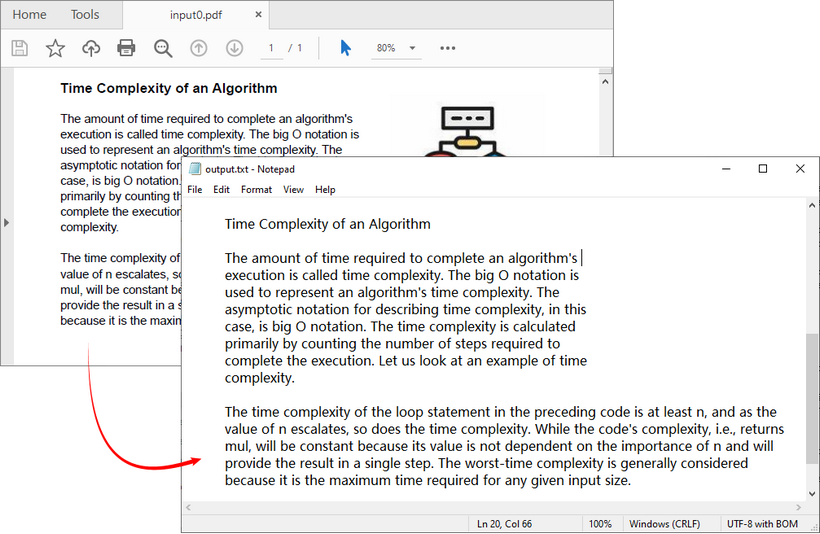
Extracting raw text content is typically the first stage of any document‑processing pipeline. Spire.Agent.Office lets you parse PDF content and write results directly to a TXT file using natural language instructions.
Common use cases: building search indexes, feeding documents into downstream NLP pipelines, audit logging, and content‑change detection.
C# Code: PDF to TXT
using Spire.Agent.Office.AI;
using Spire.Agent.Office.Extensions;
using Spire.Pdf;

string inputPath = @"input0.pdf";
string outputPath = @"output.txt";
string key = "YOUR_SPIRE_TOKEN_KEY";

if (!string.IsNullOrEmpty(inputPath) && File.Exists(inputPath))
{
    AIOptions options = new AIOptions();
    options.SpireToken = key;

    using (PdfDocument pdf = new PdfDocument())
    {
        pdf.LoadFromFile(inputPath);

        // Get the AI processor for PDF
        AIDocumentProcessor processor = pdf.AI(options);

        // Natural language instruction
        string instruction = "Read all text content from the PDF file, retain paragraph layout, and save as a TXT file";

        // Execute the AI instruction
        AIResult result = processor.ExecuteInstruction(pdf, instruction, outputPath);
    }
}
The generated TXT file retains the PDF’s paragraph structure. To extract plain text without paragraph formatting, change the AI instruction as needed.
Example 2: Convert PDF to Editable Word with .NET AI Agent
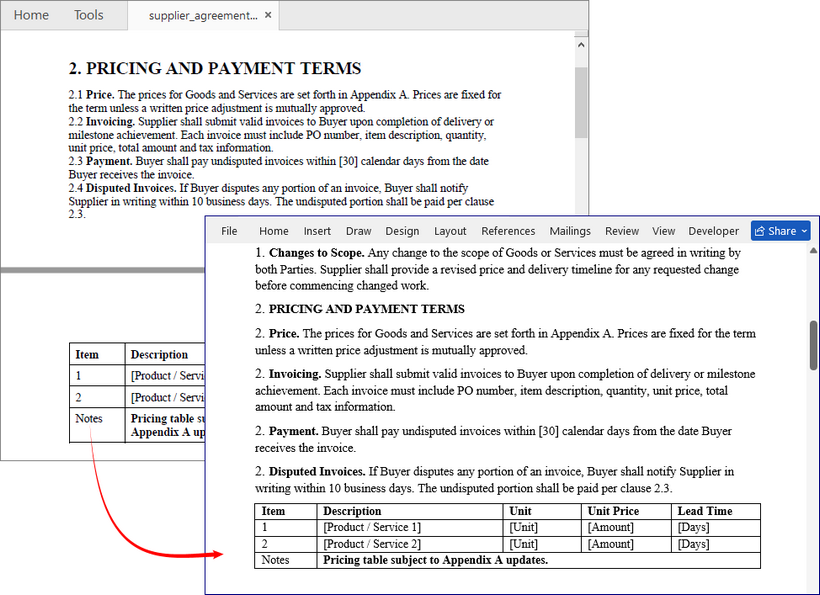
Standard PDFs are non-editable, which makes revision and content reuse difficult. Spire.Agent.Office AI reads PDF layout, font styles, and paragraph structure, then converts static PDFs into fully editable DOCX files while keeping formatting consistent.
Real-world use case: Procurement or legal teams receive supplier agreements in PDF format and require editable DOCX files for track changes review, comment insertion and version comparison.
C# Code: PDF to Word
using Spire.Agent.Office.AI;
using Spire.Agent.Office.Extensions;
using Spire.Pdf;

string inputPath = @"supplier_agreement.pdf";
string outputPath = @"supplier_agreement_editable.docx";
string key = "YOUR_SPIRE_TOKEN_KEY";

if (!string.IsNullOrEmpty(inputPath) && File.Exists(inputPath))
{
    AIOptions options = new AIOptions();
    options.SpireToken = key;

    using (PdfDocument pdf = new PdfDocument())
    {
        pdf.LoadFromFile(inputPath);

        // Get the AI processor for PDF
        AIDocumentProcessor processor = pdf.AI(options);

        // Natural language instruction
        string instruction = "Convert this supplier agreement PDF into an editable Word document. " +
                    "Retain hierarchical clause numbering (1, 1.1, 1.2…), use Word's multilevel list, no hardcoded numbers. " +
                    "keep section headings in bold, and convert tables to native Word tables at original positions. " +
                    "Do not flatten the layout into plain paragraphs. Keep signature block formatting intact.";

        // Execute the AI instruction
        AIResult result = processor.ExecuteInstruction(pdf, instruction, outputPath);
    }
}
Key Benefits
- Clause Structure Retention: Numbered legal clauses remain properly structured for redlining
- Table Preservation: Pricing tables and schedules stay as real Word tables
- Minimal Code: A single instruction replaces what would traditionally require extensive API calls to multiple components
Example 3: Read PDF Tables to CSV/Excel with .NET AI Agent
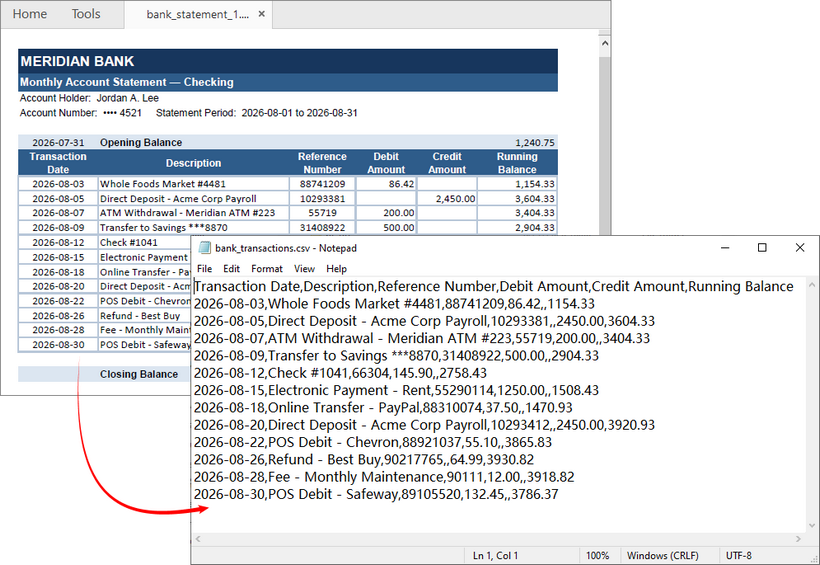
One of the most powerful features of Spire.Agent.Office is its ability to understand and extract structured data from PDF tables. Business scenarios include accounts‑payable automation, bank‑statement reconciliation, and financial‑report processing.
C# Code: Bank Statement PDF to CSV
If you download a PDF statement every month and need to import transactions into accounting software, this example is for you.
using Spire.Agent.Office.AI;
using Spire.Agent.Office.Extensions;
using Spire.Pdf;

string inputPath = @"bank_statement_1.pdf";
string outputPath = @"bank_transactions.csv";
string key = "YOUR_SPIRE_TOKEN_KEY";

if (!string.IsNullOrEmpty(inputPath) && File.Exists(inputPath))
{
    AIOptions options = new AIOptions();
    options.SpireToken = key;

    using (PdfDocument pdf = new PdfDocument())
    {
        pdf.LoadFromFile(inputPath);

        // Get the AI processor for PDF
        AIDocumentProcessor processor = pdf.AI(options);

        // Natural language instruction
        string instruction = "Extract all transactions from this bank statement into a CSV." +
                    " Include: Transaction Date, Description, Reference Number, Debit Amount, Credit Amount," +
                    " and Running Balance. Use empty cells (not zeros) when a debit or credit field doesn't apply to a row." +
                    " Exclude opening balance, closing balance, and any summary totals." +
                    " Preserve the original transaction order as they appear on the statement.";

        // Execute the AI instruction
        AIResult result = processor.ExecuteInstruction(pdf, instruction, outputPath);
    }
}
C# Code: Financial PDF Report to Excel
To export PDF tables to Excel, simply change the output format (.xlsx) and adjust the instructions. For example, if you have a quarterly PDF report with multiple tables across pages, you can extract everything into a single workbook with separate sheets:
string inputPath = @"Q3_2024_financial_report.pdf";
string outputPath = @"Q3_2024_financials.xlsx";

string instruction = "This PDF contains multiple financial tables across several pages:" +
            " Revenue by Region, Cost of Goods Sold, Operating Expenses, and Cash Flow Summary." +
            " Extract each table into its own named worksheet in the output Excel file." +
            " Use the table's section heading as the sheet name. Keep column headers on the" +
            " first row of each sheet, ensure all currency values are numeric (strip out '{BODY_CONTENT}#39; and ',')," +
            " and preserve the original row and column order.";
Example 4: Many PDFs, One Instruction (Batch Processing)
Most real‑world automation workloads handle batches of documents (e.g., dozens of invoice PDFs). Use the attachmentPaths parameter:
- Instantiate an empty
PdfDocument. - Pass your collection of PDF file paths via
attachmentPaths. - Write one instruction describing how to combine or aggregate outputs.
This pattern enables use cases such as consolidating many invoices into a single aggregated Excel workbook.
C# Code: Batch PDF Invoice Processing
using Spire.Agent.Office.AI;
using Spire.Agent.Office.Extensions;
using Spire.Pdf;

string[] invoicePaths = Directory.GetFiles(@"F:\Invoices", "*.pdf");
string outputPath = @"consolidated_invoices.xlsx";
string key = "YOUR_SPIRE_TOKEN_KEY";

AIOptions options = new AIOptions();
options.SpireToken = key;

using (PdfDocument pdf = new PdfDocument())
{
    // Get the AI processor for PDF
    AIDocumentProcessor processor = pdf.AI(options);

    // Natural language instruction for batch processing
    string instruction = "Read all attached invoice PDFs and consolidate them into one Excel workbook. " +
        "Create one row per invoice with columns: Invoice Number, Vendor Name, Invoice Date, " +
        "Due Date, Subtotal, Tax, Total Amount. Sort by Invoice Date ascending.";

    // Execute with attachment paths
    AIResult result = processor.ExecuteInstruction(pdf, instruction, outputPath, invoicePaths);
}
API Surface at a Glance
| API Component | Purpose | Key Method/Property |
|---|---|---|
AIOptions |
Configuration object | SpireToken, WorkDir, TimeoutMs |
AIDocumentProcessor |
Main AI processing entry point | ExecuteInstruction() |
pdf.AI(options) |
Extension method on PdfDocument | Returns AIDocumentProcessor |
AIResult |
Execution result contract | Success, TokenUsage |
attachmentPaths |
Supporting documents parameter | Passed to ExecuteInstruction() |
Best Practices for Reliable Extraction
1. Write specific output requirements in instructions
Avoid vague prompts like “extract the data”. Define target format, columns and structure (e.g. “export to Excel workbook, one row per line‑item”).
2. Put business logic in the instructions
Implement filtering, sorting, and normalization within prompts instead of hard‑coding positional offsets or coordinates. Logic stays human‑readable and maintainable.
3. Validate AIResult.Success
Check execution status on every call. Silent failures can break unattended automation pipelines.
if (result == null || !result.Success)
{
    throw new InvalidOperationException(
        {BODY_CONTENT}quot;AI instruction failed: {result?.ErrorMessage ?? "Unknown error"}");
}
4. Validate the output.
For financial or compliance data, run your own checks on the produced file — row counts, column totals, schema conformance. The agent produces the artifact; your pipeline remains responsible for correctness.
Final Thoughts
The above examples show you how the Spire.Agent.Office SDK can leverage AI to read PDF to TXT, rebuild PDFs as editable Word documents, extract bank statements and financial tables into CSV or Excel, and consolidate batches of invoices into a single workbook. In each case, the code stays small, the instructions stay readable, and the output remains structured enough for downstream automation.
If your team spends time writing fragile parsing logic or manually rekeying PDF data, Spire.Agent.Office offers a practical path forward. Install the NuGet package, add your token, and start with one workflow. From there, you can expand into batch processing and build document automation pipelines that are faster to develop, easier to maintain, and more resilient against real-world PDFs.
Frequently Asked Questions (FAQs)
Q: How accurate is the table extraction?
Spire.Agent.Office uses AI-powered parsing that understands table structure, including irregular tables and merged cells. For best results, provide clear instructions about the expected output format.
Q: Can I process password-protected PDFs?
Yes. You can load password-protected PDFs by providing the password when calling pdf.LoadFromFile(inputPath, password).
Q: How do I handle large batches of PDFs?
Use the attachmentPaths parameter to pass multiple files in a single instruction. The AI agent processes them collectively and produces consolidated output.
Q: How do I set a timeout for AI processing?
You can configure the timeout using the TimeoutMs property in AIOptions:
AIOptions options = new AIOptions();
options.SpireToken = key;
options.TimeoutMs = 120000; // 2 minutes
More Examples
- AI-Powered Excel Audit in C#: Detect Errors and Data Anomalies
- AI Document Generation: From Data to Ready-to-Use Documents
- AI-Powered Document Redaction in C#: Preserve Formatting
- AI Document Translator: Translate Word, Excel, and PowerPoint Files in C#
- Automate Calculations in Excel with a .NET AI Agent
Como Criar um Gráfico de Pizza no Word
Um gráfico de pizza transforma linhas de dados em um instantâneo, tornando proporções, participação de mercado e resultados de pesquisas muito mais fáceis de entender. O Microsoft Word pode ser conhecido principalmente como um processador de texto, mas também inclui ferramentas de gráficos capazes que permitem criar gráficos de pizza polidos e profissionais sem sair do seu documento.
Quer você seja um estudante preparando uma apresentação, um profissional de negócios escrevendo um relatório ou um desenvolvedor automatizando a geração de documentos, saber como criar um gráfico de pizza no Word pode economizar tempo e tornar sua mensagem mais clara.
Este guia aborda três métodos práticos:
- Usando as ferramentas de gráfico integradas do Word – para criação rápida e manual
- Gerando gráficos com C# – para automação e processamento em lote
- Copiando um gráfico de pizza do Excel – para reutilizar trabalho existente
Por que usar um gráfico de pizza no Word?
Aqui estão os principais benefícios de criar gráficos de pizza diretamente no Word:
- Nenhum software extra necessário: Crie gráficos inteiramente dentro do seu documento do Word sem alternar para ferramentas de terceiros.
- Integração perfeita com o documento: Os gráficos se alinham perfeitamente com o texto, a formatação e o layout de página existentes para uma saída consistente e limpa.
- Totalmente personalizável: Ajuste cores, rótulos, estilos e layout para corresponder à sua marca ou ao tema do documento.
- Atualizações fáceis de dados: Edite os dados do gráfico a qualquer momento sem recriar todo o gráfico.
Dica profissional: Para facilitar a leitura, limite seu gráfico de pizza a 3–7 categorias de dados. Muitas fatias deixarão o gráfico poluído e difícil de interpretar.
Como criar um gráfico de pizza no Microsoft Word
O Microsoft Word continua sendo o processador de texto mais popular. Aqui está a maneira mais rápida de fazer um gráfico de pizza no Word:
- Abra seu documento e coloque o cursor onde deseja o gráfico.
- Navegue até a guia Inserir na faixa de opções superior.
- Clique no ícone Gráfico localizado no grupo "Ilustrações".
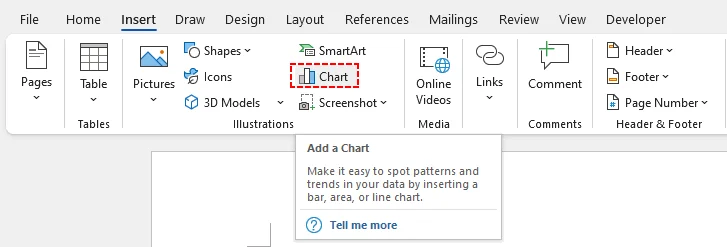
Uma caixa de diálogo “Inserir Gráfico” aparecerá. Selecione Pizza na lista do painel esquerdo. O Word oferece várias variantes de gráfico de pizza para diferentes casos de uso:
- Pizza: A versão 2D padrão.
- Pizza 3D: Adiciona profundidade para um visual moderno.
- Rosca: Um gráfico de pizza com um buraco no meio (ótimo para uma estética "vazada").
- Barra de Pizza: Combina um gráfico de pizza com um gráfico de barras para dados complexos.
Clique duas vezes no estilo de gráfico de pizza de sua preferência ou selecione-o e clique em OK. Um gráfico de pizza padrão de exemplo será incorporado ao seu documento.
Uma minúscula planilha do Excel será aberta. Substitua os nomes de categorias e valores numéricos de espaço reservado pelo seu próprio conjunto de dados. O gráfico é atualizado em tempo real.
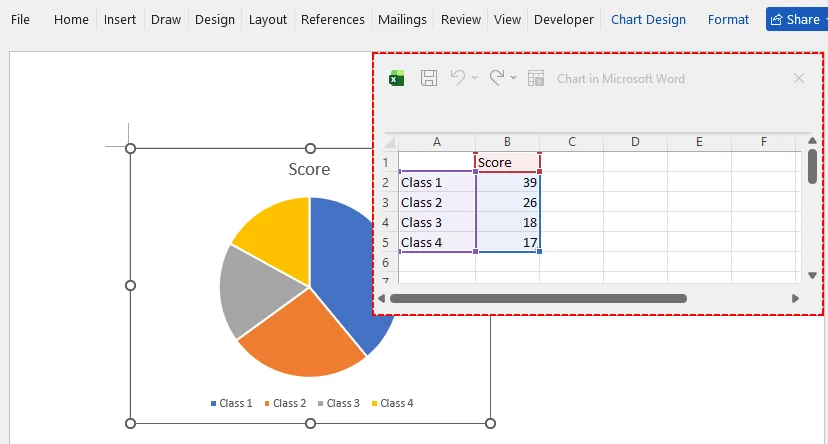
Dica profissional para MS Word
Use a guia Design do Gráfico que aparece após clicar no gráfico. Aqui, você pode:
- Alterar Cores para corresponder à sua marca ou ao tema do relatório.
- Adicionar Rótulos de Dados para mostrar porcentagens ou valores diretamente nas fatias.
- Alterar Tipo de Gráfico para um gráfico "Pizza de Pizza" para melhor legibilidade de fatias pequenas.
Depois de finalizar seus visuais e o conteúdo do relatório, você pode adicionar uma camada extra de proteção definindo seu documento do Word como somente leitura antes de compartilhá-lo com outras pessoas.
Como inserir um gráfico de pizza no Word usando código C#
Para desenvolvedores de software que automatizam a geração de documentos, criar manualmente um gráfico de pizza no Word é impraticável para fluxos de trabalho em lote. Você pode usar a biblioteca Free Spire.Doc para .NET para criar dinamicamente documentos do Word com gráficos de pizza.
Este método é perfeito para relatórios mensais automatizados, geração de documentos em massa ou integração da saída de documentos em aplicações web e desktop.
Pré-requisitos
Primeiro, instale a biblioteca Free Spire.Doc via NuGet Package Manager:
Install-Package FreeSpire.Doc
O exemplo completo de código C#
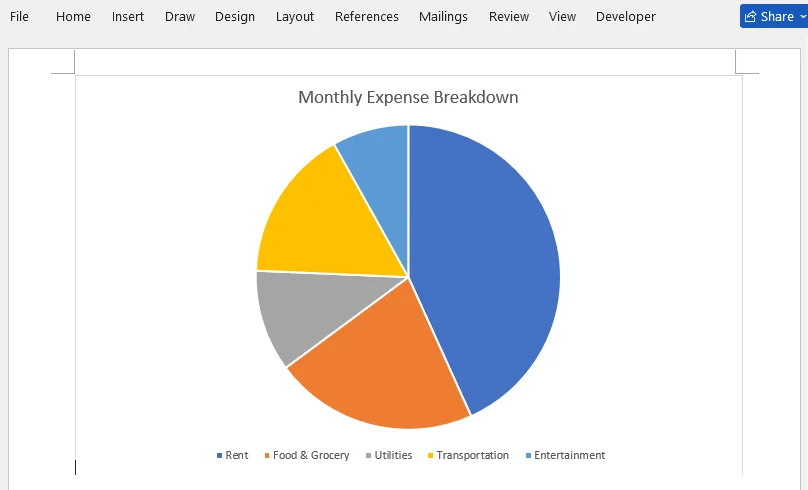
O exemplo abaixo cria um documento do Word contendo um gráfico de pizza mostrando a divisão mensal de despesas domésticas.
using Spire.Doc;
using Spire.Doc.Documents;
using Spire.Doc.Fields.Shapes.Charts;
using Spire.Doc.Fields;

namespace CreatePieChart
{
    class Program
    {
        static void Main(string[] args)
        {
            // Create a new Word document
            Document document = new Document();

            // Add a section
            Section section = document.AddSection();

            // Add a paragraph to hold the chart
            Paragraph paragraph = section.AddParagraph();

            // Append a pie chart (single series)
            ShapeObject shape = paragraph.AppendChart(ChartType.Pie, 500, 300);

            // Get the chart object
            Chart chart = shape.Chart;

            // Clear any default sample data
            chart.Series.Clear();

            // Add the expense data as one series
            // Categories: Rent, Food & Grocery, Utilities, Transportation, Entertainment
            // Values: 1200, 600, 300, 450, 225
            chart.Series.Add("Monthly Expenses",
                new[] { "Rent", "Food & Grocery", "Utilities", "Transportation", "Entertainment" },
                new double[] { 1200, 600, 300, 450, 225 });

            // Set the chart title
            chart.Title.Text = "Monthly Expense Breakdown";

            // Place the legend at the bottom
            chart.Legend.Position = LegendPosition.Bottom;

            // Save the document
            document.SaveToFile("PieChart.docx", FileFormat.Docx2019);
        }
    }
}
Como este código funciona:
- Inicialização: Cria um documento do Word em branco e adiciona uma nova seção/parágrafo para hospedar o elemento visual.
- Criação do gráfico: AppendChart() gera um gráfico de pizza com dimensões definidas.
- Vínculo de dados: O método Series.Add aceita três parâmetros—o nome de exibição da série, a matriz de rótulos de categoria e a matriz de valores numéricos.
- Formatação: Define o título do gráfico e move a legenda para a parte inferior para maximizar o espaço útil do gráfico.
- Exportação: Salva a saída como um arquivo .docx moderno.
Pré-visualização do resultado:
Dica profissional para desenvolvedores
Você pode facilmente modificar as matrizes para extrair dados de um banco de dados ou de um arquivo CSV externo. O Free Spire.Doc também suporta outros tipos de gráfico (como gráficos de colunas) alterando o parâmetro ChartType e fornecendo a série de dados apropriada.
Como copiar um gráfico de pizza existente do Excel para o Word
Se você já criou e formatou um gráfico de pizza no Excel, não é necessário recriá-lo do zero no Word. Copiar e colar preserva seu trabalho existente.
- Abra seu arquivo do Excel e localize o gráfico de pizza.
- Clique no gráfico de pizza para selecioná-lo.
- Pressione Ctrl+C (ou clique com o botão direito e selecione Copiar).
- Vá para seu documento do Word e coloque o cursor onde deseja o gráfico.
- Pressione Ctrl+V (ou clique com o botão direito e selecione Colar).
Um pequeno ícone de área de transferência aparecerá no canto inferior do gráfico. Você pode escolher colá-lo como:
- Tema de Destino: O gráfico corresponde ao tema do seu Word.
- Manter Formatação de Origem: O gráfico mantém sua aparência do Excel.
- Imagem: O gráfico se torna uma imagem estática (ótimo para garantir que ele não mude por acidente).
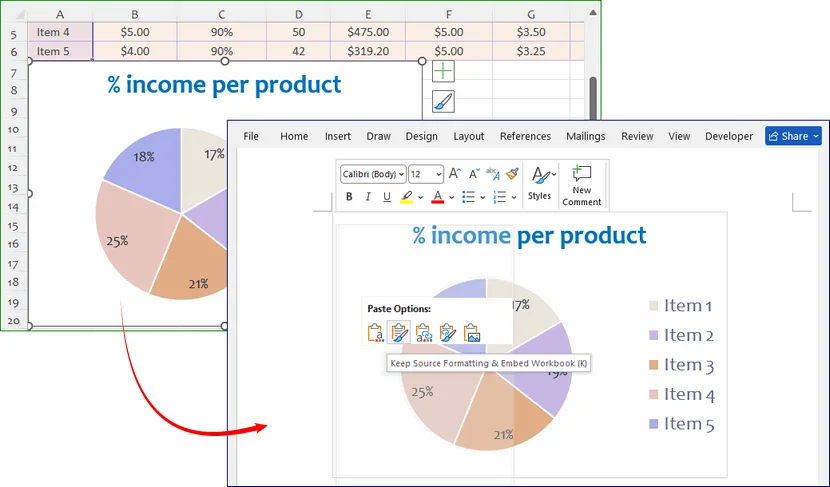
Como editar e atualizar dados do gráfico de pizza posteriormente
Um dos melhores recursos dos gráficos de pizza do Word é que os dados permanecem editáveis. Você não precisa reconstruir seu gráfico do zero quando os números de origem mudam. Siga estas etapas para atualizar seu gráfico:
- Clique com o botão direito em qualquer lugar do seu gráfico de pizza existente.
- Selecione Editar Dados no menu suspenso.
- A planilha do Excel incorporada será reaberta. Você pode editar rótulos e valores existentes ou adicionar novas categorias.
- Feche a janela da planilha. Seu gráfico de pizza será recalculado e atualizado automaticamente.
Toda a formatação personalizada (cores, rótulos, configurações de layout) permanecerá inalterada durante as atualizações de dados.
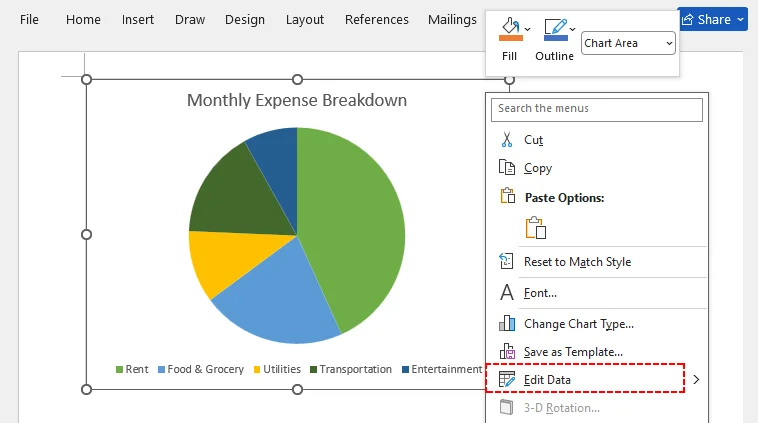
Observação: Para gráficos gerados pela biblioteca Free Spire.Doc para .NET, modifique suas matrizes de dados de origem e execute seu código novamente para produzir um arquivo de saída do Word atualizado.
Melhores práticas para gráficos de pizza em documentos do Word
Para garantir que seu gráfico de pizza seja claro, preciso e profissional, siga estas dicas de especialistas:
- Use apenas dados proporcionais: Gráficos de pizza funcionam apenas para partes de um todo. Evite usá-los para comparar conjuntos de dados independentes (use gráficos de barras em vez disso).
- Evite muitas categorias: Mais de 7 fatias criam segmentos minúsculos e ilegíveis. Agrupe valores pequenos em uma categoria “Outros”.
- Use rótulos de porcentagem: Sempre rotule as fatias com porcentagens ou valores para eliminar suposições dos leitores.
- Evite estilos 3D excessivamente complexos: Efeitos 3D podem distorcer proporções visuais. Use gráficos de pizza 2D para relatórios formais e documentos oficiais.
Conclusão
Adicionar um gráfico de pizza a um documento do Word pode aumentar significativamente o impacto dos seus dados. Quer você prefira a abordagem manual e interativa das ferramentas integradas do Microsoft Word, o poder de copiar e colar do Excel ou os recursos de automação de bibliotecas de programação como o Free Spire.Doc, agora você tem um kit de ferramentas completo à sua disposição.
A melhor escolha depende dos seus objetivos: interatividade, reutilização ou automação. Qualquer que seja o caminho escolhido, o resultado é o mesmo—um gráfico de pizza refinado que torna seus dados mais fáceis de entender e seu documento mais persuasivo.
Perguntas frequentes (FAQs)
P: Como salvo um gráfico de pizza do Word como imagem?
Clique com o botão direito no seu gráfico de pizza e selecione Salvar como Imagem. Você pode salvá-lo como um arquivo PNG, JPG ou SVG para usar em apresentações, mídias sociais ou outros documentos.
P: Posso importar dados do Excel para um gráfico de pizza do Word?
Sim! Ao editar os dados do gráfico, copie seus dados previamente feitos no Excel e cole-os diretamente na planilha incorporada do Word. O gráfico será atualizado instantaneamente com seus dados importados.
P: Meu gráfico de pizza não é atualizado depois que altero os números. O que está errado?
Primeiro, confirme que você está editando o conjunto de dados incorporado ativo via Editar Dados, não apenas caixas de texto sobrepostas ao gráfico. Se você o colou como uma imagem estática, nenhuma atualização ocorrerá. Para gráficos incorporados, feche e reabra a janela de edição de dados ou reinicie o Word para resolver problemas raros de atualização.
P: O Free Spire.Doc para .NET pode gerar gráficos Pizza de Pizza e Pizza 3D programaticamente?
Sim. O Free Spire.Doc para .NET oferece suporte a gráficos Pizza de Pizza e Pizza 3D por meio da enumeração ChartType. Você pode gerá-los programaticamente passando o valor de enumeração apropriado para o método AppendChart:
// Pie of Pie chart
ShapeObject shape = paragraph.AppendChart(ChartType.PieOfPie, 500, 300);

// 3D Pie chart
ShapeObject shape = paragraph.AppendChart(ChartType.Pie3D, 500, 300);
Veja também
- Como inserir equações no Word: um guia para todos os níveis de habilidade
- Como converter DOCX para XLSX: transforme facilmente o Word em Excel
- 7 maneiras inteligentes de inserir blocos de código em documentos do Word
- C#/VB.NET: Criar um gráfico de linhas no Word
- Java: Criar gráficos de colunas em documentos do Word
Word에서 원형 차트 만드는 방법
원형 차트는 데이터 행을 한눈에 볼 수 있는 스냅샷으로 바꿔 주어 비율, 시장 점유율, 설문 조사 결과를 훨씬 쉽게 이해할 수 있게 해줍니다. Microsoft Word는 주로 워드 프로세서로 알려져 있지만, 문서를 벗어나지 않고도 세련되고 전문적인 원형 차트를 만들 수 있는 유능한 차트 도구도 포함하고 있습니다.
발표 자료를 준비하는 학생이든, 보고서를 작성하는 비즈니스 전문가이든, 문서 생성을 자동화하는 개발자이든, Word에서 원형 차트를 만드는 방법을 알면 시간을 절약하고 메시지를 더 명확하게 전달할 수 있습니다.
이 가이드에서는 세 가지 실용적인 방법을 다룹니다:
- Word의 기본 제공 차트 도구 사용하기 – 빠른 수동 생성용
- C#으로 차트 생성하기 – 자동화 및 일괄 처리용
- Excel에서 원형 차트 복사하기 – 기존 작업 재사용용
Word에서 원형 차트를 사용하는 이유는 무엇일까요?
Word에서 직접 원형 차트를 만들 때 얻을 수 있는 주요 이점은 다음과 같습니다:
- 추가 소프트웨어가 필요 없음: 타사 도구로 전환하지 않고 Word 문서 안에서 차트를 완전히 디자인할 수 있습니다.
- 매끄러운 문서 통합: 차트가 기존 텍스트, 서식, 페이지 레이아웃과 자연스럽게 어우러져 일관되고 깔끔한 결과물을 제공합니다.
- 완전한 사용자 지정 가능: 색상, 레이블, 스타일, 레이아웃을 브랜드나 문서 테마에 맞게 조정할 수 있습니다.
- 간편한 데이터 업데이트: 전체 그래픽을 다시 만들지 않고도 언제든지 차트 데이터를 편집할 수 있습니다.
전문가 팁: 가독성을 위해 원형 차트의 데이터 범주는 3~7개로 제한하세요. 조각이 너무 많으면 차트가 복잡해져 해석하기 어려워집니다.
Microsoft Word에서 원형 차트를 만드는 방법
Microsoft Word는 여전히 가장 널리 사용되는 워드 프로세서입니다. Word에서 원형 차트를 만드는 가장 빠른 방법은 다음과 같습니다:
- 문서를 열고 차트를 넣을 위치에 커서를 놓습니다.
- 상단 리본의 삽입 탭으로 이동합니다.
- "일러스트레이션" 그룹에 있는 차트 아이콘을 클릭합니다.
"차트 삽입" 대화 상자가 나타납니다. 왼쪽 패널 목록에서 원형을 선택합니다. Word는 다양한 사용 사례에 맞는 여러 원형 차트 변형을 제공합니다:
- 원형: 표준 2D 버전입니다.
- 3차원 원형: 입체감을 더해 현대적인 느낌을 줍니다.
- 도넛형: 가운데에 구멍이 있는 원형 차트입니다("속이 빈" 미학에 좋습니다).
- 원형 막대형: 복잡한 데이터를 위해 원형 차트와 막대 그래프를 결합합니다.
원하는 원형 차트 스타일을 두 번 클릭하거나 선택한 뒤 확인을 클릭합니다. 기본 샘플 원형 차트가 문서에 삽입됩니다.
미니 Excel 스프레드시트가 열립니다. 자리 표시자 범주 이름과 숫자 값을 자신의 데이터 세트로 바꿉니다. 차트가 실시간으로 업데이트됩니다.
MS Word를 위한 전문가 팁
차트를 클릭하면 나타나는 차트 디자인 탭을 사용하세요. 여기에서 다음을 할 수 있습니다:
- 브랜드나 보고서 테마에 맞게 색 변경하기.
- 조각에 백분율이나 값을 직접 표시하도록 데이터 레이블 추가하기.
- 작은 조각의 가독성을 높이기 위해 차트 종류 변경으로 "원형 대 원형" 차트 사용하기.
시각 자료와 보고서 내용을 완성한 후에는 다른 사람과 공유하기 전에 Word 문서를 읽기 전용으로 설정하여 추가 보호 계층을 더할 수 있습니다.
C# 코드를 사용하여 Word에 원형 차트를 삽입하는 방법
문서 생성을 자동화하는 소프트웨어 개발자에게 Word에서 원형 그래프를 수동으로 만드는 것은 일괄 워크플로에 비현실적입니다. Free Spire.Doc for .NET 라이브러리를 사용하면 원형 차트가 포함된 Word 문서를 동적으로 작성할 수 있습니다.
이 방법은 자동 월간 보고서, 대량 문서 생성, 또는 웹 및 데스크톱 응용 프로그램에 문서 출력을 통합하는 데 적합합니다.
사전 요구 사항
먼저 NuGet 패키지 관리자를 통해 Free Spire.Doc 라이브러리를 설치합니다:
Install-Package FreeSpire.Doc
전체 C# 코드 예제
아래 샘플은 월별 가계 지출 내역을 보여 주는 원형 차트가 포함된 Word 문서를 생성합니다.
using Spire.Doc;
using Spire.Doc.Documents;
using Spire.Doc.Fields.Shapes.Charts;
using Spire.Doc.Fields;

namespace CreatePieChart
{
    class Program
    {
        static void Main(string[] args)
        {
            // Create a new Word document
            Document document = new Document();

            // Add a section
            Section section = document.AddSection();

            // Add a paragraph to hold the chart
            Paragraph paragraph = section.AddParagraph();

            // Append a pie chart (single series)
            ShapeObject shape = paragraph.AppendChart(ChartType.Pie, 500, 300);

            // Get the chart object
            Chart chart = shape.Chart;

            // Clear any default sample data
            chart.Series.Clear();

            // Add the expense data as one series
            // Categories: Rent, Food & Grocery, Utilities, Transportation, Entertainment
            // Values: 1200, 600, 300, 450, 225
            chart.Series.Add("Monthly Expenses",
                new[] { "Rent", "Food & Grocery", "Utilities", "Transportation", "Entertainment" },
                new double[] { 1200, 600, 300, 450, 225 });

            // Set the chart title
            chart.Title.Text = "Monthly Expense Breakdown";

            // Place the legend at the bottom
            chart.Legend.Position = LegendPosition.Bottom;

            // Save the document
            document.SaveToFile("PieChart.docx", FileFormat.Docx2019);
        }
    }
}
이 코드의 작동 방식:
- 초기화: 빈 Word 문서를 만들고 시각적 요소를 호스팅할 새 섹션/단락을 추가합니다.
- 차트 생성: AppendChart()가 지정된 크기의 원형 차트를 생성합니다.
- 데이터 바인딩: Series.Add 메서드는 계열 표시 이름, 범주 레이블 배열, 숫자 값 배열의 세 가지 매개 변수를 받습니다.
- 서식 지정: 차트 제목을 설정하고 사용 가능한 차트 공간을 최대화하기 위해 범례를 아래쪽으로 이동합니다.
- 내보내기: 출력을 최신 .docx 파일로 저장합니다.
결과 미리 보기:
개발자를 위한 전문가 팁
배열을 손쉽게 수정하여 데이터베이스나 외부 CSV 파일에서 데이터를 가져올 수 있습니다. Free Spire.Doc은 ChartType 매개 변수를 변경하고 적절한 데이터 계열을 제공하여 다른 차트 유형(예: 세로 막대형 차트)도 지원합니다.
Excel에서 기존 원형 차트를 Word로 복사하는 방법
이미 Excel에서 원형 차트를 만들고 서식을 지정했다면 Word에서 처음부터 다시 만들 필요가 없습니다. 복사하여 붙여넣기만 하면 기존 작업이 그대로 유지됩니다.
- Excel 파일을 열고 원형 차트를 찾습니다.
- 원형 차트를 클릭하여 선택합니다.
- Ctrl+C를 누릅니다(또는 마우스 오른쪽 버튼을 클릭하고 복사를 선택합니다).
- Word 문서로 이동하여 차트를 넣을 위치에 커서를 놓습니다.
- Ctrl+V를 누릅니다(또는 마우스 오른쪽 버튼을 클릭하고 붙여넣기를 선택합니다).
차트의 아래쪽 모서리에 작은 클립보드 아이콘이 나타납니다. 다음 형식으로 붙여넣도록 선택할 수 있습니다:
- 대상 테마: 차트가 Word 테마와 일치합니다.
- 원본 서식 유지: 차트가 Excel 모양을 그대로 유지합니다.
- 그림: 차트가 정적 이미지가 됩니다(실수로 변경되지 않도록 하는 데 좋습니다).
나중에 원형 차트 데이터를 편집하고 업데이트하는 방법
Word 원형 차트의 가장 좋은 기능 중 하나는 데이터를 계속 편집할 수 있다는 점입니다. 원본 숫자가 변경될 때 차트를 처음부터 다시 만들 필요가 없습니다. 다음 단계에 따라 차트를 새로 고치세요:
- 기존 원형 차트의 아무 곳이나 마우스 오른쪽 버튼으로 클릭합니다.
- 드롭다운 메뉴에서 데이터 편집을 선택합니다.
- 포함된 미니 Excel 스프레드시트가 다시 열립니다. 기존 레이블과 값을 편집하거나 완전히 새로운 범주를 추가할 수 있습니다.
- 스프레드시트 창을 닫습니다. 원형 차트가 자동으로 다시 계산되고 새로 고쳐집니다.
모든 사용자 지정 서식(색상, 레이블, 레이아웃 설정)은 데이터 업데이트 중에도 변경되지 않고 유지됩니다.
참고: Free Spire.Doc for .NET 라이브러리를 통해 생성된 차트의 경우, 원본 데이터 배열을 수정하고 코드를 다시 실행하여 업데이트된 Word 출력 파일을 생성하세요.
Word 문서를 위한 원형 차트 모범 사례
원형 차트가 명확하고 정확하며 전문적으로 보이도록 하려면 다음 전문가 팁을 따르세요:
- 비례 데이터에만 사용하세요: 원형 차트는 전체에 대한 부분을 나타낼 때만 적합합니다. 독립적인 데이터 세트를 비교할 때는 사용하지 마세요(대신 막대 차트를 사용하세요).
- 범주가 너무 많지 않도록 하세요: 7개가 넘는 조각은 너무 작아 읽을 수 없는 세그먼트를 만듭니다. 작은 값들은 "기타" 범주로 묶으세요.
- 백분율 레이블을 사용하세요: 독자가 추측하지 않도록 항상 조각에 백분율이나 값을 표시하세요.
- 지나치게 복잡한 3D 스타일은 피하세요: 3D 효과는 시각적 비율을 왜곡할 수 있습니다. 공식 보고서와 공식 문서에는 2D 원형 차트를 사용하세요.
결론
Word 문서에 원형 차트를 추가하면 데이터의 영향력을 크게 높일 수 있습니다. Microsoft Word의 기본 제공 도구를 사용한 수동 대화형 접근 방식, Excel에서 복사하여 붙여넣는 편리함, 또는 Free Spire.Doc과 같은 프로그래밍 라이브러리의 자동화 기능 중 어느 것을 선호하든, 이제 여러분에게는 완전한 도구 모음이 있습니다.
최선의 선택은 목표에 따라 달라집니다: 상호 작용성, 재사용성, 또는 자동화. 어떤 방법을 선택하든 결과는 같습니다—데이터를 더 쉽게 이해하고 문서를 더 설득력 있게 만들어 주는 세련된 원형 차트입니다.
자주 묻는 질문(FAQ)
Q: Word 원형 차트를 이미지로 저장하려면 어떻게 하나요?
원형 차트를 마우스 오른쪽 버튼으로 클릭하고 그림으로 저장을 선택합니다. 프레젠테이션, 소셜 미디어 또는 기타 문서에서 사용할 수 있도록 PNG, JPG 또는 SVG 파일로 저장할 수 있습니다.
Q: Excel 데이터를 Word 원형 차트로 가져올 수 있나요?
예! 차트 데이터를 편집할 때 미리 만들어 둔 Excel 데이터를 복사하여 Word에 포함된 스프레드시트에 바로 붙여넣으세요. 차트가 가져온 데이터로 즉시 업데이트됩니다.
Q: 숫자를 변경한 후에도 원형 차트가 업데이트되지 않습니다. 무엇이 문제인가요?
먼저 차트 위에 겹쳐진 텍스트 상자가 아니라 데이터 편집을 통해 실제 포함된 데이터 세트를 편집하고 있는지 확인하세요. 정적 그림으로 붙여넣었다면 업데이트가 발생하지 않습니다. 포함된 차트의 경우 데이터 편집 창을 닫았다가 다시 열거나 Word를 다시 시작하여 드물게 발생하는 새로 고침 문제를 해결하세요.
Q: Free Spire.Doc for .NET으로 원형 대 원형 및 3D 원형 차트를 프로그래밍 방식으로 생성할 수 있나요?
예. Free Spire.Doc for .NET은 ChartType 열거형을 통해 원형 대 원형 및 3D 원형 차트를 모두 지원합니다. 적절한 열거형 값을 AppendChart 메서드에 전달하여 프로그래밍 방식으로 생성할 수 있습니다:
// Pie of Pie chart
ShapeObject shape = paragraph.AppendChart(ChartType.PieOfPie, 500, 300);

// 3D Pie chart
ShapeObject shape = paragraph.AppendChart(ChartType.Pie3D, 500, 300);
참고 항목
Come creare un grafico a torta in Word
Un grafico a torta trasforma righe di dati in un'istantanea immediata, rendendo proporzioni, quote di mercato e risultati di sondaggi molto più facili da comprendere. Microsoft Word è noto principalmente come elaboratore di testi, ma include anche validi strumenti di creazione grafici che ti permettono di creare grafici a torta curati e professionali senza uscire dal tuo documento.
Che tu sia uno studente che prepara una presentazione, un professionista che scrive un report o uno sviluppatore che automatizza la generazione di documenti, sapere come creare un grafico a torta in Word può farti risparmiare tempo e rendere il tuo messaggio più chiaro.
Questa guida copre tre metodi pratici:
- Utilizzare gli strumenti grafici integrati di Word – per una creazione manuale e rapida
- Generare grafici con C# – per automazione ed elaborazione in batch
- Copiare un grafico a torta da Excel – per riutilizzare un lavoro esistente
Perché usare un grafico a torta in Word?
Ecco i principali vantaggi della creazione di grafici a torta direttamente in Word:
- Nessun software aggiuntivo necessario: progetta i grafici interamente all'interno del tuo documento Word senza passare a strumenti di terze parti.
- Integrazione perfetta nel documento: i grafici si allineano senza problemi con testo, formattazione e impaginazione esistenti per un risultato coerente e pulito.
- Completamente personalizzabile: regola colori, etichette, stili e layout per adattarli al tuo brand o al tema del documento.
- Aggiornamento dati semplice: modifica i dati del grafico in qualsiasi momento senza ricreare l'intera grafica.
Consiglio da esperto: per la leggibilità, limita il tuo grafico a torta a 3–7 categorie di dati. Troppe fette renderanno il grafico confuso e difficile da interpretare.
Come creare un grafico a torta in Microsoft Word
Microsoft Word rimane l'elaboratore di testi più diffuso. Ecco il modo più rapido per creare un grafico a torta in Word:
- Apri il tuo documento e posiziona il cursore dove desideri il grafico.
- Vai alla scheda Inserisci nella barra multifunzione in alto.
- Fai clic sull'icona Grafico situata nel gruppo "Illustrazioni".
Si aprirà una finestra di dialogo "Inserisci grafico". Seleziona Torta dall'elenco nel pannello a sinistra. Word offre diverse varianti di grafico a torta per casi d'uso differenti:
- Torta: la versione 2D standard.
- Torta 3D: aggiunge profondità per un aspetto moderno.
- Ciambella: un grafico a torta con un buco al centro (ideale per un'estetica "vuota").
- Torta a barre: combina un grafico a torta con un grafico a barre per dati complessi.
Fai doppio clic sullo stile di grafico a torta che preferisci oppure selezionalo e fai clic su OK. Un grafico a torta predefinito di esempio verrà incorporato nel tuo documento.
Si aprirà un mini foglio di calcolo Excel. Sostituisci i nomi di categoria e i valori numerici segnaposto con il tuo set di dati. Il grafico si aggiorna in tempo reale.
Consiglio da esperto per MS Word
Usa la scheda Progettazione grafico che appare dopo aver fatto clic sul grafico. Qui puoi:
- Cambiare i colori per adattarli al tuo brand o al tema del report.
- Aggiungere etichette dati per mostrare percentuali o valori direttamente sulle fette.
- Cambiare tipo di grafico in un grafico "Torta di torta" per una migliore leggibilità delle fette piccole.
Dopo aver finalizzato gli elementi visivi e il contenuto del report, puoi aggiungere un ulteriore livello di protezione impostando il tuo documento Word come di sola lettura prima di condividerlo con altri.
Come inserire un grafico a torta in Word usando codice C#
Per gli sviluppatori software che automatizzano la generazione di documenti, creare manualmente un grafico a torta in Word non è pratico per flussi di lavoro in batch. Puoi usare la libreria Free Spire.Doc per .NET per creare dinamicamente documenti Word con grafici a torta.
Questo metodo è perfetto per report mensili automatizzati, generazione di documenti in blocco o integrazione dell'output di documenti in applicazioni web e desktop.
Prerequisiti
Innanzitutto, installa la libreria Free Spire.Doc tramite NuGet Package Manager:
Install-Package FreeSpire.Doc
L'esempio completo di codice C#
L'esempio seguente crea un documento Word contenente un grafico a torta che mostra la ripartizione delle spese mensili domestiche.
using Spire.Doc;
using Spire.Doc.Documents;
using Spire.Doc.Fields.Shapes.Charts;
using Spire.Doc.Fields;

namespace CreatePieChart
{
    class Program
    {
        static void Main(string[] args)
        {
            // Create a new Word document
            Document document = new Document();

            // Add a section
            Section section = document.AddSection();

            // Add a paragraph to hold the chart
            Paragraph paragraph = section.AddParagraph();

            // Append a pie chart (single series)
            ShapeObject shape = paragraph.AppendChart(ChartType.Pie, 500, 300);

            // Get the chart object
            Chart chart = shape.Chart;

            // Clear any default sample data
            chart.Series.Clear();

            // Add the expense data as one series
            // Categories: Rent, Food & Grocery, Utilities, Transportation, Entertainment
            // Values: 1200, 600, 300, 450, 225
            chart.Series.Add("Monthly Expenses",
                new[] { "Rent", "Food & Grocery", "Utilities", "Transportation", "Entertainment" },
                new double[] { 1200, 600, 300, 450, 225 });

            // Set the chart title
            chart.Title.Text = "Monthly Expense Breakdown";

            // Place the legend at the bottom
            chart.Legend.Position = LegendPosition.Bottom;

            // Save the document
            document.SaveToFile("PieChart.docx", FileFormat.Docx2019);
        }
    }
}
Come funziona questo codice:
- Inizializzazione: crea un documento Word vuoto e aggiunge una nuova sezione/paragrafo per ospitare l'elemento visivo.
- Creazione del grafico: AppendChart() genera un grafico a torta con dimensioni definite.
- Associazione dati: il metodo Series.Add accetta tre parametri: il nome visualizzato della serie, l'array di etichette di categoria e l'array di valori numerici.
- Formattazione: imposta il titolo del grafico e sposta la legenda in basso per massimizzare lo spazio utile del grafico.
- Esportazione: salva l'output come file .docx moderno.
Anteprima del risultato:
Consiglio da esperto per gli sviluppatori
Puoi facilmente modificare gli array per estrarre dati da un database o da un file CSV esterno. Free Spire.Doc supporta anche altri tipi di grafico (come i grafici a colonne) modificando il parametro ChartType e fornendo la serie di dati appropriata.
Come copiare un grafico a torta esistente da Excel a Word
Se hai già creato e formattato un grafico a torta in Excel, non è necessario ricrearlo da zero in Word. Copia e incolla preserva il tuo lavoro esistente.
- Apri il tuo file Excel e individua il grafico a torta.
- Fai clic sul grafico a torta per selezionarlo.
- Premi Ctrl+C (oppure fai clic con il pulsante destro e seleziona Copia).
- Vai al tuo documento Word e posiziona il cursore dove desideri il grafico.
- Premi Ctrl+V (oppure fai clic con il pulsante destro e seleziona Incolla).
Apparirà una piccola icona degli appunti nell'angolo inferiore del grafico. Puoi scegliere di incollarlo come:
- Tema di destinazione: il grafico si adatta al tema del tuo Word.
- Mantieni formattazione originale: il grafico conserva il suo aspetto Excel.
- Immagine: il grafico diventa un'immagine statica (ideale per assicurarsi che non cambi accidentalmente).
Come modificare e aggiornare i dati del grafico a torta in seguito
Una delle migliori caratteristiche dei grafici a torta di Word è che i dati rimangono modificabili. Non è necessario ricostruire il grafico da zero quando i numeri di origine cambiano. Segui questi passaggi per aggiornare il tuo grafico:
- Fai clic con il pulsante destro in un punto qualsiasi del tuo grafico a torta esistente.
- Seleziona Modifica dati dal menu a discesa.
- Il mini foglio di calcolo Excel incorporato si riaprirà. Puoi modificare etichette e valori esistenti oppure aggiungere nuove categorie.
- Chiudi la finestra del foglio di calcolo. Il tuo grafico a torta verrà ricalcolato e aggiornato automaticamente.
Tutta la formattazione personalizzata (colori, etichette, impostazioni di layout) rimarrà invariata durante gli aggiornamenti dei dati.
Nota: per i grafici generati tramite la libreria Free Spire.Doc per .NET, modifica gli array dei dati di origine ed esegui nuovamente il codice per produrre un file Word aggiornato.
Buone pratiche per i grafici a torta nei documenti Word
Per assicurarti che il tuo grafico a torta sia chiaro, accurato e professionale, segui questi consigli degli esperti:
- Usa solo dati proporzionali: i grafici a torta funzionano solo per parti di un tutto. Evita di usarli per confrontare set di dati indipendenti (usa invece i grafici a barre).
- Evita troppe categorie: più di 7 fette crea segmenti minuscoli e illeggibili. Raggruppa i valori piccoli in una categoria "Altro".
- Usa etichette percentuali: etichetta sempre le fette con percentuali o valori per eliminare ogni incertezza per i lettori.
- Evita stili 3D troppo complessi: gli effetti 3D possono distorcere le proporzioni visive. Usa grafici a torta 2D per report formali e documenti ufficiali.
Conclusione
Aggiungere un grafico a torta a un documento Word può migliorare in modo significativo l'impatto dei tuoi dati. Che tu preferisca l'approccio manuale e interattivo degli strumenti integrati di Microsoft Word, la potenza del copia-incolla da Excel o le capacità di automazione di librerie di programmazione come Free Spire.Doc, ora hai a disposizione un kit completo di strumenti.
La scelta migliore dipende dai tuoi obiettivi: interattività, riutilizzo o automazione. Qualunque strada tu intraprenda, il risultato è lo stesso: un grafico a torta curato che rende i tuoi dati più facili da comprendere e il tuo documento più persuasivo.
Domande frequenti (FAQ)
D: Come salvo un grafico a torta di Word come immagine?
Fai clic con il pulsante destro sul tuo grafico a torta e seleziona Salva come immagine. Puoi salvarlo come file PNG, JPG o SVG da usare in presentazioni, social media o altri documenti.
D: Posso importare dati Excel in un grafico a torta di Word?
Sì! Quando modifichi i dati del grafico, copia i dati Excel già pronti e incollali direttamente nel foglio di calcolo incorporato di Word. Il grafico si aggiornerà istantaneamente con i dati importati.
D: Il mio grafico a torta non si aggiorna dopo che ho cambiato i numeri. Cosa c'è che non va?
Innanzitutto, verifica di stare modificando il set di dati incorporato attivo tramite Modifica dati, e non solo caselle di testo sovrapposte al grafico. Se lo hai incollato come immagine statica, non avverrà alcun aggiornamento. Per i grafici incorporati, chiudi e riapri la finestra di modifica dei dati oppure riavvia Word per risolvere rari problemi di aggiornamento.
D: Free Spire.Doc per .NET può generare grafici Torta di torta e Torta 3D a livello di programmazione?
Sì. Free Spire.Doc per .NET supporta sia i grafici Torta di torta sia Torta 3D tramite l'enumerazione ChartType. Puoi generarli a livello di programmazione passando il valore enum appropriato al metodo AppendChart:
// Pie of Pie chart
ShapeObject shape = paragraph.AppendChart(ChartType.PieOfPie, 500, 300);

// 3D Pie chart
ShapeObject shape = paragraph.AppendChart(ChartType.Pie3D, 500, 300);
Vedi anche
- Come inserire equazioni in Word: una guida per tutti i livelli di competenza
- Come convertire DOCX in XLSX: trasformare facilmente Word in Excel
- 7 modi intelligenti per inserire blocchi di codice nei documenti Word
- C#/VB.NET: creare un grafico a linee in Word
- Java: creare grafici a colonne nei documenti Word
Comment créer un diagramme circulaire dans Word
Un graphique à secteurs transforme des lignes de données en un instantané immédiat, ce qui rend les proportions, les parts de marché et les résultats d'enquête bien plus faciles à comprendre. Microsoft Word est surtout connu comme un traitement de texte, mais il intègre également des outils de création de graphiques performants qui vous permettent de créer des graphiques à secteurs soignés et professionnels sans quitter votre document.
Que vous soyez un étudiant préparant une présentation, un professionnel rédigeant un rapport ou un développeur automatisant la génération de documents, savoir comment créer un graphique à secteurs dans Word peut vous faire gagner du temps et rendre votre message plus clair.
Ce guide présente trois méthodes pratiques :
- Utiliser les outils de graphique intégrés de Word – pour une création manuelle et rapide
- Générer des graphiques avec C# – pour l'automatisation et le traitement par lots
- Copier un graphique à secteurs depuis Excel – pour réutiliser un travail existant
Pourquoi utiliser un graphique à secteurs dans Word ?
Voici les principaux avantages de créer des graphiques à secteurs directement dans Word :
- Aucun logiciel supplémentaire requis : concevez vos graphiques entièrement dans votre document Word, sans passer à des outils tiers.
- Intégration transparente au document : les graphiques s'alignent parfaitement avec le texte, la mise en forme et la mise en page existants pour un résultat cohérent et propre.
- Entièrement personnalisable : ajustez les couleurs, les étiquettes, les styles et la mise en page pour correspondre à votre marque ou au thème de votre document.
- Mise à jour facile des données : modifiez les données de votre graphique à tout moment sans recréer l'intégralité du graphique.
Astuce de pro : Pour une meilleure lisibilité, limitez votre graphique à secteurs à 3–7 catégories de données. Trop de secteurs rendront le graphique encombré et difficile à interpréter.
Comment créer un graphique à secteurs dans Microsoft Word
Microsoft Word reste le traitement de texte le plus populaire. Voici la façon la plus rapide de créer un graphique à secteurs dans Word :
- Ouvrez votre document et placez votre curseur à l'endroit où vous souhaitez insérer le graphique.
- Accédez à l'onglet Insertion du ruban supérieur.
- Cliquez sur l'icône Graphique située dans le groupe « Illustrations ».
Une boîte de dialogue « Insérer un graphique » s'ouvrira. Sélectionnez Secteurs dans la liste du panneau de gauche. Word propose plusieurs variantes de graphiques à secteurs selon les besoins :
- Secteurs : la version 2D standard.
- Secteurs 3D : ajoute de la profondeur pour un rendu moderne.
- Anneau : un graphique à secteurs avec un trou au milieu (idéal pour une esthétique « évidée »).
- Secteurs et histogramme : combine un graphique à secteurs avec un graphique à barres pour des données complexes.
Double-cliquez sur le style de graphique à secteurs de votre choix ou sélectionnez-le puis cliquez sur OK. Un exemple de graphique à secteurs par défaut sera intégré à votre document.
Une mini feuille de calcul Excel s'ouvrira. Remplacez les noms de catégories et les valeurs numériques fictifs par vos propres données. Le graphique se met à jour en temps réel.
Astuce de pro pour MS Word
Utilisez l'onglet Création de graphique qui apparaît après avoir cliqué sur le graphique. Vous pouvez y :
- Modifier les couleurs pour correspondre à votre marque ou au thème de votre rapport.
- Ajouter des étiquettes de données pour afficher les pourcentages ou les valeurs directement sur les secteurs.
- Changer le type de graphique pour un graphique « Secteurs de secteurs » afin d'améliorer la lisibilité des petits secteurs.
Après avoir finalisé vos visuels et le contenu de votre rapport, vous pouvez ajouter une couche de protection supplémentaire en définissant votre document Word en lecture seule avant de le partager avec d'autres.
Comment insérer un graphique à secteurs dans Word à l'aide de code C#
Pour les développeurs de logiciels qui automatisent la génération de documents, créer manuellement un graphique à secteurs dans Word n'est pas pratique pour des flux de travail par lots. Vous pouvez utiliser la bibliothèque Free Spire.Doc for .NET pour créer dynamiquement des documents Word contenant des graphiques à secteurs.
Cette méthode est idéale pour les rapports mensuels automatisés, la génération de documents en masse ou l'intégration de la sortie de documents dans des applications web et de bureau.
Prérequis
Tout d'abord, installez la bibliothèque Free Spire.Doc via le gestionnaire de packages NuGet :
Install-Package FreeSpire.Doc
L'exemple de code C# complet
L'exemple ci-dessous crée un document Word contenant un graphique à secteurs présentant la répartition des dépenses mensuelles d'un ménage.
using Spire.Doc;
using Spire.Doc.Documents;
using Spire.Doc.Fields.Shapes.Charts;
using Spire.Doc.Fields;

namespace CreatePieChart
{
    class Program
    {
        static void Main(string[] args)
        {
            // Create a new Word document
            Document document = new Document();

            // Add a section
            Section section = document.AddSection();

            // Add a paragraph to hold the chart
            Paragraph paragraph = section.AddParagraph();

            // Append a pie chart (single series)
            ShapeObject shape = paragraph.AppendChart(ChartType.Pie, 500, 300);

            // Get the chart object
            Chart chart = shape.Chart;

            // Clear any default sample data
            chart.Series.Clear();

            // Add the expense data as one series
            // Categories: Rent, Food & Grocery, Utilities, Transportation, Entertainment
            // Values: 1200, 600, 300, 450, 225
            chart.Series.Add("Monthly Expenses",
                new[] { "Rent", "Food & Grocery", "Utilities", "Transportation", "Entertainment" },
                new double[] { 1200, 600, 300, 450, 225 });

            // Set the chart title
            chart.Title.Text = "Monthly Expense Breakdown";

            // Place the legend at the bottom
            chart.Legend.Position = LegendPosition.Bottom;

            // Save the document
            document.SaveToFile("PieChart.docx", FileFormat.Docx2019);
        }
    }
}
Fonctionnement de ce code :
- Initialisation : crée un document Word vierge et ajoute une nouvelle section/un nouveau paragraphe pour accueillir l'élément visuel.
- Création du graphique : AppendChart() génère un graphique à secteurs avec des dimensions définies.
- Liaison des données : la méthode Series.Add accepte trois paramètres : le nom d'affichage de la série, le tableau d'étiquettes de catégories et le tableau de valeurs numériques.
- Mise en forme : définit le titre du graphique et déplace la légende vers le bas pour maximiser l'espace utilisable du graphique.
- Exportation : enregistre le résultat dans un fichier .docx moderne.
Aperçu du résultat :
Astuce de pro pour les développeurs
Vous pouvez facilement modifier les tableaux pour extraire des données d'une base de données ou d'un fichier CSV externe. Free Spire.Doc prend également en charge d'autres types de graphiques (comme les graphiques à colonnes) en modifiant le paramètre ChartType et en fournissant la série de données appropriée.
Comment copier un graphique à secteurs existant d'Excel vers Word
Si vous avez déjà créé et mis en forme un graphique à secteurs dans Excel, il n'est pas nécessaire de le recréer de zéro dans Word. Le copier-coller préserve votre travail existant.
- Ouvrez votre fichier Excel et localisez le graphique à secteurs.
- Cliquez sur le graphique à secteurs pour le sélectionner.
- Appuyez sur Ctrl+C (ou faites un clic droit et sélectionnez Copier).
- Allez dans votre document Word et placez votre curseur à l'endroit où vous souhaitez insérer le graphique.
- Appuyez sur Ctrl+V (ou faites un clic droit et sélectionnez Coller).
Une petite icône de presse-papiers apparaîtra dans le coin inférieur du graphique. Vous pouvez choisir de le coller comme suit :
- Thème de destination : le graphique correspond au thème de votre document Word.
- Conserver la mise en forme source : le graphique conserve son apparence Excel.
- Image : le graphique devient une image statique (idéal pour garantir qu'il ne change pas par accident).
Comment modifier et mettre à jour les données d'un graphique à secteurs ultérieurement
L'un des meilleurs atouts des graphiques à secteurs de Word est que les données restent modifiables. Vous n'avez pas besoin de reconstruire votre graphique de zéro lorsque les chiffres sources changent. Suivez ces étapes pour actualiser votre graphique :
- Faites un clic droit n'importe où sur votre graphique à secteurs existant.
- Sélectionnez Modifier les données dans le menu déroulant.
- La mini feuille de calcul Excel intégrée se rouvrira. Vous pouvez modifier les étiquettes et les valeurs existantes, ou ajouter de nouvelles catégories.
- Fermez la fenêtre de la feuille de calcul. Votre graphique à secteurs se recalculera et s'actualisera automatiquement.
Toute la mise en forme personnalisée (couleurs, étiquettes, paramètres de mise en page) restera inchangée lors des mises à jour des données.
Remarque : pour les graphiques générés via la bibliothèque Free Spire.Doc for .NET, modifiez vos tableaux de données sources et réexécutez votre code pour produire un fichier Word mis à jour.
Bonnes pratiques pour les graphiques à secteurs dans les documents Word
Pour garantir que votre graphique à secteurs soit clair, précis et professionnel, suivez ces conseils d'expert :
- Utilisez uniquement des données proportionnelles : les graphiques à secteurs ne servent qu'à représenter des parties d'un tout. Évitez de les utiliser pour comparer des ensembles de données indépendants (utilisez plutôt des graphiques à barres).
- Évitez trop de catégories : plus de 7 secteurs créent des segments minuscules et illisibles. Regroupez les petites valeurs dans une catégorie « Autres ».
- Utilisez des étiquettes en pourcentage : étiquetez toujours les secteurs avec des pourcentages ou des valeurs pour éviter toute approximation de la part des lecteurs.
- Évitez les styles 3D trop complexes : les effets 3D peuvent déformer les proportions visuelles. Utilisez des graphiques à secteurs 2D pour les rapports formels et les documents officiels.
Conclusion
L'ajout d'un graphique à secteurs à un document Word peut considérablement renforcer l'impact de vos données. Que vous préfériez l'approche manuelle et interactive des outils intégrés de Microsoft Word, la simplicité du copier-coller depuis Excel ou les capacités d'automatisation de bibliothèques de programmation comme Free Spire.Doc, vous disposez désormais d'une boîte à outils complète.
Le meilleur choix dépend de vos objectifs : interactivité, réutilisation ou automatisation. Quelle que soit la voie choisie, le résultat est le même : un graphique à secteurs soigné qui rend vos données plus faciles à comprendre et votre document plus convaincant.
Questions fréquentes (FAQ)
Q : Comment enregistrer un graphique à secteurs Word sous forme d'image ?
Faites un clic droit sur votre graphique à secteurs et sélectionnez Enregistrer en tant qu'image. Vous pouvez l'enregistrer au format PNG, JPG ou SVG pour l'utiliser dans des présentations, sur les réseaux sociaux ou dans d'autres documents.
Q : Puis-je importer des données Excel dans un graphique à secteurs Word ?
Oui ! Lors de la modification des données du graphique, copiez vos données Excel préalablement préparées et collez-les directement dans la feuille de calcul intégrée à Word. Le graphique se mettra à jour instantanément avec vos données importées.
Q : Mon graphique à secteurs ne se met pas à jour après avoir modifié les chiffres. Quel est le problème ?
Tout d'abord, vérifiez que vous modifiez bien les données intégrées actives via Modifier les données, et non de simples zones de texte superposées au graphique. Si vous l'avez collé en tant qu'image statique, aucune mise à jour ne se produira. Pour les graphiques intégrés, fermez puis rouvrez la fenêtre de modification des données, ou redémarrez Word pour résoudre de rares problèmes d'actualisation.
Q : Free Spire.Doc for .NET peut-il générer par programmation des graphiques Secteurs de secteurs et Secteurs 3D ?
Oui. Free Spire.Doc for .NET prend en charge les graphiques Secteurs de secteurs et Secteurs 3D via l'énumération ChartType. Vous pouvez les générer par programmation en passant la valeur d'énumération appropriée à la méthode AppendChart :
// Pie of Pie chart
ShapeObject shape = paragraph.AppendChart(ChartType.PieOfPie, 500, 300);

// 3D Pie chart
ShapeObject shape = paragraph.AppendChart(ChartType.Pie3D, 500, 300);
Voir aussi
- Comment insérer des équations dans Word : un guide pour tous les niveaux
- Comment convertir DOCX en XLSX : transformer facilement Word en Excel
- 7 façons astucieuses d'insérer des blocs de code dans des documents Word
- C#/VB.NET : créer un graphique en courbes dans Word
- Java : créer des graphiques à colonnes dans des documents Word
Cómo crear un gráfico circular en Word
Un gráfico circular transforma filas de datos en una instantánea inmediata, lo que hace que las proporciones, la cuota de mercado y los resultados de encuestas sean mucho más fáciles de entender. Microsoft Word puede ser conocido principalmente como un procesador de textos, pero también incluye herramientas de gráficos capaces que le permiten crear gráficos circulares pulidos y profesionales sin salir de su documento.
Ya sea usted un estudiante que prepara una presentación, un profesional de negocios que redacta un informe o un desarrollador que automatiza la generación de documentos, saber cómo crear un gráfico circular en Word puede ahorrar tiempo y hacer que su mensaje sea más claro.
Esta guía cubre tres métodos prácticos:
- Usar las herramientas de gráficos integradas de Word – para una creación manual y rápida
- Generar gráficos con C# – para automatización y procesamiento por lotes
- Copiar un gráfico circular desde Excel – para reutilizar trabajo existente
¿Por qué usar un gráfico circular en Word?
Estos son los beneficios clave de crear gráficos circulares directamente en Word:
- No se necesita software adicional: Diseñe gráficos completamente dentro de su documento de Word sin cambiar a herramientas de terceros.
- Integración perfecta con el documento: Los gráficos se alinean a la perfección con el texto, el formato y el diseño de página existentes para obtener un resultado coherente y limpio.
- Totalmente personalizable: Ajuste colores, etiquetas, estilos y diseño para que coincidan con su marca o el tema de su documento.
- Actualizaciones de datos sencillas: Edite los datos de su gráfico en cualquier momento sin tener que recrear todo el gráfico.
Consejo profesional: Para facilitar la lectura, limite su gráfico circular a 3–7 categorías de datos. Demasiados sectores harán que el gráfico se vea recargado y sea difícil de interpretar.
Cómo crear un gráfico circular en Microsoft Word
Microsoft Word sigue siendo el procesador de textos más popular. Esta es la forma más rápida de hacer un gráfico circular en Word:
- Abra su documento y coloque el cursor donde desee el gráfico.
- Vaya a la pestaña Insertar en la cinta superior.
- Haga clic en el icono Gráfico ubicado dentro del grupo "Ilustraciones".
Se abrirá un cuadro de diálogo emergente "Insertar gráfico". Seleccione Circular en la lista del panel izquierdo. Word ofrece varias variantes de gráficos circulares para diferentes casos de uso:
- Circular: La versión estándar en 2D.
- Circular 3D: Añade profundidad para un aspecto moderno.
- Anillo: Un gráfico circular con un agujero en el centro (ideal para una estética "hueca").
- Circular con barras: Combina un gráfico circular con un gráfico de barras para datos complejos.
Haga doble clic en el estilo de gráfico circular que prefiera o selecciónelo y haga clic en Aceptar. Se insertará un gráfico circular predeterminado de ejemplo en su documento.
Se abrirá una mini hoja de cálculo de Excel. Reemplace los nombres de categoría y los valores numéricos de marcador de posición con su propio conjunto de datos. El gráfico se actualiza en tiempo real.
Consejo profesional para MS Word
Utilice la pestaña Diseño de gráfico que aparece después de hacer clic en el gráfico. Aquí puede:
- Cambiar colores para que coincidan con su marca o el tema del informe.
- Añadir etiquetas de datos para mostrar porcentajes o valores directamente en los sectores.
- Cambiar el tipo de gráfico a un gráfico "Circular con subcircular" para una mejor legibilidad de los sectores pequeños.
Después de finalizar sus elementos visuales y el contenido del informe, puede añadir una capa adicional de protección configurando su documento de Word como solo lectura antes de compartirlo con otras personas.
Cómo insertar un gráfico circular en Word usando código C#
Para los desarrolladores de software que automatizan la generación de documentos, crear manualmente un gráfico circular en Word no es práctico para flujos de trabajo por lotes. Puede usar la biblioteca Free Spire.Doc for .NET para crear dinámicamente documentos de Word con gráficos circulares.
Este método es perfecto para informes mensuales automatizados, generación masiva de documentos o la integración de la salida de documentos en aplicaciones web y de escritorio.
Requisitos previos
En primer lugar, instale la biblioteca Free Spire.Doc a través del Administrador de paquetes NuGet:
Install-Package FreeSpire.Doc
El ejemplo completo de código C#
El siguiente ejemplo crea un documento de Word que contiene un gráfico circular con el desglose de los gastos mensuales del hogar.
using Spire.Doc;
using Spire.Doc.Documents;
using Spire.Doc.Fields.Shapes.Charts;
using Spire.Doc.Fields;

namespace CreatePieChart
{
    class Program
    {
        static void Main(string[] args)
        {
            // Create a new Word document
            Document document = new Document();

            // Add a section
            Section section = document.AddSection();

            // Add a paragraph to hold the chart
            Paragraph paragraph = section.AddParagraph();

            // Append a pie chart (single series)
            ShapeObject shape = paragraph.AppendChart(ChartType.Pie, 500, 300);

            // Get the chart object
            Chart chart = shape.Chart;

            // Clear any default sample data
            chart.Series.Clear();

            // Add the expense data as one series
            // Categories: Rent, Food & Grocery, Utilities, Transportation, Entertainment
            // Values: 1200, 600, 300, 450, 225
            chart.Series.Add("Monthly Expenses",
                new[] { "Rent", "Food & Grocery", "Utilities", "Transportation", "Entertainment" },
                new double[] { 1200, 600, 300, 450, 225 });

            // Set the chart title
            chart.Title.Text = "Monthly Expense Breakdown";

            // Place the legend at the bottom
            chart.Legend.Position = LegendPosition.Bottom;

            // Save the document
            document.SaveToFile("PieChart.docx", FileFormat.Docx2019);
        }
    }
}
Cómo funciona este código:
- Inicialización: Crea un documento de Word en blanco y añade una nueva sección/párrafo para alojar el elemento visual.
- Creación del gráfico: AppendChart() genera un gráfico circular con dimensiones definidas.
- Enlace de datos: El método Series.Add toma tres parámetros: el nombre de visualización de la serie, la matriz de etiquetas de categoría y la matriz de valores numéricos.
- Formato: Establece el título del gráfico y mueve la leyenda a la parte inferior para maximizar el espacio útil del gráfico.
- Exportación: Guarda la salida como un archivo .docx moderno.
Vista previa del resultado:
Consejo profesional para desarrolladores
Puede modificar fácilmente las matrices para extraer datos de una base de datos o de un archivo CSV externo. Free Spire.Doc también admite otros tipos de gráficos (como gráficos de columnas) cambiando el parámetro ChartType y proporcionando la serie de datos adecuada.
Cómo copiar un gráfico circular existente de Excel a Word
Si ya ha creado y dado formato a un gráfico circular en Excel, no es necesario volver a crearlo desde cero en Word. Copiar y pegar conserva su trabajo existente.
- Abra su archivo de Excel y localice el gráfico circular.
- Haga clic en el gráfico circular para seleccionarlo.
- Pulse Ctrl+C (o haga clic con el botón derecho y seleccione Copiar).
- Vaya a su documento de Word y coloque el cursor donde desee el gráfico.
- Pulse Ctrl+V (o haga clic con el botón derecho y seleccione Pegar).
Aparecerá un pequeño icono de portapapeles en la esquina inferior del gráfico. Puede elegir pegarlo como:
- Tema de destino: El gráfico coincide con el tema de su Word.
- Mantener formato de origen: El gráfico conserva su aspecto de Excel.
- Imagen: El gráfico se convierte en una imagen estática (ideal para asegurarse de que no cambie por accidente).
Cómo editar y actualizar los datos de un gráfico circular más adelante
Una de las mejores características de los gráficos circulares de Word es que los datos permanecen editables. No necesita reconstruir su gráfico desde cero cuando cambien los números de origen. Siga estos pasos para actualizar su gráfico:
- Haga clic con el botón derecho en cualquier parte de su gráfico circular existente.
- Seleccione Editar datos en el menú desplegable.
- Se volverá a abrir la mini hoja de cálculo de Excel insertada. Puede editar las etiquetas y los valores existentes, o añadir categorías completamente nuevas.
- Cierre la ventana de la hoja de cálculo. Su gráfico circular se recalculará y actualizará automáticamente.
Todo el formato personalizado (colores, etiquetas, configuración de diseño) permanecerá sin cambios durante las actualizaciones de datos.
Nota: Para los gráficos generados mediante la biblioteca Free Spire.Doc for .NET, modifique sus matrices de datos de origen y vuelva a ejecutar su código para producir un archivo de salida de Word actualizado.
Mejores prácticas para gráficos circulares en documentos de Word
Para asegurarse de que su gráfico circular sea claro, preciso y profesional, siga estos consejos de expertos:
- Limítese solo a datos proporcionales: Los gráficos circulares solo funcionan para partes de un todo. Evite usarlos para comparar conjuntos de datos independientes (use gráficos de barras en su lugar).
- Evite demasiadas categorías: Más de 7 sectores crea segmentos diminutos e ilegibles. Agrupe los valores pequeños en una categoría "Otros".
- Use etiquetas de porcentaje: Etiquete siempre los sectores con porcentajes o valores para eliminar las conjeturas de los lectores.
- Omita los estilos 3D demasiado complejos: Los efectos 3D pueden distorsionar las proporciones visuales. Use gráficos circulares en 2D para informes formales y documentos oficiales.
Conclusión
Añadir un gráfico circular a un documento de Word puede mejorar significativamente el impacto de sus datos. Ya sea que prefiera el enfoque manual e interactivo de las herramientas integradas de Microsoft Word, la potencia de copiar y pegar desde Excel, o las capacidades de automatización de bibliotecas de programación como Free Spire.Doc, ahora tiene un conjunto completo de herramientas a su disposición.
La mejor opción depende de sus objetivos: interactividad, reutilización o automatización. Sea cual sea el camino que elija, el resultado es el mismo: un gráfico circular pulido que hace que sus datos sean más fáciles de entender y su documento más persuasivo.
Preguntas frecuentes (FAQ)
P: ¿Cómo guardo un gráfico circular de Word como imagen?
Haga clic con el botón derecho en su gráfico circular y seleccione Guardar como imagen. Puede guardarlo como archivo PNG, JPG o SVG para usarlo en presentaciones, redes sociales u otros documentos.
P: ¿Puedo importar datos de Excel a un gráfico circular de Word?
¡Sí! Al editar los datos del gráfico, copie sus datos de Excel ya preparados y péguelos directamente en la hoja de cálculo insertada de Word. El gráfico se actualizará al instante con sus datos importados.
P: Mi gráfico circular no se actualiza después de cambiar los números. ¿Qué ocurre?
En primer lugar, confirme que está editando el conjunto de datos insertado activo mediante Editar datos, y no solo cuadros de texto superpuestos sobre el gráfico. Si lo pegó como una imagen estática, no se producirá ninguna actualización. Para los gráficos insertados, cierre y vuelva a abrir la ventana de edición de datos, o reinicie Word para resolver fallos de actualización poco frecuentes.
P: ¿Puede Free Spire.Doc for .NET generar gráficos Circular con subcircular y Circular 3D mediante programación?
Sí. Free Spire.Doc for .NET admite gráficos Circular con subcircular y Circular 3D a través de la enumeración ChartType. Puede generarlos mediante programación pasando el valor de enumeración adecuado al método AppendChart:
// Pie of Pie chart
ShapeObject shape = paragraph.AppendChart(ChartType.PieOfPie, 500, 300);

// 3D Pie chart
ShapeObject shape = paragraph.AppendChart(ChartType.Pie3D, 500, 300);
Véase también
- Cómo insertar ecuaciones en Word: una guía para todos los niveles
- Cómo convertir DOCX a XLSX: convierta fácilmente Word en Excel
- 7 formas inteligentes de insertar bloques de código en documentos de Word
- C#/VB.NET: Crear un gráfico de líneas en Word
- Java: Crear gráficos de columnas en documentos de Word