Adicionar uma Tabela Dinâmica no Excel: Manual e Automação com Python
Índice
Dados comerciais brutos, como registros de vendas, registros de inventário e respostas de pesquisas, muitas vezes existem em listas longas e não estruturadas. Peneirar manualmente essas linhas para identificar padrões, comparar métricas ou criar resumos consome tempo produtivo de trabalho e aumenta a chance de erros humanos de cálculo.
As tabelas dinâmicas do Excel resolvem exatamente esse desafio. Como uma das ferramentas nativas mais poderosas do Excel, as tabelas dinâmicas permitem que os usuários reorganizem, agreguem, filtrem e explorem conjuntos de dados dinamicamente, tudo sem escrever fórmulas complexas. Você pode mudar sua perspectiva analítica sobre os dados em apenas alguns cliques.
Este guia explica como adicionar uma tabela dinâmica no Excel, abordando tanto a configuração manual quanto abordagens de automação. Se você é um iniciante completo aprendendo análises de planilhas, um analista de escritório otimizando relatórios recorrentes ou um desenvolvedor criando pipelines de dados automatizados, encontrará etapas práticas para fazer as tabelas dinâmicas funcionarem para seus projetos.
- O que é uma Tabela Dinâmica?
- Trabalho Prévio: Prepare seus Dados de Origem
- Como Criar uma Tabela Dinâmica no Excel (Manual)
- Como Inserir uma Tabela Dinâmica no Excel com Python (Automação)
- Dicas de Especialista e Personalização Avançada
- Perguntas Frequentes (FAQs)
O que é uma Tabela Dinâmica?
Uma tabela dinâmica é uma ferramenta de resumo de dados incorporada ao Excel. Ela pega um conjunto de dados plano e permite reorganizá-lo dinamicamente arrastando e soltando campos em diferentes áreas, permitindo que você visualize seus dados sob várias perspectivas sem modificar a origem.
As tabelas dinâmicas se destacam nestes casos de uso:
- Comparar totais de vendas entre diferentes produtos, regiões ou segmentos de negócios
- Calcular vendas de produtos como contribuições percentuais em relação à receita total
- Identificar tendências ao longo do tempo agrupando datas em meses ou trimestres
- Criar relatórios e painéis interativos com segmentações de dados e campos calculados
Trabalho Prévio: Prepare seus Dados de Origem
Antes de adicionar uma tabela dinâmica no Excel, seus dados de origem precisam estar estruturados corretamente. Dados mal organizados são a principal causa de comportamentos inesperados em tabelas dinâmicas.
Siga estas regras para garantir que seus dados estejam prontos para tabela dinâmica:
- Use uma única linha de cabeçalho: Cada coluna deve ter um nome único e descritivo. Evite células mescladas no cabeçalho.
- Remova linhas ou colunas em branco: Cada linha deve representar um único registro, e não deve haver linhas ou colunas vazias dentro do seu conjunto de dados.
- Tipos de dados consistentes: Mantenha um único tipo de dado por coluna (por exemplo, apenas datas na coluna de data; apenas valores numéricos na coluna de vendas).
- Sem linhas de subtotal ou total geral: Linhas de resumo preexistentes podem confundir a detecção de dados do Excel.
Dica profissional: Converta seu conjunto de dados em uma Tabela do Excel primeiro (Inserir > Tabela). Quando seus dados de origem crescerem, a tabela dinâmica poderá ser atualizada para incluir novas linhas automaticamente.
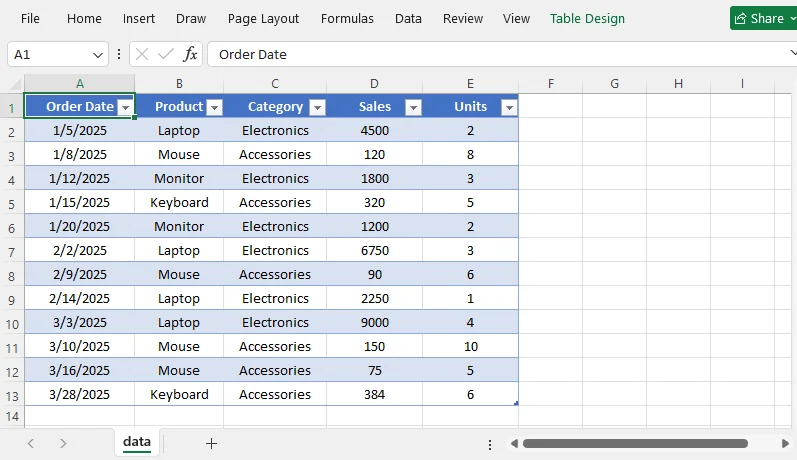
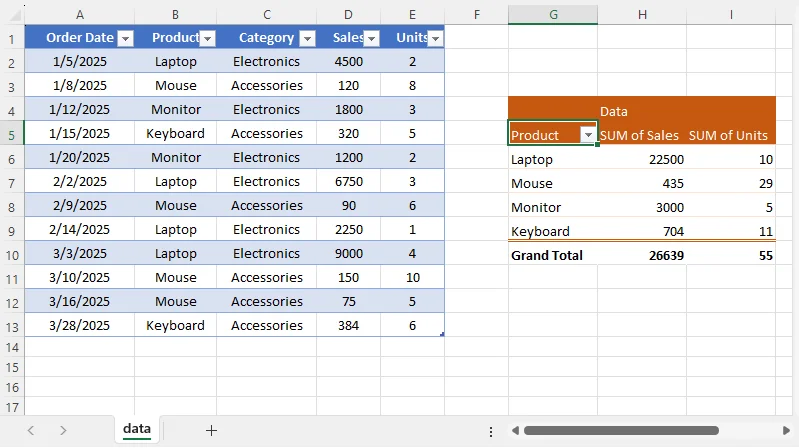
Um conjunto de dados bem estruturado se parece com isto:
Como Criar uma Tabela Dinâmica no Excel (Método Manual)
Etapa 1: Selecione seu Intervalo de Dados
Clique em qualquer célula dentro do conjunto de dados desejado. O Excel detectará automaticamente todo o intervalo de dados contíguo. Se seus dados não forem contíguos, clique e arraste para selecionar manualmente todo o intervalo, incluindo os cabeçalhos das colunas.
Etapa 2: Inserir uma Tabela Dinâmica
- Vá até a guia Inserir na faixa de opções do Excel.
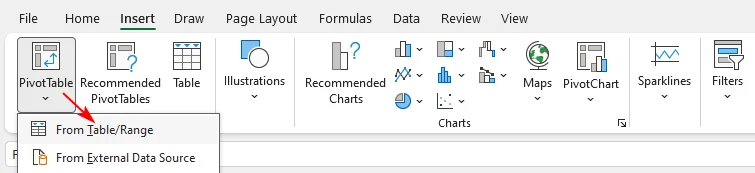
- Clique em Tabela Dinâmica. No menu suspenso, selecione De Tabela/Intervalo.
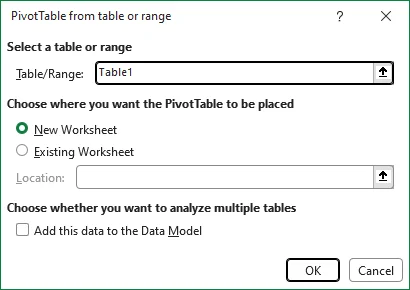
- A caixa de diálogo Criar Tabela Dinâmica é aberta. Confirme se Tabela/Intervalo está correto.
- Escolha onde colocar sua tabela dinâmica:
- Nova Planilha: Coloca o relatório de tabela dinâmica em uma nova planilha em branco (recomendado para a maioria dos usuários)
- Planilha Existente: Selecione um local de célula na sua planilha atual para colocar o relatório.
- Clique em OK. Uma tela em branco de tabela dinâmica e o painel Campos da Tabela Dinâmica aparecerão no lado direito da tela.
Atalho de teclado: Para adicionar uma tabela dinâmica instantaneamente, clique dentro dos seus dados e pressione Alt + N + V + T.
Etapa 3: Crie sua Tabela Dinâmica Usando o Painel de Campos
O painel Campos da Tabela Dinâmica lista todos os cabeçalhos das suas colunas. Arraste os campos para as quatro áreas abaixo para criar seu relatório:
| Área | Função | Exemplos Típicos |
|---|---|---|
| Linhas | Exibe categorias verticalmente como rótulos de linha | Produto, Região, Funcionário |
| Colunas | Organiza categorias horizontalmente para comparação lado a lado | Mês, Trimestre |
| Valores | Executa cálculos em campos numéricos; o padrão é Soma. Você pode alternar para Contagem, Média, Máx. ou Mín. | Vendas, Receita, Quantidade de unidades |
| Filtros | Aplica filtros globais de alto nível para todo o relatório | Ano, Categoria de Produto |
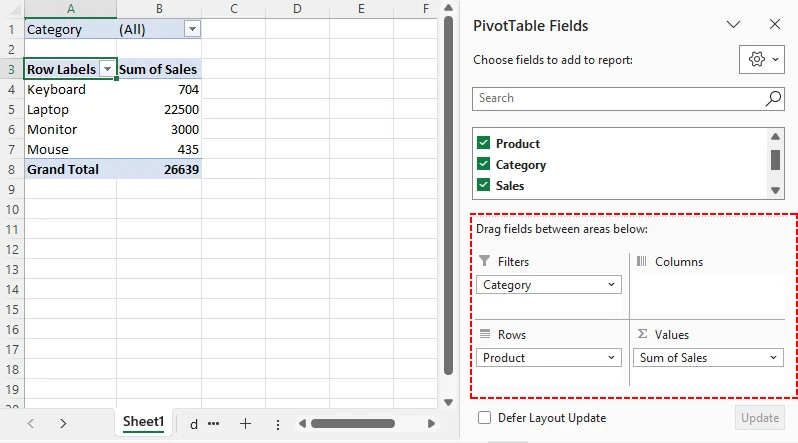
Exemplo Prático de Tabela Dinâmica:
- Arraste “Product” para Linhas
- Arraste “Sales” para Valores
- Arraste “Category” para Filtros
Agora você tem um resumo mostrando o total de vendas por produto, com um filtro para visualizar uma categoria de cada vez.
Como Inserir uma Tabela Dinâmica no Excel com Python (Automação)
Para fluxos de trabalho de relatórios recorrentes, as operações manuais no Excel se tornam ineficientes. Você pode gerar tabelas dinâmicas programaticamente usando a biblioteca Free Spire.XLS for Python. Esta solução é executada sem uma instalação local do Microsoft Office, o que a torna ideal para automação agendada e pipelines de dados do lado do servidor.
Pré-requisito
Primeiro, instale o pacote via pip:
pip install Spire.XLS.Free
Exemplo de Código Python: Adicionar uma Tabela Dinâmica
O exemplo a seguir carrega um arquivo Excel existente, adiciona uma tabela dinâmica com base em um intervalo de dados, configura os campos de linha e valor, aplica um estilo interno e salva o resultado.
from spire.xls import *
from spire.xls.common import *

# Create a Workbook object
workbook = Workbook()

# Load a sample Excel document
workbook.LoadFromFile("Source.xlsx")

# Get the first worksheet
sheet = workbook.Worksheets[0]

# Select the data source range
cellRange = sheet.Range["A1:E13"]
piVotCache = workbook.PivotCaches.Add(cellRange)

# Add a PivotTable to the worksheet and set the location and cache of it
pivotTable = sheet.PivotTables.Add("Pivot Table", sheet.Range["G4"], piVotCache)

# Add "Product" fields to rows area
productField = pivotTable.PivotFields["Product"]
productField.Axis = AxisTypes.Row
pivotTable.Options.RowHeaderCaption = "Product"

# Add "Sales" and "Units" fields to values area
pivotTable.DataFields.Add(pivotTable.PivotFields["Sales"], "SUM of Sales", SubtotalTypes.Sum)
pivotTable.DataFields.Add(pivotTable.PivotFields["Units"], "SUM of Units", SubtotalTypes.Sum)

# Apply a built-in style to the pivot table
pivotTable.BuiltInStyle = PivotBuiltInStyles.PivotStyleMedium3

# Set column width
sheet.SetColumnWidth(7, 12)
sheet.SetColumnWidth(8, 12)
sheet.SetColumnWidth(9, 12)

# Save the document
workbook.SaveToFile("PivotTable.xlsx", ExcelVersion.Version2016)
workbook.Dispose()
Análise do Código
Workbook.LoadFromFile()abre seu arquivo Excel de entrada com os dados de origem brutosPivotCaches.Add()cria o cache da tabela dinâmica que faz referência ao intervalo de células dos dados de origemPivotTables.Add()renderiza a tabela dinâmica na célula da planilha especificadaAxis = AxisTypes.Rowatribui o campo Product à área de agrupamento de linhasDataFields.Add()adiciona métricas numéricas e define a lógica de agregação (Soma neste exemplo)BuiltInStyleaplica estilo visual pré-formatadoSaveToFile()exporta sua pasta de trabalho concluída como .xlsx
O resultado de saída:
Dica profissional: O Free Spire.XLS também permite que você crie um gráfico dinâmico no Excel para visualizar saídas de tabelas dinâmicas programaticamente.
Dicas de Especialista e Personalização Avançada
Para aprimorar a interatividade e os visuais
- Adicione Segmentações de Dados: Habilite a filtragem visual com um clique para seu conjunto de dados de tabela dinâmica
- Gráficos Dinâmicos: Combine sua tabela dinâmica com um gráfico dinâmico para visualizar resultados agregados graficamente
- Renomeie rótulos de campo padrão: Substitua rótulos gerados automaticamente, como “Soma de Vendas”, por nomes personalizados mais limpos para facilitar a leitura
Para formatar e atualizar saídas de tabela dinâmica
- Formatação de números: Clique com o botão direito em qualquer número na tabela dinâmica, selecione Formatar Células para aplicar formatação de moeda, porcentagem ou decimal personalizada.
- Layout: Vá até a guia Design (em Ferramentas de Tabela Dinâmica) para ajustar o layout. Para melhor legibilidade:
- Defina Layout do Relatório como Forma Tabular
- Ative Linhas em Faixas
- Desative Subtotais se você não precisar deles
- Atualizar: As tabelas dinâmicas não são atualizadas automaticamente quando seus dados de origem mudam. Depois de adicionar ou editar linhas, atualize a tabela dinâmica:
- Clicando com o botão direito em qualquer lugar dentro dela e selecionando Atualizar
- Ou vá para Analisar Tabela Dinâmica > Atualizar
Considerações Finais
As tabelas dinâmicas do Excel transformam dados brutos desorganizados em resumos acionáveis, eliminando cálculos manuais tediosos. Para análises rápidas e ad hoc, use o fluxo de trabalho manual de apontar e clicar do Excel. Para relatórios recorrentes e em larga escala, automatize a criação de tabelas dinâmicas com Python para reduzir o esforço manual e o erro humano.
Saídas confiáveis de tabelas dinâmicas dependem de dados de origem bem preparados. Comece com a configuração básica de campos e depois adicione segmentações de dados, gráficos e formatação personalizada para criar relatórios de negócios interativos e poderosos.
Perguntas Frequentes (FAQs)
P: Qual é a maneira mais rápida de adicionar uma tabela dinâmica?
R: Use o atalho de teclado Alt + N + V + T depois de clicar dentro do intervalo de dados. O Excel detectará automaticamente o intervalo e abrirá a caixa de diálogo Criar Tabela Dinâmica.
P: Qual é a diferença entre uma tabela dinâmica e um gráfico dinâmico?
R: Uma tabela dinâmica resume dados em uma grade. Um gráfico dinâmico é um gráfico visual baseado nesse resumo. Você pode criar um gráfico dinâmico diretamente de uma tabela dinâmica, e ele permanece vinculado aos filtros e campos da tabela.
P: Posso criar uma tabela dinâmica no Excel sem abrir o Excel?
R: Sim. Usando uma biblioteca Python como o Free Spire.XLS, você pode gerar tabelas dinâmicas programaticamente a partir de arquivos de dados de origem — ideal para fluxos de trabalho de relatórios automatizados e processamento do lado do servidor.
P: Posso usar várias planilhas como fonte para uma única tabela dinâmica?
R: Não diretamente. Você precisa combinar os dados primeiro usando Power Query ou adicionar as tabelas ao Modelo de Dados. Depois, você pode criar uma tabela dinâmica a partir dos dados combinados.
P: Como faço para adicionar mais de um campo à área Linhas?
R: Arraste vários campos para a área Linhas. A ordem em que você os arrasta determina a hierarquia de agrupamento. Você pode reorganizá-los arrastando para cima ou para baixo.
Veja Também
- Como Adicionar Subtótais no Excel: Fórmula, Tabela Dinâmica & Python
- Limpar ou Remover Filtros no Excel: 6 Maneiras (Manual e Automatizado)
- Como Adicionar Caixas de Seleção no Excel? Tutorial Rápido
- Como Filtrar Tabelas Dinâmicas do Excel com Python: Guia Passo a Passo
- C#/VB.NET: Criar uma Tabela Dinâmica no Excel
엑셀 피벗 테이블 추가: 수동 및 Python 자동화
판매 로그, 재고 기록, 설문 응답과 같은 원시 비즈니스 데이터는 종종 길고 구조화되지 않은 목록으로 존재합니다. 이러한 행을 수동으로 살펴보며 패턴을 찾고, 지표를 비교하거나, 요약을 작성하는 일은 생산적인 업무 시간을 잡아먹고 인적 계산 오류를 유발합니다.
Excel 피벗 테이블은 바로 이 문제를 해결합니다. Excel의 가장 강력한 기본 도구 중 하나인 피벗 테이블을 사용하면 복잡한 수식을 작성하지 않고도 데이터 세트를 동적으로 재구성, 집계, 필터링 및 탐색할 수 있습니다. 몇 번의 클릭만으로 데이터에 대한 분석 관점을 전환할 수 있습니다.
이 가이드에서는 수동 설정과 자동화 접근 방식을 모두 다루며 Excel에서 피벗 테이블을 추가하는 방법을 설명합니다. 스프레드시트 분석을 처음 배우는 초보자, 반복 보고서를 간소화하려는 사무실 분석가, 자동화된 데이터 파이프라인을 구축하는 개발자 모두 프로젝트에 피벗 테이블을 활용할 수 있는 실행 가능한 단계를 찾을 수 있습니다.
- 피벗 테이블이란?
- 사전 작업: 원본 데이터 준비
- Excel에서 피벗 테이블 만들기(수동)
- Python으로 Excel에 피벗 테이블 삽입하기(자동화)
- 전문가 팁 & 고급 사용자 지정
- 자주 묻는 질문(FAQ)
피벗 테이블이란?
피벗 테이블은 Excel에 내장된 데이터 요약 도구입니다. 평면 데이터 세트를 가져와 필드를 여러 영역으로 끌어다 놓는 방식으로 동적으로 재구성할 수 있게 하여, 원본을 수정하지 않고도 여러 관점에서 데이터를 볼 수 있습니다.
피벗 테이블은 다음과 같은 사용 사례에 탁월합니다:
- 다양한 제품, 지역 또는 비즈니스 부문의 판매 합계 비교
- 총 수익 대비 제품 판매 비율 기여도 계산
- 날짜를 월 또는 분기로 그룹화하여 시간 경과에 따른 추세 파악
- 슬라이서 및 계산된 필드를 사용한 대화형 보고서와 대시보드 구축
사전 작업: 원본 데이터 준비
Excel에서 피벗 테이블을 추가하기 전에 원본 데이터가 올바르게 구조화되어 있어야 합니다. 잘 정리되지 않은 데이터는 예기치 않은 피벗 테이블 동작의 가장 큰 원인입니다.
데이터가 피벗 준비 상태가 되도록 다음 규칙을 따르세요:
- 단일 헤더 행 사용: 각 열에는 고유하고 설명적인 이름이 하나씩 있어야 합니다. 헤더에 병합된 셀을 사용하지 마세요.
- 빈 행 또는 열 제거: 모든 행은 단일 레코드를 나타내야 하며, 데이터 세트 내에 빈 행이나 열이 없어야 합니다.
- 일관된 데이터 형식: 열당 하나의 데이터 형식을 유지하세요(예: 날짜 열에는 날짜만, 판매 열에는 숫자 값만).
- 부분합 또는 총합계 행 없음: 미리 존재하는 요약 행은 Excel의 데이터 감지를 혼란스럽게 할 수 있습니다.
전문가 팁: 먼저 데이터 세트를 Excel 표로 변환하세요(삽입 > 표). 원본 데이터가 커지면 피벗 테이블을 새로 고쳐 새 행을 자동으로 포함할 수 있습니다.
잘 구조화된 데이터 세트는 다음과 같습니다:
Excel에서 피벗 테이블 만들기(수동 방법)
1단계: 데이터 범위 선택
대상 데이터 세트 내부의 아무 셀이나 클릭합니다. Excel이 전체 연속 데이터 범위를 자동으로 감지합니다. 데이터가 비연속적이면 클릭하고 드래그하여 열 머리글을 포함한 전체 범위를 수동으로 선택하세요.
2단계: 피벗 테이블 삽입
- Excel 리본에서 삽입 탭으로 이동합니다.
- 피벗 테이블을 클릭합니다. 드롭다운에서 표/범위에서를 선택합니다.
- 피벗 테이블 만들기 대화 상자가 열립니다. 표/범위가 올바른지 확인합니다.
- 피벗 테이블을 배치할 위치를 선택합니다:
- 새 워크시트: 새 빈 시트에 피벗 보고서를 배치합니다(대부분의 사용자에게 권장)
- 기존 워크시트: 현재 시트에서 보고서를 배치할 셀 위치를 선택합니다.
- 확인을 클릭합니다. 빈 피벗 테이블 캔버스와 피벗 테이블 필드 패널이 화면 오른쪽에 나타납니다.
키보드 단축키: 피벗 테이블을 즉시 추가하려면 데이터 내부를 클릭하고 Alt + N + V + T를 누르세요.
3단계: 필드 창을 사용하여 피벗 테이블 만들기
피벗 테이블 필드 패널에는 모든 열 머리글이 나열됩니다. 아래 네 영역에 필드를 끌어다 놓아 보고서를 만드세요:
| 영역 | 기능 | 일반적인 예 |
|---|---|---|
| 행 | 범주를 행 레이블로 세로로 표시합니다 | 제품, 지역, 직원 |
| 열 | 나란히 비교할 수 있도록 범주를 가로로 정렬합니다 | 월, 분기 |
| 값 | 숫자 필드에 대해 계산을 실행하며 기본값은 합계입니다. 개수, 평균, 최대 또는 최소로 전환할 수 있습니다 | 매출, 수익, 단위 수량 |
| 필터 | 전체 보고서에 높은 수준의 전역 필터를 적용합니다 | 연도, 제품 카테고리 |
실용적인 피벗 테이블 예:
- “Product”를 행으로 끌기
- “Sales”를 값으로 끌기
- “Category”를 필터로 끌기
이제 제품별 총매출을 보여주는 요약이 생겼고, 한 번에 하나의 카테고리를 볼 수 있는 필터가 있습니다.
Python으로 Excel에 피벗 테이블 삽입하기(자동화)
반복적인 보고 워크플로에서는 수동 Excel 작업이 비효율적입니다. Free Spire.XLS for Python 라이브러리를 사용하여 프로그래밍 방식으로 피벗 테이블을 생성할 수 있습니다. 이 솔루션은 로컬 Microsoft Office 설치 없이 실행되므로 예약된 자동화 및 서버 측 데이터 파이프라인에 이상적입니다.
필수 조건
먼저 pip를 통해 패키지를 설치하세요:
pip install Spire.XLS.Free
Python 코드 예제: 피벗 테이블 추가
다음 예제는 기존 Excel 파일을 로드하고, 데이터 범위를 기반으로 피벗 테이블을 추가하고, 행 및 값 필드를 구성하고, 기본 제공 스타일을 적용한 다음, 결과를 저장합니다.
from spire.xls import *
from spire.xls.common import *

# Create a Workbook object
workbook = Workbook()

# Load a sample Excel document
workbook.LoadFromFile("Source.xlsx")

# Get the first worksheet
sheet = workbook.Worksheets[0]

# Select the data source range
cellRange = sheet.Range["A1:E13"]
piVotCache = workbook.PivotCaches.Add(cellRange)

# Add a PivotTable to the worksheet and set the location and cache of it
pivotTable = sheet.PivotTables.Add("Pivot Table", sheet.Range["G4"], piVotCache)

# Add "Product" fields to rows area
productField = pivotTable.PivotFields["Product"]
productField.Axis = AxisTypes.Row
pivotTable.Options.RowHeaderCaption = "Product"

# Add "Sales" and "Units" fields to values area
pivotTable.DataFields.Add(pivotTable.PivotFields["Sales"], "SUM of Sales", SubtotalTypes.Sum)
pivotTable.DataFields.Add(pivotTable.PivotFields["Units"], "SUM of Units", SubtotalTypes.Sum)

# Apply a built-in style to the pivot table
pivotTable.BuiltInStyle = PivotBuiltInStyles.PivotStyleMedium3

# Set column width
sheet.SetColumnWidth(7, 12)
sheet.SetColumnWidth(8, 12)
sheet.SetColumnWidth(9, 12)

# Save the document
workbook.SaveToFile("PivotTable.xlsx", ExcelVersion.Version2016)
workbook.Dispose()
코드 분석
Workbook.LoadFromFile()는 원시 원본 데이터가 있는 입력 Excel 파일을 엽니다PivotCaches.Add()는 원본 데이터 셀 범위를 참조하는 피벗 캐시를 만듭니다PivotTables.Add()는 지정한 워크시트 셀에 피벗 테이블을 렌더링합니다Axis = AxisTypes.Row는 Product 필드를 행 그룹화 영역에 할당합니다DataFields.Add()는 숫자 메트릭을 추가하고 집계 논리를 설정합니다(이 예제에서는 Sum)BuiltInStyle은 미리 서식이 지정된 시각적 스타일을 적용합니다SaveToFile()은 완성된 통합 문서를 .xlsx로 내보냅니다
출력 결과:
전문가 팁: Free Spire.XLS를 사용하면 Excel에서 피벗 차트를 만들고 피벗 테이블 출력을 프로그래밍 방식으로 시각화할 수도 있습니다.
전문가 팁 & 고급 사용자 지정
상호 작용과 시각적 효과를 높이려면
- 슬라이서 추가: 피벗 테이블 데이터 세트에 원클릭 시각적 필터링을 사용하도록 설정합니다
- 피벗 차트: 피벗 테이블을 피벗 차트와 함께 사용하여 집계된 결과를 그래픽으로 시각화합니다
- 기본 필드 레이블 이름 바꾸기: “Sum of Sales”와 같이 자동 생성된 레이블을 더 깔끔한 사용자 지정 이름으로 바꾸어 가독성을 높입니다
피벗 테이블 출력 서식 지정 및 새로 고침
- 숫자 서식: 피벗 테이블의 숫자를 마우스 오른쪽 버튼으로 클릭하고 셀 서식을 선택하여 통화, 백분율 또는 사용자 지정 소수점 서식을 적용합니다.
- 레이아웃: 디자인 탭(피벗 테이블 도구 아래)으로 이동하여 레이아웃을 조정합니다. 가독성을 높이려면:
- 보고서 레이아웃을 테이블 형식으로 설정
- 띠 모양 행 사용
- 필요하지 않다면 부분합 끄기
- 새로 고침: 피벗 테이블은 원본 데이터가 변경될 때 자동으로 업데이트되지 않습니다. 행을 추가하거나 편집한 후 다음 방법으로 피벗 테이블을 새로 고치세요:
- 피벗 테이블 내부 아무 곳이나 마우스 오른쪽 버튼으로 클릭하고 새로 고침을 선택
- 또는 피벗 테이블 분석 > 새로 고침으로 이동
마무리
Excel 피벗 테이블은 지저분한 원시 데이터를 실행 가능한 요약으로 바꿔 지루한 수동 계산을 없애줍니다. 빠른 임시 분석에는 Excel의 수동 클릭 방식 워크플로를 사용하세요. 반복적이고 대규모 보고의 경우 Python으로 피벗 테이블 생성을 자동화하여 수동 작업과 인적 오류를 줄이세요.
안정적인 피벗 테이블 출력은 잘 준비된 원본 데이터에 달려 있습니다. 기본 필드 구성으로 시작한 다음 슬라이서, 차트, 사용자 지정 서식을 추가하여 강력하고 대화형인 비즈니스 보고서를 작성하세요.
자주 묻는 질문(FAQ)
Q: 피벗 테이블을 추가하는 가장 빠른 방법은 무엇인가요?
A: 데이터 범위 내부를 클릭한 후 키보드 단축키 Alt + N + V + T를 사용하세요. Excel이 범위를 자동으로 감지하고 피벗 테이블 만들기 대화 상자를 엽니다.
Q: 피벗 테이블과 피벗 차트의 차이점은 무엇인가요?
A: 피벗 테이블은 데이터를 표 형태로 요약합니다. 피벗 차트는 해당 요약을 기반으로 한 시각적 그래프입니다. 피벗 테이블에서 직접 피벗 차트를 만들 수 있으며, 피벗 차트는 테이블의 필터 및 필드와 연결된 상태로 유지됩니다.
Q: Excel을 열지 않고도 Excel에서 피벗 테이블을 만들 수 있나요?
A: 예. Free Spire.XLS와 같은 Python 라이브러리를 사용하면 원본 데이터 파일에서 프로그래밍 방식으로 피벗 테이블을 생성할 수 있습니다. 이는 자동화된 보고 워크플로와 서버 측 처리에 이상적입니다.
Q: 하나의 피벗 테이블 원본으로 여러 시트를 사용할 수 있나요?
A: 직접적으로는 안 됩니다. 먼저 Power Query를 사용하여 데이터를 결합하거나 테이블을 데이터 모델에 추가해야 합니다. 그런 다음 결합된 데이터에서 피벗 테이블을 만들 수 있습니다.
Q: 행 영역에 둘 이상의 필드를 추가하려면 어떻게 하나요?
A: 여러 필드를 행 영역으로 끌어다 놓습니다. 끌어다 놓는 순서에 따라 그룹화 계층이 결정됩니다. 위아래로 끌어 순서를 재정렬할 수 있습니다.
참고 항목
Aggiungere una tabella pivot in Excel: manuale e automazione con Python
Indice del contenuto
I dati aziendali grezzi come registri delle vendite, registri di inventario e risposte ai sondaggi spesso esistono in elenchi lunghi e non strutturati. Setacciare manualmente queste righe per individuare schemi, confrontare metriche o creare riepiloghi consuma tempo produttivo e favorisce errori di calcolo umani.
Le tabelle pivot di Excel risolvono esattamente questa sfida. Essendo uno degli strumenti nativi più potenti di Excel, le tabelle pivot consentono agli utenti di riorganizzare, aggregare, filtrare ed esplorare dinamicamente i set di dati, tutto senza scrivere formule complesse. Puoi cambiare la tua prospettiva analitica sui dati in pochi clic.
Questa guida spiega come aggiungere una tabella pivot in Excel, coprendo sia l'impostazione manuale sia gli approcci di automazione. Che tu sia un principiante assoluto che impara l'analisi dei fogli di calcolo, un analista d'ufficio che snellisce report ricorrenti o uno sviluppatore che crea pipeline di dati automatizzate, troverai passaggi pratici per far funzionare le tabelle pivot per i tuoi progetti.
- Che cos'è una tabella pivot?
- Attività preliminare: preparare i dati di origine
- Come creare una tabella pivot in Excel (manuale)
- Come inserire una tabella pivot in Excel con Python (automazione)
- Suggerimenti esperti e personalizzazione avanzata
- Domande frequenti (FAQ)
Che cos'è una tabella pivot?
Una tabella pivot è uno strumento di riepilogo dati integrato in Excel. Prende un set di dati piatto e consente di riorganizzarlo dinamicamente trascinando e rilasciando campi in aree diverse, permettendoti di visualizzare i dati da più prospettive senza modificare l'origine.
Le tabelle pivot eccellono in questi casi d'uso:
- Confrontare i totali delle vendite tra prodotti, regioni o segmenti aziendali diversi
- Calcolare le vendite dei prodotti come contributi percentuali rispetto al fatturato totale
- Identificare tendenze nel tempo raggruppando le date in mesi o trimestri
- Creare report e dashboard interattivi con segmentazioni e campi calcolati
Attività preliminare: preparare i dati di origine
Prima di aggiungere una tabella pivot in Excel, i dati di origine devono essere strutturati correttamente. Dati mal organizzati sono la causa principale di comportamenti imprevisti delle tabelle pivot.
Segui queste regole per assicurarti che i dati siano pronti per la tabella pivot:
- Usa una singola riga di intestazione: Ogni colonna deve avere un nome univoco e descrittivo. Evita celle unite nell'intestazione.
- Rimuovi righe o colonne vuote: Ogni riga deve rappresentare un singolo record e non devono esserci righe o colonne vuote all'interno del set di dati.
- Tipi di dati coerenti: Mantieni un tipo di dati per colonna (ad esempio, solo date nella colonna delle date; solo valori numerici nella colonna delle vendite).
- Nessuna riga di totale parziale o totale complessivo: Le righe di riepilogo preesistenti possono confondere il rilevamento dei dati di Excel.
Suggerimento professionale: Converti prima il set di dati in una tabella di Excel (Inserisci > Tabella). Quando i dati di origine crescono, la tabella pivot può aggiornarsi per includere automaticamente le nuove righe.
Un set di dati ben strutturato si presenta così:
Come creare una tabella pivot in Excel (metodo manuale)
Passaggio 1: seleziona l'intervallo di dati
Fai clic su qualsiasi cella all'interno del set di dati di destinazione. Excel rileverà automaticamente l'intero intervallo di dati contiguo. Se i dati non sono contigui, fai clic e trascina per selezionare manualmente l'intero intervallo, incluse le intestazioni di colonna.
Passaggio 2: inserisci una tabella pivot
- Vai alla scheda Inserisci sulla barra multifunzione di Excel.
- Fai clic su Tabella pivot. Nel menu a discesa, seleziona Da tabella/area.
- Si apre la finestra di dialogo Crea tabella pivot. Verifica che Tabella/Area sia corretta.
- Scegli dove posizionare la tabella pivot:
- Nuovo foglio di lavoro: Posiziona il report pivot su un nuovo foglio vuoto (consigliato per la maggior parte degli utenti)
- Foglio di lavoro esistente: Seleziona una posizione di cella nel foglio corrente per posizionare il report.
- Fai clic su OK. Una tela vuota della tabella pivot e il pannello Campi tabella pivot appariranno sul lato destro dello schermo.
Scorciatoia da tastiera: Per aggiungere istantaneamente una tabella pivot, fai clic all'interno dei dati e premi Alt + N + V + T.
Passaggio 3: crea la tabella pivot usando il riquadro Campi
Il pannello Campi tabella pivot elenca tutte le intestazioni di colonna. Trascina i campi nelle quattro aree seguenti per creare il report:
| Area | Funzione | Esempi tipici |
|---|---|---|
| Righe | Visualizza le categorie verticalmente come etichette di riga | Prodotto, Regione, Dipendente |
| Colonne | Dispone le categorie orizzontalmente per un confronto affiancato | Mese, Trimestre |
| Valori | Esegue calcoli su campi numerici; per impostazione predefinita Somma. Puoi passare a Conteggio, Media, Max o Min | Vendite, Fatturato, Quantità unitaria |
| Filtri | Applica filtri globali di alto livello per l'intero report | Anno, Categoria prodotto |
Esempio pratico di tabella pivot:
- Trascina "Prodotto" in Righe
- Trascina "Vendite" in Valori
- Trascina "Categoria" in Filtri
Ora hai un riepilogo che mostra le vendite totali per prodotto, con un filtro per visualizzare una categoria alla volta.
Come inserire una tabella pivot in Excel con Python (automazione)
Per flussi di lavoro di reportistica ricorrenti, le operazioni manuali in Excel diventano inefficienti. Puoi generare tabelle pivot a livello di programmazione usando la libreria Free Spire.XLS for Python. Questa soluzione funziona senza un'installazione locale di Microsoft Office, il che la rende ideale per l'automazione pianificata e le pipeline di dati lato server.
Prerequisito
Per prima cosa installa il pacchetto tramite pip:
pip install Spire.XLS.Free
Esempio di codice Python: aggiungere una tabella pivot
L'esempio seguente carica un file Excel esistente, aggiunge una tabella pivot basata su un intervallo di dati, configura i campi riga e valore, applica uno stile predefinito e salva il risultato.
from spire.xls import *
from spire.xls.common import *

# Create a Workbook object
workbook = Workbook()

# Load a sample Excel document
workbook.LoadFromFile("Source.xlsx")

# Get the first worksheet
sheet = workbook.Worksheets[0]

# Select the data source range
cellRange = sheet.Range["A1:E13"]
piVotCache = workbook.PivotCaches.Add(cellRange)

# Add a PivotTable to the worksheet and set the location and cache of it
pivotTable = sheet.PivotTables.Add("Pivot Table", sheet.Range["G4"], piVotCache)

# Add "Product" fields to rows area
productField = pivotTable.PivotFields["Product"]
productField.Axis = AxisTypes.Row
pivotTable.Options.RowHeaderCaption = "Product"

# Add "Sales" and "Units" fields to values area
pivotTable.DataFields.Add(pivotTable.PivotFields["Sales"], "SUM of Sales", SubtotalTypes.Sum)
pivotTable.DataFields.Add(pivotTable.PivotFields["Units"], "SUM of Units", SubtotalTypes.Sum)

# Apply a built-in style to the pivot table
pivotTable.BuiltInStyle = PivotBuiltInStyles.PivotStyleMedium3

# Set column width
sheet.SetColumnWidth(7, 12)
sheet.SetColumnWidth(8, 12)
sheet.SetColumnWidth(9, 12)

# Save the document
workbook.SaveToFile("PivotTable.xlsx", ExcelVersion.Version2016)
workbook.Dispose()
Spiegazione del codice
Workbook.LoadFromFile()apre il file Excel di input con i dati di origine grezziPivotCaches.Add()crea la cache pivot che fa riferimento all'intervallo di celle dei dati di originePivotTables.Add()visualizza la tabella pivot nella cella del foglio di lavoro specificataAxis = AxisTypes.Rowassegna il campo Product all'area di raggruppamento righeDataFields.Add()aggiunge metriche numeriche e imposta la logica di aggregazione (Somma in questo esempio)BuiltInStyleapplica uno stile visivo preformattatoSaveToFile()esporta la cartella di lavoro completata come .xlsx
Il risultato di output:
Suggerimento professionale: Free Spire.XLS ti consente anche di creare un grafico pivot in Excel per visualizzare a livello di programmazione gli output delle tabelle pivot.
Suggerimenti esperti e personalizzazione avanzata
Per migliorare interattività e visualizzazione
- Aggiungi segmentazioni: Abilita il filtro visivo con un clic per il set di dati della tabella pivot
- Grafici pivot: Abbina la tabella pivot a un grafico pivot per visualizzare graficamente i risultati aggregati
- Rinomina le etichette di campo predefinite: Sostituisci le etichette generate automaticamente come "Somma di Vendite" con nomi personalizzati più chiari per la leggibilità
Per formattare e aggiornare gli output delle tabelle pivot
- Formato numerico: Fai clic con il pulsante destro del mouse su qualsiasi numero nella tabella pivot, seleziona Formato celle per applicare la formattazione valuta, percentuale o decimale personalizzata.
- Layout: Vai alla scheda Progettazione (in Strumenti tabella pivot) per regolare il layout. Per una migliore leggibilità:
- Imposta Layout report su Forma tabulare
- Abilita Righe alternate
- Disattiva Subtotali se non ti servono
- Aggiorna: Le tabelle pivot non si aggiornano automaticamente quando i dati di origine cambiano. Dopo aver aggiunto o modificato righe, aggiorna la tabella pivot in questo modo:
- Facendo clic con il pulsante destro del mouse in un punto qualsiasi al suo interno e selezionando Aggiorna
- Oppure vai a Analizza tabella pivot > Aggiorna
Considerazioni finali
Le tabelle pivot di Excel trasformano dati grezzi disordinati in riepiloghi attuabili, eliminando noiose operazioni manuali. Per analisi rapide e ad hoc, usa il flusso di lavoro manuale punto e clic di Excel. Per report ricorrenti su larga scala, automatizza la creazione di tabelle pivot con Python per ridurre lo sforzo manuale e gli errori umani.
Output affidabili delle tabelle pivot dipendono da dati di origine ben preparati. Inizia con la configurazione di base dei campi, poi aggiungi segmentazioni, grafici e formattazione personalizzata per creare report aziendali potenti e interattivi.
Domande frequenti (FAQ)
D: Qual è il modo più rapido per aggiungere una tabella pivot?
R: Usa la scorciatoia da tastiera Alt + N + V + T dopo aver fatto clic all'interno dell'intervallo di dati. Excel rileverà automaticamente l'intervallo e aprirà la finestra di dialogo Crea tabella pivot.
D: Qual è la differenza tra una tabella pivot e un grafico pivot?
R: Una tabella pivot riepiloga i dati in una griglia. Un grafico pivot è un grafico visuale basato su quel riepilogo. Puoi creare un grafico pivot direttamente da una tabella pivot e rimane collegato ai filtri e ai campi della tabella.
D: Posso creare una tabella pivot in Excel senza aprire Excel?
R: Sì. Usando una libreria Python come Free Spire.XLS, puoi generare tabelle pivot a livello di programmazione da file di dati di origine — ideale per flussi di lavoro di reportistica automatizzati e elaborazione lato server.
D: Posso usare più fogli come origine per una singola tabella pivot?
R: Non direttamente. Devi prima combinare i dati usando Power Query o aggiungere le tabelle al Modello di dati. Poi puoi creare una tabella pivot dai dati combinati.
D: Come faccio ad aggiungere più di un campo all'area Righe?
R: Trascina più campi nell'area Righe. L'ordine in cui li trascini determina la gerarchia di raggruppamento. Puoi riorganizzarli trascinandoli verso l'alto o verso il basso.
Vedi anche
- Come aggiungere subtotali in Excel: formula, tabella pivot e Python
- Cancellare o rimuovere filtri in Excel: 6 modi (manuale e automatizzato)
- Come aggiungere caselle di controllo in Excel? Tutorial rapido
- Come filtrare le tabelle pivot di Excel con Python: guida passo passo
- C#/VB.NET: creare una tabella pivot in Excel
Ajouter un tableau croisé dynamique dans Excel : manuel et automatisation Python
Table des matières
- Qu'est-ce qu'un tableau croisé dynamique ?
- Travaux préalables : préparez vos données sources
- Comment créer un tableau croisé dynamique dans Excel (méthode manuelle)
- Comment insérer un tableau croisé dynamique dans Excel avec Python (automatisation)
- Astuces d'expert et personnalisation avancée
- Questions fréquentes (FAQ)
Les données commerciales brutes, comme les journaux de ventes, les registres d'inventaire et les réponses aux enquêtes, se présentent souvent sous forme de longues listes non structurées. Parcourir manuellement ces lignes pour repérer des tendances, comparer des indicateurs ou créer des synthèses empiète sur le temps de travail productif et favorise les erreurs de calcul humaines.
Les tableaux croisés dynamiques d'Excel résolvent précisément ce problème. Considérés comme l'un des outils natifs les plus puissants d'Excel, les tableaux croisés dynamiques permettent de réorganiser, agréger, filtrer et explorer des jeux de données de manière dynamique, sans écrire de formules complexes. Vous pouvez changer votre angle d'analyse des données en quelques clics.
Ce guide explique comment ajouter un tableau croisé dynamique dans Excel, en couvrant à la fois la configuration manuelle et les approches d'automatisation. Que vous soyez un débutant complet découvrant l'analyse de feuilles de calcul, un analyste de bureau rationalisant des rapports récurrents, ou un développeur créant des pipelines de données automatisés, vous trouverez des étapes concrètes pour faire fonctionner les tableaux croisés dynamiques dans vos projets.
- Qu'est-ce qu'un tableau croisé dynamique ?
- Travaux préalables : préparez vos données sources
- Comment créer un tableau croisé dynamique dans Excel (méthode manuelle)
- Comment insérer un tableau croisé dynamique dans Excel avec Python (automatisation)
- Astuces d'expert et personnalisation avancée
- Questions fréquentes (FAQ)
Qu'est-ce qu'un tableau croisé dynamique ?
Un tableau croisé dynamique est un outil de synthèse de données intégré à Excel. Il prend un jeu de données à plat et vous permet de le réorganiser dynamiquement en faisant glisser et en déposant des champs dans différentes zones, ce qui vous permet de visualiser vos données sous plusieurs angles sans modifier la source.
Les tableaux croisés dynamiques sont parfaits pour ces cas d'usage :
- Comparer les totaux de ventes entre différents produits, régions ou segments d'activité
- Calculer la contribution en pourcentage des ventes de produits par rapport au chiffre d'affaires total
- Identifier les tendances dans le temps en regroupant les dates par mois ou par trimestres
- Créer des rapports et des tableaux de bord interactifs avec des segments et des champs calculés
Travaux préalables : préparez vos données sources
Avant d'ajouter un tableau croisé dynamique dans Excel, vos données sources doivent être correctement structurées. Des données mal organisées sont la principale cause de comportements inattendus des tableaux croisés dynamiques.
Suivez ces règles pour vous assurer que vos données sont prêtes pour un tableau croisé dynamique :
- Utilisez une seule ligne d'en-tête : chaque colonne doit avoir un nom unique et descriptif. Évitez les cellules fusionnées dans l'en-tête.
- Supprimez les lignes ou colonnes vides : chaque ligne doit représenter un seul enregistrement, et il ne doit y avoir aucune ligne ou colonne vide dans votre jeu de données.
- Des types de données cohérents : conservez un seul type de données par colonne (par exemple, uniquement des dates dans votre colonne de dates ; uniquement des valeurs numériques dans votre colonne de ventes).
- Aucune ligne de sous-total ou de total général : les lignes de synthèse préexistantes peuvent perturber la détection des données par Excel.
Astuce de pro : convertissez d'abord votre jeu de données en tableau Excel (Insertion > Tableau). Lorsque vos données sources s'enrichissent, le tableau croisé dynamique peut être actualisé pour inclure automatiquement les nouvelles lignes.
Un jeu de données bien structuré se présente comme ceci :
Comment créer un tableau croisé dynamique dans Excel (méthode manuelle)
Étape 1 : sélectionnez votre plage de données
Cliquez sur n'importe quelle cellule à l'intérieur du jeu de données cible. Excel détectera automatiquement toute la plage de données contiguë. Si vos données ne sont pas contiguës, cliquez et faites glisser pour sélectionner manuellement l'ensemble de votre plage, en-têtes de colonnes inclus.
Étape 2 : insérez un tableau croisé dynamique
- Accédez à l'onglet Insertion du ruban Excel.
- Cliquez sur Tableau croisé dynamique. Dans la liste déroulante, sélectionnez À partir d'un tableau/d'une plage.
- La boîte de dialogue Créer un tableau croisé dynamique s'ouvre. Vérifiez que le Tableau/la plage est correct(e).
- Choisissez où placer votre tableau croisé dynamique :
- Nouvelle feuille de calcul : place le rapport croisé dynamique sur une nouvelle feuille vierge (recommandé pour la plupart des utilisateurs)
- Feuille de calcul existante : sélectionnez l'emplacement d'une cellule sur votre feuille actuelle pour y placer le rapport.
- Cliquez sur OK. Un canevas de tableau croisé dynamique vide et le volet Champs de tableau croisé dynamique apparaîtront sur le côté droit de votre écran.
Raccourci clavier : pour ajouter instantanément un tableau croisé dynamique, cliquez à l'intérieur de vos données et appuyez sur Alt + N + V + T.
Étape 3 : construisez votre tableau croisé dynamique à l'aide du volet Champs
Le volet Champs de tableau croisé dynamique répertorie tous vos en-têtes de colonnes. Faites glisser les champs dans les quatre zones ci-dessous pour construire votre rapport :
| Zone | Fonction | Exemples typiques |
|---|---|---|
| Lignes | Affiche les catégories verticalement comme étiquettes de ligne | Produit, Région, Employé |
| Colonnes | Dispose les catégories horizontalement pour une comparaison côte à côte | Mois, Trimestre |
| Valeurs | Effectue des calculs sur les champs numériques ; par défaut, la somme. Vous pouvez passer à Nombre, Moyenne, Max ou Min | Ventes, Chiffre d'affaires, Quantité d'unités |
| Filtres | Applique des filtres globaux de haut niveau à l'ensemble du rapport | Année, Catégorie de produit |
Exemple pratique de tableau croisé dynamique :
- Faites glisser « Product » vers Lignes
- Faites glisser « Sales » vers Valeurs
- Faites glisser « Category » vers Filtres
Vous disposez maintenant d'une synthèse indiquant le total des ventes par produit, avec un filtre permettant de consulter une catégorie à la fois.
Comment insérer un tableau croisé dynamique dans Excel avec Python (automatisation)
Pour les flux de reporting récurrents, les opérations manuelles dans Excel deviennent inefficaces. Vous pouvez générer des tableaux croisés dynamiques par programmation à l'aide de la bibliothèque Free Spire.XLS for Python. Cette solution fonctionne sans installation locale de Microsoft Office, ce qui la rend idéale pour l'automatisation planifiée et les pipelines de données côté serveur.
Prérequis
Commencez par installer le package via pip :
pip install Spire.XLS.Free
Exemple de code Python : ajouter un tableau croisé dynamique
L'exemple suivant charge un fichier Excel existant, ajoute un tableau croisé dynamique basé sur une plage de données, configure les champs de ligne et de valeur, applique un style intégré et enregistre le résultat.
from spire.xls import *
from spire.xls.common import *

# Create a Workbook object
workbook = Workbook()

# Load a sample Excel document
workbook.LoadFromFile("Source.xlsx")

# Get the first worksheet
sheet = workbook.Worksheets[0]

# Select the data source range
cellRange = sheet.Range["A1:E13"]
piVotCache = workbook.PivotCaches.Add(cellRange)

# Add a PivotTable to the worksheet and set the location and cache of it
pivotTable = sheet.PivotTables.Add("Pivot Table", sheet.Range["G4"], piVotCache)

# Add "Product" fields to rows area
productField = pivotTable.PivotFields["Product"]
productField.Axis = AxisTypes.Row
pivotTable.Options.RowHeaderCaption = "Product"

# Add "Sales" and "Units" fields to values area
pivotTable.DataFields.Add(pivotTable.PivotFields["Sales"], "SUM of Sales", SubtotalTypes.Sum)
pivotTable.DataFields.Add(pivotTable.PivotFields["Units"], "SUM of Units", SubtotalTypes.Sum)

# Apply a built-in style to the pivot table
pivotTable.BuiltInStyle = PivotBuiltInStyles.PivotStyleMedium3

# Set column width
sheet.SetColumnWidth(7, 12)
sheet.SetColumnWidth(8, 12)
sheet.SetColumnWidth(9, 12)

# Save the document
workbook.SaveToFile("PivotTable.xlsx", ExcelVersion.Version2016)
workbook.Dispose()
Décomposition du code
Workbook.LoadFromFile()ouvre votre fichier Excel d'entrée contenant les données sources brutesPivotCaches.Add()crée le cache de tableau croisé dynamique qui référence votre plage de cellules de données sourcesPivotTables.Add()affiche le tableau croisé dynamique à la cellule de feuille de calcul que vous avez spécifiéeAxis = AxisTypes.Rowaffecte le champ Product à la zone de regroupement des lignesDataFields.Add()ajoute des métriques numériques et définit la logique d'agrégation (Sum dans cet exemple)BuiltInStyleapplique un style visuel préformatéSaveToFile()exporte votre classeur terminé au format .xlsx
Le résultat obtenu :
Astuce de pro : Free Spire.XLS vous permet également de créer un graphique croisé dynamique dans Excel pour visualiser par programmation les résultats d'un tableau croisé dynamique.
Astuces d'expert et personnalisation avancée
Pour améliorer l'interactivité et le rendu visuel
- Ajouter des segments : activez un filtrage visuel en un clic pour votre jeu de données de tableau croisé dynamique
- Graphiques croisés dynamiques : associez votre tableau croisé dynamique à un graphique croisé dynamique pour visualiser graphiquement les résultats agrégés
- Renommez les étiquettes de champ par défaut : remplacez les étiquettes générées automatiquement, comme « Sum of Sales », par des noms personnalisés plus clairs pour une meilleure lisibilité
Pour mettre en forme et actualiser les résultats d'un tableau croisé dynamique
- Mise en forme des nombres : faites un clic droit sur n'importe quel nombre du tableau croisé dynamique, sélectionnez Format de cellule pour appliquer un format monétaire, un pourcentage ou un format décimal personnalisé.
- Disposition : accédez à l'onglet Création (sous Outils de tableau croisé dynamique) pour ajuster la disposition. Pour une meilleure lisibilité :
- Définissez Disposition du rapport sur Formulaire tabulaire
- Activez Lignes à bandes
- Désactivez les Sous-totaux si vous n'en avez pas besoin
- Actualisation : les tableaux croisés dynamiques ne se mettent pas à jour automatiquement lorsque vos données sources changent. Après avoir ajouté ou modifié des lignes, actualisez le tableau croisé dynamique en :
- faisant un clic droit n'importe où à l'intérieur de celui-ci et en sélectionnant Actualiser
- ou en accédant à Analyse de tableau croisé dynamique > Actualiser
Réflexions finales
Les tableaux croisés dynamiques Excel transforment des données brutes désordonnées en synthèses exploitables, en éliminant les fastidieux calculs manuels. Pour une analyse rapide et ponctuelle, utilisez le flux de travail manuel d'Excel en quelques clics. Pour des rapports récurrents à grande échelle, automatisez la création de tableaux croisés dynamiques avec Python afin de réduire l'effort manuel et les erreurs humaines.
Des résultats fiables de tableaux croisés dynamiques dépendent de données sources bien préparées. Commencez par une configuration de base des champs, puis ajoutez des segments, des graphiques et une mise en forme personnalisée pour créer des rapports d'entreprise puissants et interactifs.
Questions fréquentes (FAQ)
Q : Quelle est la façon la plus rapide d'ajouter un tableau croisé dynamique ?
R : Utilisez le raccourci clavier Alt + N + V + T après avoir cliqué à l'intérieur de votre plage de données. Excel détectera automatiquement la plage et ouvrira la boîte de dialogue Créer un tableau croisé dynamique.
Q : Quelle est la différence entre un tableau croisé dynamique et un graphique croisé dynamique ?
R : Un tableau croisé dynamique synthétise les données dans une grille. Un graphique croisé dynamique est une représentation graphique basée sur cette synthèse. Vous pouvez créer un graphique croisé dynamique directement à partir d'un tableau croisé dynamique, et il reste lié aux filtres et aux champs du tableau.
Q : Puis-je créer un tableau croisé dynamique dans Excel sans ouvrir Excel ?
R : Oui. À l'aide d'une bibliothèque Python comme Free Spire.XLS, vous pouvez générer des tableaux croisés dynamiques par programmation à partir de fichiers de données sources — idéal pour les flux de reporting automatisés et le traitement côté serveur.
Q : Puis-je utiliser plusieurs feuilles comme source pour un seul tableau croisé dynamique ?
R : Pas directement. Vous devez d'abord combiner les données à l'aide de Power Query ou ajouter les tableaux au Modèle de données. Vous pouvez ensuite créer un tableau croisé dynamique à partir des données combinées.
Q : Comment ajouter plusieurs champs à la zone Lignes ?
R : Faites glisser plusieurs champs dans la zone Lignes. L'ordre dans lequel vous les faites glisser détermine la hiérarchie de regroupement. Vous pouvez les réorganiser en les faisant glisser vers le haut ou vers le bas.
Voir aussi
- Comment ajouter des sous-totaux dans Excel : formule, tableau croisé dynamique et Python
- Effacer ou supprimer des filtres dans Excel : 6 méthodes (manuelles et automatisées)
- Comment ajouter des cases à cocher dans Excel ? Tutoriel rapide
- Comment filtrer les tableaux croisés dynamiques Excel avec Python : guide étape par étape
- C#/VB.NET : créer un tableau croisé dynamique dans Excel
Añadir una tabla dinámica en Excel: automatización manual y con Python
Índice
Los datos empresariales sin procesar, como registros de ventas, inventarios y respuestas de encuestas, a menudo existen en listas largas y no estructuradas. Revisar manualmente estas filas para detectar patrones, comparar métricas o crear resúmenes consume tiempo productivo y propicia errores humanos de cálculo.
Las tablas dinámicas de Excel resuelven exactamente este desafío. Como una de las herramientas nativas más potentes de Excel, las tablas dinámicas permiten a los usuarios reorganizar, agregar, filtrar y explorar conjuntos de datos de forma dinámica, todo sin escribir fórmulas complejas. Puede cambiar su perspectiva analítica sobre los datos en solo unos clics.
Esta guía explica cómo agregar una tabla dinámica en Excel, abarcando tanto la configuración manual como los enfoques de automatización. Ya sea que sea un principiante absoluto que aprende análisis de hojas de cálculo, un analista de oficina que optimiza informes recurrentes o un desarrollador que crea canalizaciones de datos automatizadas, encontrará pasos prácticos para hacer que las tablas dinámicas funcionen en sus proyectos.
- ¿Qué es una tabla dinámica?
- Trabajo previo: prepare sus datos de origen
- Cómo crear una tabla dinámica en Excel (manual)
- Cómo insertar una tabla dinámica en Excel con Python (automatización)
- Consejos expertos y personalización avanzada
- Preguntas frecuentes (FAQ)
¿Qué es una tabla dinámica?
Una tabla dinámica es una herramienta de resumen de datos integrada en Excel. Toma un conjunto de datos plano y le permite reorganizarlo dinámicamente arrastrando y soltando campos en diferentes áreas, lo que le permite ver sus datos desde múltiples perspectivas sin modificar el origen.
Las tablas dinámicas son excelentes para estos casos de uso:
- Comparar totales de ventas entre diferentes productos, regiones o segmentos de negocio
- Calcular las ventas de productos como contribuciones porcentuales respecto a los ingresos totales
- Identificar tendencias a lo largo del tiempo agrupando fechas en meses o trimestres
- Crear informes y paneles interactivos con segmentaciones de datos y campos calculados
Trabajo previo: prepare sus datos de origen
Antes de agregar una tabla dinámica en Excel, sus datos de origen deben estar estructurados correctamente. Los datos mal organizados son la principal causa de comportamientos inesperados en las tablas dinámicas.
Siga estas reglas para asegurarse de que sus datos estén listos para una tabla dinámica:
- Use una sola fila de encabezado: Cada columna debe tener un nombre único y descriptivo. Evite celdas combinadas en el encabezado.
- Elimine filas o columnas en blanco: Cada fila debe representar un solo registro, y no debe haber filas ni columnas vacías dentro de su conjunto de datos.
- Tipos de datos coherentes: Mantenga un solo tipo de datos por columna (por ejemplo, solo fechas en su columna de fechas; solo valores numéricos en su columna de ventas).
- Sin filas de subtotales ni totales generales: Las filas de resumen preexistentes pueden confundir la detección de datos de Excel.
Consejo profesional: Convierta primero su conjunto de datos en una tabla de Excel (Insertar > Tabla). Cuando sus datos de origen crezcan, la tabla dinámica podrá actualizarse para incluir nuevas filas automáticamente.
Un conjunto de datos bien estructurado se ve así:
Cómo crear una tabla dinámica en Excel (método manual)
Paso 1: Seleccione el rango de datos
Haga clic en cualquier celda dentro del conjunto de datos de destino. Excel detectará automáticamente el rango de datos contiguo completo. Si sus datos no son contiguos, haga clic y arrastre para seleccionar manualmente el rango completo, incluidos los encabezados de columna.
Paso 2: Inserte una tabla dinámica
- Vaya a la pestaña Insertar en la cinta de opciones de Excel.
- Haga clic en Tabla dinámica. En el menú desplegable, seleccione Desde una tabla o rango.
- Se abre el cuadro de diálogo Crear tabla dinámica. Confirme que la Tabla/Rango sea correcta.
- Elija dónde colocar su tabla dinámica:
- Nueva hoja de cálculo: Coloca el informe de tabla dinámica en una nueva hoja en blanco (recomendado para la mayoría de los usuarios)
- Hoja de cálculo existente: Seleccione una ubicación de celda en su hoja actual para colocar el informe.
- Haga clic en Aceptar. Aparecerán un lienzo de tabla dinámica en blanco y el panel Campos de tabla dinámica en el lado derecho de la pantalla.
Atajo de teclado: Para agregar una tabla dinámica al instante, haga clic dentro de sus datos y presione Alt + N + V + T.
Paso 3: Cree su tabla dinámica usando el panel de campos
El panel Campos de tabla dinámica enumera todos los encabezados de columna. Arrastre campos a las cuatro áreas siguientes para crear su informe:
| Área | Función | Ejemplos típicos |
|---|---|---|
| Filas | Muestra categorías verticalmente como etiquetas de fila | Producto, Región, Empleado |
| Columnas | Organiza categorías horizontalmente para comparación lado a lado | Mes, Trimestre |
| Valores | Realiza cálculos en campos numéricos; de forma predeterminada usa Suma. Puede cambiar a Recuento, Promedio, Máx o Mín | Ventas, Ingresos, Cantidad de unidades |
| Filtros | Aplica filtros globales de alto nivel para todo el informe | Año, Categoría de producto |
Ejemplo práctico de tabla dinámica:
- Arrastre “Producto” a Filas
- Arrastre “Ventas” a Valores
- Arrastre “Categoría” a Filtros
Ahora tiene un resumen que muestra las ventas totales por producto, con un filtro para ver una categoría a la vez.
Cómo insertar una tabla dinámica en Excel con Python (automatización)
Para flujos de trabajo de informes recurrentes, las operaciones manuales de Excel se vuelven ineficientes. Puede generar tablas dinámicas programáticamente usando la biblioteca Free Spire.XLS for Python. Esta solución se ejecuta sin una instalación local de Microsoft Office, lo que la hace ideal para la automatización programada y las canalizaciones de datos del lado del servidor.
Requisito previo
Primero instale el paquete mediante pip:
pip install Spire.XLS.Free
Ejemplo de código Python: agregar una tabla dinámica
El siguiente ejemplo carga un archivo de Excel existente, agrega una tabla dinámica basada en un rango de datos, configura los campos de fila y valor, aplica un estilo integrado y guarda el resultado.
from spire.xls import *
from spire.xls.common import *

# Create a Workbook object
workbook = Workbook()

# Load a sample Excel document
workbook.LoadFromFile("Source.xlsx")

# Get the first worksheet
sheet = workbook.Worksheets[0]

# Select the data source range
cellRange = sheet.Range["A1:E13"]
piVotCache = workbook.PivotCaches.Add(cellRange)

# Add a PivotTable to the worksheet and set the location and cache of it
pivotTable = sheet.PivotTables.Add("Pivot Table", sheet.Range["G4"], piVotCache)

# Add "Product" fields to rows area
productField = pivotTable.PivotFields["Product"]
productField.Axis = AxisTypes.Row
pivotTable.Options.RowHeaderCaption = "Product"

# Add "Sales" and "Units" fields to values area
pivotTable.DataFields.Add(pivotTable.PivotFields["Sales"], "SUM of Sales", SubtotalTypes.Sum)
pivotTable.DataFields.Add(pivotTable.PivotFields["Units"], "SUM of Units", SubtotalTypes.Sum)

# Apply a built-in style to the pivot table
pivotTable.BuiltInStyle = PivotBuiltInStyles.PivotStyleMedium3

# Set column width
sheet.SetColumnWidth(7, 12)
sheet.SetColumnWidth(8, 12)
sheet.SetColumnWidth(9, 12)

# Save the document
workbook.SaveToFile("PivotTable.xlsx", ExcelVersion.Version2016)
workbook.Dispose()
Desglose del código
Workbook.LoadFromFile()abre su archivo de Excel de entrada con datos de origen sin procesarPivotCaches.Add()crea la caché de tabla dinámica que hace referencia a su rango de celdas de datos de origenPivotTables.Add()representa la tabla dinámica en la celda de hoja de cálculo que especifiqueAxis = AxisTypes.Rowasigna el campo Product al área de agrupación de filasDataFields.Add()agrega métricas numéricas y establece la lógica de agregación (Suma en este ejemplo)BuiltInStyleaplica estilo visual preformateadoSaveToFile()exporta su libro completado como .xlsx
El resultado de salida:
Consejo profesional: Free Spire.XLS también le permite crear un gráfico dinámico en Excel para visualizar los resultados de tablas dinámicas de forma programática.
Consejos expertos y personalización avanzada
Para mejorar la interactividad y los elementos visuales
- Agregar segmentaciones de datos: Habilite el filtrado visual con un solo clic para su conjunto de datos de tabla dinámica
- Gráficos dinámicos: Combine su tabla dinámica con un gráfico dinámico para visualizar gráficamente los resultados agregados
- Cambie el nombre de las etiquetas de campo predeterminadas: Reemplace etiquetas generadas automáticamente, como “Suma de ventas”, con nombres personalizados más claros para facilitar la lectura
Para dar formato y actualizar los resultados de tablas dinámicas
- Formato de números: Haga clic derecho en cualquier número de la tabla dinámica, seleccione Formato de celdas para aplicar formato de moneda, porcentaje o decimal personalizado.
- Diseño: Vaya a la pestaña Diseño (en Herramientas de tabla dinámica) para ajustar el diseño. Para una mejor legibilidad:
- Establezca Diseño del informe en Forma tabular
- Habilite Filas con bandas
- Desactive Subtotales si no los necesita
- Actualizar: Las tablas dinámicas no se actualizan automáticamente cuando cambian sus datos de origen. Después de agregar o editar filas, actualice la tabla dinámica de la siguiente manera:
- Haciendo clic derecho en cualquier lugar dentro de ella y seleccionando Actualizar
- O vaya a Analizar tabla dinámica > Actualizar
Consideraciones finales
Las tablas dinámicas de Excel convierten datos sin procesar y desordenados en resúmenes procesables, eliminando tediosos cálculos manuales. Para análisis rápidos y ad hoc, use el flujo de trabajo manual de apuntar y hacer clic de Excel. Para informes recurrentes y a gran escala, automatice la creación de tablas dinámicas con Python para reducir el esfuerzo manual y los errores humanos.
Los resultados fiables de las tablas dinámicas dependen de datos de origen bien preparados. Comience con la configuración básica de campos y luego agregue segmentaciones de datos, gráficos y formato personalizado para crear informes empresariales interactivos y potentes.
Preguntas frecuentes (FAQ)
P: ¿Cuál es la forma más rápida de agregar una tabla dinámica?
R: Use el atajo de teclado Alt + N + V + T después de hacer clic dentro de su rango de datos. Excel detectará automáticamente el rango y abrirá el cuadro de diálogo Crear tabla dinámica.
P: ¿Cuál es la diferencia entre una tabla dinámica y un gráfico dinámico?
R: Una tabla dinámica resume datos en una cuadrícula. Un gráfico dinámico es una representación visual basada en ese resumen. Puede crear un gráfico dinámico directamente a partir de una tabla dinámica, y permanece vinculado a los filtros y campos de la tabla.
P: ¿Puedo crear una tabla dinámica en Excel sin abrir Excel?
R: Sí. Usando una biblioteca de Python como Free Spire.XLS, puede generar tablas dinámicas programáticamente a partir de archivos de datos de origen — ideal para flujos de trabajo de informes automatizados y procesamiento del lado del servidor.
P: ¿Puedo usar varias hojas como origen de una tabla dinámica?
R: No directamente. Primero debe combinar los datos usando Power Query o agregar las tablas al Modelo de datos. Luego puede crear una tabla dinámica a partir de los datos combinados.
P: ¿Cómo agrego más de un campo al área de Filas?
R: Arrastre varios campos al área Filas. El orden en que los arrastre determina la jerarquía de agrupación. Puede reorganizarlos arrastrándolos hacia arriba o hacia abajo.
Véase también
- Cómo agregar subtotales en Excel: fórmula, tabla dinámica y Python
- Borrar o quitar filtros en Excel: 6 formas (manual y automatizada)
- ¿Cómo agregar casillas de verificación en Excel? Tutorial rápido
- Cómo filtrar tablas dinámicas de Excel con Python: guía paso a paso
- C#/VB.NET: Crear una tabla dinámica en Excel
Pivot-Tabelle in Excel hinzufügen: Manuell & Python-Automatisierung
Inhaltsverzeichnis
Rohe Geschäftsdaten wie Verkaufsprotokolle, Bestandsaufzeichnungen und Umfrageantworten liegen oft in langen, unstrukturierten Listen vor. Manuelles Durchsuchen dieser Zeilen, um Muster zu erkennen, Kennzahlen zu vergleichen oder Zusammenfassungen zu erstellen, kostet produktive Arbeitszeit und führt zu menschlichen Berechnungsfehlern.
Excel-Pivot-Tabellen lösen genau diese Herausforderung. Als eines der leistungsstärksten nativen Tools von Excel ermöglichen Pivot-Tabellen Benutzern, Datensätze dynamisch neu zu organisieren, zu aggregieren, zu filtern und zu erkunden, alles ohne komplexe Formeln zu schreiben. Sie können Ihre analytische Perspektive auf Daten mit nur wenigen Klicks wechseln.
Diese Anleitung erklärt wie Sie eine Pivot-Tabelle in Excel hinzufügen und behandelt sowohl manuelle Einrichtung als auch Automatisierungsansätze. Ob Sie ein absoluter Anfänger sind, der Tabellenkalkulationsanalysen lernt, ein Büroanalyst, der wiederkehrende Berichte optimiert, oder ein Entwickler, der automatisierte Datenpipelines erstellt – Sie finden umsetzbare Schritte, damit Pivot-Tabellen für Ihre Projekte funktionieren.
- Was ist eine Pivot-Tabelle?
- Vorbereitung: Bereiten Sie Ihre Quelldaten vor
- So erstellen Sie eine Pivot-Tabelle in Excel (manuell)
- So fügen Sie eine Pivot-Tabelle in Excel mit Python ein (Automatisierung)
- Expertentipps & erweiterte Anpassung
- Häufig gestellte Fragen (FAQs)
Was ist eine Pivot-Tabelle?
Eine Pivot-Tabelle ist ein in Excel integriertes Tool zur Datenzusammenfassung. Sie nimmt einen flachen Datensatz und ermöglicht es Ihnen, ihn dynamisch neu zu organisieren, indem Sie Felder per Drag-and-Drop in verschiedene Bereiche ziehen. So können Sie Ihre Daten aus mehreren Perspektiven betrachten, ohne die Quelle zu ändern.
Pivot-Tabellen eignen sich hervorragend für diese Anwendungsfälle:
- Vergleichen Sie Verkaufssummen über verschiedene Produkte, Regionen oder Geschäftssegmente hinweg
- Berechnen Sie Produktverkäufe als prozentualen Anteil am Gesamtumsatz
- Identifizieren Sie Trends im Zeitverlauf, indem Sie Daten in Monate oder Quartale gruppieren
- Erstellen Sie interaktive Berichte und Dashboards mit Datenschnittstellen und berechneten Feldern
Vorbereitung: Bereiten Sie Ihre Quelldaten vor
Bevor Sie eine Pivot-Tabelle in Excel hinzufügen, müssen Ihre Quelldaten korrekt strukturiert sein. Schlecht organisierte Daten sind die Hauptursache für unerwartetes Verhalten von Pivot-Tabellen.
Befolgen Sie diese Regeln, um sicherzustellen, dass Ihre Daten pivot-bereit sind:
- Verwenden Sie eine einzelne Kopfzeile: Jede Spalte sollte einen eindeutigen, aussagekräftigen Namen haben. Vermeiden Sie verbundene Zellen in der Kopfzeile.
- Entfernen Sie leere Zeilen oder Spalten: Jede Zeile sollte einen einzelnen Datensatz darstellen, und es sollten keine leeren Zeilen oder Spalten in Ihrem Datensatz vorhanden sein.
- Einheitliche Datentypen: Behalten Sie einen Datentyp pro Spalte bei (zum Beispiel nur Datumsangaben in Ihrer Datumsspalte; nur numerische Werte in Ihrer Verkaufsspalte).
- Keine Zwischen- oder Gesamtsummenzeilen: Bereits vorhandene Zusammenfassungszeilen können die Datenerkennung von Excel verwirren.
Profi-Tipp: Konvertieren Sie Ihren Datensatz zuerst in eine Excel-Tabelle (Einfügen > Tabelle). Wenn Ihre Quelldaten wachsen, kann die Pivot-Tabelle automatisch aktualisiert werden, um neue Zeilen einzubeziehen.
Ein gut strukturierter Datensatz sieht so aus:
So erstellen Sie eine Pivot-Tabelle in Excel (manuelle Methode)
Schritt 1: Wählen Sie Ihren Datenbereich aus
Klicken Sie auf eine beliebige Zelle innerhalb Ihres Zieldatensatzes. Excel erkennt automatisch den vollständigen zusammenhängenden Datenbereich. Wenn Ihre Daten nicht zusammenhängend sind, klicken und ziehen Sie, um Ihren vollständigen Bereich einschließlich Spaltenüberschriften manuell auszuwählen.
Schritt 2: Fügen Sie eine Pivot-Tabelle ein
- Wechseln Sie zur Registerkarte Einfügen im Excel-Menüband.
- Klicken Sie auf PivotTable. Wählen Sie im Dropdown-Menü Aus Tabelle/Bereich.
- Das Dialogfeld „PivotTable erstellen“ wird geöffnet. Bestätigen Sie, dass Tabelle/Bereich korrekt ist.
- Wählen Sie, wo Ihre Pivot-Tabelle platziert werden soll:
- Neues Arbeitsblatt: Platziert den Pivot-Bericht auf einem neuen leeren Blatt (für die meisten Benutzer empfohlen)
- Vorhandenes Arbeitsblatt: Wählen Sie eine Zellposition auf Ihrem aktuellen Blatt, um den Bericht zu platzieren.
- Klicken Sie auf OK. Eine leere Pivot-Tabellen-Arbeitsfläche und der Bereich PivotTable-Felder werden auf der rechten Seite Ihres Bildschirms angezeigt.
Tastenkürzel: Um sofort eine Pivot-Tabelle hinzuzufügen, klicken Sie in Ihre Daten und drücken Sie Alt + N + V + T.
Schritt 3: Erstellen Sie Ihre Pivot-Tabelle mithilfe des Felderbereichs
Der Bereich „PivotTable-Felder“ listet alle Ihre Spaltenüberschriften auf. Ziehen Sie Felder in die vier Bereiche unten, um Ihren Bericht zu erstellen:
| Bereich | Funktion | Typische Beispiele |
|---|---|---|
| Zeilen | Zeigt Kategorien vertikal als Zeilenbeschriftungen an | Produkt, Region, Mitarbeiter |
| Spalten | Ordnet Kategorien horizontal für den direkten Vergleich an | Monat, Quartal |
| Werte | Führt Berechnungen für numerische Felder aus; standardmäßig Summe. Sie können zu Anzahl, Mittelwert, Max oder Min wechseln | Verkäufe, Umsatz, Stückzahl |
| Filter | Wendet übergeordnete globale Filter auf den gesamten Bericht an | Jahr, Produktkategorie |
Praktisches Beispiel für eine Pivot-Tabelle:
- Ziehen Sie „Produkt“ in Zeilen
- Ziehen Sie „Verkäufe“ in Werte
- Ziehen Sie „Kategorie“ in Filter
Sie haben jetzt eine Zusammenfassung, die die Gesamtverkäufe pro Produkt zeigt, mit einem Filter, um jeweils eine Kategorie anzuzeigen.
So fügen Sie eine Pivot-Tabelle in Excel mit Python ein (Automatisierung)
Für wiederkehrende Berichtsabläufe werden manuelle Excel-Vorgänge ineffizient. Sie können Pivot-Tabellen programmgesteuert mit der Bibliothek Free Spire.XLS for Python generieren. Diese Lösung läuft ohne lokale Microsoft Office-Installation und eignet sich daher ideal für geplante Automatisierung und serverseitige Datenpipelines.
Voraussetzung
Installieren Sie zuerst das Paket über pip:
pip install Spire.XLS.Free
Python-Codebeispiel: Eine Pivot-Tabelle hinzufügen
Das folgende Beispiel lädt eine vorhandene Excel-Datei, fügt eine Pivot-Tabelle basierend auf einem Datenbereich hinzu, konfiguriert die Zeilen- und Wertefelder, wendet einen integrierten Stil an und speichert das Ergebnis.
from spire.xls import *
from spire.xls.common import *

# Create a Workbook object
workbook = Workbook()

# Load a sample Excel document
workbook.LoadFromFile("Source.xlsx")

# Get the first worksheet
sheet = workbook.Worksheets[0]

# Select the data source range
cellRange = sheet.Range["A1:E13"]
piVotCache = workbook.PivotCaches.Add(cellRange)

# Add a PivotTable to the worksheet and set the location and cache of it
pivotTable = sheet.PivotTables.Add("Pivot Table", sheet.Range["G4"], piVotCache)

# Add "Product" fields to rows area
productField = pivotTable.PivotFields["Product"]
productField.Axis = AxisTypes.Row
pivotTable.Options.RowHeaderCaption = "Product"

# Add "Sales" and "Units" fields to values area
pivotTable.DataFields.Add(pivotTable.PivotFields["Sales"], "SUM of Sales", SubtotalTypes.Sum)
pivotTable.DataFields.Add(pivotTable.PivotFields["Units"], "SUM of Units", SubtotalTypes.Sum)

# Apply a built-in style to the pivot table
pivotTable.BuiltInStyle = PivotBuiltInStyles.PivotStyleMedium3

# Set column width
sheet.SetColumnWidth(7, 12)
sheet.SetColumnWidth(8, 12)
sheet.SetColumnWidth(9, 12)

# Save the document
workbook.SaveToFile("PivotTable.xlsx", ExcelVersion.Version2016)
workbook.Dispose()
Code-Erklärung
Workbook.LoadFromFile()öffnet Ihre eingegebene Excel-Datei mit RohquelldatenPivotCaches.Add()erstellt den Pivot-Cache, der auf Ihren Quelldaten-Zellbereich verweistPivotTables.Add()rendert die Pivot-Tabelle an der von Ihnen angegebenen ArbeitsblattzelleAxis = AxisTypes.Rowweist das Feld „Produkt“ dem Zeilengruppierungsbereich zuDataFields.Add()fügt numerische Kennzahlen hinzu und legt die Aggregationslogik fest (Summe in diesem Beispiel)BuiltInStylewendet vorformatierte visuelle Stile anSaveToFile()exportiert Ihre fertige Arbeitsmappe als .xlsx
Das Ausgabeergebnis:
Profi-Tipp: Free Spire.XLS ermöglicht es Ihnen auch, ein Pivot-Diagramm in Excel zu erstellen um Pivot-Tabellen-Ausgaben programmgesteuert zu visualisieren.
Expertentipps & erweiterte Anpassung
Um Interaktivität und visuelle Darstellung zu verbessern
- Datenschnittstellen hinzufügen: Aktivieren Sie visuelles Filtern per Ein-Klick für Ihren Pivot-Tabellen-Datensatz
- Pivot-Diagramme: Kombinieren Sie Ihre Pivot-Tabelle mit einem Pivot-Diagramm, um aggregierte Ergebnisse grafisch zu visualisieren
- Standardfeldbeschriftungen umbenennen: Ersetzen Sie automatisch generierte Beschriftungen wie „Summe von Verkäufen“ durch klarere benutzerdefinierte Namen für bessere Lesbarkeit
Um Pivot-Tabellen-Ausgaben zu formatieren und zu aktualisieren
- Zahlenformatierung: Klicken Sie mit der rechten Maustaste auf eine beliebige Zahl in der Pivot-Tabelle und wählen Sie Zellen formatieren, um Währungs-, Prozent- oder benutzerdefinierte Dezimalformatierung anzuwenden.
- Layout: Wechseln Sie zur Registerkarte Entwurf (unter PivotTable-Tools), um das Layout anzupassen. Für bessere Lesbarkeit:
- Legen Sie das Berichtslayout auf Tabellarische Form fest
- Aktivieren Sie Gebänderte Zeilen
- Deaktivieren Sie Zwischensummen, wenn Sie sie nicht benötigen
- Aktualisieren: Pivot-Tabellen werden nicht automatisch aktualisiert, wenn sich Ihre Quelldaten ändern. Nach dem Hinzufügen oder Bearbeiten von Zeilen aktualisieren Sie die Pivot-Tabelle wie folgt:
- Klicken Sie mit der rechten Maustaste irgendwo hinein und wählen Sie Aktualisieren
- Oder gehen Sie zu PivotTable-Analyse > Aktualisieren
Abschließende Gedanken
Excel-Pivot-Tabellen verwandeln unübersichtliche Rohdaten in umsetzbare Zusammenfassungen und beseitigen mühsame manuelle Berechnungen. Für schnelle Ad-hoc-Analysen verwenden Sie den manuellen Point-and-Click-Workflow von Excel. Für wiederkehrende Berichte in großem Umfang automatisieren Sie die Erstellung von Pivot-Tabellen mit Python, um manuellen Aufwand und menschliche Fehler zu reduzieren.
Zuverlässige Pivot-Tabellen-Ausgaben hängen von gut vorbereiteten Quelldaten ab. Beginnen Sie mit der grundlegenden Feldkonfiguration und fügen Sie dann Datenschnittstellen, Diagramme und benutzerdefinierte Formatierung hinzu, um leistungsstarke, interaktive Geschäftsberichte zu erstellen.
Häufig gestellte Fragen (FAQs)
F: Was ist der schnellste Weg, eine Pivot-Tabelle hinzuzufügen?
A: Verwenden Sie das Tastenkürzel Alt + N + V + T, nachdem Sie in Ihren Datenbereich geklickt haben. Excel erkennt den Bereich automatisch und öffnet das Dialogfeld „PivotTable erstellen“.
F: Was ist der Unterschied zwischen einer Pivot-Tabelle und einem Pivot-Diagramm?
A: Eine Pivot-Tabelle fasst Daten in einem Raster zusammen. Ein Pivot-Diagramm ist eine visuelle Grafik, die auf dieser Zusammenfassung basiert. Sie können ein Pivot-Diagramm direkt aus einer Pivot-Tabelle erstellen, und es bleibt mit den Filtern und Feldern der Tabelle verknüpft.
F: Kann ich eine Pivot-Tabelle in Excel erstellen, ohne Excel zu öffnen?
A: Ja. Mit einer Python-Bibliothek wie Free Spire.XLS können Sie Pivot-Tabellen programmgesteuert aus Quelldatendateien generieren – ideal für automatisierte Berichtsabläufe und serverseitige Verarbeitung.
F: Kann ich mehrere Arbeitsblätter als Quelle für eine Pivot-Tabelle verwenden?
A: Nicht direkt. Sie müssen die Daten zuerst mit Power Query kombinieren oder die Tabellen zum Datenmodell hinzufügen. Danach können Sie eine Pivot-Tabelle aus den kombinierten Daten erstellen.
F: Wie füge ich mehr als ein Feld zum Bereich „Zeilen“ hinzu?
A: Ziehen Sie mehrere Felder in den Bereich Zeilen. Die Reihenfolge, in der Sie sie ziehen, bestimmt die Gruppierungshierarchie. Sie können sie durch Ziehen nach oben oder unten neu anordnen.
Siehe auch
- So fügen Sie Zwischensummen in Excel hinzu: Formel, PivotTable & Python
- Filter in Excel löschen oder entfernen: 6 Wege (manuell & automatisiert)
- Wie füge ich Kontrollkästchen in Excel hinzu? Schnelles Tutorial
- So filtern Sie Excel-Pivot-Tabellen mit Python: Schritt-für-Schritt-Anleitung
- C#/VB.NET: Eine Pivot-Tabelle in Excel erstellen
Добавление сводной таблицы в Excel: вручную и автоматизация с Python
Содержание
Необработанные бизнес-данные, такие как журналы продаж, записи о запасах и ответы на опросы, часто существуют в виде длинных неструктурированных списков. Ручной просмотр этих строк для выявления закономерностей, сравнения показателей или создания сводок отнимает продуктивное рабочее время и провоцирует ошибки в расчетах.
Сводные таблицы Excel решают именно эту задачу. Как один из самых мощных встроенных инструментов Excel, сводные таблицы позволяют пользователям динамически реорганизовывать, агрегировать, фильтровать и исследовать наборы данных без написания сложных формул. Вы можете менять аналитический ракурс на данные всего за несколько кликов.
В этом руководстве объясняется, как добавить сводную таблицу в Excel, рассматриваются как ручная настройка, так и подходы с автоматизацией. Независимо от того, являетесь ли вы полным новичком, изучающим аналитику электронных таблиц, офисным аналитиком, оптимизирующим регулярные отчеты, или разработчиком, создающим автоматизированные конвейеры данных, вы найдете практические шаги, которые помогут использовать сводные таблицы в ваших проектах.
- Что такое сводная таблица?
- Предварительная работа: подготовьте исходные данные
- Как создать сводную таблицу в Excel (вручную)
- Как вставить сводную таблицу в Excel с помощью Python (автоматизация)
- Советы экспертов и расширенная настройка
- Часто задаваемые вопросы (FAQ)
Что такое сводная таблица?
Сводная таблица — это инструмент обобщения данных, встроенный в Excel. Она берет плоский набор данных и позволяет динамически реорганизовывать его, перетаскивая поля в разные области, что дает возможность просматривать данные с разных точек зрения без изменения источника.
Сводные таблицы отлично подходят для следующих случаев:
- Сравнение общих продаж по разным продуктам, регионам или бизнес-сегментам
- Расчет доли продаж продукта в процентах от общей выручки
- Выявление тенденций во времени путем группировки дат по месяцам или кварталам
- Создание интерактивных отчетов и панелей мониторинга с помощью срезов и вычисляемых полей
Предварительная работа: подготовьте исходные данные
Прежде чем добавить сводную таблицу в Excel, исходные данные должны быть правильно структурированы. Плохо организованные данные — главная причина неожиданного поведения сводной таблицы.
Следуйте этим правилам, чтобы убедиться, что данные готовы для сводной таблицы:
- Используйте одну строку заголовков: каждый столбец должен иметь одно уникальное описательное имя. Избегайте объединенных ячеек в заголовке.
- Удалите пустые строки или столбцы: каждая строка должна представлять одну запись, и в наборе данных не должно быть пустых строк или столбцов.
- Согласованные типы данных: придерживайтесь одного типа данных на столбец (например, только даты в столбце дат; только числовые значения в столбце продаж).
- Без строк промежуточных или общих итогов: уже существующие строки сводок могут запутать Excel при определении данных.
Совет профессионала: Сначала преобразуйте набор данных в таблицу Excel (Вставка > Таблица). Когда исходные данные увеличатся, сводная таблица сможет обновиться и автоматически включить новые строки.
Хорошо структурированный набор данных выглядит так:
Как создать сводную таблицу в Excel (ручной метод)
Шаг 1. Выберите диапазон данных
Щелкните любую ячейку внутри целевого набора данных. Excel автоматически определит полный непрерывный диапазон данных. Если ваши данные не являются непрерывными, щелкните и перетащите, чтобы вручную выбрать полный диапазон, включая заголовки столбцов.
Шаг 2. Вставьте сводную таблицу
- Перейдите на вкладку Вставка на ленте Excel.
- Нажмите Сводная таблица. В раскрывающемся меню выберите Из таблицы/диапазона.
- Откроется диалоговое окно «Создание сводной таблицы». Убедитесь, что Таблица/диапазон указан верно.
- Выберите, где разместить сводную таблицу:
- Новый лист: размещает сводный отчет на новом пустом листе (рекомендуется для большинства пользователей)
- Существующий лист: выберите ячейку на текущем листе, чтобы разместить отчет.
- Нажмите ОК. Пустой холст сводной таблицы и панель Поля сводной таблицы появятся в правой части экрана.
Сочетание клавиш: Чтобы мгновенно добавить сводную таблицу, щелкните внутри данных и нажмите Alt + N + V + T.
Шаг 3. Постройте сводную таблицу с помощью панели полей
Панель «Поля сводной таблицы» перечисляет все заголовки столбцов. Перетащите поля в четыре области ниже, чтобы построить отчет:
| Область | Функция | Типичные примеры |
|---|---|---|
| Строки | Отображает категории вертикально в виде подписей строк | Продукт, регион, сотрудник |
| Столбцы | Размещает категории горизонтально для сравнения бок о бок | Месяц, квартал |
| Значения | Выполняет вычисления по числовым полям; по умолчанию — Сумма. Можно переключиться на Количество, Среднее, Максимум или Минимум | Продажи, выручка, количество единиц |
| Фильтры | Применяет глобальные фильтры верхнего уровня ко всему отчету | Год, категория продукта |
Практический пример сводной таблицы:
- Перетащите «Продукт» в область «Строки»
- Перетащите «Продажи» в область «Значения»
- Перетащите «Категория» в область «Фильтры»
Теперь у вас есть сводка, показывающая общий объем продаж по продуктам, с фильтром для просмотра одной категории за раз.
Как вставить сводную таблицу в Excel с помощью Python (автоматизация)
Для повторяющихся рабочих процессов отчетности ручные операции в Excel становятся неэффективными. Вы можете программно создавать сводные таблицы с помощью библиотеки Free Spire.XLS for Python. Это решение работает без локальной установки Microsoft Office, что делает его идеальным для автоматизации по расписанию и серверных конвейеров данных.
Предварительное требование
Сначала установите пакет через pip:
pip install Spire.XLS.Free
Пример кода на Python: добавление сводной таблицы
Следующий пример загружает существующий файл Excel, добавляет сводную таблицу на основе диапазона данных, настраивает поля строк и значений, применяет встроенный стиль и сохраняет результат.
from spire.xls import *
from spire.xls.common import *

# Create a Workbook object
workbook = Workbook()

# Load a sample Excel document
workbook.LoadFromFile("Source.xlsx")

# Get the first worksheet
sheet = workbook.Worksheets[0]

# Select the data source range
cellRange = sheet.Range["A1:E13"]
piVotCache = workbook.PivotCaches.Add(cellRange)

# Add a PivotTable to the worksheet and set the location and cache of it
pivotTable = sheet.PivotTables.Add("Pivot Table", sheet.Range["G4"], piVotCache)

# Add "Product" fields to rows area
productField = pivotTable.PivotFields["Product"]
productField.Axis = AxisTypes.Row
pivotTable.Options.RowHeaderCaption = "Product"

# Add "Sales" and "Units" fields to values area
pivotTable.DataFields.Add(pivotTable.PivotFields["Sales"], "SUM of Sales", SubtotalTypes.Sum)
pivotTable.DataFields.Add(pivotTable.PivotFields["Units"], "SUM of Units", SubtotalTypes.Sum)

# Apply a built-in style to the pivot table
pivotTable.BuiltInStyle = PivotBuiltInStyles.PivotStyleMedium3

# Set column width
sheet.SetColumnWidth(7, 12)
sheet.SetColumnWidth(8, 12)
sheet.SetColumnWidth(9, 12)

# Save the document
workbook.SaveToFile("PivotTable.xlsx", ExcelVersion.Version2016)
workbook.Dispose()
Разбор кода
Workbook.LoadFromFile()открывает входной файл Excel с необработанными исходными даннымиPivotCaches.Add()создает кэш сводной таблицы, ссылающийся на диапазон ячеек исходных данныхPivotTables.Add()отображает сводную таблицу в указанной ячейке листаAxis = AxisTypes.Rowназначает поле Product области группировки строкDataFields.Add()добавляет числовые метрики и задает логику агрегации (в этом примере — Sum)BuiltInStyleприменяет предварительно отформатированный визуальный стильSaveToFile()экспортирует готовую книгу в формате .xlsx
Результат вывода:
Совет профессионала: Free Spire.XLS также позволяет создать сводную диаграмму в Excel , чтобы программно визуализировать результаты сводной таблицы.
Советы экспертов и расширенная настройка
Чтобы повысить интерактивность и улучшить визуальное представление
- Добавьте срезы: включите визуальную фильтрацию набора данных сводной таблицы в один клик
- Сводные диаграммы: объедините сводную таблицу со сводной диаграммой, чтобы графически визуализировать агрегированные результаты
- Переименуйте стандартные подписи полей: замените автоматически созданные подписи, такие как «Сумма продаж», на более понятные пользовательские имена для удобства чтения
Чтобы отформатировать и обновить результаты сводной таблицы
- Формат чисел: щелкните правой кнопкой мыши любое число в сводной таблице, выберите Формат ячеек, чтобы применить денежный, процентный или настраиваемый числовой формат.
- Макет: перейдите на вкладку Конструктор (в разделе «Работа со сводными таблицами»), чтобы настроить макет. Для лучшей читаемости:
- Установите для Макета отчета значение Табличная форма
- Включите Чередующиеся строки
- Отключите Промежуточные итоги, если они вам не нужны
- Обновление: сводные таблицы не обновляются автоматически при изменении исходных данных. После добавления или редактирования строк обновите сводную таблицу одним из способов:
- Щелкните правой кнопкой мыши в любом месте внутри нее и выберите Обновить
- Или перейдите в Анализ сводной таблицы > Обновить
Заключительные мысли
Сводные таблицы Excel превращают беспорядочные необработанные данные в практичные сводки, устраняя утомительные ручные вычисления. Для быстрого анализа по запросу используйте ручной рабочий процесс в Excel с указанием и щелчком мыши. Для регулярной крупномасштабной отчетности автоматизируйте создание сводных таблиц с помощью Python, чтобы снизить ручные усилия и вероятность человеческой ошибки.
Надежные результаты сводных таблиц зависят от хорошо подготовленных исходных данных. Начните с базовой настройки полей, затем добавьте срезы, диаграммы и пользовательское форматирование, чтобы создавать мощные интерактивные бизнес-отчеты.
Часто задаваемые вопросы (FAQ)
В: Какой самый быстрый способ добавить сводную таблицу?
О: Используйте сочетание клавиш Alt + N + V + T после щелчка внутри диапазона данных. Excel автоматически определит диапазон и откроет диалоговое окно «Создание сводной таблицы».
В: В чем разница между сводной таблицей и сводной диаграммой?
О: Сводная таблица обобщает данные в виде сетки. Сводная диаграмма — это визуальный график на основе этой сводки. Вы можете создать сводную диаграмму непосредственно из сводной таблицы, и она останется связанной с фильтрами и полями таблицы.
В: Можно ли создать сводную таблицу в Excel, не открывая Excel?
О: Да. Используя библиотеку Python, например Free Spire.XLS, вы можете программно создавать сводные таблицы из файлов с исходными данными — это идеально подходит для автоматизированных рабочих процессов отчетности и серверной обработки.
В: Можно ли использовать несколько листов в качестве источника для одной сводной таблицы?
О: Напрямую — нет. Сначала нужно объединить данные с помощью Power Query или добавить таблицы в Модель данных. Затем можно создать сводную таблицу на основе объединенных данных.
В: Как добавить несколько полей в область «Строки»?
О: Перетащите несколько полей в область Строки. Порядок, в котором вы их перетаскиваете, определяет иерархию группировки. Вы можете изменить их порядок, перетаскивая вверх или вниз.
См. также
- Как добавить промежуточные итоги в Excel: формула, сводная таблица и Python
- Очистка или удаление фильтров в Excel: 6 способов (вручную и автоматически)
- Как добавить флажки в Excel? Краткое руководство
- Как фильтровать сводные таблицы Excel с помощью Python: пошаговое руководство
- C#/VB.NET: создание сводной таблицы в Excel
Excel Transpose in C#: 2 Ways to Swap Rows and Columns

Transposing data in Excel (i.e., swapping rows and columns) is a common requirement in data processing, reporting, and ETL workflows. Within desktop Microsoft Excel, you can copy a range and use the Transpose paste option. For .NET‑based applications, you may need to perform this transpose task programmatically without opening Microsoft Excel.
This tutorial walks you through two practical ways to transpose rows and columns in C# using Spire.XLS for .NET , from the built-in copy with transpose option to the native TRANSPOSE array formula.
- Method 1: Transpose Data via Static Copy
- Method 2: Transpose via the Dynamic TRANSPOSE Array Formula
- Excel Transpose Data Method Comparison
- Conclusion: Choosing the Right Method
- Frequently Asked Questions
Prerequisites
- A .NET project (.NET Framework / .NET Core / .NET 5+)
- Install Spire.XLS for .NET via NuGet Package Manager
Install-Package Spire.XLS
Note: Spire.XLS works on Windows, macOS, and Linux environments for cross-platform Excel processing.
Method 1: Transpose Data via Static Copy
Starting with Spire.XLS 16.1.4, the library introduced native support for transposing rows and columns when copying a cell range. It creates a disconnected snapshot of transposed data, preserving cell formatting.
using Spire.Xls;
class Program
{
    static void Main()
    {
        // 1. Create a new workbook
        Workbook workbook = new Workbook();

        // 2. Load an existing Excel file
        workbook.LoadFromFile(@"F:\SalesData.xlsx");

        // 3. Get the first worksheet
        Worksheet sheet = workbook.Worksheets[0];

        // 4. Define the source range (e.g., A1:D5)
        CellRange sourceRange = sheet.Range["A1:D5"];

        // 5. Define the destination cell (top-left corner)
        CellRange destCell = sheet.Range["F7"];

        // 6. Set transposition options
        CopyRangeOptions options = CopyRangeOptions.Transpose | CopyRangeOptions.All;

        // 7. Copy the range with transposition
        sourceRange.Copy(destCell, options);

        // 8. Save the result
        workbook.SaveToFile(@"Transposed.xlsx", ExcelVersion.Version2016);
        workbook.Dispose();
    }
}
How It Works
CopyRangeOptions.Transpose: Inverts rows and columns for the copied cell range.CopyRangeOptions.All: Copies cell values, formulas, fill styles, borders and font settings. You can combine multiple flags with the bitwise OR (|) operator.- You only specify the top‑left destination cell, and Spire.XLS will automatically calculate the full output range dimensions.
Result Preview:
The source range A1:D5 is transposed to F7:J10. The original rows become columns and the original columns become rows.
Copying Without Styles
If you only need the raw data and want to avoid copying cell formatting, omit CopyRangeOptions.All:
CopyRangeOptions options = CopyRangeOptions.Transpose;
Copying to a Different Worksheet
You can also transpose data into another worksheet:
Worksheet sourceSheet = workbook.Worksheets[0];
Worksheet destSheet = workbook.Worksheets.Add("TransposedData");

CellRange sourceRange = sourceSheet.Range["A1:D5"];
CellRange destCell = destSheet.Range["A1"];

CopyRangeOptions options = CopyRangeOptions.Transpose | CopyRangeOptions.All;
sourceRange.Copy(destCell, options);
Method 2: Transpose via the Dynamic TRANSPOSE Array Formula
Spire.XLS 16.9.2 added support for the Excel TRANSPOSE function. This method is useful when you want the transposed output to remain dynamically linked to the source range—if the source data changes, the transposed data updates automatically (depending on Excel's calculation settings).
using Spire.Xls;
class Program
{
    static void Main()
    {
        // Load an existing Excel file
        Workbook workbook = new Workbook();
        workbook.LoadFromFile(@"F:\SalesData.xlsx");

        // Get the first worksheet
        Worksheet sheet = workbook.Worksheets[0];

        // Source range: A1:D5 (5 rows × 4 columns)
        // Transposed output: F7:J10 (4 rows × 5 columns)
        sheet.Range["F7:J10"].FormulaArray = "=TRANSPOSE(A1:D5)";

        // Save the result
        workbook.SaveToFile("TransposedFormula.xlsx", ExcelVersion.Version2016);
        workbook.Dispose();
    }
}
Important Notes
- The output range must be sized correctly: if the source is m rows × n columns, the destination must be n rows × m columns. In the example above,
A1:D5is 5×4, soF7:J10is 4×5. - The formula is entered as an array formula using FormulaArray, not the regular Formula property.
- This approach preserves the dynamic link only if the recipient opens the file in Excel with automatic calculation enabled.
- Source‑sheet cell formatting is not copied to formula‑driven output cells.
Result Preview:
Excel Transpose Data Method Comparison
| Feature | Method 1: Static Copy with Transpose | Method 2: TRANSPOSE Array Formula |
|---|---|---|
| Data type | Static copy (values, formats) | Dynamic array formula |
| Auto-update | No | Yes (when source changes) |
| Preserves formatting | Yes | Formula only |
| Output cells | Plain cell values | Embedded formula |
| Best for | One-time transposition, formatting preservation | Editable templates, dynamic dashboards |
Conclusion: Choosing the Right Method
Converting rows to columns or columns to rows in C# is a common requirement that Spire.XLS for .NET handles elegantly. The best method depends on whether you need a static snapshot or a dynamic, formula-driven result.
Pick Method 1 if:
- You need a snapshot of transposed data
- You want to retain cell styles, borders, fills, and formatting
- End users only view the result and won’t edit the source
- You don’t want formulas in the final Excel file
Pick Method 2 if:
- You’re building editable Excel templates for users
- The transposed block needs to refresh when source data changes
- You prefer minimal code and don’t need to copy formatting
Always validate exported Excel outputs against real‑world test data before production deployment. These reusable patterns help streamline row‑and‑column transformation within your .NET applications.
Frequently Asked Questions
Q: Can I transpose a single row or column?
A: Yes. Set the source range to a single row, such as A1:J1, or a single column, such as A1:A10. The output becomes a column or row, respectively.
Q: Does CopyRangeOptions.Transpose work with merged cells?
A: Merged cells can behave unpredictably when transposed. The CopyRangeOptions.Transpose method may preserve them in some cases, but it is safer to unmerge cells before transposing or test the result.
Q: After static transpose, can I still modify the transposed cells independently?
A: Yes. The static transpose output creates independent cell copies. These cells hold plain values and formatting and have no link to the original source cells. Any edits to the transposed region will not affect the source data, and vice versa.
Q: Can I transpose multiple ranges at once?
A: Not in a single built-in call. You can transpose each range separately and place the outputs in different destination areas, or combine the data into one range before transposing.
Add a Pivot Table in Excel: Manual & Python Automation
Table of Contents
Raw business data like sales logs, inventory records and survey responses often exists in long, unstructured lists. Manually sifting through these rows to spot patterns, compare metrics or build summaries eats into productive work time and invites human calculation errors.
Excel pivot tables resolve this exact challenge. As one of Excel’s most powerful native tools, pivot tables allow users to reorganize, aggregate, filter, and explore datasets dynamically, all without writing complex formulas. You can switch your analytical perspective on data in just a few clicks.
This guide explains how to add pivot table in Excel, covering both manual setup and automation approaches. Whether you are a complete beginner learning spreadsheet analytics, an office analyst streamlining recurring reports, or a developer building automated data pipelines, you will find actionable steps to make pivot tables work for your projects.
- What Is a Pivot Table?
- Pre Work: Prepare Your Source Data
- How to Create a Pivot Table in Excel (Manual)
- How to Insert Pivot Table in Excel with Python (Automation)
- Expert Tips & Advanced Customization
- Frequently Asked Questions (FAQs)
What Is a Pivot Table?
A pivot table is a data summarization tool built into Excel. It takes a flat dataset and lets you reorganize it dynamically by dragging and dropping fields into different areas, allowing you to view your data from multiple perspectives without modifying the source.
Pivot tables excel for these use cases:
- Compare sales totals across different products, regions or business segments
- Calculate product sales as percentage contributions against total revenue
- Identify trends over time by grouping dates into months or quarters
- Build interactive reports and dashboards with slicers and calculated fields
Pre‑Work: Prepare Your Source Data
Before you add a pivot table in Excel, your source data must be structured correctly. Poorly organized data is the top cause of unexpected pivot‑table behavior.
Follow these rules to ensure your data is pivot-ready:
- Use a single header row: Each column should have one unique, descriptive name. Avoid merged cells in the header.
- Remove blank rows or columns: Every row should represent a single record, and there should be no empty rows or columns within your dataset.
- Consistent data types: Keep one data type per column (for example, only dates in your date column; only numeric values in your sales column).
- No subtotal or grand total rows: Pre‑existing summary rows can confuse Excel's data detection.
Pro tip: Convert your dataset to an Excel Table first (Insert > Table). When your source data grows, the pivot table can refresh to include new rows automatically.
A well-structured dataset looks like this:
How to Create a Pivot Table in Excel (Manual Method)
Step 1: Select Your Data Range
Click any cell inside your target dataset. Excel will automatically detect the full contiguous data range. If your data is non-contiguous, click and drag to manually select your full range including column headers.
Step 2: Insert a Pivot Table
- Go to the Insert tab on the Excel ribbon.
- Click PivotTable. In the dropdown, select From Table/Range.
- The Create PivotTable dialog box opens. Confirm the Table/Range is correct.
- Choose where to place your pivot table:
- New Worksheet: Places pivot report on a new blank sheet (recommended for most users)
- Existing Worksheet: Select a cell location on your current sheet to place the report.
- Click OK. A blank pivot table canvas and the PivotTable Fields panel will appear on the right side of your screen.
Keyboard shortcut: To add a pivot table instantly, click inside your data and press Alt + N + V + T.
Step 3: Build Your Pivot Table Using the Fields Pane
The PivotTable Fields panel lists all your column headers. Drag fields into the four areas below to build your report:
| Area | Function | Typical Examples |
|---|---|---|
| Rows | Displays categories vertically as row labels | Product, Region, Employee |
| Columns | Arranges categories horizontally for side‑by‑side comparison | Month, Quarter |
| Values | Runs calculations on numeric fields; defaults to Sum. You may switch to Count, Average, Max or Min | Sales, Revenue, Unit quantity |
| Filters | Applies high‑level global filters for the whole report | Year, Product Category |
Practical Pivot Table Example:
- Drag “Product” to Rows
- Drag “Sales” to Values
- Drag “Category” to Filters
You now have a summary showing total sales per product, with a filter to view one category at a time.
How to Insert Pivot Table in Excel with Python (Automation)
For recurring reporting workflows, manual Excel operations become inefficient. You can programmatically generate pivot tables using the Free Spire.XLS for Python library. This solution runs without a local Microsoft Office installation, making it ideal for scheduled automation and server‑side data pipelines.
Prerequisite
First install the package via pip:
pip install Spire.XLS.Free
Python Code Example: Add a Pivot Table
The following example loads an existing Excel file, adds a pivot table based on a data range, configures the row and value fields, applies a built-in style, and saves the result.
from spire.xls import *
from spire.xls.common import *

# Create a Workbook object
workbook = Workbook()

# Load a sample Excel document
workbook.LoadFromFile("Source.xlsx")

# Get the first worksheet
sheet = workbook.Worksheets[0]

# Select the data source range
cellRange = sheet.Range["A1:E13"]
piVotCache = workbook.PivotCaches.Add(cellRange)

# Add a PivotTable to the worksheet and set the location and cache of it
pivotTable = sheet.PivotTables.Add("Pivot Table", sheet.Range["G4"], piVotCache)

# Add "Product" fields to rows area
productField = pivotTable.PivotFields["Product"]
productField.Axis = AxisTypes.Row
pivotTable.Options.RowHeaderCaption = "Product"

# Add "Sales" and "Units" fields to values area
pivotTable.DataFields.Add(pivotTable.PivotFields["Sales"], "SUM of Sales", SubtotalTypes.Sum)
pivotTable.DataFields.Add(pivotTable.PivotFields["Units"], "SUM of Units", SubtotalTypes.Sum)

# Apply a built-in style to the pivot table
pivotTable.BuiltInStyle = PivotBuiltInStyles.PivotStyleMedium3

# Set column width
sheet.SetColumnWidth(7, 12)
sheet.SetColumnWidth(8, 12)
sheet.SetColumnWidth(9, 12)

# Save the document
workbook.SaveToFile("PivotTable.xlsx", ExcelVersion.Version2016)
workbook.Dispose()
Code Breakdown
Workbook.LoadFromFile()opens your input Excel file with raw source dataPivotCaches.Add()builds the pivot cache that references your source‑data cell rangePivotTables.Add()renders the pivot table at your specified worksheet cellAxis = AxisTypes.Rowassigns the Product field to the row grouping areaDataFields.Add()adds numeric metrics and sets aggregation logic (Sum in this example)BuiltInStyleapplies pre‑formatted visual stylingSaveToFile()exports your completed workbook as .xlsx
The output result:
Pro Tip: Free Spire.XLS also allows you to create a pivot chart in Excel to visualize pivot‑table outputs programmatically.
Expert Tips & Advanced Customization
To enhance interactivity and visuals
- Add Slicers: Enable one‑click, visual filtering for your pivot‑table dataset
- Pivot Charts: Pair your pivot table with a pivot chart to visualize aggregated results graphically
- Rename default field labels: Replace auto‑generated labels such as “Sum of Sales” with cleaner custom names for readability
To format and refresh pivot‑table outputs
- Number formatting: Right-click any number in the pivot table, select Format Cells to apply currency, percentage or custom decimal formatting.
- Layout: Go to the Design tab (under PivotTable Tools) to adjust the layout. For better readability:
- Set Report Layout to Tabular Form
- Enable Banded Rows
- Turn off Subtotals if you don't need them
- Refresh: Pivot tables do not update automatically when your source data changes. After adding or editing rows, refresh the pivot table by:
- Right-clicking anywhere inside it and selecting Refresh
- Or go to PivotTable Analyze > Refresh
Final Thoughts
Excel pivot tables turn messy raw data into actionable summaries, eliminating tedious manual calculations. For quick, ad hoc analysis, use Excel’s manual point‑and‑click workflow. For recurring, large-scale reporting, automate pivot table creation with Python to reduce manual effort and human error.
Reliable pivot table outputs depend on well-prepared source data. Begin with basic field configuration, then add slicers, charts, and custom formatting to build powerful, interactive business reports.
Frequently Asked Questions (FAQs)
Q: What is the fastest way to add a pivot table?
A: Use the keyboard shortcut Alt + N + V + T after clicking inside your data range. Excel will auto-detect the range and open the Create PivotTable dialog.
Q: What is the difference between a pivot table and a pivot chart?
A: A pivot table summarizes data in a grid. A pivot chart is a visual graph based on that summary. You can create a pivot chart directly from a pivot table, and it stays linked to the table’s filters and fields.
Q: Can I create a pivot table in Excel without opening Excel?
A: Yes. Using a Python library like Free Spire.XLS, you can generate pivot tables programmatically from source data files — ideal for automated reporting workflows and server-side processing.
Q: Can I use multiple sheets as the source for one pivot table?
A: Not directly. You need to combine the data first using Power Query or add the tables to the Data Model. Then you can create a pivot table from the combined data.
Q: How do I add more than one field to the Rows area?
A: Drag multiple fields into the Rows area. The order in which you drag them determines the grouping hierarchy. You can rearrange them by dragging up or down.
See Also
Leitura de PDF com IA em C#: Ler e Extrair Dados

Ler e processar arquivos PDF programaticamente em C# é um requisito comum para desenvolvedores .NET que criam sistemas de automação de documentos, extração de dados e geração de relatórios. Bibliotecas tradicionais de análise de PDF exigem código complexo para extrair texto, preservar a formatação e analisar tabelas. Elas frequentemente produzem resultados ruins para layouts irregulares, conteúdo desalinhado e estruturas de tabela não padrão.
Se você deseja uma maneira simples e com IA de ler PDFs em C# e exportar o conteúdo do PDF para outros formatos, Spire.Agent.Office é uma ótima escolha. Este SDK de agente de IA para .NET conduz fluxos de trabalho de análise e conversão de PDF usando instruções em linguagem natural. Ele funciona sem Adobe Acrobat ou softwares externos de terceiros para PDF.
Neste tutorial, apresentaremos como usar IA para ler PDF em C#, com exemplos de código completos e executáveis para:
- Extrair conteúdo de PDF para TXT
- Converter PDF em Word editável
- Ler tabelas de PDF para CSV/Excel
- Processar vários PDFs em lote
Por que escolher o Spire.Agent.Office em vez de outros leitores de PDF com IA?
A internet está cheia de leitores de PDF genéricos com IA, mas a maioria carece de flexibilidade para desenvolvedores, segurança corporativa e precisão na análise estrutural. Spire.Agent.Office é um SDK de processamento de documentos com IA criado para o ecossistema .NET. Ele combina análise com IA com APIs de documentos de escritório. Você pode ler, analisar e converter arquivos PDF, Word, Excel e PowerPoint passando prompts simples em linguagem natural.
Principais vantagens para leitura de PDF com IA em C#:
- SDK focado no desenvolvedor: Criado para integração perfeita de API em aplicativos personalizados, CRMs, pipelines de automação e sistemas de back-end
- Precisão de dados estruturados: preservação superior de tabelas e layout
- Segurança corporativa: opções de processamento local evitam que dados confidenciais de PDF vazem para ferramentas de nuvem de terceiros
- Suporte a vários formatos: lê PDFs e documentos do Office em um único agente unificado
- Código mínimo: substitua centenas de linhas de lógica de análise manual por chamadas simples de prompt de IA para acelerar o desenvolvimento.
Configuração: projeto, namespaces e token
- 1. Instale o pacote NuGet
Crie seu projeto .NET e instale a biblioteca; todas as dependências são instaladas automaticamente.
Install-Package Spire.Agent.Office
- 2. Adicione os namespaces
Três diretivas using fornecem tudo o necessário para processamento de PDF com IA:
using Spire.Agent.Office.AI;
using Spire.Agent.Office.Extensions;
using Spire.Pdf;
- 3. Configurando o SpireToken
O Spire.Agent.Office exige uma chave SpireToken válida. Você pode solicitar uma chave temporária para avaliação aqui.
AIOptions options = new AIOptions();
options.SpireToken = "YOUR_SPIRE_TOKEN_KEY";
Exemplo 1: Extrair texto de PDF com agente de IA .NET
Extrair o conteúdo de texto bruto geralmente é o primeiro estágio de qualquer pipeline de processamento de documentos. O Spire.Agent.Office permite analisar o conteúdo do PDF e gravar os resultados diretamente em um arquivo TXT usando instruções em linguagem natural.
Casos de uso comuns: criação de índices de pesquisa, alimentação de pipelines de NLP downstream, registro de auditoria e detecção de alterações de conteúdo.
Código C#: PDF para TXT
using Spire.Agent.Office.AI;
using Spire.Agent.Office.Extensions;
using Spire.Pdf;

string inputPath = @"input0.pdf";
string outputPath = @"output.txt";
string key = "YOUR_SPIRE_TOKEN_KEY";

if (!string.IsNullOrEmpty(inputPath) && File.Exists(inputPath))
{
    AIOptions options = new AIOptions();
    options.SpireToken = key;

    using (PdfDocument pdf = new PdfDocument())
    {
        pdf.LoadFromFile(inputPath);

        // Get the AI processor for PDF
        AIDocumentProcessor processor = pdf.AI(options);

        // Natural language instruction
        string instruction = "Read all text content from the PDF file, retain paragraph layout, and save as a TXT file";

        // Execute the AI instruction
        AIResult result = processor.ExecuteInstruction(pdf, instruction, outputPath);
    }
}
O arquivo TXT gerado mantém a estrutura de parágrafos do PDF. Para extrair texto simples sem formatação de parágrafo, altere a instrução de IA conforme necessário.
Exemplo 2: Converter PDF em Word editável com agente de IA .NET
PDFs padrão não são editáveis, o que dificulta a revisão e a reutilização de conteúdo. A IA do Spire.Agent.Office lê o layout do PDF, estilos de fonte e estrutura de parágrafos e, em seguida, converte PDFs estáticos em arquivos DOCX totalmente editáveis, mantendo a formatação consistente.
Caso de uso do mundo real: equipes de compras ou jurídicas recebem contratos de fornecedores em formato PDF e precisam de arquivos DOCX editáveis para revisão com controle de alterações, inserção de comentários e comparação de versões.
Código C#: PDF para Word
using Spire.Agent.Office.AI;
using Spire.Agent.Office.Extensions;
using Spire.Pdf;

string inputPath = @"supplier_agreement.pdf";
string outputPath = @"supplier_agreement_editable.docx";
string key = "YOUR_SPIRE_TOKEN_KEY";

if (!string.IsNullOrEmpty(inputPath) && File.Exists(inputPath))
{
    AIOptions options = new AIOptions();
    options.SpireToken = key;

    using (PdfDocument pdf = new PdfDocument())
    {
        pdf.LoadFromFile(inputPath);

        // Get the AI processor for PDF
        AIDocumentProcessor processor = pdf.AI(options);

        // Natural language instruction
        string instruction = "Convert this supplier agreement PDF into an editable Word document. " +
                    "Retain hierarchical clause numbering (1, 1.1, 1.2…), use Word's multilevel list, no hardcoded numbers. " +
                    "keep section headings in bold, and convert tables to native Word tables at original positions. " +
                    "Do not flatten the layout into plain paragraphs. Keep signature block formatting intact.";

        // Execute the AI instruction
        AIResult result = processor.ExecuteInstruction(pdf, instruction, outputPath);
    }
}
Principais benefícios
- Retenção da estrutura de cláusulas: cláusulas legais numeradas permanecem devidamente estruturadas para marcação de alterações
- Preservação de tabelas: tabelas de preços e cronogramas permanecem como tabelas reais do Word
- Código mínimo: uma única instrução substitui o que tradicionalmente exigiria chamadas extensas de API para vários componentes
Exemplo 3: Ler tabelas de PDF para CSV/Excel com agente de IA .NET
Um dos recursos mais poderosos do Spire.Agent.Office é sua capacidade de entender e extrair dados estruturados de tabelas de PDF. Cenários de negócios incluem automação de contas a pagar, conciliação de extratos bancários e processamento de relatórios financeiros.
Código C#: Extrato bancário PDF para CSV
Se você baixa um extrato em PDF todos os meses e precisa importar transações para um software de contabilidade, este exemplo é para você.
using Spire.Agent.Office.AI;
using Spire.Agent.Office.Extensions;
using Spire.Pdf;

string inputPath = @"bank_statement_1.pdf";
string outputPath = @"bank_transactions.csv";
string key = "YOUR_SPIRE_TOKEN_KEY";

if (!string.IsNullOrEmpty(inputPath) && File.Exists(inputPath))
{
    AIOptions options = new AIOptions();
    options.SpireToken = key;

    using (PdfDocument pdf = new PdfDocument())
    {
        pdf.LoadFromFile(inputPath);

        // Get the AI processor for PDF
        AIDocumentProcessor processor = pdf.AI(options);

        // Natural language instruction
        string instruction = "Extract all transactions from this bank statement into a CSV." +
                    " Include: Transaction Date, Description, Reference Number, Debit Amount, Credit Amount," +
                    " and Running Balance. Use empty cells (not zeros) when a debit or credit field doesn't apply to a row." +
                    " Exclude opening balance, closing balance, and any summary totals." +
                    " Preserve the original transaction order as they appear on the statement.";

        // Execute the AI instruction
        AIResult result = processor.ExecuteInstruction(pdf, instruction, outputPath);
    }
}
Código C#: Relatório financeiro em PDF para Excel
Para exportar tabelas de PDF para Excel, basta alterar o formato de saída (.xlsx) e ajustar as instruções. Por exemplo, se você tem um relatório trimestral em PDF com várias tabelas ao longo das páginas, pode extrair tudo para uma única pasta de trabalho com planilhas separadas:
string inputPath = @"Q3_2024_financial_report.pdf";
string outputPath = @"Q3_2024_financials.xlsx";

string instruction = "This PDF contains multiple financial tables across several pages:" +
            " Revenue by Region, Cost of Goods Sold, Operating Expenses, and Cash Flow Summary." +
            " Extract each table into its own named worksheet in the output Excel file." +
            " Use the table's section heading as the sheet name. Keep column headers on the" +
            " first row of each sheet, ensure all currency values are numeric (strip out '{BODY_CONTENT}#39; and ',')," +
            " and preserve the original row and column order.";
Exemplo 4: Muitos PDFs, uma instrução (processamento em lote)
A maioria das cargas de trabalho de automação do mundo real lida com lotes de documentos (por exemplo, dezenas de PDFs de faturas). Use o parâmetro attachmentPaths:
- Instancie um
PdfDocumentvazio. - Passe sua coleção de caminhos de arquivos PDF por meio de
attachmentPaths. - Escreva uma instrução descrevendo como combinar ou agregar as saídas.
Esse padrão possibilita casos de uso como consolidar muitas faturas em uma única pasta de trabalho do Excel agregada.
Código C#: Processamento em lote de faturas em PDF
using Spire.Agent.Office.AI;
using Spire.Agent.Office.Extensions;
using Spire.Pdf;

string[] invoicePaths = Directory.GetFiles(@"F:\Invoices", "*.pdf");
string outputPath = @"consolidated_invoices.xlsx";
string key = "YOUR_SPIRE_TOKEN_KEY";

AIOptions options = new AIOptions();
options.SpireToken = key;

using (PdfDocument pdf = new PdfDocument())
{
    // Get the AI processor for PDF
    AIDocumentProcessor processor = pdf.AI(options);

    // Natural language instruction for batch processing
    string instruction = "Read all attached invoice PDFs and consolidate them into one Excel workbook. " +
        "Create one row per invoice with columns: Invoice Number, Vendor Name, Invoice Date, " +
        "Due Date, Subtotal, Tax, Total Amount. Sort by Invoice Date ascending.";

    // Execute with attachment paths
    AIResult result = processor.ExecuteInstruction(pdf, instruction, outputPath, invoicePaths);
}
Visão geral da API
| Componente da API | Finalidade | Método/Propriedade principal |
|---|---|---|
AIOptions |
Objeto de configuração | SpireToken, WorkDir, TimeoutMs |
AIDocumentProcessor |
Ponto de entrada principal do processamento de IA | ExecuteInstruction() |
pdf.AI(options) |
Método de extensão em PdfDocument | Retorna AIDocumentProcessor |
AIResult |
Contrato de resultado da execução | Success, TokenUsage |
attachmentPaths |
Parâmetro de documentos de suporte | Passado para ExecuteInstruction() |
Práticas recomendadas para extração confiável
1. Escreva requisitos de saída específicos nas instruções
Evite prompts vagos como “extraia os dados”. Defina o formato de destino, colunas e estrutura (por exemplo, “exporte para uma pasta de trabalho do Excel, uma linha por item”).
2. Coloque a lógica de negócios nas instruções
Implemente filtragem, classificação e normalização nos prompts em vez de codificar deslocamentos posicionais ou coordenadas. A lógica permanece legível e de fácil manutenção.
3. Valide AIResult.Success
Verifique o status de execução em cada chamada. Falhas silenciosas podem interromper pipelines de automação não assistida.
if (result == null || !result.Success)
{
    throw new InvalidOperationException(
        {BODY_CONTENT}quot;AI instruction failed: {result?.ErrorMessage ?? "Unknown error"}");
}
4. Valide a saída.
Para dados financeiros ou de conformidade, execute suas próprias verificações no arquivo produzido — contagem de linhas, totais de colunas, conformidade de esquema. O agente produz o artefato; seu pipeline continua responsável pela correção.
Considerações finais
Os exemplos acima mostram como o SDK Spire.Agent.Office pode aproveitar a IA para ler PDF para TXT, reconstruir PDFs como documentos Word editáveis, extrair extratos bancários e tabelas financeiras para CSV ou Excel, e consolidar lotes de faturas em uma única pasta de trabalho. Em cada caso, o código permanece pequeno, as instruções permanecem legíveis e a saída continua estruturada o suficiente para automação downstream.
Se sua equipe passa tempo escrevendo lógica de análise frágil ou digitando novamente dados de PDF manualmente, o Spire.Agent.Office oferece um caminho prático a seguir. Instale o pacote NuGet, adicione seu token e comece com um fluxo de trabalho. A partir daí, você pode expandir para processamento em lote e criar pipelines de automação de documentos que são mais rápidos de desenvolver, mais fáceis de manter e mais resilientes a PDFs do mundo real.
Perguntas frequentes (FAQs)
P: Qual é a precisão da extração de tabelas?
O Spire.Agent.Office usa análise com IA que entende a estrutura da tabela, incluindo tabelas irregulares e células mescladas. Para melhores resultados, forneça instruções claras sobre o formato de saída esperado.
P: Posso processar PDFs protegidos por senha?
Sim. Você pode carregar PDFs protegidos por senha fornecendo a senha ao chamar pdf.LoadFromFile(inputPath, password).
P: Como lidar com grandes lotes de PDFs?
Use o parâmetro attachmentPaths para passar vários arquivos em uma única instrução. O agente de IA os processa coletivamente e produz uma saída consolidada.
P: Como defino um tempo limite para o processamento de IA?
Você pode configurar o tempo limite usando a propriedade TimeoutMs em AIOptions:
AIOptions options = new AIOptions();
options.SpireToken = key;
options.TimeoutMs = 120000; // 2 minutes
Mais exemplos
- Auditoria de Excel com IA em C#: detecte erros e anomalias de dados
- Geração de documentos com IA: de dados a documentos prontos para uso
- Censura de documentos com IA em C#: preserve a formatação
- Tradutor de documentos com IA: traduza arquivos Word, Excel e PowerPoint em C#
- Automatize cálculos no Excel com um agente de IA .NET