Contare le celle colorate in Excel: 3 modi semplici (Manuale/Automazione)
Quando si tratta di gestione dei dati, il colore è spesso più di un semplice aiuto visivo. Rappresenta un livello vitale di informazioni. Che si tratti di evidenziare le fatture scadute in rosso o di contrassegnare i progetti completati in verde, questi segnali visivi ci aiutano a navigare a colpo d'occhio in set di dati complessi. Tuttavia, sorge una frustrazione comune quando è necessario trasformare quei colori in numeri: Excel non dispone di una funzione nativa con un solo clic per contare le celle colorate in Excel. In questa guida, esploreremo tre metodi efficaci, che vanno da semplici trucchi manuali all'automazione avanzata con Python, per aiutarti a padroneggiare questo compito essenziale.
- Conteggio delle celle Excel evidenziate senza VBA
- Conteggio delle celle colorate di Excel utilizzando Python
- Gestione della formattazione condizionale
Metodo 1: conteggio delle celle Excel evidenziate senza VBA
Se hai a che fare con un report una tantum o un piccolo set di dati, potresti preferire una soluzione che utilizzi solo l'interfaccia standard di Excel. Fortunatamente, puoi sfruttare le funzionalità integrate per ottenere risultati accurati senza toccare una singola riga di VBA. Esistono due modi manuali principali per affrontare questo problema: il metodo Filtro per il conteggio dinamico e il metodo Trova per un conteggio rapido.
A. Il metodo Filtro e SUBTOTALE
Questa è la tecnica manuale più affidabile per contare le celle di Excel per colore in set di dati dinamici. A differenza della funzione CONTA.VALORI standard, SUBTOTALE può essere configurato per ignorare le righe nascoste, rendendolo il partner perfetto per i filtri.
- Passaggio 1: in una cella esterna all'intervallo di dati, inserisci la formula
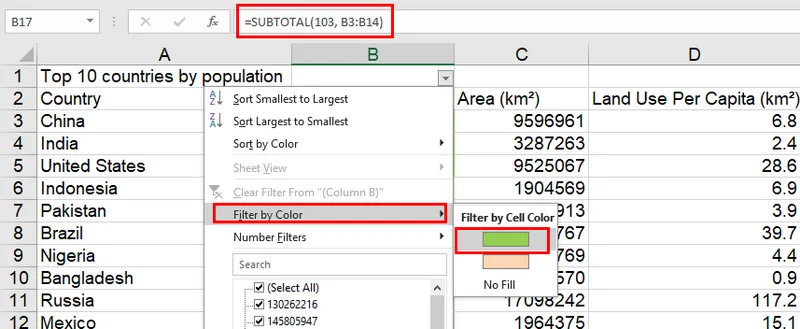
=SUBTOTALE(103; A2:A100). Il codice103indica a Excel di contare le celle visibili non vuote. - Passaggio 2: seleziona la riga di intestazione e premi "Ctrl + Maiusc + L" per abilitare i filtri.
- Passaggio 3: fai clic sul menu a discesa del filtro nella colonna colorata, seleziona Filtra per colore e scegli la tonalità di destinazione.
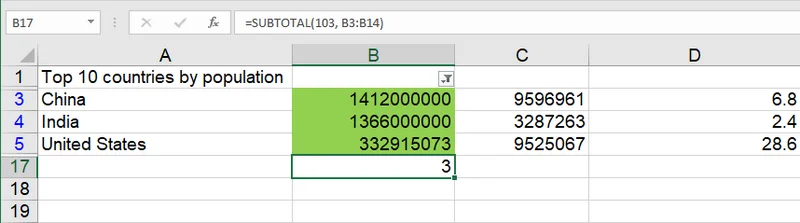
- Passaggio 4: la formula si aggiornerà automaticamente per mostrare solo il conteggio delle celle colorate filtrate.
B. Il metodo Trova e seleziona
Se hai solo bisogno di un conteggio rapido senza impostare formule, lo strumento Trova è sorprendentemente efficace. Questo metodo esegue la scansione del foglio alla ricerca di un formato specifico e indica quante istanze ha trovato nella barra di stato.
- Passaggio 1: premi Ctrl + T per aprire la finestra di dialogo Trova e sostituisci e fai clic su Opzioni.
- Passaggio 2: fai clic sulla piccola freccia accanto al pulsante Formato e seleziona Cancella formato Trova. Questo è un passaggio fondamentale per garantire che nessuna impostazione di ricerca precedente interferisca con la ricerca corrente.
- Passaggio 3: fai clic sul pulsante Formato....
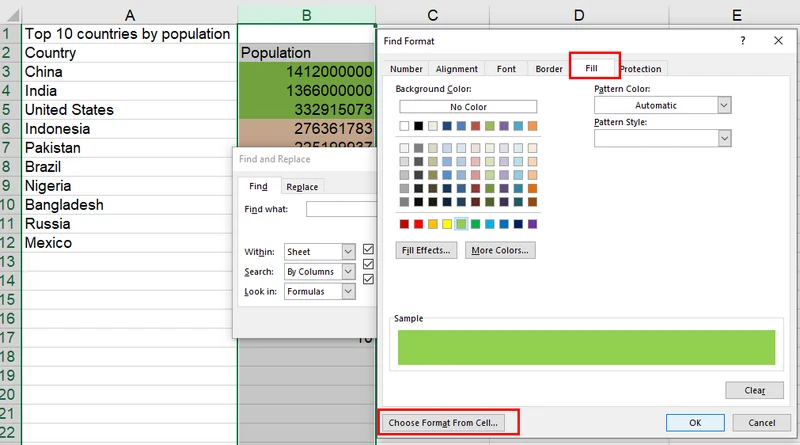
- Passaggio 4: nella finestra di dialogo a comparsa, vai alla scheda Riempimento.
- Passaggio 5: seleziona manualmente il colore di destinazione o utilizza Scegli formato da cella. Se utilizzi il campionatore, controlla rapidamente le schede Carattere, Bordo e Numero per assicurarti che non siano state compilate automaticamente; in tal caso, cancella tali impostazioni specifiche.
- Passaggio 6: assicurati che la casella di testo Trova sia completamente vuota.
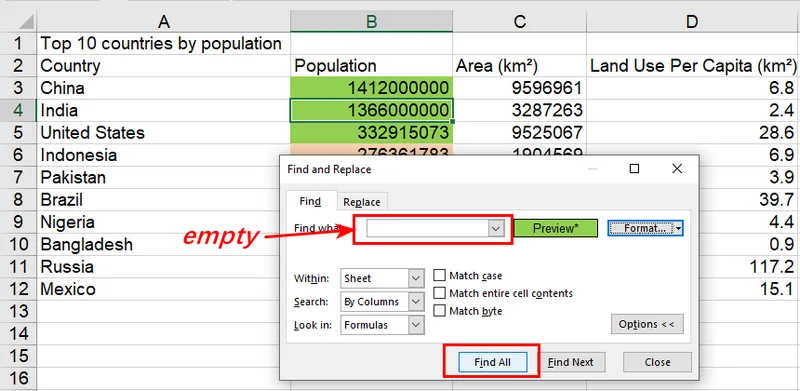
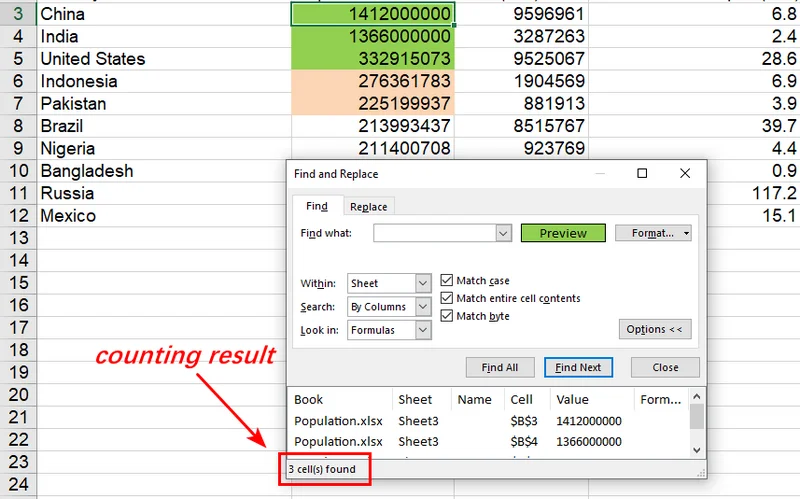
- Passaggio 7: fai clic su Trova tutto. Vedrai il conteggio totale nella parte inferiore della finestra.
Metodo 2: contare le celle colorate di Excel utilizzando Python (riempimento statico)
Sebbene i filtri manuali funzionino per controlli rapidi, non sono sufficienti quando è necessario elaborare centinaia di file. È qui che Free Spire.XLS for Python brilla, consentendoti di contare programmaticamente le celle evidenziate in Excel accedendo alle proprietà di stile di ogni cella. Poiché i colori riempiti manualmente vengono archiviati come attributi statici, l'approccio più robusto per il conteggio consiste nel campionare il colore di destinazione da una cella di riferimento esistente.
Questa tecnica di campionamento garantisce che le celle colorate in Excel vengano contate in modo accurato, anche se il file utilizza colori a tema complessi o tinte RGB personalizzate difficili da definire manualmente.
- Passaggio 1: carica la cartella di lavoro e accedi al foglio di lavoro specifico utilizzando l'indice.
- Passaggio 2: campiona il valore ARGB da una cella di riferimento (ad es. B3) per definire il colore di destinazione.
- Passaggio 3: scorri l'intervallo di destinazione per confrontare lo stile di ogni cella e incrementare il conteggio.
Il seguente esempio Python mostra come campionare il colore di una cella di riferimento per contare tutte le celle corrispondenti all'interno di un intervallo:
from spire.xls import *
from spire.xls.common import *

# Create a Workbook object
workbook = Workbook()
# Load an Excel file
workbook.LoadFromFile(r"/input/Population.xlsx")

# Get the third worksheet
sheet = workbook.Worksheets[2]

# Sample the ARGB value from a known colored cell (B3) to ensure a perfect match
target_argb = sheet.Range["B3"].Style.Color.ToArgb()
count = 0

# Iterate through the specific range to count colored cells
for cell in sheet.Range["B1:E12"]:
    if cell.Style.Color.ToArgb() == target_argb:
        count += 1

# Print the result
print(f"Total colored cells count: {count}")

workbook.Dispose()
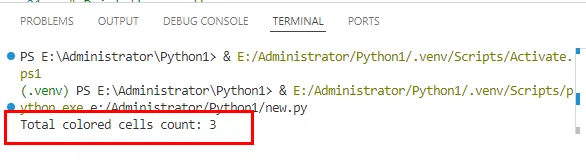
Il risultato del conteggio:
Metodo 3: gestione della formattazione condizionale tramite la logica
I colori statici sono semplici, ma la formattazione condizionale è tutta un'altra cosa. Poiché il colore viene generato dinamicamente in base a regole, la proprietà di stile sottostante della cella spesso rimane vuota. Il colore che vedi è semplicemente un livello di rendering.
Per contare le celle di Excel colorate tramite formattazione condizionale, l'approccio più professionale consiste nel sincronizzare la logica. Invece di rilevare l'output visivo delle celle colorate, dovresti contare i dati sottostanti che attivano la regola. Questo metodo è più veloce e robusto, poiché ignora il rendering apparente e previene gli errori causati da versioni o temi di Excel diversi.
- Passaggio 1: definisci la regola di formattazione condizionale utilizzando Free Spire.XLS.
- Passaggio 2: utilizza la stessa condizione logica nel ciclo di conteggio.
L'esempio seguente mostra come contare le celle evidenziate in Excel in base alla loro logica di formattazione condizionale:
from spire.xls import *
from spire.xls.common import *

# Initialize workbook and load the source file
workbook = Workbook()
workbook.LoadFromFile(r"/input/Population.xlsx")

# Get the third worksheet
sheet = workbook.Worksheets[2]

# Define the target range for conditional formatting
data_range = sheet.Range["D3:D12"]

# Apply conditional formatting rule: Highlight cells > 10 in Red
cf = sheet.ConditionalFormats.Add()
cf.AddRange(data_range)
condition = cf.AddCondition()
condition.FormatType = ConditionalFormatType.CellValue
condition.Operator = ComparisonOperatorType.Greater
condition.FirstFormula = "10"
condition.BackColor = Color.get_Red()

# Perform logical counting synchronized with the formatting rule
count = 0
for cell in data_range:
    if cell.NumberValue > 10:
        count += 1

print(f"Total cells matching condition (> 10): {count}")

# Save the stylized result
#workbook.SaveToFile(r"/output/Conditional_Red_Result.xlsx", ExcelVersion.Version2016)
workbook.Dispose()
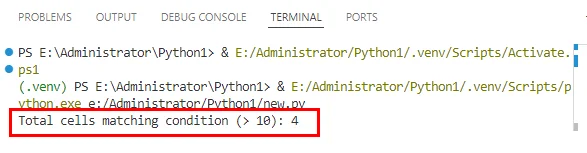
Il risultato del conteggio delle celle colorate in Excel utilizzando il formato condizionale:
Avviso: questo metodo è ideale quando le regole di formattazione condizionale sono già note. Sebbene sia tecnicamente possibile decodificare le regole di Excel sottostanti tramite ConditionalFormats, i diversi meccanismi di archiviazione tra le diverse versioni dei file rendono la "Sincronizzazione logica" l'approccio più robusto e ad alte prestazioni. Evitando complesse chiamate API, questa pratica garantisce l'accuratezza dei risultati.
Conclusione
Padroneggiare come contare le celle colorate in Excel aiuta a collegare la formattazione visiva e l'analisi affidabile dei dati. Per scenari semplici, i filtri integrati possono essere sufficienti; per flussi di lavoro complessi, soluzioni basate sulla logica come Free Spire.XLS offrono una migliore precisione e scalabilità. Passando dal conteggio manuale dei colori alla creazione di report basati su regole, i fogli di calcolo diventano una fonte di verità più affidabile.
Leggi anche
Compter les cellules colorées dans Excel : 3 méthodes faciles (Manuel/Automatisation)
Table des matières
En matière de gestion des données, la couleur est souvent plus qu'une simple aide visuelle. Elle représente une couche d'information vitale. Que vous surligniez des factures en retard en rouge ou que vous marquiez des projets terminés en vert, ces repères visuels nous aident à naviguer d'un seul coup d'œil dans des ensembles de données complexes. Cependant, une frustration courante survient lorsque vous devez transformer ces couleurs en chiffres : Excel ne dispose pas d'une fonction native en un clic pour compter les cellules colorées dans Excel. Dans ce guide, nous explorerons trois méthodes efficaces, allant de simples astuces manuelles à l'automatisation avancée avec Python, pour vous aider à maîtriser cette tâche essentielle.
- Compter les cellules Excel surlignées sans VBA
- Compter les cellules Excel colorées avec Python
- Gérer la mise en forme conditionnelle
Méthode 1 : Compter les cellules Excel surlignées sans VBA
Si vous traitez un rapport ponctuel ou un petit ensemble de données, vous préférerez peut-être une solution qui n'utilise que l'interface standard d'Excel. Heureusement, vous pouvez tirer parti des fonctionnalités intégrées pour obtenir des résultats précis sans toucher à une seule ligne de VBA. Il existe deux principales manières manuelles de s'y prendre : la méthode Filtre pour un comptage dynamique et la méthode Rechercher pour un décompte rapide.
A. La méthode Filtre et SOUS.TOTAL
C'est la technique manuelle la plus fiable pour compter les cellules Excel par couleur dans des ensembles de données dynamiques. Contrairement à la fonction NB standard, SOUS.TOTAL peut être configuré pour ignorer les lignes masquées, ce qui en fait le partenaire idéal des filtres.
- Étape 1 : Dans une cellule en dehors de votre plage de données, insérez la formule
=SUBTOTAL(103, A2:A100). Le code103indique à Excel de compter les cellules visibles non vides. - Étape 2 : Sélectionnez la ligne d'en-tête et appuyez sur "Ctrl + Maj + L" pour activer les filtres.
- Étape 3 : Cliquez sur la liste déroulante du filtre dans votre colonne colorée, sélectionnez Filtrer par couleur, et choisissez votre teinte cible.
- Étape 4 : La formule se mettra automatiquement à jour pour n'afficher que le nombre de cellules colorées filtrées.
B. La méthode Rechercher et sélectionner
Si vous avez juste besoin d'un décompte rapide sans configurer de formules, l'outil Rechercher est étonnamment efficace. Cette méthode analyse la feuille à la recherche d'un format spécifique et vous indique combien d'instances elle a trouvées dans la barre d'état.
- Étape 1 : Appuyez sur Ctrl + F pour ouvrir la boîte de dialogue Rechercher et remplacer et cliquez sur Options.
- Étape 2 : Cliquez sur la petite flèche à côté du bouton Format et sélectionnez Effacer le format de recherche. C'est une étape cruciale pour s'assurer qu'aucun paramètre de recherche précédent n'interfère avec votre recherche actuelle.
- Étape 3 : Cliquez sur le bouton Format....
- Étape 4 : Dans la boîte de dialogue contextuelle, accédez à l'onglet Remplissage.
- Étape 5 : Sélectionnez manuellement votre couleur cible ou utilisez Choisir le format à partir de la cellule. Si vous utilisez l'échantillonneur, vérifiez rapidement les onglets Police, Bordure et Nombre pour vous assurer qu'ils n'ont pas été remplis automatiquement ; si c'est le cas, effacez ces paramètres spécifiques.
- Étape 6 : Assurez-vous que la zone de texte Rechercher est complètement vide.
- Étape 7 : Cliquez sur Rechercher tout. Vous verrez le nombre total en bas de la fenêtre.
Méthode 2 : Compter les cellules Excel colorées avec Python (remplissage statique)
Bien que les filtres manuels fonctionnent pour des vérifications rapides, ils sont insuffisants lorsque vous devez traiter des centaines de fichiers. C'est là que Free Spire.XLS for Python brille, vous permettant de compter par programme les cellules surlignées dans Excel en accédant aux propriétés de style de chaque cellule. Étant donné que les couleurs remplies manuellement sont stockées en tant qu'attributs statiques, l'approche la plus robuste pour le comptage consiste à échantillonner la couleur cible à partir d'une cellule de référence existante.
Cette technique d'échantillonnage garantit que les cellules colorées dans Excel sont comptées avec précision, même si le fichier utilise des couleurs de thème complexes ou des teintes RVB personnalisées difficiles à définir manuellement.
- Étape 1 : Chargez votre classeur et accédez à la feuille de calcul spécifique à l'aide de l'index.
- Étape 2 : Échantillonnez la valeur ARGB d'une cellule de référence (par exemple, B3) pour définir votre couleur cible.
- Étape 3 : Parcourez la plage cible pour comparer le style de chaque cellule et incrémenter votre compteur.
L'exemple Python suivant montre comment échantillonner la couleur d'une cellule de référence pour compter toutes les cellules correspondantes dans une plage :
from spire.xls import *
from spire.xls.common import *

# Create a Workbook object
workbook = Workbook()
# Load an Excel file
workbook.LoadFromFile(r"/input/Population.xlsx")

# Get the third worksheet
sheet = workbook.Worksheets[2]

# Sample the ARGB value from a known colored cell (B3) to ensure a perfect match
target_argb = sheet.Range["B3"].Style.Color.ToArgb()
count = 0

# Iterate through the specific range to count colored cells
for cell in sheet.Range["B1:E12"]:
    if cell.Style.Color.ToArgb() == target_argb:
        count += 1

# Print the result
print(f"Total colored cells count: {count}")

workbook.Dispose()
Le résultat du comptage :
Méthode 3 : Gérer la mise en forme conditionnelle via la logique
Les couleurs statiques sont simples, mais la mise en forme conditionnelle est une toute autre affaire. Comme la couleur est générée dynamiquement en fonction de règles, la propriété de style sous-jacente de la cellule reste souvent vide. La couleur que vous voyez n'est qu'une couche de rendu.
Pour compter les cellules Excel colorées par mise en forme conditionnelle, l'approche la plus professionnelle consiste à synchroniser votre logique. Au lieu de détecter la sortie visuelle des cellules colorées, vous devez compter les données sous-jacentes qui déclenchent la règle. Cette méthode est plus rapide et plus robuste, car elle contourne le rendu apparent et prévient les erreurs causées par des versions ou des thèmes Excel variables.
- Étape 1 : Définissez votre règle de mise en forme conditionnelle à l'aide de Free Spire.XLS.
- Étape 2 : Utilisez la même condition logique dans votre boucle de comptage.
L'exemple suivant montre comment compter les cellules surlignées dans Excel en fonction de leur logique de mise en forme conditionnelle :
from spire.xls import *
from spire.xls.common import *

# Initialize workbook and load the source file
workbook = Workbook()
workbook.LoadFromFile(r"/input/Population.xlsx")

# Get the third worksheet
sheet = workbook.Worksheets[2]

# Define the target range for conditional formatting
data_range = sheet.Range["D3:D12"]

# Apply conditional formatting rule: Highlight cells > 10 in Red
cf = sheet.ConditionalFormats.Add()
cf.AddRange(data_range)
condition = cf.AddCondition()
condition.FormatType = ConditionalFormatType.CellValue
condition.Operator = ComparisonOperatorType.Greater
condition.FirstFormula = "10"
condition.BackColor = Color.get_Red()

# Perform logical counting synchronized with the formatting rule
count = 0
for cell in data_range:
    if cell.NumberValue > 10:
        count += 1

print(f"Total cells matching condition (> 10): {count}")

# Save the stylized result
#workbook.SaveToFile(r"/output/Conditional_Red_Result.xlsx", ExcelVersion.Version2016)
workbook.Dispose()
Le résultat du comptage des cellules colorées dans Excel en utilisant le format conditionnel :
Avis : Cette méthode est idéale lorsque les règles de mise en forme conditionnelle sont déjà connues. Bien qu'il soit techniquement possible de faire de l'ingénierie inverse des règles Excel sous-jacentes via ConditionalFormats, les mécanismes de stockage variables selon les différentes versions de fichiers font de la 'synchronisation logique' l'approche la plus robuste et la plus performante. En contournant les appels d'API complexes, cette pratique garantit la précision de vos résultats.
Conclusion
Maîtriser le comptage des cellules colorées dans Excel permet de faire le lien entre la mise en forme visuelle et l'analyse de données fiable. Pour des scénarios simples, les filtres intégrés peuvent suffire ; pour des flux de travail complexes, des solutions basées sur la logique comme Free Spire.XLS offrent une meilleure précision et une meilleure évolutivité. En passant du comptage manuel des couleurs à des rapports basés sur des règles, vos feuilles de calcul deviennent une source de vérité plus fiable.
À lire également
Contar celdas con color en Excel: 3 formas fáciles (Manual/Automatización)
Tabla de Contenidos
Cuando se trata de la gestión de datos, el color suele ser algo más que una ayuda visual. Representa una capa vital de información. Ya sea que esté resaltando facturas vencidas en rojo o marcando proyectos completados en verde, estas señales visuales nos ayudan a navegar por conjuntos de datos complejos de un vistazo. Sin embargo, surge una frustración común cuando necesita convertir esos colores en números: Excel carece de una función nativa de un solo clic para contar celdas de color en Excel. En esta guía, exploraremos tres métodos efectivos, que van desde simples trucos manuales hasta la automatización avanzada con Python, para ayudarlo a dominar esta tarea esencial.
- Contar Celdas Resaltadas de Excel Sin VBA
- Contar Celdas de Color de Excel Usando Python
- Manejo del Formato Condicional
Método 1: Contar Celdas Resaltadas de Excel Sin VBA
Si está tratando con un informe único o un conjunto de datos pequeño, es posible que prefiera una solución que utilice solo la interfaz estándar de Excel. Afortunadamente, puede aprovechar las funciones integradas para lograr resultados precisos sin tocar una sola línea de VBA. Hay dos formas manuales principales de abordar esto: el método de Filtro para el conteo dinámico y el método de Buscar para un recuento rápido.
A. El Método de Filtro y SUBTOTALES
Esta es la técnica manual más confiable para contar celdas de Excel por color en conjuntos de datos dinámicos. A diferencia de la función CONTAR estándar, SUBTOTALES se puede configurar para ignorar las filas ocultas, lo que lo convierte en el compañero perfecto para los filtros.
- Paso 1: En una celda fuera de su rango de datos, inserte la fórmula
=SUBTOTAL(103, A2:A100). El código103le dice a Excel que cuente las celdas visibles no vacías. - Paso 2: Seleccione la fila de encabezado y presione "Ctrl + Mayús + L" para habilitar los filtros.
- Paso 3: Haga clic en el menú desplegable de filtro en su columna de color, seleccione Filtrar por Color y elija el tono deseado.
- Paso 4: La fórmula se actualizará automáticamente para mostrar solo el recuento de las celdas de color filtradas.
B. El Método de Buscar y Seleccionar
Si solo necesita un recuento rápido sin configurar fórmulas, la herramienta Buscar es sorprendentemente efectiva. Este método escanea la hoja en busca de un formato específico y le indica cuántas instancias encontró en la barra de estado.
- Paso 1: Presione Ctrl + B para abrir el cuadro de diálogo Buscar y Reemplazar y haga clic en Opciones.
- Paso 2: Haga clic en la flecha pequeña junto al botón Formato y seleccione Borrar formato de búsqueda. Este es un paso fundamental para garantizar que ninguna configuración de búsqueda anterior interfiera con su búsqueda actual.
- Paso 3: Haga clic en el botón Formato....
- Paso 4: En el cuadro de diálogo emergente, navegue a la pestaña Relleno.
- Paso 5: Seleccione manualmente el color de destino o use Elegir formato de celda. Si usa el muestreador, verifique rápidamente las pestañas Fuente, Borde y Número para asegurarse de que no se hayan rellenado automáticamente; si lo han hecho, borre esas configuraciones específicas.
- Paso 6: Asegúrese de que el cuadro de texto Buscar esté completamente vacío.
- Paso 7: Haga clic en Buscar todos. Verá el recuento total en la parte inferior de la ventana.
Método 2: Contar Celdas de Color de Excel Usando Python (Relleno Estático)
Si bien los filtros manuales funcionan para verificaciones rápidas, se quedan cortos cuando necesita procesar cientos de archivos. Aquí es donde brilla Free Spire.XLS for Python, que le permite contar mediante programación las celdas resaltadas en Excel accediendo a las propiedades de estilo de cada celda. Dado que los colores rellenados manualmente se almacenan como atributos estáticos, el enfoque más robusto para el conteo es muestrear el color de destino de una celda de referencia existente.
Esta técnica de muestreo garantiza que las celdas de color en Excel se cuenten con precisión, incluso si el archivo utiliza colores de tema complejos o tintes RGB personalizados que son difíciles de definir manualmente.
- Paso 1: Cargue su libro de trabajo y acceda a la hoja de cálculo específica usando el índice.
- Paso 2: Muestree el valor ARGB de una celda de referencia (p. ej., B3) para definir su color de destino.
- Paso 3: Itere a través del rango de destino para comparar el estilo de cada celda e incrementar su conteo.
El siguiente ejemplo de Python demuestra cómo muestrear el color de una celda de referencia para contar todas las celdas coincidentes dentro de un rango:
from spire.xls import *
from spire.xls.common import *

# Create a Workbook object
workbook = Workbook()
# Load an Excel file
workbook.LoadFromFile(r"/input/Population.xlsx")

# Get the third worksheet
sheet = workbook.Worksheets[2]

# Sample the ARGB value from a known colored cell (B3) to ensure a perfect match
target_argb = sheet.Range["B3"].Style.Color.ToArgb()
count = 0

# Iterate through the specific range to count colored cells
for cell in sheet.Range["B1:E12"]:
    if cell.Style.Color.ToArgb() == target_argb:
        count += 1

# Print the result
print(f"Total colored cells count: {count}")

workbook.Dispose()
El resultado del conteo:
Método 3: Manejo del Formato Condicional a Través de la Lógica
Los colores estáticos son sencillos, pero el formato condicional es una bestia completamente diferente. Dado que el color se genera dinámicamente en función de reglas, la propiedad de estilo subyacente de la celda a menudo permanece vacía. El color que ve es simplemente una capa de representación.
Para contar las celdas de Excel coloreadas por formato condicional, el enfoque más profesional es sincronizar su lógica. En lugar de detectar la salida visual de las celdas de color, debe contar los datos subyacentes que activan la regla. Este método es más rápido y robusto, ya que omite la representación aparente y evita errores causados por diferentes versiones o temas de Excel.
- Paso 1: Defina su regla de formato condicional usando Free Spire.XLS.
- Paso 2: Use la misma condición lógica en su bucle de conteo.
El siguiente ejemplo demuestra cómo contar celdas resaltadas en Excel según su lógica de formato condicional:
from spire.xls import *
from spire.xls.common import *

# Initialize workbook and load the source file
workbook = Workbook()
workbook.LoadFromFile(r"/input/Population.xlsx")

# Get the third worksheet
sheet = workbook.Worksheets[2]

# Define the target range for conditional formatting
data_range = sheet.Range["D3:D12"]

# Apply conditional formatting rule: Highlight cells > 10 in Red
cf = sheet.ConditionalFormats.Add()
cf.AddRange(data_range)
condition = cf.AddCondition()
condition.FormatType = ConditionalFormatType.CellValue
condition.Operator = ComparisonOperatorType.Greater
condition.FirstFormula = "10"
condition.BackColor = Color.get_Red()

# Perform logical counting synchronized with the formatting rule
count = 0
for cell in data_range:
    if cell.NumberValue > 10:
        count += 1

print(f"Total cells matching condition (> 10): {count}")

# Save the stylized result
#workbook.SaveToFile(r"/output/Conditional_Red_Result.xlsx", ExcelVersion.Version2016)
workbook.Dispose()
El resultado de contar celdas de color en Excel usando formato condicional:
Aviso: Este método es ideal cuando las reglas de formato condicional ya se conocen. Si bien es técnicamente posible realizar ingeniería inversa de las reglas subyacentes de Excel a través de ConditionalFormats, los diferentes mecanismos de almacenamiento entre las diferentes versiones de archivos hacen que la 'Sincronización Lógica' sea el enfoque más robusto y de mayor rendimiento. Al omitir llamadas complejas a la API, esta práctica garantiza la precisión en sus resultados.
Conclusión
Dominar cómo contar celdas de color en Excel ayuda a unir el formato visual y el análisis de datos confiable. Para escenarios simples, los filtros integrados pueden ser suficientes; para flujos de trabajo complejos, las soluciones basadas en lógica como Free Spire.XLS brindan una mejor precisión y escalabilidad. Al pasar del conteo manual de colores a los informes basados en reglas, sus hojas de cálculo se convierten en una fuente de verdad más confiable.
Lea También
Farbige Zellen in Excel zählen: 3 einfache Wege (Manuell/Automatisierung)
Inhaltsverzeichnis
Wenn es um die Datenverwaltung geht, ist Farbe oft mehr als nur eine visuelle Hilfe. Sie stellt eine wichtige Informationsebene dar. Ob Sie überfällige Rechnungen in Rot hervorheben oder abgeschlossene Projekte in Grün markieren, diese visuellen Hinweise helfen uns, komplexe Datensätze auf einen Blick zu erfassen. Eine häufige Frustration entsteht jedoch, wenn Sie diese Farben in Zahlen umwandeln müssen: Excel fehlt eine native Ein-Klick-Funktion, um farbige Zellen in Excel zu zählen. In diesem Leitfaden werden wir drei effektive Methoden untersuchen, die von einfachen manuellen Tricks bis hin zur fortgeschrittenen Automatisierung mit Python reichen, um Ihnen zu helfen, diese wesentliche Aufgabe zu meistern.
- Hervorgehobene Excel-Zellen ohne VBA zählen
- Farbige Excel-Zellen mit Python zählen
- Umgang mit bedingter Formatierung
Methode 1: Hervorgehobene Excel-Zellen ohne VBA zählen
Wenn Sie es mit einem einmaligen Bericht oder einem kleinen Datensatz zu tun haben, bevorzugen Sie möglicherweise eine Lösung, die nur die Standard-Excel-Oberfläche verwendet. Glücklicherweise können Sie integrierte Funktionen nutzen, um genaue Ergebnisse zu erzielen, ohne eine einzige Zeile VBA-Code anzufassen. Es gibt zwei primäre manuelle Wege, dies anzugehen: die Filter-Methode für dynamisches Zählen und die Suchen-Methode für eine schnelle Zählung.
A. Die Filter- und TEILERGEBNIS-Methode
Dies ist die zuverlässigste manuelle Technik zum Zählen von Excel-Zellen nach Farbe in dynamischen Datensätzen. Im Gegensatz zur Standard-ZÄHLEN-Funktion kann TEILERGEBNIS so konfiguriert werden, dass ausgeblendete Zeilen ignoriert werden, was es zum perfekten Partner für Filter macht.
- Schritt 1: In einer Zelle außerhalb Ihres Datenbereichs fügen Sie die Formel
=SUBTOTAL(103, A2:A100)ein. Der Code103weist Excel an, nicht leere sichtbare Zellen zu zählen. - Schritt 2: Wählen Sie Ihre Kopfzeile aus und drücken Sie "Strg + Umschalt + L", um Filter zu aktivieren.
- Schritt 3: Klicken Sie auf das Filter-Dropdown-Menü in Ihrer farbigen Spalte, wählen Sie Nach Farbe filtern und wählen Sie Ihren Zielton aus.
- Schritt 4: Die Formel wird automatisch aktualisiert, um nur die Anzahl der gefilterten farbigen Zellen anzuzeigen.
B. Die Suchen-und-Auswählen-Methode
Wenn Sie nur eine schnelle Zählung ohne das Einrichten von Formeln benötigen, ist das Suchen-Werkzeug überraschend effektiv. Diese Methode durchsucht das Blatt nach einem bestimmten Format und teilt Ihnen in der Statusleiste mit, wie viele Instanzen gefunden wurden.
- Schritt 1: Drücken Sie Strg + F, um den Dialog Suchen und Ersetzen zu öffnen, und klicken Sie auf Optionen.
- Schritt 2: Klicken Sie auf den kleinen Pfeil neben der Schaltfläche Format und wählen Sie Suchformat löschen. Dies ist ein entscheidender Schritt, um sicherzustellen, dass keine vorherigen Sucheinstellungen Ihre aktuelle Suche stören.
- Schritt 3: Klicken Sie auf die Schaltfläche Format....
- Schritt 4: Navigieren Sie im Popup-Dialog zum Tab Ausfüllen.
- Schritt 5: Wählen Sie entweder manuell Ihre Zielfarbe aus oder verwenden Sie Format von Zelle wählen. Wenn Sie den Pipetten-Tool verwenden, überprüfen Sie schnell die Tabs Schriftart, Rahmen und Zahl, um sicherzustellen, dass sie nicht automatisch ausgefüllt wurden; falls doch, löschen Sie diese spezifischen Einstellungen.
- Schritt 6: Stellen Sie sicher, dass das Textfeld Suchen nach vollständig leer ist.
- Schritt 7: Klicken Sie auf Alle suchen. Sie sehen die Gesamtzahl am unteren Rand des Fensters.
Methode 2: Farbige Excel-Zellen mit Python zählen (Statische Füllung)
Während manuelle Filter für schnelle Überprüfungen funktionieren, reichen sie nicht aus, wenn Sie Hunderte von Dateien verarbeiten müssen. Hier glänzt Free Spire.XLS for Python, das es Ihnen ermöglicht, hervorgehobene Zellen in Excel programmatisch zu zählen, indem Sie auf die Stileigenschaften jeder Zelle zugreifen. Da manuell gefüllte Farben als statische Attribute gespeichert werden, ist der robusteste Ansatz zum Zählen, die Zielfarbe aus einer vorhandenen Referenzzelle zu entnehmen.
Diese Entnahmetechnik stellt sicher, dass farbige Zellen in Excel genau gezählt werden, auch wenn die Datei komplexe Themenfarben oder benutzerdefinierte RGB-Tönungen verwendet, die manuell schwer zu definieren sind.
- Schritt 1: Laden Sie Ihre Arbeitsmappe und greifen Sie über den Index auf das spezifische Arbeitsblatt zu.
- Schritt 2: Entnehmen Sie den ARGB-Wert aus einer Referenzzelle (z. B. B3), um Ihre Zielfarbe zu definieren.
- Schritt 3: Iterieren Sie durch den Zielbereich, um den Stil jeder Zelle zu vergleichen und Ihren Zähler zu erhöhen.
Das folgende Python-Beispiel zeigt, wie man die Farbe einer Referenzzelle entnimmt, um alle übereinstimmenden Zellen innerhalb eines Bereichs zu zählen:
from spire.xls import *
from spire.xls.common import *

# Create a Workbook object
workbook = Workbook()
# Load an Excel file
workbook.LoadFromFile(r"/input/Population.xlsx")

# Get the third worksheet
sheet = workbook.Worksheets[2]

# Sample the ARGB value from a known colored cell (B3) to ensure a perfect match
target_argb = sheet.Range["B3"].Style.Color.ToArgb()
count = 0

# Iterate through the specific range to count colored cells
for cell in sheet.Range["B1:E12"]:
    if cell.Style.Color.ToArgb() == target_argb:
        count += 1

# Print the result
print(f"Total colored cells count: {count}")

workbook.Dispose()
Das Zählergebnis:
Methode 3: Umgang mit bedingter Formatierung über Logik
Statische Farben sind unkompliziert, aber bedingte Formatierung ist eine ganz andere Sache. Da die Farbe dynamisch basierend auf Regeln generiert wird, bleibt die zugrunde liegende Stileigenschaft der Zelle oft leer. Die Farbe, die Sie sehen, ist lediglich eine Darstellungsschicht.
Um Excel-Zellen zu zählen, die durch bedingte Formatierung gefärbt sind, ist der professionellste Ansatz, Ihre Logik zu synchronisieren. Anstatt die visuelle Ausgabe von farbigen Zellen zu erkennen, sollten Sie die zugrunde liegenden Daten zählen, die die Regel auslösen. Diese Methode ist schneller und robuster, da sie die scheinbare Darstellung umgeht und Fehler durch unterschiedliche Excel-Versionen oder -Themen verhindert.
- Schritt 1: Definieren Sie Ihre bedingte Formatierungsregel mit Free Spire.XLS.
- Schritt 2: Verwenden Sie dieselbe logische Bedingung in Ihrer Zählschleife.
Das folgende Beispiel zeigt, wie man hervorgehobene Zellen in Excel basierend auf ihrer bedingten Formatierungslogik zählt:
from spire.xls import *
from spire.xls.common import *

# Initialize workbook and load the source file
workbook = Workbook()
workbook.LoadFromFile(r"/input/Population.xlsx")

# Get the third worksheet
sheet = workbook.Worksheets[2]

# Define the target range for conditional formatting
data_range = sheet.Range["D3:D12"]

# Apply conditional formatting rule: Highlight cells > 10 in Red
cf = sheet.ConditionalFormats.Add()
cf.AddRange(data_range)
condition = cf.AddCondition()
condition.FormatType = ConditionalFormatType.CellValue
condition.Operator = ComparisonOperatorType.Greater
condition.FirstFormula = "10"
condition.BackColor = Color.get_Red()

# Perform logical counting synchronized with the formatting rule
count = 0
for cell in data_range:
    if cell.NumberValue > 10:
        count += 1

print(f"Total cells matching condition (> 10): {count}")

# Save the stylized result
#workbook.SaveToFile(r"/output/Conditional_Red_Result.xlsx", ExcelVersion.Version2016)
workbook.Dispose()
Das Ergebnis des Zählens farbiger Zellen in Excel unter Verwendung der bedingten Formatierung:
Hinweis: Diese Methode ist ideal, wenn die Regeln für die bedingte Formatierung bereits bekannt sind. Obwohl es technisch möglich ist, die zugrunde liegenden Excel-Regeln über ConditionalFormats zurückzuentwickeln, machen die unterschiedlichen Speichermechanismen in verschiedenen Dateiversionen die 'Logik-Synchronisation' zum robustesten und leistungsstärksten Ansatz. Durch das Umgehen komplexer API-Aufrufe garantiert diese Praxis die Genauigkeit Ihrer Ergebnisse.
Fazit
Das Beherrschen des Zählens von farbigen Zellen in Excel hilft, die Lücke zwischen visueller Formatierung und zuverlässiger Datenanalyse zu schließen. Für einfache Szenarien können eingebaute Filter ausreichen; für komplexe Arbeitsabläufe bieten logikbasierte Lösungen wie Free Spire.XLS eine bessere Genauigkeit und Skalierbarkeit. Indem Sie von der manuellen Farbzählung auf regelbasiertes Reporting umsteigen, werden Ihre Tabellenkalkulationen zu einer verlässlicheren Quelle der Wahrheit.
Lesen Sie auch
Подсчет цветных ячеек в Excel: 3 простых способа (Вручную/Автоматизация)
Когда дело доходит до управления данными, цвет часто является не просто визуальным средством. Он представляет собой жизненно важный слой информации. Независимо от того, выделяете ли вы просроченные счета красным цветом или отмечаете завершенные проекты зеленым, эти визуальные подсказки помогают нам быстро ориентироваться в сложных наборах данных. Однако обычное разочарование возникает, когда вам нужно превратить эти цвета в цифры: в Excel отсутствует встроенная функция для подсчета цветных ячеек в Excel одним щелчком мыши. В этом руководстве мы рассмотрим три эффективных метода, от простых ручных приемов до расширенной автоматизации с помощью Python, чтобы помочь вам овладеть этой важной задачей.
- Подсчет выделенных ячеек Excel без VBA
- Подсчет цветных ячеек Excel с помощью Python
- Обработка условного форматирования
Метод 1: Подсчет выделенных ячеек Excel без VBA
Если вы имеете дело с разовым отчетом или небольшим набором данных, вы можете предпочесть решение, использующее только стандартный интерфейс Excel. К счастью, вы можете использовать встроенные функции для достижения точных результатов, не прикасаясь ни к одной строке VBA. Существует два основных ручных способа решения этой задачи: метод Фильтр для динамического подсчета и метод Найти для быстрого подсчета.
A. Метод фильтрации и SUBTOTAL
Это самый надежный ручной метод подсчета ячеек Excel по цвету в динамических наборах данных. В отличие от стандартной функции СЧЁТ, функция ПРОМЕЖУТОЧНЫЕ.ИТОГИ (SUBTOTAL) может быть настроена на игнорирование скрытых строк, что делает ее идеальным партнером для фильтров.
- Шаг 1: В ячейке за пределами вашего диапазона данных вставьте формулу
=ПРОМЕЖУТОЧНЫЕ.ИТОГИ(103; A2:A100). Код103указывает Excel подсчитывать непустые видимые ячейки. - Шаг 2: Выделите строку заголовка и нажмите "Ctrl + Shift + L", чтобы включить фильтры.
- Шаг 3: Щелкните выпадающий список фильтра в цветном столбце, выберите Фильтр по цвету и выберите нужный оттенок.
- Шаг 4: Формула автоматически обновится, чтобы показать только количество отфильтрованных цветных ячеек.
B. Метод поиска и выделения
Если вам просто нужен быстрый подсчет без настройки формул, инструмент Найти на удивление эффективен. Этот метод сканирует лист на предмет определенного формата и сообщает, сколько экземпляров он нашел, в строке состояния.
- Шаг 1: Нажмите Ctrl + F, чтобы открыть диалоговое окно Найти и заменить, и нажмите Параметры.
- Шаг 2: Щелкните маленькую стрелку рядом с кнопкой Формат и выберите Очистить формат поиска. Это важный шаг, чтобы убедиться, что никакие предыдущие настройки поиска не мешают вашему текущему поиску.
- Шаг 3: Нажмите кнопку Формат....
- Шаг 4: В появившемся диалоговом окне перейдите на вкладку Заливка.
- Шаг 5: Либо вручную выберите целевой цвет, либо используйте Выбрать формат из ячейки. Если вы используете пипетку, быстро проверьте вкладки Шрифт, Граница и Число, чтобы убедиться, что они не были заполнены автоматически; если это так, очистите эти конкретные настройки.
- Шаг 6: Убедитесь, что текстовое поле Найти полностью пустое.
- Шаг 7: Нажмите Найти все. Вы увидите общее количество в нижней части окна.
Метод 2: Подсчет цветных ячеек Excel с помощью Python (статическая заливка)
Хотя ручные фильтры подходят для быстрых проверок, их недостаточно, когда нужно обработать сотни файлов. Именно здесь Free Spire.XLS for Python проявляет себя, позволяя программно подсчитывать выделенные ячейки в Excel, получая доступ к свойствам стиля каждой ячейки. Поскольку цвета, залитые вручную, хранятся как статические атрибуты, наиболее надежным подходом к подсчету является взятие образца целевого цвета из существующей эталонной ячейки.
Этот метод выборки гарантирует точный подсчет цветных ячеек в Excel, даже если файл использует сложные цвета темы или пользовательские оттенки RGB, которые трудно определить вручную.
- Шаг 1: Загрузите свою рабочую книгу и получите доступ к определенному листу по индексу.
- Шаг 2: Возьмите значение ARGB из эталонной ячейки (например, B3), чтобы определить целевой цвет.
- Шаг 3: Пройдитесь по целевому диапазону, чтобы сравнить стиль каждой ячейки и увеличить счетчик.
Следующий пример на Python демонстрирует, как взять образец цвета эталонной ячейки для подсчета всех совпадающих ячеек в диапазоне:
from spire.xls import *
from spire.xls.common import *

# Create a Workbook object
workbook = Workbook()
# Load an Excel file
workbook.LoadFromFile(r"/input/Population.xlsx")

# Get the third worksheet
sheet = workbook.Worksheets[2]

# Sample the ARGB value from a known colored cell (B3) to ensure a perfect match
target_argb = sheet.Range["B3"].Style.Color.ToArgb()
count = 0

# Iterate through the specific range to count colored cells
for cell in sheet.Range["B1:E12"]:
    if cell.Style.Color.ToArgb() == target_argb:
        count += 1

# Print the result
print(f"Total colored cells count: {count}")

workbook.Dispose()
Результат подсчета:
Метод 3: Обработка условного форматирования с помощью логики
Со статическими цветами все просто, но условное форматирование — это совсем другое дело. Поскольку цвет генерируется динамически на основе правил, основное свойство стиля ячейки часто остается пустым. Цвет, который вы видите, — это всего лишь слой рендеринга.
Чтобы подсчитать ячейки Excel, окрашенные с помощью условного форматирования, наиболее профессиональный подход — это синхронизировать вашу логику. Вместо того чтобы определять визуальный вывод цветных ячеек, вы должны подсчитывать базовые данные, которые вызывают правило. Этот метод быстрее и надежнее, так как он обходит видимое отображение и предотвращает ошибки, вызванные различными версиями Excel или темами.
- Шаг 1: Определите правило условного форматирования с помощью Free Spire.XLS.
- Шаг 2: Используйте то же логическое условие в вашем цикле подсчета.
Следующий пример демонстрирует, как подсчитать выделенные ячейки в Excel на основе их логики условного форматирования:
from spire.xls import *
from spire.xls.common import *

# Initialize workbook and load the source file
workbook = Workbook()
workbook.LoadFromFile(r"/input/Population.xlsx")

# Get the third worksheet
sheet = workbook.Worksheets[2]

# Define the target range for conditional formatting
data_range = sheet.Range["D3:D12"]

# Apply conditional formatting rule: Highlight cells > 10 in Red
cf = sheet.ConditionalFormats.Add()
cf.AddRange(data_range)
condition = cf.AddCondition()
condition.FormatType = ConditionalFormatType.CellValue
condition.Operator = ComparisonOperatorType.Greater
condition.FirstFormula = "10"
condition.BackColor = Color.get_Red()

# Perform logical counting synchronized with the formatting rule
count = 0
for cell in data_range:
    if cell.NumberValue > 10:
        count += 1

print(f"Total cells matching condition (> 10): {count}")

# Save the stylized result
#workbook.SaveToFile(r"/output/Conditional_Red_Result.xlsx", ExcelVersion.Version2016)
workbook.Dispose()
Результат подсчета цветных ячеек в Excel с использованием условного формата:
Примечание: Этот метод идеален, когда правила условного форматирования уже известны. Хотя технически возможно реконструировать базовые правила Excel с помощью ConditionalFormats, различные механизмы хранения в разных версиях файлов делают «Синхронизацию логики» наиболее надежным и высокопроизводительным подходом. Обходя сложные вызовы API, эта практика гарантирует точность ваших результатов.
Заключение
Освоение подсчета цветных ячеек в Excel помогает соединить визуальное форматирование и надежный анализ данных. Для простых сценариев может быть достаточно встроенных фильтров; для сложных рабочих процессов решения на основе логики, такие как Free Spire.XLS, обеспечивают лучшую точность и масштабируемость. Переходя от ручного подсчета цветов к отчетности на основе правил, ваши электронные таблицы становятся более надежным источником истины.
Читайте также
Converter HTML em imagens: Guia completo para desenvolvedores e iniciantes
Índice
- HTML vs. Formatos de Imagem: Principais Diferenças e Quando a Conversão Faz Sentido
- Método 1. Salvar Arquivos HTML em PDF e Depois em Imagem
- Método 2. Converter HTML para Imagem Online Usando o CloudXDocs
- Método 3. Como Converter HTML para Imagem em Java com Spire.Doc
- Considerações Finais
- Perguntas Frequentes

Neste Post:
- HTML vs. Formatos de Imagem: Principais Diferenças e Quando a Conversão Faz Sentido
- Método 1. Salvar Arquivos HTML em PDF e Depois em Imagem
- Método 2. Converter HTML para Imagem Online Usando o CloudXDocs
- Método 3. Como Converter HTML para Imagem em Java com Spire.Doc
- Considerações Finais
- Perguntas Frequentes
A conversão de arquivos HTML em imagens é um requisito comum em muitos cenários do mundo real, como a geração de pré-visualizações, o arquivamento de relatórios baseados na web ou a incorporação de conteúdo em PDFs. Embora o HTML seja flexível e dinâmico, as diferenças nos navegadores, fontes e ambientes de renderização podem levar a resultados de exibição inconsistentes. Ao converter HTML em imagens estáticas, você pode preservar a aparência visual original e garantir uma renderização consistente em todas as plataformas.
Neste artigo, exploraremos várias maneiras de converter HTML em imagens. Abordaremos um método baseado em navegador, uma ferramenta online como o CloudXDocs e uma solução Java usando o Spire.Doc. Cada método atende a cenários diferentes, para que você possa escolher o que funciona melhor para você.
HTML vs. Formatos de Imagem: Principais Diferenças e Quando a Conversão Faz Sentido
Embora os formatos HTML e de imagem sejam amplamente utilizados para apresentar conteúdo visual, eles são projetados para objetivos fundamentalmente diferentes. Compreender essas diferenças é essencial para escolher o formato de saída correto em aplicações do mundo real.
Principais Diferenças Entre os Formatos HTML e de Imagem
| HTML | Imagem (PNG, JPG, etc.) | |
|---|---|---|
| Renderização | Depende do navegador e do motor de renderização | Saída visual fixa |
| Layout | Responsivo e dinâmico | Estático e fixo |
| Interatividade | Suporta scripts, links e ações do usuário | Não interativo |
| Consistência Visual | Pode variar entre navegadores e dispositivos | Idêntico em todos os lugares |
| Dependência de Tempo de Execução | Requer ambiente de renderização HTML/CSS | Autocontido |
| Estabilidade da Saída | Afetado por CSS, fontes e viewport | Imune a mudanças ambientais |
O HTML é adequado para exibir conteúdo dinâmico e interativo em um navegador. No entanto, essa flexibilidade também introduz incerteza: o mesmo HTML pode ser renderizado de forma diferente dependendo dos motores do navegador, tamanhos de tela, disponibilidade de fontes ou configurações do usuário. Em contraste, uma imagem representa um estado visual finalizado que não depende mais de condições de renderização externas.
Por Que Converter HTML para Imagem
Converter HTML para uma imagem não é apenas uma mudança de formato; é uma maneira de congelar o resultado visual do conteúdo da web e eliminar a variabilidade introduzida pelos ambientes de tempo de execução. Essa abordagem se torna especialmente valiosa em situações em que a previsibilidade, a repetibilidade e a compatibilidade downstream são críticas.
Especificamente, a conversão de HTML para imagem é a escolha certa quando:
- É necessária fidelidade visual exata: quando o layout, a tipografia e o estilo devem aparecer exatamente iguais para todos os usuários, as imagens removem as diferenças relacionadas ao navegador e ao dispositivo.
- A renderização de HTML não está disponível ou é indesejável: serviços de backend, pipelines de documentos ou sistemas de terceiros muitas vezes não conseguem renderizar HTML de forma confiável, mas podem lidar facilmente com arquivos de imagem.
- O conteúdo precisa ser incorporado ou reutilizado: as imagens podem ser inseridas diretamente em PDFs, documentos do Word, apresentações, e-mails ou relatórios sem lógica de renderização adicional.
- O conteúdo dinâmico ou estilizado deve ser capturado como um instantâneo: painéis, gráficos ou páginas geradas podem ser convertidos em imagens para preservar um estado específico no tempo.
- É necessário armazenamento a longo prazo ou conformidade: as imagens garantem que o conteúdo arquivado permaneça visualmente intacto, mesmo que CSS, scripts ou recursos externos mudem no futuro.
- O processamento automatizado ou em lote está envolvido: a conversão do lado do servidor permite a geração escalável de pré-visualizações, miniaturas e ativos visuais sem intervenção manual.
Nesses cenários, a conversão de HTML em formatos de imagem como PNG ou JPG fornece uma saída estável e previsível, facilitando a integração de conteúdo baseado na web em fluxos de trabalho de aplicativos mais amplos.
Método 1. Salvar Arquivos HTML em PDF e Depois em Imagem
Prós:
- Usa a funcionalidade integrada do navegador
- Alta precisão de renderização para HTML e CSS estáticos
- Funciona offline depois que o navegador é instalado
Contras:
- Processo manual, não adequado para automação
- Controle limitado sobre a resolução e o tamanho da saída
- Não é ideal para páginas dinâmicas ou com muito JavaScript
Ideal para: conversões únicas, páginas HTML estáticas, pré-visualizações rápidas ou instantâneos de documentação e ambientes com políticas rígidas de instalação de software
Se o seu objetivo é converter HTML em uma imagem sem depender da Internet e apenas para uma conversão única, uma solução prática é introduzir um formato de documento como uma etapa intermediária. Os navegadores modernos já fornecem recursos integrados para renderizar HTML com precisão e exportá-lo como PDF. Ao salvar primeiro o arquivo HTML como PDF e depois converter esse PDF em uma imagem, você pode obter resultados visuais confiáveis, mantendo o fluxo de trabalho simples. Essa abordagem é especialmente adequada para páginas estáticas, pré-visualizações rápidas ou ambientes onde a instalação de software adicional não é uma opção.
As etapas específicas estão listadas abaixo:
Etapa 1. Abra o arquivo HTML em um navegador moderno, como Chrome ou Edge. Pressione Ctrl + P (ou Cmd + P no macOS) para abrir a caixa de diálogo de impressão.
Etapa 2. Selecione "Salvar como PDF" como destino e ajuste as configurações de layout, se necessário.
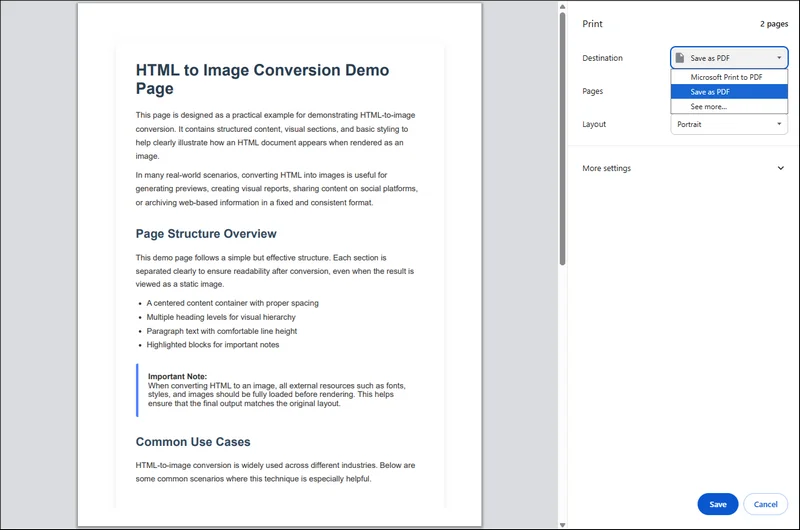
Etapa 3. Clique no botão "Salvar" abaixo para exportar o arquivo HTML como PDF.
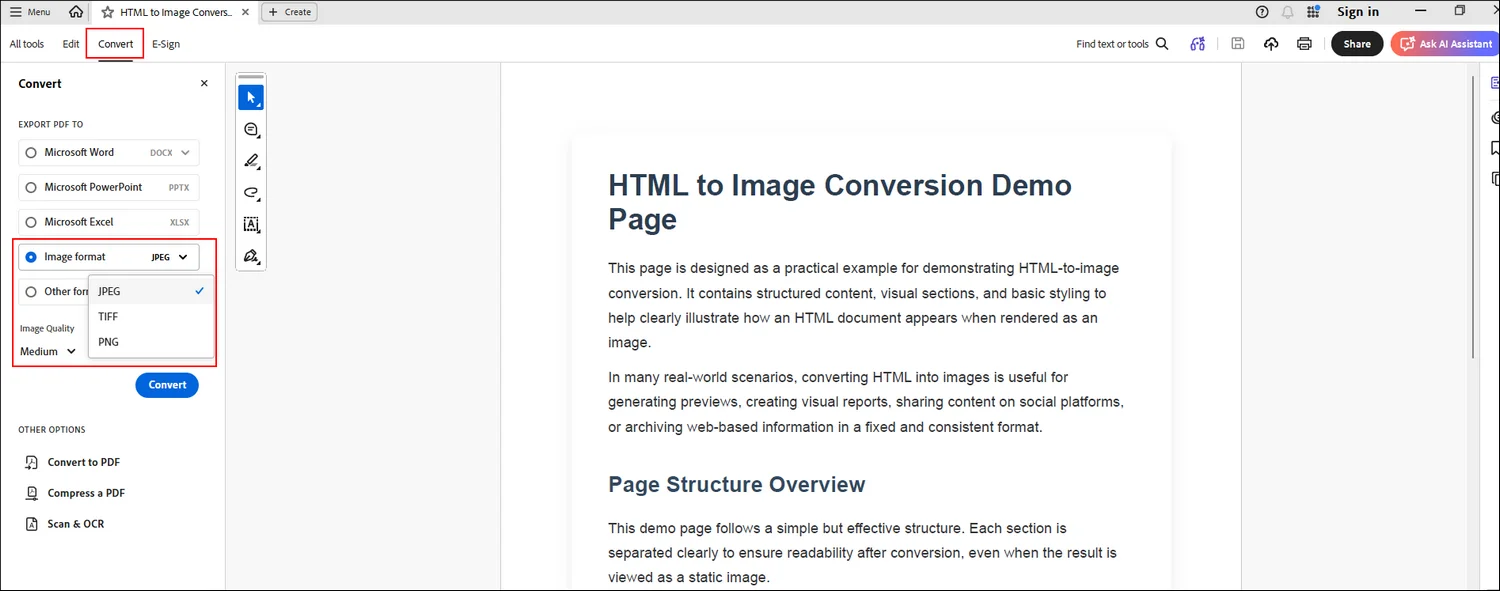
Etapa 4. Abra o arquivo PDF convertido com o Adobe Acrobat. Vá para a ferramenta "Converter" para escolher o formato de imagem específico com o qual deseja converter.
Método 2. Converter HTML para Imagem Online Usando o CloudXDocs
Prós:
- Nenhuma codificação necessária
- Rápido e fácil de usar
- Acessível de qualquer dispositivo com um navegador
- Nenhuma instalação local necessária
Contras:
- Requer uma conexão com a internet
- Não adequado para dados sensíveis ou confidenciais
Ideal para: usuários não técnicos, conversões ocasionais de HTML para imagem, marketing, design, tarefas de documentação e teste da saída de conversão antes da automação
Depois de explorar a abordagem de converter HTML para PDF primeiro e depois exportar o PDF como uma imagem, vale a pena notar que esse fluxo de trabalho nem sempre é necessário, especialmente quando você não precisa de controle total por meio de código ou quando a tarefa de conversão é relativamente simples. Para usuários que preferem uma solução mais rápida e leve, as ferramentas online de HTML para imagem oferecem uma alternativa prática.
O Conversor Online de HTML para Imagem do CloudXDocs fornece uma solução baseada em navegador que permite que você carregue arquivos HTML e os converta diretamente em formatos de imagem com apenas alguns cliques. Isso o torna particularmente útil para usuários não técnicos, bem como para desenvolvedores que desejam visualizar ou validar rapidamente os resultados da conversão antes de implementar um fluxo de trabalho automatizado.
Etapas específicas para usar o Conversor de HTML para Imagem do CloudXDocs:
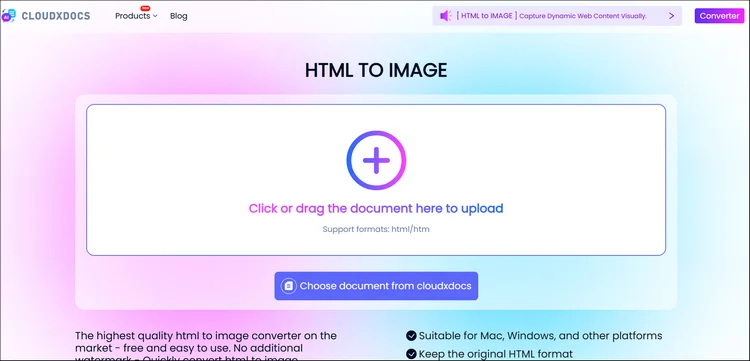
Etapa 1. Acesse primeiro o site oficial do Conversor Online de HTML para Imagem do CloudxDocs. Você pode arrastar ou clicar na interface principal para carregar o arquivo HTML original.
Etapa 2. Aguarde alguns segundos enquanto o CloudXDocs analisa automaticamente o arquivo HTML carregado e inicia o processo de conversão.
Etapa 3. Após a conversão, você pode baixar o arquivo compactado que inclui os arquivos de imagem convertidos na página de resultados. Baixe e descompacte-o para salvar todas as imagens em seu computador local.
Método 3. Como Converter HTML para Imagem em Java com Spire.Doc
Prós:
- Totalmente automatizado e escalável
- Alta precisão para layouts complexos
- Sem dependência do Microsoft Word
- Adequado para uso em servidor e empresarial
Contras:
- Requer experiência em desenvolvimento Java
- Precisa de integração e configuração de biblioteca
- Licenciamento necessário para uso em produção
Ideal para: desenvolvedores, aplicativos de backend ou do lado do servidor, conversões de HTML para imagem em lote ou em grande escala e sistemas de processamento de documentos empresariais
Embora as ferramentas online sejam convenientes para conversões rápidas ou ocasionais, elas podem não ser a melhor escolha quando você precisa de automação, escalabilidade ou controle total sobre o processo de conversão. Em ambientes de produção ou fluxos de trabalho de backend, os desenvolvedores geralmente exigem uma solução programática que possa ser integrada diretamente em aplicativos Java.
Nesses casos, usar código Java para converter HTML em imagens se torna uma abordagem mais confiável e flexível. O Spire.Doc for Java fornece uma API poderosa que permite carregar conteúdo HTML, convertê-lo em documentos e exportar o resultado como imagens com alta fidelidade. Este método é especialmente adequado para desenvolvedores que precisam de processamento em lote, saída consistente ou integração perfeita em sistemas existentes sem depender de serviços externos.

Por que escolher o Spire.Doc?
O Spire.Doc é uma biblioteca de processamento de documentos que suporta a importação de HTML e a exportação de imagens sem exigir o Microsoft Word ou quaisquer dependências de terceiros. É adequado para ambientes do lado do servidor e aplicativos empresariais.
As principais vantagens incluem:
- Suporte para conteúdo HTML complexo
- Layout e formatação precisos
- Vários formatos de imagem de saída
- API simples e intuitiva
Para cenários que exigem automação e alta precisão de conversão, o Spire.Doc oferece uma solução robusta para converter conteúdo HTML em imagens. Como uma biblioteca profissional de processamento de documentos, o Spire.Doc suporta a importação de HTML e a exportação para vários formatos de imagem sem depender de aplicativos externos.
Para converter HTML em imagens com o Spire.Doc for Java:
Etapa 1. Instale o Spire.Doc for Java
Primeiro, adicione o arquivo Spire.Doc.jar como uma dependência em seu programa Java. Você pode baixar o arquivo .jar no link de download oficial.
Se você estiver usando o Maven, poderá adicionar o seguinte código ao arquivo pom.xml do seu projeto para adicionar a dependência facilmente:
<repositories>
    <repository>
        <id>com.e-iceblue</id>
        <name>e-iceblue</name>
        <url>https://repo.e-iceblue.com/nexus/content/groups/public/</url>
    </repository>
</repositories>
<dependencies>
    <dependency>
        <groupId>e-iceblue</groupId>
        <artifactId>spire.doc</artifactId>
        <version>14.8.4</version>
    </dependency>
</dependencies>
Use o seguinte código de amostra para converter HTML em imagem:
import com.spire.doc.Document;
import com.spire.doc.FileFormat;
import com.spire.doc.Section;
import com.spire.doc.documents.ImageType;
import com.spire.doc.documents.XHTMLValidationType;

import javax.imageio.ImageIO;
import java.awt.image.BufferedImage;
import java.io.File;
import java.io.IOException;

public class ConvertHtmlToImage {

    public static void main(String[] args) throws IOException {

        // Crie um objeto Document
        Document document = new Document();

        // Carregue um arquivo HTML
        document.loadFromFile("src\\main\\resources\\sample.html", FileFormat.Html, XHTMLValidationType.None);

        // Obtenha a primeira seção
        Section section = document.getSections().get(0);

        // Defina as margens da página
        section.getPageSetup().getMargins().setAll(2);

        // Converta o documento em uma matriz de BufferedImage
        BufferedImage[] images = document.saveToImages(ImageType.Bitmap);

        // Itere através das imagens
        for (int index = 0; index < images.length; index++)
        {
            // Especifique o nome do arquivo de saída
            String fileName = String.format("output\\sample-html-to-image_%d.png", index);

            // Salve cada imagem como um arquivo PNG
            File file= new File(fileName);
            ImageIO.write(images[index], "PNG", file);
        }

        // Descarte os recursos
        document.dispose();
    }
}
RESULTADO:
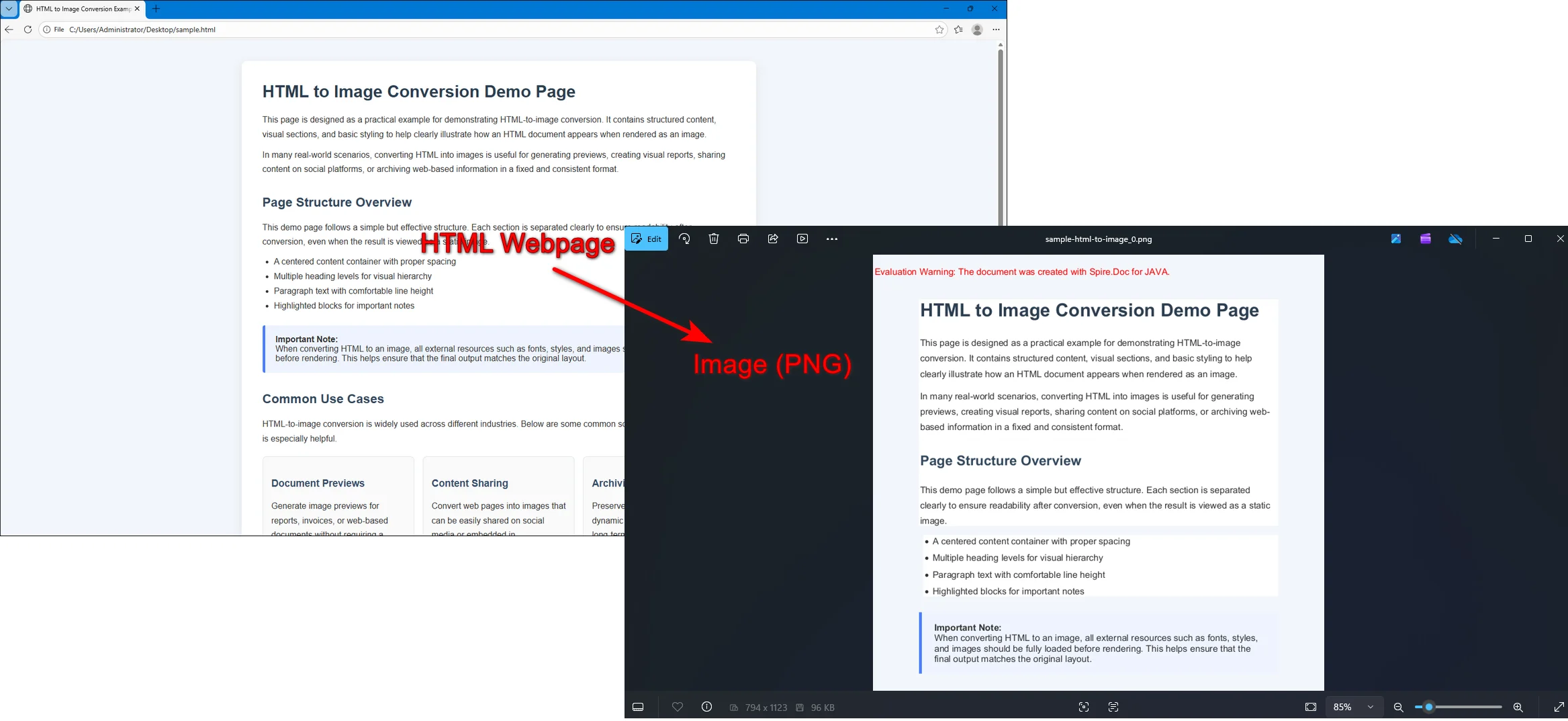
Internamente, o Spire.Doc converte HTML em um modelo de documento do Word antes de renderizá-lo em imagens. Isso permite que os desenvolvedores ajustem as configurações da página, como margens, tamanho do papel e layout antes de exportar, garantindo um melhor controle sobre a saída final da imagem.
Considerações Finais
A conversão de HTML em imagens garante uma saída visual consistente, reduz a variabilidade da renderização e torna o conteúdo mais fácil de compartilhar, armazenar ou incorporar em diferentes plataformas e documentos. Ao transformar páginas da web dinâmicas em imagens estáticas, você pode preservar o layout, o estilo e a tipografia exatos sem se preocupar com as diferenças do navegador ou com a falta de recursos.
- Para tarefas rápidas e únicas, salvar HTML como PDF e depois exportar para uma imagem funciona bem.
- Para conversões rápidas e sem código, o CloudXDocs oferece uma solução online conveniente.
- Para fluxos de trabalho automatizados e escaláveis, o Spire.Doc for Java oferece controle preciso e resultados confiáveis.
Considere seu fluxo de trabalho, requisitos técnicos e qualidade de saída desejada para escolher o método que melhor se adapta às suas necessidades, garantindo que seu conteúdo HTML seja preservado exatamente como pretendido e pareça consistente onde quer que seja usado.
Perguntas Frequentes:
Q1. A conversão de HTML para imagem é gratuita?
R: Sim, a conversão de HTML para imagem pode ser gratuita, dependendo da ferramenta que você usa. Muitos conversores online e bibliotecas de código aberto oferecem opções gratuitas para uso básico ou ocasional.
Q2. Quais formatos de imagem são suportados na conversão de HTML?
R: Os formatos comuns incluem PNG, JPG e BMP. O PNG é geralmente preferido para imagens de alta qualidade e sem perdas, enquanto o JPG pode ser usado para arquivos de tamanhos menores.
Q3. A imagem convertida ficará exatamente como a página HTML original?
R: Para HTML estático com CSS padrão, as imagens geralmente preservam o layout e o estilo com precisão. No entanto, conteúdo dinâmico, animações ou scripts podem não aparecer na imagem convertida, a menos que sejam capturados no momento certo.
Leia também:
HTML 이미지 변환: 개발자 및 초보자를 위한 완벽 가이드
이 게시물에서는:
- HTML 대 이미지 형식: 주요 차이점 및 변환이 필요한 경우
- 방법 1. HTML 파일을 PDF로 저장한 다음 이미지로 저장
- 방법 2. CloudXDocs를 사용하여 온라인에서 HTML을 이미지로 변환
- 방법 3. Spire.Doc을 사용하여 Java에서 HTML을 이미지로 변환하는 방법
- 마지막 생각들
- 자주 묻는 질문
HTML 파일을 이미지로 변환하는 것은 미리보기 생성, 웹 기반 보고서 보관 또는 PDF에 콘텐츠 포함과 같은 많은 실제 시나리오에서 일반적인 요구 사항입니다. HTML은 유연하고 동적이지만 브라우저, 글꼴 및 렌더링 환경의 차이로 인해 디스플레이 결과가 일치하지 않을 수 있습니다. HTML을 정적 이미지로 변환하면 원본 시각적 모양을 보존하고 플랫폼 간에 일관된 렌더링을 보장할 수 있습니다.
이 기사에서는 HTML을 이미지로 변환하는 몇 가지 방법을 살펴보겠습니다. 브라우저 기반 방법, CloudXDocs와 같은 온라인 도구 및 Spire.Doc을 사용하는 Java 솔루션을 다룰 것입니다. 각 방법은 서로 다른 시나리오에 적용되므로 자신에게 가장 적합한 방법을 선택할 수 있습니다.
HTML 대 이미지 형식: 주요 차이점 및 변환이 필요한 경우
HTML과 이미지 형식 모두 시각적 콘텐츠를 표시하는 데 널리 사용되지만 근본적으로 다른 목표를 위해 설계되었습니다. 이러한 차이점을 이해하는 것은 실제 응용 프로그램에서 올바른 출력 형식을 선택하는 데 필수적입니다.
HTML과 이미지 형식의 주요 차이점
| HTML | 이미지 (PNG, JPG 등) | |
|---|---|---|
| 렌더링 | 브라우저 및 렌더링 엔진에 따라 다름 | 고정된 시각적 출력 |
| 레이아웃 | 반응형 및 동적 | 정적 및 고정 |
| 상호 작용 | 스크립트, 링크 및 사용자 작업 지원 | 비대화형 |
| 시각적 일관성 | 브라우저 및 장치에 따라 다를 수 있음 | 어디서나 동일 |
| 런타임 종속성 | HTML/CSS 렌더링 환경 필요 | 자체 포함 |
| 출력 안정성 | CSS, 글꼴 및 뷰포트의 영향을 받음 | 환경 변화에 면역 |
HTML은 브라우저에서 동적이고 상호 작용적인 콘텐츠를 표시하는 데 적합합니다. 그러나 이러한 유연성은 불확실성을 야기하기도 합니다. 동일한 HTML이라도 브라우저 엔진, 화면 크기, 글꼴 가용성 또는 사용자 설정에 따라 다르게 렌더링될 수 있습니다. 반면, 이미지는 더 이상 외부 렌더링 조건에 의존하지 않는 최종적인 시각적 상태를 나타냅니다.
HTML을 이미지로 변환하는 이유
HTML을 이미지로 변환하는 것은 단순한 형식 변경이 아닙니다. 웹 콘텐츠의 시각적 결과를 고정하고 런타임 환경으로 인해 발생하는 가변성을 제거하는 방법입니다. 이 접근 방식은 예측 가능성, 반복성 및 다운스트림 호환성이 중요한 상황에서 특히 유용합니다.
특히 다음과 같은 경우 HTML-이미지 변환이 올바른 선택입니다.
- 정확한 시각적 충실도가 필요한 경우: 레이아웃, 타이포그래피 및 스타일링이 모든 사용자에게 정확히 동일하게 표시되어야 하는 경우 이미지는 브라우저 및 장치 관련 차이점을 제거합니다.
- HTML 렌더링을 사용할 수 없거나 바람직하지 않은 경우: 백엔드 서비스, 문서 파이프라인 또는 타사 시스템은 종종 HTML을 안정적으로 렌더링할 수 없지만 이미지 파일은 쉽게 처리할 수 있습니다.
- 콘텐츠를 포함하거나 재사용해야 하는 경우: 이미지는 추가 렌더링 논리 없이 PDF, Word 문서, 프레젠테이션, 이메일 또는 보고서에 직접 삽입할 수 있습니다.
- 동적 또는 스타일이 지정된 콘텐츠는 스냅샷으로 캡처해야 합니다: 대시보드, 차트 또는 생성된 페이지를 이미지로 변환하여 특정 시점의 상태를 보존할 수 있습니다.
- 장기 저장 또는 규정 준수가 필요한 경우: 이미지는 나중에 CSS, 스크립트 또는 외부 리소스가 변경되더라도 보관된 콘텐츠가 시각적으로 그대로 유지되도록 보장합니다.
- 자동화 또는 일괄 처리가 관련된 경우: 서버 측 변환을 통해 수동 개입 없이 미리보기, 썸네일 및 시각적 자산을 확장 가능하게 생성할 수 있습니다.
이러한 시나리오에서 HTML을 PNG 또는 JPG와 같은 이미지 형식으로 변환하면 안정적이고 예측 가능한 출력을 제공하여 웹 기반 콘텐츠를 더 넓은 응용 프로그램 워크플로에 더 쉽게 통합할 수 있습니다.
방법 1. HTML 파일을 PDF로 저장한 다음 이미지로 저장
장점:
- 내장 브라우저 기능 사용
- 정적 HTML 및 CSS에 대한 높은 렌더링 정확도
- 브라우저가 설치되면 오프라인으로 작동
단점:
- 수동 프로세스, 자동화에 적합하지 않음
- 해상도 및 출력 크기에 대한 제한된 제어
- 동적 또는 JavaScript가 많은 페이지에는 적합하지 않음
최적 대상: 일회성 변환, 정적 HTML 페이지, 빠른 미리보기 또는 문서 스냅샷, 엄격한 소프트웨어 설치 정책이 있는 환경
인터넷에 의존하지 않고 일회성 변환만을 위해 HTML을 이미지로 변환하는 것이 목표라면 문서 형식을 중간 단계로 도입하는 것이 실용적인 해결 방법입니다. 최신 브라우저는 이미 HTML을 정확하게 렌더링하고 PDF로 내보내는 내장 기능을 제공합니다. 먼저 HTML 파일을 PDF로 저장한 다음 해당 PDF를 이미지로 변환하면 워크플로를 단순하게 유지하면서 신뢰할 수 있는 시각적 결과를 얻을 수 있습니다. 이 접근 방식은 정적 페이지, 빠른 미리보기 또는 추가 소프트웨어 설치가 옵션이 아닌 환경에 특히 적합합니다.
구체적인 단계는 다음과 같습니다.
1단계. Chrome 또는 Edge와 같은 최신 브라우저에서 HTML 파일을 엽니다. Ctrl + P(macOS에서는 Cmd + P)를 눌러 인쇄 대화 상자를 엽니다.
2단계. 대상을 "PDF로 저장"으로 선택하고 필요한 경우 레이아웃 설정을 조정합니다.
3단계. 아래의 "저장" 버튼을 클릭하여 HTML 파일을 PDF로 내보냅니다.
4단계. 변환된 PDF 파일을 Adobe Acrobat으로 엽니다. "변환" 도구로 이동하여 변환하려는 특정 이미지 형식을 선택합니다.
방법 2. CloudXDocs를 사용하여 온라인에서 HTML을 이미지로 변환
장점:
- 코딩 필요 없음
- 빠르고 사용하기 쉬움
- 브라우저가 있는 모든 장치에서 액세스 가능
- 로컬 설치 필요 없음
단점:
- 인터넷 연결 필요
- 민감하거나 기밀 데이터에 적합하지 않음
최적 대상: 비기술 사용자, 가끔씩의 HTML-이미지 변환, 마케팅, 디자인, 문서화 작업 및 자동화 전 변환 출력 테스트
HTML을 먼저 PDF로 변환한 다음 PDF를 이미지로 내보내는 접근 방식을 살펴본 후, 이 워크플로는 항상 필요한 것은 아니라는 점에 주목할 가치가 있습니다. 특히 코드를 통한 완전한 제어가 필요하지 않거나 변환 작업이 비교적 간단한 경우에는 더욱 그렇습니다. 더 빠르고 가벼운 솔루션을 선호하는 사용자를 위해 온라인 HTML-이미지 도구는 실용적인 대안을 제공합니다.
CloudXDocs 온라인 HTML-이미지 변환기는 몇 번의 클릭만으로 HTML 파일을 업로드하고 이미지 형식으로 직접 변환할 수 있는 브라우저 기반 솔루션을 제공합니다. 이는 비기술 사용자뿐만 아니라 자동화된 워크플로를 구현하기 전에 변환 결과를 신속하게 미리 보거나 검증하려는 개발자에게 특히 유용합니다.
CloudXDocs HTML-이미지 변환기 사용을 위한 구체적인 단계:
1단계. 먼저 CloudxDocs 온라인 HTML-이미지 변환기 공식 웹사이트로 이동합니다. 기본 인터페이스에서 드래그하거나 클릭하여 원본 HTML 파일을 업로드할 수 있습니다.
2단계. CloudXDocs가 업로드된 HTML 파일을 자동으로 분석하고 변환 프로세스를 시작하는 동안 몇 초간 기다립니다.
3단계. 변환 후 결과 페이지에서 변환된 이미지 파일이 포함된 압축 파일을 다운로드할 수 있습니다. 다운로드하고 압축을 풀어 모든 이미지를 로컬 컴퓨터에 저장합니다.
방법 3. Spire.Doc을 사용하여 Java에서 HTML을 이미지로 변환하는 방법
장점:
- 완전 자동화 및 확장 가능
- 복잡한 레이아웃에 대한 높은 정확도
- Microsoft Word 종속성 없음
- 서버 측 및 엔터프라이즈 사용에 적합
단점:
- Java 개발 경험 필요
- 라이브러리 통합 및 구성 필요
- 프로덕션 사용을 위한 라이선스 필요
최적 대상: 개발자, 백엔드 또는 서버 측 응용 프로그램, 일괄 또는 대규모 HTML-이미지 변환 및 엔터프라이즈 문서 처리 시스템
온라인 도구는 빠르거나 가끔씩의 변환에 편리하지만 자동화, 확장성 또는 변환 프로세스에 대한 완전한 제어가 필요한 경우에는 최선의 선택이 아닐 수 있습니다. 프로덕션 환경이나 백엔드 워크플로에서 개발자는 종종 Java 응용 프로그램에 직접 통합할 수 있는 프로그래밍 방식의 솔루션이 필요합니다.
이러한 경우 Java 코드를 사용하여 HTML을 이미지로 변환하는 것이 더 신뢰할 수 있고 유연한 접근 방식이 됩니다. Spire.Doc for Java는 HTML 콘텐츠를 로드하고, 문서로 변환하고, 결과를 고품질 이미지로 내보낼 수 있는 강력한 API를 제공합니다. 이 방법은 일괄 처리, 일관된 출력 또는 외부 서비스에 의존하지 않고 기존 시스템에 원활하게 통합해야 하는 개발자에게 특히 적합합니다.
Spire.Doc을 선택하는 이유
Spire.Doc은 Microsoft Word나 타사 종속성 없이 HTML 가져오기 및 이미지 내보내기를 지원하는 문서 처리 라이브러리입니다. 서버 측 환경 및 엔터프라이즈 응용 프로그램에 적합합니다.
주요 장점은 다음과 같습니다.
- 복잡한 HTML 콘텐츠 지원
- 정확한 레이아웃 및 서식
- 다중 출력 이미지 형식
- 간단하고 직관적인 API
자동화와 높은 변환 정확도가 필요한 시나리오의 경우 Spire.Doc은 HTML 콘텐츠를 이미지로 변환하기 위한 강력한 솔루션을 제공합니다. 전문적인 문서 처리 라이브러리인 Spire.Doc은 외부 응용 프로그램에 의존하지 않고 HTML을 가져와 다양한 이미지 형식으로 내보내는 것을 지원합니다.
Spire.Doc for Java를 사용하여 HTML을 이미지로 변환하려면:
1단계. Spire.Doc for Java 설치
먼저 Java 프로그램의 종속성으로 Spire.Doc.jar 파일을 추가합니다. 공식 다운로드 링크에서 .jar 파일을 다운로드할 수 있습니다.
Maven을 사용하는 경우 프로젝트의 pom.xml 파일에 다음 코드를 추가하여 종속성을 쉽게 추가할 수 있습니다.
<repositories>
    <repository>
        <id>com.e-iceblue</id>
        <name>e-iceblue</name>
        <url>https://repo.e-iceblue.com/nexus/content/groups/public/</url>
    </repository>
</repositories>
<dependencies>
    <dependency>
        <groupId>e-iceblue</groupId>
        <artifactId>spire.doc</artifactId>
        <version>14.8.4</version>
    </dependency>
</dependencies>
다음 샘플 코드를 사용하여 HTML을 이미지로 변환합니다.
import com.spire.doc.Document;
import com.spire.doc.FileFormat;
import com.spire.doc.Section;
import com.spire.doc.documents.ImageType;
import com.spire.doc.documents.XHTMLValidationType;

import javax.imageio.ImageIO;
import java.awt.image.BufferedImage;
import java.io.File;
import java.io.IOException;

public class ConvertHtmlToImage {

    public static void main(String[] args) throws IOException {

        // Document 객체 생성
        Document document = new Document();

        // HTML 파일 로드
        document.loadFromFile("src\\main\\resources\\sample.html", FileFormat.Html, XHTMLValidationType.None);

        // 첫 번째 섹션 가져오기
        Section section = document.getSections().get(0);

        // 페이지 여백 설정
        section.getPageSetup().getMargins().setAll(2);

        // 문서를 BufferedImage 배열로 변환
        BufferedImage[] images = document.saveToImages(ImageType.Bitmap);

        // 이미지를 반복
        for (int index = 0; index < images.length; index++)
        {
            // 출력 파일 이름 지정
            String fileName = String.format("output\\sample-html-to-image_%d.png", index);

            // 각 이미지를 PNG 파일로 저장
            File file= new File(fileName);
            ImageIO.write(images[index], "PNG", file);
        }

        // 리소스 해제
        document.dispose();
    }
}
결과:
내부적으로 Spire.Doc은 HTML을 이미지로 렌더링하기 전에 Word 문서 모델로 변환합니다. 이를 통해 개발자는 내보내기 전에 여백, 용지 크기 및 레이아웃과 같은 페이지 설정을 조정하여 최종 이미지 출력을 더 잘 제어할 수 있습니다.
마지막 생각들
HTML을 이미지로 변환하면 일관된 시각적 출력을 보장하고 렌더링 가변성을 줄이며 다른 플랫폼 및 문서에서 콘텐츠를 더 쉽게 공유, 저장 또는 포함할 수 있습니다. 동적 웹 페이지를 정적 이미지로 전환하면 브라우저 차이나 누락된 리소스에 대해 걱정할 필요 없이 정확한 레이아웃, 스타일 및 타이포그래피를 보존할 수 있습니다.
- 빠른 일회성 작업의 경우 HTML을 PDF로 저장한 다음 이미지로 내보내는 것이 잘 작동합니다.
- 빠른 코드 없는 변환을 위해 CloudXDocs는 편리한 온라인 솔루션을 제공합니다.
- 자동화되고 확장 가능한 워크플로를 위해 Spire.Doc for Java는 정밀한 제어와 신뢰할 수 있는 결과를 제공합니다.
워크플로, 기술 요구 사항 및 원하는 출력 품질을 고려하여 필요에 가장 적합한 방법을 선택하여 HTML 콘텐츠가 의도한 대로 정확하게 보존되고 어디에서 사용되든 일관되게 보이도록 하십시오.
자주 묻는 질문:
Q1. HTML-이미지 변환은 무료인가요?
A: 예, 사용하는 도구에 따라 HTML-이미지 변환은 무료일 수 있습니다. 많은 온라인 변환기 및 오픈 소스 라이브러리는 기본 또는 가끔 사용을 위한 무료 옵션을 제공합니다.
Q2. HTML 변환 시 어떤 이미지 형식이 지원되나요?
A: 일반적인 형식에는 PNG, JPG 및 BMP가 포함됩니다. PNG는 일반적으로 고품질의 무손실 이미지에 선호되며 JPG는 더 작은 파일 크기에 사용할 수 있습니다.
Q3. 변환된 이미지가 원본 HTML 페이지와 똑같이 보이나요?
A: 표준 CSS를 사용하는 정적 HTML의 경우 이미지는 일반적으로 레이아웃과 스타일을 정확하게 보존합니다. 그러나 동적 콘텐츠, 애니메이션 또는 스크립트는 적절한 순간에 캡처되지 않는 한 변환된 이미지에 나타나지 않을 수 있습니다.
또한 읽기:
Convertire HTML in immagini: Guida completa per sviluppatori e principianti
Indice dei Contenuti
- HTML vs. Formati Immagine: Differenze Chiave e Quando la Conversione ha Senso
- Metodo 1. Salvare i File HTML in PDF e poi in Immagine
- Metodo 2. Convertire HTML in Immagine Online Usando CloudXDocs
- Metodo 3. Come Convertire HTML in Immagine in Java con Spire.Doc
- Considerazioni Finali
- Domande Frequenti
In Questo Post:
- HTML vs. Formati Immagine: Differenze Chiave e Quando la Conversione ha Senso
- Metodo 1. Salvare i File HTML in PDF e poi in Immagine
- Metodo 2. Convertire HTML in Immagine Online Usando CloudXDocs
- Metodo 3. Come Convertire HTML in Immagine in Java con Spire.Doc
- Considerazioni Finali
- Domande Frequenti
La conversione di file HTML in immagini è un requisito comune in molti scenari reali, come la generazione di anteprime, l'archiviazione di report basati sul web o l'incorporamento di contenuti in PDF. Sebbene l'HTML sia flessibile e dinamico, le differenze tra browser, caratteri e ambienti di rendering possono portare a risultati di visualizzazione incoerenti. Convertendo l'HTML in immagini statiche, è possibile preservare l'aspetto visivo originale e garantire un rendering coerente su tutte le piattaforme.
In questo articolo, esploreremo diversi modi per convertire HTML in immagini. Tratteremo un metodo basato su browser, uno strumento online come CloudXDocs e una soluzione Java che utilizza Spire.Doc. Ogni metodo serve a scenari diversi, quindi puoi scegliere quello che funziona meglio per te.
HTML vs. Formati Immagine: Differenze Chiave e Quando la Conversione ha Senso
Sebbene sia i formati HTML che quelli immagine siano ampiamente utilizzati per presentare contenuti visivi, sono progettati per obiettivi fondamentalmente diversi. Comprendere queste differenze è essenziale per scegliere il formato di output corretto nelle applicazioni del mondo reale.
Differenze Chiave tra Formati HTML e Immagine
| HTML | Immagine (PNG, JPG, ecc.) | |
|---|---|---|
| Rendering | Dipende dal browser e dal motore di rendering | Output visivo fisso |
| Layout | Responsivo e dinamico | Statico e fisso |
| Interattività | Supporta script, link e azioni dell'utente | Non interattivo |
| Coerenza Visiva | Può variare tra browser e dispositivi | Identico ovunque |
| Dipendenza a Runtime | Richiede un ambiente di rendering HTML/CSS | Autonomo |
| Stabilità dell'Output | Influenzato da CSS, caratteri e viewport | Immune ai cambiamenti ambientali |
L'HTML è adatto per visualizzare contenuti dinamici e interattivi in un browser. Tuttavia, questa flessibilità introduce anche incertezza: lo stesso HTML può essere reso in modo diverso a seconda dei motori del browser, delle dimensioni dello schermo, della disponibilità dei caratteri o delle impostazioni dell'utente. Al contrario, un'immagine rappresenta uno stato visivo finalizzato che non dipende più da condizioni di rendering esterne.
Perché Convertire HTML in Immagine
Convertire l'HTML in un'immagine non è semplicemente un cambio di formato; è un modo per "congelare" il risultato visivo dei contenuti web ed eliminare la variabilità introdotta dagli ambienti di runtime. Questo approccio diventa particolarmente prezioso in situazioni in cui la prevedibilità, la ripetibilità e la compatibilità a valle sono critiche.
Nello specifico, la conversione da HTML a immagine è la scelta giusta quando:
- È richiesta un'esatta fedeltà visiva: Quando layout, tipografia e stile devono apparire esattamente uguali per tutti gli utenti, le immagini eliminano le differenze legate al browser e al dispositivo.
- Il rendering HTML non è disponibile o indesiderabile: I servizi di backend, le pipeline di documenti o i sistemi di terze parti spesso non possono rendere l'HTML in modo affidabile, ma possono gestire facilmente i file di immagine.
- Il contenuto deve essere incorporato o riutilizzato: Le immagini possono essere inserite direttamente in PDF, documenti Word, presentazioni, email o report senza logica di rendering aggiuntiva.
- Il contenuto dinamico o stilizzato deve essere catturato come un'istantanea: Dashboard, grafici o pagine generate possono essere convertiti in immagini per preservare uno stato specifico nel tempo.
- È richiesta l'archiviazione a lungo termine o la conformità: Le immagini assicurano che il contenuto archiviato rimanga visivamente intatto anche se CSS, script o risorse esterne cambiano in futuro.
- È coinvolta l'elaborazione automatizzata o batch: La conversione lato server consente la generazione scalabile di anteprime, miniature e risorse visive senza intervento manuale.
In questi scenari, la conversione di HTML in formati di immagine come PNG o JPG fornisce un output stabile e prevedibile, rendendo più facile integrare i contenuti basati sul web in flussi di lavoro applicativi più ampi.
Metodo 1. Salvare i File HTML in PDF e poi in Immagine
Pro:
- Utilizza la funzionalità integrata del browser
- Alta precisione di rendering per HTML statico e CSS
- Funziona offline una volta installato il browser
Contro:
- Processo manuale, non adatto all'automazione
- Controllo limitato sulla risoluzione e sulle dimensioni dell'output
- Non ideale per pagine dinamiche o pesanti di JavaScript
Ideale per: conversioni una tantum, pagine HTML statiche, anteprime rapide o istantanee di documentazione e ambienti con rigide politiche di installazione del software
Se il tuo obiettivo è convertire HTML in un'immagine senza fare affidamento su Internet e solo per una conversione una tantum, una soluzione pratica è introdurre un formato di documento come passaggio intermedio. I browser moderni forniscono già funzionalità integrate per rendere l'HTML in modo accurato ed esportarlo come PDF. Salvando prima il file HTML come PDF e poi convertendo quel PDF in un'immagine, puoi ottenere risultati visivi affidabili mantenendo il flusso di lavoro semplice. Questo approccio è particolarmente adatto per pagine statiche, anteprime rapide o ambienti in cui l'installazione di software aggiuntivo non è un'opzione.
I passaggi specifici sono elencati di seguito:
Passaggio 1. Apri il file HTML in un browser moderno come Chrome o Edge. Premi Ctrl + P (o Cmd + P su macOS) per aprire la finestra di dialogo di stampa.
Passaggio 2. Seleziona "Salva come PDF" come destinazione e regola le impostazioni di layout se necessario.
Passaggio 3. Fai clic sul pulsante "Salva" in basso per esportare il file HTML come PDF.
Passaggio 4. Apri il file PDF convertito con Adobe Acrobat. Vai allo strumento "Converti" per scegliere il formato immagine specifico in cui desideri convertire.
Metodo 2. Convertire HTML in Immagine Online Usando CloudXDocs
Pro:
- Nessuna codifica richiesta
- Veloce e facile da usare
- Accessibile da qualsiasi dispositivo con un browser
- Nessuna installazione locale necessaria
Contro:
- Richiede una connessione a Internet
- Non adatto per dati sensibili o confidenziali
Ideale per: utenti non tecnici, conversioni occasionali da HTML a immagine, marketing, design, attività di documentazione e test dell'output di conversione prima dell'automazione
Dopo aver esplorato l'approccio di convertire prima l'HTML in PDF e poi esportare il PDF come immagine, vale la pena notare che questo flusso di lavoro non è sempre necessario, specialmente quando non hai bisogno del pieno controllo tramite codice o quando l'attività di conversione è relativamente semplice. Per gli utenti che preferiscono una soluzione più rapida e leggera, gli strumenti online da HTML a immagine offrono un'alternativa pratica.
Il Convertitore Online da HTML a Immagine di CloudXDocs fornisce una soluzione basata su browser che ti consente di caricare file HTML e convertirli direttamente in formati immagine con pochi clic. Ciò lo rende particolarmente utile per gli utenti non tecnici, così come per gli sviluppatori che desiderano visualizzare in anteprima o convalidare rapidamente i risultati della conversione prima di implementare un flusso di lavoro automatizzato.
Passaggi specifici per utilizzare il Convertitore da HTML a Immagine di CloudXDocs:
Passaggio 1. Vai prima al sito web ufficiale del Convertitore Online da HTML a Immagine di CloudxDocs. Puoi trascinare o fare clic dall'interfaccia principale per caricare il file HTML originale.
Passaggio 2. Attendi qualche secondo mentre CloudXDocs analizza automaticamente il file HTML caricato e avvia il processo di conversione.
Passaggio 3. Dopo la conversione, puoi scaricare il file compresso che include i file immagine convertiti dalla pagina dei risultati. Scaricalo e decomprimilo per salvare tutte le immagini sul tuo computer locale.
Metodo 3. Come Convertire HTML in Immagine in Java con Spire.Doc
Pro:
- Completamente automatizzato e scalabile
- Alta precisione per layout complessi
- Nessuna dipendenza da Microsoft Word
- Adatto per l'uso lato server e aziendale
Contro:
- Richiede esperienza di sviluppo Java
- Necessita di integrazione e configurazione della libreria
- Licenza richiesta per l'uso in produzione
Ideale per: sviluppatori, applicazioni di backend o lato server, conversioni batch o su larga scala da HTML a immagine e sistemi di elaborazione di documenti aziendali
Sebbene gli strumenti online siano convenienti per conversioni rapide o occasionali, potrebbero non essere la scelta migliore quando hai bisogno di automazione, scalabilità o pieno controllo sul processo di conversione. Negli ambienti di produzione o nei flussi di lavoro di backend, gli sviluppatori richiedono spesso una soluzione programmatica che possa essere integrata direttamente nelle applicazioni Java.
In tali casi, utilizzare il codice Java per convertire HTML in immagini diventa un approccio più affidabile e flessibile. Spire.Doc for Java fornisce una potente API che consente di caricare contenuti HTML, convertirli in documenti ed esportare il risultato come immagini ad alta fedeltà. Questo metodo è particolarmente adatto per gli sviluppatori che necessitano di elaborazione batch, output coerente o integrazione perfetta nei sistemi esistenti senza fare affidamento su servizi esterni.
Perché Scegliere Spire.Doc?
Spire.Doc è una libreria di elaborazione di documenti che supporta l'importazione di HTML e l'esportazione di immagini senza richiedere Microsoft Word o dipendenze di terze parti. È adatto per ambienti lato server e applicazioni aziendali.
I vantaggi principali includono:
- Supporto per contenuti HTML complessi
- Layout e formattazione accurati
- Formati di immagine di output multipli
- API semplice e intuitiva
Per scenari che richiedono automazione e alta precisione di conversione, Spire.Doc offre una soluzione robusta per convertire contenuti HTML in immagini. Come libreria professionale di elaborazione di documenti, Spire.Doc supporta l'importazione di HTML e l'esportazione in vari formati di immagine senza fare affidamento su applicazioni esterne.
Per Convertire HTML in immagini con Spire.Doc for Java:
Passaggio 1. Installa Spire.Doc for Java
Innanzitutto, aggiungi il file Spire.Doc.jar come dipendenza nel tuo programma Java. Puoi scaricare il file .jar dal link di download ufficiale.
Se stai usando Maven, puoi aggiungere il seguente codice al file pom.xml del tuo progetto per aggiungere facilmente la dipendenza:
<repositories>
    <repository>
        <id>com.e-iceblue</id>
        <name>e-iceblue</name>
        <url>https://repo.e-iceblue.com/nexus/content/groups/public/</url>
    </repository>
</repositories>
<dependencies>
    <dependency>
        <groupId>e-iceblue</groupId>
        <artifactId>spire.doc</artifactId>
        <version>14.8.4</version>
    </dependency>
</dependencies>
Usa il seguente codice di esempio per convertire HTML in immagine:
import com.spire.doc.Document;
import com.spire.doc.FileFormat;
import com.spire.doc.Section;
import com.spire.doc.documents.ImageType;
import com.spire.doc.documents.XHTMLValidationType;

import javax.imageio.ImageIO;
import java.awt.image.BufferedImage;
import java.io.File;
import java.io.IOException;

public class ConvertHtmlToImage {

    public static void main(String[] args) throws IOException {

        // Create a Document object
        Document document = new Document();

        // Load an HTML file
        document.loadFromFile("src\\main\\resources\\sample.html", FileFormat.Html, XHTMLValidationType.None);

        // Get the first section
        Section section = document.getSections().get(0);

        // Set the page margins
        section.getPageSetup().getMargins().setAll(2);

        // Convert the document to an array of BufferedImage
        BufferedImage[] images = document.saveToImages(ImageType.Bitmap);

        // Iterate through the images
        for (int index = 0; index < images.length; index++)
        {
            // Specify the output file name
            String fileName = String.format("output\\sample-html-to-image_%d.png", index);

            // Save each image as a PNG file
            File file= new File(fileName);
            ImageIO.write(images[index], "PNG", file);
        }

        // Dispose resources
        document.dispose();
    }
}
RISULTATO:
Internamente, Spire.Doc converte l'HTML in un modello di documento Word prima di renderlo in immagini. Ciò consente agli sviluppatori di regolare le impostazioni della pagina come margini, dimensioni della carta e layout prima dell'esportazione, garantendo un migliore controllo sull'output dell'immagine finale.
Considerazioni Finali
La conversione di HTML in immagini garantisce un output visivo coerente, riduce la variabilità del rendering e rende i contenuti più facili da condividere, archiviare o incorporare su diverse piattaforme e documenti. Trasformando le pagine web dinamiche in immagini statiche, è possibile preservare l'esatto layout, lo stile e la tipografia senza preoccuparsi delle differenze tra i browser o delle risorse mancanti.
- Per attività rapide e una tantum, salvare l'HTML come PDF e poi esportarlo in un'immagine funziona bene.
- Per conversioni veloci e senza codice, CloudXDocs fornisce una comoda soluzione online.
- Per flussi di lavoro automatizzati e scalabili, Spire.Doc for Java offre un controllo preciso e risultati affidabili.
Considera il tuo flusso di lavoro, i requisiti tecnici e la qualità di output desiderata per scegliere il metodo che meglio si adatta alle tue esigenze, assicurando che il tuo contenuto HTML sia preservato esattamente come previsto e appaia coerente ovunque venga utilizzato.
Domande Frequenti:
D1. La conversione da HTML a immagine è gratuita?
R: Sì, la conversione da HTML a immagine può essere gratuita, a seconda dello strumento che utilizzi. Molti convertitori online e librerie open source offrono opzioni gratuite per un uso di base o occasionale.
D2. Quali formati di immagine sono supportati durante la conversione di HTML?
R: I formati comuni includono PNG, JPG e BMP. Il PNG è generalmente preferito per immagini di alta qualità e senza perdita, mentre il JPG può essere utilizzato per file di dimensioni inferiori.
D3. L'immagine convertita sarà esattamente come la pagina HTML originale?
R: Per l'HTML statico con CSS standard, le immagini di solito preservano accuratamente il layout e lo stile. Tuttavia, contenuti dinamici, animazioni o script potrebbero non apparire nell'immagine convertita a meno che non vengano catturati al momento giusto.
Leggi Anche:
Convertir HTML en images : Guide complet pour développeurs et débutants
Table des matières
Dans cet article :
- HTML vs formats d'image : principales différences et quand la conversion est judicieuse
- Méthode 1. Enregistrer les fichiers HTML en PDF puis en image
- Méthode 2. Convertir HTML en image en ligne avec CloudXDocs
- Méthode 3. Comment convertir HTML en image en Java avec Spire.Doc
- Réflexions finales
- FAQ
La conversion de fichiers HTML en images est une exigence courante dans de nombreux scénarios réels, tels que la génération d'aperçus, l'archivage de rapports Web ou l'intégration de contenu dans des PDF. Bien que le HTML soit flexible et dynamique, les différences entre les navigateurs, les polices et les environnements de rendu peuvent entraîner des résultats d'affichage incohérents. En convertissant le HTML en images statiques, vous pouvez préserver l'apparence visuelle d'origine et garantir un rendu cohérent sur toutes les plateformes.
Dans cet article, nous explorerons plusieurs façons de convertir du HTML en images. Nous couvrirons une méthode basée sur le navigateur, un outil en ligne comme CloudXDocs et une solution Java utilisant Spire.Doc. Chaque méthode sert des scénarios différents, vous pouvez donc choisir celle qui vous convient le mieux.
HTML vs formats d'image : principales différences et quand la conversion est judicieuse
Bien que les formats HTML et image soient largement utilisés pour présenter du contenu visuel, ils sont conçus pour des objectifs fondamentalement différents. Comprendre ces différences est essentiel pour choisir le format de sortie correct dans les applications du monde réel.
Principales différences entre les formats HTML et image
| HTML | Image (PNG, JPG, etc.) | |
|---|---|---|
| Rendu | Dépend du navigateur et du moteur de rendu | Sortie visuelle fixe |
| Mise en page | Réactif et dynamique | Statique et fixe |
| Interactivité | Prend en charge les scripts, les liens et les actions de l'utilisateur | Non interactif |
| Cohérence visuelle | Peut varier selon les navigateurs et les appareils | Identique partout |
| Dépendance d'exécution | Nécessite un environnement de rendu HTML/CSS | Autonome |
| Stabilité de la sortie | Affecté par le CSS, les polices et la fenêtre d'affichage | Insensible aux changements environnementaux |
Le HTML est bien adapté à l'affichage de contenu dynamique et interactif dans un navigateur. Cependant, cette flexibilité introduit également une incertitude : le même HTML peut s'afficher différemment en fonction des moteurs de navigateur, de la taille des écrans, de la disponibilité des polices ou des paramètres de l'utilisateur. En revanche, une image représente un état visuel finalisé qui ne dépend plus des conditions de rendu externes.
Pourquoi convertir du HTML en image
La conversion de HTML en image n'est pas simplement un changement de format ; c'est un moyen de figer le résultat visuel du contenu Web et d'éliminer la variabilité introduite par les environnements d'exécution. Cette approche devient particulièrement précieuse dans les situations où la prévisibilité, la répétabilité et la compatibilité en aval sont essentielles.
Plus précisément, la conversion HTML en image est le bon choix lorsque :
- Une fidélité visuelle exacte est requise : lorsque la mise en page, la typographie et le style doivent apparaître exactement de la même manière pour tous les utilisateurs, les images suppriment les différences liées au navigateur et à l'appareil.
- Le rendu HTML n'est pas disponible ou n'est pas souhaitable : les services backend, les pipelines de documents ou les systèmes tiers ne peuvent souvent pas rendre le HTML de manière fiable, mais peuvent facilement gérer les fichiers image.
- Le contenu doit être intégré ou réutilisé : les images peuvent être directement insérées dans des PDF, des documents Word, des présentations, des e-mails ou des rapports sans logique de rendu supplémentaire.
- Le contenu dynamique ou stylisé doit être capturé sous forme d'instantané : les tableaux de bord, les graphiques ou les pages générées peuvent être convertis en images pour préserver un état spécifique dans le temps.
- Un stockage à long terme ou une conformité est requis : les images garantissent que le contenu archivé reste visuellement intact même si le CSS, les scripts ou les ressources externes changent à l'avenir.
- Un traitement automatisé ou par lots est impliqué : la conversion côté serveur permet la génération évolutive d'aperçus, de vignettes et d'actifs visuels sans intervention manuelle.
Dans ces scénarios, la conversion de HTML en formats d'image tels que PNG ou JPG fournit une sortie stable et prévisible, ce qui facilite l'intégration de contenu Web dans des flux de travail d'application plus larges.
Méthode 1. Enregistrer les fichiers HTML en PDF puis en image
Avantages :
- Utilise la fonctionnalité intégrée du navigateur
- Haute précision de rendu pour le HTML et le CSS statiques
- Fonctionne hors ligne une fois le navigateur installé
Inconvénients :
- Processus manuel, ne convient pas à l'automatisation
- Contrôle limité sur la résolution et la taille de sortie
- Pas idéal pour les pages dynamiques ou riches en JavaScript
Idéal pour : les conversions uniques, les pages HTML statiques, les aperçus rapides ou les instantanés de documentation, et les environnements avec des politiques d'installation de logiciels strictes
Si votre objectif est de convertir du HTML en image sans dépendre d'Internet et pour une conversion unique uniquement, une solution de contournement pratique consiste à introduire un format de document comme étape intermédiaire. Les navigateurs modernes offrent déjà des fonctionnalités intégrées pour rendre le HTML avec précision et l'exporter au format PDF. En enregistrant d'abord le fichier HTML au format PDF, puis en convertissant ce PDF en image, vous pouvez obtenir des résultats visuels fiables tout en gardant le flux de travail simple. Cette approche est particulièrement adaptée aux pages statiques, aux aperçus rapides ou aux environnements où l'installation de logiciels supplémentaires n'est pas une option.
Les étapes spécifiques sont répertoriées ci-dessous :
Étape 1. Ouvrez le fichier HTML dans un navigateur moderne tel que Chrome ou Edge. Appuyez sur Ctrl + P (ou Cmd + P sur macOS) pour ouvrir la boîte de dialogue d'impression.
Étape 2. Sélectionnez "Enregistrer au format PDF" comme destination et ajustez les paramètres de mise en page si nécessaire.
Étape 3. Cliquez sur le bouton "Enregistrer" ci-dessous pour exporter le fichier HTML au format PDF.
Étape 4. Ouvrez le fichier PDF converti avec Adobe Acrobat. Allez dans l'outil "Convertir" pour choisir le format d'image spécifique avec lequel vous souhaitez convertir.
Méthode 2. Convertir HTML en image en ligne avec CloudXDocs
Avantages :
- Aucun codage requis
- Rapide et facile à utiliser
- Accessible depuis n'importe quel appareil avec un navigateur
- Aucune installation locale requise
Inconvénients :
- Nécessite une connexion Internet
- Ne convient pas aux données sensibles ou confidentielles
Idéal pour : les utilisateurs non techniques, les conversions occasionnelles de HTML en image, les tâches de marketing, de conception, de documentation et le test de la sortie de conversion avant l'automatisation
Après avoir exploré l'approche consistant à convertir d'abord le HTML en PDF, puis à exporter le PDF en tant qu'image, il convient de noter que ce flux de travail n'est pas toujours nécessaire, en particulier lorsque vous n'avez pas besoin d'un contrôle total via le code ou lorsque la tâche de conversion est relativement simple. Pour les utilisateurs qui préfèrent une solution plus rapide et plus légère, les outils de conversion HTML en image en ligne offrent une alternative pratique.
Le convertisseur en ligne de HTML en image CloudXDocs fournit une solution basée sur un navigateur qui vous permet de télécharger des fichiers HTML et de les convertir directement en formats d'image en quelques clics. Cela le rend particulièrement utile pour les utilisateurs non techniques, ainsi que pour les développeurs qui souhaitent prévisualiser ou valider rapidement les résultats de la conversion avant de mettre en œuvre un flux de travail automatisé.
Étapes spécifiques pour utiliser le convertisseur HTML en image CloudXDocs :
Étape 1. Rendez-vous d'abord sur le site officiel du convertisseur en ligne de HTML en image CloudxDocs. Vous pouvez faire glisser ou cliquer depuis l'interface principale pour télécharger le fichier HTML d'origine.
Étape 2. Attendez quelques secondes pendant que CloudXDocs analyse automatiquement le fichier HTML téléchargé et commence le processus de conversion.
Étape 3. Après la conversion, vous pouvez télécharger le fichier zippé qui comprend les fichiers image convertis à partir de la page de résultats. Téléchargez-le et décompressez-le pour enregistrer toutes les images sur votre ordinateur local.
Méthode 3. Comment convertir HTML en image en Java avec Spire.Doc
Avantages :
- Entièrement automatisé et évolutif
- Haute précision pour les mises en page complexes
- Aucune dépendance à Microsoft Word
- Convient pour une utilisation côté serveur et en entreprise
Inconvénients :
- Nécessite une expérience de développement Java
- Nécessite l'intégration et la configuration de la bibliothèque
- Licence requise pour une utilisation en production
Idéal pour : les développeurs, les applications backend ou côté serveur, les conversions par lots ou à grande échelle de HTML en image et les systèmes de traitement de documents d'entreprise
Bien que les outils en ligne soient pratiques pour les conversions rapides ou occasionnelles, ils peuvent ne pas être le meilleur choix lorsque vous avez besoin d'automatisation, d'évolutivité ou d'un contrôle total sur le processus de conversion. Dans les environnements de production ou les flux de travail backend, les développeurs ont souvent besoin d'une solution programmatique pouvant être intégrée directement dans les applications Java.
Dans de tels cas, l'utilisation de code Java pour convertir du HTML en images devient une approche plus fiable et flexible. Spire.Doc pour Java fournit une API puissante qui vous permet de charger du contenu HTML, de le convertir en documents et d'exporter le résultat sous forme d'images avec une haute fidélité. Cette méthode est particulièrement adaptée aux développeurs qui ont besoin d'un traitement par lots, d'une sortie cohérente ou d'une intégration transparente dans les systèmes existants sans dépendre de services externes.
Pourquoi choisir Spire.Doc ?
Spire.Doc est une bibliothèque de traitement de documents qui prend en charge l'importation HTML et l'exportation d'images sans nécessiter Microsoft Word ou toute autre dépendance tierce. Il est bien adapté aux environnements côté serveur et aux applications d'entreprise.
Les principaux avantages incluent :
- Prise en charge du contenu HTML complexe
- Mise en page et formatage précis
- Plusieurs formats d'image de sortie
- API simple et intuitive
Pour les scénarios qui nécessitent une automatisation et une grande précision de conversion, Spire.Doc offre une solution robuste pour convertir le contenu HTML en images. En tant que bibliothèque de traitement de documents professionnelle, Spire.Doc prend en charge l'importation de HTML et son exportation vers divers formats d'image sans dépendre d'applications externes.
Pour convertir du HTML en images avec Spire.Doc pour Java :
Étape 1. Installer Spire.Doc pour Java
Tout d'abord, ajoutez le fichier Spire.Doc.jar comme dépendance dans votre programme Java. Vous pouvez télécharger le fichier .jar à partir du lien de téléchargement officiel.
Si vous utilisez Maven, vous pouvez ajouter le code suivant au fichier pom.xml de votre projet pour ajouter facilement la dépendance :
<repositories>
    <repository>
        <id>com.e-iceblue</id>
        <name>e-iceblue</name>
        <url>https://repo.e-iceblue.com/nexus/content/groups/public/</url>
    </repository>
</repositories>
<dependencies>
    <dependency>
        <groupId>e-iceblue</groupId>
        <artifactId>spire.doc</artifactId>
        <version>14.8.4</version>
    </dependency>
</dependencies>
Utilisez l'exemple de code suivant pour convertir du HTML en image :
import com.spire.doc.Document;
import com.spire.doc.FileFormat;
import com.spire.doc.Section;
import com.spire.doc.documents.ImageType;
import com.spire.doc.documents.XHTMLValidationType;

import javax.imageio.ImageIO;
import java.awt.image.BufferedImage;
import java.io.File;
import java.io.IOException;

public class ConvertHtmlToImage {

    public static void main(String[] args) throws IOException {

        // Create a Document object
        Document document = new Document();

        // Load an HTML file
        document.loadFromFile("src\\main\\resources\\sample.html", FileFormat.Html, XHTMLValidationType.None);

        // Get the first section
        Section section = document.getSections().get(0);

        // Set the page margins
        section.getPageSetup().getMargins().setAll(2);

        // Convert the document to an array of BufferedImage
        BufferedImage[] images = document.saveToImages(ImageType.Bitmap);

        // Iterate through the images
        for (int index = 0; index < images.length; index++)
        {
            // Specify the output file name
            String fileName = String.format("output\\sample-html-to-image_%d.png", index);

            // Save each image as a PNG file
            File file= new File(fileName);
            ImageIO.write(images[index], "PNG", file);
        }

        // Dispose resources
        document.dispose();
    }
}
RÉSULTAT :
En interne, Spire.Doc convertit le HTML en un modèle de document Word avant de le rendre en images. Cela permet aux développeurs d'ajuster les paramètres de la page tels que les marges, la taille du papier et la mise en page avant l'exportation, garantissant un meilleur contrôle sur la sortie d'image finale.
Réflexions finales
La conversion de HTML en images garantit une sortie visuelle cohérente, réduit la variabilité du rendu et facilite le partage, le stockage ou l'intégration de contenu sur différentes plateformes et documents. En transformant des pages Web dynamiques en images statiques, vous can préserver la mise en page, le style et la typographie exacts sans vous soucier des différences de navigateur ou des ressources manquantes.
- Pour les tâches rapides et uniques, l'enregistrement de HTML au format PDF, puis l'exportation vers une image fonctionne bien.
- Pour des conversions rapides et sans code, CloudXDocs fournit une solution en ligne pratique.
- Pour les flux de travail automatisés et évolutifs, Spire.Doc pour Java offre un contrôle précis et des résultats fiables.
Tenez compte de votre flux de travail, de vos exigences techniques et de la qualité de sortie souhaitée pour choisir la méthode qui correspond le mieux à vos besoins, en vous assurant que votre contenu HTML est préservé exactement comme prévu et qu'il a un aspect cohérent où qu'il soit utilisé.
FAQ :
Q1. La conversion de HTML en image est-elle gratuite ?
R : Oui, la conversion de HTML en image peut être gratuite, selon l'outil que vous utilisez. De nombreux convertisseurs en ligne et bibliothèques open source offrent des options gratuites pour une utilisation de base ou occasionnelle.
Q2. Quels formats d'image sont pris en charge lors de la conversion de HTML ?
R : Les formats courants incluent PNG, JPG et BMP. Le PNG est généralement préféré pour les images de haute qualité sans perte, tandis que le JPG peut être utilisé pour des fichiers de plus petite taille.
Q3. L'image convertie ressemblera-t-elle exactement à la page HTML d'origine ?
R : Pour le HTML statique avec CSS standard, les images préservent généralement la mise en page et le style avec précision. Cependant, le contenu dynamique, les animations ou les scripts peuvent ne pas apparaître dans l'image convertie à moins d'être capturés au bon moment.
À lire également :
Convertir HTML a imágenes: Guía completa para desarrolladores y principiantes
Tabla de Contenidos
- HTML vs. Formatos de Imagen: Diferencias Clave y Cuándo Tiene Sentido la Conversión
- Método 1. Guardar Archivos HTML a PDF y Luego a Imagen
- Método 2. Convertir HTML a Imagen en Línea Usando CloudXDocs
- Método 3. Cómo Convertir HTML a Imagen en Java con Spire.Doc
- Conclusiones Finales
- Preguntas Frecuentes
En Esta Publicación:
- HTML vs. Formatos de Imagen: Diferencias Clave y Cuándo Tiene Sentido la Conversión
- Método 1. Guardar Archivos HTML a PDF y Luego a Imagen
- Método 2. Convertir HTML a Imagen en Línea Usando CloudXDocs
- Método 3. Cómo Convertir HTML a Imagen en Java con Spire.Doc
- Conclusiones Finales
- Preguntas Frecuentes
Convertir archivos HTML en imágenes es un requisito común en muchos escenarios del mundo real, como generar vistas previas, archivar informes basados en la web o incrustar contenido en archivos PDF. Aunque el HTML es flexible y dinámico, las diferencias en los navegadores, las fuentes y los entornos de renderizado pueden dar lugar a resultados de visualización incoherentes. Al convertir HTML en imágenes estáticas, puede preservar la apariencia visual original y garantizar una renderización coherente en todas las plataformas.
En este artículo, exploraremos varias formas de convertir HTML a imágenes. Cubriremos un método basado en el navegador, una herramienta en línea como CloudXDocs y una solución en Java usando Spire.Doc. Cada método sirve para diferentes escenarios, por lo que puede elegir el que mejor se adapte a sus necesidades.
HTML vs. Formatos de Imagen: Diferencias Clave y Cuándo Tiene Sentido la Conversión
Aunque tanto los formatos HTML como los de imagen se utilizan ampliamente para presentar contenido visual, están diseñados para objetivos fundamentalmente diferentes. Comprender estas diferencias es esencial para elegir el formato de salida correcto en aplicaciones del mundo real.
Diferencias Clave Entre los Formatos HTML y de Imagen
| HTML | Imagen (PNG, JPG, etc.) | |
|---|---|---|
| Renderizado | Depende del navegador y del motor de renderizado | Salida visual fija |
| Diseño | Adaptable y dinámico | Estático y fijo |
| Interactividad | Admite scripts, enlaces y acciones del usuario | No interactivo |
| Consistencia Visual | Puede variar entre navegadores y dispositivos | Idéntico en todas partes |
| Dependencia en Tiempo de Ejecución | Requiere un entorno de renderizado HTML/CSS | Autónomo |
| Estabilidad de la Salida | Afectado por CSS, fuentes y viewport | Inmune a los cambios del entorno |
El HTML es muy adecuado para mostrar contenido dinámico e interactivo en un navegador. Sin embargo, esta flexibilidad también introduce incertidumbre: el mismo HTML puede renderizarse de manera diferente dependiendo de los motores del navegador, los tamaños de pantalla, la disponibilidad de fuentes o la configuración del usuario. En contraste, una imagen representa un estado visual finalizado que ya no depende de las condiciones de renderizado externas.
Por Qué Convertir HTML a Imagen
Convertir HTML a una imagen no es simplemente un cambio de formato; es una forma de congelar el resultado visual del contenido web y eliminar la variabilidad introducida por los entornos de ejecución. Este enfoque se vuelve especialmente valioso en situaciones donde la previsibilidad, la repetibilidad y la compatibilidad descendente son críticas.
Específicamente, la conversión de HTML a imagen es la elección correcta cuando:
- Se requiere una fidelidad visual exacta: cuando el diseño, la tipografía y el estilo deben aparecer exactamente iguales para todos los usuarios, las imágenes eliminan las diferencias relacionadas con el navegador y el dispositivo.
- El renderizado de HTML no está disponible o no es deseable: los servicios de backend, las canalizaciones de documentos o los sistemas de terceros a menudo no pueden renderizar HTML de manera fiable, pero pueden manejar fácilmente archivos de imagen.
- El contenido necesita ser incrustado o reutilizado: las imágenes se pueden insertar directamente en archivos PDF, documentos de Word, presentaciones, correos electrónicos o informes sin lógica de renderizado adicional.
- El contenido dinámico o con estilo debe capturarse como una instantánea: los paneles, gráficos o páginas generadas se pueden convertir en imágenes para preservar un estado específico en el tiempo.
- Se requiere almacenamiento a largo plazo o cumplimiento: las imágenes garantizan que el contenido archivado permanezca visualmente intacto incluso si CSS, scripts o recursos externos cambian en el futuro.
- Se involucra el procesamiento automatizado o por lotes: la conversión del lado del servidor permite la generación escalable de vistas previas, miniaturas y activos visuales sin intervención manual.
En estos escenarios, convertir HTML a formatos de imagen como PNG o JPG proporciona una salida estable y predecible, lo que facilita la integración de contenido basado en la web en flujos de trabajo de aplicaciones más amplios.
Método 1. Guardar Archivos HTML a PDF y Luego a Imagen
Pros:
- Utiliza la funcionalidad integrada del navegador
- Alta precisión de renderizado para HTML estático y CSS
- Funciona sin conexión una vez que el navegador está instalado
Contras:
- Proceso manual, no apto para la automatización
- Control limitado sobre la resolución y el tamaño de salida
- No es ideal para páginas dinámicas o con mucho JavaScript
Ideal para: conversiones únicas, páginas HTML estáticas, vistas previas rápidas o instantáneas de documentación, y entornos con políticas estrictas de instalación de software
Si su objetivo es convertir HTML a una imagen sin depender de Internet y solo para una conversión única, una solución práctica es introducir un formato de documento como paso intermedio. Los navegadores modernos ya proporcionan capacidades integradas para renderizar HTML con precisión y exportarlo como PDF. Al guardar primero el archivo HTML como PDF y luego convertir ese PDF en una imagen, puede lograr resultados visuales fiables manteniendo el flujo de trabajo simple. Este enfoque es especialmente adecuado para páginas estáticas, vistas previas rápidas o entornos donde no es una opción instalar software adicional.
Los pasos específicos se enumeran a continuación:
Paso 1. Abra el archivo HTML en un navegador moderno como Chrome o Edge. Presione Ctrl + P (o Cmd + P en macOS) para abrir el diálogo de impresión.
Paso 2. Seleccione "Guardar como PDF" como destino y ajuste la configuración de diseño si es necesario.
Paso 3. Haga clic en el botón "Guardar" a continuación para exportar el archivo HTML como PDF.
Paso 4. Abra el archivo PDF convertido con Adobe Acrobat. Vaya a la herramienta "Convertir" para elegir el formato de imagen específico al que desea convertir.
Método 2. Convertir HTML a Imagen en Línea Usando CloudXDocs
Pros:
- No se requiere codificación
- Rápido y fácil de usar
- Accesible desde cualquier dispositivo con un navegador
- No se necesita instalación local
Contras:
- Requiere una conexión a internet
- No apto para datos sensibles o confidenciales
Ideal para: usuarios no técnicos, conversiones ocasionales de HTML a imagen, tareas de marketing, diseño, documentación y prueba de la salida de conversión antes de la automatización
Después de explorar el enfoque de convertir primero HTML a PDF y luego exportar el PDF como una imagen, vale la pena señalar que este flujo de trabajo no siempre es necesario, especialmente cuando no necesita un control total a través del código o cuando la tarea de conversión es relativamente simple. Para los usuarios que prefieren una solución más rápida y ligera, las herramientas en línea de HTML a imagen ofrecen una alternativa práctica.
El Convertidor de HTML a Imagen en Línea de CloudXDocs proporciona una solución basada en el navegador que le permite cargar archivos HTML y convertirlos directamente en formatos de imagen con solo unos pocos clics. Esto lo hace particularmente útil para usuarios no técnicos, así como para desarrolladores que desean previsualizar o validar rápidamente los resultados de la conversión antes de implementar un flujo de trabajo automatizado.
Pasos específicos para usar el Convertidor de HTML a Imagen de CloudXDocs:
Paso 1. Vaya primero al sitio web oficial del Convertidor de HTML a Imagen en Línea de CloudxDocs. Puede arrastrar o hacer clic desde la interfaz principal para cargar el archivo HTML original.
Paso 2. Espere unos segundos mientras CloudXDocs analiza automáticamente el archivo HTML cargado y comienza el proceso de conversión.
Paso 3. Después de la conversión, puede descargar el archivo comprimido que incluye los archivos de imagen convertidos desde la página de resultados. Descárguelo y descomprímalo para guardar todas las imágenes en su computadora local.
Método 3. Cómo Convertir HTML a Imagen en Java con Spire.Doc
Pros:
- Totalmente automatizado y escalable
- Alta precisión para diseños complejos
- Sin dependencia de Microsoft Word
- Adecuado para uso en el lado del servidor y empresarial
Contras:
- Requiere experiencia en desarrollo de Java
- Necesita integración y configuración de la biblioteca
- Se requiere licencia para uso en producción
Ideal para: desarrolladores, aplicaciones de backend o del lado del servidor, conversiones de HTML a imagen por lotes o a gran escala, y sistemas de procesamiento de documentos empresariales
Si bien las herramientas en línea son convenientes para conversiones rápidas u ocasionales, es posible que no sean la mejor opción cuando necesita automatización, escalabilidad o control total sobre el proceso de conversión. En entornos de producción o flujos de trabajo de backend, los desarrolladores a menudo requieren una solución programática que se pueda integrar directamente en las aplicaciones de Java.
En tales casos, usar código Java para convertir HTML a imágenes se convierte en un enfoque más fiable y flexible. Spire.Doc para Java proporciona una potente API que le permite cargar contenido HTML, convertirlo en documentos y exportar el resultado como imágenes con alta fidelidad. Este método es especialmente adecuado para desarrolladores que necesitan procesamiento por lotes, resultados consistentes o una integración perfecta en los sistemas existentes sin depender de servicios externos.
¿Por Qué Elegir Spire.Doc?
Spire.Doc es una biblioteca de procesamiento de documentos que admite la importación de HTML y la exportación de imágenes sin requerir Microsoft Word ni ninguna dependencia de terceros. Es muy adecuado para entornos del lado del servidor y aplicaciones empresariales.
Las ventajas clave incluyen:
- Soporte para contenido HTML complejo
- Diseño y formato precisos
- Múltiples formatos de imagen de salida
- API simple e intuitiva
Para escenarios que requieren automatización y alta precisión de conversión, Spire.Doc ofrece una solución robusta para convertir contenido HTML en imágenes. Como biblioteca profesional de procesamiento de documentos, Spire.Doc admite la importación de HTML y su exportación a varios formatos de imagen sin depender de aplicaciones externas.
Para Convertir HTML a imágenes con Spire.Doc para Java:
Paso 1. Instale Spire.Doc para Java
Primero, agregue el archivo Spire.Doc.jar como una dependencia en su programa Java. Puede descargar el archivo .jar desde el enlace de descarga oficial.
Si está utilizando Maven, puede agregar el siguiente código al archivo pom.xml de su proyecto para agregar la dependencia fácilmente:
<repositories>
    <repository>
        <id>com.e-iceblue</id>
        <name>e-iceblue</name>
        <url>https://repo.e-iceblue.com/nexus/content/groups/public/</url>
    </repository>
</repositories>
<dependencies>
    <dependency>
        <groupId>e-iceblue</groupId>
        <artifactId>spire.doc</artifactId>
        <version>14.8.4</version>
    </dependency>
</dependencies>
Use el siguiente código de muestra para convertir HTML a imagen:
import com.spire.doc.Document;
import com.spire.doc.FileFormat;
import com.spire.doc.Section;
import com.spire.doc.documents.ImageType;
import com.spire.doc.documents.XHTMLValidationType;

import javax.imageio.ImageIO;
import java.awt.image.BufferedImage;
import java.io.File;
import java.io.IOException;

public class ConvertHtmlToImage {

    public static void main(String[] args) throws IOException {

        // Create a Document object
        Document document = new Document();

        // Load an HTML file
        document.loadFromFile("src\\main\\resources\\sample.html", FileFormat.Html, XHTMLValidationType.None);

        // Get the first section
        Section section = document.getSections().get(0);

        // Set the page margins
        section.getPageSetup().getMargins().setAll(2);

        // Convert the document to an array of BufferedImage
        BufferedImage[] images = document.saveToImages(ImageType.Bitmap);

        // Iterate through the images
        for (int index = 0; index < images.length; index++)
        {
            // Specify the output file name
            String fileName = String.format("output\\sample-html-to-image_%d.png", index);

            // Save each image as a PNG file
            File file= new File(fileName);
            ImageIO.write(images[index], "PNG", file);
        }

        // Dispose resources
        document.dispose();
    }
}
RESULTADO:
Internamente, Spire.Doc convierte HTML en un modelo de documento de Word antes de renderizarlo en imágenes. Esto permite a los desarrolladores ajustar la configuración de la página, como los márgenes, el tamaño del papel y el diseño antes de exportar, lo que garantiza un mejor control sobre la salida de la imagen final.
Conclusiones Finales
Convertir HTML a imágenes garantiza una salida visual consistente, reduce la variabilidad del renderizado, y facilita compartir, almacenar o incrustar contenido en diferentes plataformas y documentos. Al convertir páginas web dinámicas en imágenes estáticas, puede preservar el diseño, el estilo y la tipografía exactos sin preocuparse por las diferencias del navegador o los recursos faltantes.
- Para tareas rápidas y únicas, guardar HTML como PDF y luego exportarlo a una imagen funciona bien.
- Para conversiones rápidas y sin código, CloudXDocs proporciona una solución en línea conveniente.
- Para flujos de trabajo automatizados y escalables, Spire.Doc para Java ofrece un control preciso y resultados fiables.
Considere su flujo de trabajo, los requisitos técnicos y la calidad de salida deseada para elegir el método que mejor se adapte a sus necesidades, asegurando que su contenido HTML se conserve exactamente como se pretende y se vea consistente donde sea que se use.
Preguntas Frecuentes:
P1. ¿La conversión de HTML a imagen es gratuita?
R: Sí, la conversión de HTML a imagen puede ser gratuita, dependiendo de la herramienta que utilice. Muchos convertidores en línea y bibliotecas de código abierto ofrecen opciones gratuitas para uso básico u ocasional.
P2. ¿Qué formatos de imagen se admiten al convertir HTML?
R: Los formatos comunes incluyen PNG, JPG y BMP. Generalmente se prefiere PNG para imágenes de alta calidad sin pérdidas, mientras que JPG se puede usar para tamaños de archivo más pequeños.
P3. ¿La imagen convertida se verá exactamente como la página HTML original?
R: Para HTML estático con CSS estándar, las imágenes suelen conservar el diseño y el estilo con precisión. Sin embargo, el contenido dinámico, las animaciones o los scripts pueden no aparecer en la imagen convertida a menos que se capturen en el momento adecuado.
Lea También: