Создание PDF-отчетов из данных JSON с помощью Python
Содержание
- Почему онлайн-конвертеров JSON в PDF недостаточно
- Предварительные требования и обзор архитектуры
- Шаг 1 — Получение данных JSON из API
- Шаг 2 — Разбор и структурирование ответа JSON
- Шаг 3 — Загрузка структурированных данных JSON на лист Excel
- Шаг 4 — Экспорт листа в виде отчета PDF
- Полный скрипт — от JSON API до структурированного отчета PDF
- Практические примеры использования
- Заключительные мысли
- JSON в PDF: часто задаваемые вопросы
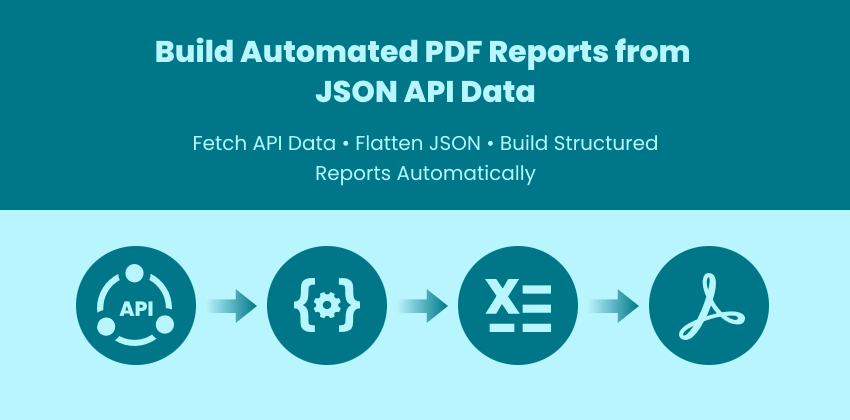
Современные приложения в значительной степени зависят от API, которые возвращают структурированные данные JSON. Хотя эти данные идеально подходят для программных систем, заинтересованным сторонам и бизнес-командам часто требуется информация, представленная в читаемом, удобном для совместного использования формате — и отчеты в формате PDF остаются одним из наиболее широко распространенных стандартов для документирования, аудита и распространения.
Вместо того, чтобы вручную преобразовывать файлы JSON с помощью онлайн-инструментов, разработчики могут автоматизировать весь рабочий процесс — от получения данных API в реальном времени до создания структурированных отчетов в формате PDF.
В этом руководстве вы узнаете, как создать сквозной конвейер автоматизации с использованием Python:
- Получение данных JSON из API
- Разбор и структурирование ответа
- Загрузка данных на лист Excel
- Экспорт листа в виде хорошо отформатированного отчета PDF
Этот подход идеально подходит для плановой отчетности, информационных панелей SaaS, экспорта аналитики и систем автоматизации бэкэнда.
Почему онлайн-конвертеров JSON в PDF недостаточно
Онлайн-конвертеры могут быть полезны для быстрых, разовых задач. Однако они часто оказываются неэффективными при работе с живыми API или автоматизированными рабочими процессами.
Общие ограничения включают:
- Нет возможности получать данные напрямую из API
- Отсутствие поддержки автоматизации или планирования
- Ограниченный контроль над форматированием и макетом отчета
- Сложность обработки вложенных структур JSON
- Проблемы с конфиденциальностью при загрузке конфиденциальных данных
- Нет интеграции с бэкэнд-конвейерами или системами CI/CD
Для разработчиков, создающих автоматизированные системы отчетности, программный рабочий процесс обеспечивает гораздо большую гибкость, масштабируемость и контроль. Используя Python и Spire.XLS, вы можете создавать структурированные отчеты непосредственно из ответов API без ручного вмешательства.
Предварительные требования и обзор архитектуры: конвейер JSON API → Excel → PDF
Прежде чем создавать рабочий процесс автоматизации, убедитесь, что ваша среда подготовлена:
pip install spire.xls requests
Зачем использовать Excel в качестве промежуточного слоя?
Вместо прямого преобразования JSON в PDF, в этом руководстве Excel используется в качестве структурированного слоя отчетности. Этот подход дает несколько преимуществ:
- Преобразует неструктурированный JSON в чистые табличные макеты
- Обеспечивает простое форматирование и управление столбцами
- Обеспечивает согласованный вывод в PDF
- Поддерживает будущие улучшения, такие как диаграммы и сводки
Архитектура конвейера
Процесс автоматизации следует структурированному конвейеру преобразования:
- Уровень API : получает данные JSON в реальном времени из бэкэнд-сервисов
- Уровень обработки данных : нормализует и выравнивает структуры JSON
- Уровень макета отчета (Excel) : организует данные в читаемые таблицы
- Уровень экспорта (PDF) : создает окончательный отчет для совместного использования
Этот многоуровневый подход повышает масштабируемость и сохраняет гибкость логики отчетности для будущих сценариев автоматизации.
Шаг 1 — Получение данных JSON из API
Большинство автоматизированных рабочих процессов отчетности начинаются со сбора данных в реальном времени из API. Вместо того, чтобы вручную экспортировать файлы, ваш скрипт напрямую извлекает последние записи из бэкэнд-сервисов, аналитических платформ или SaaS-приложений. Это гарантирует:
- Отчеты всегда содержат актуальные данные
- Никаких ручных шагов по загрузке или преобразованию
- Простая интеграция в запланированные конвейеры автоматизации
Ниже приведен пример, показывающий, как получить данные JSON с помощью Python:
import requests

# Example API endpoint
url = "https://api.example.com/employees"

headers = {
    "Authorization": "Bearer YOUR_API_TOKEN"
}

response = requests.get(url, headers=headers, timeout=30)

if response.status_code != 200:
    raise Exception(f"API request failed: {response.status_code}")

api_data = response.json()

print("Records retrieved:", len(api_data))
Ключевые практики:
- Всегда проверяйте код состояния HTTP
- Включайте заголовки аутентификации при необходимости
- Обрабатывайте ограничения скорости и регулирование API
- Подготовьтесь к постраничной навигации при работе с большими наборами данных
В примерах этого руководства используется популярная библиотека Python requests для обработки HTTP-коммуникаций; обратитесь к официальной документации Requests для получения информации о расширенных шаблонах аутентификации и управления сеансами.
Шаг 2 — Разбор и структурирование ответа JSON
Не все файлы JSON имеют одинаковую структуру. Некоторые API возвращают простой список записей, в то время как другие заключают данные в объекты или включают вложенные массивы и подполя. Прямая запись сложного JSON в Excel часто приводит к ошибкам или нечитаемым отчетам.
Понимание различных структур JSON
| Тип JSON | Пример структуры | Прямой экспорт в Excel |
|---|---|---|
| Простой список | [ {…}, {…} ] | Работает напрямую |
| Обернутый список | { "employees": [ {…} ] } | ⚠ Сначала извлеките список |
| Вложенные объекты | { "address": { "city": "NY" } } | ⚠ Выровнять поля |
| Вложенные массивы | { "skills": ["Python", "SQL"] } | ⚠ Преобразовать в строку |
Нормализованная структура должна выглядеть так:
[
   {"id":1,"name":"Alice","city":"NY","skills":"Python, SQL"}
]
Этот формат можно записывать непосредственно в строки Excel. Если вы не знакомы со структурой вложенных объектов и массивов, просмотр официальной спецификации формата данных JSON может помочь прояснить, как организованы сложные ответы API.
Нормализация JSON перед созданием отчетов
Вместо того, чтобы вручную изменять JSON для каждого API, вы можете автоматически:
- Обнаруживать обернутые списки
- Выравнивать вложенные объекты
- Преобразовывать массивы в читаемые строки
- Стандартизировать данные для отчетности
Ниже приведен многоразовый помощник по нормализации:
def normalize_json(input_json):

    # Step 1: detect wrapped list
    if isinstance(input_json, dict):
        for value in input_json.values():
            if isinstance(value, list):
                input_json = value
                break

    normalized = []

    for item in input_json:
        flat_item = {}

        for key, value in item.items():

            # flatten nested dict
            if isinstance(value, dict):
                for sub_key, sub_val in value.items():
                    flat_item[f"{key}_{sub_key}"] = str(sub_val)

            # convert lists to string
            elif isinstance(value, list):
                flat_item[key] = ", ".join(map(str, value))

            else:
                flat_item[key] = str(value)

        normalized.append(flat_item)

    return normalized
Примечание: Глубоко вложенные многоуровневые структуры JSON могут потребовать дополнительного рекурсивного выравнивания в зависимости от сложности API.
Пример использования:
with open("data.json", "r", encoding="utf-8") as f:
    raw_data = json.load(f)

structured_data = normalize_json(raw_data)
Это гарантирует, что набор данных безопасен для экспорта в Excel независимо от сложности JSON.
Шаг 3 — Загрузка структурированных данных JSON на лист Excel
Excel действует как структурированный слой отчетности после нормализации JSON. Как только сложные структуры JSON будут выровнены в простой список словарей, данные можно будет записывать непосредственно в строки и столбцы для дальнейшего форматирования и экспорта в PDF.
Используя Spire.XLS для Python, разработчики могут создавать, изменять и форматировать отчеты Excel полностью с помощью кода — без необходимости в Microsoft Excel — что упрощает интеграцию расширенных операций с электронными таблицами в автоматизированные рабочие процессы отчетности.
Создание книги и листа
from spire.xls import Workbook

workbook = Workbook()
sheet = workbook.Worksheets[0]
Как это работает:
- Инициализирует новый файл Excel в памяти.
- Получает доступ к первому листу.
- Подготавливает холст для записи структурированных данных.
Запись заголовков и строк данных
headers = list(structured_data[0].keys())

for col, header in enumerate(headers):
    sheet.Range[1, col + 1].Text = header

for row_idx, row in enumerate(structured_data, start=2):
    for col_idx, key in enumerate(headers):
        sheet.Range[row_idx, col_idx + 1].Text = str(row.get(key, ""))
Как это работает:
- Извлекает заголовки столбцов из структурированных данных.
- Сначала записывает строку заголовков.
- Перебирает записи и последовательно заполняет строки.
- Преобразует значения в строки для обеспечения согласованного вывода.
Подготовка форматирования перед экспортом
# Auto-fit columns
for i in range(1, sheet.Range.ColumnCount + 1):
    sheet.AutoFitColumn(i)

# Set a default row height for all rows
sheet.DefaultRowHeight = 18

# Set uniform margins for the sheet
sheet.PageSetup.LeftMargin = 0.2
sheet.PageSetup.RightMargin = 0.2
sheet.PageSetup.TopMargin = 0.2
sheet.PageSetup.BottomMargin = 0.2

# Enable printing of gridlines
sheet.PageSetup.IsPrintGridlines = True
Поскольку лист уже определяет макет и форматирование, экспорт в PDF сохраняет визуальную структуру без дополнительной логики рендеринга.
Шаг 4 — Экспорт листа в виде отчета PDF
После того, как данные структурированы и отформатированы в Excel, экспорт в PDF создает портативный, профессиональный отчет, подходящий для:
- Распространения среди заинтересованных сторон
- Документации по соответствию
- Автоматизированных конвейеров отчетности
- Архивного хранения
Сохранить лист Excel как отчет PDF
sheet.SaveToPdf("output.pdf")
Ваш структурированный отчет в формате PDF теперь создается из данных API автоматически.
Вывод:
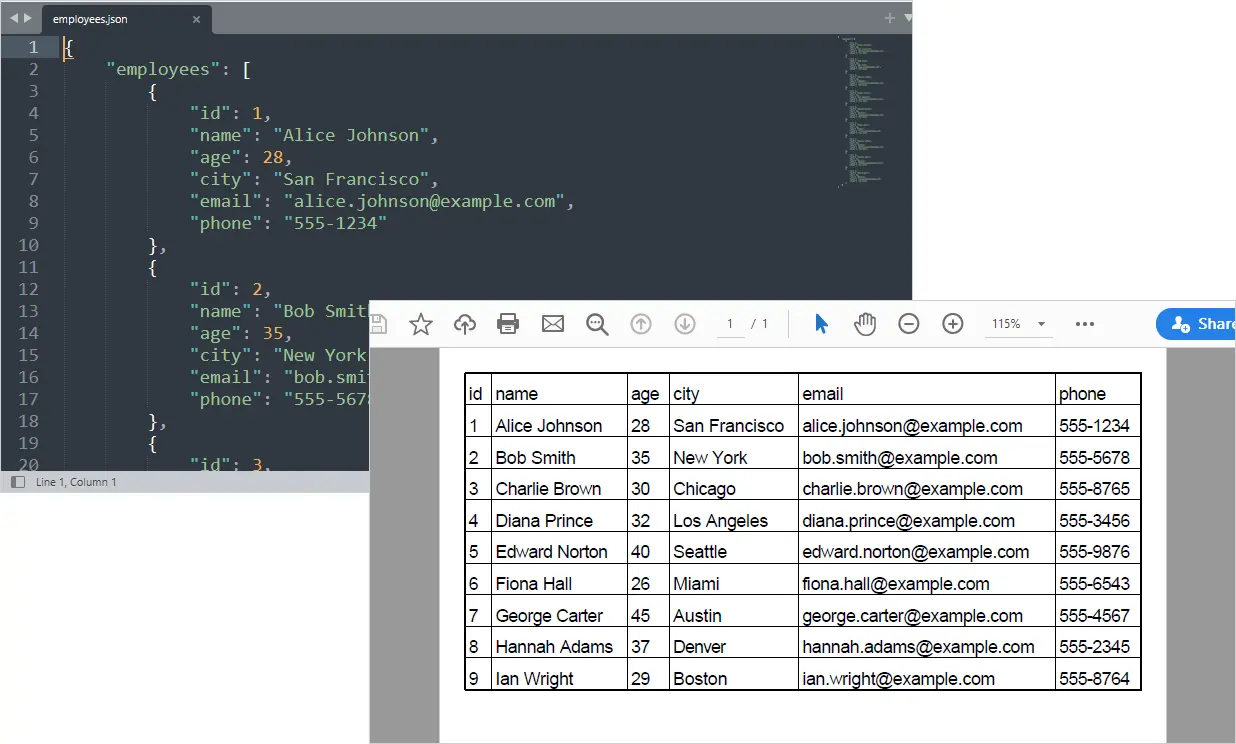
Вам также может понравиться: Конвертировать Excel в PDF на Python
Полный скрипт — от JSON API до структурированного отчета PDF
from spire.xls import *
from spire.xls.common import *
import json
import requests

def normalize_json(input_json):

    # Step 1: detect wrapped list
    if isinstance(input_json, dict):
        for value in input_json.values():
            if isinstance(value, list):
                input_json = value
                break

    normalized = []

    for item in input_json:
        flat_item = {}

        for key, value in item.items():

            # flatten nested dict
            if isinstance(value, dict):
                for sub_key, sub_val in value.items():
                    flat_item[f"{key}_{sub_key}"] = str(sub_val)

            # convert lists to string
            elif isinstance(value, list):
                flat_item[key] = ", ".join(map(str, value))

            else:
                flat_item[key] = str(value)

        normalized.append(flat_item)

    return normalized

# =========================
# Step 1: Get JSON from API
# =========================
api_url = "https://api.example.com/employees"

response = requests.get(api_url)

if response.status_code != 200:
    raise Exception(f"API request failed: {response.status_code}")

raw_data = response.json()

# =========================
# Step 2: Normalize JSON
# =========================
data = normalize_json(raw_data)

# =========================
# Step 3: Create Workbook
# =========================
workbook = Workbook()
sheet = workbook.Worksheets[0]

# Write headers
headers = list(data[0].keys())
for col, header in enumerate(headers):
    sheet.Range[1, col + 1].Text = header

# Write rows
for row_idx, row in enumerate(data, start=2):
    for col_idx, key in enumerate(headers):
        sheet.Range[row_idx, col_idx + 1].Text = row.get(key, "")

# =========================
# Step 4: Format worksheet
# =========================

# Set conversion settings to adjust sheet layout
workbook.ConverterSetting.SheetFitToPageRetainPaperSize = True  # Retain paper size during conversion
workbook.ConverterSetting.SheetFitToWidth = True  # Fit sheet to width during conversion

# Auto-fit columns
for i in range(1, sheet.Range.ColumnCount + 1):
    sheet.AutoFitColumn(i)

# Set uniform margins for the sheet
sheet.PageSetup.LeftMargin = 0.2
sheet.PageSetup.RightMargin = 0.2
sheet.PageSetup.TopMargin = 0.2
sheet.PageSetup.BottomMargin = 0.2

# Enable printing of gridlines
sheet.PageSetup.IsPrintGridlines = True

# Set a default row height for all rows
sheet.DefaultRowHeight = 18

# =========================
# Step 5: Export to PDF
# =========================
sheet.SaveToPdf("output.pdf")
workbook.Dispose()
Если вашим источником данных является локальный файл JSON, а не живой API, вы можете загрузить данные непосредственно с диска перед созданием отчета в формате PDF.
with open("data.json", "r", encoding="utf-8") as f:
    raw_data = json.load(f)
Практические примеры использования
Этот рабочий процесс автоматизации может применяться в широком диапазоне сценариев отчетности, основанных на данных:
- Автоматизированные конвейеры отчетности API — создавайте ежедневные или еженедельные отчеты в формате PDF из бэкэнд-сервисов без ручного экспорта.
- Сводки по использованию и активности SaaS — преобразуйте API аналитики приложений в структурированные отчеты для клиентов или для внутреннего использования.
- Экспорт финансовых и кадровых отчетов — преобразуйте структурированные данные API в стандартизированные документы PDF для внутреннего распространения.
- Снимки информационных панелей аналитики — собирайте метрики, управляемые API, и преобразуйте их в удобные для совместного использования отчеты для руководства.
- Запланированные отчеты бизнес-аналитики — автоматически создавайте сводки в формате PDF из хранилищ данных или API аналитики.
- Документация по соответствию и аудиту — создавайте согласованные записи в формате PDF с отметками времени из структурированных наборов данных API.
Заключительные мысли
Автоматизация создания отчетов в формате PDF из ответов JSON API позволяет разработчикам создавать масштабируемые конвейеры отчетности, которые исключают ручную обработку. Комбинируя возможности API Python с функциями экспорта в Excel и PDF Spire.XLS для Python, вы можете создавать структурированные, профессиональные отчеты непосредственно из источников данных в реальном времени.
Независимо от того, создаете ли вы еженедельные бизнес-отчеты, внутренние информационные панели или результаты для клиентов, этот рабочий процесс обеспечивает гибкость, автоматизацию и полный контроль над процессом создания отчетов.
JSON в PDF: часто задаваемые вопросы
Могу ли я конвертировать JSON напрямую в PDF без Excel?
Да, но использование Excel в качестве промежуточного слоя упрощает структурирование таблиц, управление макетами и создание согласованного, профессионального форматирования отчетов.
Как обрабатывать большие или постраничные ответы API?
Перебирайте страницы или токены, предоставляемые API, и объединяйте все результаты в один набор данных перед созданием отчета в формате PDF.
Может ли этот рабочий процесс выполняться автоматически по расписанию?
Да. Вы можете автоматизировать скрипт с помощью заданий cron, планировщика задач Windows, конвейеров CI/CD или бэкэнд-сервисов для регулярного создания отчетов.
Как настроить макет отчета PDF?
Отформатируйте лист Excel перед экспортом — настройте ширину столбцов, примените стили, закрепите заголовки или добавьте диаграммы. Эти настройки будут сохранены в PDF.
Что делать, если API возвращает отсутствующие или несогласованные поля?
Используйте безопасные методы извлечения, такие как .get() со значениями по умолчанию, при разборе JSON, чтобы предотвратить ошибки и поддерживать согласованные структуры таблиц.
Смотрите также
Como bloquear células no Excel: Guia manual e de automação em Python
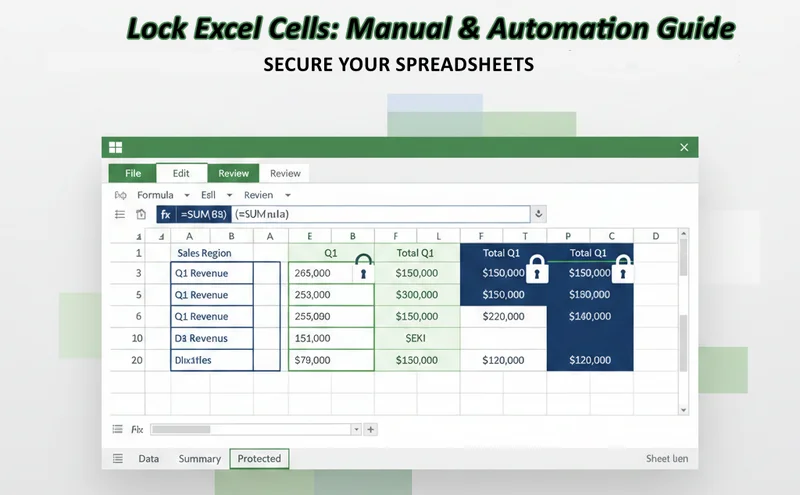
Proteger seus dados contra alterações acidentais é uma habilidade fundamental para qualquer pessoa que gerencia informações confidenciais. Esteja você construindo um modelo financeiro ou uma planilha de rastreamento compartilhada, saber como bloquear células do Excel garante que seus dados principais e cálculos complexos permaneçam intactos. Este guia o guiará pelos métodos manuais padrão e técnicas avançadas de Python para proteger suas planilhas de forma eficaz, ajudando você a entender como bloquear uma célula no Excel com precisão.
- Bloqueando Células no MS Excel
- Bloqueando Células no Excel via Spire.XLS for Python
- Bloquear Células com Fórmula com Spire.XLS
- Solução de Problemas e Dicas
1. O Método Manual: Bloqueando Células no MS Excel
Para a maioria das tarefas diárias, a interface integrada no Microsoft Excel é a maneira mais rápida de proteger seu trabalho. Ela foi projetada para acessibilidade, permitindo que os usuários alternem as configurações de proteção com alguns cliques na faixa de opções. Compreender o fluxo de trabalho é essencial, pois estabelece a lógica central das camadas de segurança do Excel.
1.1 Bloquear Todas as Células em uma Planilha
Por padrão, cada célula em uma planilha do Excel é tecnicamente marcada como "Bloqueada", mas essa propriedade permanece inativa até que a proteção da planilha seja ativada. Essa abordagem global é ideal para criar distribuições somente leitura onde nenhum dado deve ser modificado. Para aplicar um bloqueio total, siga estas etapas:
-
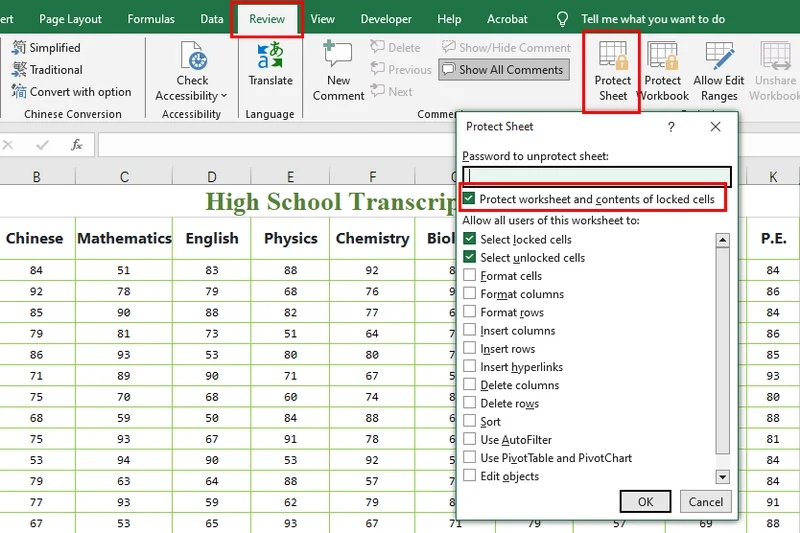
Abra sua pasta de trabalho do Excel e navegue até a guia Revisão na faixa de opções superior.
-
Clique no botão Proteger Planilha.
-
Na janela pop-up, insira uma senha opcional e certifique-se de que a caixa "Proteger planilha e conteúdo de células bloqueadas" esteja marcada.
- Clique em OK e confirme sua senha. Esta é a maneira mais simples quando você deseja bloquear uma célula no Excel para um documento final e seguro.
1.2 Como Bloquear Certas Células no Excel
Em muitos cenários profissionais, você precisa que os usuários insiram dados em células específicas, mantendo os cabeçalhos e os valores principais protegidos. Isso requer a reversão das configurações padrão para que apenas uma seleção escolhida permaneça restrita. Essa abordagem seletiva é a resposta mais comum para bloquear certas células no Excel sem impedir a colaboração do usuário:
-
Selecione a planilha inteira (clique no triângulo no canto superior esquerdo ou pressione Ctrl + A).
-
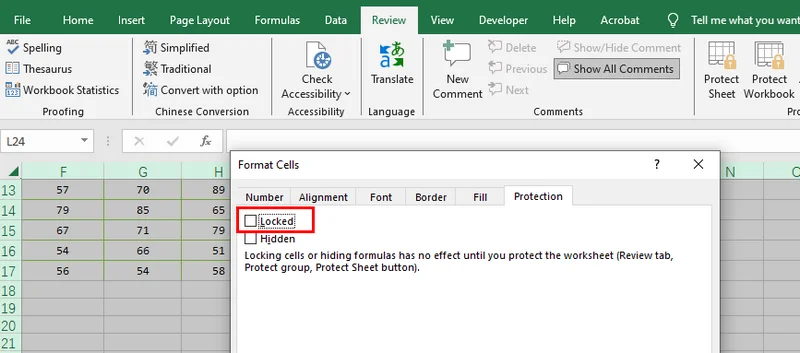
Clique com o botão direito em qualquer célula, selecione Formatar Células, vá para a guia Proteção e desmarque Bloqueada. (Todas as células agora são editáveis).
-
Destaque apenas as células ou intervalos específicos que você deseja proteger.
-
Clique com o botão direito na seleção, retorne para Formatar Células > Proteção e marque a caixa Bloqueada.
-
Vá para a guia Revisão e clique em Proteger Planilha para ativar essas restrições.
1.3 Como Bloquear a Célula no Excel com Fórmula
As fórmulas são o cérebro da sua planilha. Depois de inserir fórmulas no Excel, protegê-las contra substituições acidentais torna-se essencial para manter a precisão a longo prazo. Em vez de verificar cada cálculo manualmente, o Excel oferece uma ferramenta especializada para identificá-los instantaneamente. Bloquear a célula no Excel com uma fórmula garante que sua lógica permaneça à prova de adulteração:
-
Selecione todas as células em sua planilha, vá para Formatar Células > Proteção e desmarque Bloqueada para que a planilha comece totalmente editável.
-
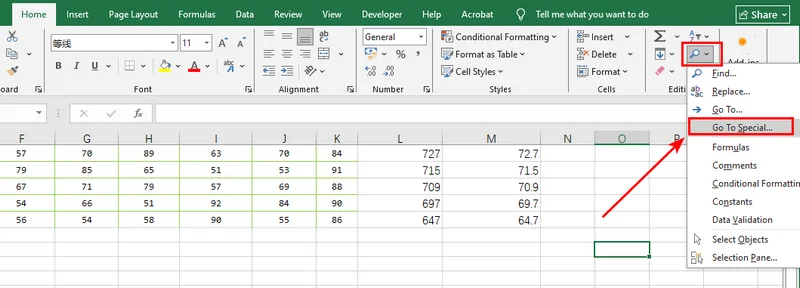
Na guia Página Inicial, clique em Localizar e Selecionar no grupo Edição e escolha Ir para Especial.
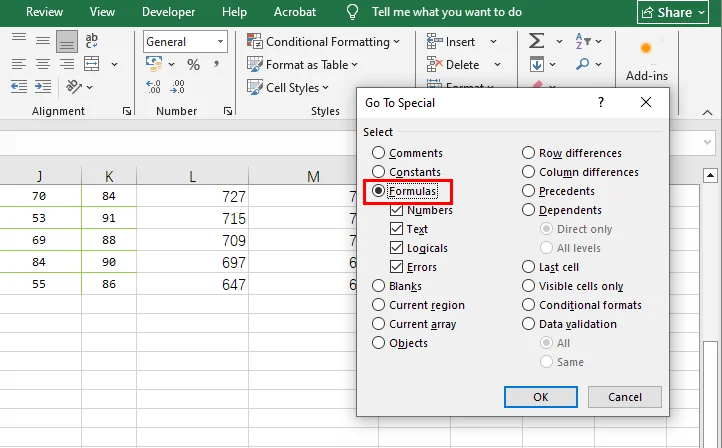
- Selecione o botão de opção Fórmulas e clique em OK; O Excel destacará automaticamente todas as células que contêm um cálculo.
-
Com as fórmulas ainda destacadas, clique com o botão direito em uma delas, escolha Formatar Células e marque a caixa Bloqueada.
-
Finalmente, navegue até a guia Revisão e selecione Proteger Planilha para bloquear seus cálculos, deixando as células de dados brutos abertas para entrada.
2. Bloqueando Células no Excel via Spire.XLS Gratuito para Python
O clique manual rapidamente se torna um problema ao gerenciar centenas de arquivos ou relatórios dinâmicos. Usando uma biblioteca Python como o Spire.XLS Gratuito, você pode implementar uma proteção robusta usando coordenadas específicas ou o intervalo alocado para atingir apenas as células que contêm conteúdo real. Essa abordagem programática é perfeita para desenvolvedores que precisam garantir a integridade dos dados em grandes conjuntos de dados. Para obter um bloqueio profissional de certas células no Excel automaticamente, você pode utilizar o seguinte script, que oferece a flexibilidade de proteger coordenadas específicas ou toda a área usada por meio de simples alternâncias de comentários:
from spire.xls import *
from spire.xls.common import *

# Specify the file path
inputFile = "/input/sample.xlsx"
outputFile = "/output/LockAllUsedCells.xlsx"

# Create a Workbook instance and load the file
workbook = Workbook()
workbook.LoadFromFile(inputFile)

# Get the first worksheet
sheet = workbook.Worksheets[0]

# Use AllocatedRange to get all cells that contain data or formatting
usedRange = sheet.AllocatedRange

# Lock a specific cell in the sheet
#sheet.Range["A1"].Text = "Locked"
#sheet.Range["A1"].Style.Locked = True

# Lock a specific range of cells in the sheet
#sheet.Range["C1:E3"].Text = "Locked"
#sheet.Range["C1:E3"].Style.Locked = True

# Set the range to locked
usedRange.Style.Locked = True

# Set sheet protection for locking
sheet.Protect("123456", SheetProtectionType.All)

# Save the result file
workbook.SaveToFile(outputFile, ExcelVersion.Version2013)
workbook.Dispose()
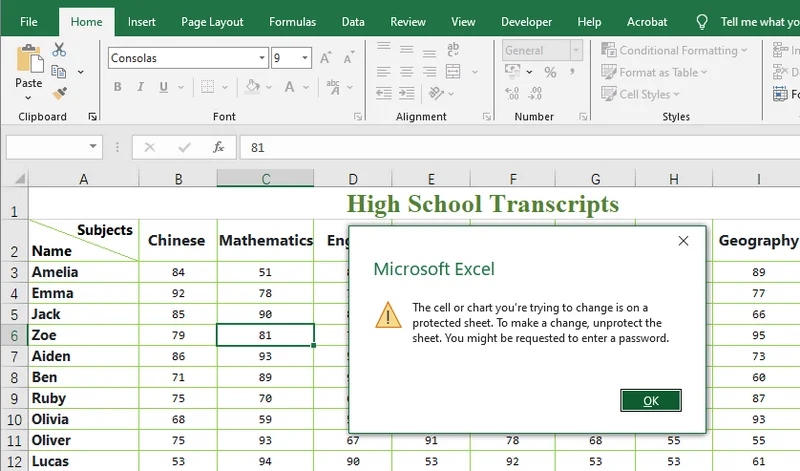
A visualização do arquivo Excel modificado com o Spire.XLS Gratuito para Python:
3. Como Bloquear uma Célula no Excel com Fórmula Usando o Spire.XLS Gratuito
Intervalos estáticos são fáceis de proteger, mas depender de endereços fixos pode levar a falhas de segurança se a estrutura de seus dados evoluir ou se expandir. A solução mais eficiente é escanear programaticamente a pasta de trabalho usando a propriedade HasFormula, que identifica os cálculos independentemente de sua posição.
Essa abordagem orientada por API replica efetivamente o recurso manual "Ir para Especial" com velocidade e repetibilidade, oferecendo uma maneira profissional de bloquear células no Excel com uma fórmula. Para implementar essa proteção dinâmica, você pode usar o seguinte script para iterar pela área usada e proteger cada fórmula automaticamente:
from spire.xls import *
from spire.xls.common import *

# Define input and output paths
inputFile = "/input/sample.xlsx"
outputFile = "/output/LockFormulaCells.xlsx"

# Create a Workbook instance and load the file
workbook = Workbook()
workbook.LoadFromFile(inputFile)

# Get the first worksheet
sheet = workbook.Worksheets[0]

# Iterate through all used cells in the worksheet
for cell in sheet.AllocatedRange:
    # Check if the cell contains a formula
    if cell.HasFormula:
        # Lock the cell if it contains a formula
        cell.Style.Locked = True
    else:
        # Unlock the cell if it's just data, so users can still edit it
        cell.Style.Locked = False

# Apply protection with a password to make the locking effective
sheet.Protect("123456", SheetProtectionType.All)

# Save the result file
workbook.SaveToFile(outputFile, ExcelVersion.Version2013)
workbook.Dispose()
4. Solução de Problemas e Dicas
Para garantir que sua proteção funcione perfeitamente, tenha em mente estas dicas essenciais para métodos manuais e programáticos:
Armadilhas Comuns no MS Excel
-
A Regra dos "Dois Passos": Para ativar a proteção, sempre execute ambos: (1) Marque a caixa "Bloqueada" em Formatar Células e (2) Clique em "Proteger Planilha" na guia Revisão.
-
Bloqueio Padrão: Lembre-se de que o Excel bloqueia todas as células por padrão. Se você deseja bloquear apenas algumas, deve primeiro selecionar a planilha inteira e desmarcar "Bloqueada" antes de selecionar suas células específicas.
-
Permissões Sobrepostas: Se você permitir "Selecionar células bloqueadas" no menu Proteção, os usuários ainda poderão clicar nelas, o que às vezes leva à confusão sobre se o bloqueio está ativo.
Desempenho e Lógica em Python
-
Ativação: Assim como no método manual,
Style.Locked = Trueapenas sinaliza uma célula. Você deve chamarWorksheet.Protect()em seu código para virar a chave. -
Otimização: Use
Worksheet.AllocatedRangepara garantir que seu script processe apenas as células que realmente contêm dados.
Segurança de Senha
-
Dificuldade de Desbloqueio: O Spire.XLS Gratuito e o Excel usam criptografia forte. Se você definir uma senha, guarde-a em um local seguro; recuperar uma planilha protegida sem ela é quase impossível.
-
Somente Leitura vs. Bloqueado: Bloquear células impede a edição, mas se você precisar ocultar totalmente as fórmulas, lembre-se de marcar também a caixa "Oculta" no menu "Formatar Células".
Conclusão
Dominar como bloquear células do Excel é um passo vital para manter a segurança e o profissionalismo do seu espaço de trabalho digital. Quer você prefira a simplicidade visual da faixa de opções do MS Excel para tarefas únicas ou o poder escalável da automação do Spire.XLS Gratuito para Python, os princípios básicos permanecem os mesmos: desbloqueie suas entradas, bloqueie sua lógica e sempre ative a proteção da planilha. Se você está pronto para otimizar o gerenciamento de seus dados, comece aplicando essas estratégias de proteção em suas pastas de trabalho mais críticas hoje.
Excel 셀 잠그기 방법: 수동 및 Python 자동화 가이드
실수로 인한 데이터 변경으로부터 데이터를 보호하는 것은 민감한 정보를 관리하는 모든 사람에게 기본적인 기술입니다. 금융 모델을 구축하든 공유 추적 시트를 만들든, Excel 셀을 잠그는 방법을 알면 핵심 데이터와 복잡한 계산이 그대로 유지됩니다. 이 가이드는 스프레드시트를 효과적으로 보호하기 위한 표준 수동 방법과 고급 Python 기술을 안내하여 Excel에서 셀을 정밀하게 잠그는 방법을 이해하는 데 도움을 줍니다.
1. 수동 방법: MS Excel에서 셀 잠금
대부분의 일상적인 작업에서 Microsoft Excel의 기본 제공 인터페이스는 작업을 보호하는 가장 빠른 방법입니다. 접근성을 위해 설계되어 사용자가 리본에서 몇 번의 클릭만으로 보호 설정을 전환할 수 있습니다. 워크플로를 이해하는 것은 Excel 보안 계층의 핵심 논리를 설정하므로 필수적입니다.
1.1 워크시트의 모든 셀 잠금
기본적으로 Excel 시트의 모든 셀은 기술적으로 "잠금"으로 표시되지만 이 속성은 워크시트 보호가 활성화될 때까지 휴면 상태로 유지됩니다. 이 전역적 접근 방식은 데이터를 수정해서는 안 되는 읽기 전용 배포를 만드는 데 이상적입니다. 전체 잠금을 적용하려면 다음 단계를 따르십시오.
-
Excel 통합 문서를 열고 상단 리본에서 검토 탭으로 이동합니다.
-
시트 보호 버튼을 클릭합니다.
-
팝업 창에서 선택적 암호를 입력하고 "워크시트 및 잠긴 셀의 내용 보호" 상자가 선택되어 있는지 확인합니다.
- 확인을 클릭하고 암호를 확인합니다. 이것은 안전한 최종 문서를 위해 Excel에서 셀을 잠그고 싶을 때 가장 간단한 방법입니다.
1.2 Excel에서 특정 셀을 잠그는 방법
많은 전문적인 시나리오에서 사용자는 헤더와 핵심 값을 보호하면서 특정 셀에 데이터를 입력해야 합니다. 이를 위해서는 선택한 항목만 제한되도록 기본 설정을 되돌려야 합니다. 이 선택적 접근 방식은 사용자 협업을 방해하지 않고 Excel에서 특정 셀을 잠그는 가장 일반적인 해답입니다.
-
전체 워크시트를 선택합니다(왼쪽 상단 모서리에 있는 삼각형을 클릭하거나 Ctrl + A를 누릅니다).
-
아무 셀이나 마우스 오른쪽 버튼으로 클릭하고 셀 서식을 선택한 다음 보호 탭으로 이동하여 잠금을 선택 취소합니다. (이제 모든 셀을 편집할 수 있습니다).
-
보호하려는 특정 셀 또는 범위만 강조 표시합니다.
-
선택 항목을 마우스 오른쪽 버튼으로 클릭하고 셀 서식 > 보호로 돌아가서 잠금 상자를 선택합니다.
-
검토 탭으로 이동하여 시트 보호를 클릭하여 이러한 제한을 활성화합니다.
1.3 수식이 있는 Excel 셀을 잠그는 방법
수식은 스프레드시트의 두뇌입니다. Excel에 수식을 삽입한 후에는 장기적인 정확성을 유지하기 위해 실수로 덮어쓰는 것을 방지하는 것이 필수적입니다. 모든 계산을 수동으로 확인하는 대신 Excel은 즉시 식별할 수 있는 특수 도구를 제공합니다. 수식이 있는 Excel 셀을 잠그면 논리가 변조되지 않도록 보장됩니다.
-
워크시트의 모든 셀을 선택하고 셀 서식 > 보호로 이동하여 잠금을 선택 취소하여 시트가 완전히 편집 가능하도록 시작합니다.
-
홈 탭의 편집 그룹에서 찾기 및 선택을 클릭하고 이동 옵션을 선택합니다.
- 수식 라디오 버튼을 선택하고 확인을 클릭하면 Excel이 계산이 포함된 모든 셀을 자동으로 강조 표시합니다.
-
수식이 여전히 강조 표시된 상태에서 그 중 하나를 마우스 오른쪽 버튼으로 클릭하고 셀 서식을 선택한 다음 잠금 상자를 선택합니다.
-
마지막으로 검토 탭으로 이동하여 시트 보호를 선택하여 원시 데이터 셀을 입력용으로 열어두면서 계산을 잠급니다.
2. Free Spire.XLS for Python을 통해 Excel에서 셀 잠금
수동 클릭은 수백 개의 파일이나 동적 보고서를 관리할 때 금방 부담이 됩니다. Free Spire.XLS와 같은 Python 라이브러리를 사용하면 특정 좌표나 할당된 범위를 사용하여 실제 콘텐츠가 포함된 셀만 대상으로 하는 강력한 보호를 구현할 수 있습니다. 이 프로그래밍 방식 접근 방식은 대규모 데이터 세트 전반에 걸쳐 데이터 무결성을 적용해야 하는 개발자에게 적합합니다. Excel에서 특정 셀을 자동으로 전문적으로 잠그려면 간단한 주석 토글을 통해 특정 좌표 또는 전체 사용 영역을 보호하는 유연성을 제공하는 다음 스크립트를 활용할 수 있습니다.
from spire.xls import *
from spire.xls.common import *

# Specify the file path
inputFile = "/input/sample.xlsx"
outputFile = "/output/LockAllUsedCells.xlsx"

# Create a Workbook instance and load the file
workbook = Workbook()
workbook.LoadFromFile(inputFile)

# Get the first worksheet
sheet = workbook.Worksheets[0]

# Use AllocatedRange to get all cells that contain data or formatting
usedRange = sheet.AllocatedRange

# Lock a specific cell in the sheet
#sheet.Range["A1"].Text = "Locked"
#sheet.Range["A1"].Style.Locked = True

# Lock a specific range of cells in the sheet
#sheet.Range["C1:E3"].Text = "Locked"
#sheet.Range["C1:E3"].Style.Locked = True

# Set the range to locked
usedRange.Style.Locked = True

# Set sheet protection for locking
sheet.Protect("123456", SheetProtectionType.All)

# Save the result file
workbook.SaveToFile(outputFile, ExcelVersion.Version2013)
workbook.Dispose()
Free Spire.XLS for Python으로 수정한 Excel 파일 미리보기:
3. Free Spire.XLS를 사용하여 수식이 있는 Excel 셀을 잠그는 방법
정적 범위는 보호하기 쉽지만 고정 주소에 의존하면 데이터 구조가 발전하거나 확장될 경우 보안 격차가 발생할 수 있습니다. 가장 효율적인 해결책은 위치에 관계없이 계산을 식별하는 HasFormula 속성을 사용하여 통합 문서를 프로그래밍 방식으로 스캔하는 것입니다.
이 API 기반 접근 방식은 속도와 반복성으로 수동 "이동 옵션" 기능을 효과적으로 복제하여 수식이 있는 Excel 셀을 전문적으로 잠그는 방법을 제공합니다. 이 동적 보호를 구현하려면 다음 스크립트를 사용하여 사용된 영역을 반복하고 모든 수식을 자동으로 보호할 수 있습니다.
from spire.xls import *
from spire.xls.common import *

# Define input and output paths
inputFile = "/input/sample.xlsx"
outputFile = "/output/LockFormulaCells.xlsx"

# Create a Workbook instance and load the file
workbook = Workbook()
workbook.LoadFromFile(inputFile)

# Get the first worksheet
sheet = workbook.Worksheets[0]

# Iterate through all used cells in the worksheet
for cell in sheet.AllocatedRange:
    # Check if the cell contains a formula
    if cell.HasFormula:
        # Lock the cell if it contains a formula
        cell.Style.Locked = True
    else:
        # Unlock the cell if it's just data, so users can still edit it
        cell.Style.Locked = False

# Apply protection with a password to make the locking effective
sheet.Protect("123456", SheetProtectionType.All)

# Save the result file
workbook.SaveToFile(outputFile, ExcelVersion.Version2013)
workbook.Dispose()
4. 문제 해결 및 팁
보호 기능이 완벽하게 작동하도록 하려면 수동 및 프로그래밍 방식 모두에 대해 다음 필수 팁을 염두에 두십시오.
MS Excel의 일반적인 함정
-
"2단계" 규칙: 보호를 활성화하려면 항상 다음 두 가지를 모두 수행하십시오. (1) 셀 서식에서 "잠금" 상자를 선택하고 (2) 검토 탭에서 "시트 보호"를 클릭합니다.
-
기본 잠금: Excel은 기본적으로 모든 셀을 잠급니다. 몇 개만 잠그려면 먼저 전체 시트를 선택하고 특정 셀을 대상으로 하기 전에 "잠금"을 선택 취소해야 합니다.
-
겹치는 권한: 보호 메뉴에서 "잠긴 셀 선택"을 허용하면 사용자가 여전히 클릭할 수 있으므로 잠금이 활성 상태인지에 대해 혼동을 일으킬 수 있습니다.
Python의 성능 및 논리
-
활성화: 수동 방법과 마찬가지로
Style.Locked = True는 셀에 플래그만 지정합니다. 키를 켜려면 코드에서Worksheet.Protect()를 호출해야 합니다. -
최적화:
Worksheet.AllocatedRange를 사용하여 스크립트가 실제로 데이터가 포함된 셀만 처리하도록 합니다.
암호 보안
-
잠금 해제 난이도: Free Spire.XLS와 Excel은 강력한 암호화를 사용합니다. 암호를 설정하면 안전하게 보관하십시오. 암호 없이 보호된 시트를 복구하는 것은 거의 불가능합니다.
-
읽기 전용 대 잠금: 셀을 잠그면 편집이 방지되지만 수식을 완전히 숨겨야 하는 경우 "셀 서식" 메뉴에서 "숨김" 상자도 선택해야 합니다.
결론
Excel 셀을 잠그는 방법을 마스터하는 것은 디지털 작업 공간의 보안과 전문성을 유지하는 데 중요한 단계입니다. 일회성 작업을 위해 MS Excel 리본의 시각적 단순성을 선호하든 Python 자동화를 위한 Free Spire.XLS의 확장 가능한 성능을 선호하든 핵심 원칙은 동일합니다. 입력을 잠금 해제하고, 논리를 잠그고, 항상 시트 보호를 활성화하십시오. 데이터 관리를 간소화할 준비가 되었다면 오늘 가장 중요한 통합 문서에 이러한 보호 전략을 적용하여 시작하십시오.
Come bloccare le celle in Excel: Guida manuale e automazione Python
Proteggere i dati da modifiche accidentali è un'abilità fondamentale per chiunque gestisca informazioni sensibili. Che si tratti di creare un modello finanziario o un foglio di monitoraggio condiviso, sapere come bloccare le celle di Excel garantisce che i dati principali e i calcoli complessi rimangano intatti. Questa guida ti illustrerà i metodi manuali standard e le tecniche avanzate di Python per proteggere efficacemente i tuoi fogli di calcolo, aiutandoti a capire come bloccare una cella in Excel con precisione.
- Blocco delle celle in MS Excel
- Blocco delle celle in Excel tramite Spire.XLS per Python
- Blocco delle celle con formula con Spire.XLS
- Risoluzione dei problemi e suggerimenti
1. Il metodo manuale: blocco delle celle in MS Excel
Per la maggior parte delle attività quotidiane, l'interfaccia integrata in Microsoft Excel è il modo più rapido per salvaguardare il tuo lavoro. È progettata per l'accessibilità, consentendo agli utenti di attivare/disattivare le impostazioni di protezione con pochi clic sulla barra multifunzione. Comprendere il flusso di lavoro è essenziale, poiché stabilisce la logica di base dei livelli di sicurezza di Excel.
1.1 Blocca tutte le celle in un foglio di lavoro
Per impostazione predefinita, ogni cella in un foglio di Excel è tecnicamente contrassegnata come "Bloccata", ma questa proprietà rimane inattiva fino all'attivazione della protezione del foglio di lavoro. Questo approccio globale è ideale per creare distribuzioni di sola lettura in cui nessun dato deve essere modificato. Per applicare un blocco totale, segui questi passaggi:
-
Apri la tua cartella di lavoro di Excel e vai alla scheda Revisione sulla barra multifunzione in alto.
-
Fai clic sul pulsante Proteggi foglio.
-
Nella finestra pop-up, inserisci una password facoltativa e assicurati che la casella "Proteggi foglio di lavoro e contenuto delle celle bloccate" sia selezionata.
- Fai clic su OK e conferma la password. Questo è il modo più semplice quando si desidera bloccare una cella in Excel per un documento finale e sicuro.
1.2 Come bloccare determinate celle in Excel
In molti scenari professionali, è necessario che gli utenti inseriscano dati in celle specifiche mantenendo protette le intestazioni e i valori principali. Ciò richiede l'inversione delle impostazioni predefinite in modo che solo una selezione scelta rimanga limitata. Questo approccio selettivo è la risposta più comune per bloccare determinate celle in Excel senza ostacolare la collaborazione degli utenti:
-
Seleziona l'intero foglio di lavoro (fai clic sul triangolo nell'angolo in alto a sinistra o premi Ctrl + A).
-
Fai clic con il pulsante destro del mouse su una cella qualsiasi, seleziona Formato celle, vai alla scheda Protezione e deseleziona Bloccata. (Tutte le celle sono ora modificabili).
-
Evidenzia solo le celle o gli intervalli specifici che desideri proteggere.
-
Fai clic con il pulsante destro del mouse sulla selezione, torna a Formato celle > Protezione, e seleziona la casella Bloccata.
-
Vai alla scheda Revisione e fai clic su Proteggi foglio per attivare queste restrizioni.
1.3 Come bloccare la cella in Excel con formula
Le formule sono il cervello del tuo foglio di calcolo. Dopo aver inserito le formule in Excel, proteggerle da sovrascritture accidentali diventa essenziale per mantenere la precisione a lungo termine. Invece di controllare manualmente ogni calcolo, Excel offre uno strumento specializzato per identificarli istantaneamente. Bloccare la cella in Excel con una formula garantisce che la tua logica rimanga a prova di manomissione:
-
Seleziona tutte le celle del foglio di lavoro, vai a Formato celle > Protezione, e deseleziona Bloccata in modo che il foglio inizi come completamente modificabile.
-
Nella scheda Home, fai clic su Trova e seleziona nel gruppo Modifica e scegli Vai a speciale.
- Seleziona il pulsante di opzione Formule e fai clic su OK; Excel evidenzierà automaticamente ogni cella contenente un calcolo.
-
Con le formule ancora evidenziate, fai clic con il pulsante destro del mouse su una di esse, scegli Formato celle, e seleziona la casella Bloccata.
-
Infine, vai alla scheda Revisione e seleziona Proteggi foglio per bloccare i calcoli lasciando le celle di dati grezzi aperte per l'input.
2. Blocco delle celle in Excel tramite Spire.XLS gratuito per Python
Il clic manuale diventa rapidamente un problema quando si gestiscono centinaia di file o report dinamici. Utilizzando una libreria Python come Spire.XLS gratuito, è possibile implementare una protezione solida utilizzando coordinate specifiche o l'intervallo allocato per indirizzare solo le celle che contengono contenuto effettivo. Questo approccio programmatico è perfetto per gli sviluppatori che devono garantire l'integrità dei dati su set di dati di grandi dimensioni. Per ottenere un blocco professionale di determinate celle in Excel automaticamente, è possibile utilizzare il seguente script, che offre la flessibilità di proteggere coordinate specifiche o l'intera area utilizzata tramite semplici attivazioni/disattivazioni dei commenti:
from spire.xls import *
from spire.xls.common import *

# Specify the file path
inputFile = "/input/sample.xlsx"
outputFile = "/output/LockAllUsedCells.xlsx"

# Create a Workbook instance and load the file
workbook = Workbook()
workbook.LoadFromFile(inputFile)

# Get the first worksheet
sheet = workbook.Worksheets[0]

# Use AllocatedRange to get all cells that contain data or formatting
usedRange = sheet.AllocatedRange

# Lock a specific cell in the sheet
#sheet.Range["A1"].Text = "Locked"
#sheet.Range["A1"].Style.Locked = True

# Lock a specific range of cells in the sheet
#sheet.Range["C1:E3"].Text = "Locked"
#sheet.Range["C1:E3"].Style.Locked = True

# Set the range to locked
usedRange.Style.Locked = True

# Set sheet protection for locking
sheet.Protect("123456", SheetProtectionType.All)

# Save the result file
workbook.SaveToFile(outputFile, ExcelVersion.Version2013)
workbook.Dispose()
L'anteprima del file Excel modificato con Spire.XLS gratuito per Python:
3. Come bloccare una cella in Excel con formula utilizzando Spire.XLS gratuito
Gli intervalli statici sono facili da proteggere, ma fare affidamento su indirizzi fissi può portare a lacune di sicurezza se la struttura dei dati si evolve o si espande. La soluzione più efficiente consiste nell'eseguire la scansione programmatica della cartella di lavoro utilizzando la proprietà HasFormula, che identifica i calcoli indipendentemente dalla loro posizione.
Questo approccio basato su API replica efficacemente la funzione manuale "Vai a speciale" con velocità e ripetibilità, offrendo un modo professionale per bloccare le celle in Excel con una formula. Per implementare questa protezione dinamica, è possibile utilizzare il seguente script per scorrere l'area utilizzata e proteggere automaticamente ogni formula:
from spire.xls import *
from spire.xls.common import *

# Define input and output paths
inputFile = "/input/sample.xlsx"
outputFile = "/output/LockFormulaCells.xlsx"

# Create a Workbook instance and load the file
workbook = Workbook()
workbook.LoadFromFile(inputFile)

# Get the first worksheet
sheet = workbook.Worksheets[0]

# Iterate through all used cells in the worksheet
for cell in sheet.AllocatedRange:
    # Check if the cell contains a formula
    if cell.HasFormula:
        # Lock the cell if it contains a formula
        cell.Style.Locked = True
    else:
        # Unlock the cell if it's just data, so users can still edit it
        cell.Style.Locked = False

# Apply protection with a password to make the locking effective
sheet.Protect("123456", SheetProtectionType.All)

# Save the result file
workbook.SaveToFile(outputFile, ExcelVersion.Version2013)
workbook.Dispose()
4. Risoluzione dei problemi e suggerimenti
Per garantire che la tua protezione funzioni perfettamente, tieni a mente questi suggerimenti essenziali sia per i metodi manuali che per quelli programmatici:
Errori comuni in MS Excel
-
La regola dei "due passaggi": per attivare la protezione, esegui sempre entrambi: (1) seleziona la casella "Bloccata" in Formato celle e (2) fai clic su "Proteggi foglio" nella scheda Revisione.
-
Blocco predefinito: ricorda che Excel blocca tutte le celle per impostazione predefinita. Se desideri bloccarne solo alcune, devi prima selezionare l'intero foglio e deselezionare "Bloccata" prima di scegliere le celle specifiche.
-
Autorizzazioni sovrapposte: se consenti "Seleziona celle bloccate" nel menu Protezione, gli utenti possono comunque farci clic, il che a volte crea confusione sul fatto che il blocco sia attivo.
Prestazioni e logica in Python
-
Attivazione: proprio come il metodo manuale,
Style.Locked = Truecontrassegna solo una cella. Devi chiamareWorksheet.Protect()nel tuo codice per attivare il blocco. -
Ottimizzazione: utilizza
Worksheet.AllocatedRangeper assicurarti che lo script elabori solo le celle che contengono effettivamente dati.
Sicurezza della password
-
Difficoltà di sblocco: Spire.XLS gratuito ed Excel utilizzano una crittografia avanzata. Se imposti una password, conservala in un luogo sicuro; recuperare un foglio protetto senza di essa è quasi impossibile.
-
Sola lettura vs. Bloccato: il blocco delle celle impedisce la modifica, ma se devi nascondere completamente le formule, ricorda di selezionare anche la casella "Nascosta" nel menu "Formato celle".
Conclusione
Padroneggiare come bloccare le celle di Excel è un passo fondamentale per mantenere la sicurezza e la professionalità del tuo spazio di lavoro digitale. Che tu preferisca la semplicità visiva della barra multifunzione di MS Excel per attività una tantum o la potenza scalabile dell'automazione di Spire.XLS gratuito per Python, i principi fondamentali rimangono gli stessi: sblocca i tuoi input, blocca la tua logica e abilita sempre la protezione del foglio. Se sei pronto a ottimizzare la gestione dei dati, inizia applicando queste strategie di protezione alle tue cartelle di lavoro più critiche oggi stesso.
Comment verrouiller des cellules Excel : Guide manuel et automatisation Python
Protéger vos données contre les modifications accidentelles est une compétence fondamentale pour quiconque gère des informations sensibles. Que vous construisiez un modèle financier ou une feuille de suivi partagée, savoir comment verrouiller des cellules Excel garantit que vos données de base et vos calculs complexes restent intacts. Ce guide vous expliquera les méthodes manuelles standard et les techniques Python avancées pour sécuriser efficacement vos feuilles de calcul, vous aidant à comprendre comment verrouiller une cellule dans Excel avec précision.
- Verrouiller des cellules dans MS Excel
- Verrouiller des cellules dans Excel via Spire.XLS for Python
- Verrouiller les cellules avec formule avec Spire.XLS
- Dépannage et conseils
1. La méthode manuelle : Verrouiller des cellules dans MS Excel
Pour la plupart des tâches quotidiennes, l'interface intégrée de Microsoft Excel est le moyen le plus rapide de protéger votre travail. Elle est conçue pour l'accessibilité, permettant aux utilisateurs de basculer les paramètres de protection en quelques clics dans le ruban. Comprendre le flux de travail est essentiel, car il établit la logique de base des couches de sécurité d'Excel.
1.1 Verrouiller toutes les cellules d'une feuille de calcul
Par défaut, chaque cellule d'une feuille Excel est techniquement marquée comme « Verrouillée », mais cette propriété reste inactive jusqu'à ce que la protection de la feuille de calcul soit activée. Cette approche globale est idéale pour créer des distributions en lecture seule où aucune donnée ne doit être modifiée. Pour appliquer un verrouillage total, suivez ces étapes :
-
Ouvrez votre classeur Excel et accédez à l'onglet Révision dans le ruban supérieur.
-
Cliquez sur le bouton Protéger la feuille.
-
Dans la fenêtre contextuelle, saisissez un mot de passe facultatif et assurez-vous que la case « Protéger la feuille de calcul et le contenu des cellules verrouillées » est cochée.
- Cliquez sur OK et confirmez votre mot de passe. C'est le moyen le plus simple lorsque vous souhaitez verrouiller une cellule dans Excel pour un document final sécurisé.
1.2 Comment verrouiller certaines cellules dans Excel
Dans de nombreux scénarios professionnels, vous avez besoin que les utilisateurs saisissent des données dans des cellules spécifiques tout en protégeant les en-têtes et les valeurs de base. Cela nécessite d'inverser les paramètres par défaut afin que seule une sélection choisie reste restreinte. Cette approche sélective est la réponse la plus courante pour verrouiller certaines cellules dans Excel sans entraver la collaboration des utilisateurs :
-
Sélectionnez la feuille de calcul entière (cliquez sur le triangle dans le coin supérieur gauche ou appuyez sur Ctrl + A).
-
Faites un clic droit sur n'importe quelle cellule, sélectionnez Format de cellule, allez dans l'onglet Protection et décochez Verrouillée. (Toutes les cellules sont maintenant modifiables).
-
Mettez en surbrillance uniquement les cellules ou plages spécifiques que vous souhaitez protéger.
-
Faites un clic droit sur la sélection, retournez à Format de cellule > Protection, et cochez la case Verrouillée.
-
Allez dans l'onglet Révision et cliquez sur Protéger la feuille pour activer ces restrictions.
1.3 Comment verrouiller la cellule dans Excel avec une formule
Les formules sont le cerveau de votre feuille de calcul. Après avoir inséré des formules dans Excel, les protéger contre les écrasements accidentels devient essentiel pour maintenir la précision à long terme. Au lieu de vérifier chaque calcul manuellement, Excel propose un outil spécialisé pour les identifier instantanément. Verrouiller la cellule dans Excel avec une formule garantit que votre logique reste à l'épreuve des manipulations :
-
Sélectionnez toutes les cellules de votre feuille de calcul, allez dans Format de cellule > Protection, et décochez Verrouillée pour que la feuille soit entièrement modifiable au départ.
-
Dans l'onglet Accueil, cliquez sur Rechercher et sélectionner dans le groupe Édition et choisissez Atteindre (Spécial).
- Sélectionnez le bouton radio Formules et cliquez sur OK ; Excel mettra automatiquement en surbrillance chaque cellule contenant un calcul.
-
Avec les formules toujours en surbrillance, faites un clic droit sur l'une d'elles, choisissez Format de cellule, et cochez la case Verrouillée.
-
Enfin, accédez à l'onglet Révision et sélectionnez Protéger la feuille pour verrouiller vos calculs tout en laissant les cellules de données brutes ouvertes à la saisie.
2. Verrouiller des cellules dans Excel via Free Spire.XLS for Python
Le clic manuel devient rapidement un handicap lors de la gestion de centaines de fichiers ou de rapports dynamiques. En utilisant une bibliothèque Python comme Free Spire.XLS, vous pouvez mettre en œuvre une protection robuste en utilisant soit des coordonnées spécifiques, soit la plage allouée pour ne cibler que les cellules contenant du contenu réel. Cette approche programmatique est parfaite pour les développeurs qui ont besoin de garantir l'intégrité des données sur des ensembles de données massifs. Pour obtenir un verrouillage professionnel de certaines cellules dans Excel automatiquement, vous pouvez utiliser le script suivant, qui offre la flexibilité de protéger des coordonnées spécifiques ou toute la zone utilisée via de simples bascules de commentaires :
from spire.xls import *
from spire.xls.common import *

# Specify the file path
inputFile = "/input/sample.xlsx"
outputFile = "/output/LockAllUsedCells.xlsx"

# Create a Workbook instance and load the file
workbook = Workbook()
workbook.LoadFromFile(inputFile)

# Get the first worksheet
sheet = workbook.Worksheets[0]

# Use AllocatedRange to get all cells that contain data or formatting
usedRange = sheet.AllocatedRange

# Lock a specific cell in the sheet
#sheet.Range["A1"].Text = "Locked"
#sheet.Range["A1"].Style.Locked = True

# Lock a specific range of cells in the sheet
#sheet.Range["C1:E3"].Text = "Locked"
#sheet.Range["C1:E3"].Style.Locked = True

# Set the range to locked
usedRange.Style.Locked = True

# Set sheet protection for locking
sheet.Protect("123456", SheetProtectionType.All)

# Save the result file
workbook.SaveToFile(outputFile, ExcelVersion.Version2013)
workbook.Dispose()
Aperçu du fichier Excel modifié avec Free Spire.XLS for Python :
3. Comment verrouiller une cellule dans Excel avec une formule en utilisant Free Spire.XLS
Les plages statiques sont faciles à protéger, mais s'appuyer sur des adresses fixes peut entraîner des failles de sécurité si la structure de vos données évolue ou s'étend. La solution la plus efficace consiste à analyser le classeur par programme à l'aide de la propriété HasFormula, qui identifie les calculs quelle que soit leur position.
Cette approche pilotée par API reproduit efficacement la fonctionnalité manuelle « Atteindre (Spécial) » avec rapidité et répétabilité, offrant un moyen professionnel de verrouiller les cellules dans Excel avec une formule. Pour mettre en œuvre cette protection dynamique, vous pouvez utiliser le script suivant pour parcourir la zone utilisée et sécuriser automatiquement chaque formule :
from spire.xls import *
from spire.xls.common import *

# Define input and output paths
inputFile = "/input/sample.xlsx"
outputFile = "/output/LockFormulaCells.xlsx"

# Create a Workbook instance and load the file
workbook = Workbook()
workbook.LoadFromFile(inputFile)

# Get the first worksheet
sheet = workbook.Worksheets[0]

# Iterate through all used cells in the worksheet
for cell in sheet.AllocatedRange:
    # Check if the cell contains a formula
    if cell.HasFormula:
        # Lock the cell if it contains a formula
        cell.Style.Locked = True
    else:
        # Unlock the cell if it's just data, so users can still edit it
        cell.Style.Locked = False

# Apply protection with a password to make the locking effective
sheet.Protect("123456", SheetProtectionType.All)

# Save the result file
workbook.SaveToFile(outputFile, ExcelVersion.Version2013)
workbook.Dispose()
4. Dépannage et conseils
Pour garantir que votre protection fonctionne parfaitement, gardez à l'esprit ces conseils essentiels pour les méthodes manuelles et programmatiques :
Pièges courants dans MS Excel
-
La règle des « deux étapes » : Pour activer la protection, effectuez toujours les deux opérations suivantes : (1) Cochez la case « Verrouillée » dans Format de cellule et (2) Cliquez sur « Protéger la feuille » dans l'onglet Révision.
-
Verrouillage par défaut : N'oubliez pas qu'Excel verrouille toutes les cellules par défaut. Si vous ne souhaitez en verrouiller que quelques-unes, vous devez d'abord sélectionner la feuille entière et décocher « Verrouillée » avant de cibler vos cellules spécifiques.
-
Chevauchement des autorisations : Si vous autorisez la « Sélection des cellules verrouillées » dans le menu Protection, les utilisateurs peuvent toujours cliquer dessus, ce qui prête parfois à confusion quant à savoir si le verrouillage est actif.
Performance et logique en Python
-
Activation : Tout comme la méthode manuelle,
Style.Locked = Truene fait que marquer une cellule. Vous devez appelerWorksheet.Protect()dans votre code pour tourner la clé. -
Optimisation : Utilisez
Worksheet.AllocatedRangepour vous assurer que votre script ne traite que les cellules qui contiennent réellement des données.
Sécurité du mot de passe
-
Difficulté de déverrouillage : Free Spire.XLS et Excel utilisent un cryptage fort. Si vous définissez un mot de passe, conservez-le en lieu sûr ; récupérer une feuille protégée sans lui est presque impossible.
-
Lecture seule ou verrouillé : Le verrouillage des cellules empêche la modification, mais si vous devez masquer entièrement les formules, n'oubliez pas de cocher également la case « Masquée » dans le menu « Format de cellule ».
Conclusion
Maîtriser comment verrouiller les cellules Excel est une étape essentielle pour maintenir la sécurité et le professionnalisme de votre espace de travail numérique. Que vous préfériez la simplicité visuelle du ruban MS Excel pour des tâches ponctuelles ou la puissance évolutive de Free Spire.XLS for Python pour l'automatisation, les principes de base restent les mêmes : déverrouillez vos entrées, verrouillez votre logique et activez toujours la protection de la feuille. Si vous êtes prêt à rationaliser votre gestion des données, commencez dès aujourd'hui à appliquer ces stratégies de protection à vos classeurs les plus critiques.
Cómo bloquear celdas en Excel: Guía manual y de automatización con Python
Tabla de Contenidos
Proteger sus datos de cambios accidentales es una habilidad fundamental para cualquiera que gestione información sensible. Ya sea que esté creando un modelo financiero o una hoja de seguimiento compartida, saber cómo bloquear celdas de Excel garantiza que sus datos principales y cálculos complejos permanezcan intactos. Esta guía lo guiará a través de los métodos manuales estándar y las técnicas avanzadas de Python para proteger sus hojas de cálculo de manera efectiva, ayudándole a comprender cómo bloquear una celda en Excel con precisión.
- Bloquear Celdas en MS Excel
- Bloquear Celdas en Excel a través de Spire.XLS for Python
- Bloquear Celdas con Fórmula con Spire.XLS
- Solución de Problemas y Consejos
1. El Método Manual: Bloquear Celdas en MS Excel
Para la mayoría de las tareas diarias, la interfaz integrada en Microsoft Excel es la forma más rápida de proteger su trabajo. Está diseñada para ser accesible, permitiendo a los usuarios cambiar la configuración de protección con unos pocos clics en la cinta de opciones. Comprender el flujo de trabajo es esencial, ya que establece la lógica central de las capas de seguridad de Excel.
1.1 Bloquear Todas las Celdas en una Hoja de Cálculo
Por defecto, cada celda en una hoja de Excel está técnicamente marcada como "Bloqueada", pero esta propiedad permanece inactiva hasta que se activa la protección de la hoja de cálculo. Este enfoque global es ideal para crear distribuciones de solo lectura donde no se deben modificar datos. Para aplicar un bloqueo total, siga estos pasos:
-
Abra su libro de Excel y navegue a la pestaña Revisar en la cinta de opciones superior.
-
Haga clic en el botón Proteger Hoja.
-
En la ventana emergente, ingrese una contraseña opcional y asegúrese de que la casilla "Proteger hoja y contenido de las celdas bloqueadas" esté marcada.
- Haga clic en Aceptar y confirme su contraseña. Esta es la forma más sencilla cuando desea bloquear una celda en Excel para un documento final y seguro.
1.2 Cómo Bloquear Ciertas Celdas en Excel
En muchos escenarios profesionales, necesita que los usuarios ingresen datos en celdas específicas mientras se mantienen protegidos los encabezados y los valores principales. Esto requiere revertir la configuración predeterminada para que solo una selección elegida permanezca restringida. Este enfoque selectivo es la respuesta más común para bloquear ciertas celdas en Excel sin obstaculizar la colaboración del usuario:
-
Seleccione toda la hoja de cálculo (haga clic en el triángulo en la esquina superior izquierda o presione Ctrl + A).
-
Haga clic derecho en cualquier celda, seleccione Formato de Celdas, vaya a la pestaña Proteger y desmarque Bloqueada. (Ahora todas las celdas son editables).
-
Resalte solo las celdas o rangos específicos que desea proteger.
-
Haga clic derecho en la selección, vuelva a Formato de Celdas > Proteger, y marque la casilla Bloqueada.
-
Vaya a la pestaña Revisar y haga clic en Proteger Hoja para activar estas restricciones.
1.3 Cómo Bloquear la Celda en Excel con Fórmula
Las fórmulas son el cerebro de su hoja de cálculo. Después de insertar fórmulas en Excel, protegerlas de sobrescrituras accidentales se vuelve esencial para mantener la precisión a largo plazo. En lugar de verificar cada cálculo manualmente, Excel ofrece una herramienta especializada para identificarlos al instante. Bloquear la celda en Excel con una fórmula asegura que su lógica permanezca a prueba de manipulaciones:
-
Seleccione todas las celdas de su hoja de cálculo, vaya a Formato de Celdas > Proteger, y desmarque Bloqueada para que la hoja comience siendo totalmente editable.
-
En la pestaña Inicio, haga clic en Buscar y seleccionar en el grupo Edición y elija Ir a Especial.
- Seleccione el botón de opción Fórmulas y haga clic en Aceptar; Excel resaltará automáticamente cada celda que contenga un cálculo.
-
Con las fórmulas aún resaltadas, haga clic derecho en una de ellas, elija Formato de Celdas y marque la casilla Bloqueada.
-
Finalmente, navegue a la pestaña Revisar y seleccione Proteger Hoja para bloquear sus cálculos mientras deja las celdas de datos sin formato abiertas para la entrada.
2. Bloquear Celdas en Excel a través de Spire.XLS Gratuito para Python
Hacer clic manualmente se convierte rápidamente en un problema al gestionar cientos de archivos o informes dinámicos. Al usar una biblioteca de Python como Spire.XLS Gratuito, puede implementar una protección robusta utilizando coordenadas específicas o el rango asignado para apuntar solo a las celdas que contienen contenido real. Este enfoque programático es perfecto para los desarrolladores que necesitan garantizar la integridad de los datos en conjuntos de datos masivos. Para lograr un bloqueo profesional de ciertas celdas en Excel automáticamente, puede utilizar el siguiente script, que ofrece la flexibilidad de proteger coordenadas específicas o toda el área utilizada mediante simples cambios en los comentarios:
from spire.xls import *
from spire.xls.common import *

# Specify the file path
inputFile = "/input/sample.xlsx"
outputFile = "/output/LockAllUsedCells.xlsx"

# Create a Workbook instance and load the file
workbook = Workbook()
workbook.LoadFromFile(inputFile)

# Get the first worksheet
sheet = workbook.Worksheets[0]

# Use AllocatedRange to get all cells that contain data or formatting
usedRange = sheet.AllocatedRange

# Lock a specific cell in the sheet
#sheet.Range["A1"].Text = "Locked"
#sheet.Range["A1"].Style.Locked = True

# Lock a specific range of cells in the sheet
#sheet.Range["C1:E3"].Text = "Locked"
#sheet.Range["C1:E3"].Style.Locked = True

# Set the range to locked
usedRange.Style.Locked = True

# Set sheet protection for locking
sheet.Protect("123456", SheetProtectionType.All)

# Save the result file
workbook.SaveToFile(outputFile, ExcelVersion.Version2013)
workbook.Dispose()
La vista previa del archivo de Excel modificado con Spire.XLS Gratuito para Python:
3. Cómo Bloquear una Celda en Excel con Fórmula Usando Spire.XLS Gratuito
Los rangos estáticos son fáciles de proteger, pero depender de direcciones fijas puede generar brechas de seguridad si la estructura de sus datos evoluciona o se expande. La solución más eficiente es escanear programáticamente el libro de trabajo utilizando la propiedad HasFormula, que identifica los cálculos independientemente de su posición.
Este enfoque basado en API replica eficazmente la función manual "Ir a Especial" con velocidad y repetibilidad, ofreciendo una forma profesional de bloquear celdas en Excel con una fórmula. Para implementar esta protección dinámica, puede usar el siguiente script para iterar a través del área utilizada y proteger cada fórmula automáticamente:
from spire.xls import *
from spire.xls.common import *

# Define input and output paths
inputFile = "/input/sample.xlsx"
outputFile = "/output/LockFormulaCells.xlsx"

# Create a Workbook instance and load the file
workbook = Workbook()
workbook.LoadFromFile(inputFile)

# Get the first worksheet
sheet = workbook.Worksheets[0]

# Iterate through all used cells in the worksheet
for cell in sheet.AllocatedRange:
    # Check if the cell contains a formula
    if cell.HasFormula:
        # Lock the cell if it contains a formula
        cell.Style.Locked = True
    else:
        # Unlock the cell if it's just data, so users can still edit it
        cell.Style.Locked = False

# Apply protection with a password to make the locking effective
sheet.Protect("123456", SheetProtectionType.All)

# Save the result file
workbook.SaveToFile(outputFile, ExcelVersion.Version2013)
workbook.Dispose()
4. Solución de Problemas y Consejos
Para asegurarse de que su protección funcione sin problemas, tenga en cuenta estos consejos esenciales tanto para los métodos manuales como para los programáticos:
Errores Comunes en MS Excel
-
La Regla de los "Dos Pasos": Para activar la protección, siempre realice ambos pasos: (1) Marque la casilla "Bloqueada" en Formato de Celdas y (2) Haga clic en "Proteger Hoja" en la pestaña Revisar.
-
Bloqueo Predeterminado: Recuerde que Excel bloquea todas las celdas por defecto. Si desea bloquear solo unas pocas, primero debe seleccionar toda la hoja y desmarcar "Bloqueada" antes de apuntar a sus celdas específicas.
-
Permisos Superpuestos: Si permite "Seleccionar celdas bloqueadas" en el menú de Protección, los usuarios aún pueden hacer clic en ellas, lo que a veces genera confusión sobre si el bloqueo está activo.
Rendimiento y Lógica en Python
-
Activación: Al igual que el método manual,
Style.Locked = Truesolo marca una celda. Debe llamar aWorksheet.Protect()en su código para activar el bloqueo. -
Optimización: Use
Worksheet.AllocatedRangepara asegurarse de que su script solo procese las celdas que realmente contienen datos.
Seguridad de la Contraseña
-
Dificultad para Desbloquear: Spire.XLS Gratuito y Excel utilizan un cifrado fuerte. Si establece una contraseña, guárdela en un lugar seguro; recuperar una hoja protegida sin ella es casi imposible.
-
Solo Lectura vs. Bloqueado: Bloquear celdas evita la edición, pero si necesita ocultar las fórmulas por completo, recuerde marcar también la casilla "Oculta" en el menú "Formato de Celdas".
Conclusión
Dominar cómo bloquear celdas de Excel es un paso vital para mantener la seguridad y el profesionalismo de su espacio de trabajo digital. Ya sea que prefiera la simplicidad visual de la cinta de opciones de MS Excel para tareas únicas o el poder escalable de la automatización con Spire.XLS Gratuito para Python, los principios básicos siguen siendo los mismos: desbloquee sus entradas, bloquee su lógica y siempre habilite la protección de la hoja. Si está listo para optimizar su gestión de datos, comience aplicando estas estrategias de protección a sus libros de trabajo más críticos hoy mismo.
So sperren Sie Excel-Zellen: Handbuch & Python-Automatisierungsanleitung
Der Schutz Ihrer Daten vor versehentlichen Änderungen ist eine grundlegende Fähigkeit für jeden, der sensible Informationen verwaltet. Egal, ob Sie ein Finanzmodell oder ein gemeinsam genutztes Tracking-Sheet erstellen, das Wissen, wie man Excel-Zellen sperrt, stellt sicher, dass Ihre Kerndaten und komplexen Berechnungen intakt bleiben. Dieser Leitfaden führt Sie durch die standardmäßigen manuellen Methoden und fortgeschrittenen Python-Techniken, um Ihre Tabellenkalkulationen effektiv zu sichern und Ihnen zu helfen, zu verstehen, wie man eine Zelle in Excel präzise sperrt.
- Sperren von Zellen in MS Excel
- Sperren von Zellen in Excel über Spire.XLS für Python
- Zellen mit Formeln sperren mit Spire.XLS
- Fehlerbehebung & Tipps
1. Die manuelle Methode: Sperren von Zellen in MS Excel
Für die meisten täglichen Aufgaben ist die integrierte Benutzeroberfläche in Microsoft Excel der schnellste Weg, um Ihre Arbeit zu schützen. Sie ist auf Zugänglichkeit ausgelegt und ermöglicht es Benutzern, Schutzeinstellungen mit wenigen Klicks im Menüband umzuschalten. Das Verständnis des Arbeitsablaufs ist unerlässlich, da es die Kernlogik der Sicherheitsebenen von Excel festlegt.
1.1 Alle Zellen in einem Arbeitsblatt sperren
Standardmäßig ist jede Zelle in einem Excel-Blatt technisch als „Gesperrt“ markiert, aber diese Eigenschaft bleibt inaktiv, bis der Blattschutz aktiviert wird. Dieser globale Ansatz ist ideal für die Erstellung von schreibgeschützten Verteilungen, bei denen keine Daten geändert werden sollen. Um eine vollständige Sperre anzuwenden, folgen Sie diesen Schritten:
-
Öffnen Sie Ihre Excel-Arbeitsmappe und navigieren Sie zur Registerkarte Überprüfen im oberen Menüband.
-
Klicken Sie auf die Schaltfläche Blatt schützen.
-
Geben Sie im Popup-Fenster ein optionales Passwort ein und stellen Sie sicher, dass das Kontrollkästchen „Arbeitsblatt und Inhalt der gesperrten Zellen schützen“ aktiviert ist.
- Klicken Sie auf OK und bestätigen Sie Ihr Passwort. Dies ist der einfachste Weg, wenn Sie eine Zelle in Excel für ein sicheres, endgültiges Dokument sperren möchten.
1.2 Wie man bestimmte Zellen in Excel sperrt
In vielen professionellen Szenarien müssen Benutzer Daten in bestimmte Zellen eingeben, während Kopfzeilen und Kernwerte geschützt bleiben. Dies erfordert das Umkehren der Standardeinstellungen, sodass nur eine ausgewählte Auswahl eingeschränkt bleibt. Dieser selektive Ansatz ist die häufigste Antwort auf das Sperren bestimmter Zellen in Excel, ohne die Zusammenarbeit der Benutzer zu behindern:
-
Wählen Sie das gesamte Arbeitsblatt aus (klicken Sie auf das Dreieck in der oberen linken Ecke oder drücken Sie Strg + A).
-
Klicken Sie mit der rechten Maustaste auf eine beliebige Zelle, wählen Sie Zellen formatieren, gehen Sie zur Registerkarte Schutz und deaktivieren Sie Gesperrt. (Alle Zellen sind jetzt bearbeitbar).
-
Markieren Sie nur die spezifischen Zellen oder Bereiche, die Sie schützen möchten.
-
Klicken Sie mit der rechten Maustaste auf die Auswahl, kehren Sie zu Zellen formatieren > Schutz zurück und aktivieren Sie das Kontrollkästchen Gesperrt.
-
Gehen Sie zur Registerkarte Überprüfen und klicken Sie auf Blatt schützen, um diese Einschränkungen zu aktivieren.
1.3 Wie man die Zelle in Excel mit Formel sperrt
Formeln sind das Gehirn Ihrer Tabellenkalkulation. Nachdem Sie Formeln in Excel eingefügt haben, wird der Schutz vor versehentlichem Überschreiben unerlässlich, um die langfristige Genauigkeit zu gewährleisten. Anstatt jede Berechnung manuell zu überprüfen, bietet Excel ein spezielles Werkzeug, um sie sofort zu identifizieren. Das Sperren der Zelle in Excel mit einer Formel stellt sicher, dass Ihre Logik manipulationssicher bleibt:
-
Wählen Sie alle Zellen in Ihrem Arbeitsblatt aus, gehen Sie zu Zellen formatieren > Schutz und deaktivieren Sie Gesperrt, damit das Blatt vollständig bearbeitbar ist.
-
Klicken Sie auf der Registerkarte Start in der Gruppe Bearbeiten auf Suchen und Auswählen und wählen Sie Inhalte auswählen.
- Wählen Sie das Optionsfeld Formeln und klicken Sie auf OK; Excel markiert automatisch jede Zelle, die eine Berechnung enthält.
-
Während die Formeln noch markiert sind, klicken Sie mit der rechten Maustaste auf eine davon, wählen Sie Zellen formatieren und aktivieren Sie das Kontrollkästchen Gesperrt.
-
Navigieren Sie abschließend zur Registerkarte Überprüfen und wählen Sie Blatt schützen, um Ihre Berechnungen zu sperren, während die Rohdatenzellen für die Eingabe offen bleiben.
2. Sperren von Zellen in Excel über das kostenlose Spire.XLS für Python
Manuelles Klicken wird schnell zu einer Belastung, wenn Hunderte von Dateien oder dynamische Berichte verwaltet werden. Durch die Verwendung einer Python-Bibliothek wie Free Spire.XLS können Sie einen robusten Schutz implementieren, indem Sie entweder bestimmte Koordinaten oder den zugewiesenen Bereich verwenden, um nur Zellen mit tatsächlichem Inhalt anzusprechen. Dieser programmatische Ansatz ist perfekt für Entwickler, die die Datenintegrität über riesige Datensätze hinweg durchsetzen müssen. Um eine professionelle Sperrung bestimmter Zellen in Excel automatisch zu erreichen, können Sie das folgende Skript verwenden, das die Flexibilität bietet, bestimmte Koordinaten oder den gesamten genutzten Bereich über einfache Kommentar-Umschaltungen zu schützen:
from spire.xls import *
from spire.xls.common import *

# Specify the file path
inputFile = "/input/sample.xlsx"
outputFile = "/output/LockAllUsedCells.xlsx"

# Create a Workbook instance and load the file
workbook = Workbook()
workbook.LoadFromFile(inputFile)

# Get the first worksheet
sheet = workbook.Worksheets[0]

# Use AllocatedRange to get all cells that contain data or formatting
usedRange = sheet.AllocatedRange

# Lock a specific cell in the sheet
#sheet.Range["A1"].Text = "Locked"
#sheet.Range["A1"].Style.Locked = True

# Lock a specific range of cells in the sheet
#sheet.Range["C1:E3"].Text = "Locked"
#sheet.Range["C1:E3"].Style.Locked = True

# Set the range to locked
usedRange.Style.Locked = True

# Set sheet protection for locking
sheet.Protect("123456", SheetProtectionType.All)

# Save the result file
workbook.SaveToFile(outputFile, ExcelVersion.Version2013)
workbook.Dispose()
Die Vorschau der mit Free Spire.XLS für Python geänderten Excel-Datei:
3. Wie man eine Zelle in Excel mit Formel mit Free Spire.XLS sperrt
Statische Bereiche sind leicht zu schützen, aber das Verlassen auf feste Adressen kann zu Sicherheitslücken führen, wenn sich Ihre Datenstruktur weiterentwickelt oder erweitert. Die effizienteste Lösung besteht darin, die Arbeitsmappe programmgesteuert mit der Eigenschaft HasFormula zu scannen, die Berechnungen unabhängig von ihrer Position identifiziert.
Dieser API-gesteuerte Ansatz repliziert effektiv die manuelle Funktion „Inhalte auswählen“ mit Geschwindigkeit und Wiederholbarkeit und bietet eine professionelle Möglichkeit, Zellen in Excel mit einer Formel zu sperren. Um diesen dynamischen Schutz zu implementieren, können Sie das folgende Skript verwenden, um den genutzten Bereich zu durchlaufen und jede Formel automatisch zu sichern:
from spire.xls import *
from spire.xls.common import *

# Define input and output paths
inputFile = "/input/sample.xlsx"
outputFile = "/output/LockFormulaCells.xlsx"

# Create a Workbook instance and load the file
workbook = Workbook()
workbook.LoadFromFile(inputFile)

# Get the first worksheet
sheet = workbook.Worksheets[0]

# Iterate through all used cells in the worksheet
for cell in sheet.AllocatedRange:
    # Check if the cell contains a formula
    if cell.HasFormula:
        # Lock the cell if it contains a formula
        cell.Style.Locked = True
    else:
        # Unlock the cell if it's just data, so users can still edit it
        cell.Style.Locked = False

# Apply protection with a password to make the locking effective
sheet.Protect("123456", SheetProtectionType.All)

# Save the result file
workbook.SaveToFile(outputFile, ExcelVersion.Version2013)
workbook.Dispose()
4. Fehlerbehebung & Tipps
Um sicherzustellen, dass Ihr Schutz einwandfrei funktioniert, beachten Sie diese wesentlichen Tipps für manuelle und programmatische Methoden:
Häufige Fallstricke in MS Excel
-
Die „Zwei-Schritte“-Regel: Um den Schutz zu aktivieren, führen Sie immer beides aus: (1) Aktivieren Sie das Kontrollkästchen „Gesperrt“ in Zellen formatieren und (2) klicken Sie auf „Blatt schützen“ auf der Registerkarte Überprüfen.
-
Standard-Sperrung: Denken Sie daran, dass Excel standardmäßig alle Zellen sperrt. Wenn Sie nur einige wenige sperren möchten, müssen Sie zuerst das gesamte Blatt auswählen und „Gesperrt“ deaktivieren, bevor Sie Ihre spezifischen Zellen anvisieren.
-
Überlappende Berechtigungen: Wenn Sie „Gesperrte Zellen auswählen“ im Schutzmenü zulassen, können Benutzer sie immer noch anklicken, was manchmal zu Verwirrung darüber führt, ob die Sperre aktiv ist.
Leistung & Logik in Python
-
Aktivierung: Genau wie bei der manuellen Methode markiert
Style.Locked = Truenur eine Zelle. Sie müssenWorksheet.Protect()in Ihrem Code aufrufen, um den Schlüssel umzudrehen. -
Optimierung: Verwenden Sie
Worksheet.AllocatedRange, um sicherzustellen, dass Ihr Skript nur Zellen verarbeitet, die tatsächlich Daten enthalten.
Passwortsicherheit
-
Schwierigkeit beim Entsperren: Free Spire.XLS und Excel verwenden eine starke Verschlüsselung. Wenn Sie ein Passwort festlegen, bewahren Sie es sicher auf; die Wiederherstellung eines geschützten Blattes ohne Passwort ist nahezu unmöglich.
-
Schreibgeschützt vs. Gesperrt: Das Sperren von Zellen verhindert die Bearbeitung, aber wenn Sie Formeln vollständig ausblenden müssen, denken Sie daran, auch das Kontrollkästchen „Ausgeblendet“ im Menü „Zellen formatieren“ zu aktivieren.
Fazit
Das Beherrschen des Sperrens von Excel-Zellen ist ein entscheidender Schritt zur Aufrechterhaltung der Sicherheit und Professionalität Ihres digitalen Arbeitsbereichs. Ob Sie die visuelle Einfachheit des MS Excel-Menübands für einmalige Aufgaben oder die skalierbare Leistung von Free Spire.XLS für die Python-Automatisierung bevorzugen, die Grundprinzipien bleiben dieselben: Entsperren Sie Ihre Eingaben, sperren Sie Ihre Logik und aktivieren Sie immer den Blattschutz. Wenn Sie bereit sind, Ihr Datenmanagement zu optimieren, beginnen Sie noch heute damit, diese Schutzstrategien auf Ihre wichtigsten Arbeitsmappen anzuwenden.
Как заблокировать ячейки в Excel: Руководство по ручной блокировке и автоматизации на Python
Защита ваших данных от случайных изменений — это фундаментальный навык для всех, кто управляет конфиденциальной информацией. Независимо от того, создаете ли вы финансовую модель или общую таблицу для отслеживания, знание как заблокировать ячейки Excel, гарантирует, что ваши основные данные и сложные вычисления останутся нетронутыми. Это руководство проведет вас через стандартные ручные методы и продвинутые техники Python для эффективной защиты ваших электронных таблиц, помогая вам понять, как точно заблокировать ячейку в Excel.
- Блокировка ячеек в MS Excel
- Блокировка ячеек в Excel с помощью Spire.XLS for Python
- Блокировка ячеек с формулами с помощью Spire.XLS
- Устранение неполадок и советы
1. Ручной метод: блокировка ячеек в MS Excel
Для большинства повседневных задач встроенный интерфейс Microsoft Excel — это самый быстрый способ защитить вашу работу. Он разработан для доступности, позволяя пользователям переключать настройки защиты несколькими щелчками мыши на ленте. Понимание рабочего процесса необходимо, так как оно закладывает основную логику уровней безопасности Excel.
1.1 Заблокировать все ячейки на листе
По умолчанию каждая ячейка на листе Excel технически помечена как "Заблокированная", но это свойство остается неактивным до тех пор, пока не будет активирована защита листа. Этот глобальный подход идеален для создания дистрибутивов только для чтения, где никакие данные не должны изменяться. Чтобы применить полную блокировку, выполните следующие шаги:
-
Откройте свою рабочую книгу Excel и перейдите на вкладку Рецензирование на верхней ленте.
-
Нажмите кнопку Защитить лист.
-
Во всплывающем окне введите необязательный пароль и убедитесь, что установлен флажок "Защитить лист и содержимое заблокированных ячеек".
- Нажмите OK и подтвердите свой пароль. Это самый простой способ, когда вы хотите заблокировать ячейку в Excel для создания безопасного, окончательного документа.
1.2 Как заблокировать определенные ячейки в Excel
Во многих профессиональных сценариях вам нужно, чтобы пользователи вводили данные в определенные ячейки, сохраняя при этом заголовки и основные значения защищенными. Это требует изменения настроек по умолчанию, чтобы только выбранная область оставалась ограниченной. Этот избирательный подход является наиболее распространенным ответом на вопрос о блокировке определенных ячеек в Excel без препятствования совместной работе пользователей:
-
Выделите весь лист (щелкните треугольник в левом верхнем углу или нажмите Ctrl + A).
-
Щелкните правой кнопкой мыши по любой ячейке, выберите Формат ячеек, перейдите на вкладку Защита и снимите флажок Заблокированная ячейка. (Теперь все ячейки доступны для редактирования).
-
Выделите только те ячейки или диапазоны, которые вы хотите защитить.
-
Щелкните правой кнопкой мыши по выделенному, вернитесь в Формат ячеек > Защита и установите флажок Заблокированная ячейка.
-
Перейдите на вкладку Рецензирование и нажмите Защитить лист, чтобы активировать эти ограничения.
1.3 Как заблокировать ячейку в Excel с формулой
Формулы — это мозг вашей электронной таблицы. После того как вы вставите формулы в Excel, их защита от случайного перезаписывания становится необходимой для поддержания долгосрочной точности. Вместо того чтобы проверять каждое вычисление вручную, Excel предлагает специализированный инструмент для их мгновенного обнаружения. Блокировка ячейки в Excel с формулой гарантирует, что ваша логика останется защищенной от несанкционированного доступа:
-
Выделите все ячейки на вашем листе, перейдите в Формат ячеек > Защита и снимите флажок Заблокированная ячейка, чтобы лист изначально был полностью редактируемым.
-
На вкладке Главная нажмите Найти и выделить в группе «Редактирование» и выберите Выделить группу ячеек.
- Выберите переключатель Формулы и нажмите OK; Excel автоматически выделит каждую ячейку, содержащую вычисление.
-
Пока формулы все еще выделены, щелкните правой кнопкой мыши по одной из них, выберите Формат ячеек и установите флажок Заблокированная ячейка.
-
Наконец, перейдите на вкладку Рецензирование и выберите Защитить лист, чтобы заблокировать ваши вычисления, оставив ячейки с исходными данными открытыми для ввода.
2. Блокировка ячеек в Excel с помощью бесплатного Spire.XLS for Python
Ручные щелчки быстро становятся проблемой при управлении сотнями файлов или динамическими отчетами. Используя библиотеку Python, такую как Free Spire.XLS, вы можете реализовать надежную защиту, используя либо конкретные координаты, либо выделенный диапазон, чтобы нацелиться только на ячейки, содержащие фактическое содержимое. Этот программный подход идеален для разработчиков, которым необходимо обеспечивать целостность данных в огромных наборах данных. Чтобы автоматически добиться профессиональной блокировки определенных ячеек в Excel, вы можете использовать следующий скрипт, который предлагает гибкость для защиты определенных координат или всей используемой области с помощью простых переключателей в комментариях:
from spire.xls import *
from spire.xls.common import *

# Specify the file path
inputFile = "/input/sample.xlsx"
outputFile = "/output/LockAllUsedCells.xlsx"

# Create a Workbook instance and load the file
workbook = Workbook()
workbook.LoadFromFile(inputFile)

# Get the first worksheet
sheet = workbook.Worksheets[0]

# Use AllocatedRange to get all cells that contain data or formatting
usedRange = sheet.AllocatedRange

# Lock a specific cell in the sheet
#sheet.Range["A1"].Text = "Locked"
#sheet.Range["A1"].Style.Locked = True

# Lock a specific range of cells in the sheet
#sheet.Range["C1:E3"].Text = "Locked"
#sheet.Range["C1:E3"].Style.Locked = True

# Set the range to locked
usedRange.Style.Locked = True

# Set sheet protection for locking
sheet.Protect("123456", SheetProtectionType.All)

# Save the result file
workbook.SaveToFile(outputFile, ExcelVersion.Version2013)
workbook.Dispose()
Предварительный просмотр файла Excel, измененного с помощью Free Spire.XLS for Python:
3. Как заблокировать ячейку в Excel с формулой с помощью Free Spire.XLS
Статические диапазоны легко защитить, но опора на фиксированные адреса может привести к пробелам в безопасности, если структура ваших данных развивается или расширяется. Наиболее эффективным решением является программное сканирование рабочей книги с использованием свойства HasFormula, которое идентифицирует вычисления независимо от их положения.
Этот подход, управляемый API, эффективно воспроизводит ручную функцию «Выделить группу ячеек» со скоростью и повторяемостью, предлагая профессиональный способ блокировки ячеек в Excel с формулой. Чтобы реализовать эту динамическую защиту, вы можете использовать следующий скрипт для итерации по используемой области и автоматической защиты каждой формулы:
from spire.xls import *
from spire.xls.common import *

# Define input and output paths
inputFile = "/input/sample.xlsx"
outputFile = "/output/LockFormulaCells.xlsx"

# Create a Workbook instance and load the file
workbook = Workbook()
workbook.LoadFromFile(inputFile)

# Get the first worksheet
sheet = workbook.Worksheets[0]

# Iterate through all used cells in the worksheet
for cell in sheet.AllocatedRange:
    # Check if the cell contains a formula
    if cell.HasFormula:
        # Lock the cell if it contains a formula
        cell.Style.Locked = True
    else:
        # Unlock the cell if it's just data, so users can still edit it
        cell.Style.Locked = False

# Apply protection with a password to make the locking effective
sheet.Protect("123456", SheetProtectionType.All)

# Save the result file
workbook.SaveToFile(outputFile, ExcelVersion.Version2013)
workbook.Dispose()
4. Устранение неполадок и советы
Чтобы ваша защита работала безупречно, помните об этих важных советах как для ручных, так и для программных методов:
Распространенные ошибки в MS Excel
-
Правило «двух шагов»: чтобы активировать защиту, всегда выполняйте оба действия: (1) установите флажок «Заблокированная ячейка» в «Формате ячеек» и (2) нажмите «Защитить лист» на вкладке «Рецензирование».
-
Блокировка по умолчанию: помните, что Excel по умолчанию блокирует все ячейки. Если вы хотите заблокировать только несколько, вы должны сначала выделить весь лист и снять флажок «Заблокированная ячейка», прежде чем выбирать конкретные ячейки.
-
Пересекающиеся разрешения: если вы разрешите «Выделение заблокированных ячеек» в меню «Защита», пользователи все равно смогут на них нажимать, что иногда приводит к путанице относительно того, активна ли блокировка.
Производительность и логика в Python
-
Активация: так же, как и при ручном методе,
Style.Locked = Trueтолько помечает ячейку. Вы должны вызватьWorksheet.Protect()в своем коде, чтобы «повернуть ключ». -
Оптимизация: используйте
Worksheet.AllocatedRange, чтобы ваш скрипт обрабатывал только те ячейки, которые действительно содержат данные.
Безопасность пароля
-
Сложность разблокировки: Free Spire.XLS и Excel используют сильное шифрование. Если вы устанавливаете пароль, храните его в безопасном месте; восстановить защищенный лист без него практически невозможно.
-
Только для чтения vs. Заблокировано: блокировка ячеек предотвращает редактирование, но если вам нужно полностью скрыть формулы, не забудьте также установить флажок «Скрыть формулы» в меню «Формат ячеек».
Заключение
Освоение блокировки ячеек Excel — это жизненно важный шаг в поддержании безопасности и профессионализма вашего цифрового рабочего пространства. Независимо от того, предпочитаете ли вы визуальную простоту ленты MS Excel для разовых задач или масштабируемую мощь автоматизации с помощью Free Spire.XLS for Python, основные принципы остаются теми же: разблокируйте ваши входные данные, заблокируйте вашу логику и всегда включайте защиту листа. Если вы готовы оптимизировать управление данными, начните применять эти стратегии защиты к своим самым важным рабочим книгам уже сегодня.
PDF para PDF digitalizado: Converta PDFs em documentos baseados em imagens
Índice
- O que é um PDF digitalizado?
- Por que converter PDF para PDF digitalizado?
- Método 1: Converter PDF para PDF digitalizado usando uma ferramenta online
- Método 2: Converter PDF para PDF digitalizado com Python
- PDF vs. PDF digitalizado: Principais diferenças
- PDFs digitalizados ainda podem ser editados?
- Perguntas Frequentes
Arquivos PDF são amplamente utilizados para a troca de documentos, mas nem todos os PDFs se comportam como documentos digitalizados. Muitos PDFs contêm camadas de texto editáveis, gráficos vetoriais e conteúdo selecionável, o que os torna fáceis de modificar, copiar ou reutilizar.
Em cenários do mundo real — como arquivamento, distribuição pública ou finalização de documentos — você pode querer que um PDF pareça e se comporte como um arquivo digitalizado. Converter um PDF para um PDF digitalizado remove sua estrutura editável e transforma cada página em uma representação baseada em imagem.
Este guia explica o que é um PDF digitalizado, por que você pode precisar de um e como converter um PDF em um documento digitalizado usando ferramentas online ou automação com Python.
Navegação Rápida
- O que é um PDF digitalizado?
- Por que converter PDF para PDF digitalizado?
- Método 1: Converter PDF para PDF digitalizado usando uma ferramenta online
- Método 2: Converter PDF para PDF digitalizado com Python
- PDF vs. PDF digitalizado: Principais diferenças
- PDFs digitalizados ainda podem ser editados?
- Perguntas Frequentes
O que é um PDF digitalizado?
Um PDF digitalizado é um documento PDF no qual cada página é armazenada como uma imagem em vez de texto editável ou objetos vetoriais. Assemelha-se muito a um documento criado pela digitalização de papel com um scanner físico.
As principais características dos PDFs digitalizados incluem:
- O texto não é selecionável ou editável
- As páginas são baseadas em imagem
- O layout e a aparência são visualmente fixos
- O tamanho do arquivo geralmente é maior que o dos PDFs baseados em texto
- A pesquisa de texto não está disponível, a menos que o OCR seja aplicado
Quando você converte um PDF para um PDF digitalizado, está essencialmente achatando seu conteúdo e removendo sua estrutura interna.
Por que converter PDF para PDF digitalizado?
Transformar um PDF em um documento digitalizado é útil em muitas situações:
- Impedir a edição casual ou a reutilização de conteúdo
- Preparar documentos para arquivamento
- Distribuir relatórios ou avisos finalizados
- Simular fluxos de trabalho baseados em papel
- Padronizar a aparência do documento em todas as plataformas
Em comparação com a proteção baseada em permissões, os PDFs digitalizados dependem da conversão estrutural em vez de regras impostas pelo visualizador, tornando-os mais resistentes a modificações casuais.
Método 1: Converter PDF para PDF digitalizado usando uma ferramenta online
Conversores de PDF online são adequados para conversões rápidas e únicas de documentos não sensíveis.
Passos:
-
Abra um site confiável de conversão de PDF para PDF digitalizado (por exemplo, SafePDFKit).
-
Carregue o arquivo PDF que você deseja converter.
-
Configure as definições, como modo de cor, nível de ruído e rotação da página.
-
Converta e baixe o PDF digitalizado.
Ideal para:
- Conversões ocasionais
- Documentos públicos ou de baixo risco
- Usuários que preferem ferramentas baseadas em navegador
Nota: Evite carregar arquivos confidenciais, a menos que o serviço explique claramente como os documentos carregados são manuseados e excluídos.
Se você deseja restringir a edição, cópia ou impressão por meio de proteção por senha, pode consultar como criptografar PDFs para um guia detalhado.
Método 2: Converter PDF para PDF digitalizado com Python
Para processamento em lote ou fluxos de trabalho automatizados, o Python oferece uma maneira confiável de converter PDFs em documentos digitalizados baseados em imagem.
Bibliotecas como Spire.PDF for Python permitem renderizar cada página do PDF como uma imagem e reconstruir um novo PDF usando essas imagens.
Passo 1: Instale a biblioteca
pip install spire.pdf
Você também pode baixar o Spire.PDF for Python e adicioná-lo ao seu projeto manualmente.
Passo 2: Converta as páginas do PDF em imagens e reconstrua o PDF
from spire.pdf import *

# Carregue o PDF original
pdf = PdfDocument()
pdf.LoadFromFile("Sample.pdf")

# Crie um novo PDF para a saída digitalizada
scanned_pdf = PdfDocument()

# Converta cada página em uma imagem
for i in range(pdf.Pages.Count):
    image_stream = pdf.SaveAsImage(i)
    image = PdfImage.FromStream(image_stream)

    page = scanned_pdf.Pages.Add(
        SizeF(float(image.Width), float(image.Height)),
        PdfMargins(0.0, 0.0)
    )
    page.Canvas.DrawImage(
        image,
        RectangleF.FromLTRB(0.0, 0.0, float(image.Width), float(image.Height))
    )

# Salve o PDF digitalizado
scanned_pdf.SaveToFile("ScannedPDF.pdf")

pdf.Dispose()
scanned_pdf.Dispose()
Pré-visualização do PDF digitalizado convertido:
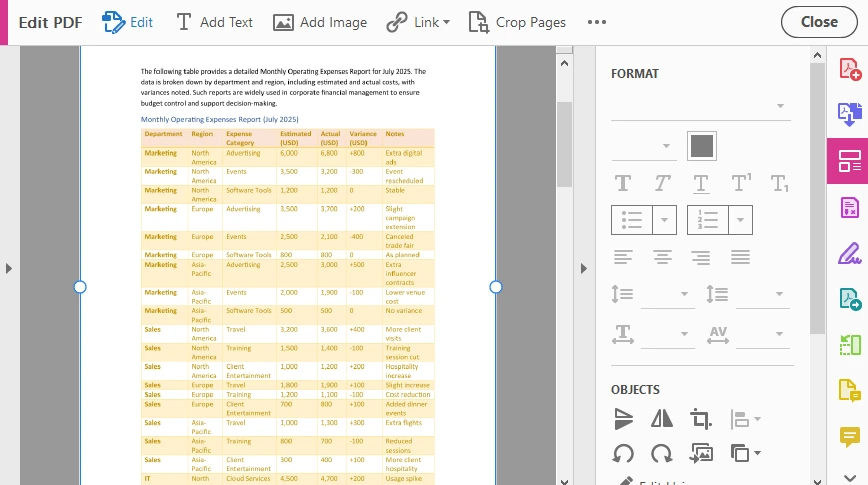
Neste PDF digitalizado, cada página é renderizada e incorporada como uma imagem de página inteira. Essa conversão remove a camada de texto original e a estrutura do documento, tornando o conteúdo não editável e não selecionável.
Vantagens da conversão programática:
- Qualidade de saída consistente
- Suporte a processamento em lote
- Sem intervenção manual
- Fácil integração em pipelines de documentos
Para fluxos de trabalho em lote mais flexíveis, o Python também suporta a conversão de PDFs diretamente para imagens ou a criptografia de PDFs para reduzir ainda mais o risco de edição e reutilização de conteúdo.
PDF vs. PDF digitalizado: Principais diferenças
| Característica | PDF Padrão | PDF Digitalizado |
|---|---|---|
| Texto editável | Sim | Não |
| Seleção de texto | Sim | Não |
| Conteúdo pesquisável | Sim | Não (sem OCR) |
| Tamanho do arquivo | Menor | Maior |
| Melhor caso de uso | Edição e reutilização | Distribuição e arquivamento |
Dica rápida: Se os usuários devem apenas visualizar o documento — não reutilizar ou modificar seu conteúdo — um PDF digitalizado é muitas vezes a melhor escolha.
PDFs digitalizados ainda podem ser editados?
PDFs digitalizados são significativamente mais difíceis de editar do que PDFs padrão, mas não são absolutamente não editáveis.
- Editores avançados podem substituir imagens
- Ferramentas de OCR podem extrair texto
- O conteúdo pode ser redigitado manualmente
No entanto, para a maioria dos usuários e fluxos de trabalho diários, os PDFs digitalizados desencorajam efetivamente a edição e a reutilização de conteúdo.
Melhor prática:
- Mantenha os PDFs editáveis originais em segurança
- Use PDFs digitalizados para distribuição ou arquivamento
- Combine com OCR apenas se a pesquisa de texto for necessária
Conclusão
Converter um PDF para um PDF digitalizado é uma maneira prática de transformar documentos editáveis em arquivos visualmente fixos e baseados em imagem. Ao remover a estrutura do texto e achatar cada página em uma imagem, os PDFs digitalizados são mais adequados para compartilhar conteúdo finalizado e preservar a integridade do documento.
Seja usando um conversor online de PDF para PDF digitalizado para tarefas rápidas ou automação com Python para fluxos de trabalho em grande escala, escolher a abordagem certa garante que seus documentos permaneçam consistentes, profissionais e resistentes a modificações casuais.
FAQ
A conversão de um PDF para um PDF digitalizado remove o texto pesquisável?
Sim. Quando um PDF é convertido em um PDF digitalizado, cada página é armazenada como uma imagem, então a camada de texto original é removida. Como resultado, o texto não pode ser pesquisado ou selecionado, a menos que o OCR seja aplicado posteriormente.
A conversão de um PDF para um documento digitalizado aumentará o tamanho do arquivo?
Na maioria dos casos, sim. PDFs digitalizados são baseados em imagem, e os dados da imagem geralmente exigem mais armazenamento do que o conteúdo de texto e vetorial. O tamanho final do arquivo depende de fatores como resolução da imagem e configurações de compressão.
Qual é a diferença entre um PDF digitalizado e exportar um PDF como imagens?
Exportar um PDF como imagens produz arquivos de imagem separados, enquanto um PDF digitalizado incorpora essas imagens de volta em um único documento PDF. Um PDF digitalizado preserva o formato de contêiner PDF, tornando-o mais fácil de compartilhar, visualizar e arquivar.
Os PDFs digitalizados podem impedir completamente a edição ou cópia?
PDFs digitalizados reduzem significativamente a edição e cópia casuais porque não contêm texto editável. No entanto, ferramentas avançadas ou software de OCR ainda podem extrair conteúdo, então os PDFs digitalizados devem ser vistos como um impedimento prático em vez de uma proteção absoluta.
PDF를 스캔된 PDF로: PDF를 이미지 기반 문서로 변환
PDF 파일은 문서 교환에 널리 사용되지만 모든 PDF가 스캔된 문서처럼 작동하는 것은 아닙니다. 많은 PDF에는 편집 가능한 텍스트 레이어, 벡터 그래픽 및 선택 가능한 콘텐츠가 포함되어 있어 쉽게 수정, 복사 또는 재사용할 수 있습니다.
보관, 공개 배포 또는 문서 최종화와 같은 실제 시나리오에서는 PDF가 스캔된 파일처럼 보이고 작동하기를 원할 수 있습니다. PDF를 스캔된 PDF로 변환하면 편집 가능한 구조가 제거되고 각 페이지가 이미지 기반 표현으로 바뀝니다.
이 가이드에서는 스캔된 PDF가 무엇인지, 왜 필요한지, 온라인 도구나 Python 자동화를 사용하여 PDF를 스캔된 문서로 변환하는 방법을 설명합니다.
빠른 탐색
- 스캔된 PDF란 무엇인가?
- PDF를 스캔된 PDF로 변환하는 이유
- 방법 1: 온라인 도구를 사용하여 PDF를 스캔된 PDF로 변환
- 방법 2: Python으로 PDF를 스캔된 PDF로 변환
- PDF와 스캔된 PDF: 주요 차이점
- 스캔된 PDF를 여전히 편집할 수 있나요?
- 자주 묻는 질문
스캔된 PDF란 무엇인가?
스캔된 PDF는 각 페이지가 편집 가능한 텍스트나 벡터 객체가 아닌 이미지로 저장되는 PDF 문서입니다. 실제 스캐너로 종이를 스캔하여 만든 문서와 매우 유사합니다.
스캔된 PDF의 주요 특징은 다음과 같습니다.
- 텍스트를 선택하거나 편집할 수 없음
- 페이지가 이미지 기반임
- 레이아웃과 모양이 시각적으로 고정됨
- 파일 크기가 일반적으로 텍스트 기반 PDF보다 큼
- OCR을 적용하지 않으면 텍스트 검색을 사용할 수 없음
PDF를 스캔된 PDF로 변환하면 본질적으로 콘텐츠를 평탄화하고 내부 구조를 제거하는 것입니다.
PDF를 스캔된 PDF로 변환하는 이유
PDF를 스캔된 문서로 바꾸는 것은 여러 상황에서 유용합니다.
- 임의의 편집이나 콘텐츠 재사용 방지
- 보관용 문서 준비
- 최종 보고서 또는 공지 배포
- 종이 기반 워크플로우 시뮬레이션
- 플랫폼 간 문서 모양 표준화
권한 기반 보호와 비교할 때 스캔된 PDF는 뷰어에서 강제하는 규칙이 아닌 구조적 변환에 의존하므로 임의의 수정에 더 강합니다.
방법 1: 온라인 도구를 사용하여 PDF를 스캔된 PDF로 변환
온라인 PDF 변환기는 민감하지 않은 문서의 빠르고 일회성 변환에 적합합니다.
단계:
-
신뢰할 수 있는 PDF를 스캔된 PDF로 변환하는 웹사이트(예: SafePDFKit)를 엽니다.
-
변환하려는 PDF 파일을 업로드합니다.
-
색상 모드, 노이즈 수준 및 페이지 회전과 같은 설정을 구성합니다.
-
스캔된 PDF를 변환하고 다운로드합니다.
가장 적합한 경우:
- 가끔씩 하는 변환
- 공개 또는 저위험 문서
- 브라우저 기반 도구를 선호하는 사용자
참고: 서비스가 업로드된 문서의 처리 및 삭제 방법을 명확하게 설명하지 않는 한 기밀 파일을 업로드하지 마십시오.
암호 보호를 통해 편집, 복사 또는 인쇄를 제한하려면 PDF를 암호화하는 방법에 대한 자세한 가이드를 참조할 수 있습니다.
방법 2: Python으로 PDF를 스캔된 PDF로 변환
일괄 처리 또는 자동화된 워크플로우의 경우 Python은 PDF를 스캔된 이미지 기반 문서로 변환하는 신뢰할 수 있는 방법을 제공합니다.
Spire.PDF for Python과 같은 라이브러리를 사용하면 각 PDF 페이지를 이미지로 렌더링하고 해당 이미지를 사용하여 새 PDF를 다시 빌드할 수 있습니다.
1단계: 라이브러리 설치
pip install spire.pdf
또한 Spire.PDF for Python을 다운로드하여 프로젝트에 수동으로 추가할 수도 있습니다.
2단계: PDF 페이지를 이미지로 변환하고 PDF 다시 빌드
from spire.pdf import *

# 원본 PDF 로드
pdf = PdfDocument()
pdf.LoadFromFile("Sample.pdf")

# 스캔된 출력을 위한 새 PDF 생성
scanned_pdf = PdfDocument()

# 각 페이지를 이미지로 변환
for i in range(pdf.Pages.Count):
    image_stream = pdf.SaveAsImage(i)
    image = PdfImage.FromStream(image_stream)

    page = scanned_pdf.Pages.Add(
        SizeF(float(image.Width), float(image.Height)),
        PdfMargins(0.0, 0.0)
    )
    page.Canvas.DrawImage(
        image,
        RectangleF.FromLTRB(0.0, 0.0, float(image.Width), float(image.Height))
    )

# 스캔된 PDF 저장
scanned_pdf.SaveToFile("ScannedPDF.pdf")

pdf.Dispose()
scanned_pdf.Dispose()
변환된 스캔된 PDF 미리보기:
이 스캔된 PDF에서는 모든 페이지가 전체 페이지 이미지로 렌더링되고 포함됩니다. 이 변환은 원본 텍스트 레이어와 문서 구조를 제거하여 콘텐츠를 편집할 수 없고 선택할 수 없게 만듭니다.
프로그래밍 방식 변환의 장점:
- 일관된 출력 품질
- 일괄 처리 지원
- 수동 개입 없음
- 문서 파이프라인에 쉽게 통합
보다 유연한 일괄 워크플로우를 위해 Python은 PDF를 이미지로 직접 변환하거나 PDF를 암호화하여 편집 및 콘텐츠 재사용의 위험을 더욱 줄이는 것을 지원합니다.
PDF와 스캔된 PDF: 주요 차이점
| 기능 | 표준 PDF | 스캔된 PDF |
|---|---|---|
| 편집 가능한 텍스트 | 예 | 아니요 |
| 텍스트 선택 | 예 | 아니요 |
| 검색 가능한 콘텐츠 | 예 | 아니요 (OCR 제외) |
| 파일 크기 | 더 작음 | 더 큼 |
| 최적 사용 사례 | 편집 및 재사용 | 배포 및 보관 |
빠른 팁: 사용자가 문서를 보기만 하고 콘텐츠를 재사용하거나 수정해서는 안 되는 경우 스캔된 PDF가 더 나은 선택인 경우가 많습니다.
스캔된 PDF를 여전히 편집할 수 있나요?
스캔된 PDF는 표준 PDF보다 편집하기가 훨씬 어렵지만 절대적으로 편집할 수 없는 것은 아닙니다.
- 고급 편집기는 이미지를 교체할 수 있음
- OCR 도구는 텍스트를 추출할 수 있음
- 콘텐츠를 수동으로 다시 입력할 수 있음
그러나 대부분의 사용자와 일상적인 워크플로우에서 스캔된 PDF는 편집 및 콘텐츠 재사용을 효과적으로 방지합니다.
모범 사례:
- 원본 편집 가능한 PDF를 안전하게 보관
- 배포 또는 보관을 위해 스캔된 PDF 사용
- 텍스트 검색이 필요한 경우에만 OCR과 결합
결론
PDF를 스캔된 PDF로 변환하는 것은 편집 가능한 문서를 시각적으로 고정된 이미지 기반 파일로 바꾸는 실용적인 방법입니다. 텍스트 구조를 제거하고 각 페이지를 이미지로 평탄화함으로써 스캔된 PDF는 최종 콘텐츠를 공유하고 문서 무결성을 보존하는 데 더 적합합니다.
빠른 작업을 위해 온라인 PDF를 스캔된 PDF 변환기를 사용하든 대규모 워크플로우를 위해 Python 자동화를 사용하든 올바른 접근 방식을 선택하면 문서가 일관되고 전문적이며 임의의 수정에 강하게 유지됩니다.
자주 묻는 질문
PDF를 스캔된 PDF로 변환하면 검색 가능한 텍스트가 제거되나요?
예. PDF가 스캔된 PDF로 변환되면 각 페이지가 이미지로 저장되므로 원본 텍스트 레이어가 제거됩니다. 결과적으로 OCR을 나중에 적용하지 않으면 텍스트를 검색하거나 선택할 수 없습니다.
PDF를 스캔된 문서로 변환하면 파일 크기가 증가하나요?
대부분의 경우 그렇습니다. 스캔된 PDF는 이미지 기반이며 이미지 데이터는 일반적으로 텍스트 및 벡터 콘텐츠보다 더 많은 저장 공간을 필요로 합니다. 최종 파일 크기는 이미지 해상도 및 압축 설정과 같은 요소에 따라 다릅니다.
스캔된 PDF와 PDF를 이미지로 내보내는 것의 차이점은 무엇인가요?
PDF를 이미지로 내보내면 별도의 이미지 파일이 생성되지만 스캔된 PDF는 해당 이미지를 단일 PDF 문서에 다시 포함합니다. 스캔된 PDF는 PDF 컨테이너 형식을 유지하므로 공유, 보기 및 보관이 더 쉽습니다.
스캔된 PDF가 편집이나 복사를 완전히 방지할 수 있나요?
스캔된 PDF는 편집 가능한 텍스트가 없기 때문에 임의의 편집 및 복사를 크게 줄입니다. 그러나 고급 도구나 OCR 소프트웨어는 여전히 콘텐츠를 추출할 수 있으므로 스캔된 PDF는 절대적인 보호가 아닌 실용적인 억제책으로 보아야 합니다.