HEIC PDF 변환: 온라인, 데스크톱 및 Python 자동화
HEIC(고효율 이미지 컨테이너)는 iPhone 및 iPad와 같은 Apple 장치에서 사용되는 기본 이미지 형식입니다. HEIC는 더 작은 파일 크기로 높은 이미지 품질을 제공하지만 모든 플랫폼과 응용 프로그램에서 보편적으로 지원되는 것은 아닙니다. 이로 인해 이미지를 공유, 인쇄 또는 보관할 때 호환성 문제가 발생하는 경우가 많습니다.
HEIC 파일을 PDF로 변환하는 것은 일반적이고 효과적인 솔루션입니다. PDF는 장치와 운영 체제에서 일관된 표시를 보장하는 널리 사용되는 형식입니다. 이 기사에서는 무료 방법과 Python 코드를 사용한 자동화된 접근 방식을 포함하여 HEIC를 PDF로 변환하는 여러 가지 방법을 살펴보겠습니다.
빠른 탐색
- HEIC 파일이란 무엇이며 HEIC를 PDF로 변환하는 이유는 무엇입니까?
- 방법 1: 온라인 도구를 사용하여 HEIC를 PDF로 변환
- 방법 2: 데스크톱 소프트웨어를 사용하여 HEIC를 PDF로 변환
- 방법 3: Python을 사용하여 HEIC를 PDF로 변환
- 올바른 HEIC to PDF 변환 방법을 선택하는 방법
- 자주 묻는 질문
HEIC 파일이란 무엇이며 HEIC를 PDF로 변환하는 이유는 무엇입니까?
HEIC는 HEVC(고효율 비디오 코딩)를 기반으로 하는 이미지 컨테이너 형식입니다. 이를 통해 Apple 장치는 더 나은 압축과 높은 시각적 품질로 사진을 저장할 수 있습니다. 그러나 HEIC 파일은 많은 Windows 응용 프로그램, 웹 브라우저 또는 문서 관리 시스템에서 기본적으로 지원되지 않으므로 파일을 열거나 공유하려고 할 때 마찰이 발생할 수 있습니다.
HEIC를 PDF로 변환하는 것이 유용한 일반적인 상황은 다음과 같습니다.
- 플랫폼 간 호환성 향상
- 여러 HEIC 이미지를 단일 문서로 결합
- 인쇄 또는 제출용 이미지 준비
- 안정적이고 편집 불가능한 형식으로 이미지 보관
이러한 제한 때문에 HEIC를 PDF로 변환하는 것은 선호도에 관한 것이라기보다는 다양한 환경에서 접근성과 일관성을 보장하는 것에 가깝습니다.
방법 1: 온라인 도구를 사용하여 HEIC를 PDF로 변환(무료)
온라인 변환기는 특히 추가 소프트웨어를 설치하지 않고 빠른 결과가 필요할 때 HEIC를 PDF로 변환하는 가장 빠른 방법인 경우가 많습니다.
단계:
-
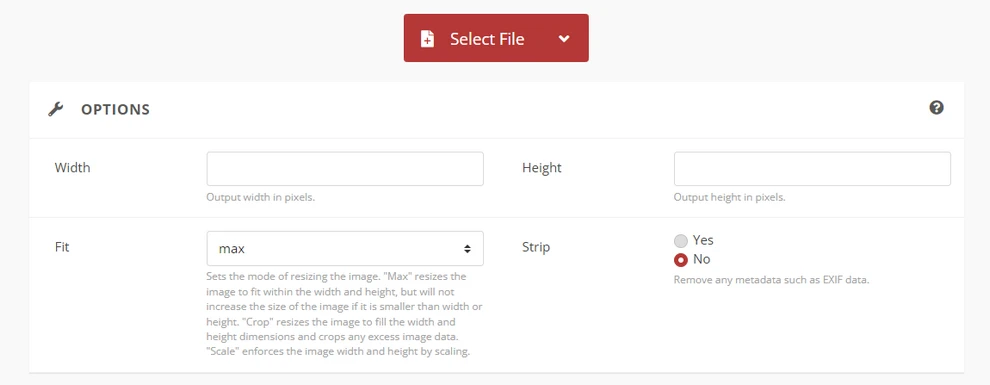
온라인 HEIC to PDF 변환기(예: CloudConvert)를 엽니다.
-
HEIC 파일을 업로드하세요.
-
출력 형식으로 PDF를 선택하세요.
-
변환된 PDF 파일을 다운로드하세요.
장점:
- 무료이며 사용하기 쉬움
- 설치 필요 없음
단점:
- 파일 크기 및 일괄 처리 제한
- 잠재적인 개인 정보 보호 및 데이터 보안 문제
- 출력 품질에 대한 제한된 제어
이 방법은 일회성 또는 가끔 변환에 적합합니다.
다른 이미지 형식을 PDF로 변환하려면 다양한 플랫폼에서 이미지를 PDF로 변환하는 방법을 확인하세요.
방법 2: 데스크톱 소프트웨어를 사용하여 HEIC를 PDF로 변환
데스크톱 소프트웨어는 특히 로컬 파일로 자주 작업하거나 타사 플랫폼에 이미지를 업로드하지 않으려는 경우 HEIC를 PDF로 변환하는 보다 안정적이고 비공개적인 방법을 제공합니다. 많은 최신 운영 체제에는 추가 다운로드 없이 이 작업을 처리할 수 있는 기본 제공 도구가 이미 포함되어 있습니다.
예를 들어 Windows의 Microsoft 사진 및 macOS 미리보기를 사용하면 HEIC 파일을 열고 PDF 문서로 내보내거나 인쇄할 수 있습니다. 온라인 도구에 비해 데스크톱 솔루션은 일반적으로 더 나은 안정성과 더 적은 파일 크기 제한을 제공합니다.
단계:
-
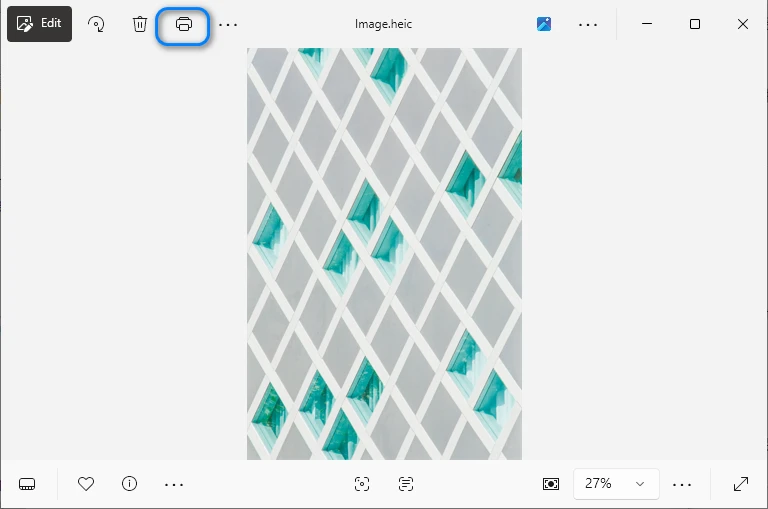
호환되는 이미지 뷰어(예: Microsoft 사진)를 사용하여 HEIC 파일을 엽니다.
-
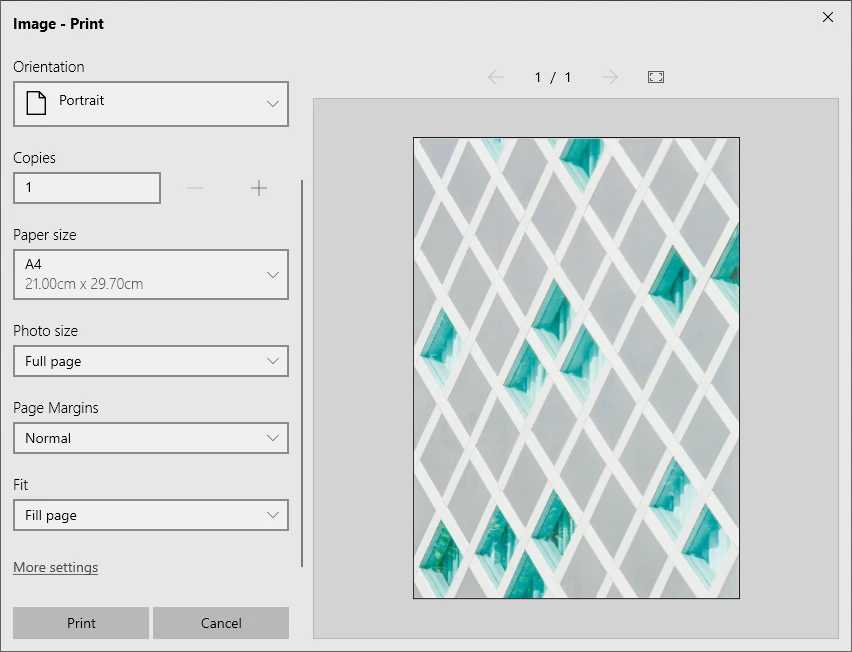
내보내기 또는 인쇄 옵션을 선택합니다.
-
출력 형식으로 PDF를 선택합니다.
-
PDF 파일을 저장합니다.
장점:
- 온라인 도구보다 나은 개인 정보 보호
- 코딩 필요 없음
단점:
- 수동 조작
- 일괄 처리에 비효율적
이 접근 방식은 최소한의 기술적 노력으로 기본 변환이 필요한 사용자에게 적합합니다.
결과 PDF 파일이 너무 크면 PDF 파일을 압축하여 전송 및 공유 문제를 방지할 수 있습니다.
방법 3: Python을 사용하여 HEIC를 PDF로 변환(자동화에 권장)
HEIC 파일을 정기적으로 PDF로 변환하거나, 대규모 이미지 컬렉션을 처리하거나, 변환을 기존 워크플로에 통합해야 하는 경우 수동 도구는 빠르게 비효율적이 될 수 있습니다. 이러한 시나리오에서 자동화는 상당한 이점을 제공합니다.
Python을 사용하면 최소한의 사람의 개입으로 실행되는 반복 가능한 변환 프로세스를 구축할 수 있습니다. 이미지를 하나씩 변환하는 대신 전체 폴더를 처리하고, 출력 설정을 표준화하고, 워크플로를 백엔드 서비스 또는 데이터 파이프라인에 통합할 수 있습니다.
필수 라이브러리
이 솔루션을 구현하려면 다음이 필요합니다.
- pillow – 이미지 처리용
- pillow-heif – HEIC 이미지 지원 활성화
- Spire.PDF for Python – PDF 문서 생성 및 관리
pip를 사용하여 이러한 라이브러리를 설치할 수 있습니다.
pip install pillow pillow-heif spire.pdf
이 조합을 사용하면 HEIC 이미지를 읽고 처리하며 프로그래밍 방식으로 고품질 PDF 파일을 생성할 수 있습니다.
단계별: Python으로 HEIC를 PDF로 변환
다음은 Python을 사용하여 HEIC 파일을 PDF로 변환하는 일반적인 워크플로입니다.
- HEIC 지원을 등록하고 Pillow로 HEIC 이미지를 엽니다.
- 이미지를 RGB로 변환하고 메모리에 JPEG 또는 PNG로 저장합니다.
- PDF 문서를 만들고 바이트 스트림에서 이미지를 로드합니다.
- 이미지를 PDF 페이지에 렌더링하고 PDF 파일을 저장합니다.
Python 예제: HEIC를 PDF로 변환
from spire.pdf import PdfDocument, PdfImage, PointF, Stream, SizeF, PdfMargins
from PIL import Image
import pillow_heif
import io

# HEIF 지원 등록
pillow_heif.register_heif_opener()

# HEIC 이미지를 열고 RGB로 변환 (HEIC 이미지는 RGBA일 수 있음)
img = Image.open("Image.heic")
img = img.convert("RGB")

# 이미지를 JPEG 또는 PNG 바이트로 저장 (Spire.PDF 지원용)
buffer = io.BytesIO()
img.save(buffer, format="JPEG")  # 또는 "PNG"
image_bytes = buffer.getvalue()

# 바이트에서 이미지 로드
stream = Stream(image_bytes)
image = PdfImage.FromStream(stream)

# PDF 문서 생성
pdf = PdfDocument()

# 페이지 크기를 이미지 크기로 설정하고 여백을 0으로 설정
# 이렇게 하면 이미지가 페이지를 채웁니다
pdf.PageSettings.Size.Width = image.Width
pdf.PageSettings.Size.Height = image.Height
pdf.PageSettings.Margins.All = 0

# 문서에 페이지 추가
page = pdf.AppendPage()

# 페이지에 이미지 그리기
page.Canvas.DrawImage(image, PointF(0.0, 0.0))

# PDF 문서 저장
pdf.SaveToFile("output/HEICToPDF.pdf")
pdf.Close()
다음은 생성된 PDF 파일의 미리보기입니다.
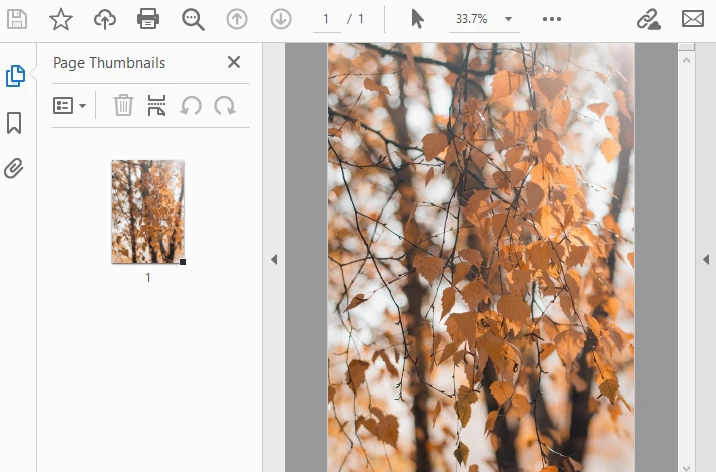
이 접근 방식은 일괄 처리를 지원하며 여러 이미지를 단일 PDF로 병합하도록 확장할 수 있습니다. 페이지 크기, 여백 및 이미지 품질과 같은 다른 형식 및 옵션을 포함한 고급 이미지-PDF 변환에 대해서는 이미지를 PDF로 변환하는 Python 가이드를 확인하십시오.
올바른 HEIC to PDF 변환 방법을 선택하는 방법
최상의 방법은 기술적 선호도보다는 실제 사용 시나리오에 따라 달라집니다. 하나의 접근 방식이 모든 상황에 적합하다고 가정하는 대신 변환을 얼마나 자주 수행하고 출력에 대해 얼마나 많은 제어가 필요한지 고려하십시오.
다음과 같은 경우 온라인 도구를 선택하십시오.
- 가끔 몇 개의 파일만 변환하면 됩니다.
- 가장 빠른 솔루션을 원합니다.
- 소프트웨어 설치가 편리하지 않습니다.
온라인 변환기는 빠르고 노력이 적은 작업에 이상적입니다. 그러나 민감한 이미지나 대규모 배치에는 적합하지 않을 수 있습니다.
다음과 같은 경우 데스크톱 소프트웨어를 선택하십시오.
- 오프라인 작업을 선호합니다.
- 개인 정보 보호가 중요합니다.
- 간단하고 코드 없는 경험을 원합니다.
데스크톱 도구는 사용 편의성과 안정성 사이의 균형을 유지합니다. 일상적인 사무 워크플로에 가장 실용적인 선택인 경우가 많습니다.
다음과 같은 경우 Python을 선택하십시오.
- 정기적으로 많은 수의 HEIC 파일을 변환합니다.
- 프로세스를 자동화해야 합니다.
- 레이아웃, 해상도 또는 문서 구조를 정밀하게 제어하고 싶습니다.
- 변환은 더 큰 시스템 또는 응용 프로그램의 일부입니다.
이 접근 방식에는 약간의 기술 지식이 필요하지만 대규모로 훨씬 더 효율적이 됩니다.
전반적으로 온라인 도구는 빠른 작업에 적합하고 데스크톱 소프트웨어는 일상적인 워크플로를 지원하며 Python은 자동화되거나 대규모 변환에 이상적입니다.
결론
HEIC 파일을 PDF로 변환하는 것은 호환성과 유용성을 향상시키는 실용적인 솔루션입니다. 무료 온라인 도구와 데스크톱 소프트웨어는 간단한 작업에 적합하지만 자동화, 개인 정보 보호 또는 일괄 처리가 필요한 경우에는 종종 부족합니다.
개발자와 고급 사용자의 경우 Python을 사용하여 HEIC를 PDF로 변환하면 가장 큰 유연성을 얻을 수 있습니다. pillow-heif 및 Spire.PDF for Python과 같은 라이브러리를 사용하면 필요에 맞는 효율적이고 전문적인 변환 워크플로를 구축할 수 있습니다.
FAQ: HEIC to PDF 변환
HEIC를 PDF로 변환하는 무료 방법은 무엇입니까?
예, 많은 온라인 도구에서 무료 HEIC to PDF 변환을 제공하지만 파일 크기나 사용량에 제한이 있을 수 있습니다.
HEIC를 PDF로 변환하면 이미지 품질에 영향을 줍니까?
이미지 품질은 변환 방법에 따라 다릅니다. 프로그래밍 방식 솔루션을 사용하면 해상도와 압축을 더 잘 제어할 수 있습니다.
여러 HEIC 파일을 하나의 PDF로 병합하려면 어떻게 해야 합니까?
예. 프로그래밍 방식을 사용하면 여러 HEIC 이미지를 단일 PDF 문서로 병합할 수 있습니다.
Spire.PDF를 사용하여 HEIC를 PDF로 무료로 변환할 수 있습니까?
예, Free Spire.PDF for Python을 사용하면 HEIC 파일을 PDF로 무료로 변환할 수 있습니다.
Convertire HEIC in PDF: Online, Desktop e Automazione Python
Indice
- Cos'è un file HEIC e perché convertirlo in PDF?
- Metodo 1: Convertire HEIC in PDF utilizzando strumenti online
- Metodo 2: Convertire HEIC in PDF utilizzando software desktop
- Metodo 3: Convertire HEIC in PDF utilizzando Python
- Come scegliere il metodo di conversione da HEIC a PDF corretto
- Domande frequenti
HEIC (High Efficiency Image Container) è il formato di immagine predefinito utilizzato dai dispositivi Apple come iPhone e iPad. Sebbene HEIC offra un'alta qualità dell'immagine con dimensioni di file più piccole, non è universalmente supportato su tutte le piattaforme e applicazioni. Ciò porta spesso a problemi di compatibilità durante la condivisione, la stampa o l'archiviazione delle immagini.
La conversione di file HEIC in PDF è una soluzione comune ed efficace. Il PDF è un formato ampiamente accettato che garantisce una visualizzazione coerente su tutti i dispositivi e sistemi operativi. In questo articolo, esploreremo diversi modi per convertire HEIC in PDF, inclusi metodi gratuiti e un approccio automatizzato utilizzando il codice Python.
Navigazione Rapida
- Cos'è un file HEIC e perché convertirlo in PDF?
- Metodo 1: Convertire HEIC in PDF utilizzando strumenti online
- Metodo 2: Convertire HEIC in PDF utilizzando software desktop
- Metodo 3: Convertire HEIC in PDF utilizzando Python
- Come scegliere il metodo di conversione da HEIC a PDF corretto
- Domande frequenti
Cos'è un file HEIC e perché convertirlo in PDF?
HEIC è un formato contenitore di immagini basato su HEVC (High Efficiency Video Coding). Consente ai dispositivi Apple di archiviare foto con una migliore compressione e un'alta qualità visiva. Tuttavia, i file HEIC non sono supportati nativamente da molte applicazioni Windows, browser Web o sistemi di gestione dei documenti, il che può creare attrito quando si tenta di aprirli o condividerli.
Le situazioni tipiche in cui la conversione da HEIC a PDF diventa utile includono:
- Migliorare la compatibilità tra piattaforme
- Combinare più immagini HEIC in un unico documento
- Preparare le immagini per la stampa o l'invio
- Archiviare le immagini in un formato stabile e non modificabile
A causa di queste limitazioni, la conversione da HEIC a PDF è spesso meno una questione di preferenza e più una questione di garantire l'accessibilità e la coerenza tra i diversi ambienti.
Metodo 1: Convertire HEIC in PDF utilizzando strumenti online (gratuiti)
I convertitori online sono spesso il modo più veloce per convertire HEIC in PDF, specialmente quando hai bisogno di un risultato rapido senza installare software aggiuntivo.
Passaggi:
-
Apri un convertitore online da HEIC a PDF (come CloudConvert).
-
Carica il tuo file HEIC.
-
Seleziona PDF come formato di output.
-
Scarica il file PDF convertito.
Pro:
- Gratuito e facile da usare
- Nessuna installazione richiesta
Contro:
- Limiti di dimensione del file e di elaborazione batch
- Potenziali problemi di privacy e sicurezza dei dati
- Controllo limitato sulla qualità dell'output
Questo metodo è adatto per conversioni una tantum o occasionali.
Per convertire altri formati di immagini in PDF, puoi consultare Come convertire immagini in PDF su varie piattaforme.
Metodo 2: Convertire HEIC in PDF utilizzando software desktop
Il software desktop offre un modo più stabile e privato per convertire HEIC in PDF, specialmente se lavori frequentemente con file locali o preferisci non caricare immagini su piattaforme di terze parti. Molti sistemi operativi moderni includono già strumenti integrati in grado di gestire questa attività senza richiedere download aggiuntivi.
Ad esempio, Microsoft Foto su Windows e Anteprima di macOS ti consentono di aprire file HEIC ed esportarli o stamparli come documenti PDF. Rispetto agli strumenti online, le soluzioni desktop offrono in genere una maggiore affidabilità e meno restrizioni sulle dimensioni dei file.
Passaggi:
-
Apri il file HEIC utilizzando un visualizzatore di immagini compatibile (ad es. Microsoft Foto).
-
Scegli l'opzione di esportazione o stampa.
-
Seleziona PDF come formato di output.
-
Salva il file PDF.
Pro:
- Migliore privacy rispetto agli strumenti online
- Nessuna codifica richiesta
Contro:
- Operazione manuale
- Inefficiente per l'elaborazione batch
Questo approccio funziona bene per gli utenti che necessitano di una conversione di base con il minimo sforzo tecnico.
Se il file PDF risultante è troppo grande, puoi provare a comprimere il file PDF per evitare problemi di trasmissione e condivisione.
Metodo 3: Convertire HEIC in PDF utilizzando Python (consigliato per l'automazione)
Se hai bisogno di convertire regolarmente file HEIC in PDF, gestire grandi raccolte di immagini o integrare la conversione in un flusso di lavoro esistente, gli strumenti manuali possono diventare rapidamente inefficienti. In questi scenari, l'automazione offre un vantaggio significativo.
Python ti consente di creare un processo di conversione ripetibile che viene eseguito con un intervento umano minimo. Invece di convertire le immagini una per una, puoi elaborare intere cartelle, standardizzare le impostazioni di output e integrare il flusso di lavoro in servizi di backend o pipeline di dati.
Librerie richieste
Per implementare questa soluzione, avrai bisogno di:
- pillow – per l'elaborazione delle immagini
- pillow-heif – per abilitare il supporto delle immagini HEIC
- Spire.PDF for Python – per creare e gestire documenti PDF
Puoi installare queste librerie usando pip:
pip install pillow pillow-heif spire.pdf
Questa combinazione ti consente di leggere immagini HEIC, elaborarle e generare file PDF di alta qualità in modo programmatico.
Passo dopo passo: convertire HEIC in PDF con Python
Di seguito è riportato un flusso di lavoro generale per la conversione di un file HEIC in PDF utilizzando Python:
- Registra il supporto HEIC e apri l'immagine HEIC con Pillow.
- Converti l'immagine in RGB e salvala come JPEG o PNG in memoria.
- Crea un documento PDF e carica l'immagine da un flusso di byte.
- Renderizza l'immagine su una pagina PDF e salva il file PDF.
Esempio Python: Convertire HEIC in PDF
from spire.pdf import PdfDocument, PdfImage, PointF, Stream, SizeF, PdfMargins
from PIL import Image
import pillow_heif
import io

# Register the HEIF support
pillow_heif.register_heif_opener()

# Open the HEIC image and convert to RGB (HEIC images may be RGBA)
img = Image.open("Image.heic")
img = img.convert("RGB")

# Save the image to JPEG or PNG bytes (for Spire.PDF support)
buffer = io.BytesIO()
img.save(buffer, format="JPEG")  # Or "PNG"
image_bytes = buffer.getvalue()

# Load the image from bytes
stream = Stream(image_bytes)
image = PdfImage.FromStream(stream)

# Create a PDF document
pdf = PdfDocument()

# Set the page size to the image size and margins to 0
# This will make the image fill the page
pdf.PageSettings.Size.Width = image.Width
pdf.PageSettings.Size.Height = image.Height
pdf.PageSettings.Margins.All = 0

# Add a page to the document
page = pdf.AppendPage()

# Draw the image on the page
page.Canvas.DrawImage(image, PointF(0.0, 0.0))

# Save the PDF document
pdf.SaveToFile("output/HEICToPDF.pdf")
pdf.Close()
Di seguito è riportata un'anteprima del file PDF generato:
Questo approccio supporta l'elaborazione batch e può essere esteso per unire più immagini in un unico PDF. Per conversioni più avanzate da immagine a PDF, inclusi altri formati e opzioni come dimensioni della pagina, margini e qualità dell'immagine, puoi consultare la nostra guida Python sulla conversione di immagini in PDF.
Come scegliere il metodo di conversione da HEIC a PDF corretto
Il metodo migliore dipende meno dalle preferenze tecniche e più dal tuo scenario di utilizzo effettivo. Invece di presumere che un approccio si adatti a tutte le situazioni, considera la frequenza con cui esegui le conversioni e quanto controllo hai bisogno sull'output.
Scegli uno strumento online se:
- Devi convertire solo pochi file occasionalmente
- Vuoi la soluzione più veloce possibile
- L'installazione del software non è conveniente
I convertitori online sono ideali per attività rapide e a basso sforzo. Tuttavia, potrebbero non essere adatti per immagini sensibili o grandi lotti.
Scegli il software desktop se:
- Preferisci lavorare offline
- La privacy è importante
- Vuoi un'esperienza semplice e senza codice
Gli strumenti desktop raggiungono un equilibrio tra facilità d'uso e affidabilità. Sono spesso la scelta più pratica per i flussi di lavoro quotidiani in ufficio.
Scegli Python se:
- Converti regolarmente un gran numero di file HEIC
- Il processo deve essere automatizzato
- Vuoi un controllo preciso su layout, risoluzione o struttura del documento
- La conversione fa parte di un sistema o un'applicazione più grande
Sebbene questo approccio richieda alcune conoscenze tecniche, diventa significativamente più efficiente su larga scala.
Nel complesso, gli strumenti online sono adatti per attività rapide, il software desktop supporta i flussi di lavoro quotidiani e Python è ideale per conversioni automatizzate o su larga scala.
Conclusione
La conversione di file HEIC in PDF è una soluzione pratica per migliorare la compatibilità e l'usabilità. Sebbene gli strumenti online gratuiti e il software desktop siano adatti per compiti semplici, spesso non sono all'altezza quando sono richieste automazione, privacy o elaborazione batch.
Per sviluppatori e utenti avanzati, la conversione da HEIC a PDF tramite Python offre la massima flessibilità. Con librerie come pillow-heif e Spire.PDF per Python, puoi creare un flusso di lavoro di conversione efficiente e professionale su misura per le tue esigenze.
FAQ: Conversione da HEIC a PDF
Quali sono i modi gratuiti per convertire HEIC in PDF?
Sì, molti strumenti online offrono la conversione gratuita da HEIC a PDF, ma potrebbero avere limitazioni sulla dimensione o sull'utilizzo del file.
La conversione da HEIC a PDF influirà sulla qualità dell'immagine?
La qualità dell'immagine dipende dal metodo di conversione. Le soluzioni programmatiche consentono un migliore controllo sulla risoluzione e sulla compressione.
Come posso unire più file HEIC in un unico PDF?
Sì. Utilizzando un approccio di programmazione, più immagini HEIC possono essere unite in un unico documento PDF.
È possibile convertire HEIC in PDF gratuitamente con Spire.PDF?
Sì, Free Spire.PDF for Python ti consente di convertire gratuitamente i file HEIC in PDF.
Convertir HEIC en PDF : En ligne, Bureau et Automatisation Python
Table des matières
- Qu'est-ce qu'un fichier HEIC et pourquoi le convertir en PDF ?
- Méthode 1 : Convertir HEIC en PDF à l'aide d'outils en ligne
- Méthode 2 : Convertir HEIC en PDF à l'aide d'un logiciel de bureau
- Méthode 3 : Convertir HEIC en PDF avec Python
- Comment choisir la bonne méthode de conversion HEIC en PDF
- Foire Aux Questions
HEIC (High Efficiency Image Container) est le format d'image par défaut utilisé par les appareils Apple tels que l'iPhone et l'iPad. Bien que le format HEIC offre une qualité d'image élevée avec des tailles de fichier plus petites, il n'est pas universellement pris en charge sur toutes les plateformes et applications. Cela entraîne souvent des problèmes de compatibilité lors du partage, de l'impression ou de l'archivage des images.
La conversion de fichiers HEIC en PDF est une solution courante et efficace. Le PDF est un format largement accepté qui garantit un affichage cohérent sur tous les appareils et systèmes d'exploitation. Dans cet article, nous explorerons plusieurs façons de convertir HEIC en PDF, y compris des méthodes gratuites et une approche automatisée utilisant du code Python.
Navigation rapide
- Qu'est-ce qu'un fichier HEIC et pourquoi le convertir en PDF ?
- Méthode 1 : Convertir HEIC en PDF à l'aide d'outils en ligne
- Méthode 2 : Convertir HEIC en PDF à l'aide d'un logiciel de bureau
- Méthode 3 : Convertir HEIC en PDF avec Python
- Comment choisir la bonne méthode de conversion HEIC en PDF
- Foire Aux Questions
Qu'est-ce qu'un fichier HEIC et pourquoi le convertir en PDF ?
HEIC est un format de conteneur d'images basé sur le HEVC (High Efficiency Video Coding). Il permet aux appareils Apple de stocker des photos avec une meilleure compression et une haute qualité visuelle. Cependant, les fichiers HEIC ne sont pas nativement pris en charge par de nombreuses applications Windows, navigateurs Web ou systèmes de gestion de documents, ce qui peut créer des frictions lorsque vous essayez de les ouvrir ou de les partager.
Les situations typiques où la conversion de HEIC en PDF devient utile incluent :
- Améliorer la compatibilité entre les plateformes
- Combiner plusieurs images HEIC en un seul document
- Préparer les images pour l'impression ou la soumission
- Archiver les images dans un format stable et non modifiable
En raison de ces limitations, la conversion de HEIC en PDF est souvent moins une question de préférence qu'une nécessité pour garantir l'accessibilité et la cohérence dans différents environnements.
Méthode 1 : Convertir HEIC en PDF à l'aide d'outils en ligne (gratuit)
Les convertisseurs en ligne sont souvent le moyen le plus rapide de convertir HEIC en PDF, surtout lorsque vous avez besoin d'un résultat rapide sans installer de logiciel supplémentaire.
Étapes :
-
Ouvrez un convertisseur HEIC en PDF en ligne (tel que CloudConvert).
-
Téléchargez votre fichier HEIC.
-
Sélectionnez PDF comme format de sortie.
-
Téléchargez le fichier PDF converti.
Avantages :
- Gratuit et facile à utiliser
- Aucune installation requise
Inconvénients :
- Limites de taille de fichier et de traitement par lots
- Problèmes potentiels de confidentialité et de sécurité des données
- Contrôle limité sur la qualité de sortie
Cette méthode convient aux conversions ponctuelles ou occasionnelles.
Pour convertir d'autres formats d'images en PDF, vous pouvez consulter Comment convertir des images en PDF sur diverses plateformes.
Méthode 2 : Convertir HEIC en PDF à l'aide d'un logiciel de bureau
Les logiciels de bureau offrent un moyen plus stable et privé de convertir HEIC en PDF, surtout si vous travaillez fréquemment avec des fichiers locaux ou préférez ne pas télécharger d'images sur des plateformes tierces. De nombreux systèmes d'exploitation modernes incluent déjà des outils intégrés qui peuvent gérer cette tâche sans nécessiter de téléchargements supplémentaires.
Par exemple, Microsoft Photos sur Windows et Aperçu sur macOS vous permettent d'ouvrir des fichiers HEIC et de les exporter ou de les imprimer en tant que documents PDF. Comparées aux outils en ligne, les solutions de bureau offrent généralement une meilleure fiabilité et moins de restrictions de taille de fichier.
Étapes :
-
Ouvrez le fichier HEIC à l'aide d'une visionneuse d'images compatible (par exemple, Microsoft Photos).
-
Choisissez l'option d'exportation ou d'impression.
-
Sélectionnez PDF comme format de sortie.
-
Enregistrez le fichier PDF.
Avantages :
- Meilleure confidentialité que les outils en ligne
- Aucun codage requis
Inconvénients :
- Opération manuelle
- Inefficace pour le traitement par lots
Cette approche fonctionne bien pour les utilisateurs qui ont besoin d'une conversion de base avec un effort technique minimal.
Si le fichier PDF résultant est trop volumineux, vous pouvez essayer de compresser le fichier PDF pour éviter les problèmes de transmission et de partage.
Méthode 3 : Convertir HEIC en PDF avec Python (recommandé pour l'automatisation)
Si vous devez convertir régulièrement des fichiers HEIC en PDF, gérer de grandes collections d'images ou intégrer la conversion dans un flux de travail existant, les outils manuels peuvent rapidement devenir inefficaces. Dans ces scénarios, l'automatisation offre un avantage significatif.
Python vous permet de créer un processus de conversion reproductible qui s'exécute avec une intervention humaine minimale. Au lieu de convertir les images une par une, vous pouvez traiter des dossiers entiers, normaliser les paramètres de sortie et intégrer le flux de travail dans des services backend ou des pipelines de données.
Bibliothèques requises
Pour mettre en œuvre cette solution, vous aurez besoin de :
- pillow – pour le traitement d'images
- pillow-heif – pour activer la prise en charge des images HEIC
- Spire.PDF for Python – pour créer et gérer des documents PDF
Vous pouvez installer ces bibliothèques à l'aide de pip :
pip install pillow pillow-heif spire.pdf
Cette combinaison vous permet de lire des images HEIC, de les traiter et de générer des fichiers PDF de haute qualité par programme.
Étape par étape : Convertir HEIC en PDF avec Python
Voici un flux de travail général pour convertir un fichier HEIC en PDF à l'aide de Python :
- Enregistrez la prise en charge de HEIC et ouvrez l'image HEIC avec Pillow.
- Convertissez l'image en RVB et enregistrez-la en tant que JPEG ou PNG en mémoire.
- Créez un document PDF et chargez l'image à partir d'un flux d'octets.
- Affichez l'image sur une page PDF et enregistrez le fichier PDF.
Exemple Python : Convertir HEIC en PDF
from spire.pdf import PdfDocument, PdfImage, PointF, Stream, SizeF, PdfMargins
from PIL import Image
import pillow_heif
import io

# Register the HEIF support
pillow_heif.register_heif_opener()

# Open the HEIC image and convert to RGB (HEIC images may be RGBA)
img = Image.open("Image.heic")
img = img.convert("RGB")

# Save the image to JPEG or PNG bytes (for Spire.PDF support)
buffer = io.BytesIO()
img.save(buffer, format="JPEG")  # Or "PNG"
image_bytes = buffer.getvalue()

# Load the image from bytes
stream = Stream(image_bytes)
image = PdfImage.FromStream(stream)

# Create a PDF document
pdf = PdfDocument()

# Set the page size to the image size and margins to 0
# This will make the image fill the page
pdf.PageSettings.Size.Width = image.Width
pdf.PageSettings.Size.Height = image.Height
pdf.PageSettings.Margins.All = 0

# Add a page to the document
page = pdf.AppendPage()

# Draw the image on the page
page.Canvas.DrawImage(image, PointF(0.0, 0.0))

# Save the PDF document
pdf.SaveToFile("output/HEICToPDF.pdf")
pdf.Close()
Voici un aperçu du fichier PDF généré :
Cette approche prend en charge le traitement par lots et peut être étendue pour fusionner plusieurs images en un seul PDF. Pour des conversions image-PDF plus avancées, y compris d'autres formats et options comme la taille de la page, les marges et la qualité de l'image, vous pouvez consulter notre guide Python sur la conversion d'images en PDF.
Comment choisir la bonne méthode de conversion HEIC en PDF
La meilleure méthode dépend moins des préférences techniques que de votre scénario d'utilisation réel. Au lieu de supposer qu'une seule approche convient à toutes les situations, tenez compte de la fréquence à laquelle vous effectuez des conversions et du degré de contrôle dont vous avez besoin sur le résultat.
Choisissez un outil en ligne si :
- Vous n'avez besoin de convertir que quelques fichiers occasionnellement
- Vous voulez la solution la plus rapide possible
- L'installation de logiciels n'est pas pratique
Les convertisseurs en ligne sont idéaux pour les tâches rapides et à faible effort. Cependant, ils peuvent ne pas convenir aux images sensibles ou aux grands lots.
Choisissez un logiciel de bureau si :
- Vous préférez travailler hors ligne
- La confidentialité est importante
- Vous voulez une expérience simple et sans code
Les outils de bureau trouvent un équilibre entre la facilité d'utilisation et la fiabilité. Ils sont souvent le choix le plus pratique pour les flux de travail de bureau quotidiens.
Choisissez Python si :
- Vous convertissez régulièrement un grand nombre de fichiers HEIC
- Le processus doit être automatisé
- Vous voulez un contrôle précis sur la mise en page, la résolution ou la structure du document
- La conversion fait partie d'un système ou d'une application plus vaste
Bien que cette approche nécessite quelques connaissances techniques, elle devient beaucoup plus efficace à grande échelle.
Dans l'ensemble, les outils en ligne conviennent aux tâches rapides, les logiciels de bureau prennent en charge les flux de travail quotidiens et Python est idéal pour les conversions automatisées ou à grande échelle.
Conclusion
La conversion de fichiers HEIC en PDF est une solution pratique pour améliorer la compatibilité et la facilité d'utilisation. Bien que les outils en ligne gratuits et les logiciels de bureau conviennent aux tâches simples, ils sont souvent insuffisants lorsque l'automatisation, la confidentialité ou le traitement par lots sont requis.
Pour les développeurs et les utilisateurs avancés, la conversion de HEIC en PDF à l'aide de Python offre la plus grande flexibilité. Avec des bibliothèques telles que pillow-heif et Spire.PDF for Python, vous pouvez créer un flux de travail de conversion efficace et professionnel adapté à vos besoins.
FAQ : Conversion de HEIC en PDF
Quels sont les moyens gratuits de convertir HEIC en PDF ?
Oui, de nombreux outils en ligne offrent une conversion gratuite de HEIC en PDF, mais ils peuvent avoir des limitations de taille de fichier ou d'utilisation.
La conversion de HEIC en PDF affectera-t-elle la qualité de l'image ?
La qualité de l'image dépend de la méthode de conversion. Les solutions programmatiques permettent un meilleur contrôle de la résolution et de la compression.
Comment puis-je fusionner plusieurs fichiers HEIC en un seul PDF ?
Oui. En utilisant une approche de programmation, plusieurs images HEIC peuvent être fusionnées en un seul document PDF.
Est-il possible de convertir gratuitement HEIC en PDF avec Spire.PDF ?
Oui, Free Spire.PDF for Python vous permet de convertir gratuitement des fichiers HEIC en PDF.
Convertir HEIC a PDF: En línea, Escritorio y Automatización con Python
Tabla de Contenidos
- ¿Qué es un archivo HEIC y por qué convertir HEIC a PDF?
- Método 1: Convertir HEIC a PDF usando herramientas en línea
- Método 2: Convertir HEIC a PDF usando software de escritorio
- Método 3: Convertir HEIC a PDF usando Python
- Cómo elegir el método de conversión de HEIC a PDF adecuado
- Preguntas Frecuentes
HEIC (High Efficiency Image Container) es el formato de imagen predeterminado utilizado por los dispositivos de Apple, como el iPhone y el iPad. Aunque HEIC ofrece una alta calidad de imagen con tamaños de archivo más pequeños, no es universalmente compatible en todas las plataformas y aplicaciones. Esto a menudo conduce a problemas de compatibilidad al compartir, imprimir o archivar imágenes.
Convertir archivos HEIC a PDF es una solución común y eficaz. El PDF es un formato ampliamente aceptado que garantiza una visualización coherente en todos los dispositivos y sistemas operativos. En este artículo, exploraremos varias formas de convertir HEIC a PDF, incluidos métodos gratuitos y un enfoque automatizado usando código de Python.
Navegación Rápida
- ¿Qué es un archivo HEIC y por qué convertir HEIC a PDF?
- Método 1: Convertir HEIC a PDF usando herramientas en línea
- Método 2: Convertir HEIC a PDF usando software de escritorio
- Método 3: Convertir HEIC a PDF usando Python
- Cómo elegir el método de conversión de HEIC a PDF adecuado
- Preguntas Frecuentes
¿Qué es un archivo HEIC y por qué convertir HEIC a PDF?
HEIC es un formato contenedor de imágenes basado en HEVC (High Efficiency Video Coding). Permite a los dispositivos de Apple almacenar fotos con una mejor compresión y alta calidad visual. Sin embargo, los archivos HEIC no son compatibles de forma nativa con muchas aplicaciones de Windows, navegadores web o sistemas de gestión de documentos, lo que puede crear fricciones al intentar abrirlos o compartirlos.
Las situaciones típicas en las que la conversión de HEIC a PDF resulta útil incluyen:
- Mejorar la compatibilidad entre plataformas
- Combinar varias imágenes HEIC en un solo documento
- Preparar imágenes para imprimir o enviar
- Archivar imágenes en un formato estable y no editable
Debido a estas limitaciones, la conversión de HEIC a PDF a menudo no es una cuestión de preferencia, sino de garantizar la accesibilidad y la coherencia en diferentes entornos.
Método 1: Convertir HEIC a PDF usando herramientas en línea (Gratis)
Los convertidores en línea suelen ser la forma más rápida de convertir HEIC a PDF, especialmente cuando se necesita un resultado rápido sin instalar software adicional.
Pasos:
-
Abra un convertidor de HEIC a PDF en línea (como CloudConvert).
-
Suba su archivo HEIC.
-
Seleccione PDF como formato de salida.
-
Descargue el archivo PDF convertido.
Ventajas:
- Gratis y fácil de usar
- No requiere instalación
Desventajas:
- Límites de tamaño de archivo y de lotes
- Posibles preocupaciones sobre la privacidad y la seguridad de los datos
- Control limitado sobre la calidad de salida
Este método es adecuado para conversiones únicas u ocasionales.
Para convertir otros formatos de imágenes a PDF, puede consultar Cómo convertir imágenes a PDF en varias plataformas.
Método 2: Convertir HEIC a PDF usando software de escritorio
El software de escritorio proporciona una forma más estable y privada de convertir HEIC a PDF, especialmente si trabaja con frecuencia con archivos locales o prefiere no subir imágenes a plataformas de terceros. Muchos sistemas operativos modernos ya incluyen herramientas integradas que pueden realizar esta tarea sin necesidad de descargas adicionales.
Por ejemplo, Microsoft Fotos en Windows y Vista Previa de macOS le permiten abrir archivos HEIC y exportarlos o imprimirlos como documentos PDF. En comparación con las herramientas en línea, las soluciones de escritorio suelen ofrecer una mayor fiabilidad y menos restricciones de tamaño de archivo.
Pasos:
-
Abra el archivo HEIC con un visor de imágenes compatible (por ejemplo, Microsoft Fotos).
-
Elija la opción de exportar o imprimir.
-
Seleccione PDF como formato de salida.
-
Guarde el archivo PDF.
Ventajas:
- Mejor privacidad que las herramientas en línea
- No se requiere codificación
Desventajas:
- Operación manual
- Ineficiente para el procesamiento por lotes
Este enfoque funciona bien para los usuarios que necesitan una conversión básica con un mínimo esfuerzo técnico.
Si el archivo PDF resultante es demasiado grande, puede intentar comprimir el archivo PDF para evitar problemas de transmisión y uso compartido.
Método 3: Convertir HEIC a PDF usando Python (Recomendado para automatización)
Si necesita convertir archivos HEIC a PDF con regularidad, manejar grandes colecciones de imágenes o integrar la conversión en un flujo de trabajo existente, las herramientas manuales pueden volverse ineficientes rápidamente. En estos escenarios, la automatización ofrece una ventaja significativa.
Python le permite crear un proceso de conversión repetible que se ejecuta con una mínima intervención humana. En lugar de convertir imágenes una por una, puede procesar carpetas enteras, estandarizar la configuración de salida e integrar el flujo de trabajo en servicios de backend o canalizaciones de datos.
Bibliotecas requeridas
Para implementar esta solución, necesitará:
- pillow – para el procesamiento de imágenes
- pillow-heif – para habilitar el soporte de imágenes HEIC
- Spire.PDF for Python – para crear y gestionar documentos PDF
Puede instalar estas bibliotecas usando pip:
pip install pillow pillow-heif spire.pdf
Esta combinación le permite leer imágenes HEIC, procesarlas y generar archivos PDF de alta calidad mediante programación.
Paso a paso: Convertir HEIC a PDF con Python
A continuación se muestra un flujo de trabajo general para convertir un archivo HEIC a PDF usando Python:
- Registre el soporte de HEIC y abra la imagen HEIC con Pillow.
- Convierta la imagen a RGB y guárdela como JPEG o PNG en la memoria.
- Cree un documento PDF y cargue la imagen desde un flujo de bytes.
- Represente la imagen en una página PDF y guarde el archivo PDF.
Ejemplo de Python: Convertir HEIC a PDF
from spire.pdf import PdfDocument, PdfImage, PointF, Stream, SizeF, PdfMargins
from PIL import Image
import pillow_heif
import io

# Register the HEIF support
pillow_heif.register_heif_opener()

# Open the HEIC image and convert to RGB (HEIC images may be RGBA)
img = Image.open("Image.heic")
img = img.convert("RGB")

# Save the image to JPEG or PNG bytes (for Spire.PDF support)
buffer = io.BytesIO()
img.save(buffer, format="JPEG")  # Or "PNG"
image_bytes = buffer.getvalue()

# Load the image from bytes
stream = Stream(image_bytes)
image = PdfImage.FromStream(stream)

# Create a PDF document
pdf = PdfDocument()

# Set the page size to the image size and margins to 0
# This will make the image fill the page
pdf.PageSettings.Size.Width = image.Width
pdf.PageSettings.Size.Height = image.Height
pdf.PageSettings.Margins.All = 0

# Add a page to the document
page = pdf.AppendPage()

# Draw the image on the page
page.Canvas.DrawImage(image, PointF(0.0, 0.0))

# Save the PDF document
pdf.SaveToFile("output/HEICToPDF.pdf")
pdf.Close()
A continuación se muestra una vista previa del archivo PDF generado:
Este enfoque admite el procesamiento por lotes y se puede ampliar para fusionar varias imágenes en un solo PDF. Para conversiones de imagen a PDF más avanzadas, incluidos otros formatos y opciones como el tamaño de página, los márgenes y la calidad de la imagen, puede consultar nuestra guía de Python sobre cómo convertir imágenes a PDF.
Cómo elegir el método de conversión de HEIC a PDF adecuado
El mejor método depende menos de la preferencia técnica y más de su escenario de uso real. En lugar de suponer que un enfoque se adapta a todas las situaciones, considere con qué frecuencia realiza conversiones y cuánto control necesita sobre el resultado.
Elija una herramienta en línea si:
- Solo necesita convertir algunos archivos ocasionalmente
- Quiere la solución más rápida posible
- Instalar software no es conveniente
Los convertidores en línea son ideales para tareas rápidas y de bajo esfuerzo. Sin embargo, es posible que no sean adecuados para imágenes sensibles o grandes lotes.
Elija software de escritorio si:
- Prefiere trabajar sin conexión
- La privacidad es importante
- Quiere una experiencia sencilla y sin código
Las herramientas de escritorio logran un equilibrio entre la facilidad de uso y la fiabilidad. A menudo son la opción más práctica para los flujos de trabajo de oficina cotidianos.
Elija Python si:
- Convierte regularmente una gran cantidad de archivos HEIC
- El proceso necesita ser automatizado
- Quiere un control preciso sobre el diseño, la resolución o la estructura del documento
- La conversión es parte de un sistema o aplicación más grande
Si bien este enfoque requiere algunos conocimientos técnicos, se vuelve significativamente más eficiente a escala.
En general, las herramientas en línea son adecuadas para tareas rápidas, el software de escritorio admite flujos de trabajo cotidianos y Python es ideal para conversiones automatizadas o a gran escala.
Conclusión
Convertir archivos HEIC a PDF es una solución práctica para mejorar la compatibilidad y la usabilidad. Si bien las herramientas en línea gratuitas y el software de escritorio son adecuados para tareas simples, a menudo se quedan cortos cuando se requiere automatización, privacidad o procesamiento por lotes.
Para desarrolladores y usuarios avanzados, convertir HEIC a PDF usando Python proporciona la mayor flexibilidad. Con bibliotecas como pillow-heif y Spire.PDF for Python, puede crear un flujo de trabajo de conversión eficiente y profesional adaptado a sus necesidades.
Preguntas frecuentes: Conversión de HEIC a PDF
¿Cuáles son las formas gratuitas de convertir HEIC a PDF?
Sí, muchas herramientas en línea ofrecen conversión gratuita de HEIC a PDF, pero pueden tener limitaciones en el tamaño del archivo o el uso.
¿La conversión de HEIC a PDF afectará la calidad de la imagen?
La calidad de la imagen depende del método de conversión. Las soluciones programáticas permiten un mejor control sobre la resolución y la compresión.
¿Cómo puedo fusionar varios archivos HEIC en un solo PDF?
Sí. Usando un enfoque de programación, se pueden fusionar varias imágenes HEIC en un solo documento PDF.
¿Es posible convertir HEIC a PDF de forma gratuita con Spire.PDF?
Sí, Free Spire.PDF for Python le permite convertir archivos HEIC a PDF sin cargo.
HEIC in PDF umwandeln: Online, Desktop & Python-Automatisierung
Inhaltsverzeichnis
- Was ist eine HEIC-Datei und warum sollte man HEIC in PDF konvertieren?
- Methode 1: HEIC mit Online-Tools in PDF konvertieren
- Methode 2: HEIC mit Desktop-Software in PDF konvertieren
- Methode 3: HEIC mit Python in PDF konvertieren
- Wie wählt man die richtige Methode zur Konvertierung von HEIC in PDF
- Häufig gestellte Fragen
HEIC (High Efficiency Image Container) ist das Standard-Bildformat, das von Apple-Geräten wie iPhone und iPad verwendet wird. Obwohl HEIC eine hohe Bildqualität bei kleineren Dateigrößen bietet, wird es nicht universell von allen Plattformen und Anwendungen unterstützt. Dies führt oft zu Kompatibilitätsproblemen beim Teilen, Drucken oder Archivieren von Bildern.
Die Konvertierung von HEIC-Dateien in PDF ist eine gängige und effektive Lösung. PDF ist ein weithin akzeptiertes Format, das eine konsistente Anzeige auf allen Geräten und Betriebssystemen gewährleistet. In diesem Artikel werden wir verschiedene Möglichkeiten zur Konvertierung von HEIC in PDF untersuchen, einschließlich kostenloser Methoden und eines automatisierten Ansatzes mit Python-Code.
Schnellnavigation
- Was ist eine HEIC-Datei und warum sollte man HEIC in PDF konvertieren?
- Methode 1: HEIC mit Online-Tools in PDF konvertieren
- Methode 2: HEIC mit Desktop-Software in PDF konvertieren
- Methode 3: HEIC mit Python in PDF konvertieren
- Wie wählt man die richtige Methode zur Konvertierung von HEIC in PDF
- Häufig gestellte Fragen
Was ist eine HEIC-Datei und warum sollte man HEIC in PDF konvertieren?
HEIC ist ein Bildcontainerformat, das auf HEVC (High Efficiency Video Coding) basiert. Es ermöglicht Apple-Geräten, Fotos mit besserer Komprimierung und hoher visueller Qualität zu speichern. HEIC-Dateien werden jedoch von vielen Windows-Anwendungen, Webbrowsern oder Dokumentenmanagementsystemen nicht nativ unterstützt, was zu Problemen beim Öffnen oder Teilen führen kann.
Typische Situationen, in denen die Konvertierung von HEIC in PDF nützlich ist, sind:
- Verbesserung der Kompatibilität zwischen verschiedenen Plattformen
- Zusammenfassen mehrerer HEIC-Bilder in einem einzigen Dokument
- Vorbereiten von Bildern für den Druck oder die Einreichung
- Archivieren von Bildern in einem stabilen, nicht bearbeitbaren Format
Aufgrund dieser Einschränkungen geht es bei der Konvertierung von HEIC in PDF oft weniger um persönliche Vorlieben als vielmehr darum, die Zugänglichkeit und Konsistenz in verschiedenen Umgebungen zu gewährleisten.
Methode 1: HEIC mit Online-Tools in PDF konvertieren (kostenlos)
Online-Konverter sind oft der schnellste Weg, um HEIC in PDF zu konvertieren, insbesondere wenn Sie ein schnelles Ergebnis ohne die Installation zusätzlicher Software benötigen.
Schritte:
-
Öffnen Sie einen Online-HEIC-zu-PDF-Konverter (wie z. B. CloudConvert).
-
Laden Sie Ihre HEIC-Datei hoch.
-
Wählen Sie PDF als Ausgabeformat.
-
Laden Sie die konvertierte PDF-Datei herunter.
Vorteile:
- Kostenlos und einfach zu bedienen
- Keine Installation erforderlich
Nachteile:
- Beschränkungen bei Dateigröße und Stapelverarbeitung
- Mögliche Bedenken hinsichtlich Datenschutz und Datensicherheit
- Begrenzte Kontrolle über die Ausgabequalität
Diese Methode eignet sich für einmalige oder gelegentliche Konvertierungen.
Informationen zum Konvertieren anderer Bildformate in PDF finden Sie unter So konvertieren Sie Bilder auf verschiedenen Plattformen in PDF.
Methode 2: HEIC mit Desktop-Software in PDF konvertieren
Desktop-Software bietet eine stabilere und privatere Möglichkeit, HEIC in PDF zu konvertieren, insbesondere wenn Sie häufig mit lokalen Dateien arbeiten oder es vorziehen, keine Bilder auf Plattformen von Drittanbietern hochzuladen. Viele moderne Betriebssysteme enthalten bereits integrierte Tools, die diese Aufgabe ohne zusätzliche Downloads bewältigen können.
Beispielsweise ermöglichen Microsoft Fotos unter Windows und die Vorschau unter macOS das Öffnen von HEIC-Dateien und deren Export oder Druck als PDF-Dokumente. Im Vergleich zu Online-Tools bieten Desktop-Lösungen in der Regel eine bessere Zuverlässigkeit und weniger Beschränkungen bei der Dateigröße.
Schritte:
-
Öffnen Sie die HEIC-Datei mit einem kompatiblen Bildbetrachter (z. B. Microsoft Fotos).
-
Wählen Sie die Export- oder Druckoption.
-
Wählen Sie PDF als Ausgabeformat.
-
Speichern Sie die PDF-Datei.
Vorteile:
- Besserer Datenschutz als bei Online-Tools
- Keine Programmierung erforderlich
Nachteile:
- Manuelle Bedienung
- Ineffizient für die Stapelverarbeitung
Dieser Ansatz eignet sich gut für Benutzer, die eine grundlegende Konvertierung mit minimalem technischen Aufwand benötigen.
Wenn die resultierende PDF-Datei zu groß ist, können Sie versuchen, die PDF-Datei zu komprimieren, um Übertragungs- und Freigabeprobleme zu vermeiden.
Methode 3: HEIC mit Python in PDF konvertieren (empfohlen für die Automatisierung)
Wenn Sie regelmäßig HEIC-Dateien in PDF konvertieren, große Bildersammlungen verarbeiten oder die Konvertierung in einen bestehenden Arbeitsablauf integrieren müssen, können manuelle Tools schnell ineffizient werden. In diesen Szenarien bietet die Automatisierung einen erheblichen Vorteil.
Mit Python können Sie einen wiederholbaren Konvertierungsprozess erstellen, der mit minimalem menschlichen Eingriff abläuft. Anstatt Bilder einzeln zu konvertieren, können Sie ganze Ordner verarbeiten, Ausgabeeinstellungen standardisieren und den Arbeitsablauf in Backend-Dienste oder Datenpipelines integrieren.
Erforderliche Bibliotheken
Um diese Lösung zu implementieren, benötigen Sie:
- pillow – für die Bildverarbeitung
- pillow-heif – zur Aktivierung der Unterstützung für HEIC-Bilder
- Spire.PDF for Python – zum Erstellen und Verwalten von PDF-Dokumenten
Sie können diese Bibliotheken mit pip installieren:
pip install pillow pillow-heif spire.pdf
Diese Kombination ermöglicht es Ihnen, HEIC-Bilder zu lesen, zu verarbeiten und programmgesteuert hochwertige PDF-Dateien zu erstellen.
Schritt-für-Schritt: HEIC mit Python in PDF konvertieren
Nachfolgend finden Sie einen allgemeinen Arbeitsablauf für die Konvertierung einer HEIC-Datei in PDF mit Python:
- Registrieren Sie die HEIC-Unterstützung und öffnen Sie das HEIC-Bild mit Pillow.
- Konvertieren Sie das Bild in RGB und speichern Sie es als JPEG oder PNG im Speicher.
- Erstellen Sie ein PDF-Dokument und laden Sie das Bild aus einem Byte-Stream.
- Rendern Sie das Bild auf eine PDF-Seite und speichern Sie die PDF-Datei.
Python-Beispiel: HEIC in PDF konvertieren
from spire.pdf import PdfDocument, PdfImage, PointF, Stream, SizeF, PdfMargins
from PIL import Image
import pillow_heif
import io

# Register the HEIF support
pillow_heif.register_heif_opener()

# Open the HEIC image and convert to RGB (HEIC images may be RGBA)
img = Image.open("Image.heic")
img = img.convert("RGB")

# Save the image to JPEG or PNG bytes (for Spire.PDF support)
buffer = io.BytesIO()
img.save(buffer, format="JPEG")  # Or "PNG"
image_bytes = buffer.getvalue()

# Load the image from bytes
stream = Stream(image_bytes)
image = PdfImage.FromStream(stream)

# Create a PDF document
pdf = PdfDocument()

# Set the page size to the image size and margins to 0
# This will make the image fill the page
pdf.PageSettings.Size.Width = image.Width
pdf.PageSettings.Size.Height = image.Height
pdf.PageSettings.Margins.All = 0

# Add a page to the document
page = pdf.AppendPage()

# Draw the image on the page
page.Canvas.DrawImage(image, PointF(0.0, 0.0))

# Save the PDF document
pdf.SaveToFile("output/HEICToPDF.pdf")
pdf.Close()
Nachfolgend finden Sie eine Vorschau der generierten PDF-Datei:
Dieser Ansatz unterstützt die Stapelverarbeitung und kann erweitert werden, um mehrere Bilder in einer einzigen PDF-Datei zusammenzuführen. Für fortgeschrittenere Bild-zu-PDF-Konvertierungen, einschließlich anderer Formate und Optionen wie Seitengröße, Ränder und Bildqualität, können Sie sich unsere Python-Anleitung zum Konvertieren von Bildern in PDF ansehen.
Wie wählt man die richtige Methode zur Konvertierung von HEIC in PDF
Die beste Methode hängt weniger von technischen Vorlieben ab als vielmehr von Ihrem tatsächlichen Anwendungsszenario. Anstatt anzunehmen, dass ein Ansatz für alle Situationen geeignet ist, überlegen Sie, wie oft Sie Konvertierungen durchführen und wie viel Kontrolle Sie über das Ergebnis benötigen.
Wählen Sie ein Online-Tool, wenn:
- Sie nur gelegentlich ein paar Dateien konvertieren müssen
- Sie die schnellstmögliche Lösung wünschen
- Die Installation von Software nicht bequem ist
Online-Konverter sind ideal für schnelle Aufgaben mit geringem Aufwand. Sie sind jedoch möglicherweise nicht für sensible Bilder oder große Stapel geeignet.
Wählen Sie Desktop-Software, wenn:
- Sie lieber offline arbeiten
- Datenschutz wichtig ist
- Sie eine einfache, codefreie Erfahrung wünschen
Desktop-Tools schaffen ein Gleichgewicht zwischen Benutzerfreundlichkeit und Zuverlässigkeit. Sie sind oft die praktischste Wahl für alltägliche Büroabläufe.
Wählen Sie Python, wenn:
- Sie regelmäßig eine große Anzahl von HEIC-Dateien konvertieren
- Der Prozess automatisiert werden muss
- Sie eine präzise Kontrolle über Layout, Auflösung oder Dokumentstruktur wünschen
- Die Konvertierung Teil eines größeren Systems oder einer größeren Anwendung ist
Obwohl dieser Ansatz einige technische Kenntnisse erfordert, wird er bei größerem Umfang erheblich effizienter.
Insgesamt eignen sich Online-Tools für schnelle Aufgaben, Desktop-Software unterstützt alltägliche Arbeitsabläufe und Python ist ideal für automatisierte oder umfangreiche Konvertierungen.
Fazit
Die Konvertierung von HEIC-Dateien in PDF ist eine praktische Lösung zur Verbesserung der Kompatibilität und Benutzerfreundlichkeit. Während kostenlose Online-Tools und Desktop-Software für einfache Aufgaben geeignet sind, stoßen sie oft an ihre Grenzen, wenn Automatisierung, Datenschutz oder Stapelverarbeitung erforderlich sind.
Für Entwickler und fortgeschrittene Benutzer bietet die Konvertierung von HEIC in PDF mit Python die größte Flexibilität. Mit Bibliotheken wie pillow-heif und Spire.PDF for Python können Sie einen effizienten und professionellen Konvertierungsworkflow erstellen, der auf Ihre Bedürfnisse zugeschnitten ist.
FAQ: HEIC-zu-PDF-Konvertierung
Gibt es kostenlose Möglichkeiten, HEIC in PDF zu konvertieren?
Ja, viele Online-Tools bieten eine kostenlose Konvertierung von HEIC in PDF an, haben aber möglicherweise Beschränkungen hinsichtlich der Dateigröße oder der Nutzung.
Wird die Konvertierung von HEIC in PDF die Bildqualität beeinträchtigen?
Die Bildqualität hängt von der Konvertierungsmethode ab. Programmatische Lösungen ermöglichen eine bessere Kontrolle über Auflösung und Komprimierung.
Wie kann ich mehrere HEIC-Dateien in einer PDF-Datei zusammenführen?
Ja. Mit einem programmatischen Ansatz können mehrere HEIC-Bilder in einem einzigen PDF-Dokument zusammengeführt werden.
Ist es möglich, HEIC mit Spire.PDF kostenlos in PDF zu konvertieren?
Ja, mit Free Spire.PDF for Python können Sie HEIC-Dateien kostenlos in PDF konvertieren.
Конвертировать HEIC в PDF: Онлайн, Десктоп и Автоматизация на Python
Содержание
- Что такое файл HEIC и зачем конвертировать HEIC в PDF?
- Способ 1: Конвертация HEIC в PDF с помощью онлайн-инструментов
- Способ 2: Конвертация HEIC в PDF с помощью настольного программного обеспечения
- Способ 3: Конвертация HEIC в PDF с помощью Python
- Как выбрать правильный метод конвертации HEIC в PDF
- Часто задаваемые вопросы
HEIC (High Efficiency Image Container) — это формат изображений по умолчанию, используемый устройствами Apple, такими как iPhone и iPad. Хотя HEIC предлагает высокое качество изображения при меньших размерах файлов, он не поддерживается повсеместно на всех платформах и в приложениях. Это часто приводит к проблемам совместимости при обмене, печати или архивировании изображений.
Конвертация файлов HEIC в PDF — это распространенное и эффективное решение. PDF — это широко распространенный формат, который обеспечивает одинаковое отображение на разных устройствах и в разных операционных системах. В этой статье мы рассмотрим несколько способов конвертации HEIC в PDF, включая бесплатные методы и автоматизированный подход с использованием кода Python.
Быстрая навигация
- Что такое файл HEIC и зачем конвертировать HEIC в PDF?
- Способ 1: Конвертация HEIC в PDF с помощью онлайн-инструментов
- Способ 2: Конвертация HEIC в PDF с помощью настольного программного обеспечения
- Способ 3: Конвертация HEIC в PDF с помощью Python
- Как выбрать правильный метод конвертации HEIC в PDF
- Часто задаваемые вопросы
Что такое файл HEIC и зачем конвертировать HEIC в PDF?
HEIC — это формат контейнера изображений, основанный на HEVC (High Efficiency Video Coding). Он позволяет устройствам Apple хранить фотографии с лучшим сжатием и высоким визуальным качеством. Однако файлы HEIC не поддерживаются изначально многими приложениями Windows, веб-браузерами или системами управления документами, что может создавать трудности при попытке их открыть или поделиться ими.
Типичные ситуации, когда конвертация HEIC в PDF становится полезной, включают:
- Улучшение совместимости между платформами
- Объединение нескольких изображений HEIC в один документ
- Подготовка изображений к печати или отправке
- Архивирование изображений в стабильном, нередактируемом формате
Из-за этих ограничений конвертация HEIC в PDF часто является не столько вопросом предпочтений, сколько необходимостью обеспечить доступность и согласованность в различных средах.
Способ 1: Конвертация HEIC в PDF с помощью онлайн-инструментов (бесплатно)
Онлайн-конвертеры часто являются самым быстрым способом конвертировать HEIC в PDF, особенно когда вам нужен быстрый результат без установки дополнительного программного обеспечения.
Шаги:
-
Откройте онлайн-конвертер HEIC в PDF (например, CloudConvert).
-
Загрузите ваш файл HEIC.
-
Выберите PDF в качестве выходного формата.
-
Скачайте сконвертированный PDF-файл.
Плюсы:
- Бесплатно и просто в использовании
- Не требует установки
Минусы:
- Ограничения на размер файла и пакетную обработку
- Потенциальные проблемы с конфиденциальностью и безопасностью данных
- Ограниченный контроль над качеством вывода
Этот метод подходит для разовых или редких конвертаций.
Для конвертации других форматов изображений в PDF вы можете ознакомиться со статьей Как конвертировать изображения в PDF на различных платформах.
Способ 2: Конвертация HEIC в PDF с помощью настольного программного обеспечения
Настольное программное обеспечение предоставляет более стабильный и конфиденциальный способ конвертации HEIC в PDF, особенно если вы часто работаете с локальными файлами или предпочитаете не загружать изображения на сторонние платформы. Многие современные операционные системы уже включают встроенные инструменты, которые могут справиться с этой задачей без необходимости дополнительных загрузок.
Например, Microsoft Photos в Windows и Preview в macOS позволяют открывать файлы HEIC и экспортировать или печатать их как документы PDF. По сравнению с онлайн-инструментами, настольные решения обычно предлагают лучшую надежность и меньше ограничений по размеру файла.
Шаги:
-
Откройте файл HEIC с помощью совместимого просмотрщика изображений (например, Microsoft Photos).
-
Выберите опцию экспорта или печати.
-
Выберите PDF в качестве выходного формата.
-
Сохраните PDF-файл.
Плюсы:
- Лучшая конфиденциальность, чем у онлайн-инструментов
- Не требует написания кода
Минусы:
- Ручная операция
- Неэффективно для пакетной обработки
Этот подход хорошо работает для пользователей, которым нужна базовая конвертация с минимальными техническими усилиями.
Если полученный PDF-файл слишком велик, вы можете попробовать сжать PDF-файл, чтобы избежать проблем с передачей и обменом.
Способ 3: Конвертация HEIC в PDF с помощью Python (рекомендуется для автоматизации)
Если вам нужно регулярно конвертировать файлы HEIC в PDF, обрабатывать большие коллекции изображений или интегрировать конвертацию в существующий рабочий процесс, ручные инструменты могут быстро стать неэффективными. В таких случаях автоматизация предлагает значительное преимущество.
Python позволяет вам создать повторяемый процесс конвертации, который выполняется с минимальным вмешательством человека. Вместо того чтобы конвертировать изображения одно за другим, вы можете обрабатывать целые папки, стандартизировать настройки вывода и интегрировать рабочий процесс в бэкенд-сервисы или конвейеры данных.
Необходимые библиотеки
Для реализации этого решения вам понадобятся:
- pillow – для обработки изображений
- pillow-heif – для поддержки изображений HEIC
- Spire.PDF for Python – для создания и управления PDF-документами
Вы можете установить эти библиотеки с помощью pip:
pip install pillow pillow-heif spire.pdf
Эта комбинация позволяет вам программно читать изображения HEIC, обрабатывать их и генерировать высококачественные PDF-файлы.
Пошаговая инструкция: Конвертация HEIC в PDF с помощью Python
Ниже представлен общий рабочий процесс для конвертации файла HEIC в PDF с использованием Python:
- Зарегистрируйте поддержку HEIC и откройте изображение HEIC с помощью Pillow.
- Преобразуйте изображение в RGB и сохраните его как JPEG или PNG в памяти.
- Создайте PDF-документ и загрузите изображение из байтового потока.
- Отобразите изображение на странице PDF и сохраните PDF-файл.
Пример на Python: Конвертация HEIC в PDF
from spire.pdf import PdfDocument, PdfImage, PointF, Stream, SizeF, PdfMargins
from PIL import Image
import pillow_heif
import io

# Register the HEIF support
pillow_heif.register_heif_opener()

# Open the HEIC image and convert to RGB (HEIC images may be RGBA)
img = Image.open("Image.heic")
img = img.convert("RGB")

# Save the image to JPEG or PNG bytes (for Spire.PDF support)
buffer = io.BytesIO()
img.save(buffer, format="JPEG")  # Or "PNG"
image_bytes = buffer.getvalue()

# Load the image from bytes
stream = Stream(image_bytes)
image = PdfImage.FromStream(stream)

# Create a PDF document
pdf = PdfDocument()

# Set the page size to the image size and margins to 0
# This will make the image fill the page
pdf.PageSettings.Size.Width = image.Width
pdf.PageSettings.Size.Height = image.Height
pdf.PageSettings.Margins.All = 0

# Add a page to the document
page = pdf.AppendPage()

# Draw the image on the page
page.Canvas.DrawImage(image, PointF(0.0, 0.0))

# Save the PDF document
pdf.SaveToFile("output/HEICToPDF.pdf")
pdf.Close()
Ниже представлен предварительный просмотр сгенерированного PDF-файла:
Этот подход поддерживает пакетную обработку и может быть расширен для объединения нескольких изображений в один PDF. Для более продвинутых преобразований изображений в PDF, включая другие форматы и опции, такие как размер страницы, поля и качество изображения, вы можете ознакомиться с нашим руководством по Python по конвертации изображений в PDF.
Как выбрать правильный метод конвертации HEIC в PDF
Лучший метод зависит не столько от технических предпочтений, сколько от вашего реального сценария использования. Вместо того чтобы предполагать, что один подход подходит для всех ситуаций, подумайте, как часто вы выполняете конвертации и какой уровень контроля над результатом вам нужен.
Выбирайте онлайн-инструмент, если:
- Вам нужно конвертировать всего несколько файлов время от времени
- Вы хотите получить максимально быстрое решение
- Установка программного обеспечения неудобна
Онлайн-конвертеры идеально подходят для быстрых задач, не требующих больших усилий. Однако они могут не подходить для конфиденциальных изображений или больших партий файлов.
Выбирайте настольное программное обеспечение, если:
- Вы предпочитаете работать в автономном режиме
- Конфиденциальность важна
- Вы хотите простой опыт без написания кода
Настольные инструменты обеспечивают баланс между простотой использования и надежностью. Они часто являются наиболее практичным выбором для повседневных офисных рабочих процессов.
Выбирайте Python, если:
- Вы регулярно конвертируете большое количество файлов HEIC
- Процесс необходимо автоматизировать
- Вам нужен точный контроль над макетом, разрешением или структурой документа
- Конвертация является частью более крупной системы или приложения
Хотя этот подход требует некоторых технических знаний, он становится значительно более эффективным в больших масштабах.
В целом, онлайн-инструменты подходят для быстрых задач, настольное программное обеспечение поддерживает повседневные рабочие процессы, а Python идеален для автоматизированных или крупномасштабных конвертаций.
Заключение
Конвертация файлов HEIC в PDF — это практичное решение для улучшения совместимости и удобства использования. Хотя бесплатные онлайн-инструменты и настольное программное обеспечение подходят для простых задач, они часто оказываются недостаточными, когда требуется автоматизация, конфиденциальность или пакетная обработка.
Для разработчиков и опытных пользователей конвертация HEIC в PDF с помощью Python обеспечивает наибольшую гибкость. С помощью таких библиотек, как pillow-heif и Spire.PDF for Python, вы можете создать эффективный и профессиональный рабочий процесс конвертации, адаптированный к вашим потребностям.
FAQ: Конвертация HEIC в PDF
Какие есть бесплатные способы конвертировать HEIC в PDF?
Да, многие онлайн-инструменты предлагают бесплатную конвертацию HEIC в PDF, но у них могут быть ограничения по размеру файла или использованию.
Повлияет ли конвертация HEIC в PDF на качество изображения?
Качество изображения зависит от метода конвертации. Программные решения позволяют лучше контролировать разрешение и сжатие.
Как я могу объединить несколько файлов HEIC в один PDF?
Да. Используя программный подход, несколько изображений HEIC можно объединить в один PDF-документ.
Можно ли бесплатно конвертировать HEIC в PDF с помощью Spire.PDF?
Да, Free Spire.PDF for Python позволяет бесплатно конвертировать файлы HEIC в PDF.
Export DataGrid and GridView to Excel in C# (Without Interop)
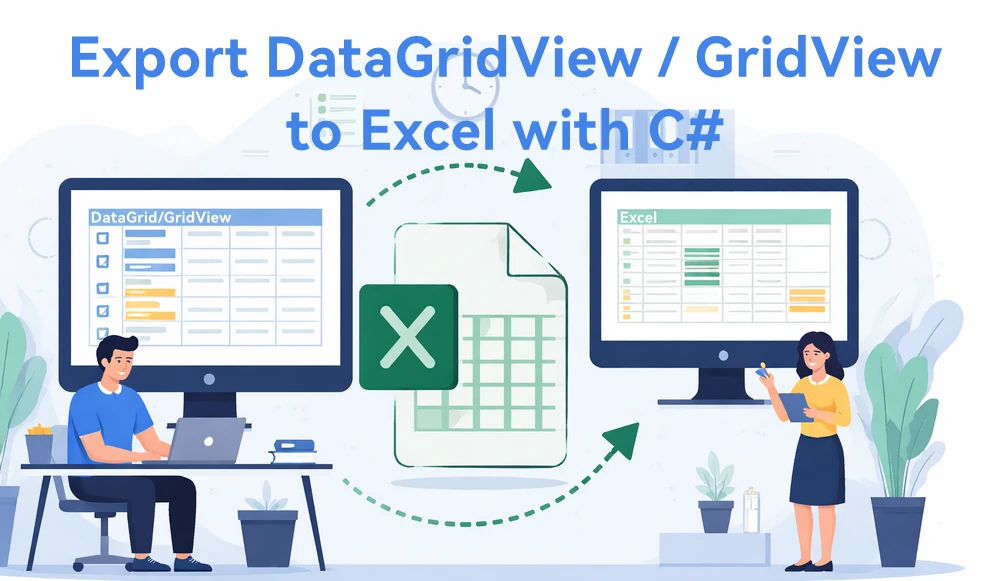
Exporting tabular data from UI controls to Excel is a common requirement in C# applications. In both WinForms and ASP.NET projects, users often need to take the data currently displayed in a DataGrid, DataGridView, or GridView and export it to an Excel file for reporting, sharing, or further processing.
In real-world scenarios, exported Excel files are rarely used as raw data only. Readable layouts, header styles, column widths, and number formats are usually expected as part of the export result.
This article demonstrates how to export DataGridView and GridView/DataGrid data to Excel in C# using Spire.XLS for .NET, without relying on Microsoft Office Interop. The solution focuses on exporting displayed data accurately, keeping the implementation clean, and applying Excel formatting in a consistent and reusable way.
Table of Contents
- Advantages of Programmatic Excel Export in C#
- Core Concept: Export Displayed Data via a DataTable
- Step 1: Extract Displayed Data into a DataTable
- Step 2: Export DataTable to Excel in C#
- Step 3: Apply Formatting to the Exported Excel File
- Performance and Practical Considerations
- Summary
- FAQ
Advantages of Programmatic Excel Export in C#
While Microsoft Office Interop can generate Excel files, using a programmatic approach in C# provides clear benefits for exporting data from DataGrid, DataGridView, or GridView:
- Does not require Microsoft Excel to be installed on the machine
- Suitable for server-side or cloud environments
- Maintains high performance even with large datasets
- Simplifies automation and background export scenarios
By exporting data directly via code, developers can create reliable, maintainable, and scalable Excel exports that work consistently across different application types.
Core Concept: Export Displayed Data via a DataTable
Although DataGrid, DataGridView, and GridView are UI controls, they serve the same fundamental purpose: displaying structured data in rows and columns. Attempting to export these controls directly often leads to UI-dependent logic and maintenance challenges.
A more reliable and reusable workflow is:
Displayed UI data → DataTable → Excel file
In this design:
- The DataTable represents exactly what the user sees
- The Excel export logic remains independent of the UI layer
- The same approach works for WinForms and ASP.NET applications
- Formatting and layout can be applied at the Excel level
The DataTable acts as a clean intermediate structure rather than the final export target, and using Spire.XLS for .NET, DataTable can be easily exported to a well-formatted Excel file.
Step 1: Extract Displayed Data into a DataTable
The first step is to extract the currently displayed data from the UI control into a DataTable. This step focuses on capturing visible rows and columns, not on reconstructing the original data source.
Export Displayed Data from DataGridView (WinForms)
In WinForms applications, users typically expect the DataGridView content to be exported as it appears on screen. The following method converts the displayed DataGridView data into a DataTable:
DataTable ConvertDataGridViewToDataTable(DataGridView dgv)
{
    DataTable dt = new DataTable();

    foreach (DataGridViewColumn column in dgv.Columns)
    {
        dt.Columns.Add(column.HeaderText, column.ValueType ?? typeof(string));
    }

    foreach (DataGridViewRow row in dgv.Rows)
    {
        if (row.IsNewRow) continue;

        DataRow dr = dt.NewRow();
        for (int i = 0; i < dgv.Columns.Count; i++)
        {
            dr[i] = row.Cells[i].Value ?? DBNull.Value;
        }
        dt.Rows.Add(dr);
    }

    return dt;
}
This approach preserves column headers, column order, and displayed values when exporting DataGridView data to Excel in C#.
Export Displayed Data from GridView (ASP.NET)
In ASP.NET applications, GridView controls render tabular data for users to view and interact with. To export the displayed GridView data, the rendered rows can be converted into a DataTable as shown below:
DataTable ConvertGridViewToDataTable(GridView gv)
{
    DataTable dt = new DataTable();

    foreach (TableCell cell in gv.HeaderRow.Cells)
    {
        dt.Columns.Add(cell.Text);
    }

    foreach (GridViewRow row in gv.Rows)
    {
        DataRow dr = dt.NewRow();
        for (int i = 0; i < row.Cells.Count; i++)
        {
            dr[i] = row.Cells[i].Text;
        }
        dt.Rows.Add(dr);
    }

    return dt;
}
This method provides a consistent data structure that can be reused for exporting GridView data to Excel in C#, without introducing UI-specific export logic.
If you need to export data directly from a database to an Excel file, you can refer to this guide: Export Database to Excel in C#.
Step 2: Export DataTable to Excel in C#
Once the displayed data has been extracted into a DataTable, exporting it to Excel becomes a UI-independent operation.
In this example, Spire.XLS for .NET is used to generate Excel files programmatically, without requiring Microsoft Excel to be installed.
Install Spire.XLS for .NET
Spire.XLS for .NET can be installed via NuGet:
Install-Package Spire.XLS
You can also download Spire.XLS for .NET and add it to your project manually.
Basic Excel Export Example
using Spire.Xls;

Workbook workbook = new Workbook();
Worksheet worksheet = workbook.Worksheets[0];

// Import DataTable into Excel, including column headers
worksheet.InsertDataTable(exportTable, true, 1, 1);

// Save the Excel file
workbook.SaveToFile("ExportedData.xlsx", ExcelVersion.Version2016);
Below is a preview of the exported Excel file:
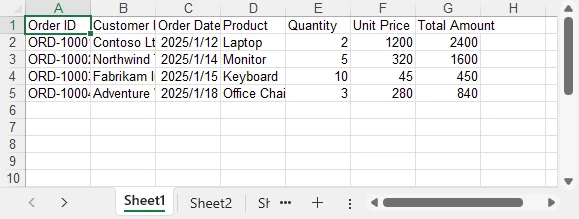
This export logic can be reused for DataGrid, DataGridView, and GridView scenarios without modification.
Step 3: Apply Formatting to the Exported Excel File
Formatting is a common requirement for Excel exports, regardless of how the data was sourced. Applying styles, adjusting column widths, and setting number formats significantly improves the usability of the exported file.
The following example demonstrates common formatting operations that can be applied to any exported Excel worksheet:
CellStyle headerStyle = workbook.Styles.Add("HeaderStyle");
headerStyle.Font.IsBold = true;
headerStyle.Font.Size = 13;
headerStyle.HorizontalAlignment = HorizontalAlignType.Center;
headerStyle.VerticalAlignment = VerticalAlignType.Center;
headerStyle.Color = Color.LightGray;

// Apply header style
CellRange headerRange = worksheet.Range[1, 1, 1, worksheet.AllocatedRange.Rows[0].CellsCount];
headerRange.Style = headerStyle;

// Auto-fit columns
worksheet.AllocatedRange.AutoFitColumns();

// Format date and currency columns
worksheet.Range[$"C2:C{worksheet.AllocatedRange.RowCount}"].NumberFormat = "yyyy-mm-dd";
worksheet.Range[$"F2:G{worksheet.AllocatedRange.RowCount}"].NumberFormat = "$#,##0.00";
Below is a preview of the Excel file after applying formatting:
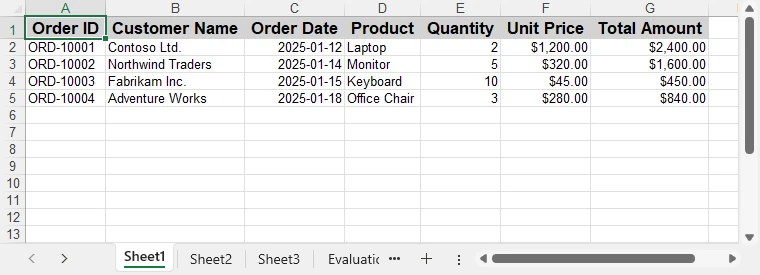
These formatting steps can be combined or extended based on reporting requirements, without changing the data extraction logic.
Spire.XLS for .NET also supports more Excel formatting features, such as conditional formatting, charts, and more. You can check How to Create Excel Files in C# for more formating options.
Performance and Practical Considerations
When exporting large DataGrid or GridView datasets:
- Run export operations asynchronously in desktop applications
- Avoid blocking the UI thread during Excel generation
- Export only necessary or visible columns
- Generate Excel files server-side in ASP.NET applications
Because the export process operates on a DataTable rather than UI elements, it remains maintainable and scalable as data volume increases.
Summary
Exporting DataGrid, DataGridView, or GridView data to Excel in C# does not require Microsoft Office Interop. By extracting the displayed data into a DataTable and generating Excel files programmatically, developers can implement reliable and reusable Excel export functionality.
With consistent formatting support and a clear separation between UI and export logic, this approach works well for real-world reporting scenarios in both desktop and web applications. For evaluating the library or testing export functionality, you can apply for a temporary license.
FAQ
Q1: How can I export DataGridView data to Excel in C#?
A1: You can extract the displayed data from a DataGridView into a DataTable and then use Spire.XLS for .NET to generate an Excel file programmatically, without relying on Microsoft Excel.
Q2: Can I apply formatting when exporting GridView to Excel in C#?
A2: Yes, Spire.XLS allows you to apply styles, adjust column widths, and set number formats to any exported Excel worksheet, ensuring readable and professional-looking reports.
Q3: Do I need Microsoft Excel installed to export DataGrid or GridView data in C#?
A3: No. By using a programmatic library like Spire.XLS, Excel files can be generated directly from DataTable objects without requiring Excel on the machine, making it suitable for server-side and cloud applications.
Como contar células com texto no Excel: Um guia completo

Gerenciar planilhas enormes muitas vezes parece procurar uma agulha num palheiro. Esteja você limpando dados brutos ou preparando um resumo financeiro, uma das tarefas mais fundamentais é saber como contar células com texto no Excel. Embora pareça simples, a presença de números, espaços ocultos e strings vazias geradas por fórmulas pode facilmente levar a resultados imprecisos. Neste guia, detalharemos as fórmulas mais confiáveis do Excel para contagem de texto e mostraremos como automatizar essas soluções sem esforço.
- Fórmulas Essenciais do Excel para Contar Células com Texto
- Contar Células com Texto no Microsoft Excel
- Contar Células com Texto no Excel Automaticamente
- Lidando com Casos Especiais: Armadilhas Comuns
Conceitos Essenciais: Fórmulas Essenciais do Excel para Contar Células com Texto
Para dominar a validação de dados, primeiro você precisa entender a mecânica da função CONT.SE. É a ferramenta mais intuitiva quando se trata de contar células com texto em um arquivo do Excel, mas seu verdadeiro poder reside em como você define seus critérios.
A Base: Usando CONT.SE para Contagem Rápida
A sintaxe básica, =CONT.SE(intervalo, critérios), permite que você examine um conjunto de dados em busca de padrões específicos. Ao lidar com texto genérico, usamos curingas para dizer ao Excel exatamente o que se qualifica como "conteúdo".
Quatro Cenários Comuns para Contar Texto
Os arquivos do Excel geralmente contêm vários tipos de dados, então você pode precisar usar uma ou mais das quatro abordagens especializadas a seguir:
Cenário 1: A Maneira Padrão (Texto Geral)
- Fórmula:
=CONT.SE(intervalo, "*") - Análise: Esta é a fórmula mais comum do Excel para contar células com texto. O asterisco (*) atua como um curinga que corresponde a qualquer string de texto, então apenas os valores de texto são contados, por exemplo, células contendo "Maçã", "Banana", ou "Texto123" serão incluídas, enquanto células com apenas números são excluídas.
Cenário 2: A Maneira de Limpeza de Dados (Excluindo Pseudo-Brancos)
- Fórmula:
=CONT.SES(intervalo, "*", intervalo, "<> ") - Análise: Algumas células podem parecer vazias, mas na verdade contêm um único caractere de espaço. Ao combinar vários critérios com
CONT.SES, esta fórmula conta as células que contêm texto, excluindo os valores que são exatamente um espaço. Por exemplo, entradas como "Maçã" ou "Texto123" são incluídas, enquanto as células que contêm " " são ignoradas. No entanto, essa abordagem não exclui células que contêm dois ou mais espaços, portanto, pode ser combinada com outras fórmulas para resultados mais precisos.
Cenário 3: A Maneira Técnica (Apenas Texto Estrito)
- Fórmula:
=SOMARPRODUTO(--ÉTEXTO(intervalo)) - Análise: Quando uma planilha contém uma mistura de datas, valores de erro (#N/A) e valores lógicos (VERDADEIRO/FALSO), ÉTEXTO fornece uma maneira estrita de identificar texto. Ele verifica o tipo de dados subjacente em vez dos caracteres exibidos, então valores como "Maçã" ou "Texto123" são contados, enquanto datas, booleanos e erros são excluídos.
Cenário 4: A Maneira Avançada (Substrings Específicas)
- Fórmula:
=CONT.SE(intervalo, "*palavra-chave*") - Análise: Essa abordagem é útil para análise de logs ou marcação de palavras-chave. Usando curingas em ambos os lados, a fórmula conta as células que contêm uma substring específica em qualquer lugar do texto, por exemplo, valores como "erro_404" ou "erro_login" são incluídos ao pesquisar por "erro".
Como Contar Células com Texto no Microsoft Excel
Usar essas fórmulas diretamente no Excel oferece várias vantagens práticas. A maioria dos usuários já tem o Excel instalado e está familiarizada com sua interface, o que facilita a inserção de fórmulas, a navegação em planilhas e a validação rápida de resultados. A aplicação da Formatação Condicional pode servir como uma verificação visual, ajudando a verificar quais células atendem aos critérios de texto.
Passos para Contar Texto no Excel Usando CONT.SE
-
Selecione um intervalo, por exemplo, B1:B10.
-
Insira a fórmula apropriada em qualquer célula em branco:
=CONT.SE(B1:B10, "*")=CONT.SE(B1:B10, "*palavra-chave*")(opcional)=CONT.SES(B1:B10, "*", B1:B10, "<> ")(opcional)
-
Pressione Enter e a célula mostrará o resultado da contagem.
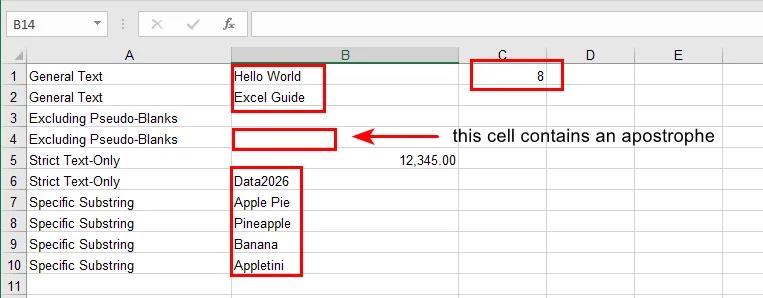
Dica: Se você quiser ver quais células são contadas, pode usar a formatação condicional com uma fórmula como =ÉTEXTO(B1) para destacar as células de texto. Isso facilita a identificação visual das entradas contadas.
Como Contar Células com Texto no Excel Automaticamente Usando o Free Spire.XLS
A formatação manual é boa para tarefas únicas, mas e se você tiver 500 pastas de trabalho? É aqui que o Free Spire.XLS se destaca. Ele permite que você injete essas lógicas profissionais de contagem de texto diretamente em seus arquivos do Excel programaticamente.
Por que Automatizar?
A automação elimina o erro humano e economiza horas de cliques repetitivos. Com o Free Spire.XLS, você pode aplicar fórmulas complexas de contagem em células do Excel com lógica de texto em milhares de linhas em segundos.
Implementação Passo a Passo (Exemplo em Python)
O Free Spire.XLS facilita a aplicação de fórmulas CONT.SE programaticamente. Neste exemplo, contamos o número de células de texto em um intervalo especificado e gravamos o resultado diretamente na planilha.
from spire.xls import *

# Create a Workbook and load an Excel file
workbook = Workbook()
workbook.LoadFromFile("/sample.xlsx")

# Get the first worksheet
sheet = workbook.Worksheets[0]

# Specify the cell range for counting
source_range = "B1:B10"

# Count cells with text using COUNTIF
sheet.Range["D1"].Text = "Total de Células de Texto:"
sheet.Range["E1"].Formula = f'=COUNTIF({source_range}, "*")'

# Save the modified Excel file
workbook.SaveToFile("/Text_Count_Simple.xlsx", ExcelVersion.Version2016)
workbook.Dispose()
Aqui está o resultado da contagem:
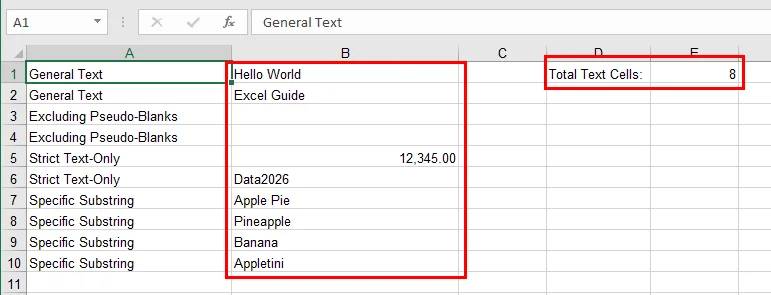
Lidando com Casos Especiais: Armadilhas Comuns
Até mesmo usuários experientes do Excel podem ser enganados por peculiaridades sutis de dados. Ao contar texto com CONT.SE, tenha em mente os seguintes pontos:
- Strings Vazias:
Células contendo fórmulas como ="" retornam strings vazias em vez de espaços em branco verdadeiros. Embora CONT.SE(intervalo, "*") não conte essas células, elas ainda podem causar confusão ao inspecionar visualmente os dados ou ao usar funções como CONT.VALORES. Se necessário, NÚM.CARACT(A2)>0 pode ser usado para testar explicitamente texto não vazio.
- Caracteres Ocultos:
Dados copiados de páginas da web ou sistemas externos geralmente incluem espaços não quebráveis (CARACT(160)), que não são removidos por ARRUMAR(). Nesses casos, combinar SUBSTITUIR(A2, CARACT(160), "") com ARRUMAR() ajuda a garantir que apenas o texto significativo seja contado. Você também pode achar útil converter números em texto no Excel ao preparar dados para uma contagem consistente.
- Intervalos Incorretos:
Resultados contados incorretamente são frequentemente causados pela seleção do intervalo de células errado, em vez do uso de uma fórmula incorreta. Sempre verifique novamente as células inicial e final, especialmente ao comparar resultados manuais do Excel com saídas automatizadas.
- Desempenho:
O uso de fórmulas internas do Excel, como CONT.SE, permite que o Free Spire.XLS dependa do mecanismo de fórmulas nativo do Excel para o cálculo. Essa abordagem é significativamente mais eficiente do que iterar por cada célula no código para avaliar seu valor, especialmente ao trabalhar com planilhas grandes.
Conclusão
Aprender a contar células com texto no Excel é uma pequena habilidade que gera enormes dividendos na precisão dos dados. Ao passar de fórmulas manuais para a automação com o Free Spire.XLS, você transforma uma tarefa tediosa em um fluxo de trabalho escalável e sem erros. Esteja você gerenciando listas simples ou bancos de dados complexos, essas ferramentas garantem que suas percepções sejam sempre baseadas em dados limpos e bem categorizados.
Pronto para levar seu jogo de planilhas para o próximo nível? Experimente o Free Spire.XLS e comece a automatizar sua validação de dados com facilidade!
Leia Também
엑셀에서 텍스트가 있는 셀 개수 세기: 완벽 가이드
방대한 스프레드시트를 관리하는 것은 종종 건초 더미에서 바늘을 찾는 것처럼 느껴집니다. 원시 데이터를 정리하든 재무 요약을 준비하든 가장 기본적인 작업 중 하나는 Excel에서 텍스트가 포함된 셀을 계산하는 방법을 아는 것입니다. 간단하게 들릴 수 있지만 숫자, 숨겨진 공백, 수식으로 생성된 빈 문자열이 있으면 쉽게 부정확한 결과를 초래할 수 있습니다. 이 가이드에서는 텍스트 계산을 위한 가장 신뢰할 수 있는 Excel 수식을 분석하고 이러한 솔루션을 손쉽게 자동화하는 방법을 보여줍니다.
- 텍스트가 포함된 셀을 계산하는 필수 Excel 수식
- Microsoft Excel에서 텍스트가 포함된 셀 계산
- Excel에서 텍스트가 포함된 셀 자동 계산
- 엣지 케이스 처리: 일반적인 함정
핵심 개념: 텍스트가 포함된 셀을 계산하는 필수 Excel 수식
데이터 유효성 검사를 마스터하려면 먼저 COUNTIF 함수의 메커니즘을 이해해야 합니다. Excel 파일에서 텍스트가 포함된 셀을 계산할 때 가장 직관적인 도구이지만 진정한 강점은 기준을 정의하는 방법에 있습니다.
기초: 빠른 계산을 위한 COUNTIF 사용
기본 구문인 =COUNTIF(range, criteria)를 사용하면 특정 패턴에 대한 데이터 세트를 스캔할 수 있습니다. 일반 텍스트를 다룰 때 와일드카드를 사용하여 Excel에 "콘텐츠"로 간주되는 항목을 정확히 알려줍니다.
텍스트 계산을 위한 네 가지 일반적인 시나리오
Excel 파일에는 여러 유형의 데이터가 포함되어 있는 경우가 많으므로 다음 네 가지 특수 접근 방식 중 하나 이상을 사용해야 할 수 있습니다.
시나리오 1: 표준 방식 (일반 텍스트)
- 수식:
=COUNTIF(range, "*") - 분석: 이것은 텍스트가 포함된 셀을 계산하는 가장 일반적인 Excel 수식입니다. 별표(*)는 모든 텍스트 문자열과 일치하는 와일드카드 역할을 하므로 텍스트 값만 계산됩니다. 예를 들어 "Apple", "Banana" 또는 "Text123"을 포함하는 셀은 포함되지만 숫자만 있는 셀은 제외됩니다.
시나리오 2: 데이터 정리 방식 (유사 공백 제외)
- 수식:
=COUNTIFS(range, "*", range, "<> ") - 분석: 일부 셀은 비어 있는 것처럼 보이지만 실제로는 단일 공백 문자를 포함할 수 있습니다. 여러 기준을
COUNTIFS와 결합하여 이 수식은 정확히 하나의 공백인 값을 제외하면서 텍스트가 포함된 셀을 계산합니다. 예를 들어 "Apple" 또는 "Text123"과 같은 항목은 포함되지만 " "를 포함하는 셀은 무시됩니다. 그러나 이 접근 방식은 두 개 이상의 공백을 포함하는 셀을 제외하지 않으므로 보다 정확한 결과를 위해 다른 수식과 결합할 수 있습니다.
시나리오 3: 기술적 방식 (엄격한 텍스트 전용)
- 수식:
=SUMPRODUCT(--ISTEXT(range)) - 분석: 워크시트에 날짜, 오류 값(#N/A) 및 논리 값(TRUE/FALSE)이 혼합되어 있는 경우 ISTEXT는 텍스트를 식별하는 엄격한 방법을 제공합니다. 표시된 문자가 아닌 기본 데이터 유형을 확인하므로 "Apple" 또는 "Text123"과 같은 값은 계산되지만 날짜, 부울 및 오류는 제외됩니다.
시나리오 4: 고급 방식 (특정 하위 문자열)
- 수식:
=COUNTIF(range, "*keyword*") - 분석: 이 접근 방식은 로그 분석이나 키워드 태깅에 유용합니다. 양쪽에 와일드카드를 사용하면 수식은 텍스트 내 어디에서나 특정 하위 문자열을 포함하는 셀을 계산합니다. 예를 들어 "error"를 검색할 때 "error_404" 또는 "login_error"와 같은 값이 포함됩니다.
Microsoft Excel에서 텍스트가 포함된 셀을 계산하는 방법
이러한 수식을 Excel에서 직접 사용하면 몇 가지 실용적인 이점이 있습니다. 대부분의 사용자는 이미 Excel을 설치했으며 인터페이스에 익숙하므로 수식을 쉽게 입력하고, 시트를 탐색하고, 결과를 신속하게 확인할 수 있습니다. 조건부 서식을 적용하면 시각적 온전성 검사 역할을 하여 텍스트 기준을 충족하는 셀을 확인하는 데 도움이 될 수 있습니다.
COUNTIF를 사용하여 Excel에서 텍스트를 계산하는 단계
-
예를 들어 B1:B10과 같은 범위를 선택합니다.
-
=COUNTIF(B1:B10, "*")=COUNTIF(B1:B10, "*keyword*")(선택 사항)=COUNTIFS(B1:B10, "*", B1:B10, "<> ")(선택 사항)
-
Enter 키를 누르면 셀에 계산 결과가 표시됩니다.
팁: 계산된 셀을 보려면 =ISTEXT(B1)과 같은 수식과 함께 조건부 서식을 사용하여 텍스트 셀을 강조 표시할 수 있습니다. 이렇게 하면 계산된 항목을 시각적으로 쉽게 식별할 수 있습니다.
Free Spire.XLS를 사용하여 Excel에서 텍스트가 포함된 셀을 자동으로 계산하는 방법
수동 서식은 일회성 작업에는 적합하지만 500개의 통합 문서가 있다면 어떨까요? 이것이 바로 Free Spire.XLS가 빛을 발하는 부분입니다. 이러한 전문적인 텍스트 계산 논리를 프로그래밍 방식으로 Excel 파일에 직접 주입할 수 있습니다.
자동화하는 이유?
자동화는 인적 오류를 제거하고 반복적인 클릭 시간을 절약합니다. Free Spire.XLS를 사용하면 수천 개의 행에 걸쳐 텍스트 논리가 있는 Excel 셀에 복잡한 계산 수식을 몇 초 만에 적용할 수 있습니다.
단계별 구현 (Python 예제)
Free Spire.XLS를 사용하면 프로그래밍 방식으로 COUNTIF 수식을 쉽게 적용할 수 있습니다. 이 예에서는 지정된 범위의 텍스트 셀 수를 계산하고 결과를 워크시트에 직접 씁니다.
from spire.xls import *

# Create a Workbook and load an Excel file
workbook = Workbook()
workbook.LoadFromFile("/sample.xlsx")

# Get the first worksheet
sheet = workbook.Worksheets[0]

# Specify the cell range for counting
source_range = "B1:B10"

# Count cells with text using COUNTIF
sheet.Range["D1"].Text = "총 텍스트 셀:"
sheet.Range["E1"].Formula = f'=COUNTIF({source_range}, "*")'

# Save the modified Excel file
workbook.SaveToFile("/Text_Count_Simple.xlsx", ExcelVersion.Version2016)
workbook.Dispose()
계산 결과는 다음과 같습니다.
엣지 케이스 처리: 일반적인 함정
숙련된 Excel 사용자라도 미묘한 데이터 문제에 걸려 넘어질 수 있습니다. COUNTIF로 텍스트를 계산할 때 다음 사항을 염두에 두십시오.
- 빈 문자열:
=""와 같은 수식이 포함된 셀은 실제 공백이 아닌 빈 문자열을 반환합니다. COUNTIF(range, "*")는 이러한 셀을 계산하지 않지만 데이터를 시각적으로 검사하거나 COUNTA와 같은 함수를 사용할 때 여전히 혼동을 일으킬 수 있습니다. 필요한 경우 LEN(A2)>0을 사용하여 비어 있지 않은 텍스트를 명시적으로 테스트할 수 있습니다.
- 숨겨진 문자:
웹 페이지나 외부 시스템에서 복사한 데이터에는 종종 TRIM()으로 제거되지 않는 줄 바꿈 없는 공백(CHAR(160))이 포함됩니다. 이러한 경우 SUBSTITUTE(A2, CHAR(160), "")와 TRIM()을 결합하면 의미 있는 텍스트만 계산되도록 할 수 있습니다. 일관된 계산을 위해 데이터를 준비할 때 Excel에서 숫자를 텍스트로 변환하는 것이 유용할 수도 있습니다.
- 잘못된 범위:
잘못 계산된 결과는 잘못된 수식을 사용하는 것보다 잘못된 셀 범위를 선택하여 발생하는 경우가 많습니다. 특히 수동 Excel 결과를 자동화된 출력과 비교할 때 시작 셀과 끝 셀을 항상 다시 확인하십시오.
- 성능:
COUNTIF와 같은 내장 Excel 수식을 사용하면 Free Spire.XLS가 계산을 위해 Excel의 기본 수식 엔진에 의존할 수 있습니다. 이 접근 방식은 특히 대규모 워크시트로 작업할 때 코드의 각 셀을 반복하여 값을 평가하는 것보다 훨씬 효율적입니다.
결론
Excel에서 텍스트가 포함된 셀을 계산하는 방법을 배우는 것은 데이터 정확성에서 막대한 이익을 창출하는 작은 기술입니다. 수동 수식에서 Free Spire.XLS 자동화로 전환하면 지루한 작업을 확장 가능하고 오류 없는 워크플로로 전환할 수 있습니다. 간단한 목록을 관리하든 복잡한 데이터베이스를 관리하든 이러한 도구를 사용하면 항상 깨끗하고 잘 분류된 데이터를 기반으로 통찰력을 얻을 수 있습니다.
스프레드시트 게임을 한 단계 더 발전시킬 준비가 되셨습니까? Free Spire.XLS를 사용해보고 데이터 유효성 검사를 손쉽게 자동화해 보세요!
함께 읽기
Come contare le celle con testo in Excel: Guida completa
La gestione di fogli di calcolo enormi sembra spesso come cercare un ago in un pagliaio. Che si tratti di pulire dati grezzi o preparare un riepilogo finanziario, uno dei compiti più fondamentali è sapere come contare le celle con testo in Excel. Anche se sembra semplice, la presenza di numeri, spazi nascosti e stringhe vuote generate da formule può facilmente portare a risultati imprecisi. In questa guida, analizzeremo le formule di Excel più affidabili per il conteggio del testo e ti mostreremo come automatizzare queste soluzioni senza sforzo.
- Formule Essenziali di Excel per Contare le Celle con Testo
- Contare le Celle con Testo in Microsoft Excel
- Contare Automaticamente le Celle con Testo in Excel
- Gestire i Casi Limite: Errori Comuni
Concetti Fondamentali: Formule Essenziali di Excel per Contare le Celle con Testo
Per padroneggiare la convalida dei dati, è necessario prima comprendere i meccanismi della funzione CONTA.SE. È lo strumento più intuitivo quando si tratta di contare le celle con testo in un file Excel, ma la sua vera potenza risiede nel modo in cui si definiscono i criteri.
Le Basi: Usare CONTA.SE per un Conteggio Rapido
La sintassi di base, =COUNTIF(range, criteria), consente di analizzare un set di dati per modelli specifici. Quando si ha a che fare con testo generico, usiamo i caratteri jolly per dire a Excel esattamente cosa si qualifica come "contenuto".
Quattro Scenari Comuni per il Conteggio del Testo
I file Excel contengono spesso più tipi di dati, quindi potrebbe essere necessario utilizzare uno o più dei seguenti quattro approcci specializzati:
Scenario 1: Il Modo Standard (Testo Generale)
- Formula:
=COUNTIF(range, "*") - Analisi: Questa è la formula di Excel più comune per contare le celle con testo. L'asterisco (*) funge da carattere jolly che corrisponde a qualsiasi stringa di testo, quindi vengono contati solo i valori di testo, ad esempio, le celle contenenti "Mela", "Banana" o "Testo123" saranno incluse, mentre le celle con solo numeri sono escluse.
Scenario 2: Il Modo per la Pulizia dei Dati (Escludendo gli Pseudo-Vuoti)
- Formula:
=COUNTIFS(range, "*", range, "<> ") - Analisi: Alcune celle possono sembrare vuote ma in realtà contengono un singolo carattere di spazio. Combinando più criteri con
COUNTIFS, questa formula conta le celle che contengono testo escludendo i valori che sono esattamente uno spazio. Ad esempio, voci come "Mela" o "Testo123" sono incluse, while cells containing " " are ignored. However, this approach does not exclude cells that contain two or more spaces, so it can be combined with other formulas for more precise results.
Scenario 3: Il Modo Tecnico (Solo Testo Stretto)
- Formula:
=SUMPRODUCT(--ISTEXT(range)) - Analisi: Quando un foglio di lavoro contiene un mix di date, valori di errore (#N/D), e valori logici (VERO/FALSO), VAL.TESTO fornisce un modo rigoroso per identificare il testo. Controlla il tipo di dati sottostante anziché i caratteri visualizzati, quindi valori come "Mela" o "Testo123" vengono contati, mentre date, booleani ed errori vengono esclusi.
Scenario 4: Il Modo Avanzato (Sottostringhe Specifiche)
- Formula:
=COUNTIF(range, "*keyword*") - Analisi: Questo approccio è utile per l'analisi dei log o l'etichettatura di parole chiave. Utilizzando caratteri jolly su entrambi i lati, la formula conta le celle che contengono una sottostringa specifica in qualsiasi punto del testo, ad esempio, valori come "errore_404" o "errore_login" vengono inclusi durante la ricerca di "errore".
Come Contare le Celle con Testo in Microsoft Excel
L'utilizzo di queste formule direttamente in Excel offre diversi vantaggi pratici. La maggior parte degli utenti ha già Excel installato e ha familiarità con la sua interfaccia, il che rende facile inserire formule, navigare tra i fogli e convalidare rapidamente i risultati. L'applicazione della Formattazione Condizionale può servire come controllo visivo di integrità, aiutandoti a verificare quali celle soddisfano i criteri del testo.
Passaggi per Contare il Testo in Excel Usando CONTA.SE
-
Seleziona un intervallo, ad esempio, B1:B10.
-
Inserisci la formula appropriata in una cella vuota:
=COUNTIF(B1:B10, "*")=COUNTIF(B1:B10, "*keyword*")(opzionale)=COUNTIFS(B1:B10, "*", B1:B10, "<> ")(opzionale)
-
Premi Invio e la cella mostrerà il risultato del conteggio.
Suggerimento: se vuoi vedere quali celle vengono contate, puoi usare la formattazione condizionale con una formula come =ISTEXT(B1) per evidenziare le celle di testo. Ciò rende facile identificare visivamente le voci contate.
Come Contare Automaticamente le Celle con Testo in Excel Usando Free Spire.XLS
La formattazione manuale va bene per compiti occasionali, ma cosa succede se hai 500 cartelle di lavoro? È qui che Free Spire.XLS eccelle. Ti consente di inserire queste logiche professionali di conteggio del testo direttamente nei tuoi file Excel in modo programmatico.
Perché Automatizzare?
L'automazione elimina l'errore umano e fa risparmiare ore di clic ripetitivi. Con Free Spire.XLS, puoi applicare formule di conteggio complesse nelle celle di Excel con logica di testo su migliaia di righe in pochi secondi.
Implementazione Passo-Passo (Esempio Python)
Free Spire.XLS rende facile applicare le formule CONTA.SE in modo programmatico. In questo esempio, contiamo il numero di celle di testo in un intervallo specificato e scriviamo il risultato direttamente nel foglio di lavoro.
from spire.xls import *

# Create a Workbook and load an Excel file
workbook = Workbook()
workbook.LoadFromFile("/sample.xlsx")

# Get the first worksheet
sheet = workbook.Worksheets[0]

# Specify the cell range for counting
source_range = "B1:B10"

# Count cells with text using COUNTIF
sheet.Range["D1"].Text = "Total Text Cells:"
sheet.Range["E1"].Formula = f'=COUNTIF({source_range}, "*")'

# Save the modified Excel file
workbook.SaveToFile("/Text_Count_Simple.xlsx", ExcelVersion.Version2016)
workbook.Dispose()
Ecco il risultato del conteggio:
Gestire i Casi Limite: Errori Comuni
Anche gli utenti esperti di Excel possono essere ingannati da sottili stranezze dei dati. Quando si conta il testo con CONTA.SE, tenere a mente i seguenti punti:
- Stringhe Vuote:
Le celle che contengono formule come ="" restituiscono stringhe vuote anziché veri spazi vuoti. Sebbene COUNTIF(range, "*") non conti queste celle, possono comunque creare confusione durante l'ispezione visiva dei dati o quando si utilizzano funzioni come COUNTA. Se necessario, LEN(A2)>0 può essere utilizzato per verificare esplicitamente la presenza di testo non vuoto.
- Caratteri Nascosti:
I dati copiati da pagine web o sistemi esterni includono spesso spazi non divisibili (CODICE.CARATT(160)), che non vengono rimossi da TRIM(). In tali casi, la combinazione di SUBSTITUTE(A2, CHAR(160), "") con TRIM() aiuta a garantire che venga contato solo il testo significativo. Potresti anche trovare utile convertire i numeri in testo in Excel durante la preparazione dei dati per un conteggio coerente.
- Intervalli Errati:
Risultati di conteggio errati sono spesso causati dalla selezione dell'intervallo di celle sbagliato piuttosto che dall'uso di una formula errata. Controlla sempre due volte le celle di inizio e fine, specialmente quando si confrontano i risultati manuali di Excel con gli output automatizzati.
- Prestazioni:
L'utilizzo di formule Excel integrate come COUNTIF consente a Free Spire.XLS di fare affidamento sul motore di formule nativo di Excel per il calcolo. Questo approccio è significativamente più efficiente rispetto all'iterazione di ogni cella nel codice per valutarne il valore, in particolare quando si lavora con fogli di lavoro di grandi dimensioni.
Conclusione
Imparare a contare le celle con testo in Excel è una piccola abilità che produce enormi dividendi in termini di accuratezza dei dati. Passando dalle formule manuali all'automazione di Free Spire.XLS, trasformi un compito noioso in un flusso di lavoro scalabile e privo di errori. Che tu stia gestendo semplici elenchi o database complessi, questi strumenti assicurano che le tue intuizioni si basino sempre su dati puliti e ben classificati.
Pronto a portare il tuo gioco con i fogli di calcolo al livello successivo? Prova Free Spire.XLS e inizia ad automatizzare la convalida dei dati con facilità!