When you're working with reports, contracts, invoices, or project documentation, it's common to end up with several Word files that need to be shared as a single PDF. Combining them into one document not only makes distribution easier but also keeps the content organized and professional.
Fortunately, there are several ways to accomplish this task. Some methods are ideal for occasional use, while others are better suited for batch processing or automated workflows.
In this guide, we'll explore four practical methods to combine multiple Word documents into a single PDF, ranging from Microsoft Word and online tools to desktop software and C# automation.
Methods covered:
- Method 1. Merge Word Documents in MS Word and Save as PDF
- Method 2. Combine Word Files into One PDF Online
- Method 3. Combine Word Files into One PDF with PDF24 Toolbox
- Method 4. Merge Word Files into One PDF in C#
Method 1. Merge Word Documents in MS Word and Save as PDF
If you only need to combine a few documents occasionally, Microsoft Word provides a built-in solution without requiring additional software. You can insert multiple Word documents into one master document and then export the final result as a PDF.
This method preserves most formatting and is easy to follow, making it a good choice for personal or office use.
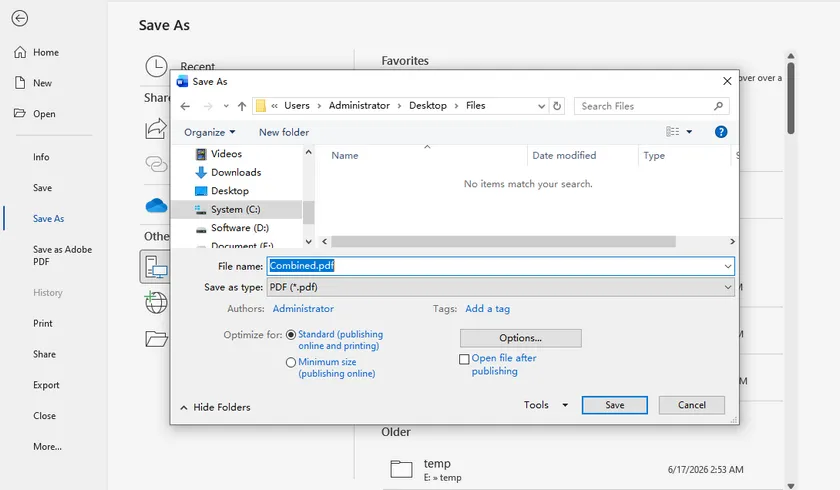
Steps
- Open the Word document that will become the main document.
- Place the cursor where you want to insert another document.
- Select Insert > Object > Text from File.
- Choose the Word files you want to insert.
- Repeat until all documents have been added.
- Click File > Save As or Export.
- Select PDF as the output format and save the file.
Pros
- No additional software required
- Keeps original formatting well
- Suitable for small numbers of documents
Cons
- Documents must be inserted manually
- Not practical for large batches
- No automation support
Method 2. Combine Word Files into One PDF Online
If you don't have Microsoft Word installed or simply want a quick solution, an online document merger can be a convenient alternative. These services work directly in your browser, allowing you to upload multiple Word files and download a merged PDF within minutes.
Online tools are especially useful when you're using a shared computer or only need to merge documents occasionally. However, they may impose file size limits and aren't recommended for confidential documents.
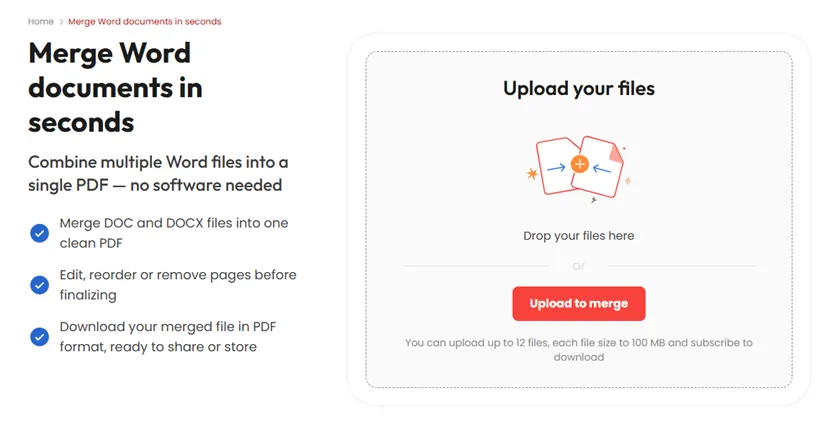
Steps
- Open the Word Merge page (https://pdfaid.com/word-to-merge) on PDFaid.
- Upload all Word documents.
- Arrange the files in the desired order.
- Start the merging process.
- Download the merged PDF.
Pros
- No software installation
- Works on any operating system
- Simple and beginner-friendly
Cons
- Requires an internet connection
- Upload speed depends on file size
- Not ideal for sensitive documents
Method 3. Combine Word Files into One PDF with PDF24 Toolbox
If you frequently work with documents on Windows, PDF24 Toolbox offers a convenient desktop solution. Unlike many PDF utilities, it allows you to load multiple Word documents and combine them directly into a single PDF without first converting each file individually.
Because everything is processed locally, PDF24 Toolbox is also a better choice for documents that shouldn't be uploaded to online services.
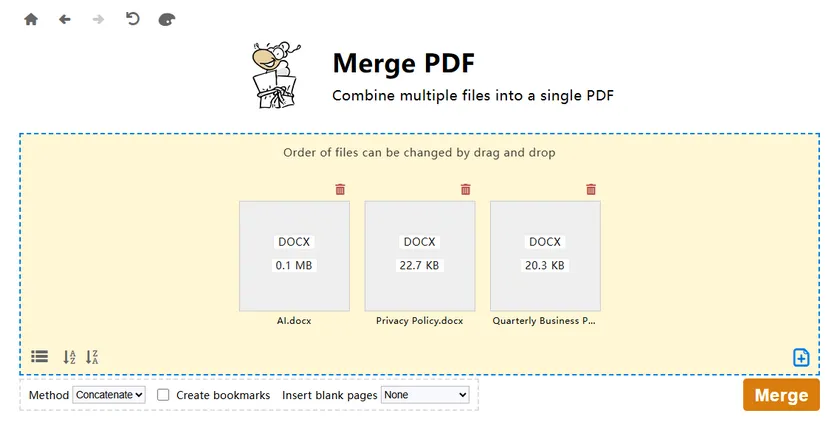
Steps
- Launch PDF24 Toolbox.
- Open the Merge PDF tool.
- Add all Word documents.
- Arrange them in the desired order.
- Click Create PDF .
- Save the merged PDF document.
Pros
- Completely offline
- Free to use
- Supports batch processing
- Better privacy than online tools
Cons
- Windows desktop only
- Requires software installation
Method 4. Merge Word Documents into One PDF in C#
For developers or organizations that regularly generate PDF documents, automating the merging process can save considerable time. Instead of manually combining files, you can load every Word document from a folder, merge them programmatically, and export the final document as a PDF.
Using Spire.Doc for .NET , the entire process requires only a few lines of code while preserving document formatting, images, tables, headers, footers, and other layout elements. It's an ideal solution for report generation, document archiving, and other server-side workflows.
Install Spire.Doc for .NET
PM> Install-Package Spire.Doc
C# Code
using System.IO;
using System.Linq;
using Spire.Doc;

namespace MergeWordFolder
{
    class Program
    {
        static void Main(string[] args)
        {
            // Create the destination document
            Document mergedDocument = new Document();

            // Get all Word files from the folder
            string folderPath = @"Documents";
            string[] files = Directory.GetFiles(folderPath, "*.docx")
                                      .OrderBy(f => f)
                                      .ToArray();

            // Load the first document
            mergedDocument.LoadFromFile(files[0], FileFormat.Docx);

            // Append the remaining documents
            for (int i = 1; i < files.Length; i++)
            {
                mergedDocument.InsertTextFromFile(files[i], FileFormat.Docx);
            }

            // Save as PDF
            mergedDocument.SaveToFile("MergedDocument.pdf", FileFormat.PDF);
        }
    }
}
Why use this approach?
Compared with manual methods, this solution is much more scalable. You can merge dozens or even hundreds of Word documents automatically without user intervention. Since the files are loaded directly from a folder, it's also easy to integrate the code into scheduled tasks, desktop applications, web services, or document management systems.
In addition, Spire.Doc provides many customization options beyond simple merging. For example, you can sort files before merging, adjust page size, add watermarks, protect the generated PDF with passwords, or further process the document after it has been created.
Comparison of the Four Methods
| Method | Installation | Offline | Batch Processing | Best For |
|---|---|---|---|---|
| Microsoft Word | No | Yes | No | Occasional document merging |
| Online Tool | No | No | Limited | Quick one-time tasks |
| PDF24 Toolbox | Yes | Yes | Yes | Frequent desktop users |
| C# + Spire.Doc | Yes | Yes | Excellent | Developers and automation |
Conclusion
Choosing the right method depends on how often you need to combine Word documents.
If you only merge a few files from time to time, Microsoft Word or an online tool will usually be sufficient. If you prefer an offline desktop application, PDF24 Toolbox offers a simple and free solution.
For repetitive tasks, batch processing, or enterprise applications, a C# solution with Spire.Doc for .NET provides the greatest flexibility. By automatically loading all Word documents from a folder, merging them, and exporting the result as a single PDF, it can significantly improve productivity while eliminating repetitive manual work.
FAQs
Can I combine multiple Word documents into one PDF without Microsoft Word?
Yes. You can use an online document merger or desktop software such as PDF24 Toolbox to combine multiple Word files into a single PDF without installing Microsoft Word. These tools are convenient for occasional use, although online services may require uploading your documents to a remote server.
Will the formatting change after merging Word documents?
In most cases, the original formatting—including fonts, images, tables, page orientation, headers, and footers—is preserved. However, the final appearance also depends on the tool you use. Dedicated Word processing libraries, such as Spire.Doc for .NET, generally provide more consistent formatting than browser-based converters.
How can I merge dozens of Word files automatically?
If you need to merge documents on a regular basis, using a programming solution is the most efficient approach. For example, with Spire.Doc for .NET, you can load all Word documents from a folder, merge them in a specified order, and export the combined document as a single PDF with just a few lines of C# code.
Is there a limit to how many Word documents I can merge?
The limit depends on the software or service you use. Microsoft Word and desktop applications are generally constrained only by your system's available memory and processing power, while online tools often impose restrictions on the number of files, total file size, or document length. For large-scale document processing, a desktop or programmatic solution is usually the more reliable choice.