Converting a Word document (DOCX) to an Excel spreadsheet (XLSX) is a common requirement in office automation, data processing, and reporting workflows. Many users want to reuse tables stored in Word files, while others expect a direct document-to-spreadsheet conversion with minimal effort.
However, Word and Excel are designed for very different purposes. Word focuses on free-form document layout, while Excel is built around structured, tabular data. Understanding this difference is key to choosing the right DOCX to XLSX conversion method.
In this guide, you’ll learn how to convert DOCX to XLSX using online tools, desktop solutions, and Python automation, along with the advantages and limitations of each approach.
Quick Navigation
- Can You Really Convert a Word (DOCX) File to Excel (XLSX)?
- Method 1: Convert DOCX to XLSX Online
- Method 2: Convert Word Content to Excel Using Desktop Software
- Method 3: Convert DOCX to XLSX with Python
- Compare DOCX to XLSX Conversion Methods
- Frequently Asked Questions
Can You Really Convert a Word (DOCX) File to Excel (XLSX)?
Before choosing a conversion method, it’s important to clarify what “DOCX-to-XLSX conversion” actually means.
- Word documents may contain paragraphs, images, headings, and tables.
- Excel files are optimized for rows, columns, and structured data.
In practice, DOCX to XLSX conversion works best when the Word document contains tables. Plain text paragraphs and complex layouts do not always translate cleanly into spreadsheet cells.
If your goal is to extract tabular data from Word and reuse it in Excel, conversion is usually reliable. If you expect an entire Word document to appear perfectly in Excel, some formatting loss should be expected. However, you still insert Word text and image paragraphs into Excel.
Method 1: Convert DOCX to XLSX Online
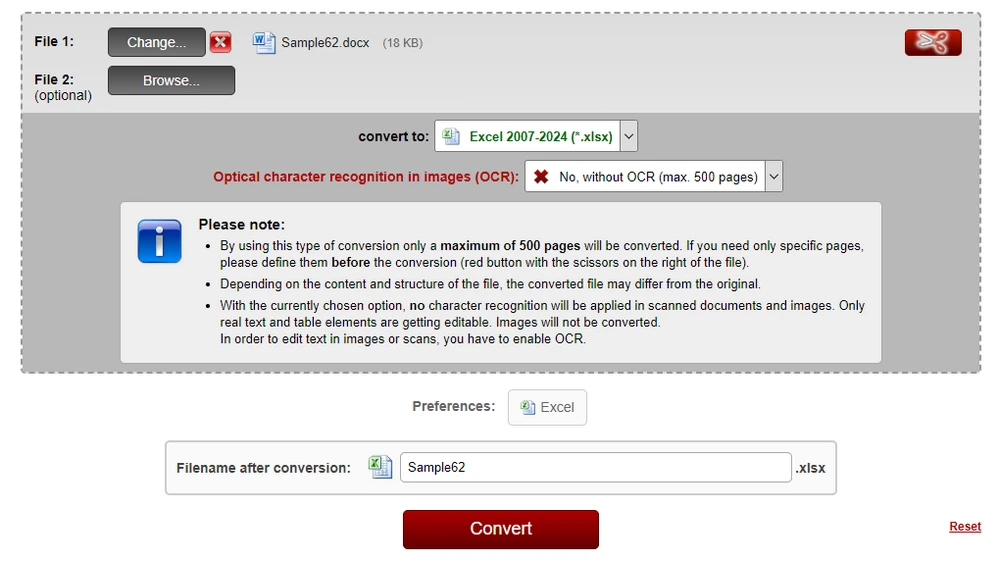
Online tools are often the first choice for users who need a quick, one-time conversion. For example, you can use the Online2PDF DOCX to XLSX converter to convert documents directly in your browser without installing additional software.
A typical workflow looks like this:
-
Open the online DOCX to XLSX converter.
-
Upload your Word (DOCX) file.
-
Start the conversion process.
-
Download the converted Excel (XLSX) file.
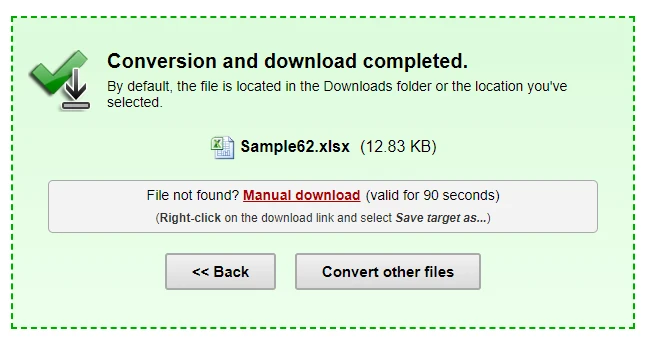
Many online converters support DOCX-to-XLSX conversion, making it easy to transform Word documents into editable spreadsheets within seconds.
Pros and Cons of Online DOCX to XLSX Converters
Advantages
- No software installation required
- Easy to use for beginners
- Suitable for small files and occasional tasks
Limitations
- File size and usage limits
- Potential privacy and data security concerns
- Limited control over formatting
- Not suitable for batch or automated processing
Online converters are convenient, but they are best suited for simple, non-sensitive files.
Many online tools support converting Word files into multiple formats. For example, you can also explore how to convert Word to PowerPoint when preparing presentation materials.
Method 2: Convert Word Content to Excel Using Desktop Software
For documents that contain structured or semi-structured data, desktop office software offers a practical way to move content from Word into Excel with a high level of visual control. Common tools include Microsoft Office and LibreOffice, which allow users to copy Word content and paste it directly into Excel spreadsheets.
While these desktop software does not provide a native “DOCX to XLSX export” feature, it can still produce reliable results—especially when Word documents contain tables.
Why Tables Convert More Accurately
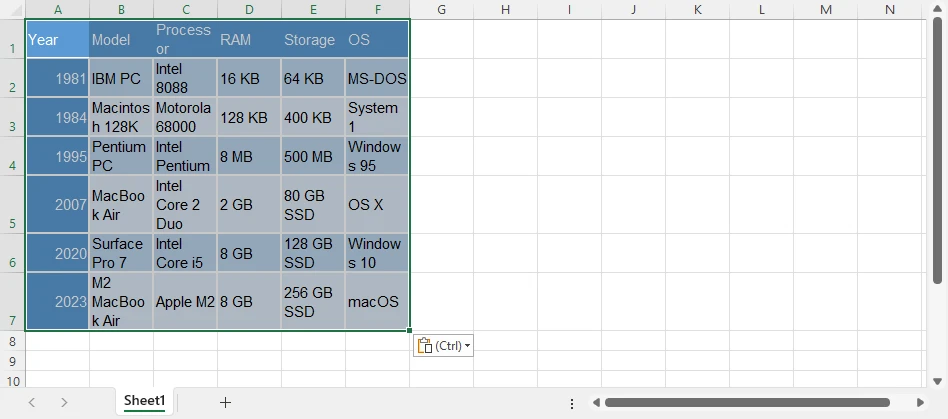
Most successful DOCX to XLSX conversions rely on table-based content. Tables in Word already define rows and columns, which closely align with Excel’s grid-based data model. When pasted into Excel, Word tables usually retain their structure, alignment, and cell boundaries with minimal adjustment.
Non-tabular content can also be transferred. Paragraphs, headings, and lists can be pasted into Excel cells, where each line is placed into individual rows. Although additional formatting may be required, this approach is often sufficient for organizing document content into a spreadsheet format.
Example: Copying Word Content into Excel Using Microsoft Office
Below is a typical workflow using Microsoft Office:
-
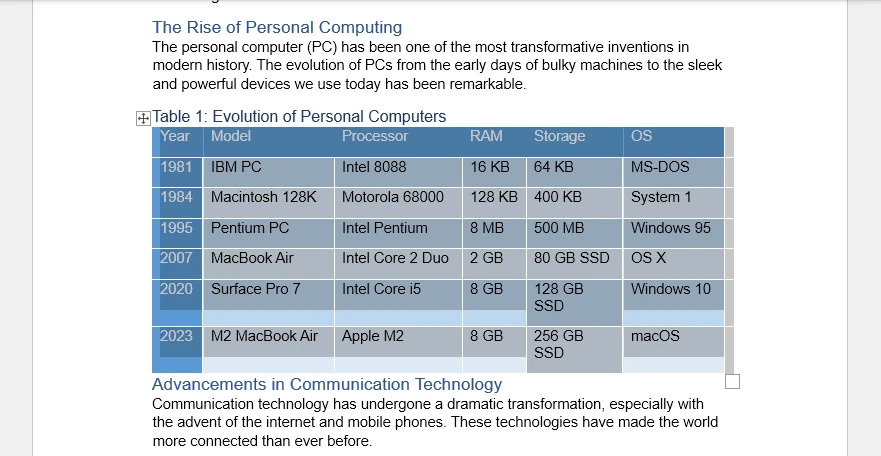
Open the DOCX file in Microsoft Word.
-
Select the content you want to transfer:
- Tables only, for best structural accuracy
- Or the entire document, if needed
-
Copy the selection (Ctrl + C).
-
Open Microsoft Excel and select the target worksheet.
-
Paste the content (Ctrl + V) into Excel.
-
Adjust column widths, cell alignment, or text wrapping as needed.
This method works particularly well for Word documents that primarily contain tables, forms, or structured layouts. If your document contains complex tables, you may benefit from learning how to extract tables from Word programmatically for greater accuracy and control.
Limitations of Desktop-Based Conversion
Although desktop tools provide flexibility and visual control, they have several limitations:
- No true DOCX to XLSX export or batch conversion
- Manual steps are required for each document
- Formatting consistency can be difficult to maintain across files
When dealing with multiple documents or recurring conversion tasks, manual desktop workflows can quickly become time-consuming. In such cases, automated or programmatic solutions are usually more efficient.
Method 3: Convert DOCX to XLSX with Python (Ideal for Automated Workflows)
When manual methods become inefficient, Python offers a scalable way to convert Word documents into Excel files. This approach is particularly valuable for developers who need consistent, repeatable results without relying on desktop applications.
Python-based conversion is well suited for:
- Batch processing large numbers of DOCX files
- Automated data pipelines
- Server-side document workflows
- Environments where Microsoft Office is unavailable
Compared with manual exports, scripting provides greater flexibility and significantly reduces repetitive work.
How Python Converts Word Data to Excel
A practical strategy is to extract structured data from Word—especially tables—and write it directly into an Excel workbook. Because tables already organize content into rows and columns, they translate naturally into spreadsheet format while preserving logical structure.
In this example:
- Spire.Doc for Python loads the DOCX file and retrieves table data.
- Spire.XLS for Python creates the Excel workbook and writes the extracted content into worksheets.
Combining these libraries enables a controlled, programmatic conversion process suitable for production environments.
Before using the libraries in your project, make sure you have installed the necessary packages. You can install them via pip:
Step-by-Step: Convert Word Tables to Excel with Python
Below is a typical workflow for converting DOCX tables to XLSX using Python:
-
Load the DOCX file Use Spire.Doc for Python to open the Word document.
-
Extract tables from the document Iterate through the document structure and retrieve table data.
-
Create an Excel workbook Initialize a new workbook using Spire.XLS for Python.
-
Write table data into worksheets Map rows and cells from Word tables into Excel rows and columns.
-
Save the file as XLSX Export the final result as an Excel spreadsheet.
Python Code: Convert DOCX Tables to XLSX
The following example demonstrates how to extract tables from a Word document and export them to an Excel worksheet.
from spire.doc import Document
from spire.xls import Workbook, Color

# Load the Word document
doc = Document()
doc.LoadFromFile("Sample.docx")

# Create a new Excel workbook
workbook = Workbook()
workbook.Worksheets.Clear()

# Iterate through all sections in the Word document
for sec_index in range(len(doc.Sections)):
    section = doc.Sections.get_Item(sec_index)
    # Iterate through all tables in the current section
    for table_index in range(len(section.Tables)):
        table = section.Tables.get_Item(table_index)
        # Create a worksheet for each Word table
        sheet = workbook.Worksheets.Add(f"Table-{table_index + 1}")
        # Iterate through rows in the Word table
        for row_index in range(len(table.Rows)):
            row = table.Rows.get_Item(row_index)
            # Iterate through cells in the current row
            for cell_index in range(len(row.Cells)):
                table_cell = row.Cells.get_Item(cell_index)
                # Collect all paragraph text inside the Word table cell
                cell_data = ""
                for para_index in range(len(table_cell.Paragraphs)):
                    para = table_cell.Paragraphs.get_Item(para_index)
                    cell_data += para.Text + "\n"
                # Write text to the corresponding Excel cell
                cell = sheet.Range.get_Item(row_index + 1, cell_index + 1)
                cell.Value = cell_data
                # Copy the Word table cell background color to Excel
                # Note: Color must be assigned directly to the Style to take effect
                table_cell_color = table_cell.CellFormat.BackColor
                cell.Style.Color = Color.FromRgb(
                    table_cell_color.R,
                    table_cell_color.G,
                    table_cell_color.B
                )
        # Auto-fit columns after writing the table
        sheet.AllocatedRange.AutoFitColumns()

# Save the Excel file
workbook.SaveToFile("WordTableToExcel.xlsx")
Below is a preview of the XLSX file converted from the Word document:
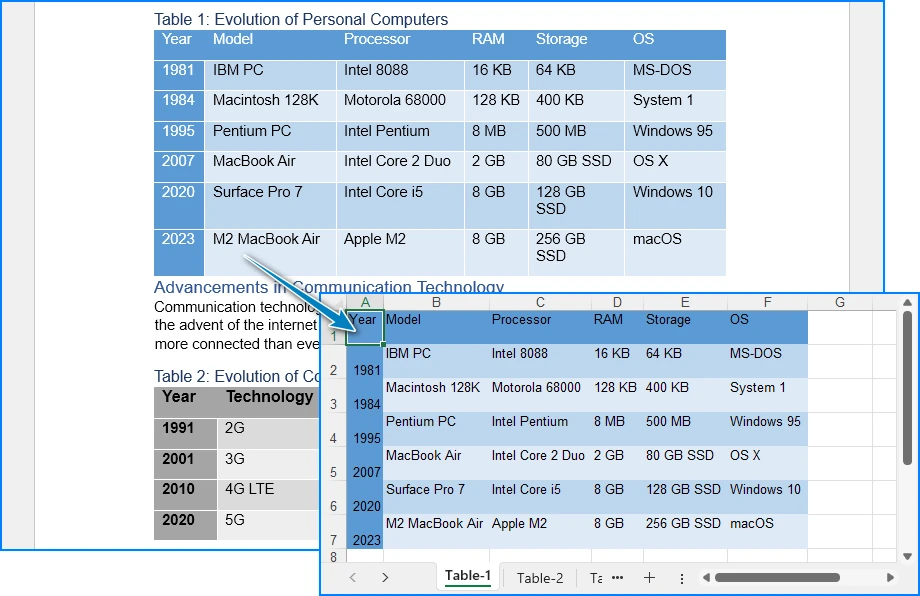
This approach is especially useful for structured documents, reports, and form-based Word files where tables represent the core data.
For more advanced Python techniques, including preserving table formatting and styles during Word-to-Excel conversion, check out our detailed guide on converting Word tables to Excel with Python.
Compare DOCX to XLSX Conversion Methods
Choosing the right method depends on factors such as document volume, automation needs, and data sensitivity. The table below provides a quick overview to help you evaluate each option.
| Method | Best For | Automation Level | Advantages | Limitations |
|---|---|---|---|---|
| Online Converter | One-time tasks | None | Fast and easy | Privacy risks, limited accuracy |
| Desktop Software | Small workloads | Low | Visual control | Time-consuming, not scalable |
| Python Automation | Large workflows | High | Flexible, repeatable | Requires programming |
How to Choose the Right Method
- Use online converters when speed matters and the files are not sensitive.
- Choose desktop software if you prefer manual control for a small number of documents.
- Opt for Python automation when handling large datasets or building repeatable workflows.
For ongoing or business-critical processes, automated solutions typically provide greater long-term efficiency and consistency.
FAQ: DOCX to XLSX Conversion
Can I convert any Word document to Excel?
Most Word files can be converted, but documents with tables or structured data work best. Free-form text and complex layouts may need adjustment after conversion.
Will the formatting stay the same after conversion?
Not always. Word and Excel handle layouts differently, so some spacing, merged cells, or text flow may change. Minor adjustments in Excel are usually needed.
Can I convert only tables from Word to Excel?
Yes. If your Word document contains tables, you can extract just the tables for a more accurate and reliable conversion.
What is the easiest way to convert multiple DOCX files?
For multiple files, automated solutions or batch tools—like Python libraries—can save time and ensure consistent results, especially for large documents.
Conclusion
Converting DOCX to XLSX is not a one-size-fits-all task. While online and desktop tools are useful for simple scenarios, they often fall short when accuracy, scalability, or automation is required.
By understanding the structure of your Word documents and choosing the right conversion approach, you can achieve reliable results. For developers and advanced users, Python offers a powerful and flexible way to convert Word tables into Excel spreadsheets efficiently.