Markdown (MD) has become one of the most widely used formats for writing documentation, technical blogs, README files, and reports. However, when it comes to sharing finalized documents, printing reports, or distributing professional materials, Markdown files are not always ideal. This is why many users need to convert Markdown to PDF - a format that preserves layout, ensures consistent display across devices, and is universally accepted.
This guide will explore how to convert Markdown files to PDF while maintaining your content's structure and formatting. Whether you are a developer, technical writer, researcher, or content creator, you will find the suitable Markdown to PDF conversion method for your needs.
We'll cover:
- What is Markdown
- Why Convert Markdown to PDF
- How to Convert Markdown to PDF: 3 Reliable Methods
- Best Practices for High-Quality Conversion Result
What Is Markdown?
Markdown is a lightweight markup language created by John Gruber in 2004. It allows you to format plain text using simple symbols rather than complex formatting tools. This makes it ideal for writing documentation, notes, blog posts, and even academic papers.
Some basic Markdown elements include:
- # Heading creates a title
- _italic_ produces italicized text
- - list items generate bullet lists
Markdown files typically use .md or .markdown extensions and can be converted to other formats like HTML, PDF, Word documents, and even eBooks.
Why Convert Markdown to PDF
While Markdown is ideal for drafting and editing content, PDF is the preferred format for sharing, printing, and professional distribution. Converting your Markdown files to PDF offers several key benefits:
- Professional Presentation: PDFs provide a clean, polished format that's perfect for reports, guides, and technical documentation.
- Seamless Sharing and Printing: PDFs are universally supported and maintain formatting integrity when shared or printed.
- Consistent Formatting: Unlike plain text, PDFs maintain the structure, headings, bullet points, and other elements of your Markdown file, ensuring the content looks the same across all devices.
By converting Markdown to PDF, you ensure that your content is both professional and accessible to a wider audience.
How to Convert Markdown to PDF
There are various ways to convert Markdown to PDF, each catering to different needs. In this section, we'll explore three reliable methods-ranging from online tools to desktop applications and automated Python scripts-comparing their pros, cons, and ideal use cases to help you choose the best solution.
1. Convert Markdown to PDF Using Free Online Tools
Online Markdown to PDF converters offer the fastest and most convenient way to convert a Markdown file into PDF. These tools allow you to simply paste or upload your Markdown content and generate a PDF within moments. They are ideal for quick conversions, occasional users, or when installing local software is not an option.
Popular Online Markdown to PDF Converters:
- MarkdowntoPDF: A straightforward online tool that allows you to paste your Markdown content and download the PDF version instantly.
- CloudConvert: A versatile platform supporting a variety of file conversions, including Markdown to PDF.
Steps to Convert Markdown to PDF Online (Using MarkdowntoPDF as an Example):
-
Open the Online Markdown to PDF Converter.
-
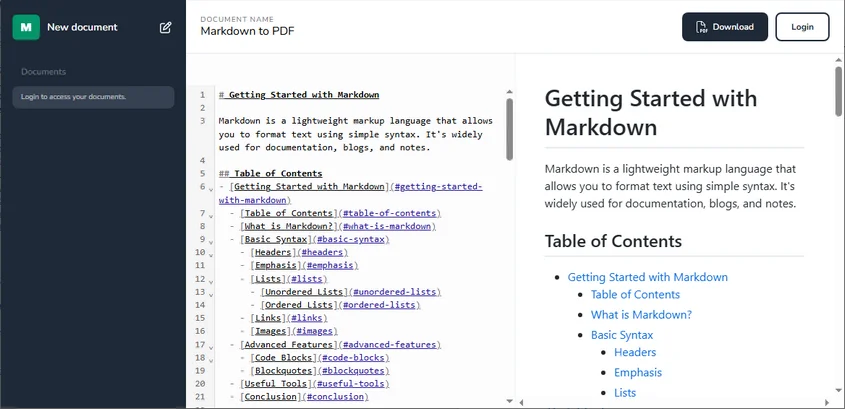
Paste your markdown content into the designated area at the left side of the webpage.
-
Click on the Download button in the top-right to download the PDF file.
Pros:
- Quick & Simple: No software installation or complicated setup required-perfect for on-the-go conversions.
- Device-Friendly: Accessible from any device with an internet connection, offering convenience wherever you are.
- Free of Charge: Most online tools provide free conversions with no hidden fees or subscriptions.
Cons:
- Limited Customization: These tools generally offer minimal formatting options, which may restrict control over the final PDF appearance.
- Privacy Risks: Uploading sensitive or confidential documents to third-party websites can pose potential security and privacy concerns.
Best For:
- Quick, small document conversions that don't require advanced formatting.
- Users looking for a straightforward, browser-based solution without the need for additional software.
2. Convert Markdown to PDF Using Desktop Markdown Editors
If you need more control over the formatting of your document or prefer working offline, desktop Markdown editors like Typora and Visual Studio Code (VS Code) are excellent choices. These tools allow for more customization and are ideal for larger or more complex documents.
a. Using Typora
Typora is a well-known Markdown editor with a clean interface and a real-time preview feature. It enables users to easily edit and export Markdown content to PDF. Typora is an excellent choice for developers, technical writers, and content creators who seek a simple, distraction-free writing environment without complicated setups.
Steps to Convert Markdown to PDF with Typora:
-
Install Typora: Download Typora from its official website (available for Windows, macOS, and Linux) and install it.
-
Open Your Markdown File: Launch Typora and open your Markdown file by selecting File → Open or dragging and dropping the .md file into the editor window.
-
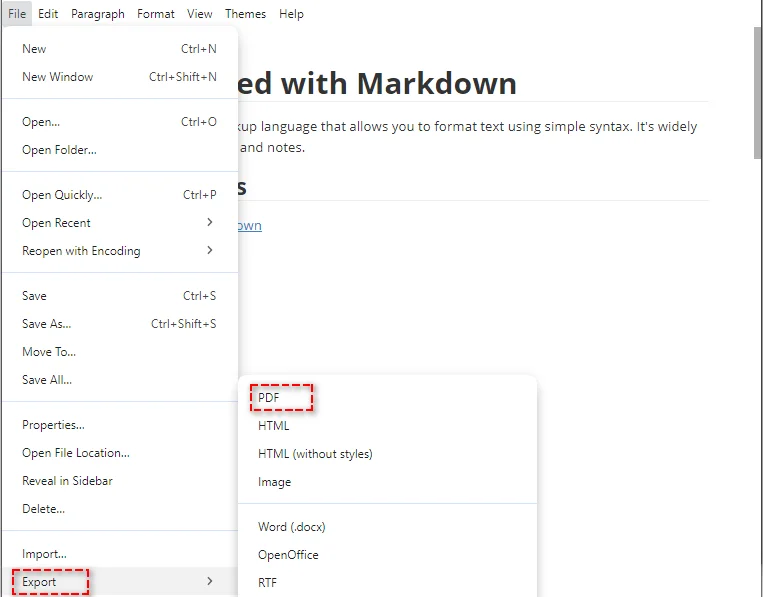
Export to PDF: Once your document is ready, go to File → Export → PDF, then choose a destination folder and save the PDF.
Pros:
- Live Preview: Instant preview of how the final PDF will look.
- Simple Interface: Distraction-free and simple design, perfect for writing.
- Offline Use: Works without an internet connection.
Cons:
- No Batch Support: You can only convert one file at a time.
Best for:
- Quick, single-file conversions.
- Users looking for a simple, distraction-free writing experience.
- Offline work with no need for an internet connection.
b. Using Visual Studio Code (VS Code)
VS Code is a highly versatile code editor that can also be used for Markdown editing and conversion with the help of extensions like Markdown PDF. It's particularly suitable for developers or advanced users who need more control over the conversion process.
Steps to Export Markdown to PDF Using VS Code:
-
Install VS Code: Download and install Visual Studio Code if you haven't already.
-
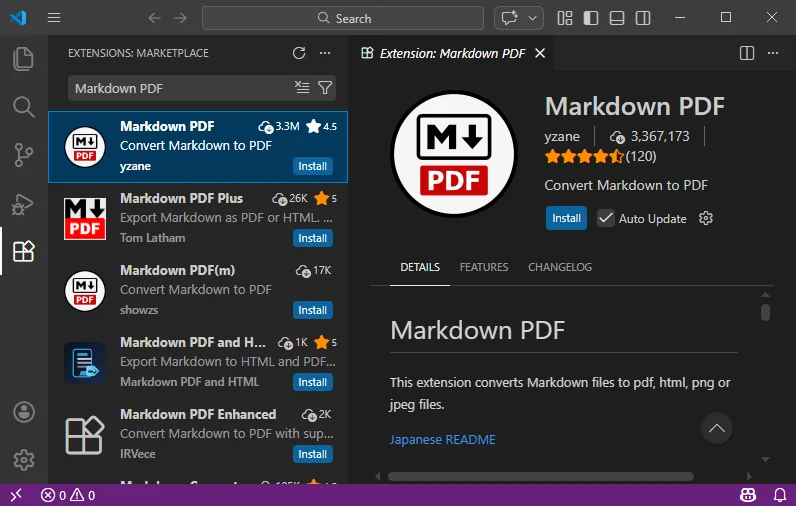
Install the Markdown PDF Extension: Go to the Extensions Marketplace, search for the Markdown PDF extension, and install it.
-
Open Your Markdown File: Open your Markdown file in VS Code.
-
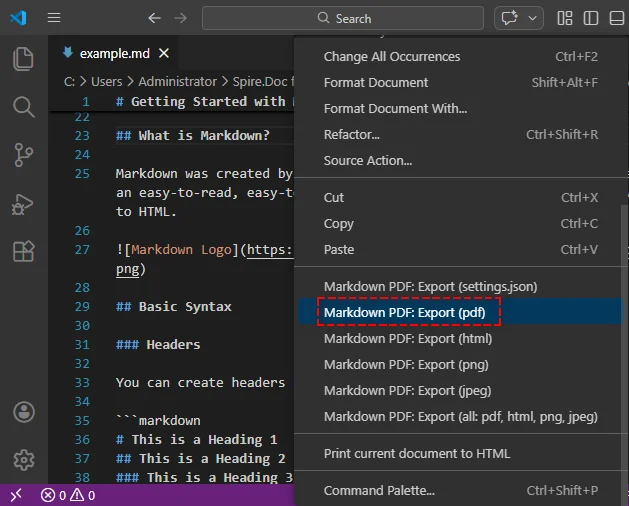
Export to PDF: Right-click inside the editor window, then select Markdown PDF: Export (pdf) from the context menu. The PDF will be generated and saved in the same folder as your Markdown file.
Pros:
- Highly Customizable: Offers detailed control over the PDF output format, including additional settings and templates.
- Supports Multiple Formats: In addition to PDF, VS Code can convert Markdown to other formats like HTML, PNG and JPEG images, making it a versatile tool for different content needs.
- Ideal for Developers: If you're already using VS Code for development, it seamlessly integrates Markdown conversion without needing to switch tools.
Cons:
- Extension Required: You must install the Markdown PDF extension and possibly configure extra settings.
- Complex for Beginners: VS Code can be overwhelming if you're only using it for Markdown-to-PDF conversion, as it's primarily a development tool.
- No Built-in Batch Processing: Like Typora, VS Code does not natively support batch conversions, though this can be accomplished with custom scripting.
Best For:
- Developers or frequent Markdown users who are already using VS Code.
- Users needing advanced customization and control over the PDF output.
3. Automate Bulk Markdown to PDF Conversion Using Python
For developers or teams dealing with large volumes of Markdown files, manually converting each document can be inefficient. Automating this process with Python not only saves time but also ensures consistency across your documents. Python libraries like Spire.Doc for Python allow you to batch convert Markdown files to PDF, making it ideal for automated documentation pipelines or report generation.
Steps to Batch Convert Markdown to PDF Using Python:
-
Install the Required Library:
First, install spire.doc from PyPI using pip:
pip install spire.doc -
Write a Python Script:
Create a Python script to convert multiple markdown files. Here's a simple example that converts all MD files under a specific directory to PDF:
import os from spire.doc import * # Create an object of the Document class doc = Document() # Define the directory where your Markdown files are stored input_directory = "input_directory_path" # Replace with your input folder path output_directory = "output_directory_path" # Replace with your output folder path # Ensure output directory exists if not os.path.exists(output_directory): os.makedirs(output_directory) # Loop through all files in the input directory for filename in os.listdir(input_directory): if filename.endswith(".md"): # Check if the file is a Markdown file input_file_path = os.path.join(input_directory, filename) # Create output file path with .pdf extension output_file_path = os.path.join(output_directory, f"{os.path.splitext(filename)[0]}.pdf") # Load the Markdown file doc.LoadFromFile(input_file_path, FileFormat.Markdown) # Save the file to a PDF document doc.SaveToFile(output_file_path, FileFormat.PDF) # Dispose of the Document object doc.Dispose() print("Batch conversion completed successfully!") -
Run the Script:
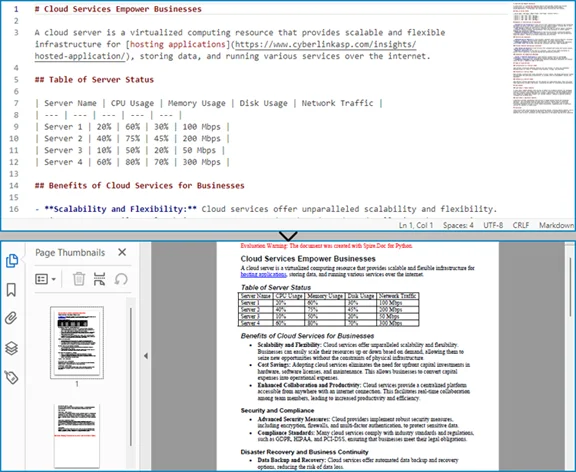
Run your script in your Python environment. The Markdown file will be converted to PDF and saved to the specified output location.
Pros:
- Batch Processing: Automate the conversion of multiple files at once, saving time and effort.
- Advanced Features: Easily integrate into larger workflows or automated systems for more complex document processing.
Cons:
- Technical Skills Required: Requires knowledge of Python and the library involved.
- Setup Time: Takes some time to install dependencies and write the conversion script.
- No GUI: Lacks a graphical user interface, making it less user-friendly for non-developers.
Best For:
- Developers or enterprises who need to convert large numbers of Markdown files to PDF without manual effort.
Best Practices for High-Quality Markdown to PDF Conversion
To ensure your Markdown to PDF conversion is smooth and the final PDF looks professional, consider the following best practices:
- Use clean Markdown syntax: Ensure all headings, lists, and code blocks are formatted correctly to prevent issues during conversion.
- Preview the output: Always check the PDF preview to ensure the document looks the way you want it to before finalizing the conversion.
- Optimize images: If your document includes images, make sure they are the right size and resolution for printing.
- Consider page breaks: In longer documents, use page breaks to ensure the layout remains neat in the PDF version.
Real-World Use Cases of Markdown to PDF Conversion
Markdown to PDF conversion is widely used in various scenarios, including:
- Technical Documentation: Developers and engineers often convert Markdown files into PDFs for manuals and guides.
- Reports and Academic Papers: Many researchers and students use Markdown for writing papers, then convert them to PDF for submission.
- Books and eBooks: Authors can draft content in Markdown and later convert it to PDF for printing or distribution.
Final Thoughts and Recommendations
Now that you understand how to convert Markdown to PDF, here's a quick guide to help you choose the right method for your needs:
- Online tools: Best for quick, one-off conversions when you need a fast and easy solution without installing software.
- Desktop editors: Ideal for users who need more control over formatting or who work with larger or more complex documents.
- Python automation: Perfect for those who need to convert multiple files at once or integrate the conversion process into a larger automated workflow.
Select the method that aligns with your needs to save time, improve efficiency, and streamline your Markdown-to-PDF process.
FAQs About Converting Markdown to PDF
Q1: How do I convert Markdown to PDF?
A1: To convert Markdown to PDF, you can use online tools like MarkdowntoPDF, desktop editors like Typora, or automate the process with Python scripts.
Q2: What is the easiest way to convert Markdown to PDF?
A2: The easiest way is by using free online converters like MarkdowntoPDF, where you paste your Markdown and download the PDF instantly.
Q3: Can I convert multiple Markdown files to PDF at once?
A3: Yes, using Python with libraries like Spire.Doc, you can automate the batch conversion of Markdown files to PDF with a simple script.
Q4: Why should I convert Markdown to PDF?
A4: Converting Markdown to PDF ensures your content is consistently displayed across devices, making it ideal for sharing, printing, and professional distribution.