In This Post:
- HTML vs. Image Formats: Key Differences and When Conversion Makes Sense
- Method 1. Save HTML Files to PDF and then Image
- Method 2. Convert HTML to Image Online Using CloudXDocs
- Method 3. How to Convert HTML to Image in Java with Spire.Doc
- Final Thoughts
- FAQs
Converting HTML files into images is a common requirement in many real-world scenarios, such as generating previews, archiving web-based reports, or embedding content into PDFs. While HTML is flexible and dynamic, differences in browsers, fonts, and rendering environments can lead to inconsistent display results. By converting HTML into static images, you can preserve the original visual appearance and ensure consistent rendering across platforms.
In this article, we'll explore several ways to convert HTML to images. We'll cover a browser-based method, an online tool like CloudXDocs, and a Java solution using Spire.Doc. Each method serves different scenarios, so you can pick the one that works best for you.
HTML vs. Image Formats: Key Differences and When Conversion Makes Sense
Although both HTML and image formats are widely used to present visual content, they are designed for fundamentally different goals. Understanding these differences is essential for choosing the correct output format in real-world applications.
Key Differences Between HTML and Image Formats
| HTML | Image (PNG, JPG, etc.) | |
|---|---|---|
| Rendering | Depends on browser and rendering engine | Fixed visual output |
| Layout | Responsive and dynamic | Static and fixed |
| Interactivity | Supports scripts, links, and user actions | Non-interactive |
| Visual Consistency | May vary across browsers and devices | Identical everywhere |
| Runtime Dependency | Requires HTML/CSS rendering environment | Self-contained |
| Output Stability | Affected by CSS, fonts, and viewport | Immune to environmental changes |
HTML is well suited for displaying dynamic and interactive content in a browser. However, this flexibility also introduces uncertainty: the same HTML may render differently depending on browser engines, screen sizes, font availability, or user settings. In contrast, an image represents a finalized visual state that no longer depends on external rendering conditions.
Why Convert HTML to Image
Converting HTML to an image is not merely a format change; it is a way to freeze the visual result of web content and eliminate variability introduced by runtime environments. This approach becomes especially valuable in situations where predictability, repeatability, and downstream compatibility are critical.
Specifically, HTML-to-image conversion is the right choice when:
- Exact visual fidelity is required: When layout, typography, and styling must appear exactly the same for all users, images remove browser- and device-related differences.
- HTML rendering is unavailable or undesirable: Backend services, document pipelines, or third-party systems often cannot render HTML reliably, but can easily handle image files.
- Content needs to be embedded or reused: Images can be directly inserted into PDFs, Word documents, presentations, emails, or reports without additional rendering logic.
- Dynamic or styled content must be captured as a snapshot: Dashboards, charts, or generated pages can be converted into images to preserve a specific state in time.
- Long-term storage or compliance is required: Images ensure that archived content remains visually intact even if CSS, scripts, or external resources change in the future.
- Automated or batch processing is involved: Server-side conversion enables scalable generation of previews, thumbnails, and visual assets without manual intervention.
In these scenarios, converting HTML into image formats such as PNG or JPG provides a stable and predictable output, making it easier to integrate web-based content into broader application workflows.
Method 1. Save HTML Files to PDF and then Image
Pros:
- Uses built-in browser functionality
- High rendering accuracy for static HTML and CSS
- Works offline once the browser is installed
Cons:
- Manual process, not suitable for automation
- Limited control over resolution and output size
- Not ideal for dynamic or JavaScript-heavy pages
Best for: one-off conversions, static HTML pages, quick previews or documentation snapshots, and environments with strict software installation policies
If your goal is to convert HTML to an image without relying on the Internet and for one-time conversion only, a practical workaround is to introduce a document format as an intermediate step. Modern browsers already provide built-in capabilities to render HTML accurately and export it as a PDF. By first saving the HTML file as a PDF and then converting that PDF into an image, you can achieve reliable visual results while keeping the workflow simple. This approach is especially suitable for static pages, quick previews, or environments where installing additional software is not an option.
Specific steps are listed below:
Step 1. Open the HTML file in a modern browser such as Chrome or Edge. Press Ctrl + P (or Cmd + P on macOS) to open the print dialog.
Step 2. Select "Save as PDF" as the destination and adjust layout settings if needed.
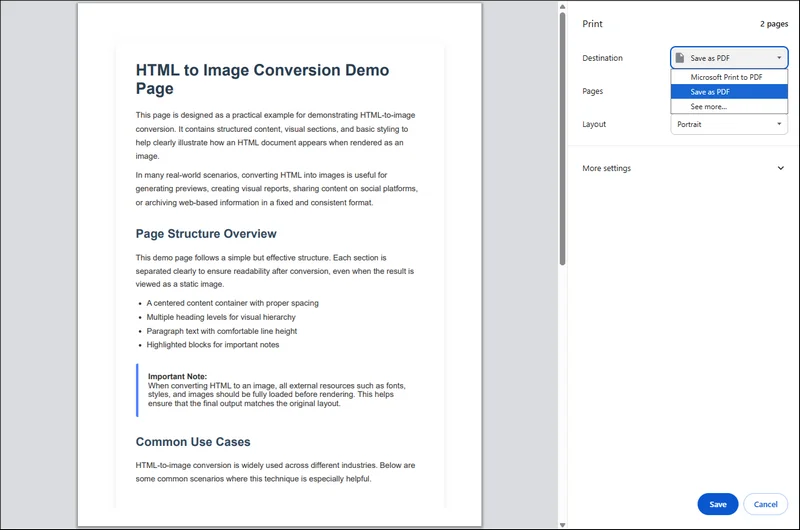
Step 3. Click the "Save" button below to export the HTML file as a PDF.
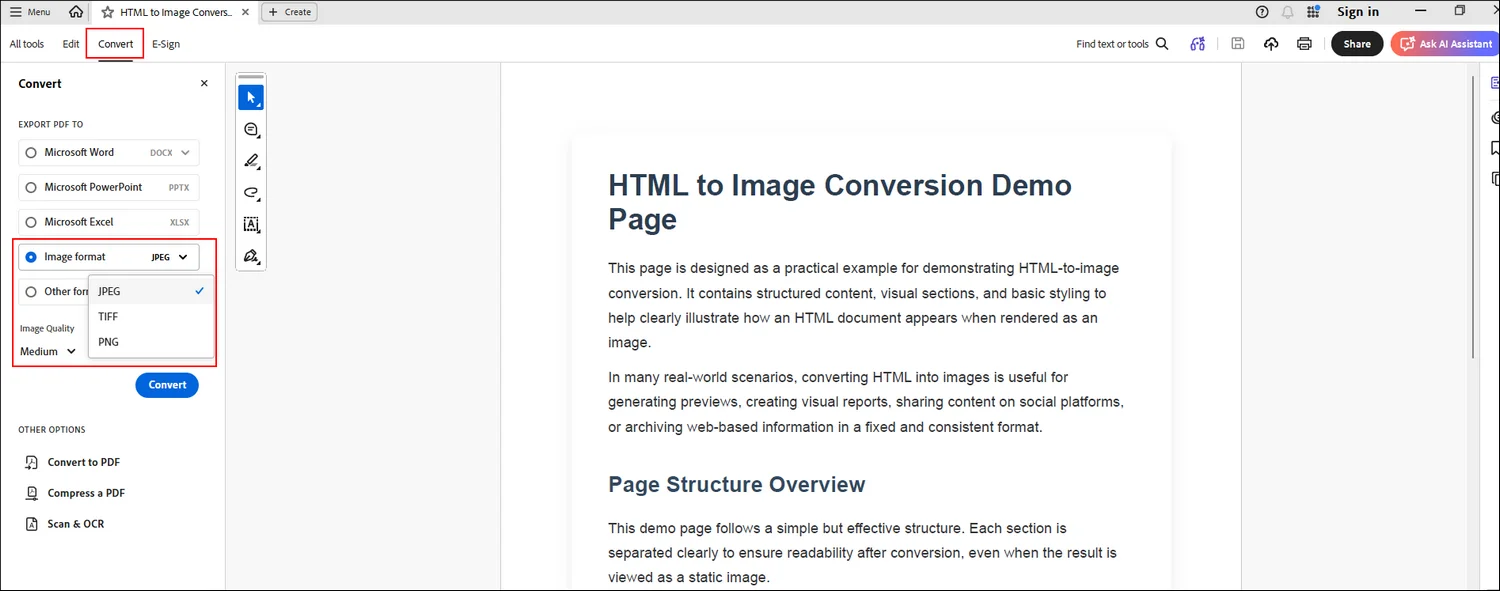
Step 4. Open the converted PDF file with Adobe Acrobat. Go to the "Convert" tool to choose the specific image format you want to convert with.
Method 2. Convert HTML to Image Online Using CloudXDocs
Pros:
- No coding required
- Fast and easy to use
- Accessible from any device with a browser
- No local installation needed
Cons:
- Requires an internet connection
- Not suitable for sensitive or confidential data
Best for: non-technical users, occasional HTML-to-image conversions, marketing, design, documentation tasks, and testing conversion output before automation
After exploring the approach of converting HTML to PDF first and then exporting the PDF as an image, it's worth noting that this workflow is not always necessary—especially when you don't need full control through code or when the conversion task is relatively simple. For users who prefer a quicker, more lightweight solution, online HTML-to-image tools offer a practical alternative.
CloudXDocs Online HTML to Image Converter provides a browser-based solution that allows you to upload HTML files and convert them directly into image formats with just a few clicks. This makes it particularly useful for non-technical users, as well as for developers who want to quickly preview or validate conversion results before implementing an automated workflow.
Specific steps to use CloudXDocs HTML to Image Converter:
Step 1. Go to the official website of CloudxDocs Online HTML to Image Converter first. You can drag or click from the main interface to upload the original HTML file.
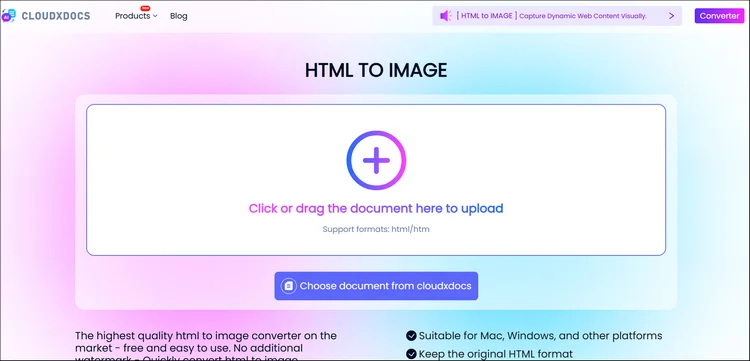
Step 2. Wait a few seconds as CloudXDocs automatically analyzes the uploaded HTML file and begins the conversion process.
Step 3. After conversion, you can download the zipped file which includes the converted image files from the result page. Download and unzip it to save all the images to your local computer.
Method 3. How to Convert HTML to Image in Java with Spire.Doc
Pros:
- Fully automated and scalable
- High accuracy for complex layouts
- No Microsoft Word dependency
- Suitable for server-side and enterprise use
Cons:
- Requires Java development experience
- Needs library integration and configuration
- Licensing required for production use
Best for: developers, backend or server-side applications, batch or large-scale HTML-to-image conversions, and enterprise document processing systems
While online tools are convenient for quick or occasional conversions, they may not be the best choice when you need automation, scalability, or full control over the conversion process. In production environments or backend workflows, developers often require a programmatic solution that can be integrated directly into Java applications.
In such cases, using Java code to convert HTML to images becomes a more reliable and flexible approach. Spire.Doc for Java provides a powerful API that allows you to load HTML content, convert it into documents, and export the result as images with high fidelity. This method is especially suitable for developers who need batch processing, consistent output, or seamless integration into existing systems without relying on external services.
Why Choose Spire.Doc?
Spire.Doc is a document processing library that supports HTML import and image export without requiring Microsoft Word or any third-party dependencies. It is well-suited for server-side environments and enterprise applications.
Key advantages include:
- Support for complex HTML content
- Accurate layout and formatting
- Multiple output image formats
- Simple and intuitive API
For scenarios that require automation and high conversion accuracy, Spire.Doc offers a robust solution for converting HTML content into images. As a professional document-processing library, Spire.Doc supports importing HTML and exporting it to various image formats without relying on external applications.
To Convert HTML to images with Spire.Doc for Java:
Step 1. Install Spire.Doc for Java
First, add Spire.Doc.jar file as a dependency in your Java program. You can download the .jar file from the official download link.
If you are using Maven, you can add the following code to your project's pom.xml file to add the dependency easily:
<repositories>
    <repository>
        <id>com.e-iceblue</id>
        <name>e-iceblue</name>
        <url>https://repo.e-iceblue.com/nexus/content/groups/public/</url>
    </repository>
</repositories>
<dependencies>
    <dependency>
        <groupId>e-iceblue</groupId>
        <artifactId>spire.doc</artifactId>
        <version>14.8.4</version>
    </dependency>
</dependencies>
Use the following sample code to convert HTML to image:
import com.spire.doc.Document;
import com.spire.doc.FileFormat;
import com.spire.doc.Section;
import com.spire.doc.documents.ImageType;
import com.spire.doc.documents.XHTMLValidationType;

import javax.imageio.ImageIO;
import java.awt.image.BufferedImage;
import java.io.File;
import java.io.IOException;

public class ConvertHtmlToImage {

    public static void main(String[] args) throws IOException {

        // Create a Document object
        Document document = new Document();

        // Load an HTML file
        document.loadFromFile("src\\main\\resources\\sample.html", FileFormat.Html, XHTMLValidationType.None);

        // Get the first section
        Section section = document.getSections().get(0);

        // Set the page margins
        section.getPageSetup().getMargins().setAll(2);

        // Convert the document to an array of BufferedImage
        BufferedImage[] images = document.saveToImages(ImageType.Bitmap);

        // Iterate through the images
        for (int index = 0; index < images.length; index++)
        {
            // Specify the output file name
            String fileName = String.format("output\\sample-html-to-image_%d.png", index);

            // Save each image as a PNG file
            File file= new File(fileName);
            ImageIO.write(images[index], "PNG", file);
        }

        // Dispose resources
        document.dispose();
    }
}
RESULT:
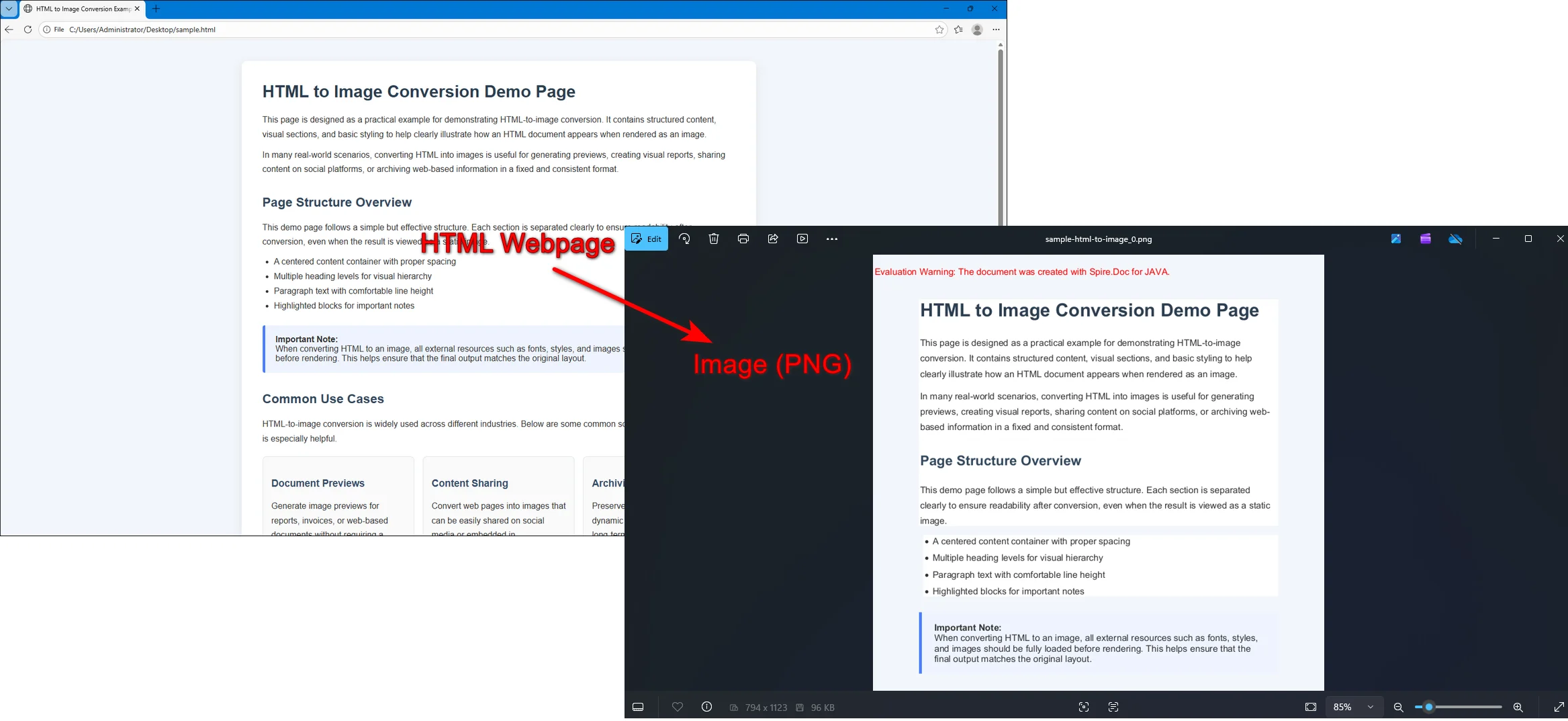
Internally, Spire.Doc converts HTML into a Word document model before rendering it to images. This allows developers to adjust page settings such as margins, paper size, and layout before exporting, ensuring better control over the final image output.
Final Thoughts
Converting HTML to images ensures consistent visual output, reduces rendering variability, and makes content easier to share, store, or embed across different platforms and documents. By turning dynamic web pages into static images, you can preserve the exact layout, styling, and typography without worrying about browser differences or missing resources.
- For quick, one-off tasks, saving HTML as PDF and then exporting to an image works well.
- For fast, no-code conversions, CloudXDocs provides a convenient online solution.
- For automated, scalable workflows, Spire.Doc for Java offers precise control and reliable results.
Consider your workflow, technical requirements, and desired output quality to choose the method that best fits your needs, ensuring your HTML content is preserved exactly as intended and looks consistent wherever it is used.
FAQs:
Q1. Is HTML-to-image conversion free?
A: Yes, HTML to image conversion can be free, depending on the tool you use. Many online converters and open-source libraries offer free options for basic or occasional use.
Q2. Which image formats are supported when converting HTML?
A: Common formats include PNG, JPG, and BMP. PNG is generally preferred for high-quality, lossless images, while JPG can be used for smaller file sizes.
Q3. Will the converted image look exactly like the original HTML page?
A: For static HTML with standard CSS, images typically preserve layout and styling accurately. However, dynamic content, animations, or scripts may not appear in the converted image unless captured at the right moment.
Also Read: